Designer Spotlight: November 2020

Wimpychompers!

Here we are in November already. 2020 has, in so many ways, definitely been an annus horribilus, to steal from the Queen. Hopefully there are better days ahead!

I’d like to introduce you all to Christina, the creative genius behind Wimpychompers. (I just wish I would have thought to ask her how she came up with that name… I’m sure there’s a story there!) She’s in the Designer Spotlight this month and has gifted all of us with a fabulous Daily Download. Make sure you’re picking up your pieces while they’re available.

J: How long have you been designing?

C: I want to say 10 or 11 years

J: What made you decide to design?

C: I got really interested in making signatures in forums actually. I started messing around with Paint Shop Pro (ha) and ended up writing tutorials for signature making. I swore I would never start digital scrapbooking as I did paper scrapping at the time but soon changed my mind. Once I started figuring out the program I switched to digital, then decided I loved designing.

J: What do you use to create your designs (program, additional tools, etc.)?

C: Mostly Photoshop but I have recently gotten my hands on Procreate so we will see if I add my own drawings to my items

J: Describe your design workplace.

C: My couch. (laughs). I sit on the couch with a lap desk, it’s the most comfortable and especially helpful now that my kids are doing school from home and have taken all of our desks.

J: What motivates and inspires you as a designer?

C: I love looking at colors on Pinterest but mostly I am theme driven. I especially love to do kits I know I could use.

J: What is your favorite kit currently in your GS store and why?

C: Can I say all of them? (ha). I would say the entire When I Grow Up series, it’s not technically one kit but that one took a lot of time and makes me smile, each kit being so different.

J: If you could only eat one meal for the rest of your life, what would it be?

C: Ooh, dangerous. Cinnamon rolls probably although my waistline may not appreciate that one

J: What is your favorite game or sport to watch and play?

C: I don’t watch sports but I love playing Lego video games with my kids, it can be therapeutic to smash everything in the game.

J: What did you want to be when you were small?

C: A children’s book author, a teacher, and a ballerina

J: Aside from necessities, what one thing could you not go a day without?

C: Hugs from my kids, they are teens so it’s not as often anymore and I take them when I can!

J: Who would you want to play you in a movie of your life?

C: I’ve never considered this one. Maybe someone like Kristin Bell

J: If you had a warning label, what would yours say?

C: Caution: Can go off on a tangent with no warning!

J: What celebrity would you like to meet at Starbucks for a cup of coffee?

C: Maybe Reese Witherspoon

Before we say thanks and see ya to Christina, I think I should tell you that she’s put everything in her store on sale at 30% off for the WHOLE MONTH of November!! That’s really generous, and I bet it boosts her sales pretty nicely, just in time for Black Friday and Christmas. I’m going to check it out right now!

Tutorial Tuesday (Photoshop Elements/Windows)

Preferences and Settings


Thank you all again for your kind thoughts and prayers for my dad. You’ll be happy to know that he had his “big” surgery yesterday and is doing well today. He’s hoping to be home on Friday and that life will go back to normal for all of us. Now let’s talk about settings and preferences.

It hadn’t really occurred to me that this topic would be all that helpful, since preferences are quite individual. But a message from Ellen (gmae) told me maybe it would be something we could talk about. She messaged me to ask about layer thumbnails. “When you do your screen shots of the layers panel you can see your layers so well. I have to guess unless its a large background. is there a setting somewhere I am missing? I have looked at the general presets and nothing seems like it addresses the size of an image in the layers panel.” It’s actually a really simple thing to make the layer thumbnail fill the whole box. If someone like Ellen, who’s been digiscrapping for a long time, wasn’t sure how to do it then for sure there are people who are just learning the ins and outs who could benefit from some info about preferences and settings. There are a LOT of screenshots in this tutorial but they DON’T represent steps, so don’t be intimidated. I want to make what I’m showing you as clear as possible. (The thumbnail solution is one of the last things I’ll show you today.)

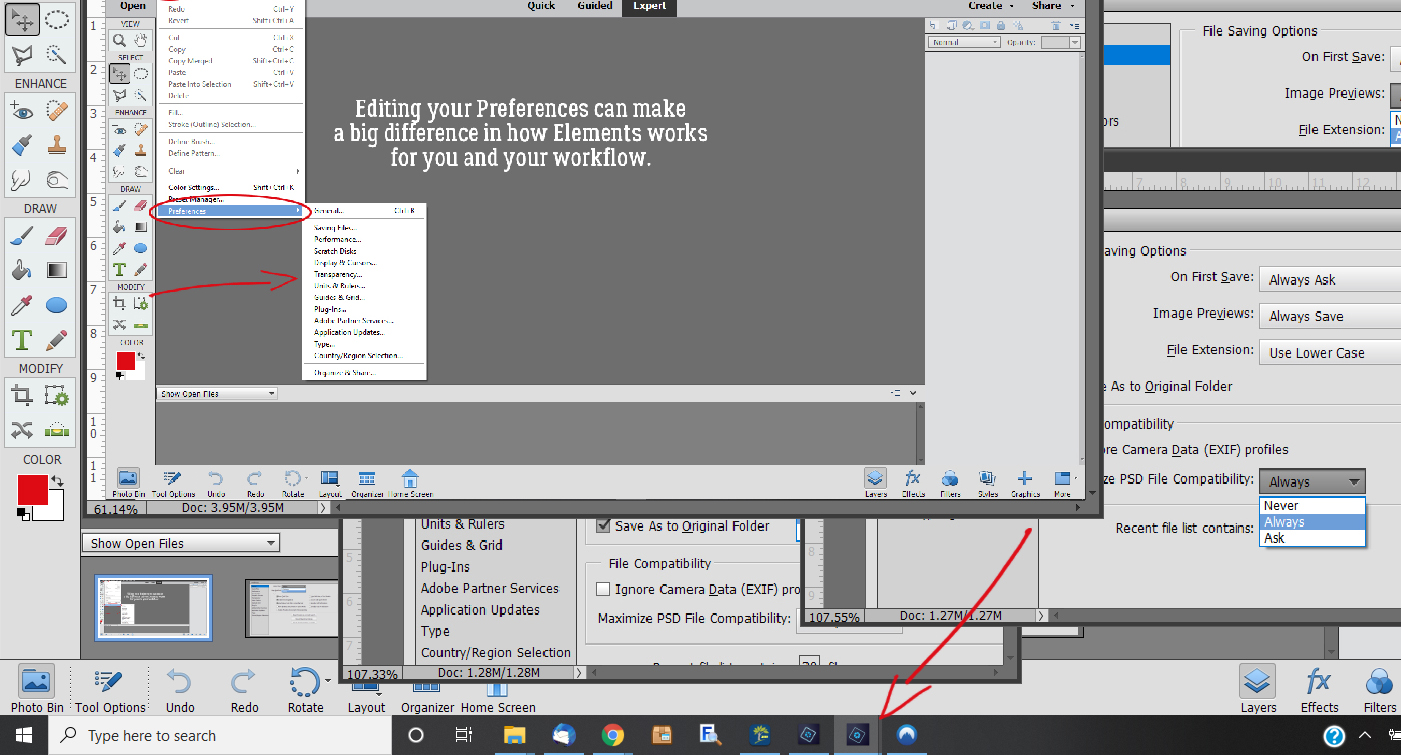
First, you can’t Edit Preferences if you don’t even know why you’d want to or if it’s possible. Customizing the way your software behaves is a big part of streamlining and improving workflow, making it easier to do the things you want. Under the Edit tab, Preferences is found at the bottom of the dropdown menu. Clicking on it opens another dropdown menu with a list of what can be changed. I’m going to go through each item on the list and expand on what they do.

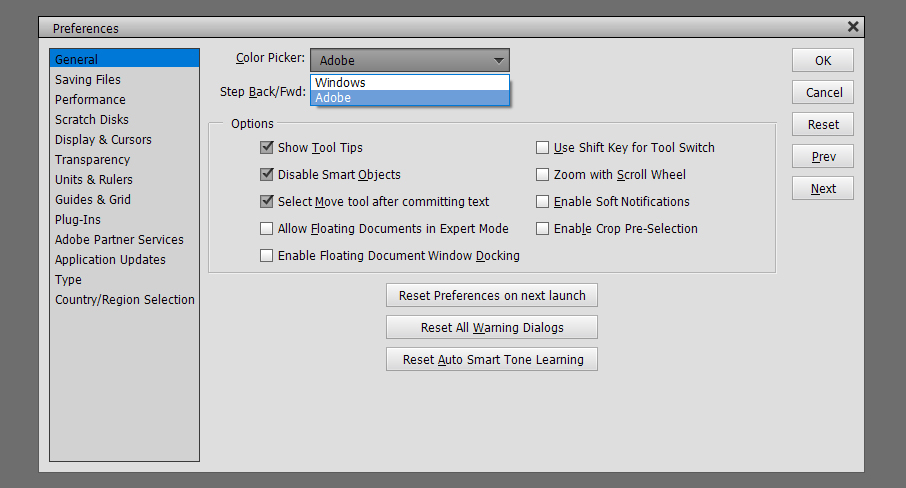
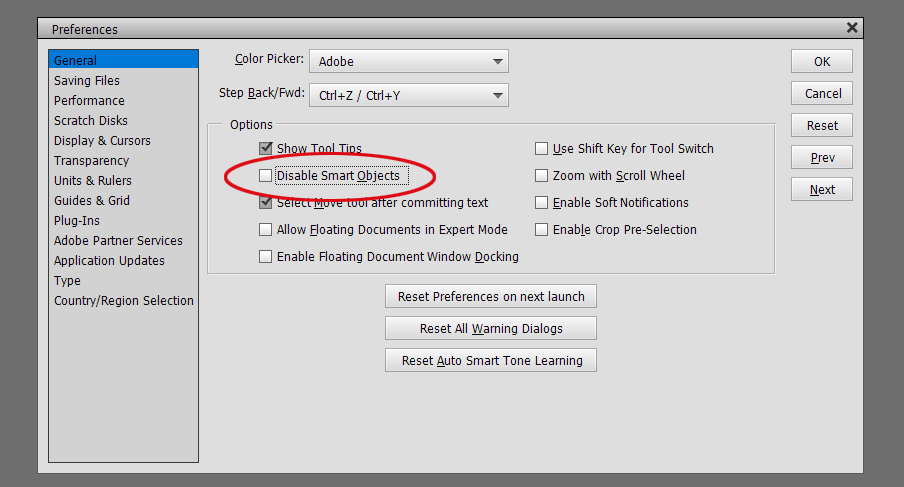
There are lots of options in the General menu. You can choose what Elements uses for the Color Picker, between Adobe and Windows. I let Adobe’s Color Picker do it for me; selecting Windows for this setting doesn’t provide the palette you’ll see in my tutorials where it’s possible to make tiny adjustments to the colour chosen and the only options presented are Windows‘ basic colour sets.

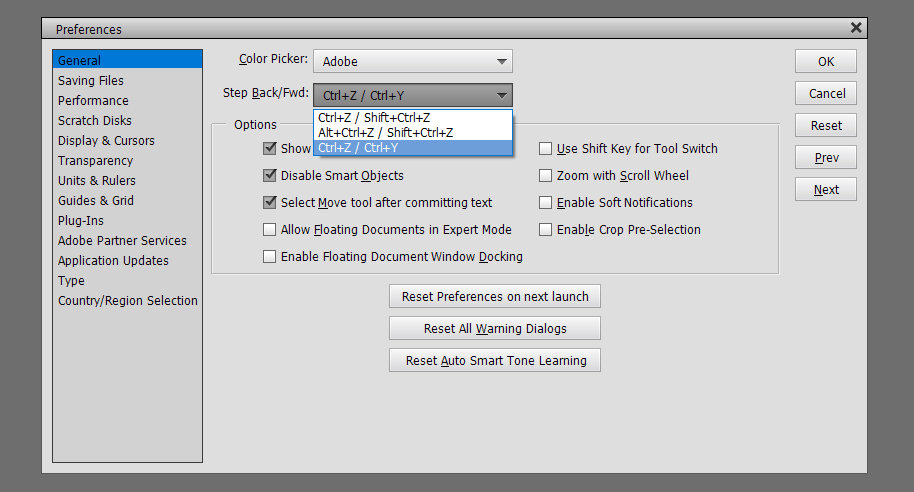
Just below the Color Picker setting is Step Back/Fwd. This allows you to decide the keyboard shortcuts used to Undo or Redo. I like the most basic, CTRL>Z and CTRL>Y – fewer movements and fewer keys to remember!

The other preferences I use are shown above and below. The ones I choose are largely self-explanatory but I’m going to talk about some of them in greater depth. Show Tool Tips means there’s a visible icon for the tool on the workspace so you can see where you’re putting your cursor. I don’t know about you but I NEED that visual! Select Move Tool after committing text also speaks for itself. As soon as the checkmark is hit, the Move Tool activates and you can shift your text in all directions, as well as resize it. Disable Smart Objects is a bit more complicated and needs a bit more discussion. Essentially, Smart Objects are “locked” and can’t be edited without first being Simplified. Also, in Version 14, everything was considered a Smart Object and when an item was dragged onto the workspace from the Photo Bin, it was automatically made to fill the canvas. Think about a 12×12 button… Nope! I’m going to show you what unticking this box does.

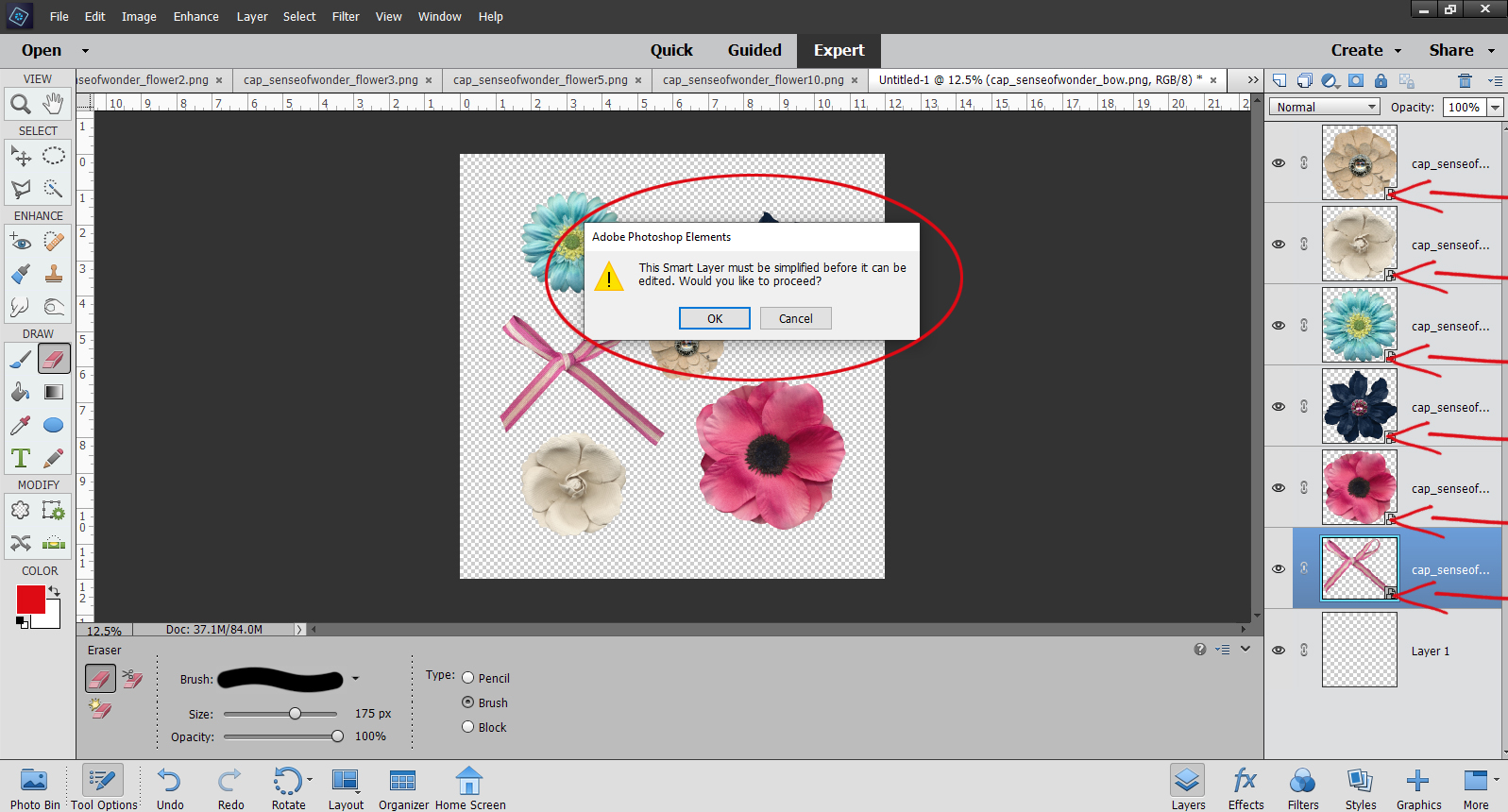
In the screenshot below, I want to Erase part of the bow. But when I try to do it, I get a pop-up as shown. And if you look at the layers in the Layers Panel, each of the embellishments I’ve got on my canvas has a little box in the lower right corner of the thumbnail. That tells me the layer CANNOT be modified other than to resize and rotate.

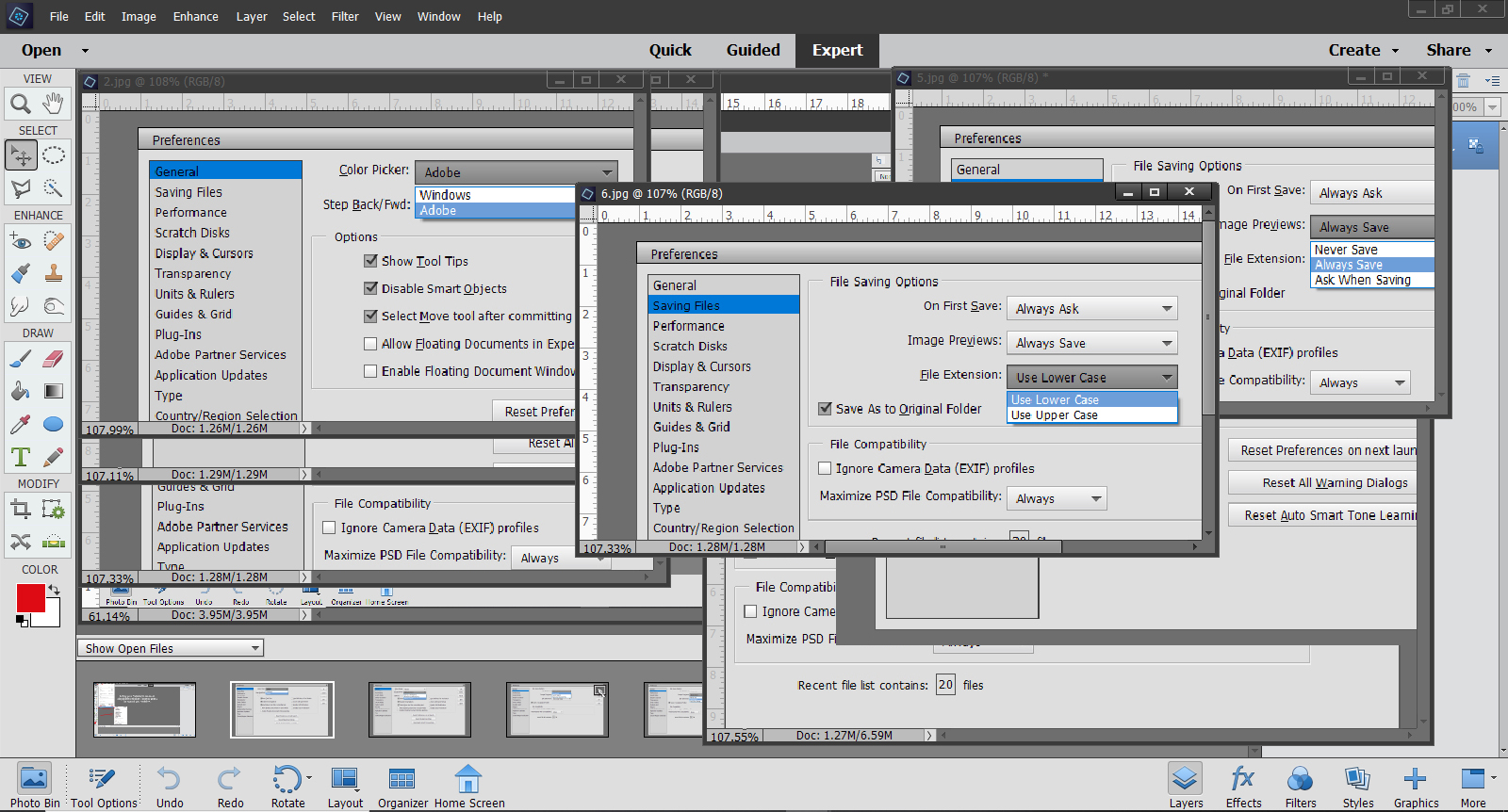
What does Allow Floating Documents in Expert Mode do? Well, instead of only having the images open up on the Photo Bin, they’re also opened in their own full-sized windows right on top of the workspace. These floating documents can be resized and moved around on the workspace by holding down the left mouse button and grabbing the document by the dark bar at the top. Lots of people like to work that way, because it allows you to drag things between these floating documents and it can be useful when photo editing. But for scrapbooking, I don’t think it’s all that practical. (“Preference”!) Here, I’ve resized some of the images I’ve opened.

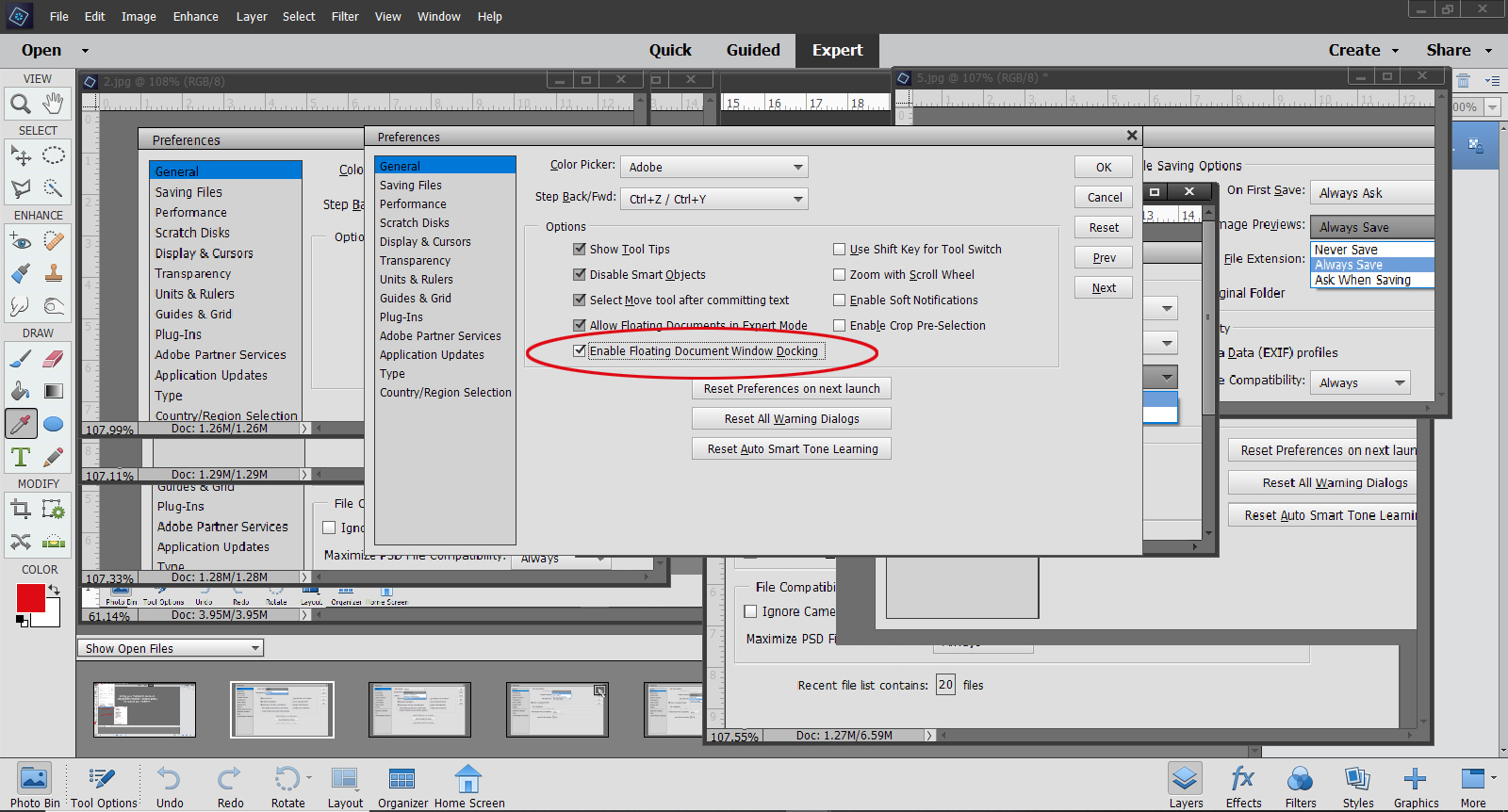
Busy, isn’t it? Now let’s look at Enable Floating Document Window Docking.

This is another preference that lots of people love, but for me it only adds to the overstimulation! What it does is give each of the documents its own tab. You can see multiple Elements icons in the toolbar as shown. Moving the mouse over the toolbar will show each of these documents and let you move between them. For me, this isn’t workable, so I went back and unticked both Floating Document boxes.

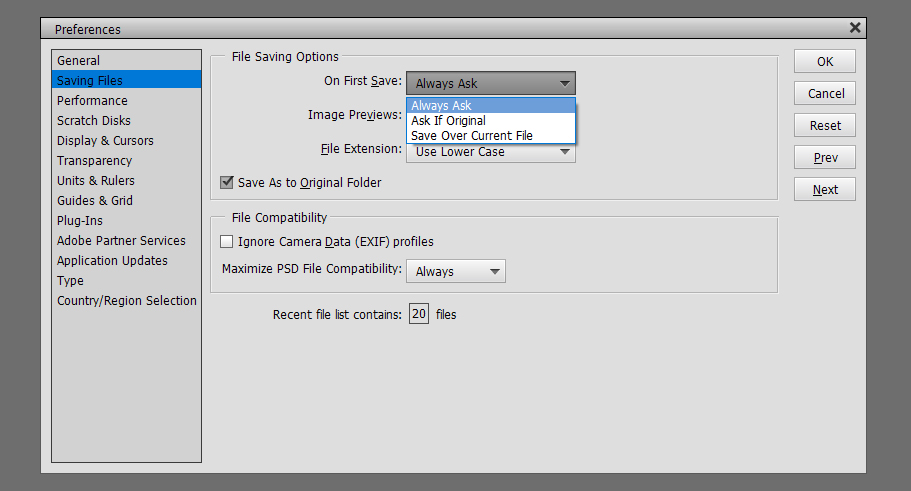
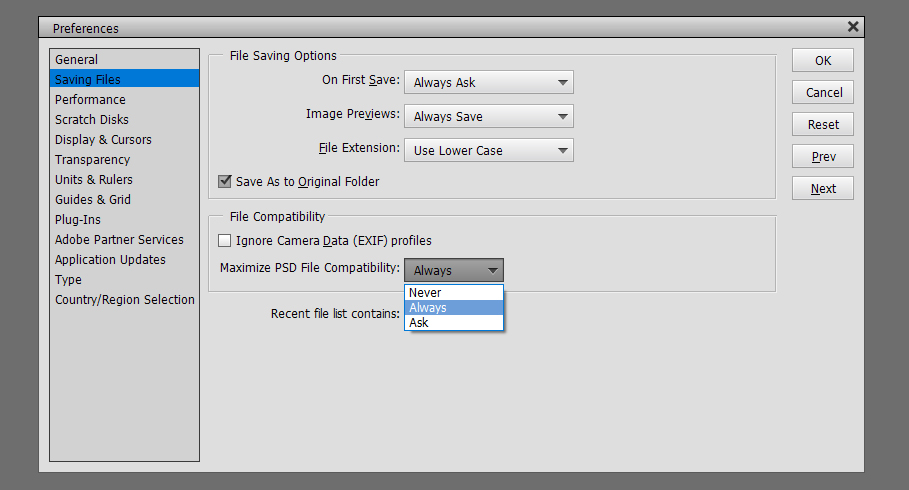
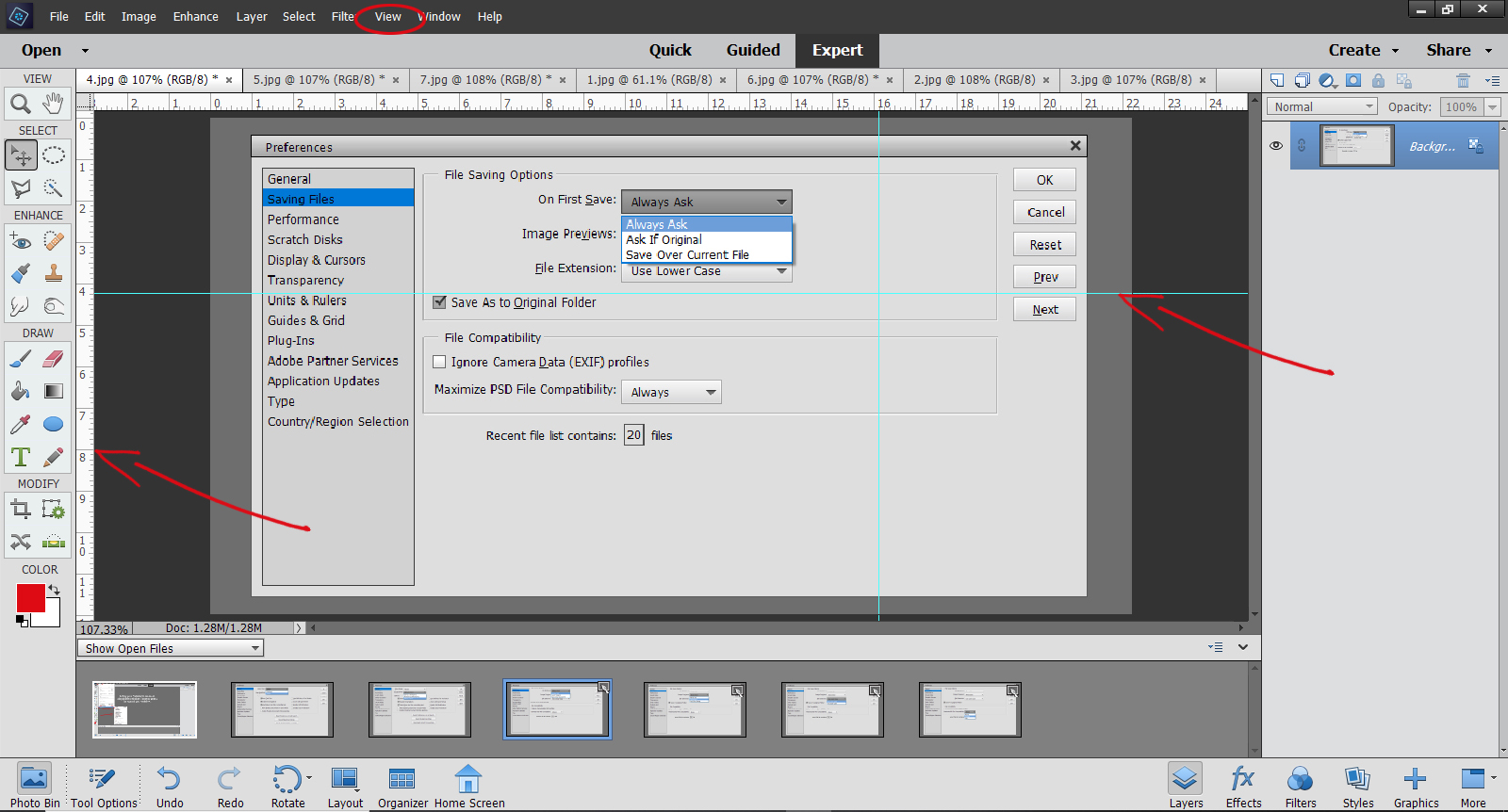
Next on the menu is Saving Files. These options can be really helpful. I like to be asked before Elements does anything that might be hard to undo. Other people are okay with only being asked if the file is an original, and yet others are okay with Elements just writing over the file every time.

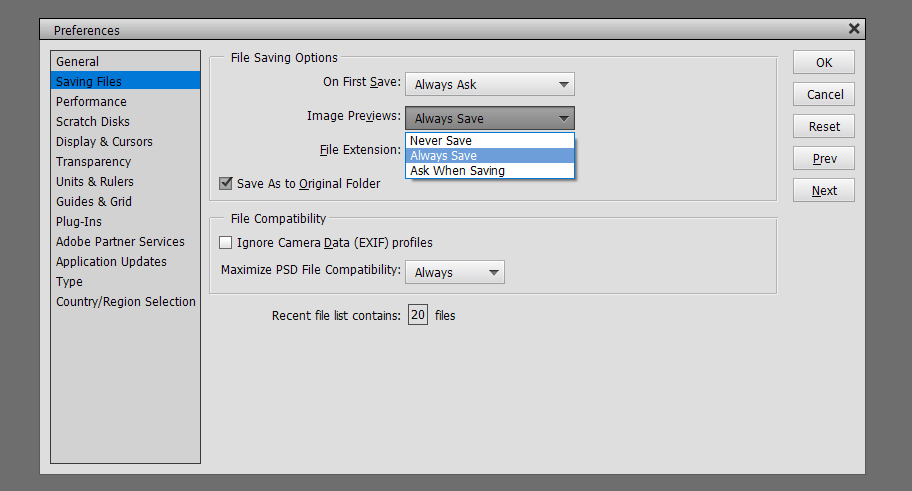
So you might wonder why I’ve selected Always Save when it comes to Image Previews. I’ve found it really doesn’t affect anything I do.

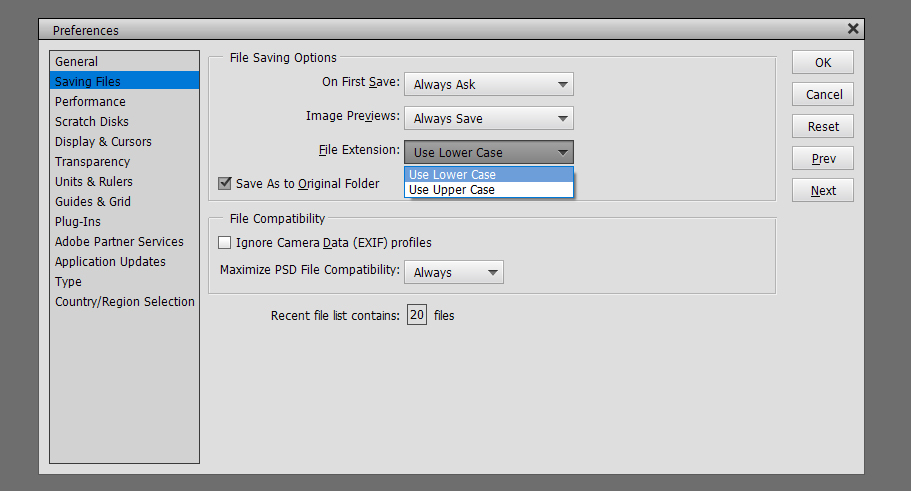
File Extension lets you decide how the saved file will be named when you save it. I prefer lower case. By ticking the Save As to Original Folder, I know anything I Save As (CTRL/CMD>SHIFT>S) will go into the folder where I opened it from originally. You may recall that I use folders to organize the things I plan to use for my layouts so this just makes sure the final versions of my layout will be easy to find later.

I’ve left the Ignore Camera Data (EXIF) profiles box unticked because although I use Elements for photo editing, that’s not my primary use and it makes no difference to my scrapbooking. Maximize PSD File Compatibility will allow me to use those PSD files in earlier and later versions of Elements without a lot of extra steps. Recent file list contains x files lets you choose how many files you’ve recently opened will show on the list when you select Open>Recently Edited from the File menu.

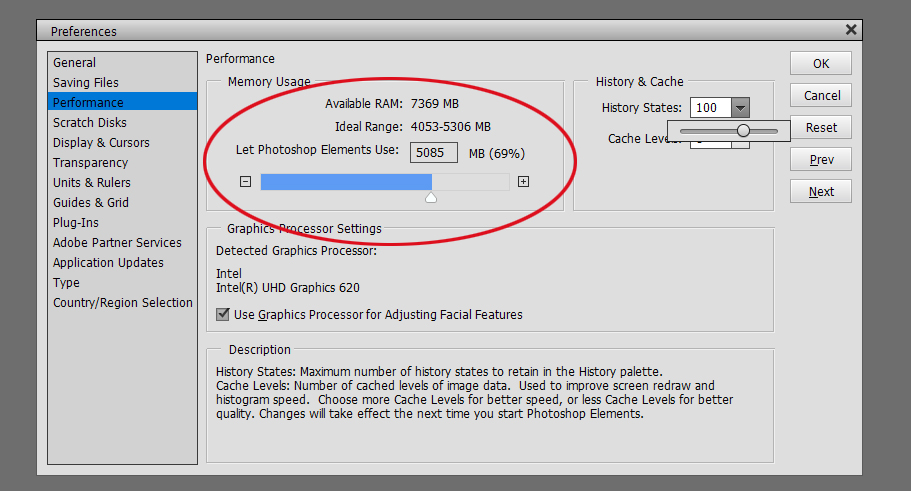
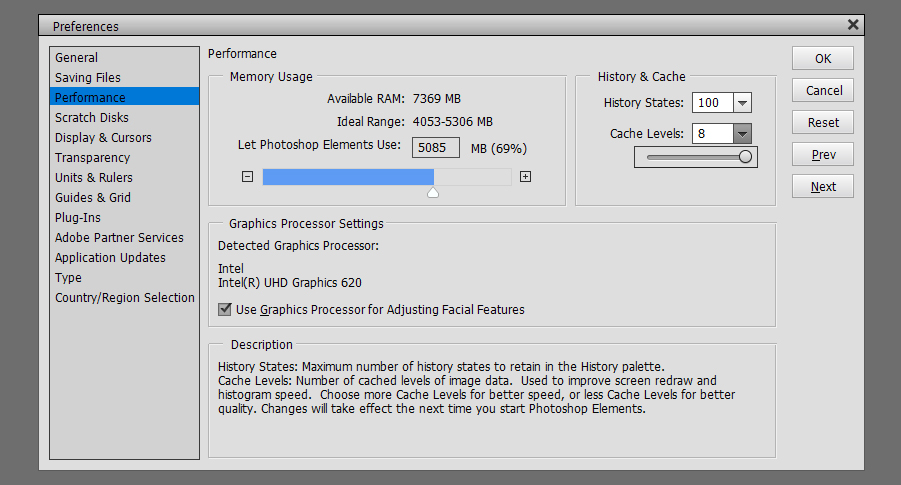
The Performance menu relates to how much of your operating system resources Elements uses when it’s running. The software will make a recommendation about how much RAM you have and how much you should allocate to Elements to keep things running smoothly. Just realize that when you allocate a lot of resources to Elements in this setting, while it’s running it will slow down other things you might use your computer for. There’s a good explanation of the other settings down at the bottom of the menu.

I like to have my Cache Level setting at the max to speed things up when I’m Undoing. With 100 History States and 8 Cache Levels, I can take a layout right back to almost any point from the start and make changes. Ticking Use Graphics Processor for Adjusting Facial Features lets the graphics processor in my computer be involved in any facial feature editing.

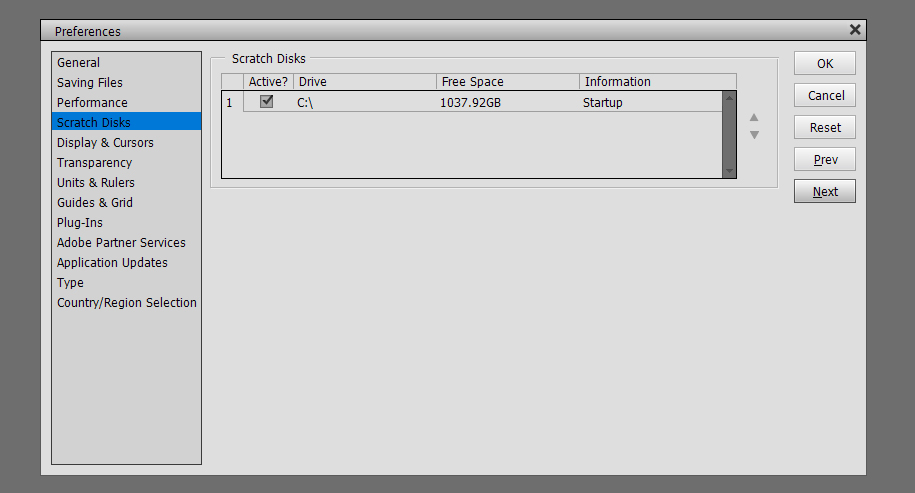
Scratch Disks relates to where Elements stores the History States and Cache Levels. If you have multiple drives, or work from an external drive, you can choose that storage area.

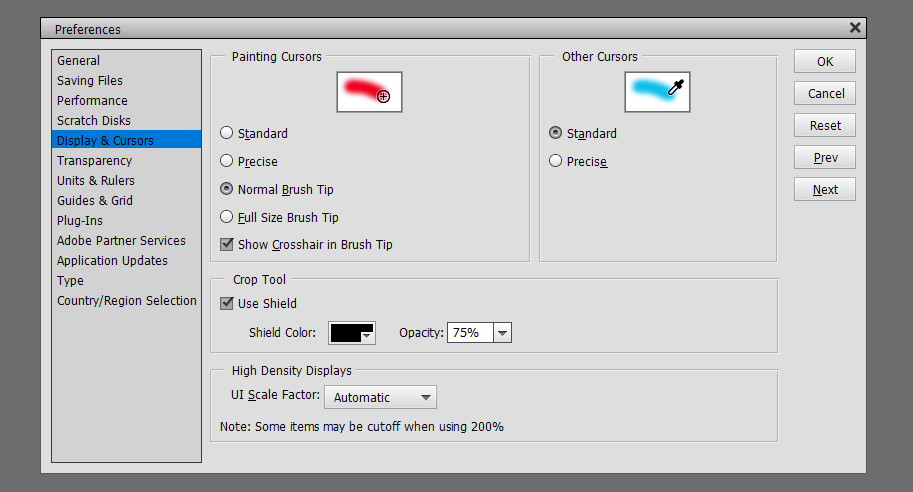
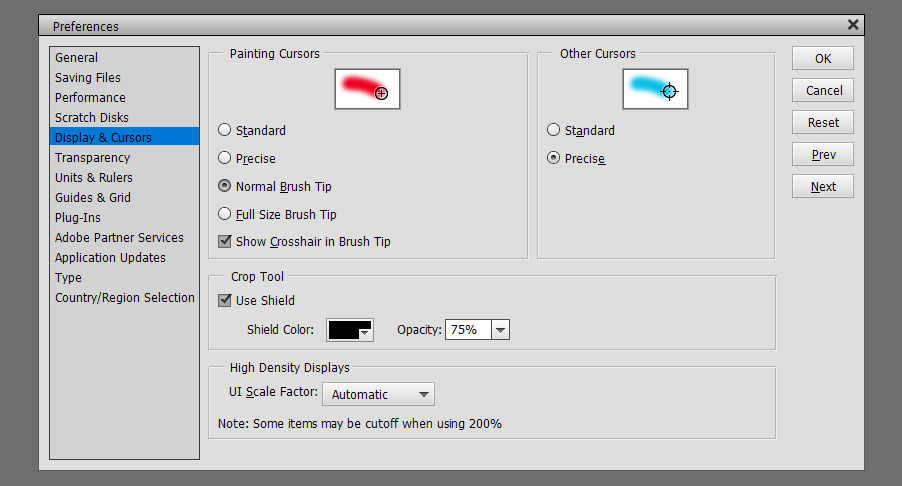
Display and Cursors is a really valuable menu. Here is where you can set things up to make working with Brushes, either as Brushes or within the Pen/cil, Dodge or Burn Tools, more streamlined and accurate. This shot shows my settings. I’ll show you what the rest of them look like in subsequent images.

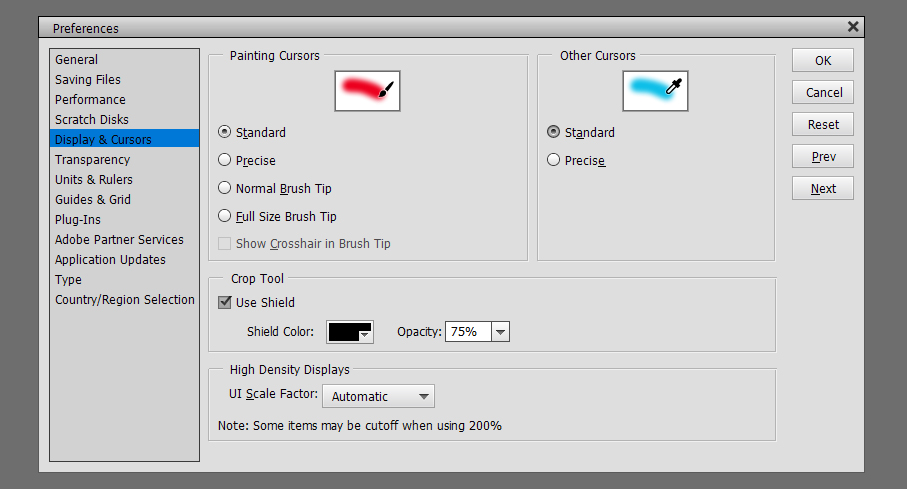
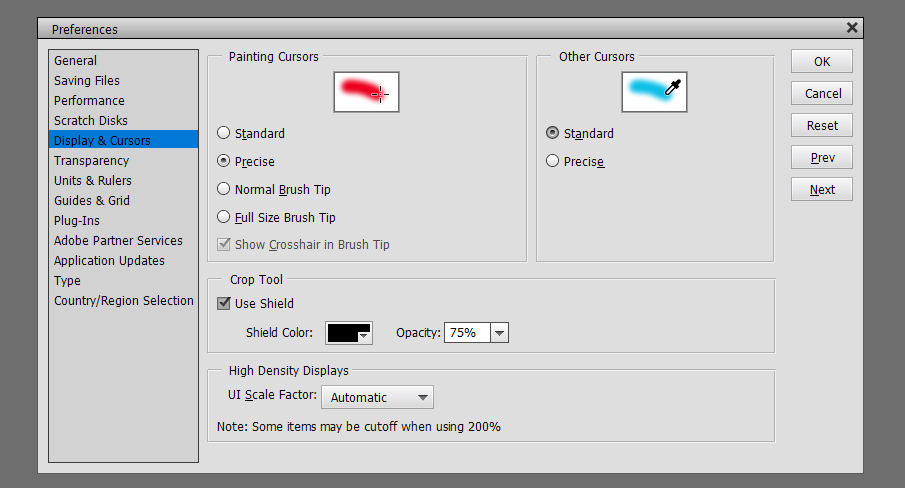
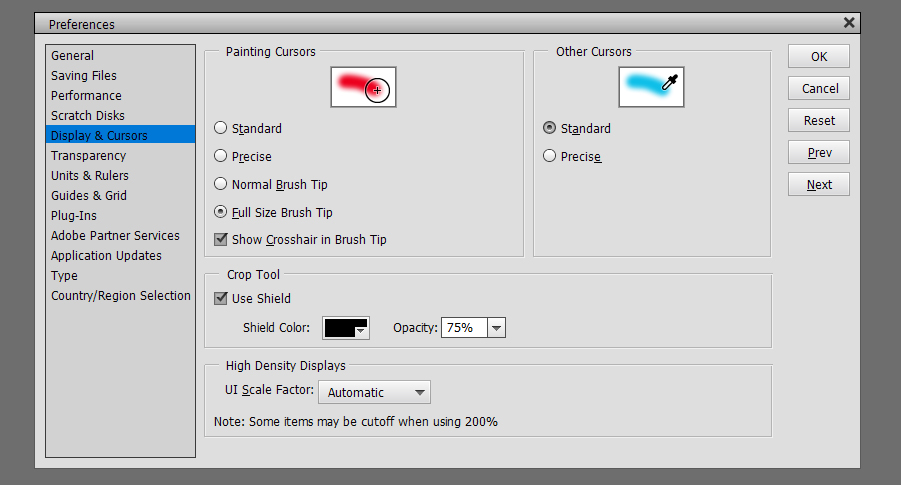
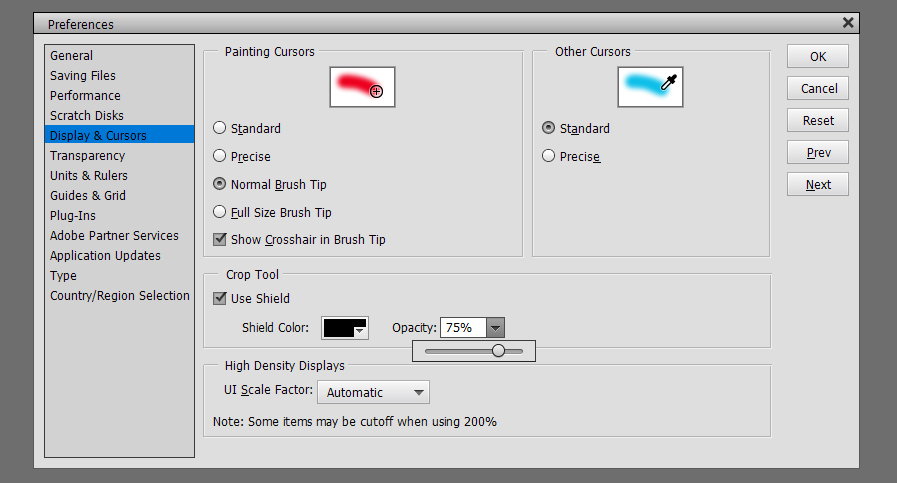
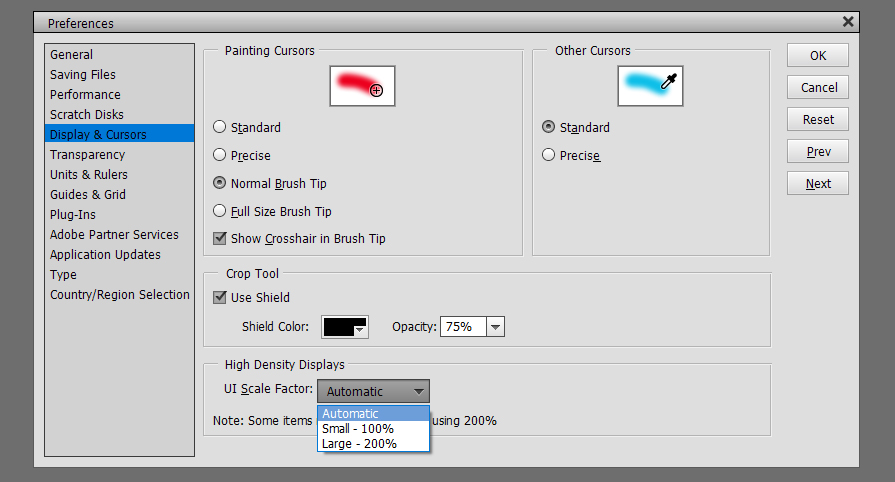
The thing to look for in these screenshots is how the cursor looks, then decide which will work better for you. Show Crosshair in Brush Tip gives a higher degree of accuracy when you’re doing delicate work.

Crop Tool Shield lets you see exactly what part of your photo or image will be included when you crop it. I find that Black and 75% lets me see enough of the image to know if I’m keeping the parts I want. You do you!

The last setting on this menu is for High Density Displays. Automatic seems like a no-brainer.

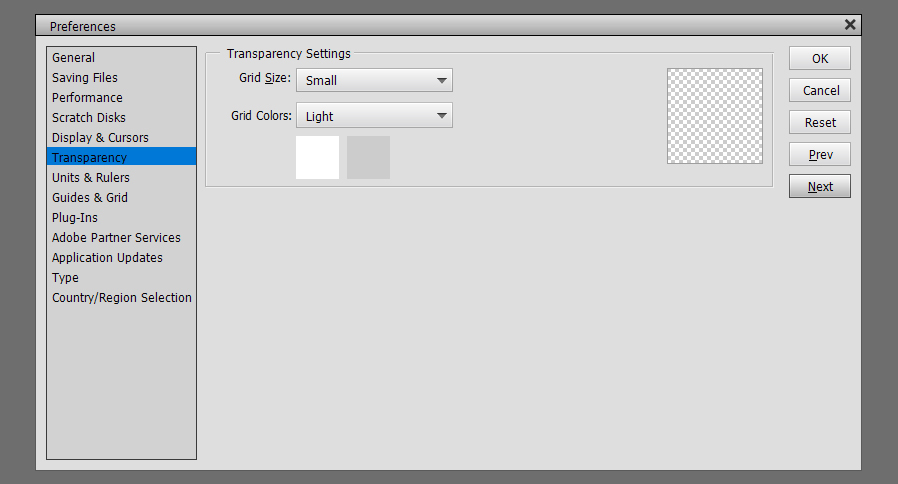
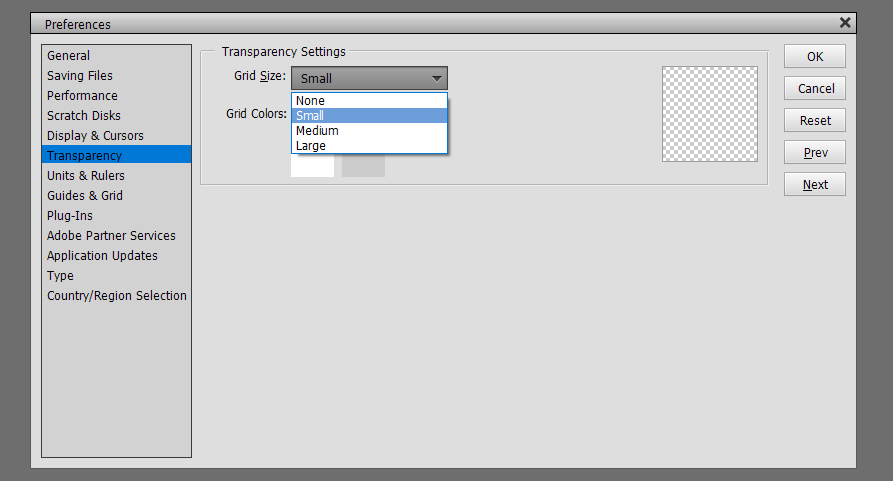
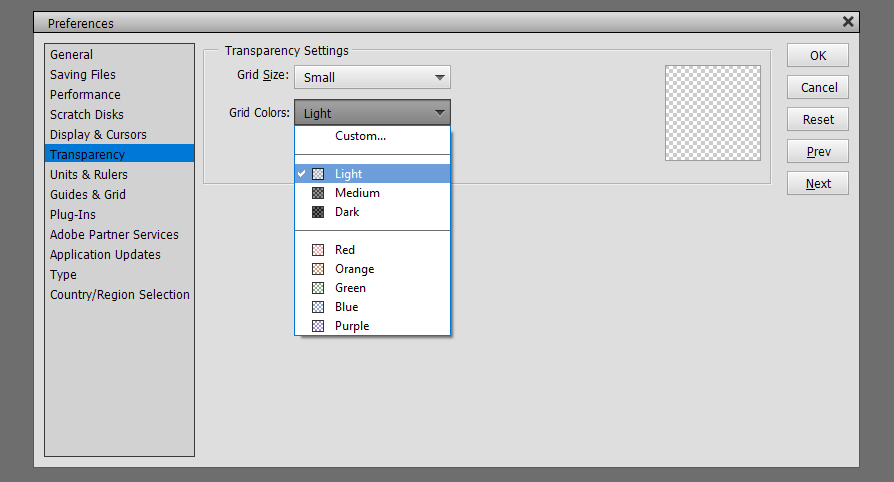
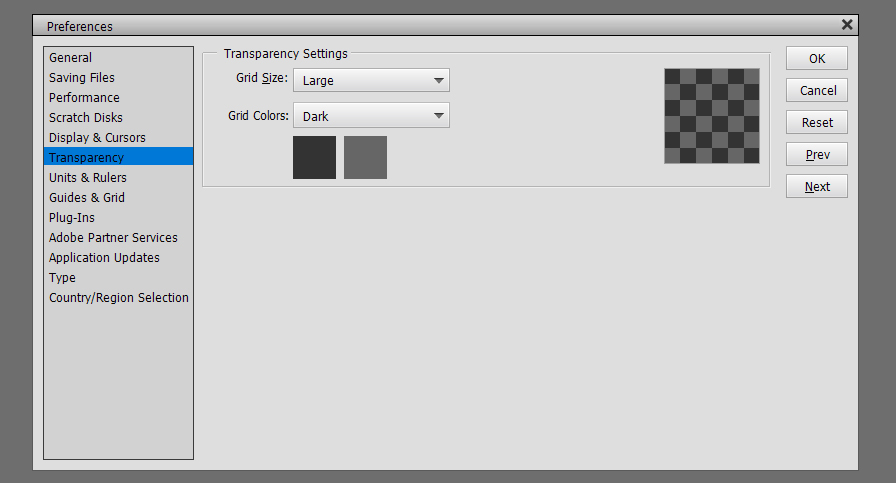
Another really important menu is the Transparency menu. Here’s where you decide what you want to see when you’ve got something with a transparent background. I’ll show you some of the options for reference.

This combo might be useful for some activities but I really can’t think of one. 😉

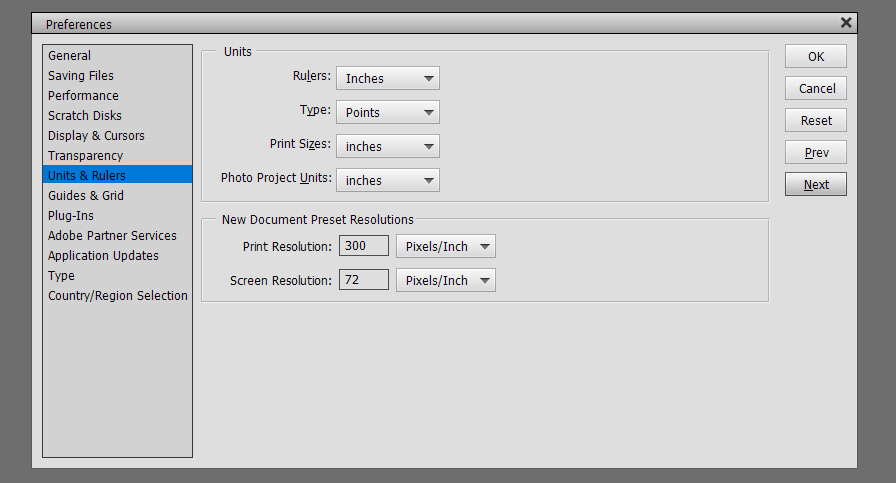
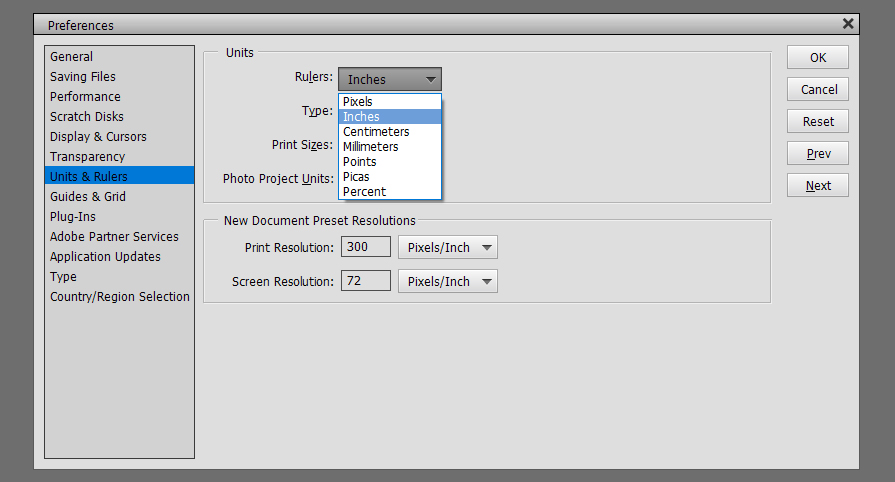
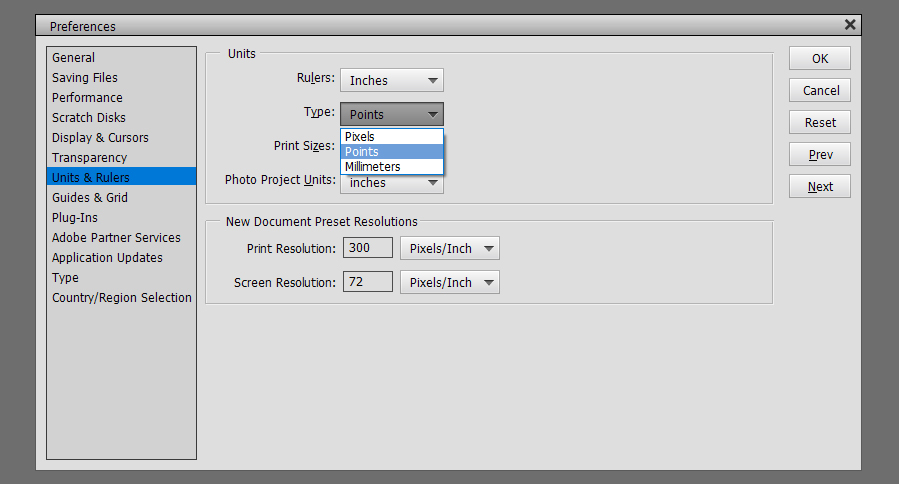
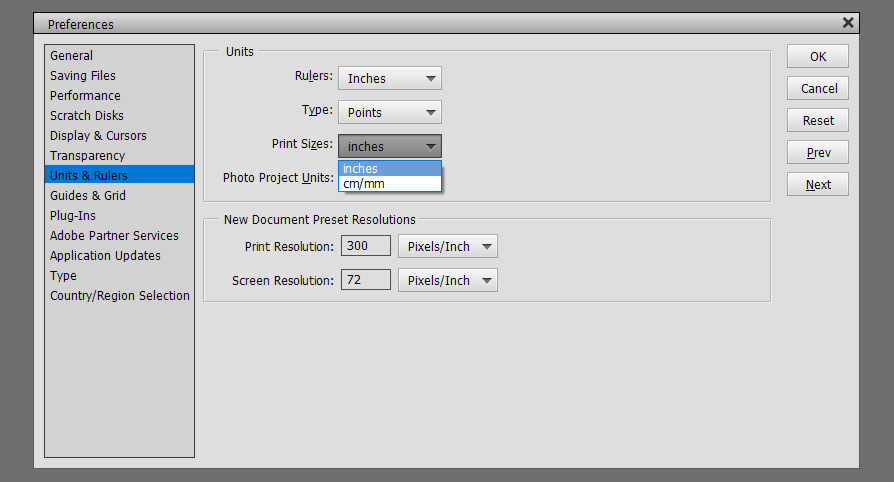
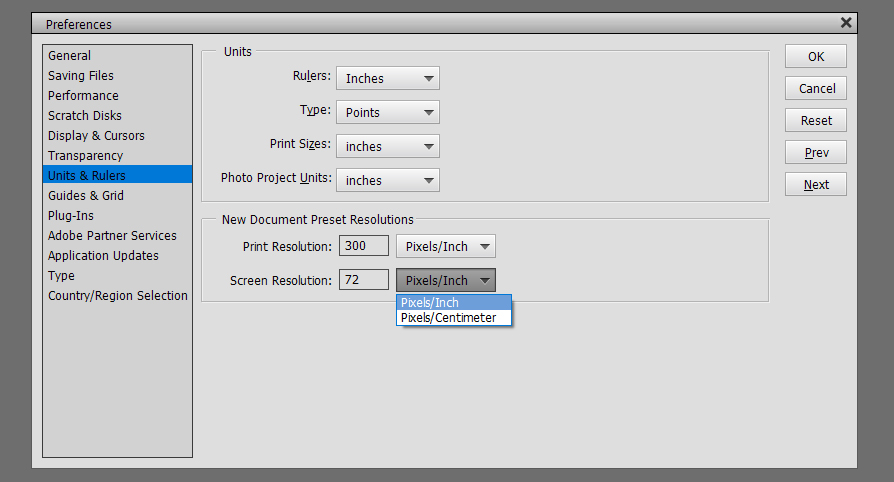
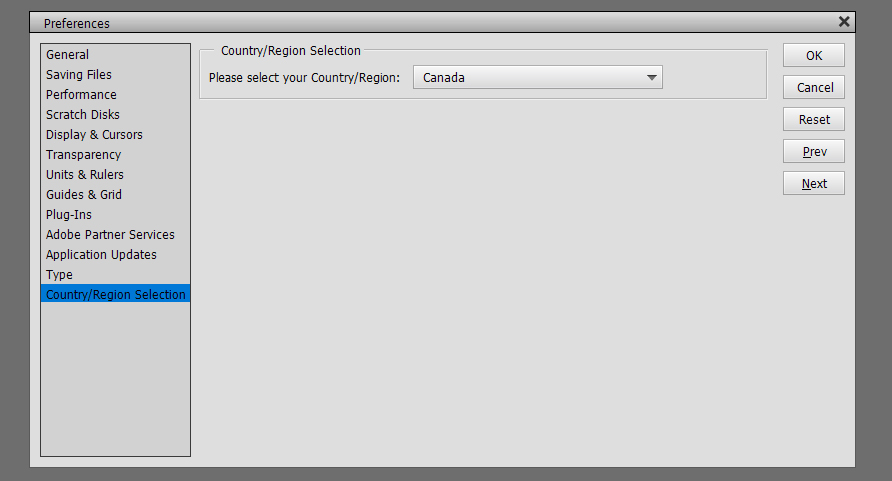
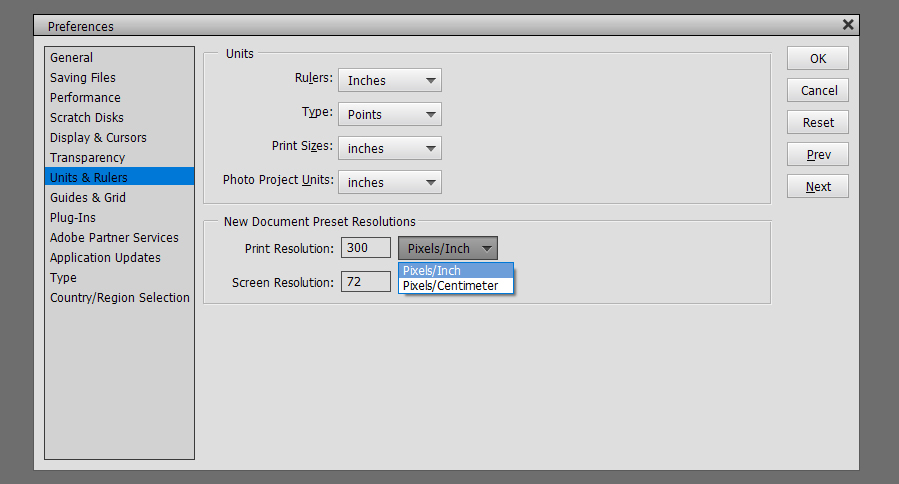
Units and Rulers is where you tell Elements how you think. I still think in inches rather than centimeters, but when I set the country at the tail end of the Preferences menu, Elements wants to default to metric. I have to get tough with it! When thinking about Type, Points is the most commonly used measure and makes it a lot easier to have a clue about what will happen when you type in your text. Print Resolution is a vital setting if you’re planning to print out your layouts. 300 pixels per inch is the optimum setting for that, but when you’re just looking at it on the screen, 72 pixels per inch is good enough. (That’s why my screenshots aren’t as crystal clear as my layouts are.)

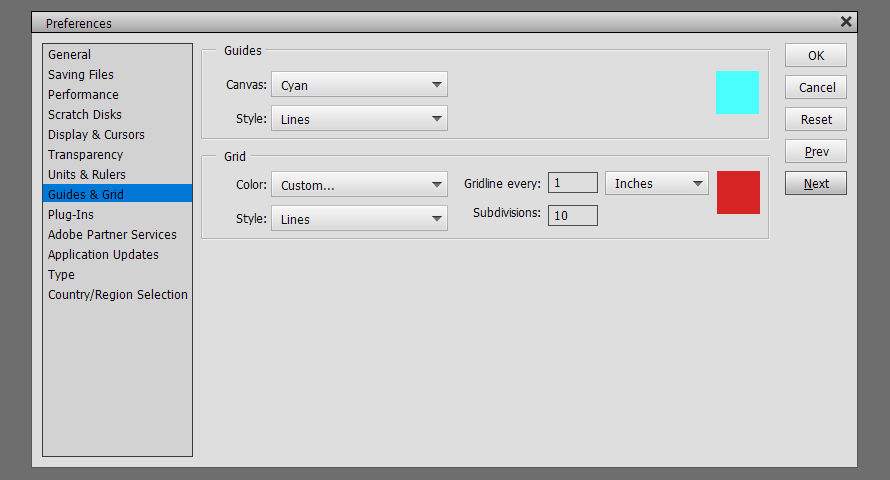
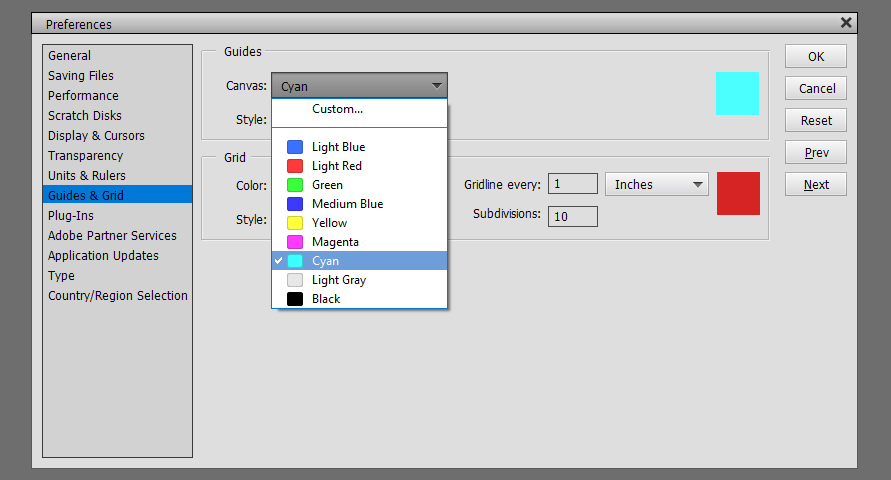
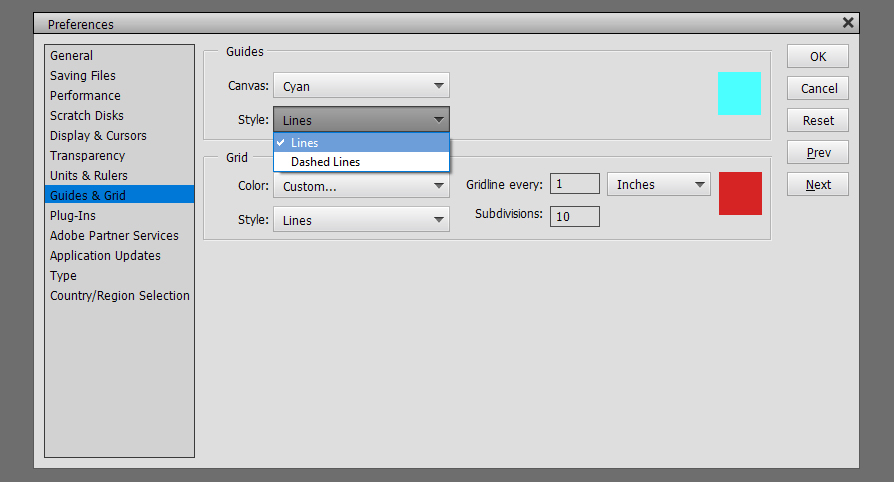
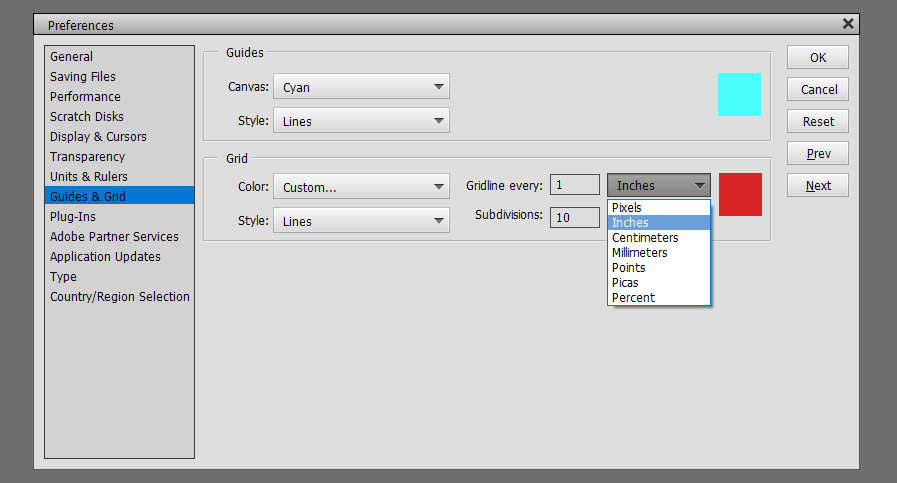
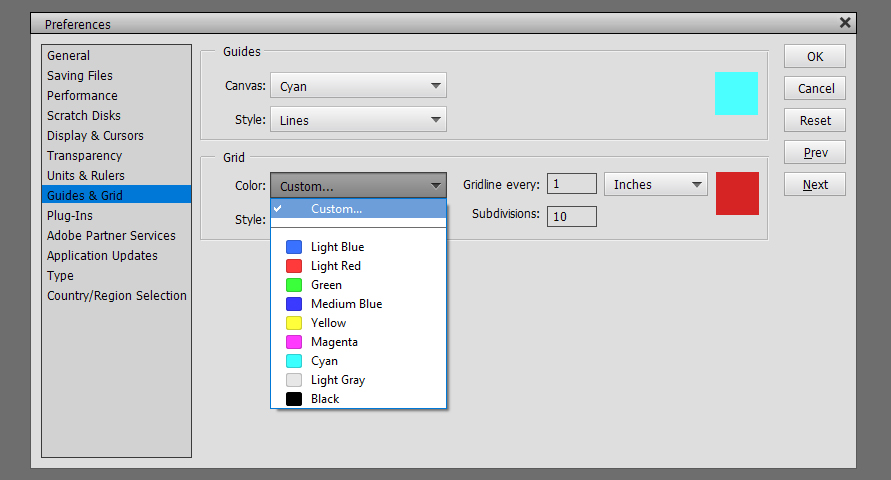
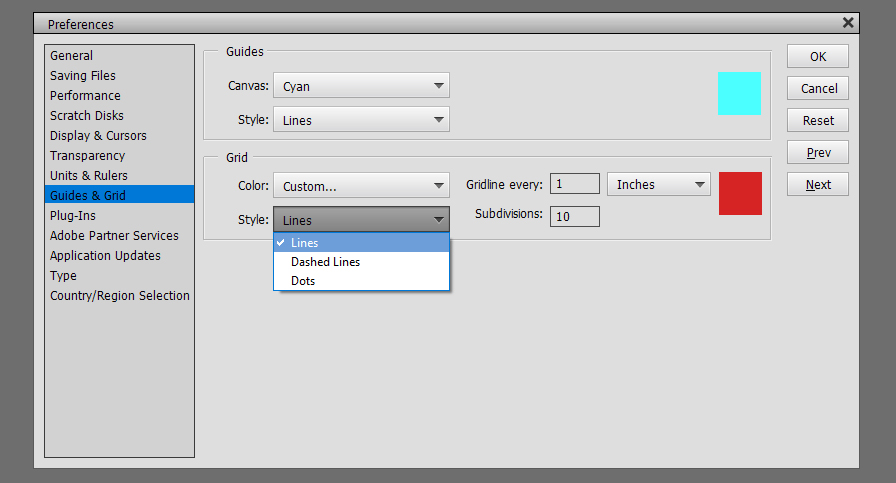
Guides and Grids are helpful tools. Guides are single straight lines that can be pulled from the top or the left of the workspace and allow for precise placement of objects and type on your layout. Grids give you graph paper, essentially. I use both regularly for my layouts. For them to be most useful, you need to be able to see them without them obscuring your work. These tools can be solid lines or dashed lines for Guides, solid, dashed or dotted lines for Grids. I have old eyes so my settings are what will work best for me. By all means, experiment until you get what you need.

Here’s an image with two perpendicular Guide lines on it.

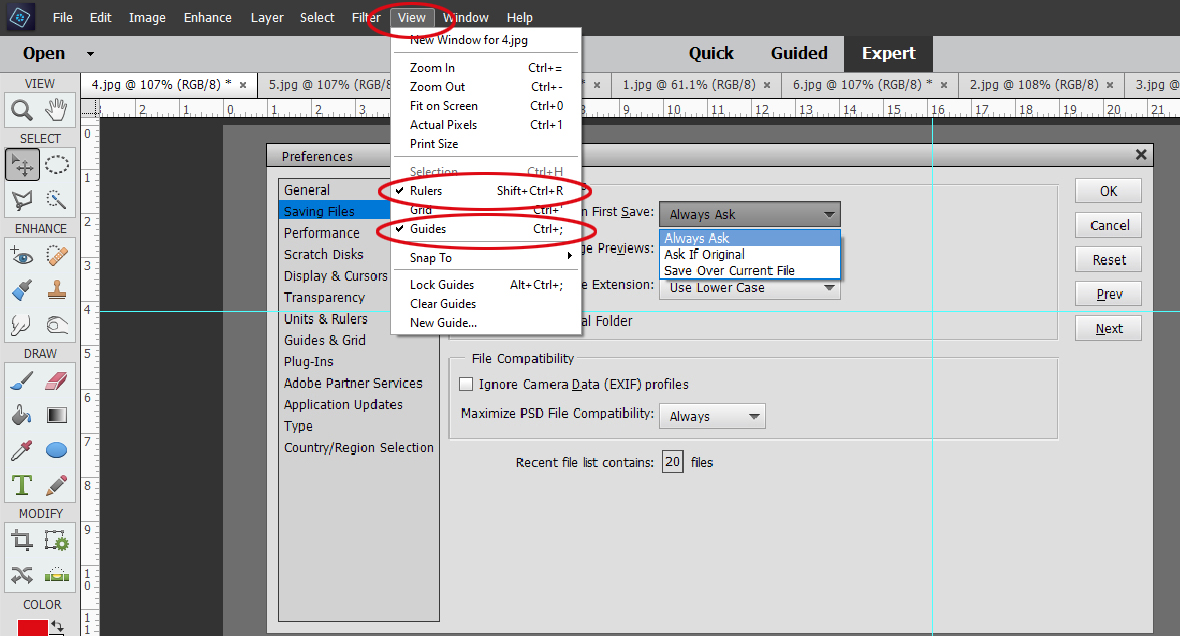
How do you get them to be visible? Along the top of the workspace there’s a View tab. Click it and a new menu opens. Click on the tool you want to make visible. I leave the Rulers on all the time. I like having them there as reference points. Guide lines don’t require this step. Just put your cursor barely off the workspace, hold down the left mouse button and pull the mouse either down or to the right. You can add multiple Guides in either horizontal or vertical plane. Making them go away again, click View and click Guide again.

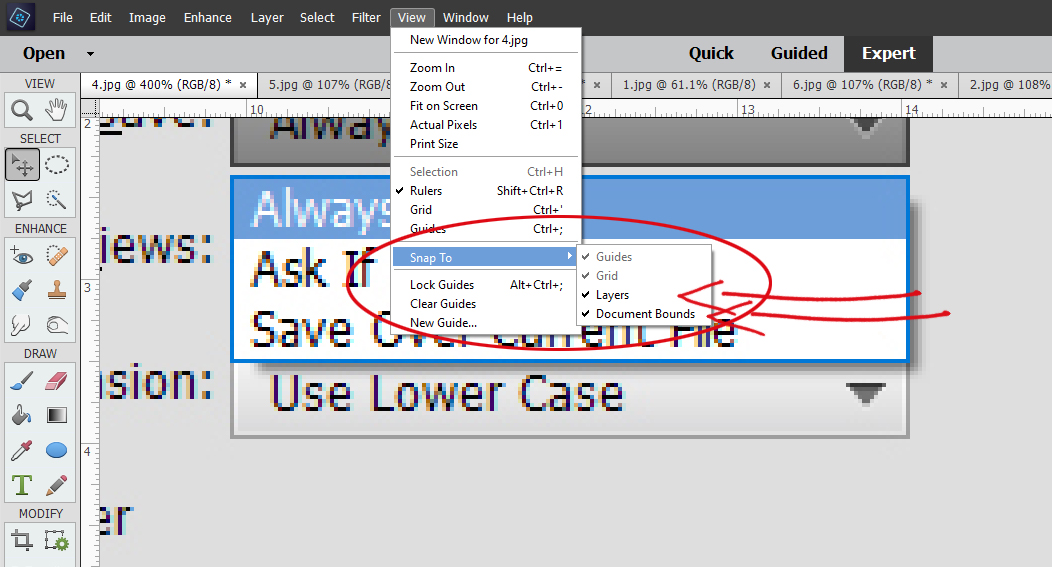
If you want to make it so your Guides and Grids don’t move when you accidentally mouse over them, you want to Snap To. To have them remain on your workspace regardless of what image you’re working on, Lock Guides.

The Grid, or graph paper tool is customizable in several ways. You get to choose the colour of the Grid, the measurements you want for your Grid lines and how that Grid is subdivided. Again you can choose between solid, dashed or dotted lines. I used this a ton when I was doing floor plans of the new house and trying out various furniture dimensions.

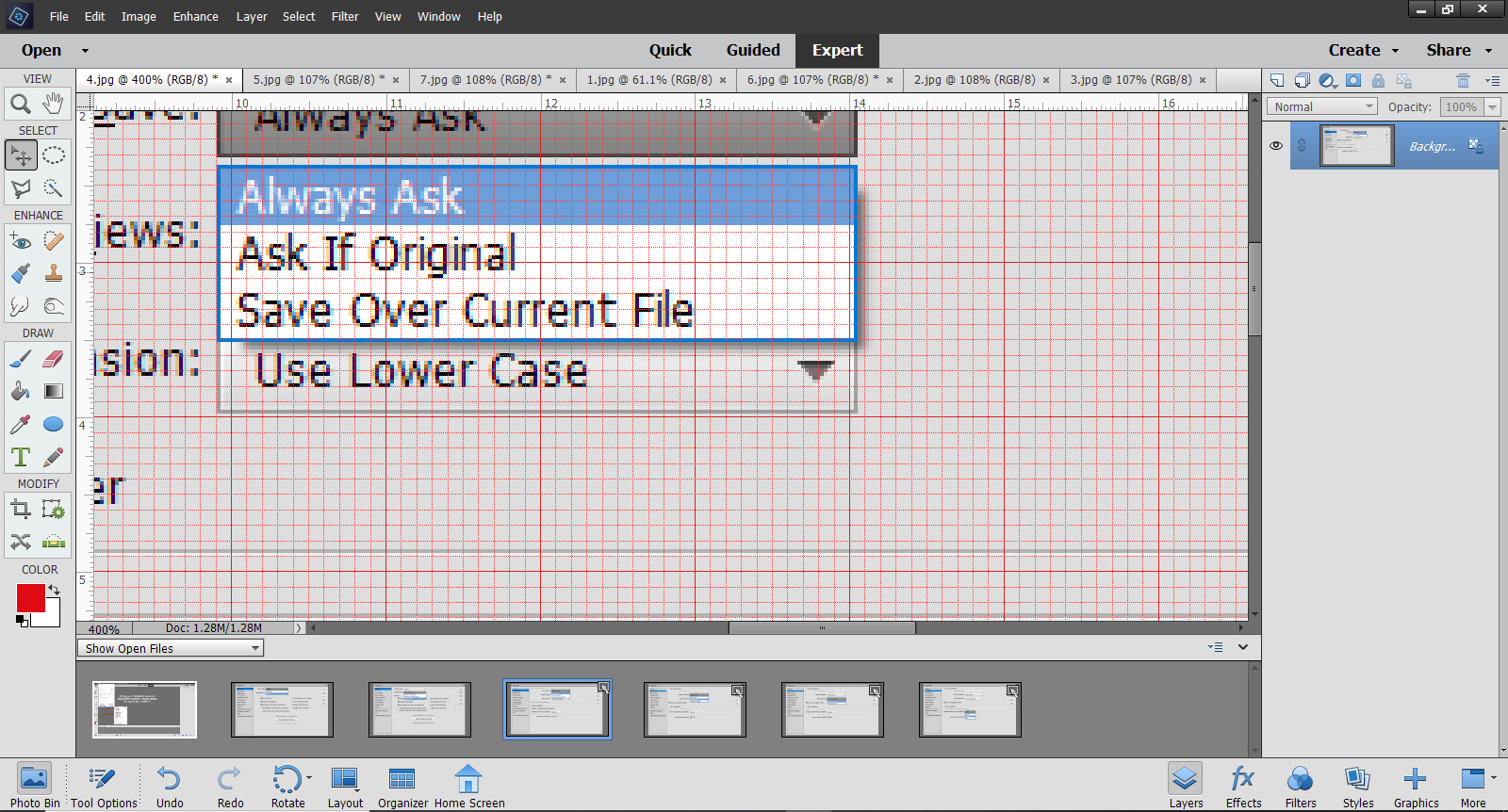
Here’s an image using a Grid. (This tool is so useful for speed-scrapping, when the facilitator says, “Place a large flower 2 inches from the left side and 1 1/2 inches up from the bottom.” Or, “Cut a rectangle from your paper measuring 4 inches long by 3 1/4 inches high.”)

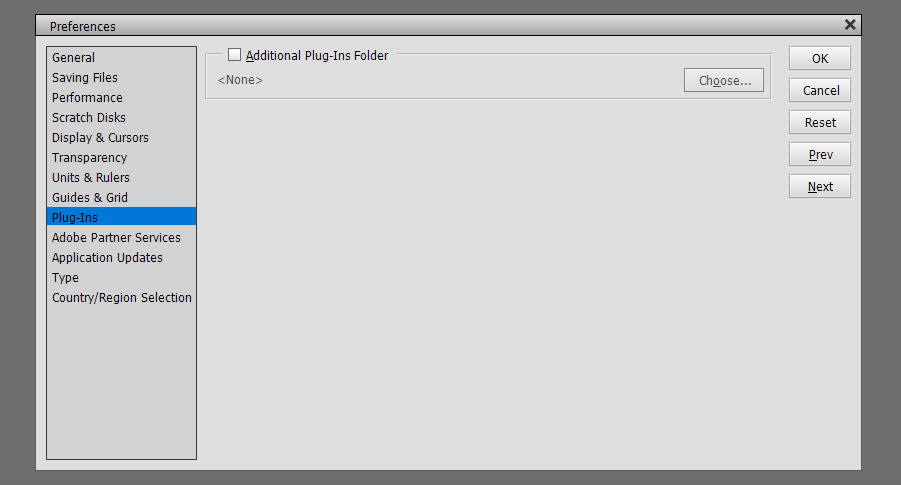
Plug-ins aren’t something I have, so I’ve never had occasion to do anything with this setting.

Adobe Partner Services are for developers and people who are smarter than me.

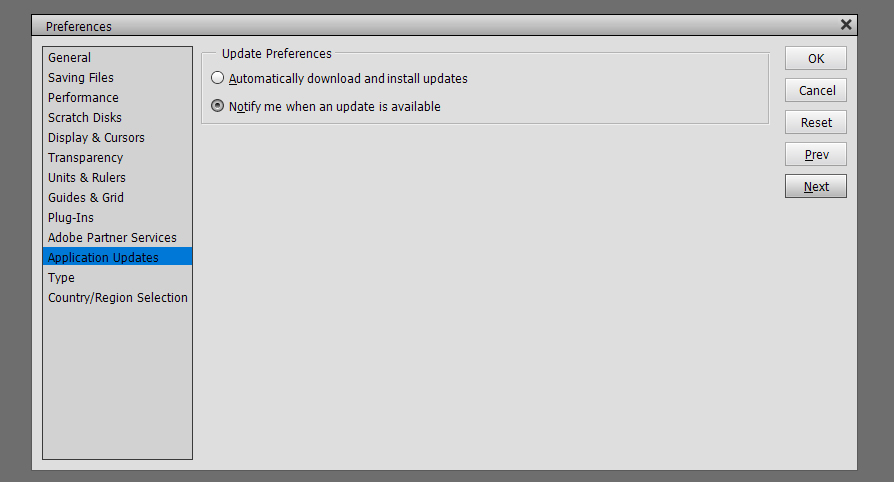
Here you have the option to make Elements tell you when there’s an update to the software, or to give it permission to just update whenever.

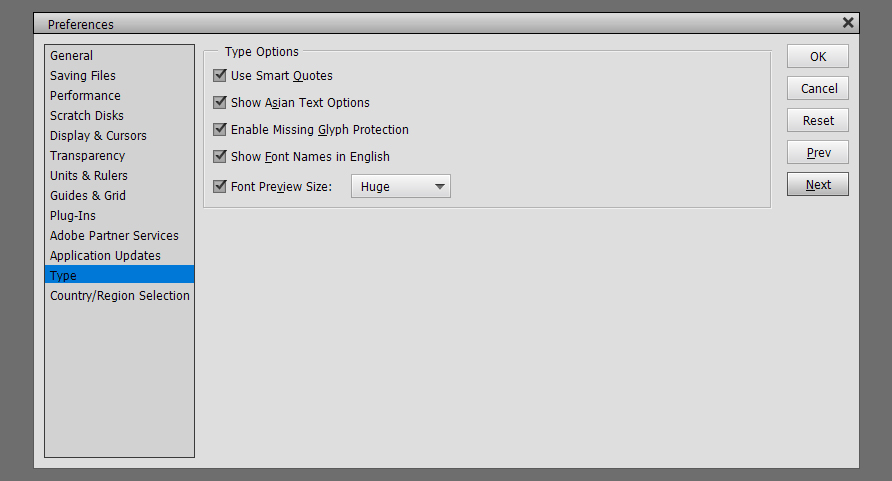
Type… these settings are important for title work and journaling. Smart Quotes means all the quotation marks, apostrophes and commas in your text will be curvy, which is a high-quality typography feature. Show Asian Text Options allows the use of Asian fonts and dingbat style fonts. Missing Glyph Protection is a setting that gives Elements permission to substitute another character for one not present in a font family. Font Preview is something I insist on having as large as possible for my old eyes.

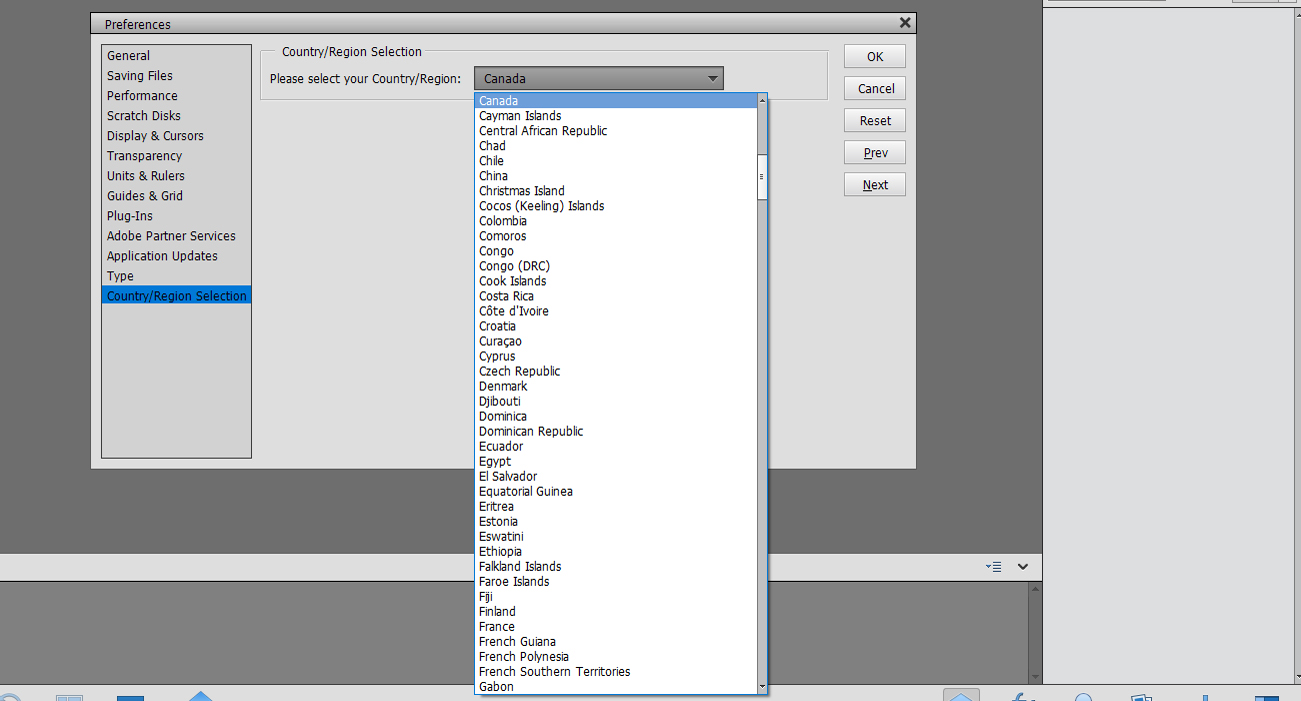
Country/Region Selection is self-explanatory.

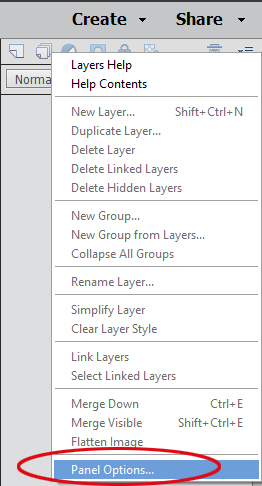
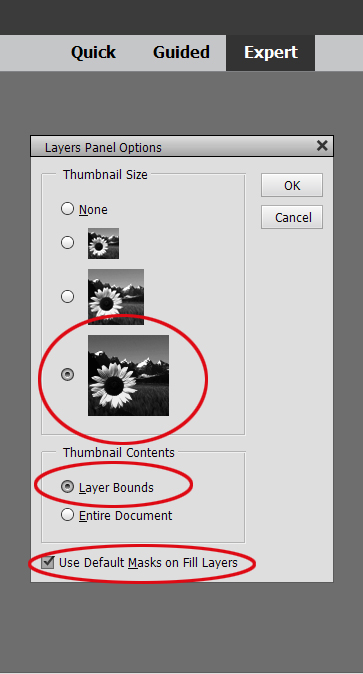
Now, on to Ellen’s question. When you look at the Layers Panel, in the upper right corner of the screen there is an icon that looks like 4 horizontal lines with a tiny blue triangle just to the left of it. When you click on that, the dropdown menu has an item at the very bottom called Panel Options. Click on that and you can set the size of your Layer Thumbnails.

You’ll notice I’ve selected Layer Bounds in the Thumbnail Contents section. That means that ONLY what’s on THAT layer is shown in the thumbnail. If Entire Document is selected… well… the thumbnail will basically be a microscopic version of your entire layout. By selecting Use Default Masks on Fill Layers, I can see what part of the contents of the layer has been filled.

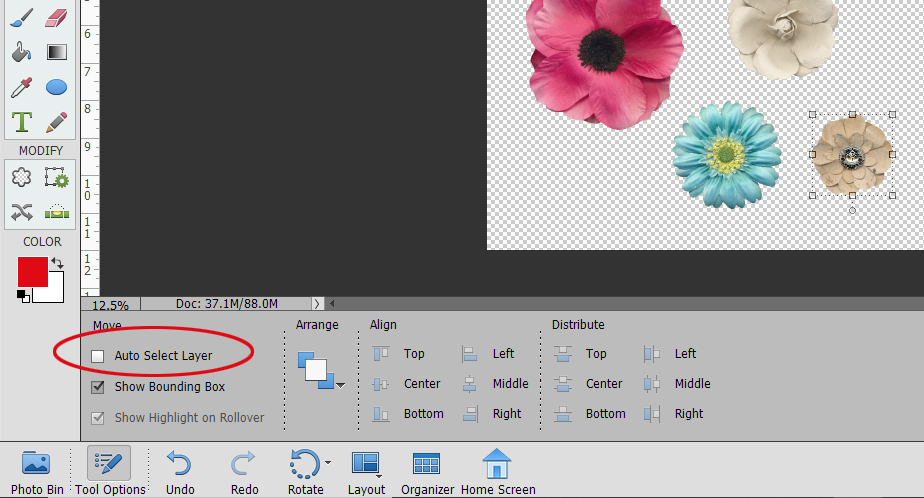
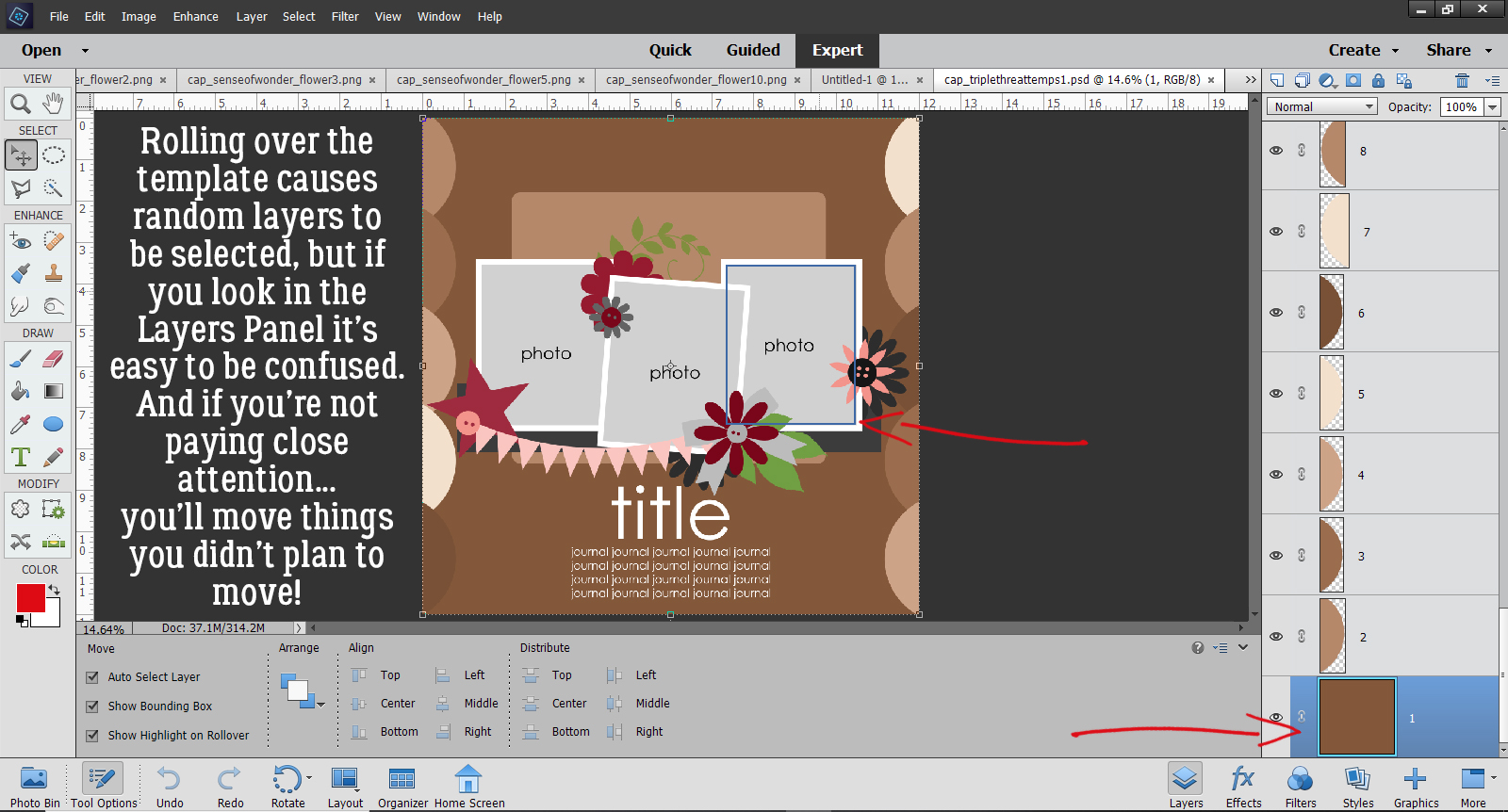
The last thing I want to talk about is Move tool options. You’ll notice I’ve ticked Show Bounding Box but haven’t ticked the box for Auto Select Layer. I want to show you why.

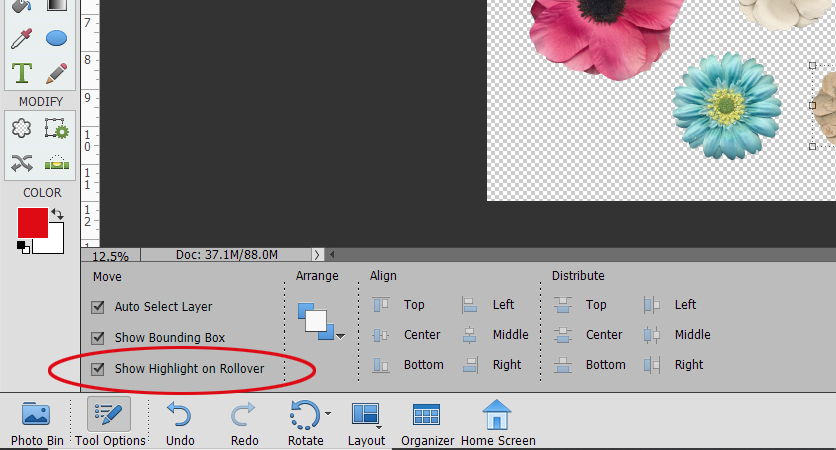
When Auto Select Layer is ticked, Show Highlight on Rollover is automatically selected too.

When there are just a bunch of random items sitting on a transparent background, this option isn’t a big problem. When the mouse rolls over any of the flowers or the bow on my workspace, a blue box appears around the outside of the object.

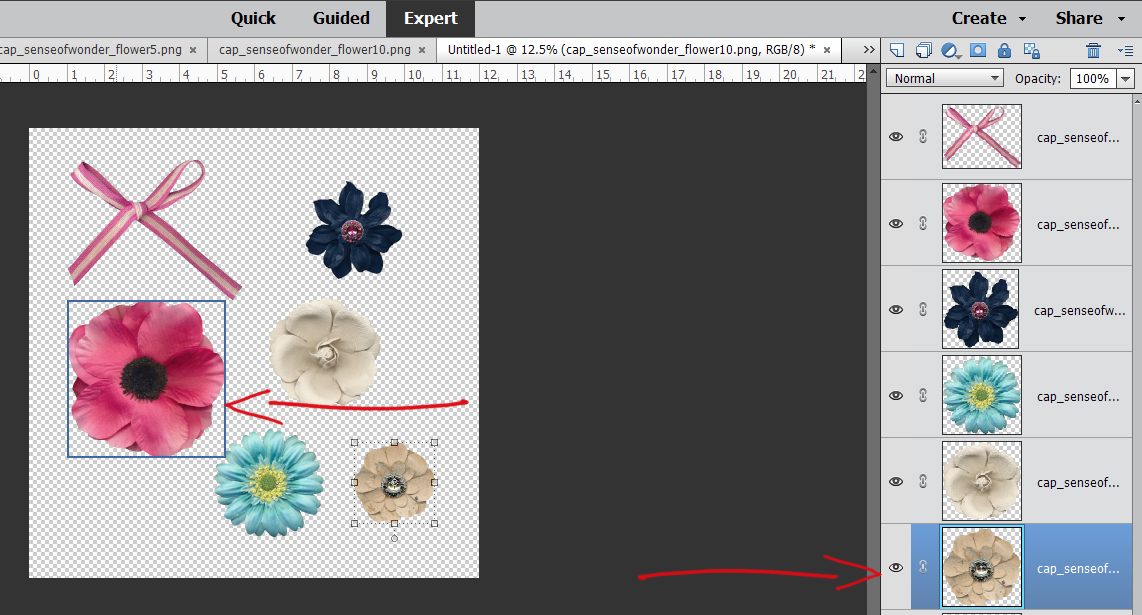
But when there are things positioned on top of other things, it’s very possible to move things you didn’t intend to move just because you had too much pressure on the mouse when it rolled over them. You might not even realize it’s happening until all of a sudden that flower is hanging off the page, or the paper you thought you put under your photo is now halfway across the page. And when you look at the Layers Panel the object’s layer isn’t even active! So I turn that off and just have the Bounding Box on so I can see the outer limits of the object as I move it around.

I hope you’ve learned some useful things today. I did, even though all I did was show you how I’ve selected my preferences. (I had to be able to explain them, right?)

Next week’s tutorial is going to be a very special one, thanks to Ginger (Dandelion Dust Designs), her creative team and her Facebook fan group. It’s a doozy so I’ll have to start work on it right away! See you next Tuesday.


Tutorial Tuesday (Photoshop Elements)

Customizing Template Banners

First, I want to thank all the GingerScrappers who reached out with kind thoughts and prayers for my Dad. I can’t tell you how much they were appreciated and how much better they made me feel. I wish I could say he’s back to normal but he’s back in the hospital and will be there for the foreseeable future. He’s in the safest place he can be for right now and although he’s not happy about it, he’s accepted it. And life will go on.

I got a request from Bernice (bkasko) about making banners look more realistic. “I would love help with making a banner look more real. I am not talking about the shading on the banner flags even though help with that would be great but on the top of the banner where it meets the string. I have tried the dodge and burn tool and I just cannot get the look I want. I saw an action that unfortunately only works on the banner that the action makes and it looks like a blurred line is made but I could not duplicate it. I would love help with making a banner from a designers kit look more real or even a banner in a template that I add my own papers to. Thanks.” I wasn’t totally sure I understood what she was asking so I asked her some questions.  Her response: “I have an action that will make a banner for me and I really like the shading on it and would like to be able to create the shading that it does either on a banner that comes in the kit I am using or sometimes a template has a banner on it and I like the placement of that banner so I would like to use it.” So I settled on this.

I looked through my stash and found a Connie Prince template in a retired Triple Threat pack that has a banner and would work with some of the photos of my grandkids I’ve been saving up for layout creation. This is the one I chose.

The first thing I did was select the kit I wanted to use and gather up an assortment of papers from it. Then I went through the template and turned off visibility to all but the banner and background paper layers so I could see clearly what I was doing… and so could you! To clip different papers to the pennants on the banner, I’ll need to separate them from each other and set them up on their own layers. So I’m using the Rectangle Marquee tool to select each pennant and will start on the far left.

To detach the pennant from the banner, Edit>Cut (CTRL/CMD>X) works well.

It’s gone, but it’s not gone-gone. Elements is hanging on to it for me, I just can’t see it. To bring it back, Edit>Paste (CTRL/CMD>V) does the trick.

The neat thing is that although Elements drops it right on the centre of the workspace, it’s exactly the same size and positioned at the exact angle of the original, so sliding it into place is simple. See it over there in the Layers Panel? This process is repeated for each of the triangle pennants across the banner.

This image shows what I was looking at on my workspace several pennants down the road. Each of the pennants I’ve Cut and Pasted are back in line and on their own layers.

After all the pennants have been separated onto their own layers I can use them as Clipping Masks for my papers. The kit I’m using is also a Connie Prince creation called Sense of Wonder. (It’s not available at GingerScraps yet, but should be here soon.)

The pennants are small and the patterns on some of these papers aren’t, so I’ll Resize and Rotate them to give a pleasing look. This can be done before or after you’ve clipped the paper to the object under it.

Now to Clip the paper to that pennant. For those who aren’t sure what I’m talking about, Clipping a paper or photo to a shape underneath it “cuts” the paper or photo to conform with the shape. There are two ways to do this: Right-click on the paper layer and select Create Clipping Mask from the dropdown menu, or use the keyboard shortcut CTRL/CMD>G (for Elements versions up to 14) or CTRL/CMD>ALT>G for versions 15 and up.

Here I’m showing how I Rotated the paper so the arrows line up with the pennant better. I just clicked on one of the little square “handles” on the outside edge of the paper and moved it in the direction I wanted it to go.

I followed the same steps with each of the pennants across the banner, using the same paper twice in some instances.

Once I had all the pennants Clipped to papers I went through the Layers Panel and Merged the papers with their pennants. I did this to make managing the banner and working through the next series of steps easier. But I’m not going to Merge all the pennants together because I’m going to use one of the Warped Shadow techniques from a previous tutorial to customize the way each looks based on what it’s sitting on when the layout is done. Merging layers can be done in two different ways. Select the layers to be Merged (hold down the CTRL/CMD key and click on each of them) then Right-Click, choosing Merge Layers or use the keyboard shortcut CTRL/CMD>E.

After each paper and pennant have been Merged, it’s on to adding some dimension, to make it look like the pennants are wrapped around some string. I’m going to start at the far left and work to the right, but you do it whatever suits you. For these steps, Zooming in will make it easier.

To simulate the look of paper-wrapped string, we’re going to use the Dodge and Burn tools. These tools are digital versions of good old film photo printing techniques to spot-correct exposure. When printing an old-fashioned paper print, the developer can lighten up areas that are too dark in the original contact sheet image by Dodging – holding a piece of paper or an actual dodging tool over the area that’s too dark, moving it continuously to prevent demarcation lines around the edges, between the enlarger and the photo paper, decreasing the amount of light that hits the paper. Yes, it’s just as much work as it sounds, and I never got good at it. The Dodge tool in Elements has an icon that looks just like a Dodging tool! Burning, conversely, darkens areas that are too light with a similar technique but this time using a larger piece of card with a hole in it, moving the card between the enlarger and the paper over the area that’s too light to allow more light to hit the paper. Here, the Burn tool icon is a hand with the thumb and fingertips touching. They’re are very labour-intensive processes and totally a trial-and-error thing. I wasted so much paper back in my film days! Aren’t you glad digital is so much simpler?? And that your faithful Obijan does the trial-and-error stuff for you! Let’s get to it!

First I want to show you the way I’ve set up my Preferences for Cursors. The next part will make more sense to you if I show you.

Starting with the Burn tool, using a 9 pixel round brush on the Midtones, and a 45% exposure, I put the intersection of the crosshairs right on the upper left corner of the pennant. (You don’t have to be super-precise for these steps – the cursor can start somewhere off the edge of the pennant, because the only layer this step will actually affect is the pennant itself. But this Burn process has to be at the very edge.) Click at that corner then holding down the Shift key, move the cursor to the opposite, upper right corner of the pennant and Click again. You’ll see a faint but noticeable darkening of that edge.

Then I changed to the Dodge tool, set to Midtones, 15 pixels and 45% Exposure. I’ve positioned the cursor with the top edge of the brush tip at the upper edge of the pennant. Again, Click, Shift, move, Click. This step lightens up the area it covers. The effect is pretty subtle but once the last step is done, you’ll see quite a difference.

Just a word about the settings I’ve used. They’re right for the scale of this banner. If I was using bigger pennants and creating a thicker string, I’d go with a bigger brush for both steps, keeping the ratio roughly the same.

Flipping back to the Burn tool, oh look! The settings are still the same as the ones I used for the first Burn step! Isn’t that just perfect?! I don’t have to remember them, Elements does it for me. Knowing this makes the rest of the process look a lot less daunting. I’m again going to put the cursor on the left side of the pennant, with the top edge of the brush tip at the edge of the lightened area. Click, Shift, move, Click.

Now that I’ve done a couple of the pennants, I think it really looks like there’s some string in there.

Using the same three steps, I worked my way all across the pennant and down the Layers Panel until all the pennants have been wrapped around my imaginary string.

The effect is more obvious on solid papers and those with smaller patterns, but when you look at it as a whole, it looks pretty realistic.

The ends of the banner will be hidden behind other embellishments on my layout so I’m not worried about having tails on my “string”. If you’d like to see my finished layout, you can find it here.

Well, that’s a wrap for this week! Thanks for the suggestion Bernice. I had fun doing this for you. I hope it’s what you were looking for. If not, I can try again another time.

Tutorial Tuesday – Pre-empted

Today’s tutorial has been derailed by a medical emergency with my Dad. He’s back in the ER with severe dizziness and is probably bleeding internally following a procedure he had recently. I just can’t concentrate on anything at the moment. I apologize. Profusely.

Jan

Tutorial Tuesday (Potpourri)

Method Scrapping – What’s My Motivation?

Actually, I think I should call this tutorial “WHERE is my Motivation??” I’ve really been struggling lately trying to find some inspiration and some enthusiasm for scrapping. Between our move, all the things that moving entails, my dad’s failing health and all the other minutiae of life, it feels like my mojo just got left behind. So I started to think of all the different methods of resurrecting it and thought maybe I should put them all down in a blog post as a way of solidifying them for myself while possibly helping someone else who’s in the doldrums too.

I think the easiest and most obvious mojo-recharger is to do a GingerScraps Challenge or two. What makes them a good jumpstart? Well, they take a lot of the work out of the process. The challenge gives a framework for the layout, whether it’s a beautiful brush, inspiring word art, a terrific (free) template, a beautiful layout to scraplift or cutting out all the hardest part by providing a recipe. But the best part of this is that you’re not limited to only this month’s Challenges! The Challenge forum has 5 months’ worth of them to look at and find inspiration from.

Another way to stir your creative juices is to look at what other people are doing. Pinterest, Instagram and our GingerScraps Gallery are filled with incredible layouts to draw sparks from. A way to refine that even further is to narrow your browsing to a favourite Designer Gallery. There’s where you can see their designs in action and find innovative ways of using them.

That brings me to a motivator that might seem more like a cattle prod… organizing your supplies. Sometimes I get caught up in the acquisition part of it all, adding more and more beautiful kits to my stash without any clear plan for how I’ll use them. And, of course, I forget what I have and go buy more! I had a HUGE downloads folder filled with still-zipped files sitting on my laptop and every time I opened the folder, I had an anxiety attack. So the other day, I took the first step and ran them all through ExtractNow. I have only a handful of really new files that I picked up over the weekend that need extraction; the next step will be to sort through the files and condense them into kit-specific folders. Then I’ll have refreshed my brain and might find my way back to productivity.

A much more fun way to get back in the saddle is to look at all the recent photos on your phone or computer. We take photos so we can remember a special person, event, place or object. Recapturing the moment by looking at the photos can be very stimulating. Over the weekend (Thanksgiving in Canada) I went on a mini wine-tasting tour with my daughter, her husband and sister-in-law. It was so much fun, and so educational. And naturally it spawned a LOT of photos. I know I can scrap them into more than one layout, and right there, I have some motivating ideas. (I also have quite a number of photos of my grandchildren that are crying out for some spotlighting!)

Trying a new technique is another way to stir up some interest. Working through one of my tutorials or watching a YouTube video by someone whose work you admire can be very invigorating. Our own Karen Schulz (formerly Snickerdoodle) has a YouTube channel filled with great ideas. Why not watch one or two of hers?

Project Life offers a good compromise between free-wheeling and quick ages. Katherine Woodin is a prolific Project Life scrapper. If you’re unfamiliar with the concept, Project Life is a method of celebrating the everyday activities that we often overlook as food for creativity. And it’s very flexible. You can choose to do a layout a day, keeping track of what happens and how it affects you each day as a form of daily diary. You can do a weekly layout (P52) with just the highlights of the week, or a monthly one (P12). You can use pocket-style pages, or free-form it.

Focusing on a single event or family member (a wedding, a birthday, a new job, a new house, a pet… you get the idea) can be another way to get going again. This one is a bit more of an exercise in self-discipline; making a decision to scrap a layout about fill-in-the-blank and just doing it may break the drought. I think this is where I’ll start. I haven’t changed my Signature in the Forum since MARCH!! And my Facebook header is one I created in July 2019. (It hasn’t been on display all this time, I swear! But it’s due for a refresh.)

Before I post this, I think I should remind all of us that turning a hobby into a chore isn’t a good thing. If you’re in a scrapping funk, especially one that has endured for awhile, it can be extremely daunting to think about picking up the tools and getting back to work. If you’re really not feeling it, don’t push it! Do something else that feeds your soul. It’ll be okay!

What are your methods of breaking a slump?

Tutorial Tuesday (Photoshop Elements)

Faking It – Those Incredible Full Moon Photos…


Have you ever looked at those totally amazing full moon photos where it looks like the moon is rising out of the ocean, or it’s rising behind a silhouetted city skyline and it’s huge and bright? And have you ever wondered how the photographer was able to capture that image? I know how they do it, and after this tutorial you will too. Because it’s all faked!

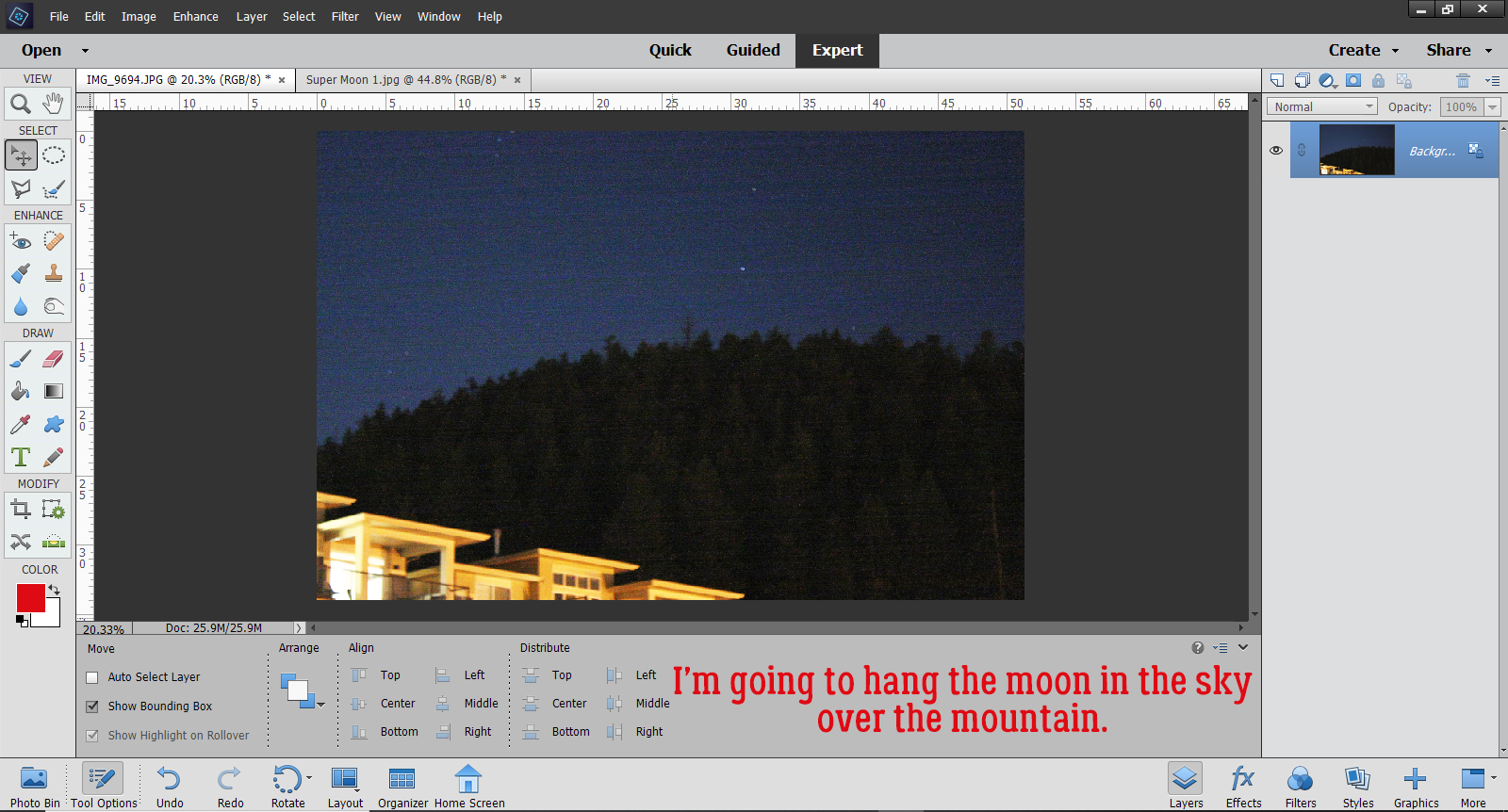
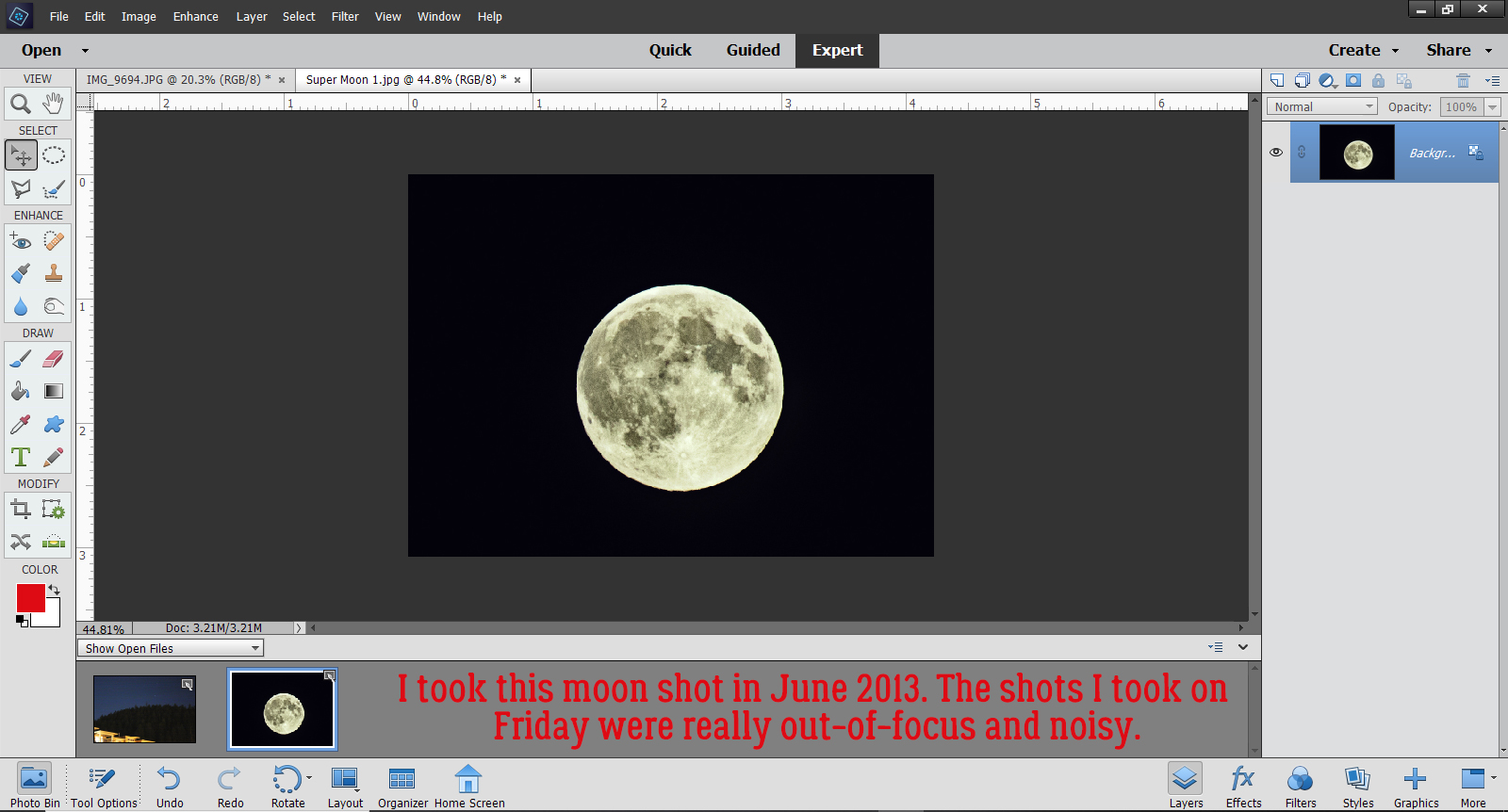
I wasn’t planning to take photos of last weekend’s full moon so I didn’t prepare for it. But then I took the dog out for a potty break and saw it hanging so brightly in the sky with Mars at its shoulder. So I grabbed my pretty decent DSLR, my telephoto lens and my very sturdy tripod and set up on the driveway. Rushing never makes for good results though and every one of the 70 photos I took was out-of-focus. The shots I took of the mountain were better, but pretty grainy. Thankfully I have a crystal-clear photo I took of the June 2013 Super Moon and that’s what I’m going to use to show you how I can make it look like the moon was over the mountain when it was quite far away in reality. This photo of the mountain that our subdivision snugs up to has been edited a bit to make the sky a bit brighter and the details a bit sharper.

Here’s my 2013 moon shot. I used a long shutter, a tiny aperture and manual focus to get it this bright and clear.

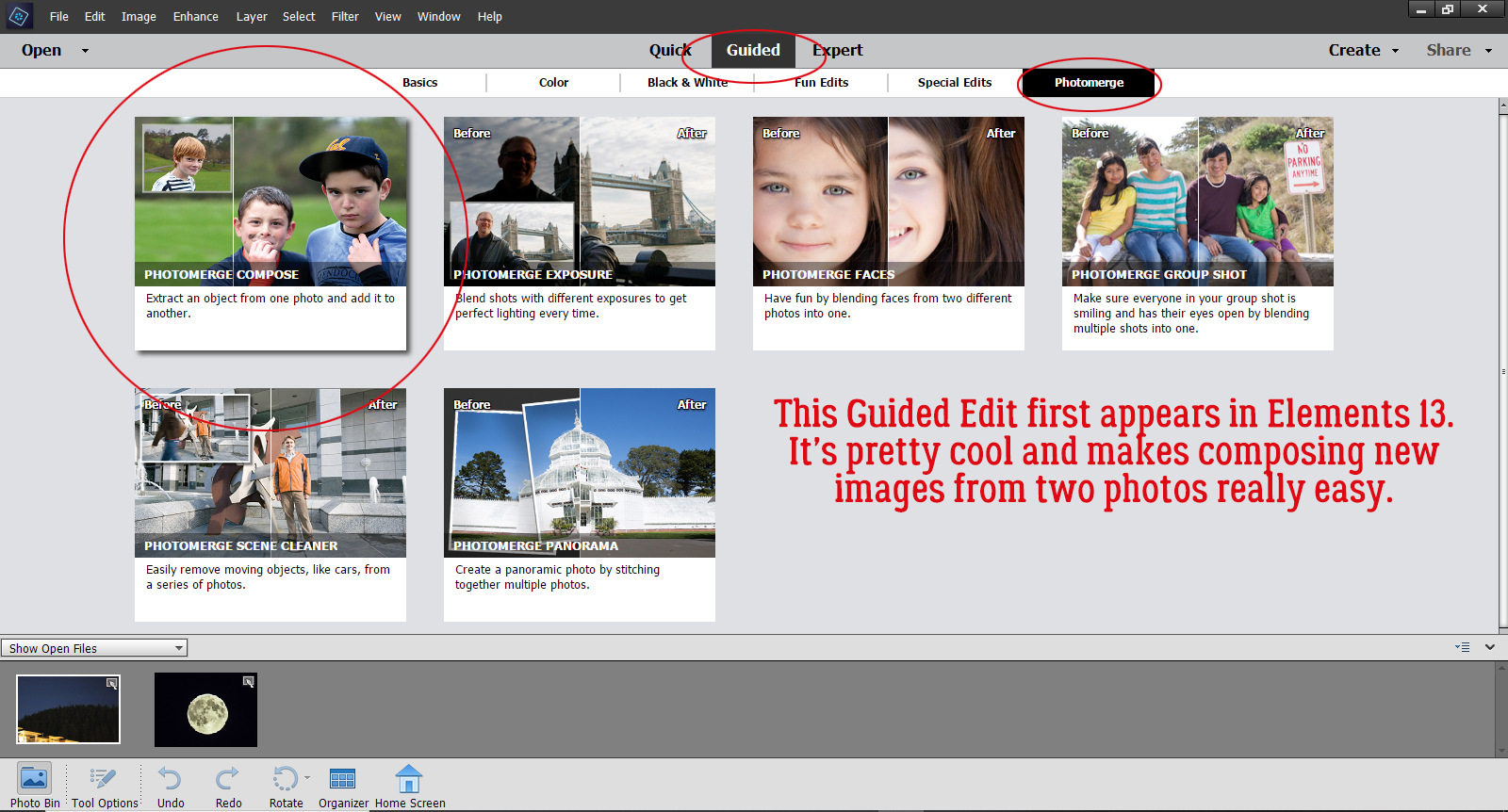
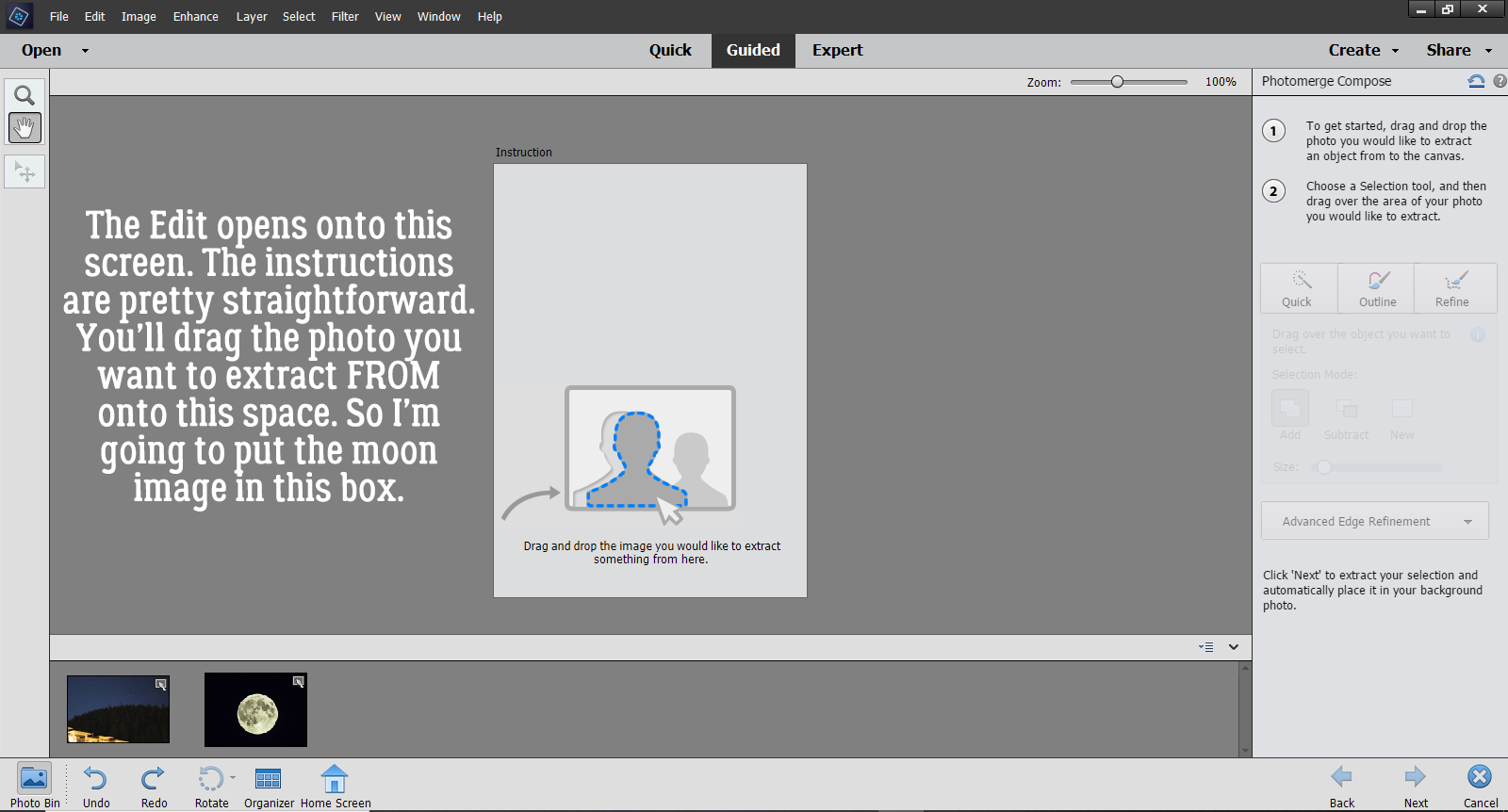
To hang the moon over the mountain, I’m going to use a Guided Edit that first appeared in Elements 13. Guided>Photomerge>Photomerge Compose.

Once you’ve activated the Edit, this screen opens. The instructions are fairly clear, even for the uninitiated. It says to drag the photo I want to extract FROM onto the space, so the Moon is going here.

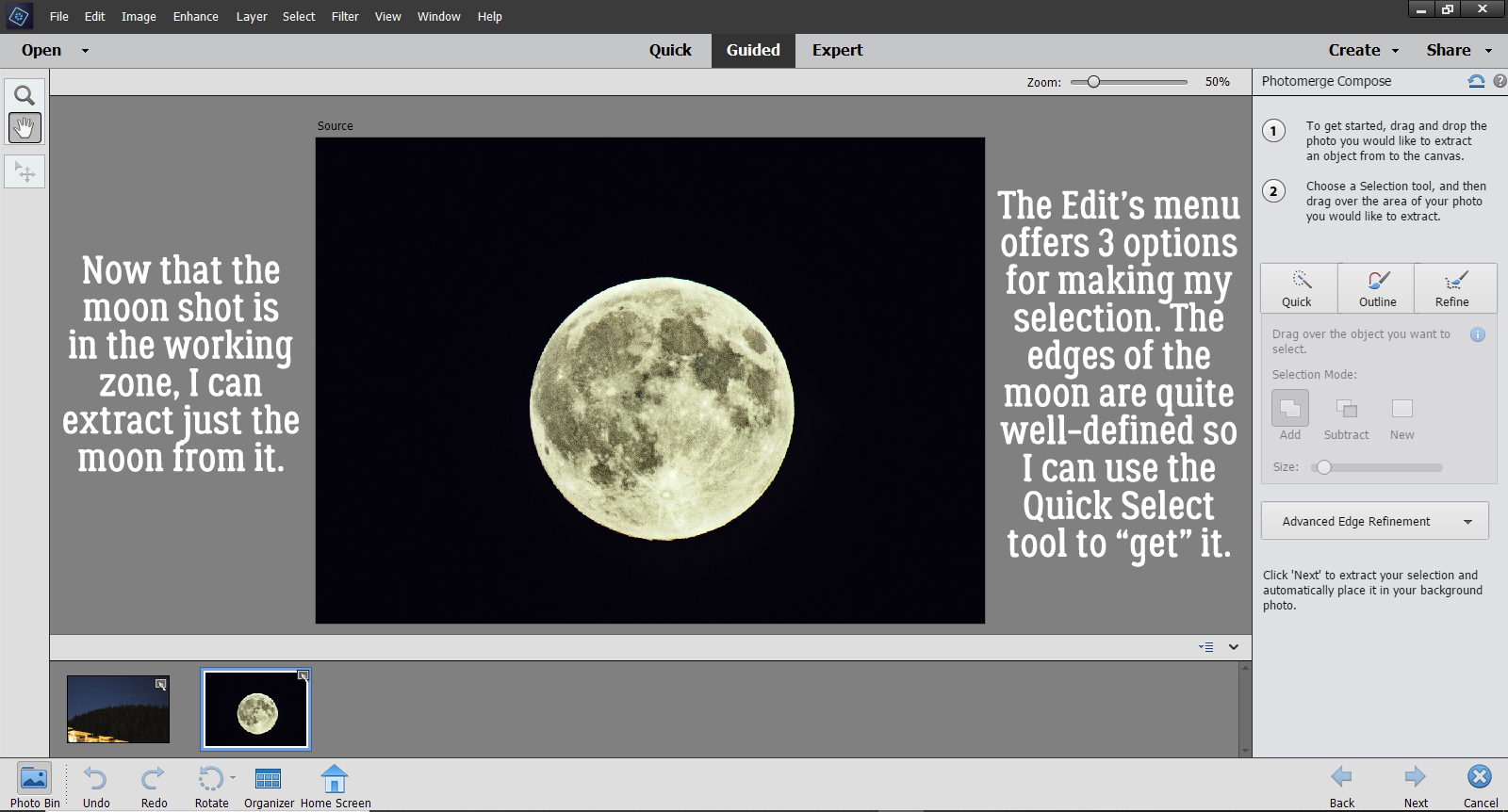
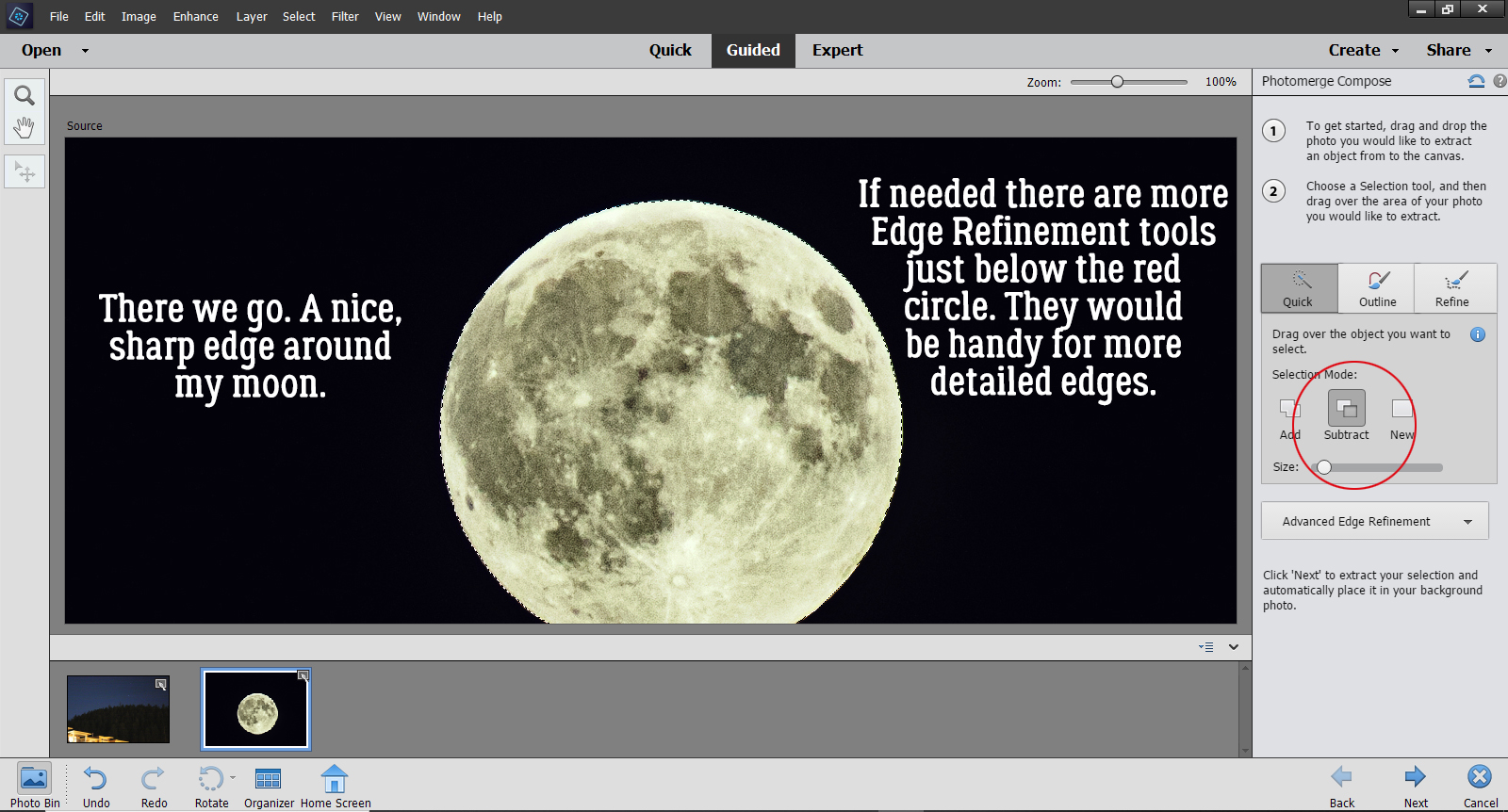
Okay, there it is. All I want from the photo is the Moon, which has a nice, clear, sharp edge, so selecting it from my photo will be easy. I can use the Quick Selection tool for this step. If my desired extraction had more detail, I could choose one of the other options. AND… there are further adjustments that can be made in later steps.

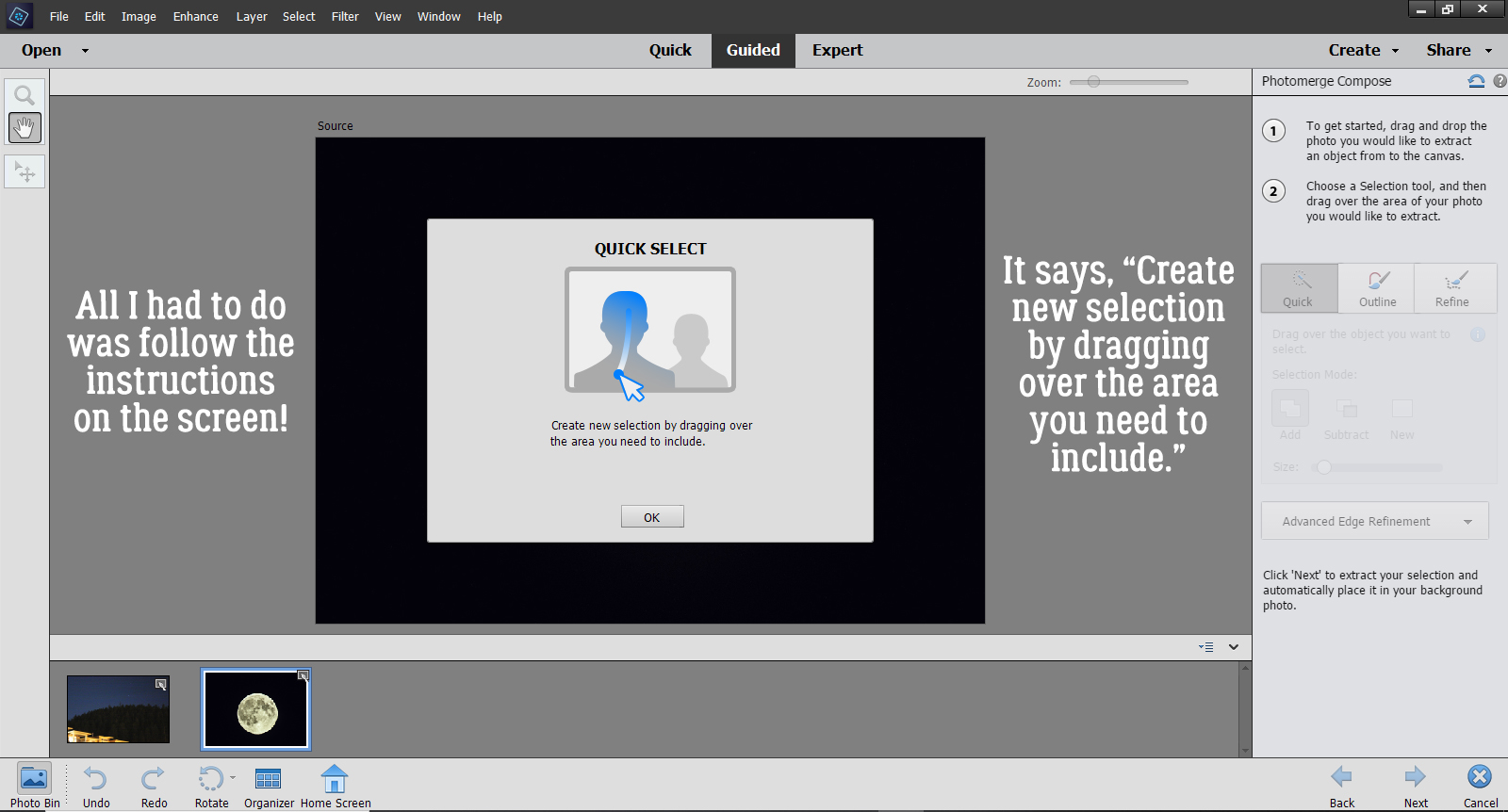
Once I clicked on the Quick button, this tool tip opened to Guide me through the next part. It says, “Create new selection by dragging over the area you need to include.

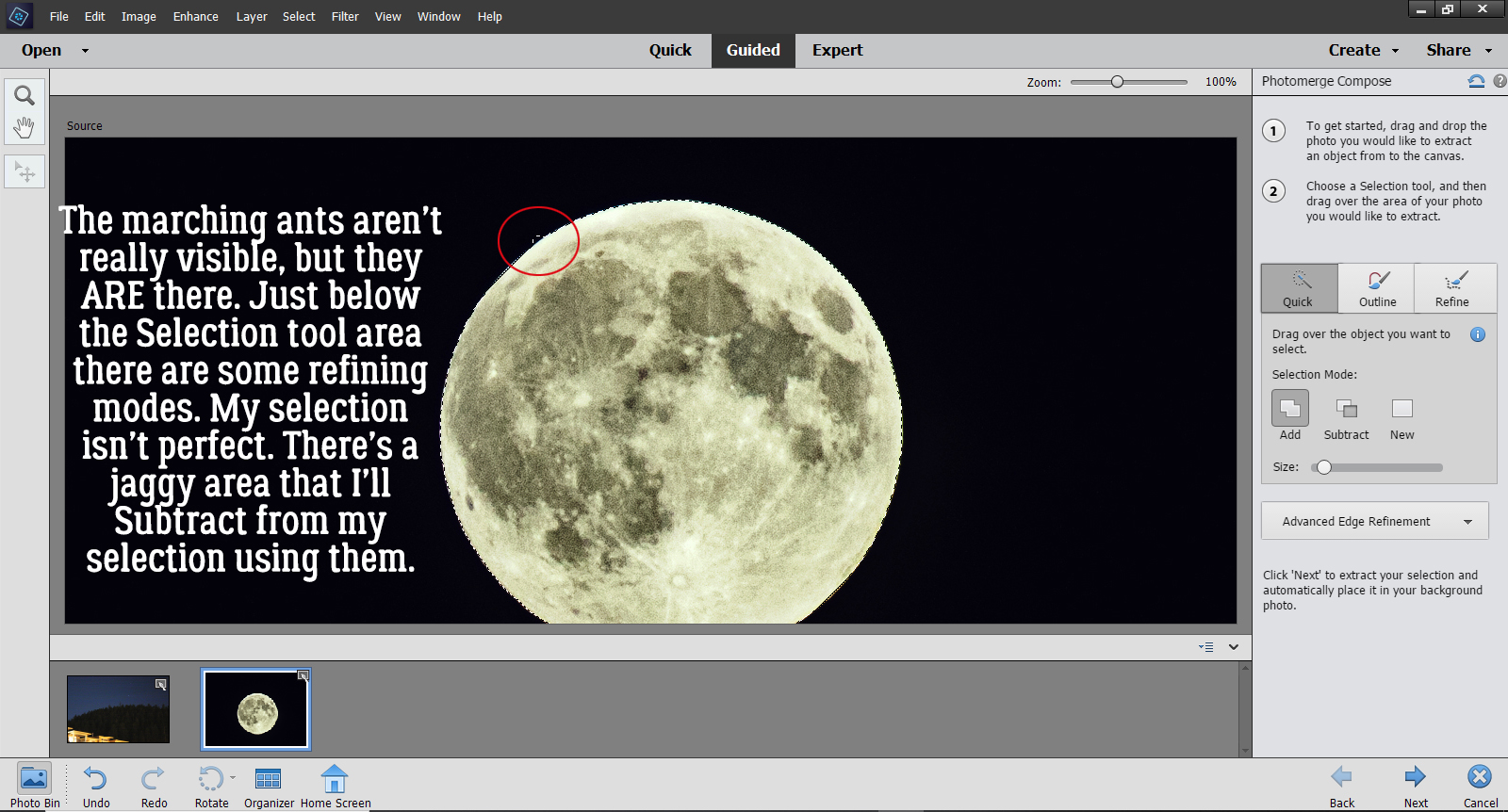
It’s hard to see the marching ants in the screenshot but they are there. There’s even a little jaggy part that I’m going to adjust by switching from Add to Subtract and scrape it off.

Done! As I mentioned, there are more refinements you can make to extract your desired image using the Advanced Edge Refinement menu. It’s found just below the red circle.

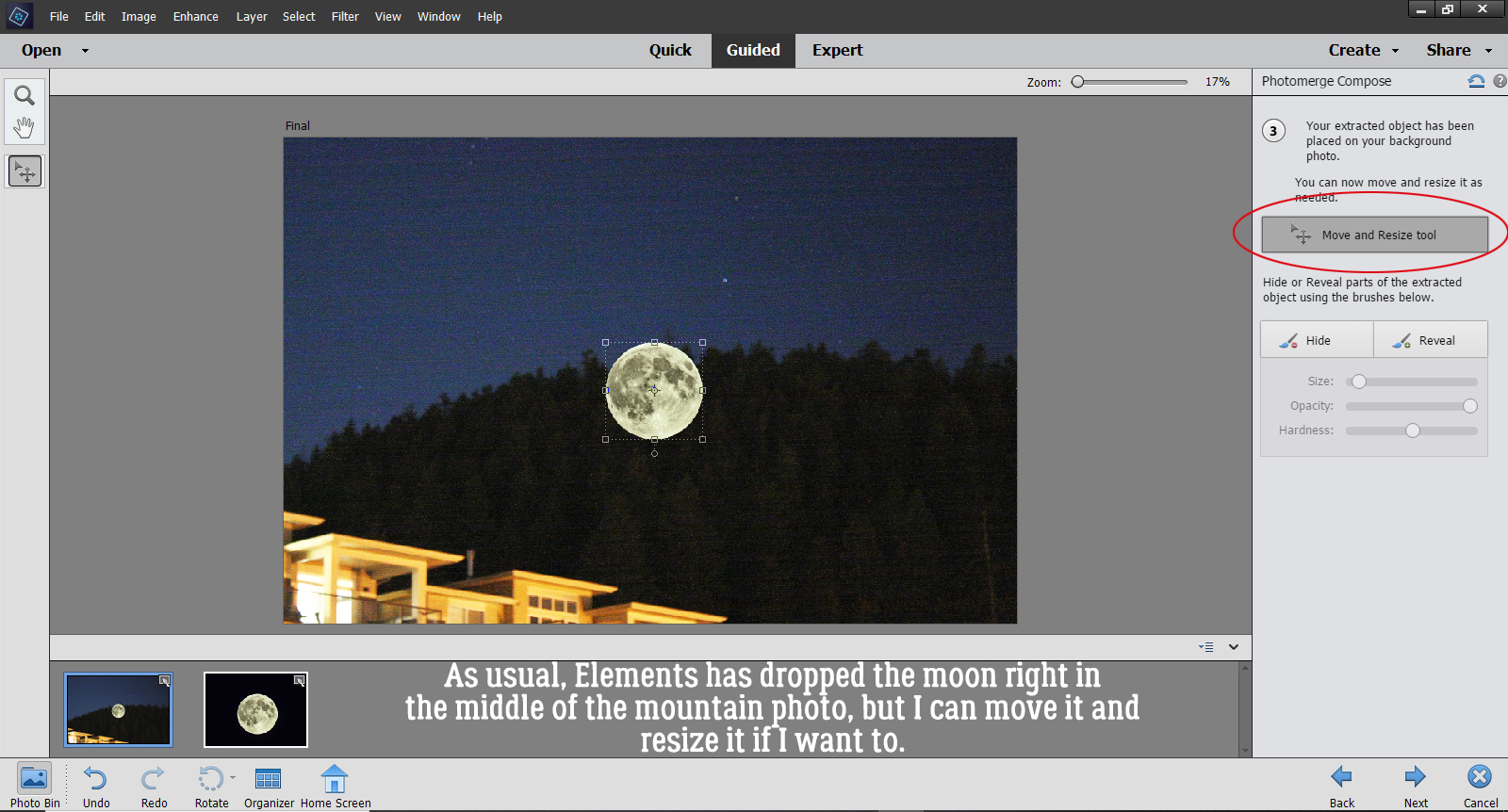
But since I just basically have a circle, I can move on to the next step by clicking the Next arrow at the bottom of the screen. Elements always drops things right in the middle of the canvas, so it’s great that I can move my moon off the mountain and into the sky.

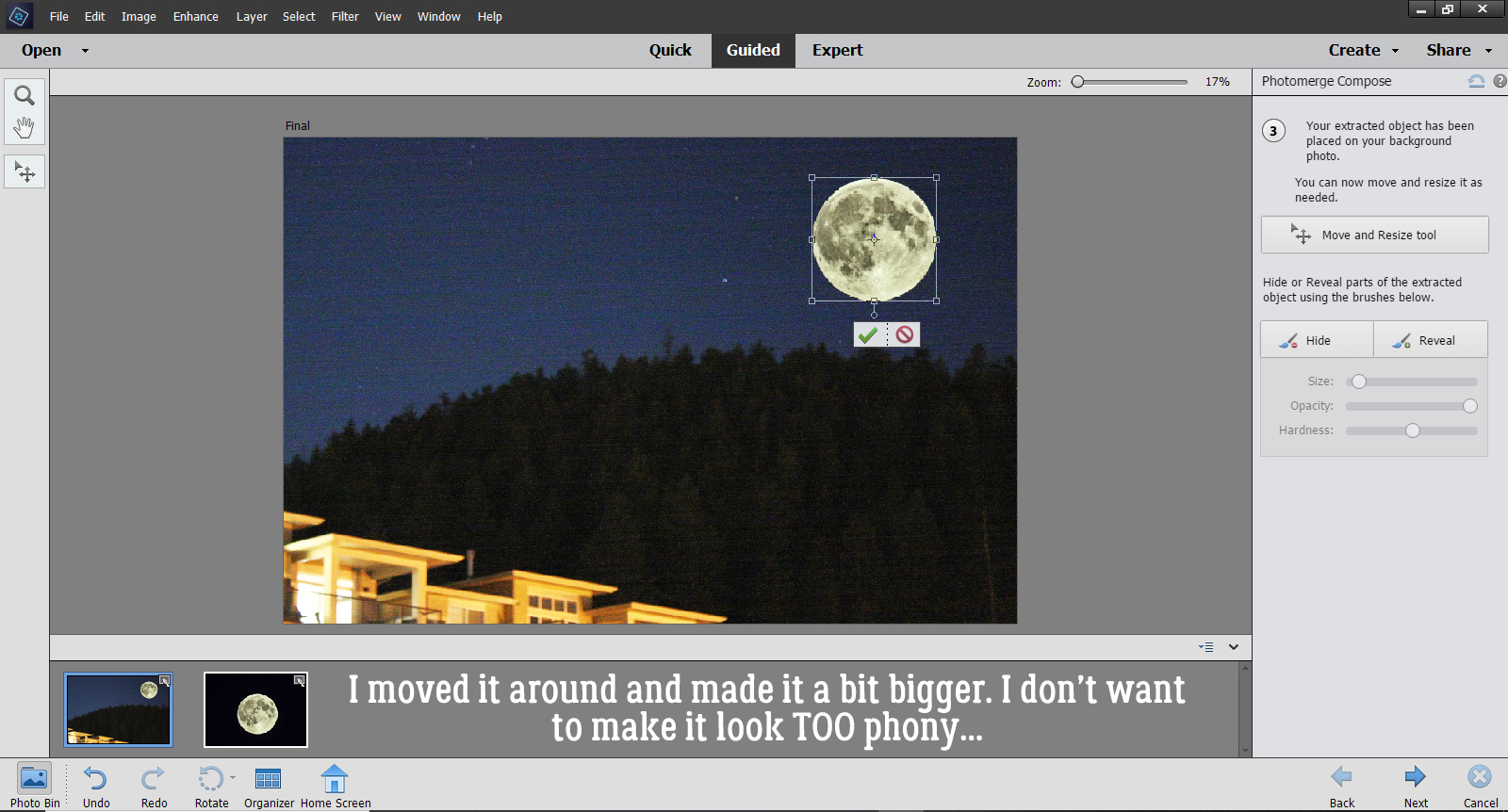
I decided to make it a bit bigger too, for dramatic effect. But I didn’t go too much bigger because I don’t want it to look completely phony.

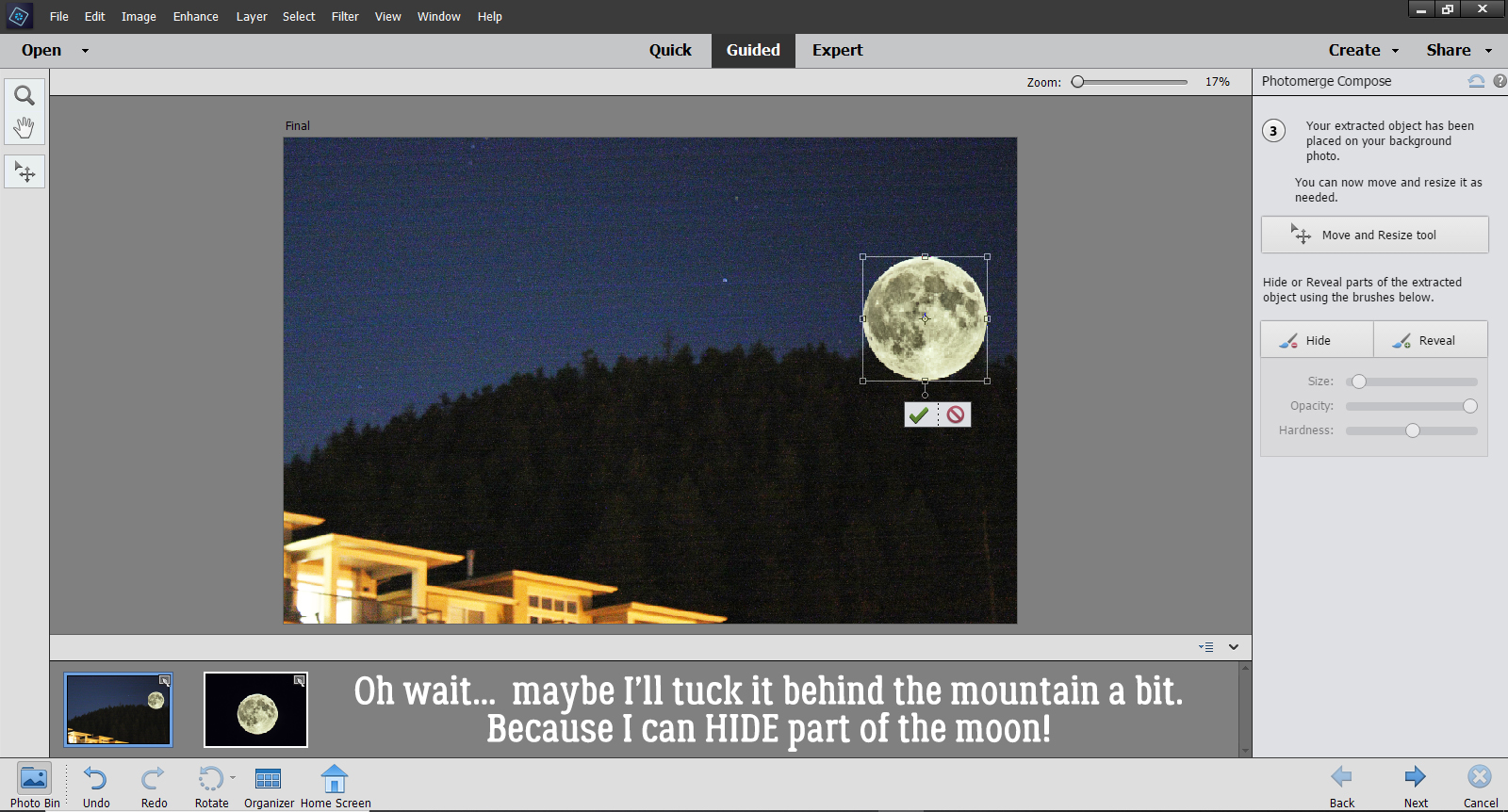
Then I had second thoughts and decided to anchor it a bit by tucking it behind the mountain a smidge… after seeing that I had some Hide and Reveal options.

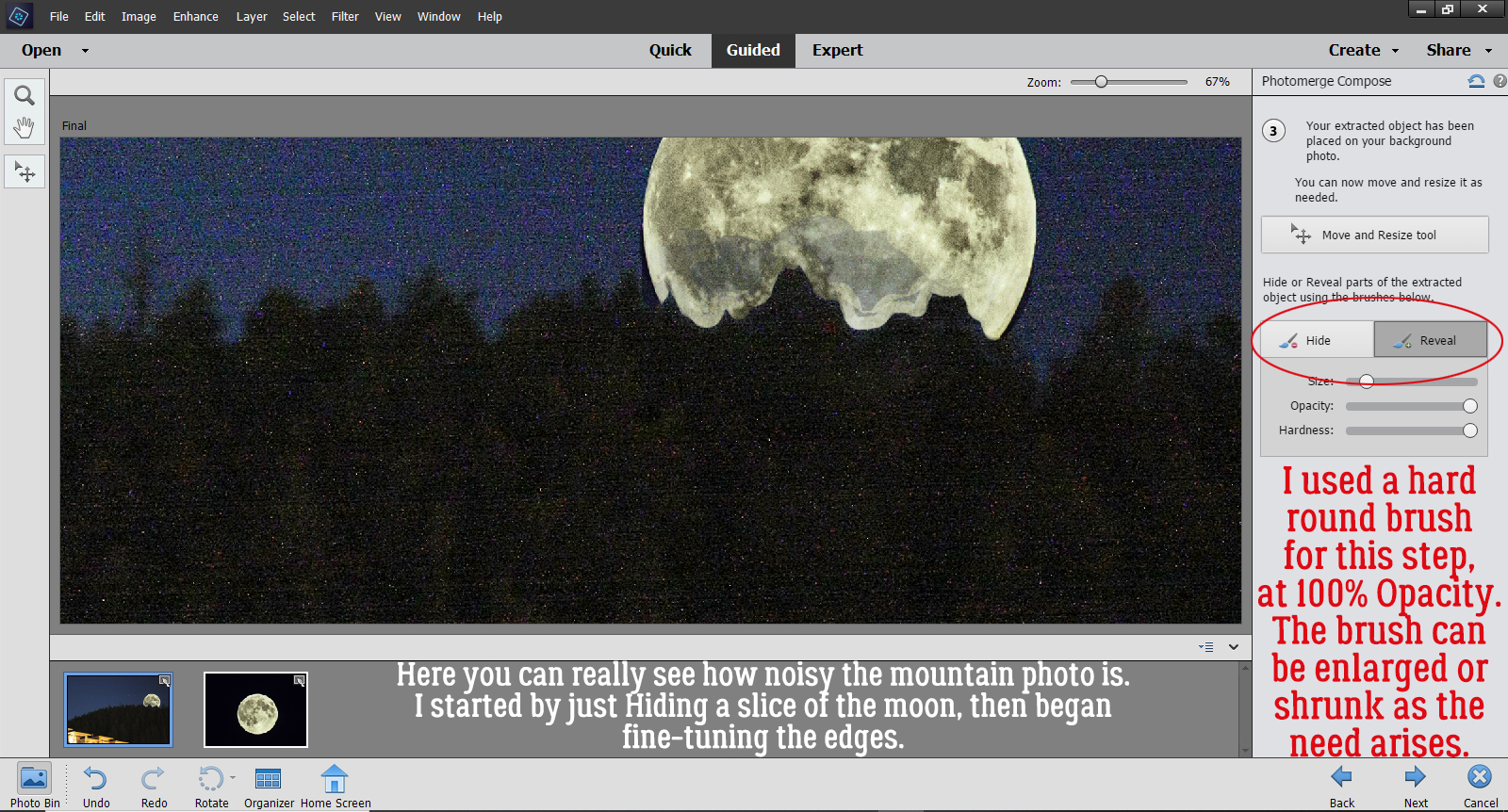
I started that process by Hiding the lower part of the Moon just roughly. I used a hard round brush at 100% Opacity to brush over the area that will end up being hidden by the mountain and trees. It takes several passes to completely hide the parts that I want hidden. Once I had an idea where the trees actually are, I could go back and Reveal the Moon where the trees don’t obstruct the sky. You can see in the screenshot that some of the moon looks more blue than gray – that’s where the sky hasn’t been completely Hidden. I also adjusted the size of my brush tip as needed to make the trees appear “normal”.

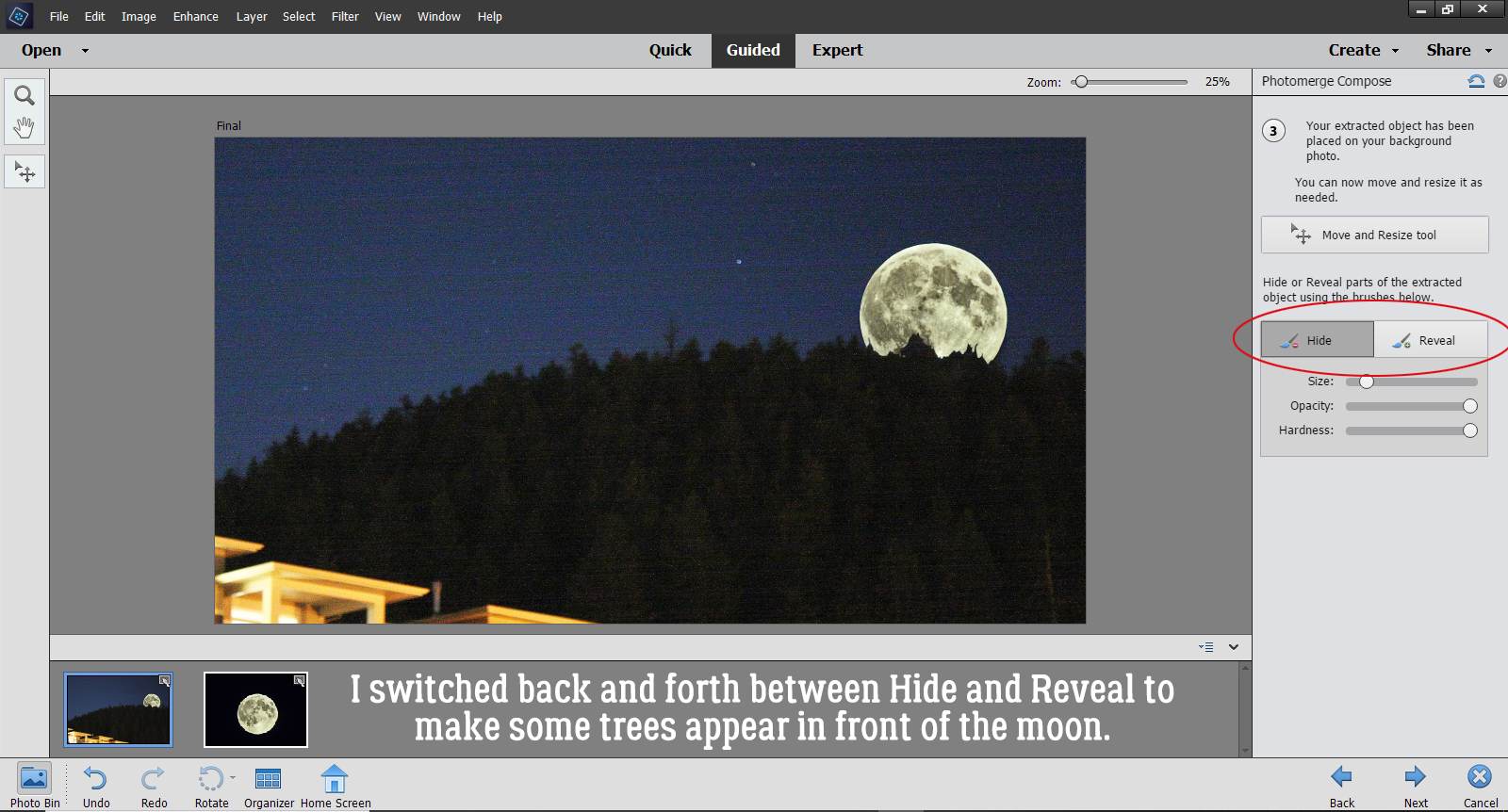
I switched back and forth between Hide and Reveal, adjusting the size of my brush tip until I had some natural-looking trees on my mountain. then I clicked on the Next arrow.

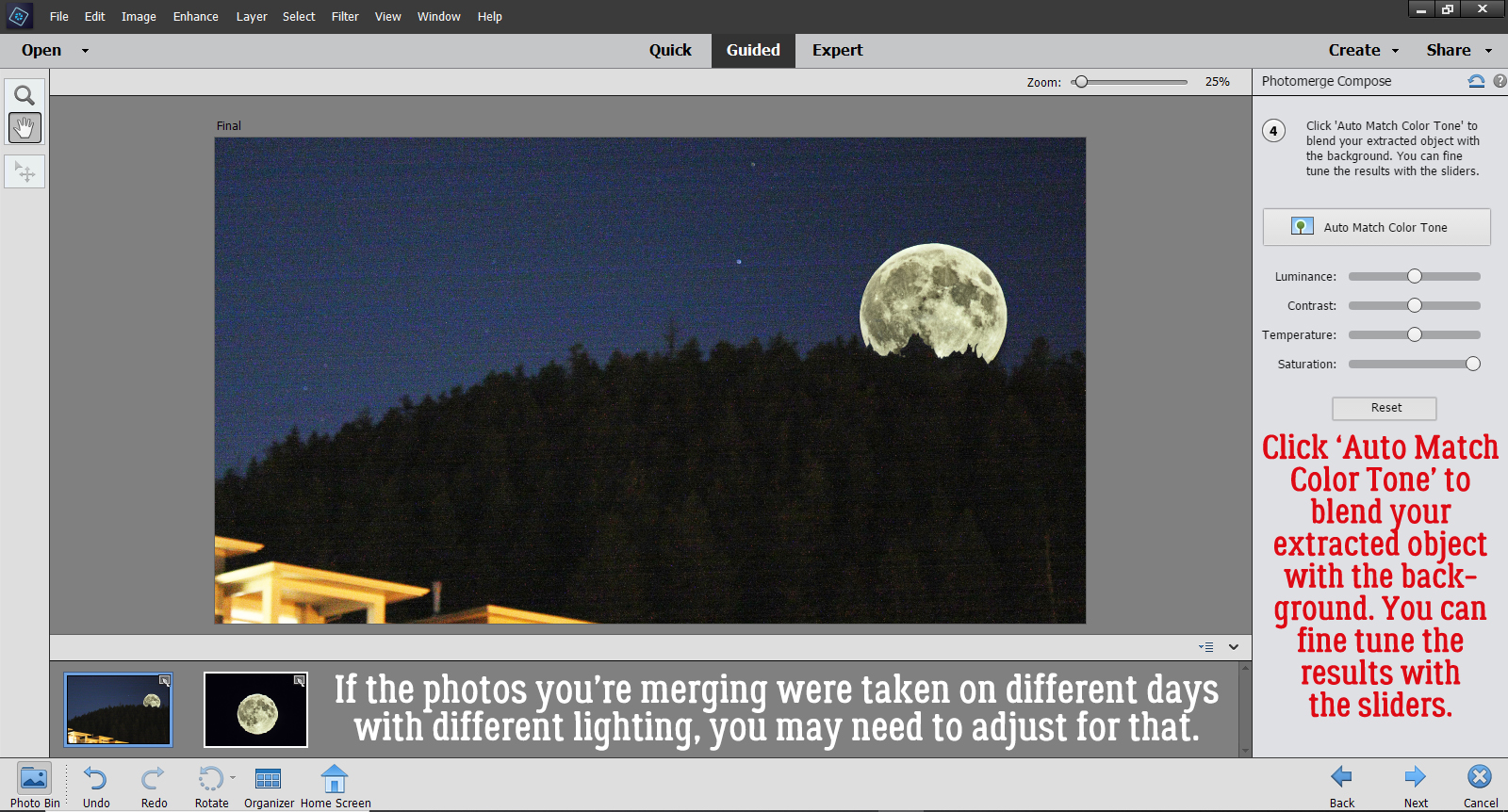
If your photos were taken at different times and in different lighting conditions, your composite might look pretty weird right now. Mine’s okay because night is night… But if you find your results aren’t making you happy, there’s still more in this Edit to help you get it right. The instructions say, “Click ‘Auto Match Color Tone’ to blend your extracted object with the background. You can fine tune the results with the sliders.” I highly recommend experimenting with this, because as you know, nothing is final in Elements until you say it is. If you click on the button and it does its thing but you hate the outcome, you can Undo it!! CTRL/CMD>Z should be an automatic movement. It sure is for me!

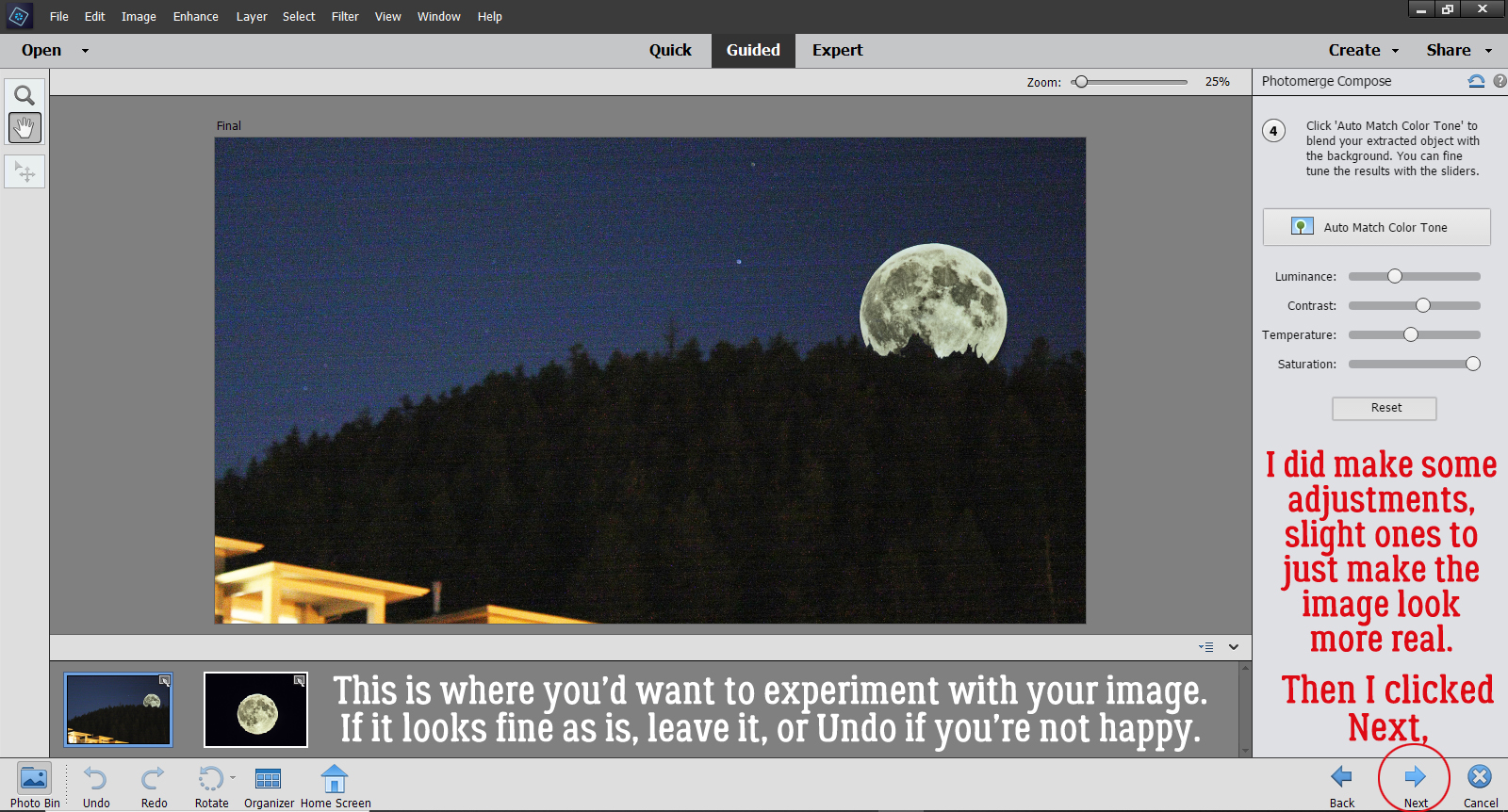
I didn’t like the results of the automatic process, so I made adjustments with the sliders. The image didn’t need a lot of adjusting to make it look more real. Then I clicked Next.

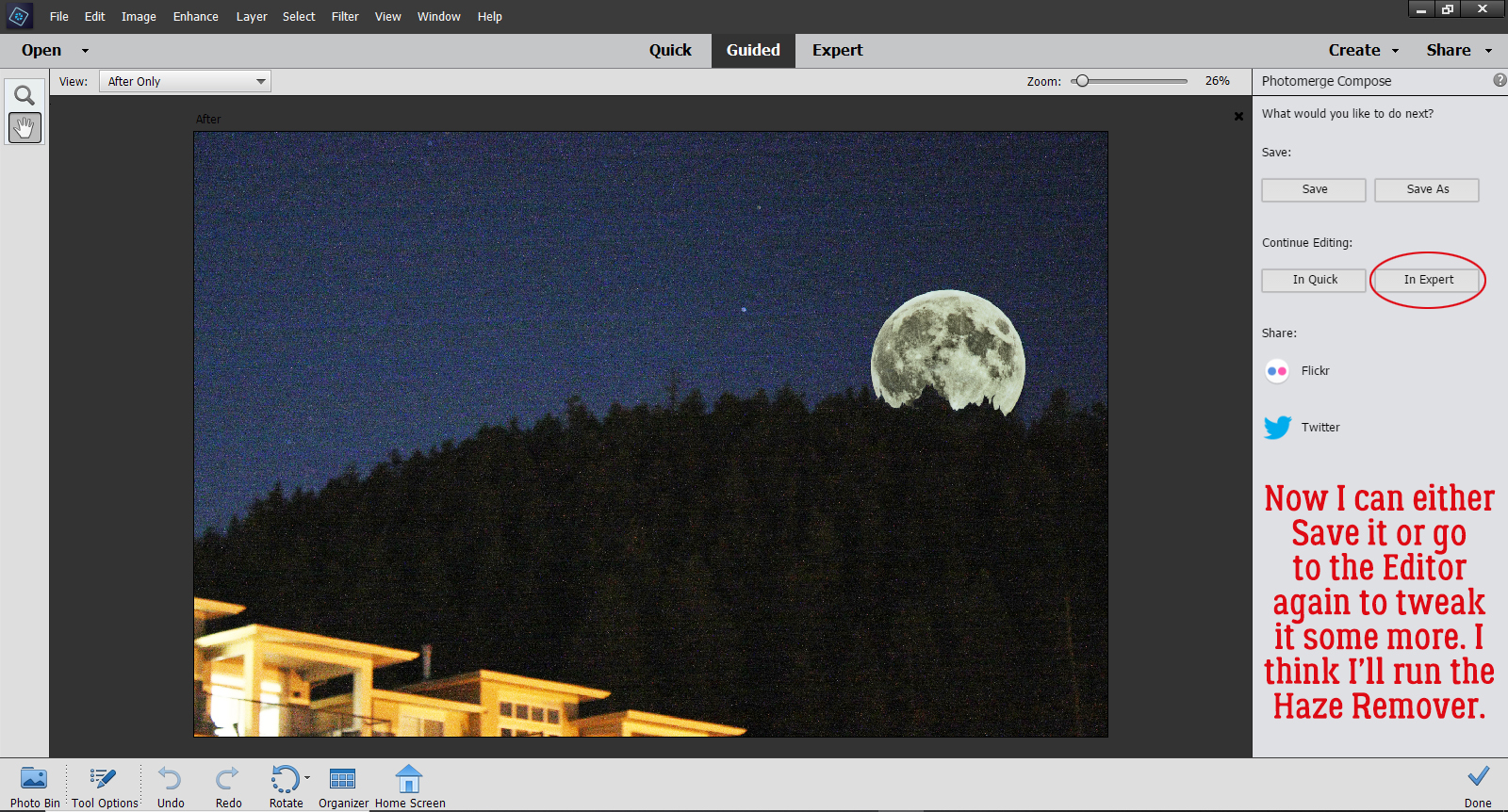
That’s the end of the Guided Edit. Now I can choose to Save, Continue Editing or Share my finished image. I want to clean up some of the noise by running the Haze Removal tool, so I’m going to click on In Expert and go there.

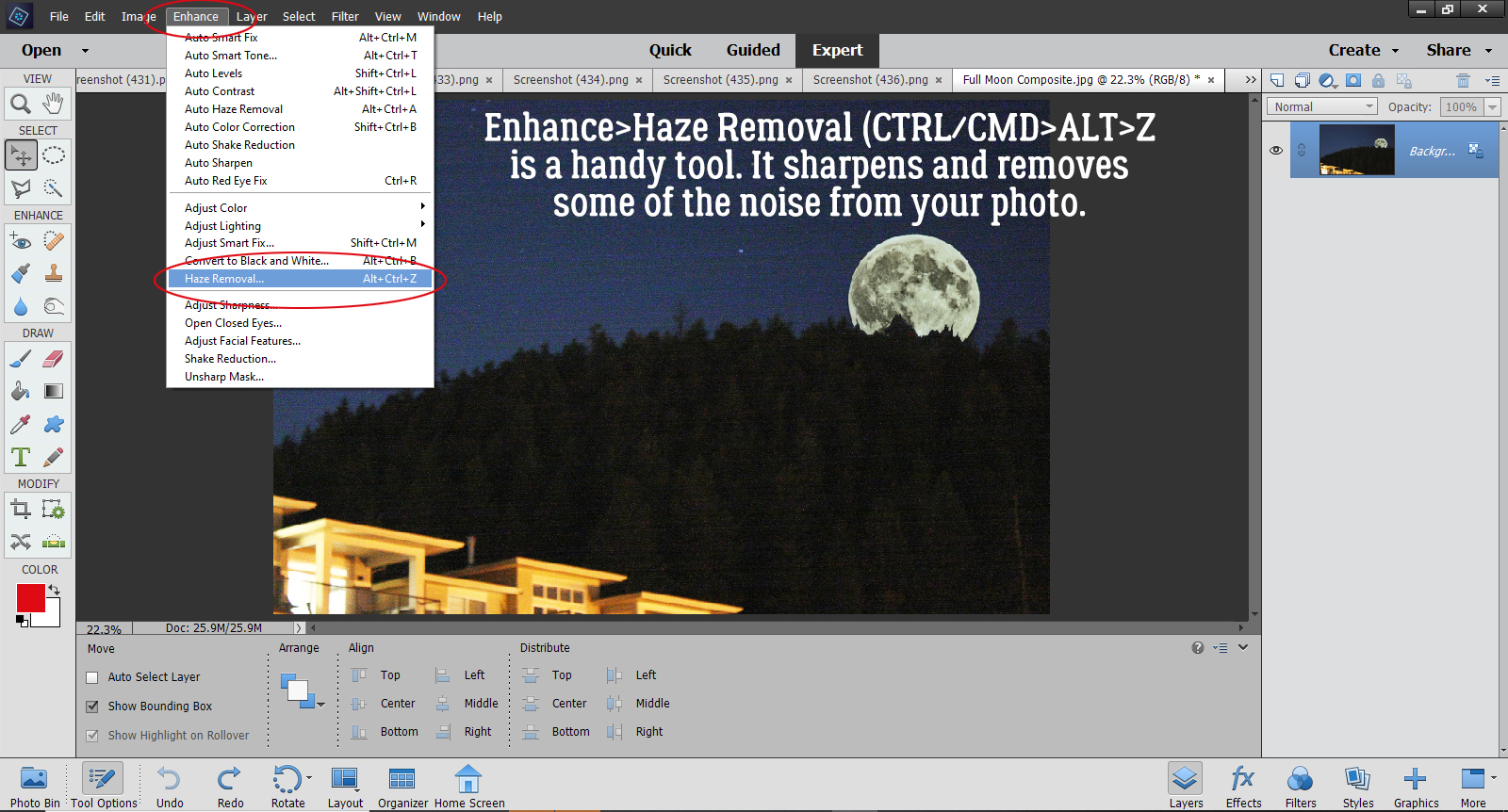
If you’re not familiar with the Haze Removal tool, I think you should give it a try! It sharpens your images and removes a lot of the graininess. You can get to it by Enhance>Haze Removal, or CTRL/CMD>ALT>Z works too.

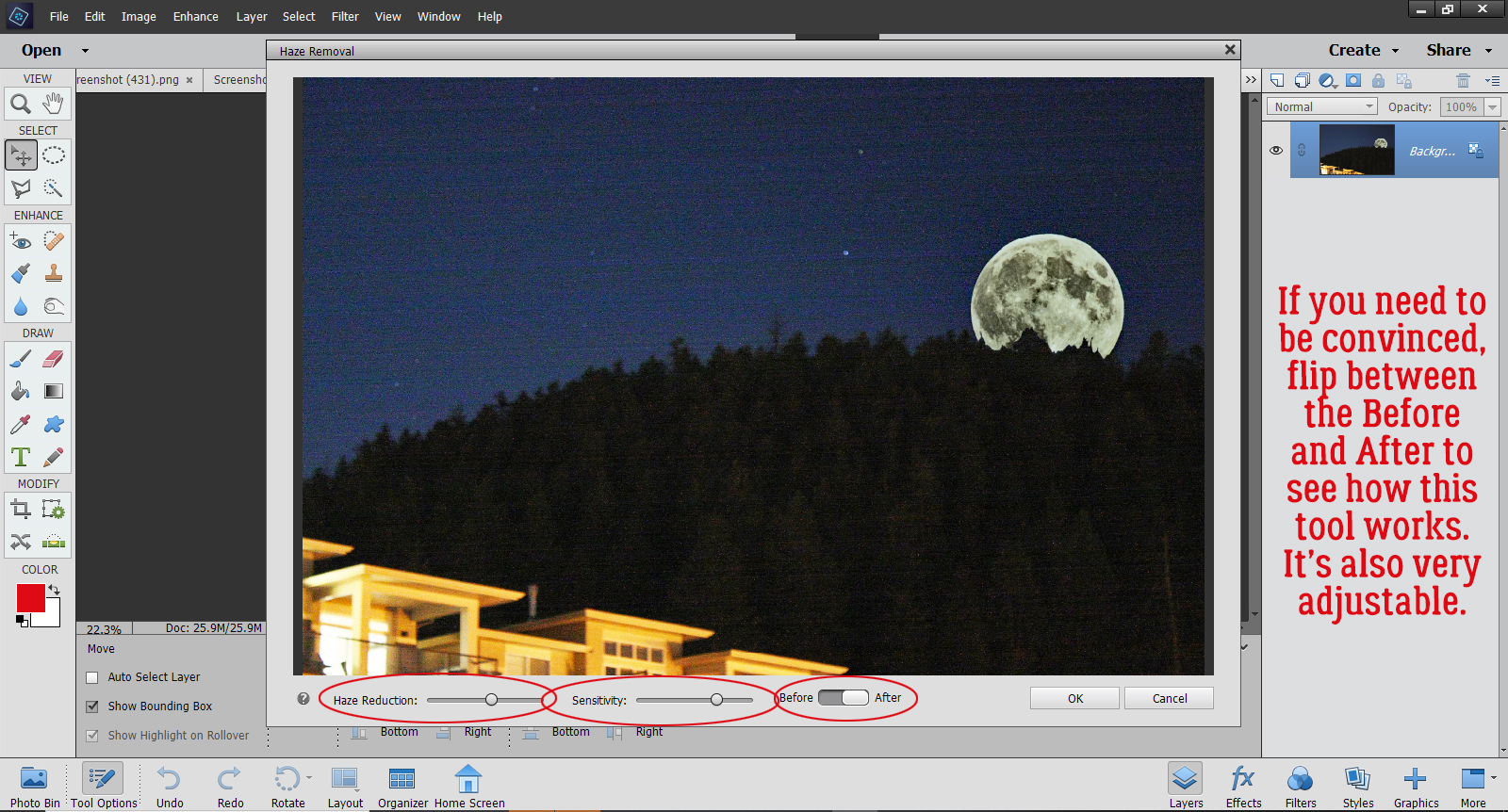
It’s still an interactive process. This screen opens up and you can make adjustments to the amount of Haze Reduction it does, as well as the Sensitivity of the action. And if you’re not convinced it’s actually making a difference, you can flip between the Before and After images and see how it’s changed.

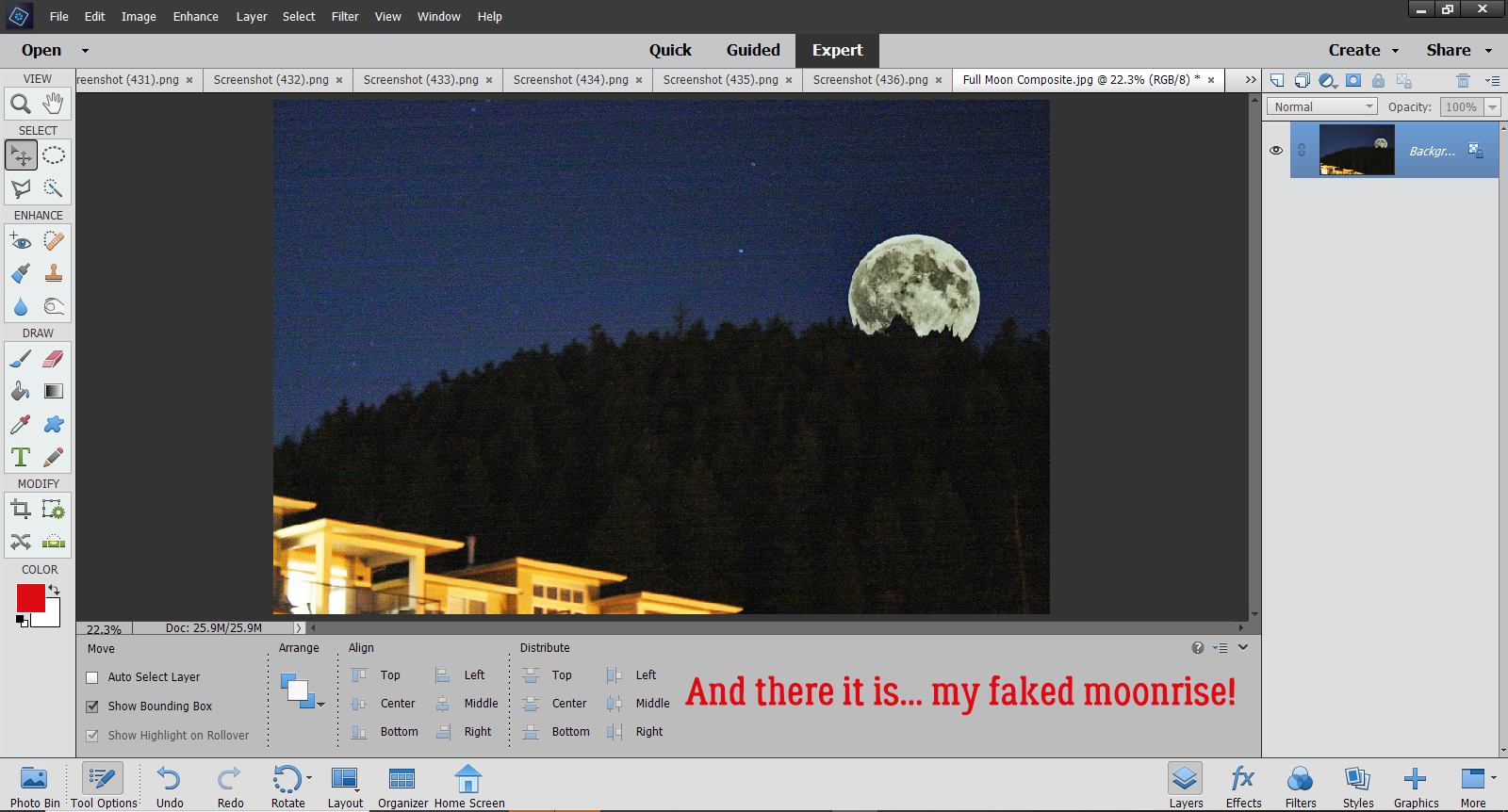
There! I think it looks pretty good, all things considered.

What do you think? Are you going to try this one? I think it would be good for adding a person who should have been in the photo but somehow wasn’t or to add someone who you only wished was there. Ooh, or maybe go right into fantasy and add a unicorn or a fairy to a photo of a baby. The sky’s the limit!

Designer Spotlight

Dandelion Dust Designs!

Greetings all you GingerScrappers! Are you ready for a fantastic Digital Scrapbooking Day bash?! I’m heading to the shop as soon as I’m done introducing y’all to Ginger, the sweetheart who creates the delightful Dandelion Dust Designs goodies. I asked her the usual questions and she very promptly sent me her replies.

J: How long have you been designing?

G: Just over 11 years. 

J: What made you decide to design?

G: I was a paper scrapper back in the day and never loved my pages (especially not being able to change them since everything was glued down.) I stopped paper scrapping for many years, and in 2009 I picked up a copy of PS Elements and there was a bonus CD included on how to digitally scrapbook. I made 2 pages and was hooked. 3 months later I started designing kits. 

J: What do you use to create your designs (program, additional tools, etc.)?

G: I create and design in PS CC on an HP laptop. 

J: Describe your design workplace.

G: I have a dedicated office in my home that is super clean, everything in its place, over the top organized with my laptop on my desk looking out a window at a mountain in the distance.

J: What motivates and inspires you as a designer?

G: I always start with beautiful photos that inspire or motivate me in some way, and create custom color palettes for each Dandelion Dust Designs’ Collection off the photos. I have to LOVE the color palette to be able to work and design with it. 

J: What is your favorite kit currently in your GS store and why?

G: Oh boy….each collection is so special for a variety of reasons to me as a designer, but if I had to pick only one, I really love Joy of the Season. It was one of those kits that came together magically from the photo inspiration, to the color palette, to the papers and elements and reminds me of the holidays growing up. 

J: If you could only eat one meal for the rest of your life, what would it be?

G: Oh wow…I don’t think I can narrow this one down, as I love making so many different types of meals. 

J: What is your favorite game or sport to watch and play?

G: I was born and raised in Nebraska, so even though I haven’t lived there in 30 years, the Nebraska Cornhusker Football team, will always be special to me. I watch every game they play. 

J: What did you want to be when you were small?

G: I thought I would be an architect, as I loved drawing house floorplans (on graph paper of course, because the lines had to be straight…LOL), when I was like 9 or 10 years old. My degree is in Business Administration and Management, but I still love looking at floorplans and doing interior design! My main career is as a REALTOR®, so that is as close to architecture as I came. 

J: Aside from necessities, what one thing could you not go a day without?

G: Besides my family, probably internet service, as all of my careers require being able to access multiple websites and resources each day. 

J: Who would you want to play you in a movie of your life?

G: Julia Roberts

J: If you had a warning label, what would yours say?

G: Procrastinators…you have been warned. 

J: What celebrity would you like to meet at Starbucks for a cup of coffee?

G: Jennifer Garner

Ginger, I’d love it if you’d come over and organize my workspace for me! I think as a REALTOR® you’re right where you’d be happiest. You have the insight to help people see themselves in the space and that’s a real gift.

Ginger would like you all to know she has put her entire store on sale for the whole month of October. How very generous! Don’t forget to pick up the Daily Download too!

Dandelion Dust Designs Store will be 50% off during the DSD Sale October 2-8 and then will be 30% off October 9-31

Tutorial Tuesday (Photoshop Elements)

The Photoshop Elements No-Diet Weight Loss Plan


Take THREE! Today’s really starting to feel more like a Monday than a Tuesday… WordPress isn’t playing nice again this week. But I’ll persevere, because I really want you to have this little weapon in your arsenal. Kim Kern asked in the comments after last week’s post if I knew how she could slim herself down a smidge in a photo she otherwise liked. So I dug out a photo of yours truly that didn’t make me cringe so I can show you how to lose 10 pounds without dieting.

First things first. I made a Copy of my photo so I could do all my experimenting on the Copy layer and lot the original. This is a good habit to get into when you’re photo-editing because if you’re not thrilled with your efforts, you can go back to that background layer and start over. To add a Copy layer, right-click on the photo layer in the Layers Panel and select Duplicate Layer, or use the keyboard shortcut CTRL/CMD>J.

Now, to that Copy layer, I’m going to apply a Filter. Click Filter>Distort>Liquify.

The Filter menu looks like this. The Tool options are along the left hand side of the workspace and the settings are on the upper right. For this edit I’m going to use the Shift Pixels option, the one with the icon that looks like two parallel brick walls with an arrow in between them. The brush I’m using is a soft, 64 pixel basic brush with a Pressure of 66. A light hand and a soft touch will give you the best results with the least backtracking.

I started my weight loss by gently slimming my left cheek. There’s no obvious clue for which direction to move your brush, or at least I didn’t find one. I started near my chin and very gently brushed upward until I got to the top of my ear. Just a tiny change is all that’s needed.

Then I took on my back fat. For this part, I started at my neck and brushed toward my bum. This is where you can see the distortion that happens in the background. It’s something I’ll fix later.

I moved on to making my arm look less meaty. I went elbow-up on the back of my arm and shoulder down on the inside.

Muffin top was my next zone. It too worked better going bottom up. It took me a few small adjustments to get to where I felt thinner, and I was careful not to flatten my chest. It’s really easy to see the blurring on those stones!

Once I was satisfied that I’d successfully slimmed but didn’t go overboard, I clicked on OK to go back to the Expert Editor.


Now to fix the weird spots. I started with the Clone Stamp tool and Zoomed in a lot so I could make my adjustments minutely. For this part, it’s best to use a fairly small soft round brush, at least at the beginning. Never used the Clone Stamp? Decide what part of your image is going to make the least visible correction and hold down ALT then click on that spot. Move your cursor to where you want your change to happen BEFORE you click again to apply that area you just Cloned. If you’re too close to the source, you’ll end up with a muddy mess. I worked on that bit of field behind my neck.

Then I moved on to remove the droop from the thatched roof on the yellow house at my back. For this kind of fix, if you click for your source with your cursor right over the straight edge of the object, Elements will give you a nice continuous straight line when you move the cursor over. To avoid visibly blurring an area that should be sharp, like where my sweater overlaps the wall, I switched my brush tip to a hard-edged one.

One disadvantage to using the Clone Stamp tool is that it reproduces patterns exactly, so as you move along, you’ll end up with some visible pattern repeats and that will look unnatural in most cases. That’s where the Spot Healing Brush comes into the game. For this fix, I used a small, hard-edged brush, selected Content Aware and Sample All Layers in the controls and randomly clicked on the stones to break up that repetition. If I noticed that my Spot Healing looked too sharp, I swapped out my brush tip back to a soft one.

I moved on to the blurry stones to my left and followed the same steps. After I’d cleaned that area up, I Zoomed out and looked closely at the entire image to see if there were any glaring areas that still needed retouching. Then when I was satisfied with the whole image, I selected both layers, right-clicked and Merged them. But it’s just as appropriate to right-click and Flatten Image.

That’s it! That’s how I lost 10 pounds without even giving up jelly beans. My final image got a bit more adjusting: First I smoothed out the wrinkles in my neck and erased the scar from my parathyroid surgery. I Duplicated the image and sharpened it with a High Pass filter. That layer’s Blend Mode was changed to Overlay. I made yet another Copy layer then I changed the Blend Mode on that new layer to Multiply and dropped the Opacity to 25% to add some more contrast to the clouds (both are discussed in a previous tutorial). Overall, I’m really pleased with the way it came out. I look like me, only better!

Mm-kay. Let’s see what else I need to do to this post to get it right. I might even make my deadline! See you next week.


Designer Spotlight

Meet ADB Designs!

This month we have two designers in the Spotlight, Karen Schulz (formerly known as Snickerdoodle Designs) and ADB Designs. It was my pleasure to chat with Diane of ADB Designs and learn all about her creative process. She’s one of my very favourite designers EVER!

J: How long have you been designing?

D: Since 2001

J: What made you decide to design?

D: Working for my husband in his professional photography studio after retirement

J: What led you to decide to design together?

D: We have been digi friends for a very long time and are very comfortable with each other, our design styles, and work ethic. I admire Karen’s talent!

J: What do you use to create your designs (program, additional tools, etc.)?

D: Photoshop.

J: Describe your design workplace.

D: I have a messy office in the my home. The cat lives there (hubby allergic) and one of our English setters comes and spends the day with kitty and me.

J. What motivates and inspires you as a designer?

D: My family history-genealogy passion <Jan whispers, “ME TOO!!”>

J: What is your favorite kit currently in your GS store and why?

D: My all time favorite is Patriots & Loyalists to help scrap Revolutionary War era family history work (though it works for many other pages too)

J: If you could only eat one meal for the rest of your life, what would it be?

D: Oh dear….not sure

J: What is your favorite game or sport to watch and play? 

D: prefers not to respond

J: What did you want to be when you were small?

D: A psychologist

J: Aside from necessities, what one thing could you not go a day without?

D: Family

J: Who would you want to play you in a movie of your life?

D: Emma Thompson
J: If you had a warning label, what would yours say?

D: “Does not suffer fools well”

J: What celebrity would you like to meet at Starbucks for a cup of coffee?

D: Kamala Harris

Thank you for sharing this with us! Thank you too for the DISCOUNT COUPON you’re offering for this month. Karen‘s coupon code for 25% off your purchase (bundles excluded – they’re already a phenomenal bargain!) is ks-dd-sept-2020 and Diane‘s code, also for 25% off your purchase, is adb-dd-sept-2020. Both coupons are in effect until 11:59 pm Eastern time on September 30, 2020. Ooh, and don’t forget to grab the Daily Download!! It’s SOOOO stinkin’ cute! (Links are found here on the GingerScraps Blog.)

Tutorial Tuesday (Index)


Huh. I was devoid of inspiration for today’s Blog post so I did a quick Pinterest search for Photoshop Elements tutorials I could adapt… it turned up quite a few very familiar tuts! (Mine!) So lacking that bolt from the blue that would give me the juice I needed, I thought, “I should see if there are any requests for help in the GingerScraps Forum that I could use. What I discovered was that none of the “here’s-a-tutorial-about______” threads I’d posted in the Forum had links to the tutorials any more. Ginger thinks the server upgrade back in the spring must have eaten them. What alarmed me is that I hadn’t been spending much time in the Forum while we were moving and getting settled, and there were a number of posts there looking for those missing links. FAIL!! So… I went through all of those threads and updated them. Instead of preparing a new tutorial. Then I updated the Blog post where I indexed all the Tutorial Tuesday posts (there are now 190 of them!) and this is where you can find it: Tutorial Tuesday (Tutorials!)
I also discovered that I’ve neglected my OTHER Blog post, which I’ll be remedying right away.

That brings us back around to my initial question: What topics are GingerScrappers interested in right now? Is there a tip, trick or technique that you’ve tried to figure out and just need a bit of help to get it right? Help me to help you!