Tutorial Tuesday (Individual Style)

Challenge Spotlight: That’s Entertainment

Before I get too deep into the weeds here, thank you all for your thoughtfulness and understanding. I do feel a lot better today (despite not having slept too well… for several nights now) and should be fine again soon. Now, let’s get down to business!

I must say, I absolutely LOVE this new-for-2026 That’s Entertainment Challenge. It brings together so many things that I truly enjoy: musicals, the use of song titles or lyrics as inspiration, thinking outside the box and scrapbooking. The premise relates to Broadway or movie musicals, taking the title of one song from the show for inspiration. (Now, if I could find some motivation to actually create a layout, I’d be laughing!) The Challenge is hosted by Lori, one half of Scraps N Pieces and it’s genius! So let’s look at what Lori chose as her prompt…

My oldest daughter appeared in a high school production of Oklahoma! many years ago, and both she and our middle grandson are active in their community theatre in Northbrook, Illinois. So this one is special to me. Here’s the set list for the show:

Oh, What a Beautiful Morning
Laurey’s Entrance
Surrey With the Fringe on Top
Kansas City
I Cain’t Say No
Many a New Day
It’s a Scandal! It’s a Outrage!
People Will Say We’re in Love
Pore Jud Is Daid
Lonely Room
Out of My Dreams
Farmer and the Cowman
All Er Nothin’
Oklahoma!

Lori commented: “I’m thinking we are going to get a lot of Oh What A Beautiful Morning. We shall see.” Was she right? There were eleven layouts in the thread and the Gallery, so we’ll know for sure soon!
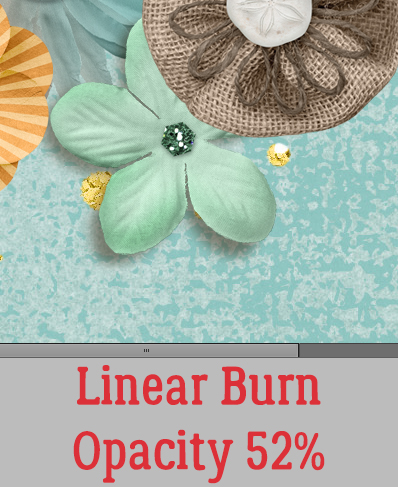
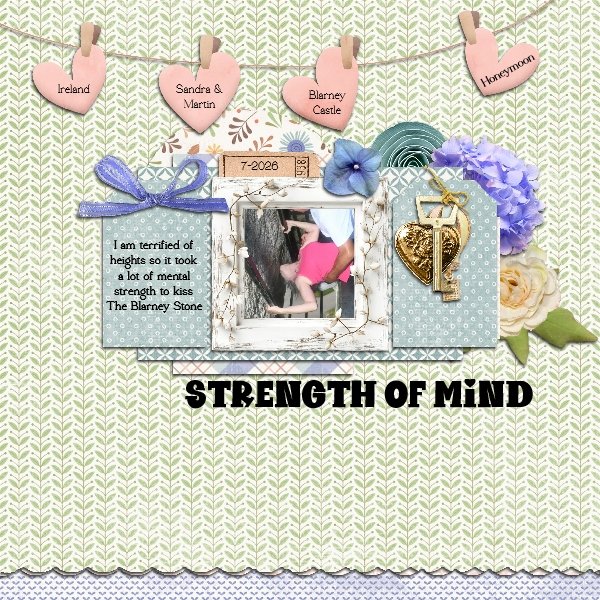
The first layout is from dricamendes. (Click on her name for a closer look – it’s hyperlinked to the Gallery.) She used a photo of a smiling couple vacationing together in Japan, and did NOT choose Oh What a Beautiful Morning. šŸ˜‰ The layout itself is quite simple, pulling colours from the floral background paper for the title and cluster. The filmstrip suggests there are more photos from that trip.

Here, granny5pics has also used a floral paper prominently. She used the title song for her title, and showcased some photos from a visit to Oklahoma she made. I love how she tied in some sheet music and guitar chords to reflect one of her favourite memories of that trip.

For her layout, teenybop61 also chose the title song. She created a grid-style layout with a photo of the state’s welcome sign paired with some symbols representing the state. (Gotta say, the musk ox confuses me. šŸ˜€ )

Jill too didn’t choose Oh What a Beautiful Morning. She sense of humour really shines here, and I think we might be twins separated at birth. All of her choices of papers and embellishments have a feminine feel; she’s playing into the stereotype of women loving chocolate, especially at that “special time” each month. Did you know there’s a physiological reason for those chocolate cravings? It relates to magnesium deficiency – chocolate is actually a SUPPLEMENT!

Grace. went with Lonely Room. Her palette pulls from her photos. Her choice of elements reflects solitude and comfort… but I’m not convinced it necessarily equates with loneliness. Sounds like heaven to me!

Ooh, another high school production of the play, this time starring a family member of alexandergirl68. I wondered if anyone would choose this title and how they’d scrap it. Wondering no more! And she chose perfect elements to add to the theme. I’m not lucky enough to have photos of my daughter’s performance – no cellphone cameras in those days.

Windswept chose the title song and focused on the history of the state for her grid-style layout.

Well, how to categorize this layout by MemmieNelleke… she used Oklahoma as a title, but Oh What a Beautiful Morning – literally the SONG – as the topic. The layout is a little musical, a little historical and a little biographical. Her elements are folksy and that poster is really different!

I’ll confess, I had to think about this one to see how it meets the Challenge criteria. Duh…. there’s a song called Kansas City. AlyciaIN kept things quite simple with baseball-themed elements.

I’d know this was a msbrad layout without looking at the credits. She loves her cruises, and so many of her layouts are cruise-related. Now, this layout is very clearly an Oh What a Beautiful Morning layout. Look at that sunrise! I love the blend-and-frame look, and the careful colour choices.

Another gorgeous sunrise – OWABM – is the focus for lebjs, supported by the quote she used for journaling. That inset stack of papers. photo and ocean-related elements reinforces the theme.

Okay… so if we’re keeping score, there are 2 Oh What a Beautiful Morning layouts for sure, with a third teetering. There are 3 totally Oklahoma! layouts, with a fourth teetering. So Lori has guess wrong! Which title would YOU choose? I’d love to come up with something for It’s a Scandal! It’s a Outrage! that is funny but truthful. I’ll have to see what I can dream up.


Tutorial Tuesday (Photoshop Elements)

Digital Zen Doodling (Part 3 of maybe 5)

I’m thinking maybe nobody’s really gung-ho about digital Zen doodling, but I’m going to press on. Can’t possibly just leave it unfinished, right? I didn’t get any guidance on which space to fill next so I made an executive decision.
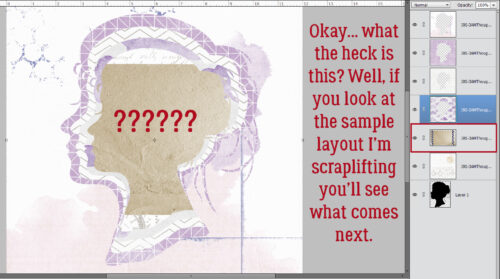
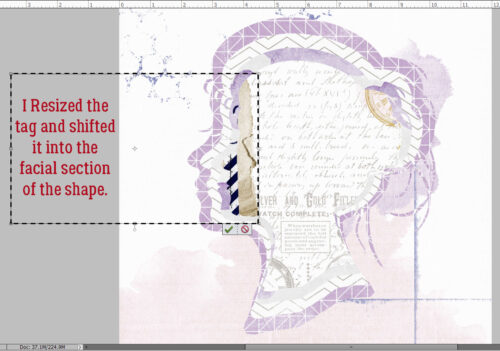
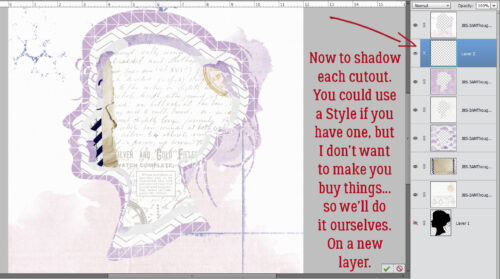
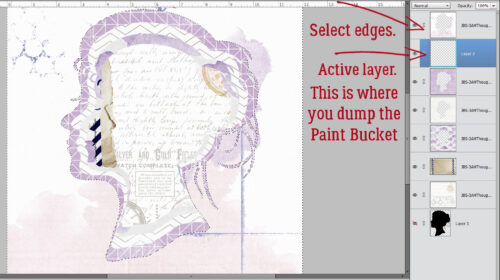
Many of the steps for this shape are the same as for the others, so I probably won’t be as wordy as I can be. šŸ˜‰ The Magic Wand Tool option I used here is the one that has the fairy-princess-looking icon with the yellow six-pointed star at the tip. I just clicked inside the desired target on the main Mandala layer with it to Select the edges of it. (I’ve outlined it in red just for visibility – the marching ants are hard to see.)

Yep, you guessed it. I popped a New Layer above the Mandala layer for the changes I want to make on this shape.

By using Edit>Copy (CTRL/CMD>C) I can Duplicate only the shape inside the marching ants. The active layer for this step must be the Mandala layer.

With the New Layer active Edit>Paste (CTRL/CMD>V) will drop a perfect Copy of the shape right there.

I’m going to make some um… concentric isn’t quite the right word, but let’s go with it… lines inside the shape. So again, I CTRL/CMD>Clicked on the Layer Thumbnail to Select the edges of the shape (in red for visibility only).

For ultimate Editability (did I make up a new word?) the Stroke (Outline Selection) should be on its own Layer.

Let’s use Black (hex code 000000), 10 pixels for the Width and put it Inside the Selection at 100% Opacity.

This may seem repetitious (duh!) but you really can’t do anything else unless you Select>Deselect (CTRL/CMD>D) whatever is surrounded by marching ants.

Yeah, you guessed it. I’m just going to Select those edges again… so that I can make more outlines. CTRL/CMD>Click the Thumbnail, then Select>Modify…>Contract to make the Selection smaller.

I want the new outline to be smaller, but still leave room for at least one more decrease, so I had to try a couple of numbers in the box before I settled on 30 pixels. (Remember, CTRL/CMD>Z is always there to Undo whatever isn’t working.)

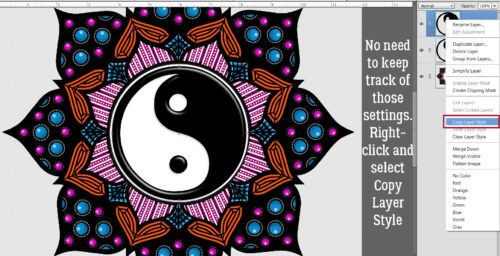
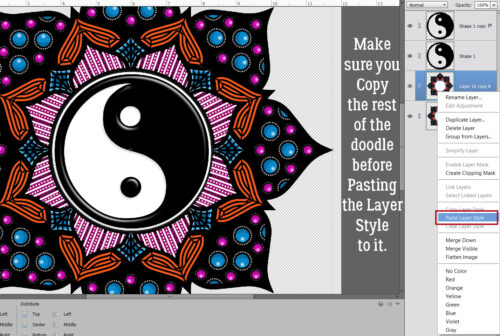
I’m keeping all these outline Strokes on the same layer. Elements has remembered my settings so I can just Edit>Stroke (Outline Selection…)

… and click OK.

I repeated those steps one more time.

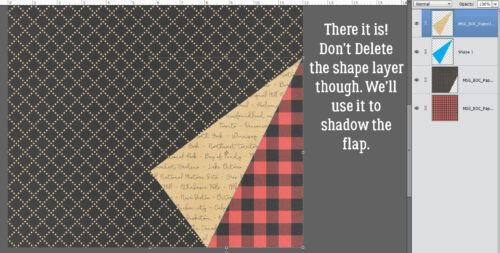
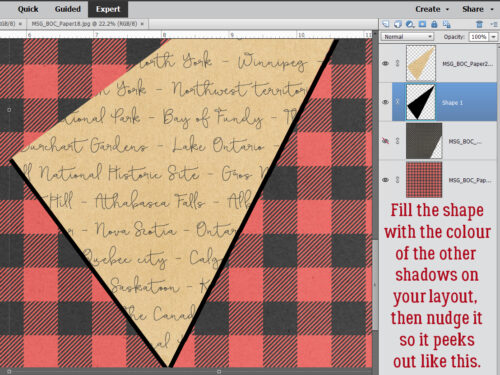
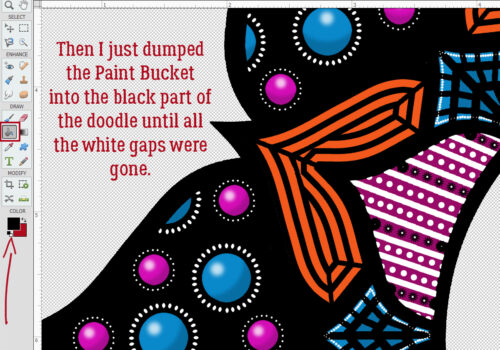
Let’s add some colour. I tried with the Paint Bucket, filling in the gaps between the black outlines, and it was UGLY. So I went down to the white shape Layer and tried again. Fail.

This method has never let me down. šŸ˜‰ Layer>New Fill Layer>Solid Color…

This menu opens. I know from previous fails that I have to tick the Use Previous Layer to Create Clipping Mask box, otherwise I’ll just have a solid colour fill the whole screen.

When the Color Picker opened I chose a bright orange.

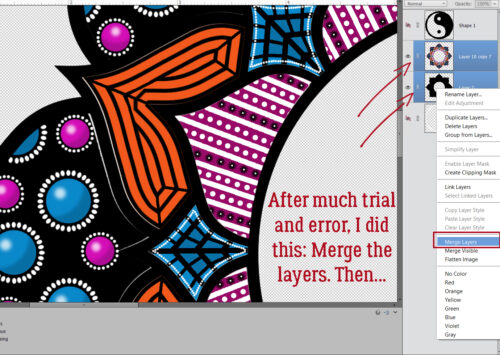
To solidify everything I Activated both the orange and the striped layers and Merged them.

Then I decided I should connect up the corners. I used the Pencil Tool the same way as in the last installment. Click the Tool at the starting point, hold down the SHIFT key then click at the end point.

Last steps were to make 7 Copies of the orange stripy shape, Move and position them into their assigned spots and Merge the whole kit and caboodle.

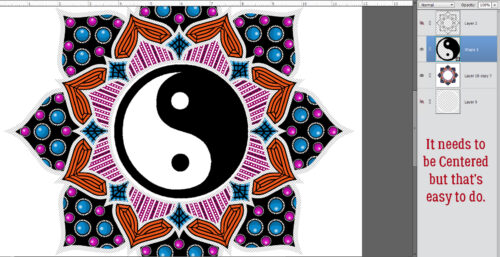
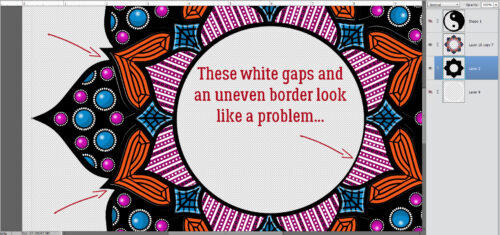
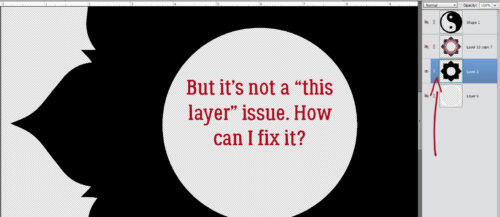
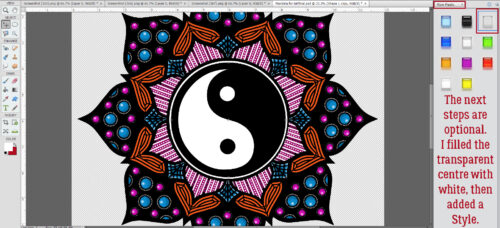
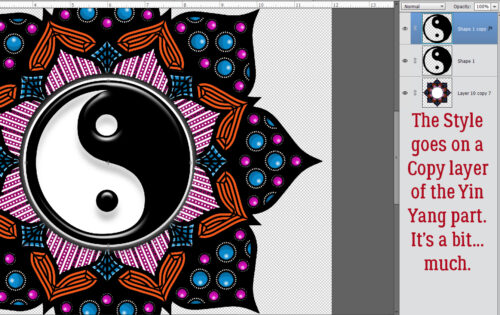
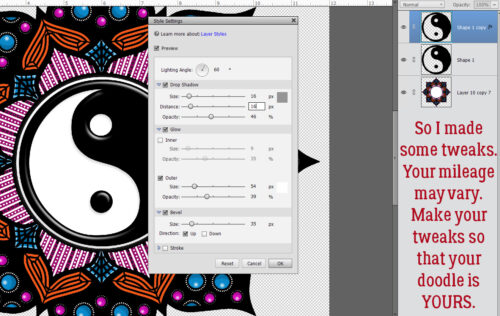
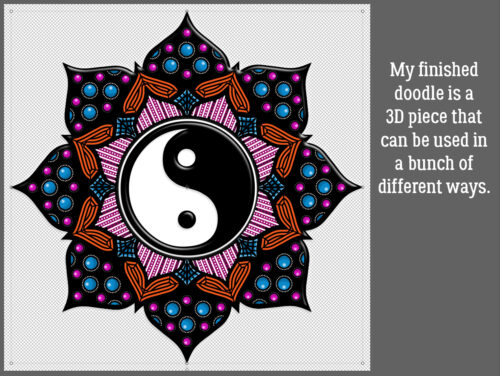
Progress to this point. I like it a lot! I’m thinking hard about how to fill the large centre circle. Could be fun!

If there’s one thing I’ve learned from this experiment, it’s that my vision is really not what it used to be, even with appropriate correction. The cursor is getting harder and harder to see… and giving me mild headaches. There may be some hard choices coming for me. šŸ™ But I can absolutely see well enough for a Challenge Spotlight next week! Will one of your layouts be given a starring role?
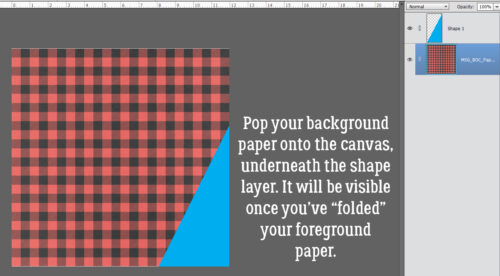
Tutorial Tuesday (Photoshop Elements)

Digital Zen Doodling (Part 3 of ???)

Have you processed everything from Parts 1 and 2 yet? Today’s edition will be using a lot of the same processes as the others did. Many of the steps will be familiar for more experienced PSE users. As I mentioned at the end of Part 2, today I’ll be filling in the diamond-shaped (or is it kite-shaped?) spaces. As you can see in the screenshot below, I have the Composite Layer active – the layer with all the various shaped spaces where I put the Copies of the petal shapes. I’ve Zoomed in (using the CTRL/CMD>+ shortcut) on one of the diamonds. Using the Magic Wand Tool (set to Magic Wand and not to any of the other Tool Options) I clicked in the middle of that shape.

I made a Copy (CTRL/CMD>J) of the diamond shape, which lives alone on its Layer; Then I added a New blank Layer above it where I created the “veins”. By putting the veins on their own Layer, I can later make changes to JUST the veins without messing anything else up. Do you remember how to make lines in PSE? Using the Pencil Tool set to oh, about 8 pixels, and the colour of your choice, click your starting point. Then hold down the SHIFT key and click your end point. VoilĆ ! a straight(ish) line! Now, you might be able to see that there are some marching ants visible in the screenshot, and you might be wondering why… Well, that’s to make sure the lines I’m creating don’t stray outside of the shape I’m filling. See how the top is pointed and the sides are curved? I got the marching ants going by CTRL/CMD>clicking on that white diamond shape while the new Layer was the active one. The Pencil won’t draw outside the shape!

With the marching ants still working, I used the Paint Bucket and a medium blue to Color Fill in some of the spaces created by the veins. Then I went a bit darker with the blue and Color Filled closer to the centre.

Next I want to add a line of white dots on the inside edge of the diamond. To do that, I again dropped a New Layer on top of the veined, blue diamond, then Selected the outside edge of the white diamond LayerĀ  by CTRL/CMD>clicking on it. Select>Modify>Contract will make the Selected edge smaller.

This pop-up let me choose how much I wanted to shift that edge. I chose 8 pixels.

It’s hard to see the new edge in the screenshot, but it’ll be easily spotted after the next step. You might have figured out that I’m creating a Guideline

I verified that I’m indeed working on a BLANK layer here.

Do you remember this part? I’ll add a Stroke to the Selection to create that Guideline. Edit>Stroke (Outline) Selection

This Stroke can be pretty much any colour I want. It just has to be visible so I can put my dotted trim on it. I’ll be Deleting the Guideline Layer later. The settings are 2 pixels, Color is a turquoise, and the Location is Outside.

ALWAYS remember to Deselect! Elements won’t let you do anything until you do! You can either use Select>Deselect or CTRL/CMD>D to do it, but make sure it gets done!!

You’ve probably predicted that I’ll put my dotted outline on its own Layer, and you’d be correct. I used a small (3-4 pixel), hard (meaning sharp not fuzzy edges), round Brush and white to dot my way around the Guideline. Then I Merged (CTRL/CMD>E) all the diamond Layers together.

This part makes digital Zen doodling so much easier than the paper-and-marker version. I made a total of 8 diamond Layers (CTRL/CMD>J), then Moved and Rotated into position each one over a diamond shape on my Composite Layer. Then I activated all of the diamond Layers and the Composite Layer so I could Merge (CTRL/CMD>E) them all.

Here’s a close-up. Now I’m going to ask YOU to decide which shape I should fill next – the heart or the smaller petal. AND… what colours should I use?

Many of the concepts I’m using for this massive project can be used when creating any layout. Selections, Strokes, Filters, Brushes, they’re all basic tools!

I finally have my *new* new glasses and they’re great! Good-ish vision at all distances is something I took for granted, but no more!! Of course, life chez ObiJan is never dull. We had a catastrophic washing machine failure last week… one of the springs supporting the drum (front-loader) snapped. It sounded like a truck had driven into the garage door! The drum landed on top of the drain pump and hose. Fortunately, it didn’t create a leak, but the repairman (Daniel, he’s been her before šŸ™ ) couldn’t guarantee that the pump wouldn’t fail too. So. New washer arriving tomorrow. Now I must find the source of the funk that has been assailing my nostrils all morning…


Tutorial Tuesday (Individual Style)

Challenge Spotlight: In a Word

This month I’m taking a bit of a different approach to the Challenge Spotlight. This time I selected the layouts we’re going to see, rather than look at all or every other one. You’ll see why in a minute. Otherwise, everything will be the same. Each layout will be hyperlinked to the Gallery, so just click on the Scrapper‘s name for a closer look, or to leave a comment.

First, let’s talk about the Challenge itself. In a Word, hosted by the Brit Chick, provides a single word to define the theme for the Challenge. The actual word should appear somewhere on the layout, and the topic should reflect the theme. This month’s word is “rebirth“. Now, that can mean a few things, depending on perspective, and I’ll show you seven different interpretations.

First out of the gate is Windswept. Her layout reflects the Christian Easter theme of resurrection. Her focal point is the photo of a cross atop a hill, as described in the Bible. Her journaling includes “rebirth” in the quote from the book of Titus. The sheet music fragment is The Old Rugged Cross. Everything is connected.

FOr her layout, linweb chose to focus on the recent Artemis II space mission, which she aptly described as a rebirth of Apollo VIII. (Artemis and Apollo were twins. šŸ˜‰ ) She kept the layout simple to give her photos the spotlight, including a plain star and some pearly accents. What made this event truly special for me was the diversity of the crew, including a Canadian astronaut.

Katherine Woodin chose to chronicle another spring ritual, the beginning of the baseball season. The series of photos at the top under the subtitle shows a stop-action view of the player being hit by a pitch. It sounds to me like the pitcher needs to work on accuracy… Her selection of baseball-related elements supports the subject matter while the title meets the Challenge‘s criteria.

Here, lebjs turned her focus to a spiritual rebirth by communing with nature. She used one of my favourite kits – that I didn’t manage to earn. šŸ™ Each of the elements she used works perfectly with her photos AND the topic. Her journaling is a quote from Richard Louv: “There is another possibility, not the end of nature but the rebirth of wonder and even joy.”

Ah, snowdrops! They’re often the first sign of spring, sprouting and blooming through the snow, heralding the rebirth of warmer weather. The way kabrak1207 has arranged her layout, the observer’s eye moves right to the photo, while the blue palette clings to the chill of winter.

This layout by ranchcreations put a big smile on my face. I love everything about it, but especially the way she’s perched the pyjama-clad gal on that boho border. It’s such a joyous approach to what could be a very sober subject. (And I’m still struggling with my vision – I’m having a lot of trouble with colour discrimination as well as glare. I know it’s mostly cataract-related but hopefully it can be mitigated a bit. My glasses had to be remade, and I’m picking them up tomorrow.)

But this layout made me laugh out loud! Brought to us by granny5pics, the theme of rebirth is reflected by these delightful little hatchlings. The chicken-themed papers and elements are great finishing touches.

Spring has definitely taken hold in the Okanagan. The orchards are in full bloom and everything is greening up beautifully. And that means National Scrapbooking Day (May 2, 2026) is almost here! wOOt! Of course, it’s always going to be a week-long extravaganza for we GingerScrappers. Get yourselves ready!!

Tutorial Tuesday (Photoshop Elements)

Digital Zen Doodling (Part 2 of ???)

Okay… has your brain had time to process Part 1? I hope so, because Part 2 is on its way! Now, where did we leave off? Oh, right… we were getting ready to make those white dotted rings around our big coloured dots. Onward!

I needed quite a few runs at this until I figured out the easiest, smartest way to accomplish it. Free-handing and eyeballing weren’t cutting it. Once I settled in with the method below, it really got a lot better. I created a guideline – a circular placeholder on which to apply my white dots. I started with the topmost pink dot, Selecting the edge by CTRL.CMD>clicking on it in the Layers Panel. The longer route would be to click Select>Subject with that layer active. You should see a line of “marching ants” around the outside of the dot. The screenshot isn’t good for that. šŸ™

Now, that little path isn’t going to be useful in its current size, so next I went to Select>Modify>Expand then when the pop-up appeared, I typed in 15 px into the Expand by: box. Sorry, I don’t have a screenshot of that menu, I was on a tear and completely forgot! (Multiple times!)

I want the guideline to disappear and reappear at will, so it will have its own layer. Pop one of those in there above the pink dot by clicking on that sheet-of-paper icon at the upper left of your Layers Panel. Then click Edit>Stroke (Outline) Selection. Set the Stroke Width to 2 px, Color white and the Location to Outside.

With the Foreground Color still set to white (Hex Code ffffff), I went back to my Brush Tool and chose a small (5 px) hard, round Basic Brush. Each click of the mouse on the guideline gave me a dot; I pictured a clock face to space them, starting at 12, dropping to 6, back up to 3, over to 9. Then I split the spaces between those dots as evenly as I could until I got this lovely string of pearls around my pink dot. I turned Visibility for the guideline off so I could see if I needed to make any fixes. Remember CTRL.CMD>Z will Undo something you’re not happy with.

Now, this is where digital Zen Doodling really makes sense. I didn’t have to make a pearl necklace for each of the pink dots, like I would have to with paint. I could just make Copies!!Ā  Six pink dots, six Copies. CTRL/CMD>J is that keyboard shortcut. Then I moved each one into position around its respective pink dot. Looks pretty cool already! To prevent any accidental mess-ups, I Activated each pink dot and each white dot ring layer, then right-click>Merge Layers (CTRL/CMD>E). That gave me a single white-encircled-pink-dot layer.

I didn’t want to be too uniform with the white accents so for the blue dots, I decided on more of a daisy look. I turned Visibility for the guideline back on, moved it over to a blue dot and Enlarged it as shown. Again, the accents will go on their own layer. To achieve a more elliptical shape with my Brush, I clicked the Brush Settings bar and typed in 70% into the Roundness box. You could instead push on one of the “handles” in the diagram box to achieve the same thing. Leave the Angle at 0°.

This time, I opted to Work Smart, Not Hard. I clicked a “ray” at 9 o’clock and another at 3 o’clock. (Somehow they ended up on separate layers. Yours shouldn’t. But if they do… Merge the two layers.) With both rays on the same layer, I can make a bunch of Copies!

I made 4 Copies, CTRL/CMD>J x 4, which gave me 4 separate layers. Again I used an imaginary clock face to arrange my Copies. I Rotated each one so that they were fairly evenly distributed around the dial. Then I Merged (CTRL/CMD>E) those 4 layers. That gave me a total of 8 rays on a single layer. Another 3 Copies of THAT layer, rotated into place and I had a complete ring around the blue dot. Then I Merged all those layers too. The advantages to doing it this way are that I didn’t have to change the Angle on every. single. ray. So, after you’ve read all the way through, if you choose to use this method for your pearl necklaces, I’ll cheer you on!

Back to good ol’ CTRL/CMD>J to make daisies for each of the blue dots. Slide ’em into position, Activate all the Layers and Merge. Easy peasy.

Are you tired of Merging? I’m not going to lie and say this is the last time, because it clearly isn’t! But let’s Merge the black layer with the Refined Edge, and all the pink and blue dot layers together. That affixes everything so nothing can be shifted unintentionally. Now we have a pretty “petal” that can be replicated as many times as necessary.

Did you catch that? I made 7 more Copies of the petal and arranged them as shown. I think it’s shaping up really nicely!

We’ll stop here. The next set of screenshots will involve the diamond-shaped openings snugged up to the notches in our petal shapes. We’ll be making lines inside them, and doing a bunch more Copy-Pasting. Next week is Challenge Spotlight Tuesday, so the next part of this odyssey will have to wait a week. šŸ˜‰ I personally have done ZERO Challenges so far this month… too many other things going on. But maybe, if I squeeze out an hour or so, I can at least update my Signature. šŸ˜€

Tutorial Tuesday (Photoshop Elements)

Digital Zen Doodling (Part One of ??)

When I embarked on this endeavour, I had no idea how quickly it would run away with me! I looked at the screenshots I’ve compiled so far and knew immediately this would have to be a multi-part tutorial. It’s really not that complicated, and once you get the steps down in your mind, it goes fairly quickly, but there is a learning curve. I’d call this an intermediate-to-skilled technique, but I do think with some experimentation, it’s achievable by all. So let’s get into it.

It’s been awhile since I posted a new, detailed tutorial so I’ll just make some pre-departure announcements. I make no assumptions regarding the level of expertise my tutorial readers may have. They’re written in deep detail so that even a beginner can follow along. If you’re a rockstar digi person and already know how to accomplish something, I’m not going to know if you skip that part! For keyboard shortcuts, I will always include both Windows and Mac commands; I use Windows so it always goes first. Any time you see coloured, bold, underlined text, that’s your signal that there’s a hyperlink there. And finally, any conversion to PDF format is a Ginger job. I don’t want to use any app or software that could create problems for her business, so that’s the work-around we came up with. Now, back to creating!

What better place to start a Zen doodle project than with a mandala? I found a set of free mandala Brushes at Brusheezy and downloaded them. You can get them here. I chose this particular one for its large areas just crying out to be filled. These Brushes are 2500×2500 pixels at their largest, so I put the Brush on its own layer so I can make it fill my page. One thing to know about Brushes: they aren’t “vector” images so they have some jaggedy edges when you Zoom in, but don’t worry, I’ll show you how to hack that.

I realized I’d need a solid background to make the actual doodling part easy to see. So I Filled the background layer with white.

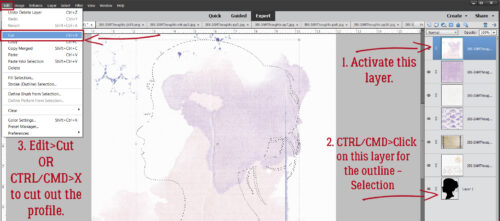
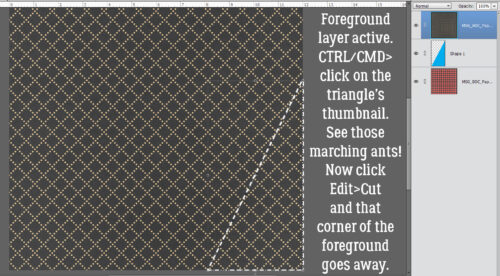
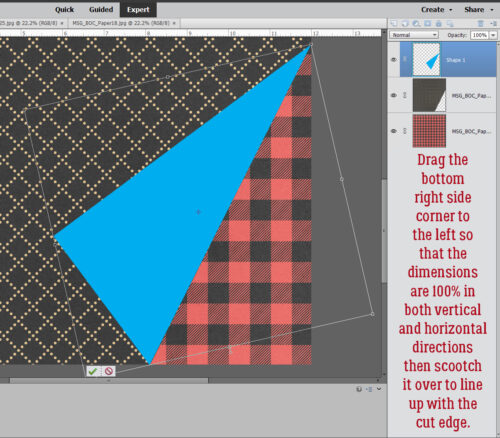
I wanted to isolate the various shapes to make doodling in them easier, so with the white background layer active, I CRTL/CMD>clicked on the brush layer to Select the outline of the mandala. Then I just Cut the mandala outline out of the background: Edit>Cut or CTRL/CMD>X.

I turned visibility for the outline off and this will form the basis for all the doodle-y layers. I can use the Magic Wand to isolate any of the cells in the mandala from the rest, jaggedy edges notwithstanding.

Zen doodling usually involves lots of dots of various size and colour. So the first thing we’ll do is create a 3D dot! Things like colour choice and image size are completely within your control – my stuff is simply for guidance. That said, I used a pretty magenta colour as my base. The hex code for it is ab0d93 if you’re a fan. I chose a hard round Brush from the integrated Basic Brush set in my version of PSE, sized it to 80 pixels and clicked it on its own layer. We want to be able to Duplicate these little elements so they need to be built up then Merged. You’ll see what I mean.

I wanted my dots to have a domed look, so I played around until I figured out the easiest way to do it. I went back into the Color Picker and lightened up the magenta a bit. Then I enlarged the Brush to 110 pixels and clicked it on its own layer at an offset so that it overlaps the darker dot with only a sliver of the darker dot visible.

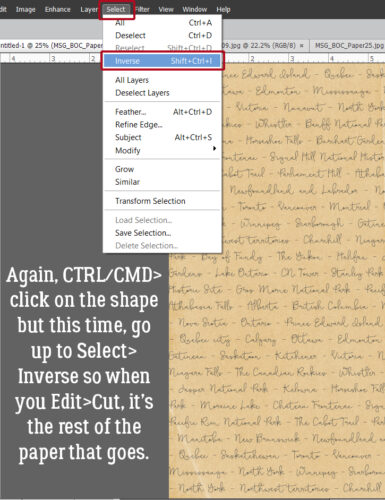
Your eyes are going to start glazing over when I talk about Selecting edges, and once you know how to do it, you can skip ahead. šŸ˜‰ With the lighter coloured layer active, I CTRL/CMD>clicked on the darker coloured dot layer to Select the edges of that smaller dot. Then I Inverted the Selection: Select>Inverse or CTRL/CMD>Shift>I

To remove the part of the larger, lighter dot from where it extends past the edge of the darker, smaller dot, Edit>Cut or CTRL/CMD>X

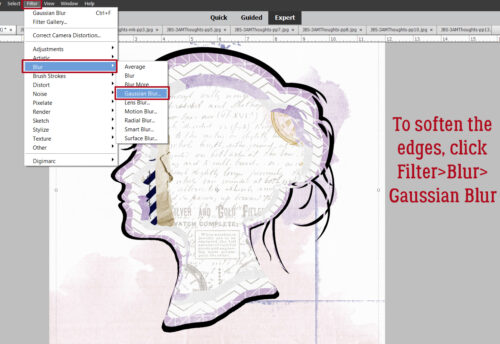
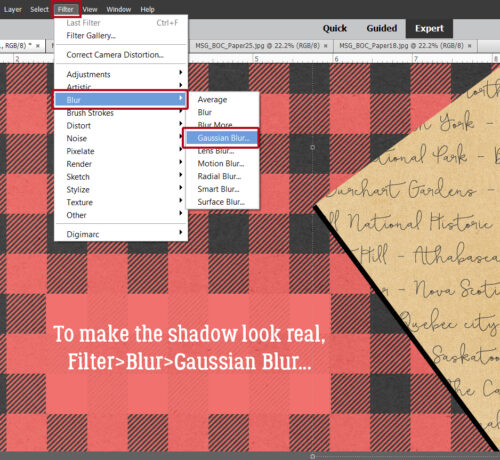
It looks a little harsh, so I’ll soften up the lighter area using a Blur. Filter>Blur>Gaussian Blur

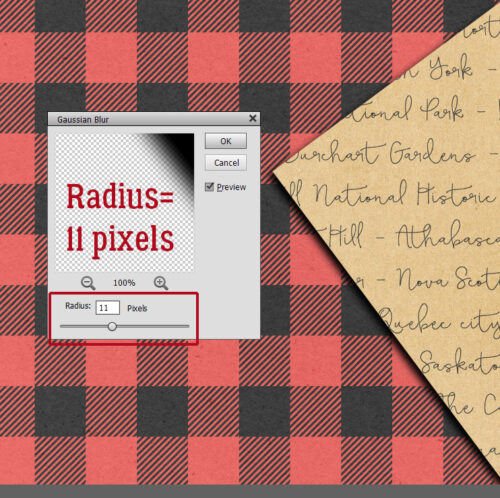
It’s cool that as the Filter is applied, the result is visible in real time. After some dithering, I decided that 4.0 pixels was the right amount. But now the lighter magenta blur sticks out…

So I Selected the edge of the darker, smaller dot AGAIN, and Inverted it AGAIN with the lighter layer active so I could cut away that overflow.

Now it needs a highlight! I added a new layer to put a 25 pixel white dot onto, positioned at the same angle as the middle layer.

It’s too harsh, so I’ll use that Gaussian Blur again. Here’s a Pro Tipā„¢: as long as you haven’t made any setting changes since the last time you used a Filter, you can just click the F key and it’ll apply the identical Filter to the new layer. Very helpful for custom shadowing!

This is a review……….

It really felt a little too bright to me, so I decreased the OpacityĀ  of the white dot layer to 75% and liked it a lot better. Gives a bit of a pearlescent look!

I want to be able to Duplicate this 3D dot, so I activated all 3 layers (click>shift>click on each) then Merged them: right-click and choose Merge Layers or CTRL/CMD>E

As you can see, I Filled one of the petal-shaped segments of the mandala with the Paint Bucket and black. Then I made another dot, this timeĀ  a bit bigger and with blue shades, Copied (CTRL/CMD>J) them all a few times, then distributed them inside the black petal. Don’t be too concerned with perfection here! Zen doodling done with ink, marker or paint is never going to be exact. Eyeballing is all good!!

Remember those jaggedy edges on the mandala Brush? Let’s deal with that now before we move on to the next phase. Select the edges of the black petal: CTRL/CMD>click on the layer, then go up to the tabs. Select>Refine Edge. The screenshot below shows that the black segment is on the main, background layer and each of the coloured dots are above that in the Layers Panel.

This menu pops open. Some of the settings you see are defaults, and as you adjust the sliders, you can see the effect in real time.

Edge Detection: Smart Radius>0.0 pixels

Adjust Edge: Smooth>17Ā  Ā Feather>0.4 pixelsĀ  Ā Contrast>3Ā  Ā Shift Edge> -1

Decontaminate Colors: Amount>50%

Output to: New Layer with Mask

Remember Settings

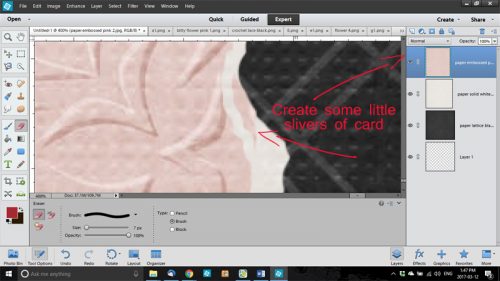
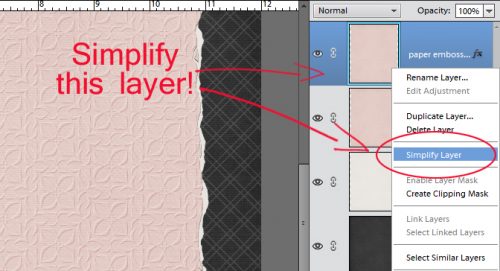
Make sure to Simplify the new layer so it can be Duplicated! Right-click on the layer then choose Simplify Layer.

That’s where we’re going to stop for today. I want to keep the screenshot load to a manageable number; 20 (plus the starter) is good for today. I’ll pick this back up next week as we create a Zen doodle trademark ring of white dots around each 3D dot!


Tutorial Tuesday (Individual Style)

Challenge Spotlight: Favourite Winter Olympic Moment

So, hosting my very first Challenge went pretty well! There were six layouts submitted (including my own) and they’re all different. If you missed the Challenge I issued. I asked GingerScrappers to create a layout about their favourite moment from the 2026 Winter Olympics. And there were so many to choose from!! (I spent a ridiculous number of hours glued to my TV, very thankful to have the CBC’s commentary on all the competitors.) I’ll share the layouts with you momentarily, but first I want to reiterate my Challenge Spotlight post flow. I look at each layout to assess how it meets the Challenge‘s criteria and identify how it reflects the Scrapper‘s individual style. Each is linked to its spot in the Gallery so you can get a closer look, and maybe leave a comment for the Scrapper. Simply click on the Scrapper‘s name and you’ll be whisked off for a better view. (Any time you see text that isĀ bold, in colour andĀ underlined, that tells you the word or phrase is a hyperlink.)

Several options occurred to me as to how others might approach the Challenge. Would the Scrapper choose to focus on a team sport, or an individual one? Or maybe the moment WASN’T sport-specific? Would a national flag become the colour palette? Would there be a lot of themed elements to the layout? Would there be a lot of journaling? Let’s take a look!

First out of the gate (see what I did there? :D) is this layout from KatL. First impression? She’s a hockey fan. Reading her journaling tells me she’s a Colorado Avalanche fan (the team formerly known as the QuĆ©bec Nordiques p)) but her favourite moment came from Team Sweden, and her colour choices reflect that. I like how she anchored her title with the sticks, and dangled the (black and yellow) skates from her photo.

Yvonne55 chose nation first for her layout. The Netherlands’ team colours are predominantly orange with touches of blue and white. The Dutch team had a really successful Games this year, as she notes in her journaling. For embellishments, she has the Olympic Rings and the flag of the Netherlands, but no sporty ones. Anybody remember reading Hans Brinker and the Silver Skates?

Somehow I knew glee would choose NazgĆ»l, the wolf dog, who “medaled” in cross country skiing. This was one of so many truly touching moments of the Games, and was on replay everywhere. Why did I know? Because she’s got a really quirky personality, and she lives in a place where winter sports are only ever on TV. Her layout focuses on photos, with some wintery coloured elements.

Grace. chose to focus on a sport and kept her layout elegant, which is the definition of figure skating. (The required strength, skill and determination are always secondary, although without them, there can’t be that elegance, but I digress.) Her palette is pulled from her photos, and she’s got a pair of skates and a tuque in there.

It looks like photocrazy viewed the Games through her kiddos’ eyes. She has a bunch of winter-sports related elements here, and that penguin is killing me! We who live where the air tries to kill us know about walking like a penguin. šŸ˜‰ I like how that scatter behind her photos looks like snow spray.

And last, here’s what I did. One of my grandsons is a speed skater so I have a special interest in it. Canada has long been near the top of the speed-skating heap and this year was no exception. What drew me to the team pursuit? Speed! But not just that… It takes a high degree of teamwork to skate at such speeds without crashing, finely-tuned balance, strength and spatial awareness. I swear I watched that race a dozen times. For my layout, I chose colours that represent Canada – red and white – plus the dark brown the designers at LuLuLemon decided should be part of our national Olympic uniforms. (yuk) The dark background was chosen to make my photos pop and to highlight the paint splatters that ground them. The speed skate element is a clip art piece I downloaded. The Mountie moose is a nod to my son-in-law. šŸ˜‰ And I just want to mention, ValĆ©rie Maltais is my new favourite skater.

That was fun! Should I host another Challenge in the future? I’m working on that zen-doodle tutorial I mentioned last week and it’s coming along. I thin it’ll go better when I get my new spectacles and can see everything more clearly… it should help a lot! I’ll be picking them up today, once I get this posted. Happy St Patrick’s Day!


Tutorial Teusday (Photoshop Elements)

Greatest Hits: A Whole New Meaning to Copy and Paste

Have you ever put your heart and soul into a layout, then spent forever coming up with the perfect journaling – only to hate the way the journaling looks, or worse… see a glaring typo? Have you ever wished PSE came with a spell-check? Or that you could copy-and-paste something from a website? Well, have I got the trick for you! Word and PSE work together! And even better… all your fonts are there in Word too! (Update: I’ve discovered that any note-keeping app on your computer will work for this! I’ve used Notepad a lot lately and was so glad I didn’t have to jump through all the Word hoops.)

Your Word version may be different from mine; the interface might look different but this is pretty basic, and all the things I’m going to show you will work with any version. I opened a new blank document in Word, chose a font and set my formatting so that my text would fit inside a border on a beautiful journaling blank I pulled fromĀ Ooh La La Scrapsā€˜Ā Shabby Chic collection. (Update: Don’t worry too much about formatting. You can adjust it within your PSE text box. Same for font selection.)

I love using quotations for a variety of reasons. Like not having to think too hard! I typed out this one in a matter of a few seconds. I changed the size of the font for Mr Bergen’s name.

I just spotted a typo on my screenshot below. RATS! Word’s spell-check wouldn’t have caught it either, but it DOES catch those transposed letters, ā€œeā€s that should be ā€œaā€s and that kind of thing. It also capitalizes the first word of each sentence for you if you forget.

Then I opened up Elements on my desktop, dropped my journal blank onto a new document and set up theĀ Text toolĀ with the same font settings that I chose in Word. If I skipped this step now, Elements would default to the last settings I used.

Back to Word… I selected the text thenĀ right-clickedĀ to open up a dialogue box. It looks like this. I want toĀ CopyĀ the text. (WSNHĀ tip: the same keyboard shortcuts I’ve shown you in previous tuts also work exactly the same in Word, soĀ CTRL/CMD>CĀ will work to copy the text.)

I flipped back to Elements andĀ PastedĀ my text into the journaling space. That can be done by right-clickingĀ then choosingĀ PasteĀ from the dialogue box, orĀ CTRL/CMD>V. Did you notice that Elements ignored the different text sizes?

Now I have the ability to change it up to suit my layout. I changed the text colour first by pulling the gray from the border.

Then I changed the font size on Mr Bergen’s name again. Now that I know the font size changes made in Word don’t move over to Elements, I can skip that step in the future.

Even better, it’s totally possible toĀ CopyĀ whole sections of text from a web site or other document on your computer andĀ PasteĀ it into Word. As you can see in the screenshot below, I’ve selected a new quote from my favourite quotations site.

Then IĀ PastedĀ it into Word with a couple of clicks! Yeah. I wasted time resizing Ellen’s name. (Did you catch the typo in this screenshot too?)

Here you can see that I’ve got Elements open and it’s just waiting for me toĀ Copy-PasteĀ Ellen’s words of wisdom over.

Oh, right… I didn’t go to Elements and set up the font. So this is the font, size and colour I used for the last layout I created.

So I justĀ UndidĀ that step and started over. But this time I decided to use aĀ Text Box. This handy tool helps to constrain the text so it doesn’t bleed out into areas where I don’t want it. To create aĀ Text Box, with theĀ Type toolĀ click-and-drag from one corner diagonally to the opposite corner of the area you want to cover with text. This journal blank made it easy by having reference points in the border.

And then I pasted Ellen’s quote into my text box. Notice that it’s now centre-justified, rather than left-justified as it was in Word. I had ā€œCenterā€ selected in theĀ Text toolĀ settings and Elements over-rode Word.

This time I didn’t have too many changes I needed to make, other than shrinking Ellen.

But to show you how easy it is to change it to suit your purposes, I switched the angle from upright to right-italic and changed the text colour. I want to try this trick with texting on a path, but wanted to get you the basics now. Stay tuned!

I’m kicking around a couple of fun ideas for new ways to play with our stashes. Digital zen-doodles, anyone?

Tutorial Tuesday (Potpourri)

Greatest Hits: Templates with a Twist

In addition to my Olympics hangover, I haven’t slept properly in nearly a week, so my head is pretty fuzzy. Since we were recently talking about how to add photo spots to templates, I thought maybe I’d replay this one:

Did you know that you can combine two (or more) templates into a single layout? Are you shocked? Remember, templates are amazingly versatile tools. You don’t have to slavishly follow the design for them to help you create fabulous layouts. They’re intended as inspirational guides, with symbols as placeholders. With templates, your creativity is only limited by your imagination. I’m going to show you how to do a template mashup right here, right now. Let me begin by saying I probably wouldn’t have chosen this bundle for this technique, but the opportunity presented itself and I ran with it. To have the best results with your template mashup, you should choose two templates with clusters, photo spots, masks or combinations of those that you really like, with a good amount of white space, so you’ll have lots of options.

I used a JB Studios template shown below as my base template. I like the row of circles with the small cluster, and I really like the little word strip cluster in the corner. I made a mental note of what the file was named so I could find it later…

Then I chose thisĀ Tinci Designs template (SO sad to see her retire!) for my second one. I had 2 photos I wanted to use. Now, I could have resized the centre cluster, which would have actually worked beautifully, but I wanted my photos to be really visible.

I had to make room for the section ofĀ Tinci’sĀ template that I was going to move onto theĀ JBSĀ template so I selected all the layers but the background and the little wordstrip cluster then moved them up almost to the top of the canvas.

See how that gave me a lot of room?

The next step is to go to my second template and select all the layers I want to add to the first one. If you don’t have theĀ Bounding BoxĀ turned on, you might want to do that. It will help you move only the layers you want by including the shapes you’ve selected inside it. You can see myĀ Bounding BoxĀ in the screenshot below.

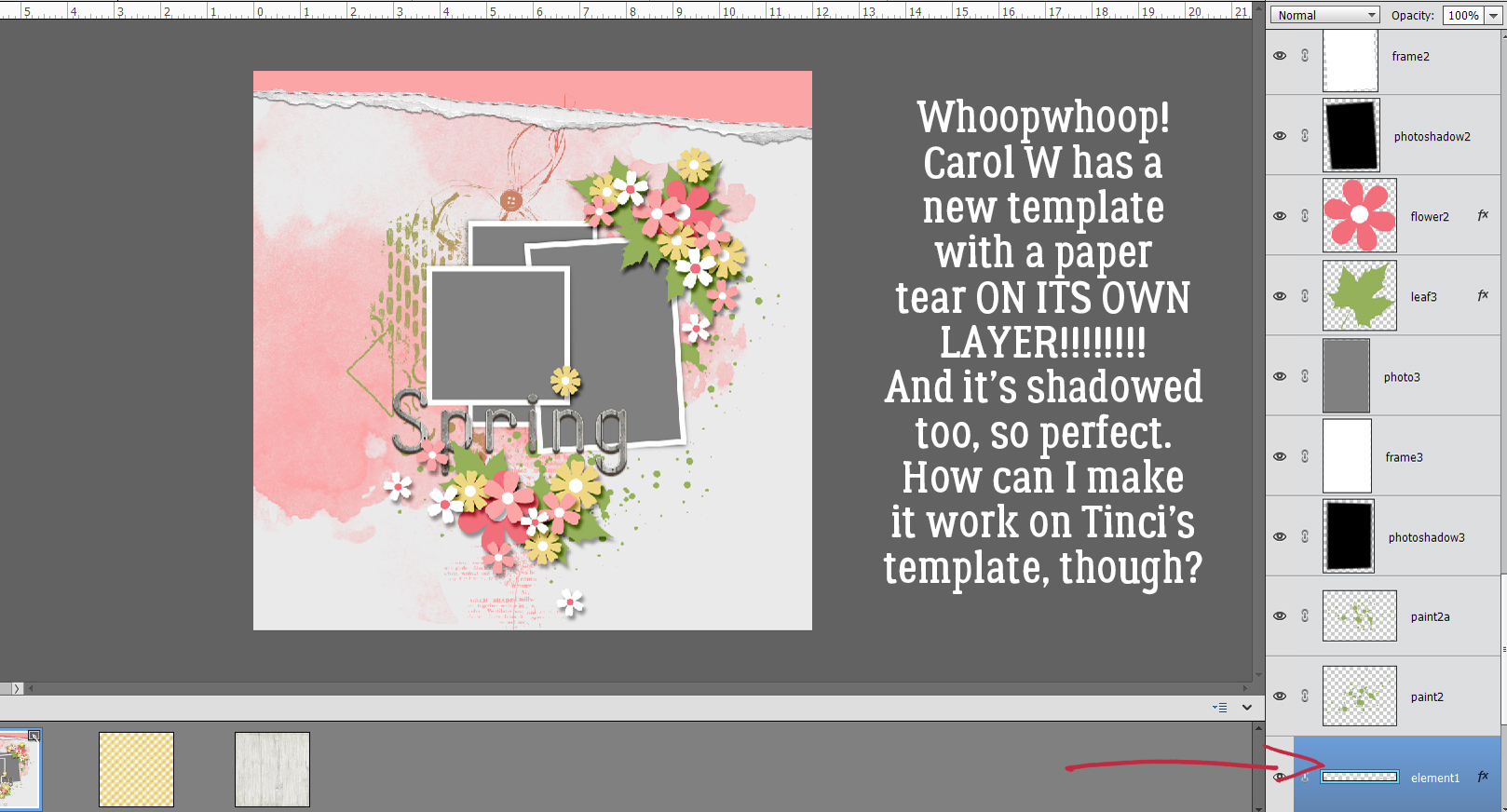
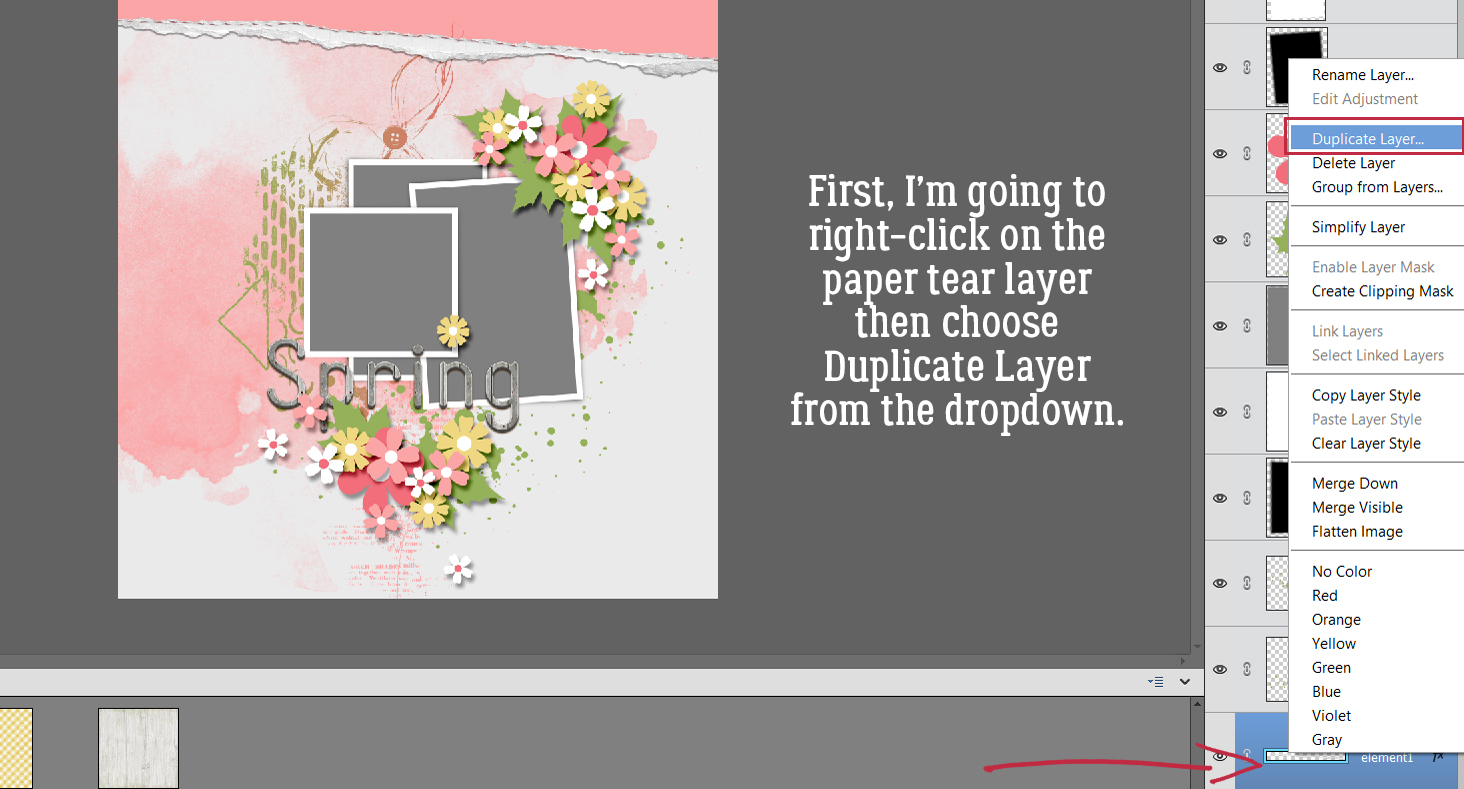
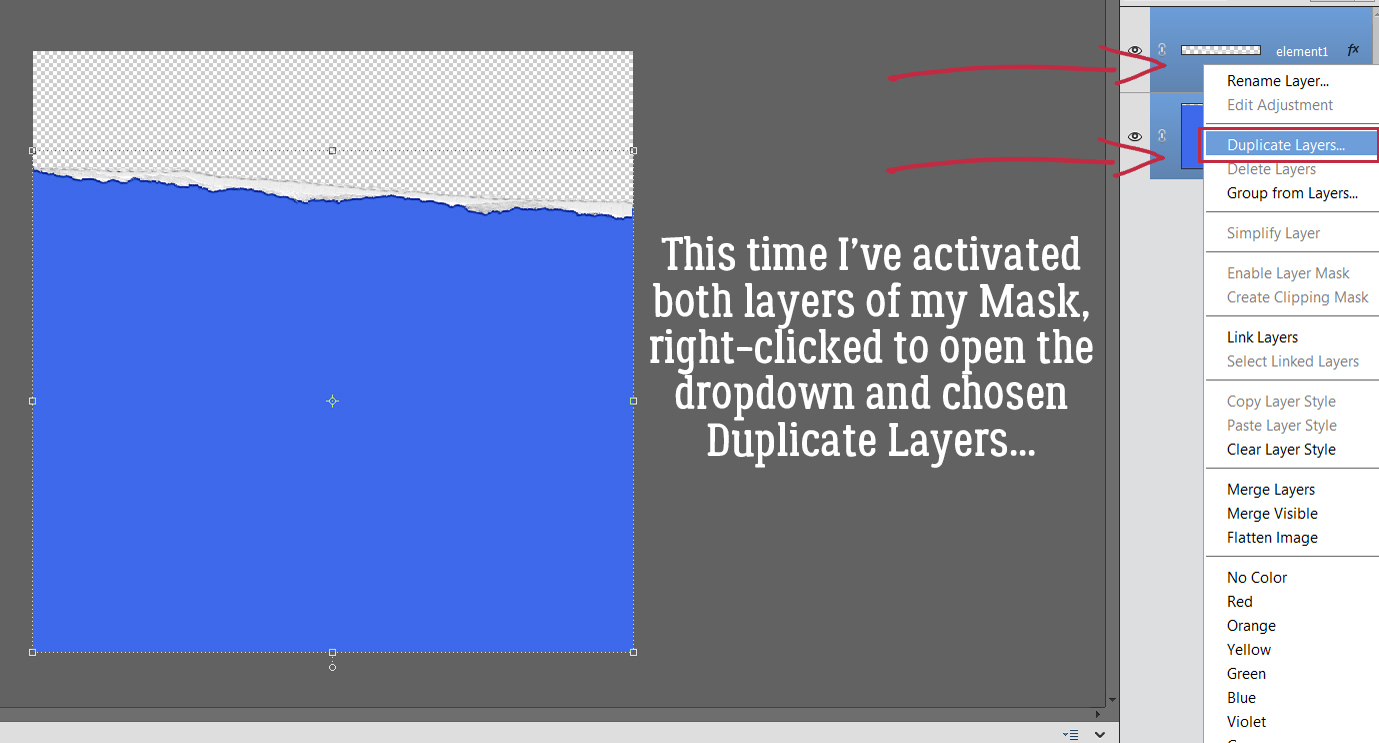
Once you’ve selected only the layers you want to copy onto your other template,Ā right clickĀ on theĀ Layers panelĀ to open theĀ Layers menu. Then click onĀ Duplicate Layers…

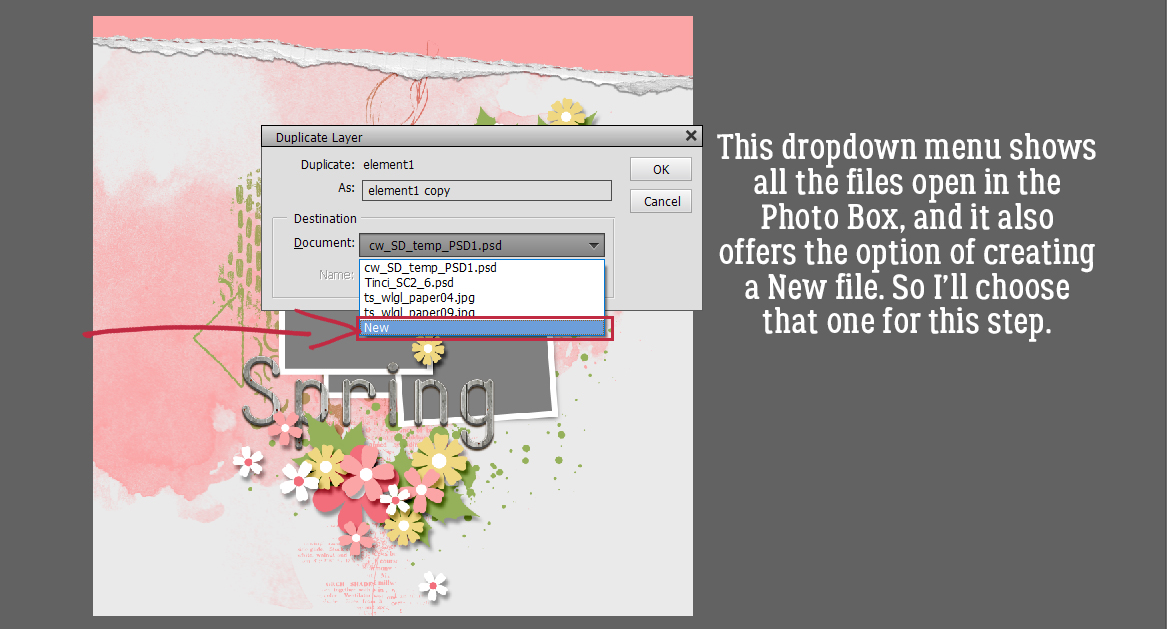
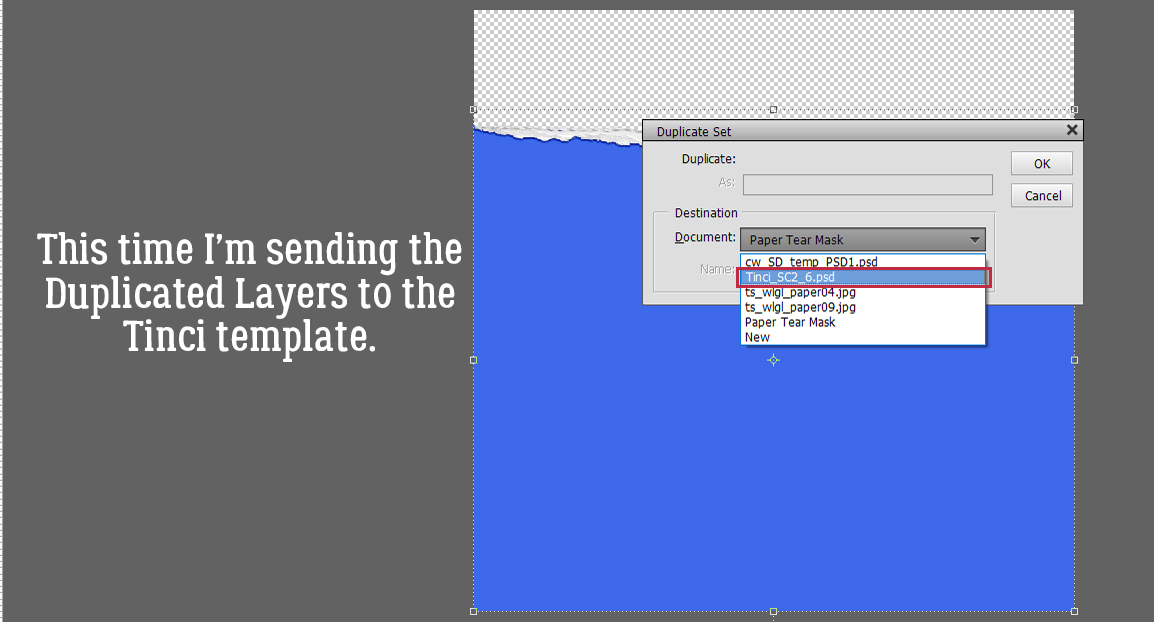
A new menu opens with everything you have in yourĀ Photo BinĀ included. Look down the list until you find your first template. If you can’t remember the file name, look for theĀ .psdĀ suffix. When you’ve found it, click on it.

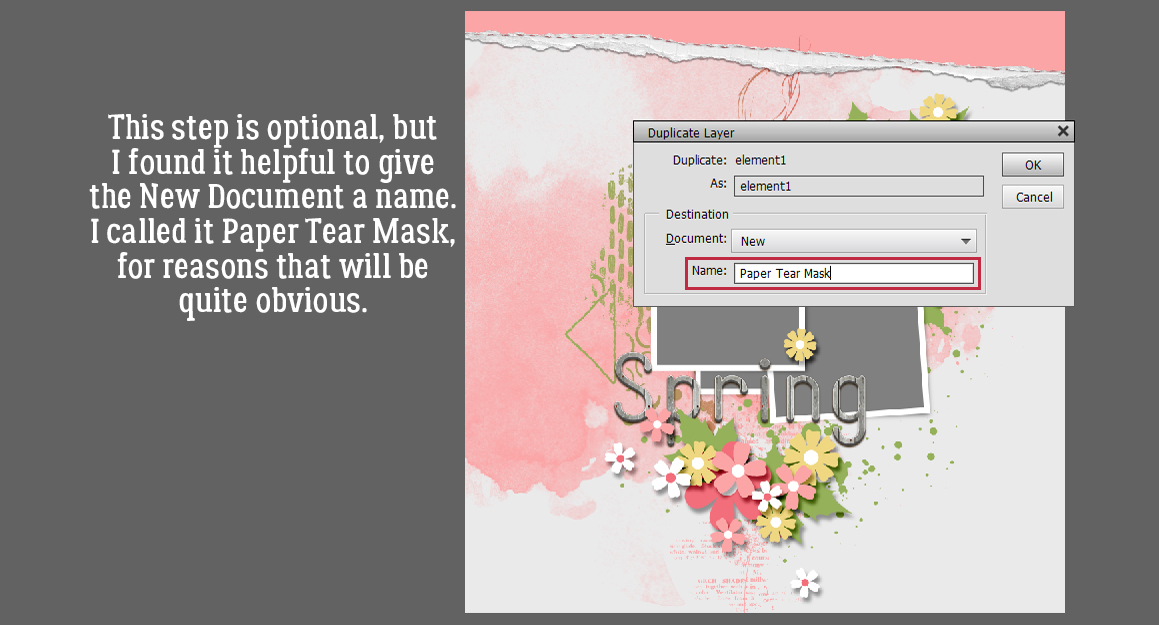
Your dialog box will look like this. You can rename the group of layers if you want, but you don’t have to. When you’ve got the correct file selected, clickĀ OK.

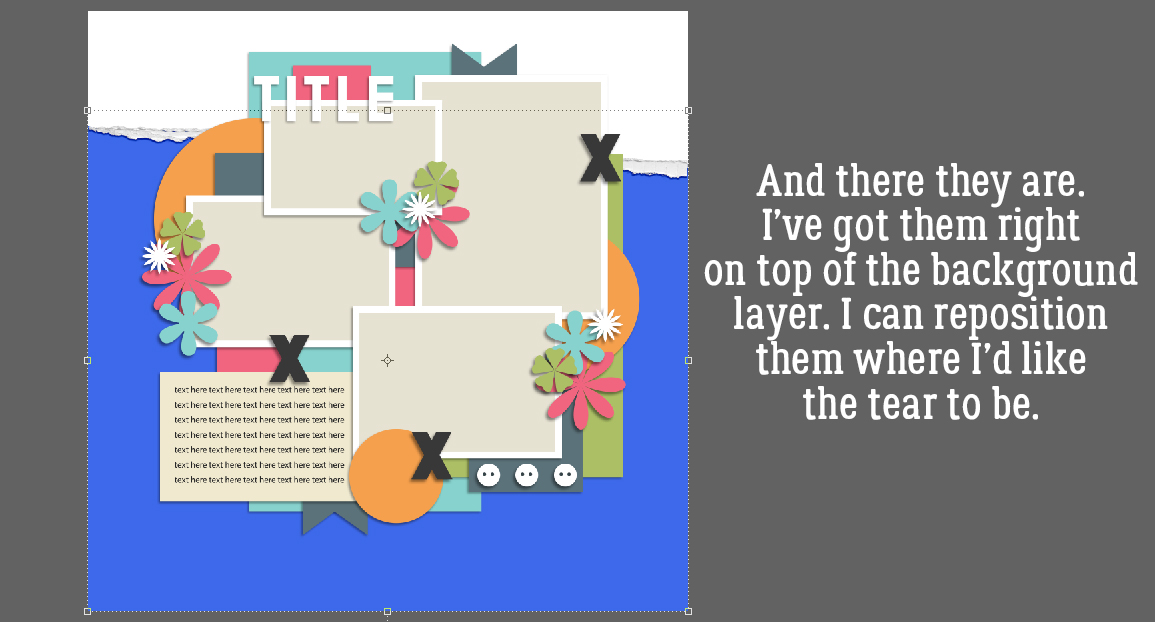
PSE automatically centres everything on the canvas, so this is what the new mashed-up template looked like right after I added theĀ TinciĀ pieces to theĀ JBSĀ base template. Time to fine-tune!

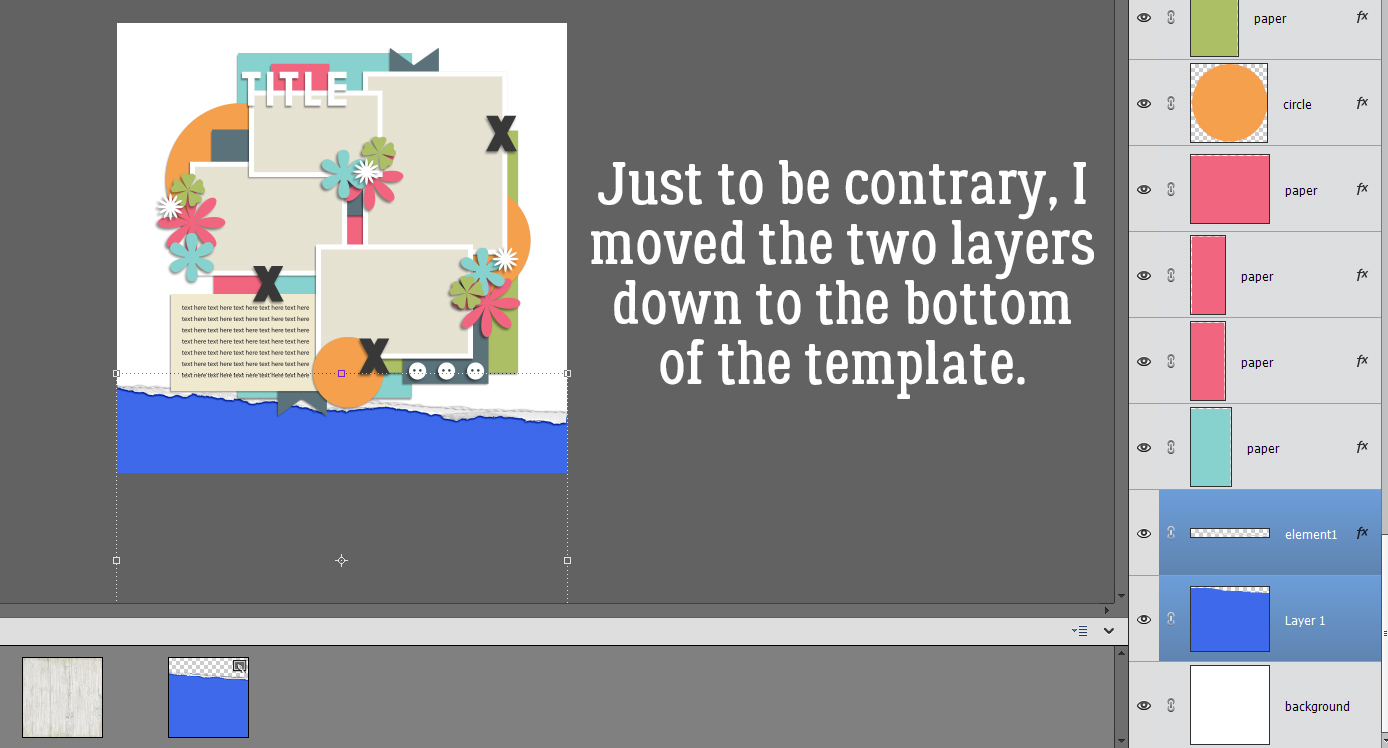
I moved all theĀ TinciĀ pieces down so theĀ JBS pieces peeked out above them. Ā Then I had to figure out what to do with that little word strip cluster that HAD to be in there.

Once I was happy with how it all looked, I could get myĀ layoutĀ rolling. There were some layers from the original template that were completely concealed, so when I came to them in theĀ Layers panel, I just deleted them. (I always work with copies of everything, never the original. That way I don’t have to worry about losing something I might want again later!)

If you decide to try this out, remember that you don’t HAVE to copy everything from one template onto the other. Choose the parts you LOVE. Forget about the rest. I could have copied just one of the photo clusters. I could have only copied the word strip cluster. It’s all about what you like most! Have fun!

Tutorial Tuesday (Potpourri)

Templates Everywhere… But Not the One You Need

We’ve all been there. You have a selection of photos and a coordinating kit you really want to scrap, not a ton of time, and really want to use a template to speed things up. So you run a search for a suitable template, only to come up with… none that will work right out of the folder. Maybe you have too many photos for the spots on the template, an issue GingerScrapper Joleen ran into recently. Or you have too many spots on the template for the number of photos you want to use. Well, the too-many-spots-for-photos is an easy fix. Just delete the extra(s)! But wait! The too-many-photos-for-spots isn’t a difficult fix either! Let me show you four ways to do it without straining your brain.

Of course, the easiest way of solving this problem is to simply Copy a photo spot already on the template that will work with your extra photo, then find a likely place to put it. So I’m not going to show you that.

Now, I have literally hundreds of templates from several Designers. I’ve talked about how I organize my templates a few times before so we’re not going over that again. (You’re welcome!) For this exercise I purposely searched for templates that only had three photo spots. Then I reviewed them all, looking for those I wouldn’t have to make a gazillion adjustments to in order to make them work with the four photos I have pictured below.

I selected four templates and will show you how I’ve tinkered with them to accommodate all four photos. First is this one from Dear Friends Designs. The spots are in portrait orientation but that’s an easy fix.

Don’t forget that templates are tools. They’re blueprints, but unlike blueprints, they don’t require absolute slavish devotion to any part of them. There are no rules about adding, subtracting, moving, turning, flipping or substituting any part of them. You can even merge two templates into one layout! Every single element of a template is a SUGGESTION. Okay… three of my photos are in landscape orientation so it only makes sense to Image>Rotate>90° Right the whole template.

But. It’s still not really working for me. So this time I Image>Rotate>Flip Horizontal the whole template and it’ll work a lot better.

Can you see what I did to create a fourth photo spot? Yes! I used the journal block! Dear Friends Designs‘ templates come pre-shadowed, and the white border is a Stroke contained in the Layer Style. It was a simple matter to select any one of the actual photo spots then right-click>Copy Layer Style then go to the “new” photo spot, right-click>Paste Layer Style to add a white border and matching drop shadow. To complete a layout with this template, a few items will need rearranging. You can see that I’ve moved the journaling-block-photo-spot down and tucked it into the cluster at the bottom right, plus I Rotated and repositioned the banner. The rest will come together.

This grid-style template is from Magical Scraps Galore. It’s simple, the photo spots are more or less right for my purposes and there’s an easy way to add a fourth photo. Let’s review.

This was probably the easiest conversion I did. I replaced the title block at the bottom with one of my photos, moved the title up to the journaling block and resized the middle left elements. Easy peasy!

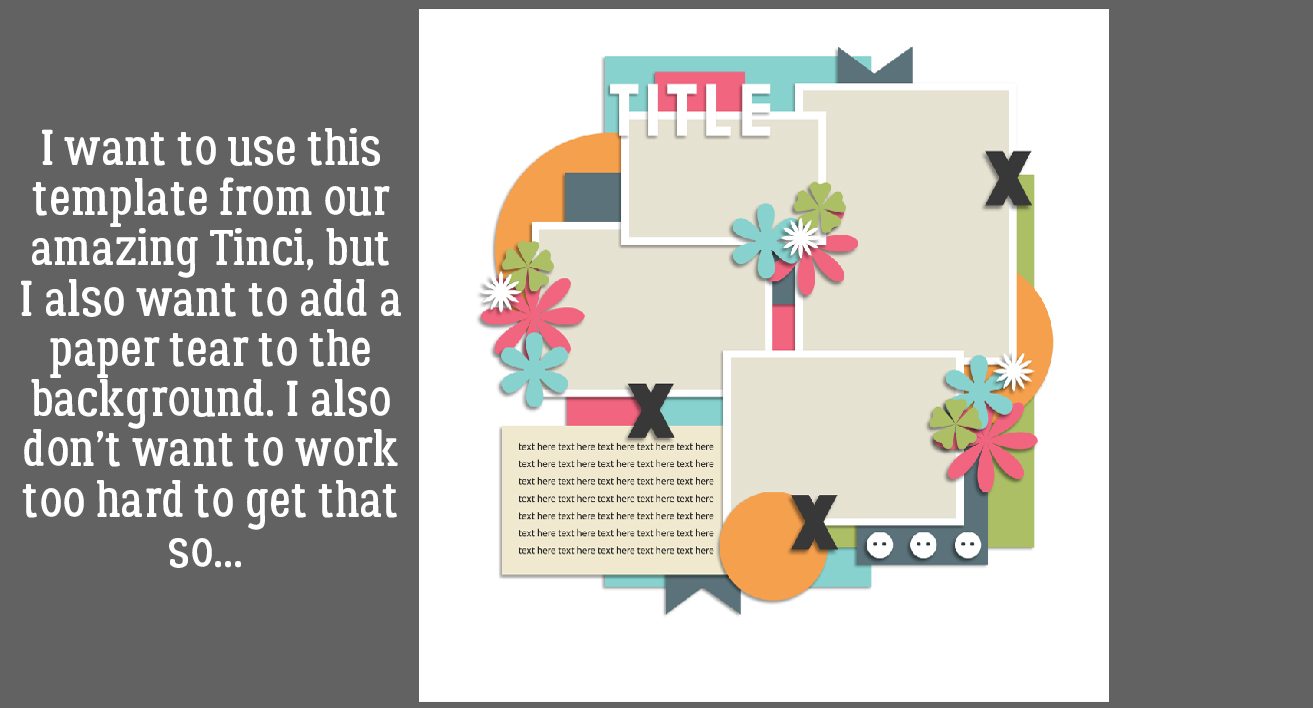
This template is from Tinci Designs. Might we take a moment to mourn the loss of such a prolific and generous talent? Retirement comes eventually for all of us, and we’re really going to miss her. Back to the task at hand. Here, I’ll need to do some photo spot resizing and a little tweaking, but it’ll definitely work.

But first it needed Image>Rotate>90° Right, then Image>Rotate>Flip Horizontal.

Again, I used the journal block as a photo space, which may or may not need a white border and drop shadow. The title can cover up that nasty fake snow in the top photo. The photo spots were all resized in one dimension or both, to suit the photos better. But doing so didn’t mess up the overall look. Tinci‘s templates are really easy to customize.

My fourth option is this template from Connie Prince. At first glance, it doesn’t look like it’ll work all that well. But I know that Connie‘s templates use a paper layer for the white border on her photo spots, and that’ll work perfectly for what I have in mind. I’m going to put my two longest landscape photos into that big photo spot!

And I can use that paper circle to hide a multitude of sins… Once I fit the photos into the spot edge-to-edge – I DID NOT Clip the photos to the spot – I created a gap between the bottom of one and the top of the other. I made sure the gray photo spot layer was the active layer. Then I used the Marquee Tool to outline that gap.

Then I Edit>Cut [CTRL/CMD>X] the gray bit out of that gap. The white paper creating the border around the spot remains untouched.

In this screenshot you can easily see the white strip! Another feature of Connie‘s templates is that she doesn’t pre-shadow, so I can decide how I want those two photos to look in the finished layout. I just moved some of the layers at the bottom up a bit to help hide the ugly fake snow bit. The smaller photo spots needed minor adjustments too, the left one tilted into landscape orientation and the right one downsized into a more square shape.

I know some of you will have other methods of increasing your photo ops with templates. Please share them in the comments. I read them all, even if I don’t reply to them. I’d like to thank Sherry for her recommendation for PeaZip when I bemoaned the number of folders I had to unzip. I tried it out and it’s great! Just like this little community we’ve created here…