Designer Spotlight: July 2026 – Part One

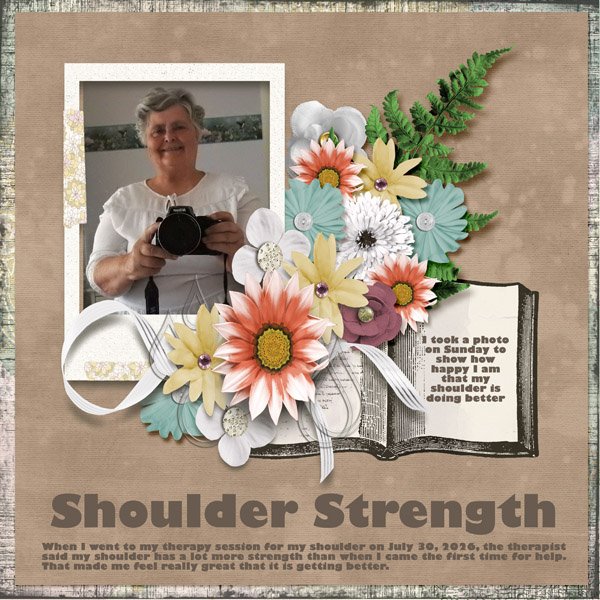
Designs by Lisa Minor

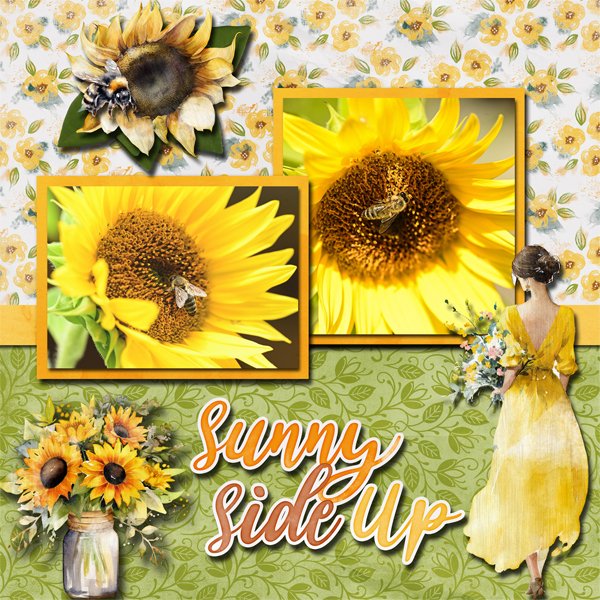
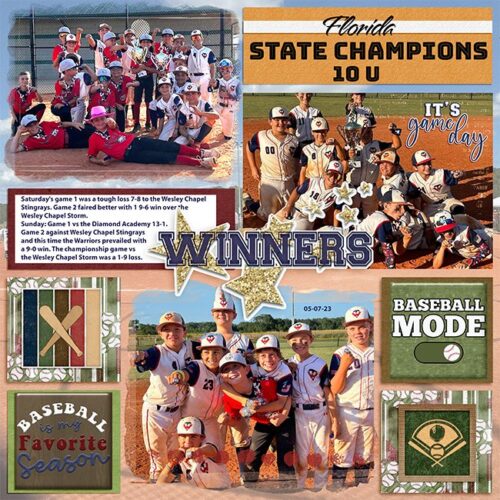
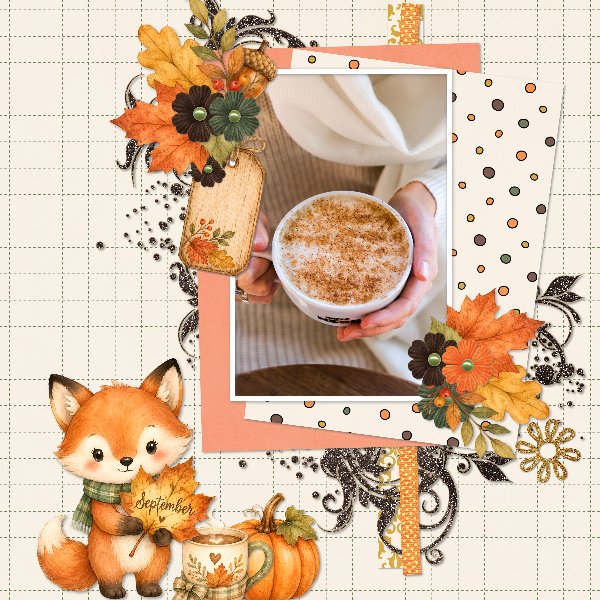
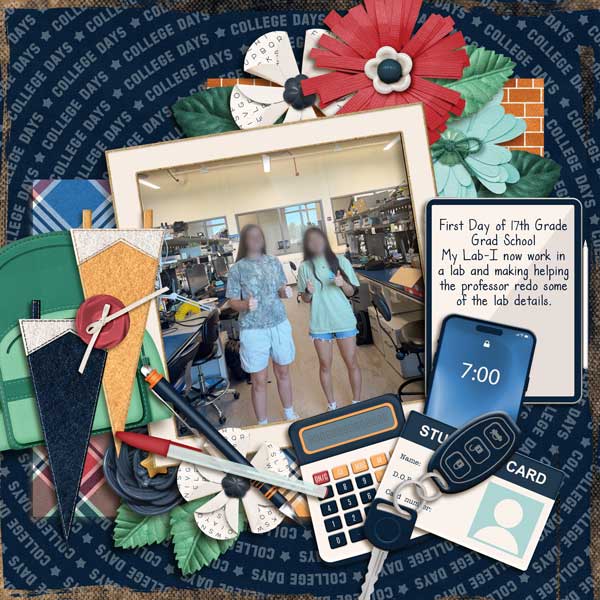
July. Already. Oy!! Half the year is gone. But I must say, things chez Jan are better now than they were this time last year, so I’m okay with time flying. I guess. Anyway… this month we have two Designer Spotlights. Part Two will appear on Saturday if all goes well. 😉 Because Lisa was a true early bird, visiting me back in May, she has the first spot. 😀 We decided not to talk much business this time, and went right for the fun. Check out Designs by Lisa Minor! <hyperlinked – look for the coloured, bolded, underlined text!>
J: I hope you don’t mind that I have some music on in the background, Lisa. I like a little something to drown out the golfer profanity from the second tee. We could sit on the deck, but some of those golfers lack manners and have weak bladders. ;( Nobody wants to see that! But on the topic of music, if you have a theme song, what would it be?

L: Good Riddance by Green Day

J: Hmm. There are so many ways one could take that. Green Day does have some accurate insights though. I think mine would be something by Ashley McBryde. Maybe Light on in the Kitchen. The people in her songs might be fictional, but I think we all know somebody that fits the profile. If you could spend a whole day with a fictional character, who would you choose?

L: Wolverine, but only if it’s Hugh Jackman all dressed up.

J: Ooh, he’s fiiiiiiine! I loved him in Real Steel (which I’ve watched far too many times), and The Greatest American Showman. Mad acting skills! But speaking of skills, we should talk a wee bit about design. Right? Do you have a favourite holiday or season to design for?

L: Spring. I love that everything around that time of year feels so fresh and new.

J: I love spring too, watching my garden waking up and seeing the birds return. Those rituals are comforting. Do you have any traditions or rituals you follow when starting a new collection?

L: I have a form that I fill out for each kit, so that anytime I think of an idea or get inspired by something, I can jot it down.

J: Oh, smart!! I’ve developed some routines for creating my tutorials, and for how I construct the other Blog posts I’m responsible for. It really helps to have that process. I’ve really enjoyed the tutorials, since they’ve pushed me to learn a bunch of new ways of looking at things, picking up new skills along the way. Is there some skill you don’t already have that you’d like to learn?
L: Honestly, EXCEL. I’ve taken the public classes, and I still use it with the skill of a Kindergartener.

J: Urk. No. Not me! I feel like it’d be teaching an old dog new tricks and I kinda like retirement. Although… it would be more fun if I had a younger body. Even just for a week. If you could be any age for a week…?
L: 30. Honestly, I would love to be 30 again and know everything I know now!

J: That would be AMAZING! There are so many things I’d do differently. I’d make sure I had more fun. Have you ever played a really great prank on someone? Or had one played on you?

L: I put Kool-Aid Mix in the shower heads at a women’s retreat. It was RED and did not go over well when they turned their showers on.

J: OMG. I just had a mental image of the prom scene in the Sissy Spacek movie Carrie. I think you know the one I mean. Can’t understand why they’d be irked. 😀 I’m guessing you weren’t invited back. Too bad you couldn’t have turned into a bird or something and gotten outta Dodge. If you could swap places with any animal for a day, which one would you choose?

L: A Sloth! I would love to be able to turn my brain off and just sleep.

J: I can definitely relate!

L: I could stay in pajamas, all day every day.

J: SAME! But my son’s Handi-transit bus driver might have questions. No visits from the RCMP please… especially now that I have a family member at the detachment. 😉 Which reminds me, I have a housewarming card halfway constructed. Car making has become my number one hobby. Is there a hobby you wish you had taken up?

L: Crochet. I wish I had paid more attention when my Grandma did it. My daughter taught herself and does a pretty good job!

J: Hmm. I can teach you! Do you think my daughter would like me to crochet her a housewarming afghan? HAHAHAHAHAHA! That would be a hard pass. Lisa, thanks for the chat! I’ll fill our readers in on what you’ve got going on for your Designer Spotlight and then I really do need to finish that card before it’s time to make dinner.

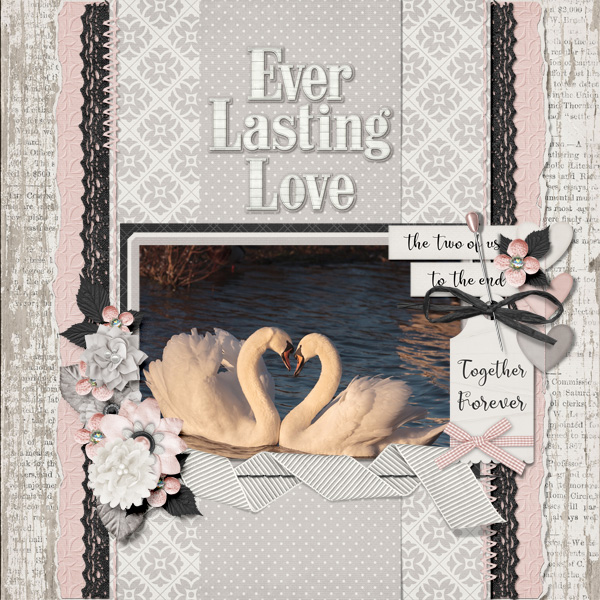
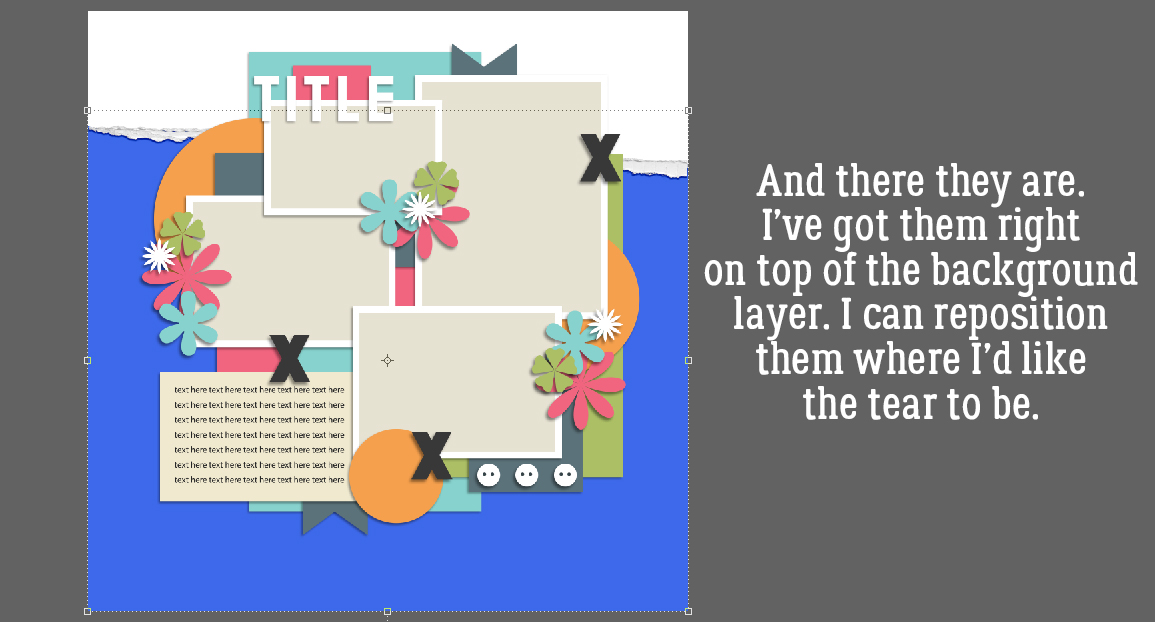
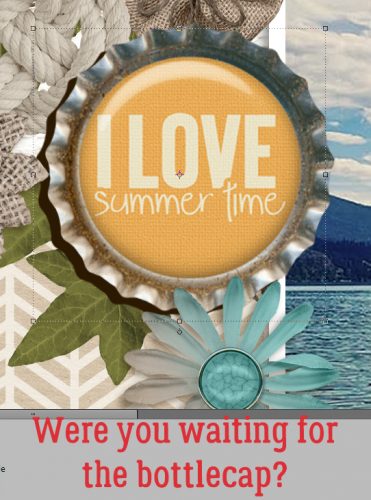
As usual, Lisa is providing us with a Daily Download kit.

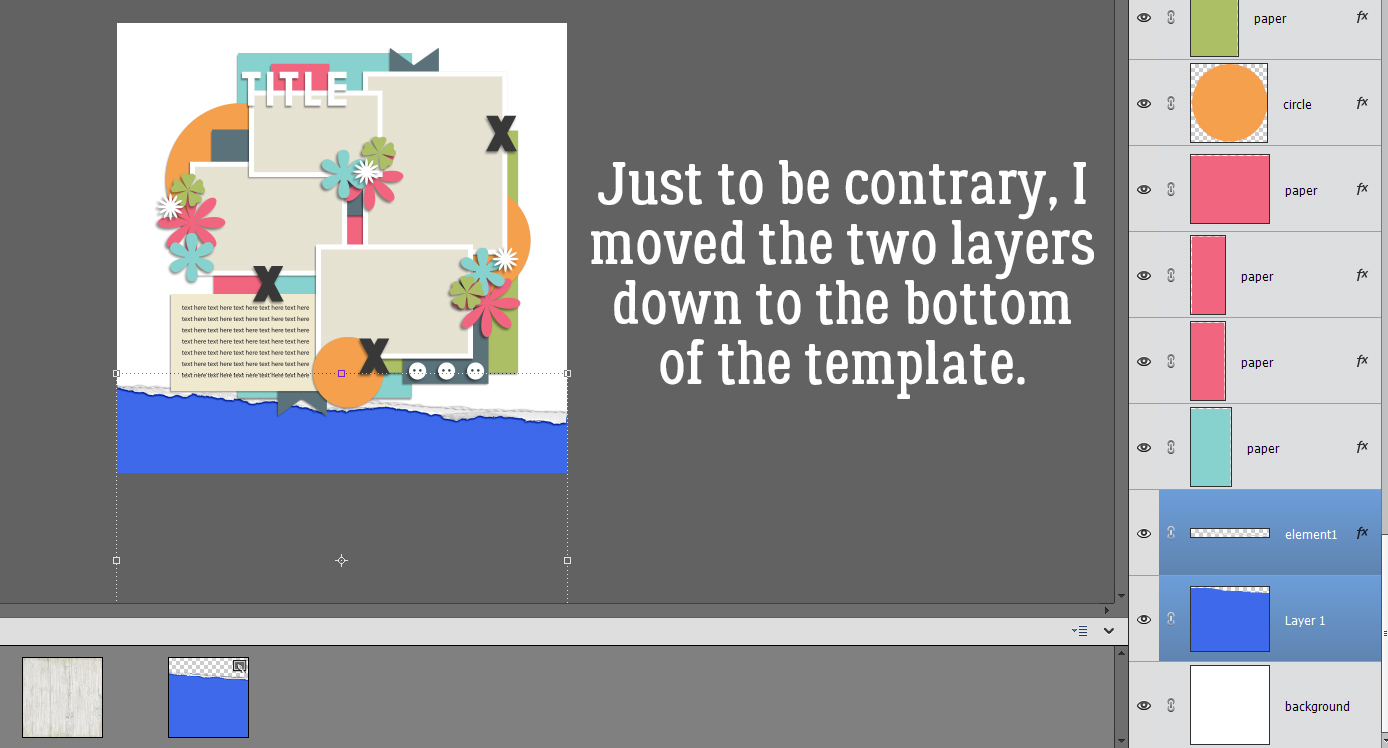
And she’s one of the Designer Spotlight Challenge hosts. To make it even more awesome, she’s done this!

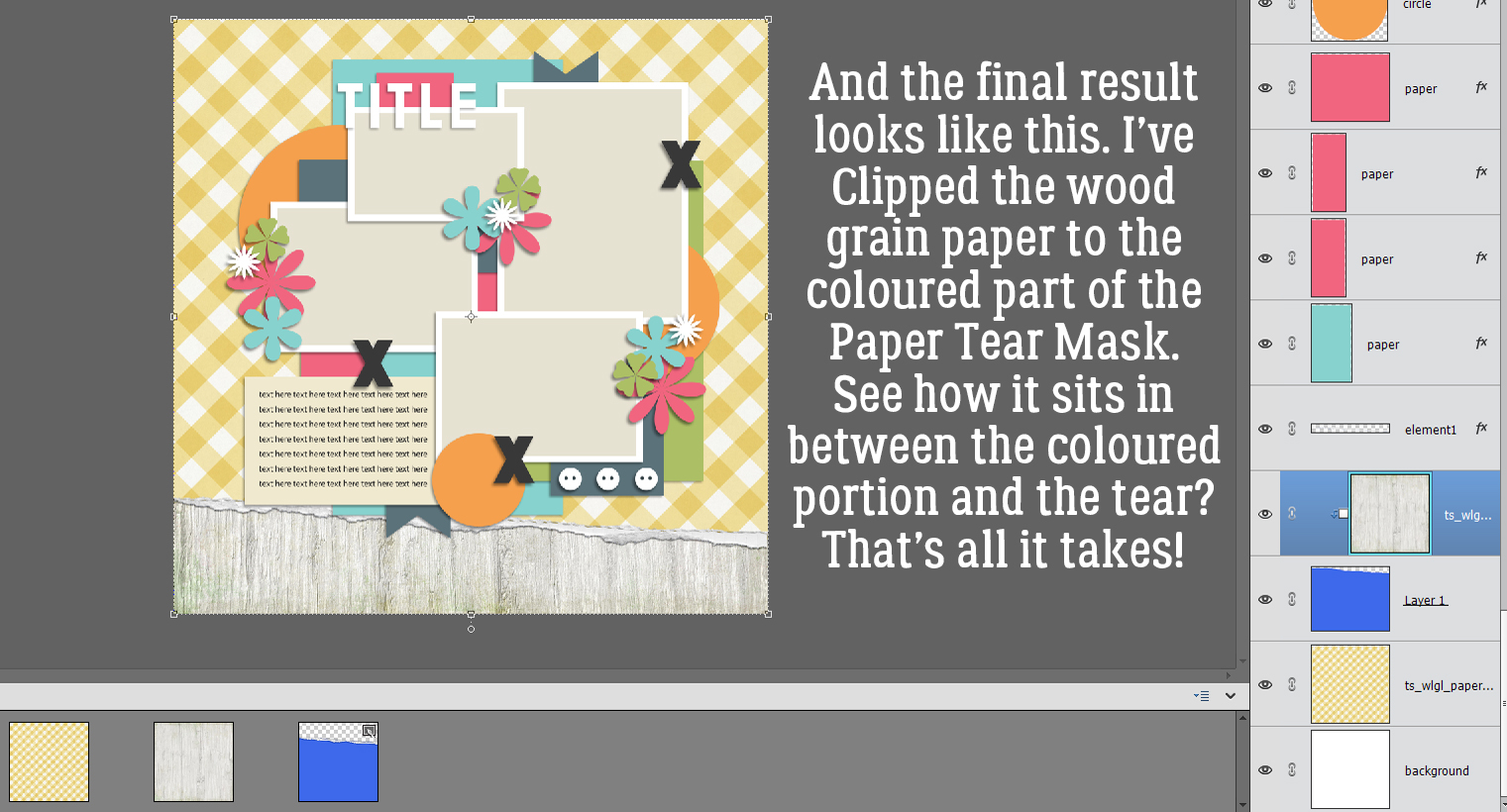
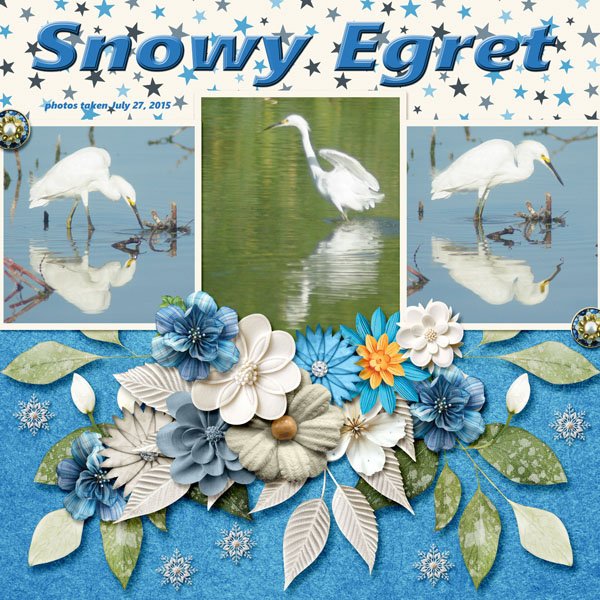
And before I forget, she also hosts the Pinterest Challenge each month. Check it all out! So many opportunities…


Tutorial Tuesday (Photoshop Elements)

Zen Doodling Wrap-Up

Once again, Best Laid Plans were scuttled… but this WILL post before Tuesday is over. Thanks for the grace you all provide me, it’s deeply appreciated!

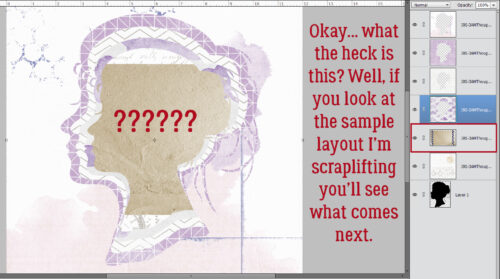
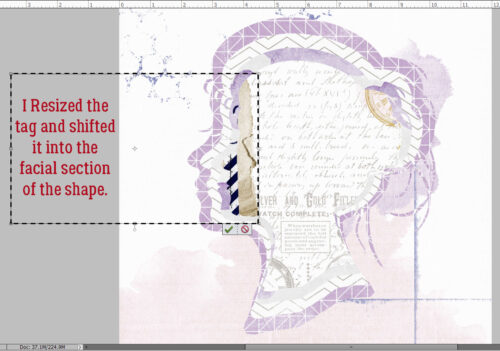
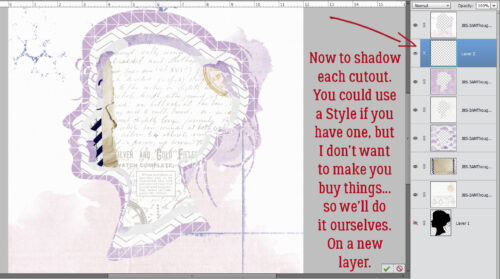
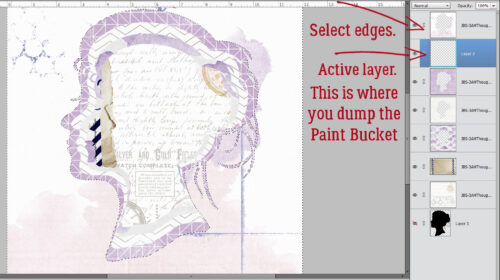
I’m finally wrapping up that Zen doodle project. Have you guessed what I put in the centre? Let’s see! This is where we ended last time. I acted on a hunch and took a look at the Custom Shape (aka Cookie Cutter) library. Whoa!! There’s a Yin-Yang symbol in there! To ensure it’s an actual circle, I selected Defined Proportions, which defaults to 1:1 and dragged out a symbol. Elements puts these shapes on their own layer, so once it’s been Simplified, it’s easy enough to resize and reposition.

As you can see here, I have a doodle layer, a yin-yang layer and a black outline layer that has a Cloak of Invisibility on it at the moment. Centering an object is simple: activate the two layers (doodle and yin-yang) then Align to both Center and Middle.

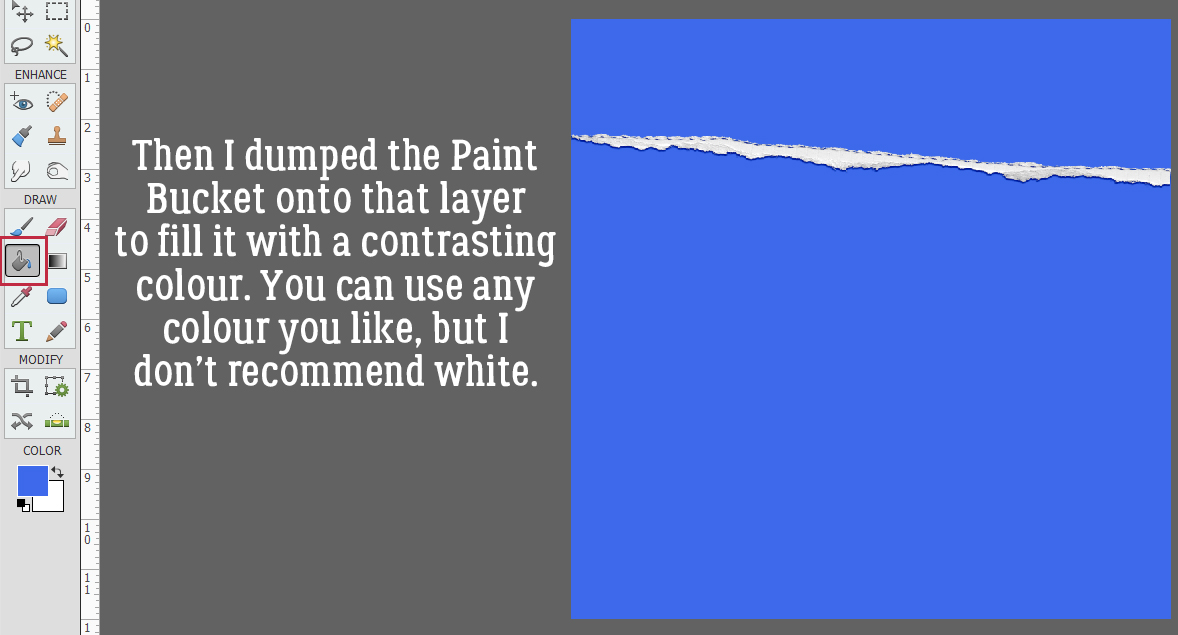
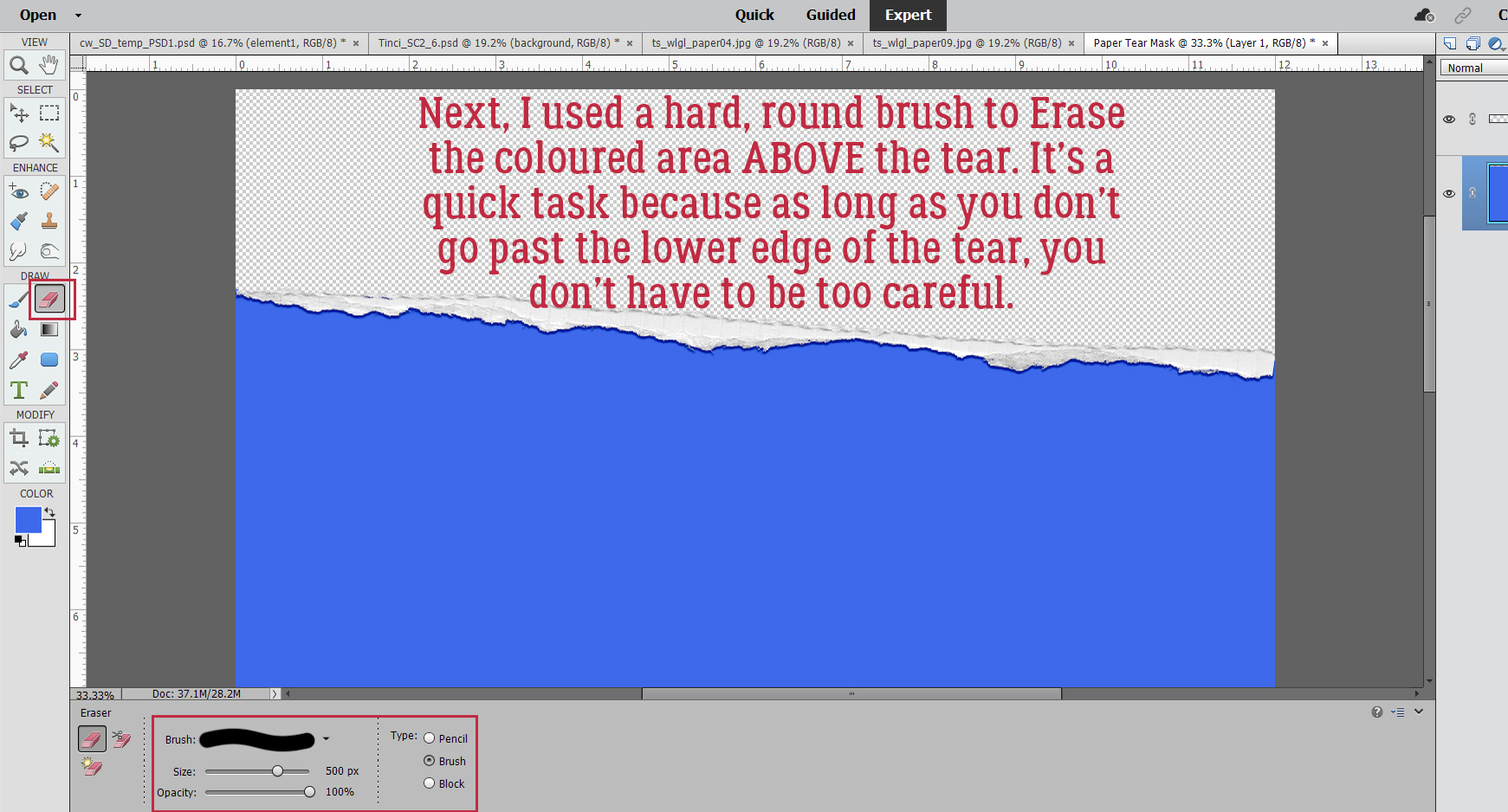
I should point out that the Brush I used for the basis of my doodle isn’t perfectly symmetrical. So when I Duplicated finished segments and moved them into place, they didn’t fit precisely over their spots. That means I have some… gaps. But… moving the black outline layer down to the bottom of the stack and Filling it with the Paint Bucket didn’t make them go away. What to do?


First I had to figure out where the problem actually existed.

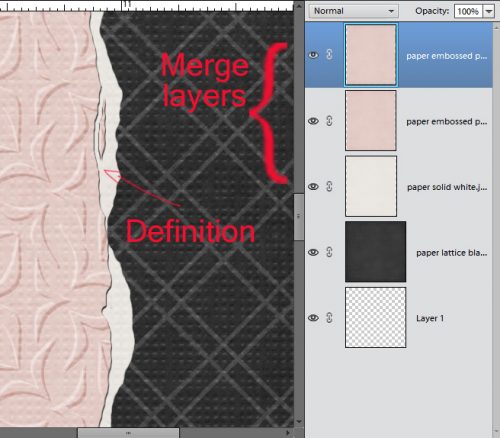
I tried a *few* things that didn’t work. Then I Merged the doodle and black background layers together.

Then I just dumped black Paint until the gaps disappeared.

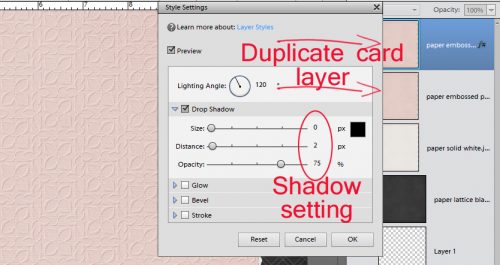
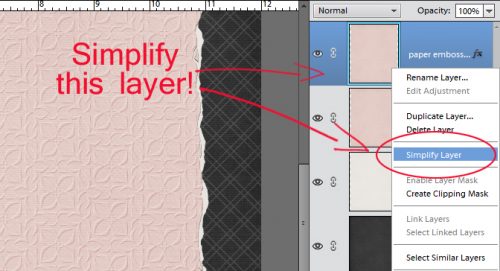
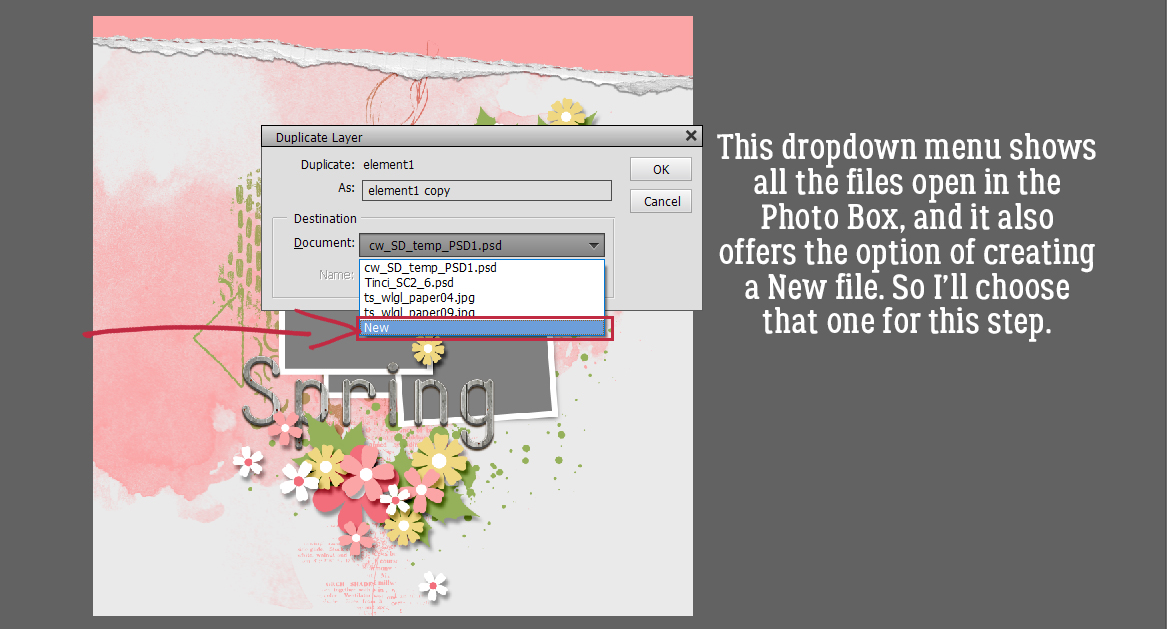
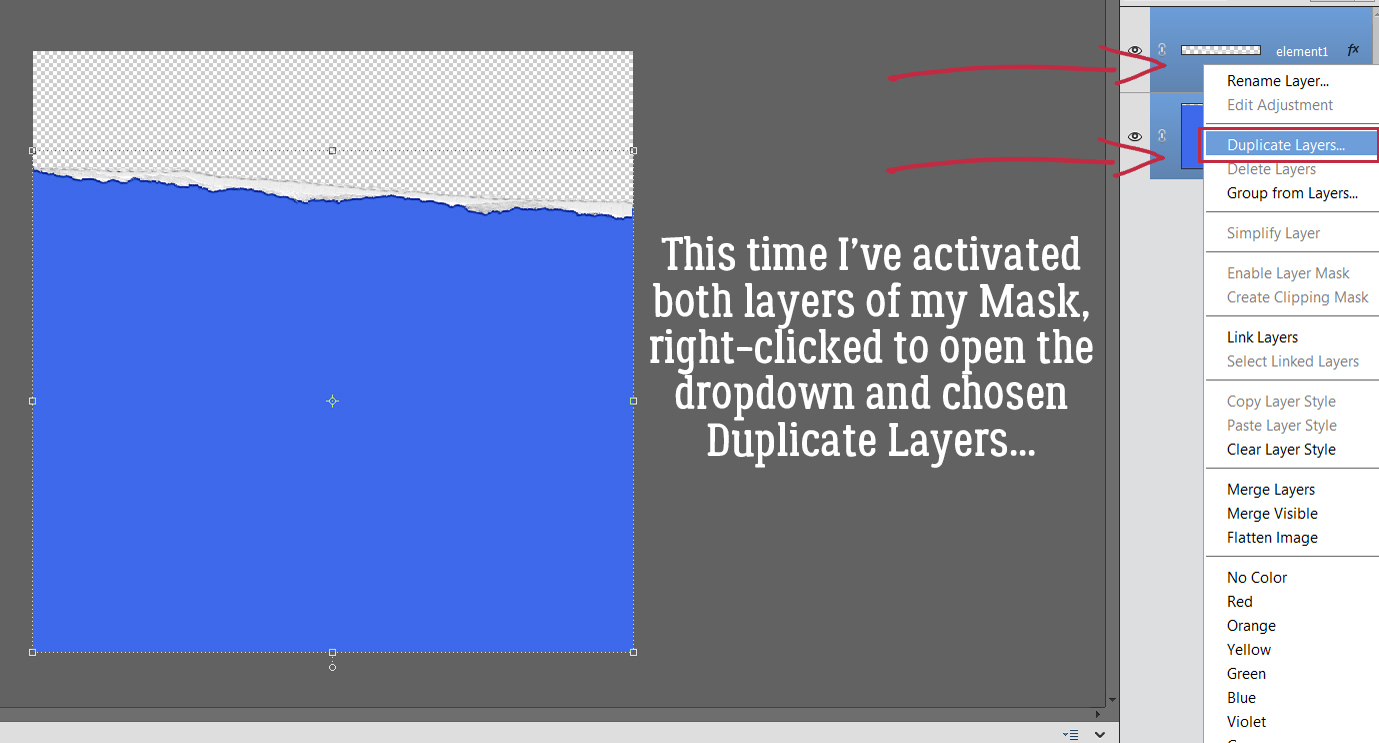
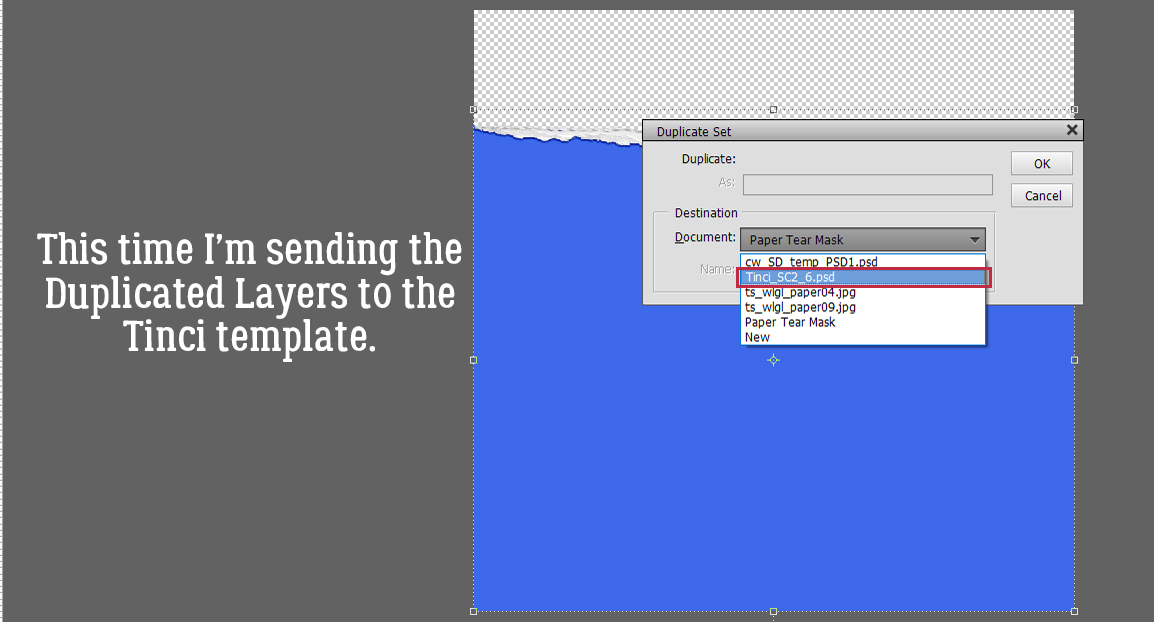
Other than Filling in the centre of the doodle with white, the remaining steps are completely optional. I wanted some catchlights and a bit of dimension so I went into the Styles menu and chose Wow Plastic. It’s one of Elements‘ core Styles that is part of the basic software. The one I’ve outlined in the screenshot is a CLEAR plastic Style so the colours below it will be unchanged. But… if you apply it to the actual doodle or yin-yang layer, the colour will disappear. So… Copy Layer it is!

It’s not really obvious in the screenshot, but the effect is a bit much. Too much. So I’ll adjust it.

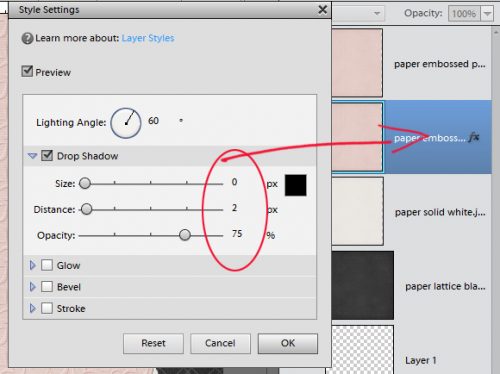
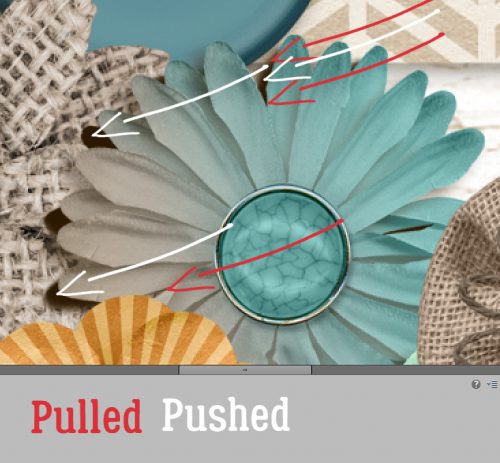
This is a good skill to develop. You can pretty much always make adjustments to Layer Styles. And you can see what you’re doing as you do it, which really helps. To get into the Style Settings menu, double-click on the fx icon on the right side of the Layer.

I changed the Lighting Angle to 60°, tweaked the Drop Shadow Size and Distance to 16 pixels each, lowered the Opacity to 46%, set the Outer Glow to 54 pixels at 39% Opacity and decreased the Bevel to 35 pixels. That gives it a nice 3D look without being overpowering.

I think I’ll apply the same Style to the rest of the doodle. I don’t need to remember what those settings were, I can just Copy Layer Style to Paste it onto the doodle. But not THE doodle… a Copy Layer. To Copy the Style, right-click on the Styled layer and choose Copy Layer Style from the dropdown.

Making sure you’re on the Copy of the doodle layer, right-click again and select Paste Layer Style and Elements will apply those same settings to the doodle.

I Saved my doodle as a layered PSD file so I can make other adjustments when I decide to use it for a card or a layout. It can be a background, a frame (pop a photo into the centre instead of a yin-yang) or even a 3D element. For those purposes I’d want to Save it as a PNG file so the transparent background is preserved.

Now, you may NEVER attempt digital Zen doodling, but these techniques can be put into play in so many other ways. Don’t be afraid to experiment!! If something doesn’t look like you want it to, just Undo [CTRL/CMD>Z] as many steps as you need to (my fingers just find that keyboard shortcut naturally, from so much practice) and try something different. All you’ll lose it a bit of time. 😉

I’ll be back on Thursday with a July Designer Spotlight. Care to guess who that might be?

Happy Canada Day to all the Canucks out there. And happy 12th birthday to my first grandchild, Jonathan.


OOPS!!

I’m sorry to say I’ve gotten absolutely nothing done over the last week so there won’t be a wrap-up for the Zen Doodling series today. My friend is staying an extra day and once we’re back to normal I’ll get right on it. My apologies!

Tutorial Tuesday (Individual Style)

Challenge Spotlight: Recipe Challenge

Today’s Challenge is hosted by Angelle Designs.

It’s been a while since we looked at a Recipe Challenge, so let’s do it! For the folks who haven’t taken part in a Recipe before, I look at it like a Speed Scrap but without the ticking clock. The host of the Challenge provides a list of required elements for the Challenge, and each participant approaches the Challenge from their own angle. This month’s list looks like this:

1. warm tone background
2. a frame
3. a button or a brad
4. at least 3 flowers
5. a string
6. a journal or a pocket card

(These 6 are obligatory.)

Today I have seven layouts to share with you, and we’ll look at each one to see how well it meets the terms of the Challenge. Are you ready?

Before we jump in, I have to provide the obligatory info part of the post… Each of the layouts is linked to its spot in the Challenge Gallery. This is so that you can take a closer look, and maybe leave the Scrapper some praise. Just click on the Scrapper’s user name and you’ll be taken right to the layout. (Any time you see text in any of my posts that is BOLD, COLOURED and UNDERLINED, you’ll know it’s a hyperlink that will take you somewhere else. 😉 )

PickyMom created this layout for her entry. Her background is “mostly” warm tones. Her frame and button/brad are easily visible, as is her string. She has more than three different flowers, and she’s also included a pocket card. Full marks!

Katherine Woodin is a bird-watcher like I am! Warm tone background? Check. Frame? Check. Button/brad? Check. At least 3 flowers? Check. String? Check! Pocket or journal card? Hmmmm. Close enough!

Now, the warm tone background dricamendes used is obvious. Yellow is what gives other colours warm undertones. (Remember colour theory?) She’s used several frames, her button is acting as a grounding element, she has some twine tucked in behind her central cluster and she has tons of flowers. I think we can be generous and consider her journal spot as a “card”.

DiDi’s Mom has also used a (mainly) yellow – therefore warm – background. She tucked her frame in behind her photo, and has both button and brad represented. I see a journaling card, a tag, and a label she’s used for some of her journaling. There’s a curl of string and exactly three flowers. All boxes checked!

Jill chose a toast-y background. I see her frame, a button anchoring one of her pieces of string, lots of flowers and a pocket card. I just LOVE the cutlery poking out of her large cluster!

DebraB went with a lighter value of toast-y here. The only required element I don’t see is the frame, but the paper behind her photo could be perceived as framing it, so let’s go with that!

At first glance, greenfiend27 has used more of a cool pink but then there’s the yellow splash that warms it right up. Button(s), frame, string, flowers… and a tag representing a pocket card. All boxes checked!

How might you have used this Recipe?

I will have out-of-town company next Tuesday, but should be able to get the final Zen Doodling installment out to you. Have you guessed what’s in the centre?

Now, I must go back to watching the wildfire crews battle a small fire on the other side of the lake…….. it looks like it’s under control.


Tutorial Tuesday (Photoshop Elements)

Zen Doodling the Digital Way – Part 4 of 5!

Yes! You read that correctly… this series is nearing its end. I just have to finish off the final version of the Mandala and it’s finished. Today I’m filling in the last of the 8 segments with some stripes. Of a sort. Some stripes, some lines of dots and some flowers are all in there. Much of this post will be basically reviewing what I’ve already shown you; most of these tips are much more broadly applicable than just to Zen doodling, too. Are you ready?

So first thing is to isolate the shape on its own layer so it can be manipulated. I popped a New Layer above the main Mandala layer but kept the Mandala layer the active one. Then I used the Magic Wand Tool to Select the last segmental shape. Then I made a Copy of it by clicking Edit>Copy [keyboard shortcut CTRL/CMD>C].

Then I made the New Layer active and clicked Edit>Paste [CTRL/CMD>V]

For this step I definitely could have used the Paint Bucket to change the colour, but have found I get better results with the Layer>New Fill Layer>Solid Color method.

When you use this method, it’s imperative that you remember to tick the box next to Use Previous Layer to Create Clipping Mask. That puts the colour ONLY inside whatever is on the layer below it, rather than Filling the whole workspace.

Then I chose my colour. Oddly, it’s one that I see in my closet all the time. 😉

Then, so that I don’t lose track of the shape layers, I Merged them together. [CTRL/CMD>E]

My first white stripe is 15 pixels wide, using the Pencil Tool as I’ve demonstrated before. To keep the stripes completely inside the shape, I CTRL/CMD>clicked on the shape Layer Thumbnail to Select the edge of the shape before I started drawing my stripes. Remember how do make a straight line? Click start>SHIFT>Click stop!

Then I added some rows of dots, using white and the same 15 pixel Pencil Tool. I just eyeballed them; at this scale, it would be hard to see a variation in gaps.

Do you ever use the Custom Shape Tool? It’s the one that might look like a rounded rectangle or an amoeba in the Tools Panel. This Tool is amazing for all kinds of purposes. I knew I wanted my flowers to be a uniform size and a symmetrical shape so I used the Tool Options to make sure it happened. I chose Defined Proportions – the default setting is 1:1 – and ticked the box for From Center to start. My colour is black.

There it is! It looks to be about the right size, too! Remember, Custom Shapes start out as Smart Objects, which means they can’t be altered as is. They need to be Simplified first.

I guesstimated I’d need four flowers for that first stripe, so I used CTRL/CMD>J to make some Copies. Then I moved one down to about where I wanted the flower stripe to end. By making all four layers active, I can use some other Tool Options to Work Smart, Not Hard.

If you don’t see Tool Options for the Move Tool, click on the Tool Options bar at the bottom of your workspace. Then go to Align and click Middle. All four of the flowers will line up like little soldiers.

To get them all neatly spaced out, use Distribute>Center and they’ll jump into position. They can then be Rotated and Moved as a group into place on the stripe.


I’ll show you this tip now, but you might want to wait until all your flower stripes are in place and Merged into a single layer so you only have to do it once. To remove the dangling parts, CTRL/CMD>click on the shape Layer Thumbnail, then Select>Inverse [CTRL/CMD>SHIFT>I] to move the Selection to the outside of the shape. Then Edit>Cut [CTRL/CMD>X].

As you can see, I got ahead of myself. I made a bunch of flowery stripes following the same basic steps as for the first one, Rotated and Moved them into place and THEN I Merged them all into a single layer so I could clean them up in one move.

How about some little white centres in those flowers? I added a New Layer so they could all be together. To make them a little softer-looking, I added a Filter>Blur>Gaussian Blur. But I went gently.

SUPER-gently… 0.5 pixels worth.

To make the shape a single “thing” so it can be Copied and Distributed, I Merged all the current shape’s layers. [CTRL/CMD>E]

Eight Copies later, they’re all in place and ready to Merge with the main Mandala layer.

Any guesses?

One thing I’ve learned through this process is that my vision is deteriorating fairly quickly now. It’s becoming harder and harder to see the cursor in Elements, to see the text on the tabs, and to just generally function, and light levels really affect how well I see anything. I haven’t done a lot of actual scrapping in months now, and I do miss it! I can’t say for sure whether the surgery I’ll likely need in the next year or so will help or not. I guess I’ll find out. ;( It’s a good thing that we’ve already created so many great tutorials for you, from beginner to advanced, because I think my digiscrapping days are numbered.

Designer Spotlight: June 2026

Aimee Harrison

Aimee and I didn’t manage to squeeze in a chat… too much on the go for both of us. But I decided I really should do at least a little blurb for all the Designers with whom, for whatever reason, I don’t get to chat with – instead of just not doing anything. From today forward. 😉 And I’m late-ish today, having spent the morning at Urgent Care. (Nothing to worry about, just one of those old-lady problems that needed to be promptly addressed.)

Of course, if you’re here, you know Aimee is providing the June Daily Download, and can collect all the mini-files that make up the full kit.

You can find her Store here.

Aimee is hosting the Designer Spotlight Challenge as well as her usual Color Challenge. Give them a look!

I don’t have a coupon code for you today, but it looks like most of Aimee’s Store is currently 50% off. (Bundles and some Styles are excluded.) Aimee is one of my favourite Designers, so I highly recommend you check out her deals!!

Tutorial Tuesday (Individual Style)

Challenge Spotlight: That’s Entertainment

Before I get too deep into the weeds here, thank you all for your thoughtfulness and understanding. I do feel a lot better today (despite not having slept too well… for several nights now) and should be fine again soon. Now, let’s get down to business!

I must say, I absolutely LOVE this new-for-2026 That’s Entertainment Challenge. It brings together so many things that I truly enjoy: musicals, the use of song titles or lyrics as inspiration, thinking outside the box and scrapbooking. The premise relates to Broadway or movie musicals, taking the title of one song from the show for inspiration. (Now, if I could find some motivation to actually create a layout, I’d be laughing!) The Challenge is hosted by Lori, one half of Scraps N Pieces and it’s genius! So let’s look at what Lori chose as her prompt…

My oldest daughter appeared in a high school production of Oklahoma! many years ago, and both she and our middle grandson are active in their community theatre in Northbrook, Illinois. So this one is special to me. Here’s the set list for the show:

Oh, What a Beautiful Morning
Laurey’s Entrance
Surrey With the Fringe on Top
Kansas City
I Cain’t Say No
Many a New Day
It’s a Scandal! It’s a Outrage!
People Will Say We’re in Love
Pore Jud Is Daid
Lonely Room
Out of My Dreams
Farmer and the Cowman
All Er Nothin’
Oklahoma!

Lori commented: “I’m thinking we are going to get a lot of Oh What A Beautiful Morning. We shall see.” Was she right? There were eleven layouts in the thread and the Gallery, so we’ll know for sure soon!

The first layout is from dricamendes. (Click on her name for a closer look – it’s hyperlinked to the Gallery.) She used a photo of a smiling couple vacationing together in Japan, and did NOT choose Oh What a Beautiful Morning. 😉 The layout itself is quite simple, pulling colours from the floral background paper for the title and cluster. The filmstrip suggests there are more photos from that trip.

Here, granny5pics has also used a floral paper prominently. She used the title song for her title, and showcased some photos from a visit to Oklahoma she made. I love how she tied in some sheet music and guitar chords to reflect one of her favourite memories of that trip.

For her layout, teenybop61 also chose the title song. She created a grid-style layout with a photo of the state’s welcome sign paired with some symbols representing the state. (Gotta say, the musk ox confuses me. 😀 )

Jill too didn’t choose Oh What a Beautiful Morning. She sense of humour really shines here, and I think we might be twins separated at birth. All of her choices of papers and embellishments have a feminine feel; she’s playing into the stereotype of women loving chocolate, especially at that “special time” each month. Did you know there’s a physiological reason for those chocolate cravings? It relates to magnesium deficiency – chocolate is actually a SUPPLEMENT!

Grace. went with Lonely Room. Her palette pulls from her photos. Her choice of elements reflects solitude and comfort… but I’m not convinced it necessarily equates with loneliness. Sounds like heaven to me!

Ooh, another high school production of the play, this time starring a family member of alexandergirl68. I wondered if anyone would choose this title and how they’d scrap it. Wondering no more! And she chose perfect elements to add to the theme. I’m not lucky enough to have photos of my daughter’s performance – no cellphone cameras in those days.

Windswept chose the title song and focused on the history of the state for her grid-style layout.

Well, how to categorize this layout by MemmieNelleke… she used Oklahoma as a title, but Oh What a Beautiful Morning – literally the SONG – as the topic. The layout is a little musical, a little historical and a little biographical. Her elements are folksy and that poster is really different!

I’ll confess, I had to think about this one to see how it meets the Challenge criteria. Duh…. there’s a song called Kansas City. AlyciaIN kept things quite simple with baseball-themed elements.

I’d know this was a msbrad layout without looking at the credits. She loves her cruises, and so many of her layouts are cruise-related. Now, this layout is very clearly an Oh What a Beautiful Morning layout. Look at that sunrise! I love the blend-and-frame look, and the careful colour choices.

Another gorgeous sunrise – OWABM – is the focus for lebjs, supported by the quote she used for journaling. That inset stack of papers. photo and ocean-related elements reinforces the theme.

Okay… so if we’re keeping score, there are 2 Oh What a Beautiful Morning layouts for sure, with a third teetering. There are 3 totally Oklahoma! layouts, with a fourth teetering. So Lori has guess wrong! Which title would YOU choose? I’d love to come up with something for It’s a Scandal! It’s a Outrage! that is funny but truthful. I’ll have to see what I can dream up.


Tune in Tomorrow

GingerScrappers, I’m under the weather today. I thought I could just push through but sadly, that’s not looking good. I hope to be up and at ’em tomorrow for the May Challenge Spotlight.

Tutorial Tuesday (Photoshop Elements)

Digital Zen Doodling (Part 3 of maybe 5)

I’m thinking maybe nobody’s really gung-ho about digital Zen doodling, but I’m going to press on. Can’t possibly just leave it unfinished, right? I didn’t get any guidance on which space to fill next so I made an executive decision.

Many of the steps for this shape are the same as for the others, so I probably won’t be as wordy as I can be. 😉 The Magic Wand Tool option I used here is the one that has the fairy-princess-looking icon with the yellow six-pointed star at the tip. I just clicked inside the desired target on the main Mandala layer with it to Select the edges of it. (I’ve outlined it in red just for visibility – the marching ants are hard to see.)

Yep, you guessed it. I popped a New Layer above the Mandala layer for the changes I want to make on this shape.

By using Edit>Copy (CTRL/CMD>C) I can Duplicate only the shape inside the marching ants. The active layer for this step must be the Mandala layer.

With the New Layer active Edit>Paste (CTRL/CMD>V) will drop a perfect Copy of the shape right there.

I’m going to make some um… concentric isn’t quite the right word, but let’s go with it… lines inside the shape. So again, I CTRL/CMD>Clicked on the Layer Thumbnail to Select the edges of the shape (in red for visibility only).

For ultimate Editability (did I make up a new word?) the Stroke (Outline Selection) should be on its own Layer.

Let’s use Black (hex code 000000), 10 pixels for the Width and put it Inside the Selection at 100% Opacity.

This may seem repetitious (duh!) but you really can’t do anything else unless you Select>Deselect (CTRL/CMD>D) whatever is surrounded by marching ants.

Yeah, you guessed it. I’m just going to Select those edges again… so that I can make more outlines. CTRL/CMD>Click the Thumbnail, then Select>Modify…>Contract to make the Selection smaller.

I want the new outline to be smaller, but still leave room for at least one more decrease, so I had to try a couple of numbers in the box before I settled on 30 pixels. (Remember, CTRL/CMD>Z is always there to Undo whatever isn’t working.)

I’m keeping all these outline Strokes on the same layer. Elements has remembered my settings so I can just Edit>Stroke (Outline Selection…)

… and click OK.

I repeated those steps one more time.

Let’s add some colour. I tried with the Paint Bucket, filling in the gaps between the black outlines, and it was UGLY. So I went down to the white shape Layer and tried again. Fail.

This method has never let me down. 😉 Layer>New Fill Layer>Solid Color…

This menu opens. I know from previous fails that I have to tick the Use Previous Layer to Create Clipping Mask box, otherwise I’ll just have a solid colour fill the whole screen.

When the Color Picker opened I chose a bright orange.

To solidify everything I Activated both the orange and the striped layers and Merged them.

Then I decided I should connect up the corners. I used the Pencil Tool the same way as in the last installment. Click the Tool at the starting point, hold down the SHIFT key then click at the end point.

Last steps were to make 7 Copies of the orange stripy shape, Move and position them into their assigned spots and Merge the whole kit and caboodle.

Progress to this point. I like it a lot! I’m thinking hard about how to fill the large centre circle. Could be fun!

If there’s one thing I’ve learned from this experiment, it’s that my vision is really not what it used to be, even with appropriate correction. The cursor is getting harder and harder to see… and giving me mild headaches. There may be some hard choices coming for me. 🙁 But I can absolutely see well enough for a Challenge Spotlight next week! Will one of your layouts be given a starring role?

Tutorial Tuesday (Photoshop Elements)

Digital Zen Doodling (Part 3 of ???)

Have you processed everything from Parts 1 and 2 yet? Today’s edition will be using a lot of the same processes as the others did. Many of the steps will be familiar for more experienced PSE users. As I mentioned at the end of Part 2, today I’ll be filling in the diamond-shaped (or is it kite-shaped?) spaces. As you can see in the screenshot below, I have the Composite Layer active – the layer with all the various shaped spaces where I put the Copies of the petal shapes. I’ve Zoomed in (using the CTRL/CMD>+ shortcut) on one of the diamonds. Using the Magic Wand Tool (set to Magic Wand and not to any of the other Tool Options) I clicked in the middle of that shape.

I made a Copy (CTRL/CMD>J) of the diamond shape, which lives alone on its Layer; Then I added a New blank Layer above it where I created the “veins”. By putting the veins on their own Layer, I can later make changes to JUST the veins without messing anything else up. Do you remember how to make lines in PSE? Using the Pencil Tool set to oh, about 8 pixels, and the colour of your choice, click your starting point. Then hold down the SHIFT key and click your end point. Voilà! a straight(ish) line! Now, you might be able to see that there are some marching ants visible in the screenshot, and you might be wondering why… Well, that’s to make sure the lines I’m creating don’t stray outside of the shape I’m filling. See how the top is pointed and the sides are curved? I got the marching ants going by CTRL/CMD>clicking on that white diamond shape while the new Layer was the active one. The Pencil won’t draw outside the shape!

With the marching ants still working, I used the Paint Bucket and a medium blue to Color Fill in some of the spaces created by the veins. Then I went a bit darker with the blue and Color Filled closer to the centre.

Next I want to add a line of white dots on the inside edge of the diamond. To do that, I again dropped a New Layer on top of the veined, blue diamond, then Selected the outside edge of the white diamond Layer  by CTRL/CMD>clicking on it. Select>Modify>Contract will make the Selected edge smaller.

This pop-up let me choose how much I wanted to shift that edge. I chose 8 pixels.

It’s hard to see the new edge in the screenshot, but it’ll be easily spotted after the next step. You might have figured out that I’m creating a Guideline

I verified that I’m indeed working on a BLANK layer here.

Do you remember this part? I’ll add a Stroke to the Selection to create that Guideline. Edit>Stroke (Outline) Selection

This Stroke can be pretty much any colour I want. It just has to be visible so I can put my dotted trim on it. I’ll be Deleting the Guideline Layer later. The settings are 2 pixels, Color is a turquoise, and the Location is Outside.

ALWAYS remember to Deselect! Elements won’t let you do anything until you do! You can either use Select>Deselect or CTRL/CMD>D to do it, but make sure it gets done!!

You’ve probably predicted that I’ll put my dotted outline on its own Layer, and you’d be correct. I used a small (3-4 pixel), hard (meaning sharp not fuzzy edges), round Brush and white to dot my way around the Guideline. Then I Merged (CTRL/CMD>E) all the diamond Layers together.

This part makes digital Zen doodling so much easier than the paper-and-marker version. I made a total of 8 diamond Layers (CTRL/CMD>J), then Moved and Rotated into position each one over a diamond shape on my Composite Layer. Then I activated all of the diamond Layers and the Composite Layer so I could Merge (CTRL/CMD>E) them all.

Here’s a close-up. Now I’m going to ask YOU to decide which shape I should fill next – the heart or the smaller petal. AND… what colours should I use?

Many of the concepts I’m using for this massive project can be used when creating any layout. Selections, Strokes, Filters, Brushes, they’re all basic tools!

I finally have my *new* new glasses and they’re great! Good-ish vision at all distances is something I took for granted, but no more!! Of course, life chez ObiJan is never dull. We had a catastrophic washing machine failure last week… one of the springs supporting the drum (front-loader) snapped. It sounded like a truck had driven into the garage door! The drum landed on top of the drain pump and hose. Fortunately, it didn’t create a leak, but the repairman (Daniel, he’s been her before 🙁 ) couldn’t guarantee that the pump wouldn’t fail too. So. New washer arriving tomorrow. Now I must find the source of the funk that has been assailing my nostrils all morning…