Sneak Peeks July 5th 2018

Happy Thursday!!! I hope everyone had a wonderful 4th of July and the fireworks didn’t keep you up too late! Our designers have lots of goodies ready for tomorrow! Let’s check them out!

From Ponytails

From Lindsay Jane

From Tinci

From JoCee

From CathyK

From Miss Fish

From Luv Ewe

From Aimee Harrison

Have a great weekend!

Tutorial Tuesday (Photoshop Elements)

Like a Broken Record

I was fooling around with a thought I had to see how it would look and a tutorial was born! I love papers with a small pattern repeat and I adore embossed cardstock. But I can’t always find what I want when I want it, so I decided to give creating my own a try. It’s so simple!! (But let’s not put our awesome designers out of work, ‘k?)

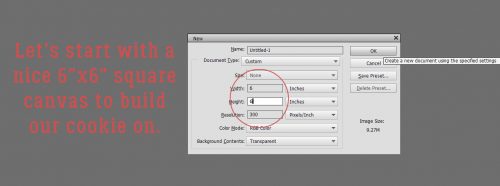
I started out with a plain Kraft-coloured cardstock from Scraps N PiecesOh Canada… Eh! collection. Then I opened a new document (CTRL/CMD>N). I knew I was going to use something that would resemble a tile effect and chose to work on a 300 x 300 pixel square canvas. Our 12 x 12 inch layouts are 3600 x 3600 pixels, so this size will be 1/12th of the length/width of the overall cardstock.

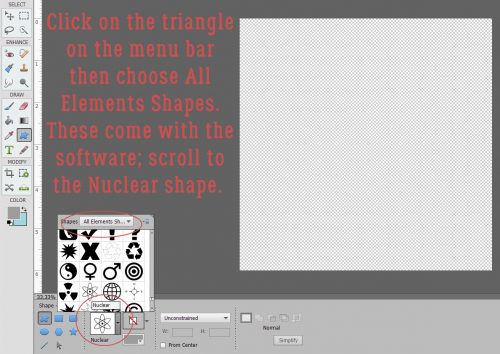
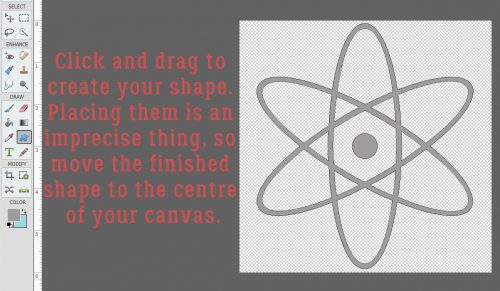
I opened up the Custom Shape Tool menu then chose All Elements to see every shape available.

I played with more than one of these shapes before I settled on this one.

I put my cursor at the upper left corner and pulled the shape diagonally across my square canvas to completely fill it. The colour I used isn’t important because I’m going to change it later. I wanted something I could see easily.

Then I clicked Edit>Define Pattern. This is going to allow me to use this little doodad as a repeating pattern on my paper.

The Pattern Name menu opens up. I gave it a name that meant something to me and would be easy to find later. There’s a clue in there as to where we’re going to end up.

If you’re familiar with my tutorials you’ll know I always tell you to work on a separate layer when using brushes. It goes double for patterns!

You may have noticed that many of the Tools in Photoshop Elements have multiple options. The Paint Bucket has one I’d never used before but now that I know what it does, I’m SOLD! With this versatile tool you can fill an area with colour or……. a pattern!

Make very sure you’re working on the new, blank layer. Click on the Pattern Fill button, the one that looks like a square with a bunch of diagonal lines through it.

When the Pattern Menu opens up look for your new pattern.

Elements will open up your pattern in the active box as shown.

Now just click anywhere within the borders of your canvas. It’s like magic!! I have 144 little repeats of my pattern creating an Argyle effect. I could stop here and have a cute custom patterned paper. I’d love to do something like this with a tone-on-tone, or with either white or black. Then I’d Merge the layers and save it somewhere I’ll be able to find it again.

But you know me… we’re going to keep going. I want to show you how to turn it into embossed cardstock, so turn off the visibility to your cardstock layer and have your pattern layer selected. Then Layer>New Fill Layer>Solid Color.

In this menu, click the Use Previous Layer to Create Clipping Mask then click OK.

Use the same colour as your cardstock by clicking on it with the Eyedropper.

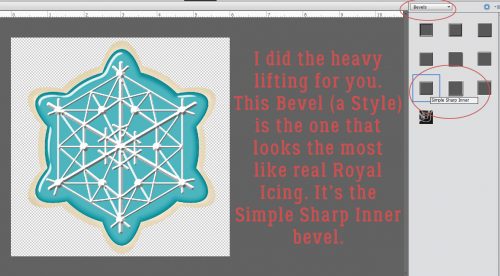
Merge the Color Fill layer with your pattern layer. Then you’re going to hit it with a Bevel Layer Style. Bevels are included with the software and can be found in the Styles menu. Below I’ve used the Simple Inner bevel. It’s a nice, rounded bevel that raises the pattern off the surface beautifully.

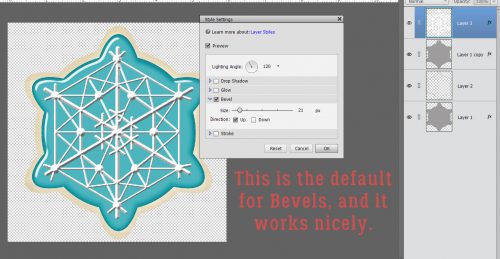
If you feel that the bevel is TOO obvious, you can click on the fx icon on the layer and adjust it to suit. (This is the only Bevel I adjusted while putting together this tutorial.)

Turn on the cardstock layer and voilà… Merge the layers and now you’ve got a custom embossed cardstock.

Some of the other Bevel styles work for this technique too. Let’s look at the Simple Pillow Emboss.

Is this the effect you were expecting? It looks a lot like those sheets of die-cut chipboard!

Simple Sharp Inner looks like this on just the pattern layer.

I really like the look of this one.

One last one… Simple Sharp Pillow Emboss.

This effect is really interesting. If I went into the fx controls and reversed the direction of the bevel it would raise it off the paper. Might be worth trying!

I can think of a long list of ways these simple techniques can be used to elevate my scrapping. Can you?

Sneak Peeks June 28th 2018

Happy Thursday! The end of the month is almost here which means I can show you a sneak peek of the buffet as well!!

First lets see some new goodies coming to the store tomorrow!

From Aimee Harrison
From Miss Fish

And now for a peek at the Buffet!!

Come back tomorrow and on Sunday to see all the new products!

Tutorial Tuesday – Scrapbooking

Where the Boys Are

Today I thought I’d do something just a little different. Rather than me showing you haw I do some of the things I do for my layouts, I thought we could have a chat about how to increase the value of our templates and kits by using them in unexpected ways. For another few weeks, I only have grandsons, and I love to create layouts about them with the photos their mom takes of them. (You might have noticed…) But how many templates are really boy-centric? There are lots of kits out there that are boy-centric, but they tend to have the same sorts of elements and similar papers. I don’t let that get in my way though! So let’s look at some ways to make the most of our stash to scrap photos of our favourite boys.

I don’t believe in rules when it comes to creativity. So when it comes to colour, anything goes! So many of the boy-themed kits have a navy/brown/forest green/gray palette and there’s nothing wrong with that, but I’ve used a feminine, pink-heavy kit for boy layouts without making them look overly foofy. It’s all in how you use colour. If you start with a neutral background, you can add colour in lots of ways. Because my little men are just 4 and 2 1/2, I tend to use a lot of primary colours, but not always! I like to use soft greens, aqua, lavender, coral and even fuchsia for my boy layouts. Here’s an example.

Here’s another example.

What about flowers? Do you feel like you can’t put flowers on your masculine layout? Well, of COURSE you can! I’ve used flowers on both those layouts. I tend to choose flowers that aren’t overly fluffy, and natural-looking. Daisies will always work with photos of children. Some designers create beautiful composite flowers and I sometimes create my own by putting a screw head, a plain button or a gear – or all three – in the centre.

But what can I do when looking at a template FILLED with flowers, and the photo(s) I want to use are either of my son or my grandsons? I substitute lots of things for those flowers. Gears, paper rosettes, tags and labels, stars, hearts, buttons, flair, bows, string, ribbons and word strips all can take the place of flowers.

Or like this…

Ready for some audience participation? Okay, now the ball is in YOUR court… What are some of the ways you scrap layouts of your boys and men? Please leave your tips in the comments! I appreciate it.


Tutorial Tuesday (Photoshop Elements)

Still MORE Fun with FONTS!! 

We’ve done a lot of cool things with fonts, but I know there are still so many even cooler things to try. Last week I bought a new font bundle from The Hungry JPEG, a selection of vintage fonts for a smokin’ hot deal. It’s not as if I’ll ever have too many fonts, right?

Anyway, while I was downloading these fonts, several of which were actually font families, I looked at the samples the site uses for advertising and it hit me… Why not try layering two fonts from the same family and see what happens? Font families are a collection of very similar fonts with some subtle differences; there may be a regular, a bold, a light, an outline, a grungy and an italic version, for example. This tutorial was fun for me, because I really didn’t know what it would look like when I was finished, but the idea was firmly in my head and I had to try it. I impressed myself so much I needed to widen the doorways. But… it didn’t turn out the way I expected it to. It’s BETTER!

I went through my fonts, using High Logic’s Main Type, to find a font family that would hopefully give me the look I could see in my head. The one that looked most promising is called Nomos, by Cruzine Design. It has several variations on the basic font, so I went with it. I started with Nomos Regular Regular for my basic title. I selected a medium gray to be my starting colour from one of the papers I used in my layout. And I set the size at 100 pixels, knowing I’d probably resize it to fit my canvas. Remember, I usually create my title on its own canvas, sizing the basic working space to approximate the area I want it to fill. No distractions, nothing to work around. So once I decided on my font and colour, I opened a 5 1/2 x 1 1/2 transparent canvas on my workspace.

I typed out my one-word title, then resized it to almost fit my space. I made a careful mental note of the exact size of the final font so I wouldn’t have any guesswork for the next step.

Then I went back to my fonts and chose an outline version of the same font. It’s called Nomos Inline Inline. (I don’t know why the designer used so much repetition in titling…)

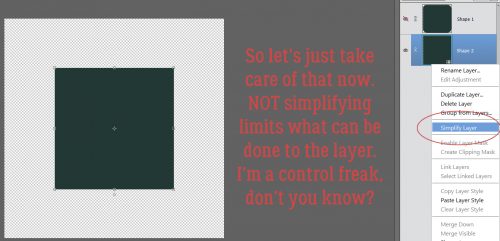
I Simplified the original layer then turned its visibility off. Why Simplify? When working with fonts in PSE, if you DON’T simplify the layer, then select a different font for your next text layer, that first layer will morph to that new font. And you might not notice it until MUCH later and have to go back and fix it. So don’t forget to Simplify once you’re satisfied with spelling, grammar and punctuation. After that, I typed out my title exactly the same as the first layer, only in white this time. And I resized it to the same size as my original layer. Here’s where the people really paying attention can give me the gears. My resized font is 114.31 pixels.

They weren’t in exactly the same place on the workspace, but it looks really cool just like this! If it was what I was after I’d just have gone with it. But I envisioned something more, so I kept going.

PSA: Simplify your text layers!!

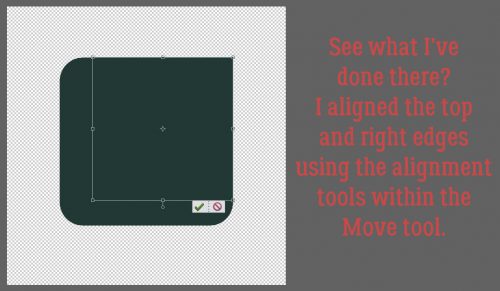
I wanted the two layers stacked perfectly, white over gray, so I used the Move Tool Options to Align the layers, first by Center then by Middle.

I turned off the gray layer again and concentrated on the white outline layer. I clicked on the Layer thumbnail to select the edges of the letters as shown below.

I want the white sections to be thinner so more of the gray shows through, so I clicked Select>Modify>Contract. I didn’t want to lose too much, so I went with a single-digit shrink of 7 pixels.

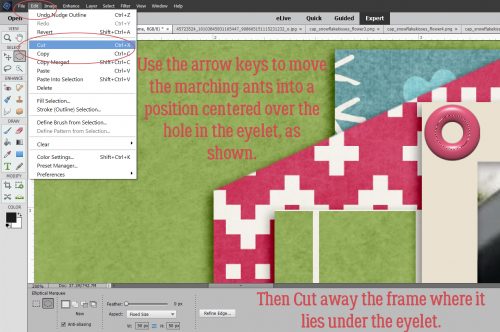
If you look closely you can see where the new lines of marching ants have appeared. I’m now going to DELETE those sections. CTRL/CMD>X

Ah! Not exactly what I was expecting, but really, really neat!

I couldn’t wait to see what it looked like with the gray layer on. I wanted to add some dimension to the white layer, which I did by using a Simple Sharp Pillow Emboss bevel style, one of the integrated styles the software comes with.

It looked really good, but just a little TOO… too. Easily fixed by adjusting the bevel settings.

I clicked on the fx icon on the white layer and made the bevel much smaller. I think it looks like inlaid enamel and chrome, don’t you? Now I’m itchy to try this with other fonts and see what different effects I can achieve just by layering two fonts. Who knew it would be so much fun?

Here is my finished layout. It’s for the Designer Spotlight Challenge this month and was created with pieces of 3 kits by Connie Prince and a template from Trixie Scraps. The people in the photo are my grandparents; it was taken in the summer of 1961. By the following Easter he was gone; this is one of only 2 photos I have of him where he doesn’t have a cigarette in his hand. I see a little bit of my dad in each of them, and my sister’s eyes crinkle in the same way Grandma’s do. I’d never noticed it before, so this was a labour of love.

Sneak Peeks June 14th 2018


Happy Thursday!! We are almost to the weekend! I hope you are enjoying the last few days of Spring because summer is almost upon us! Hopefully this week’s new releases will inspire your scrapping! Here’s a peek!

From Ponytails

From Tinci

From Cornelia

From Aimee Harrison
I hope you have a wonderful memory filled weekend!

Tutorial Tuesday (Photoshop Elements)

Everything New is Old Again

No, you didn’t read that wrong. Today’s technique is going to turn a sort of ho-hum colour photo into something that looks like a vintage one. It will work with any colour photo at all, but it looks best when there’s lots of detail and texture.

To begin, I opened my photo in Elements then selected Guided Edit. When the menu shown below opened up, I selected Fun Edits>Old Fashioned Photo. These Guided Edits transform photos with only a couple of clicks and a little tweaking.

There are three presets in this menu as shown below.

The first preset is called Newspaper. And it looks a lot like those black-and-white photos found in any newspaper. There’s a good amount of contrast and sharp details.

The second preset is Urban. It’s a little softer but grungier.

The last one is Vivid; it looks like a happy medium between the first two. It’s the one that adds the most oomph to the sky.

I liked the look of Vivid for this photo. The next step is Adjust Tone. The effect it has on the photo is pretty subtle, and you might not really see it.

It’s just a little bit brighter, and perhaps the details are a tad bit sharper. Clicking on this tool multiple times doesn’t add any further effect.

Let’s add some texture. Unlike the previous step, multiple clicks will increase the amount of “texture” which actually is more properly called noise.

It’s looking really interesting, but we still need to add some colour.

Shown below are the default settings for the colour adjustment.

I made some very slight changes to the settings, warming up the colour just a hint, adding a tiny bit more saturation and lightening it up a barely-there amount.

I like how dramatic the sky looks with this Edit. Then I clicked the Next button.

Here’s where you decide what you’re going to do with your photo. If you plan to use it right away for a layout, or if you want to make more adjustments to it, obviously you’ll click In Expert.

When the Expert workspace opens, you’ll see right away that all the changes you’ve made have been done on a copy of your photo.

Let’s play a little more. Remember Blend Modes? I tried them all on this photo. Some looked really interesting, some where downright HORRIBLE. The ones I’ll show you are the ones that didn’t make my eyes hurt.

Multiply made the colour come back and the overall look is very moody.

Darker Color also let the colour come through again, but kept the sky that weirdly unnatural brown.

This one is muted and soft.

Usually Overlay lightens and softens too, but not on this technique.

I think this mode is well-named. It’s HARD!

Linear Light makes me think of movie posters from the 50s and 60s.

This was one of the odder ones.

A Clockwork Orange, anyone?

I think this one is rather odd, too. Misnamed, for sure!

See anything you’d like to incorporate into a layout? At this point, I chose to Merge the two layers together. I could now save it as a new version of the original.

As I was running through this edit, I found the power lines were really jarring. In the original they were virtually unnoticeable, but in some modes they jumped off the screen. The water tower and wagon are so vintage, but the wires looked out-of-place. So I used the Spot Healing brush to remove them.

I played a bit with the Hue/Saturation a bit too. Quick keys for that adjustment are CTRL/CMD>U.

I liked it slightly more sepia than copper. This step will seem really bizarre, since I made a point of adding texture to the photo way back at the start. But when I hit it with Haze Removal, I LOVED how it looked.

See the difference? I think it looks like a real, vintage photo from 100 or more years ago.

This is where I stopped. I have no idea what I plan to do with it, but I know I’ll be using this edit again!

Don’t be afraid to play with the features Elements has to offer. All you’ll give up is a little bit of time, and you might find something that defines your style perfectly!

Sneak Peeks June 7th 2018

Happy Thursday! I hope you are eagerly awaiting the weekend and hopefully you will have some time to scrap with some of this week’s new releases! Let’s take a peek!

From Tinci

From Lindsay Jane

From Luv Ewe

From Heather Z

From Aimee Harrison
From JoCee

Have a wonderful weekend!

Tutorial Tuesday (Photoshop Elements)

Alphas Revisited

Are you ready for a really easy tutorial that looks a lot more involved than it is?

When I was looking at the June challenges at GingerScraps, I knew I wanted to do the Scraplift challenge – I already had the same template from Heartstrings Scrap Art in my stash, so it was a no-brainer! My dilemma came in the form of wanting to use a specific kit from Aimee Harrison called Tidepooling, that came with a selection of wickedly awesome alphas. And you know how I love those alphas! Now you get to see how I put that alpha to use.
I wanted my title to follow the same curve as the title that came with the template and to sit in roughly the same place. But creating my title right there on the template would have been very difficult, due to all the distracting layers. I could have just turned them all off, but I prefer to compose my titles on their own workspace then move them onto my layout so I duplicated the two layers of the circular photo spot.

Then I sent the Duplicate Layers to a New document.

I could have left it untitled, but chose to give it a name, just in case I was interrupted and had to find my title in the Photo Bin again later.

Now I had a new 12×12 document open, with the two layers of the circular photo spot in the exact same place as they are on the template.

Next I went to my layout folder and opened all the alpha elements I chose for my title.

I spelled out my title in the centre of my canvas. I made sure they were in the correct order so when I started moving them, they’d be where I wanted them. (Notice I’ve turned off the visibility of those photo spot layers. They aren’t needed at this step.)

I knew just from lots of practice, that these letters were much too big for their purpose on this layout. So I selected ALL the alpha layers and resized them together at one time.

I estimate how much I need to shrink letters when I’m doing this, and I randomly chose 65% as my target. I like to use round numbers, especially if I’m going to resize other objects later and want them to be to scale. A round number is easier to remember! I also checked the box that says Constrain Proportions. That makes sure that I only have to adjust in one plane and the other will follow suit.

Because I’m going to work with just one letter at a time, I turned the visibility for all the other letters off. They’ll be turned back on as I go along. And I turned the photo spot layers back on; they’re going to be needed now.

This alpha was super-easy to use. It has strong verticals, so I was easily able to position each letter perpendicular to the edge of the photo spot. Then I shifted the L into its place just sitting on the edge of the gray circle – my baseline – which will become my focal photo later.

I love that this L has a bit of a swoopy flourish to it.

The letter I will be a bit more of a challenge. It needs to sit close enough to the L so that it’s visually connected. It too is perpendicular to the baseline.

By turning off the visibility of the L for a second, I could be sure I had the bottom of the I touching the baseline. Then I turned the L back on and nudged the I into it’s spot.

The F also needs to be perpendicular. It’s got a strong vertical dimension and would look off if it isn’t perpendicular. But notice how the vertical aspects of the letters aren’t parallel. That’s how I want them.

Now, as you already know, I’m a bit… particular (or anal, you chose – most of us ICU nurses are) about some things. And this is one of them. The tops of the tall elements HAVE to be roughly lined up to look right to my eyes. But… some would argue the F could have a longer bottom end, and that would be right too.

If you scroll back up to one of the screenshots showing all the letters in the Layers panel you’ll see that the lower case letters are very slightly slanted. So I want to make sure they’re slightly slanted in my title too. As for spacing, I’ve tried using the Distribute Tool Option and usually I end up really unhappy, so I eyeball the spacing between letters (also known as kerning). I only care about it looking good, not having everything perfectly spaced.

Where I AM a perfectionist is when it comes to apostrophes. (Don’t get me started about the proper USE of apostrophes…) So depending on the look you’re after, the top of the apostrophe can be aligned with the tops of the tallest letters, slightly above for a casual look, or slightly below. It’s all about what you like.

The letter S in this alpha presented a few options. I decided the right-most edge should be my focus and so I made it perpendicular to my baseline.

This lower case A is an article, so it’s a word, not just a letter. It needed to be spaced accordingly.

The upper case B is another letter in this set that is easy to position, with appropriate spacing, of course.

This E, unlike the one in Life, looked funny when I tipped it to the same degree, so I stood it up a little straighter.

Below you can see the A as it looked when I moved it onto the canvas. It’ll need tipping for sure.

Perfect with both lower edges on the baseline.

When I played with positioning the C, my brain wanted the curved edges to be parallel, which actually made it easy to get it just right.

Last letter! This H was not upright when I moved it onto the canvas and so the upright section isn’t perpendicular to the baseline. The final position has the bottom of the upright and the curve of the serif resting on the baseline.

Zooming out, I was pleased with the spacing and the angles on each letter, but I wasn’t totally happy about where it starts and stops. So I selected all the letters so I could move them all together and rotated the title into a more pleasing position. With a little nudging of the entire title, it was successfully lined up with the baseline without having to adjust any letter individually.

Then I could go ahead and merge all those letter layers. For the remaining steps I don’t need to see my baseline so I turned visibility to the photo spot layers off.

The title would be just fine the way it is, but the original layout we’re scraplifting has a border around its title. So mine will too. I Selected my title’s edges by clicking on the title layer thumbnail in the Layers panel.

Next I clicked on the Select tab, then Modify>Expand.

I want my paper border visible but not overpowering. So I chose a single digit number at random. 8 pixels should be right.

I pulled a colour from one of my papers to fill the area I just created. It’s a gray with a faint touch of green as shown.

If I just fill that space on the same layer as the title, there’s a faint void around the letters where it doesn’t fill completely. That might be okay, depending on how big your title is, how detailed your background will be and so on. But I’ll show you another way to eliminate the voids.

I created a new layer and filled the selection on it. Because it’s currently on top of the wooden letter layer, it shows you how the entire area is filled in. Alternatively, I could clip a paper here instead of filling the area.

Then I moved it down under the wooden letters. If I wasn’t doing it for a tutorial I would have just put the new layer under the title from the beginning and skipped that step now.

The title on the original layout also had a narrow white stroke around it, and that’s what I did next.

I could have used black for definition but I wanted visibility, so I used white.

This stroke can be pretty narrow. I went with 4 pixels and set it to be centred on the edge of the gray layer. That’s the best way to minimize squared-off corners.

If you strain your eyes you can see it.

The last thing I needed to do was put a drop shadow on the wooden layer. It has dimension and needed a shadow to emphasize that. I used the drop shadow styles included with the software for my example; I don’t want anyone to feel like they can’t achieve any of my techniques without spending more money. The Low shadow looks like this, which is TOO much.

So I double-clicked on the fx icon to the right side of the layer in the Layers panel. Then I adjusted the lighting angle to match the rest of the layout, made it smaller, brought the shadow in closer to the letters and lightened it up.

Then I zoomed out to make sure it looked like it should.

Once I was positive, I merged all the title layers together so I could move it onto my layout. It seems like a very time-consuming technique but it really isn’t. Putting together a tutorial detailed enough to make sense to beginners takes me a full day… this title took only about 15 minutes.

Wanna see the finished layout? [whispers to Glee – the focal photo is of my daughter’s hands. She was in Nicaragua for turtle-hatching season.]

Sneak Peeks May 31st 2018

Happy Thursday! I always love when sneak peek Thursday falls before a new buffet! I get to show you all of the awesomeness coming tomorrow for the June Buffet!!


Before I show you all the buffet awesomeness, Clever Monkey Graphics has a new kit releasing tomorrow!

And now a peek of all the awesomeness coming to the Buffet!

Check back tomorrow to see all the new goodies!! Have a wonderful weekend!