Buzzbee Scraps!

I owe Karen (aka Buzzbee Scraps) a HUGE apology. When I posted Part 1 for October’s Designer Spotlight, I’d indicated that Karen hadn’t been in touch to chat with me. Little did I know she’d been trying to contact me via email for a couple of weeks already at that point, and for some reason, I wasn’t getting her emails. Ginger was acting as our go-between and finally sorted it all out for us so we FINALLY had our visit. I feel just awful that she’s missed HALF of her Spotlight month. I hope we can make up for that…
J: Karen, I can’t explain what happened with my email. Ginger shot me a test this morning and she was able to get one through. Oof. Sorry!! Let’s not waste another minute!! I think I know the answer to this but can you share with us how you arrived at your Designer name?
K: It’s really simple actually. My surname is Busby and I absolutely love bees lol. So I sort of combined the two.
J: I figured it was something like that. I adore bees. Well, all the pollinators… living in an orchard city as I do, they’re a vital part of our economy. So of course I love the logo you created. 😉 What other kinds of things inspire your creativity for new collections?
K: Colours are a big inspiration. I will see a colour combo while out and about (often in nature. I am so inspired my the natural world. Which is why a lot of my kits feature cute, critters)! and that will start my brain working on themes that would work with the colours. Other times it might be a life event that I have recently experienced, such as weddings, birthdays, being with my family, days out and walks in the countryside. Just everyday experiences that I think would need documenting.
J: [Note to readers: Karen puts “u”s in words like Jan does. 😀 ] Well, that’s a lovely segué into asking the favourite-child question… do you have a favourite kit or collection?
K: I think probably my Photographer kit <hyperlinked>. The colours are not what I would normally choose. But I saw them together on a birthday card and loved the combo. The theme came easily as I have always wanted to make a photography kit. Photography is a big hobby of mine and so it was really fun to make. Customers loved it too and that really warmed my heart.
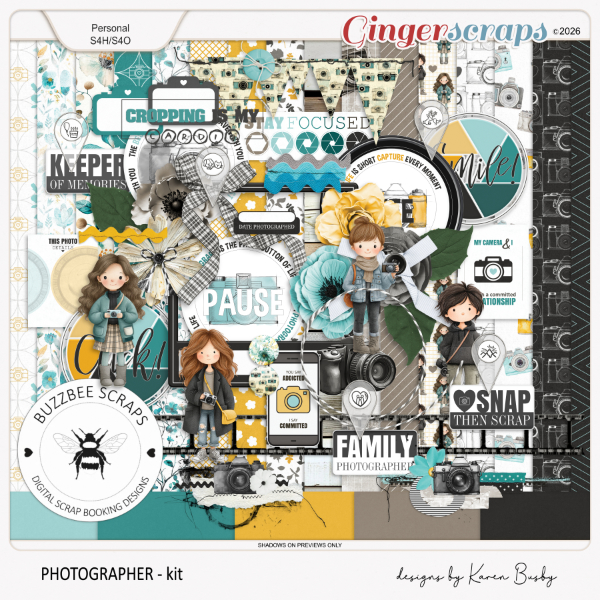
J: LOL! Remember these comments, folks. I actually kinda like this colour palette. I’m not usually a big yellow lover, but right now all the trees are sporting almost that exact shade. The kit is fabulous!! So what does a typical workday look like for you?
K: I get up around 7.30. Have my tea and toast then go for an hour long walk with my rescue dog, Tilly. Then it’s back home to feed and clean out my 4 rescue guinea pigs. After that it’s kettle and computer on for design work until lunch time. After lunch, I will do any errands that are needed and visit my mum. She has early stage Alzheimer’s and I pop in to see her most days. Then I will be back at my PC until 5 ish. Then I walk Tilly again, feed her, sort out the guineas and get dinner started. Dinner is usually around 7.00. On Thursday & Friday I also dog sit little Maggie. So I fit that in too!. Sometimes I will work a bit more on my designs after dinner depending on energy levels. My design work has to fit around everything else. So I often do some over the weekend too. I love it though and I feel so fortunate to be living the life that I do.
J: I’m so not a morning person. Having to be at work by 7 am for day shifts was such a struggle for me. I envy people who can be productive before 10 am! I’m sorry to hear about your mum. Mine is nearly 91 and still as sharp as ever. My sister and brother live with her, so I don’t worry about her (much). Is there anything about your design process that would surprise me?
K: Usually that I don’t use a lot of AI. A few elements may be made with AI. But I try to avoid it. I prefer things to be my own work. All of my patterned papers are made my me. I don’t use AI to generate patterns , make tags or wordart etc. Hopefully, that keeps my designs unique to me. But who knows. Maybe that means that I will get left behind. I’ll take the chance lol.
J: AI isn’t at all intelligent! I do historical research and the amount of garbage being produced by AI when documents are transcribed is ridiculous. I waste a lot of time having to locate and read/transcribe things for myself. It’s kinda funny about Ukraine taking out all the Russian bot farms though. Do you have any specific goals you’ve set for the next year when thinking of your design work?
K: I would really love to be producing more designs. I have so many ideas and not enough time to get it all done. Maybe I will get better at managing my time lol. I just want to keep on creating things that people want to use in their memory keeping. I came to designing late when the market was already flooded with amazing designers. So carving out my little spot is taking time. I am so happy with the feedback that I get from my sweet, customers. It really does spur me on. Hopefully, over the next year, I can get more kits made. So I guess the thing that I would like to accomplish is just “more”!
J: I think you’re doing pretty well, ma’am! If you couldn’t be a Designer, how would you feed your creative needs?
K: As I came to designing later in life. I already had a career in early years childcare. My favourite part of that was being a children’s nanny, where I could use my creativity a lot. I really enjoyed encouraging children to explore their own creativity too. I started my working life as a horse riding instructor though and worked training horses and riders for many years. If I wasn’t designing now, I probably would be a nanny still. Although I have often toyed with going back into the horse world – though not too much creativity there!
J: Kids are great for keeping one on one’s toes. My entire nursing career was in pediatrics… no stinky adults for me! One of my former patients was on our unit for a long time, long enough to make us a chain of origami cranes to brighten up our nursing station. I loved that child so much! Every day was a (virtual) K-Pop dance party in that room. What tune really gets you bopping along?
K: This one is easy. Mr Brightside by The Killers. Here in the UK, it is usually played at any sort of gathering with music. People usually get up and dance to it while screaming the words. love it!
J: I’ll have to YouTube that one. It’s not familiar, but it must be a lot like Sweet Caroline or the Chicken Dance in the reaction it evokes. I really should track down that Hugh Jackman movie about the Neil Diamond impersonator, if only just for the music. Is there a movie you can watch over and over and still love it?
K: This one takes some thought. There are three. Can I have three? They are – In Pursuit Of Happiness, The Lion King (original cartoon) and The Greatest Showman. It depends what sort of mood I’m in. But if you are forcing me to pick one. It has to be In Pursuit of Happiness. it’s so uplifting and a reminder that things can get better. I always cry happy tears at the end lol.
J: I love all three of those… speaking of Hugh Jackman. 😀 Of course you can choose three! But for this last question, you cannot have three. Just one. What one food could you happily eat every day for the rest of your life?
K: Well. I absolutely could not live without chips. So I’ll say that. I mean the french fry kind. I think crisps are called chips in other countries? I mean the ones that you get in fish & chip shops in the UK. (not the small, crunchy things in packets) But I love pub chips, oven chips and homemade chips. So my answer would definitely be chips!
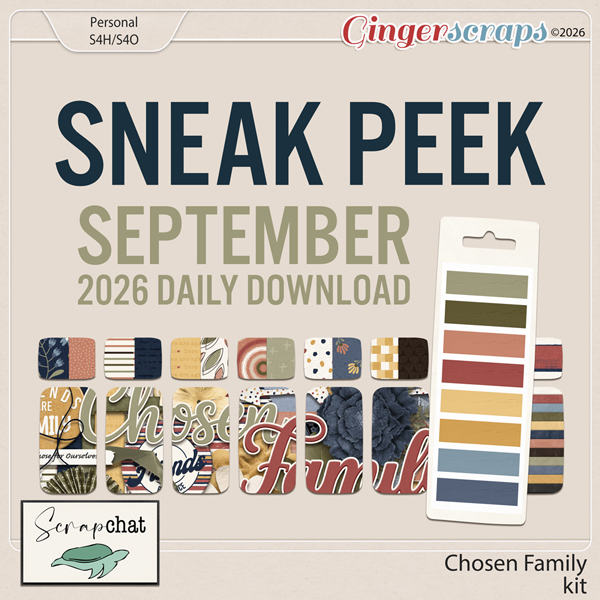
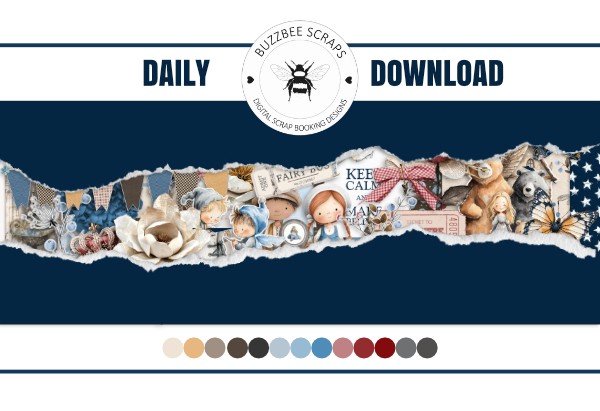
J: YUMMMM! In eastern Canada we have chippers – food trucks that make absolutely sublime chips. With malt vinegar and lots of salt. <stomach rumbles, entering the chat> When I was quite small, for a treat, we got authentic fish and chips – wrapped in newspaper and smelling incredible – for our supper on Friday nights. I judge ALL fish and chips against that memory. <stomach becoming a problem…> I know it’s quite late on your side of the pond, so I’ll wrap this up. As usual, Karen is providing us with a fantastic Daily Download as part of her Spotlight, AND she has a coupon!
As for Challenges, Karen hosts the monthly Photography Challenge 😉 and is co-hosting the Designer Spotlight Challenge for this month.
Make sure you check out her Store! Buzzbee Scraps