Archives for June 2026

GingerScraps Fresh Baked Friday and Summer Dreamin’ Sale – June 12, 2026

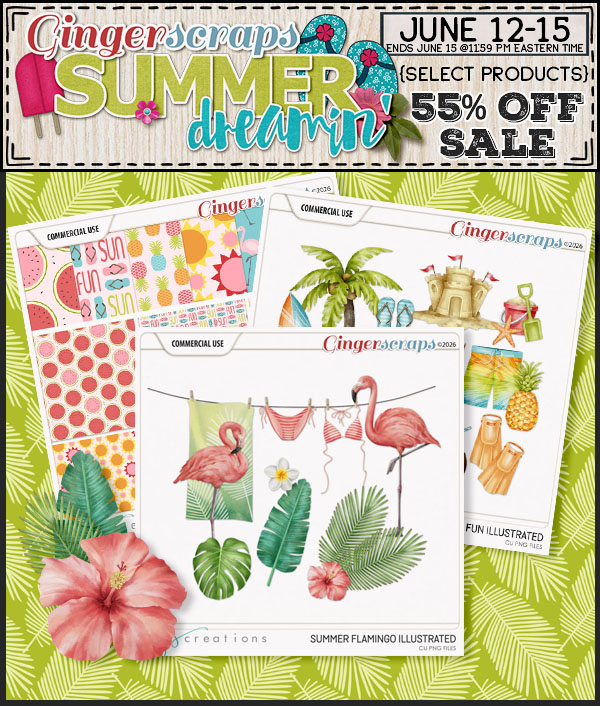
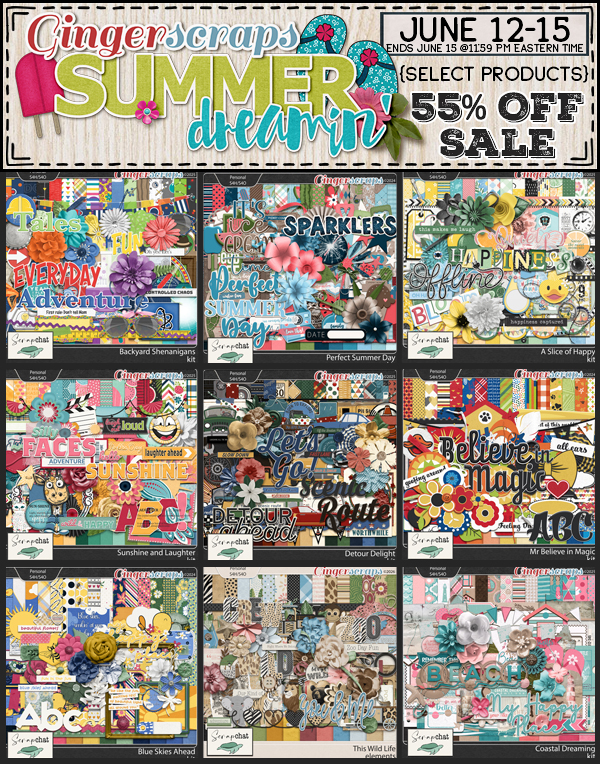
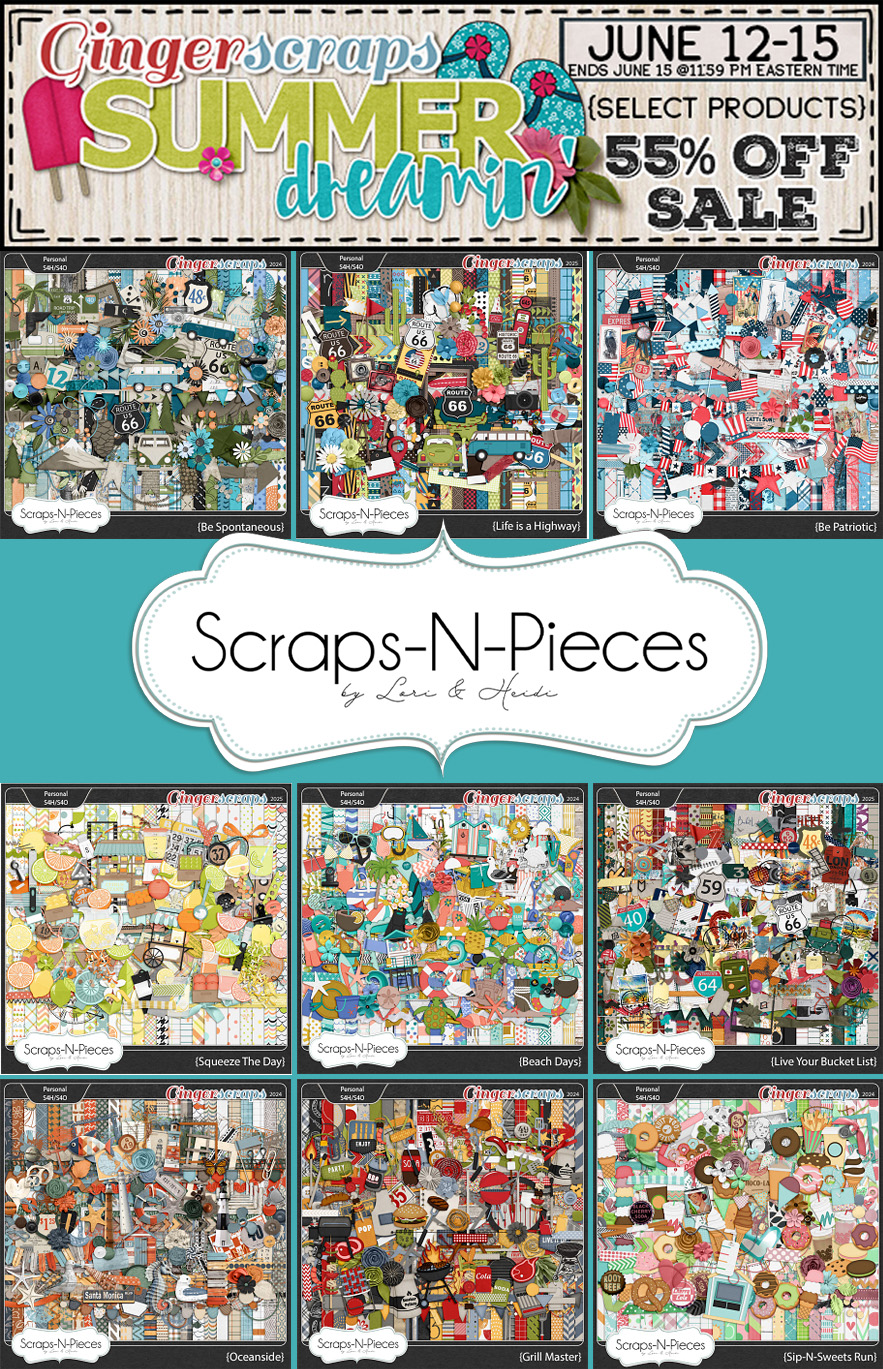
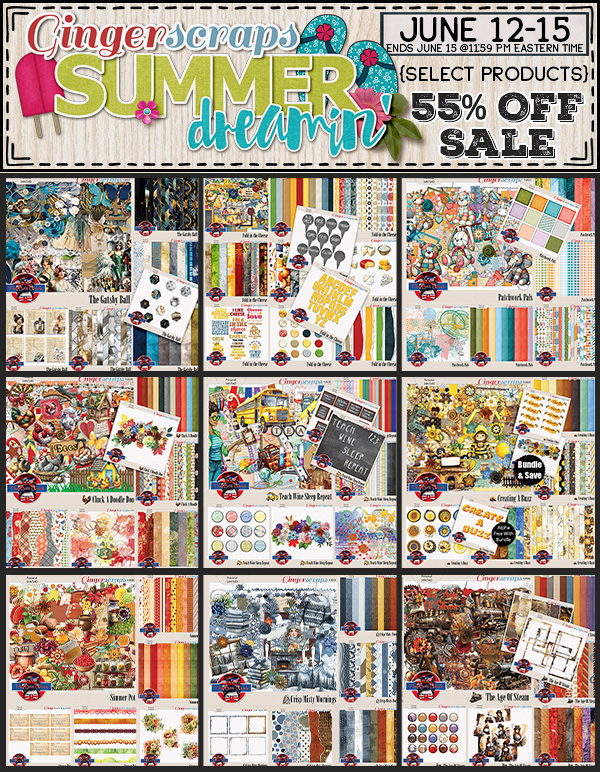
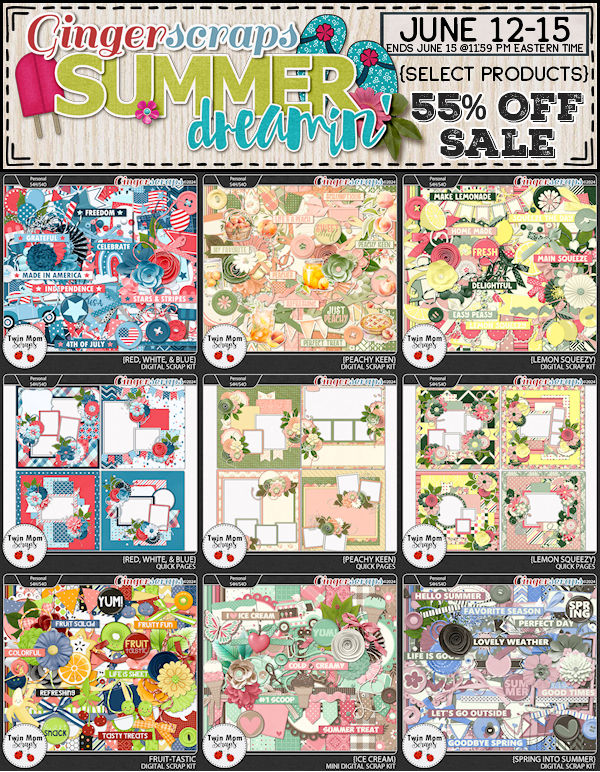
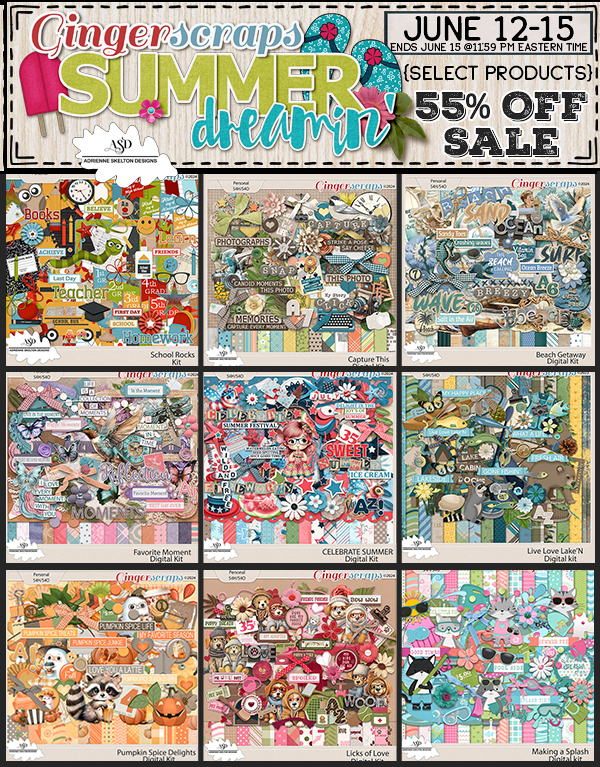
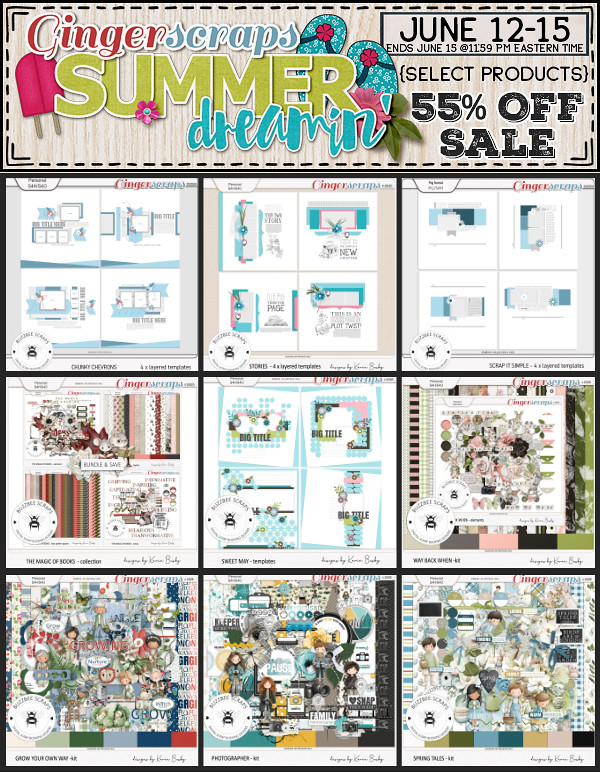
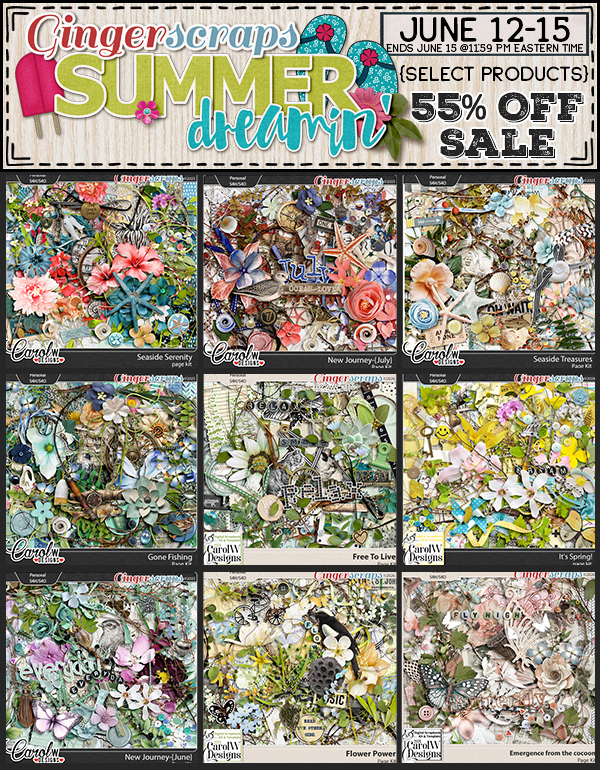
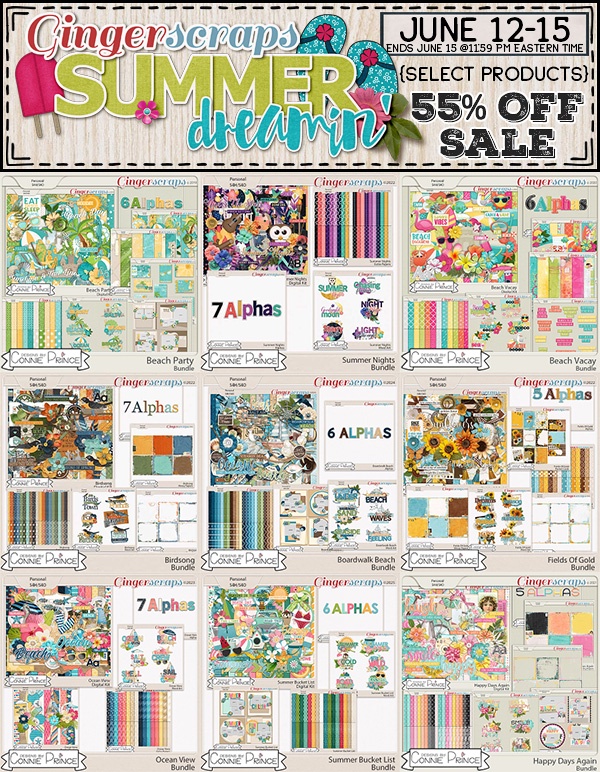
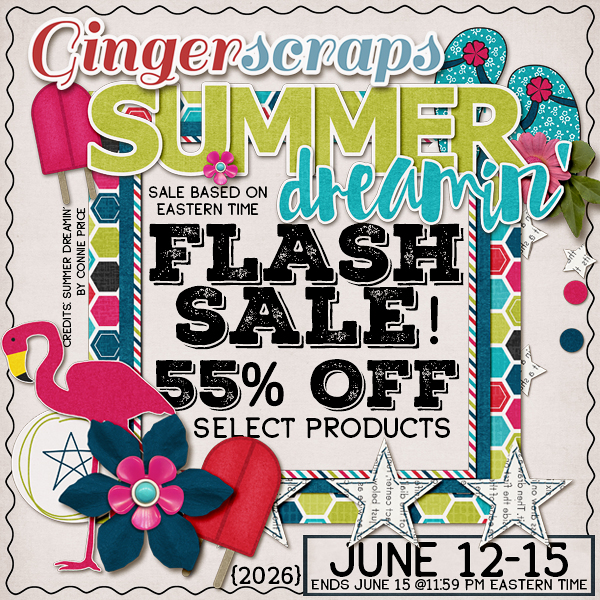
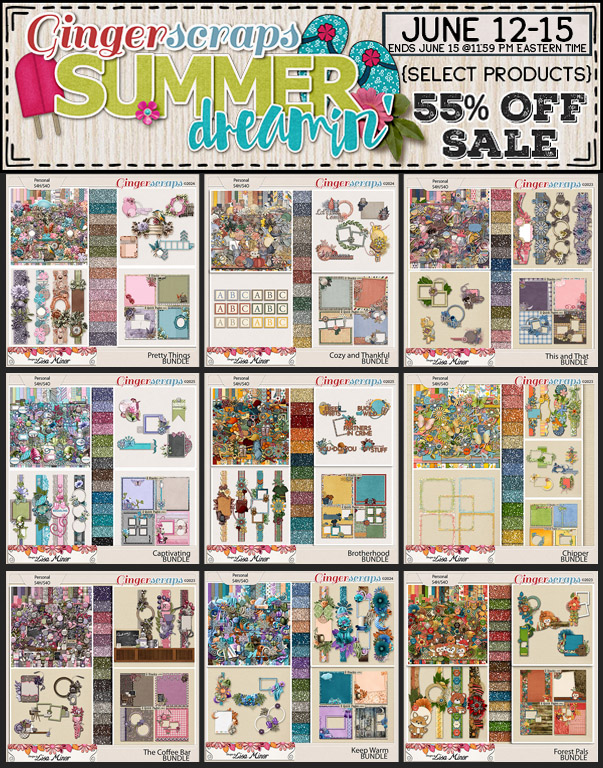
The Summer Dreamin’ Flash Sale is here at Gingerscraps! From June 12–15, enjoy 55% off select products throughout the store.

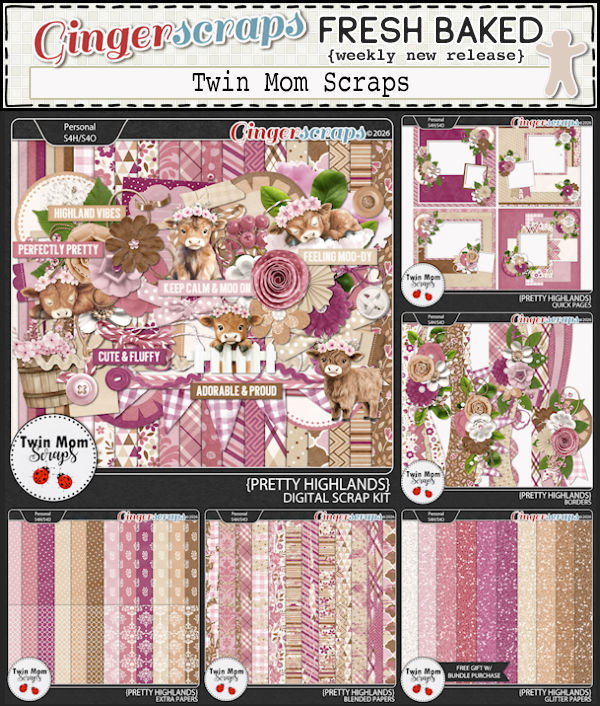
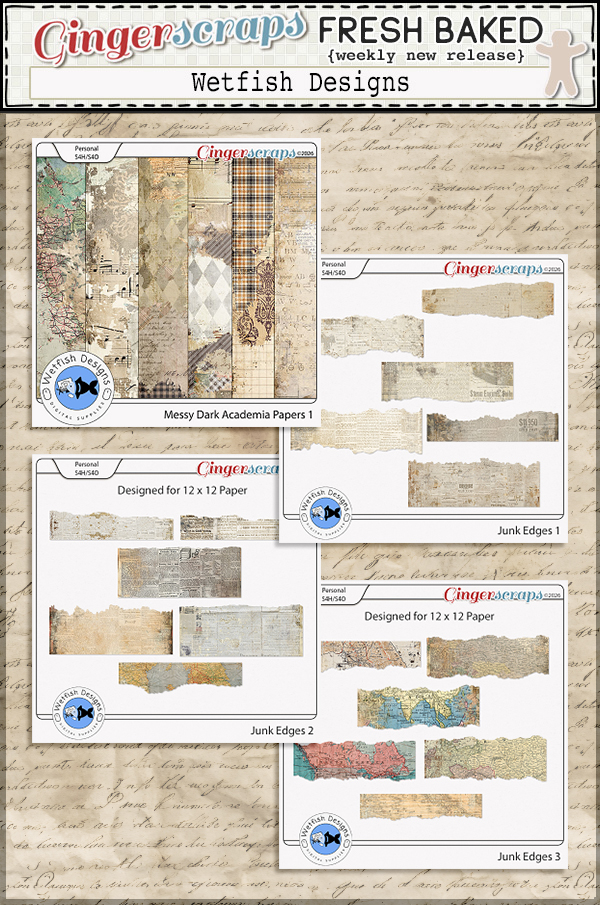
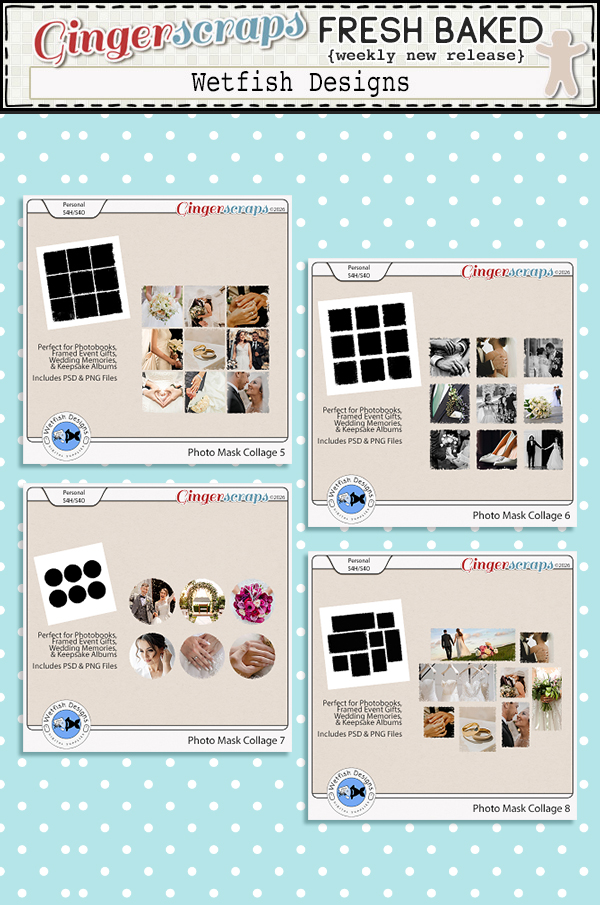
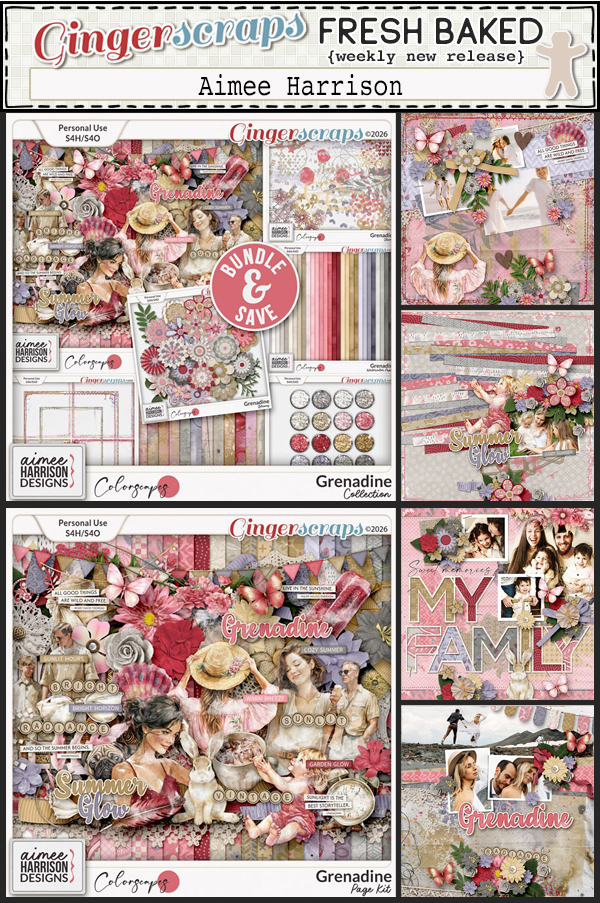
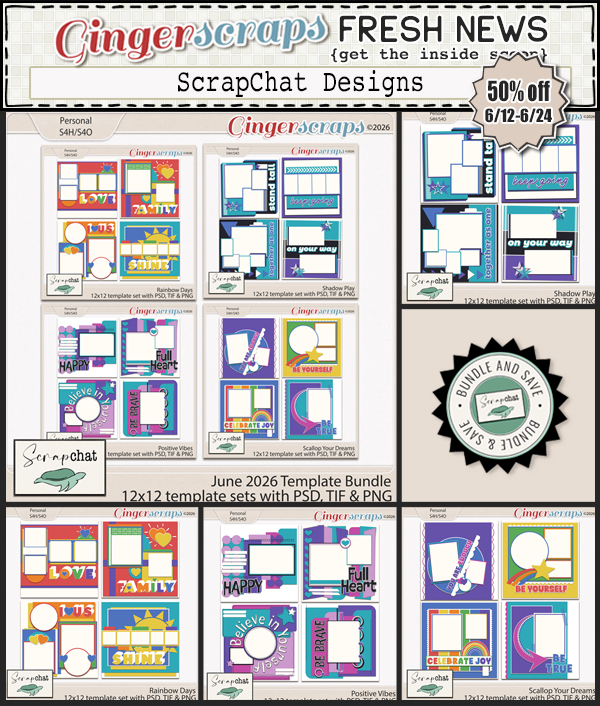
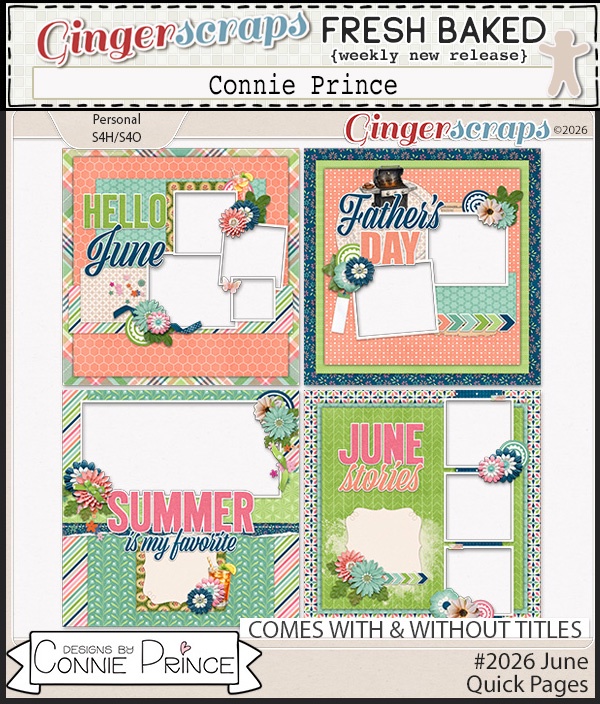
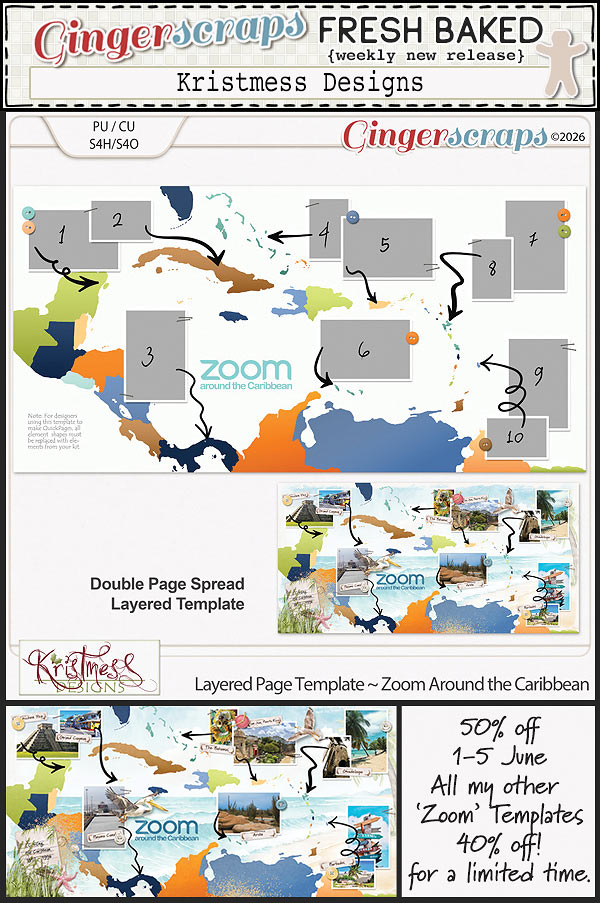
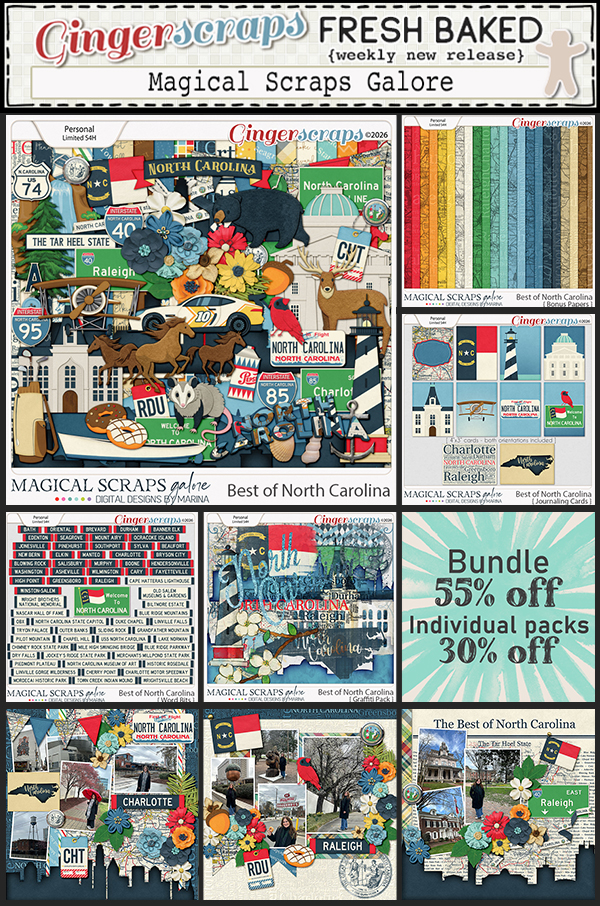
There’s even more to explore this week:

Don’t miss this chance to save big, discover new designs, and participate in all the creative activities happening at Gingerscraps!
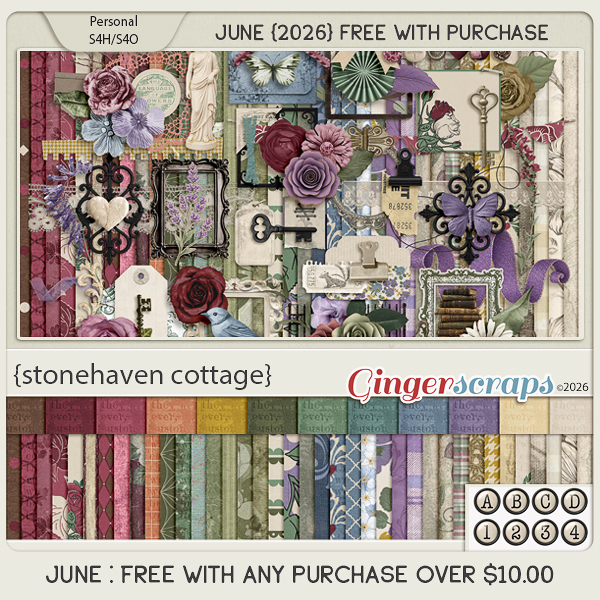
Remember that any $10 in the store gets you this wonderful collab.
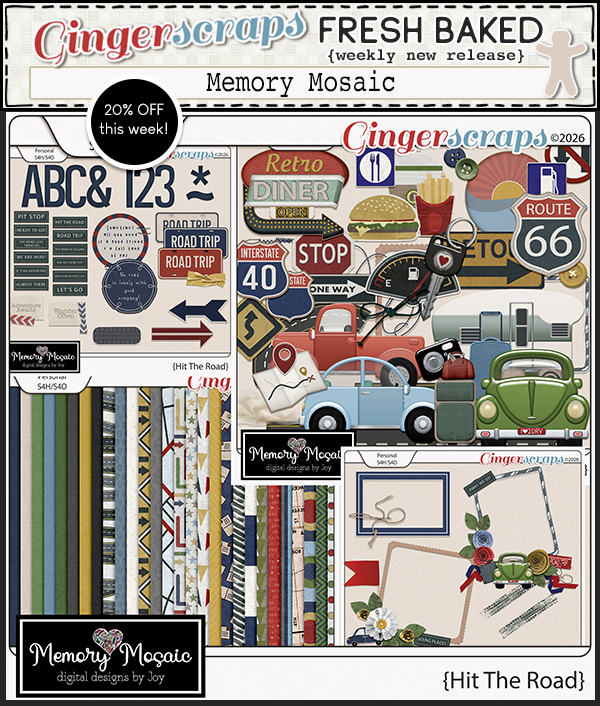
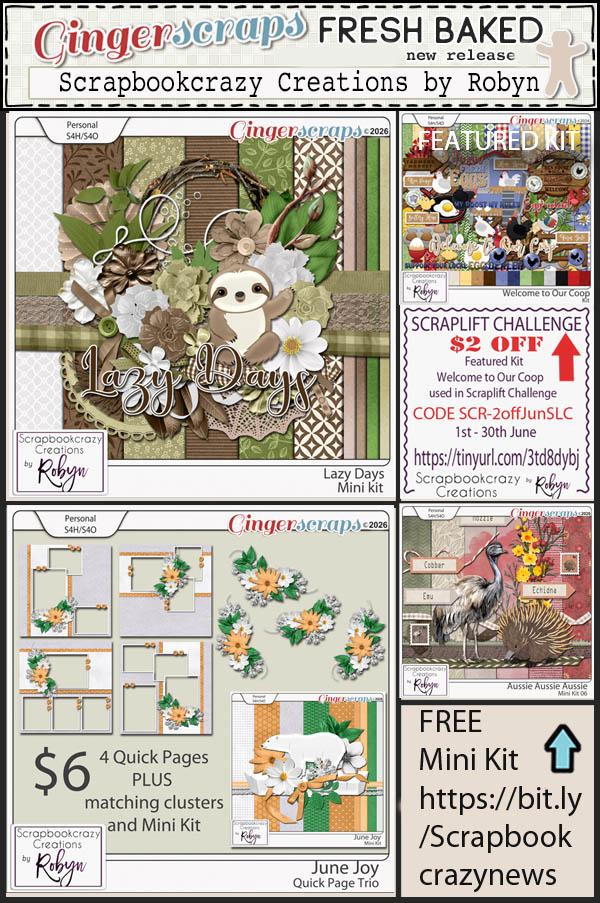
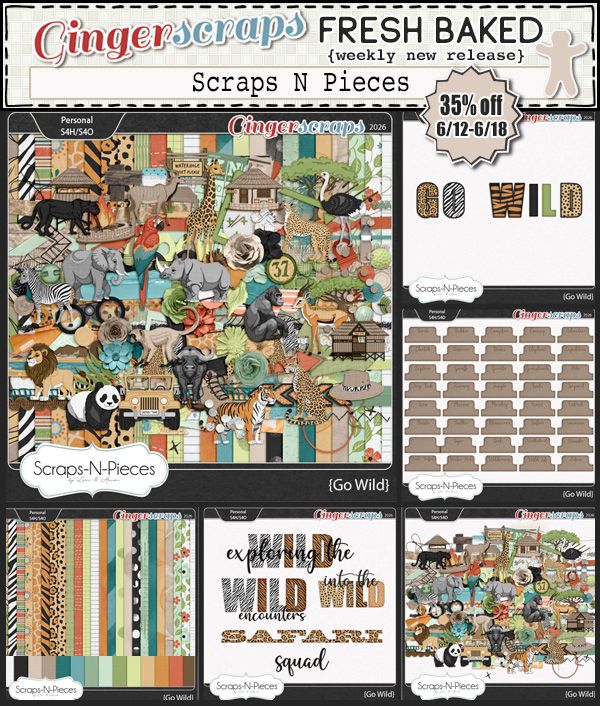
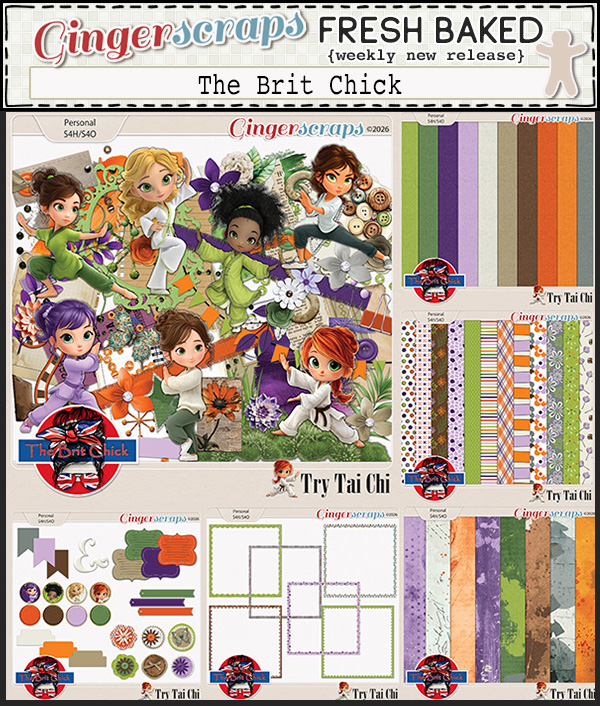
Let’s see what wonderful new kits we have from our fabulous designers.
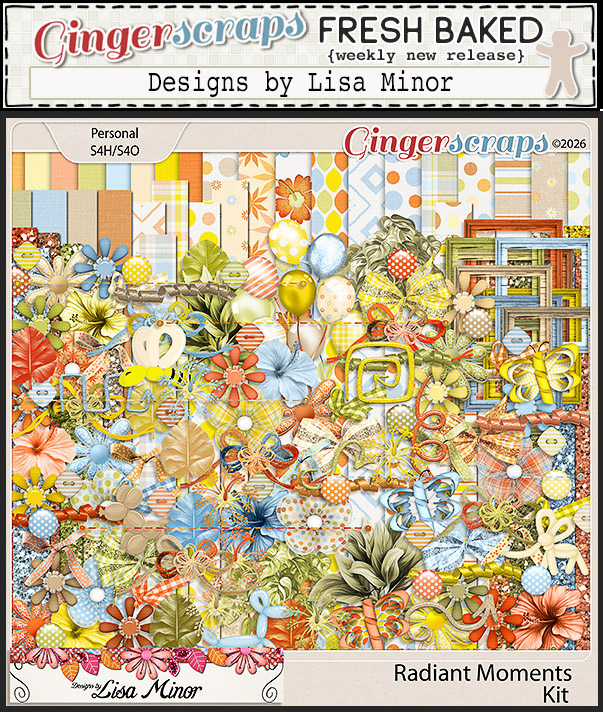
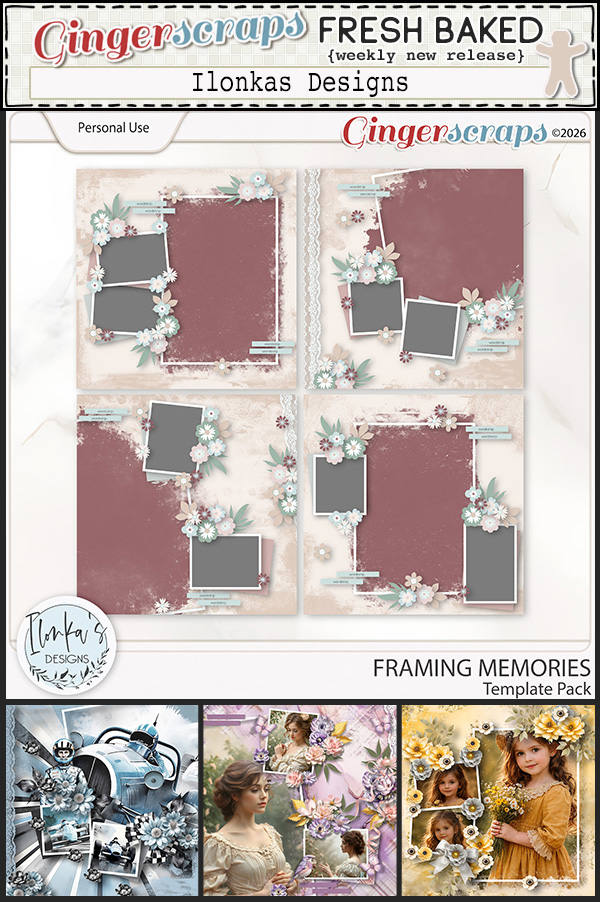
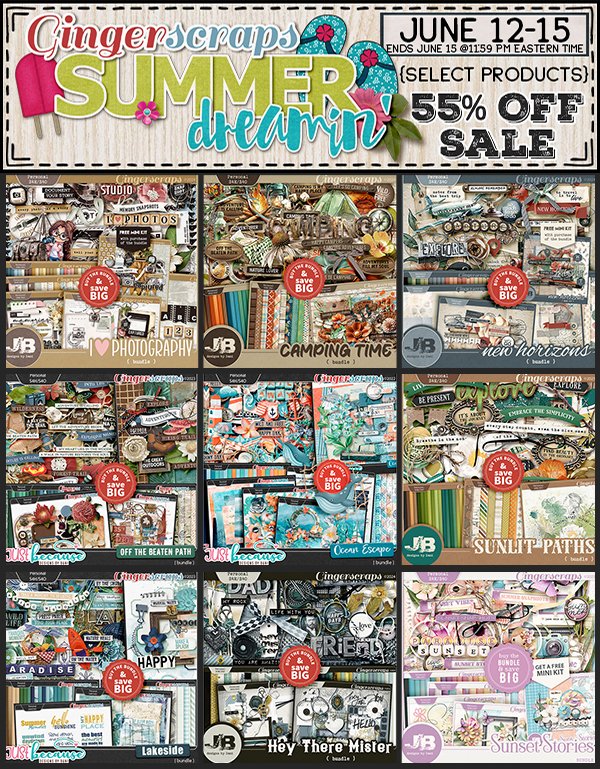
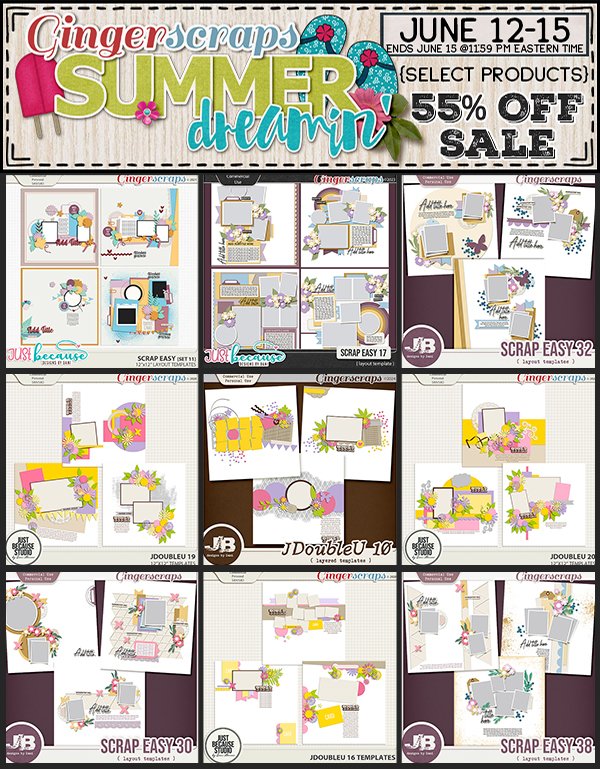
Now for a peek at what the designers are offering for the Summer Dreamin’ Flash Sale.
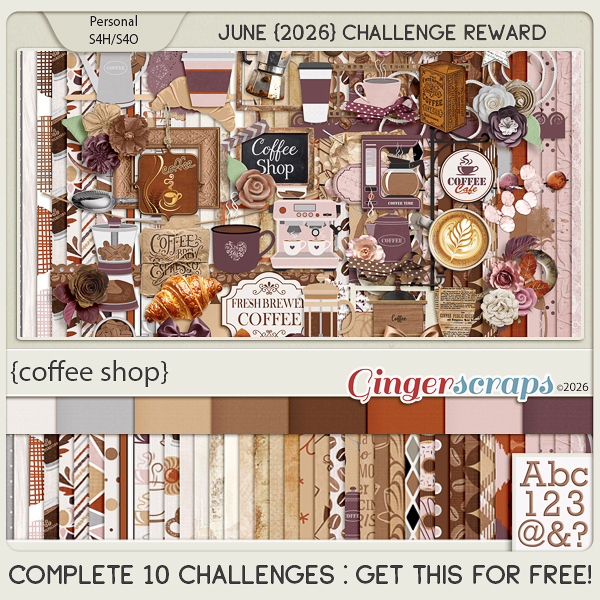
Have you gotten started on your challenges? If you complete any 10 challenges this month, you get this gorgeous collab (or a variety of other choices from previous challenge collabs) as a reward!
Tutorial Tuesday (Photoshop Elements)

Zen Doodling the Digital Way – Part 4 of 5!

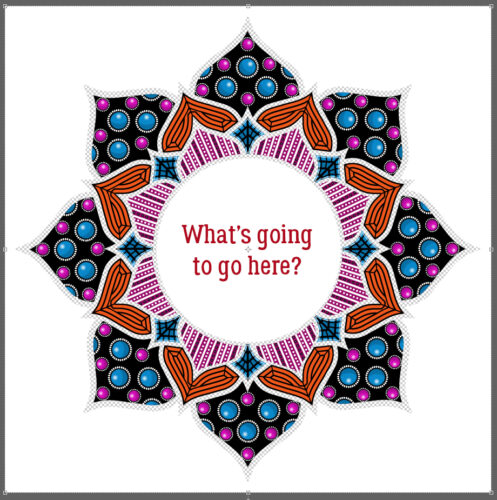
Yes! You read that correctly… this series is nearing its end. I just have to finish off the final version of the Mandala and it’s finished. Today I’m filling in the last of the 8 segments with some stripes. Of a sort. Some stripes, some lines of dots and some flowers are all in there. Much of this post will be basically reviewing what I’ve already shown you; most of these tips are much more broadly applicable than just to Zen doodling, too. Are you ready?

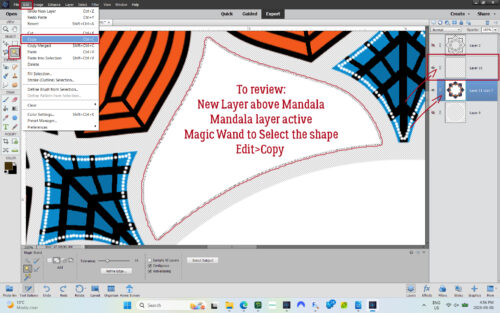
So first thing is to isolate the shape on its own layer so it can be manipulated. I popped a New Layer above the main Mandala layer but kept the Mandala layer the active one. Then I used the Magic Wand Tool to Select the last segmental shape. Then I made a Copy of it by clicking Edit>Copy [keyboard shortcut CTRL/CMD>C].

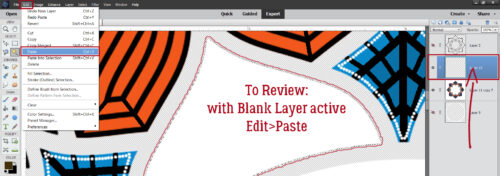
Then I made the New Layer active and clicked Edit>Paste [CTRL/CMD>V]

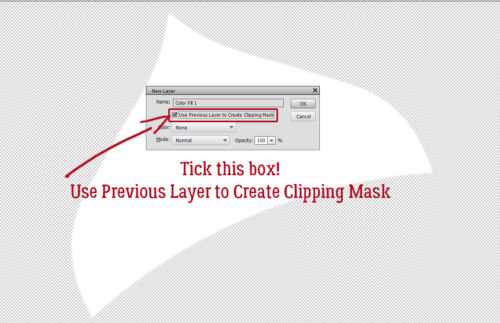
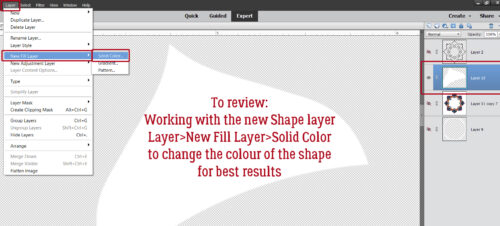
For this step I definitely could have used the Paint Bucket to change the colour, but have found I get better results with the Layer>New Fill Layer>Solid Color method.

When you use this method, it’s imperative that you remember to tick the box next to Use Previous Layer to Create Clipping Mask. That puts the colour ONLY inside whatever is on the layer below it, rather than Filling the whole workspace.

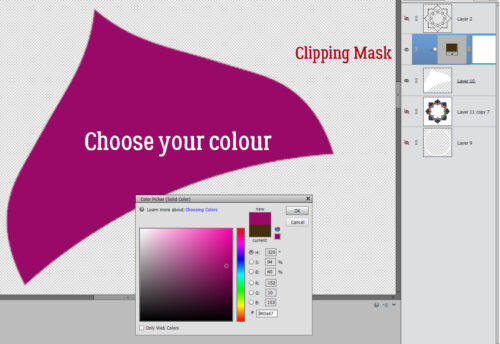
Then I chose my colour. Oddly, it’s one that I see in my closet all the time. 😉

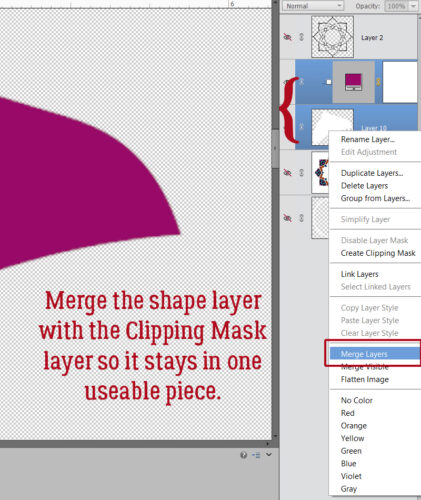
Then, so that I don’t lose track of the shape layers, I Merged them together. [CTRL/CMD>E]

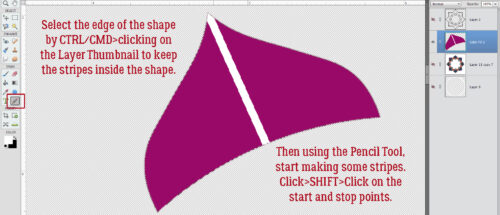
My first white stripe is 15 pixels wide, using the Pencil Tool as I’ve demonstrated before. To keep the stripes completely inside the shape, I CTRL/CMD>clicked on the shape Layer Thumbnail to Select the edge of the shape before I started drawing my stripes. Remember how do make a straight line? Click start>SHIFT>Click stop!

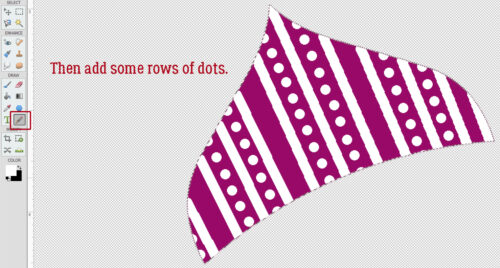
Then I added some rows of dots, using white and the same 15 pixel Pencil Tool. I just eyeballed them; at this scale, it would be hard to see a variation in gaps.

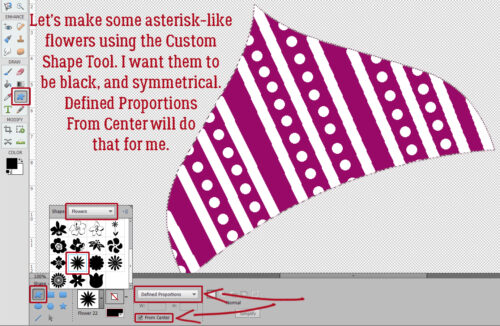
Do you ever use the Custom Shape Tool? It’s the one that might look like a rounded rectangle or an amoeba in the Tools Panel. This Tool is amazing for all kinds of purposes. I knew I wanted my flowers to be a uniform size and a symmetrical shape so I used the Tool Options to make sure it happened. I chose Defined Proportions – the default setting is 1:1 – and ticked the box for From Center to start. My colour is black.

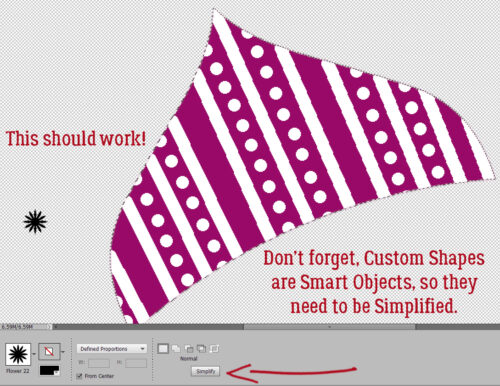
There it is! It looks to be about the right size, too! Remember, Custom Shapes start out as Smart Objects, which means they can’t be altered as is. They need to be Simplified first.

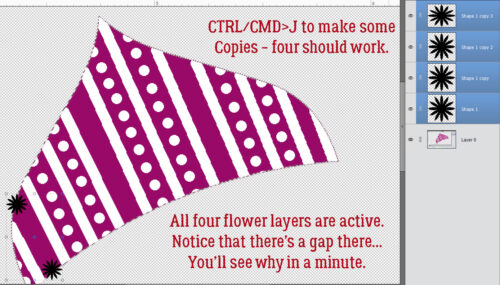
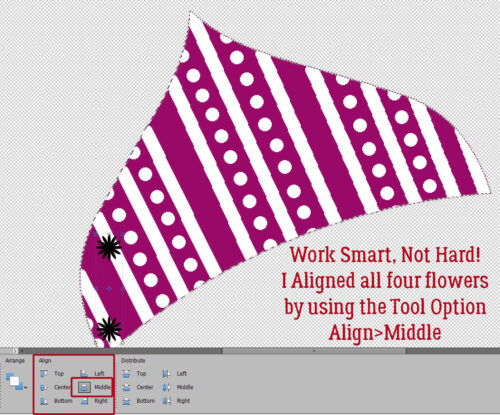
I guesstimated I’d need four flowers for that first stripe, so I used CTRL/CMD>J to make some Copies. Then I moved one down to about where I wanted the flower stripe to end. By making all four layers active, I can use some other Tool Options to Work Smart, Not Hard.

If you don’t see Tool Options for the Move Tool, click on the Tool Options bar at the bottom of your workspace. Then go to Align and click Middle. All four of the flowers will line up like little soldiers.

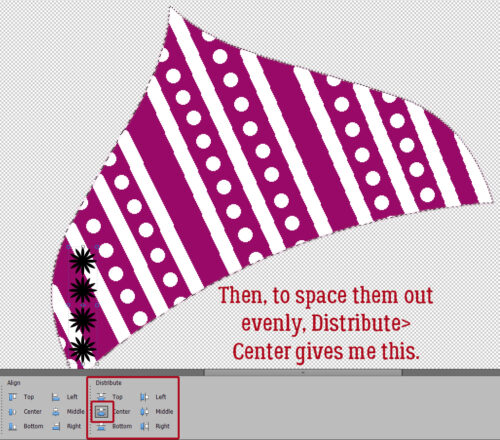
To get them all neatly spaced out, use Distribute>Center and they’ll jump into position. They can then be Rotated and Moved as a group into place on the stripe.


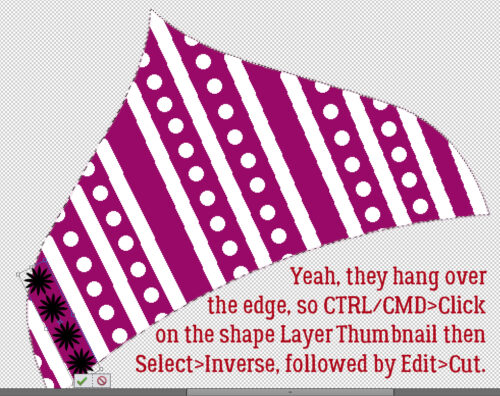
I’ll show you this tip now, but you might want to wait until all your flower stripes are in place and Merged into a single layer so you only have to do it once. To remove the dangling parts, CTRL/CMD>click on the shape Layer Thumbnail, then Select>Inverse [CTRL/CMD>SHIFT>I] to move the Selection to the outside of the shape. Then Edit>Cut [CTRL/CMD>X].

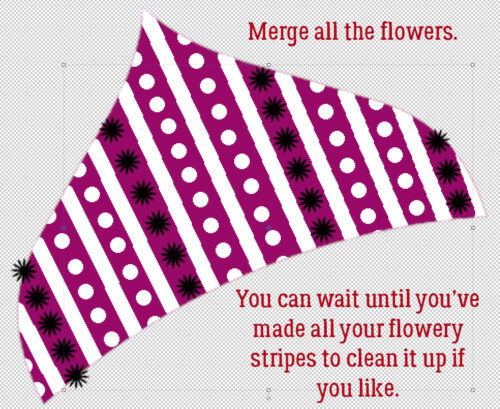
As you can see, I got ahead of myself. I made a bunch of flowery stripes following the same basic steps as for the first one, Rotated and Moved them into place and THEN I Merged them all into a single layer so I could clean them up in one move.

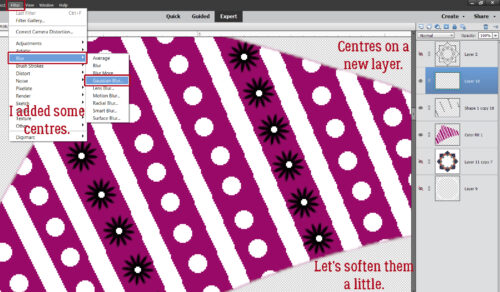
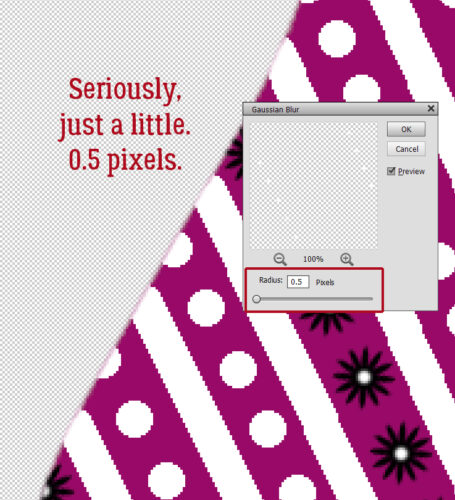
How about some little white centres in those flowers? I added a New Layer so they could all be together. To make them a little softer-looking, I added a Filter>Blur>Gaussian Blur. But I went gently.

SUPER-gently… 0.5 pixels worth.

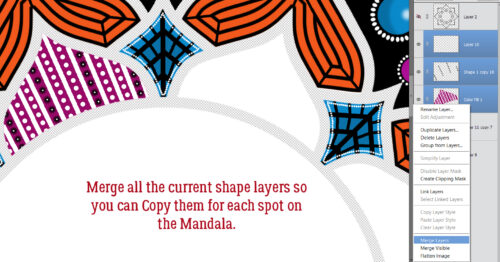
To make the shape a single “thing” so it can be Copied and Distributed, I Merged all the current shape’s layers. [CTRL/CMD>E]

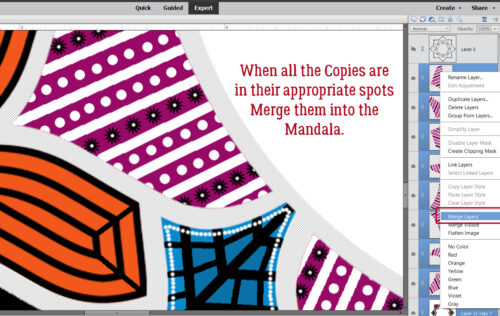
Eight Copies later, they’re all in place and ready to Merge with the main Mandala layer.

Any guesses?

One thing I’ve learned through this process is that my vision is deteriorating fairly quickly now. It’s becoming harder and harder to see the cursor in Elements, to see the text on the tabs, and to just generally function, and light levels really affect how well I see anything. I haven’t done a lot of actual scrapping in months now, and I do miss it! I can’t say for sure whether the surgery I’ll likely need in the next year or so will help or not. I guess I’ll find out. ;( It’s a good thing that we’ve already created so many great tutorials for you, from beginner to advanced, because I think my digiscrapping days are numbered.

Fresh Baked Friday @ Gingerscraps: June 5, 2026

Hey Scrapping Friends,

We’re wrapping up the first week of June, and this week’s newsletter is packed with exciting inspiration! Along with a gorgeous Free With Purchase kit, we have several fun June-themed releases—and there’s even a winter kit making an appearance.

Whether you’re creating seasonal projects, celebrating summer, or catching up on scrapbooking photos in the snow, there’s something new to spark your creativity. Let’s take a look at what’s in store this week!

Remember that any $10 in the store gets you this wonderful collab.

Have you gotten started on your challenges? If you complete any 10 challenges this month, you get this gorgeous collab (or a variety of other choices from previous challenge collabs) as a reward!
Designer Spotlight: June 2026

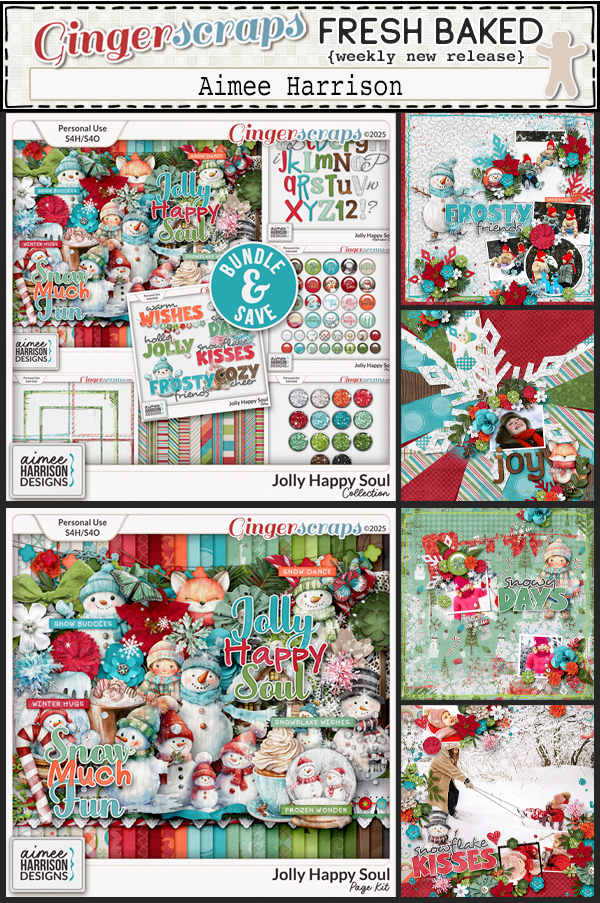
Aimee Harrison

Aimee and I didn’t manage to squeeze in a chat… too much on the go for both of us. But I decided I really should do at least a little blurb for all the Designers with whom, for whatever reason, I don’t get to chat with – instead of just not doing anything. From today forward. 😉 And I’m late-ish today, having spent the morning at Urgent Care. (Nothing to worry about, just one of those old-lady problems that needed to be promptly addressed.)

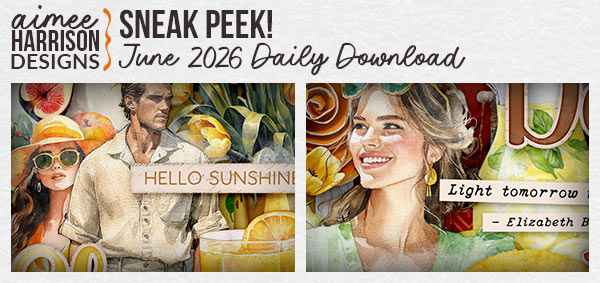
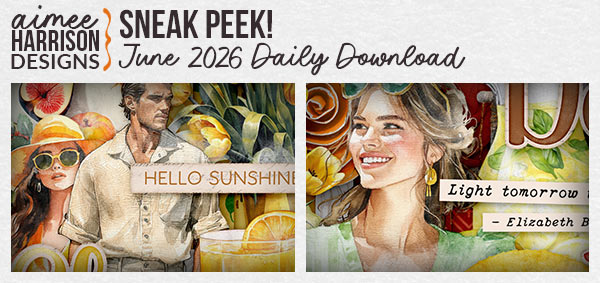
Of course, if you’re here, you know Aimee is providing the June Daily Download, and can collect all the mini-files that make up the full kit.

You can find her Store here.

Aimee is hosting the Designer Spotlight Challenge as well as her usual Color Challenge. Give them a look!

I don’t have a coupon code for you today, but it looks like most of Aimee’s Store is currently 50% off. (Bundles and some Styles are excluded.) Aimee is one of my favourite Designers, so I highly recommend you check out her deals!!

June 1 2026: New Buffet, Fresh Baked, NEW Guest Designer and SO MUCH MORE!

It’s a brand-new month at Gingerscraps, and we have so much in store for you! Be sure to check out our new Free With Purchase, Monthly Mix, Challenge Reward, and Daily Download. We’re also excited to welcome a new Guest Designer. Stop by and see all the wonderful new products, promotions, and inspiration waiting for you this month!

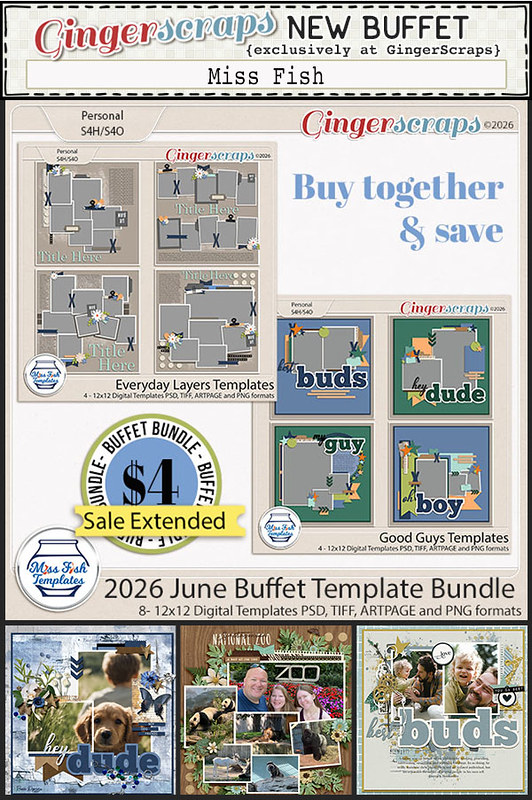
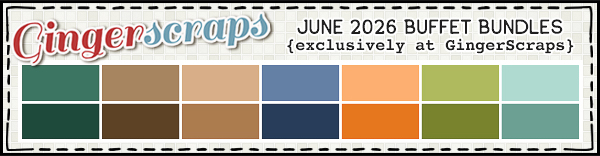
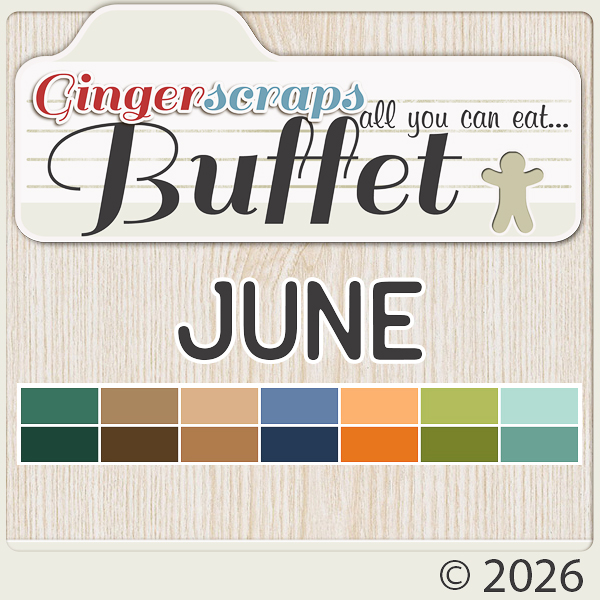
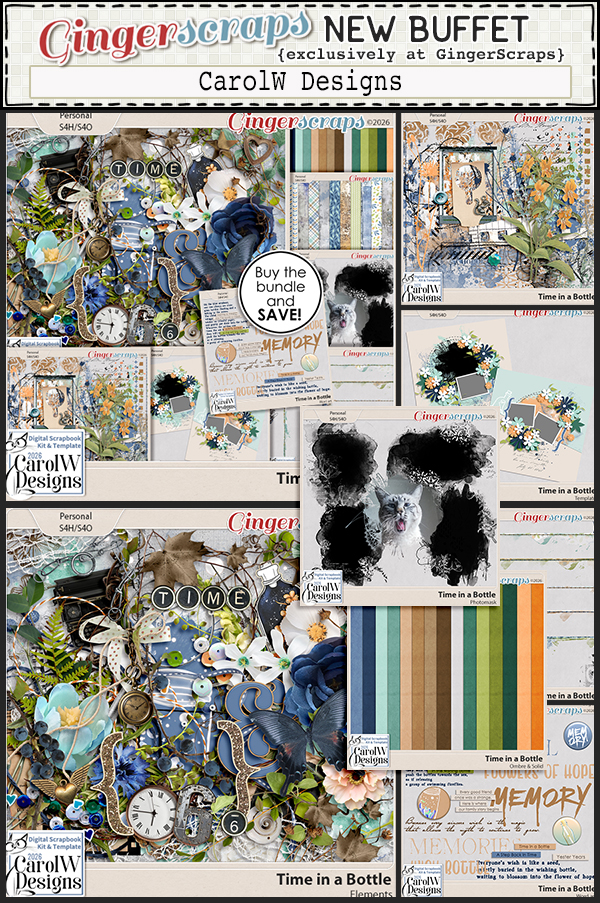
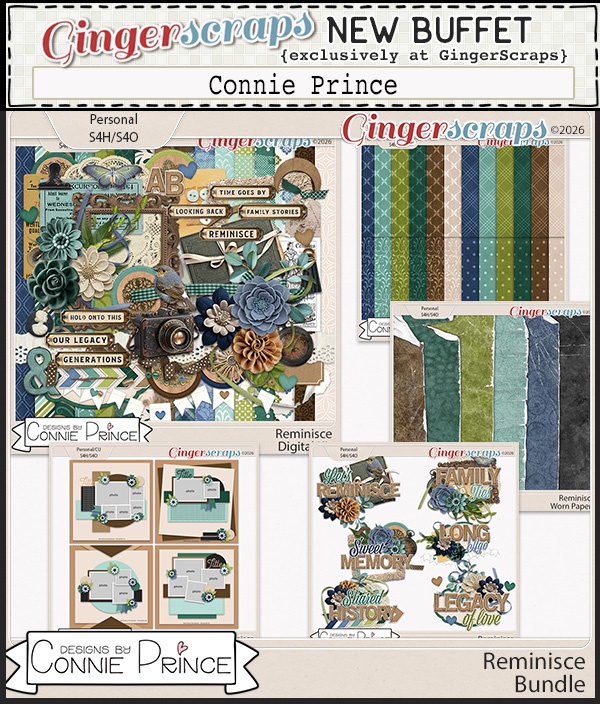
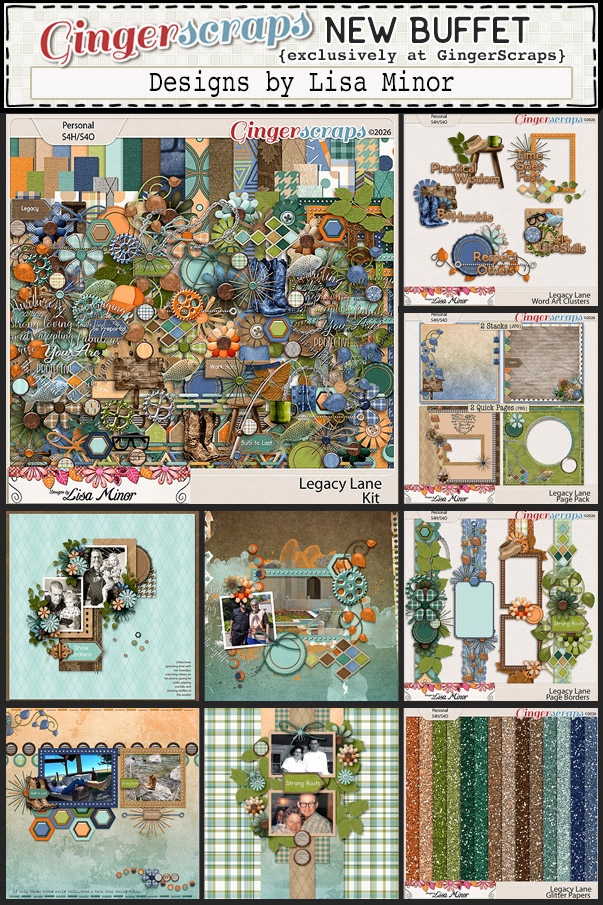
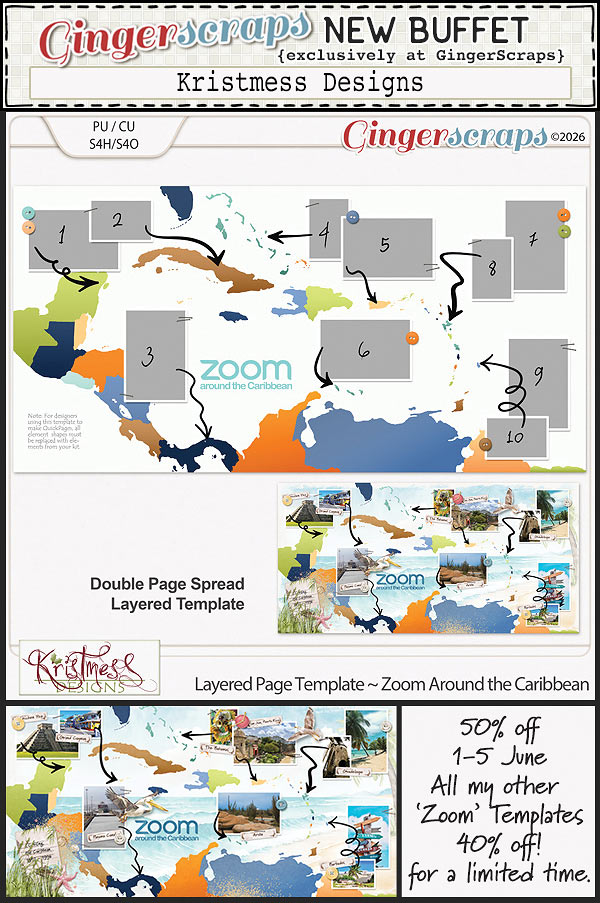
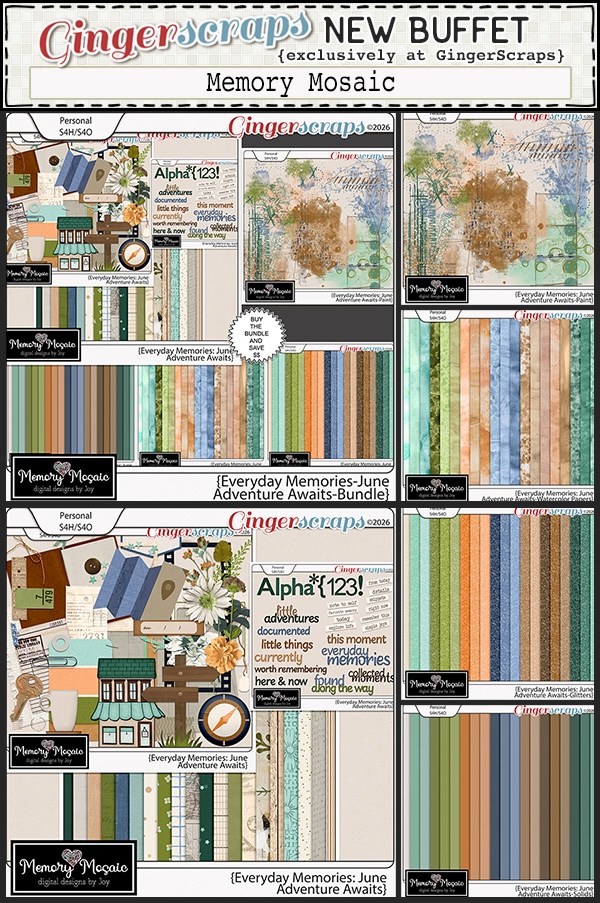
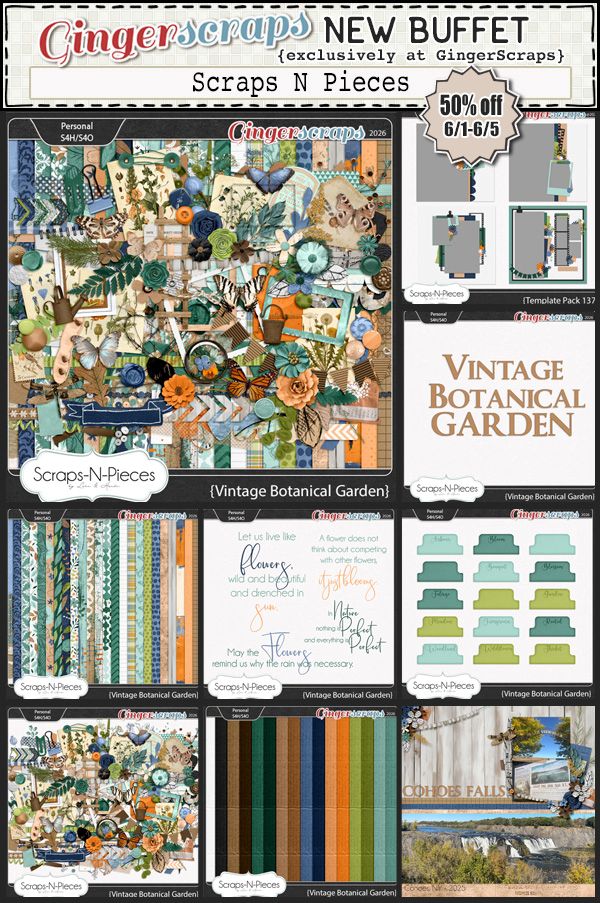
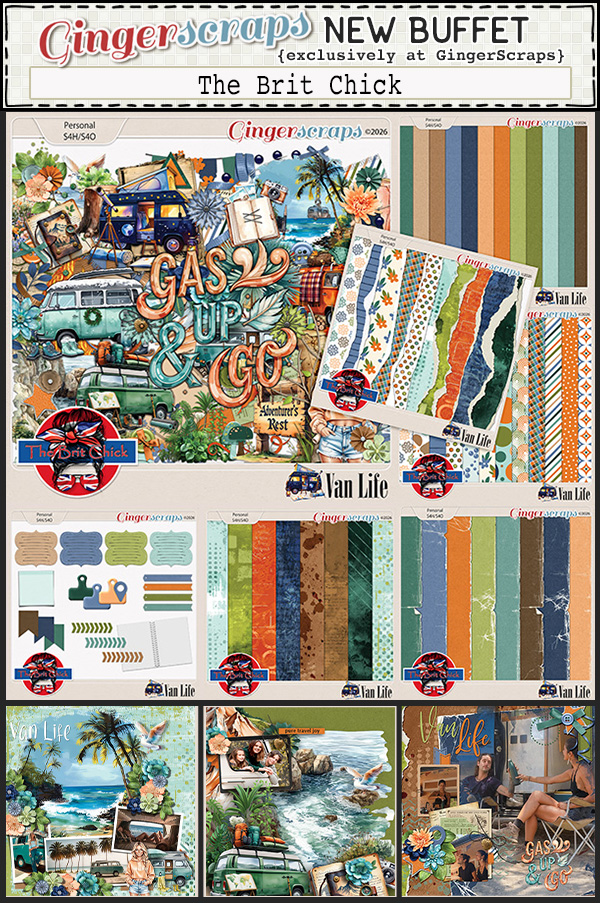
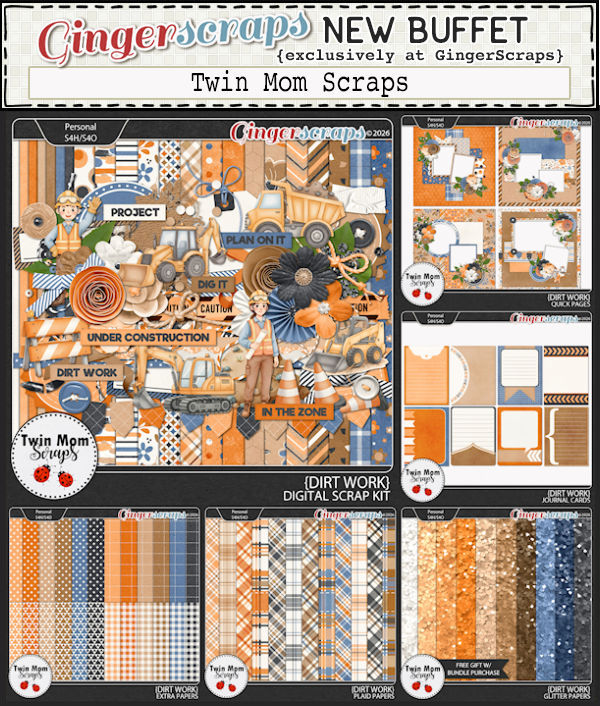
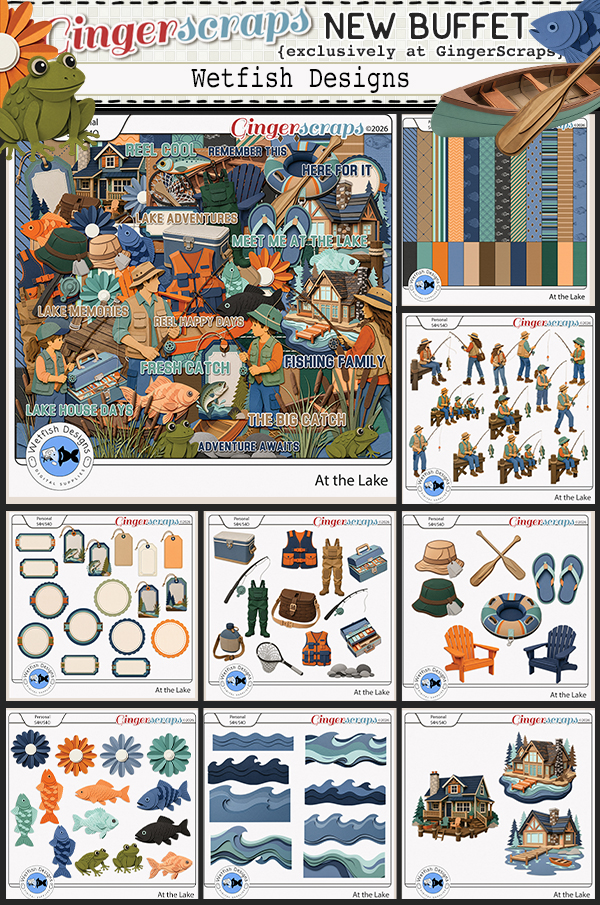
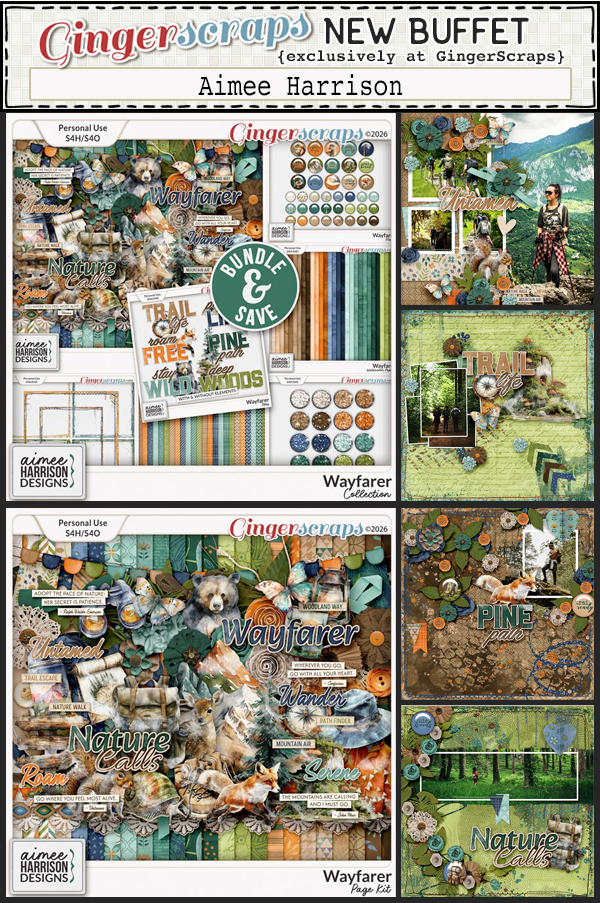
Next let’s look at the June Buffet. Don’t forget to check out the Buffet Bundles. One easy click to add bundles of Buffet goodies to your cart.

I love that these colors are not your typical “summer” colors. The designers did a great job (as usual). Remember that you can combine any of the buffet kits to make your own collection.

Stonehaven Cottage invites you into a romantic forgotten estate where beauty quietly blooms once again. Inspired by the charm of an old English manor slowly returning to life, this collection is filled with moss covered statues, overgrown roses, wildflowers, aged stone paths, weathered benches, antique florals, and delicate worn lace textures. The muted and slightly dark palette of rich vintage tones creates an atmosphere that feels timeless, weathered, and softly mysterious. Every detail of Stonehaven Cottage evokes the feeling of wandering through hidden gardens and forgotten pathways where nature and history intertwine. Perfect for heritage photos, romantic storytelling, garden inspired layouts, and dreamy vintage pages, this kit captures the beauty of things lovingly worn by time.

This collab includes: 1 Alpha {Uppercase & Numbers}, 51 Papers, and 87 Elements.

This Free With Purchase was created by Memory Mosaic, ScrapChat Designs, Scraps N Pieces, and Tami Miller Designs.

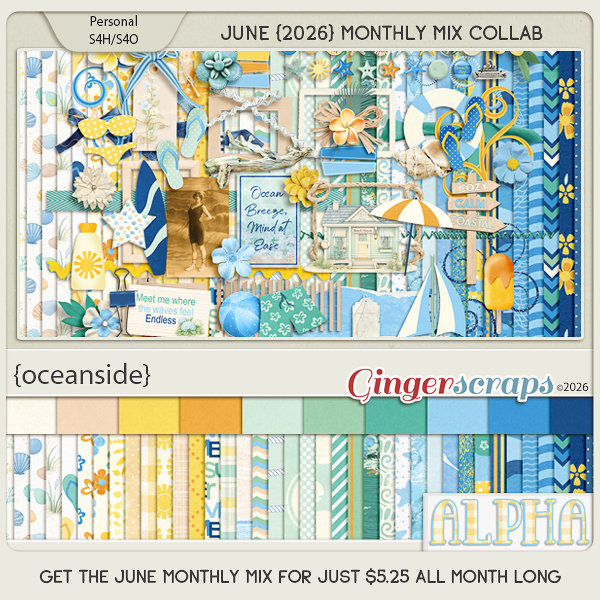
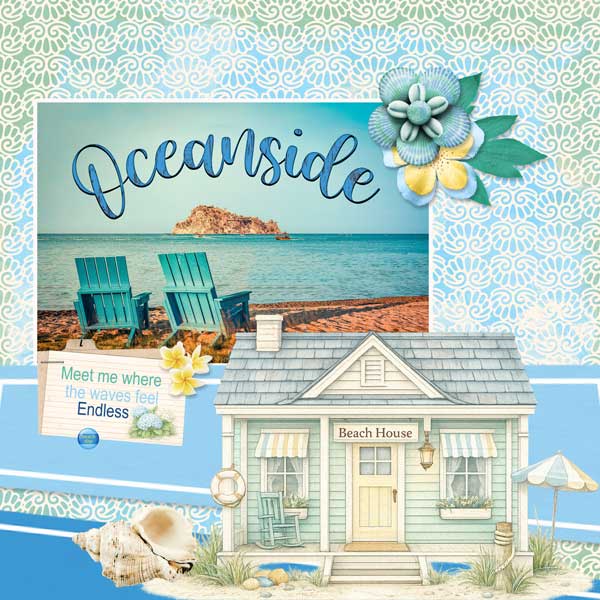
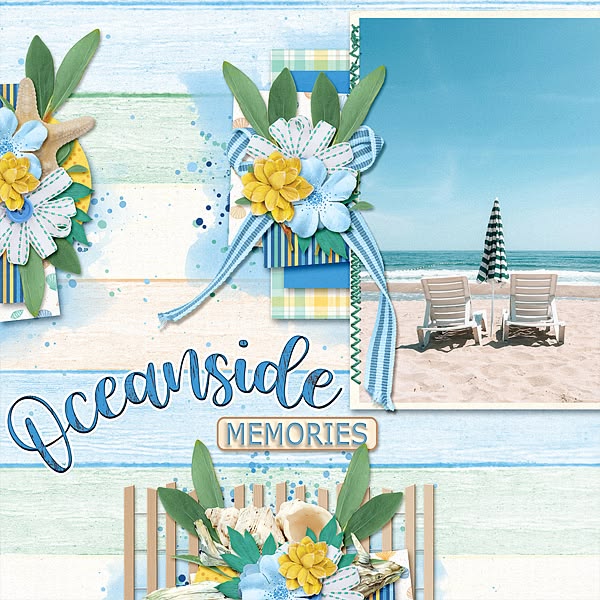
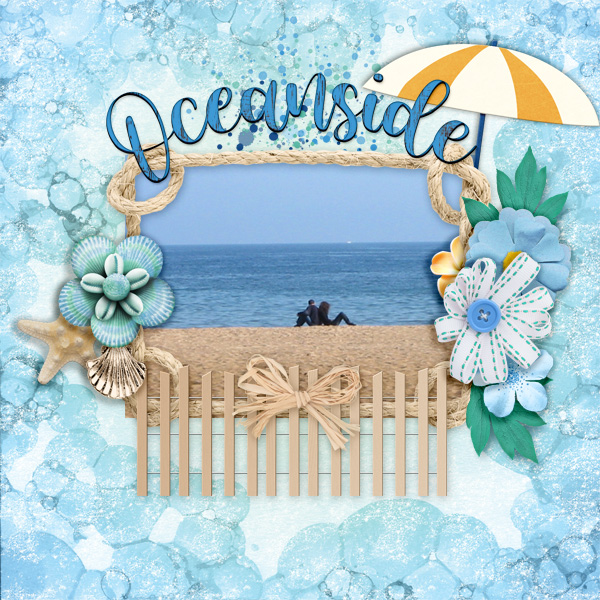
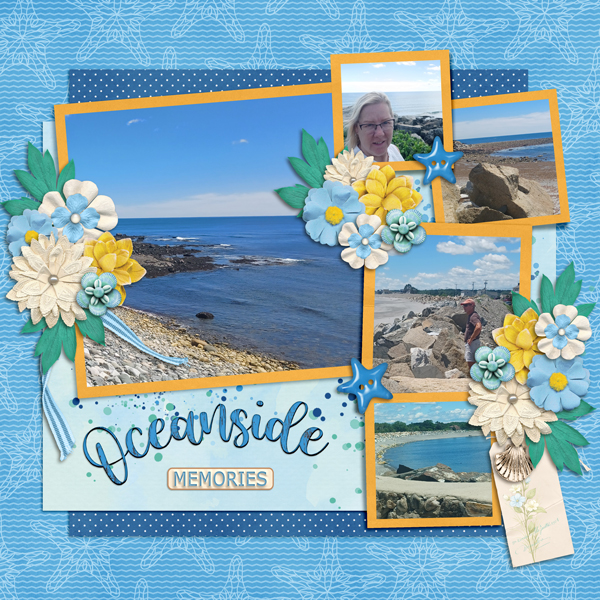
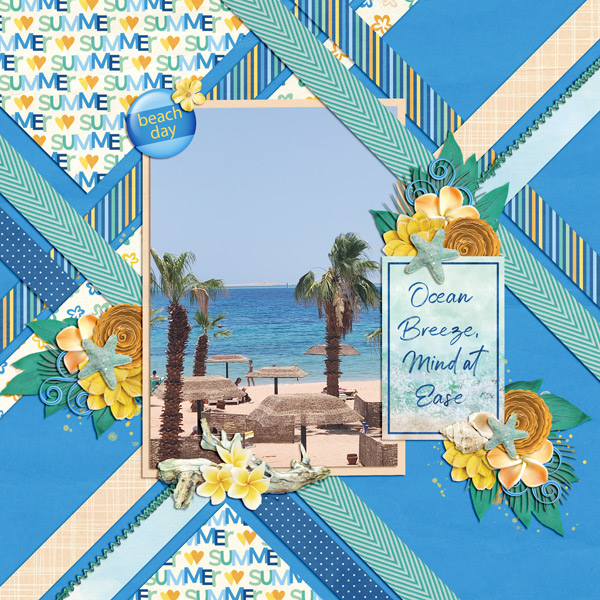
Oceanside captures the carefree spirit of summer by the sea. Filled with breezy beach vibes, ocean inspired elements, and sunny seasonal charm, this kit is perfect for documenting vacations, sandy toes, salty air, and unforgettable summer memories. Whether you are scrapping days spent by the waves, relaxing coastal evenings, or family adventures along the shore, Oceanside brings the warmth and beauty of the beach to every page.

This kit includes: 1 Alpha {Uppercase, Numbers & Punctuation}, 48 Papers, and 82 Elements.

This Monthly Mix was created by Adrienne Skelton, Key Lime Digi Design, Lindsay Jane,  and Magical Scraps Galore.

June’s Daily Download is provided by Aimee Harrison Designs. Stop by the blog each day in June to collect pieces of this beautiful kit.

We are excited to announce we have a new Guest Designer starting in June.

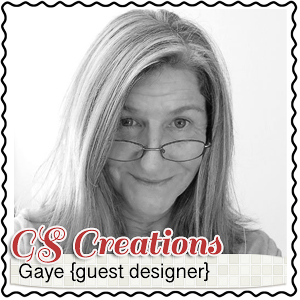
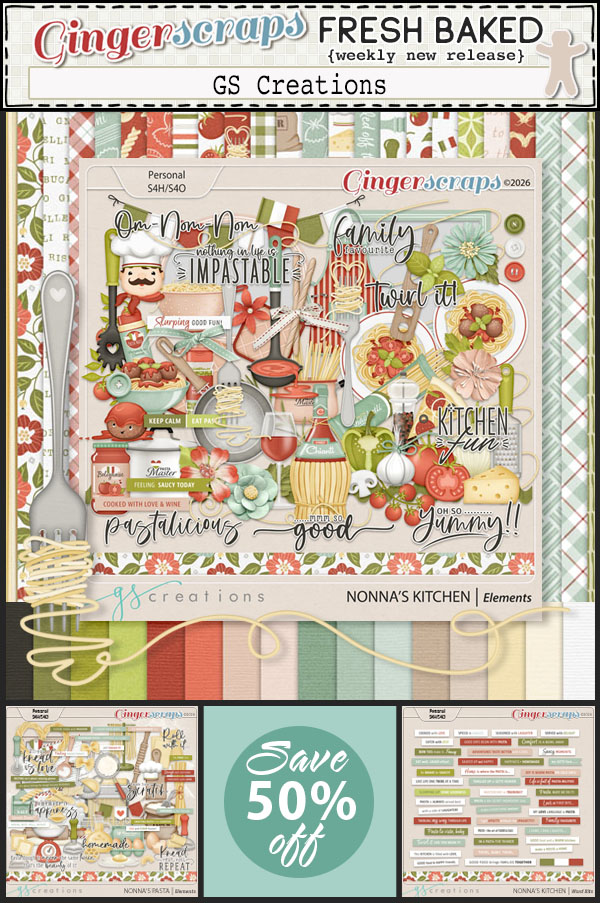
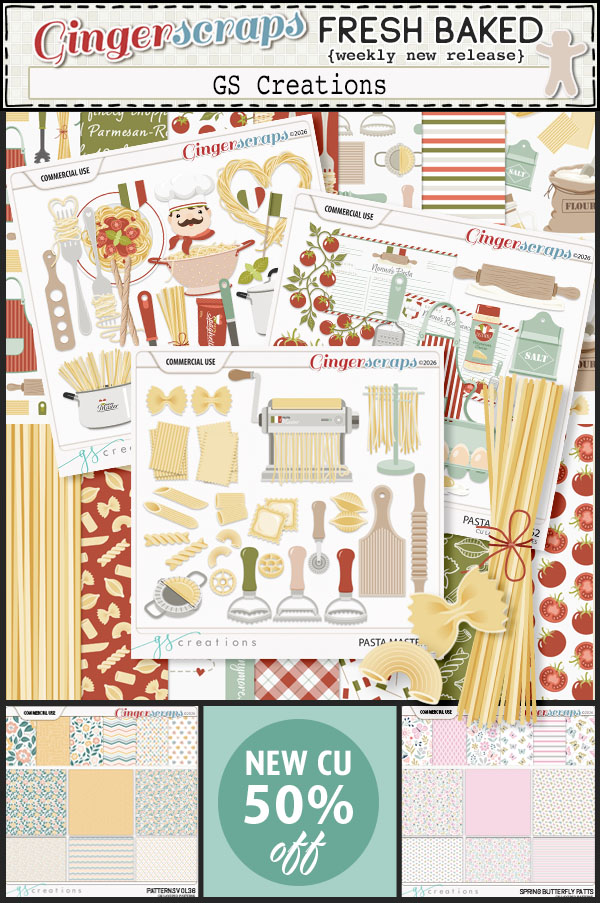
GS Creations

BIO:

Hi, it’s Gaye from GSCreations, I’ve been designing scrapbook supplies since around 2009, I’ve lost count of the years but I do know that if I don’t get my daily fix of coffee and creative time I can be a little grumpy around the edges……..  I live with my family and fur babies in the small town of George, Western Cape South Africa where we are blessed with blue skies, mountains and the sea. My biggest hope is that my products bring a smile to your face and inspiration to create. xoxo hugs

Take a look at the new challenge reward kit. If you complete any 10 challenges this month, you get this gorgeous collab (or a variety of other choices from previous challenge collabs) as a reward!
Coffee Shop is a warm and cozy collection inspired by your favorite neighborhood café. Designed in a natural palette of rich browns, creamy neutrals, and soft tan tones, this kit is filled with everything coffee lovers adore. You will find mugs, coffee pots, coffee stained accents, beans, café signs, sweet treats, and comforting details that perfectly capture the atmosphere of a relaxing coffee shop visit. Whether you are documenting morning routines, café meetups, cozy conversations, or your love for coffee itself, Coffee Shop brings warmth and comfort to every layout.

This kit includes: 1 Alpha1 {Uppercase, Lowercase, Numbers & Punctuation}, 48 Papers, and 98 Elements.

This Challenge Reward was created by ADB Designs, The Scrappy Kat, The Brit Chick,  and Palvinka Designs.

Take a look at these beautiful samples created by the GS Creative Team. These were done using the June Monthly Mix, Oceanside.