Tutorial Tuesday (Photoshop Elements)

In the Background – Harnessing the Power of Your Software

I hope you weren’t thinking I jammed on you again this week. I made some serious miscalculations… My son had a liver biopsy today and although I knew we’d be at the hospital for several hours, I underestimated both the amount of time we’d spend sitting and waiting, as well as how draining it would be on both of us. And I overestimated my enthusiasm for going all day without food, fluid or a bathroom!

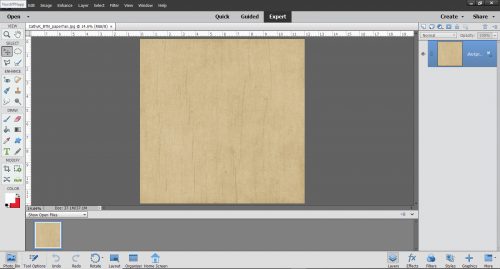
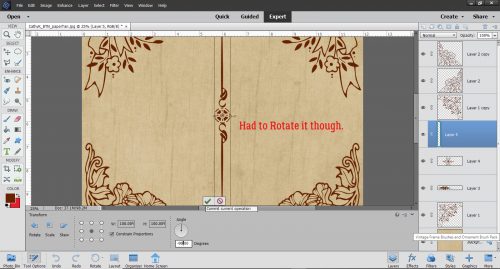
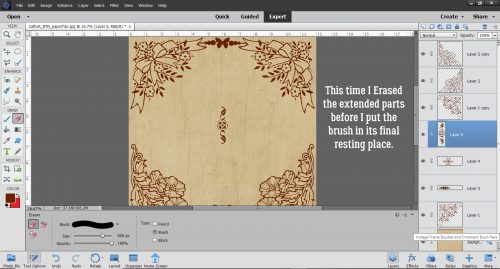
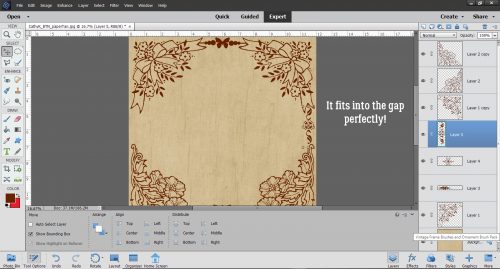
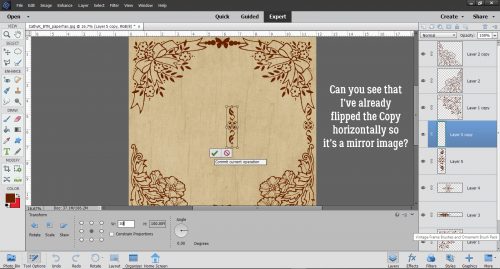
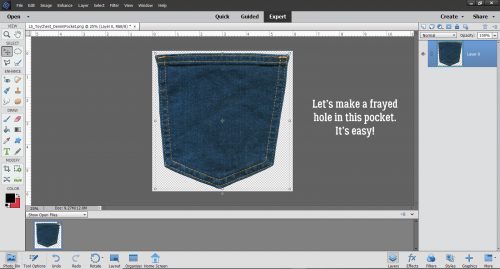
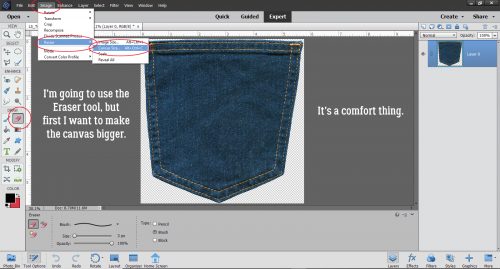
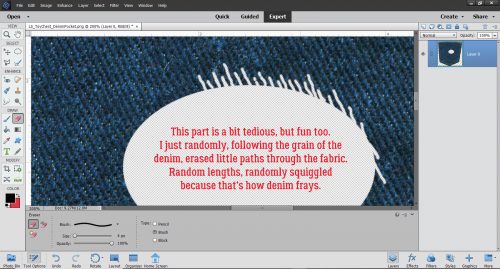
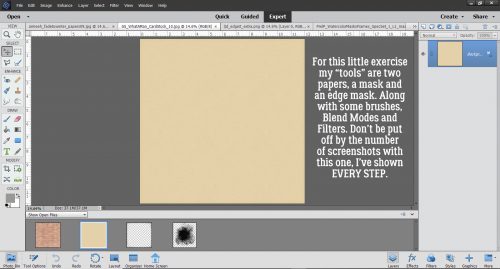
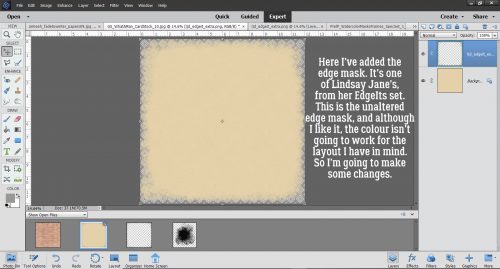
Susan said she’d like to try her hand at making her own custom backgrounds and I just happened to be fooling around with a few ideas for a layout that would work into a tutorial on using ordinary items in extraordinary ways. So this is the result. I’ve put most of the instructions right on the screenshots (there are 37 of them but don’t let that intimidate you – I’ve shown literally every step) so I’m not going to add a lot of text in between them. I hope you like the final result! I started by choosing a solid paper, a patterned paper that fit into the desired theme, a mask and an edge mask.

My paper is going to be soft and faded, but all the things I’ve done here can be customized to whatever look you want. I think it could easily be bent to a very bold, colourful, evocative layout, or boho’d up for an art journal layout. The limit is your imagination!

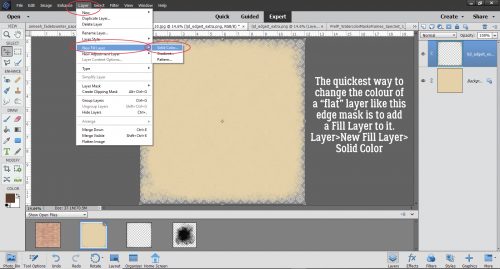
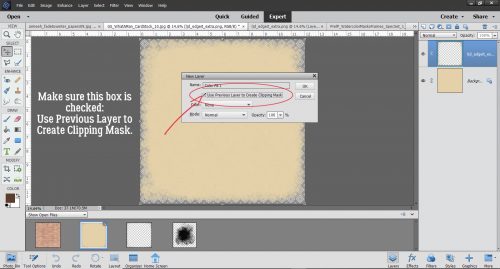
I love using Fill Layers to change colours on “flat” items like this edge mask.

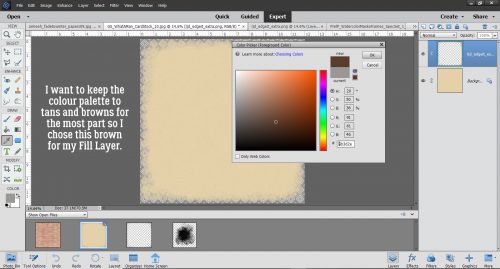
I’m planning to use a heritage photo for my layout and opted for a sort of sepia palette.

This is the most important thing to remember when you’re changing colours with Fill Layers. Check that box!

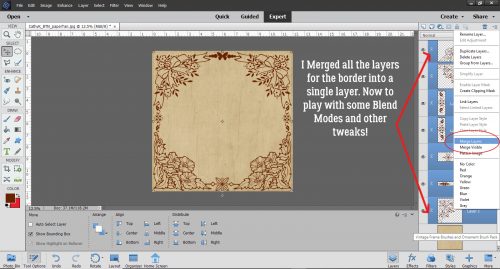
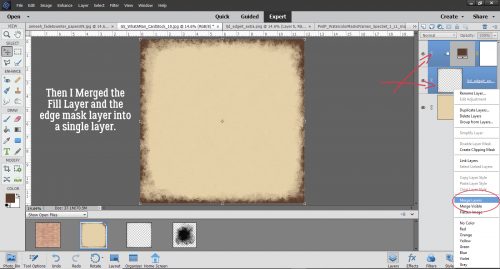
Merging layers is the best way to ensure the changes you make are going to actually be applied where you want them.

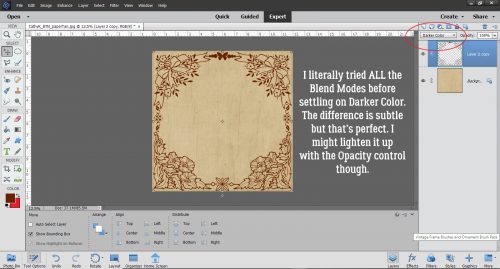
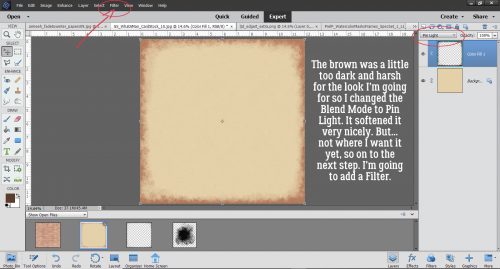
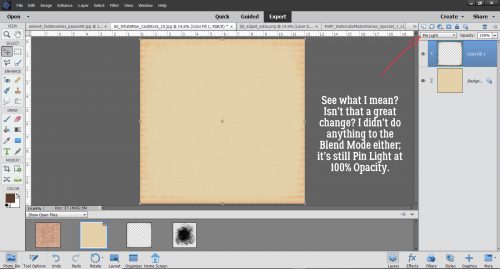
I changed the Blend Mode to Pin Light. (I tried them all to see what each did before I settled. That’s the fun part of this process!) Then I thought, “How would this look with a Filter applied to it?” So I opened up the Filter menu.

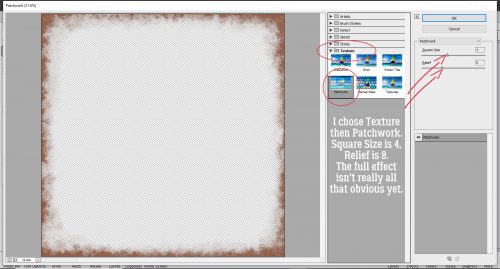
Again I tried a few, but decided Texture>Patchwork would look good.

Okay, I know this change is really subtle, but you can see that it changed the colour and added a nice depth to it.

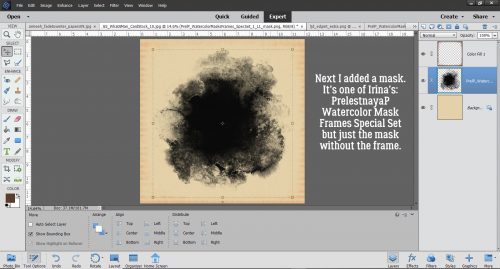
On to the mask. I love Irina’s masks. They’re just gorgeous and can be used so many ways.

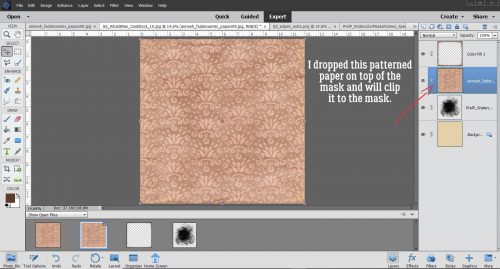
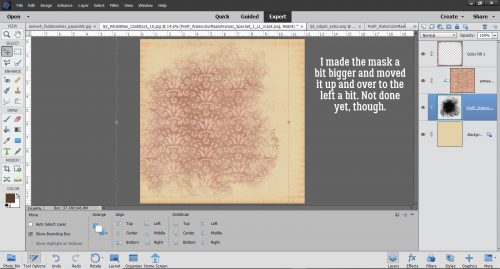
Rather than clip a photo to the mask, I clipped a patterned paper to it.

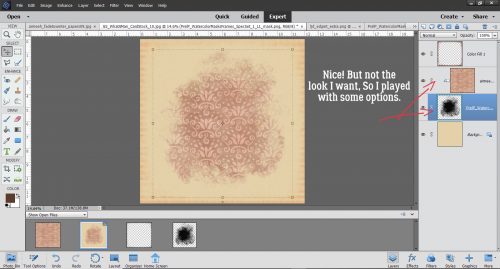
Okay, that’s nice, but not exactly what I want.

Tweak, tweak.

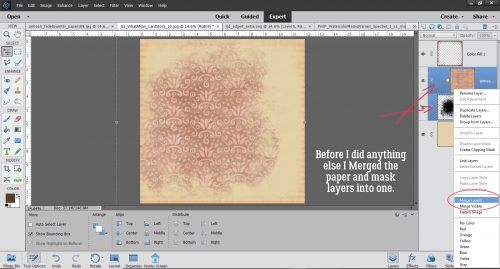
Once I had it kinda-sorta where I liked it, I Merged the two layers so all the rest of the changes were sure to go where I wanted them.

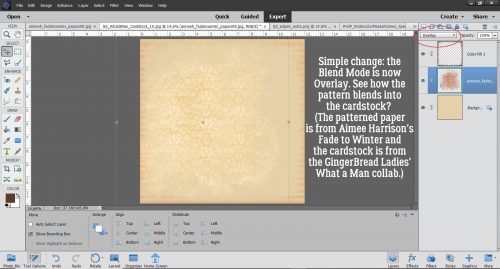
Something as simple as changing the Blend Mode to Overlay makes it look completely different.

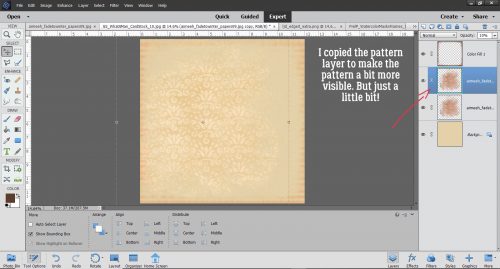
I decided it needed a little more presence so I copied the pattern/mask layer. That layer I left untouched.

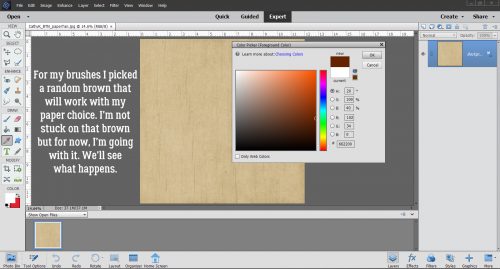
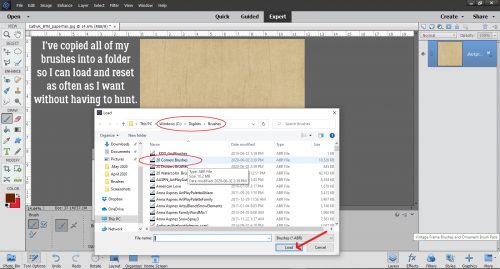
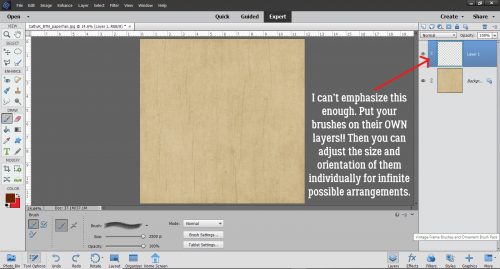
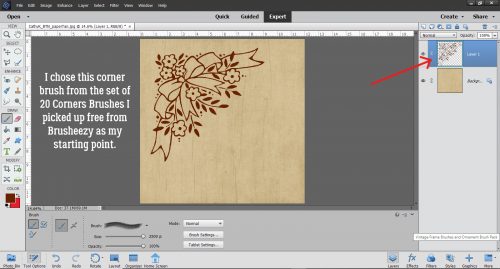
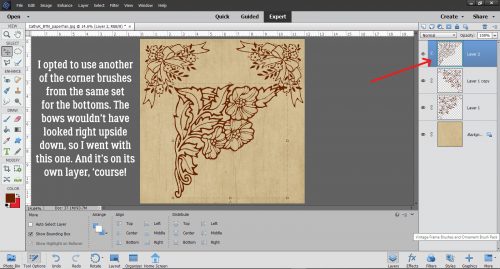
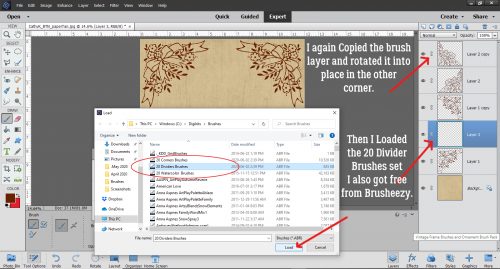
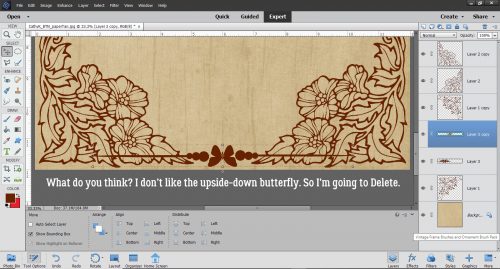
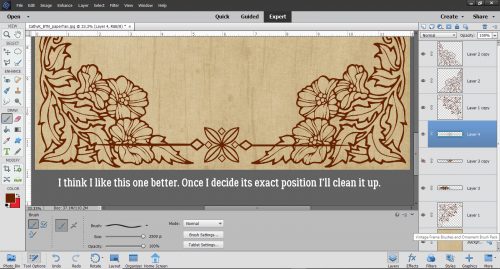
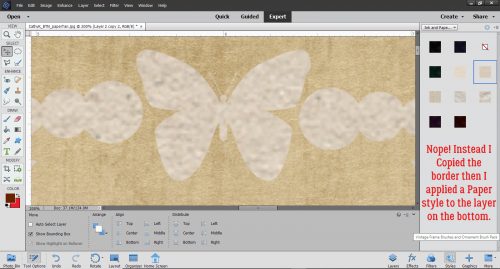
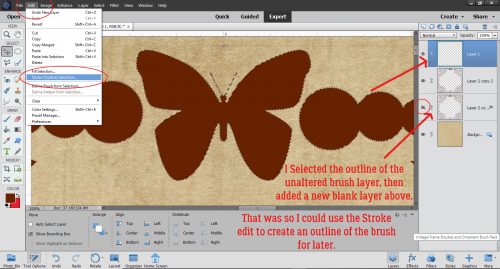
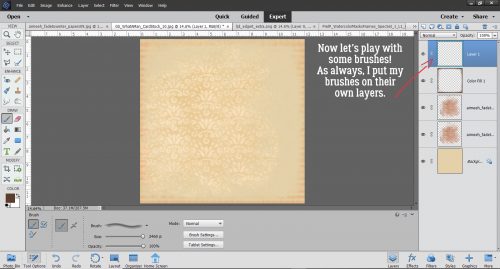
Okay! Now for the really fun part!! Brushes. If you don’t have many, you should check out the sources for free ones online so you can build a collection. Remember, ALWAYS put your brushes on their own layer. You need to be able to make adjustments JUST to the brush.

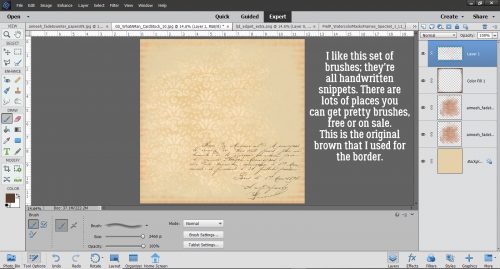
I have a collection of brushes, some I bought and some I didn’t. This set of handwritten ones was a purchase years ago… store has been long forgotten so I can’t even point you to it.

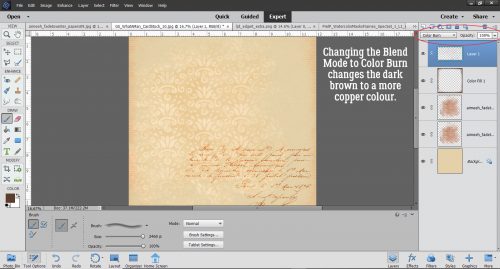
It was too stark so I changed the Blend Mode to Color Burn.

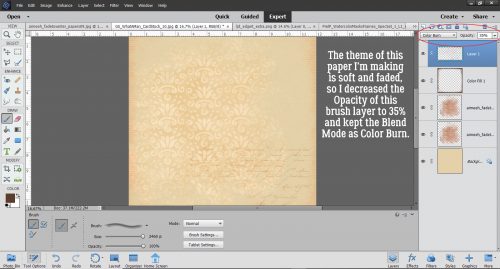
I want the writing to be there, but not “THERE”. So I also decreased the Opacity to 35%.

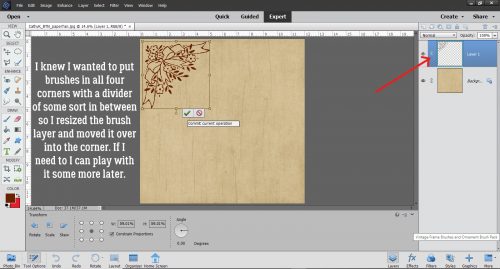
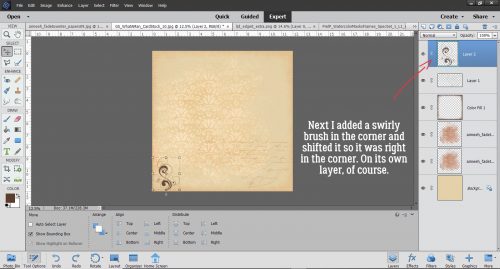
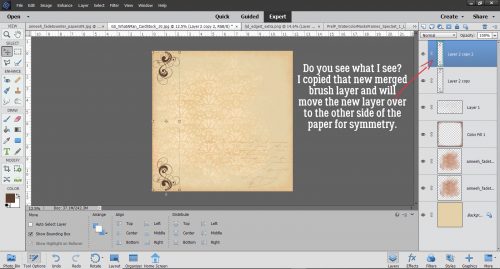
In keeping with my theme, I added a swirly brush in one corner.

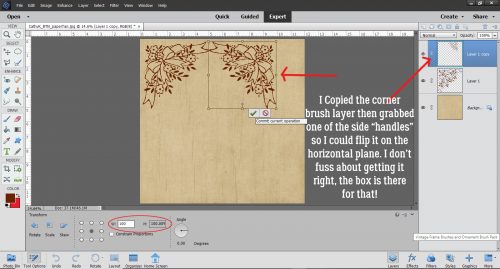
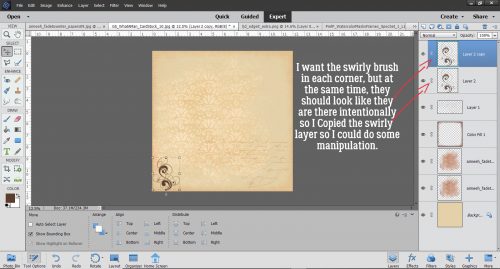
And Copied it…

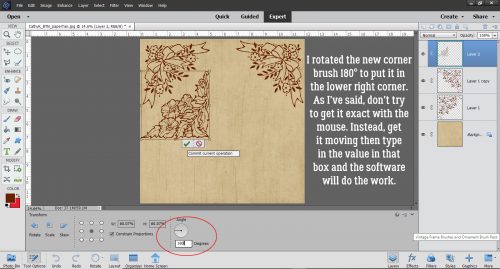
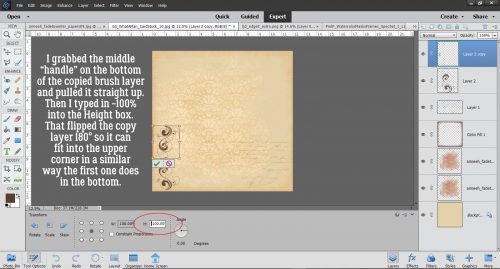
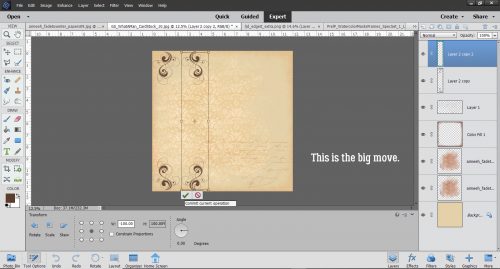
For symmetry, I flipped the copy and them moved it up into the top corner.

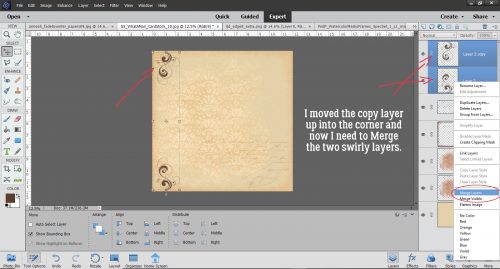
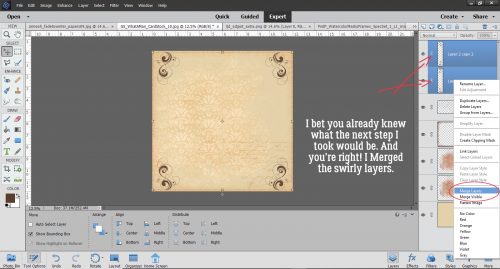
… then Merged the two layers.

And I Copied the new merged layer so I could put swirls into the other corners too. But after that, I’m done with symmetry!

There they go…

Do you need some hints?

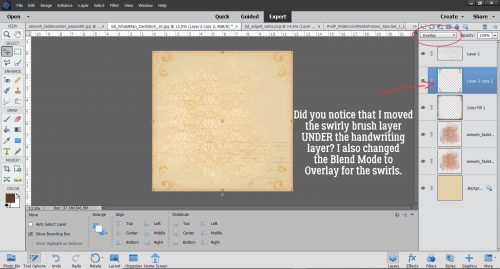
The fact that I moved the swirly layer under the handwriting layer isn’t a crucial point, but I did want my handwriting to sit on top of the swirls. Then I went with Overlay on the Blend Mode.

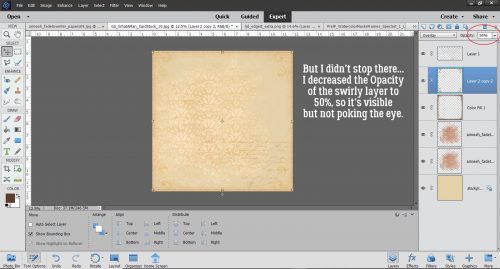
They were still too obvious so I turned them down to 50%.

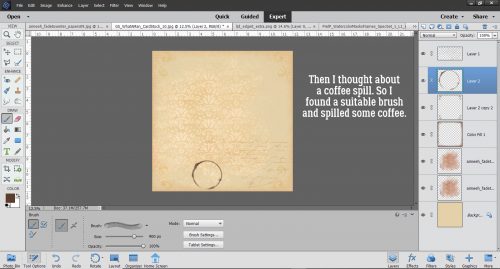
I had this goal of creating something that looked aged and a little distressed so naturally, I wanted a coffee ring on it somewhere!

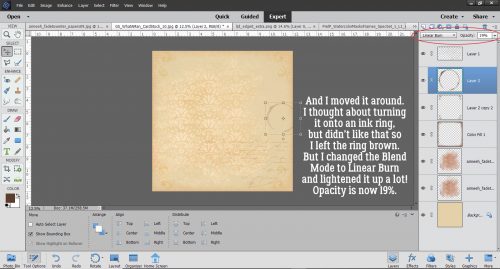
But where? By putting it on its own layer, I can move it around until I like it.

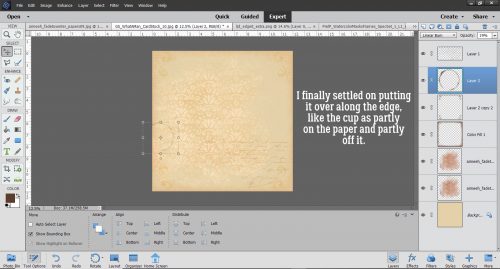
I think this is the spot for it.

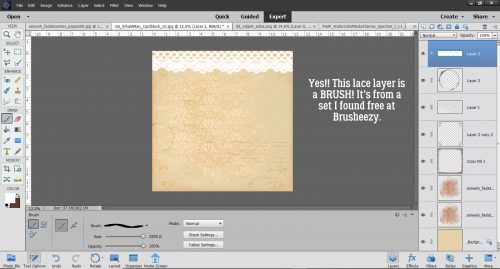
This brush set is amazing! It has about 8 different styles of lace and can be used in so many ways.

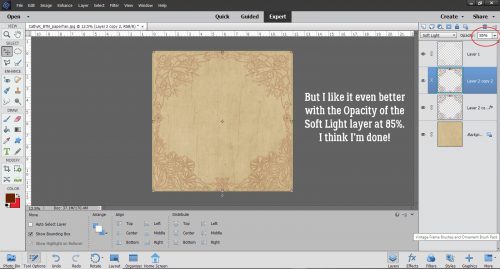
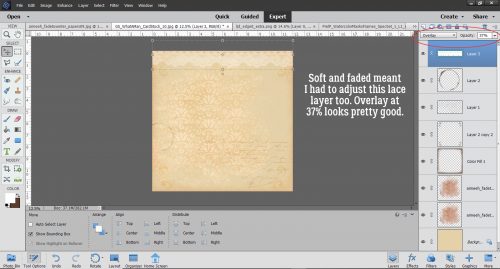
But it couldn’t be so in-your-face. Overlay at 37% is where I stopped.

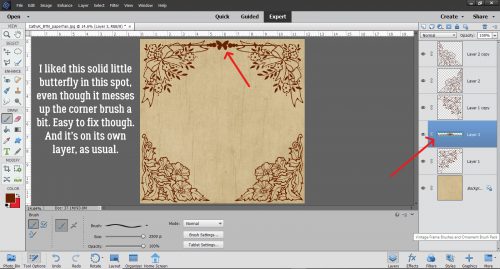
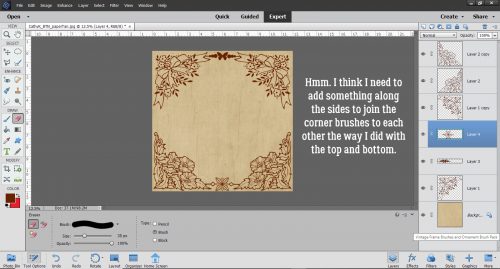
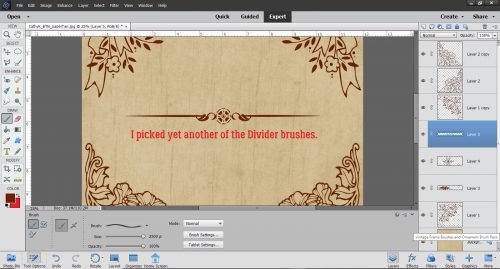
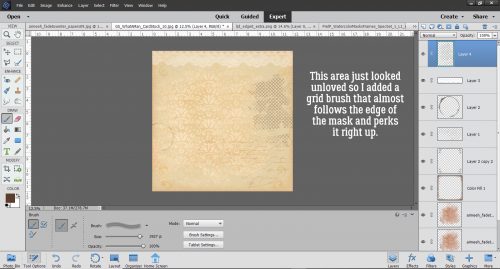
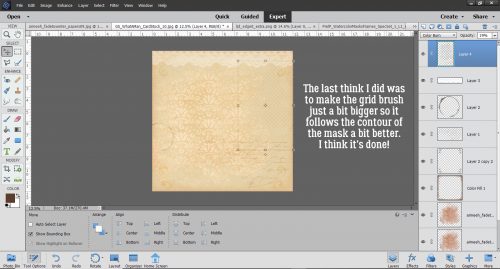
I stopped playing with it and just looked at it for awhile. What was missing? What didn’t need to be there? Well that bald spot to the right of the masked paper needed some attention. So I added a grid brush that sort of follows the contours of the mask’s edge.

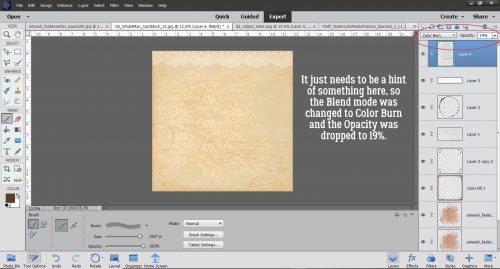
Some fine-tuning …

and a little resizing and I’m so happy with how it turned out. Now to do the layout………

Designer Spotlight: Laurie’s Scraps

Hey GingerScrappers! Let’s get to know Laurie…

1. How long have you been designing?

12 years on and off

2. What made you decide to design?

I have always been creative so this is just another way to be creative.

3. What led you to decide to design together?

I love the designs from Just Because! She is an amazing talent and a great person too, so why not?

4. What do you use to create your designs (program, additional tools, etc.)?

PS CC
IPad
and a Lenovo Laptop

5. Describe your design workplace.

Right now it is in my bedroom on a foldable table. I had to move up here so I can work away from the kids. But usually it is on our kitchen table.

6. What motivates and inspires you as a designer?

My kids most of the time.

7. What is your favorite kit currently in your GS store and why?

uhhhhhhhh…… I have no idea! Probably one of my “magical” ones. I love Disney and all that magic!

8. If you could only eat one meal for the rest of your life, what would it be?

wow, ok….ummmm…. Probably a typical Thanksgiving dinner. But I love all sorts of food!

9. What is your favorite game or sport to watch and play?

Soccer… it is easier to understand.

10. What did you want to be when you were small?

A Lawyer, Doctor and Teacher. All at once.

11. Aside from necessities, what one thing could you not go a day without?

Right now….Allergy pill. Hahaha.

12. Who would you want to play you in a movie of your life?

Charlize Theron…. she is sooo pretty!

13. If you had a warning label, what would yours say?

#NOFILTER! I do not filter out what I say most of the time. So what you see if what you get!

14. What celebrity would you like to meet at Starbucks for a cup of coffee?

Yikes! I have so many…. to have a discussion, probably Leonardo DiCaprio.


Tutorial Tuesday

I know all of you have been waiting patiently for this week’s tutorial. But I’m sorry to report there isn’t one. My dad (83) was admitted to the hospital (in another city) early Friday in serious condition. He’s okay, and has been discharged, but I’m mentally and emotionally exhausted. I hope to be running on all cylinders again soon. Meanwhile, stay home – flatten the curve! Take care of yourselves and the ones you love. 

Tutorial Tuesday (Photoshop Elements)

It All Comes out in the Wash-i

This week’s tutorial is brought to you by Shana Read, whose suggestion for a topic in response to my Facebook plea last night was the one I could get together the quickest. I’m finding I have even less motivation “in these uncertain times” – so tired of that cliché!! – than I usually do and was in need of a good kick in the butt. There were some great suggestions offered up and I’ll be working on them in coming weeks. But first, we’re going to make digital Washi tape look real!

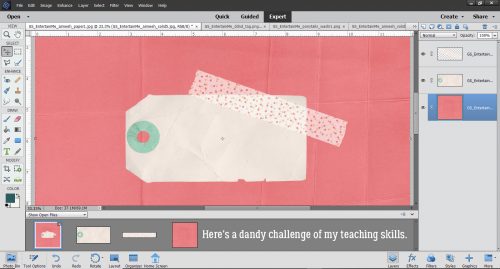
I started out with a cardboard tag, a pretty piece of Washi tape and some heavily-creased cardstock from the GingerBread Ladies‘ collab Entertain Me. I didn’t deliberately choose that kit, although it seems weirdly appropriate. I did, however, deliberately choose the creased cardstock, because it’ll make the tutorial more meaningful.

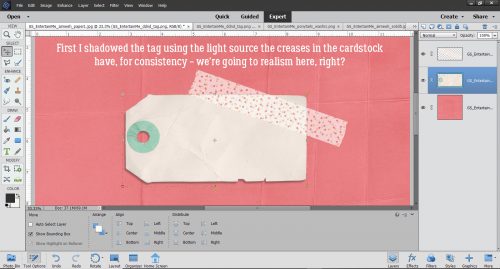
I added a drop shadow to the tag, setting it at the same angle as the shadows cast by the creases on the cardstock. I like consistency and when I’m shooting for realism, that’s one of the key aspects.

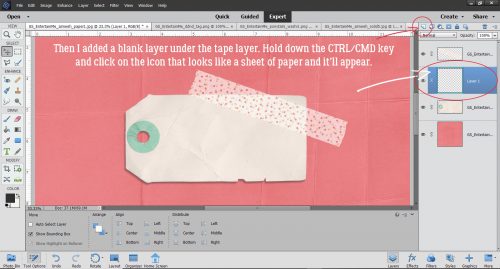
Those of you who are using my custom shadowing method can skip down about 6 steps… For those who need a refresher or who haven’t tried it yet, this is how my custom shadows start. I create a new, blank layer underneath the object I’m going to shadow. The keyboard shortcut for this process is to hold down the CTRL/CMD key and click on the new layer icon, the one that looks like a sheet of paper with the lower left corner curling up.

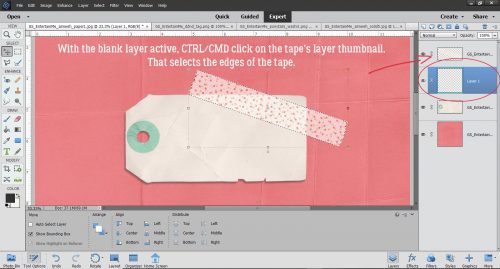
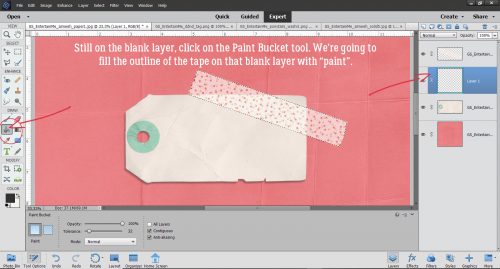
Still on that blank layer, I CTRL/CMD>click on the layer thumbnail – that tiny picture of the object you can see on the layers panel – to select the edges of the object, tape in this case.

Next, click on the Paint Bucket tool so you can fill the outline of the tape.

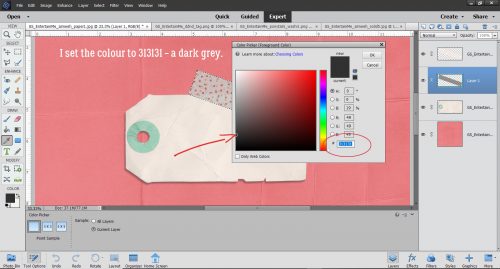
The colour I like for shadows is 313131, which I just type into the box I’ve circled below. It’s a medium grey and works pretty well for most purposes.

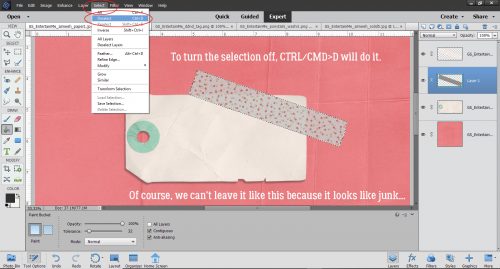
With that grey as the foreground colour, click anywhere on the blank layer. The outline will fill with grey like magic. To get rid of the marching ants, either click Select>Deselect or just use the keyboard shortcut CTRL/CMD>D. We can’t leave it like this though, because it shows through the tape and looks like junk!

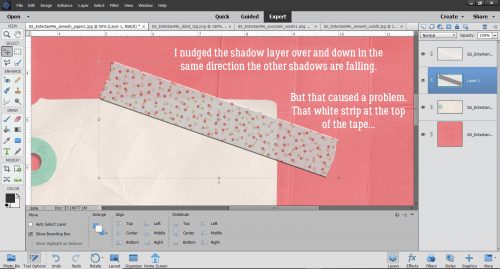
I like to move the shadow to where I’d like it to be before I start tweaking it. So I nudged it over a bit to the left and down, again keeping the same angle of light as seen in the shadows cast by the creases. The only drawback to that is that the tape is semi-transparent and now there’s a white strip at the top. I’ll show you how to take care of that in a minute.

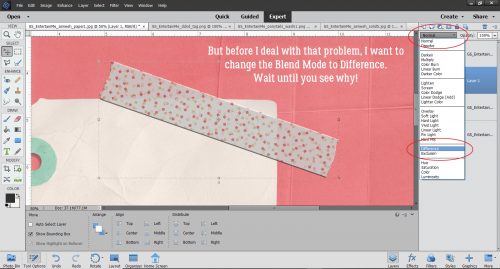
But first I’m going to change the Blend Mode (that button at the top left of the layers panel just under all the icons) to Difference. You’re going to love it!

Can you see the shadow peeking out at the bottom edge of the tape? I know you can see the tag showing through it. I could leave it like that, but that’s not how I’m made. So let’s keep going.

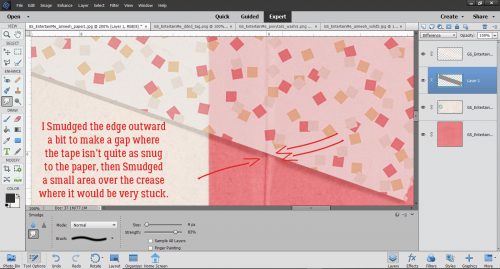
To adjust the shadow layer, I use the Smudge tool. It looks like a hand in a white glove with the index finger stuck out. I tend to use a fairly big brush and a very light touch. I start a bit of a distance from the edge of the shadow and just slightly move the brush toward or away from the object being shadowed, depending on where the light source is, and how much of the object would actually be touching the paper if it was real. In this case, I brought the shadow away from the tape a little where it comes off the tag and onto the cardstock to suggest it’s not stuck down quite as tightly there. Then I pushed it back toward the tape a little where the tape crosses the crease, because it would be adhering more closely here. For this kind of detail, I use a very small brush, still with a light touch. It’s better to go a tiny bit at a time so you know when to stop than to try and do it all in one step and have to start all over.

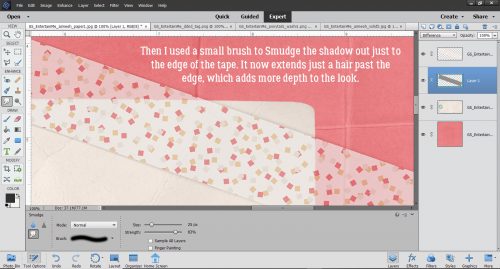
To eliminate that white strip at the top, I used the same small brush to very carefully nudge out the shadow right to the edge of the tape. There’s a hint of the shadow coming out from under the tape at the top, and that only adds to the realistic look.

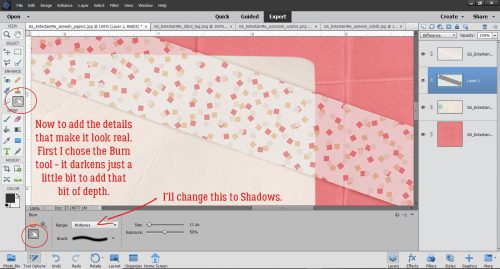
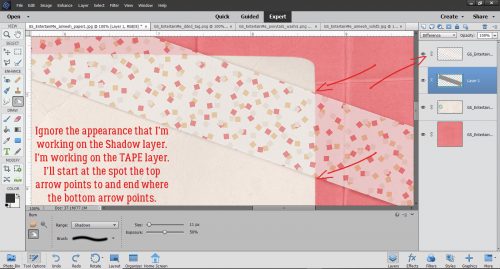
So how do we make the tape look even more realistic? Easy! We’ll use the Dodge and Burn tools. Dodging and burning are old tricks used in print photography to spot-improve exposure. Dodging lightens an area while burning darkens. If you have trouble remembering which is which, just think of a burnt stick… it’s black! The edges of my tag are nice and straight so this technique will be simple. I started with the Burn tool and changed the Range to Shadows from the default Midtones.

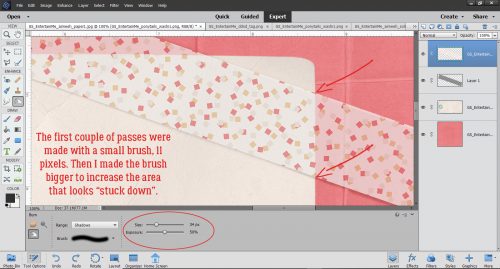
With the TAPE layer active, and a small brush size selected, I set the centre of the brush tip over the spot where the tape and the paper meet, with the width of the brush on the area on top of the paper. Holding the Shift key down, I clicked at that spot then moved the brush tip down to the spot at the bottom of the tape and clicked again. There’s a very faint darkening of the tape along the edge. As long as I hold down the Shift key, I can go back and forth between the top and the bottom of the tape as many times as necessary to build up a nice sharp edge.

The last pass over the edge is with a wider brush to make the tape look like it has been pressed down firmly with a finger.

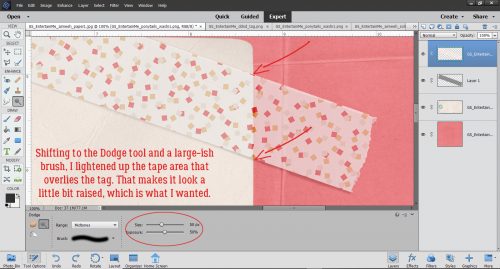
Then I switched to the Dodge tool and a large-ish brush.  There will be more light hitting the tape where it sits on top of the tag, so we need to lighten that area just a bit. Using exactly the same steps but with the brush’s width sitting on top of the tag, I Dodged that edge.

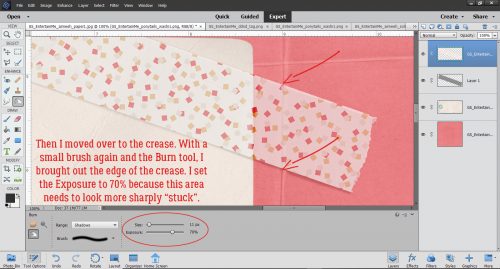
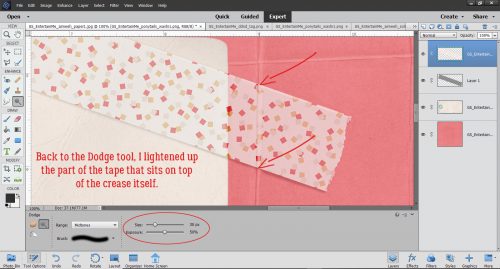
Can you see the difference where I’ve already done the D&B? Let’s move over to the crease that runs under the tape. The shadowy area is a bit more pronounced here so with a small brush and the Exposure set to 70%, I Burned the tape where it overlies the shadowed edge of the crease. If I remember correctly, I made 4 passes top to bottom and back up, so a total of 8 clicks.

The section of tape that runs along the domed part of the crease needs to be lightened quite a bit to give the crease back its dimension. I Dodged with a brush sized to just cover the crease edge-to-edge. It took several passes to get it right, but like I said before, building up a little at a time gives you control and you’ll know when to stop.

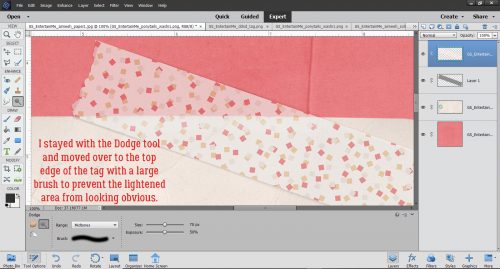
Once I was happy with the creased area, I moved over to the top edge of the tag. The Dodge tool was active so I did that phase first. There’s a lot more tag covered with tape at this edge so I used a big brush with its width sitting on top of the tag to “elevate” the edge.

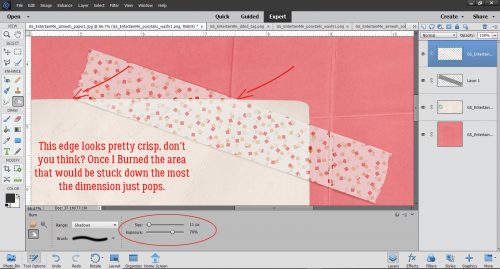
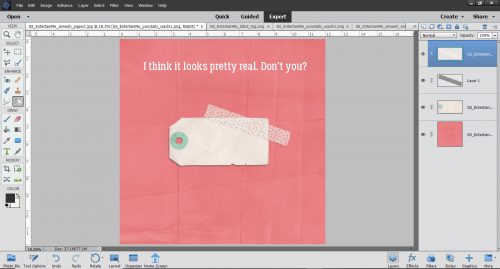
Don’t worry about being too precise with positioning the brush tip. If you’re past the end of the spot where the tape and tag touch, it doesn’t matter; the tool won’t do anything to the inactive layers – the paper and tag layers. It’s actually better to go a bit past than it is to stop too short. After I Burned the stuck-down area it looks like real Washi tape and real cardstock. It sounds like a lot of work, but it really isn’t once you get the hang of it.

So there you have it, Jan’s technique for adding a shadow to Washi tape. I suggest that if you’re going to do this, turn the visibility of all the other layers off so you can see exactly what you’re doing. Dodge and Burn even the parts that will be hidden by other layers, for the best results. You never know when you might resize an element, or move things around… right?

See you all next week!

Tutorial Tuesday (Photoshop Elements 2019+)

Jan has a Challenge for All Y’ALL!

We’re living in interesting times. I know we’re all afraid and worried about what’s happening and what’s yet to come. And we have no control over any of it. I also know that humans are remarkably resilient, we’ve lived thorough hard times before and come out of it stronger, and that this is temporary. While we stay in our homes (or, because we provide an essential service, we’re going to work anyway) we all have lots of time for our thoughts to add to our stress. Rather than throw the Serenity Prayer your way, instead I want to extend a challenge to you. I’d like you to find a photo that speaks to the part of you that isn’t afraid, the part that still has hope. It can be a photo you’ve taken, or someone you love has taken or one you found on an open-source photo website like Pixabay. (Just looking through those sites is a terrific distraction!) Then I want you to find an inspirational quote to match the optimism or spiritualism of your photo. And then I want you to create a meme with it! (No, you don’t have to share it with anyone unless you want to, but it might be a comfort to somebody you know who seems to be doing okay but really isn’t.)

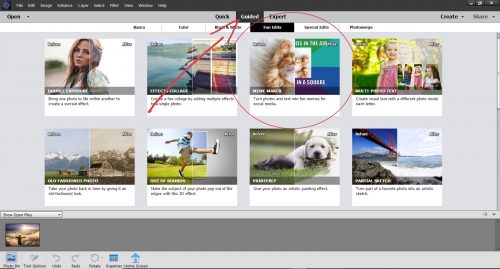
Photoshop Elements 2019 and 2020 have a Guided Edit that makes memes easy to create. It’s found in the Fun Edits menu as shown below. But don’t worry if you’re working with an older version. The same steps can all be done manually.

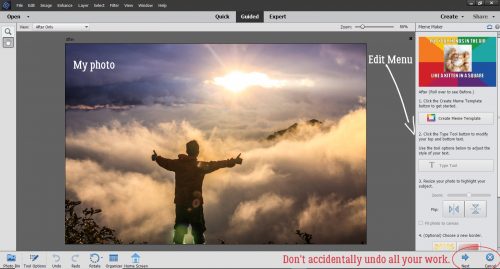
This is the photo I chose to work with. I had quite a few from Pixabay that would have worked but I like the thumbs-up gesture and the sunbeams that to me represent God’s love. The Edit menu looks like the screenshot below. One warning: don’t hit the Cancel button at the bottom unless you really like starting over from scratch!

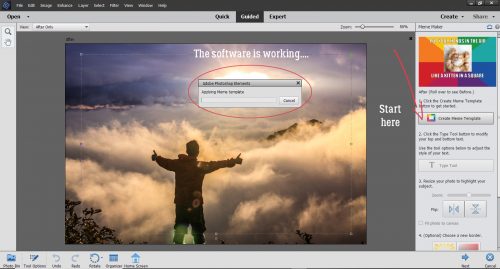
First step is to click on the Create Meme Template button. Then a progress bar pops up.

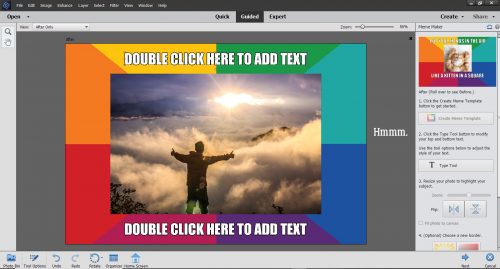
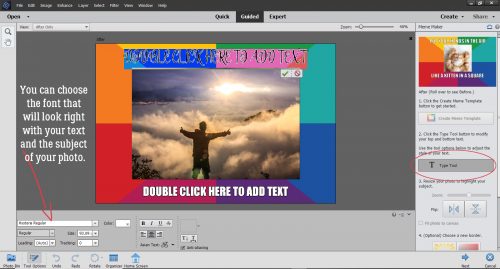
Oh… hmmmm. Let’s keep going. There has to be a way to change that border!

The next step is to add the text. My quote is one from Benjamin Disraeli and it’s pretty spot-on. Once you’ve clicked on the Text Tool button, the same Text interface we’re all comfortable with opens up.

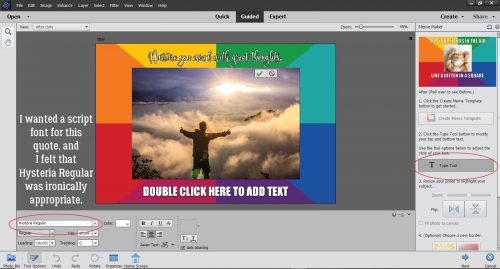
The default text is Impact Regular, but I want a script font so I looked through my vast collection and tried Hysteria Regular on for size. (See the image above for what it looks like.) I thought it was weirdly appropriate.

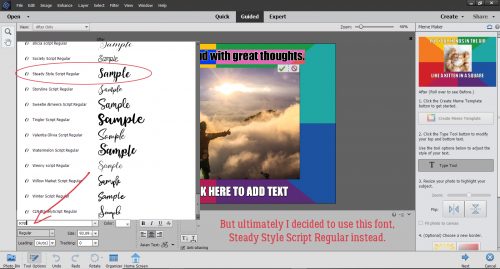
But it wasn’t quite the look I was after so I went back to my fonts and chose Steady Style Script Regular (another appropriate choice!) instead. In later versions of Photoshop Elements, it’s easy to find a script, or a typewriter or a sans serif font just by typing the style of font you’re looking for in the box. I typed in “scrip” and all the fonts in my collection with “script” in their name were displayed.

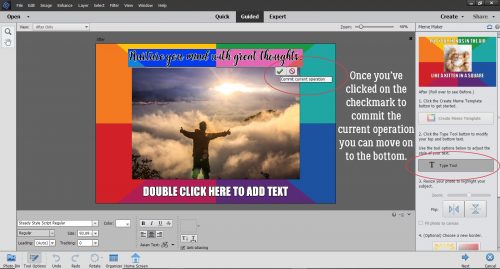
After I typed in the first part of my quote at the top of the meme, I clicked on the checkmark to Commit the Current Operation. The software needs that instruction to move to the next step.

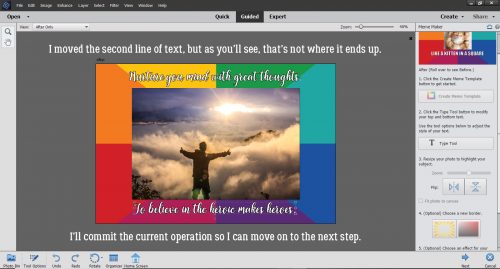
Then I typed in the second part of my quote. The Edit allows for moving the text, and knowing I wanted to include the author’s name as credit for the thought, I moved the second line of text up a smidge. Then I Committed the Current Operation again. Without taking that step, I couldn’t move on with the Edit.

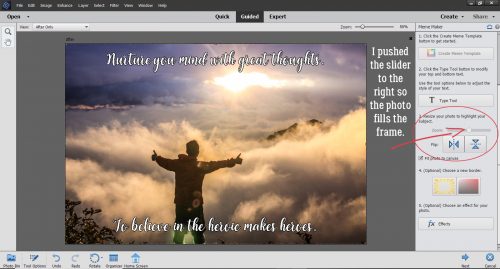
Aha! Here’s where I can do something about that border that I don’t think suits my meme. I moved the slider to make the photo bigger, then noticed the Fit Photo to Canvas tick box. So I ticked that box!

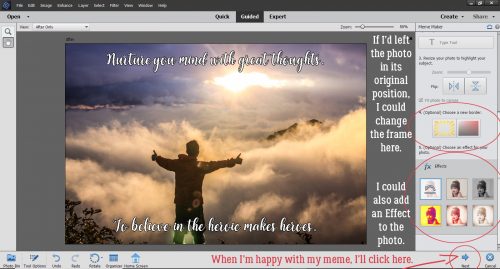
If I’d decided I still wanted a border, just not THAT border, this is where I could have changed it. And there’s an option to add an Effect to the photo. I like the photo as is. I apologize, I didn’t actually play with those steps so I can’t show you what the options look like. But you can always experiment if you like!

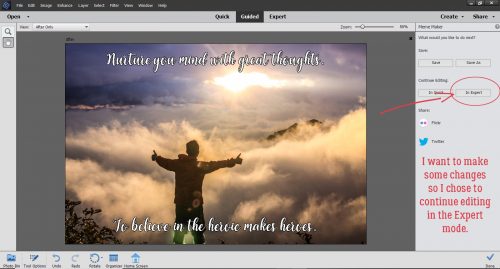
Now that I was happy (more or less) with my meme and having not been able to add the author’s name onto the meme, I clicked on the Next button and then chose Continue Editing in Expert.

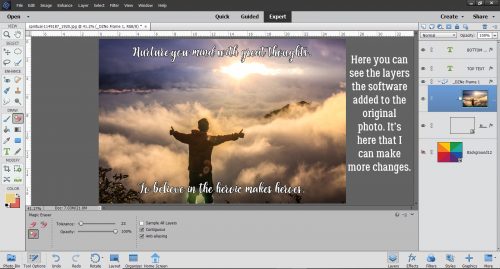
When the Expert work space opens, you can see all the layers Elements has added to the image. Now I can decide where I want to put my author’s name.

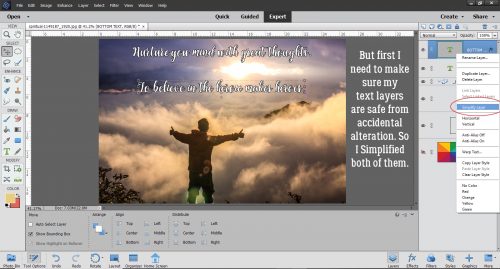
But first, to protect my other text from accidental messing up, I Simplified both text layers. Then I moved them closer together, bracketing the sunbeams.

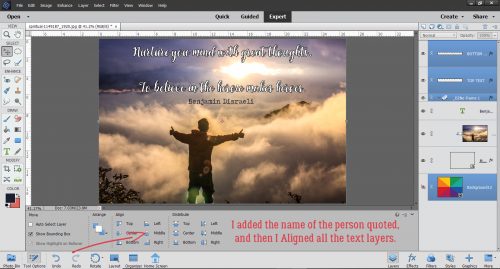
After I changed the font to a typewriter one, I added Disraeli’s name onto the image. To make sure the text layers were properly centred, I selected all three text layers and the (invisible) background layer, then Aligned the layers by the Middle.

And here is my finished meme. To all the folks who are still standing between us and disaster, I salute you.

Edited to add: The typo in my original version was bothering some readers enough that they pointed it out to me. So I’ve cleaned it up and replaced the final image. (I didn’t do ALL the screenshots – there are 9 of them in all – and it would have been a ton of work.) Keep on swimming, friends!

Tutorial Tuesday (Photoshop Elements)

Jazzing Up a Font

Wow, how much the world has changed in one short week! Our provincial government has declared a state of emergency, although the total number of cases of COVID-19 in our province is still under 100. We’ve been sticking close to home since last Thursday night, which is giving me time to do all the things on my task list. This post is late because I got sidetracked painting the family room… hope the buyer – whoever that ends up being -approves! But let’s get into distraction mode for a bit.

Maybe you’ve seen my layout in the Gallery, the one where my granddaughter is eating her peas with her tongue. This is how I created my title. I started with one of the fonts I linked you up with last week Floral Capitals. Everything I’ve done in this tutorial has been shown to you at least a couple of times before, so if you’re a faithful reader, you might even predict what’s coming next as we work through. There are a lot of steps but I’ve taken the guesswork out of it for you. Whenever I do something that I’m making up as I go along, I like to make some copies of the original layer so I’ll still have one untouched one should I need it. Here I made 2 copies and turned their visibility off.

I analyzed the font’s appearance and had an idea of what I wanted to do. I knew the border would be different so I started off on the bottom layer by Erasing the middle parts of each letter, leaving just the border. Then I made a copy so I could quickly reset if I did something I didn’t like.

Next, I Selected the edges of the floral design by Clicking on the Layer Thumbnail of the lower copy of the original.

Now the Marching Ants come into play.

Now that Elements knew I wanted to work with just the Selected areas of my title, I added a new blank layer between the copy of the border layer and the lower copy of the entire title.

With the new blank layer active, I hit Select>Modify>Expand. I want to adjust the areas selected just a tiny bit.

But I only needed to adjust it a smidge, 1 pixel wide.

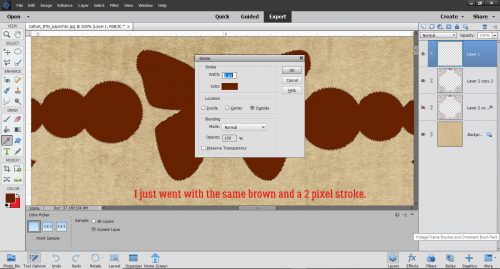
Still on that blank layer, I added a Stroke to the Selection. Edit>Stroke (Outline Selected Area).

Again, I went with a skinny stroke, only 2 pixels wide, and I chose this carnation pink, pulled from one of the papers I planned to use for my layout. (Diva-tude from Jumpstart Designs.)

Here you can see the pink a little if you squint.

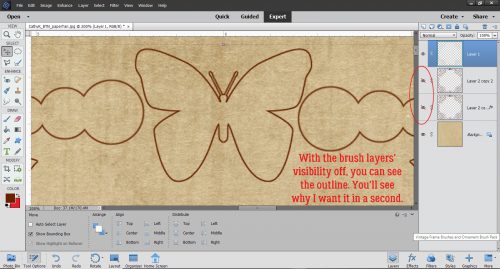
When I turned off the rest of the layers, now I could see clearly where the Stroke went.

Using the Paint Bucket, I filled in all the letters with the same pink.

Yep, then I Erased the fancy parts, leaving just the pink letters.

I zoomed in quite a lot so I could clean it up to the best of my ability.

To give the letters some more presence I went to the Styles menu and chose Bevels.

I like to use Simple Pillow Emboss, because it’s pretty predictable.

See how it adds weight to the letters, and puts a bit of shading around them too?

The Bevel default is 21 pixels, which is a bit too much for the look I’m after, so I decreased the size down to 7 pixels. Now the letters look like die cuts.

One way to check for stray pixels after you’ve extracted something, as I’ve done with the letters, is to apply a Style or a Shadow. Those stray pixels pop out like zits before a big date. That makes them easier to remove. (If you’re only looking for stray pixels, you can clear the Layer Style when you’re done by right-clicking on the layer in the Layers panel and selecting Clear Layer Style from the menu.)

Okay, mission accomplished. Onward and upward! I turned off all but one of the layers, the lower copy of the original title. I Erased the borders on this layer, since I have plans for the ones I’ve saved down at the bottom of the pile.

As I was getting the screenshots edited I discovered I’d missed one… an important one. I added a black chipboard Layer Style from Ooh La La Scraps’ All Hallows Eve to this layer. It adds just a bit of a flocked look to the outline. I played with the Layer Style settings.

But all I did was increase the Bevel a bit, from 10 pixels to 15. That sharpened the edges just a bit.

Next, using the Rectangular Marquee tool I dragged out a box just inside the outline of the first letter and used the Paint Bucket to Fill it with this dark olive green, also from Diva-tude.

And I did the same with all the rest of the letters.

It’s looking pretty good but it still wasn’t where I wanted it so I added a few more little tweaks.

I turned the border boxes layer back on and took a good look at them.

They needed to be punched up just a tad, so I added a Stroke.

It had to be a narrow one so the border didn’t run into the fancy part. 3 pixels worked. I could have put the Stroke outside the boxes, but then the boxes might have coalesced. Instead I centered the Stroke on the lines.

I found this perfect pink Glitter style in ADB Designs’ Holiday Joy styles kit. So it went on the borders.

OOH! So close!

Last thing I did was to add an epoxy Style (from Mommyish at another store) to just the pink letters.

And then I was happy!

You can use these tips on other detailed fonts, and experimenting is fun! I hope you give it a try!

Designer Spotlight: NMSS

Greetings and salutations! I know you’re all wondering why I’m popping up and it’s not Tuesday. Well, I’m stepping in to bring you the March Designer Spotlight. We’re chatting with the lovely Connie Prince, the South half of North Meets South Studios. Let’s get to know her a bit better, shall we?

J: How long have you been designing?

I began designing digital scrapbooking products in 2004-2005ish, but officially selling in 2006.

J: What made you decide to design?

At the time the offerings were so limited, I was a paper scrapper and want to add unique elements to my layouts which I began to make digitally and print. It didn’t take long to realize I could do the whole thing digitally so much easier!

J: What led you to decide to design together?

Tracy & I developed a friendship early on. I think the progression into forming a brand together just happened. At the time she lived in the northeast and I am of course from the south. We named our brand North Meets South Studios. She’s in the midwest now, but you really can’t take the New Jersey out of a girl so we are sticking with our original name lol.

J: What do you use to create your designs (program, additional tools, etc.)?

I use Photoshop CC, Illustrator. I also have a scanner that I use pretty often to scan things to extract.

J: Describe your design workplace.

It’s pretty minimalistic. I have a double monitor setup, that’s the most exciting thing about it lol.

J: What motivates and inspires you as a designer?

I enjoy the process, coming up with an idea and creating it. The most rewarding part is seeing someone else use something that I’ve created to preserve their own memories.

J: What is your favorite kit currently in your GS store and why?

About A Boy is my current favorite (usually my latest is my favorite lol).

J: If you could only eat one meal for the rest of your life, what would it be?

Chicken wings, hands down I am obsessed! However, if I could only eat at one restaurant the rest of my life it would be Waffle House.

J: What is your favorite game or sport to watch and play?

None of them? lol I’ll watch some when the Olympics are on.

J: What did you want to be when you were small?

I can’t really remember wanting to be anything in particular, I played school a lot so maybe a teacher? I did grow up and get a degree in education, but I didn’t really enjoy teaching very much so I retired early 🙂

J: Aside from necessities, what one thing could you not go a day without?

My phone or computer!

J: Who would you want to play you in a movie of your life?

Cameron Diaz, she’s just quirky enough!

J: If you had a warning label, what would yours say?

I would have a bunch, but definitely: If you leave cookies unattended she will eat them!

J: What celebrity would you like to meet at Starbucks for a cup of coffee?

Dolly Parton, she’s a hoot!

J: These two designers are very talented. I hope you’ll give their store a look and that you’ll take part in the Designer Spotlight challenge. And don’t forget to pick up your Daily Download here on the Blog!

Tutorial Tuesday (Potpourri)

Spring-y Fonts (Part 2)

Are you ready for some fresh new spring-y fonts? I last did a spring font post a year ago and figured it was time. (Plus I’ve been so busy trying pretty much single-handedly to get our current house ready moving out of. I’m getting tired of the smell of paint!)

All the fonts below are free for personal use at Dafont. They’re ones I haven’t shown you before, and there are a couple that would be perfect for titles. See what you think!

CF Springtime is one that I might use for a title or two. It’s got good weight and with the leaves, it’s just a bit different.

This isn’t a font but it’s so pretty! These wreaths, or whatever we want to call them, can be used as photo overlays, to frame photos, to frame other fonts and so many other possibilities. You’re looking for Spring Romance.

Here’s another font just screaming to be used in titles. It lends itself well to multiple modifications, and if I can find some time, I’ll play with it so you can see what I mean. Floral Dawn sounds so poetic!


Can you see this one as a title font? How much fun it would be to deconstruct it and use multiple colours to make it really pop. Floral Capitals might be my favourite of the bunch.

This is just a cute little romantic script with curlicues and everything! Flower Shop could be a journal font, don’t you think?

I like the graphic effect this one has. Imagine it clipped to a pretty green paper, maybe with a glitter style added on top. I’m not really loving the name the designer gave it though… Forced Flowers.

Sweet Duck has three different options and all of them are pretty awesome.

I threw this one in just for fun, for all of us arctic blonde hippie chicks. The 70s were the BEST decade ever… LMS Hippy Chick says so!

How do they come up with these names? LRT Chickenhawk… it’s cuter than its name, for sure.
And last but not least, I’ve got a dingbat for you. KR Spring Me has an assortment of spring-y images you could use as stamps.

I’ve linked up each font for you so if you see one you love, go and grab it! I have a couple of ideas for tuts for next week but haven’t decided which one I’ll go with. Stay tuned!


Tutorial Tuesday (Photoshop Elements)

Let’s Play Stump the Chump!!

Well, you ladies are all too kind! I’m glad you weren’t disappointed there wasn’t an actual tutorial last week. And thanks for the suggestions for my new user name. I think glee is the winner and I’m going to go with ObiJanKenobi.

Speaking of glee, she was the first to send me a link to one of her layouts to see if I could discern which of my tutorials she used to create it. This is the layout she linked me to:

I’ll admit, she didn’t make it easy on me! SO I’m going to just make a guess or two. I’m pretty sure I see some elements of Making a Stylish Sandwich in there., and maybe some Style(s) Savvy. I also see some Blend Modes? Say What?. She’s probably used a few more too, but I’m stumped.
Next I got a link from Ellen (gmae). She sent me this layout to scrutinize:

Again, I see a couple of techniques. One is Word Art Wizardry.  Another is Heritage Photos Get a Makeover.

And then almost right after Ellen’s message, I got one from her sister Carol (gnana96). Her layout has me completely stumped.

I think I detect some custom shadows, but it’s not obvious to me which of the half-dozen shadow tuts I’ve written. Help a girl out here, Carol!

This was a real challenge for me and I’m sure I’m at least 90% wrong with my guesses. And that’s OKAY!

Meanwhile back at the ranch, I’m painting bathrooms, cleaning ovens and all those nasty chores I like to procrastinate about because they’re not fun. But nobody wants to buy a house that’s not spic-and-span, right? We’ve booked our movers so I have a definite deadline now……… I promise to make time to bring you a new tut next week. Spring is coming, so don’t forget to put your clocks ahead on Saturday before you go to bed so you’re not late for church!! (How embarrassing is that?!)
Tutorial Tuesday (Potpourri)

Is Exhaustion a Thing?
Well, last week was a total whirlwind! It still feels a lot like a dream, but we now own a beautiful new house in a surreal setting, even though we’re not moving into it until early May. The trip itself was pretty exhausting, both mentally and physically. Somehow we got to the airport without our son’s photo ID, without which he couldn’t board the plane. (We live 30 miles away, on the other side of a major city…) The airline was amazing and got us on a later flight so I could run home and get it. We ended up getting there 5 hours later than originally planned, but in the end that was fine. All the things that needed to happen to get us into the house happened, and I’m planning and scheming every minute of the day. All of this is leading up to me apologizing for not having a tutorial for you today, but in its place I’m going to give you a sneak peak at some of the photos you’ll see in my layouts in the coming weeks. And then I have a couple of little challenges for y’all.

What do you think??

Okay. Your first challenge is to find one of your layouts where you’ve used something you learned from Tutorial Tuesday and send me a private message (JaninAlberta) with a link to it. Don’t tell me what you did, I’m going to see if I can figure it out! Next week I’ll compile all the layouts I get from you into a blog post and share your successes with everybody else.

Your second challenge is to help me come up with a new user name. When we move, I’ll no longer be Jan in Alberta… I’ll still be Jan, but living in Kelowna, British Columbia. Ginger has told me I can change my user name when the time comes and I’d like it to be a bit more creative! Help?

Have a great week!