Tutorial Tuesday (Photoshop Elements)

Taking Those Shapes to the Next Level

I don’t know about you, but I’ve been doom-scrolling Twitter, with MSNBC on in the background, continually since the Russians invaded Ukraine. As if things weren’t already awful enough… Two of my mom’s sisters and one of her cousins married three Ukrainian-Canadian young men back in the 50s. My dad’s mom was Polish. This invasion feels personal to me and it’s hard to shift gears. But I’ve succeeded – I have a tutorial for you that builds on last week’s Custom Shapes clipping masks. This time I’m going to show you some ways of turning those shapes into 3-D frames – it’s simple and so much fun! Rather than reinvent the wheel and go into obsessive detail with every step, I’m going to assume you’ve got some Elements chops and sort of start in the middle.

Each of these Shape frames will start out the same way, with choosing the Custom Shape and dragging it out on the canvas. As usual, I’m working on a 12×12 canvas so I have lots of room. I started with a hexagon.

I’ll always remind you that Custom Shapes begin life as Smart Objects and don’t have a lot of flexibility. So before you can manipulate them, you’ll need to Simplify them… dumb them down, so to speak. If your version of Elements has the Simplify button in the Tool Options panel, just click it. If you DON’T have that button, you’ll need to right-click on the layer then choose Simplify Layer from the dropdown menu.

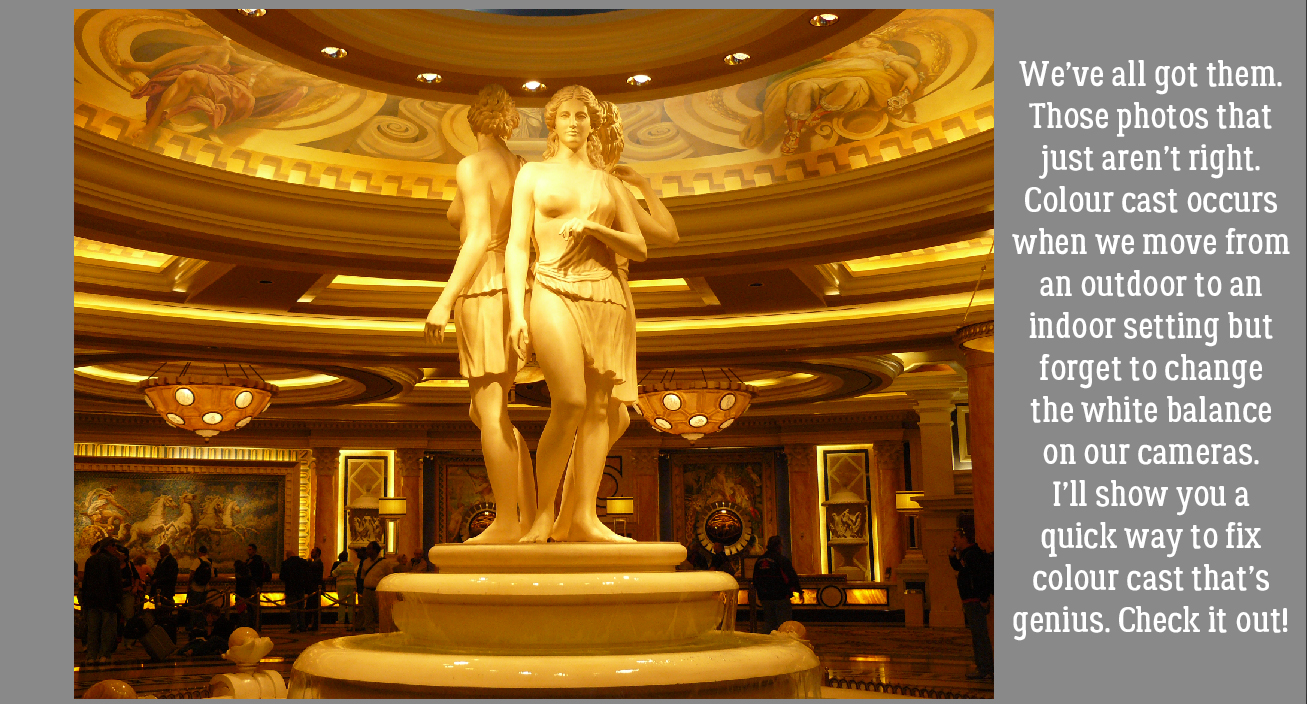
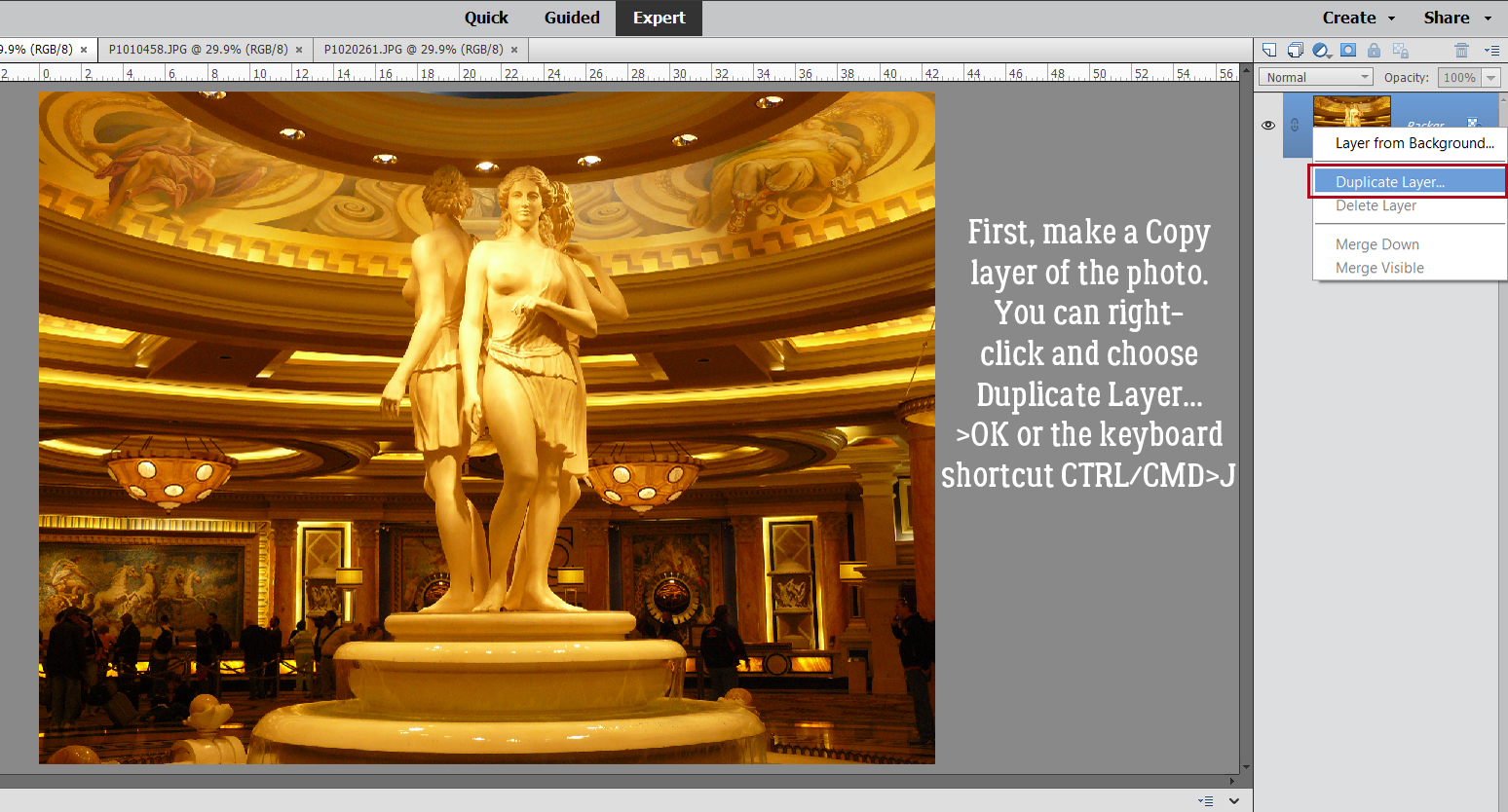
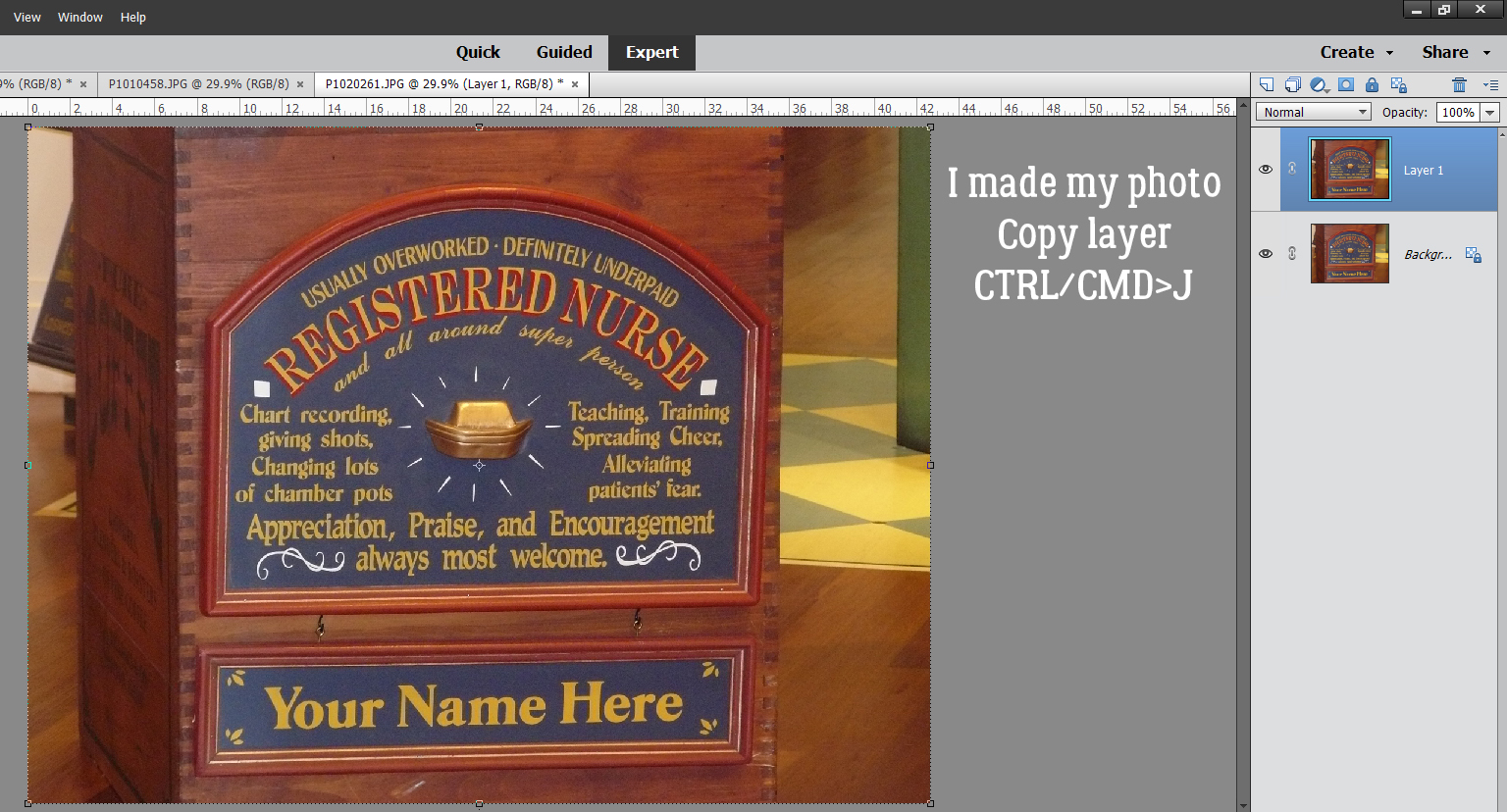
To create the frame’s opening, first we need a Copy layer. Either right-click on the layer and choose Duplicate Layer>OK or use the keyboard shortcut CTRL/CMD>J to quickly make that Copy. (I LOVE Copy layers and recommend you come to love them too. When you play with a Copy, you’ll still have the original if you make a booboo.) (Second editorial comment: CTRL refers to Windows-based systems, CMD to Macs.)

Obviously, a Copy is identical to the original and that’s not going to work to make a hole. So the Copy layer will need to be Resized. The easiest way to do that in this context is to click on one of the handles on the Bounding Box, which opens up the Move tool‘s Tool Options menu. Then, with the Constrain Proportions box ticked and the centre of the layer as the reference point, type a numeric value into one of the boxes as shown. I went with 85%, which will give a nicely solid frame.

In this screenshot you can see the outline of the smaller hexagon. Now it can be used to remove the middle of the frame.

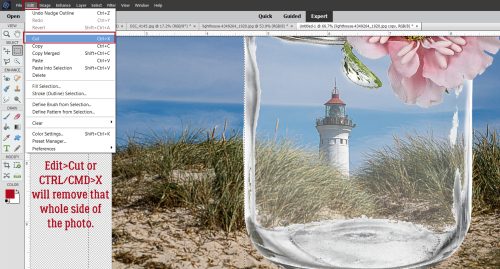
Ensure your large hexagon layer is active and then click Edit>Cut, or use the keyboard shortcut CTRL/CMD>XWe’ll come back to the hexagon in a minute. What if you chose a more complicated shape, like this seal? You can use all the controls in the Tool Options, like using Defined Size, and if you tick the From Center box, Elements will put the shape right in the centre of the canvas. Here, I’ve shown the Simplify button (the one you may not have). Experiment with your software; the more you play with it, the better you’ll understand what it can do and what it can’t. (And these tutorials will make more sense…) You’ll find a system and a rhythm that works for you.


So. What if you didn’t tick the From Center box and now your two shapes aren’t positioned precisely like you want them to be? Elements has a fix for that! Activate both layers by clicking>Shift>clicking on them in the Layers Panel. You’ll see the Move tool Tool Options menu over on the left. Where it says Align, click on the Center button – Elements will move both layers so their centres are aligned. Then right away click the Middle button, and Elements moves both layers so the middles are aligned. Easy peasy!

CTRL/CMD>X and now I’ve got a nice starburst frame.

Okay, back to the hexagon! When I was thinking about this technique, my mind’s eye saw a shiny green frame with glittery gold edges. Making that a reality will take a couple of additional steps. I’ll need to create the border first, because once I alter the frame itself it’ll be harder. The border needs to be completely separate from the frame so I can jazz them up in different ways. That means it goes on its own layer. (Of course!!) So I added a new blank layer to the Layers Panel by clicking on the sheet-of-paper icon in the strip across the top of the Panel.

Quick-and-easy border making uses the Stroke Edit. CTRL/CMD>click on the Layer Thumbnail to “Select” the edges of the hexagon, inside and out. Make sure you’re on the blank layer, then Edit>Stroke (Outline) Selection.


I want the glittery border to be visible but not overpowering so I went with 35 pixels for my width. The colour can be anything – the glitter will hide it anyway. I chose the Outside setting; it’s not going to round the hexagon’s corners enough to worry about.

This is something I sometimes forget when I’m doing something on the fly. If there are marching ants – something has been Selected – none of the things I try to do that don’t involve the Selected area will actually happen. They need to go away. Select>Deselect or CTRL/CMD>D will do that.

I’m going to use some Styles now. Have you bought some Styles.ASL files – but don’t know how to get them into Elements so you can use them? Some of the GingerBread Ladies collaborations include Styles (usually glitter, but not always; Craft Fair is a good example) so you could have some and not even know! I’m going to show you quickly how to access them.


I’ve renamed all my Styles files and Copied them into the Elements Program Files for easy retrieval but you don’t have to worry about that, you can grab them from anywhere. If you don’t know where they are, run a Search using .asl as your search term, then let your computer do the work.

I chose a green acrylic gel Style from Just So Scrappy‘s Lucky Me… seemed appropriate for March, however cheesy. The Style added colour, a bevel and highlights all in one move! If the one you choose doesn’t look like you want it to, CTRL/CMD>Z it and try again.

I like this darker gold glitter Style from the same collection. (I’ve gotta say, Katie [Just So Scrappy and Ooh La La Scraps] makes perfect Styles of all descriptions. Check them out! I’ve linked to her shop for you.)

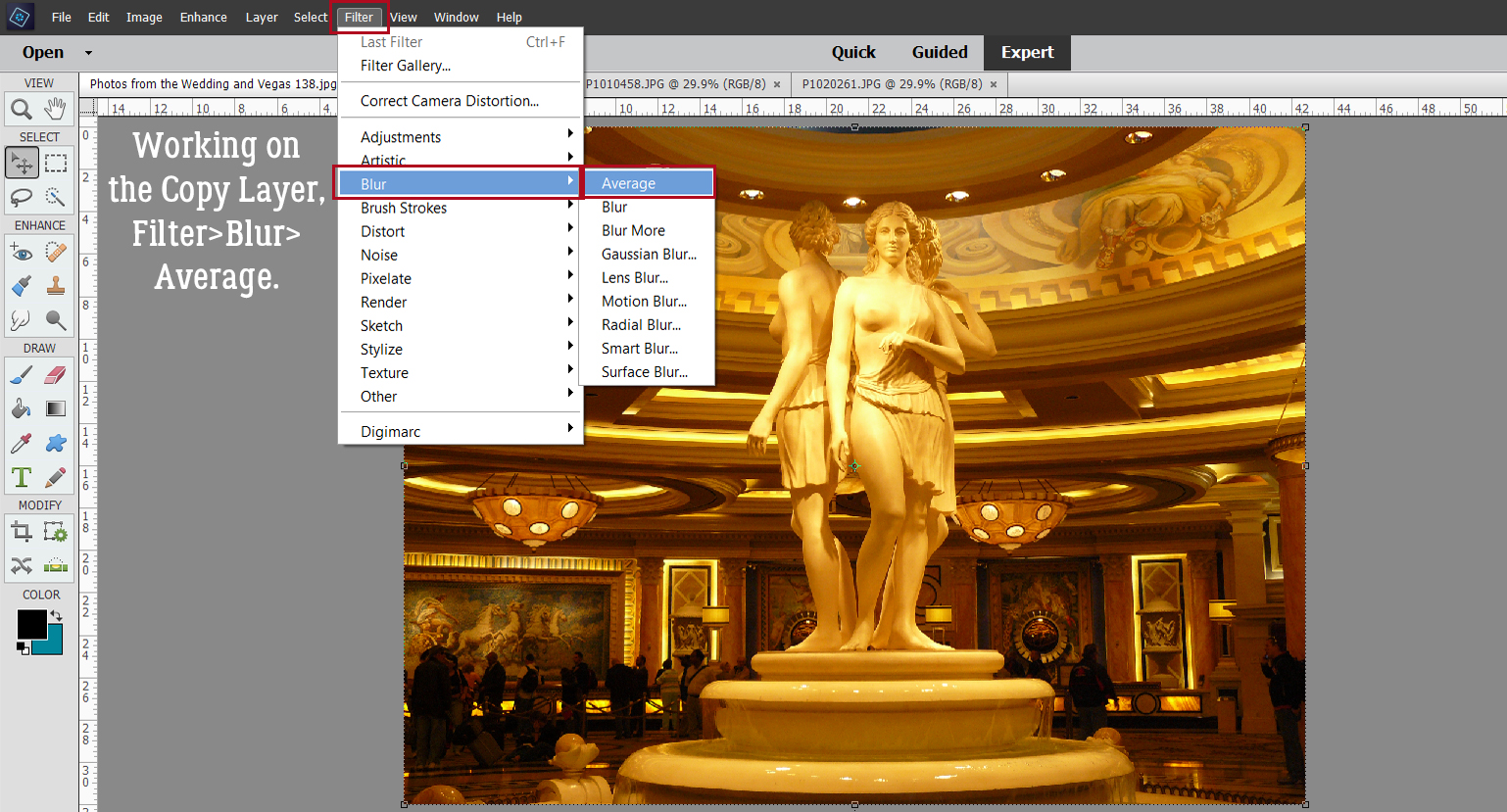
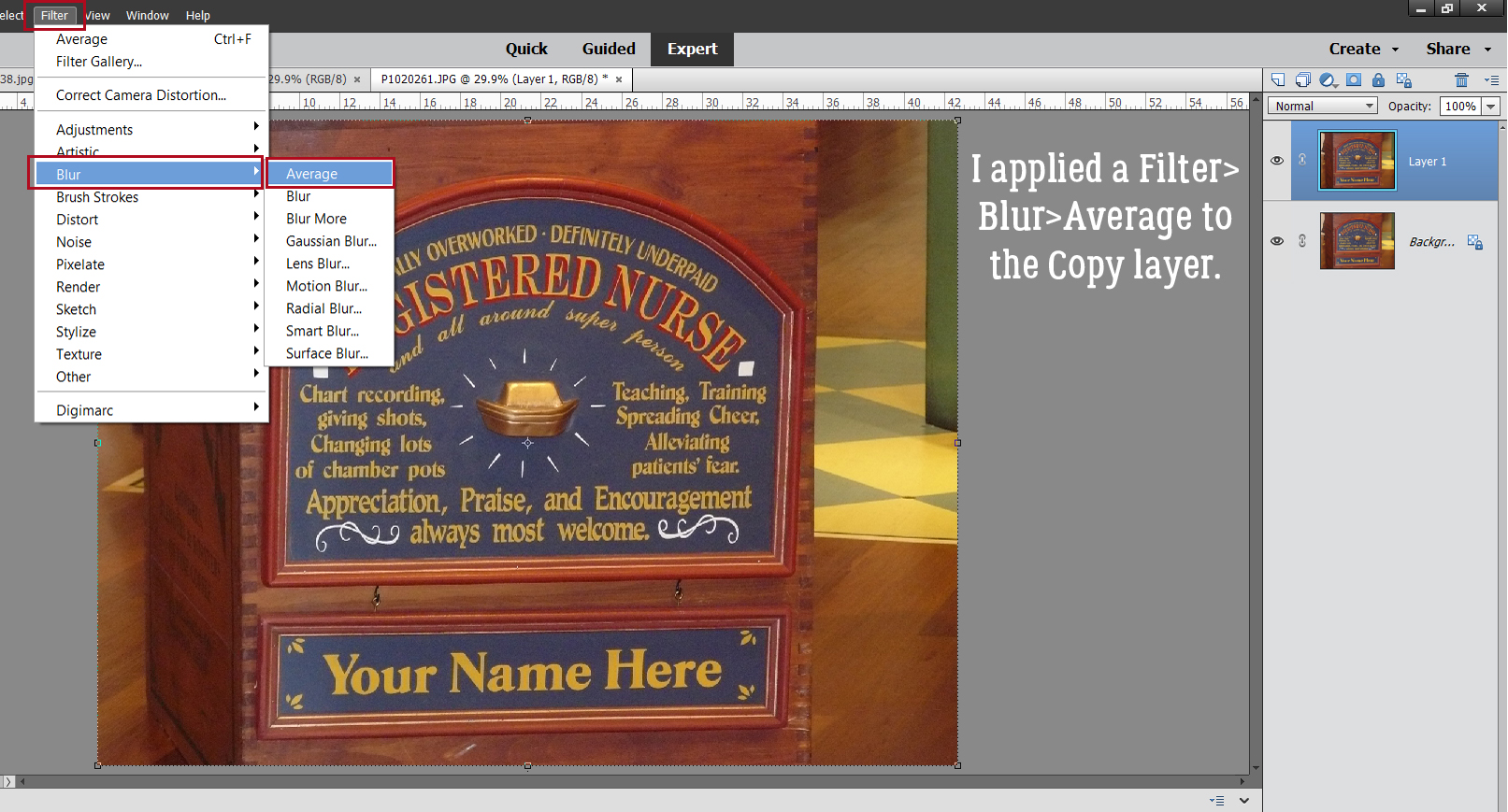
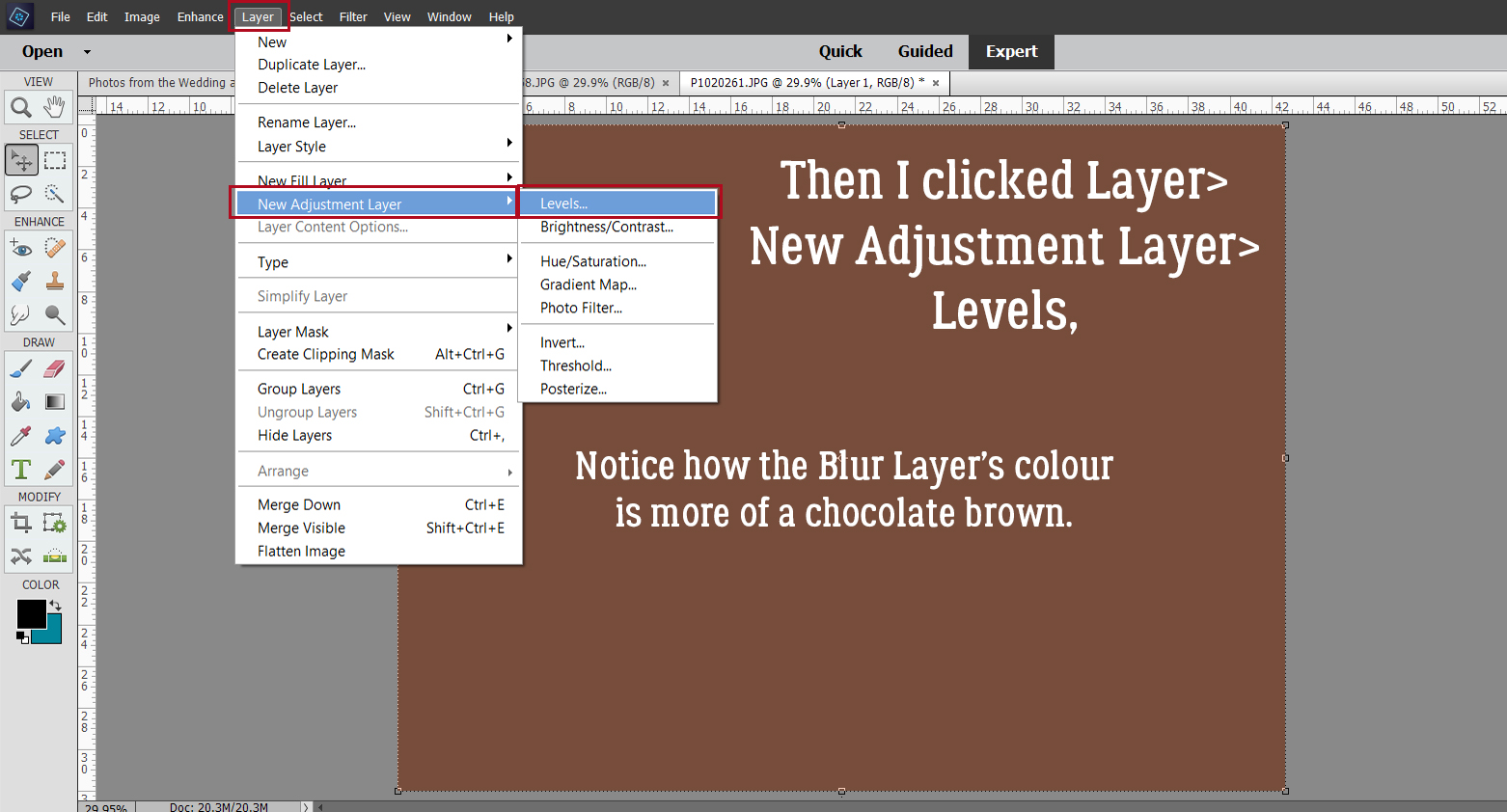
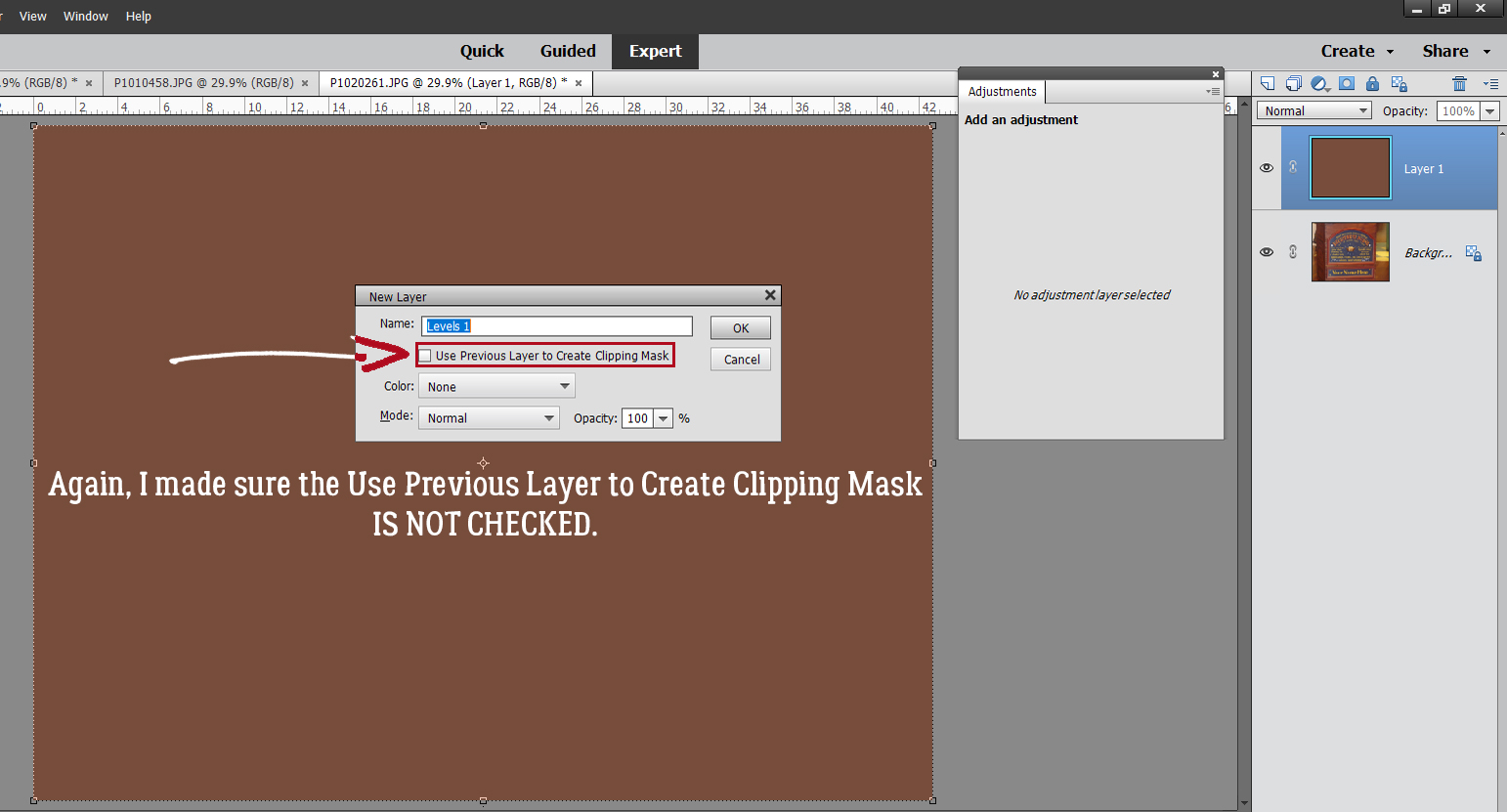
I didn’t do a step-by-step for the star in this image, since it’s done exactly the same way as the others. Stars offer a masculine option so I’m going to give this frame a leather look. Snake skin, to be exact. I made some Copy layers so I’d have back-up and this time I’m going to use a Filter. From the Filters menu I chose Artistic>Textures. I’ll be using Mosaic Tile.

Here are the default settings for Mosaic Tile. I think the “scales” are a bit to insignificant for a manly frame though.

You can see what’s happening with your Filters as you make your adjustments, so it’s not too hard to find the right combo.

I think it needs a touch of colour and a bit of sheen too, so I’ll use a Chrome Style on a Copy layer – flexibility!

When I was a kid, I had one pair of leather shoes. My mom said they weren’t brown, they were “ox-blood”. This reminds me of them. So I’ll use this dark red one.

The Chrome Style will be opaque, so the mosaic tile texture won’t be visible unless I decrease the Opacity of the Chrome layer. 50% looks good.

I wanted to make a few more tweaks so I double-clicked on the fx icon on the Chrome layer and played with this menu.

Were you wondering what I had planned for the sunburst? I made some Copy layers and added a Wood Style to one of them. I’d like a gold edge on it, but not on the inside. So I Resized the bottom original layer by going to 105%. See the gray border there now? It’s just enough.

So far, I’ve only shown you Styles that are purchased. But Elements has some basic Styles included that most of us never even look at. I like this Molten Gold one, I think? It’s in the Complex folder along with a bunch of very intriguing others.

So this is what it looks like before I bend it to my will. It’s pretty in-your-face!

I toned it down a bit.

What do you think? I love it!!

I popped a photo into the hexagon frame. But first I added a bit of a shadow to the green section then Merged the glitter border with the acrylic gel centre so it’s all one piece.  (Looks like I forgot to turn the underline off! Oh well. Not a disaster. I apologize for the formatting issues; when I was editing the screenshots I forgot to crop some of them until after I’d already inserted them into the post. Fixing that made the gaps. Sorry!)

I’ve got some great ideas for tutorials in my pocket and will need the distraction this month. Слава Україні!
PDF Version : https://bit.ly/3tn2goD

GingerScraps: NEW Buffet, New FREE collab, New Designers, SCRAP-A-THON & MUCH MORE!

Happy March!! I’m ready for Spring.

We are so excited for the new SCRAP-A-THON for March! 

Click on the graphic or the link above to take you right to the fun!

Now, let’s look at the March Buffet. Don’t forget to check out the Buffet Bundles. One easy click to add bundles of Buffet goodies to your cart.

These colors are so versatile as you can see from the themes in the kits below.

Remember any $10 spent in the store gets you this great collab. 

What a great topic for the March Monthly Mix.

Now to the March Sneak Peek. This month’s Daily Download is from North Meets South Studios. A team of two of our designers – Connie Prince and Trixie Scraps.

We don’t have any guest designers this month but we do have ONE permanent designer to announce!!

So happy to announce that ScrapChat Designs will be staying on at GingerScraps permanently!

Take a look at the new challenge reward kit. If you complete any 10 challenges this month, you get this gorgeous collab as a reward!

Let’s see some of the sample layouts provided by our amazing store Creative Team.


February 25, 2022: Fresh Baked and Fun News

Happy Friday Everyone!!!

As many of you already know, after 13 years of Scrapping Survivor competitions Ginger has decided to do a new event this March. I know how much you all loved Scrapping Survivor but as the community has grown, it just became totally overwhelming for not only Ginger but for you all as well (based on the forum thread asking for feedback), the posting, voting, alliances … it all just became too much. So, our new annual March event will be …. drum roll please … The GingerScraps Scrap-A-Thon!! This will be a much more relaxed, work at your own pace, no voting, no sign ups, an event full of inspiring each other, lifting each other up and all based on the current monthly challenges! It will kick off on March 1st, stop by the forum for all the details. Believe me, you are NOT going to be disappointed with this new event!

Remember, spend $10 in the store and get this kit for free.

Let’s see what our designers have this week!

How are those challenges? Any 10 completed challenges will get you this great kit as a reward.

Don’t forget to grab this part of the newsletter hop!

DOWNLOAD LINK: https://bit.ly/3BaUkup

Tutorial Twos-Day (Photoshop Elements)

Two Mini-Tuts! Parallelograms and Hanging Chads

Reader beware: This tutorial will be strong on bad puns and corny jokes… ICYMI in the header.

After last week’s tutorial covering the February Inspiration Challenge and shapes, Karen left a comment asking where she could get the template mdusell used for her Bodega Sunsets layout because she really liked the parallelogram. I took a look at the credits for the layout where the template was listed, then went through (all 38 pages) the designer’s store to see if I could find it. [She used a Connie Prince template, if you’re curious.] Alas, the template set has been retired. So the next best thing I could think of is to show her, and all of you too, how to create a parallelogram photo spot complete with white border, like the one from Connie‘s template, that can be saved and used ad infinitum. Then to finish off this week’s post, I’m responding to granny5pics [Kathi] who sent me this message: “I thought I saw some place how to trim/crop a layout so any overhanging picture areas get cropped off and the layout fits in the given size. I thought I had done so successfully myself recently, but I can’t get my current layout to cooperate!” Let’s get started.

Karen‘s parallelogram starts life as a rectangle that is led astray. I’ve activated the Rectangle Custom Shape Tool as you can see below. I’ll start with a square. Then we’ll see how it looks and make any adjustments it may demand. You can see that there are two rectangular options in this toolkit; don’t pick the rounded one!

Here’s my one-step square. I just clicked at the centre of my workspace and it appeared. Remember, all Custom Shapes start out as Smart Objects and can’t be manipulated as is.

Newer versions of Photoshop Elements have a Simplify button right there in the Tool Options. If you don’t see one, you’ll need to Right-Click on the layer in the Layers Panel and choose Simplify from the pop-up menu.

Here’s a Work Smart Not Hard tip. Use your tools! I’m going to turn on the Grid to help me with my shape-shifting. If you don’t regularly use the Grid, I hope I can change your mind about it. But it’s only useful if it’s set up to be useful. Although I live in Canada and the metric system has been our method of measurement since 1979, I still think in inches so my Preferences for the Grid are set so I have a Gridline (heavier) every inch and 4 Division (lighter) lines per inch… i/e I have reference lines every 1/4 inch. Now, to turn the Grid on, View>Grid, or CTRL/CMD>’ will get you there.

Once I had that Grid for reference, I moved the square over to the right an inch to give me lots of room to manoeuver.

Going from square (which is a parallelogram already, but…) to a more diamond-shaped parallelogram requires the use of the Image>Transform>Skew command.

Grab one of the upper corner handles and pull it out to the side. I went left. You do you! Then grab the other upper handle and move it the same amount.

My finished shape didn’t look enough like the one from the template, so I pushed the top edge down a couple inches and like it much better.

The grid isn’t necessary any more so it can go away.

On mdusell‘s layout the parallelogram shape had a white border. The easiest way to do that and have a save-able, reusable clipping mask is to use a Layer Style. There are some basic Strokes in the Layer Style palette, and although there isn’t a white option, that’s a simple fix. Why not just add a Stroke through the Edit menu, you wonder. Well, it’ll be part of the shape, not sitting on top of the shape; it won’t be visible when something is clipped to the shape, and that defeats the purpose.

So I’ve added a Stroke Style. It’s 20 pixels according to the menu, but shows as 26 pixels later. Regardless, it’s all completely adjustable! And that’s a good thing, because I don’t like the rounded corners much.

By double-clicking on the fx icon on the layer, I can fix all the things I don’t like about the stroke. I can make the stroke wider or narrower, I can change the colour and I can move the Position from Outside to Inside and get those sharp corners.

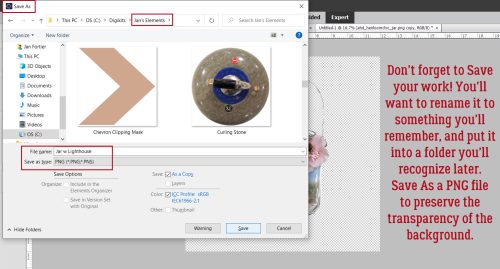
Here’s the easiest way to turn black to white. Just click on the colour swatch then type ffffff into the # box! If you think you’ll want to reuse this photo clipping mask again Save As a PNG and call it something you’ll remember.

Meet my new neighbour.

Now, for Kathi‘s question… I figured the easiest way to help her with her problem is to show her.

I have a lot of paper outside the boundaries of my signature canvas.

Enter the Crop tool. You can use this to remove the overhang at any point while you’re creating. Here, I’ve waited until the whole thing is done and Cropped all the overhanging stuff away at one time. I hope this is what Kathi needs for her issue…

I’ve been helping my daughter with a top-secret project that I hope we can share with the world soon. It’s eaten up quite a bit of time over the last week, so I’m behind………………… and next Tuesday it’ll be March. Gah.

PDF Version : https://bit.ly/3vvZXm3

$2.00 Tuesday MEGA SALE! 2/22/22

We have another MEGA $2.00 Sale! This sale is good for 24 hours only, it will end at 11:59pm Eastern Time, so make sure you get your cart full and check out before the prices reset. There are so many AMAZING products in this sale, you are going to love it!

https://store.gingerscraps.net/-2.00-Tuesday-2-22

https://store.gingerscraps.net/-2.00-Tuesday-2-22

Fresh Baked: February 18, 2022

Hello lovely scrappers! We have a special treat for you, our 2022 Newsletter Hop!
You can hop around our designers newsletters and collect tons of fun free goodies!

All you need to do is sign up to receive the list of newsletters BEFORE February 22, 2022.
Please visit the GingerScraps forum thread for a complete list of all the participating designers!
{2022} Newsletter Hop!

*REMEMBER* scroll down to the bottom of the newsletter for your freebie from the site.

Don’t forget you can get this awesome kit for free when you spend $10  in the store.

Let’s see what our designers have for us this week.

Have you grabbed the February Monthly Mix? It’s got some fun elements.

How are those challenges going? Complete 10 challenges and get this kit as a reward.
Don’t forget to grab your newsletter freebie as part of the hop. 

DOWNLOAD LINK: https://bit.ly/3BaUkup

Tutorial Tuesday (Individual Style)

Challenge Spotlight: INSPIRATION

Yes, it’s the third Tuesday of February already! This month and next start on a Tuesday, so here we are… looking at a Challenge and the Individual Style each of us brings to a common goal. With the month really only halfway over – and both the Olympics and the Super Bowl squeezed in there, it was a challenge in itself to find one with enough examples to make a good post. But not to worry, the Inspiration Challenge, with Memory Mosaic, fills the bill. Before I go on, these Challenge Spotlights aren’t only meant to encourage you to give them a try, but also to help with the logistics. There are several layouts displayed in the thread that aren’t found in the Challenge Gallery. Posting your layouts to the Challenge Gallery is a required element for proper credit toward Challenge Rewards. So don’t forget that step! Now, let’s talk Inspiration

Joy’s theme for this month’s challenge is SHAPES. But she also wants a brief explanation of how the participants decided which shapes to include. There are some unique takes on this one, and my descriptions aren’t going to replace the scrappers’ own words. You’ll have to check out the layouts in the Gallery to see those. Each layout is linked to the Gallery through the scrappers’ names, so please do drop by and leave them some praise.

First up is this one by B2N2Scraps. She has a variety of geometric shapes here: circles, rectangles and parallelograms. (Thank you, Google, for helping me out with the names of some shapes that I’ve forgotten.)

What has Pippin got going on here? I see hexagons, triangles, trapezoids, pentagons, circles and rectangles. Oh, and some square gems too!

In SusanSays‘ layout the predominant shape is the triangle, but it isn’t the only one. I see squares, rectangles, circles, trapezoids, a couple of ellipses and a star.

Tbear has used lots of circles, but she’s also got some pyramids there, some trapezoids and rectangles too.

This layout by greenfiend27 is too clever by far! There are a plethora of trapezoids, triangles, rectangles, squares and at least one pentagon in there. I almost overlooked the tiny circles!

I like how simple mdusell’s layout is, but still contains a number of shapes: triangles, a parallelogram, rectangles, circles and two overlapping trapezoids.

Trapezoids seem to be a very popular shape! pjm117 has included some circles and triangles, as well as a couple of rectangles too.

There’s a lot going on in Lisa Campbell’s layout, but a close look shows triangles, parallelograms, circles, rectangles and some overlapping trapezoids.

Dovedesign made it easy. Circles and rectangles are obvious; ellipses are less-so… they’re the beads!

Basketladyaudrey made it easy too, big squares, rectangles, a big circle and two overlapping trapezoids are there.

Here, lousmith went with just the square of her background and LOTS of circles.

Last but not least, princess-scrap has circles and rectangles and one solitary square photo.

Great layouts, ladies!!

PDF Version : https://bit.ly/351E7f8

Fresh Baked: February 11, 2022

Another Friday and some fun stuff from us.

Hello lovely scrappers! We have a special treat for you, our 2022 Newsletter Hop!
You can hop around our designers newsletters and collect tons of fun free goodies!

All you need to do is sign up to receive the list of newsletters BEFORE February 22, 2022.
Please visit the GingerScraps forum thread for a complete list of all the participating designers!
{2022} Newsletter Hop!

*REMEMBER* scroll down to the bottom of the newsletter for your freebie from the site.

Remember, spend $10 in the store and get this great kit for free. What is your {cup of love}? Coffee? Tea? Hot chocolate?

I’m starting to see some spring kits float into our Fresh Baked. Anyone else ready for spring?

How are those challenges coming along? Complete any 10 of our 31 monthly challenges to get this kit as a reward.
Don’t forget to grab your Newsletter Hop Freebie!!

DOWNLOAD LINK: https://bit.ly/3BaUkup

Tutorial Tuesday (Mixing It Up)

Perfectly Paired, with Diamond Dust Designs

After last week’s marathon tutorial I needed some downtime, so I took a look at the February Challenges. (I know, it sounds like the opposite of relaxing, right?) But to me, Challenges are a way of turning off and tuning out a bit. I mean, come on… they tell you what to do, all you have to do is do it! Lots of room for creativity, but less thought required. Ha!! Did you look at the Perfectly Paired Challenge?
“…you must use two different kits from two different GS Designers and select an equal number of papers and an equal number of elements from each kit that go well together. Then pick a favorite template from a GS Designer and create your LO, showing how you perfectly paired the two kits together. List both kits and their designer and the template designer in your credits.”
Sure, Ginger laid it all out about how to meet the requirements of the Challenge, but many of us are single-kit scrappers. So that got me thinking about a tutorial I wrote quite some time back about how to use multiple kits without losing our minds, and it seemed a good idea to replay it this week so more of you might be tempted to give it a try. The original tutorial is Windows-based, so if you’re using a different operating system there will be some adjustments to the search piece needed. Let’s have a look.

Caveat: This is my workflow and you might have a method that will work better for you.

I like to use templates, not gonna lie. They make scrapping so much easier. And I like to use folders. For me, they too make scrapping easier. For mixing kits, folders are a HUGE help. I have folders for each store I frequent, each of the kits I’ve added to my stash and I have folders for every layout I’ve created. It helps keep me organized. I’ve read posts from people who go through all of their kits and individually tag EVERYTHING. That’s a ton of work, and for the most part, it’s unnecessary. Designers usually label everything in a kit in some way, so why duplicate their efforts? Work Smart, Not Hard!

So let’s talk about folders. At the beginning of every month, I create a Challenges folder. And in this folder I add subfolders for all my favourite challenges. Into those folders, I copy my photo(s), template, papers and elements. After I’m happy with the layout, have ensured I have no bloopers and the layout is posted, I empty the folder of everything but the PSD of the layout and 2 JPEGs. That keeps the space taken up by the layout to a minimum but lets me find them later. The image below shows some of my folders in the list to the left. My first step is to select a template to use. In the tutorial on organizing your stash, I talked about labeling template previews in some fashion so it’s easier to find what you’re looking for later. My system, borrowed from someone else but modified to suit my workflow, is to label with whether the template is for a single or double spread, the number of photo spots and sometimes the shape/mask/blend the photo spots assume. The screenshot below shows a Windows File Explorer search for a single spread with 1 photo. (The icon for this utility is the file folder… super simple!) I had chosen a cute photo to build my layout around, so I opened my GingerScraps digikit folder then in the search box shown on the upper right, I typed in “single1“. After a few minutes, Windows had found all the template previews so labeled and showed them to me. (The actual search time will depend on the size of the folder you’re searching and the number of like objects to be found. It may only take seconds.) Now I could look at them and pick a template that would work for my layout.

Now, how did I find the actual template, you ask, since all that’s displayed are the preview thumbnails? I right-clicked on the preview and selected Open file location from the menu window. That takes me right to the folder that holds the template. Then I copied the template file into my challenge folder. For other searches this step won’t be necessary, because you can just copy the objects right from the search pane.

Next, I opened the template preview thumbnail in a photo viewer so I could see what supplies I needed to find next. I counted up the different papers the template employs and went on to my next search.

For this search, I put “paper blue” in the search box, as I’ve shown below. And Windows found all the papers labeled with those two words. Results will show both folders and individual images, which makes it easy to see just what you’re looking for.

I copied each of the blue papers I might want to use into my GingerScraps Challenges> September 2017>Colour SHADES OF BLUE folder so I could see them all in one place. That helped me determine if they’d work together or not. They look pretty good!

I worked my way through the different items used for the template one at a time to find things I wanted to include. There was a circular element I decided must be a flair, so I did a “flair” search.

Remembering that templates don’t necessarily have to be duplicated exactly, I chose to add some string to it. The search showed me a blue string right near the top that would work beautifully!

Once I had chosen all the things I thought I might use (substituting flowers for the stars) I could see everything in one place and knew they’d all work well together. I had pieces from FOURTEEN kits!

Once I was ready to build my layout, I opened Photoshop Elements and went to the Colour SHADES OF BLUE folder and opened all the items onto my workspace. From there it was zip, zip, zip!

And this is where I ended up. (Once I post my challenge layout, I add a hyphen to the beginning of the folder name so I know it’s done.)

Another way this method is useful is for speed scraps. You can have Windows searching for things while you work on the previous steps. That’s sort of where I came up with my system. I used to partake of monthly speed scraps at another site that is no longer around and I wanted to be sure I was finished my layout with time to spare in order to win the prize.

This screenshot shows how CathyK has labelled the items in her kit Aviator. This is for GingerScrapper Karen who had some questions about metadata.

Please feel free to adapt this however it will work for you! Now I’m going to collect my papers and elements to take on this Challenge. See you next wee, when we’ll be looking at Individual Style Challenge Spotlight time! (It might even be this one…)

PDF Version : https://bit.ly/3t0uMfT

Fresh Baked: February 4, 2022

Welcome to another Friday. The Winter Olympics opening ceremony is today. Will you be watching? What are your favorite winter Olympic sports? I love figure skating the most. I will watch almost any of it though. 

Remember, spend $10 in the store and get this great kit for free. I love the teals in with the pinks in this.

You can tell that Valentine’s Day is growing closer. We have a lot of Valentines-type kits in this weeks new releases.

Have you gotten started on your challenges? Complete any 10 of our 31 monthly challenges to get this kit as a reward.