Tutorial Tuesday (Photoshop Elements)

Build-Your-Own-TEMPLATE!

A few weeks back I asked for some tutorial topic suggestions and there were some really good ones! Steph brought up the idea of building templates from your favourite (unique!) layouts, and it was something I’d given some thought to already so it was a slam-dunk that I’d take it to the next step. The layout I created and based the save-a-cluster tutorial on last week was purposefully 100% designed in my own head with both the cluster tut and this template-creation tut too. Working Smart, Not Hard, I am.

This is the layout I’m talking about. The kit I used is Aimee Harrison‘s Winter Blush. When I create a layout I always Save As a PSD file in case I need to make some adjustments. That’s also a necessary step for turning a layout into a template.

I build layouts from the bottom up, just as I would if I was using paper and glue rather than digital supplies. That’s how I’m going to build the template too. I turned the layers’ Visibility off for clarity but if you choose not to do that, no problem!

This background layer reads to Elements like it’s completely flat, so using the Paint Bucket to fill it with a solid gray worked out.

To make it easier on the eye to distinguish between paper layers, I chose a lighter gray for the second paper layer.

Wait. What?? Oh, the grungy paper doesn’t Fill completely and cleanly with the Paint Bucket. That could be a big issue later when I go to use the template. Clipping a paper to this could look really awful!

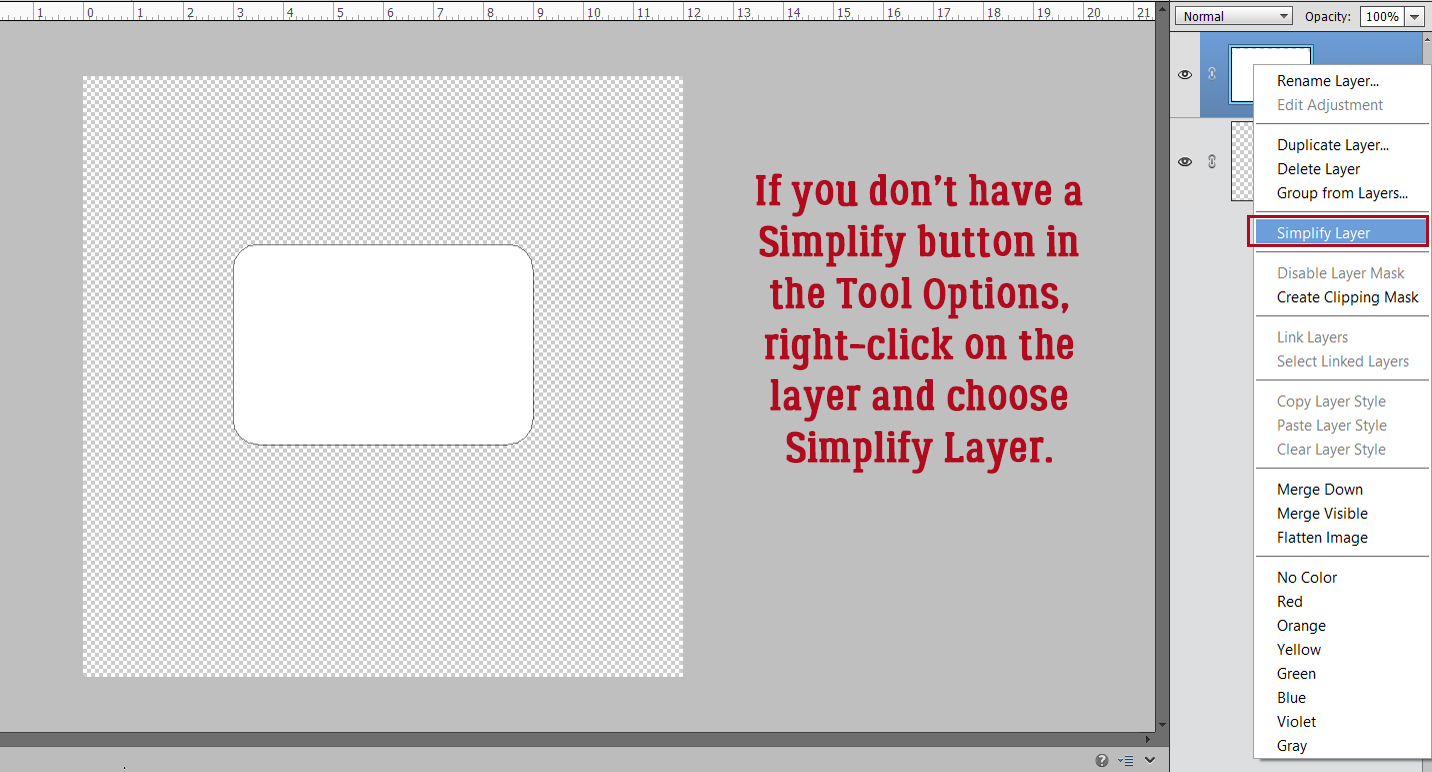
I’m going to take you on a little detour for a second. When I was experimenting with Filling layers and Merging them to simplify things, I discovered that once the layers are Merged, the Shadow Style on the base layer becomes embedded in the image but isn’t adjustable. Adding a Shadow Style to that makes for VERY dark and odd-looking shadows. So I experimented some more and came up with this. Before I Fill the layer to create a place-holder, I Right-click on the layer and choose Copy Layer Style. Then I Right-click on the layer again and choose Clear Layer Style. That removes the Style from the layer, but puts it in safe-keeping for later.

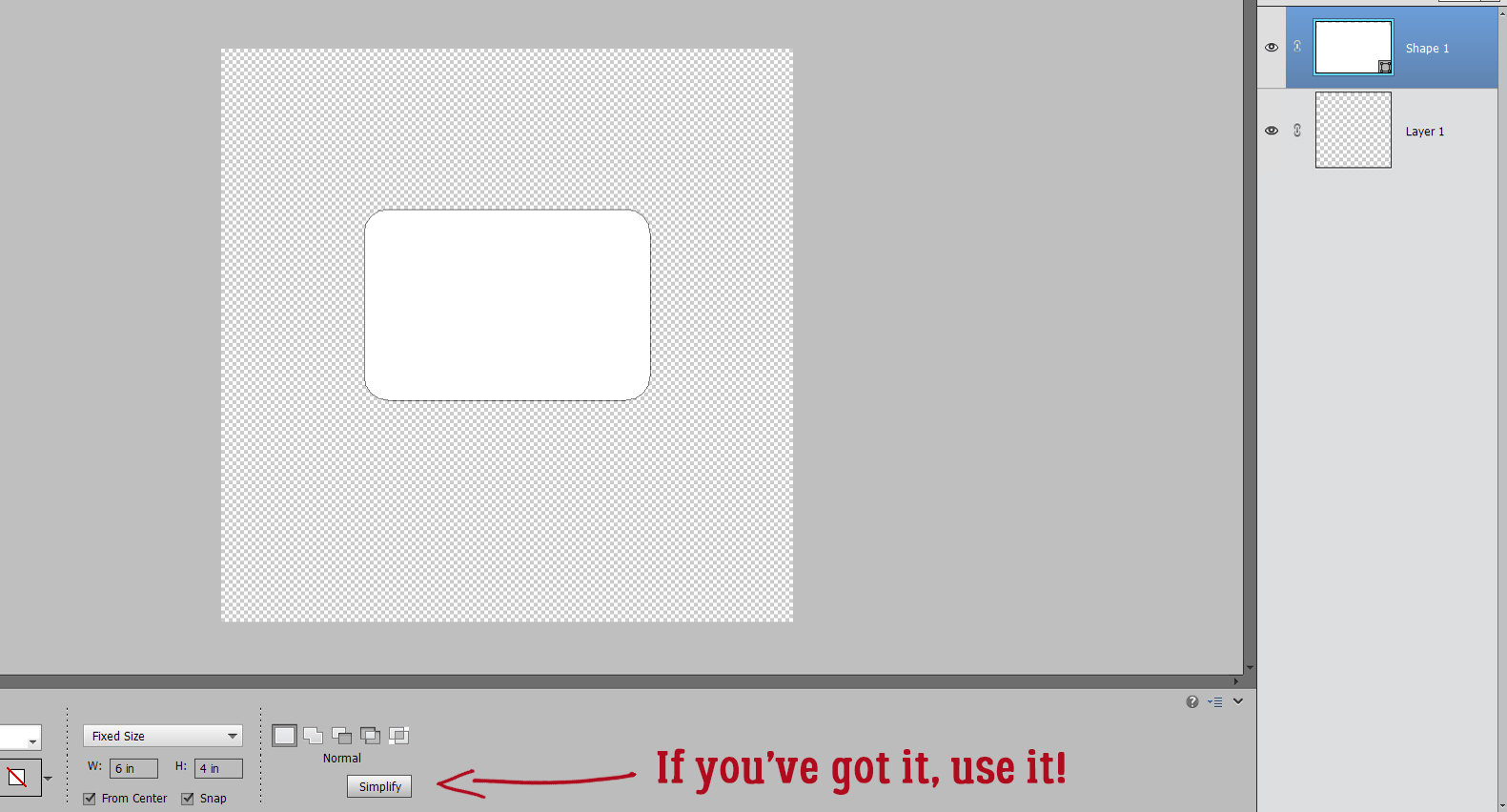
To achieve a solid Fill on this paper, I’m going to use the Layer>New Fill Layer>Solid Color command. Each of the place-holder layers will be created the same way. (You’ll get lots of practice, and it’ll be almost automatic by the time you’re done!)

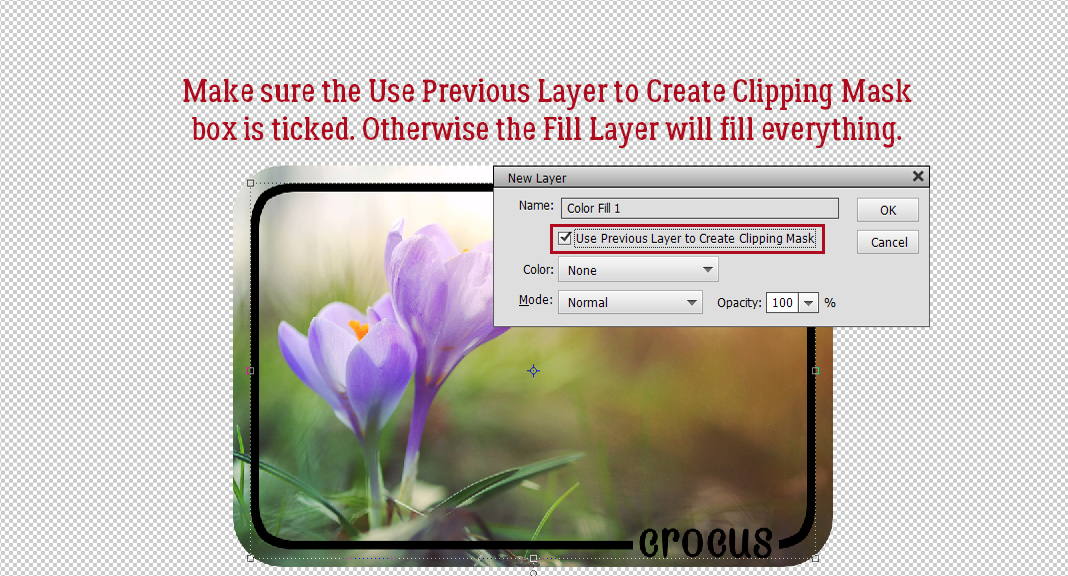
This command prompt opens up; make sure Use Previous Layer to Create Clipping Mask is ticked. That tells Elements to Fill ONLY what’s on the layer under it. You can Name the layer with the type of object you’re creating a place-holder for right here. Just delete that Color Fill 1 and type in your object. (Pardon the typo on the screenshot. Sleep is in short supply here at the moment.)

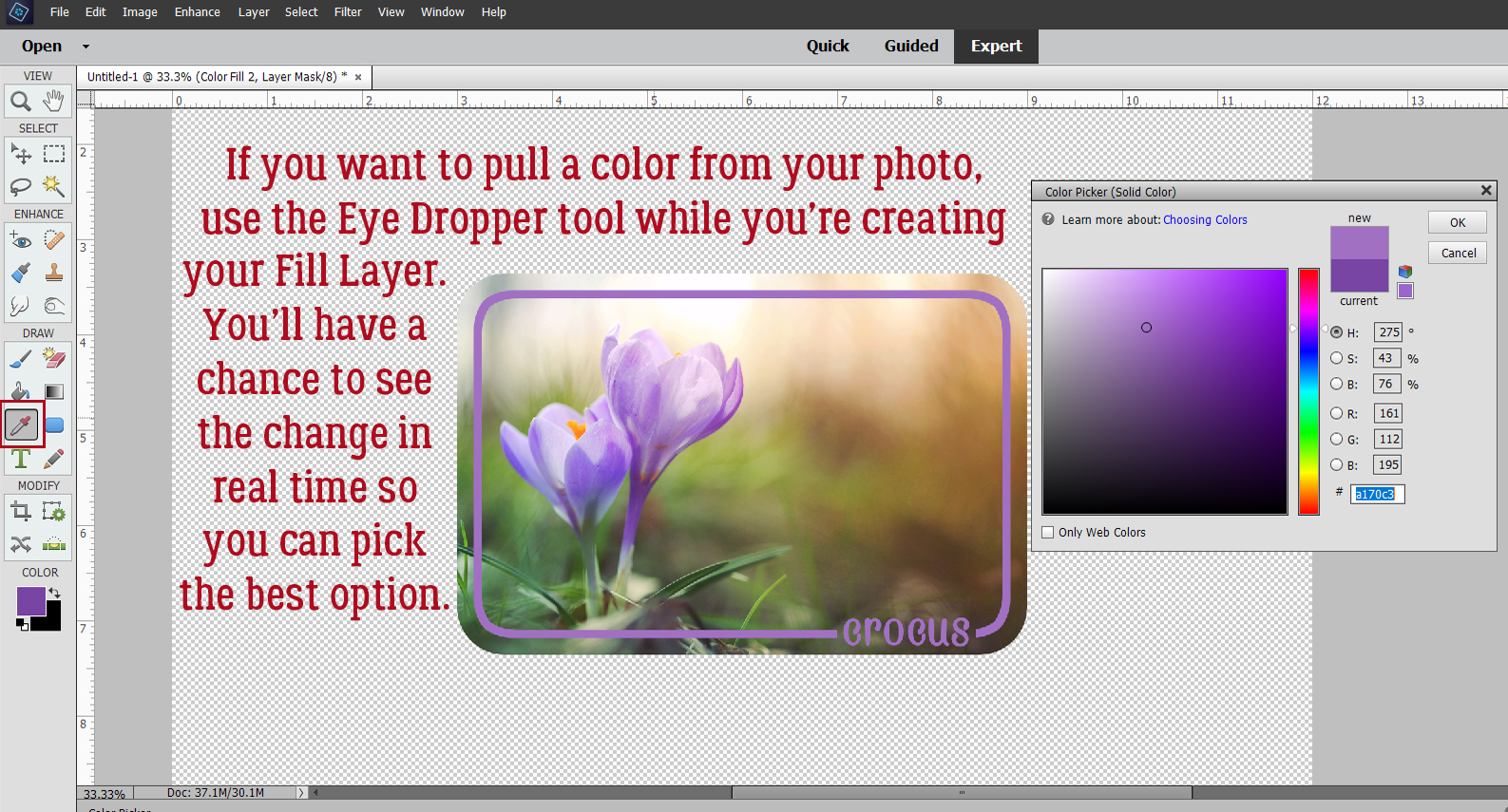
Here’s what happens when you’ve clicked OK. The Color Picker opens and the image on the workspace shows a preview of the end result. See how it’s now a Clipped layer above the patterned paper?

The utility of your template will be greatly enhanced by Selecting both the base layer and the Fill layer then Merging them. Click>SHIFT>Click on the layers then Right-click and choose Merge Layers. The keyboard shortcut is CTRL/CMD>E.

Time to add back the Shadow Style. Right-click on the layer and choose Paste Layer Style.

Now let’s do some BRADS. The process for each layer will be the same: Copy Layer Style, Clear Layer Style, Layer>New Fill Layer>Solid Color, Merge Layers, Paste Layer Style.

Merge the layers and now you’ve got a BRAD place-holder. CTRL/CMD>E

Don’t forget to Paste the Layer Style back onto the place-holder.


Here’s where we get into the real Work Smart Not Hard groove. When you have multiple identical elements on your layout, don’t make extra work for yourself. You’ve already done the work, now just make Copies! Either Right-click on the layer and choose Duplicate Layer or CTRL/CMD>J. When the Command prompt opens, remove the “copy” part of the name and click OK.


For each of the identical elements, make a Copy and move it into place. Once you’ve got them into position you can Delete the original layers. Your place-holders are on the job.

But wait! Don’t make more work for the second grouping of brads. Select all three BRAD layers and Duplicate them!!

Then move the place-holder versions into position.

You can also Delete multiple layers in a single step. Select them all, then Right-click>Delete Layers or simply click the Delete key.

Here’s my finished template, with a recap of all the steps to create the place-holder layers.

Now to Save it! You can Save As either a PSD or a TIFF, whichever is your preference. Your Layers and Layer Styles will be preserved with either format for use again whenever you want.

Figure out where you’re going to keep it, give it a unique name and choose your format. All done!

This is only one way of creating a template. To me it seems the easiest. Another way would be to use the Custom Shapes tool and replace each element on the layout with one that represents it. I may try that method and see if there are efficiencies. If I do, I’ll let you know!

Next week I’ll be doing a Challenge Spotlight. Did you see the new ones? How accommodating that we’ve been given so many more options!!

PDF Version: https://bit.ly/3txC2Bx

January 7, 2022: Fresh Baked

Happy first Friday in January! I hope your 2022 is starting off well and that you are finding time to use all those new kits you bought for Christmas. 

Remember, any $10 spent will get you this collab for free. Love these colors.

Let’s see what our designers have for us this week.

Have you gotten started on your January challenges? Only 10 completed challenges gets you this great kit as a reward.

Tutorial Tuesday (Photoshop Elements)

How Do I Build a Reusable Cluster?

Happy New Year, GingerScrappers! The holidays were quiet at our house, but exhausting anyway. In a few days it’ll be time to put all the decorations away and turn to figuring out what life will look like this year. Sort of depressing, isn’t it? Thankfully we have our digi-scrapping hobby to distract from all that!

This week’s tutorial was inspired by a question from Rachel M. She wanted to know how to create a cluster that she could save and reuse on other layouts – for themed albums, I’m guessing – with the separate layers preserved. She’d experimented but just couldn’t make it work. So I took over the experimenting and came up with a way to do it. Why keep the layers separated though? So the clusters can be modified a little, of course! To keep them from looking too contrived, to maybe substitute some of the elements, to rotate and manipulate easily while keeping the overall look consistent. Now, I’m going to climb up on the soapbox for a second before we go on… I strongly suggest you create your own unique clusters if you plan to do this. If you’re using a template created by someone else, there’s really no need to save a cluster, right? Because the original creator has already saved it… O-o-okay. Onward and upward.

This image is of the cluster I created for Magical Scraps Galore‘s January Surprise Challenge. I used Aimee Harrison‘s Winter Freeze kit (no longer available) and a photo from Pixabay for my layout. The cluster is simple, but has several layers so I figured it would be a good one for demonstrating this technique. The layers are all together in the Layers Panel to make the next step easier. As you might have noticed, I’ve used Shadow Layer Styles rather than custom shadows. I know, how unlike me! But for the cluster to be really reusable, custom shadows would need to be added to individual layers once the layout is completed. The reason for this will become a bit more clear as we work through the tutorial.

I Selected all the element layers by clicking on the top layer of the cluster, holding down the SHIFT key and clicking on the bottom layer. It works the other way too, clicking on the bottom layer, SHIFT>clicking on the top. You do what works for you!

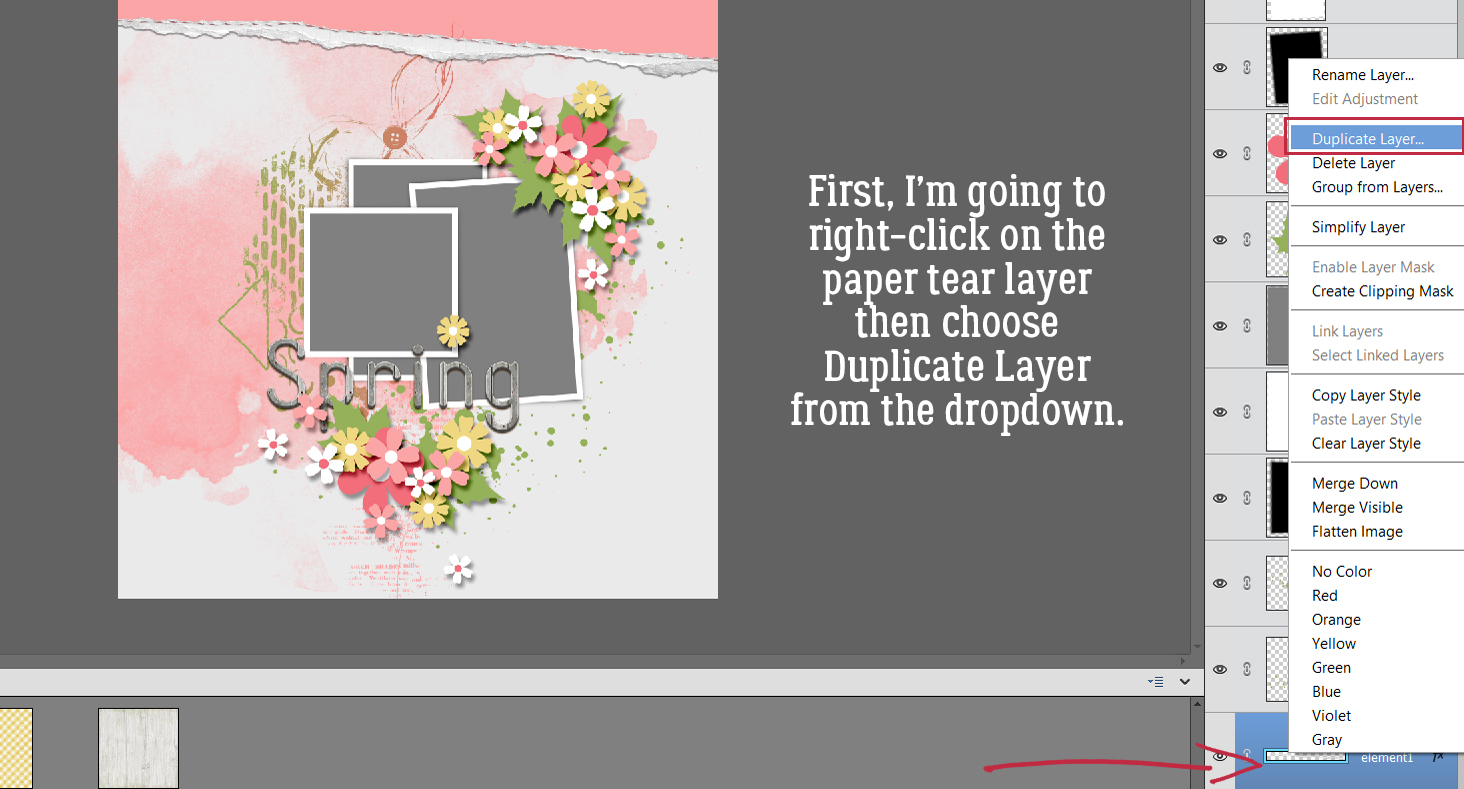
Next, I right-clicked on a random layer. (With them all Selected, what happens to one happens to all.) Then I chose Duplicate Layers from the drop-down menu.

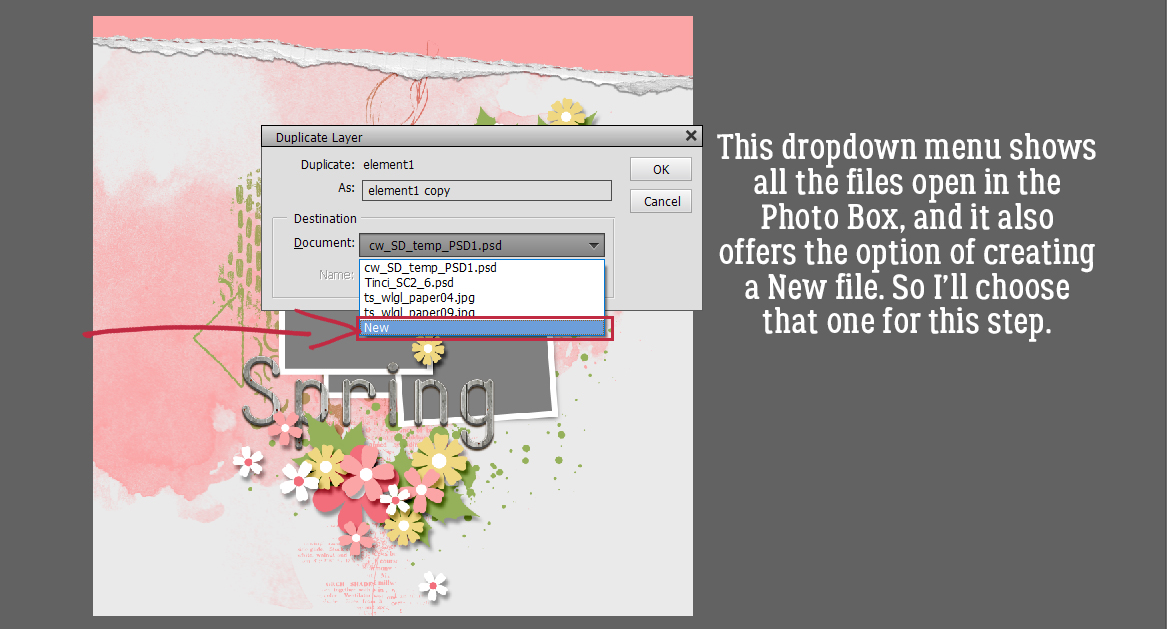
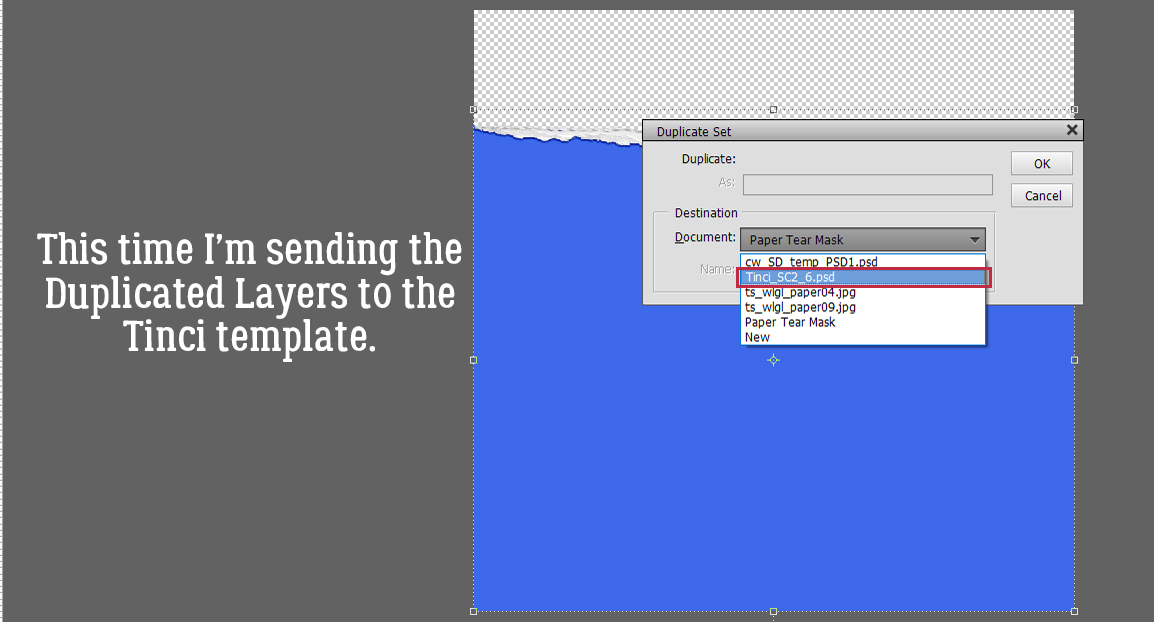
PSE will need you to tell it where you want those Duplicated Layers to go. If you just want to add them to the canvas you’re already working on (named Untitled-1 here), all you need to do is click OK. But for this exercise, I chose New.

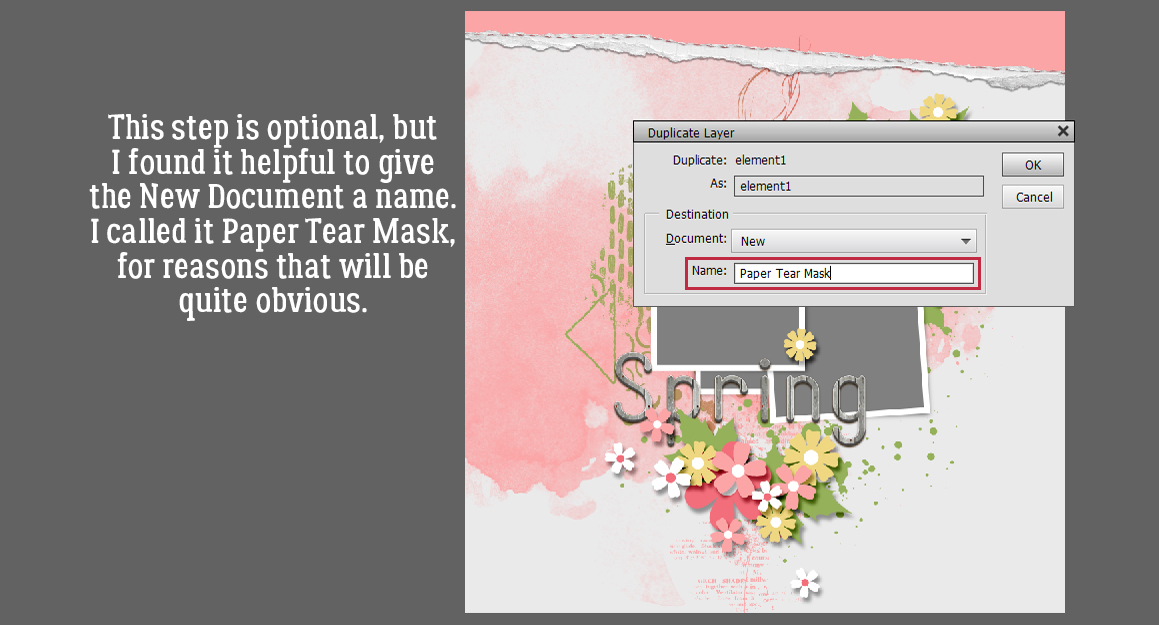
PSE will create a whole new canvas and to help keep track of it, I recommend giving it a name. I went the lazy route and just called it Cluster, but if this was a cluster I planned to use over and over again, I’d give it a more descriptive name, maybe with the layout name, the kit name, the theme or a combo of all of them.

The new canvas is the same dimensions as the original one, 12×12. All the individual layers are there, all the Shadow Styles are there. To make it a little less cumbersome, I Cropped it down to a more manageable size, with a little border of white space around it for future tweaking.

Now, the reusing part isn’t quite as straight-forward. If I just drag-and-drop the layered cluster from the Photo Bin onto my layout, it comes up as a single, Merged/Flattened layer. That might be okay, but what if I decide I want to Rotate it? The Shadow Styles aren’t going to adapt to the new position! And that might be okay, unless your eye sees the inconsistency and it drives your OCD crazy. Oops, projecting!

When I Open the cluster while it’s in the Photo Bin, all the layers and Styles are still there. How can I harness that so that I can have my cluster and tweak it too?

Answer? Do the tweaking right there on the layered cluster canvas! Here I’ve used the Rotate command to Flip the cluster Horizontally, then I Filled the word strip with white and oh yeah. I rearranged things a little.

This step can be done before you play with things, rather than after like I’ve done. But the tweakability is there either way. The goal is to be able to use the LAYERED cluster again, so it will need to be Saved As a layered cluster – a Photoshop document, so make sure it’ll preserve the Layers and Color Profile. You could alternatively Save As a TIFF to save some hard drive space. Go with whichever format you’re more comfortable with.

Here I’ve Saved the PSD to the folder for my Challenge layout. If it was going to be used again and again, I might put it into the kit folder so it would be right there to mix and mingle.

Now, how is it reusable once it’s been Saved? As I said, just drag-and-drop isn’t going to work.

I could decide how I want the cluster to be oriented on the layout, adjust all the shadows to sync with the rest of the layout and then drag-and-drop. But that’s a lot of work and might need a bunch of Undo and Redo [CTRL/CMD>X and CTRL/CMD>Y]. Surely there’s a better way… one that’ll keep the layers loose. Just build the layout behind it!

But to do that I’ll need to Image>Resize>Canvas [CTRL/CMD>ALT>C] so there’s room.

I used the default center as my Anchor point but it isn’t essential. What does matter is making the Canvas the size you want your finished layout to be. I work with a transparent background, so I want that preserved too.

Bingo! All the layers are there, I have room to add papers, photos and other elements, and the canvas is the correct size to become a layout!

I just popped a paper behind the cluster layers to show you how it works. I hope this is what Rachel had in mind when she asked her question…

Next Tuesday I’m going to use this same layout as my example. Can you guess what the topic will be?

PDF Version : https://bit.ly/3EVpJRJ


Designer Spotlight: January 2022

Studio Liv

Happy New Year! I hope the dust has settled at your house and you’re getting a little chill time in. I also hope we’ve gotten an upgrade on the last couple of years. We all need a break.

With the new year, GingerScraps has been freshening up and building on past successes. Our community is the our biggest strength and the Designer Lineup is spectacular!! Let’s get acquainted with one of our newest Designers, OliviaStudio Liv. Of course, I started our chat with the most ordinary question…

J: How long have you been designing?

O: I started designing scrapbook supplies in July 2021, and I’ve been designing at GingerScraps since September 2021.

J: Ooh, you’re a real newbie! Welcome, welcome!! What made you decide to design?

O: I studied graphic design in college, and I’d given some thought to opening a shop to sell stickers and stationery. Then I tried making scrapbook kits which led to me joining GingerScraps!

J: I bet you know lots of industry-insider things the average digi-scrapper would  never know. What tools do you use  to create your designs?

O: I design using Adobe Photoshop CC and Illustrator CC. I illustrate elements using Procreate on my iPad Pro.

J: Did I call it? Now we know what you’re designing with, please tell us about your design workplace.

O: Currently I work out of my bedroom. I have a gaming PC with two monitors (a recent addition that I highly recommend). On my desk I keep my planners, iPad, and pens and markers. On the wall, I have a cork board displaying my enamel pin collection, whiteboard, and framed art.

J: So you’re a bit of a hybrid, and you sound very organized. I used to have an enamel pin collection too! But I think it got lost in a move. Here’s a hard question for you. What is your favorite kit currently in your GS store and why?

O: I really love my Very Merry Kit! I am proud of the illustrations I made for this kit.

J: So cute!! Here’s a softball question now. If money was no object, what would your perfect vacation look like?

O: Any location, but something with no agenda! Just deciding what to do as the day arrives, if anything.

J: It’s so much more relaxing to just do what you feel like doing when you feel like doing it, isn’t it? I’d say that’s what a vacation should be. What would you do if you won the lottery?

O: Pay off my college loans, help my family out, buy a home, and donate to charities.

J: Being debt-free would be like a dream, wouldn’t it? If you could have a super power, what would you like it to be?

O: Teleportation! I want to see the world without all the driving and plane rides.

J: YES! I used to wish I could just blink and be home, instead of having to drive across the city in all kinds of weather after a hard ICU shift. Have you ever met anyone who’s famous?

O: I’ve done a couple meet and greets after concerts, including BarlowGirl, Superchic[k], and Andy Mineo.

J: I have to admit, none of those names ring any bells for me. Wait while I Google them… I see they’re Christian rockers. I’m more of a country music fan. But I’ve met Fred Penner. Hahahahaha!! What did you want to be when you were small?

O: When I was a kid I wanted to be a teacher. In high school I wanted to be a photographer. Then in college I decided graphic design was more my thing!

J: Well, let’s make sure you make a living!! Ladies, Olivia has a super-sweet Daily Download for us that you can pick up right here on the Blog. Here’s a sneak peek:

And because she’s generous to a fault, she’s also giving everybody 25% off everything in her store this month!! She’s hosting the Designer Spotlight Challenge, and because she’s new, here’s some help for your chance to play along.

Check out her designs – I linked her store up there at the top of the post – and get her Spotlight month off to a roaring start!


GingerScraps: NEW Buffet, New FREE collab, New Designers & MUCH MORE!

HAPPY NEW YEAR!! We hope that 2022 brings you great health and happiness. And of course, lots of time for scrapping.

It is the 1st of the month and you know what that means, a huge, exciting newsletter! We have a New Buffet, New Monthly Mix, New Free With Purchase Collab, New Challenge Reward, New Daily Download on the GingerScraps Blog & TWO New Designers! 

Let’s start out with the December Buffet. Don’t forget to check out the Buffet Bundles. One easy click to add bundles of Buffet goodies to your cart.

I love these colors. Bold but muted at the same time.

Remember any $10 spent in the store gets you this great collab. 

This new Monthly Mix kit is perfect for the the upcoming snowy season (for those that get snow).

Now to the December Daily Download Sneak Peek. This month’s Daily Download is from Studio Liv.


We don’t have any guest designers this month but we do have TWO permanent designers to announce!!

So happy to announce that Lisa Rosa Designs and The Scrappy Kat will both be staying on at GingerScraps permanently!

Take a look at the new challenge reward kit. If you complete any 10 challenges this month, you get this gorgeous collab as a reward!

Let’s see some of the sample layouts provided by our amazing store Creative Team.


December 31, 2021: Fresh Baked

Happy Friday. We made it to the end of 2021. Can you believe it? We are so excited about the fun things coming to GingerScraps in 2022. Make sure you are reading the blog posts on Fridays and the first of each month. You never know what fun things you will find.

Remember, any $10 spent in the store gets you this great collab for free.

Let’s see what our designers have for the last Fresh Baked of the year.

Have you grabbed the December Monthly Mix? Last chance to get it at this price.

Did you get those challenges done? Make sure you get your thread updated in the forum to get credit. Any 10 challenges gets you this great kit as a reward.

Tutorial Tuesday – on Hiatus!

Hey ladies! I’m is taking a break today – the last week has really kicked my butt – but I’ll be back with a brand-new tutorial for you next year. (Of course, that’s only next week so don’t worry! I promise it’ll be worth the wait.) Stay warm, stay safe, stay healthy. Happy New Year!

December 24, 2021: Fresh Baked and Happy Holidays Sale!

Merry Christmas Eve! Are you ready for Santa? All of us at GingerScraps want to wish you and your family a Very, Merry Christmas!! 

Everything in the Shop by: CHRISTMAS & Shop by: HANUKKAH categories will be 50% off this week!

Remember, $10 spent in the store gets you this wonderful kit for free!

Our designers have some great holiday kits for you this week!

You have one more week to get those challenges done. Any 10 completed challenges gets you this great kit as a reward!

Tutorial Tuesday (Individual Style)

Challenge Spotlight: Miss Fish Memory Mix Up Challenge

Here’s the fourth installment of Challenge Spotlight. This month we’re going to dive into Miss Fish’s Memory Mix It Challenge. Every month, Juli (aka Miss Fish) presents us with a different Challenge focusing on preserving our memories. For December, she said, “This month’s challenge is a Recipe Challenge. No, not the kind where I give you different “ingredients” to put on your page. The kind where you scrap your favorite recipe. It can be one for the holidays, a family hand me down recipe or a new favorite. Your choice!” I thought it was the perfect topic for this month and also for this Blog post! I’m going to share a baker’s dozen (plus one – see what I did there? 🙂 ) of YOUR recipe layouts. Some of them sound pretty tasty! [Each layout is hyperlinked to its location in the Gallery in case you’d like a closer look or to leave some love.] Let’s have a look at how this Challenge shakes out!

First up, gmae shares her taco seasoning with us. It’s pretty similar to the one I make, and her “recipe card” is packed with taco-related embellishments.

I LOVE this one from jam-on-toast! The colour palette is so wintery, and that photo makes my mouth water. The tag tucked behind the recipe is telling the truth. And can we talk about the way she created her title – it looks like meringue!!

What caught my attention with curio‘s recipe is the rustic look it has. It’s a brilliant choice for a cobbler recipe, right? But that photo… yummmmmmmmmm!

How amazing is it that linweb has this recipe in her mother’s handwriting? (With one small addition. 😉 ) She has a lovely memory of the first time she made the pie and has embellished her layout with some pecans.

I think most of us have made sugar cookies as children or with children at least once. chigirl has photos to prove it for her family. The kit she chose for this layout is particularly appropriate, and let’s talk for a second about using a striped paper border to pick up on the striped sweater!

Everybody has their own favourite hot chocolate recipe (and some of us make it from a tin) but how many of us has a beautiful winter layout with ours printed on it? I’ll have to try hichchei‘s method one of these days.

CathyS has cleverly provided us with a bakery-worthy recipe for chocolate chip cookies. I love how she’s surrounded her photo with all those baking-related elements.

This one is a historical recipe dating back to 1914! The original pecan pie wasn’t the syrupy custard packed with nuts that we know today, and it had meringue. The way fontaine presents the recipe has a heritage look to it.

<record scratch> Time to move away from the sugar for a second. Daydreamer‘s recipe is a savoury one, set in eye-catching yellow.

Okay, back to sweet! Flighty-188 makes her own animal cookies using a 60+ year-old recipe from her mother-in-law. I love how she found a baking-themed kit to match the cookie colours.

Pups-r-Paps has a savoury recipe for some luscious lemon chicken; it sounds similar to a scampi recipe I’ve made and loved. She kept her layout simple so the photos could be the focus.

Family traditions are what connect us to both the past and the future. Reading alexandergirl68‘s journaling brings that message home pretty clearly! On special occasions when I was a child my mom used to make lime Jell-o salad with apples and celery in it. None of us liked it and it eventually faded into memory to be replaced by peanut brittle, of all things! I found a fool-proof microwave recipe and became the maker-of-peanut-brittle-for-all. I could make it in my sleep.

What could be more “holidays” than snickerdoodles? This is basketladyaudrey‘s version. I notice she doesn’t put nutmeg in them, so I might have to try them! [But I’d halve the recipe, since I should NOT eat 8 dozen cookies before they go stale…]

And lastly, Pixel Palette brings us a recipe for lemon cookies that sound am-AZING!

The Studio Recipe Card II template

I didn’t have lunch and now I’m STARVING!! What family favourite recipe do you know off by heart? Which of these will find their way into your collection?

PDF Version : https://bit.ly/3EVLYXL


December 17, 2021: Fresh Baked

Goodness. Can you believe it’s ONE WEEK UNTIL CHRISTMAS. Seriously, where has the time gone? I am happy to say that I have finally started shopping for gifts. Only a couple of things so far, but I’ve started. That counts for something, right?

Remember, any $10 spent in the GingerScraps store gets you this great kit for free. This is a great kit for those gingerbread house pictures!

Now let’s check out some of the new goodies in the store this week. As expected, there is a lot of Christmas kits here.

Have you grabbed the December Monthly Mix? {santa’s coming to town} (are you ready?)

We’re halfway through the month. How are those challenges going? This kit is just so cute.