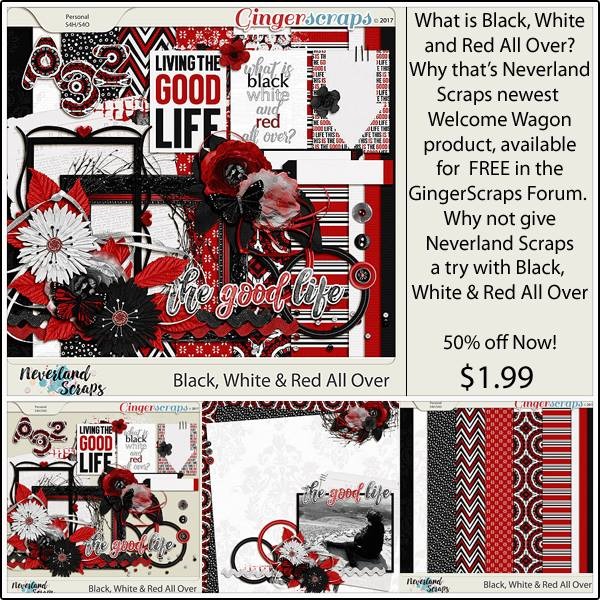
Free Pop Culture Fonts

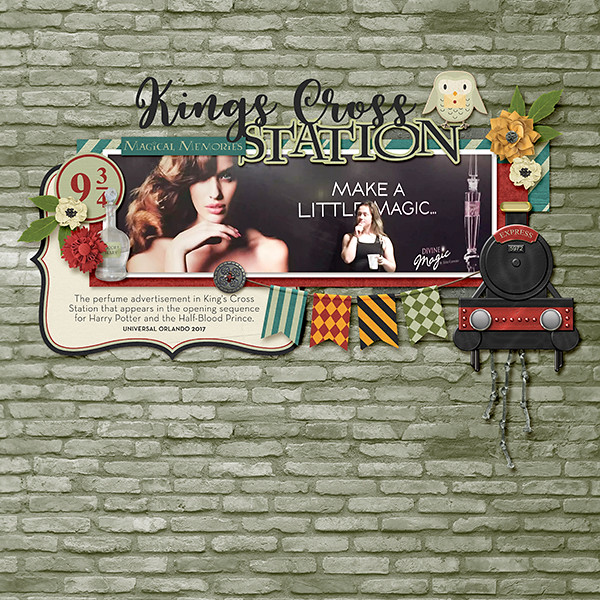
Happy Saturday everyone! Since you all seemed to really enjoy the last free fonts we found for you, I thought we would do another edition this week. There is a theme to this week’s fun and free fonts we found you. Pop Culture! I thought it would be a fun twist.  So here they are. (links below the image)

Top Title & Bottom Link | Waltograph

Far Away Galaxy | Star Jedi

Catch Them All! |  Pokémon

You’re a Wizard! | Harry P

Grumpy Fowl | Angry Birds

Assemble! | Avengeance Heroic Avenger

I have a 9 year old son who is basically obsessed with all of these. Well, Harry P was for me if I am being honest. 🙂 I had all of these in my font stash already. We would love to see your layouts made with these fonts. Make sure to upload them to the gallery and come back and link us up in the comments.

Check back next Saturday. We will be showcasing some fun Pop Culture digital scrapbooking supplies to go along with these fonts. I also have more of these fun pop culture fonts in my stash. I will be back in the future with some more.

Sneak Peeks August 10th, 2017

Happy Thursday! In my area, the kids went back to school! I can’t believe summer vacation is over! Soon it will cool off and the weather will be nice again. Hopefully with school starting, there’s more time to scrap! This week our designers have some awesome kits and templates!

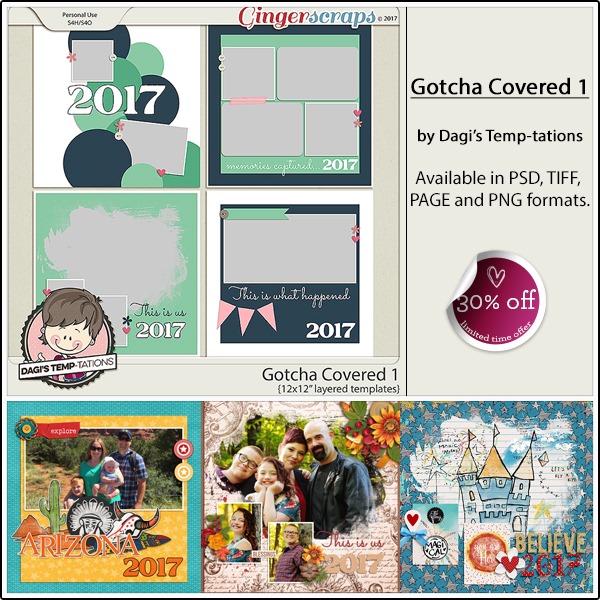
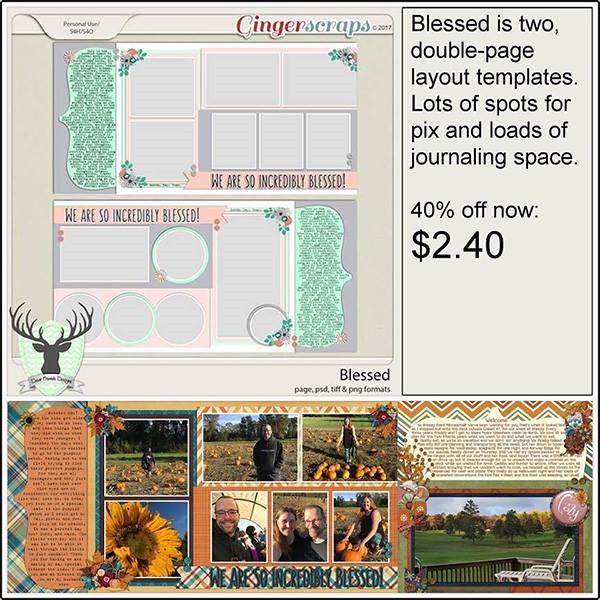
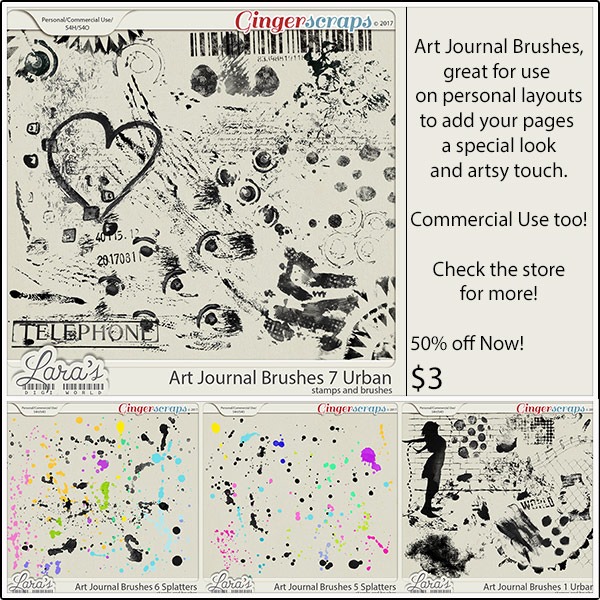
From Neia Scraps

From Luv Ewe

From Dagi

From Tinci

From Joyful Expresions

From Miss Fish

From CathyK

From JoCee

From Lindsay Jane

From Aimee Harrison

From Heart Strings Scrap Art

Have a wonderful weekend!

Tutorial Tuesday (Photoshop Elements)

Reflections

Once again, Glee has outed me! She saw my finished layout in the Gallery and just knew today’s tutorial would relate to how I created my title. I used a pretty but fairly simple script font called Black Olives. It’s an upright font so I chose the Italic Text tool option. The colour was pulled from the sky in my photo.

After I had my text the size I wanted it and in the spot I wanted it, I simplified then duplicated the text layer. CTRL/CMD>J, remember. Then I “grabbed” the handle at the top centre of my bounding box – make sure yours is on! – and pulled it straight down. The Move tool options include a spot to Constrain Proportions; if you select that, it will automatically size your image. If you look at the numbers in the boxes, one will say 100% (for example) and the other will say -100%. But for this technique you don’t have to constrain proportions if you don’t want to. You can make it whatever height you want. When you’re happy, hit the check-mark.

The next step I took was to Skew the image. Image>Transform>Skew takes you there. Then I pulled the lower corner handles a bit to the right. You can eye-ball for this step, or you can turn on the grid (CTRL/CMD>’) to help you do it evenly. But only if you’re really… umm… particular.

And I am. I turned on the grid so I could move those handles about the same distance. I also nudged the skewed layer down a little, as you’ll see in the next screenshot.

If you’re a faithful reader you’ll know that I’m rarely satisfied with basic. I went on to jazz things up a little by applying some special effects. I made a copy of the skewed layer then added some panache. The fx button at the bottom of your layers panel includes some basic styles, such as Drop Shadows, Glows and Bevels. By selecting any one of those you’ll have access to all of the default settings as shown below. I used a commercially available style set, but the settings below will give you the same effects. Check the Glow and Inner boxes, with black (000000) for the Colour. Set the Size to about 18 and the Opacity to about 13. Then go down and check the Bevel box, Direction up and Size at 24. You can see that the topmost skewed layer looks a little shiny with some dimension to it.

Then I went down to the original skewed layer and decreased its Opacity down to 28%. I wanted some of the blue to remain, but the shiny dimensional stuff to be most visible.

Then I merged the two skewed layers.

I chose another font, this time a simple sans serif one called Caviar Dreams. I pulled a pink from one of the papers I used then added some special effects to it too. The Glow and Inner boxes are checked again, Size is at 70 and Opacity at 50. The Bevel is set at 24 and Up again.

I decided a little drop shadow on the two fancy layers was needed because of their dimension and the end result looks like this.

You know what’s the best part? You can do this to almost anything! You can create a mirror image of a photo, an element, a brush (on its own layer, of course!), make an object look like it’s casting a really long shadow… so many ways you can make this work for you! Give it a whirl. I know you’ll find some really creative ways to use it and to combine it with other cool techniques. See you in a week.

Let’s Celebrate Back to School!

It is that time of year again where I live. My kiddo started back to school on the 3rd! I of course took those obligatory 1st day of school photos. Then compared it to last year’s. Only to get slightly sad at how much he has matured over the year. It also got me thinking about scrapping those back to school photos. With that in mind, I found some great digital scrapbooking supplies here at GingerScraps just for that! I thought that even if your kiddos are not going back to school this week, a lot of us have those photos to scrap!

Did you know that we have an entire section in the store just for Back-to-School and learning? Well we do. You can find that HERE. I am going to showcase just a smidgen of what the store has to offer for back to school. There are pages and pages of them. All images are linked. Hold on to your hats. You are about to be inundated with lots of digital scrapbooking goodness!


Do you have a budding artist in your family? Or maybe your preschooler is just learning how to color inside the lines? This kit is perfect for scrapping all your child’s drawings and artwork! The colors are straight out of the basic box of crayons and the papers include lots of fun patterns, many with a doodled look. The elements have a crafty feel and of course include crayons of many colors. You’ll have fun documenting those special masterpieces with this kit!


Back to school just got so much more fun! Whether it’s the first (or last) day of school, field trips, candid photos or school activities, this kit has everything you need to create lasting memories! It’s packed full of adorable characters, tons of school-themed elements, bright colors and so much more! The color scheme includes red, orange, yellow, green, blues, purple, black and white.


A collection for guys and gals of all ages who study or just love math and numbers.


From our August 2017 guest designer Joyful Expressions. Make sure you grab it before it is gone! – With a focus on curiosity, discovery and learning, the Curiosity collection by Joyful Expressions will spark imaginative and creative science and education-themed scrapbooking projects that are perfect for your school, museum, field trip, or science class photos.


[Read more…]

Sneak Peeks August 3rd, 2017

Happy Thursday! It’s AUGUST! WOW! My son goes back to school in two weeks! Our designers have tons of great stuff coming out! And you thought it would be a quiet week since the buffet (which is still 50% off until Saturday0 debuted two days ago!

From JoCee

From Lindsay Jane

From Tinci

From Joyful Expressions

From Miss Fish

From Heartstrings Scrap Art

From Aimee Harrison

From Dear Friends Designs

Have a wonderful weekend!

Tutorial Tuesday (Photoshop Elements)

Dodge and Burn… NOT an Action Movie

Awhile back, Ellen (gmae) asked me to think about a tutorial on dodging and burning. I couldn’t think of how to introduce it at the time, but I’ve come up with a way!

Dodging and burning are old-school photography techniques for selectively adjusting exposure of photos to bring out details that weren’t all that evident. In the darkroom, it was done with a piece of cardboard (at least that’s how I did it back in the day).  [I cut a round hole in a solid piece of mat board (for burning) and taped the cut-out circular piece to a thin piece of very stiff wire (for dodging).] First the photographer would print the desired negative on photo paper and examine the exposure. Then another print would be made with some fancy footwork to correct areas of over-or-underexposure. Dodging involved holding the end of the thin stiff wire with the cardboard over the area of the photo that was overexposed and then exposing the paper while keeping the wire-and-cardboard dodger moving. This decreased the amount of light that hit that section of the paper, so those blown details could be seen. Burning was done similarly but was concentrated on the under-exposed areas by moving the hole in the cardboard over the dark spots, allowing MORE light to hit that area of the paper. The cardboard in both methods had to be kept moving at a reasonably constant rate so as to prevent the obvious demarcation lines the enlarger would leave on the image. It was time-consuming, wasted a lot of expensive photo paper and was definitely a skill not everyone excelled at. To be honest, I totally failed at it! So it’s a WONDERFUL thing that dodging and burning can be done digitally and done well without a lot of fuss.

My first demonstration will show you how to make things like tags look like they’re stickers and washi tape look realistic, complete with that appearance of something thicker underneath it. I’m using CathyK‘s July Daily Download Back to Nature here. (If you missed it you can still get it, it’s in the store!)

I want this tag to look like it’s a sticker and it needs a little ridge where it overlaps the photo.

To make this technique easier on yourself the first couple of times you try it (until you get the hang of it) I suggest you position your item so that you can see the edge of the object underneath at both ends, as I’ve shown. But don’t worry about having it horizontally arranged because this will work no matter what the angle.

Now select the Sponge tool. It’s actually 3 tools in one… the Sponge, Dodge and Burn are all accessed through there. The keyboard shortcut is simply hitting the letter “O“. You can use that to toggle between the three tools. Neat, eh?

The Dodge tool is the one we’re going to start with. The icon looks like that little paddle the optician uses to check your vision.

One of the important controls for this tool is hidden behind the Brush menu. It’s the one that lets you choose between Highlights, Midtones and Shadows. It defaults to Midtones, and that’s where you want it. Select a soft round brush of about 45 pixels in diameter and set the exposure (there’s that word again!) to no more than 30%. You’re going for a REALLY subtle effect, so start off light and build if you need to.

I learned something new while I was preparing this tutorial. Set your brush at the edge of the item UNDER your tag/sticker/tape and click once. You want it to overlap onto the layer underneath it a little so fix a reference point in your mind to help you later. Then move your brush cursor over to the other side of your tag/sticker/tape, hold down the Shift key and click again. Bingo! You’ve got a straight line of brush on your image!!

It’s really hard to see the change, but trust me, it’s there. Now decrease the size of your brush by about a third. Repeat the click-shift-click manoeuver again.

Once more with feeling… again decrease the size of your brush by a third (that’s why I chose 45 pixels… makes the math easy). Then click-shift-click one last time.

If you look really closely at my example, you can see the faint but definite lightening along the edge of my photo.

It’s actually easier to see from farther out.

Now we’re going to Burn the part that overlies the photo. The Burn tool looks like someone making an “OK” sign with their hand. I left the size of the brush at 15 pixels with the exposure at 30% and used the very same click-shift-click to lay down a darker line.

Then I followed that up with a HUGE brush that covered the whole part of the tag that sat on top of the photo. The first pass set the edge, the second pass created a bit of a shadow that makes it look so much more real.

Here’s a zoomed-in view…

and a zoomed-out view. What do you think?

On my finished layout, I dropped another tag on top of this one and did the same technique with it. You can see the effect below.

Okay… let’s pretend we’re in the darkroom and we have this photo on our workspace. How can we use the Dodge and Burn tools to make it look better?

I darkened his eyes, his nasolabial folds (those grooves from his nose to the corners of his mouth), his dimple and the folds in his ear using the Burn tool with a small brush size and a light touch. The photo looks a little sharper, at least to my eyes.

Then I used the Dodge tool to bring the highlights back. Wherever more light would hit his face was dodged a smidge – the tip and bridge of his nose, the top of his ear, the apples of his cheekbones and a small section of his forehead. I also hit the catchlights in his eyes and brightened the whites a bit too. You could use these tips to make the eyes in your portraits sparkle: Burn the irises a bit, then Dodge the white and catchlights for some real drama. Just remember, if you’re not happy with how your images look, you can always Undo! CTRL/CMD>Z is the most useful tool in your arsenal! (Wanna know another way to use the Dodge tool? To soften crowsfeet!)

Now let’s look at what we can do with colour photos.

I went over the throat of this daylily with the Burn tool to deepen the fuchsia areas a bit.

Then I went over the areas where the light hits and Dodged up the highlights. I worked on a copy of my photo so I could move from the original to the edited one and see how the changes looked.

And boom! The throat’s fuchsia is darker, so there’s more contrast, and the stamens and ruffled edges are lighter and stand out more. I LOVE being able to selectively enhance my images!

I’m not sure if this is what Ellen was looking for when she asked about dodging and burning. If it isn’t, I’m sure she’ll let me know. Have fun y’all, see you next week!

Fresh Baked: August 01, 2017

Happy August! The month of so many wonderful things! Chocolate Chip Cookie Day! Apples. Back to school prep! The days start getting a little shorter, and the nights start to get a little cooler. There’s something special about August!

It is the First of the month, and that means the revel of our new Buffet!!

Don’t forget to check out the Buffet Bundles, one easy click to add bundles of Buffet goodies to your cart, and an amazing value too!

[Read more…]

From The Archives Vol. 10

From the title you can probably guess that we are going to go back in the archives. What archives? Well, we are going to show you some digital scrapbooking supplies that are in the store that are at least a year old. Some of us may be new to digital scrapbooking or new to GingerScraps. Some people don’t check the store every week. Basically, things can and do get lost in the weekly shuffle of the store. With that in mind, we are going to go back and look at some great products. Our hope is that you find some great things you might have been looking for; or find something that you didn’t know you needed but totally do now that you see it! 🙂

Today is the 10th edition of From the Archives; and we have just scratched the surface of our lovely older kits. Here are some of the oldest kits in the store. All images are linked so you can check them out in the store. They might be oldies, but I promise they are goodies!!

Step right up! The county is fair is open and you’ll have a rootin’ tootin’ good time. Play some games, take a ride, watch the show! The prize is in the memories you’ll scrap with this County Fair kit! Too huge for just one kit, County Fair is split into two parts… Carnival and Exhibition. There’s something here for everyone. Yee haw!


Puppy dog tails. Snips and snails. When boys are little, they’re short and sweet. As they get older, they get bigger, and usually aren’t so cuddly. They’re into anything that requires outdoors. They live in dark but bright colors.
This kit signifies all of that. It’s perfect for anything that says “I know a boy”. It can be used for outdoor-related activities, as well. It’s a very versatile kit.


When life gives you choices, how will you handle it? Reflect your unique way behind each decision you take with this kit.


This kit is perfect for scrapping all your beach/ocean/sea photos!


Document your social butterflies with this digital scrapbooking collection from Trixie Scraps! With bright and fun colors and patterns, tons of wordart, and just the right scrappy bits, you’ll have just what you need for all your pages about social networking, pin obsessions, blogging and so much more!


Blue Heart Scraps and Pretty in Green teamed up and used the force, to create an out of this world collabed kit, perfect for any intergalactic team ready to save a princess or the world!


This little boy is here to save the day! He’s not afraid of anything and has the courage of a lion. Celebrate those special moments when he feels like he can take on the world.


There you go. 10 kits from the archives. Maybe you have some or all of these. Or maybe these designs and designers are new to you. I suggest taking a look back in the store to see what you can find. I will be back once a month to help you do just that.

Sneak Peeks July 27, 2017

Happy Thursday! It’s scorching outside but that means I have made a dent in pages I wanted to scrap! And this week’s new releases sparked so much creativity! I hope they inspire you as well!

From Ponytails

From Tinci

From Neia Scraps

From Miss Fish

From Heart Strings Scrap Art

From Aimee Harrison

Have a wonderful weekend!

Save

Tutorial Tuesday (Photoshop Elements)

More Fun with FONTS

I’ve confessed it before – I’m a fontaholic. I LOVE fonts and the options they provide. But have you ever downloaded a font because the example the email or website shows makes it look like it’s been hand-painted – cool, right? – only to find out it’s just… a font? And it looks sort of like the screenshot below. That makes me so cranky! So I’m going to show you how those cheaters do it.

Pick a colour. It doesn’t matter what you choose because it’s going to disappear later, but you want to be able to see it clearly.

Then pick a font, one with some weight to it. I like this one called Cedar. It’s one of the ones I was enticed to buy because of its lovely watercolour paint look in the samples. Umm. Yeah.

This step is optional, but I’m going to use this as a title so I filled in those gaps and made the letters all solid shapes. Tip: When using the paint bucket Fill tool, if you only click inside the space once, there will be a faint outline of the gap left when you’re done. Solution: click TWICE.

And in case you haven’t been paying attention, Simplify your font layer.

Now you’re going to choose a watercolour brush. Or one with some kind of texture. You want to make the font look fabulous, but you also want it to be grounded to the paper below it. Letting a little of that background colour show through does that nicely. Because this text will mimic a painted-on title, it won’t be shadowed later, so ground it now. Choose your paint colour at this step as well.

Create a new layer for your brush. Always. ALWAYS! If you hover your brush over your text, you can see where the edges should be, but this isn’t always so with this type of brush. It does, however, give you some idea of whether your brush will cover your text and whether it needs any adjustments. I tipped my brush a little to get a more uniform coverage by using the Brush tool Settings menu as shown below.

Then just click your brush over your text. If you want more oomph, click more than once, but be careful not to lose the tonal variations you’re trying to create.

Stay on your brush layer and Select your text by clicking on your text layer’s thumbnail. Behold, marching ants!

To Invert your Selection, you can Select>Inverse as shown, or you can CTRL/CMD>Shift>I, which shifts the active area to everything OUTSIDE the text.

This next step Deletes the paint outside the edges of the text. There are 3 ways this can be done: Edit>Delete or CTRL/CMD>X or simply hit the Delete key.

So now the paint only covers the area over the text! CTRL/CMD>D makes the marching ants disappear.

Once I eliminated the marching ants, I wasn’t totally happy with the look so I just added a Stroke to the edges… still on the brush layer.

I used the same colour for my stroke. But I could have pulled one of the other shades of teal from the background paper. I think that would have ruined the effect though. Centering the stroke on the edge eliminates those raggedy jaggedy pixels some fonts have when they’re enlarged.

The change made by the stroke isn’t obvious but I think it just defines the text a little better.

You could leave the original text layer and colour show through your brush layer, or you can turn the visibility off to see how you like the look. I found that some of the tonal variation was lost when I did that. But if you’re happy with the visibility turned off you can go ahead and delete the text layer.

Okay, so let’s try something a little different, but using the same basic steps. We’re going to reverse the look.

Back up all the way to where we Selected the text. We’ll use the same brush and colour.

But this time, don’t Invert your selection, just Delete it. Edit>Delete, or Ctrl/CMD>X or just hit Delete.

Now the Text layer is fully visible and the brush is smooshed all around it.

Turning the visibility of the Text layer off looks like this. Decision time. Happy? Not happy? What should be changed, if anything?

Let’s make some small changes.

Would a Stroke make it look better?

Same settings, same everything else.

It’s better, but not really what I want.

So I just Undid – CTRL/CMD>Z – my way back to the Select text step and changed my brush to a dirty spray.

I know I reminded you to put your brush(es) on its own layer – here’s why. You can adjust it to your heart’s content without affecting anything else. You can make the brush bigger or smaller, change the angle of it, decrease the opacity of it, change the Blend Mode, duplicate just the brush… a schwack of things can be done to it that can’t be done if it’s on the same layer as something else.

This time I clicked my brush several times, moving it around to cover the text more but still letting some of the background colour show through.

Et voilà! Turn off the text layer and it looks like a reverse stencil.

If you’ve seen the layout I used this technique for, you’ll know I went with a different colour and the very first method. Despite the appearance of a great deal of time consumed, this actually only takes a matter of minutes to do. Give it a whirl!