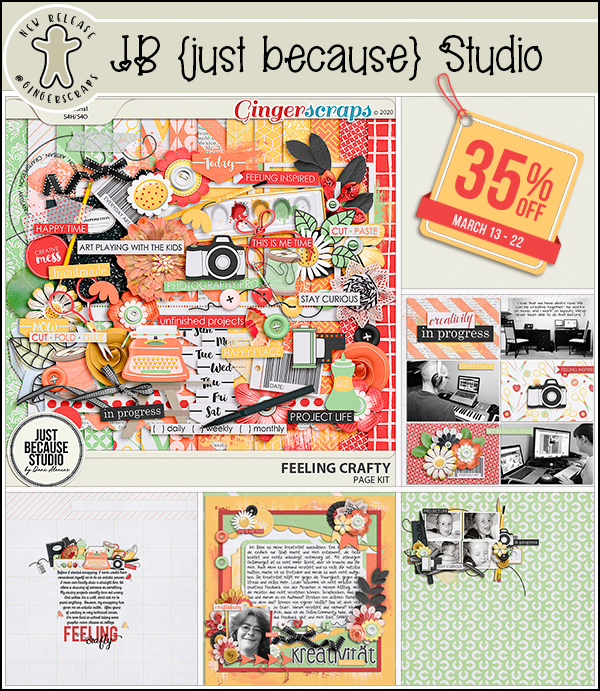
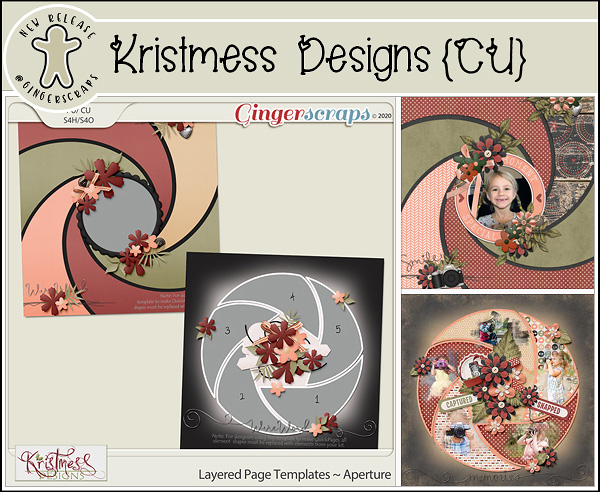
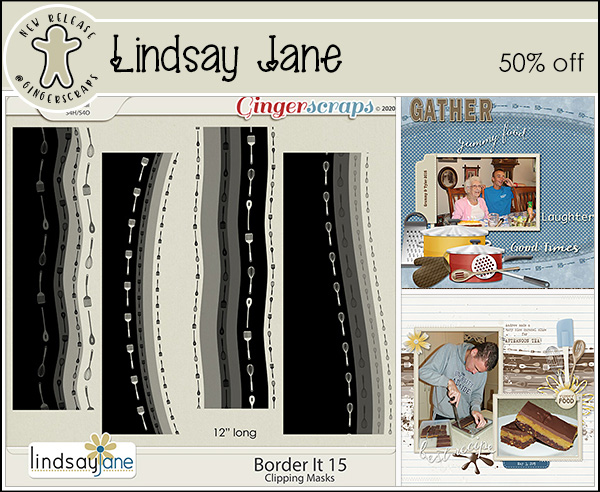
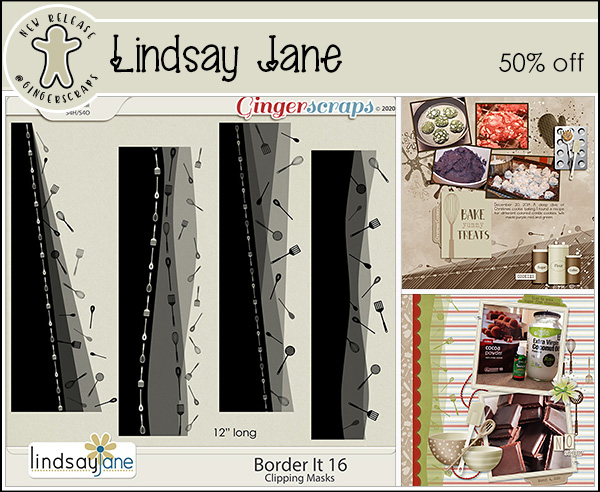
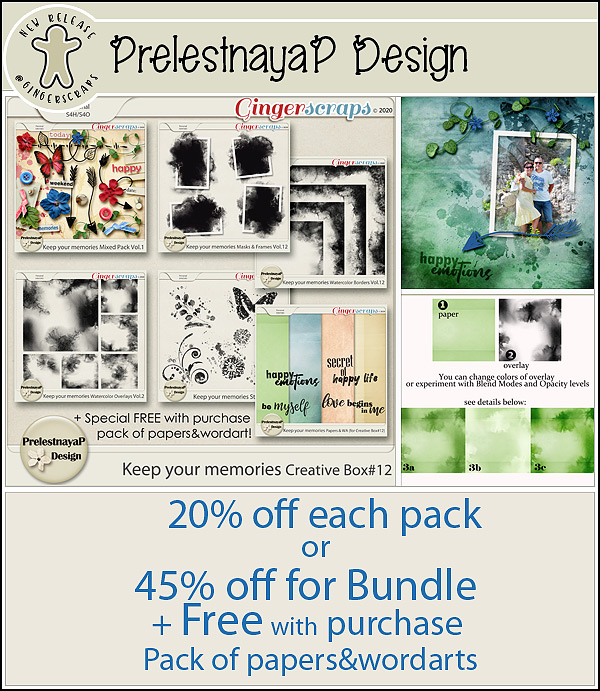
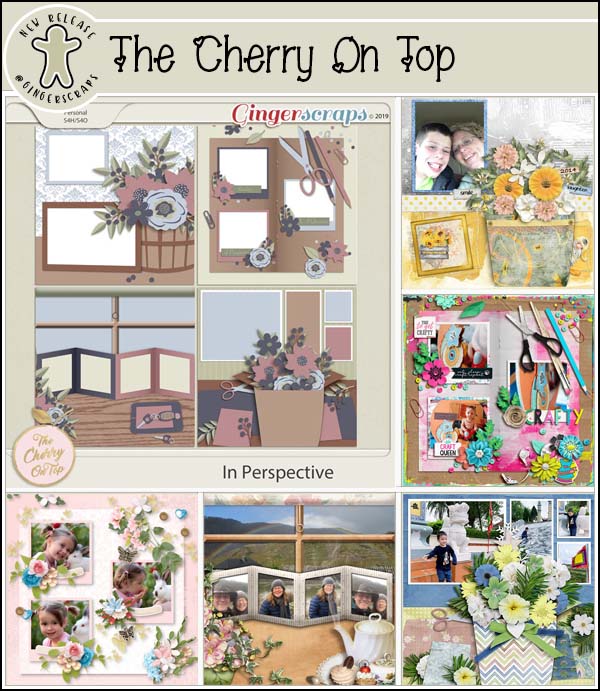
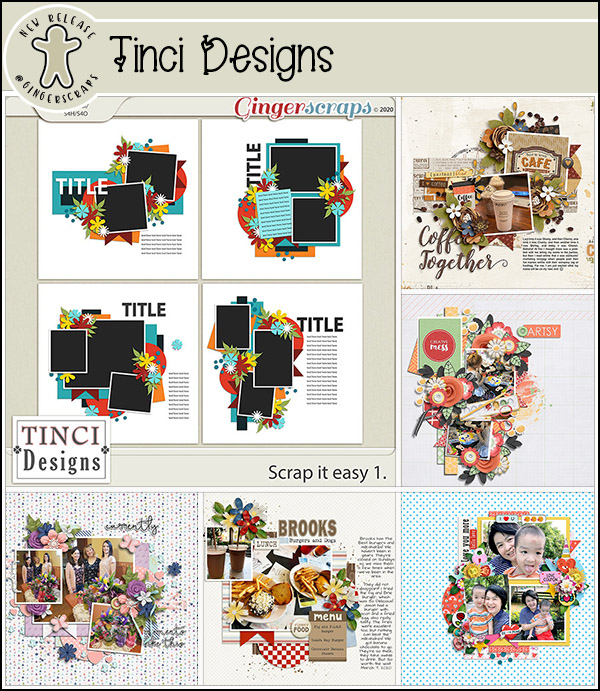
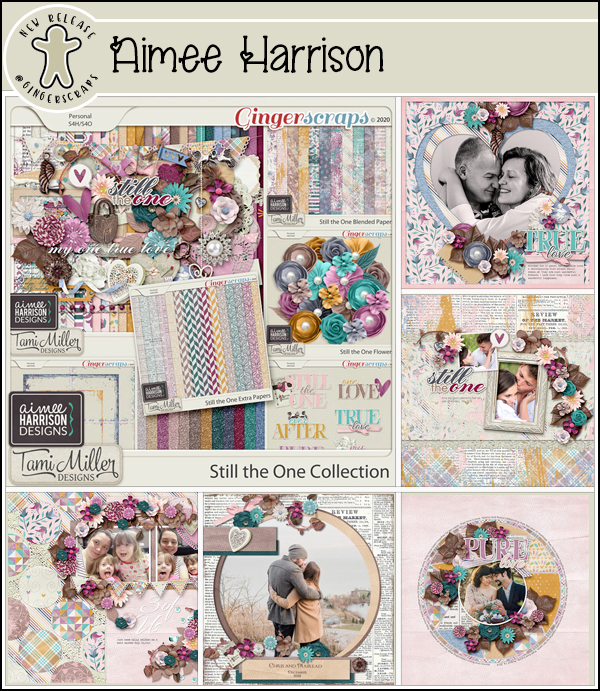
Happy Thursday! We are two weeks from Thanksgiving! The holidays are upon us! Our designers have some great new releases for you this week! Let’s take a peek!
From Dagilicious


From Tinci


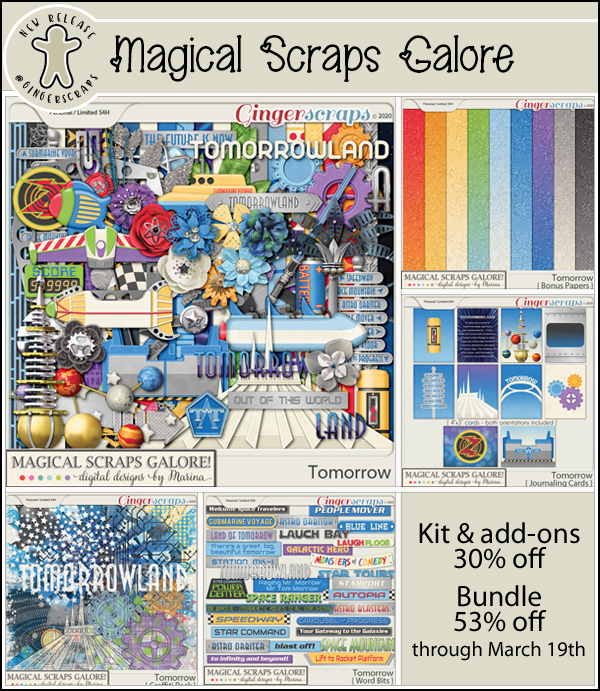
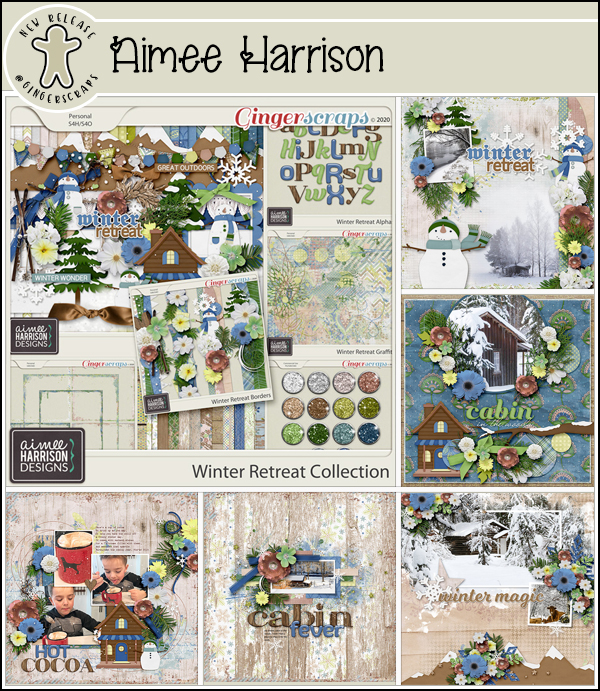
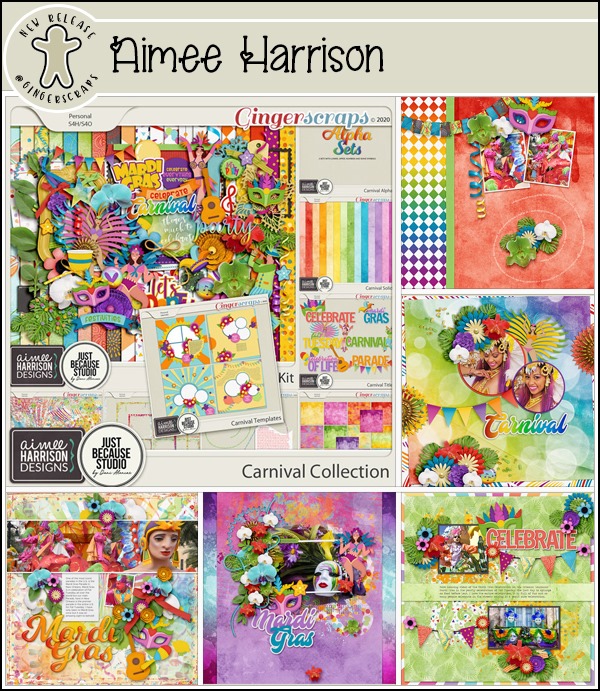
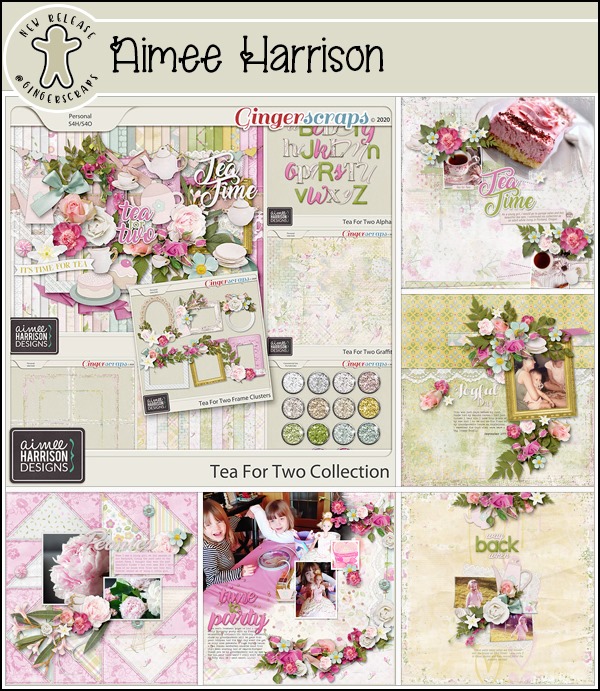
From Aimee Harrison


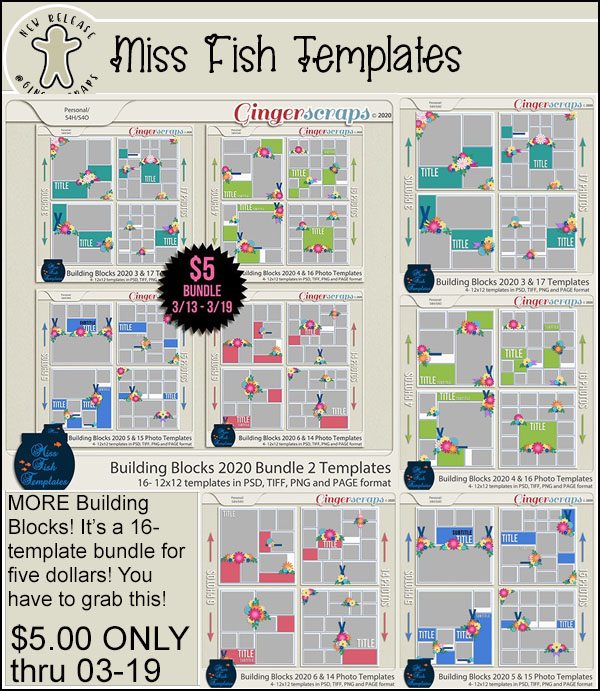
From Miss Fish


From Clever Monkey Graphics


Happy Thursday! We are two weeks from Thanksgiving! The holidays are upon us! Our designers have some great new releases for you this week! Let’s take a peek!
From Dagilicious


From Tinci


From Aimee Harrison


From Miss Fish


From Clever Monkey Graphics


I’m really sorry to report that I took a tumble down a flight of stairs last night and this week’s tutorial was a casualty. I hit the side of my head on a sharp corner on a ledge as I was falling and concussed myself a little. I also sprained a wrist and two fingers. No broken bones, lucky for me, but half my face is technicolour all around the laceration the corner left. Hubby said, “Nice shiner!” when I got up this morning. I should be back to normal in a few days and next week’s tutorial won’t disappoint!
Jan

Happy Thursday! Are you ready for the weekend? Are you ready for a peek of what’s releasing tomorrow?? I hope the new releases from our amazing designers spark your creativity this weekend! Let’s check them out!
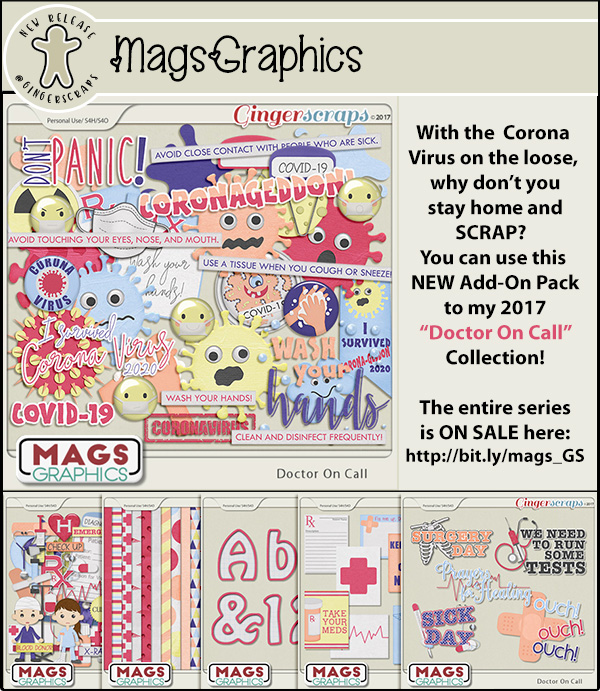
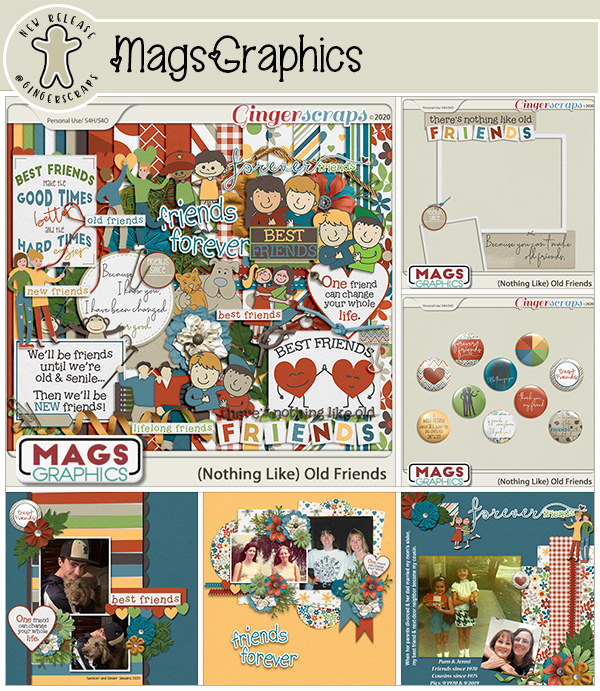
From Mags Graphics


From Down this Road


From Lindsay Jane


From JoCee


From Miss Fish


From Tinci


From CathyK


Another Paper- to Digi-Technique – Stenciling
![]()
After last week’s tutorial came out, I got a really nice private message from calgirl (aka Steph). It read, in part: “I love the tutorials you have done on the digital version of a paper-scrapping technique.
I have been trying to think of other techniques it would be fun to see – how do you do this. I happened upon this you tube video which has many ideas but I was particularly interested in the stenciling concept.” Well, I checked out the YouTube video she linked in her message – it was a speedy card-making video (more about that later) and I knew just what would work to create the look she was after. Below you’ll find three ways to use digital scrapbooking elements as stencils! The basics are the same for all three, but the looks are all quite different. It’s a lot easier than it looks, and definitely less messy!
The most obvious element I could think of – and find quickly – for this technique is a doily. I chose one from Lindsay Jane‘s kit Dogs and Puppies. It’s pretty, and has some nice open areas that could work nicely for stenciling. I opened a new 12×12 canvas on my workspace and dropped the doily onto it.

Next, I decided on some colours and got them set. Then I opened up my Brush tool. The Basic Brushes set that comes with the software will work for this method so I chose a large, soft, round brush. I’m working on the layer UNDERNEATH the doily, but don’t worry, it’s going to work exactly like I want it to. If you recall, working on a separate layer with your brushes gives you a lot of options such as simple resizing, repositioning and adjusting Opacity. And you can copy the brush layer(s) as many times as you want.

Here you can see that I have the layer at the bottom of the panel active.

I centered the brush over the doily and gave it a single click. if the screenshot was bigger and clearer, you’d see the doily sitting on top of the brush layer.

With the doily layer turned off, this is what I see.

I decided the brush layer just wasn’t… enough. So I Copied it once (CTRL/CMD>J) then I made the copy brush bigger, to 120% of the original. By doing that, I deepened the Opacity of the original layer and pushed the softer edge further out.

Before I moved on, I Merged the two brush layers together. (CTRL/CMD>E)

Keeping the brush layer active, I CTRL/CMD>clicked inside the layer thumbnail for the doily – the image inside the box on the doily layer. That Selects the edges of the doily, and produces the marching ants.

The next step is to Edit>Cut the doily area away from the brush layer. (CTRL/CMD>X)

It’s a bit hard to see in the screenshot but the area where the doily laid over the brush has been removed and the transparent background shows through. The doily layer is turned off.

Here’s a much closer look at it. As you can see, there’s no doily texture showing, just the outline of where it was.

I looked at the results for awhile and decided I wanted the edges to be just a smidge sharper. So I added another layer on top of the brush layer. (Doily is still turned off.)

This time when I Selected the outline of the doily, I chose to add an outline Stroke. I wish there was a keyboard shortcut for that, I use it a lot. But there isn’t. Edit>Stroke (Outline Selection) has to do.

I used the same colour as for the brush layer. The outline doesn’t have to be too bold, so 2 pixels on the outside of the selection will work. Why put the stroke on a separate layer? It’s all about control!

I’m still thinking about how to remove the overspray area around the outside of the doily outline. I think I have it figured out, but will need to play with it a bit more. Once I’ve got it down pat, I’ll edit this post to include the details of how I did it.

Okay. Let’s go back to the beginning and look at another way of doing it. Because you know there’s always more than one way of doing most things.

For this example I used a sharp-edged round brush from the Basic Brushes set that I could size to fit the doily exactly. It’s at full Opacity too.

But here’s where the fun starts! I changed my foreground colour to that fuchsia/magenta colour you might have noticed in the previous screenshots. Then I chose the Gradient tool, which is right below the Eraser tool. This tool has a few options that make it very useful. Because I’m working with a circle, I chose the Radial setting. I clicked on the centre of the doily image and dragged my cursor up to the top left corner of the canvas and let go there. That tells the tool which way to grade the colour. I could have chosen any point on the canvas for either action and the gradient would go “from here to there”. If you look closely, you can see the pink is darkest at the centre and fades away as it moves from the centre out. Notice too how the turquoise has changed to periwinkle.

I used the same steps to remove the area of the gradient layer where the doily covers it. I don’t know how many of you can see it, but the doily layer is turned off, and it doesn’t matter! The software will still select the edges even when YOU can’t see it. And, of course, the gradient layer is separate from the others.

Now, with this method, it’s super-easy to remove the overspray area. I used the Elliptical Marquee tool to pull out a perfect circle. The tool’s settings let me go with a Fixed Ratio of 1:1, which creates a circle shape. The hard part is getting the size right. It took me 5 tries to get it right.

The Selected area needs to be Inverted so that you’re cutting the part of the gradient layer OUTSIDE the circle away, not what’s inside. You can either Select>Inverse or CTRL/CMD>SHIFT>I to make that happen.

Then, just like before we’ll Cut it off. Edit>Cut or CTRL/CMD>X.

There! The only pink area is inside the circle.

I liked how it looked, but thought I could make it even better so I Copied the gradient layer and dropped the Opacity down to 70%. Pretty?

One more! I might have mentioned that I have LOTS of brushes. Many of them were freebies or challenge-related, but the ones I get free from Brusheezy are fabulous. One of these sets is the 20 Spray set. I had to load the brush set to be able to use it, since I haven’t had the opportunity to load them all on my new laptop, but that’s easy enough to do. I wish I could still screenshot the selection bars but haven’t figured that out either! I changed colour to this purple and hit my canvas with it. It’s a different look for sure. I Cut the doily out of the brush layer too.

I changed my brush, made it smaller and changed my foreground colour back to fuchsia. Then I randomly added some pink to the mix. On its own layer. ALWAYS!

After Cutting away the doily this is where I was.

Then I thought, how would it look with some green?

Some random hits with a third brush from the same set gave me this… before I did anything else to it.

I thought the green was too much so I toned it down to 35%.

And then for fun, I plopped a black spider web paper from Just So Scrappy‘s Spookalcious kit behind it. (I erased the big splats from the purple layer too.) I think it looks gloriously boho!

What do you think? Something you might try? Obviously, you can use anything that might work as a stencil with this technique, it doesn’t have to be a doily. I had fun with it, and I know you will too.
Now, about the video… the host showed off a paper-scrapping tool that caught my eye. It’s called a Misti (Most Incredible Stamp Tool Invented)… anybody familiar? It allows for perfect placement of stamps on just about any size and shape of paper, and for restamping the same image multiple times for more hefty outlines both with acrylic and unmounted rubber. Well, I decided I wanted one, since I do make cards and have a big collection of acrylic stamps. So I looked for it on Amazon… and nearly died when I saw the price! $138 seems like a lot to me for something so simple in concept. So I kept looking. I found some YouTube videos that showed a couple of similar products, but they had to be withdrawn from the market over patent infringement claims. Sounds like I was going to have to suck it up and pay the $$… until I found a seller who had a couple of the taboo knockoffs for $37 each. It arrived today and will work beautifully! I’ll have to wait to use it though. It has to go into storage with all the rest of my paper crafting stuff. To be continued!
![]()

Happy Halloween!!! I am beat from trick or treating in the 85 degree Florida weather. Hopefully Florida realizes it’s fall soon since it’s November tomorrow. This is a jam packed sneak peek filled with some Buffet sneak peeks!
From Wimpychompers


From Aimee Harrison


From JB Studio


And lets take a peek of the Buffet!


Check back tomorrow to see the full line of Buffet products and new releases!

For all the Mac Users – Unlocking Secrets in Your Fonts
![]()
I honestly wasn’t sure if I’d get a tutorial out this week. I made a flying visit to BC to check in on my parents (they’re both fine, thank Heaven) over the weekend and didn’t get home until early this morning. But looking through my mailbox led to this!
I was really pleased that last week’s tutorial on using the hidden extras in our font files was so well-received. I had fun putting it together and hoped it would be a good choice. A comment from Carina got me thinking about what might be a suitable, similar font manager for Mac users that could work for the tut the way MainType does. And darned if I didn’t find one! It’s called TypeFace 2, and like MainType they have a free version and a paid version. (If you click on the software name above, it’s linked to the app store.) Of course, the user interface is different, but it has the same options. You can customize your tags so they make sense for you, you can move similar fonts into folders so you can quicken your search for the right one, and you can preview the fonts using the text you’re planning to put into your layout.

Here’s an example of a customized preview.

To be useful for finding, selecting and using the special characters that come with the fancy fonts, there needs to be a way to access them. I will admit that I didn’t test it, but reading the description of the app and some reviews, I’m pretty sure it’s going to work in a very similar way. One other benefit to this one is that it’s available for both Mac AND PC!

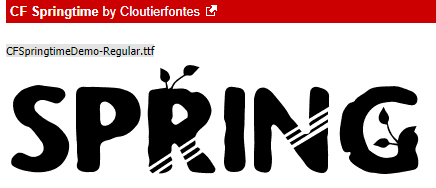
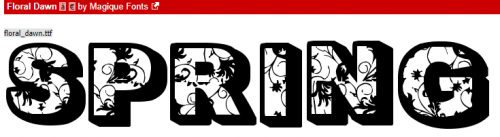
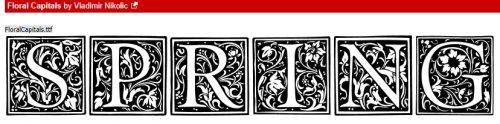
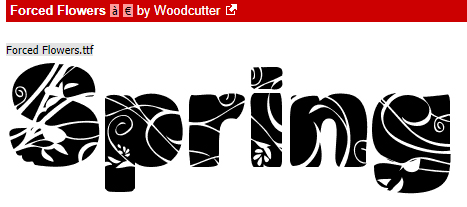
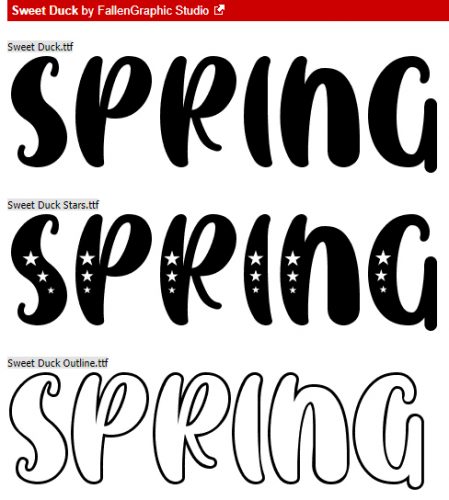
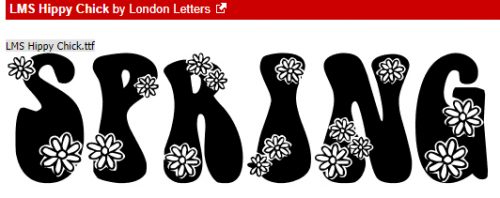
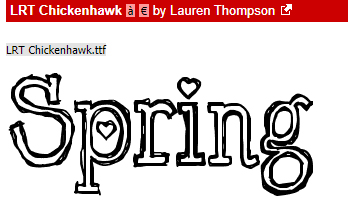
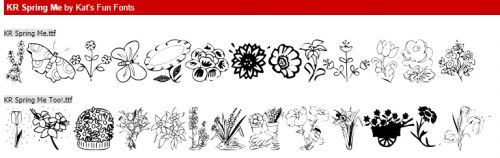
Now, for your viewing pleasure, some awesome (totally free) Hallowe’en fonts and dingbats!
This one I found at FontSpace.

The rest are from my second-favourite site, Dafont. You can grab this one here.

This is a bit of a variation on a theme, perfect for bold titles. Get it here.

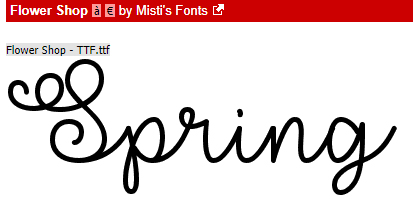
This font isn’t quite a Hallowe’en one, but it’s very pretty, and the curlicues are reminiscent of the tendrils on pumpkin vines. It’s here.

I like this one for its simplicity, and its slight grunge. Find it here.

What do you think of the Gothic look of this one? Look for it here.

I think this would make the most interesting border on a Hallowe’en layout. You can find it here.

Happy haunting!
![]()

Happy Thursday!!! Let’s see what our amazing designers have coming out tomorrow and how our amazing CT team used them!
From JoCee


From Tinci


From Dagilicous


From Miss Fish


From Aimee Harrison


Unlocking the Secret Extras Hiding in Your Font Files
![]()
So… I think this might be a great tutorial… for all you Fontoholics in the room. If you’re already using MainType by High Logic to organize and preview your fonts, this is for you. If you’re NOT using MainType, this might be your impetus to grab it and go. For those who aren’t familiar, MainType is a very versatile, fully customizable font manager. It allows the user to create descriptive tags for all the fonts in their collection, which makes searching for that perfect font for a project much simpler. It has a number of ways to preview the fonts and characters within the font. There are two versions, a free one that will handle up to 2000 fonts, and a standard edition you pay for if you need more capacity. (I use the paid version.) And I thought it was pretty great BEFORE I learned this little trick. Have you ever seen cool projects on Pinterest with fancy, swirly, curly tails and embellishments, only to find the font they used, but no fancy, swirly, curly tails and embellishments? They’re there, you just have to know how to find them!!
Over the weekend I was scrolling through Facebook and came across a link to a video on how to access extra glyphs (those extra characters some fonts include) and use them with Cricut Design Space. I don’t have a Cricut, and I almost didn’t look at the video. But then I thought, maybe I’ll learn something I can use. Well. It turns out Photoshop Elements will do exactly what was shown on the video, so now I’ll share it with you! Start with a blank canvas of whatever size will give you room to work.

Using the font viewer in Elements (or use MainType if you prefer) find the fancy, swirly, curly font you want to use. I have a large collection of fonts, many of them free ones. Many free fonts don’t include “extra” characters, like punctuation, numbers and @#$%… But you’d be surprised how many not only have all the usual characters but a bunch of extras too. I’ll show you how to tell which is which later. For now, I’ll tell you I used a purchased font in my sample, one called The Eye Catcher Regular. I paid $11 USD for it. If you’re interested in where I got it, comment or PM me and I’ll give you the details.

I set the size to the largest default of 72 points and selected a colour that would coordinate with the layout the title was being created for.

Here’s where I may lose some people. Each letter has to go on its own layer. It’s a bit more time-consuming and labour-intensive but it’s worth it!

Here are all the letters, sort of lined up.

Then I selected all the layers and used the Tool Options to align the bottoms of all the letters.

Then I went (back) to MainType, where my font was already chosen. I had typed in my title and now I was ready to make it fabulous. Remember I said I’d tell you how to know if your font has extra characters. Look at the blue-highlighted line in my screenshot. If you look at the far right of the blue area, it has 1047 characters, so you KNOW it’s a goldmine!

The Characters map on the right below has a pull-down menu that shows the character sets within the font. If you scroll down this menu you’ll find the Private Area. That’s where the fancy stuff hides.

I’ve circled the spot where you’ll find this pull-down. These are the upper case extras. Just look at that O!! But how can I get it into my title? It’s so easy…

All I did was Copy and Paste!!!!!! As my faithful readers know, I use keyboard shortcuts: CTRL/CMD>C to Copy, CTRL/CMD>V to Paste. To move the O from MainType to Elements, I Copied in MainType then opened Elements and Pasted there. I just toggled between screens.

Then I decided to swap out the R for something with more panache.

Oh yeah!!

Then I started closing the gaps between the letters. But I wasn’t happy with the way the C and the T weren’t quite connected. So…

I went and found a C that would work better. The tail is going to need some adjustment but it’ll do.

If you look at the Layers panel on the far right, you;ll see that I’ve turned visibility for the original layer off, and once I’m sure I like the new option, I’ll delete that original layer.

Did you notice that the sample in MainType didn’t look quite the same as the text in Elements? There’s more of a swoosh on the T. So I found THAT T and swapped it out.

Now to try connecting the letters again. See where the tail on the C intersects with the T? I’m going to Erase some of the tail.

I moved over the rest of the letters to see where else I might need to make some tweaks.

The B and the E weren’t quite right. But this fancy font also has a bunch of swashes that can be added to any of the characters so I picked one. See it down in the lower right?

The tail on the B needed to be shortened a bit to make the swash fit.

See in the Layers panel where two of the letters look different? I Simplified those two layers, the C and the B, so that I could Erase bits of them. Text layers can’t be altered unless they’re Simplified. (Don’t worry, Elements will remind you!)

My title is done! Before I added it to my layout, I added a narrow black stroke to make it more defined, then a white stroke to turn it into a sticker. It looks great!

![]()

Happy Thursday! Our designers have a TON of new releases coming out tomorrow! Let’s take a peek!
From Dagilicious


From Clever Monkey Graphics


From JoCee


From Tinci


From CathyK

From JB Studio


From Lindsay Jane


From Heather Z

From Aimee Harrison


From Miss Fish


Background Check
![]()
Well, this didn’t turn out to be the fantabulous tutorial I had planned… let it be a cautionary tale instead! (I seem to be providing a lot of those lately.) What I was hoping would be simple and fun turned out to be more work than I expected, but it’s all good. I learned a few things while I was doing it and can provide tips for you to make it better for you. And that’s the goal with these tuts, right?
Starting with Photoshop Elements 2018, a Guided Edit for replacing an undesirable background was included in the Special Edits menu. I have SO many photos with blown-out skies that I’d love to replace with something more attractive, so I pulled one out of my Ireland 2018 folder. Let me say right now that next time I do this, I’ll be making some changes in how I do it. I’ll describe those changes as I go along.

So here’s my base photo, the one I want to improve on. The sky is pretty blown-out; this can be prevented in-camera through the use of neutral density filters, but I haven’t mastered that technique yet. It’s on my list… Anyway, I thought this would be a fairly simple edit, since the foreground is fairly sharply defined. When you try this, you might want to avoid trees. Just sayin’.

I tried the Auto selection tool but felt like it lacked control so I backed up and went with the Quick selection tool instead. It worked pretty well, for the most part. With a little more patience at this stage, I might have saved some time and effort later but that’s all part of the learning curve. I think the Brush tool might have been a better choice, and I’ll be trying that out in future edits.

Once I’d brought most of the foreground image into the selection, it was time for fine-tuning. See the marching ants along the roofline? The spruce in the foreground extends past the roof and needs to be included in the image. The trees on the far left are inside the selection already but will need some tweaking too.

When I moved to the Refine selection tool, the selected area turned red. The settings for this are customizable; I went with the defaults. With the mask at 80% Opacity, I can see where the mask obscures areas I want to include, and the white area is where I need to extend the selection.

I found this part of the process to be a little frustrating. I couldn’t zoom in to see what I was doing. The Refine tool is supposed to “snap” to the outline where two colours abut, and perhaps if I changed the tool setting for Snap Strength to 100% it might have worked better for me. Having gone through the whole Edit, this is where I would choose to spend my time Refining in future.

At this point, I went ahead and chose the photo with the desired background by clicking on the Import a photo bar. It opened up the folder where I got my original image, and lucky for me, there were a few choices of a nicer background in there. But it would be easy enough to go to a different folder and pick something there.

I had this lovely landscape of blue sky with puffy white clouds that will fill the selected area beautifully. So I selected it and clicked Place. If I didn’t have a photo with something nice that would work, I could have used one of the Presets or a solid colour, or nothing at all.

One click and this is where I found myself! If you don’t look to closely, it looks pretty good. But there are still some obvious white patches at the ends of the spruce branches.

So I zoomed in a bit and clicked on the Refine Edge Brush then Subtract. (Add would just uncover more of the blown-out sky.) Then I started bringing the blue sky up to the edges of the branches. I used a smallish brush and 100% Opacity. And it took FOREVER!

Extreme zoom was helpful at times, and not so much at others. Add in the unreliability of my “left-click” bar on the touchpad and you can see how it was a time suck. And frustrating. But I did get a better handle on how much pressure is needed to engage the “left-click” bar and keep it engaged.
One thing I found disconcerting, and a bit annoying, was that when I used the Hand tool to move the zoomed image around, the Refine Edge Brush looked like it was still active, but it wasn’t. Clicking again on the Hand tool didn’t turn it off, and I never thought to try clicking on the magnifying glass to see if that would work. Next time! At any rate, each time I moved the zoomed image, I had to deselect the Refine Edge Brush, REselect it and resize the tip to make it more controllable. I can see there needs to be some more experimentation with this Edit.

Eventually, I was happy with what I was seeing, both up close and from a distance. There’s still a little bit of a glow around the farthest-left-most tree, but it’s not obvious.

There’s one last option in this Edit, the Auto Match Color Tone tool. I decided to click it to see what it does.

Ick!! It lightened and softened the image too much!! So I Undid that step.

Now that I’m satisfied with my results I had another choice to make, what to do with it now. I chose to Save As it, with a new name so I’d know I’d edited it. But if I was ready to use it for a layout, I could have clicked on a Continue Editing bar and carried on. By this, I mean moving into the Expert Edit work space. In this space there are layers created during the Guided Edit that can then be tweaked more, for a much more satisfactory result. Some of the layers will have layer masks, which allows for pixel-by-pixel adjustments and are non-destructive. Meaning that if I remove a little too much I can paint it back in.

I know I’ll use this Guided Edit again, with the suggestions I’ve made firmly in mind. If I discover anything new, I’ll come back and edit this post to keep you all up to speed. (Thanks Ellen!)
Did you notice anything about this tutorial? The screenshots are so much bigger than usual – I learned something new about WordPress today!! I used the Windows Snipping Tool as Lori (teamkobza) suggested a couple of weeks back and it was less work than my previous method, so that’s a bonus. And then… when I imported them into WordPress, they were tiny; resizing them within WP made them really blurry. Then I noticed an advanced edit option that let me choose the original image size. BOOM! <doing the happy dance all over the living room>
See you next week!!
![]()
Autumn Baker's Best bake sale Book Club buffet Calls celebrate challenge spotlight craft Crafts crafts with kids Daily Download Designer Spotlight Digital Scrapbooking Digital Scrapbooking Freebies fall Feature Designer font fonts freebie Fresh Baked From the Archives gingerbread girls GingerBread Ladies guest designer halloween holiday home made hybrid let's celebrate March 2025 Challenges mini kit new products new releases news reuse sales Scrap-a-thon Scrapping Survivor sneak peeks Team Spotlight template Tutorials Tutorial Tuesday Weekly Wrap-Up
Full and detailed Privacy Statement can be found here: Privacy Statement