Back to Basics: 20 Tutorials for the Beginner

Recently Ginger sent me a message she’d received.
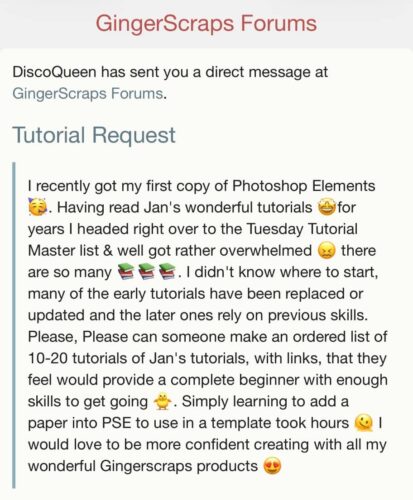
Well, what should I do about that? Of course I’ll make a primer for beginners! I picked 20 (there are more than 430!) that I believe will be most useful for someone just learning the ropes. By all means, if YOU dear readers have suggestions to add to the primer, shoot me a message and I’ll add them on. Each of the tutorials will be in BOLD COLOURED UNDERLINED text – they’re ALL hyperlinks. Just click on the one you want and you’ll be whisked away to the exact spot.
I think the best place to start is with actually SETTING UP PREFERENCES in Photoshop Elements. For the software to be truly useful, it needs to make sense to the user. So setting one’s own preferences can make a huge difference to the user-friendliness of the whole thing.
Elements has its own lingo and the terms used can be very… obscure. So here’s a GLOSSARY OF COMMONLY USED TERMS.
Elements is, at its most basic, a TOOLBOX. Knowing what the Tools are called, what they do and how to maximize them for digiscrapping helps a LOT!
I’m a big proponent of WORKING SMART, NOT HARD – in all things. Digiscrapping is supposed to be fun, but if you’re struggling to get the results you want, or you’ve only got a limited window to create within, WSNH tips are everything.
One really useful skill to develop is that of using KEYBOARD SHORTCUTS. Some are sort of universal, working with several different software packages. The most important one to learn right at the beginning is CTRL/CMD>Z – UNDO!!! [CTRL is a Windows command key, CMD has the same function in Mac operating systems.]
Now, let’s put some of this information to use. To lower the learning curve, USING A BASIC TEMPLATE is golden. Templates take a lot of the decision-making out of the equation by providing a road map to a solidly-designed layout. They’re NOT cheating!
Earlier versions of Elements allowed for more definite placement of objects – having the layer where you wanted something to go being the active layer – that seemed to just disappear with an update somewhere along the way. When you click-and-hold on a paper, for example, then *drag* it onto your layout, it’ll probably end up on top of all the layers, unless you use the tips in the OBJECT PLACEMENT tutorial. You’ll be able to more precisely place them when you understand the process.
That brings me to making the Layers Panel your friend. Looking at screenshots in tutorials where I’ve shown the Layers Panel in close-up, you probably aren’t seeing the same view when you’re working. For some reason, the software developer thinks having the WHOLE layout visible and crammed into the thumbnail – the little image of the Layer – so it makes you cross-eyed. Here’s how to change the LAYER THUMBNAIL APPEARANCE to make life better.
When adding objects to a layout, we often want to change the angle, rotate or move them in some way without “picking them up and toting them around”. Elements lets us decide where an object is “anchored” so that they can be swiveled FROM that point, rather than from the centre. Think of tilting a label or journal card while keeping one of the corners in a set spot. This is where ANCHOR POINTS come into play.
Shadows are vital to a pleasing layout. Knowing how they SHOULD look is an important factor, and if you’re not using a pre-shadowed template, you’ll need to figure them out. Here’s the link to some SHADOW BASICS.
Next, let’s look at some of the individual Tools and how to use them well. We’ll start with the BRUSH TOOL. This tool has infinite possibilities, and Brushes can take your good-enough layout right over the top.
Another Tool that’s used on virtually EVERY project you’ll ever do is the TEXT TOOL. Knowing how to choose the right settings for this Tool can save you a lot of frustration.
Okay. So. Fonts. Elements comes with a decent set of basic fonts, but there will be a time when you’re no longer content to use them. There are literally millions of them out there and more are being created all the time. There are websites where you can download free fonts and other sites where you can buy them. What do you do with them after you acquire them? INSTALL FONTS (WINDOWS 11)
Okay. So. USING fonts… How does one combine two or more fonts to create a cohesive, attractive title? One uses FONTOGRAPHY!
Let’s take that a step further… and turn some FONTS INTO A STICKER. This is something I use ALL the time! It’s easy and effective.
Here’s another way to make your titles more visually pleasing. ADD A STYLE.
Want some tips on creating PRETTY CLUSTERS?
I want to briefly touch on BLEND MODES so when you see that term in a tutorial, you have at least a definition. They can be very useful, even in a very basic way.
Putting all of this together is nice, but we all know a good photo can make or break a layout. Here are some easy PHOTO ENHANCEMENTS you can do quickly to give your photos more impact.
And now for something really awesome… how to CLOSE ALL THE FILES ON YOUR CANVAS without it taking all day.
Before I Close All here, I’d like you all to know that you can ALWAYS contact me directly with questions or suggestions, either by sending me a Private Message via the GingerScraps website, by commenting here or by email: obijankenobi@telus.net.
Whew. The Reader’s Digest version of Tutorial Tuesday, all in one place!

Speak Your Mind