Tutorial Tuesday (Photoshop Elements 15)

Fun with FONTS & FOTOS 

I don’t know about where YOU are, but where I am, winter is in full fury. We got nearly a foot of snow in the last few days, most of it falling at the same time I was on a 52-passenger bus on my way home from a meeting 200 miles from home. So I’ve been living vicariously through my daughter, who just returned from a week in Hawaii. She took some amazing photos!

Let’s play with another Guided Edit, from the Fun Edits tab. This one is called Photo Text.

The interface for this edit is quite simple and easy to follow. Click on the Text Tool button and choose a font. Pick something with some presence – a chunky one that will let all the awesomeness of your photo shine. I started with Konga Pro Regular. Don’t worry about the font colour, it’s not going to matter. You can play with the size to maximize the area of the photo your text covers.

And you can use more than one font, as the software shows in the sample on the menu screen. Don’t click to accept the changes until you’ve got all of your text done though. Move your cursor to where you want the new font to take over, use the font selection menu to choose the new one and type out your text. And don’t worry if your text doesn’t fit onto your photo perfectly either, because you can resize it later. The second font I chose for this example is called LD Zoot Suit, from Lettering Delights.

If your text lines overlap, once you’ve got the words you want, you can double-click on the text and adjust the leading – the gap between the lines – so that they’re just touching. Or, because it’s YOUR project, they don’t have to touch… it’s all up to you!

Once you’ve committed your text, the software automatically clips your photo to it. You can move the text around and resize it to reveal the areas of your photo that you want visible.

The image above has the “Fit” option selected, since it’s the default. Depending on your font and the width of the words you used, you might find the “Fill” option works well for you. I didn’t like it, so I undid it.

Then there’s the Background Color option. You can choose Black…

white…

or Clear (transparent). Which one works will depend on what you plan to do with your text later.

I shifted my text around to show more of the sand and the sea, less of the sky. The clouds on the horizon weren’t defined enough for my taste.

Now for the fun part! There are some more options that change the appearance of your text in some very interesting ways. With one click you can add both a stroke and a bevel! There are three preset adjustments; this one is the Small version.

And the Medium. Looks a little like a marshmallow.

Large is even more puffy and defined. While I was playing around with this technique it occurred to me that this would be a way to make a super-simple alpha set to match a favourite kit, simply by typing out the alphabet to fill up a paper from that kit, then fiddling with the adjustments.

But wait!! There’s more tweaking we can do! By clicking on that Advanced button at the bottom of the interface, this menu opens up. Each aspect can be adjusted to suit the look you’re going for. You can change the angle of the light source, make the Bevel higher or flatter (and sharper), you can adjust the Drop Shadow, the width of the Stroke and even add an Inner or Outer Glow. It’s so much fun to experiment!

I decided a white Stroke would look better. Right?!

All that’s left is to decide what to do with your finished text. You can save it, share it or move it to the Expert editor to drop onto your layout. The power is in your hands!

With this Guided Edit you can do as much or as little as you like with your text. Of course, you COULD do it all the old-fashioned, multi-step way, but why?

January’s Designer Spotlight: Miss Mis Designs!

Whew… where did January go?? Between me being crazy busy and some gremlin activity with my laptop, Misty almost didn’t get her moment in the Spotlight, but there’s still a tiny bit of month left so let’s sit down with her and get to know her a little better.

J: How long have you been designing?

M: Ten years this month! [Congratulations!!]

J: What’s your design process?

M: I’m a full-time student, mom and manager, so my design process lately is sit down and make a day of it. Plan papers, elements and knock it out.

J: What do you use to create your designs?

M: I use PSCC some, but my  favorite is PSE 7. SEVEN, lol!

J: Describe your design workspace.

M: Right now my mom is living with us and taking my office space, so I’m currently at a small desk in the middle of the dining room. At least I have snacks when I design!

J: What motivates and inspires you as a designer?

M: It’s my creative outlet. I have a very mundane real life job; this allows me to be artsy and creative.

J: What kit currently available in your GingerScraps store is your favourite? Why?

M: My favorite is “My Tribe”. I feel like most people can relate to having that ‘tribe’ of people that help them in everyday life. Kids, work, LIFE!

[psst…. it’s on SALE!!]

J: Do you craft outside the digital world?

M: I crochet blankets. I can crochet and relax in front of the tv for maybe ten minutes a day. Everyone gets baby blankets for their new littles.

J: What is the last book you read?

M: I am currently reading Present Over Perfect. It’s sooo insightful.

J: Tea or coffee?

M: Coffee through the day but a hot cup of tea before bed. 

J: Do you have a guilty pleasure?

M: I like a good casino. Eek. I do like to go and splurge $40 or so and sometimes even win!

J: If time travel were possible, where would you go and why?

M: I would have to go to the future. I’m not much of a history person. There isn’t a specific time that intrigues me.

J:  What’s your favourite thing about GingerScraps?

M: The team and the community! There isn’t ever any bickering, or drama. We truly do have a fantastic group of people. 

J:  If you could have any super power, what would it be?

M: I would love to be able to be in more than one place at a time. Multiplicity. I am a mom, a full time Sales Manager, and full time student. I need more of me to get it all done. I’d have one more that is just sleeping all the time. 

Thanks for chatting with me, Misty!


Tutorial Tuesday (Photoshop Elements 11+)

More Fun with Photos!

When I started thinking about what to write about for this week, it occurred to me that we hadn’t gotten back to those Guided Edits that have been getting better and better with each new version of Elements for quite a while. Then I saw a layout in the gallery that set off bells. The photos the layout was built around had that dipped-in-caramel-latte look that lends itself to so many palettes and styles, and I’ve been wanting to know how the scrapper gets that effect for a long time. I’m going to show you how, right now! I pulled a photo from Pixabay to play with and although it’s had some post-processing, it worked beautifully.

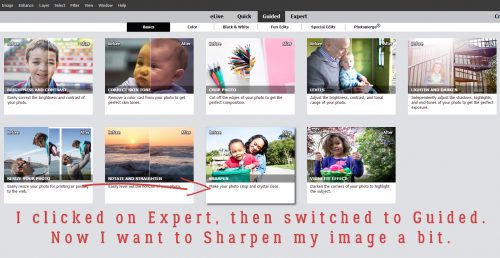
First things first. I opened my photo in Elements, then I clicked on the Guided tab shown below.

The Guided Edit I’m going to use is in the Black & White tab and is called High Key.

The interface within the High Key menu looks like this. It has two options, colour and black-and-white. I’m going to show you both of them so you can see what they do.

Clicking on the button more than once enhances the effect. For most intents and purposes though, a single click is all that’s needed. I really like the way the details are softened, but the catchlights in the model’s eyes seem to pop right off the photo.

The second step in this menu is the Add Diffuse Glow button.

It’s a lot softer and slightly blurry, but those catchlights are still pretty awesome. It bothers me though that she looks like she has no nose.

As with the first button, clicking on it multiple times adds more and more “glow”.

I ended up Undo-ing the second glow mask.

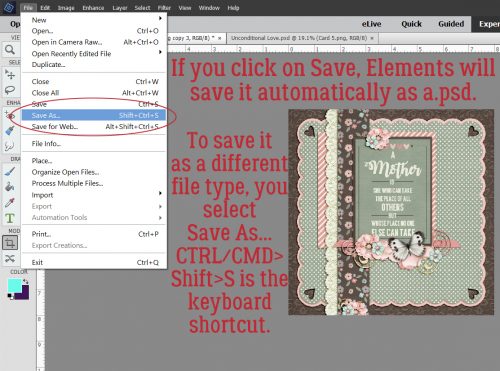
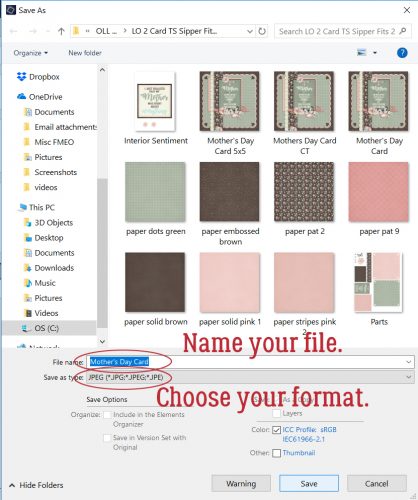
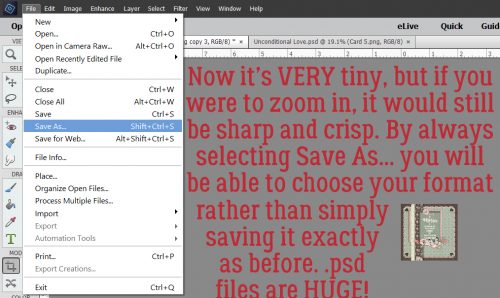
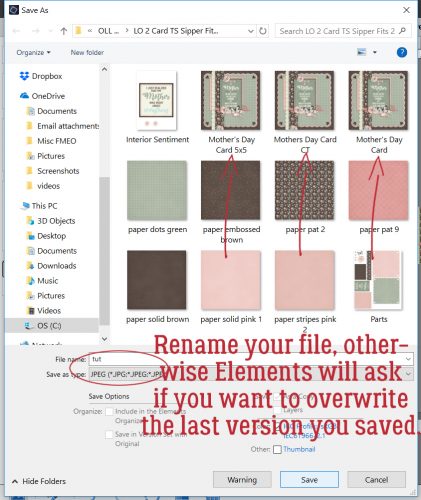
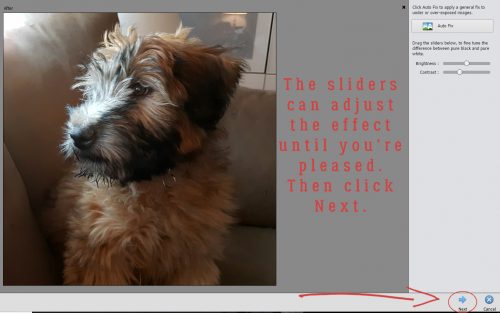
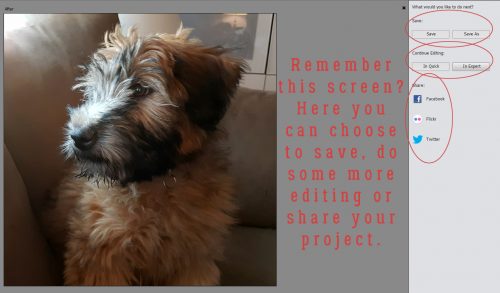
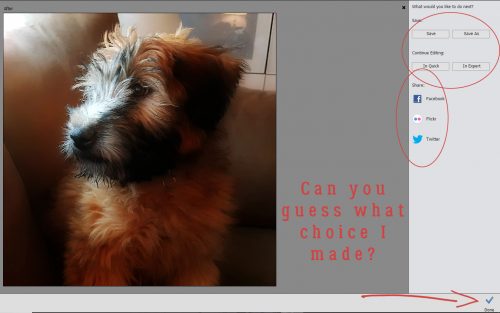
When I was happy (or mostly happy) with what I had, I clicked on the Next button at the bottom right corner of the screen and it took me to this menu. [You can see it in the menu images above.] I decided to see what else I could do with my photo so I clicked on In Expert to take me to the interface we’re all so familiar with. Had I been pleased with it as is, I could have Saved it or Saved it As and then renamed it. If I’d clicked on the Done button, the adjusted photo would appear in the Photo Bin.

The Expert mode shows the different layers the High Key script created. Each of those layers can be adjusted, turned on or off, Blend Mode changed, Opacity tweaked… whatever you like. In the example below I turned one of the layers (brightness) off and lowered the Opacity of the background copy layer to 40%. There’s a hint of colour in her hair, eyes and lips, her skin looks flawless and I could use this photo with just about any colour palette and scrapping style out there.

After I saw what the colour script did, I tried out the B&W one.

A single click gave me this.

When I added the Diffuse Glow, her features all but disappeared. So I Undid.

As you can see, even in the B&W mode I was able to pull a little colour into the image. All layers are visible except the Brightness layer in this screenshot, with the opacity of the top layer (gradient mask) at 50%.

I turned visibility for the Brightness layer back on then decreased the Opacity to 35% and the image no longer has that hint of colour. But many of the details are still blown out.

That third layer is the one with the Levels adjustment. If you haven’t played with Levels I HIGHLY recommend it! With a few twitches of the sliders, I was able to find her features again without losing that creamy goodness.

I played with layer Opacity a bit on the Level mask (65%) and loved the result. I can’t wait to use this trick on a layout, almost as much as I can’t wait to see how YOU use it!

Tutorial Tuesday (Photoshop Elements)

The ART of ILLUSION

Last week I promised you a technique to really rock the January Inspiration challenge, and I hope you agree that this is it! Ivonne, the brilliance behind Craft-tastrophic, gave us this photo as the platform around which to build our layouts.

I tend to be pretty literal in my adaptation of this kind of challenge, so my goal was to find some photos of balloons, a girl in a pink dress and the Paris skyline. There were also some requirements in addition – the girl had to have an outstretched hand to attach the balloons to, the photos had to be lit roughly equally and the light source had to come from the same direction. Now, those last two can be fudged sometimes, the former by tweaking the exposure and the latter simply by flipping the photo horizontally, but lucky for me the photos I found at Pixabay ticked all my boxes without any major fuss.

Early in my tutorial authoring “career” I showed y’all two different ways to extract an image from its background. I used both of them for the final result. The first I used on two photos of hot air balloons (you can see them below in the Layers panel); it’s the Magic Wand method, quick and easy, and especially suited for images with few finicky details. The second, using a Layer Mask and the Eraser tool, was used for the photo of my girl in her pink dress. The screenshot below is a refresher on adding and using a Layer Mask. Remember, black reveals, white conceals. If you make a boo-boo, click on the X key to toggle between hiding and uncovering to undo whatever needs fixing.

Zoom in as much as necessary to keep your edges clean and to avoid removing something you’ll miss later.

I like to work my way around the edge of my image all the way, making a good-sized gap between the superfluous background and my detail so that later I can increase the size of my eraser to enormous and quickly remove the rest of the background.

Here are the three images I’ve extracted to add onto the Paris skyline.

I plopped my extracted images onto my Paris skyline photo and moved them around, adjusted their sizes as needed and positioned them where they’d make the most sense. Once I had the balloons positioned so the shadows in the original images were in the right direction and the perspective looked good, then I had to make the balloons look like the girl is holding them. So I made some “strings” on a new layer.

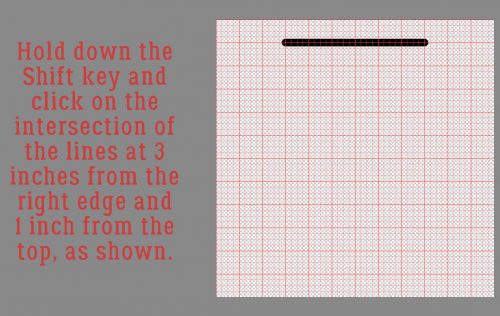
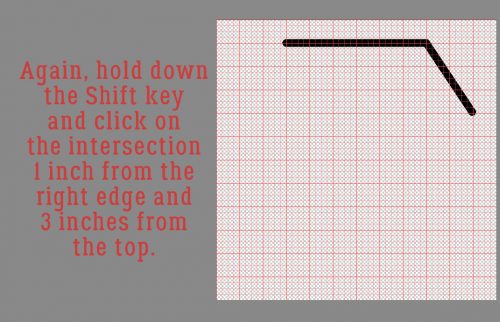
With the Pen tool I drew two perfectly straight lines from the baskets of the hot air balloons to the girl’s hand. To draw a straight line, all you have to do is decide your starting point then click there. Holding down the Shift key move your cursor to the end point and click again. That’s it, that’s all! I used a 5 pixel pen tip and a light gray colour for the strings. Then I made some little tails inside her palm just for an added touch of the possible.

To turn those straight lines into something resembling string, I used the Texturizer FilterFilter>Texture>Texturizer

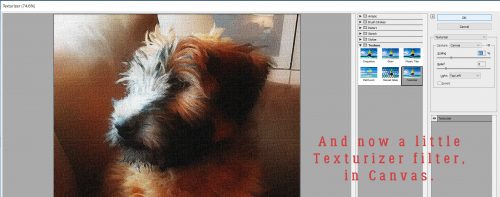
The defaults in this tool are Brick, Burlap, Canvas and Sandstone. The one most likely to look like string is Canvas, so that’s what I used. Adjustments you can make inside the Texturizer menu are Scaling – how big your texture will look, Relief – how “high” it will lift off the image, and the Light source. You also get a preview without the background there so you can actually gauge what’s happening in real time. You’re going for a realistic look here.

I moved on to look at the girl. I wanted her to look like she really was standing on the roof. And she didn’t…

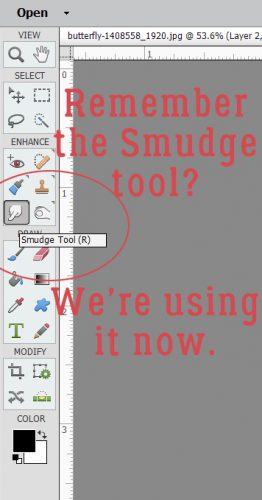
I created a custom shadow on its own layer, which we’ve covered a number of other times in other tutorials. She won’t cast a shadow anywhere but where she touches the roof, so I used the Smudge tool to achieve that.

There, now she looks like she’d touching the stone. But it still isn’t quite right. Her skirt should also cast a bit of a shadow, so I Smudged my shadow layer there too. All that was left was to adjust the Opacity and Blend Mode and I was thrilled with how it looked.

My finished layout was created with Heartstrings Scrap Art‘s The Bigger Picture 3 Winter’s Frost template B and her Time Traveler kit.

You know you’re only limited by the boundaries of your imagination!

Tutorial Tuesday (Photoshop Elements)

Like Snowflakes… No Two ALIKE

Hey GingerScrappers! Are you ready for another technique (or two)? This week’s tutorial shows two ways of using the Custom Shape tool and reviews customising shadows in Elements. The inspiration for it came from comments in the Gallery on two of my layouts, each with a paper snowflake. I used templates for both of them but that doesn’t mean I can’t show you how the effects were achieved. For the examples I used the January Buffet collection from Just So Scrappy called Bundle Up. I started with a 12×12 page on my workspace. For the first part of the tutorial the background paper is a darker blue one with white spots and the gray stripe for the snowflake.

After I moved the blue spotted paper onto the page, I chose the Custom Shape tool, the one that looks like an amoeba. I also chose a light colour to create my shape so my tired old eyes could see it.

There are a number of options in the tool menu. I selected the Nature folder from the drop-down default shapes, chose a hefty snowflake from the folder and set it to Defined Proportions. This makes sure that my shape is as tall as it is wide. Symmetry is important in a snowflake!

There are two ways to Simplify shape layers. Don’t forget this step. It’s what gives you the upper hand over the snowflake. You can do it right from the Shape tool menu or you can right-click on the layer and select Simplify Layer as shown.

Then you’re going to clip a paper to the shape. The keyboard shortcut is CTRL/CMD>G for versions below 14 and CTRL/CMD>ALT>G in versions above 14.

Now let’s give our paper snowflake a custom shadow. You might recall a previous tutorial on this subject, so this will be a review. The full set of steps is described in the second technique. (After I made all my screenshots I decided I should reverse the order of the two techniques and didn’t want to go back and redo it all… Sorry!)

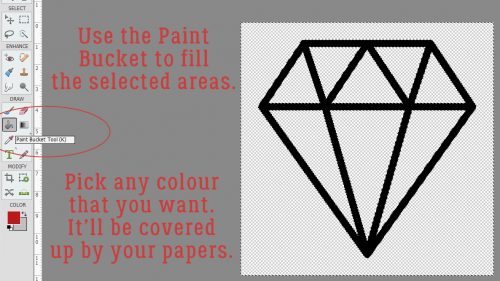
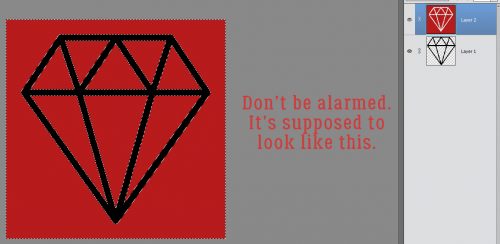
The steps are: New Layer below the cutout, Select the shape by CTRL/CMD>clicking on the shape layer thumbnail and filling the selected area with your shadow colour with the Paint Bucket tool. Then you want to move the shadow layer over and down in the direction your light source is coming from.

To really customise it and make your paper snowflake look 3-D, use the Smudge tool to gently move the shadows around. Think about how much light will get underneath the paper and nudge the shadow closer where the paper will lay flatter, farther away where it might lift.

If you’re working on a darker background and it’s too hard to see what you’re doing, turn the background layer(s) visibility off.

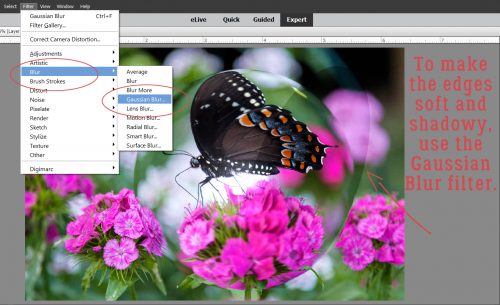
Aha! A typo!! That should say Gaussian BLUR! It’s found in the Filters menu. It softens the edges of your shadow to make it look more realistic. Change the Blend Mode to Linear Burn and decrease the Opacity until it looks like a nice shadowy bit.

There it is! A paper snowflake sitting pretty on your background paper.

But let’s add some pizazz! For this step I used a wrinkled fabric brush I picked up free from Brusheezy. The brushes in this set have a maximum size of 2500×2500 pixels so I had to make my paper snowflake and its shadow small enough to completely cover it with the brush. To make sure the brush only covers the snowflake, I Selected the edges of it (CTRL/CMD>click on the layer thumbnail) then created a New Layer on TOP of the snowflake layer. I ALWAYS put my brushes on their own layer so I can play with them without affecting anything else.

I used the same colour as my shadow. It looks a bit too dark and opaque, but I’m going to change that.

As you can see in the screenshot below, you CAN use two different Blend Modes on one brush. I used Color Burn when I put the brush on the layer and then Multiply afterward. The effect is subtle but pleasing.

Then I pulled down the Opacity of the brush layer so the stripes show through again but the wrinkles are still there. The only flaw is that this technique does change the colour of the paper somewhat.

See? Now it’s so much more interesting to look at than a plain paper cutout!

Now let’s flip this around. Start with the gray striped paper.

Follow the shape-creation steps as before. I used the same snowflake shape.

As mentioned above, do use the Tool options. They make life so much easier. Play around with them to see how they change things.

Look familiar? Only for a few more minutes!

Simplify the shape layer.

Now drop the blue spotted paper on top of the gray striped paper and the shape layers.

Select your shape. Make sure you’re on the BLUE paper layer.

Cut the shape out of your paper. Instead of having a paper snowflake on top of your blue paper, you’ll have a snowflake-shaped hole in it.

And it’ll be the colour of your shape until you delete that layer or turn it off.

Here we are again. It looks a lot like the first one right now.

Select the blue paper layer by CTRL/CMD>clicking on the layer thumbnail, just like before.

Create a new layer underneath the blue paper. Fill it with the Paint Bucket and your shadow colour.

Move it over and down in the direction your light is coming from.

There it is! In this iteration it’s easy to see so you can start Smudging it to make your 3-D effect.

“Lift” the paper where it might curl a bit, anchor it down where it should rest close to the background. Once you’ve done this shadow technique a few times, it becomes very quick and easy. Trust me! I almost never use shadow styles any more.

Here are your detailed instructions for the Gaussian Blur filter.

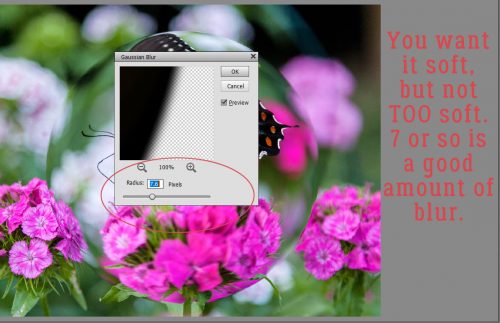
Clicking on the edge of the shadow somewhere gives you a preview in the adjustment box so you can see how much the edges soften. Don’t go crazy.

Pull down the Opacity

change the Blend Mode to Linear Burn and BOOM! You’re done!

Almost exactly the same steps, but such different looks!!

Next week I think I’m going to show you some photo manipulation tricks that you can use for the Inspiration Challenge. Stay tuned!

Tutorial Tuesday (Photoshop Elements)

Ahead of the CURVE

Happy New Year, GingerScrappers! I hope you’re all recovered from the holidays and ready to get back to work… at scrapping your memories, of course!

This tutorial was inspired by a comment left by Glee on the layout shown below. Can you guess what she mentioned? Yes, it was that curved, diminishing title.

I haven’t quite decided what the right side of this two-page spread will look like, but I know I won’t be using the same template, just a similar basic arrangement. I created two circles, overlapping but not concentric, with the photo smaller than the paper layer.

Using the alpha that came with the kit my papers and doodled fram

e are from (GingerBread Ladies Winter Fun) I started to add in my title. The letters must be resized to fit into the space between the edge of the paper and the edge of the photo. Having the doodled, glittery frame there might help… or not. The letters also must be tilted to follow the curve of the paper, with the axis of the letter perpendicular to the edge.

I added in each letter and made the same adjustments.

I was eyeballing the gap between the top and bottom of each letter and the edges of the paper and photo.

If you’re not confident in your ability to eyeball the gaps, I have a way to make it easier. Select the edge of the paper circle by clicking on the layer thumbnail in the Layers Panel.

Then click on Select>Modify>Contract… which will move your marching ants toward the centre of the paper circle.

I randomly picked the number 15 for my amount of shift.

There you can see how that 15 pixel shift has moved the edge inward.

Before you go any further, create a new blank layer over top of your paper layer so the outline will be separated from your paper. You don’t want to leave it active at the end so make it stand alone. Then click Edit>Stroke>10>(choose a contrasting colour like red)>Inside and leave the other adjustments at the default settings.

Now there’s a nice obvious line to follow that will help you offset your letters enough to make them prominent.

If you zoom in you can use this guideline to help position your letters.

I like the doodled, glittery circular frame, but it’s making lining up the bottoms of the letters more difficult. I might have to turn the visibility off.

Wait!! Maybe we should have a second guideline to make it easier.

You guessed it!

Click on the photo layer thumbnail, then Select>Modify>Expand>15 and commit the operation. Add your stroke to the outside this time.

And now there are two guidelines with the same distance from the edges of the photo and paper circles.

Once I had my title in the space and positioned just so, I moved the doodled, glittery frame on TOP of the letters, which helped to anchor them to the photo.

In this example, the letters gradually get bigger from beginning to end, whereas in my original layout they gradually got smaller. With the two guidelines deleted, the tops of the letters look sharply positioned. Easy peasy!

I’ll be looking for YOUR curved titles in the gallery!

Tutorial Tuesday (Digital Scrapbooking)

Christmas FONTography

Wow… less than a week until Christmas and Kwanzaa! And only 1 more day of Chanukah. I know there are lots of you who find yourselves right where I am… too much to do and not enough time to do it. So I know you’ll forgive me for scrimping a bit on this week’s tutorial, and I know you’ll understand when I tell you that I’m taking next Tuesday off. Sort of. It’s my turn to work Christmas in the pediatric ICU and on the 25th and 26th, that’s where I’ll be.

Okay, now that’s out of the way, let’s talk about those holiday layouts we’re all going to be creating over the next couple of weeks. I’d like to share some amazing Christmas/winter/elegant fonts that would be fabulous for titles or journaling. I checked out a few online earlier today and found some real gems!

The next few images are all from 1001fonts.com. There are some dingbats in there too – that could come in handy someday… you never know! They are all free, but please consider making a donation to the fontographer if you like their work.

As you can see, there are a variety of styles and moods here.

I just love the titles some of them have, don’t you? Very descriptive.
I don’t know about you but I may never have enough fonts.

Some of these are already in my collection but I need more!!

The images and fonts below are from another of my favourite font sources, dafont.com. You might notice there are some duplicates, but each site has a nice selection of unique fonts.

Santa’s Sleigh has been one of my collected fonts for years. Do you have a favourite?
Some of these make me think of Christmases when I was a kid.

And of course, there’s gotta be some snow in there. And tinsel! City of Light would be awesome for Chanukah layouts, wouldn’t it?
There are some here I’d be hard pressed to find a use for, but there are so many more that I could definitely make work for me.

I’ve barely scratched the surface here. There are hundreds of free and low-cost festive fonts out there if you have a minute to look for them. I’m going back right now to download some more… instead of wrapping gifts or cleaning my house.

Below are some of the fonts I’ve hoarded over the years, both free and paid-for. They’re not all typical Christmas-y fonts, but would absolutely work. I think Peanut Butter Smoothies would be terrific for story-telling.


If you need a refresher on combining fonts, you can find that tutorial here.

I can’t wait to see all the special layouts you’re going to create with your family photos. You can be sure I’m going to be looking for some of these fonts. Guaranteed! Merry Christmas, Happy Chanukah, Happy Kwanzaa… Festivus, Alban Arthan, whatever winter festival you’re celebrating… and a Happy New Year!

Tutorial Tuesday (Photoshop Elements 14+)

In the RAW!

How many of you have high-tech, high-priced camera gear? How many of you actually use all those fancy features that came with your HTHP camera? Show of hands? How many of you are shooting RAW? (NOT naked…) Anybody?

I’m sure there are more than a few people scratching their heads about now. Let me explain. RAW is a file format that records ALL the data collected by the sensor (creating ginormous files, by the way) that allows for a wide range of adjustments in post-processing. The files it generates are huge for a reason – the image compression ratio is much larger than the JPEG format’s files so there’s more that can be fine-tuned once the images are downloaded. (To understand compression ratio, look at a photo you shot with your camera then posted to Facebook. Examine it in its original state zoomed in 200% then do the same with the FB version. It should be obvious… FB compresses images to a significant degree and they look really awful zoomed.) It’s a great tool for pros, but not necessarily useful for the average soccer mom snapping cell phone photos of the little darlings running with the ball. But what if I told you that PSE 14 and above has a photo editor setting that emulates RAW format editing but without the enormous files? I’m going to show you how it works…

First you need to open your image in the Camera Raw editor. Find the image in your photo folder so you know where it is,  then click File>Open in Camera Raw.

The interface looks like this. Don’t be intimidated! It’s really not that hard to follow. If you look at the photo I’m using, you can see the sky is really washed out but there’s no detail visible in the statue’s face. I’m going to fix that.

The default when your image opens is the Basic adjustment panel. It includes a White Balance setting that you can leave as shot, set to Auto or set to Custom. In the image below I’ve selected Auto. If you look closely you can see that the Temperature slider has shifted a bit to the right, or warmer side. So has the Tint slider.

I changed it to Custom just to show you that all the sliders reset and you’d need to adjust all the sliders to achieve the White Balance you want.

So I went back to Auto, then played with the sliders. Adjustments here, listed in order from just below the White Balance, include Temperature, Tint, Exposure, Contrast, Highlights, Shadows, Whites, Blacks, Clarity, Vibrance and Saturation. I moved the Shadows slider all the way to the right; see the change?

The adjustments aren’t individually obvious, but when taken altogether, there’s a significant change. With each image, look at where the sliders are to see what I’ve tweaked.

Each of the controls adjusts a different basic aspect of your image. You can adjust the exposure so that over-exposed, blown-out areas aren’t any more, and so that underexposed areas are suddenly quite visible. And look at the definition suddenly showing up in the foliage!

Once you’ve gotten the exposure and and colour more to your liking you can move on to the Detail adjustments. It can’t correct everything though. It’s not going to magically take an out-of-focus photo and make it tack-sharp.

The adjustments in this panel include Sharpening and Noise Reduction, with some options within each. In this panel, it’s helpful to zoom in on the part of the image that you’re trying to improve on so you can gauge the degree of change you want. You don’t want to overdo it!

And then there’s the split-screen preview option. This is really useful for all stages of adjustment. To get the split screen go down to the bottom right corner of the image and click on the box with the “Y” in it. If you click on it once, you get the side-to-side split shown below. Clicking on it a second time will split it top-to-bottom. That might work better for landscapes. Seeing the before and after lets you control your adjustments even more. (And you know I’m ALL about control!)

So after I’d done some Sharpening and some Noise Reduction in split screen, I went back to the Basic menu to see if there were any other nudges I wanted to add.

Once I was happy with the changes I’d made, I clicked on that Open Image button.

That opens up the more comfortable PSE Expert interface. I think the image looks heaps better, but there might still be some things I can tweak a bit more.

The first thing I did was Crop it to make the overall image more appealing. I like to see the Rule of Thirds grid when I’m cropping. It helps me see where the focal point should be… at a point where two of the lines intersect. You can see that one of the vertical lines passes right through Paul Revere’s head and down the centre of his horse.

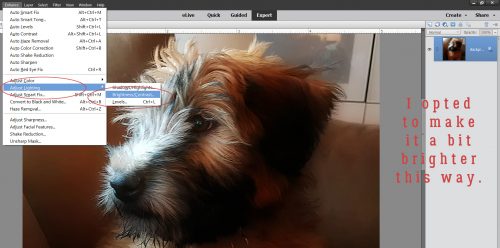
Now I decided to adjust the Lighting a wee bit more. Enhance>Adjust Lighting>Shadows/Highlights.

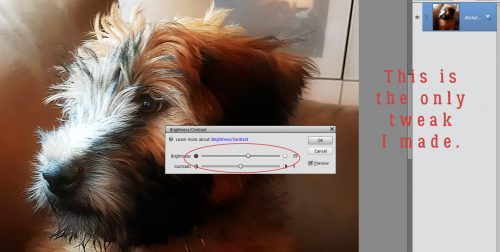
One thing you should keep in mind when using this menu is that the default setting is to Lighten Shadows by 35%. Sometimes that’s perfect and sometimes it’s way too much. Or not enough. Watch your image while you’re making these changes so you don’t go too far. I didn’t really want the shadows lightened. I was more interested in bringing back some of the still-blown highlights and some adjustment of the midtone contrast. Did you notice that the steeple on the Old North Church suddenly is more visible? It’s magic, right??

Because this image still looked a little dark in spots but too washed-out in others, I decided to play with the Levels. Enhance>Adjust Lighting>Levels (CTRL/CMD>L)

All I did in this menu was to move the sliders a smidge to the left. That brought out some nice detail in the clouds. Try moving the sliders around in either direction so you can see what happens with them.

And that brings me to another neat feature that has been in PSE since Version 11. It’s called Haze Removal and it’s even more useful than the Noise Reduction options in Camera Raw. So click Enhance>Haze Reduction (CTRL/CMD>ALT>Z) to get into the menu.

Oh look! The steeple is even more in balance with the exposure of the rest of the photo and the clouds look like they mean business. The leaves have some lovely detail that is brought out even more. And I’m thrilled!

Since there was a snowpocalyse this past weekend in areas of North America that haven’t seen snow in decades, I thought it would be a great opportunity, and an obvious one, to show another way these tools are useful. I’m sure most of us (who live in the snow belt) have photos where the snow is gray, or blue, or some other unnatural cast. And Remove Color Cast isn’t always the best way to change that.

I hit the Auto White Balance and the snow looked more white, but not enough. I worked down the list of sliders, moving them a tiny bit at a time.

I wanted the texture of the snow to be more visible so I did some Detail adjustments too.

Then I Opened Image and went into the Enhance>Lighting>Shadows/Highlights menu.

This time I was happy to see the default Lighten Shadows. I just added a little more Contrast.

And then I decided it needed some Leveling, again moving the sliders a bit to the left.

Then I went to Enhance>Haze Removal (CTRL/CMD>ALT>Z) to show you how you can toggle between the Before and After images to decide how much to remove.

And this is where my snow shot ended up. There’s some definite highlights, texture in both the snow and the rock and the icy effect is pretty good!

I think you can really have fun with this. I KNOW you can take some of your ho-hum photos that you’d hoped would be better and make them that way. And great photos make for fantastic scrapbook layouts. So go, give it a whirl! See y’all next Tuesday.

Tutorial Tuesday (Creativity)

Playing on Emotion

December. The “most wonderful time of the year”, right? But not for everyone. Many people struggle with depression, anxiety and physical illness that make “the holidays” a very difficult time for them. Because of how I earn my living, I see the melancholy side of things all too often… when children in my care die in December I know their families will struggle with so many conflicting emotions for the rest of their lives, and I’ll struggle right along with them. So this week my tutorial will take a lightly different approach than usual and focus on emotion. I’ve found that scrapping the emotions I feel helps me process them better and by processing them better, I live with them better. It’s called catharsis.

Art journaling is a perfect method of scrapping emotion. But before you start thinking that only negative emotions qualify for an art journaling layout, let me assure you that ALL emotions are perfect topics for art journaling. Later I’ll show you what I mean. And I don’t want you to panic thinking art journaling is hard, or that it’s so out of your comfort zone that you could never do it. Because I can promise you, it’s there, it’s in you. You might just need a little nudge to find your inner artist.

The basics of art journaling layouts are pretty straight-forward. They can include photos, but don’t have to. They generally need some grunge, either from the kit you’re using or via the use of brushes. Actually, brushes are perfect for this type of layout (just remember to put them on their own layer!!) and the possibilities with them are endless. Doodles or scribbles look great in the background, or even over your journaling or photo. Word art makes short work of the “journaling” part of it. Hardware such as staples, clips, wire, screws and other hard objects help make your statement. Masks are another great AJ tool. You can clip photos to them to reflect a mood, or clip papers to them to make your background more umm… artsy. Which brings me to an opportunity to belabour the obvious: Bryony van Wyk, the creative genius behind Heartstrings Scrap Art, makes it so easy to create a moody, emotionally-expressive layout with her templates. The layout I’m going to share with you in a bit was created using her December Buffet Thoughts in My Head collection, although I didn’t use a template. It’s filled with paint, grunge, doodles, stamps and other artsy items perfect for this technique. Oh, and glitter is also an amazing addition and can totally reflect a mood depending on its colour.


My layout is sad and somber, despite the colour palette. Contrast it to this one by catgoddess that has a very hopeful tone to it. Same kit, very different feel.

Then there’s this one by cinderella that is so encouraging! She used Connie Princes All About Fall Daily Download kit for this beautiful example.


There are some great options in the GingerScraps store for art journal layouts, reflecting all sorts of mood. Here are a few I found in just a few minutes.

Aimee Harrison

Aimee has a LOT of artsy word art options.

Pretty as a Peacock Quotes can work for inspirational or self-affirming layouts.

Same for Celebration of You Quotes.

And the Celebration of You Word Bits are terrific additions to any layout. Have a look at her other word art packs… there’s something for everything!


Aprilisa Designs

Lisa usually creates some paint-splattered, smeared, grungy papers for each of her collections, and has some torn papers too. Whatever colour palette you might choose, you’ll probably find something in her shop to help you out.

Nature’s Beauty is an example.

Free Spirit Torn Papers. Depending on your mood, these could be super!

She also has some fabulous scatters like these Winter Joy ones.


Laurie’s Scraps and Designs

Many of Laurie‘s collections include fantastic grungy elements.

Space Wars Grunge could work for a lot of moods.

Ditto for Girl Power Grunge. Ooh, with Aimee’s Peacock word art… YEAH!

I Am Strong Grunge is feminine but powerful. Laurie is your go-to for grunge!


Little Rad Trio

Jennifer has some terrific goodies too!

Every Storm could be used for traditional scrapping, but also has a lot of art journal potential too. That alpha, right?? But then you can also include things like flowers and leaves, or flairs, or string, or any of the more traditional scrapbooking elements, as long as they reflect the emotion you’re trying to convey.


Ponytails Designs

Natasha too has some inspiring stuff in her shop.

Like Making Your Way word art.


Word Art World

Jennifer is the queen of saying what’s one her mind. And grunge is something else she’s got down pat.

The Journey of a Lifetime might be a travel kit, but this grunge is awesome for emotional expression.

Live Out Loud has some possibilities.

And Dare to Dream has a bit of introspection to it.


Now that you’ve got some idea of what to look for, you’re more than halfway there. When you’re creating your layout, play with those blend modes on your brushes and word art to see how they enhance or distract from your mood. When I was working on the layout above, I moved things around a lot before I settled on their final location. I moved layers up and down, tried out blend modes and colour overlays, tweaked shadows and just went with what pleased my eye. I changed my journaling more than once to say what I needed to let out. Now my goal is to find something joyous to build an art journal layout around to balance the sadness this one released. I know it’s there, I just have to find it. What emotion do you need to express?


Tutorial Tuesday (Photoshop Elements)

A(nother) Way with WORDS

I think we’re all becoming a little pressed for time right about now. The countdown to the holidays is on and there’s always so much to do! So I’m keeping this tutorial short and sweet.

Once again, my inspiration came from an image that popped up in my Facebook newsfeed. Julie’s gorgeous layout, using a kit created by Fayette for PickleberryPop, first caught my eye because of that fabulous word art “Believe”. I HAD to use something similar and thought it might make a good, quick tut. So here it is!

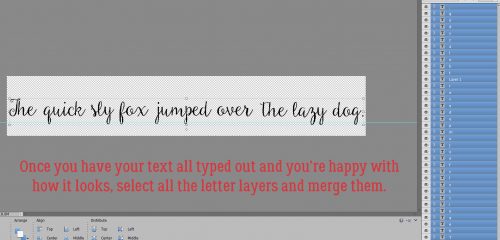
I still have photos from my 2014 trip to Ireland that I haven’t scrapped with yet. When I saw Heartstrings Scrap Art‘s The Bigger Picture 9 collection of templates, I knew right away that I had perfect photos for them. So of course, I used Magical Scraps Galore‘s Be Brave kit for its Celtic flavour, with the addition of a couple of flowers from Heartstrings’ Nature Captured (to pull the colour of the rhododendron from the photo), to scrap a layout using one of the many photos I still want to showcase. The alpha that came with Be Brave worked well for this, but any font or alpha you like will also work. Just remember if you’re using a font, you’ll need to Simplify the layer to give you flexibility in altering it. I arranged my alpha for my title with the initial capital larger than the rest. Then I merged the lower case letters, but you could just link them together by selecting all the letters then clicking on the little chain icon between the eyeball and the thumbnail.

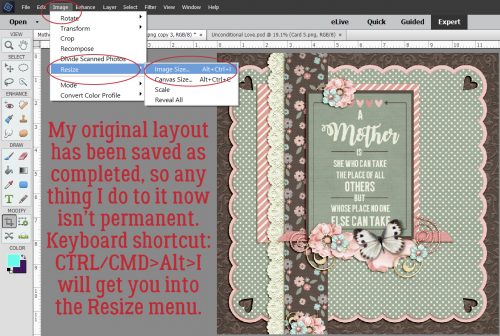
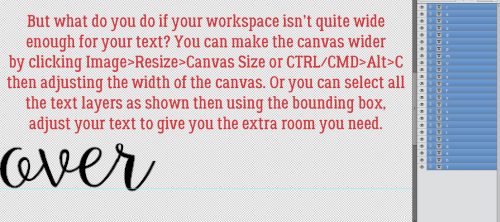
I applied a Grid over my image by using the WSNH (Work Smart Not Hard) keyboard shortcut CTRL/CMD>’. The B still wasn’t big enough for how I wanted my title to look. So then I had to Resize my Canvas. Image>Resize>Canvas [CTRL/CMD>Alt>C] Below is another image showing these steps.

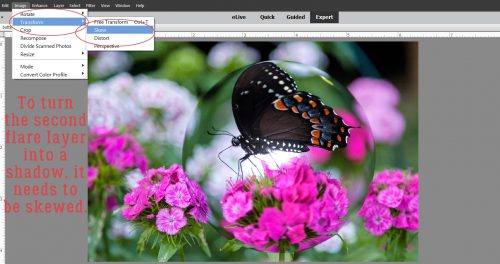
Now for the magic! Image>Transform>Skew will let me shrink my title into a wedge, just like the word art in Julie’s layout. I decided I was only going to shrink the lower case letters, but you can do whatever makes you happy. Using the grid’s lines as reference points. I moved the corner handles at the far right of the Bounding Box toward the centre. I kept the two corner handles on the same vertical line.

I still wasn’t satisfied with the size of the B so I went through the Image>Resize>Canvas steps again to give me room to make it bigger.

When the menu box opens up, you can simply type in the new dimensions of your canvas. If you want to enlarge the whole canvas by the same amount in both height and width, click on the Relative box and it’ll automatically do the math for you.

This is what my title looks like on my layout. It gives a sense of distance and movement, don’t you think?

So you see, quick and easy doesn’t have to also mean plain!