Gingerscraps Is Celebrating Digital Scrapbooking Day {2017"}!

It’s 2017 DSD {Digital Scrapbooking Day}, but one day just is not enough… so we have a week jam packed full of fun!!
Join us October 6-12, 2017 and let the celebration begin!
HUGE sales, $5.00 Grab Bags, A Facebook Freebie Hop, A Scavenger Hunt and lots of Fun & Games happening in the forum!
Of course we also have fabulous prizes and goodies being passed out all week long!
Keep an eye on this special DSD sub-forum… it will be full of posts from our designers, that you will NOT want to miss!

I look forward to seeing all of you!! Run to the store, grab some snacks and your favorite beverage. Then get some comfy clothes on, settle into your favorite spot, and get ready for wonderful week! I hope to see a gallery full of layouts!
Our SITE-WIDE 50% off sale is underway!!! *some restrictions apply*

https://forums.gingerscraps.net/showthread.php?40031-DSD-2017-*Official-Welcome*-READ-ME!

Remember when you spend $10 in the store, you get a great new collab!

fwp_thumb
https://store.gingerscraps.net/GingerBread-Ladies-Collab-Boys-To-Men.html

[Read more…]

Sneak Peeks DSD edition!

Hello! One of the best scrapbooking weekends is HERE!!! It’s DSD and Gingerscraps will be loaded with awesome grab bags, sales and games! There’s so much awesomeness to show you!

From Ponytails

From JoCee Designs

From Tinci

From Heather Z.


From Aimee Harrison

From Dagi


From Heart Strings Scrap Art

From Little Rad Trio

From Miss Fish

From Joyful Expressions

Come back tomorrow to see ALL the awesome new releases!

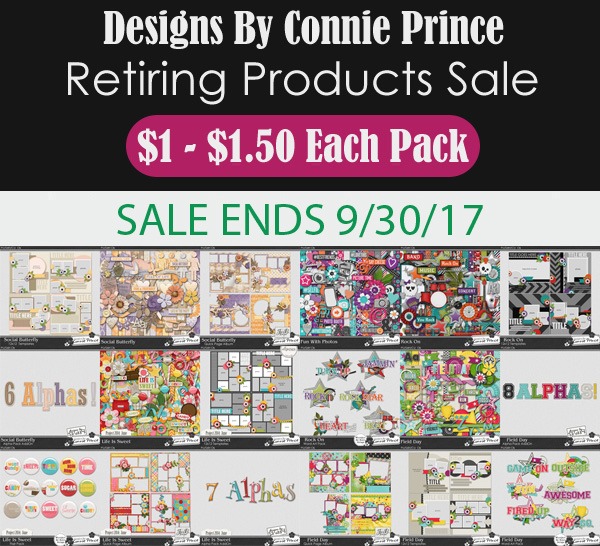
Designer Spotlight: CONNIE PRINCE!

Have you met Connie Prince yet? She’s our GingerScraps October Designer – and one of my favourites! I had the great good luck of obtaining a mini-interview with this busy designer and this is what I’ve learned:

1… How long have you been designing?

I have been designing for 11 years now!

2… What is your design process?

I typically start with a theme or kit idea then pick colors to match the mood.

3… What do you use to create your designs? (software, hardware, etc)

I use Photoshop & Illustrator for the bulk of my design work.

4… Describe your design workspace.

I work at a desk on a PC with three monitors which is pretty much the best thing ever. Lots of space to multitask!

5… What motivates and inspires you as a designer?

Typically I try to stay within the seasonal trends and when I need inspiration I’ll visit Pinterest or Etsy or even the local craft stores.

6… What kit currently available in your GingerScraps store is your favourite? Why?

This question is almost as hard as picking which child is your favorite lol. Currently, I LOVE Fall Fun. Autumn is absolutely the best season for beautiful hues and I love Autumn decor. Here is a link: Fall Fun

7… Do you craft outside the digital world?

I do a lot of other craft projects, everything from painting/drawing to wreath making.

8… What is the last book you read?

Game Of Thrones

9… Tea or coffee?

Coffee

10… Do you have a guilty pleasure?

Definitely watching television, I love it!

11… If time travel were possible, where would you go and why?

Back to my childhood to spend time with loved ones who are no longer with me.

12… What’s your favourite thing about GingerScraps?

The people! It is such a great community and Ginger is absolutely a wonderful person / store owner / boss lady. She makes it fun!

13… If you could have any super power, what would it be?

Hmm maybe the ability to control time, I could definitely squeeze in a few extra minutes here or there to get things done.

Thanks for talking with me Connie! Based on your responses to my nosy questions, I think we should be friends. I’m going to love creating a new layout with your designs. Oh, ladies… before I forget… Connie is giving us all a deep discount on her goodies until October 12th – NO coupon code required!! Check it out!


Well, that’s it from the Designer Spotlight for October 2017. Watch this space for November’s featured designer.

Tutorial Tuesday (Photoshop Elements 15)

It’s a PUZZLE!

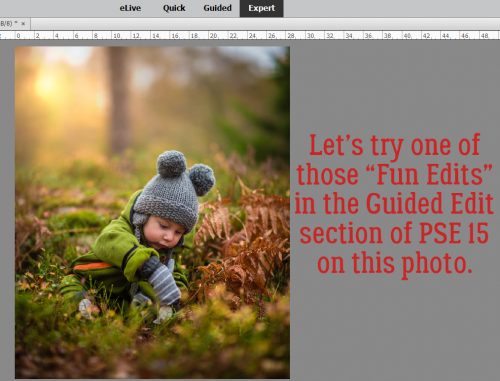
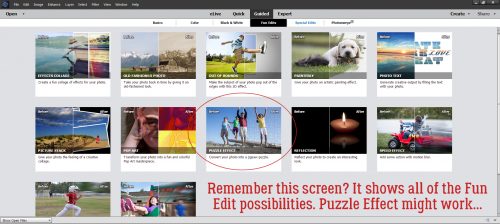
I’ll be honest, I had an incredibly hectic week and had no time to get creative. I went to bed last night with NO idea what to write about today… and woke up thinking, “Hey, why not play with one of those Fun Edits the software creators included in PSE 15?” I took a look at the October Buffet and saw all these great colours and thought maybe I could tie this tut into a Buffet challenge layout, thus getting more bang for my figurative buck. So let’s do it!

I think this photo will work nicely with the Buffet palette, and with that soft, blurry background, maybe it would lend itself to the Puzzle Effect Guided Edit.

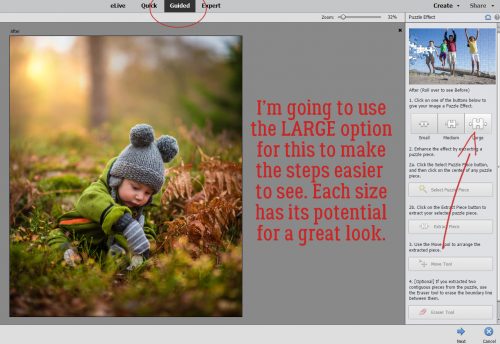
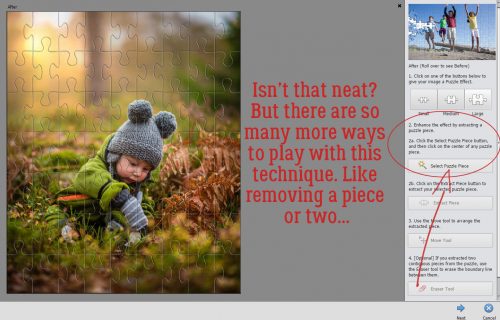
With my photo on the workspace, I clicked on that Puzzle Effect and this menu opened up. I chose the Large option to make it easier for you to follow along.

One click, and my photo looks just like a 63-piece puzzle. How cool is that?! But there’s lots more fun to come. The second step on the list says, “Enhance the effect by selecting a puzzle piece.”

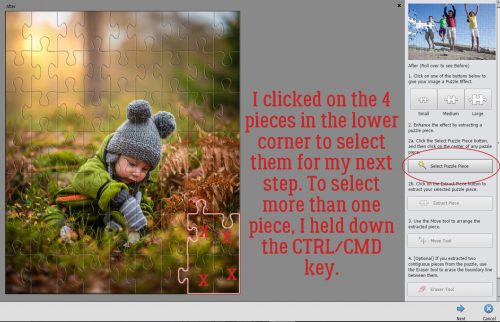
I clicked on the Select Puzzle Piece bar then clicked on a section of my photo in the centre of one puzzle piece in the lower right corner as directed. To select more than one piece, I held down the CTRL/CMD key and clicked on the four pieces outlined in the screenshot.

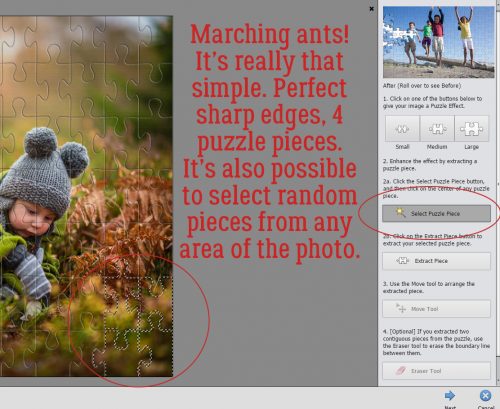
That set some marching ants going around the edges of those four pieces. No fiddling with the Magic Wand Tool, no Refining Edges needed. If I had wanted to select random pieces all over the photo, I could have done that rather than selecting contiguous ones.

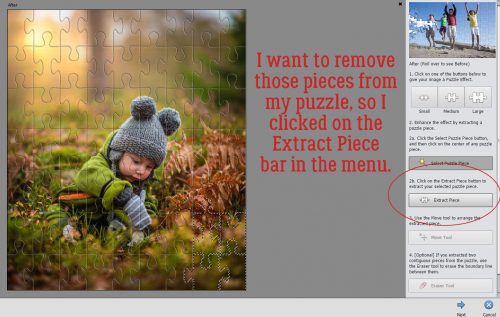
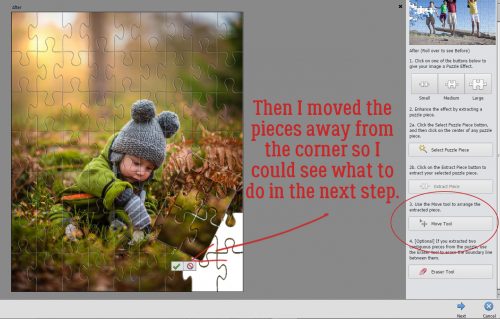
To remove those pieces, the next step was to click on the Extract Piece bar in the menu.

Then I could move those pieces all as one to another area of my canvas by clicking on the Move Tool bar right there on the menu.

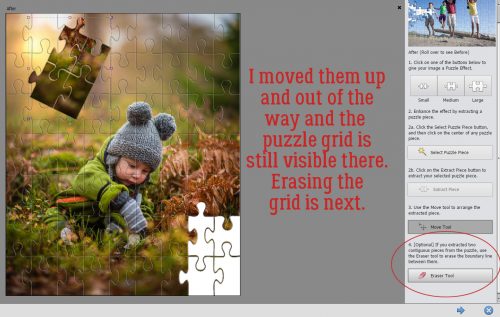
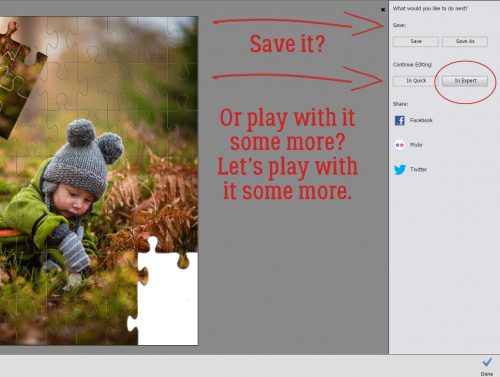
Once I’d moved those pieces up and out of the way, I could still see the puzzle grid where they had been. I could have stopped there, but I’m playing with the software so I know what it does, so I went on to the next step on the menu and clicked on the Erase Tool bar and used it to roll over the grid lines.

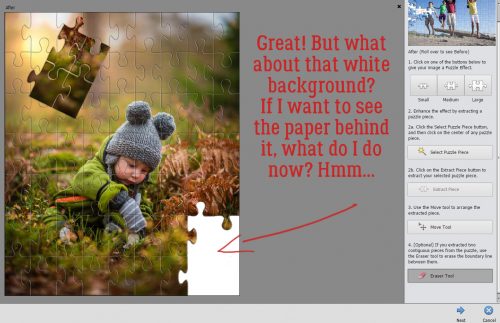
Boom! The grid is gone. But… there’s a white background there. If I want to see my background paper in the spot where those pieces are missing, what do I do?

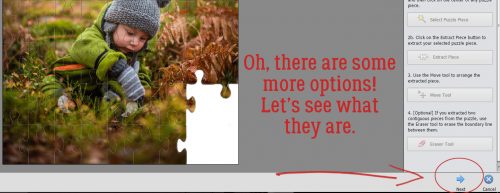
What does this Next button do?

I wanted to see what else was possible, and since working in Expert Edit mode is how we all use PSE for digital scrapbooking, that’s what I clicked.

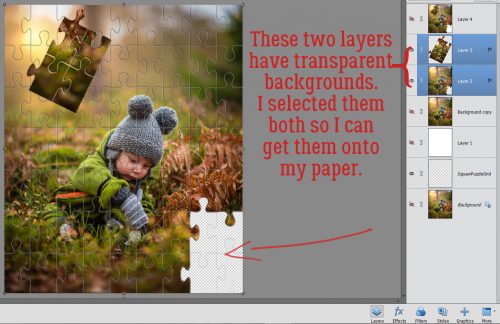
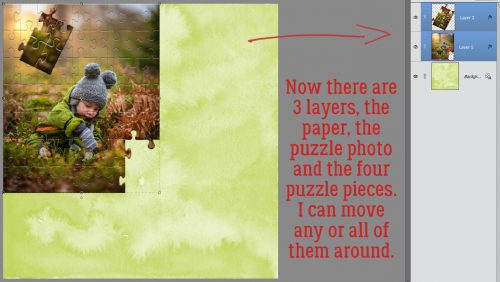
Whoa!! Look at that! There are a bunch of layers created by the Puzzle Effect edit mode and I can see them all. I moved some of them around, turned the visibility on and off and found these two layers have a transparent background. Now I knew how to make this work for a layout!

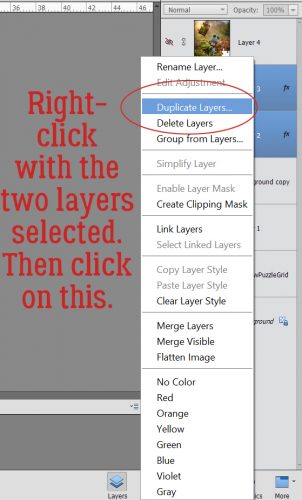
I right-clicked on the two selected layers then clicked on Duplicate Layers… in the same way I showed you when we were combining parts of two different templates.

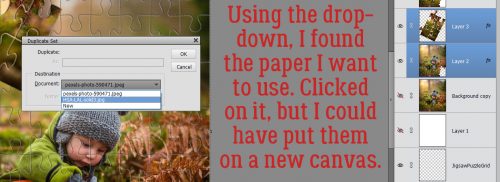
The drop-down menu shows me my options as to where I could send them. I found my paper, which came from Heartstrings Scrap Art‘s Love & Laughter Buffet kit and clicked on that. I could have moved them onto their own canvas by selecting New from the menu, and then carried on playing with them.

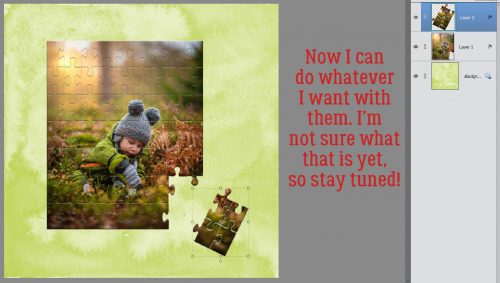
Now I have three separate layers: the paper, the large puzzle photo and the four-piece corner. If you look really closely, you can see the bounding box around the two selected layers.

Now I can do whatever I want with this canvas. I’m not going to get my layout finished today, but it should be up in the Gallery soon.

I’ve really only scratched the surface of what this software can do, and I’m looking forward to sharing some more fun stuff with you next week!

Fresh Baked: October 01, 2017

“In this town, we call home, everyone hails to a pumpkin song.” The time of Halloween is upon us, and it’s time to get into the spirit. The first thing that pops into my head is the opening song to “Nightmare Before Christmas” and it plays from September to January. The designers are embracing Halloween in the gorgeous new buffet items. If you’re not a Halloween celebrator, do not worry! There are plenty of non-Halloween designs as well!

It is the First of the month, and that means the revel of our new Buffet!!

Don’t forget to check out the Buffet Bundles, one easy click to add bundles of Buffet goodies to your cart, and an amazing value too!

[Read more…]

DD: Oct 01

There’s no goblins or ghouls keeping you from the daily download! This month’s is all about fall, but before I show it to you, here is September’s:

dd-sept
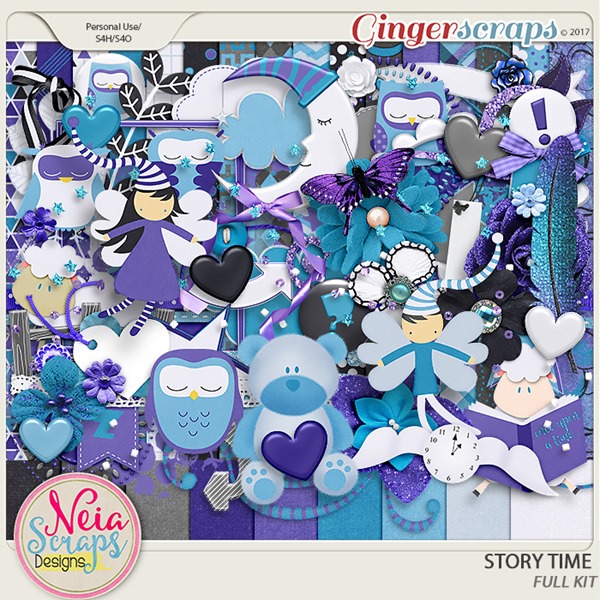
https://store.gingerscraps.net/story-time-By-Neia-Scraps.html

The kit is so calming and sweet! The perfect kit for September!

Here comes fall and the changing of leaves with October’s Daily Download:

dd
https://bit.ly/2xBfPFh

Seriously, I can’t wait to see the layouts!

Remember, the download is kept up for 5 days, and then it is taken down. If you miss pieces, the kit will be available for purchase on the first day of the following month.

Fresh Baked: September 29, 2017

We are nearly to the end of September. So close to the end that Halloween was typed instead of September. Are you ready for October? I think the designers are going to make you VERY happy in a couple of days with the amazing products coming in the buffet. BUT, before we show off that, we have one more Fresh Baked for September. There are some GORGEOUS templates coming, and some super cute kits! Make sure you check them out!

Remember when you spend $10 in the store, you get a great new collab!

 fwp_thumb3_thumb
https://store.gingerscraps.net/GingerBread-Ladies-Collab-Spice-Of-Life.html

 tinci
Clustered: https://store.gingerscraps.net/Precious-album-4.-Clustered.html
Basic: https://store.gingerscraps.net/Precious-album-4.-Basic.html

aimee
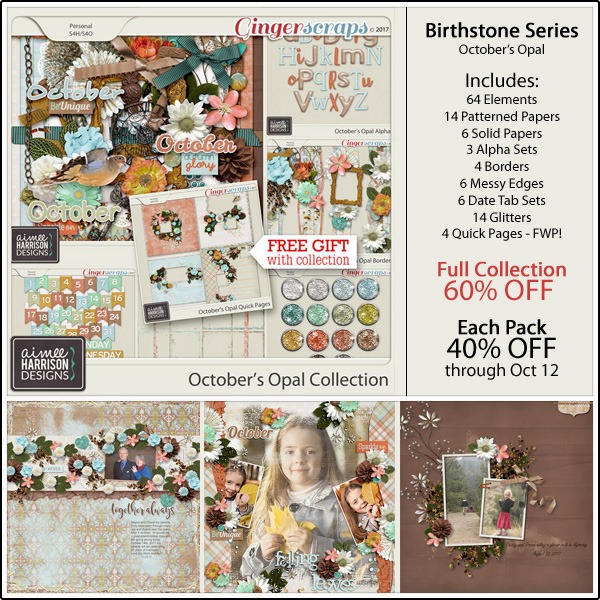
Collection: https://store.gingerscraps.net/October-s-Opal-Collection-by-Aimee-Harrison.html
Kit: https://store.gingerscraps.net/October-s-Opal-Page-Kit-by-Aimee-Harrison.html
Alphas: https://store.gingerscraps.net/October-s-Opal-Alpha-Sets-by-Aimee-Harrison.html
Borders: https://store.gingerscraps.net/October-s-Opal-Borders-by-Aimee-Harrison.html

Date Tabs: https://store.gingerscraps.net/October-s-Opal-Date-Tabs-by-Aimee-Harrison.html
Messy Edges: https://store.gingerscraps.net/October-s-Opal-Messy-Edges-by-Aimee-Harrison.html
Glitters: https://store.gingerscraps.net/October-s-Opal-Shimmers-by-Aimee-Harrison.html

blueheart
Collection: https://store.gingerscraps.net/Be-A-Dreamer-Collection.html
Kit: https://store.gingerscraps.net/Be-A-Dreamer-Kit.html
Journal Cards: https://store.gingerscraps.net/Be-A-Dreamer-Journal-Cards.html
Ombre Papers: https://store.gingerscraps.net/Be-A-Dreamer-Ombre-Papers.html

boomers
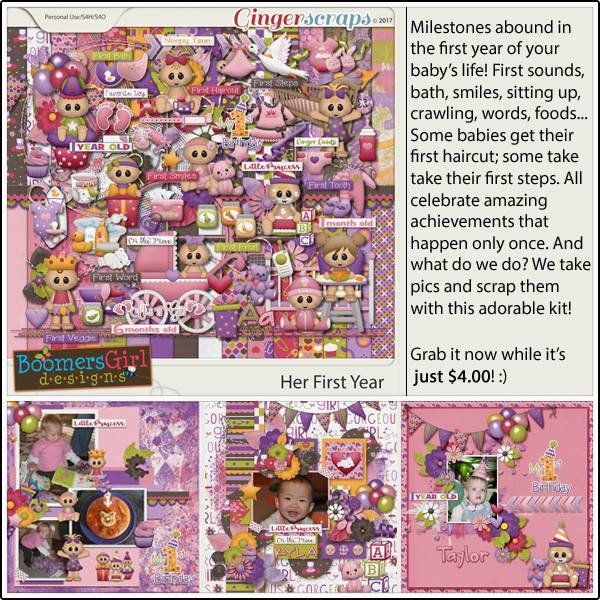
https://store.gingerscraps.net/Her-First-Year-BGD.html

clever01
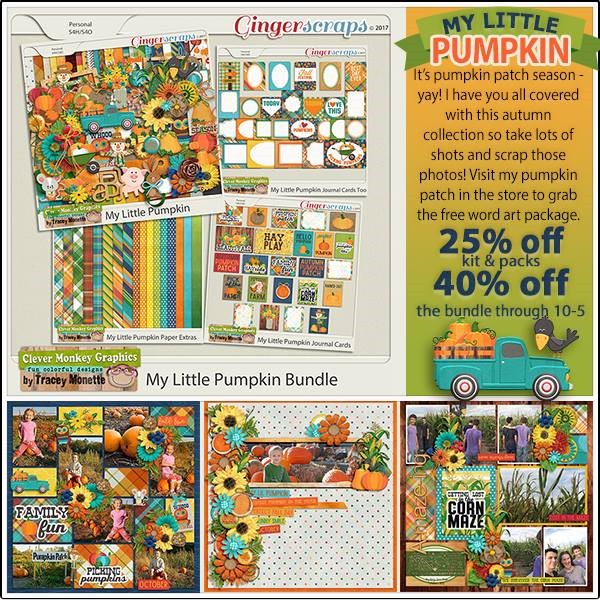
https://store.gingerscraps.net/My-Little-Pumpkin-Bundle-by-Clever-Monkey-Graphics.html

clever02
Kit https://store.gingerscraps.net/my-little-pumpkin-by-Clever-Monkey-Graphics.html
Journal Cards https://store.gingerscraps.net/my-little-pumpkin-jc-by-Clever-Monkey-Graphics.
Journal Cards Too https://store.gingerscraps.net/My-Little-Pumpkin-Journal-Cards-Too-by-Clever-Monkey-Graphics.html
Extra Paper Pack https://store.gingerscraps.net/My-Little-Pumpkin-ExtraPP-by-Clever-Monkey-Graphics.html

connie
Bundle Collection: https://store.gingerscraps.net/-2017-October-Bundle-Collection.html
Kit: https://store.gingerscraps.net/-2017-October-Kit.html
Date Pack: https://store.gingerscraps.net/-2017-October-Date-Pack.html
Inked Bits: https://store.gingerscraps.net/-2017-October-Inked-Bits.html
Messy Papers: https://store.gingerscraps.net/-2017-October-Messy-Papers.html
Border Clusters: https://store.gingerscraps.net/-2017-October-Border-Clusters.html
Templates: https://store.gingerscraps.net/-2017-October-12×12-Template-Pack-CU-Ok.html
Extra Papers: https://store.gingerscraps.net/-2017-October-Extra-Papers.html
Alpha Pack: https://store.gingerscraps.net/-2017-October-Alpha-Pack-AddOn.html
Word Art: https://store.gingerscraps.net/-2017-October-Word-Art-Pack.html
Flair: https://store.gingerscraps.net/-2017-October-Flair-Pack.html
Quick Pages: https://store.gingerscraps.net/-2017-October-Quick-Pages.html
Facebook Timeline Covers: https://store.gingerscraps.net/-2017-October-Facebook-Timeline-Covers.html

dearfriends
https://store.gingerscraps.net/Say-Cheese.html

heather01
Bundle – https://store.gingerscraps.net/The-District-BUNDLE-by-Heather-Z-Scraps.html
Kit – https://store.gingerscraps.net/The-District-KIT-by-Heather-Z-Scraps.html
Templates – https://store.gingerscraps.net/The-District-TEMPLATES-by-Heather-Z-Scraps.html
Weathered Wood – https://store.gingerscraps.net/The-District-WEATHERED-WOOD-by-Heather-Z-Scraps.html
Word Bits – https://store.gingerscraps.net/The-District-WORD-BITS-by-Heather-Z-Scraps.html

heather02
Bundle – https://store.gingerscraps.net/Caribbean-Cruise-BUNDLE-by-Heather-Z-Scraps.html
Kit – https://store.gingerscraps.net/Caribbean-Cruise-KIT-by-Heather-Z-Scraps.html
Templates – https://store.gingerscraps.net/Caribbean-Cruise-TEMPLATES-by-Heather-Z-Scraps.html

heather03
Bundle – https://store.gingerscraps.net/Pucker-Up-BUNDLE-by-Heather-Z-Scraps.html
Kit – https://store.gingerscraps.net/Pucker-Up-KIT-by-Heather-Z-Scraps.html
Accents – https://store.gingerscraps.net/Pucker-Up-ACCENTS-by-Heather-Z-Scraps.html
Weathered Wood – https://store.gingerscraps.net/Pucker-Up-WEATHERED-WOOD-by-Heather-Z-Scraps.html

jocee01
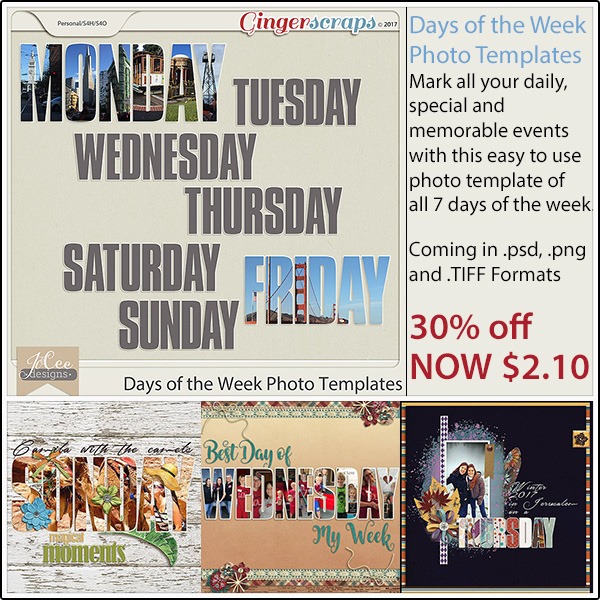
https://store.gingerscraps.net/Days-Of-The-Week-Photo-Templates.html

jocee02
Bundle: https://store.gingerscraps.net/Wonderful-Wild-West-Bundle.html
Kit: https://store.gingerscraps.net/Wonderful-Wild-West-Kit.html
Fun Element Pack: https://store.gingerscraps.net/Wonderful-Wild-West-Fun.html
Title Pack: https://store.gingerscraps.net/Wonderful-Wild-West-Title-Pack.html
Ombre Papers: https://store.gingerscraps.net/Wonderful-Wild-West-Ombre-Papers.html
Basics: https://store.gingerscraps.net/Wonderful-Wild-West-Basics.html

kristmess01
https://store.gingerscraps.net/Kristmess/

kristmess02
https://store.gingerscraps.net/Kristmess/

kristmess03
https://store.gingerscraps.net/Kristmess/

lauries
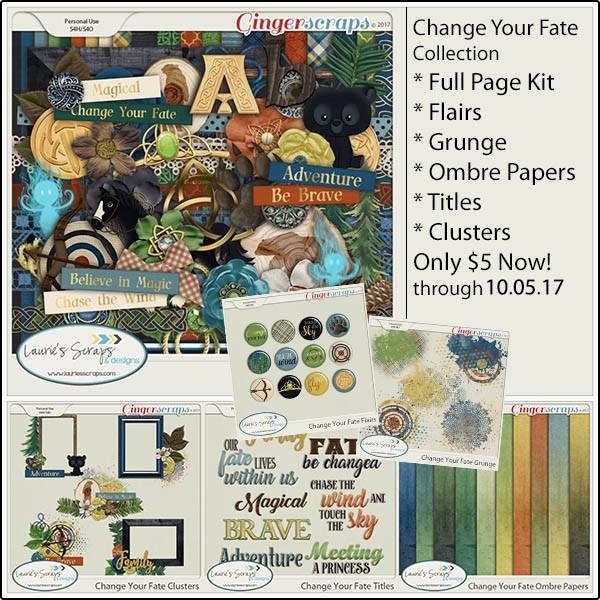
https://store.gingerscraps.net/Change-Your-Fate-Bundle.html

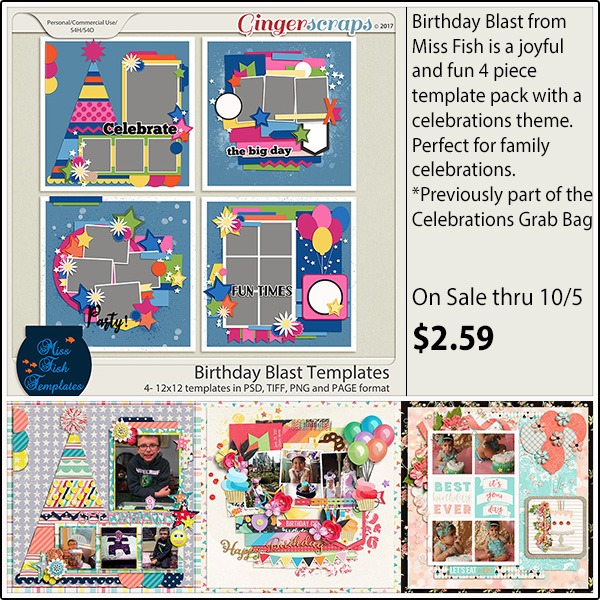
missfish01
https://store.gingerscraps.net/Birthday-Blast-Templates.html

missfish02
https://store.gingerscraps.net/September-Clusters-Templates-by-Miss-Fish.html

missfish03
https://store.gingerscraps.net/Fall-Titles-by-Miss-Fish-Templates.html

ad01
https://goo.gl/UBQg62

Remember, if you complete 10 challenges, just ten, you get a free kit as well!!

cr_thumb3_thumb

I’m ready for school to start, and I think I’ll have to get my challenges done for this!

Save

Sneak Peeks September 28th, 2017

Happy Thursday! It’s the last Thursday in September!!!! We are almost at the end of the year!! And we will have a new Buffet on Sunday! We are also a week away from DSD!! Tune in next week to see a peek of all the fun happenings! This week our designers have some awesome products! Let’s take a look!

From Miss Fish

From Clever Monkey Graphics

From JoCee

From Aimee Harrison

Fom Tinci

From Heather Z Scraps

Tutorial Tuesday (Photoshop Elements 15)

A Few Quick Template and Shadow Tips

I’ve had a week to play with Elements 15 and found out the hard way that a speed scrap isn’t the best way to learn new software! There was a lot of CTRL/CMD>Z-ing on Saturday night. Along with some colourful language. But what caused my biggest headaches wasn’t the fault of the software… I had missed one tiny, crucial setting that had me questioning my sanity. I had overlooked the pixels/ centimeter setting that caused my layout to be ginormous, both in physical size and in file size. It should have been pixels/inch. Once I figured it out – long after the speed scrap was over and my layout was posted – I corrected my oversight and it was all good.

There are a couple of things I’ve discovered over the last few days that relate to scrapping with templates. I think we all agree that templates are amazing tools that actually stimulate our native creativity, rather than stifle it. So making version 15 template-friendly is high on my list.

First, as I mentioned in last week’s tutorial, PSE 15 doesn’t behave the way previous versions do when you drag-and-drop papers and objects onto the canvas. It has a habit of dropping things in seemingly random spots rather than on top of the last selected layer, meaning scrappers have to move their papers and objects up and down all the time. This is a serious time suck at first, and I’m all about working smart and not hard. So I played around a bit (a lot) to see how I could make it less labour-intensive.

I work the same way I would if I was paper-scrapping, bottom up. I wondered what would happen if I turned the visibility for all layers off but the background and then turned them back on one at a time as I worked my way up the template layers. That way I would know EXACTLY where my flowers, leaves, buttons, ribbons and assorted other bits were supposed to go. It would take away the whole trying-to-line-up-the-object-with-a-layered-place-holder-I-could-only-see-a-bit-of…-and-missing thing. I hoped. And for the most part, it worked perfectly. There were a couple of papers I missed with, but over all it reduced the layer moving by about 90%. If you’re the kind of scrapper who likes to put your photos in place first, this workaround would be easy to modify. Turn off everything but your photos, move them onto the layout and then carry on.

Clipping papers and photos to place-holders is still a work-in-progress while I reeducate my fingers. I know it’ll become a rote movement once muscle memory takes over. Did you know we require about 1,000 repetitions of a movement before it becomes automatic? We had to abandon the notion of teaching our son to use a motorized wheelchair when we realized he was never going to get enough practice in a short enough period of time for his motor planning to be good… he ran over his teaching assistant’s foot, knocked over several garbage cans, plowed straight into a bank of lockers and scraped paint from 3 different doorways all in the same day! Teaching my fingers CTRL/CMD>ALT/OPTION>G automatically is going to take me a while, but no one should get hurt.

While I’m on the subject of that keyboard shortcut, I stumbled on a way to make groups work for me while scrapping with a template. Sometimes the template designer will use paper place holders that would look best if they’re all cut from the same paper, but she’s put them on separate layers. The Tinci Designs template I used for my Buffet challenge layout is like that. As an experiment, I grouped three layers together using the CTRL/CMD>G keyboard shortcut, then put a paper on top of the spot in the layers panel where the group appeared and CTRL/CMD>ALT/Option>G’d it. The paper was clipped to all three layers in one move! I’m going to play around with that some more.

Pam and I have the same problem with seeing the edges of the bounding box. My excuse is that my eyes are old. The only solution – if we’re going to call it that – is that the arrows for resizing and rotating are so much bigger that when the mouse rolls over the box, they pop up and are easy to see. And that huge + sign is another good clue.

Another thing I observed, which may be my imagination (or wishful thinking) is that when I created shadows on their own layers using the second method I showed you, Elements seemed to blur the edges a little for me. I’m pretty sure it didn’t, but it sure looked like it! [The steps for creating a shadow on its own layer are: 1) Create a new layer UNDER the object you’re shadowing. CTRL/CMD click on the single sheet of paper icon. 2) Click on the layer thumbnail of the object you’re shadowing to select the edges. 3) Fill the selected area in your new layer with your shadow colour. 2C1902 is a good one to use. 4) Deselect the object. CTRL/CMD>D 5) Nudge the shadow layer to where it needs to be to match the other shadows on your layout. 6) Use a Gaussian blur filter to soften the edges. 7) Decrease the opacity of your shadow layer until it looks right. 8) Change the Blend mode for your shadow to Linear Burn. Then you can warp it to suit your self.]

I was really pleased to see so many comments on last week’s tutorial, and all the questions. Keep them coming!

September Challenge Wrap-Up

Can you believe it’s almost the end of September? I thought I would take today to remind you that you still have a little over 5 days to complete your challenges for September. Each month that you complete 10 challenges, you get a full kit from our store designers made just for the challenge reward. To make it easy, I’m giving you all the links to the challenges in the forum below – then I’ll give you a sneak peek of this month’s challenge reward.

Blue Heart Scraps: A Year of Blessings! {2017}

Brush Challenge

Buffet Challenge

Color Challenge

Connie Prince: #2017

Daily Download Challenge

Designer Spotlight Challenge

Desktop Challenge

Font Challenge

Inspiration Challenge

Mini Kit Challenge

Mix It Up Mystery Challenge

Pretty in Green: Back It Up

Project 365-52 Challenge
1- 2017: Week 36: Sept 03 – 09
2- 2017: Week 37: Sept 10-16
3- 2017: Week 38: Sept 17-23
4- 2017: Week 39: Sept 24-30

Recipe Challenge

Scraplift Challenge

Signature Challenge

Template Challenge
1- September 2017 – Template Challenge 1
2- September 2017 Template Challenge 2

Wordart Challenge

So many ways to get to your 10 challenges.

Had a slow scrapping month and didn’t make all 10? Never fear, just complete the rest during the next month. You will receive the reward collab the month in which you finish your 10th challenge – whether it takes 1, 2 or 5 months to do it. Make sure you start a post and keep it updated in the Cookie Jar thread. Our own Miss Damsel (Missi) keeps track of each month and knows when you have hit 10 completed challenges.

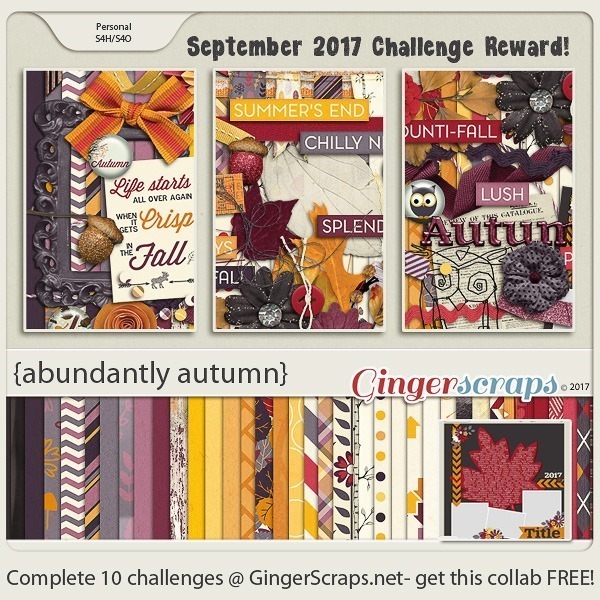
Here is a sneak peek of the reward collab for September.

Happy scrapping my friends!!