From The Archives | Vol. 9

Happy Saturday everyone! It has been since November since we took a trip back into the archives here at GingerScraps. I thought it a perfect time to take a look at some of the oldies…but goodies! Today we are going to look at digital scrapbooking kits in the store from around 2015. All images are linked. Enjoy!


Panda-Monium is an oriental style collection including some super cute Pandas and lots of Chinese-inspired goodies as well as non-themed elements. In beautiful pinks and greens, this collection is just in time to welcome spring, and is perfect to scrap your pictures at the China Pavilion in Epcot, a vacation to Asia, a visit to your local botanical gardens, a night out at your favorite Chinese restaurant, a visit to Chinatown, a recent adoption, and so much more!
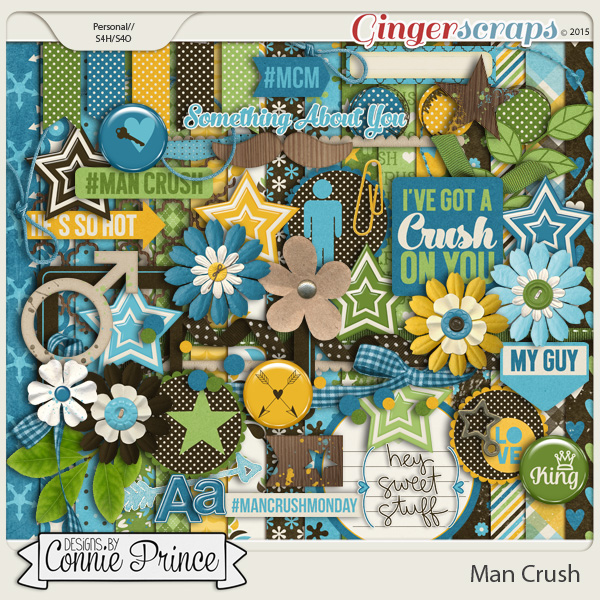
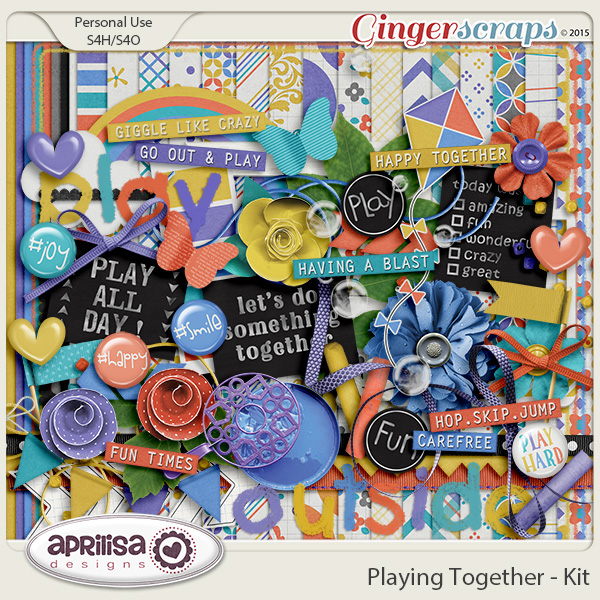


Whether your desk is completely organized, is total chaos or falls somewhere in between, this is a unique kit to scrap office, work, desk and homework type photos. It is a great everyday kit as well, to add to your stash!


Sushi Time is a great themed kit, based on the love of Sushi! This kit is perfect for scrapping anything you want about sushi! However this kit would work well with other types of food or even non food related layouts! This kit is very unique and one you will surely love scrapping with!


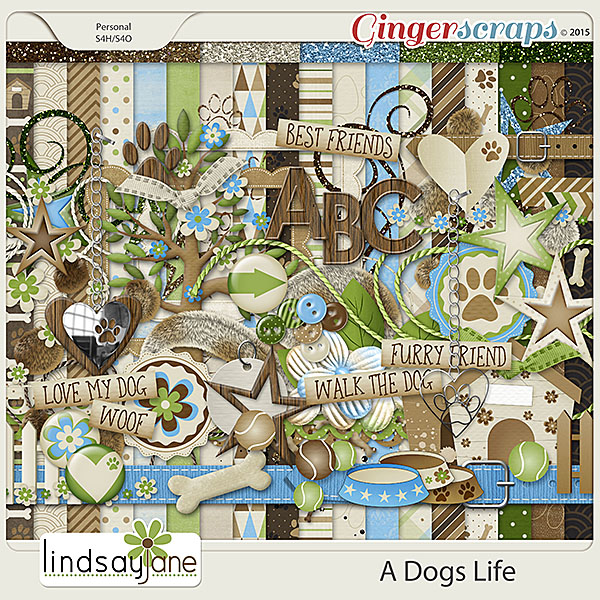
This kit is very near and dear to my heart – because it’s the story of my life!


This kit is perfect to scrapbook of your vehicle-themed fun! It includes cars, trucks, a motorcycle, a moped / scooter, a go kart, a 4-wheeler, tons of themed elements, road signs and so much more! It’s also perfect for lots of other masculine layouts and projects. The very manly color palette includes black, gray, tan, brown, blues, greens, yellow and red.


I hope you enjoyed a look back at some fun items in the store. I am not exaggerating when I say this is only a tiny glimpse of what is in the store. Today we were only looking at kits as well. There are pages and pages of all kinds of goodies! Jump in and take a look yourself if these do not tickle your fancy. Happy Scrapping!

Fresh Baked: May 19, 2017

It’s Friday! Can you believe it? The time of graduations and summer fun is nearly upon us! The designers are feeling it, I think, because they have a lot of kits perfect for that summer time prepping! Plenty of templates and kits, something for everyone!
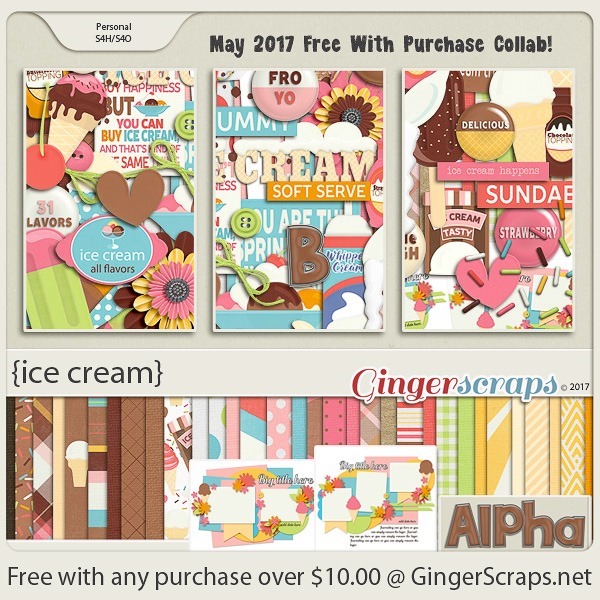
Remember when you spend $10 in the store, you get a great new collab!

fwp32

https://store.gingerscraps.net/GingerBread-Ladies-Collab-Ice-Cream.html

[Read more…]

May Featured Designer: Blue Heart Scraps and Luv Ewe Designs


So… May has gotten away from us here on the blog. The month is more than half over and we’re only just getting to introductions. This month’s Featured Designers are JoyLynn of Blue Heart Scraps and our returning-to-the-fold Jennifer of Luv Ewe Designs. These two lovely ladies have created this month’s gorgeous Daily Download, Grateful.

Let’s get to know Jennifer again…

How did you get started in digital scrapbooking?

I started making siggies for a forum and a member told me about digital scrapbook products.

What made you decide to design?

When I was creating the siggies I started creating some items to match my requests and it took off from there.

What do you use to create your designs (program, additional tools, etc.)?

PSCC

Describe your design workplace.

Just a little corner that I am about to outgrow. My desk is special to me as it was my grandmother’s. There are ink spots on it from when she and her siblings did their homework with an old fashioned dip pen.

What is your favorite thing about designing?

Playing with colors and seeing all the awesome pages my CT creates with my products.

What is your favorite kit currently in your GS store and why?

A New Me …there are many changes I am trying to make in my life and that was my inspiration to making this kit!

What was your first job?

Well I babysat when I was 12/13. But my first tax paying job was when I was a carhop at Sonic at age 15. Had to save for my first car!

How many languages do you speak? What are they?

Not much other than English. I took four years of Spanish in high school but barely remember any of it (Sorry Senor Niles!)

What’s your favorite holiday?

I love Christmas. I love the spirit and the decorating. Second is Halloween because it is my birthday!

What is your favorite family holiday tradition?

Getting everyone together for Christmas and having a big meal.

What three things do you think of most each day?

Why do I have to get up today? Also about my kids and hubby.

If you had a warning label, what would yours say?

Warning: contents under pressure.

Is there anything you wished would came back into fashion?

I used to love those Hypercolor shirts! The warmth of your hands would make the shirt change colors.

Do you collect anything?

Not really a certain item, but I love the farmhouse look and buy things to decorate my house with.

If you were a super-hero, what powers would you have?

I would love to be able to be a fly on the wall!

Aside from necessities, what one thing could you not go a day without?

Electricity! I hate it when it goes out for just a few hours.

How would your friends describe you?

Quiet until you get to know me but will help anyone.

If you were a fruit or vegetable, which one would you be?

Salted watermelon. It’s sweet and salty at the same time! Kinda like me.

What would you prefer as a second home: Mountain cabin, beach house, or big city condo?

Beach house would be cool!

What would you do on your dream date?

Romantic dinner on the beach.

Thank you, Jennifer! Don’t forget to check out her GingerScraps shop, her Facebook page, and her blog.

JoyLynn is also active on social media; visit her GingerScraps shop, her Facebook page and her blog, too.

While I’m thinking on it, I should remind you to stop back here every day to pick up the Daily Download. (If you’d rather, you’ll be able to buy the kit in the store later on.)

Sneak Peeks May 18th, 2017

Happy Thursday! Here’s a sneak into the awesome new products releasing tomorrow! Our awesome CT has made awesome pages with them! Check it out!

From Aimee Harrison

From Tinci


From Keley Designs

From Miss Fish

From Amy Stoffel

From Lindsay Jane

From Little Rad Trio

Tutorial Tuesday (Photoshop Elements)

Behind the MASK

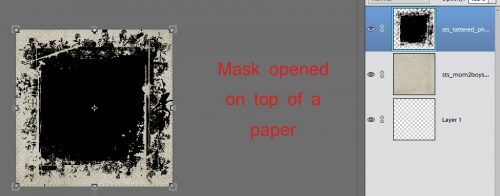
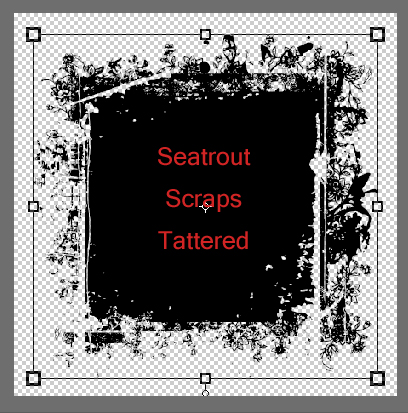
Today’s tutorial came about from a support request Ginger received; a faithful GingerScrapper asked how MASKS are used. So I have some suggestions. For this lesson I’ve used a mask from Seatrout Scraps lovely Tattered and Torn collection (retired) and papers from her Mom to Boys collection.

Masks are really versatile tools for the digital scrapper. They essentially create a cutout of whatever is clipped to them. With a little creativity, the sky’s the limit! They can be resized, flipped, turned, stretched, filled, glittered, glossed, textured, beveled – really, anything you can think of. Let’s start with the simplest use, clipping a paper to a mask.

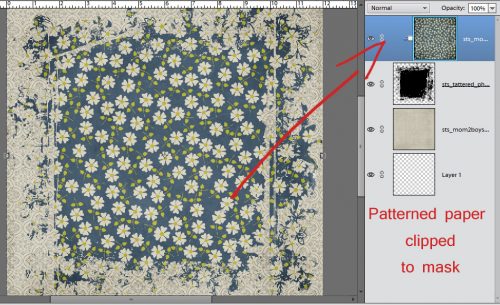
I opened a neutral patterned paper as my background, then dragged my mask onto it. I use Elements 12, which turns everything into Smart Objects when you drag and drop, meaning it’s the same size as the canvas it’s dropped onto. Sometimes this is a real curse… who wants a button with a 12 inch diameter?? (The work-around is to open the item on the workspace then drag it DOWN onto the page.) But in this situation I left the mask full-sized. Then I dragged a daisy-patterned paper on top of the mask. Right click on the layer, then select Create Clipping Mask, (WSNH: CTRL/CMD>G) to clip the paper to the mask as shown.

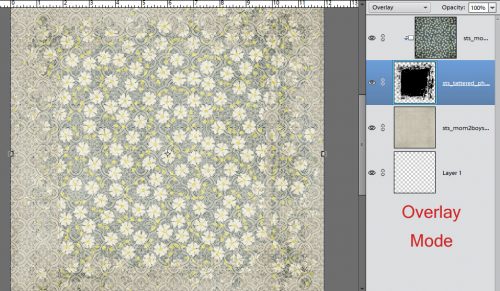
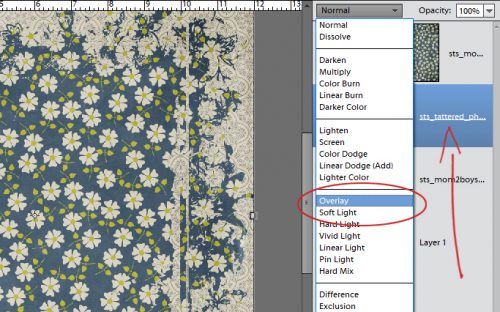
Once the paper is clipped to the mask you can play with Blend Modes. Working on the MASK layer, I changed the Blend Mode to Overlay.

And this is what it looks like. For this purpose, it looks kinda blahhhhh. But it might work beautifully with different papers.

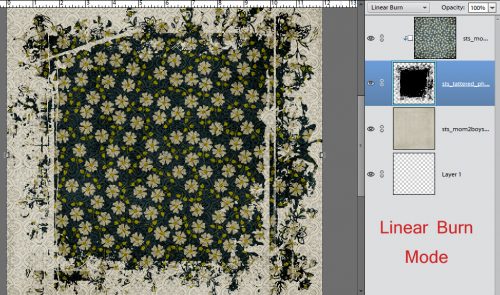
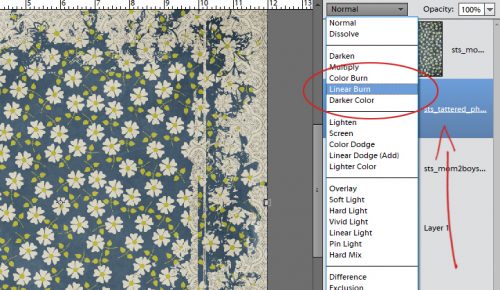
Next I tried the Linear Burn mode. (Actually, I tried them all but I’m not sharing the really ugly results.)

As discussed in the tutorial about Blend Modes, any mode that includes BURN in the name DARKENS.

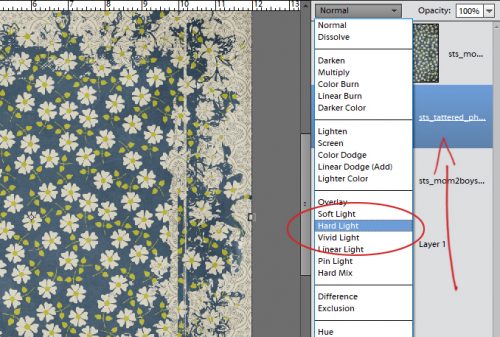
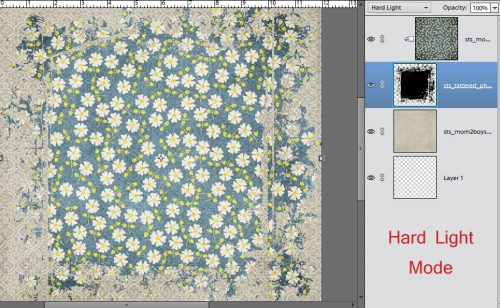
Hard Light doesn’t do exactly what one would think it does.

See how faded it is? So maybe it DOES do what it sounds like it should.

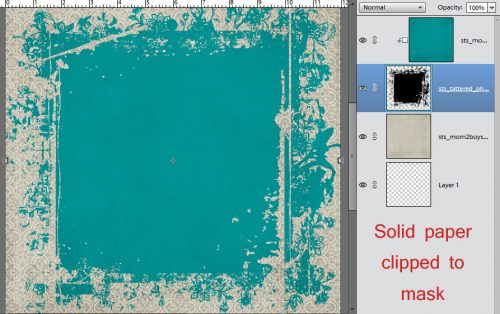
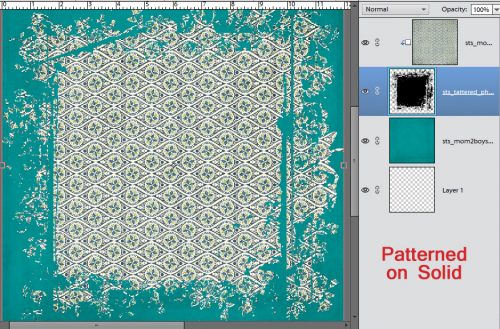
Next I played with a solid paper clipped to the same patterned paper.

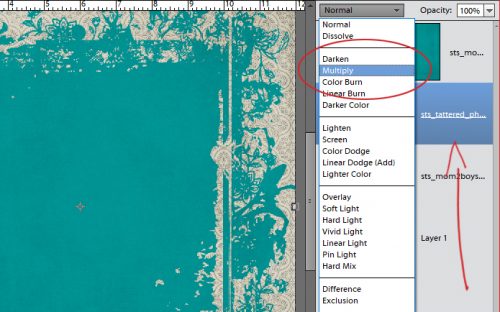
To my eyes it looks a little umm… boring? So I played with some Blend Modes again. As before, I worked on the MASK layer.

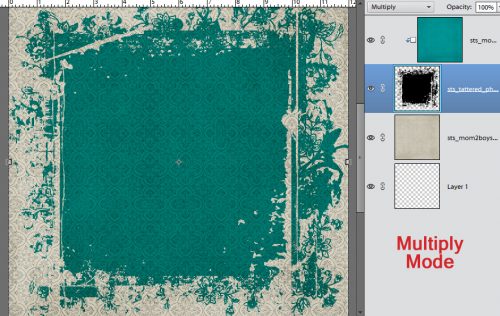
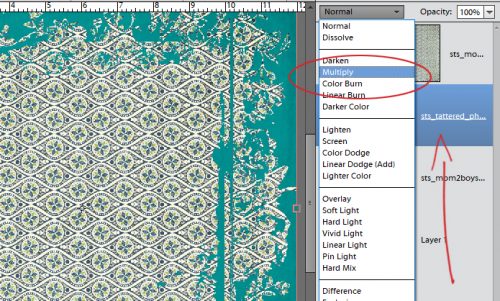
Multiply darkened but also added some more transparency.

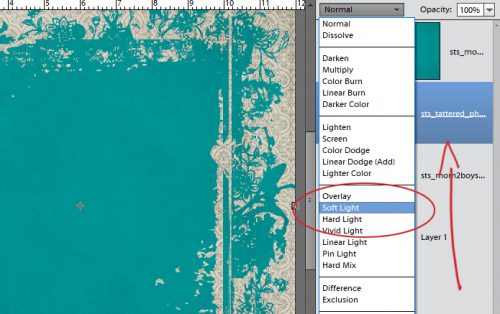
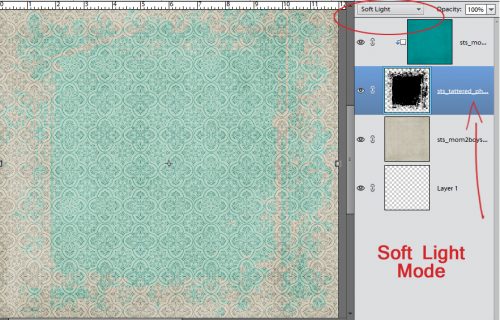
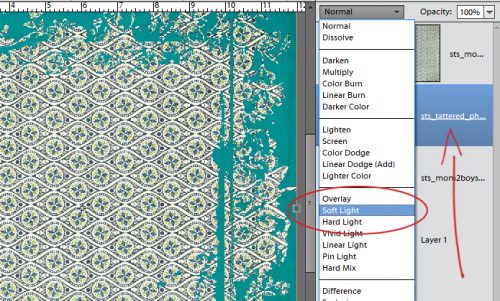
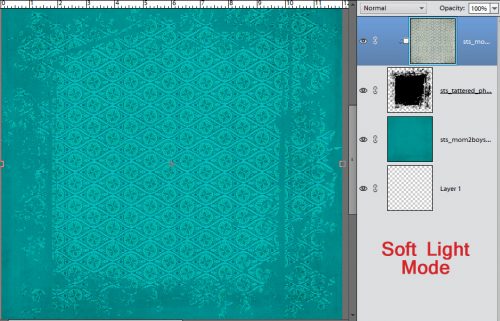
I tried some of the lighting modes and liked Soft Light best.

Soft is a great description for this look. But… it really reduces definition.

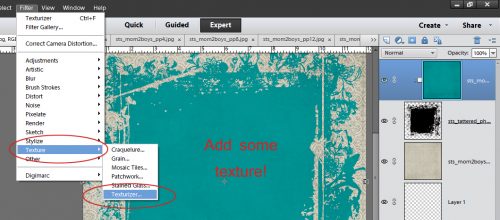
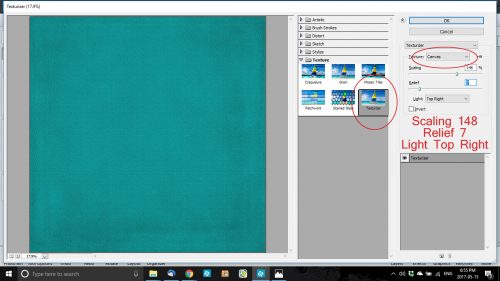
I played with the Texture Filter. (Filter>Texture>Texturizer)

This is the menu that opens when you select the Texturizer. There are several adjustments you can make in this menu, starting with the type of texture you want. The selections are Sandstone, Burlap, Canvas and Brick. I selected Canvas. Then I used the sliders to adjust the Scaling, Relief and Light direction. The Preview panel lets you see what you’re doing.

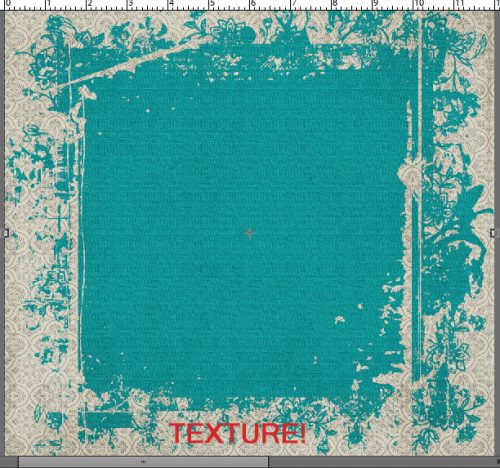
This is what it looks like after I’m finished.

Then I reversed my previous choices, clipping a patterned paper to the solid one.

I tried Soft Light on the Mask Layer.

It looks rather pretty.

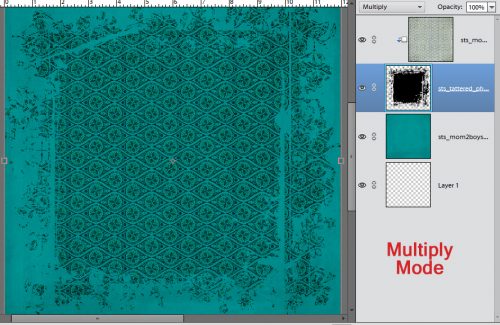
Multiply?

Dramatic!

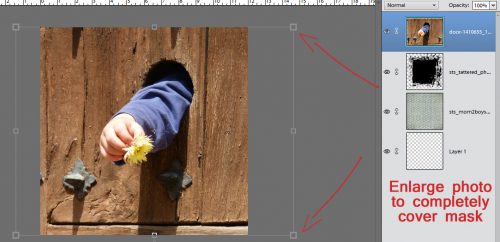
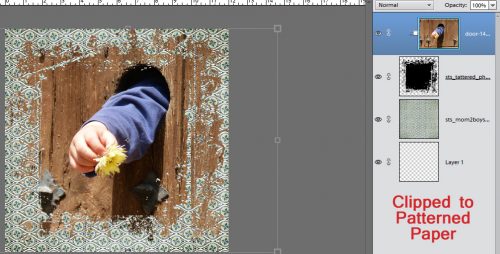
You can also clip PHOTOS to your masks. For best results, enlarge your photo so the entire mask is covered. You don’t want the mask itself to be visible.

CTRL/CMD>G and voilà!

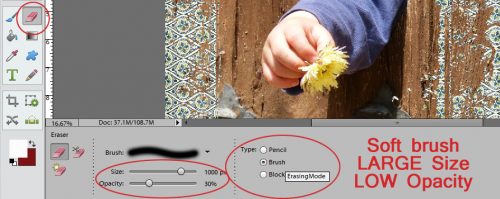
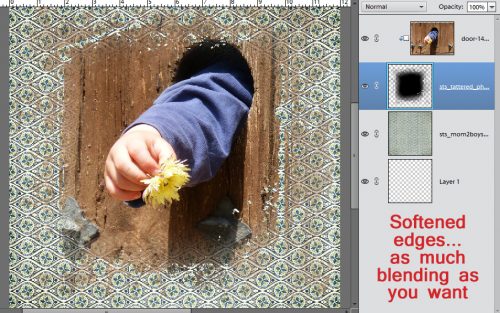
If you want to blend the edges into your background, you can use the Eraser tool with a large, soft brush set to a lowish Opacity so it softens but doesn’t erase completely.

All I did was make a circle around the outside with my eraser brush. If you look at the thumbnail of my mask in the Layers panel, you can see how the edges have been lightened.

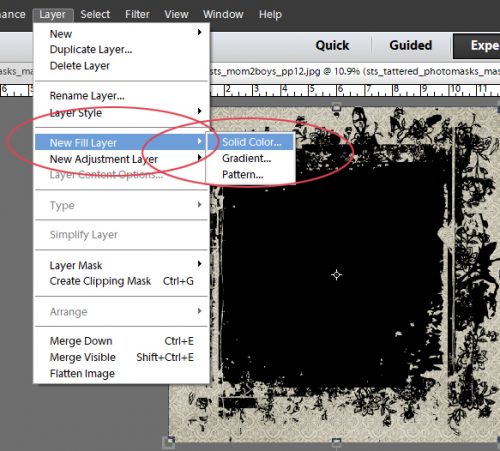
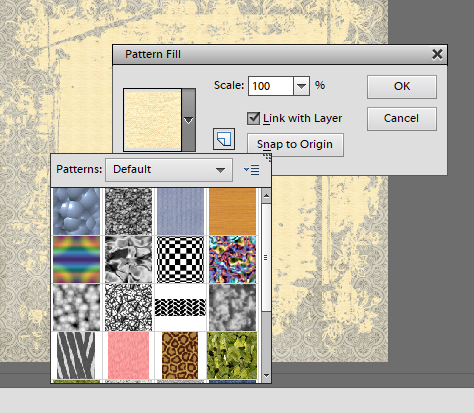
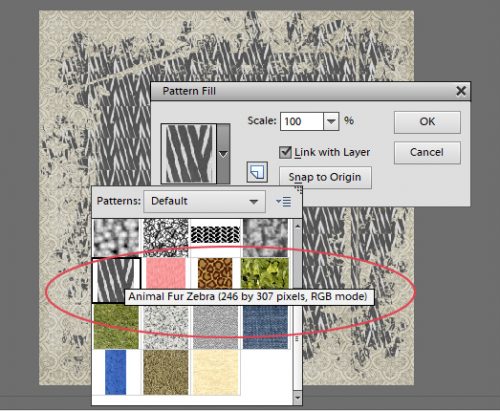
Another super way of playing with masks is to Fill it with colour. Using your Eyedropper, you can pull a colour from your photo or your background paper. Then select Layer>New Fill Layer>Solid Color.

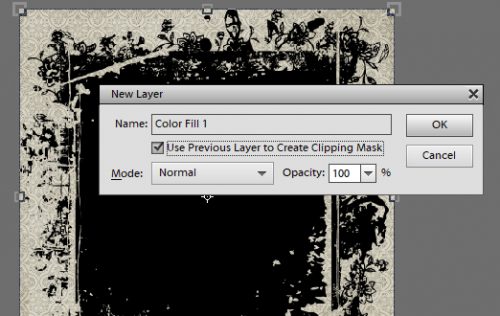
The drop-down menu looks like this. Check the Use Previous Layer to Create Clipping Mask box.

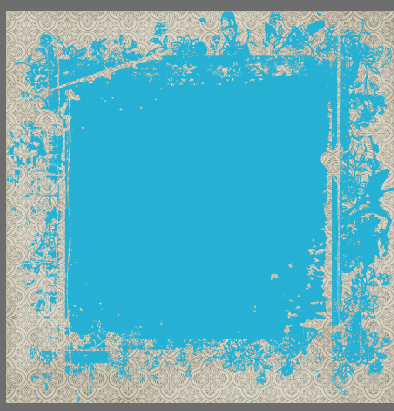
And you end up with this.

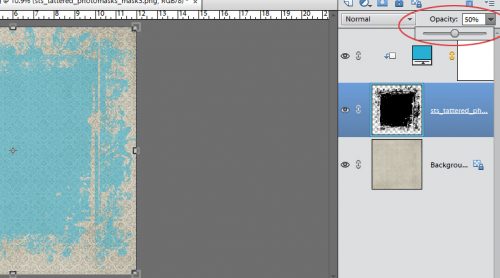
You can adjust the Opacity of the coloured layer by sliding the Opacity slider  on the MASK layer to the left. If you adjust the opacity of your coloured layer the black from the mask will alter the colour you’ve used, darkening it.

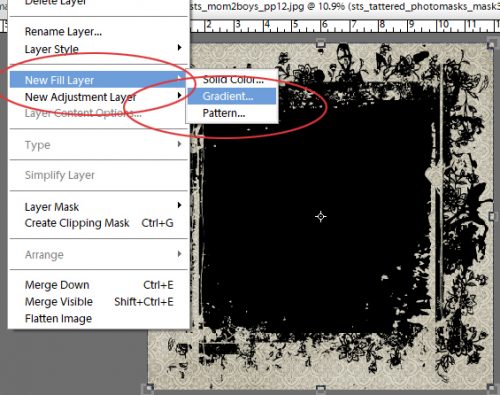
But there are more options with Fill Layers! Let’s see what the Gradient… setting does.

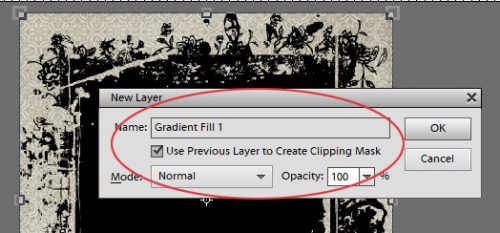
Again, make sure you’ve checked that Use Previous Layer box. Otherwise your Fill Layer will cover up everything.

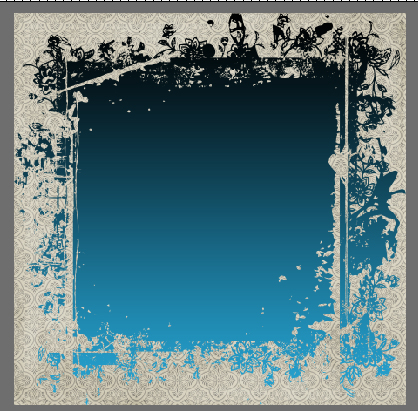
Ooh, that’s really pretty!

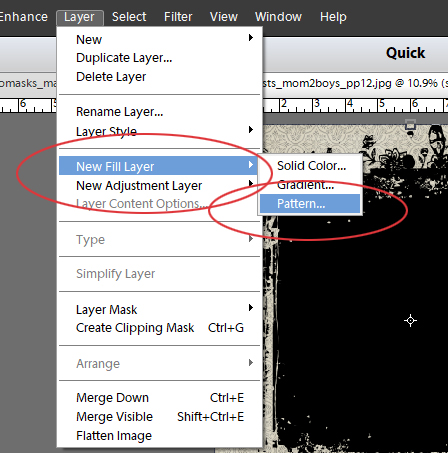
What does that third choice in the New Fill Layer menu do?

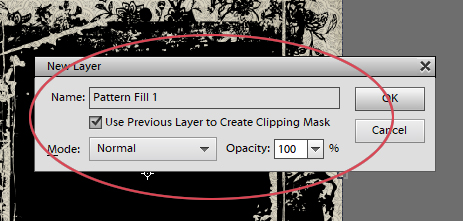
It opens up this menu…

… which then opens THIS menu.

Wow… that’s an interesting look! I could play with this all day!

So there you have some ideas about what you can do with masks. They’re so much fun! Do you think you can guess which of these little tricks I’ve shown you is the one I used for my May Inspiration Challenge layout? Can you pick out the other tutorial techniques I’ve used?

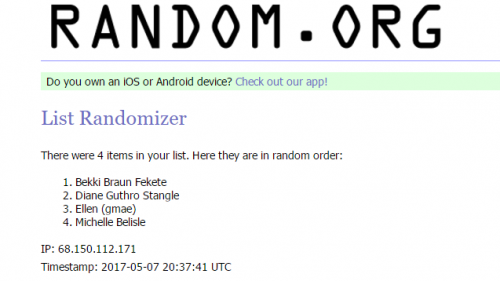
When I contacted Bekki (bekfek) to tell her she was Mr Random’s choice to challenge me, she was pleased but felt that Ellen (gmae) should have had more entries. So she has graciously passed on her opportunity to Ellen, who is thinking upon it. I’m still working on Michelle’s (belis2mi)  challenge…

Remember, if you’ve used a technique from these tutorials, post your finished layout in the GingerScraps Facebook Tutorial Tuesday Challenge Gallery for an opportunity to have YOUR chance to challenge me. If you’re not a Facebooker, you can post a link to the layout you’ve created with the tutorial you used in the comments section here on the Blog. I’ll get a notification and will then enter you into the draw. The first week of each month I’ll have a random draw of all entries and the winner will be announced at the end of the first tutorial of that month.


May 2016 Bake Sale

Goodness, it’s already mid-May and time for the Bake Sale. Any of these lovely kits are on sale from now through the 20th for just $1 each. Let’s see what our designers are offering this month.

Hop on over to the store to take advantage of these and more!!

Let’s Celebrate the Moms!

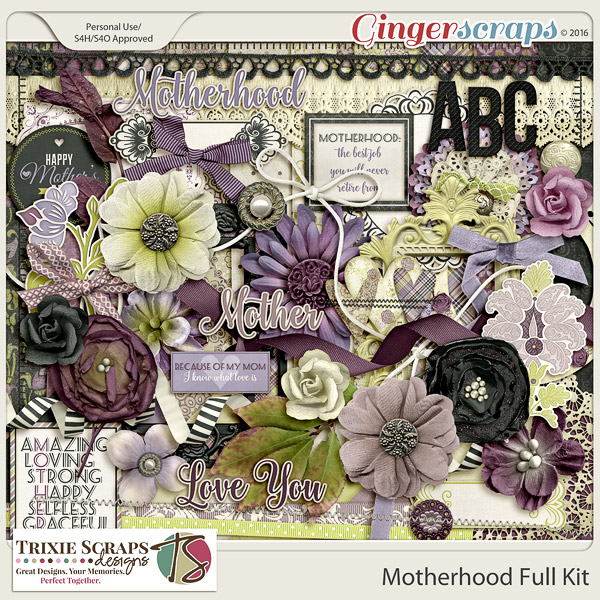
It is Mother’s Day here in the states tomorrow. I realize that in other parts of the great big world, Mother’s Day has come and gone. You can celebrate and scrap mothers any time of the year though! With that in mind, we are going to take a look at some of the great Mother’s Day (or just mom inspired) digital scrapbooking supplies from here at GingerScraps! Hold on to your hats. We are about to blow you away with some great stuff. All images are linked to the store of course.

Don’t forget that there is an entire section dedicated to Mother’s Day in the store as well. In case you don’t find anything that strikes your fancy in today’s post. I’m talking pages-and-pages worth!


Don’t forget the Grandmothers!


Fresh Baked: May 12, 2017

Happy Friday! How did you make out with iNSD? We hope you had fun! The fun doesn’t stop! The designers have created some amazing and beautiful kits to share with you this week!

Remember when you spend $10 in the store, you get a great new collab!

fwp32

https://store.gingerscraps.net/GingerBread-Ladies-Collab-Ice-Cream.html

[Read more…]

Tutorial Tuesday (Photoshop Elements)

Can This Photo Be Saved?

Hey there GingerScrappers! I thought this week we’d look at something a little different. With Mother’s Day almost upon us and lots of old photos being pressed into service, I know there are some of you out there who wish your scanned pix were just a little less… blurry. So I’m going to show you a super-duper-simple trick for tightening up those images a bit.

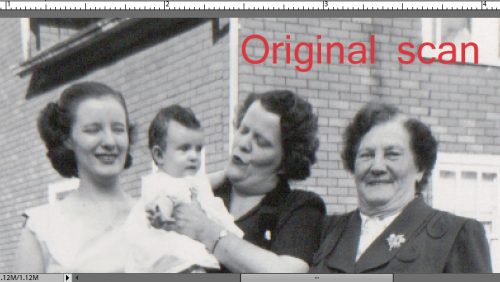
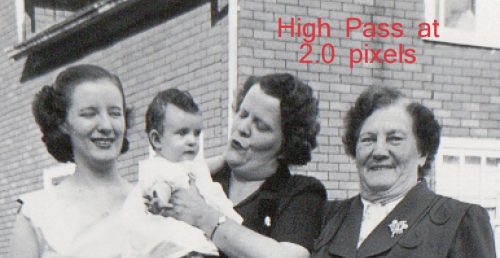
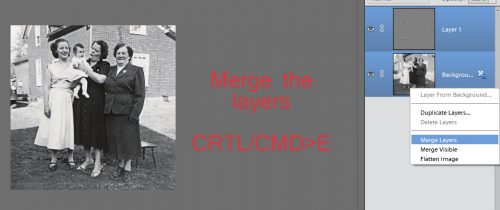
I started with this photo taken in May, 1955; I found it in a box of my mom’s photos. (No, that isn’t me in there.) First I dealt with the dust spots and scratches using the Spot Healing brush then I was ready to sharpen it.

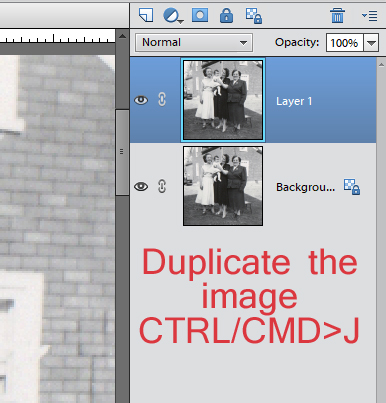
It’s not horrible, but it’s a little… um… soft. So I Duplicated the image (WSNH= CTRL/CMD>J).

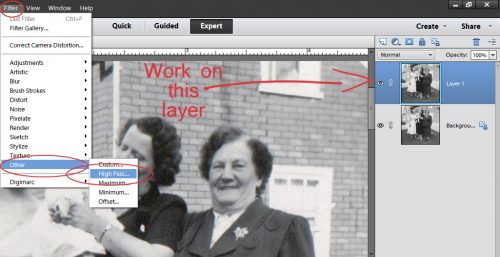
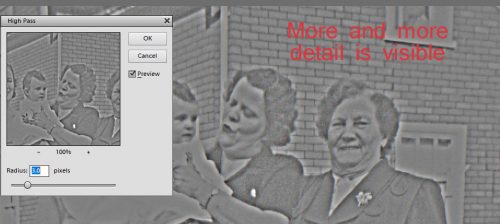
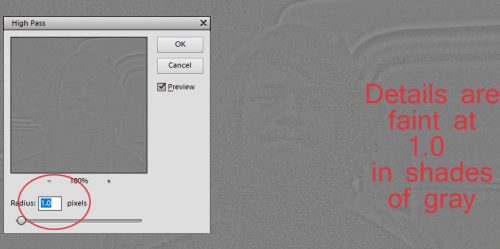
Working on the topmost layer I just created, I clicked on the Filter tab, scrolled down to Other and selected High Pass…

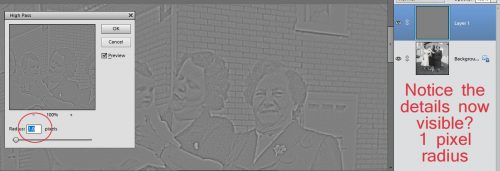
The Tool menu opens up a dialog box as shown. I selected a Radius of 1.0 pixels. There is now a gray-scale image of my photo, with some details visible.

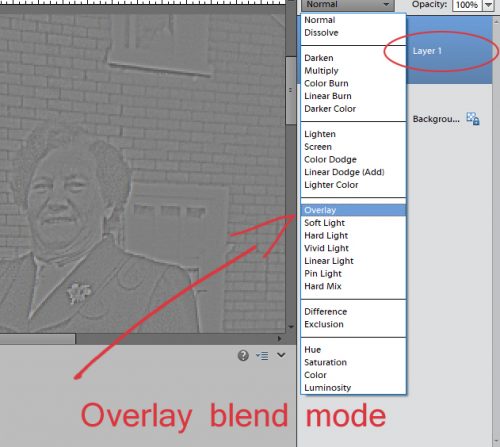
To make this filter adjust the appearance of my photo, I’m going to change the Blend Mode for the topmost layer to Overlay. If you don’t feel there’s been enough sharpening, you can Undo (CTRL/CMD>Z) and increase the Radius until you’re happy. But be careful. A word of caution: Don’t keep adding layers with High Pass filters on top of each other because you’ll end up with something quite bizarre-looking.

Can you see the difference between this image and the untouched one? Facial features are a little clearer.

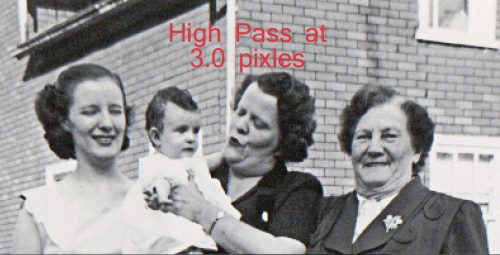
By setting the Radius to 3.0 pixels, there’s more detail visible on the filter layer.

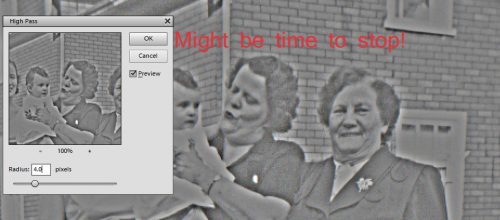
When you get to the point where the Filter layer looks a lot like the original, it might be time to stop. Too MUCH is not better. Less in this case can actually be more.

I was pleased to see that the resulting image was sharp, the contrast was good and my photo now looked a lot better. So I Merged the two layers (CTRL/CMD>E) and saved my photo as an edit.

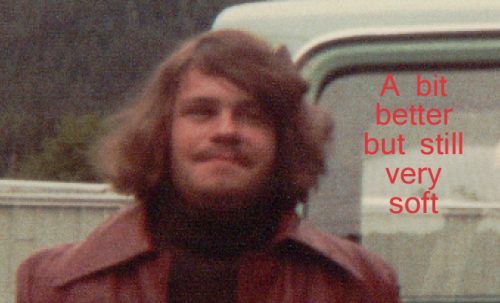
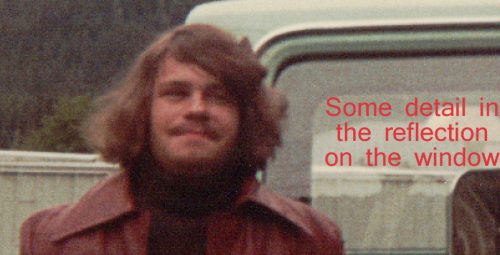
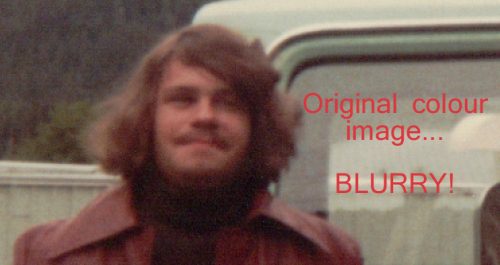
I can hear you mumbling about colour photos… so I’m ready for that too! This photo was in the same box, and was taken in 1978.

At a Radius of 1.0, there’s faint detail visible, and only gray-scale.

It looks a bit better, but not much!

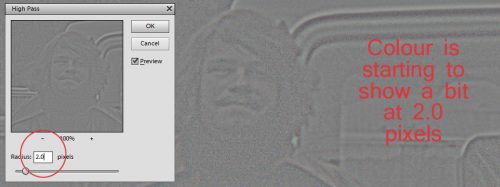
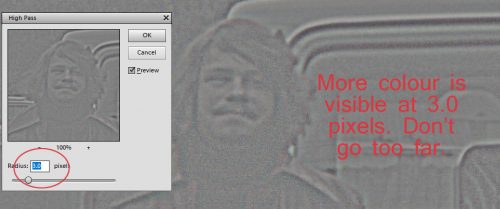
At a Radius of 2.0, there’s a faint hint of colour showing through, and a bit more detail.

The area that seems to show the most sharpening effect is the window. Notice that the colours are darkening too.

The higher I take the Radius, the more colour shows through.

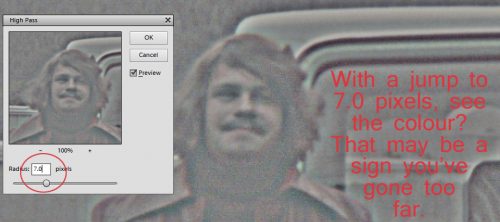
What happens if I’m tired of inching up and just make a jump to say… 7.0 pixels?

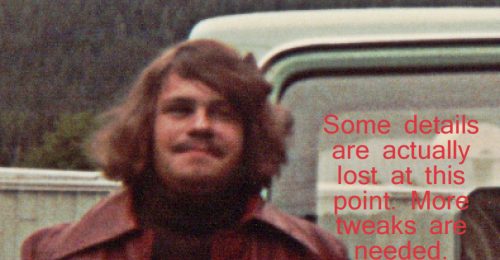
The colours have darkened a lot and some detail is actually lost. To save this one at this degree of sharpening, I’d have to make quite a few tweaks of Lighting, Brightness and Contrast and I run the risk of making the photo look really phony. So I suggest you don’t save this version over the original, but as an edited copy so if you’re sickened by how far you took the image (as I was with some of my Ireland trip photos… blech!) you still have the original and can start over with a lighter hand.

I plan to make a layout with the first image for the Inspired by a Word/Words iNSD challenge from JoCee Designs. When it’s finished I’ll add in a link so you can see it if you want to.

In April there were 4 people who linked me up to layouts where they’d used one or more of these tutorials. Ellen had several, but to be fair, she only is on the list once. Mr Random has selected Bekki Braun Fekete (aka bekfek) as this month’s winner. Bekki, put your thinking cap on!

Remember, if you’ve used a technique from these tutorials, post your finished layout in the GingerScraps Facebook Tutorial Tuesday Challenge Gallery for an opportunity to have YOUR chance to challenge me. If you’re not a Facebooker, you can post a link to the layout you’ve created with the tutorial you used in the comments section here on the Blog. I’ll get a notification and will then enter you into the draw. The first week of each month I’ll have a random draw of all entries and the winner will be announced at the end of the first tutorial of that month.

Next week’s tutorial will be for Michelle (aka Belis2mi). She needs some help with organization, so stay tuned. You might find a tip or two you can use!


iNSD & Fresh Baked: May 05, 2017

It’s International Scrapbooking Day … but one day isn’t enough, we have a whole WEEK to celebrate! The designers have been going crazy behind the scenes and you’re going to have a blast when you see all that is available!

Our theme for this iNSD celebration is Because I’m Happy! There are so many reasons, small and large, to be HAPPY each and every day! Join us May 5-11, 2017 and let the celebration begin! HUGE sales, $5.00 Grab Bags, A Scavenger Hunt and lots of Fun & Games happening in the forum! Of course we also have fabulous prizes and goodies being passed out all week long! Keep an eye on this special iNSD sub-forum… it will be full of posts from our designers, that you will NOT want to miss! I look forward to seeing all of you!! I hope to see a gallery full of layouts celebrating your HAPPINESS! 
Our SITE-WIDE 50% off sale is underway!!! *some restrictions apply*

Remember when you spend $10 in the store, you get a great new collab!

fwp3

https://store.gingerscraps.net/GingerBread-Ladies-Collab-Ice-Cream.html

And during iNSD if you spend over $20.00 you will get the above Ice Cream collab AND this HUGE GingerBread Ladies MEGA collab!

 We also have special iNSD $5.00 Grab Bags! GrabBags

 store.gingerscraps.net/iNSD-5.00-Grab-Bags/

Are you ready to see the Fresh Baked Goodies!

[Read more…]