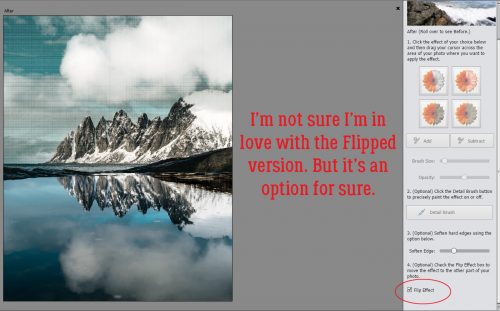
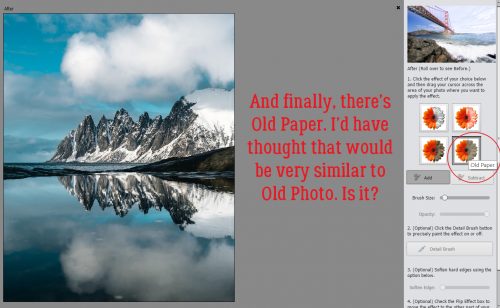
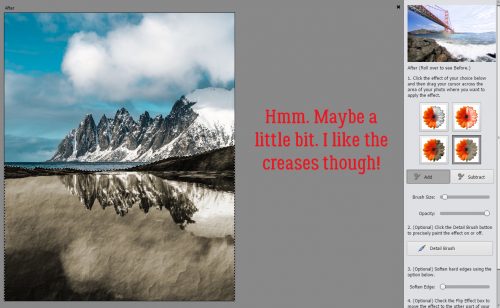
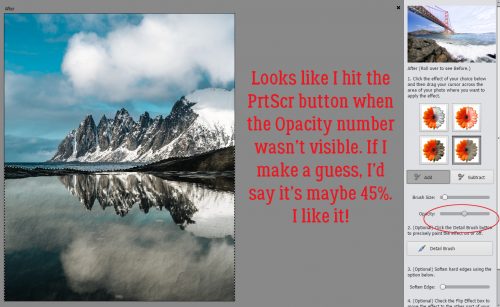
Tutorial Tuesday (Photoshop Elements)

Stackin’ ’em Up!

I’m seriously in need of a week where I’m actually not scrambling for a tutorial post! I was wide awake at 1 am wracking my brain for a topic. But what do you know… one magically appeared. I remembered there were still some really useful Guided Edits I haven’t shown you yet, so that’s what we’re doing. Let’s look at the Photo Stack, just for fun.

When I tell you that this technique is literally only about a 10 minute job, I know you’re thinking, “She always says that.” But it really is SO much faster even than using a template with photo stack, because with this edit, the software does ALL the copying and stroking. All of it! The hardest part is deciding which of the three options to choose, and I think that comes down to what you want the focus to be.

All I did to get this image was to click just once on the 4 frame spot I’ve shown below.

The very first image has the narrowest border already in place. A single click on one of the border options is the next step.

The medium border is still pretty skinny.

Even the widest one isn’t especially in-your-face. But that’s completely under your control! Before I show you that part, let’s look at the other two stack options.

The eight frame option looks like this with the baseline border.

Beefing up the borders to medium still lets a lot of the original image through.

Then the wider one, still not much of a distraction.

And then there’s the twelve frame option.

Medium

Wide

With this photo I think 4 frames is the right choice. So now I’m going to move to the Expert Editor.

Whoa! Look at all those layers! And each one is another opportunity to fine-tune the final image. (Notice the multiple copies of the photo layer? It’s a GREAT thing!)

Here I’ve selected one of the border layers. The border is actually simply a stroke on its own layer. The default settings are 10 pixels and 100% Opacity.

Pulling the slider to the right makes the border wider. I could also change the colour of the border in this menu if I wanted to.

I’m going to come back to that in a minute. But first, I’m going to unlock the background (original photo) layer so I can edit it. And so I can put a transparent layer underneath it. I right-clicked on the layer in the Layers panel then chose Layer from Background. That makes it like all the other layers, completely editable.

I then added my transparent layer underneath it by CTRL/CMD>clicking on the new layer icon (the blank sheet of paper) at the top left of the Layers panel.

I turned the visibility of the very first black rectangle off and now the original image is visible to the edges and can be erased away, leaving a transparent area instead.

Don’t panic about having to be precise with the erasing. It’s not a problem! All those extra copies of the original photo that are clipped to the stacked layers aren’t going anywhere. You can just use a big eraser and go for it!

After I did that, I decided I wanted to shift the stacked photos so they were entirely inside the canvas. So I CTRL/CMD>Z as many times as I needed to to get back to the black rectangle. Then I resized them a tiny bit, shifted them a tiny bit and rotated them a tiny bit until I arrived at what you see below.

Then I decided to make the borders just a smidge wider. I double-clicked on the fx icon on the first border layer to get into the Styles menu.

I didn’t go overboard, just doubled the width of the border on each one. And then I went back and erased the areas of the original photo layer to make my stack usable.

An advanced version of this Edit would substitute other photos for some of the frames, but it would be almost as much work as using a template would be… the photos would need to be resized and rotated individually then clipped to the spots.

If I was ready to put my layout together, I could just leave it as is for now and come back to it later. But I’m going to save it for later.

In order to be able to use it for a layout, the transparent background is essential. So I’m saving it as a PNG file.

To keep the images sharp I’m using the Slowest setting and Non-Interlaced. I gave it a name and saved it to the folder I’ve created for my (future) layout.

Before I forget, LilyAnn Fisherman left a comment on last week’s tutorial asking me if I couldn’t have made my clock face by texting-on-a-path. So I went back and did it again, using Text on a Shape. It was maybe a tiny bit less work, but I still had to fiddle with the spacing to line the hours up with where they should be on the clock.

And while I was at it, I did a mock-up of what I hope the clock will look like when it’s finished.

Check back in a few weeks to see if I succeed!

Sneak Peeks April 4th 2019

Happy Thursday!!! Our designers certainly have that spring spirit! This week’s new releases reflects all the fun Spring brings! Let’s check them out!
From Down this Road Designs

From Wimpychompers

No photo description available.
No photo description available.

From Dagi


From Magical Scraps Galore

From Tinci


From LDrag

From Aimee Harrison

Sneak Peeks March 28th 2019

We come to a close of another month! Spring is here and the temperatures are rising. Celebrate all those springtime memories with a few new kits from our fabulous designers!

From Heather Z

From Dagi

From Tinci

From Down This Road Designs

From JoCee

From Miss Fish

From Aimee Harrison

From LDrag Designs

And… here’s a little sneak peek of the April Buffet!

Have a great weekend!

Sneak Peeks March 21st 2019


Happy Spring!!! I hope everyone is happy Winter is behind us! Our designers have some great new springy kits debuting tomorrow! Let’s take a peek!

From Dagi

From Heather Z

From Tinci

From LDrag Designs

From Mags Graphics

From Just Because Studio

From Clever Monkey Graphics

From Lindsay Jane

From Aimee Harrison

From Down This Road

From Neia Scraps

From Wimpychompers

Image may contain: 1 person, food

~~March Feature Designer: Designs by Connie Prince~~

Hi everyone!! Boy, March is flying by. Sorry this is a bit later than normal. I’m really not sure where the first half of the month went.

This month we are talking with the fabulous Connie Prince. She took a few minutes out of her busy schedule and birthday celebration to answer a few of my questions.

How long have you been designing?

Since 2006.

What made you decide to design?

When I started designing there weren’t that many digital scrapbook stores or designers. I wanted to be able to create things to use in my own scrapbooks and it just took off from there.

What do you use to create your designs (program, additional tools, etc.)?

I design in Photoshop & Illustrator.

Describe your design workplace.

I have an office / craft studio where I do my design work.

What motivates and inspires you as a designer?

I pull inspiration from pretty much everywhere! If I’m ever feeling stuck a visit to the craft or antique stores will usually get me going again.

What was your first job?

Cashier in a family owned grocery store.

Have you ever met anyone famous?

Yes, a few – my favorite was Newt Gingrich, I worked for him while in college.

What are you reading right now?

It’s Not Supposed To Be This Way by Lysa Terkeurst

What is your favorite quote?

Your life is an occasion. Rise to it. – Mr. Magorium’s Wonder Emporium

What is something you want to do in the next year that you’ve never done before?

Visit Alaska!

You have your own latenight talk show, who do you invite as your first guest?

Bradley Cooper

If you had to delete all but 3 apps from your smartphone, which ones would you keep?

Instagram, Bank App, & Snapchat.

If you could have someone follow you around all the time, like a personal assistant, what would you have them do?

All of my admin work!

Would you rather travel back in time to meet your ancestors or to the future to meet your descendants?

Past – I don’t know that I could handle knowing the future!

What commercial jingle gets stuck in your head all the time?

State Farm.

If you could turn the ocean into a liquid other than water, which one would you pick?

Something not sticky!

Thanks Connie!!

Make sure to check out her GS Store, her FB Fan Page, her blog, and her FB Group. And make sure you are picking up the Daily Download this month.

Also – her store is on sale all month.

Have a great week!

What are Blend Modes?

Many of you have expressed the desire to learn more about Blend Modes, so today let’s take a look at this powerful Photoshop tool.

Blend Modes are available both in Photoshop and Photoshop Elements to assist you with your creativity. But what are they and why should you care?

Blend Modes change the way that layers interact with each other, allowing you to create a variety of looks with the same supplies, depending upon the Blend Mode you choose.

Screenshots in this tutorial are from Photoshop CC2019; however, you will find that Blend Modes work exactly the same in Photoshop Elements.

You will find the Blend Mode option at the top of your Layers Panel. The default is set to “Normal.” Click on the down-pointing arrow to the right and a drop-down menu will open with all of the options you see in the image below.

snickerdoodle-blend-modes-tutorial-1

Because the result of a Blend mode will depend upon the colors you are working with, there is not one formula that is perfect for every situation. However, if you have a general understanding of how Blend Modes work, you will be able to have a good idea which Blend Mode to start with when experimenting, depending upon what result you want to achieve.

There are 5 main Categories, each their own use and options.  First listed is Normal. “Normal” is an unaffected image, and “Dissolve” can give your image a “frayed” look. I don’t know if I’ve ever used that category myself.

What I consider the “real” first Category is the are the options which will darken your images. Within that category, your options are: Darken, Multiple, Color Burn, Linear Burn, and Darker Color.

Moving onto Category #2, which lightens images, you also have 5 options, as shown in the image below. Categories 3, 4, and 5 also have their own options.

The best way to see how Blend modes work is to fill a layer with color, place an overlay on a layer above it, and just experiment. Try each Blend Mode to see what it does and how it affects your image. This will give you a good feel for the results of each option and you will be on your way to understanding what you can expect with each option.

Here is an example using a pink colored cardstock, with a grayscale Vintage Book Texture.  Overlay and Soft Light are my favorites here, and those are always good options to start with when you are using a grayscale texture.

snickerdoodle-blend-modes-tutorial-2Time Saving Tip:

Did you know that you can cycle through Blending Modes without using your mouse?  Here’s how:

  • Select the layer that you want to blend. In this example, I want to Vintage Book Overlay with a piece of colored Cardstock.
  • Click on the down-pointing arrow in the Blend Mode box to make it active.
  • Click on any Blend Mode to make it active.
  • Use the Up and Down or Right and Left arrows on your keyboard to cycle through the different Blend Modes

I hope you have found this helpful! If you would like to download a PDF of this tutorial, you may do so here.

Tutorial Tuesday (Fonts)

Fontastic Spring!

Once again I’m apologizing for not having a great tutorial prepared for you. I’ve been caught up in family obligations the last several days and haven’t had time for much else. I didn’t even get my family bible layout done. But I’ve noticed that almost all the comments on last week’s post mentioned the fonts I showed you. And I also noticed that I haven’t done a post about spring-y fonts. So there we’re going!

As I’ve mentioned before, I love dafont.com as a great source of free fonts; their selection is outstanding! I made a quick cruise through there and have found you a baker’s dozen of fonts (and a dingbat set) that would make great titles or subtitles for spring layouts. See if you agree. Each font is hyperlinked to the site; just click on the font name in the description.

Alpha Shapes Raindrops might be what you’re looking for when you scrap rainy-day layouts. If you simplify each letter on its own layer, you can use the Smudge tool to animate your drops.

Floralies is similar to Blomster, but a little “lighter”.

Florality isn’t technically a font, but the viny, leafy look of it is so pretty!

I’m thinking there are so many ways to make Alpha Flowers just POP off the page.

Flower Explosion is a little lighter too, but still really pretty.

Think how beautiful CF Flowers of Destiny would look with a Blend Mode like Multiply! Ooh, and a gradient… smashing!

Nebulo is really gorgeous, just be aware that it’s a mishmash of capital and lowercase letters.

I just love this one! Kingthings Willow has two choices for even more freedom and control.

Black Flowers Blossom is just pretty.

Vanessa is another really pretty font; imagine it clipped to a paper, maybe with a little border around it.

CF Springtime has a nice bit of heft to it, and those sprigs are a cute touch.

This whimsical little beauty would be an amazing addition of layouts with Day Dreams ‘n Designs‘ Daily Download kit Bee Mine. I think we also need to heed the message… Save the Honeybee.

This one doesn’t say spring so much as the name of it does. I like it though. Butterfly

That leaves only the dingbat set. KR Spring Me has LOTS of spring-y images and so many possibilities.

Do you have any favourite fonts that make you think of spring? It looks like spring might actually be on its way to my corner of the world. Our temperature finally got above freezing on Sunday for the first time since January 31. That’s a long time to be cold!

How to use Distressed Patterns and a Freebie

Hey everyone! Today I’m here to talk about patterns.  Subtle or bold, distressed or not,  patterns add so much to a digital scrapbook page.

With the use of Blend Modes and Opacity Levels you can convert a plain paper to a pretty paper. Here’s how:

  1. In Photoshop CC or Photoshop Elements, open a background paper.
  2. Place a Pattern on the layer above the background paper.
  3. Experiment with Blend Modes and Opacity Levels of the Pattern.

Yes. It’s really that simple. Sure there are other things you can do to add even more interest, but basically, that’s it.

Here is a simple cardstock paper with a Distressed Pattern in Normal mode on the layer above the cardstock.

snickerdoodle-deslgns-how-to-use-patterns-01

In the image below I’ve changed the Blend Mode of the pattern to Multiply and lowered the opacity to 26%. The result is a soft and pretty look.

snickerdoodle-deslgns-how-to-use-patterns-02

By changing the Blend Mode to Screen, and increasing the opacity (to 73% in this case), we can get a totally different look:

snickerdoodle-deslgns-how-to-use-patterns-03

Here’s another example.  I changed the blend mode of the pattern to Hard Mix and lowered its opacity to 47%. I added a Color Balance adjustment layer to it, tweaking some of the colors. Now we have a totally different paper from the one above.

snickerdoodle-deslgns-how-to-use-patterns-7

Don’t restrict yourself to plain cardstock though. Here is a paper from my This is Me April kit.

snickerdoodle-deslgns-how-to-use-patterns-04

It’s a pretty paper by itself, but if you wanted to add even more interest, here’s something you might try:

  1. Add a pattern on a layer above a paper
  2. Experiment with Blend Modes and Opacity Levels. In this case, I used Color Burn and lowered the Opacity to 84%
  3. I added a Mask to the Pattern, and brushed away a majority of the pattern, just leaving it near the top of the paper to add more interest.

snickerdoodle-deslgns-how-to-use-patterns-06a

There are just so many ways to play with patterns!

These patterns are provided in PNG format, which gives you the ultimate flexibility!

Distressed Patterns 01 & 02

Available at  here in my Commercial Use Store

Take advantage of the 40% sale on these products, valid through March 14th.


Distressed Patterns Snickerdoodle Designs

And here is a freebie for you to experiment with. Just click on the image below to download!

Distressed Pattern Freebie Snickerdoodle Designs


Experiment and have fun!!

Sneak Peeks March 7th 2019

Happy Thursday! This week the designers went crazy and are releasing a TON of new goodies! Let’s check them out!

From Dagi

From LDrag Designs

From Tinci

From Clever Monkey Graphics

From JoCee

From CathyK

From Down This Road Designs

From Just Because Studio

From Aimee Harrison

From Miss Fish

Check out the full reveals tomorrow!


Tutorial Tuesday (Potpourri)

Heritage and History: Recorded

Late last week, I connected with one of my distant cousins on my mom’s mother’s side through Ancestry DNA. I never expect anything to come from my contacting them, and am always so thrilled when they respond. This particular long-distance connection led to an explosion of “new” family members for me and the beginnings of several friendships. But perhaps the best thing that has come from this is that I now have several photos of the old family Bible, that dates back to 1884.

I know there are more than a few of you loyal readers who are also interested in your family history and in recording what you learn for future generations. My family Bible photos are going to make an amazing layout. And GingerScraps has pretty much everything I’m going to need to make it special. And I’m going to let you in on my design process.

First, did you know you can search the store using keywords? On the far left of the store’s home page, there’s a search box right underneath the log-in panel. I typed in “heritage” and the search returned THIRTY-TWO pages (more than 500!) of possibilities. I know the right kit for me to use for my special layout will be in there somewhere. Here are some of the options I’m considering.

Many of these kits are part of a larger bundle, which of course is your very best value.

My heritage layouts go in one of two directions; I either focus on a single photo or I go with a collection of them. Because the photos by themselves are just “nice” but don’t tell the story, lots of room for journalling is a must. Our GS designers have so many options for templates that it’s like an embarrassment of riches. Here are some options for multi-photo layouts.

For titles and journalling, there are nearly as many options for (free) fonts as there are days in a year. I like to use decorative fonts for titles, typerwriter fonts for journalling – it needs to be completely legible for the story to be preserved. Here are some that I like.

Now, my challenge to you is to see if you can guess which kit, template set and fonts I will use for my layout. Check in the gallery at the end of the week to see if you’re right!