Tutorial Tuesday (Photoshop Elements)

Pick Your Pivot Point

Today’s tutorial is a quickie – short, sweet and very much to the point. The PIVOT POINT that is! I’d seen a tutorial at another site that was compiled by the talented Yobeth Puckett, and I filed it away to examine more closely another time. Yesterday, I dragged it out and tried to make sense of it. Unsuccessfully. At first. Because I was overthinking it. But believe you me, this is going to be a boon to all of us because it’s going to speed up our scrapping and reduce frustration by a lot. I know I’m going to incorporate it into my workflow, starting today.

So you know how sometimes you’re using a template and you decide you really want the stripes on your paper to run diagonally instead of horizontally. So you drag and drop your paper onto your template, then you rotate it to the desired angle. But it looks like my screenshot – the paper isn’t covering the whole paper shape mask you’re planning to clip it to. Then you nudge the paper until it covers the shape. Many steps. But…

Have you paid any attention to the controls the Move tool provides? I know I didn’t. But I’m never going to ignore them again. See that little box made up of dots? It’s a POWERFUL thing. Notice that the central dot is selected.

That gray dot signifies the Pivot Point around which the object rotates. So if I left the centre dot selected, the paper would spin on centre. But if I MOVE the selection to another one of those dots, it changes the Pivot Point!

See? By moving the Pivot Point to the middle of the right side, then rotating my paper on THAT point, the shape is completely covered! To quickly get the exact angle I want on the pattern, I typed in a numeric in the Angle box rather than try to hit a moving target.

Then all I had to do was clip the paper to the shape. As you already know, I use keyboard shortcuts rather than click on a tab, drag the cursor down an options list then click on the one I want. Quick clipping is achieved by CTRL/CMD>G for versions prior to 14 and CTRL/CMD>ALT>G for versions 14 and up.

Sweet! Now I know a shortcut for rotating a paper. But what about something that isn’t symmetrical, like this piece of ribbon. I want the knot to sit on top of the bow’s knot, but I want the ribbon to be at about a 30° angle to the bow. How can it be rotated around a different Pivot Point? Is it even a thing??

Here’s what usually happens. I rotate the ribbon. Then I have to nudge it until the two knots line up. Not the end of the world, but boy, it would be nice to be able to do it even more quickly and easily. Work Smart Not Hard is my mantra after all!

The actual Pivot Point is at the centre of the bounding box around the ribbon, but I want it on the knot. I tried using the tool’s command box but it was a colossal fail. None of the options was right.

This is what happened when I selected the upper left corner of the box. Better, but not what I want.

This is the part where I struggled with Yobeth’s tutorial. I was really overthinking it, trying to drag the Pivot Point to where I wanted it while holding down the ALT key. But all I had to do was hold the ALT key down and CLICK on the spot where I wanted the Pivot Point to go.
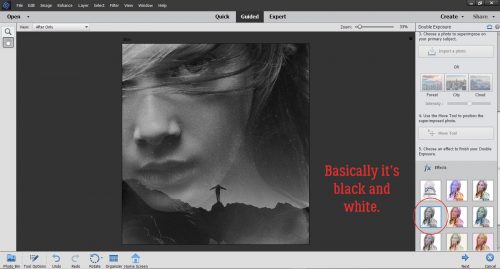
It really IS that simple!!!!

I can think of so many ways to use this trick. One that immediately jumped to mind is for rotating photos to match the angle of photo spots on templates. It’ll save so much nudging, I’m not even kidding!

Now I’m ready to create my layout for the Storytelling Challenge. My examples here were set up using some of the items I’m going to use from LouCee CreationsShampoodle and Setter kit. It should be finished and in the Gallery by the time this tut goes live. See you all next week!


~July Featured Designer – CathyK Designs~

Hey everyone!! I’m sliding in here a bit late with this blog post. With vacation and getting my son ready to go to Belgium for two weeks, I completely lost track of time. Hope your July is going well.

Let’s jump right into my interview with our July Designer – Cathy from CathyK Designs.

How long have you been designing?

I opened my first digi shop in 2008, so about 11 years.

What made you decide to design?

I started making some freebies just for fun, then got hooked!

What do you use to create your designs (program, additional tools, etc.)?

I use Photoshop CS4 and Inkscape, though I am considering moving to Creative Cloud once I update my computer hardware.

Describe your design workplace.

I have a computer desk with a desktop computer and large display in our family room. My work area tends to be pretty cluttered, plus I always have my paper planner and paper notebook open on the desk to scribble down ideas.

What motivates and inspires you as a designer?

I like seeing an idea come to fruition and then seeing how people use that kit to scrap their precious memories. I get inspiration and ideas from color, everyday life, my sons’ activities and interests, magazines, Pinterest, textures, a song, a good quote. Really, anything can be the inspiration for a product!

What is your favorite kit currently in your GS store and why?

It’s so hard to answer that! I guess my current favorite is my Country Roads collection. At first, that palette didn’t appeal much to me and I struggled to find a direction. I actually started the collection with a completely different theme in mind, then our camping trips reminded me of simpler times, which made me think of country life (since I grew up in a smaller town in the south), so I completely switched directions and absolutely love how the collection turned out! Of course, the title is from the John Denver song that was stuck in my head the ENTIRE time I was working on it! “Country Roads, take me home to the place I belong…”

.

https://store.gingerscraps.net/Country-Roads-Kit-by-CathyK-Designs.html

What was your first job?

In high school, I was a draftsperson for my father’s HVAC engineering company. This was back in the dark ages before CAD programs when everything was done by hand!

What is your favorite quote?

“The journey of a thousand miles begins with a single step.” I included this one in this month’s Daily Download kit, Chart Your Own Course, because I liked the message.

What is something you want to do in the next year that you’ve never done before?

I’d love to take a longer trip to the mountains in our new RV. We’ve only taken short weekend trips so far.

If you had to delete all but 3 apps from your smartphone, which ones would you keep?

Texting app, since that’s the best way to communicate with my young adult sons, Chrome web browser, since you can access pretty much everything you need just using that, and Google Maps.

If you could have someone follow you around all the time, like a personal assistant, what would you have them do?

Um, all the boring things I hate to do, like paying bills, organizing paperwork, cleaning, marketing!

Would you rather travel back in time to meet your ancestors or to the future to meet your descendants?

Definitely back in time to meet my ancestors. Life would be pretty dull if you knew ahead of time how everything was gonna turn out!

What commercial jingle gets stuck in your head all the time.

“Bum-da-dump-bum-bum-bum-bum” from some insurance company.

If you could turn the ocean into a liquid other than water, which one would you pick?

Wine!

Thanks Cathy!! Make sure to check out her GingerScraps Store and  Facebook Fan Page.

Have you been grabbing the Daily Download? If you’ve missed any pieces, it will be available as a full kit in her GingerScraps store beginning in August.

Thanks for hanging out with me today!!

Sneak Peeks July 18th 2019

Happy Thursday! This week has been a scorcher! I hope you are keeping cool indoors and scrapping some awesome pages! Our CT was busy this week with the new releases! Let’s check out their pages!

From Down This Road

From Dagilicious

From Clever Monkey Graphics

From Miss Fish

From Tinci

From Lindsay Jane


From LDrag

From JoCee


From Aimee Harrison

Tutorial Tuesday (Photoshop Elements 2019)

Even Sketchier Still!

I know, I know… I’ve already shown you more than one way to turn a photo into a sketch. But I haven’t shown you THIS way, which is the easiest and most interesting method I’ve learned to date. And it’s a GUIDED EDIT in PSE 2019 (Amazon Prime Day – $59!) so you know it’s going to be a cinch. Well, it can be as easy or complicated as you make it. I tried this Edit on several photos before deciding that for the sake of expedience, I’d go with the photo below.

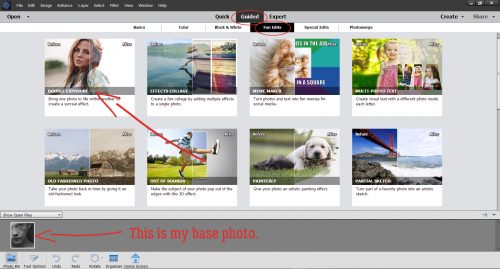
This Partial Sketch Edit is reached via Guided>Fun Edits. Right there in the middle!

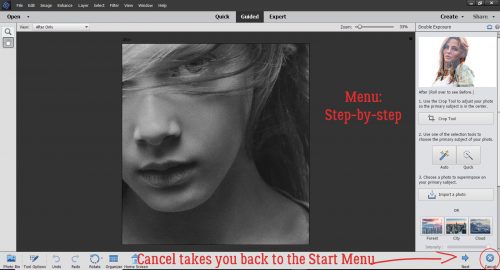
The Control Panel looks like this and completely leads you through the process. I’m going to show you the results of each of the four options so you can see how it looks and lets you imagine how you could use it.

I’m going to move top to bottom and left to right with the options, starting with the Pencil Sketch. This photo is divided horizontally so it’s not going to be a lot of work to make my selection. The selection portion is the most difficult and time-consuming part of the process. (Just a reminder… the Cancel button takes you right back to Square One, literally, so don’t click it unless you WANT to start all over.)

One thing I discovered right off the bat is that the effect appears as the selection is made. You can see it as it changes. I’m showing a selection made with a fairly small brush at 100% Opacity but there’s nothing that says you can’t do whatever you like. If you’re adept at selection, you can use a bigger brush; don’t forget that you can toggle back and forth between Adding to your selection and Subtracting from it. That means you can remove areas from your selection that you don’t want to convert to a sketch while you go. The Undo (CTRL/CMD>Z) command will take you back a single step if you find too much of the photo is selected with one click.

So, in the Pencil Sketch mode at 100%, there’s not a lot of detail visible in the lake. The mountains are well-defined but that’s about all. The clouds are so important to the overall composition so let’s find them.

Ah, there they are! To my eyes, this looks like it’s part sketch and part watercolour. After the Opacity is where you want it, if there’s any fine-tuning your selection needs to give you the look you want, you can click on the Detail Brush and fix it up.

The refining I did isn’t really obvious, and there wasn’t a lot needed.

The best sketch effects blend gently into the photo, and PSE makes that as simple as moving a slider over to the right. Watch as you slide so you know when to stop.

The software developers at Adobe are really upping their game. This Edit also includes a Flip Effect option. So you can turn the part of the photo you DIDN’T select into the sketch and the sketch part back to a photo just with one click.

The second option is a Colored Pencil Sketch. I didn’t know if it would look substantially different from the Pencil Sketch version once I adjusted the Opacity, so let’s take a look.

There definitely is a hint of colour in the lake this time.

With a little tweaking I’ve got this.

And with the edge between photo and sketch softened…

Before I use the Flip Effect button, let’s look at the Pencil and Colored Pencil side by side. Remember there’s a 20% difference in Opacity between them. There is a difference, but I’m not convinced the software is why.

Okay, here’s the Flipped Colored Pencil version.

This one has a lot of promise. How will an Old Photo sketch effect look?

Ah! Very cool!! For reasons I haven’t divined, I had trouble making my selection for this one to exclude the little spit of land at the centre-right of the photo. So after a number of failed attempts to duplicate the selection used in the previous versions, I just let PSE have its way.

See how the mood is SO different with this version? I can’t wait to try it on some of my real old photos.

I really like the way this one looks.

Flipped, maybe not so much. But I do love all the texture.

What will Old Paper do that Old Photo didn’t?

There is a noticeable difference; those creases are awesome!

Dropping the Opacity to about 45% (yeah, too quick on the PrtScr finger!) looks like this. Still moody, but not quite as stormy.

Flipped is pretty. I can’t pick just one!

I can see any (or all) of these printed and framed. Or on a greeting card. Or surrounded by beautiful elements on a layout. So many ways to use this!! I hope you’ll give it a try and let me know how you like it.

Happy Thursday! Our designers have made awesome new releases to help you scrap all those summer memories! Let’s check out a peek!

From Clever Monkey Graphics

From Charly Renay

From Down This Road


From Dagilicious

From Miss Fish

From Tinci

From Aimee Harrison

From JoCee

From Heather Z

From Neia Scraps

https://gingerscraps.net/gsblog/2019/07/31270/

Sneak Peeks June 27th 2019

Happy Thursday! The heat is on this summer! It’s scorching out! I am glad digital scrapbooking can be done in the cool air conditioning. I hope you will be able to spend sometime in the cool indoors scrapping some of your great memories! Let’s check out some of the new releases coming out tomorrow!

From Clever Monkey Graphics


From Down This Road Designs


From Snickerdoodle designs

From JB Studio


From KM Ink Digital Designs

From Neia Scraps

From Alexis Design Studio

From Aimee Harrison

From Wimpchompers

Have a great weekend!

Sneak Peeks June 20th 2019

Happy day before Summer! Summer arrives tomorrow and our designers have awesome releases lined up! Let’s check out some of the awesome goodies!

From Down This Road

From Tinci Designs

From Lindsay Jane

From Aimee Harrison

From JB Studio

From LDrag

From Snickerdoodle Designs

Have a great weekend!

Sneak Peeks June 13th 2019

Happy Thursday! We are a little over a week away from Summer! Our designers have some amazing kits to get us in that summer mood!

From Miss Fish

From Dagilicious

From Tinci

From Clever Monkey Graphics

Image may contain: one or more people

Image may contain: 1 person, smiling

From Down This Road

From JoCee

From Aimee Harrison

From JB Studio

From L Drag

Tutorial Tuesday… postponed

Hi ladies! I’m so sorry to tell you there isn’t a Tutorial Tuesday post for this week. My real job intruded and left me with no free time and totally exhausted. But there will be a new Tutorial next week, with some tips on shadowing stacked elements. So stay tuned!

Sneak Peeks June 6th 2019

Happy June! My son has been out of school for a week now! Summer is officially here in Florida. It’s hot and humid and now I have to entertain a 7 and a 3 year old. But at least there’s a lot of memories to take pictures of! Our designers have great releases to get us into the summer spirit!

From Mags Graphics


From Clever Monkey Graphics

From Snickerdoodle

From  Tinci

From Lindsay Jane

From Miss Fish

From Down This Road

From Wimpychompers

From Aimee Harrison