Tutorial Tuesday (Photoshop Elements)

There’s a Flag on the Play – Out Of Bounds!

I had a mini-crisis on Friday when the screen on my laptop started to fail. Geek Squad guy I’m married to tried to fix it but was unable to so out he went to find me a new one. I spent the weekend transferring files and installing software so I apologize for all the redirects you’re going to find in this tutorial. I try to show every step and explain it all in detail as I go along, but I ran out of time… And I seem to have lost the font I was using to label my screenshots, so I’ve switched to Lumberjack. At any rate, this tutorial builds on skills I’ve already shared with you in past tutorials, so I’m going to link you up where necessary.

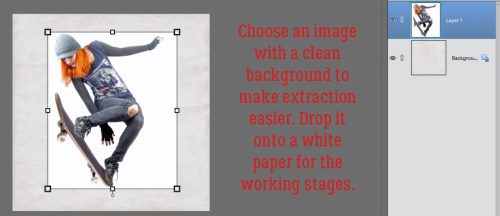
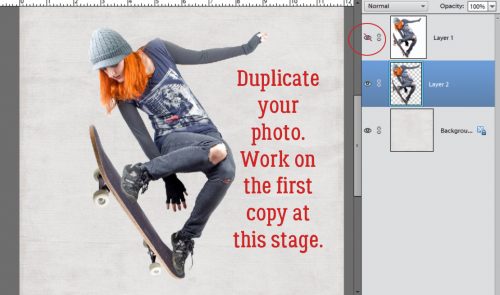
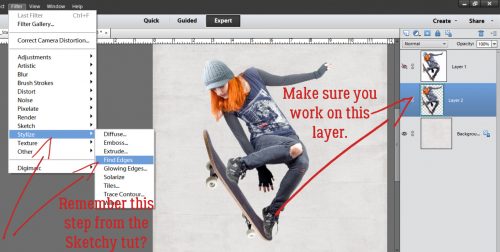
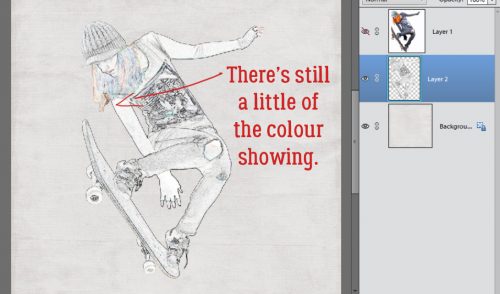
I spent some time recently checking out the forum at another shop that had a big event happening. One of the event-related threads asked members to show a layout with a technique the member really wanted to learn. Guess what I’m teaching you today? You guessed it! We’re going to take this:

to THIS!

I used a stock photo I found on Pixabay, along with a mask created by PHOTOCowgirl (former GingerScraps designer), a paper from Just So Scrappy‘s Chasing Rainbows kit (the bundle is on sale right now for the incredible price of $5!) and a frame from the GingerBread Ladies‘ MEGA collab True Friend. If you don’t have a mask that will work with your photo, you can make your own using brushes, varying the opacity from 100% at the center to about 30% at the edges.

I laid down my mask then dropped my photo on top of it. I made a copy (CTRL/CMD>J) of the photo so I could extract the bee and part of the cone on the focal flower.

I clipped the photo to the mask temporarily while I decided where to put the frame. Looking at it now, I might want to move it up a smidge so the cone on the flower just behind the focal point is inside the frame… or I could extract it too. Let me think about that…

Zoom in (CTRL/CMD>+ to enlarge, CTRL/CMD>- to shrink) and out while you’re working so you can see what you’ve done.

I turned off the visibility of the photo to be clipped to the mask and the frame, using the Rectangular Marquee tool (CTRL/CMD>M) to cut away the areas in the background that I don’t want to show against the frame. Then I added a Layer Mask to my cut-down photo.

Working on the Layer Mask I carefully erased the remainder of the background. The basics of this technique can be found in this tutorial. Later I went to the frame layer and masked off the area where the petals extend over the frame.

You can resize and move the mask, clipped photo, frame and extracted bit of photo to suit yourself by selecting all the layers using the click-shift-click method.

Now I wanted to have the cone and bee cast a shadow on the frame and the photo to add some dimension. CTRL/CMD>click on the sheet of paper at the top of the Layers panel to create a new layer underneath your extraction. Or just click on the icon then move the layer down. In case you need some reminders on how to create shadows on their own layer, you can review this tutorial. Make sure your shadow layer doesn’t shadow the photo underneath the frame where the sharp edge is, along the bottom of your extraction.

One step that isn’t always needed is to remove areas of that shadow layer that wouldn’t be there if the image was a real thing. You can just erase those areas.

For the petals’ shadow I used a drop shadow brush that is one of the prepackaged brushes Elements comes with. This too went on its own layer so I could adjust it as much as I needed to.

Shadow the frame and it’s good to go!

Next week’s tutorial is going to blow your socks off, so get ready!!!!

Focus On – Pop Culture

Happy Saturday scrappers! Just as promised in last week’s post with those free pop culture fonts, we are back this week with some digital scrapbooking supplies with the same theme. Now, this is just a tiny glimpse into what the store has to offer. We went along with the themes of the fonts from last week. Check back on later posts for more pop culture fonts and digital scrapbooking supplies. You can also check the store out for more. If these are not what you are looking for.

Galactic Heroes by BoomersGirl Designs >> Don’t go to the dark side! Join these galactic cuties as you celebrate all of the “out of this world” fun in your life. Whether scrapbooking your favorite movies, little (or big) heroes of your own or the magic of the universe, this kit has it all – cute characters, beautiful colors and tons of themed (and non-themed) goodies! The vibrant color palette includes oranges, yellow, green, blues, purple, gray, black and white.

A Far Away Galaxy by Scrap N Pieces >> While some people’s favorite stories start “once upon a time,” other stories begin with “a long time ago in a galaxy far, far away…” If you are already picturing the scrolling crawl, this kit is for you. A Far Away Galaxy pays tribute to Star Wars including light sabers, insignias, and a galactic alphabet. This kit also contains other nods to a love of space, including planets, moons, and galaxies. A Far Away Galaxy also contains traditional elements and patterned papers versatile enough to be used for every occasion, helpijng to stretch your stash. Whether it’s blue milk for breakfast or the Jedi training academy, tell your stories with A Far Away Galaxy…


Space Wars by Laurie’s Scraps and Designs >> Cherish those memories from a galaxy far, far away with this intergalactic collection. Perfect for any space layouts!

[Read more…]

Fresh Baked: August 18, 2017

It’s FRIDAY! The big news around here is the ECLIPSE! Parts of the US will get to see a FULL solar eclipse. Others will get a partial. It’s big news! They’re calling for issues with internet and phones, due to the high volume of people. That just means time to stay home, take some pictures (wear your special glasses!) and scrap! Make sure you purchase your kits ahead of time, just in case!

Remember when you spend $10 in the store, you get a great new collab!

fwp_thumb_thumb_thumb
https://store.gingerscraps.net/GingerBread-Ladies-Collab-Tropical-Paradise.html

[Read more…]

Sneak Peeks August 17th, 2017

Happy Thursday! My son went back to school today! I can’t believe summer vacation is done! But now I have more time to scrap! The designers have some great products releasing tomorrow and I have some sneak peeks to show you!

From Love Ewe Designs

From Dagi

From Tinci


From Lindsay Jane

From Neia Scraps

From Aimee Harrison

Have a Wonderful weekend!

Tutorial Tuesday (A Little Departure)

The EYEs Have It

This week, I’m going to go a little off-script, but in the end I think you’ll agree it’ll make for better layouts. So let’s talk about taking better photos. There are some really simple tips coming up that will make your photos so much more interesting and by default, your layouts will benefit too. I’m not going to baffle you with a lot of technical jargon, just some hints on things like composition, vision and mindfulness. The main component of great photos is light. If you train your eye to look at light as an extension of the image you’re planning to capture, you’ll be halfway there!

Oh, and taming that photo-destroying camera shake is an absolute must! If you’re going to be moving around and don’t want the encumbrance of a tripod to keep that camera stock still, you’ll need to brace your arms to minimize movement. If you WANT blurry, out-of-focus photos, hold your camera at arms’-length and snap away. If you don’t, hold your camera in both hands, tuck your elbows in against your trunk, take a deep breath, let it out slowly while you compose your shot and hit the shutter button as you get to the end of your exhale. This stays the same whether you’re shooting with a wildly expensive DSLR with a 300mm lens on it (although if you’re doing that, I’m going to bet there’s a tripod in there too) or if you’re snapping away with a cell phone camera.

This past weekend I went to a local festival I try to attend every year. Photo ops are everywhere at events like this, as long as you can be patient. If you can wait even a couple of minutes until the people clear out, you’ll get better shots. I have an abundance of patience and if I’m by myself, I take all the time I need to get what I want; I left the menfolk at home this year! So anyway, this festival is a classic-cars-and-classic-rock event that actually runs over 4 days. The weather is usually stellar for the Saturday show-and-shine and this year was no exception. Taking photos of cars in bright sunshine presents some particular difficulties and you’ll see how I addressed them when I show you my examples. All the photos I’m going to show you are SOOC… straight out of the camera and shot using the same lens. I haven’t made any adjustments.

Let’s start with exposure. Using the light that’s available to your advantage is going to make your photos look a lot better. In this first photo I was shooting toward the light, so the fender and door area are a lot darker than I’d like. There’s also a LOT of glare from the windshield. Sure, I could fix it with PSE, but why not try to minimize how much tweakage will be needed right from the start? (A little WSNH tip. 😉 )
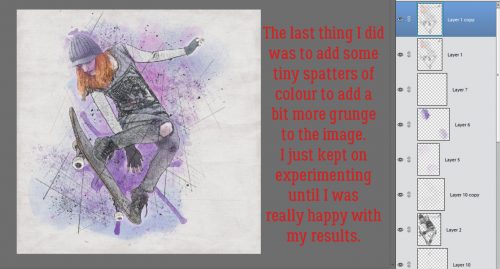
By going around the car and shooting from the other side, the exposure is much more even and the glare is gone.

Think about what’s actually in your viewfinder – or on your LCD screen – and try not to have objects growing out of people’s heads or otherwise messing up your shot. Pay attention to what’s in the background. If you have to move a little, it’s not a bad idea. In this first image, that snow fence is just NASTY! I could crop it out, but…

by just moving a couple of feet and changing the angle of approach, I caught a couple of sweet little sunflares and the hood ornament’s details are much more visible. At this angle the chrome reflects less of the paint colour and the crowds are still reflected but undefined.

Another example of how simply changing your point of view improves your shot… if I wait a minute the guy will move. But the lawn chair and the sun canopy? Doubtful.

So I moved. Lawn chair? Gone. Sun canopy? Gone! Dude in the rust coloured shirt? Also gone!

Reflections and shadows can make or break a photo. I often think details are more interesting than whole objects so I wanted to get a shot of the tail end of this Hudson. Oh dear… who is that old woman reflected in the paint? Oh yeah. Me.

I took a step to my left, reframed and took this one. Much better!

I think this photo can be redeemed a little (dodging and burning perhaps); I do like the way the woman’s face is framed by the parrot’s beak and breast, but the shadows are so overwhelming. Some judicious editing – and cropping – in PSE might make it useable.

Fortunately, I was able to move a couple of steps to my left and got this one! Get a load of that depth of field. What a handsome bird. Fancy name too… hyacinthine macaw.

Another example of both attending to reflections and cropping in the viewfinder follows. The hood ornament is the subject here, but it’s a bit distracted from by the car behind it.

A slightly different angle and moving a bit closer captures nice reflections in the chrome, and plays up the detail a bit.

I’ve seen a lot of photos of ridiculously cute kids and pets that could be made really special just by getting down to their level. See the difference between these two photos? I think we’ll all agree that the second one is the more interesting one… even with the people in the background.

This shot is also taken from a crouch.

The next two examples show how the point of view makes or breaks your shot. This Caddy has been part of the show-and-shine for as long as I can remember. It’s one of my favourite cutesy touches so I usually take at least one snap of it. This is the first one I took. Kinda ho-hum. The exposure isn’t particularly great – the tray is underexposed and the Root Bear is overexposed. If I was telling a story with this photo, it would have put people to sleep in a heartbeat.

So I moved around, Now the Bear is the story. I could have done a better crop in my viewfinder, but that’s a really easy fix.

When I’m shooting points of interest like this view of one of our parks, I try and get the most effective shot I can. Sometimes that means ditching the good old landscape orientation.

Beauty is in the eye of the beholder and to my eyes, this portrait-oriented shot is better.

Before I forget… when you’re shooting photos of water – rivers, lakes, oceans – remember that water will ALWAYS be level! There are few things more visually jarring than a tilted horizon with water in it, unless there’s something or someone in the foreground that provides the subject and the angle of the horizon is an artistic statement.

I think this pair of photos brings everything I’ve just suggested together in one. Cropping in the viewfinder, shooting up rather than down, taking advantage of the light and paying attention to the background are all aspects of the better shot. And I can’t wait to play with it!

Ooh, I caught a little bit of bokeh in these. Sweet!!

I hope you’ve found something useful in there and that I haven’t come across as bossy. I wanted to keep it simple and achievable for everybody. Let me know what you think!


August Bake Sale

It’s August Bake Sale time!! The designers have picked some wonderful goodies for you this month. All these kits are on sale for just $1 through August 20th.

I can’t wait to go shopping!!

Free Pop Culture Fonts

Happy Saturday everyone! Since you all seemed to really enjoy the last free fonts we found for you, I thought we would do another edition this week. There is a theme to this week’s fun and free fonts we found you. Pop Culture! I thought it would be a fun twist.  So here they are. (links below the image)

Top Title & Bottom Link | Waltograph

Far Away Galaxy | Star Jedi

Catch Them All! |  Pokémon

You’re a Wizard! | Harry P

Grumpy Fowl | Angry Birds

Assemble! | Avengeance Heroic Avenger

I have a 9 year old son who is basically obsessed with all of these. Well, Harry P was for me if I am being honest. 🙂 I had all of these in my font stash already. We would love to see your layouts made with these fonts. Make sure to upload them to the gallery and come back and link us up in the comments.

Check back next Saturday. We will be showcasing some fun Pop Culture digital scrapbooking supplies to go along with these fonts. I also have more of these fun pop culture fonts in my stash. I will be back in the future with some more.

Fresh Baked: August 11, 2017

Welcome back, Friday! You were missed! This week, the designers are feeling the end of summer vibes and back to school blues! There are some great templates and kits, including ones to celebrate Picture Day! It’s a great time to check out the shop!

Remember when you spend $10 in the store, you get a great new collab!

fwp_thumb_thumb
https://store.gingerscraps.net/GingerBread-Ladies-Collab-Tropical-Paradise.html

[Read more…]

Sneak Peeks August 10th, 2017

Happy Thursday! In my area, the kids went back to school! I can’t believe summer vacation is over! Soon it will cool off and the weather will be nice again. Hopefully with school starting, there’s more time to scrap! This week our designers have some awesome kits and templates!

From Neia Scraps

From Luv Ewe

From Dagi

From Tinci

From Joyful Expresions

From Miss Fish

From CathyK

From JoCee

From Lindsay Jane

From Aimee Harrison

From Heart Strings Scrap Art

Have a wonderful weekend!

Tutorial Tuesday (Photoshop Elements)

Reflections

Once again, Glee has outed me! She saw my finished layout in the Gallery and just knew today’s tutorial would relate to how I created my title. I used a pretty but fairly simple script font called Black Olives. It’s an upright font so I chose the Italic Text tool option. The colour was pulled from the sky in my photo.

After I had my text the size I wanted it and in the spot I wanted it, I simplified then duplicated the text layer. CTRL/CMD>J, remember. Then I “grabbed” the handle at the top centre of my bounding box – make sure yours is on! – and pulled it straight down. The Move tool options include a spot to Constrain Proportions; if you select that, it will automatically size your image. If you look at the numbers in the boxes, one will say 100% (for example) and the other will say -100%. But for this technique you don’t have to constrain proportions if you don’t want to. You can make it whatever height you want. When you’re happy, hit the check-mark.

The next step I took was to Skew the image. Image>Transform>Skew takes you there. Then I pulled the lower corner handles a bit to the right. You can eye-ball for this step, or you can turn on the grid (CTRL/CMD>’) to help you do it evenly. But only if you’re really… umm… particular.

And I am. I turned on the grid so I could move those handles about the same distance. I also nudged the skewed layer down a little, as you’ll see in the next screenshot.

If you’re a faithful reader you’ll know that I’m rarely satisfied with basic. I went on to jazz things up a little by applying some special effects. I made a copy of the skewed layer then added some panache. The fx button at the bottom of your layers panel includes some basic styles, such as Drop Shadows, Glows and Bevels. By selecting any one of those you’ll have access to all of the default settings as shown below. I used a commercially available style set, but the settings below will give you the same effects. Check the Glow and Inner boxes, with black (000000) for the Colour. Set the Size to about 18 and the Opacity to about 13. Then go down and check the Bevel box, Direction up and Size at 24. You can see that the topmost skewed layer looks a little shiny with some dimension to it.

Then I went down to the original skewed layer and decreased its Opacity down to 28%. I wanted some of the blue to remain, but the shiny dimensional stuff to be most visible.

Then I merged the two skewed layers.

I chose another font, this time a simple sans serif one called Caviar Dreams. I pulled a pink from one of the papers I used then added some special effects to it too. The Glow and Inner boxes are checked again, Size is at 70 and Opacity at 50. The Bevel is set at 24 and Up again.

I decided a little drop shadow on the two fancy layers was needed because of their dimension and the end result looks like this.

You know what’s the best part? You can do this to almost anything! You can create a mirror image of a photo, an element, a brush (on its own layer, of course!), make an object look like it’s casting a really long shadow… so many ways you can make this work for you! Give it a whirl. I know you’ll find some really creative ways to use it and to combine it with other cool techniques. See you in a week.