Fresh Baked: February 02, 2018

Monday is World Nutella Day. You know what? Monday, we need to all just hang out in front of our computers and tablets, working on some digiscrap layouts, eating Nutella straight from the jar! Who’s with me? I think the designers might! They have some wonderful new stuff coming out this week, and it’s all perfect for any memory you need to preserve!

Remember when you spend $10 in the store, you get a great new collab! It’s time to get out and do some winter sports!

fwp
https://store.gingerscraps.net/GingerBread-Ladies-Collab-Winter-Wonderland-of-Sports.html

[Read more…]

Sneak Peeks February 1st 2018

Happy Thursday! This week’s new releases are a bonus to the awesome Buffet collections that debuted today. Remember the Buffet products are 50% off until the 5th! Several designers have goodies releasing tomorrow as well! Let’s take a look!

From Craft-tastrophic

From Aimee Harrison

From Heartstrings Scrap Art

Have an awesome weekend!

Feel the Love at Gingerscraps!

Love! It’s all about love! Love of friends. Love of family. Love of digi-scrap! That’s what February is about! Time to spread the love and share in the memories!

It is the First of the month, and that means the revel of our new Buffet!!

Don’t forget to check out the Buffet Bundles, one easy click to add bundles of Buffet goodies to your cart, and an amazing value too!

[Read more…]

DD: Feb 01

The month of love is here and it’s shining brightly with this month’s daily download. I can’t wait to see layouts created with it.

Before I show it off, though, I have to share January’s Daily Download! It was all about facing the year without fear and making it your year!


https://store.gingerscraps.net/Fearless-Year-by-Miss-Mis-Designs.html

NOTE: So glad you enjoyed the January kit! 
Also thank you for pointing out that the item mmd_fy_smudge1.png needed some improvement. 
Misty (MissMis Designs) got that item fixed and here is a link. 
https://bit.ly/2DWkbLZ

And here’s the love-filled download for February!


https://bit.ly/2Gp4pqE

Remember, the download is kept up for 5 days, and then it is taken down. If you miss pieces, the kit will be available for purchase on the first day of the following month.

Tutorial Tuesday (Photoshop Elements 15)

Fun with FONTS & FOTOS 

I don’t know about where YOU are, but where I am, winter is in full fury. We got nearly a foot of snow in the last few days, most of it falling at the same time I was on a 52-passenger bus on my way home from a meeting 200 miles from home. So I’ve been living vicariously through my daughter, who just returned from a week in Hawaii. She took some amazing photos!

Let’s play with another Guided Edit, from the Fun Edits tab. This one is called Photo Text.

The interface for this edit is quite simple and easy to follow. Click on the Text Tool button and choose a font. Pick something with some presence – a chunky one that will let all the awesomeness of your photo shine. I started with Konga Pro Regular. Don’t worry about the font colour, it’s not going to matter. You can play with the size to maximize the area of the photo your text covers.

And you can use more than one font, as the software shows in the sample on the menu screen. Don’t click to accept the changes until you’ve got all of your text done though. Move your cursor to where you want the new font to take over, use the font selection menu to choose the new one and type out your text. And don’t worry if your text doesn’t fit onto your photo perfectly either, because you can resize it later. The second font I chose for this example is called LD Zoot Suit, from Lettering Delights.

If your text lines overlap, once you’ve got the words you want, you can double-click on the text and adjust the leading – the gap between the lines – so that they’re just touching. Or, because it’s YOUR project, they don’t have to touch… it’s all up to you!

Once you’ve committed your text, the software automatically clips your photo to it. You can move the text around and resize it to reveal the areas of your photo that you want visible.

The image above has the “Fit” option selected, since it’s the default. Depending on your font and the width of the words you used, you might find the “Fill” option works well for you. I didn’t like it, so I undid it.

Then there’s the Background Color option. You can choose Black…

white…

or Clear (transparent). Which one works will depend on what you plan to do with your text later.

I shifted my text around to show more of the sand and the sea, less of the sky. The clouds on the horizon weren’t defined enough for my taste.

Now for the fun part! There are some more options that change the appearance of your text in some very interesting ways. With one click you can add both a stroke and a bevel! There are three preset adjustments; this one is the Small version.

And the Medium. Looks a little like a marshmallow.

Large is even more puffy and defined. While I was playing around with this technique it occurred to me that this would be a way to make a super-simple alpha set to match a favourite kit, simply by typing out the alphabet to fill up a paper from that kit, then fiddling with the adjustments.

But wait!! There’s more tweaking we can do! By clicking on that Advanced button at the bottom of the interface, this menu opens up. Each aspect can be adjusted to suit the look you’re going for. You can change the angle of the light source, make the Bevel higher or flatter (and sharper), you can adjust the Drop Shadow, the width of the Stroke and even add an Inner or Outer Glow. It’s so much fun to experiment!

I decided a white Stroke would look better. Right?!

All that’s left is to decide what to do with your finished text. You can save it, share it or move it to the Expert editor to drop onto your layout. The power is in your hands!

With this Guided Edit you can do as much or as little as you like with your text. Of course, you COULD do it all the old-fashioned, multi-step way, but why?

Creative Style | Pocket Scrapbooking

Here we are already. The last week in January. Didn’t it just turn 2018? Before we know it we will be looking at the end of this year! It flies by faster and faster with each passing year. That being said, I am not here to complain about time flying. 🙂 I am here to talk about scrapbooking styles. You know: fantasy, pocket, traditional, and everything in between. Some people scrap only one style. Some people (like myself) will scrap one style one day and another a next. I like to mix things up.

One thing I’ve really not scrapped is those great pocket pages. I love to cluster a bit too much. Those pages are lovely though! So neat, clean, and brought together. The perfect touch of elements and patterned paper. So what is “pocket scrapbooking” actually?

When scrapping with paper, pocket scrapbooking usually used page protectors that can be divided into smaller pockets. These pockets are arraigned in many different ways on the page. In each pocket usually the things that are included are photos, cards, and journaling. Of course it isn’t limited to that either. Ticket stubs, hospital bracelets, receipts, and so are are great additions to the pockets. In digital scrapbooking we take basically the same approach. Some of the digital scrapbooking versions of pocket scrapbook layouts have photos and such tucked in actual (digital) pockets. Those are my favorite. Others are just wonderfully blocked layouts. Some with stitches around the blocks, and of course some without. Usually there is more focus on the memories, photos, and papers than lots of elements filling the pages.

These layouts jump out of the galleries! So, that is what I did. I stalked the gallery and am here to show of some of those great pocket scrapbook pages that are filling the GingerScraps gallery. We will round up today’s Creative Style post with some great items from GingerScrap’s store to create your own pocket layouts.

Here are those layouts I mentioned. All are linked to their counterparts in the gallery. If you are so inclined, run over there and give these guys some gallery love!

New Years 2018 by
honeybee


Week 3 2018 by Firstoscartgrouch


New Wine Glasses by msbrad


Magic_March_2011 by ScrappyPenguin


Accident by gnana96


by minicooper452


PS_-_GS_1_18_Mix by jang


Punktering by hannaahl

Pocket scrapbooking is one of the most popular styles of scrapping digital out there! GingerScraps has an entire section dedicated just to all supplies for your digital pocket scrapbooking. I took a look-see at that section. Nearly 70 pages of goodies!! I picked out a few of my favorite to showcase here. Of course, this is just a small sample of what is in the store. If you already have these, or are looking for something else, make sure to check out that section!

My Scary Friends Doodle Stripes contains unique images to turn your projects even more wonderful.
Hand-drawn and colored at the highest quality by Paty Greif Design Studio. The files have a resolution of 300dpi for an optimum printing quality.

[Read more…]

January’s Designer Spotlight: Miss Mis Designs!

Whew… where did January go?? Between me being crazy busy and some gremlin activity with my laptop, Misty almost didn’t get her moment in the Spotlight, but there’s still a tiny bit of month left so let’s sit down with her and get to know her a little better.

J: How long have you been designing?

M: Ten years this month! [Congratulations!!]

J: What’s your design process?

M: I’m a full-time student, mom and manager, so my design process lately is sit down and make a day of it. Plan papers, elements and knock it out.

J: What do you use to create your designs?

M: I use PSCC some, but my  favorite is PSE 7. SEVEN, lol!

J: Describe your design workspace.

M: Right now my mom is living with us and taking my office space, so I’m currently at a small desk in the middle of the dining room. At least I have snacks when I design!

J: What motivates and inspires you as a designer?

M: It’s my creative outlet. I have a very mundane real life job; this allows me to be artsy and creative.

J: What kit currently available in your GingerScraps store is your favourite? Why?

M: My favorite is “My Tribe”. I feel like most people can relate to having that ‘tribe’ of people that help them in everyday life. Kids, work, LIFE!

[psst…. it’s on SALE!!]

J: Do you craft outside the digital world?

M: I crochet blankets. I can crochet and relax in front of the tv for maybe ten minutes a day. Everyone gets baby blankets for their new littles.

J: What is the last book you read?

M: I am currently reading Present Over Perfect. It’s sooo insightful.

J: Tea or coffee?

M: Coffee through the day but a hot cup of tea before bed. 

J: Do you have a guilty pleasure?

M: I like a good casino. Eek. I do like to go and splurge $40 or so and sometimes even win!

J: If time travel were possible, where would you go and why?

M: I would have to go to the future. I’m not much of a history person. There isn’t a specific time that intrigues me.

J:  What’s your favourite thing about GingerScraps?

M: The team and the community! There isn’t ever any bickering, or drama. We truly do have a fantastic group of people. 

J:  If you could have any super power, what would it be?

M: I would love to be able to be in more than one place at a time. Multiplicity. I am a mom, a full time Sales Manager, and full time student. I need more of me to get it all done. I’d have one more that is just sleeping all the time. 

Thanks for chatting with me, Misty!


Fresh Baked: January 26, 2018

Last newsletter for January. How is it already almost February? The designers have designed some gorgeous kits and templates! There’s a little something for everyone!

Remember when you spend $10 in the store, you get a great new collab!

fwp_thumb3_thumb_thumb_thumb
https://store.gingerscraps.net/GingerBread-Ladies-Collab-Stick-To-It.html

001
https://store.gingerscraps.net/CU-Shadow-Box-Creator-Layered-Templates.html

002
https://store.gingerscraps.net/Valentine-Cards-by-K4K.html

003
https://store.gingerscraps.net/Toon-Time-GrabBag.html

004
https://store.gingerscraps.net/Sports-Running-Bundle.html

005
https://store.gingerscraps.net/Page-Borders-27-by-Lindsay-Jane.html

006
https://store.gingerscraps.net/Page-Borders-28-by-Lindsay-Jane.html

007
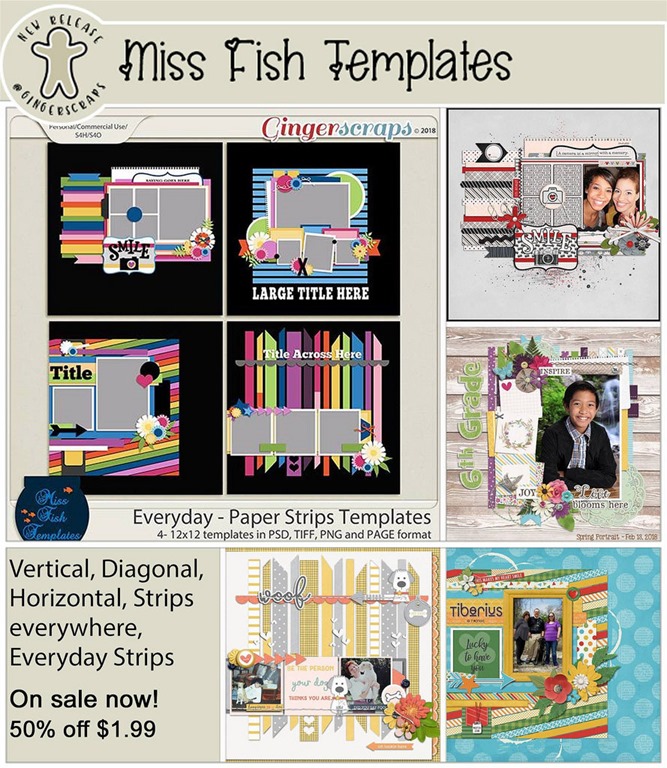
https://store.gingerscraps.net/Everyday-Banner-Templates-by-Miss-Fish.html

008
https://store.gingerscraps.net/Photo-Frenzy-Love-U-Templates-by-Miss-Fish.html

009
https://store.gingerscraps.net/Neia-Scraps/

010
https://store.gingerscraps.net/Paty-Greif-Design-Studio/

011
https://store.gingerscraps.net/Random-Thoughts-Bundle-Pack.html

012
https://store.gingerscraps.net/Capture-It-by-Scraps-N-Pieces.html

013
https://store.gingerscraps.net/Winter-joy-template-pack.html

014
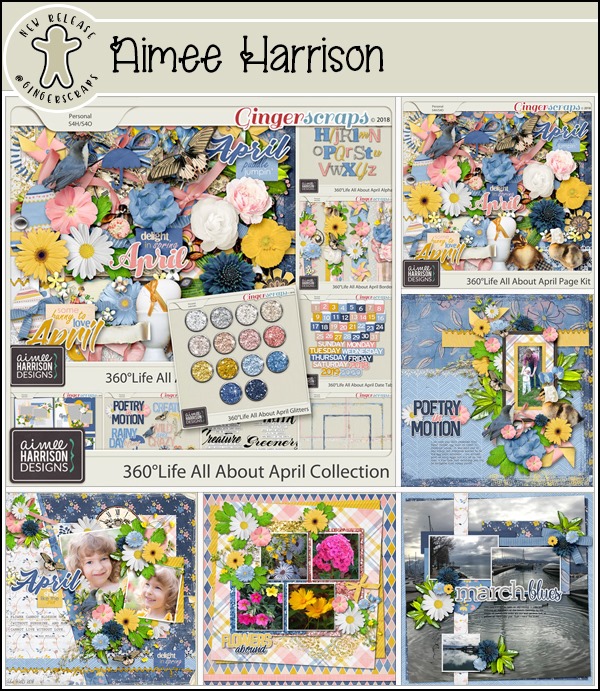
Collection: https://store.gingerscraps.net/360-Life-All-About-February-Collection-by-Aimee-Harrison.html
Kit: https://store.gingerscraps.net/360-Life-All-About-February-Page-Kit-by-Aimee-Harrison.html
Alphas: https://store.gingerscraps.net/360-Life-All-About-February-Alpha-Sets-by-Aimee-Harrison.html
Borders: https://store.gingerscraps.net/360-Life-All-About-February-Borders-by-Aimee-Harrison.html
Templates: https://store.gingerscraps.net/360-Life-All-About-February-Templates-by-Aimee-Harrison.html
Date Tabs: https://store.gingerscraps.net/360-Life-All-About-February-Date-Tabs-by-Aimee-Harrison.html
Titles: https://store.gingerscraps.net/360-Life-All-About-February-Word-Art-Titles-by-Aimee-Harrison.html
Quotes: https://store.gingerscraps.net/360-Life-All-About-February-Quotes-by-Aimee-Harrison.html
Messy Edges: https://store.gingerscraps.net/360-Life-All-About-February-Messy-Edges-by-Aimee-Harrison.html
Glitters: https://store.gingerscraps.net/360-Life-All-About-February-Glitters-by-Aimee-Harrison.html

015
https://store.gingerscraps.net/All-My-Love-Template-Pack.html

016
https://store.gingerscraps.net/Monster-Bash-BGD.html

017
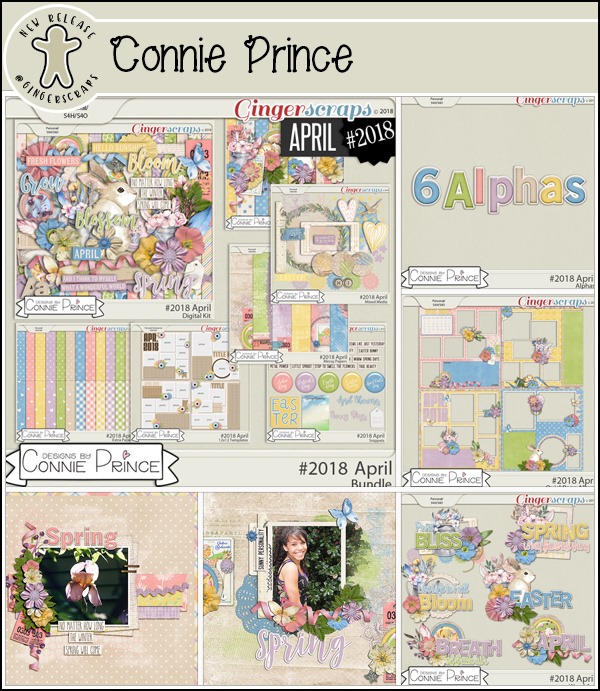
Bundle: https://store.gingerscraps.net/-2018-February-Bundle-Collection-by-Connie-Prince.html
Kit: https://store.gingerscraps.net/-2018-February-Kit-by-Connie-Prince.html
Mixed Media: https://store.gingerscraps.net/-2018-February-Mixed-Media-by-Connie-Prince.html
Snippets: https://store.gingerscraps.net/-2018-February-Snippets-by-Connie-Prince.html
Messy Papers: https://store.gingerscraps.net/-2018-February-Messy-Papers-by-Connie-Prince.html
Border Clusters: https://store.gingerscraps.net/-2018-February-Border-Clusters-by-Connie-Prince.html
Templates: https://store.gingerscraps.net/-2018-February-12×12-Template-Pack-CU-Ok-by-Connie-Prince.html
Extra Papers: https://store.gingerscraps.net/-2018-February-Extra-Papers-by-Connie-Prince.html
Alpha Add-On: https://store.gingerscraps.net/-2018-February-Alpha-Pack-AddOn-by-Connie-Prince.html
Word Art: https://store.gingerscraps.net/-2018-February-Word-Art-Pack-by-Connie-Prince.html
Quick Pages: https://store.gingerscraps.net/-2018-February-Quick-Pages-by-Connie-Prince.html

019
https://store.gingerscraps.net/Craft-Templates-Seasons-Winter-Bundle.html

020
https://store.gingerscraps.net/Always-There-Digital-Scrapbook-Kit-By-Dandelion-Dust-Designs.html

021
https://store.gingerscraps.net/Around-the-World-Countries-Magical-Bundle-by-Dear-Friends-Designs.html

022
https://store.gingerscraps.net/Lots-and-Lots-7-Templates.html

023
Collection: https://store.gingerscraps.net/A-New-Day-Collection-HSA.html
Page Kit: https://store.gingerscraps.net/A-New-Day-Page-Kit-HSA.html
Solids & Extra Papers: https://store.gingerscraps.net/A-New-Day-Solids-HSA.html
Templates: https://store.gingerscraps.net/A-New-Templates-HSA.html
Clusters & Masks: https://store.gingerscraps.net/A-New-day-Clusters-Masks.html
Arty Edges: https://store.gingerscraps.net/A-New-Day-Arty-Edges.html
Word Art: https://store.gingerscraps.net/A-New-Day-Word-Art-HSA.html

024
https://store.gingerscraps.net/Pocket-Polaroid-Frames.html

025
https://store.gingerscraps.net/Aquarius-Grab-Bag.html

026
https://eepurl.com/o9Aa1

Remember, if you complete 10 challenges, just ten, you get a free kit as well!!

cr_thumb3_thumb_thumb_thumb
Get ready to get yourself a pen pal for this kit!

Sneak Peeks January 25th 2018

Happy Thursday! It’s the last Thursday in January! Wow! One month is almost done! Our designers have lots of great goodies to scrap your memories of the past month! Let’s check out what’s releasing tomorrow!

From Ponytails


From Tinci

From JoCee

From Heartstrings Scrap Art

From Miss Fish


From Aimee Harrison

Have a great weekend!

Tutorial Tuesday (Photoshop Elements 11+)

More Fun with Photos!
When I started thinking about what to write about for this week, it occurred to me that we hadn’t gotten back to those Guided Edits that have been getting better and better with each new version of Elements for quite a while. Then I saw a layout in the gallery that set off bells. The photos the layout was built around had that dipped-in-caramel-latte look that lends itself to so many palettes and styles, and I’ve been wanting to know how the scrapper gets that effect for a long time. I’m going to show you how, right now! I pulled a photo from Pixabay to play with and although it’s had some post-processing, it worked beautifully.

First things first. I opened my photo in Elements, then I clicked on the Guided tab shown below.

The Guided Edit I’m going to use is in the Black & White tab and is called High Key.

The interface within the High Key menu looks like this. It has two options, colour and black-and-white. I’m going to show you both of them so you can see what they do.

Clicking on the button more than once enhances the effect. For most intents and purposes though, a single click is all that’s needed. I really like the way the details are softened, but the catchlights in the model’s eyes seem to pop right off the photo.

The second step in this menu is the Add Diffuse Glow button.

It’s a lot softer and slightly blurry, but those catchlights are still pretty awesome. It bothers me though that she looks like she has no nose.

As with the first button, clicking on it multiple times adds more and more “glow”.

I ended up Undo-ing the second glow mask.

When I was happy (or mostly happy) with what I had, I clicked on the Next button at the bottom right corner of the screen and it took me to this menu. [You can see it in the menu images above.] I decided to see what else I could do with my photo so I clicked on In Expert to take me to the interface we’re all so familiar with. Had I been pleased with it as is, I could have Saved it or Saved it As and then renamed it. If I’d clicked on the Done button, the adjusted photo would appear in the Photo Bin.

The Expert mode shows the different layers the High Key script created. Each of those layers can be adjusted, turned on or off, Blend Mode changed, Opacity tweaked… whatever you like. In the example below I turned one of the layers (brightness) off and lowered the Opacity of the background copy layer to 40%. There’s a hint of colour in her hair, eyes and lips, her skin looks flawless and I could use this photo with just about any colour palette and scrapping style out there.

After I saw what the colour script did, I tried out the B&W one.

A single click gave me this.

When I added the Diffuse Glow, her features all but disappeared. So I Undid.

As you can see, even in the B&W mode I was able to pull a little colour into the image. All layers are visible except the Brightness layer in this screenshot, with the opacity of the top layer (gradient mask) at 50%.

I turned visibility for the Brightness layer back on then decreased the Opacity to 35% and the image no longer has that hint of colour. But many of the details are still blown out.

That third layer is the one with the Levels adjustment. If you haven’t played with Levels I HIGHLY recommend it! With a few twitches of the sliders, I was able to find her features again without losing that creamy goodness.

I played with layer Opacity a bit on the Level mask (65%) and loved the result. I can’t wait to use this trick on a layout, almost as much as I can’t wait to see how YOU use it!