Tutorial Tuesday (Photoshop Elements)

Making Use of the Circular “Stencil”

There are so many creative ways of using our digital scrapbooking supplies. Some are obvious, others aren’t. Today I’m going to show you some of the ways I used the paw print circular stencil we created in our last tutorial. These are only a few of the ideas and each of them can be improved upon with a little ingenuity.

This first one is a simple stencil effect using a brush. I thought this coloured pencil effect was interesting. There’s a similar demo set of brushes at Brusheezy.com. My background is a subtle gray chevron paper from Aimee Harrison‘s kit Bring Happiness (retired). I covered the stencil with the brush, stamping with it until the prints were completely covered, then cut away the overlap. To give it a bit more substance, I applied a stroke around the outside.

For this look, I reduced the size of the stencil so it filled one quarter of the paper. Then I filled it with a slightly darker shade of gray and changed the Blend Mode to Multiply and decreased the Opacity to 35%. I Copied (CTRL/CMD>J) the layer and redistributed the Copies so they filled each of the corners of the paper. This would be so cute on a newsprint background!

Here, all I’ve done is recolour the red print to the same dark gray as the rest of the prints then apply a Bevel style (Scalloped Edge) to the whole grouping.

This is another Bevel style, the Simple Sharp Outer. It creates a puffy-sticker look.

As you can see, I’ve applied a black Glitter Style from Just So Scrappy‘s Up on the Housetop set to this version.

To achieve this 3D glossy, sparkly look, I used a Glitter Gloss style from the same set as the plain glitter.

And for another look, I applied a Chipboard Style from the expanded set of Up on the Housetop‘s Styles.

Next, I used the stencil to create a cut-out. The papers are from Jumpstart DesignsBetter Together (retired). A narrow shadow gives the illusion of space between the papers.

Reversing the script, I cut the paw prints out of the foreground paper and floated them over the cardstock.

The video this tutorial was inspired by used a shimmery texture paste to add dimension to the card the demonstrator was making. I went through my stash and found some gesso splatters also created by Sheri of Jumpstart Designs. You can find some of her gesso here. Don’t know what gesso is? It’s a mixture of paint (usually white) and a binder like chalk, gypsum, pigment or a combo of them. It’s thick and dried quite hard, with a lot of surface texture. I covered the stencil as much as possible, layering the gesso splatters on top of each other for even more depth. Then I gave each of the gesso layers a faint shadow, adding dimension to each. Once all the layers were shadowed, I cut away the overlap and this is what was left. It looks so organic!

To come even closer to the card in the video, I then applied a superfine white Glitter Style and changed the Blend Mode to Multiply with an Opacity of 60%.

These were the ideas that popped to mind. I’m sure you’ll have some ideas of your own. Steph (CalGirl) used the tutorial to create this beautiful layout. Rather than using a Custom Shape, she used a shamrock element from Karen Schulz‘s This Is Me March kit as her shape and clipped a paper to the stencil.

If you’d like detailed information on any of the techniques I’ve described please drop me a note in the Comments and I’ll show you how I got there.

See you next week!

Here is a link to the PDF version of this tutorial: https://bit.ly/38NSlyV

March $1.00 Bake Sale & $2.00 Tuesday!

 The $1.00 Bake Sale and $2.00 Tuesday are BOTH OPEN NOW!

Come on over and check out what our designers are serving up for the $1.00 Bake Sale (March 15-20) AND $2.00 Tuesday (ends Tuesday at 11:59 pm Eastern Time)!

I promise you will not want to miss these deals!! 

$2.00 Tuesday LINK

$1.00 Bake Sale LINK

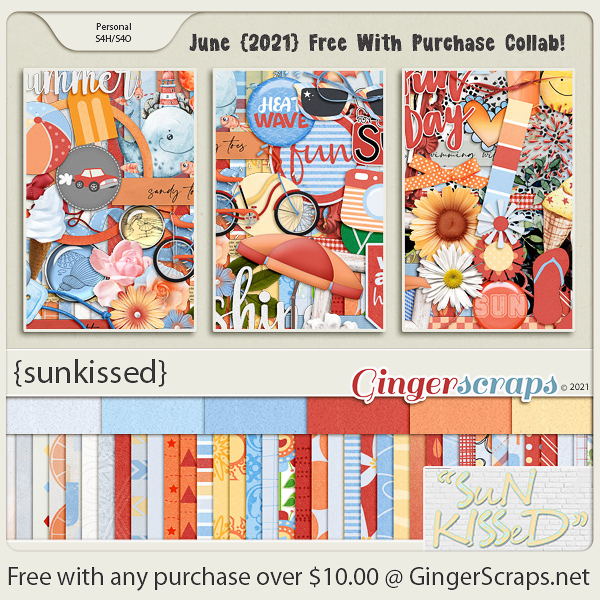
Remember, if you spend $10 in the store, you get this fabulous kit for free!

Fresh Baked: MARCH 12, 2021

Welcome to another Friday. It’s an exciting time at GingerScraps with all these fun things happening.

Scrapping Survivor: Season 11 is open for sign ups and we have our annual Win Your Wishlist contest happening now!

Head to the forum for all the details!  WIN YOUR WISHLIST {2021}

WISHLIST

This years Scrapping Survivor theme is Craft Fair!!! You can find all the details about Scrapping Survivor in the GingerScraps Forum!

Survivor

Don’t forget to stop by the shop and pick up the Craft Fair Mega! It is truly AWESOME! Being a crocheter, I LOVE this!!
 Remember when you spend $10 in the store, you get this great kit for free. Tea time anyone?

Let’s see what our designers have this week. There are a LOT of previews!

Don’t forget about our challenges. If you complete 10 challenges in March you will get this great full kit as a reward.

Tutorial Tuesday (Photoshop Elements)

Circular Stencils – Another Paper-to-Digi Technique

Once again, Steph (CalGirl) brought me an idea for something fun to convert from paper to digi and I loved it so much I jumped on it. She shared a video from Mindy Eggen Design with me, showing a paper background technique using a circular stencil and texture paste; the finished product was gorgeous and we both knew there would be a way to do it digitally. We also both recognized that there are lots of ways to use the “stencil”, so today we’re going to create the stencil and next week (or maybe two) we’ll look at how to use it in different ways. Even though I’m going to give you specific details about making this technique work, please be aware that you may still have to tinker with the formula. But I know you’ll like the results.

I started with a 12×12 inch canvas (you can use whatever dimensions you like) because I scrap in that size. As you can see, I’m using the Custom Shape Tool. The video’s stencil is a flight of butterflies, and I worked out the basics using the butterfly shape, but for my example I’ll use the paw print. It’s very hard to see the settings I’ve used but not to worry: it’ll be in the text.

While I was figuring out how to make the technique work, I discovered that I wasn’t able to see for sure where the circle started so I made the first shape in one colour and all the rest in another. That really helped. So I have red as my foreground colour. I have Fixed Size selected and 1:2.5 ratio width to height or 1.5 inches wide and 3.75 inches high. Yes, the resulting shape is really distorted, but that’s a necessary evil.

The Custom Shape Tool creates Smart Objects. When they remain Smart Objects, the only adjustments that can be made are to size and position. And… I can’t change the foreground colour – it’s locked at red. Because I want to use the same shape and settings again, I’m going to Simplify the shape layer. More about that later.

This screenshot shows you the difference between a Smart Object – the gray print – and a Simplified object – the red. On the layer thumbnail there’s a little box in the lower right corner. That’s your clue that the layer is only minimally adjustable. You can place your shapes anywhere on the canvas, since they’re easy enough to move later.

Yes, let’s Simplify things!

The quickest and easiest way to have multiples of something is to Copy it (right-click>Duplicate Layer>OK or even quicker and easier, CTRL/CMD>J). I made 2 more copies of the gray print and moved them around.

One thing that became quite obvious early on was that if this trick is going to work the object furthest to the right has to be touching the edge of the canvas. The far-left object doesn’t have to touch, but it can’t be too far away either.

Next I added in a smaller paw print, using the same 1:2.5 ratio (1 inch wide, 2.5 inches high). Take note of the button I’ve pointed out with the big red arrow. By clicking it, you can create a shape and Simplify it in only 2 moves! Mind blown!!

I made some small print copies and slid them in between the bigger prints. Almost ready for the Filter

If you want to have the centres of the shapes aligned, Select all the layers by clicking on the top layer, hold down the Shift key and click on the bottom layer then click on Align>Center.

To have them evenly spaced, keep them Selected, then click Distribute>Middle.

This is what the line-up looks like aligned and evenly spaced.

And then after I’ve applied the Filter, this is the look. But I’m jumping ahead….

But first, since I want ALL the prints to be Filtered, I’m going to Merge the layers. Select all the layers by clicking on the top one, hold down the Shift key and click on the bottom one. Right-click>Merge Layers, or CTRL/CMD>E.

The Filter I used is Filter>Distort>Polar Coordinates. The key word there is DISTORT! And that’s exactly why the shapes have to be odd to start with.

The method of Filtering I want is Rectangular to Polar. The Preview pane shows how wonky some of the prints look so rather than click on OK, I clicked on Cancel. Now I need to figure out how to overcome that flattening effect.

Rather than go all the way back to the beginning, I chose to stretch the prints’ height by using the Move Tool. It might work, might not! (I estimate the ratio now to be about 1:5)

I went back to the Filter menu and chose Distort>Polar Coordinates again. Remember, if you haven’t shut down and restarted Elements, you can apply the same Filter last used simply by clicking CTRL/CMD>F.

That looks a bit better. Some of the toe prints are still a little unusual, but I can live with that.

The stencil in the video has two circles of butterflies, so let’s make another, bigger circle. I’m going to use my estimated ratio for this set, 1:5.

For this ring, I added an extra large print. As you can see in the screenshot, I’ve turned visibility for the original circle to off, but it’s still there.

Then I put in a few smaller prints too.

Until I apply the B, I won’t know if this steep wave will be okay or not.

Umm. Cosmetic surgery needed! But do I start all over, or do I take what I have and work with it? I think CopyCut-and-Paste will be the easiest path.

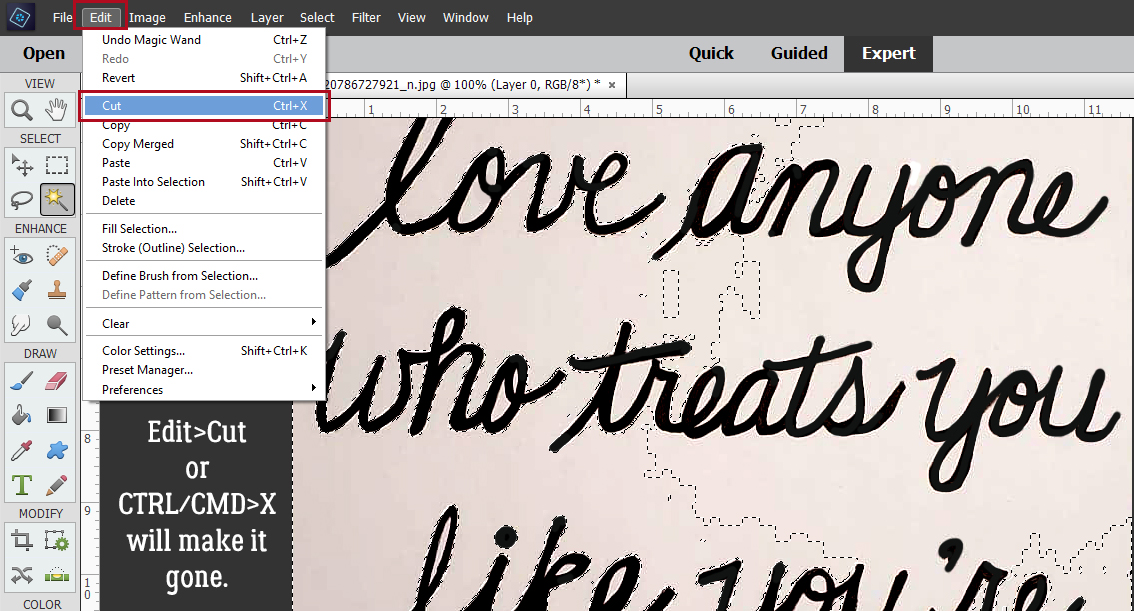
Okay! That’s much better. I Cut (CTRL/CMD>X) out the prints that were too distorted, Copied (CTRL/CMD>C) and Pasted (CTRL/CMD>V) one of the large and one of the small prints in their place. Now to see the two rings of prints together so I know what other tweaks are needed…

I Resized and Rotated the rings a bit, using the Move Tool and I like the result.

But wait, there’s more! In the Custom Shapes menu I found this pair of tiny paw prints. I’m going to pop some of them into the mix. Because they’re not going to be filtered, I used a symmetrical setting of 1.5:1.5 inches.

Okay, so I also added a couple (3) single prints too. But this looks a lot like the stencil in the video so I’m very satisfied with my result. If you want to add a circle in the centre, you can do that quite easily.

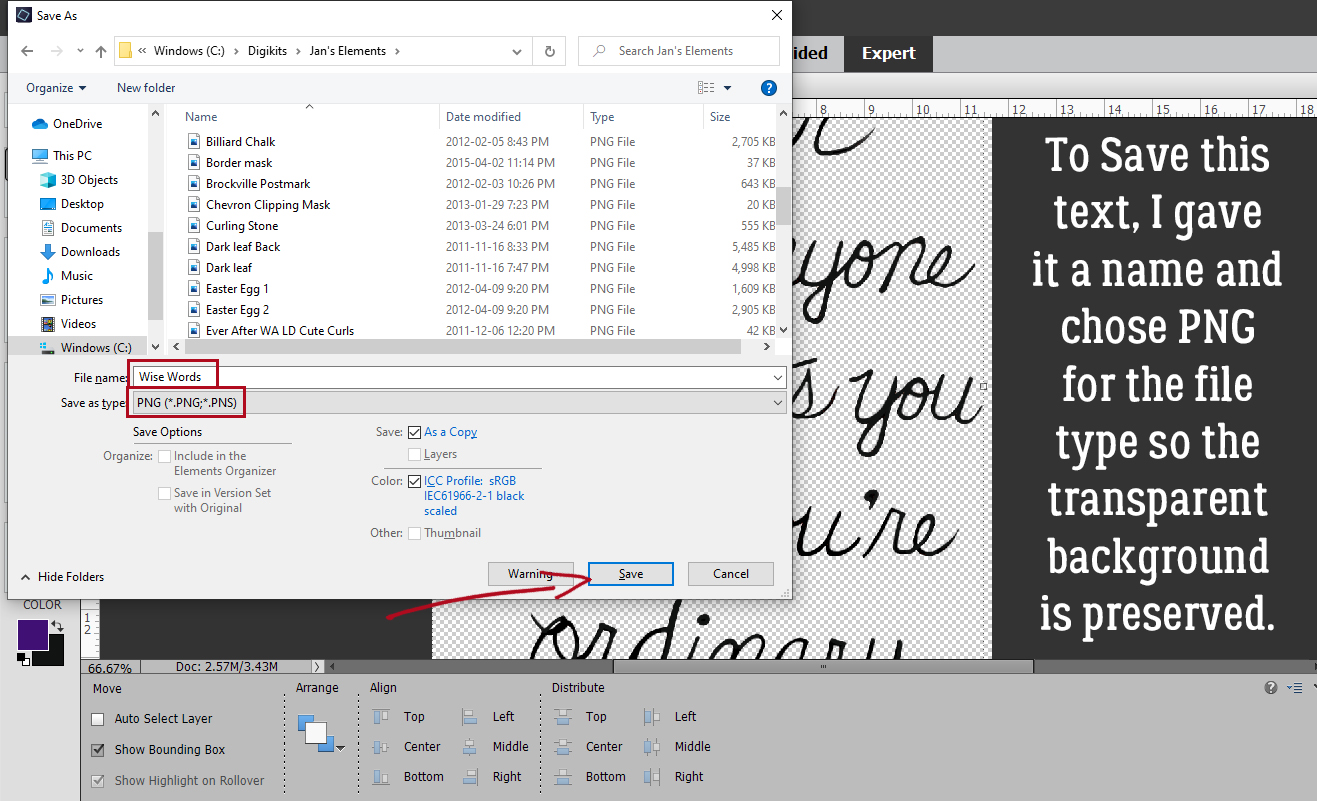
I want to Save my stencil As “Paw Print Stencil” in my personal digital elements folder. The format is .png so the background will remain transparent. That way I can use it in a variety of techniques later.

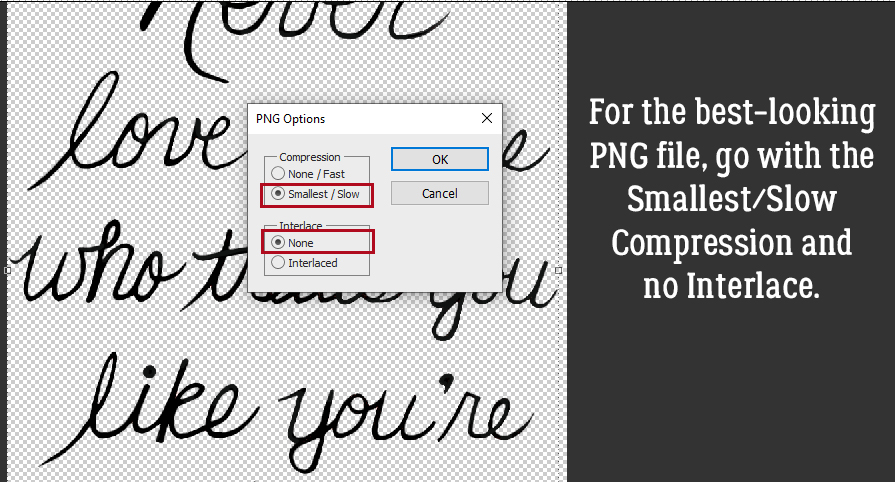
And for Compression, I’ll go with Smallest/Slow non-Interlaced so it retains its crisp edges. Yes, the file will be bigger, but the quality will be better, so it’s a sacrifice I’m willing to make.

Start thinking about the different options I have for using this stencil. Will I find a way to make it look like I’ve used texture paste? You won’t know unless you come back next Tuesday!

Here is a link to the PDF version of this tutorial: https://bit.ly/3rGYILY

March 5, 2021: Fresh Baked and Survivor Destination Reveal!!

Happy Friday!! In addition to our regular amazing Friday New Releases, we have two super exciting announcements today! Scrapping Survivor: Season 11 is open for sign ups and we have our annual Win Your Wishlist contest happening now!

Head to the forum for all the details!  WIN YOUR WISHLIST {2021}

WISHLIST

And now, the moment you have all been waiting for!! 

Are you ready for the big reveal? There were so many good guesses in the forum. Without further ado… Drum Roll Please … This years Scrapping Survivor theme is … Craft Fair!!!

Survivor

You can find all the details about Scrapping Survivor in the GingerScraps Forum!

 Don’t forget to stop by the shop and pick up the Craft Fair Mega! It is truly AWESOME! 

 Remember when you spend $10 in the store, you get this great kit for free. Just looking at the preview makes me want to grab a cup of coffee.

Now let’s see what the designers have for us this week.

Don’t forget about those challenges. Any 10 completed challenges gets you this beautiful collab as a reward.


Tutorial Tuesday (Photoshop Elements+)

Fooling Around With Gradients: Graduated Filters in Elements+

As someone with Irish heritage, March and St Patrick’s Day always makes me think of Ireland. And that makes me pull out the photos I took during my two trips to the Ould Sod. And perusing them makes we wish the sky wasn’t completely blown out in every. Single. Outdoor. Photo. You know what I mean… that almost white, totally featureless sky that definitely didn’t look like that to the eye. Why does that happen? Well, as sophisticated as today’s digital cameras are, they’re still not great at filtering the bright light from the sky while keeping the foreground properly exposed. Landscape photographers understand this principle and carry a selection of neutral density filters they can pop over their lens to improve their shots. Neutral density filters have a section of the glass coated with a smoky transparent film that gradually gets lighter as it approaches the centre. This means that the section of the frame behind the smoky part will see less light than the part of the filter that’s completely clear, making the exposure of that part of the frame less bright. They can be positioned so that the dark section is where it makes the most sense; the resulting image will have a balance between the brightness of the sky or water and the remainder of the scene. So what if you’re not a famous landscape photographer and you have a bunch of photos that could be great, if that balance was there? Elements+ to the rescue!!

For those unfamiliar, Elements+ is an add-on application that allows Elements to do a bunch of things found in the more-versatile-more-expensive-and-more-difficult-to-learn Photoshop. It costs $15 or so and is version-specific. I use Elements 2019, so the version of Elements+ I have is the 2019 one. I wrote a tutorial overview of it last year that you can find here. So let’s see how it can take the place of a neutral density filter.

This photo of the bridge over the River Erne in Beleek, Fermanagh is one that I’ve played with before but I was never totally happy with the outcome. (A little trivia: The border between Donegal, Ireland and Fermanagh, Northern Ireland runs right down the centre of the bridge! It’s one reason Brexit has been so contentious for those living in Northern Ireland and why a hard border would be so difficult to re-establish.) The day I was at Beleek, the sky was cloudy, but not as it looks in the photo.

Once you’ve installed your copy of Elements+, all its awesome power can be found under File>Automation Tools. The graduated filter tool is in the RAW Corrections set, so I went ahead and clicked through.

The Graduated Filter tab is the second one from the left as shown. You can click on the tab, or the icon just above it. Then click on New.

The filter creates a mask over the photo on a separate layer. Click on the Mask tab and you’ll see which part of the photo is being filtered. Those boxes with green sections show you the orientation of the filter, with green being the darker part. The default setting is to place the darker part of the filter over the top half(ish) of the photo. You can already see how the default setting has changed the image. The green line with the big green dot at one end and the red dot at the other is how you control where the filter is actually applied.

My first goal is to make the sky as interesting as possible, so I moved the top slider labeled Zero Effect to the left, past midline, and the red dot moved up past the railing on the bridge.

Now to make some adjustments. I played with the sliders in the Adjustments menu, moving them just a little in one direction or the other and watching my preview image to see what changes. Not surprisingly, the Exposure slider has been moved a good bit to the left, or lower, and I also darkened the Highlights a smidge. All of a sudden, there are layers of clouds in the sky! Clarity adds a hint of detail, while Dehaze changes contrast and overall sharpness. Sharpness adjusts focus and Noise Reduction can minimize pixelation. These two adjustments need a very light touch, because they’ll make your image look really phony if you go too far. The changes should be quite subtle to the eye, but make a big impact all together. I wanted the grass on that little knoll to be a tiny bit more vivid so I added some more Saturation.

The neatest thing about these filters is that you can layer them one on top of another and adjust whole areas of photos quickly and easily. So now I’m going to add a filter to the bridge and water. I clicked New then clicked the second left filter with the darker area at the bottom. The default setting for this filter is as shown.

As you can see, I moved the red dot up so it sits directly over where the other red dot was, using the Zero Effect slider. Then I moved the bigger green dot down to the very bottom of the photo with the Full Effect slider.

These are the adjustments I made to the lower half. Can you see how much brighter and sharper the reflection of the bridge looks on the river? I really cranked up the Shadows.

Here’s the final image. The ripples in the water are much more visible and the reflection of the trees is brighter.

Check out this difference! This is the original.

Let’s talk a minute about some of the other icons on the menu. Up at the top right there’s a drop-down that will show you how many filters you’ve added and which one is currently active for further adjustment. The eye icon lets you turn on and off the filter to better assess whether you’re getting the look you want. And the garbage can – self-explanatory. If you don’t like it and aren’t interested in tweaking any more, just toss it! But… if you have a bunch of photos you’d like to apply the exact same settings to, if you click on the icon I’ve pointed to at the bottom, you can save them as a script and have them readily at hand later!

Let’s do another one. You might look at this photo of Ross Castle in Killarney National Park and wonder what I could possible find faulty with it. Well, maybe I can punch up the blue in the sky a bit more, maybe add a bit more detail to the clouds and to the trees.

So let’s get into the RAW Corrections menu again.

We’ll add a New Graduated Filter. The sky already looks bluer!

Now the sky is closer to the blue Lough Erne is reflecting. But I feel like the centre of the photo is too dark now, so I’m going to adjust the area the mask is covering.

Here’s the default. I want to move that red dot up so that it sits right were the grass meets the castle wall.

There!

After I played with the various sliders, there’s more detail in the clouds, the sky is deep blue, the trees in the background are sharper and so are the stones in the castle walls. I wish the bird in the sky was clearer though!

I added a second mask to the lower part of the photo. It looks pretty awful right now, but I’m going to fix it.

I moved the red dot down to my original pivot point. Isn’t it so accommodating of Elements+ to save that for me?

After looking at it a bit longer, I decided the red dot needed to be lower on the grassy area. And look! I’ve swung the green dot over to the left so the dividing line hugs the edge of the grass better. By pulling the lower slider for the Full Effect mask adjustment over to the left, I can section off just part of the lower half of the photo! All that really needs to be adjusted is the grass, so this should work!

Now the grass is brighter and there’s more detail in the foreground trees and shrubs. Apparently, these last adjustments were made on a thrid mask. Somehow that slipped past my notice!

The final version:

And the original:

What do you think? I know I’m going to be doing this a LOT!!

Have you seen the announcement for the Season 11 of  Digiscrapping Survivor? The new destination theme will be announced and sign-ups start March 5 and I’m so excited!! The prizes are insane. Simply INSANE! I haven’t ever been in a place in my life where I could join in the fun, but this year I am, so I’m going to get my feet wet. I’d love to write a tutorial but I’m a babe in the woods here. If you’ve played along in the past and have any advice for me (to share with the rest of the GS community), send me a private message. I’ll compile all the hints and tips into a post and we can all hit the floor running. You can find a teaser for Survivor here. It’s the sign-up thread for Season 10, and gives a good overview of the competition. But I think the tips will be very useful, so bring ’em on!

Link to PDF download of this tutorial: https://bit.ly/2Oi6w80

Designer Spotlight: March 2021

North Meets South Studios!

Well, February sure flew by at our house, and March is upon us. This month’s Designer Spotlight is shining on the creative minds behind North Meets South Studios: Connie Prince and Tracy Anderson, aka Trixie Scraps. Their design styles blend so flawlessly, which only serves to reflect on their very long, strong friendship. Let’s get to know them a bit better. Ladies, get ready!

J: How long have you been designing?

T: I’ll celebrate my 13th year in business this October

C: I began designing digital scrapbooking products in 2004-2005ish, but officially selling in 2006.

J: Ah, so you both came to designing around the same time! Connie, what made you decide to start designing?

C: At the time the offerings were so limited, I was a paper scrapper and want to add unique elements to my layouts which I began to make digitally and print. It didn’t take long to realize I could do the whole thing digitally so much easier!

J: I think that’s fairly common, and it’s definitely part of my motivation to learn digital scrapbooking. What other craft let’s you have your cake (your digi supplies) and eat it too (use the same things over and over!)? Connie, what do you use to create your designs (program, additional tools, etc.)?

C: I use Photoshop CC, Illustrator. I also have a scanner that I use pretty often to scan things to extract.

J: I have 2 scanners and I don’t think I could live without them. Describe your design workplace for us?

C: It’s pretty minimalistic. I have a double monitor setup, that’s the most exciting thing about it lol.

J: I work on a laptop in my living room, about as minimalist as you can get! So, what motivates and inspires you as a designer?

C: I enjoy the process, coming up with an idea and creating it. The most rewarding part is seeing someone else use something that I’ve created to preserve their own memories.

J: That’s how I feel about my tutorials. I love browsing the Gallery and seeing layouts using some technique I’ve written about. Tracy, you’ve been awfully quiet… so it’s your turn! What’s your favourite kit currently in the GS shop, and why?

T: My recent “She Shall Not Be Moved” is my favorite because it speaks to my faith. And I love the colors!

J: What would your perfect vacation look like?

T: Sitting on a beach somewhere next to Connie with our guys. And preferably with some of the “mommy juice” she makes in my tumbler.

J: Hmm, that sounds… interesting! Maybe we need a recipe for that! Tracy, are you more likely to sing, or to dance in the shower?

T: Sing… I love to sing and serve on the praise team at my church monthly.

J: I love music. It’s a big part of my every day. I’m listening to folk music right now in fact! Let’s talk about another favourite of mine… food! If you could only eat one meal for the rest of your life, what would it be?

C: Chicken wings, hands down I am obsessed! However, if I could only eat at one restaurant the rest of my life it would be Waffle House.

T: Anything Italian, provided I make it.

J: I never used to like wings, and then my friend Patti’s hubby cooked some and I too was hooked. I love Italian food too. While we’re on a favourites roll, Tracy, what are your most and least favourite colours?

T: Least favorite is easy: orange Favorite is harder to choose… I like blue, purple and pink pretty equally.

J: I’m not overly fond of orange either, but yellow… ICK! Connie, what did you want to be when you were small?

C: I can’t really remember wanting to be anything in particular, I played school a lot so maybe a teacher? I did grow up and get a degree in education, but I didn’t really enjoy teaching very much so I retired early 🙂

J: Teachers are so under-appreciated. I think they’re super-heroes! Tracy, if you could have a super power, what would you like it to be?

T: Mind-reading. I am often too trusting and also often unsure of where I stand with people. It would be nice to always know what someone was really thinking!

J: Ooh, I don’t think I’d want that. I tend to think everybody is just tolerating me, and to have that confirmed would be pretty awful. Have you ever met anyone who’s famous?

T: Yes, I’ve met a handful of athletes because my husband owned and operated a sports memorabilia company for over 10 years. Among the list are Joe Frazier, Magic Johnson, Alfonso Soriano, Joe Torre, and Julius Erving. But there were a bunch more, too!

J: Cool! The famous people I’ve met are only famous in narrow circles, but that didn’t stop me from fan-girling all over them. That’s a good segué into this: Who would you want to play you in a movie of your life?

C: Cameron Diaz, she’s just quirky enough!

J: And she looks like you a bit, so that would be believable! Tracy, can you play a musical instrument?

T: When the pandemic started, I began taking piano lessons. I’ve come a long way in the last 10 months or so!

J: I took piano lessons when I was a kid, but we didn’t actually have a piano, so practicing was a problem. Same with learning to drive… While we’re talking about celebrities, what celebrity would you like to meet at Starbucks for a cup of coffee Connie?

C: Dolly Parton, she’s a hoot!

J: She definitely is. I feel like she needs a warning label: Liable to make you laugh and cry in the same moment. If you had a warning label what would it say?

C: I would have a bunch, but definitely: If you leave cookies unattended she will eat them!

J: I’m there with you! Tracy, the last question is yours. Aside from necessities, what’s one thing you couldn’t go a day without?

T: Coffee. I mean, I *could* go without it, but I wouldn’t want to!

J: And why should you have to?? Thanks so much ladies for sitting down and chatting with me. Our GingerScrappers have gotten a glimpse into your worlds and I hope those who aren’t already huge fans are converts now.

Before I sign off for today. I want to make sure you all remember that Connie and Tracy are hosting the Daily Download and the Designer Spotlight Challenge for March. To go along with their month in the spotlight, the North Meets South Studios‘ entire store (bundles excluded) is 40% off the whole month of March!

Fresh Baked: March 1, 2021, Survivor News, NEW Guests, NEW Free With Purchase, Monthly Mix, and More

Hang on to your hats everyone, because this post is full of GingerScraps goodness. It’s such an exciting time of the year. Survivor is almost here. Keep your eyes on the blog, newsletter, and forum because sign-ups start very soon. But First!

Click here for thread in the GS Forum!

Now onto the March goodness.

Don’t forget to check out the Buffet Bundles. One easy click to add bundles of Buffet goodies to your cart.

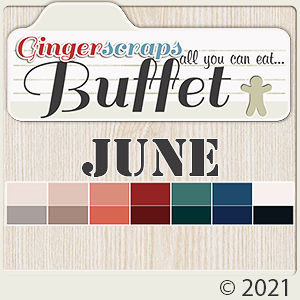
Look at these wonderful colors for March. So excited to see what the Designers came up with. And check at the bottom to see some samples from our talented store creative team.

Remember any $10 spent in the store gets you this great collab. I love the theme of this one! Don’t you just love a good cup of coffee or tea in the morning?

It’s time for a new Monthly Mix. Perfect for some wet and windy March photos.

Now to the March Sneak Peek. This month’s Daily Download is from North Meets South Studios. It looks magical.

We have several designer announcements too.

I’m excited to announce that Angelle Designs is staying on and becoming a member of the GingerScraps family.

Angelle Designs

I’m also excited to announce that we have TWO guest designers for March!

Designs by Lisa Minor

Bio:

This is Lisa from Designs by Lisa Minor. I am excited about my first guest spot at GingerScraps, however, I am not new to the world of digital scrapbooking. For over 10 years I did paper scrapping before discovering the amazing digital world. I now have more than 20 years of digital scrapbooking experience and 17 years as a designer. I turned from scrapbooking to designing and certainly found my passion. I love designing! My kits are full of elements and papers, because sometimes, I just can’t turn off the creativity. My goal is to make each of my kits the perfect instrument for any occasion. My husband and 4 adult children, 3 sons and 1 daughter, are my inspiration for many aspects of life including digital scrapbooking. My husband and I are blessed to have celebrated 34 years of marriage and to have our children nearby or with us in Texas. As my social media exhibits, my family appears often with glimpses of the 75 page family digital book I design each year. My hope is you find inspiration for capturing the special moments in your life as you browse through my shop. It is filled with wonderful items ready for your enjoyment and creativity!

Lisa Rosa Designs

Bio:

Brazilian introvert, multi-passionate creative soul, mother of 2 ladies and 19 plants, owned by 2 cats.

I think this Challenge Reward theme is perfect for the last few weeks. Several people across the US will need this to showcase their strange weather. Complete any 10 challenges and get this full kit as your reward!

And now let’s see some creations from our store CT. You can see more examples in the Gallery.

Remember to keep your eyes on this space for the Survivor Theme Reveal and signups!

Fresh Baked: FEBRUARY 26, 2021

It’s time y’all. Every year, our fabulous Ginger puts together a friendly scrapping competition. Are you ready to guess 2021’s theme?

Click here to jump to the thread in the forum!

Remember, if you spend $10 in the GingerScraps store, you get this amazing kit for free!

Let’s see what the designers have for us this week!

Have you grabbed the February Monthly Mix Collab? Only a few days left to grab at this great price.

How are those challenges? You get this great kit as a reward with any 10 completed challenges.

Tutorial Tuesday (Photoshop Elements)

Creating a Shadowbox Effect, Part 2

Editor’s Note: This is an intermediate-level technique.

When we left off last week, the paper layers for the shadowbox were all complete. Now let’s look at adding some embellishments in between those layers. The adding part is pretty straight-forward. Shadowing those layers is the tricky bit. To give the layout the most oomph, the shadows will need to be as realistic as possible. So let’s review some shadow basics.

Shadows are created when light is obstructed by an object. When the object is sitting right on top of a surface, very little light can get under or behind it. Generally, paper will cast a very narrow shadow because it’s thin and flat, unless there are objects under it lifting it away a bit. Things with contours will cast shadows that vary depending on the size, shape, opacity and angle of the object. Flower petals or leaves may curve away from their backgrounds, and the shadows they cast will be narrower where they touch something else, wider where there’s more space. How dark a shadow appears also depends on the shape and density of an object. A button will allow almost no light under or behind it, even at an angle, while a bead may be translucent and will allow much more light through it. String and ribbon can be touching the background in some spots and curl away in others, so a truly realistic shadow will do the same. Now let’s apply these principles to the layout. Again, I’m working from the background out.

It’s possible to use commercial shadow Styles for this type of project, but it makes the whole task a bit more complicated. I’ve used a shadow Style on this flower , which offers some opportunity for adjusting it. Since this flower is underneath the whole paper stack, there won’t be a lot of room for light to leak under or behind it. So there aren’t many tweaks needed. To get to the controls for Styles, double-click on the fx icon on the right side of the layer in the Layers Panel.

I made the shadow narrower because it has all the weight of the layout on top of it. I also moved it closer to the flower’s edges for the same reason. Then I increased the Opacity because it’ll be sitting on top of a photo and might be lost there. Now, if this flower was further up the stack of papers and elements, it would be touching some things and well above others. Using a commercial style means there will need to be a lot of extra steps to adjust the distance and sharpness of that shadow where it’s really close to the object below it. For this reason, it’s working smarter, not harder, to create shadows for each layer as we did for the paper layers… many fewer steps.

The process of shadowing these objects is exactly the same as for the paper layers. Drop a blank layer underneath the object by CTRL/CMD>clicking on the new layer (sheet of paper) icon at the top left of the Layers Panel. Select the edges of the object by CTRL/CMD>clicking on the layer thumbnail of the object with the blank layer active. Fill the selection with your shadow colour using the Paint Bucket tool.

Nudge it in the direction the light source dictates.

Apply a filter by clicking Filter>Blur>Gaussian Blur.

Change the Blend Mode to Linear Burn.

Decrease the Opacity until it looks right. Those are the basic steps. I’ve done them so many times that it’s almost automatic for me now and it takes no more time than just hitting it with a Style.

The leaves could be shadowed with a style if we assume they’re fairly stiff and will be a uniform distance from the background. Because of how they’re positioned, there’s going to be very little shadowing on the dark pink paper behind them. The next several screenshots show the custom shadow steps again.

The smaller paper flowers at the notch of the heart shape need a bit more TLC to look realistic. They touch each other and the paper layer underneath them so the shadow will be narrower there. Then the petals are farther away from the background and will be bigger, broader and softer. The Smudge tool – looks like a finger pushing something on the page – will accomplish this. Some things to remember when using the Smudge tool: use a bigger brush than you think you need for a more subtle adjustment, use a light touch and watch the image as you work so you know when to stop. If you go too far, Undo (CTRL/CMD>Z) back to the beginning and start over. To move the shadow closer to the flower, push with the brush very gently. To move the shadow farther away, pull with the brush very gently. If you have crosshairs in your brush cursor, you’ll see that the main action takes place right next to the crosshairs.

This screenshot shows how I’ve shadowed the second flower, before the Opacity is lowered.

Use your imagination when it comes to things like flowers, leaves, string, ribbon and even word strips. Think about how you’ve attached the object to your layout. I’ve decided this flower curves away from the background; the lower petal is relatively flat while the upper one curves in the centre so that there’s a bit more shadow along and away from the curve. For the string, look at it from the perspective of what parts are close to the paper layers and which could be curving away. Use the Smudge tool as needed.

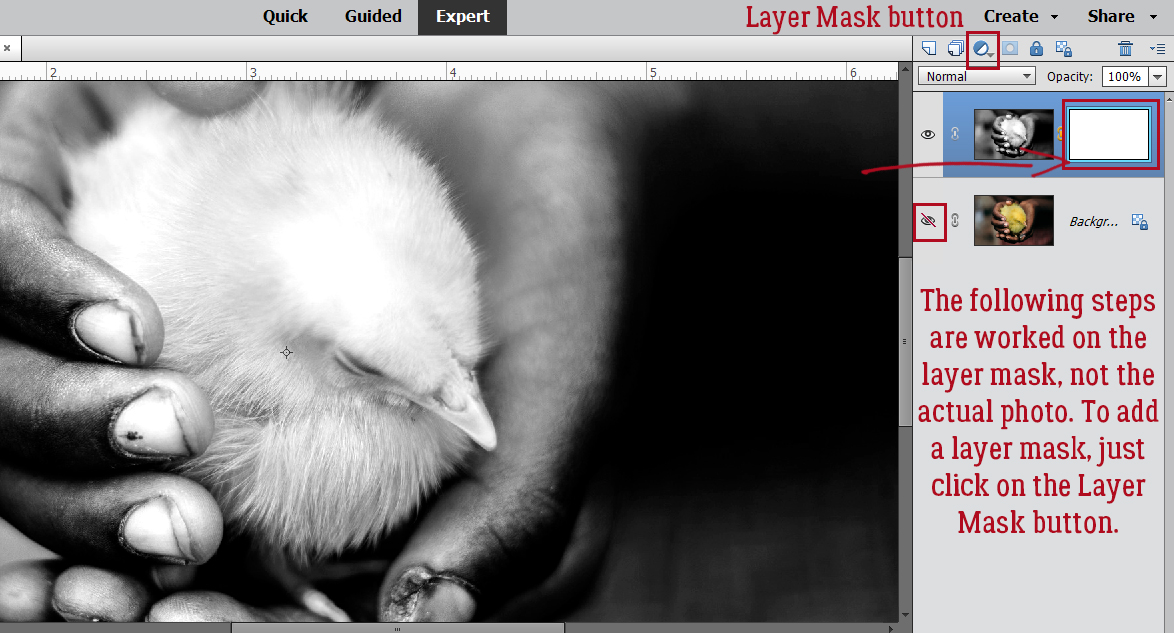
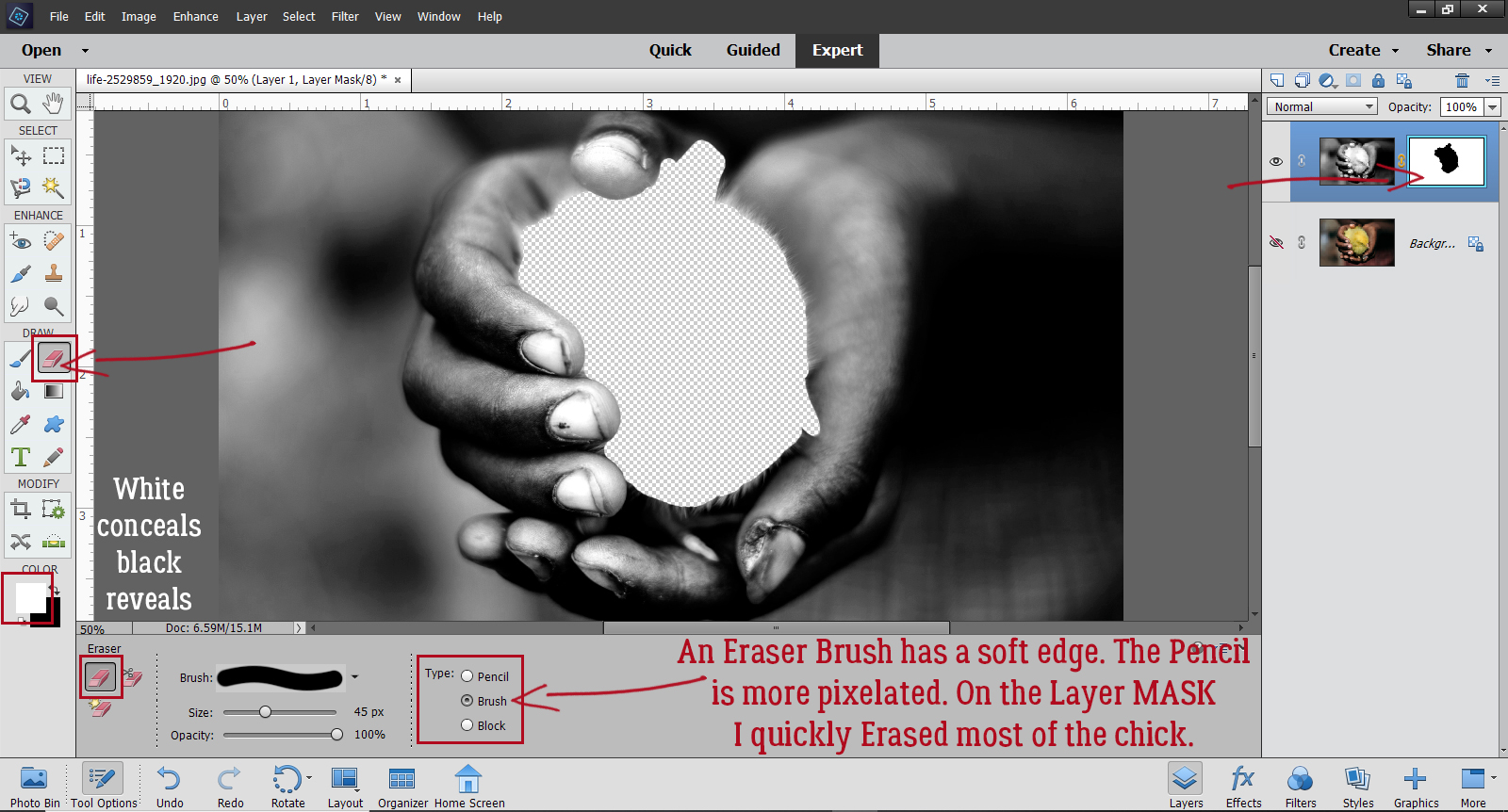
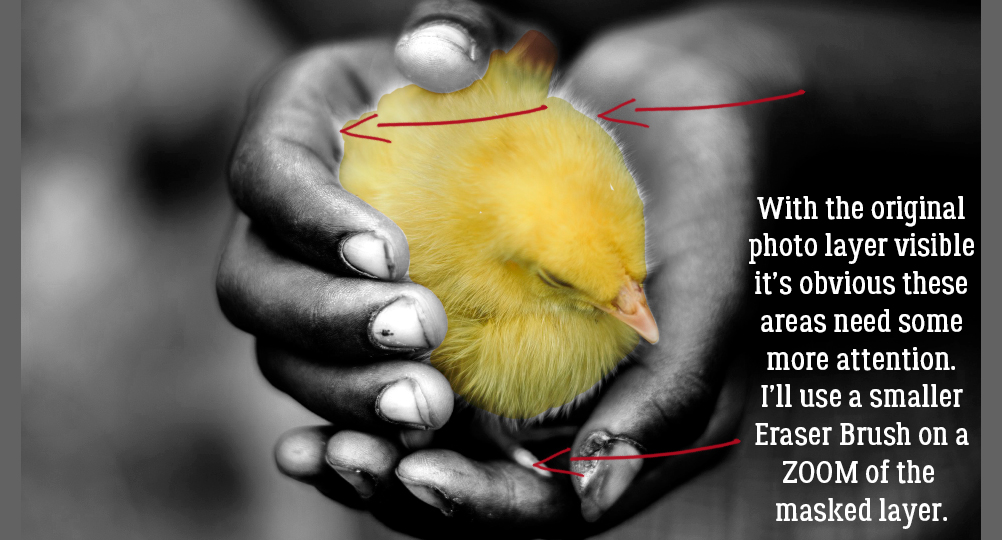
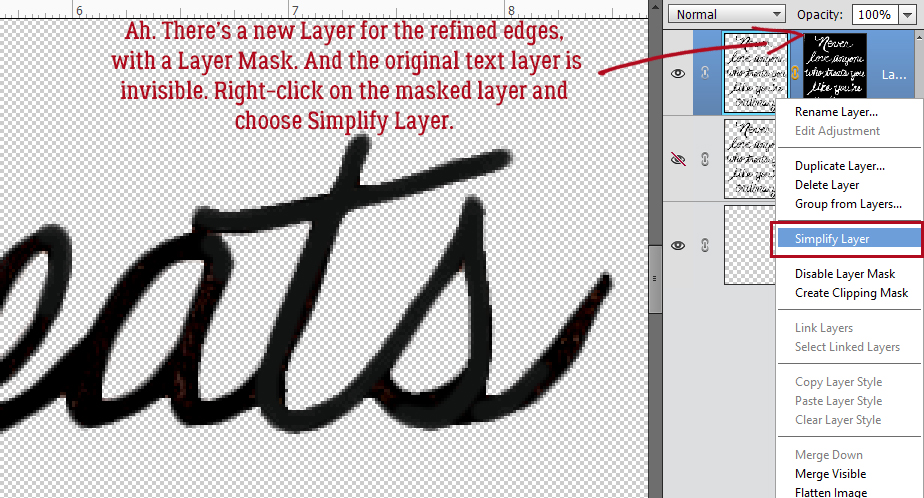
This next part is more complicated – if you want to try it and aren’t following how I’ve done it, let me know and I’ll do an in-depth tutorial on it. (The technique is somewhat covered in this tutorial.) I wanted a petal from the flower to overlap the tag. To make it look like the petal actually extends up and over the tag, I added a layer mask to the TAG by clicking on the blue square with the white circle icon at the top of the Layers panel. Then working on the layer mask,, not the layer, I erased away whatever was overlying the petal. When using a layer mask, the foreground colour in your Color Picker will be either white or black. Remember, black conceals, white reveals. Set the foreground colour to black to conceal then switch to white and clean up the edges. When you have a nice sharp edge where the mask and the object underneath it intersect. Simplify the layer by right-clicking on the layer and selecting Simplify Layer.

As you can see from the screenshot. the shadow for the tag looks really wonky. It needs to be Erased from the area over the flower petal. I used the Eraser tool to carefully remove the areas of the shadow that would be underneath the petal.

But that leaves me with a new problem. The petal needs to cast a bit  of shadow on the tag. What can I do to make that work? Well, I chose to find the shadow layer for the flower and Copy a sliver of that shadow. I used the Elliptical Marquee tool and Selected the section of the shadow that should be on top of the tag. Then I made a Copy of that section by clicking CTRL/CMD>C and Pasted it onto the canvas by clicking CTRL/CMD>V. Elements will drop the copied section close to but not on top of the original. So I nudged it over to the spot where it needed to be, extending just a little past the edge of the petal, and then moved it up the layer stack until it was above the tag layer as shown in the screenshot. It needed a little shaving down and the easiest way to do that was to Select the edges of the flower by CTRL/CMD>clicking on the flower’s layer thumbnail in the Layers panel, keeping the sliver-shadow layer the active one, then Cutting out the extra shadow by clicking CTRL/CMD>X. Bingo! The petal now has a shadow! It just needed a tiny bit of a Blur and it was done.

Please don’t hesitate to ask questions. I want you to be confident and comfortable when you create, even when you’re being challenged!

Here is a link to a PDF version: https://bit.ly/3dLGZyN