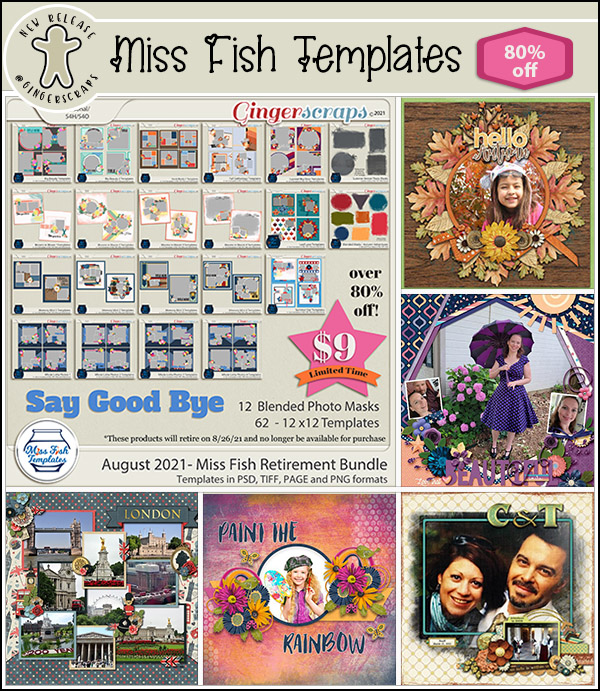
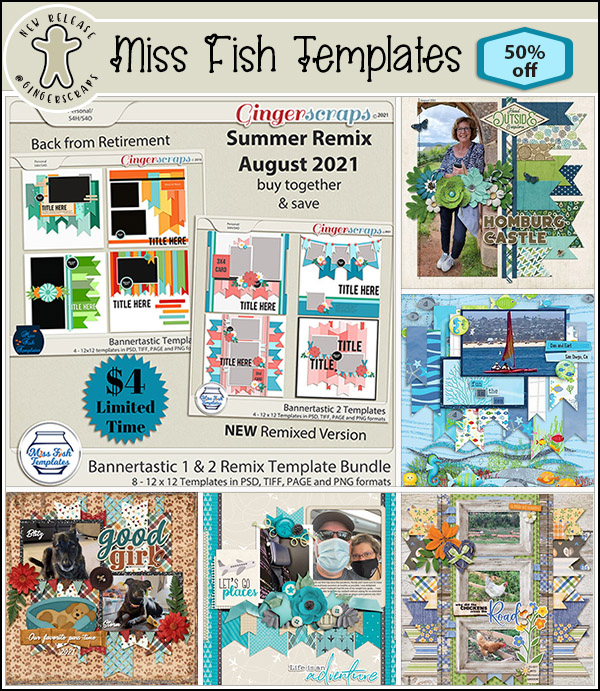
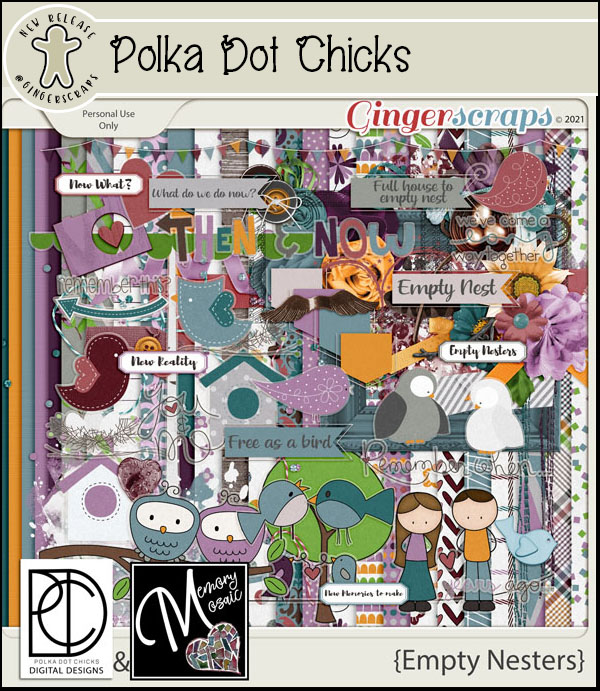
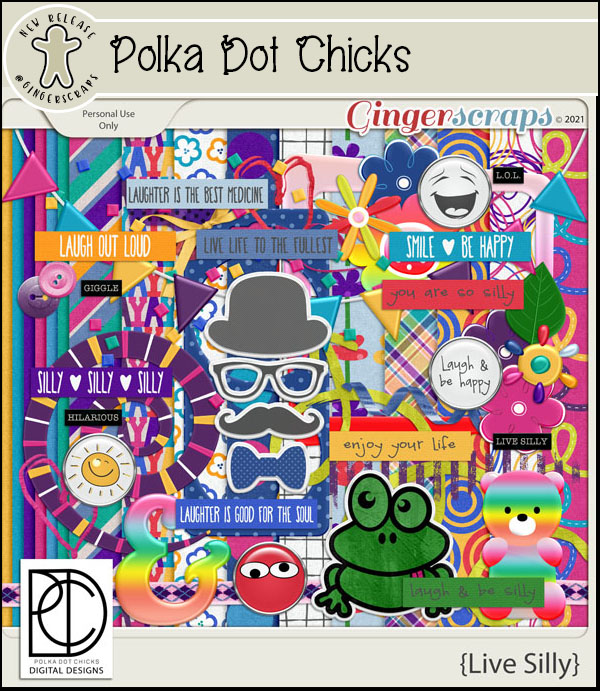
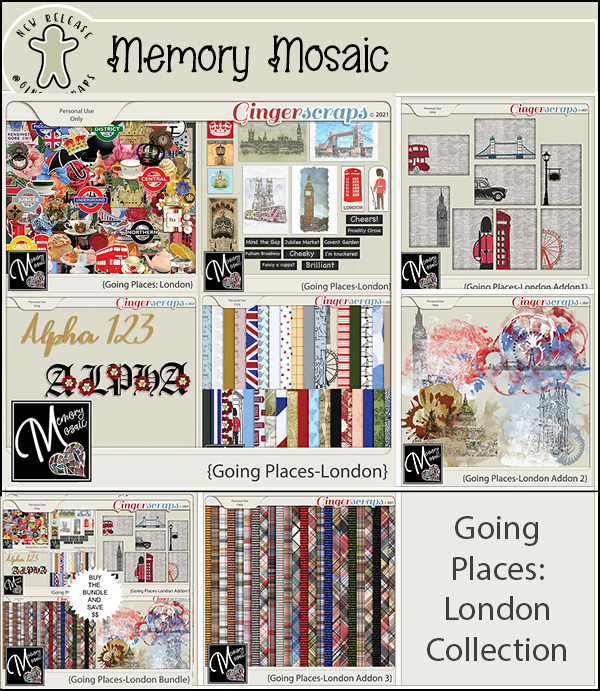
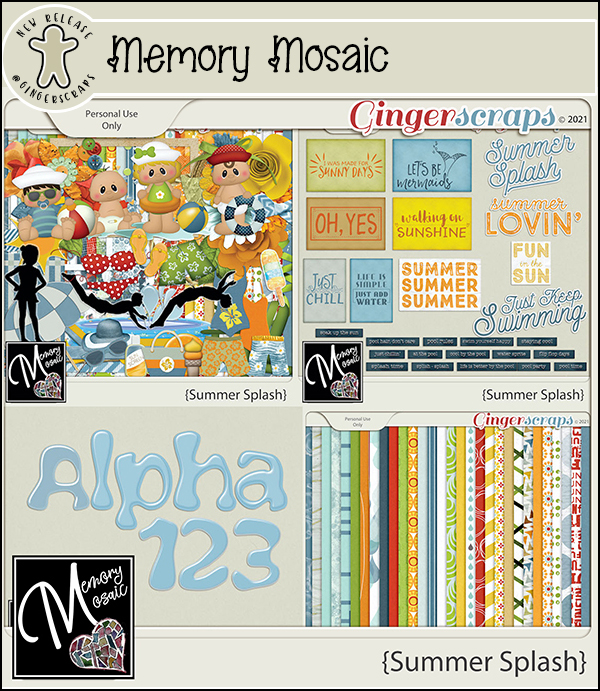
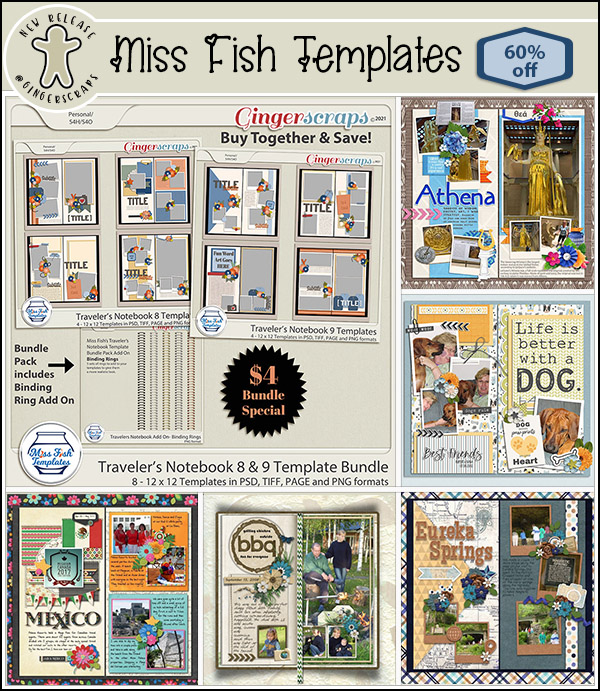
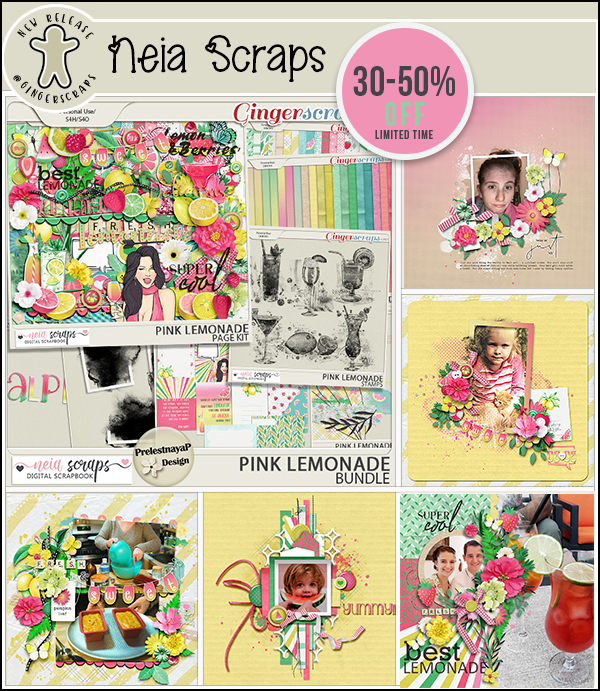
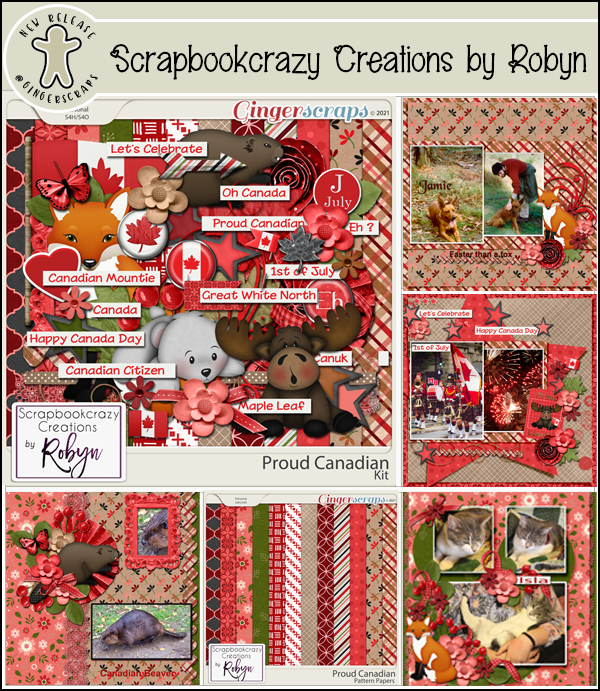
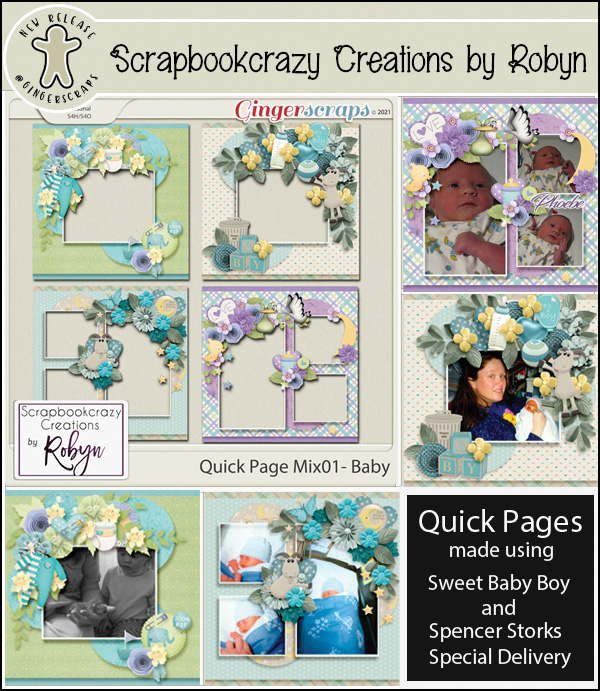
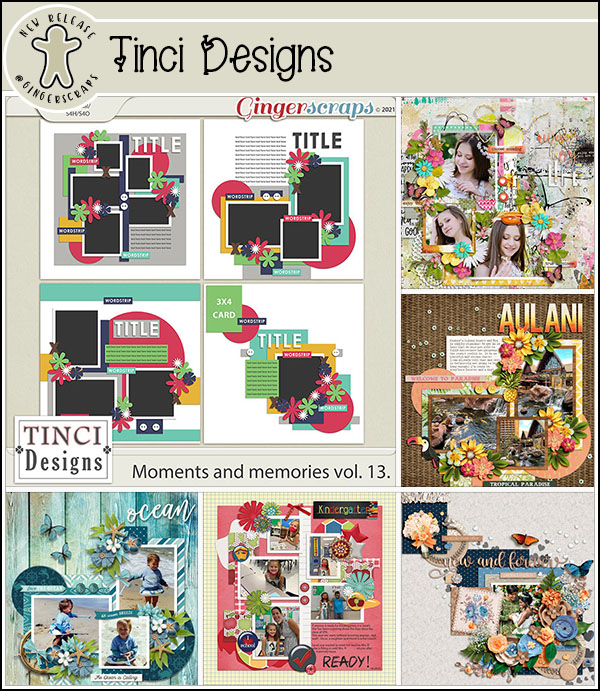
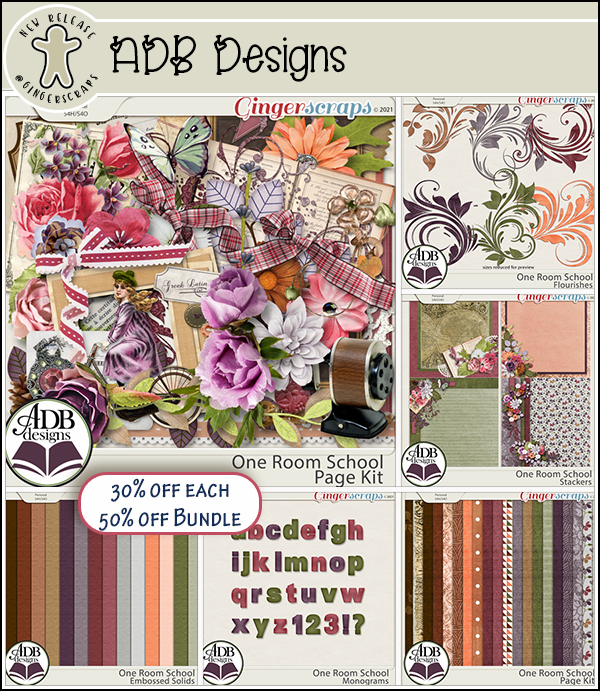
July 9, 2021: Fresh Baked and Christmas in July!!

Merry Christmas.

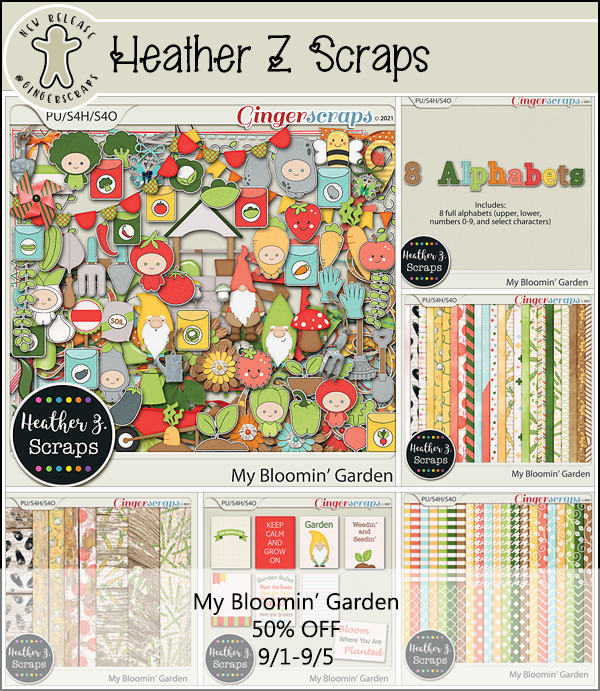
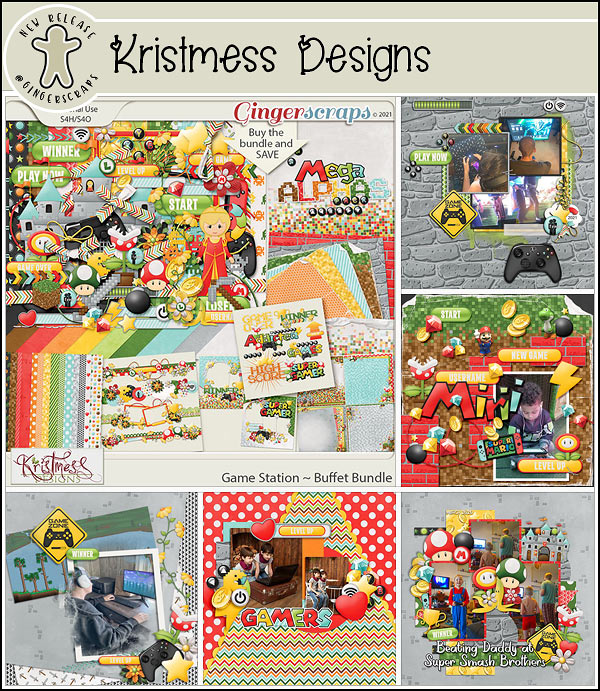
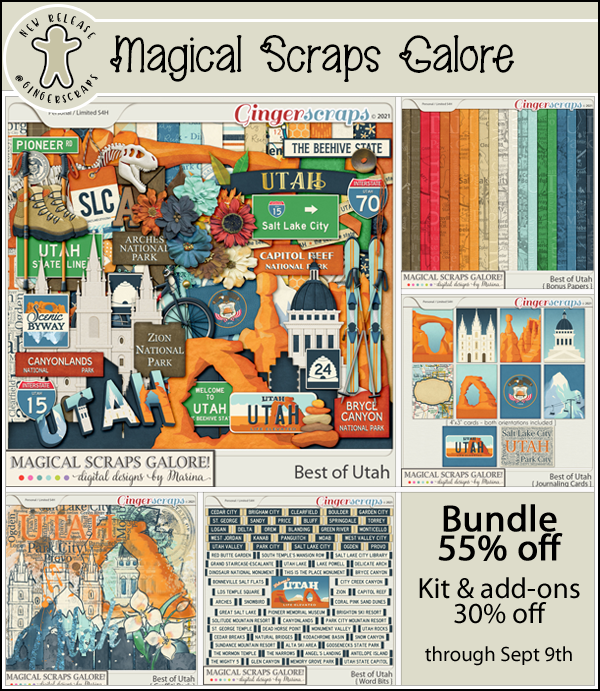
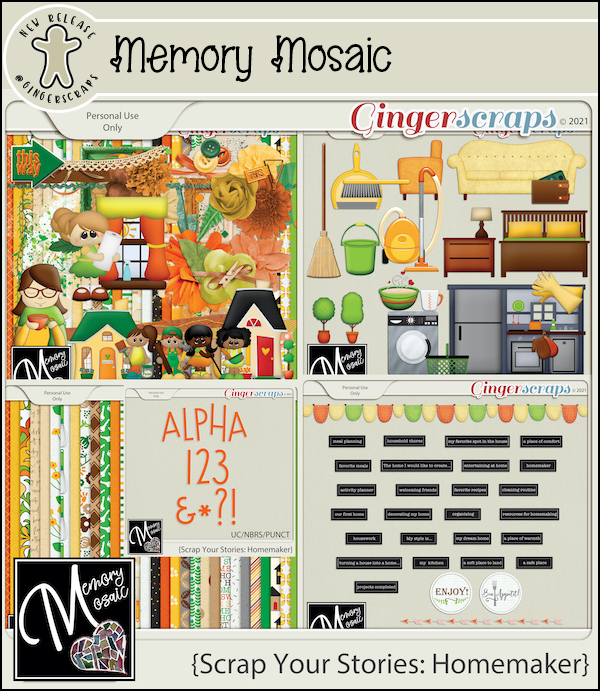
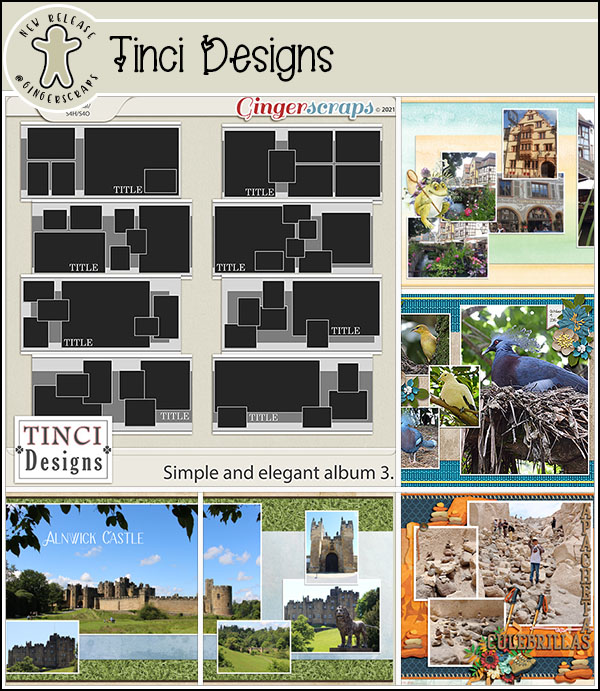
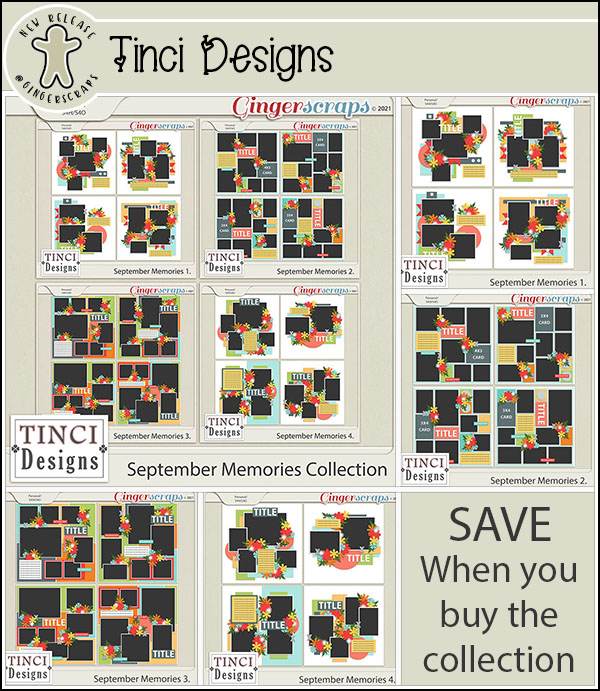
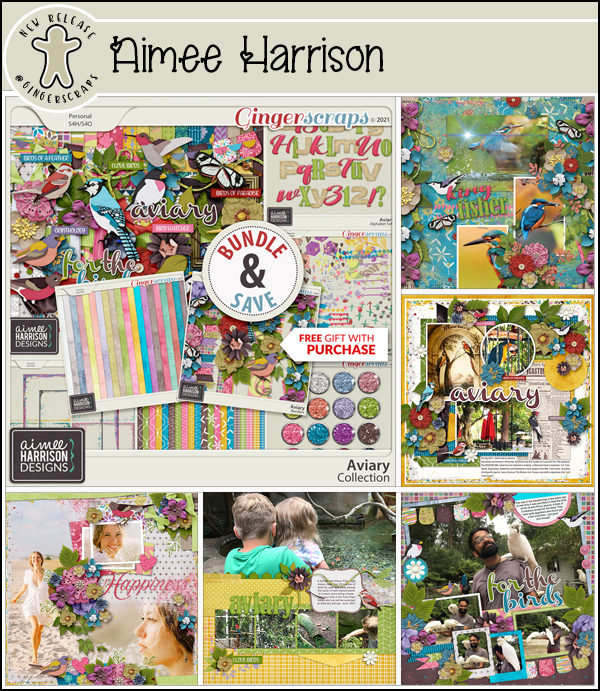
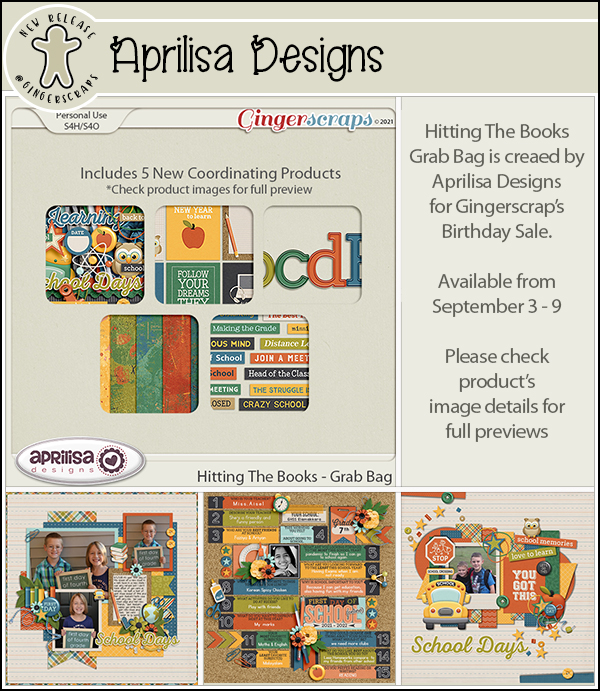
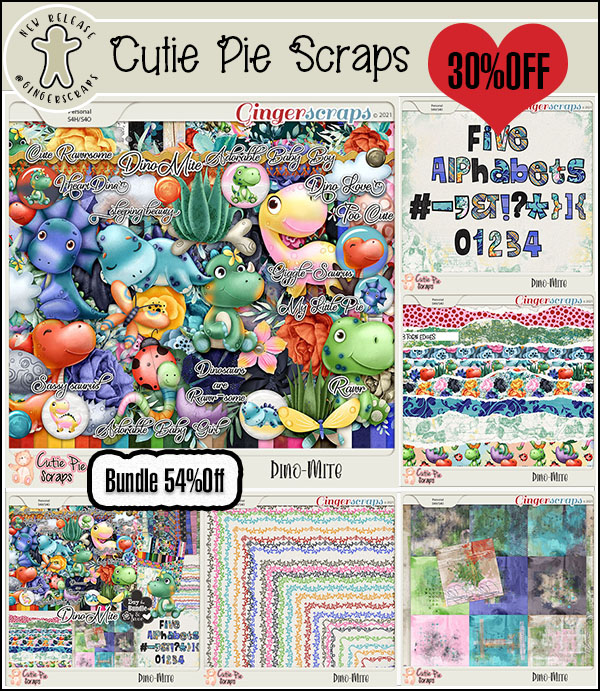
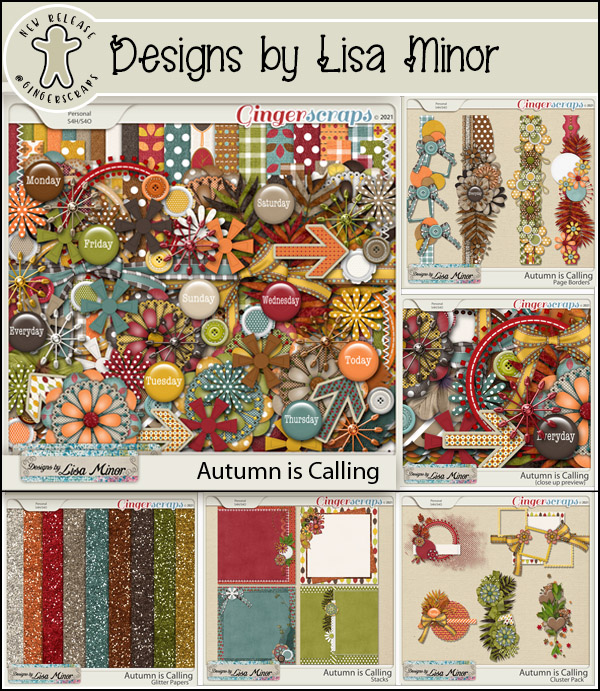
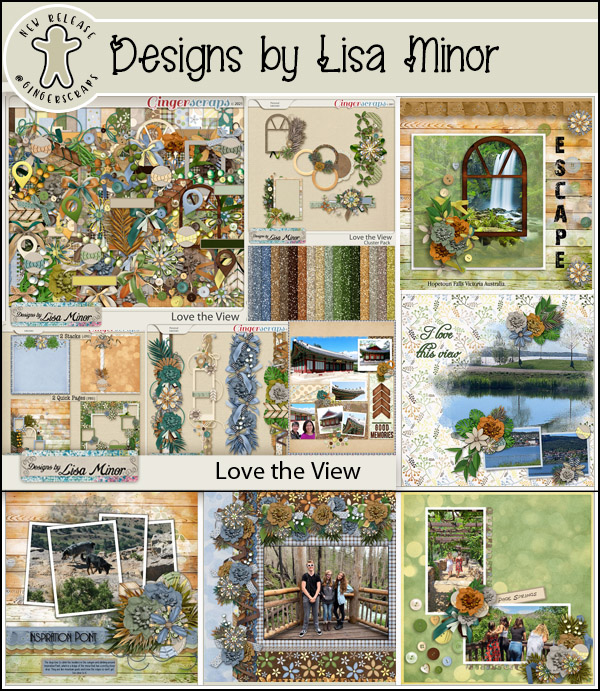
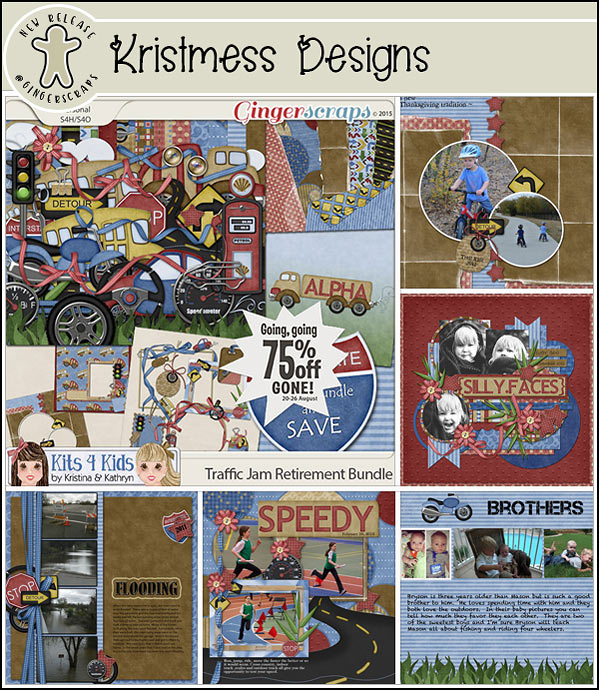
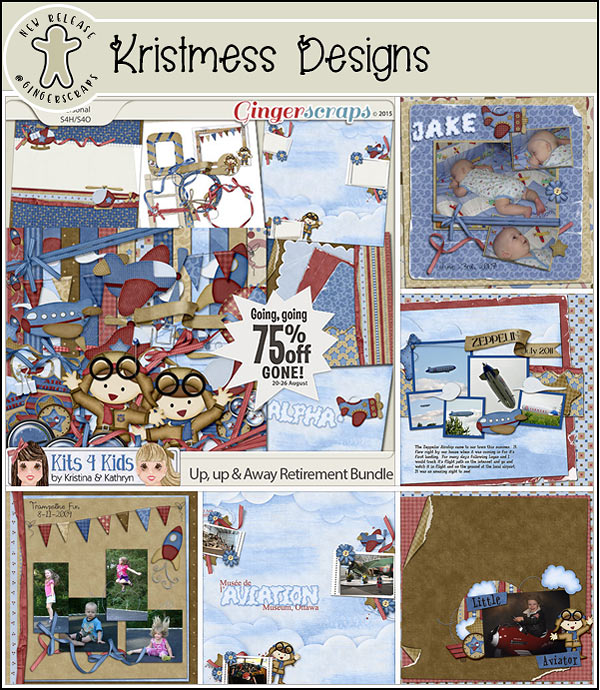
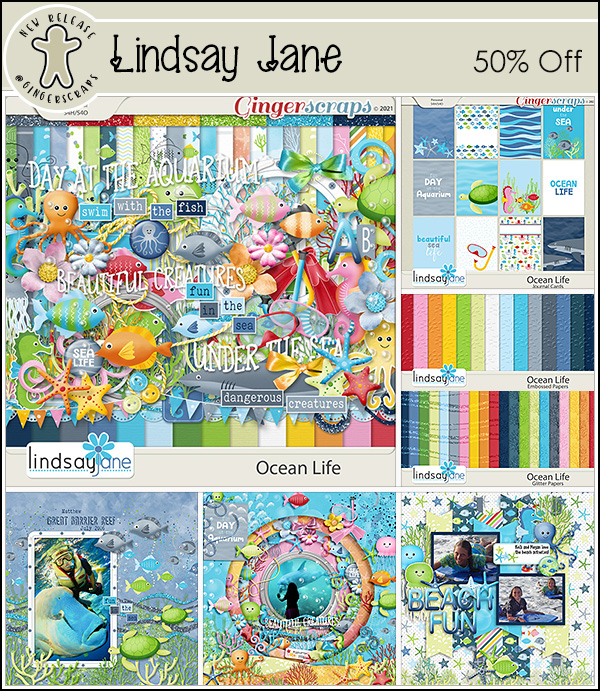
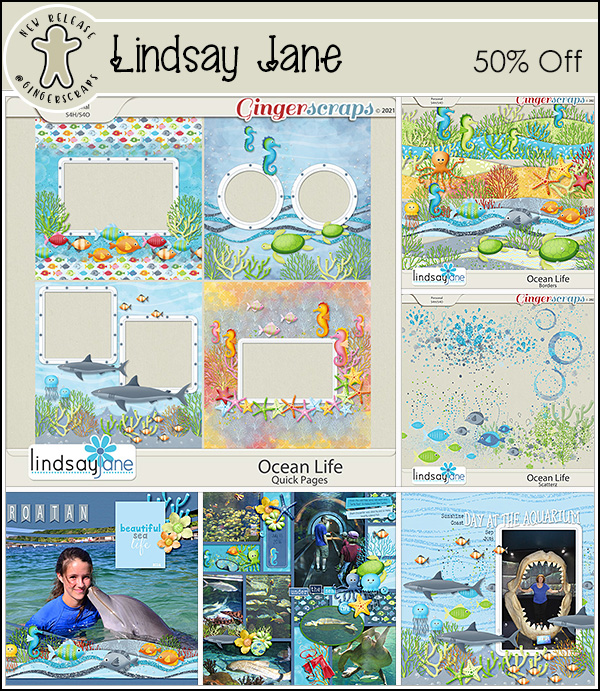
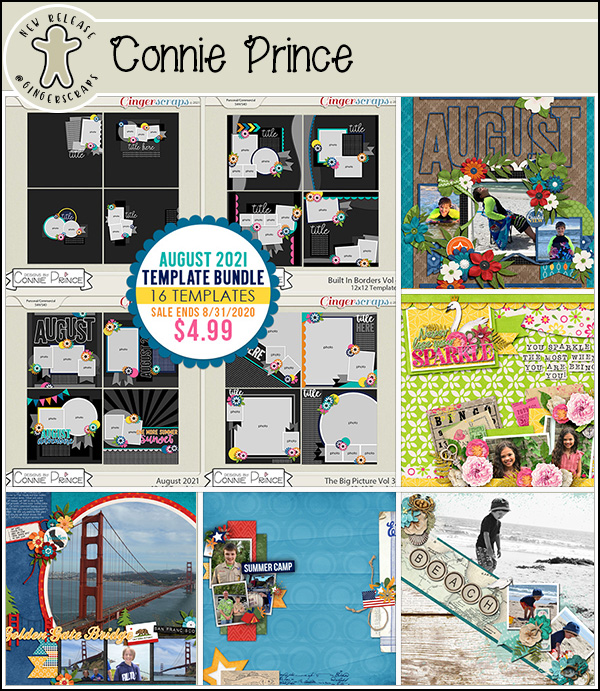
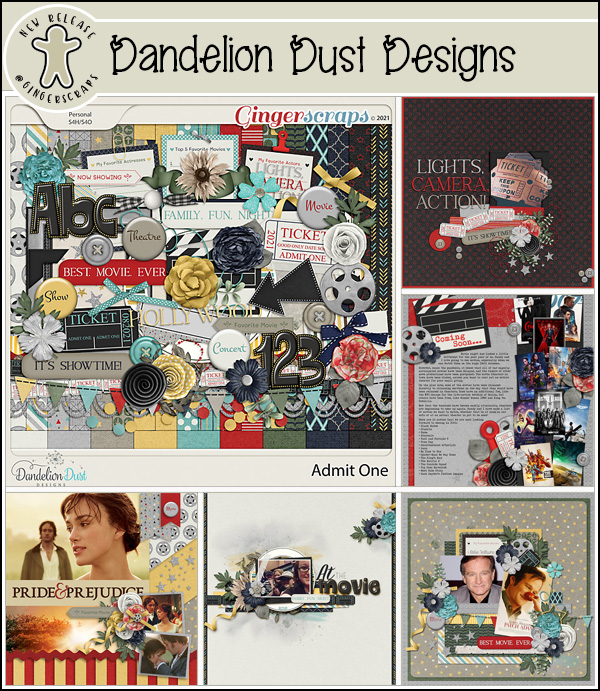
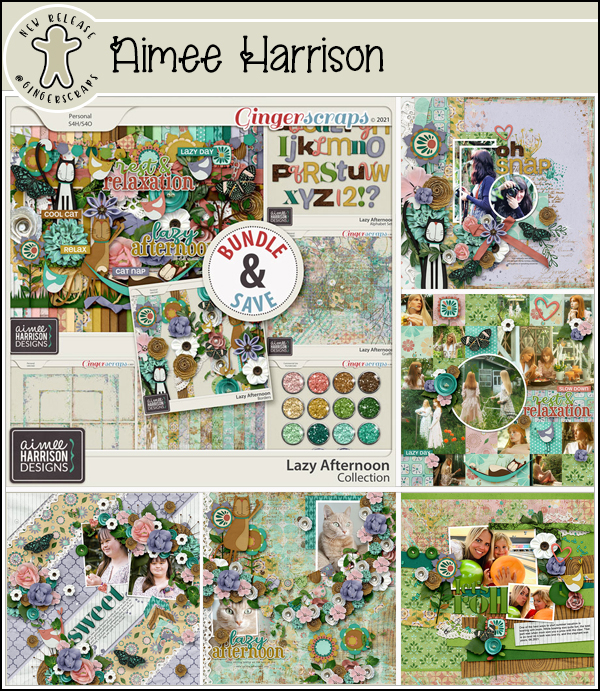
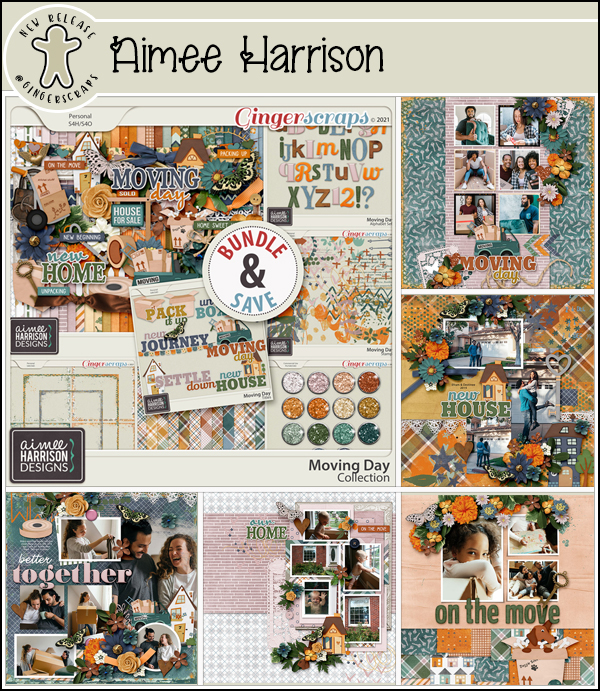
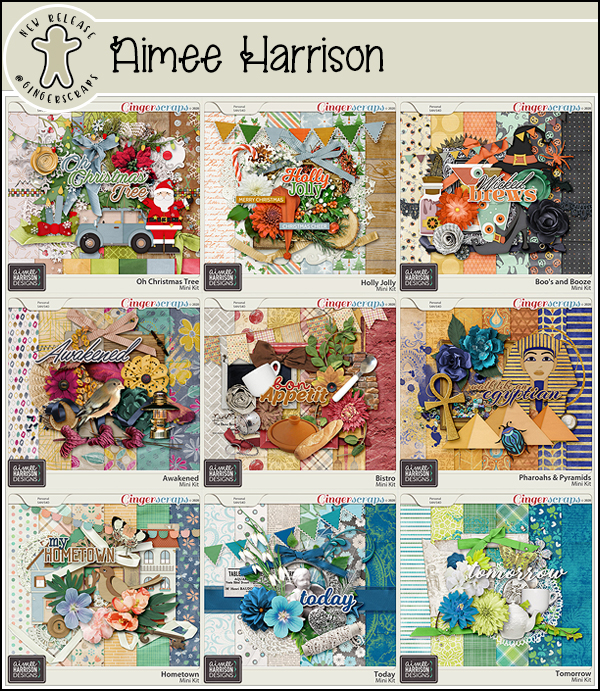
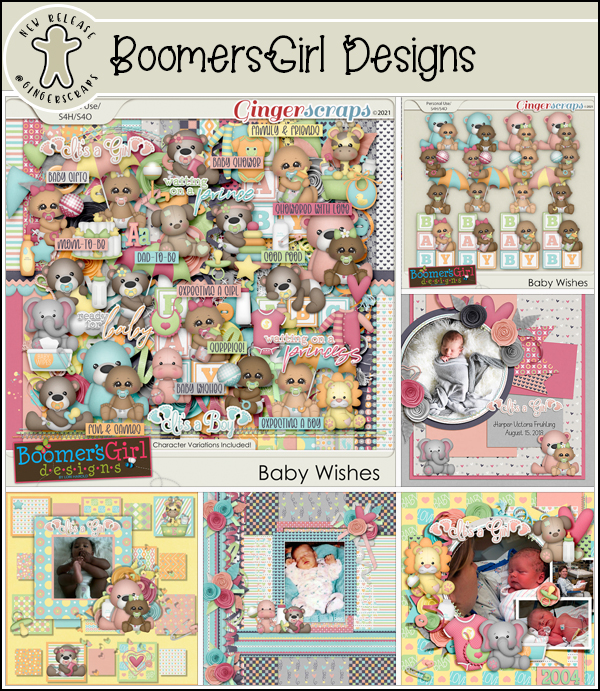
Wait, what? You heard that right. We’re having a Christmas in July sale in the GingerScraps store. Our designers even got in the fun with some Fresh Baked items that are Christmas themed.

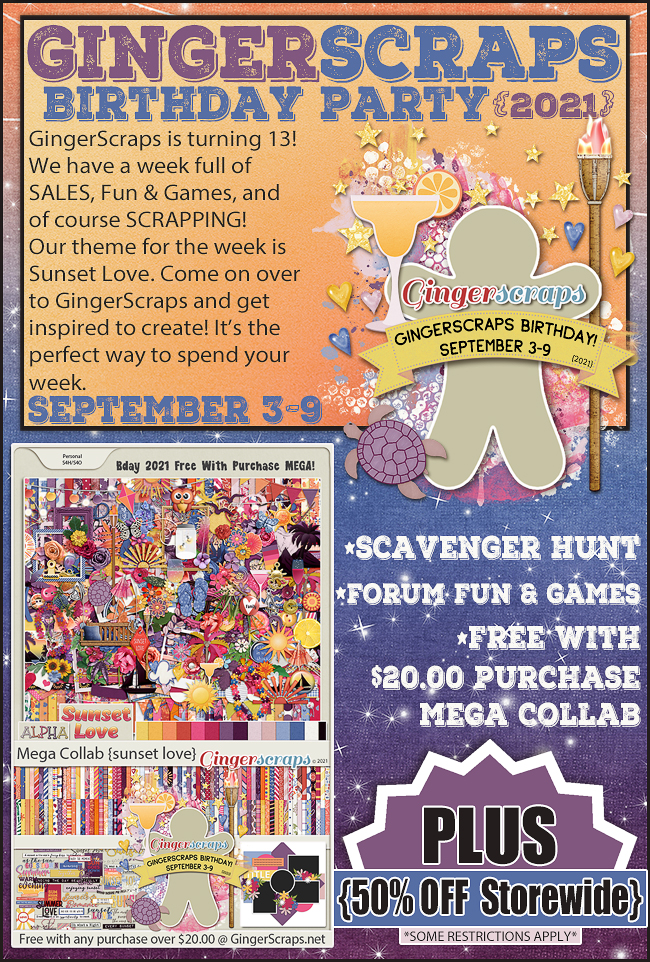
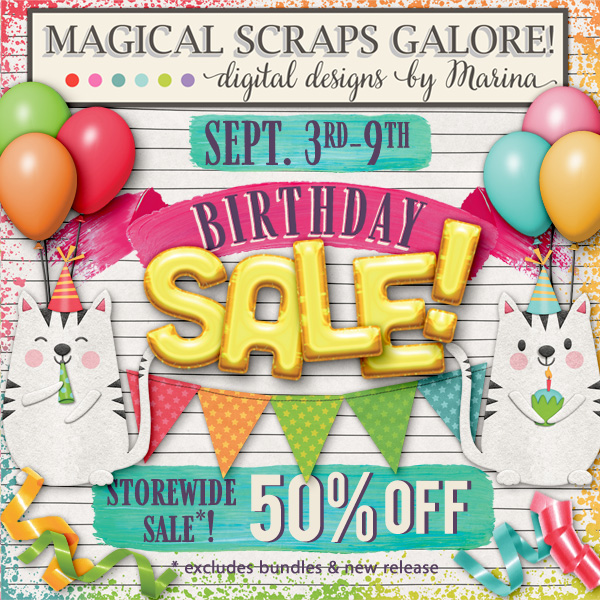
Christmas In July 50% Off Sale! July 9-15 {2021}
*IMPORTANT NOTES* Sale effective for 7 days only, will end promptly at 11:59pm ET on July 15, 2021
(some restrictions apply)

As always, if you spend $10 in the store, you get this great collab for free!

Let’s see what our designers have been up to.

How are your challenges going? Any 10 completed challenges gets you this fun kit as a reward.

Tutorial Tuesday (Photoshop Elements)

Torn Paper: A Review

Last week, Glee asked if I could run another tutorial on digital paper tearing, and I’m only too happy to oblige. Since I wrote my first version of this tutorial I’ve streamlined the workflow a bit, which is always a good thing! Work Smart, Not Hard!! This technique uses only tools already embedded in the software and it’s easily achievable by even the very new learner.

Let’s think about scrapbooking paper – the physical properties of actual paper. The best-quality paper is weighty and has a white (or sometimes black) core. It might have a pattern on one side and a solid on the other. It may be smooth as satin or have a lovely texture. When I work with digital papers, my mind sees them as the very highest quality physical paper there is. So this technique will take that into consideration. The patterned paper I’ve used is from ADB DesignsCoastal Cottage kit. (It’s no secret that I LOVE Diane‘s papers.)

In past tutorials I’ve talked about “destructive” and “non-destructive” methods of altering digital images. With “destructive” methods, pixels are removed from the image and can only be replaced by CTRL/CMD>Z-ing back a bunch of steps. “Non-destructive” methods only hide those pixels by using a mask. They’re out of sight, not gone; they can be easily revealed again if needed. This technique is “destructive” but so is tearing paper! I’ll be using the Eraser tool with a hard, round Brush of a moderate (250 pixel diameter) size at 100% Opacity.

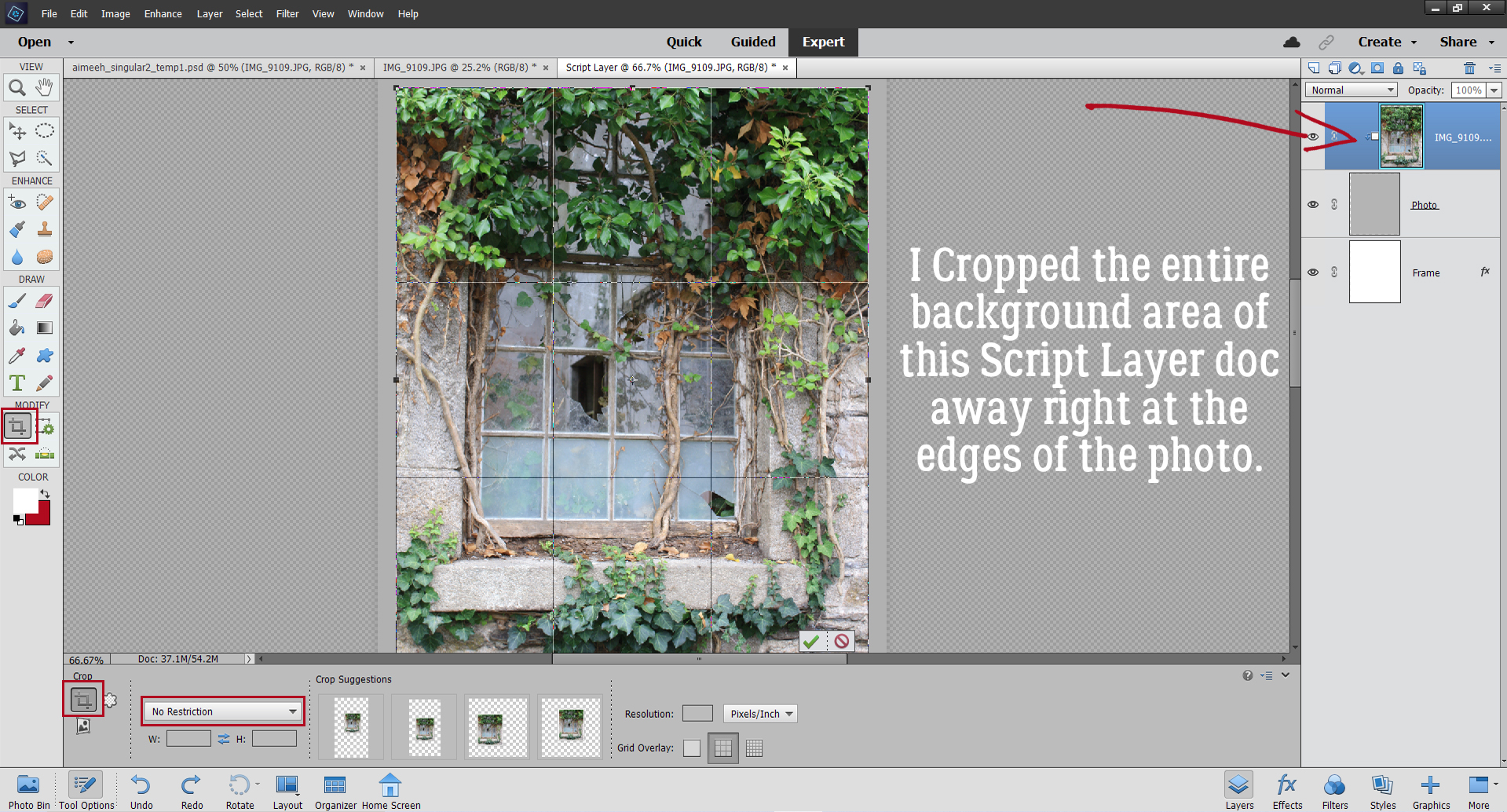
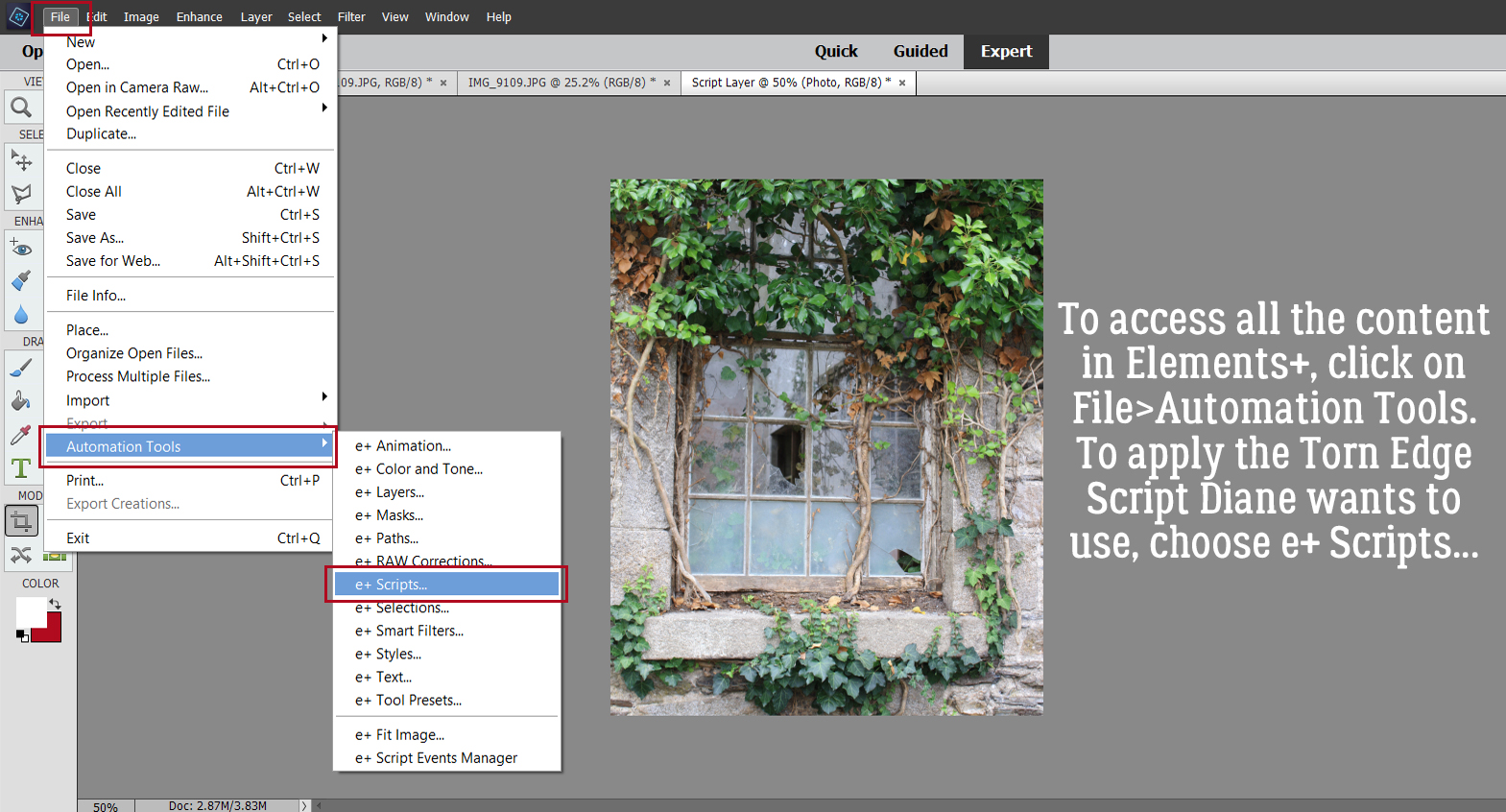
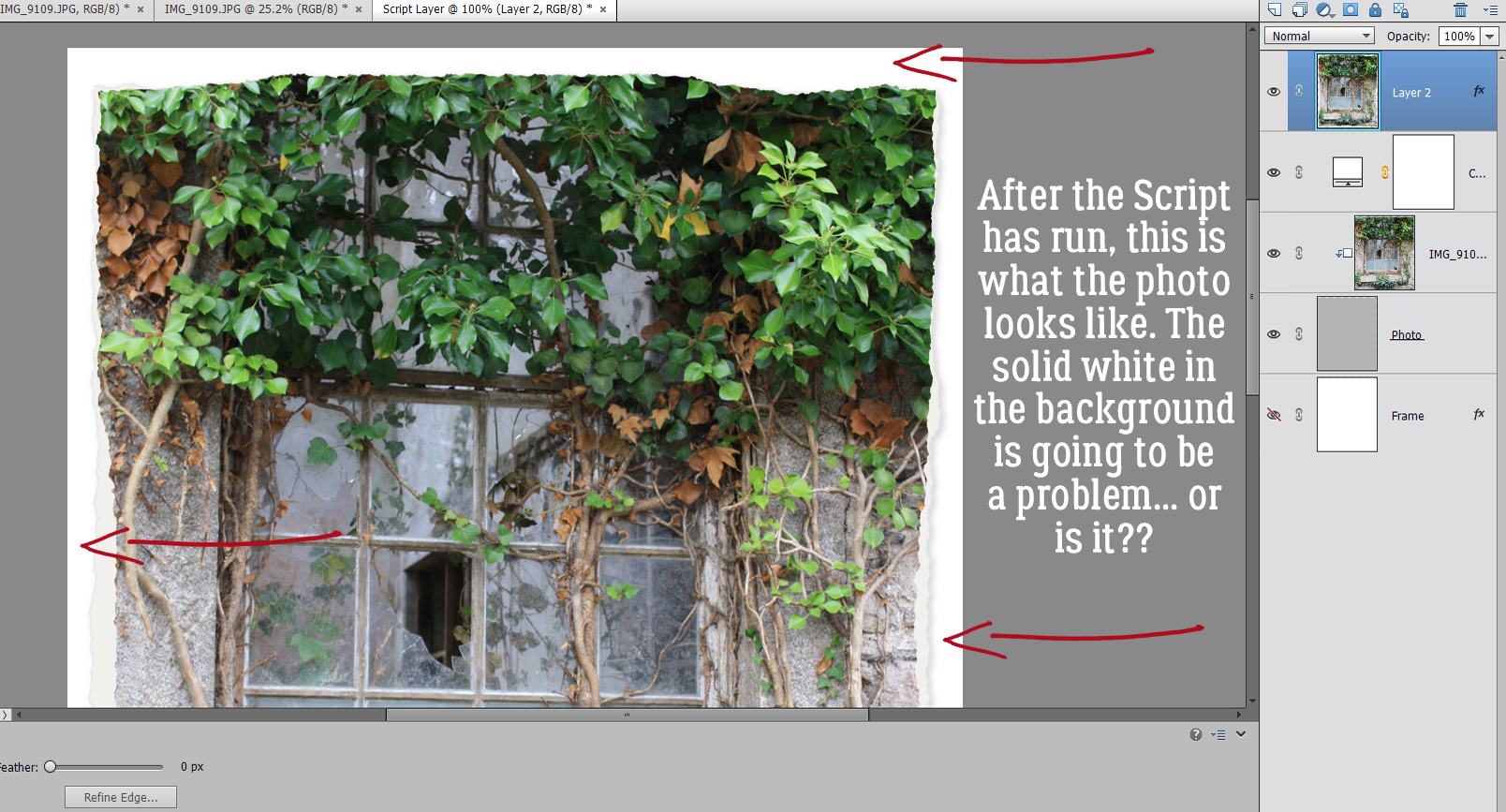
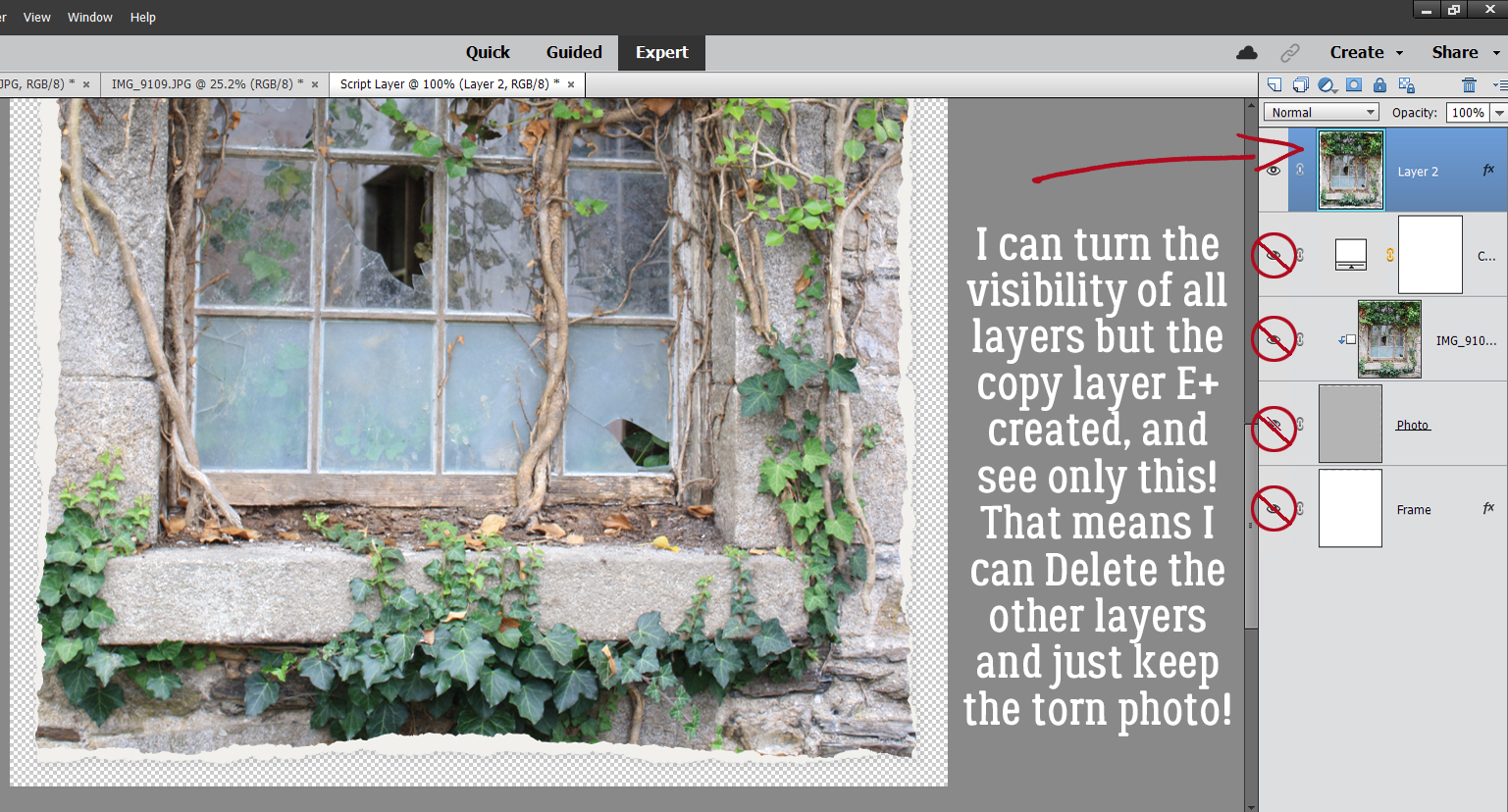
I don’t know about you but I can’t tear paper in a straight line without folding, creasing and using a straight-edge to tear it against. Good thing for this technique, perfect isn’t the goal. Since my imagination has told me this paper is thick and stiff, I already know the tear is going to be jagged and will expose some of the white core. With the Eraser tool, I just chewed off some of the paper.

I think I need a higher contrast between my paper and the transparent background layer, so I’m going to add a Fill Layer in black to help me see what I’m doing. You might not need this step. There are a couple of ways to Fill space: by clicking Layer>New Fill Layer>Solid Color or just by using the Paint Bucket tool.

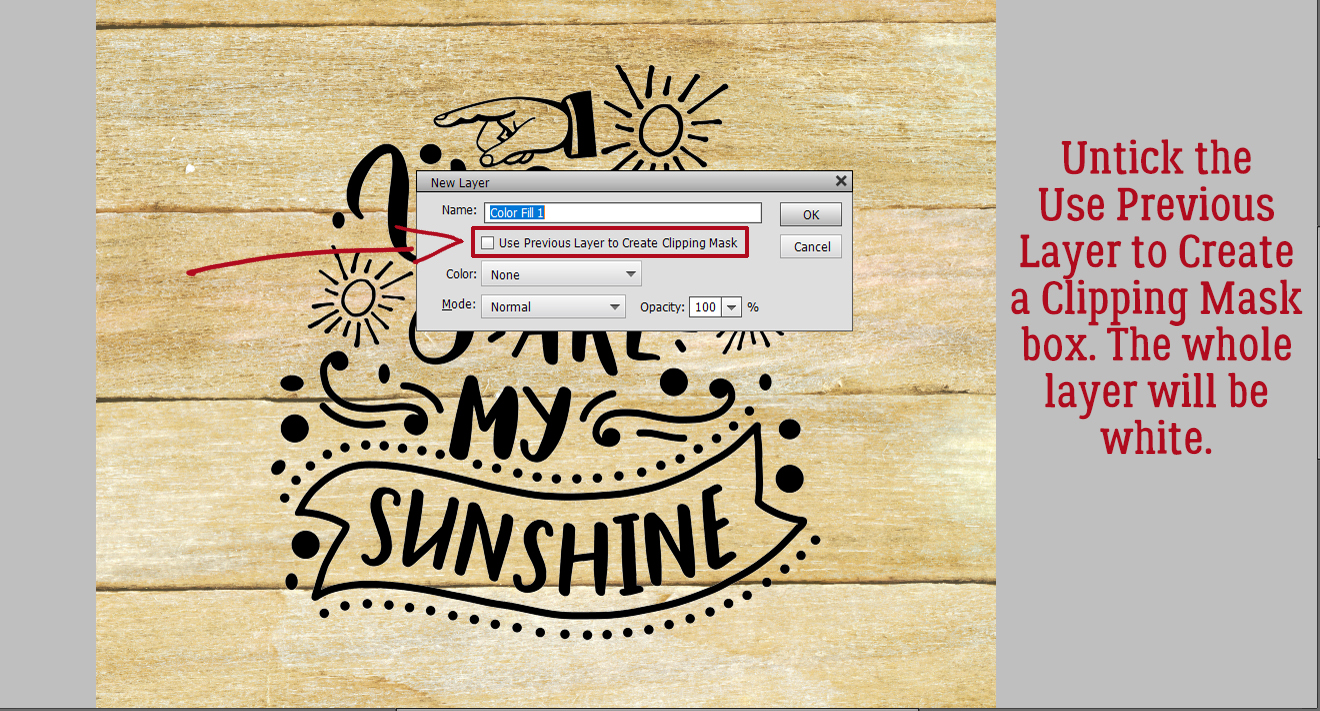
If you choose the Fill Layer method, make sure that box I’ve indicated is NOT ticked. It’s not a big issue when you’re creating your torn paper as a separate project and then adding it to your layout, but if you decide to tear your paper within your layout, it will matter. Here, I want to fill the whole background with black for contrast. The layer is only temporary, but why make it harder for myself?

There. Now I can see that torn edge much better!

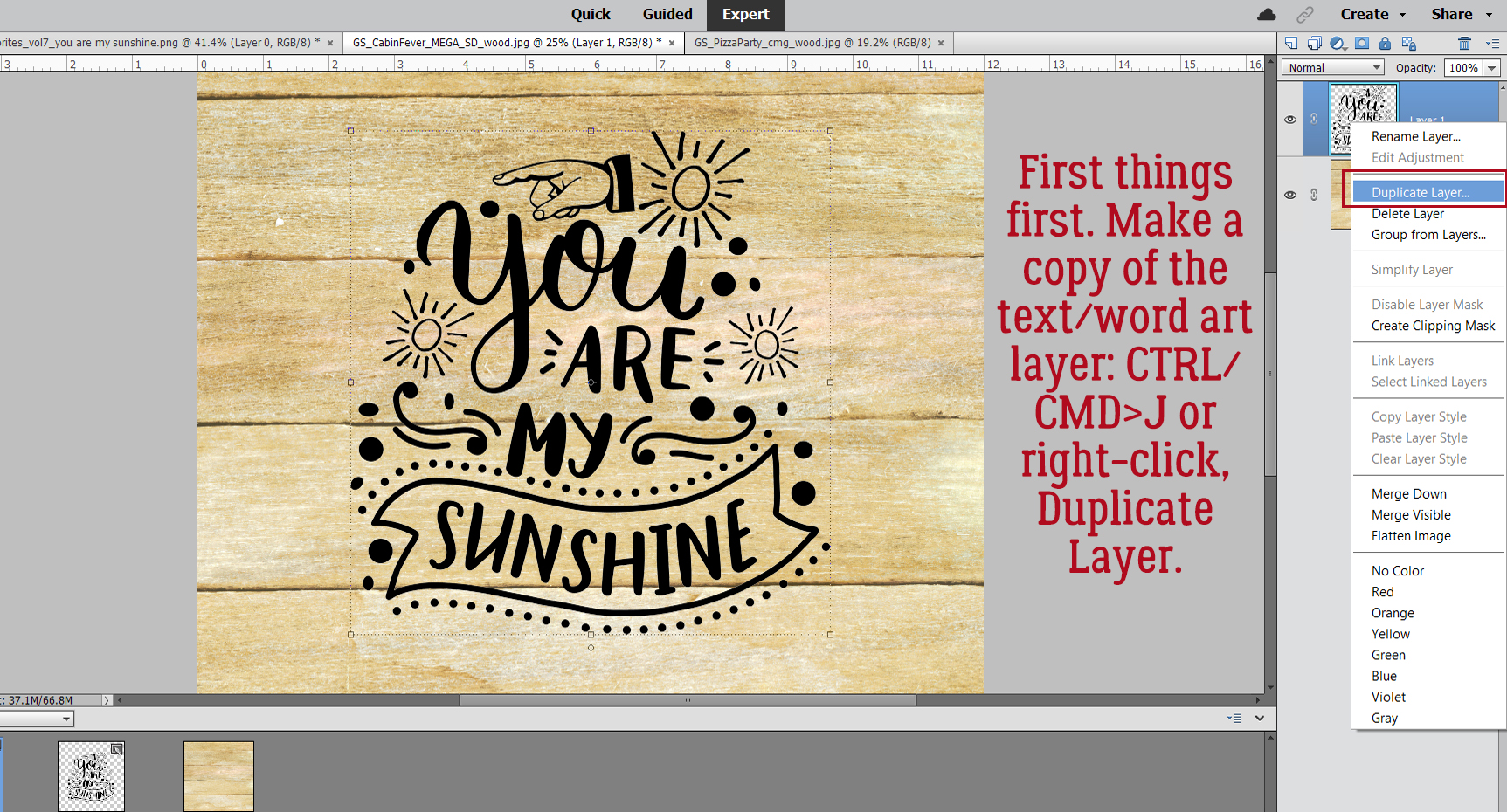
Now for the really creative part! Let’s add in the white core. To do that, I’m going to make a Copy layer of my torn paper. Again, there are a couple of ways of accomplishing that: Right-click on the layer and choose Duplicate Layer and then follow the prompts (I rarely use this method) or CTRL/CMD>J. [If you develop a habit of using keyboard shortcuts you’ll be amazed at how much time and how many keystrokes it saves you.]

Yes, we did JUST do this, but we’re going to do it again. Only this time I WILL use the Clipping Mask box. I want to Fill the original torn paper layer with white, but JUST the torn paper, not the entire layer. It’s easiest to just use the Paint Bucket tool, but I want to show you the options.

Yep, tick the box!

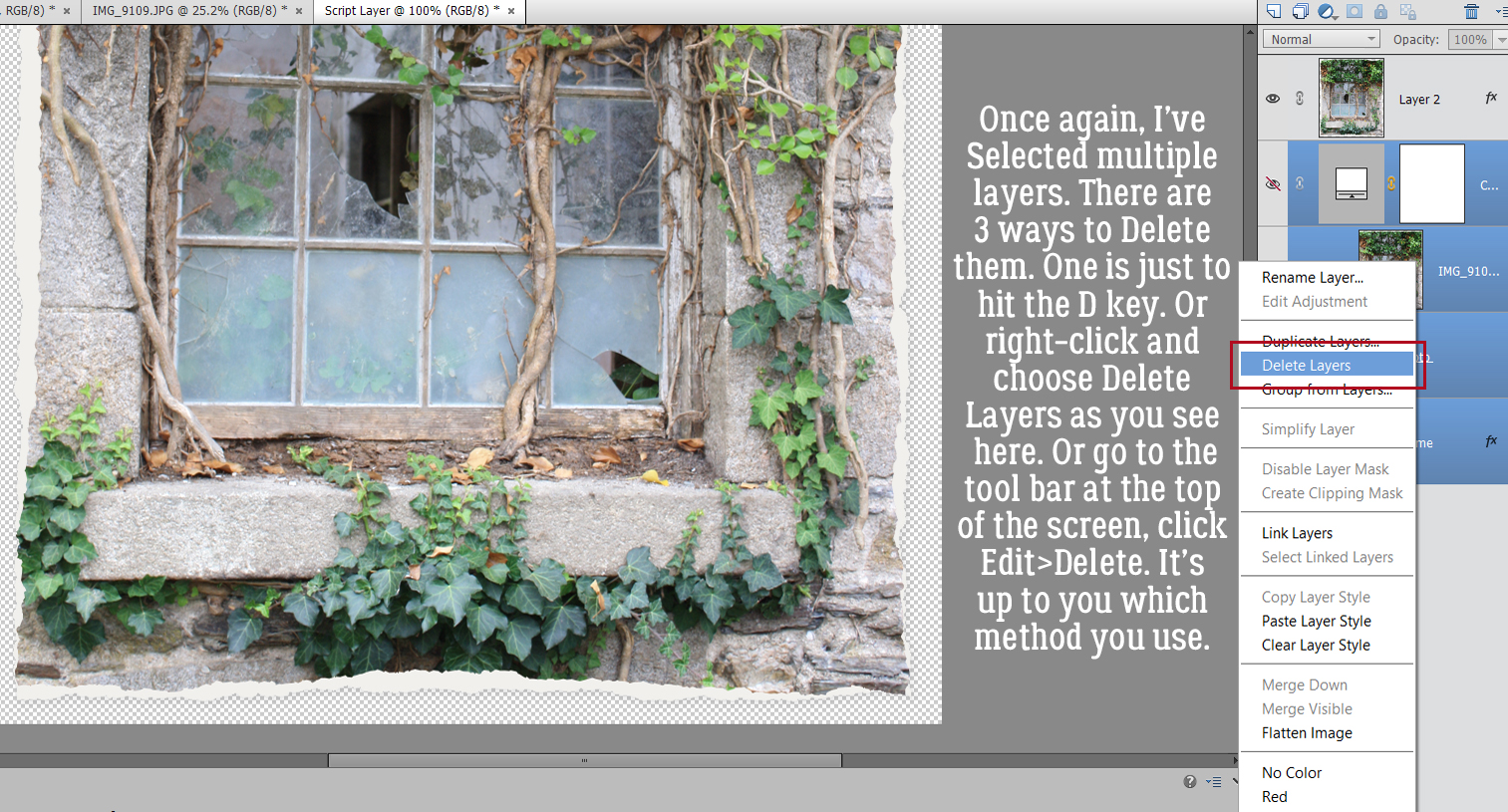
Then I want to Merge the Fill Layer with the torn paper layer (a step that’s eliminated when using the Paint Bucket… WSNH!) so I CTRL/CMD>clicked on each layer then right-clicked to open the layers menu so I could select Merge Layers. The keyboard shortcut for this step is CTRL/CMD>E.

The white core has to be visible (otherwise why have it in the first place!) so I nudged it up a bit with the Move tool. It’s a little too perfect, but we’ll fix that.

When a real sheet of heavy scrapbooking paper is torn, the white core will be exposed to varying degrees, with some wider bits and some much narrower bits. To emulate that look, I went back to my Eraser tool and nibbled away some of the white layer and some of the patterned layer too.

Okay, that’s more like it!

This step is entirely optional. Torn paper isn’t perfectly smooth, and I like to go for as much realism (with the fewest hassles) that I can achieve.  So I’ll show you how to add some texture to the white core layer using Filter>Texture>Texturizer.

There isn’t a perfect texture Filter in the toolbox, so I use Canvas. I just want a hint of irregularity on my white core and this’ll do it.

There are some decisions to be made when using Filters. Light Source is a big one. I tend to use Top Left more than anything, so that’s what I’ve chosen here. I Inverted as well, which isn’t as visible as it would be with the Burlap or Brick Textures. Scaling refers to the overall size of the deflections and Relief is how much of a vertical deviation the Filter provides.

On a computer screen this effect isn’t in-your-face-obvious, but trust me, it pops when you print your layout.

AGAIN? Why?? That torn edge of the patterned paper will cast a hint of shadow. The easiest way to add a new Layer is to click on the sheet-of-paper icon. To add a new layer this way UNDER the currently active layer, hold down the CTRL/CMD key when you click it and it’s done. Otherwise, Layer>New Layer or CTRL/CMD>SHIFT>N will add a new layer above the currently active layer, but it’ll then have to be moved under the torn paper layer.

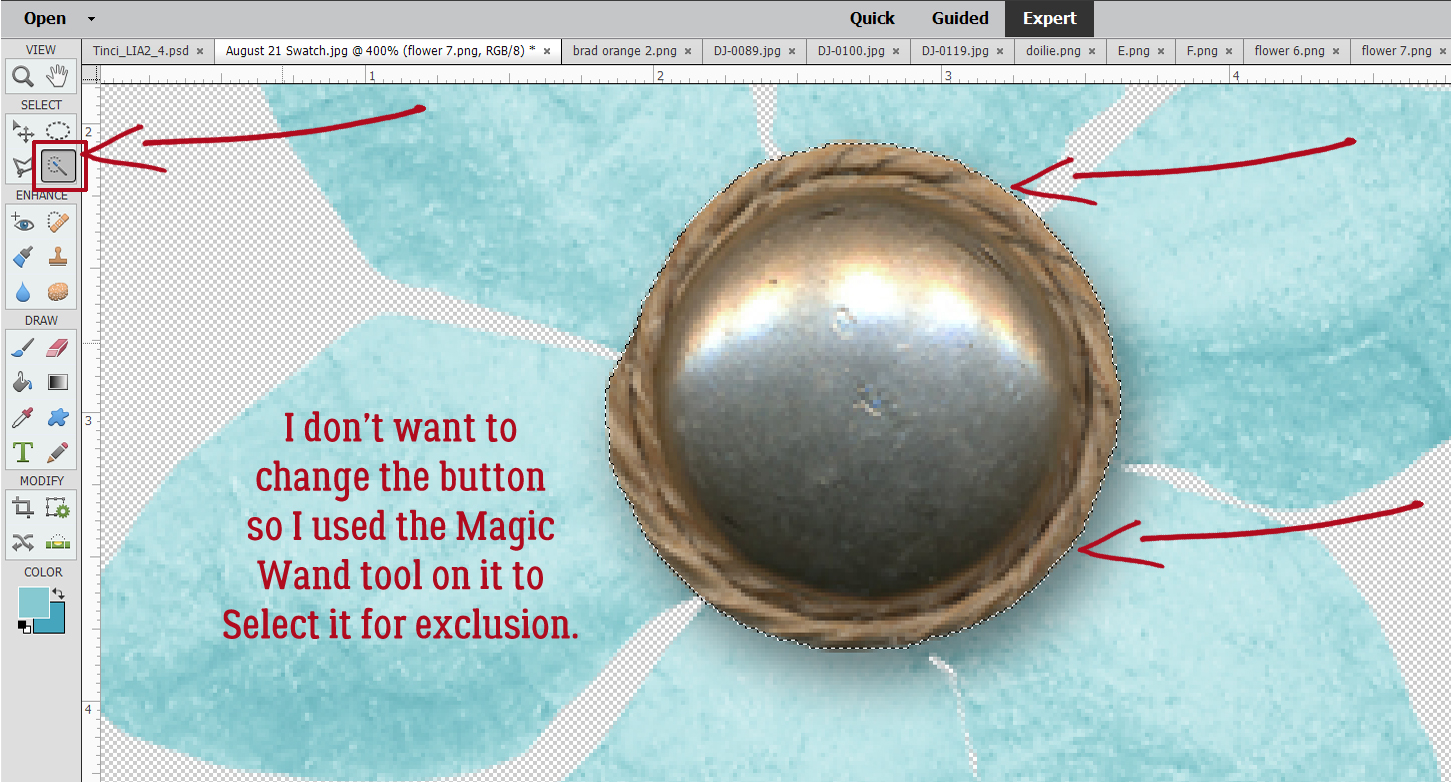
I’m telling you, the Paint Bucket tool is such a nice shortcut! But make sure you’ve Selected the edge of the torn paper by CTRL/CMD>clicking inside the layer’s thumbnail (that little “photo”) before you dump your paint.

Just as I did for the white core layer, I used the Move tool to nudge the shadow layer up and out from under the torn paper layer. It’s pretty obvious in the image below, but I’ll Blur it a tiny bit and it’ll look much more natural.

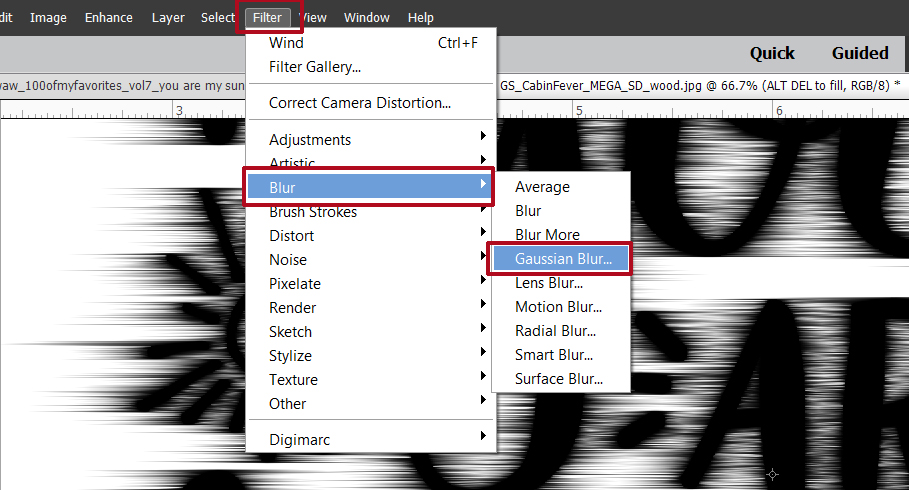
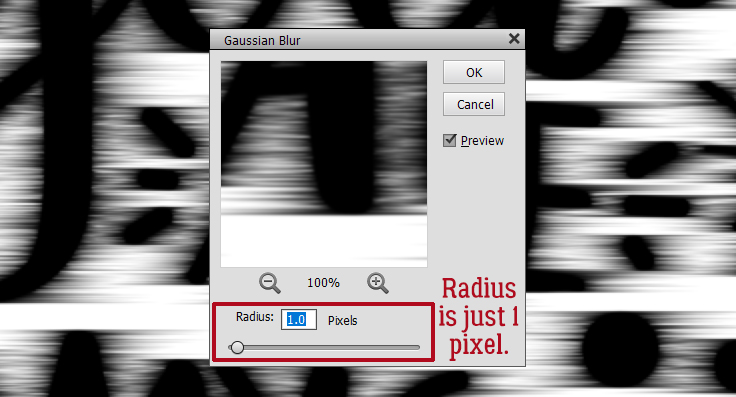
Filter>Blur>Gaussian Blur… is the ticket.

If the shadow layer is Blurred too much, it’ll just make the area where the paper and the core meet look dirty. So don’t go too far!

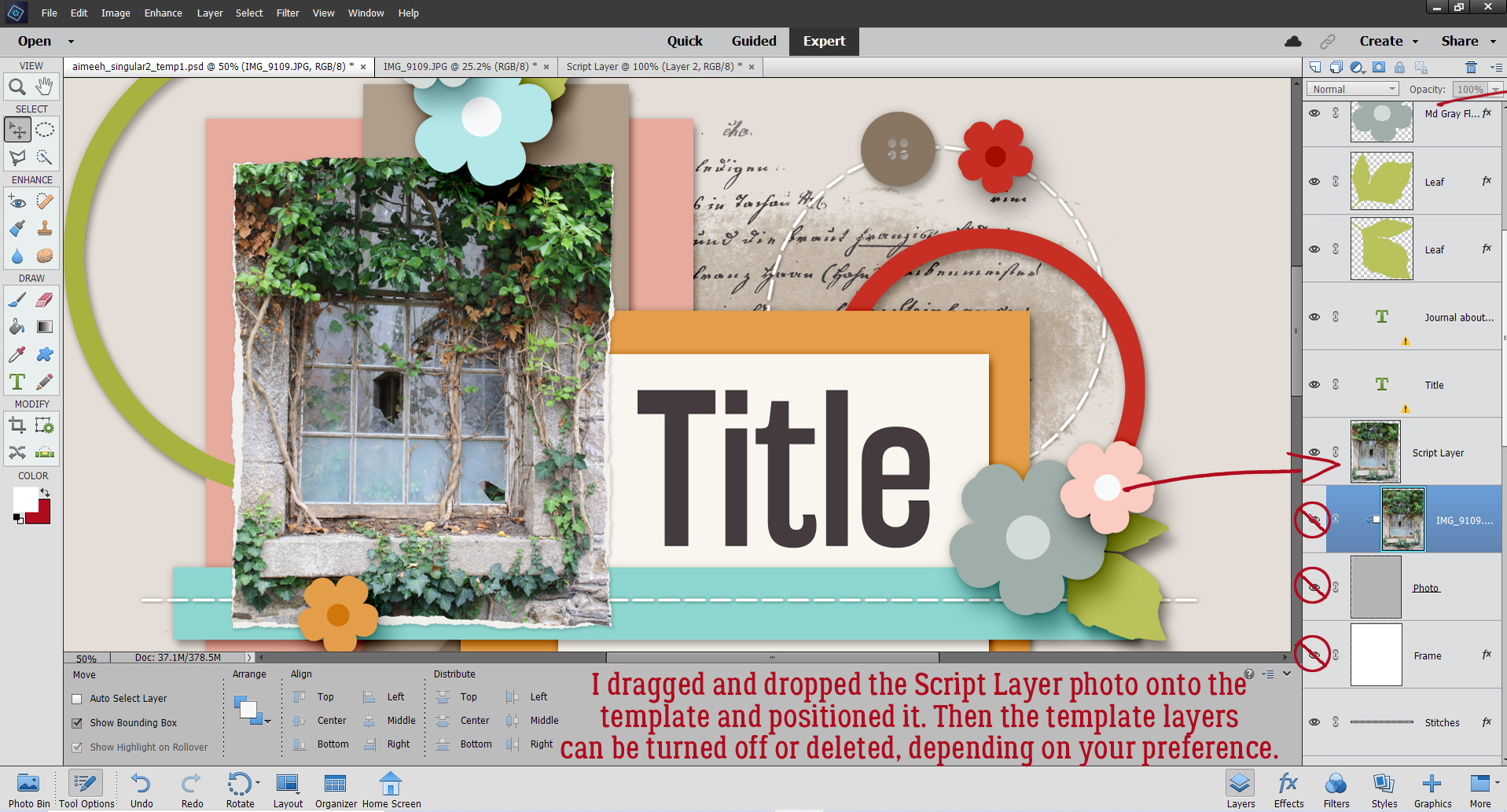
Now all that’s left before I’m finished is to Delete the black contrast layer and Merge the three paper layers together.

And now my torn paper is ready for use on my layout! It’s literally a 10-minute technique that really adds some interest to the image.

Thankfully the heatdome has moved on and we’re only worried about wildfires out here in the west part of North America. The eastern part is having the opposite problem, with a tropical storm dumping water and creating tornadoes. And still… COVID. I had my first vaccine last Wednesday and knew I was going to react – having had the virus I had antibodies already. I felt pretty awful for about 36 hours, and then magically felt better. The vaccine is proving its worth; 99% of the people who have died from COVID since May have been unvaccinated. Pretty good stats!

See you next time!

PDF Version: https://bit.ly/3xrgE06


Designer Spotlight (July 2021)

Polka Dot Chicks and Memory Mosaic!

I apologize for not getting this out to all of you on the first, but it’s been a bit nuts around here, what with the incredible heat and the wildfires burning all around us. My parents and siblings are prepared to evacuate, should it come to that. But I have some time right now and nothing pressing to drag me away, so let’s chat with Tammy (Polka Dot Chicks) and Joy (Memory Mosaic). Let’s start with the basics and then get into the more interesting stuff! (Today I’ll be “O“, to make it easier to keep the conversation straight.)

O: Ladies, how long have you been designing?

T: Since 2008

J: For me it’s been about 6 years.

O: And what tools do you use to create your designs?

J: I use photoshop, and I am learning to use Procreate.  I hope soon to be able to incorporate things I have done in Procreate in my kits.  I use templates and photos that I extract images from.  Some photos I find on free sites like Pixabay, and some I take myself, depending on what the subject is.  I also use a lot of different styles in Photoshop.  I enjoy putting styles together and creating new ones.

T: PhotoShop Elements 21 for Mac  on 27” iMac desktop computer.

O: Ooh, I love Pixabay! It’s a real treasure trove, isn’t it? Sorry Tammy, but I’m not an Apple fan. I’ve had nothing but glitches with their products, but my daughter LOVES her iMac, her iPhone, her iPad, all of them. Anyway, nobody is asking me… Now we know what you use, tell us a little about where you create.

T: I have a craft room/office on our finished lower level with plenty of space to design and set up my craft tables for crafting/sewing/silhouette etc.

J: I work on a laptop, so my “work space” is wherever I want to go.  My husband and I are working on getting an office space fixed up in what used to be a storage shed/cabin on our property, and once that is done, I will have a more stationary work area.  Right now, I have all my “stuff”… notebook with ideas, and calendars, external hard drives, pens, iPad, etc, in a pretty tote that I move from place to place… sometimes, it’s the living room sofa, sometimes the dining room table, sometimes in nice weather,  it’s out on the deck enjoying the birds singing and the fresh air.

O: I’ve been trying to get my craft space organized but it’s such a huge job and I never know where to start. Joy, I love that idea of putting all the pieces/parts in a tote to keep handy. I might have to steal that. Tammy, which of your amazing kits in the GingerScraps store is your favourite?

T: Family Tree – I really like family tree stuff and seeing how names were picked etc.  for example: my husbands middle name, Parker has been a family name since the late 1700’s and is always the first born middle name. (narrator: It’s on sale right now, ladies!)

O: I’m a family history buff too! It’s such a fascinating and absorbing pastime. A few months ago I finally figured out where one of my husband’s middle names (he’s French… 5 names!) came from: an uncle who was killed in action in France long before he was born. There were a lot of revelations in his service records. On the subject of history, and given that today is the Fourth of July, let’s talk about vacations for a sec. Joy, what would your dream vacation look like?

J: A week at the beach.  Preferably in a condo/beach house… not super crowded, able to sleep in, days spent walking the beach, collecting shells and rocks, lying under an umbrella, listening to the surf, reading a good book, spending the evening, watching movies, or playing games with my family.

O: That sounds like bliss! Is that what you’d do if you won the lottery?

J: Sort of. I would make sure any pressing needs of my family were taken care of, fix up my house, maybe take that vacation to the beach I mentioned above, and give a good portion of it to a missions project.

T: I’d buy a big enough house to house my kids/family/grand-babies but everyone could have their own space but we would all be together, Hire a chef and cleaning person. 

O: Oh yes charitable donations and to the cleaning person! Tammy, what one word would your friends and family use to describe you?
T: Happy, loves to hug and always willing to help!
O: Okay, more than one word. Joy, if time travel was possible, would you go ahead, or back, and why?
J: I would go back… I lost my Mom about 3 years ago, and I would love to go back and just have one more day with her, to ask and do the things we thought there would be time to do later.
O: Oh, I’m so sorry! It would be a perfect day, wouldn’t it? I find such peace when I’m outside, with dirt on my knees and under my nails. Gardening has been my therapy for years. Are either of you green thumbs?
T: I do not EXCEPT for Phil my philodendron that I have kept alive since 1992 when I received it after my grandma passed away. He has moved many times and still alive and kicking…
J: NO, but it doesn’t keep me from trying. LOL!  Every year, I try to plant an herb garden, flowers, and tomato, cucumbers, and pepper plants.  Some years it goes better than others.
O: Along the line of hobbies again, Tammy, are you more likely to dance or sing in the shower?
T: Sing – badly. But all my kids can sing… go figure.

O: Yeah… I can relate. So Joy, what did you want to be when you were small?
J: I wanted to grow up, get married, be a mommy and teach school.  I did all of those things. 🙂
O: NICE! Tammy, What’s the best compliment you ever received?
T: That I don’t look old enough to have 3 grown kids and 4 grand babies.
O: That would be a sweet thing to hear, for sure. We entertained our son-in-law for his birthday recently and when I asked him what I should make for dinner, he told me he’d never have enough of my ribs. Joy, If you could only eat one meal for the rest of your life, what would it be?
J: Rib-Eye Steak cooked med. rare, loaded baked sweet potato and salad with a balsamic dressing.
O: Yum! Last question for you, Tammy. Since my last tutorial was about colour theory, what are your most favorite and least favorite colors?
T: My favorite color is RED, plaid and polka dots.  MY least favorite color is yellow (at least in clothing on me).
O: I don’t love yellow either and it looks ghastly on me – a sad fact for someone who spent half her career in a yellow isolation gown. And last question to you, Joy. If you had a warning label, what would yours say?
J: Approach with caution when under pressure… explosions can happen.
O: Duly noted!! I ended this conversation with Joy because she’s generously provided us with a coupon for July! This is on top of the Daily Download. (And don’t forget the Designer Spotlight challenge these lovely ladies are hosting too.) I really hope she plans to make her home at GingerScraps when her guest stint is done.

Fresh Baked: July 2, 2021

Good Morning! We made it to Friday! Whew. I’ll be glad to see the end of this work week.

Remember, any $10 spent in the store gets you this great summer kit for free. I’m loving that flamingo.

Let’s see what our designers have for this Fresh Bake batch.

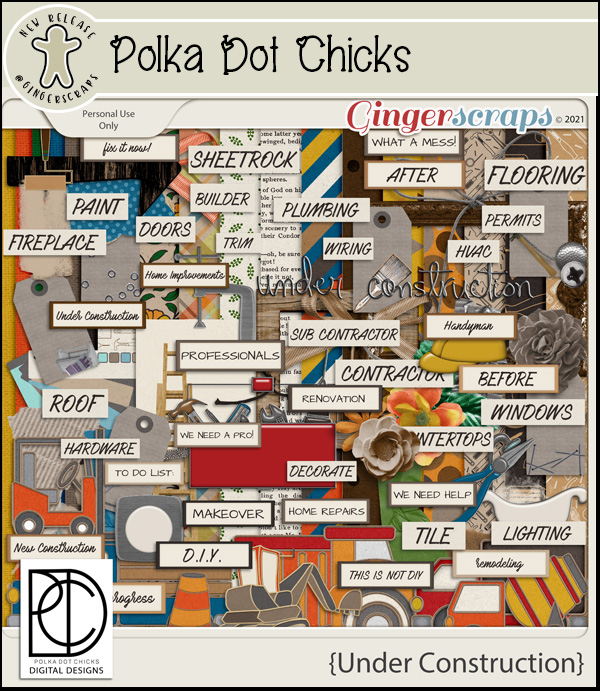
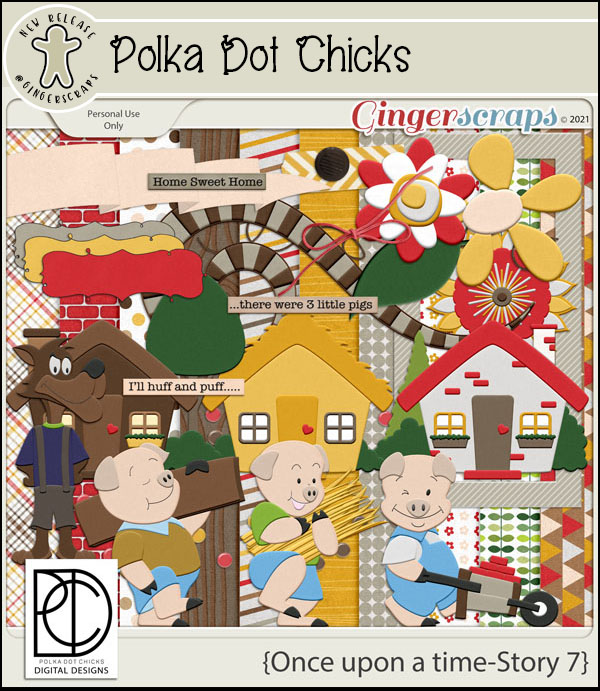
POLKA DOT CHICKS
MEMORY MOSAIC

Are you getting a jump on those challenges? Do you have one that’s always your first? Any 10 completed challenges gets you this great kit as a reward. The color palette this month is stunning.

Fresh Baked: JuLY 1, 2021, NEW Guest, NEW Free With Purchase, Monthly Mix, and More

Welcome to July! There is a lot in the Buffet post this month and the collabs are just out of this world.

Don’t forget to check out the Buffet Bundles. One easy click to add bundles of Buffet goodies to your cart.

Look at these gorgeous colors. There is a great mix of patriotic and summer kits from the designers. Also check at the bottom to see some samples from our talented store creative team.

Remember any $10 spent in the store gets you this great collab. Do you see {sunny days ahead}?

I love these muted beach colors for the July Monthly Mix.

Now to the July Sneak Peek. This month’s Daily Download is from Memory Mosaic and Polka Dot Chicks.

We have a new guest designer for July

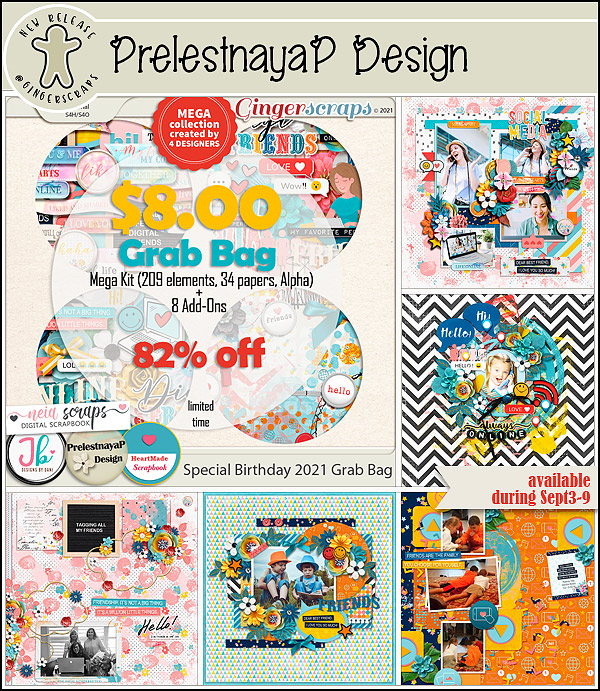
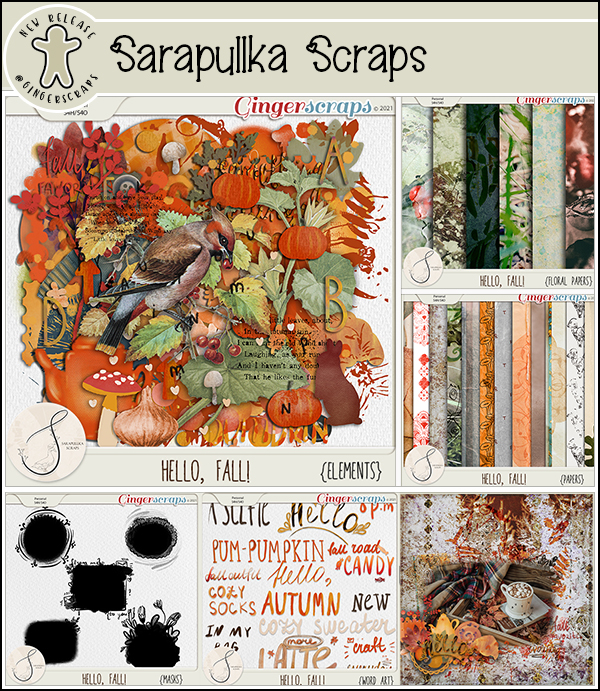
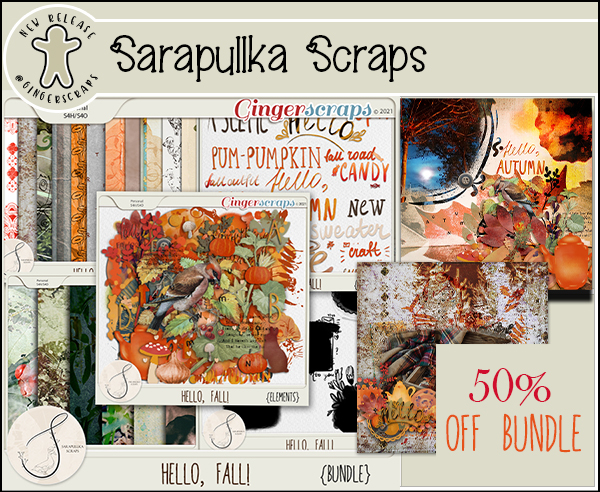
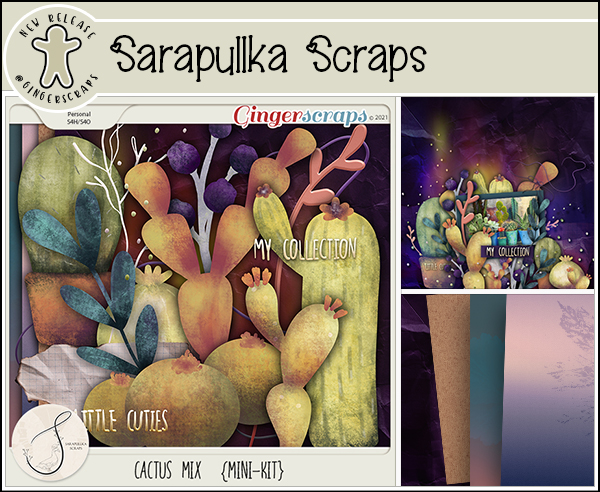
Sarapullka Scraps

Bio:

Hi, my name is Larisa. All my life I have been doing fine arts: drawing and photography.
I love nature very much and therefore I studied at the university as a microbiologist.
Every second I pay attention to different little things around me and I want to share them. I collect stickers, pieces of paper, scraps, beads, draw small details in my illustrations. For a very long time I did not understand through what art you can most clearly share your “collections of observations” with people))
Through Digital Scrapbooking, I want to share my work with you, which I hope will be useful to you!)
Contrasts are close to me: natural gentle motives and careless graphics, restrained color palette and bright accents. I draw most of the elements myself, so each of them has the maximum of my “inner” attitude.
I invite you to join my group https://www.facebook.com/sarapullka and subscribe to the newsletter which has a gift for new subscribers http://eepurl.com/hrPJaX

In honor of the opening of the store, I would like to arrange a sale with a 50% discount during the week on all products I have presented.

Good day,
Larisa

Take a look at the new challenge reward kit. I am in love with these colors and the theme. If you complete any 10 challenges this month, you get this gorgeous collab as a reward!

And to leave you with some great insporation, let’s see some samples from our talented store CT. You can find more samples in the Gallery.

Tutorial Tuesday (Potpourri)

Let’s Talk about Colour!

Is it hot where you are? Looking at the thermometer on my deck, it’s reading 42°C… or about 108°F – a smidge cooler than yesterday, but it’s likely to climb some more before the sun goes down. With a slight breeze and only 24% relative humidity, stepping outside is like walking into a pizza oven. (I’ll take that over a sauna.) Our poor dogs can’t be outside and it’s making them a little stroppy. They’re camped out on the tile floor in front of the A/C vents. It’s going to be a long week… we’re not going to cool off until next Wednesday.

Several recent tutorials covered how to add colour in one way or another but it occurred to me that we’ve never really talked about COLOUR itself.  We all have our own preferences when it comes to colour; I recently printed some layouts to frame for my gallery wall and noticed that ALL of them are either mainly green or have a significant green presence. I really don’t like yellow or orange, but they may appear on my layouts as accents. Have you ever thought about why you choose the colours you do, whether in your wardrobe, your home decor or your layouts? Have you ever wondered how designers choose the colour palettes they work with (where they have a choice)? Well, colour theory may offer some clues.

The very first colour wheel was created by Sir Isaac Newton in 1666! I bet he drew his inspiration from the rainbow. If you remember your middle school science, you’ll recall that rainbows are a product of light refraction through water droplets, and each colour has its own visible wavelength, red being shortest and violet longest. Our perception of colour is dependent on sensory cells called cones that are found in our retinas. Most animals don’t have a large number of cones and therefore don’t have the same degree of colour perception humans and other primates do. Insects have some colour perception but are less likely to actually perceive reds. It’s said that humans can distinguish very subtle variations in colour, unless they have the misfortune to be that 1 in 12 males or that 1 in 200 females and have a genetic deficiency in red-green-yellow colour perception. They’re not truly “colour-blind” but have difficulty differentiating between red, green and yellow. The rest of us are so lucky!

There are about a million terms, concepts and definitions relating to colour theory so we’re just going to scratch the surface here. We’ll start at the most basic: PRIMARY colours. All of us learned about those in kindergarten. They’re red, yellow and blue.

SECONDARY colours are derived from equal parts of two primary colours: orange, green and violet.

Anybody know what TERTIARY colours are? They’re blends of a primary colour and a secondary colour! Are you confused? Here’s a visual.

Now let’s discuss how to combine colours to make a pleasing image. The most basic combinations are called ANALOGOUS colours, three shades that are similar to each other and are found side-by-side on a 12-slice colour wheel, like red, red-orange and orange. These combinations have a serene feel to them and are visually pleasing. This scheme is one often found in nature, which makes it very harmonious. The only pitfall is not having enough contrast, so saturation matters. Some possibilities are shown below.

COMPLEMENTARY colours that are diametrically opposite to each other on a colour wheel provide maximum contrast and stability. Their vibrance is tempered by the degree of saturation of each. This scheme isn’t great in large doses but is perfect if you want something to stand out; it’s NOT good for text – too hard to read. They’re not my favourite combos (except at Christmas!) but a lot of people love them.

SPLIT-COMPLEMENTARY schemes use a base colour and the two colours immediately beside its complementary colour. Its strong viusal contrast can be very pleasing, since the colours don’t fight with each other as much as the complementary ones do.

TRIADIC combinations are composed of three colours equally spaced around the 12-slice wheel together. The primary colours of red, yellow and blue form one triadic combo. This can be a tricky scheme to pull off; one colour should dominate with the other two as accents. Balance is key; the combo will tend to be quite vibrant, even when saturation is toned down.

TETRADIC (or Rectangular) schemes make use of complementary pairs to provide a rich look. They work best if one colour is the star and the others are supporting actors. Balance between warm and cool is important.

QUADRATIC combinations are created with four evenly-spaced colours. As with all these combos, one colour should dominate and balance between saturation and contrast are crucial.

The last thing I’m going to talk about is context. The background colour will have a great impact on how different colours look to the eye. Red, for example, tends to look more vivid against black than it does white. It becomes muddy-looking when on top of or immediately next to a yellow-orange and appears more brilliant with sharper edges against turquoise. Each of the red squares in the image below is identically sized. But the one on the black appears slightly larger, at least to me. What do you see?

It’s also possible to confuse the eye by putting a colour on top of a very similar colour. The way our eyes perceive them changes. In the upper image below, the narrow rectangle appears to have a bluish hue against the red-violet background, and a reddish hue against the blue-violet background. Would you believe me if I told you they’re exactly the same violet? In the lower image I’ve butted the two background colours and stretched the smaller rectangle over both. See what I mean?
Each of us has our own style and preferences, but some of what we like relates to colour. Something to think about as you create your layouts!

The new laptop I ordered arrived – and it didn’t work. I thought it was a new machine, but they sent me a used one that hadn’t even had a factory reset. The screen continually froze whenever I tried to sort it out, so I sent it back and ordered one from another supplier, coming right from the plant. It probably won’t be here until some time in August so I’m crossing my fingers that this one doesn’t completely fail before then. I’m babying it along. If it does cash in its chips before I’m running on the new one I’ll let y’all know!

PDF Version: https://bit.ly/3hhnBdj


Fresh Baked: June 25, 2021

Happy Friday! Here we are again at another last Friday of the month. How does this even happen to go by so fast. Not only the end of the month, but we’re halfway through 2021. This is flying by crazy fast.
Have you been shopping this month and gotten this awesome Free with Purchase collab? It’s yours for as a gift with any $10 spent in the store.

Let’s see what the designers have new for this last week in June.

POLKA DOT CHICKS

MEMORY MOSAIC

Have you picked up this month’s Monthly Mix? Only a few more days to grab it at this special price.

And just a few more days to get those challenges in. Any 10 completed challenges gets you this kit as a reward.

Tutorial Tuesday (Photoshop Elements)

Exploring Uncharted Territory (Elements Features)

Something about Elements popped up on my Pinterest feed the other night that had me scratching my head. How had I not explored this before? I’m talking about the Graphics menu. It’s a treasure trove! And I think it’ll be really useful for those new-to-digiscrapping who are still building up their stash. I know when I was first finding my way, I downloaded a lot of freebies – because they were free, I had nothing and I was on a budget – that I ended up never using. The things to be found in the Graphics menu will be a bit like that for a lot of us, but without having a look we’d never know. So let’s explore!
If your workspace doesn’t look like mine, you might not have that Graphics button down in the lower right corner. Not to worry. You can find the goodies by clicking Window>Graphics (or by clicking F7). The menu includes two dropdowns chock full of options.


I think top-to-bottom-left-to-right makes the most sense, so we’ll start with By Type: Backgrounds. You can think of Backgrounds as papers. There are a TON of them in this menu. They’re rectangular and in landscape orientation so if you prefer to scrap in a square configuration, you may need to move the Background to give you the section you want visible. They aren’t necessarily as elegant as designer papers, but they’ll do in a pinch!


Okay, so when you see this, don’t panic! Most of these Graphics don’t live inside your computer. You’ll need an internet connection so they can be downloaded into your software for the session at hand. Elements is a real resource hog already, so this is a bonus.


I’m not going to show you a lot of these. I liked the name of this one when I hovered my cursor over it, so I opened it.
 

Next up are the Frames. I WILL show you a few of these, because they’re pretty awesome! I don’t often use frames of any kind for my layouts, but I may start now that I’ve found these! It took me a minute (or ten) to figure out how to make them work but once I got it, I ran with it! For them to work properly, your photo CANNOT be a “Background“, it has to be a “layer“. Right-click on your photo layer in the Layers panel and select Layer from Background and you’re on your way.


This is the composite photo I created awhile back in the tutorial on compositing. I’m going to use it as my example.


Once you’ve selected a Frame from the menu and clicked on it to apply, you’ll see this. See the transparent background around it? No need for cropping or cutting it out with the Marquee tool! The slider lets you make your photo bigger or smaller so that the area of it you want in the frame can be fine-tuned. And the circular arrows are for rotating the photo 90° left or right.


After you’ve tweaked, hit the green checkmark and carry on!


I tried a few of these Frames. I like the look of this black glossy one for panoramic photos… like the millions of sunset photos I have.


This one didn’t excite me much!

But the collage Frame? I LOVE it!!

This rustic one would be great for an Old-West layout, or a heritage layout of pioneering ancestors.

The late 1950s and early 1960s were the heyday for deckle edges. There’s another one right next to it on the menu that also has a postmark, to give the photo a postage stamp appearance.

Then there are the two stitched borders. Quicker than sorting through my stash to find some stitches…

I do actually have a bin full of vintage photos. These four vintage Frames could be lovely additions to the ones I’ve scanned and cropped.

The Graphics group is also huge. There are all sorts of goodies in here!

Like this fabulous gold filigree photo corner (or is it a corbel? I’m watching DIY shows on HGTV as I work).

If I cropped out those brilliantly-lit houses in the lower left corner of my photo these filigrees would be even more amazing.

Looking for something more traditional? My mom had a box of black paper photo corners. Bet yours did too!

The white ones are a bit more modern-looking, but still traditional.

The Shapes menu is exactly the same as the Custom Shapes/Cookie Cutter one.

The Shape layer is under the photo, with the edge Selected by CTRL/CMD>clicking on the Shape thumbnail. The photo layer is the active layer and I’m going to add a white stroke to the outline.

Cheesy? Yeah, a bit. But it was fun to turn the moon into a flower! If I put this Stroke on its own layer I might Erase the parts of the petals that overlap the trees. What do you think?

The Text options are many! Several variations of effect in every colour. Only drawback is there’s no choice of font.

I think this might look equally “right” if I’d gone with one of the soft yellow gradients like the one two spaces down to the left. But the grey pulls its look from the moon.

Here are a few more samples.

So let’s recap a bit by going over the categories one by one, starting with By Type. Each of the categories will include all the Graphics from each of the groups that correspond to the tag.

Then By Activity.

And By Color.

By Event offers some great choices!

Which of us isn’t moody at times? All the appropriate Graphics here are sorted By Mood.

It might be quicker to find exactly what you’re looking for by choosing By Object.

So many people scrap by the season so this By Season sort takes the guesswork out of finding all the right stuff.

Here, By Style means something different than the usual Elements Styles. There are literally more than two dozen Graphics styles here.

You may never use any of these but isn’t it nice to know they’re there?

The saga of the crumbling laptop continues. The replacement I ordered arrived but it doesn’t work! Turns out it isn’t new (as I thought it was) and hadn’t been factory reset. I’m a bit tech-savvy so I did a factory reset but wasn’t able to go any further. I’ll be shipping it back and waiting on a different machine I ordered that might not be here until some time in August – it’s coming right from the plant. Meanwhile, I’ll limp along with this one, hoping it doesn’t completely die before I have a functioning replacement. Sigh.

PDF Version: https://bit.ly/2SXRK99

Fresh Baked: June 18, 2021

Happy Friday everyone. I know I’ve said it before, but I’m so glad Friday is here. Yesterday was a very long day. Multiple computer and social media issues. I’m just over this week. But we all know Friday at GingerScraps means new goodies in the store.

Remember, any $10 spent in the store gets you this gorgeous collab free.

Let’s see what new and fun kits are in the store this week.

We’re a little over halfway through the month, how are those challenges going? Any 10 completed challenges gets you this great collab as a reward.

Tutorial Tuesday (Photoshop Elements)

Selectively Colouring your Photos

This month’s Color Challenge is a bit different; instead of being presented with a swatch and asked to use those colours, Ivonne (Craft-tastrophic) has asked for layouts in black-and-white, with just some pops of colour. The examples she shows in the Forum are great inspiration, but what if you don’t know how to achieve “selective colour” in your photos? That was what Glee asked me. I thought I had a tutorial on the subject, but turns out I didn’t. So I set out to remedy that. I’m going to show you three different ways to accomplish it, at least one of which should work for you regardless of which version of Elements you have.

Some advice: This task is a lot easier if you have a photo with a lot of contrast between the item(s) you want to colour and the rest of the image. Let’s get started!

I chose this Pixabay photo for my example, a choice I came to regret just a little. More about that later. The first method I’ll show you is the Guided Edit version. I tried to find out when it was added to Elements, but didn’t succeed. I think it was likely Elements 14 or 15, but can’t confirm. I tried it first using the B&W Color Pop edit, which allows you to select a colour from the photo and it’ll automatically convert the rest of the photo to black-and-white, but it’s a lot restrictive. Super easy, but only good for a single colour. So I went on to use the B&W Selection edit.

The Edit comes up with this interface, and it literally tells you what to do first. The B&W Selection brush goes on the part of the photo you don’t want to stay in colour. For this step you can use a pretty big brush to make quick work of the bulk of the background.

The cool part of this Edit is that if you oops and accidentally desaturate some of the part you want to stay coloured, you can toggle from Add to Subtract and just return the colour to the image.

Yep, I got carried away with my big brush and messed it all up.

With a smaller brush I put the yellow back into the chick. But it’s not quite getting all the details… those darned little feathers! So I’m going to go on to Refine Edge.

You’ll be able to see what effect the Edge Dectection slider makes on the photo. Did you notice there’s one fingertip in colour?

Next I’ll use the B&W Detail Brush to fix up the beak and feathers.

I ZOOMed in a LOT so I could be more precise, and used a small brush.

If you want to check your results, you can Invert the effect and it’ll show you where you’re still not quite there. When all the details have been fine-tuned, revert it so your coloured area is the actually desired area, and click on the Next arrow. Then you can Save it for later, or Continue Editing.

The second method I want to show you uses the Magnetic Lasso Tool, first seen in Elements 12. It’s a bit less automatic, but can give you great results. Not familiar with the Magnetic Lasso? It looks for contrast between the object you’re selecting and what’s beside it. Pick a spot to start from and click on the edge. You don’t have to hold down the mouse button, just draw a line around the edge of your object. Elements will add attachment points as you go. It won’t be perfect, but it’ll be pretty good. When you get back to your starting point, you’ll see the marching ants appear around the outline of your object. As you can see in the Tool Options box, there are many ways to tidy things up. I Added the tiny feathers into the selection area using a smaller tip.

The next step is to Invert the selection. Select>Inverse or CTRL/CMD>SHIFT>I will move the edges of the selection to the background, ignoring the chick in the centre.

To change the background to black-and-white, click Enhance>Convert to Black and White… or CTRL/CMD>ALT>B. If you don’t have that option in your version of Elements, instead click Adjust Color>Adjust Saturation and pull the Saturation slider all the way to the left.

Did you know there were a variety of B&W styles? If you have the time, try the options. It’s fun! Each of these styles can be further adjusted with the color channel sliders. You can watch what happens to your image in the After pane.

For a quick selection this isn’t too bad! If your object has very smooth edges, this method can work really well and be as effortless as the Guided Edit.

This final method is achievable with all versions of Elements. It’s the most labour-intensive, and if you’ve got a very irregular edge on your desired object, it’s the one that will give you the best results. First things first – make a Copy of your photo and do all your adjustments on the Copy. You can right-click on the photo and choose Duplicate Layer, or click Layer>New> New Layer via Copy or CTRL/CMD>J. Then convert the Copy layer to B&W as I showed you above.

I wanted this B&W layer to have an even higher contrast to make the Selection part easier, so these are the adjustments I made.

ZOOMed in you can see how much easier it is to see those little feathers. Now to add a Layer Mask.

The easiest way to add a Layer Mask is to use the Layer Mask button. (Duh.) It’s the one that looks like a circle divided into two halves, one blue and one white. When you click on it, the mask appears to the right of the photo. To be positive you’re working on the MASK and not the photo itself, look for the blue outline around the blank mask.

Layer Masks are considered non-destructive edits, because they don’t Erase the image, they only conceal it – even though I’m using the Eraser Tool! If the foreground colour is white, whatever I Erase will be concealed. If I make a misstep, I can toggle the foreground colour to black and un-Erase it. I like to use a Brush tip with the Eraser Tool when working on Layer Masks because the edges are softer. The Pencil tip is more pixelated. I’ve made the original photo layer invisible. See the transparent area where I’ve removed the bird? I prefer to do that for the initial scrubbing, where I can use a big tip and go as quickly as my laptop will allow.

For the detailed areas, having the original layer visible helps to see where more touching up is needed.

I ZOOM right in so I can see exactly what I’m doing, and bring all those darned feathers back into colour. The beak and feet need attention too.

Up this close, I can see a dark edge to the beak and some of the feathers. That tells me I’ve got the precise edge where the chick meets skin. It’s not going to be noticeable when it’s back at a more usual size.

Yes, I used a 3 pixel Brush tip on some of these feathers. I actually went all the way down to 1 pixel, because that’s how I’m made. In later versions of Elements Adobe has introduced a Refine Selection Brush that I haven’t mastered yet, so I still do it the hard way. Later…

Almost there!

And this is the final result. I do like this method best for really detailed images, but isn’t it great to have some options?

As I mentioned in my last tutorial, my laptop is literally crumbling, but it still lets me get things done. I have a new one coming next week; I’m dreading the setting-up but have backed up all my important files so it should be okay. If you haven’t backed up YOUR important files, you might want to do it now, so it doesn’t get forgotten. Who wants to lose everything?!

PDF Link: https://bit.ly/3cM8l6E