Tutorial Tuesday (Photoshop Elements)

Fancifying Those Fonts

As promised, today’s tutorial is a demonstration of how to add some variety to your fonts. IceCold had the most options so I went with it for the layout I did up for the Mix It Up Challenge. I used a template from Jumpstart Designs that I’ve had forever and CathyK‘s Aviator kit.

If you’re a faithful reader, you’ll recall that I like to create my titles on their own work space so I can play around without distraction and without messing up anything on my layout accidentally.

Before I can do anything to the text I first have to Simplify the layer. Right-click on the layer on the Layers panel then select Simplify Layer.

Because I never know where I might go with my experimentation, I like to make several copies of my original layer so I won’t have to recreate it later. Then I play with the copies. CTRL/CMD>J will make one copy for each time you perform the keyboard shortcut. Or you can right-click on the layer in the Layers panel and select Duplicate Layer. (Can you see why I use the WSNH – Work Smart Not Hard – shortcut?)

The first thing that occurred to me was to make the snow caps look like snow caps. I was originally going to just Erase the letter parts but thought better of it.

I added a Layer Mask by clicking on the icon that looks like a square of paper with a circle in the centre, right there in the middle of the icons at the top of the Layers panel. Why? Because if I go too far with my Eraser, I can easily change the tool to a paint brush and paint back the part I should have left alone. It’s as simple as toggling between black and white in the Color Selector. To know which color is the one you want, remember the phrase “White conceals, Black reveals“. Keyboard shortcut? Just hit the X key!

Then I started Erasing away the letters from the snow caps.

This part of my technique is VERY time-consuming. And it causes eye-strain too… but that never stops me from trying new things or writing tutorials about my experiments!

Is it just me or do these look more like eyebrows than snow caps?

Once I had all the letter parts removed, I Simplified the layer. Same like with the font step. Otherwise, unless you’re paying particular attention (and I’m usually not… watching TV while I work is how I roll!) you won’t know what part of the layer you’re working on until you’ve committed some massive blunder and can’t reverse it. (Guilty as charged!)

Now I want to add some chill to my snow caps. In retrospect, I really didn’t need this step, but I have the screenshots so I’m going to show you because it does tie in with a later step.

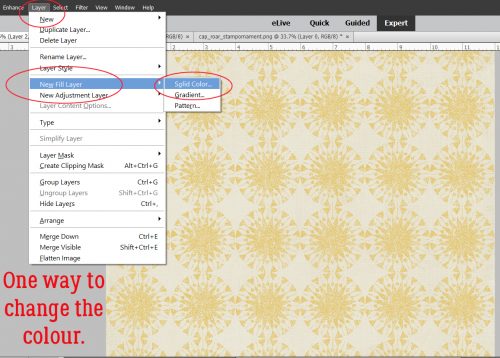
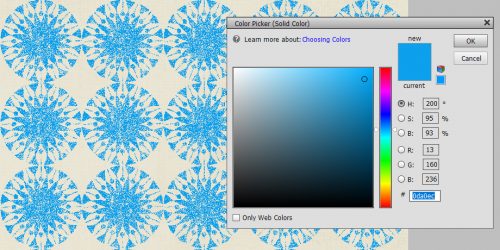
To quickly and easily change to colour of fonts and text, just create a Layer>New Fill Layer>Solid Color. It will apply your new colour to everything selected.

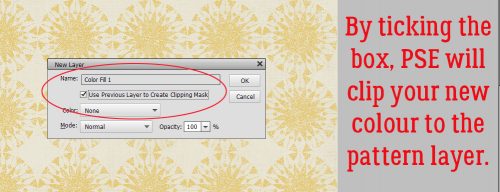
When the New Layer menu box opens, make sure the Use Previous Layer to Create Clipping Mask box is checked. If you don’t take that action, the whole canvas will be filled with that new colour.

I know the blue is impossible to see, and as I said, I really didn’t need to do this step. But can you see in the screenshot that I Copied the snow cap layer BEFORE I added the Fill layer to the original snow cap layer? That’s another WSNH tip. Only do things once!

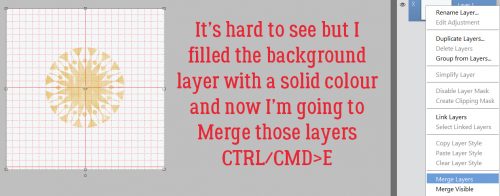
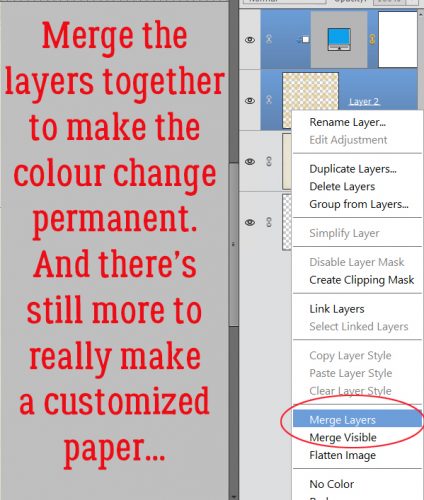
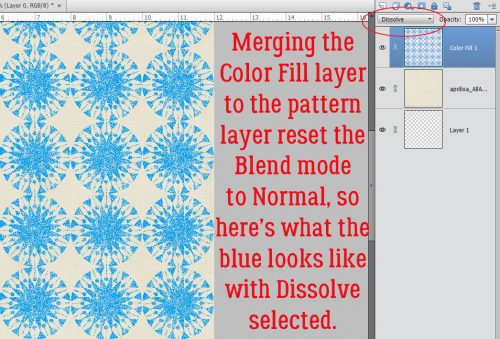
Again, you want to Merge these two layers in the same way and for the same reason you Simplify text and other Layer Masks. It’s to preserve what you’ve already done.

This next screenshot is impossible for anyone to actually read, so I’ve included the pertinent information on it. I’m going to use a glitter Styles set from Just So Scrappy‘s Lucky Me bundle. The fastest way to get to your Styles folder is to just click on the Styles button at the bottom of the Layers panel.

Katie of JSS always includes both chunky and fine glitter in her Styles bundles. I chose the fine white glitter #2 option because my title isn’t going to be huge, and snowflakes aren’t either.

This is the effect it gave my snow caps. Now you can see why I said the colour change wasn’t necessary… you can’t see any of the blue anyway!

On we go to the copy of the snow caps.

The colours in JSS‘s Lucky Me bundle work for this next phase, so I’m using the Chrome set for this. The Style adds a very smooth shiny look to whatever you hit with it.

Again, Katie offers options! There are thick and thin Chrome coatings here. I knew I’d want the thin one so that’s what I used.

It didn’t look quite like I wanted it to, so I right-clicked on the fx icon on the layer in the Layers panel and opened up the Style menu. I adjusted the various sliders to give me more of a chilly, icy look.

Then I lowered the Opacity of the Chrome layer and the snow cap has dimension, some colour and some sparkle.

I could stop here. HA!

I went down to the very first layer where I’d typed out my title, hid all the other layers, and added a Layer Mask to that first layer.

Then I started Erasing the thin lines from the letter section of the title.

Once I got them all Erased, I Simplified the layer.

I also wanted to lose the snow caps, but because I’d already isolated the snow caps, it was a piece of cake to get rid of them. I clicked on one of the snow-cap only layer thumbnails to Select the outlines of the snowcaps – while still on my lowest layer – then Edit>Cut (CTRL/CMD>X) them away.

I knew I wanted to use the Paint Bucket to fill the wide spaces with colour and I knew (from prior experience) that if the areas I was filling were not COMPLETELY enclosed, the whole shebang would be filled, I decided to put a Edit>Stroke around the snow caps’ edges. Just a skinny one, 1 pixel wide. Then I erased the parts that weren’t required.

This is where I wound up.

Then I used the Paint Bucket tool to fill in all the spaces inside the letters using the same light blue as before. I decided the dark brown lines were just too harsh, so I wanted to change them to a darker blue/green. So I went to Enhance>Adjust Color>Replace Color.

Another thing I’ve learned form doing it wrong a thousand times is to make sure the colour I WANT is the BACKGROUND colour. Then I clicked on the colour swatch at the top of the menu – the colour I want to replace – and used the eyedropper that popped up to click on the dark brown.

Then I clicked on the lower colour swatch to make it active. If I had a colour on my canvas that I wanted to use, I could then click on it with the eyedropper, but I don’t so I clicked on the background colour swatch where I have my darker blue-green. And bingo! the dark brown is now dark blue-green.

I could stop here. But you know me… I didn’t. I felt like the letters needed some sheen to make them look icy. I opted to use the Wow Plastic Styles that were already in PSE when I bought it. There are 10 options in that set. If you hover your cursor over the little blocks it’ll tell you what each one is.

As you can see, it changed the colours quite a bit while adding that shine I was after. I played around with the fx menu a bit.

Then I checked to see if the title looked the way I wanted it to. And it didn’t.

I went back to the title canvas and Copied the white glitter layer, moving the copy layer to the very top, above the shiny blue Chrome layer. Then I Erased some of the top white glitter layer to make it look like freshly-fallen snow on top of some older, crusty stuff. (Those of you who live in the snowbelt know what I mean.) Then I opted to play with the letters layers again. I tried one of the Glass Buttons Styles, which also are integrated PSE styles.

Only snag? All that work I did with the stripes went bye-bye. Boo! But wait… There’s a tweak for that.

And back they come! Almost happy…

I still had some snow-cap-less layers there in the middle so I went to one of them and erased everything but the skinny lines.

Quick change to the colour – Layer>New Fill Layer>Solid Color in white.

It’s pretty subtle, but it’s there and I like it! So let’s see how it looks on the layout.

YES!! I think it’s a lot closer to the colours in the photo and I’m very happy with the outcome!

See you all next week!

Tutorial Tuesday (Fontography)

Fancy and Fun Fonts for Wintery Layouts

As much of the Northern Hemisphere is being walloped by heavy snow, high winds and frigid temperatures (which basically would be Wednesday here in northern Alberta 😉 ) I thought I’d compile a collection of free fonts y’all can use for your winter layouts. Sound good? Each of the fonts I show you will be linked to the source so you can find ’em quickly!

My favourite go-to website for free fonts is dafont.com. They have such a huge assortment of fabulous fonts and dingbats!

Like Snowtop Caps, which also includes numbers and punctuation.

Winter Fall is a rounded font that would be great for a wintery title, but it only includes a small number of special characters and no numerals.

Iceberg is chunky but still rounded. It also only has a few punctuations and no numerals.

Winter Flakes has it all! It includes some dingbats too, so it’s pretty much perfect.

Igloo Laser is a modern-looking all-caps font with numerals and a few punctuation characters.

Snowflake Letters would look smashing with a bevel and a clear, glossy style on it. It’s all-caps, with numerals and punctuation.

You could use Snowhouse for journaling; it’s a script font with numerals and some punctuation, and includes a large variety of special characters.

Snowinter is another super-title font, with all the goodies one would need.

I like Kingthings Christmas a lot. It’s a complete package with awesome potential.

I think I’m going to build a tutorial about how to use Ice Cold to its best advantage. It’s got some serious title charm!

CF Tuques is just a fun font for winter. (I’m super-happy the designer spells “tuque” correctly!) No numerals or punctuation though.


Now how about looking at some dingbats. Don’t know what a dingbat is? Basically, it’s a symbol, shape or drawing accessed through your alpha keyboard.

Winter has a collection of line drawings of winter things, like snowmen and snowed-in houses. It’s pretty cute!

DH Snowflakes could be used for borders, dividers or backgrounds. Lots of possibilities!

Faux Snow is another snowflake dingbat set with unique shapes.

And so is WW Flakes.

KR Snowpeople has an assortment of snowmen and snow-women.

I invite you to check out the vast collection of fonts and dingbats at Dafont. I know you’ll find lots of inspiration there!

Sneak Peeks January 17th 2019

Happy Thursday!!! Did everyone have a great week? Did you get some pages you have been meaning to done? Maybe you are in a rut and you need a little inspiration, well let’s check out some pages by the wonderful Gingerscraps CT with some of this week’s new releases!

From Heather Z


From Dagi

From Tinci

From Lindsay Jane

From LDrag

From Miss Fish

From Aimee Harrison

From JoCee

Tutorial Tuesday (Photoshop Elements)

Memory-Keeping with Not-So-Great Photos

I don’t know about you, but I’m seriously lousy at getting good selfies. Maybe I’m too critical, or maybe I just don’t look good in photos. But when the only photos I have of an event I really want to scrap about are those nasty selfies, what’s a woman to do? Such was the day I went to the beach on the Wild Atlantic Way… the ONLY day out of the whole two weeks I was in Ireland this time when it rained. It was also the only chance I would have to walk on the beach at Kilkee, where my 3x great-grandparents were born. So I went ahead to walk on the beach (although I didn’t walk the cliffs – I AM a bit of a chicken) and took the nasty selfies, then scrapped them into a minimalist layout for the January Color Challenge.

When I say it was raining, I’m not talking about the soft, misty rain Ireland is usually known for; it was more like a prairie downpour. My hair was plastered to my head and my jacket was soaked through. (And I was freezing… in July!)

If I was going to do something with these photos that I could live with, I was going to have to think a bit. I made a copy of my photo so I’d be playing with it and not the original.

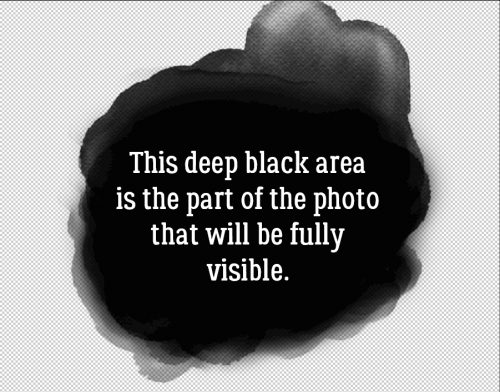
Then I did something I’d never done before… I checked out the possibilities in the Effects menu. I played with each of the options to see what they do, and some of them will be given more attention in upcoming tuts. Imagine my surprise when I found an even quicker-with-fewer-steps sketch effect than we’ve looked at in other tuts.

Just one click and I had a sketch!

The effect produced another new layer.

The details are pretty blown-out, so I thought about how to find them again. (Although I wasn’t really upset that the crowsfeet are gone!)

I used the Levels adjustment (Enhance>Adjust Lighting>Levels or CTRL/CMD>L) to darken the outlines. With Levels, pushing the Input Levels dark value slider to the right as shown and the Output Levels light value slider just slightly to the left allowed some colour to leak back in, but also brought the details and textures back. The raindrops on my glasses are more obvious now.

I wanted a tiny bit more sketchiness so I duplicated the sketch layer (right-click on the layer then select Duplicate Layer or CTRL/CMD>J) then played with the Levels again. Can you see the difference in the histograms between the two images?

Just for fun, I played with some Blend Modes too. Some of them give really interesting results… There are no limits on creativity here!

I chose Pin Light. The only difference it makes is to brighten the image up a bit. And maybe sharpen the sketch effect a smidge.

Lowering the Opacity of that layer lets a bit more colour show through without losing the total sketch effect.

But naturally, I have to play a bit more.

I tried all the Modes then settled on Overlay.

That’s more like it! Some of the gray is gone,, the details are sharper and there’s a hint of colour.

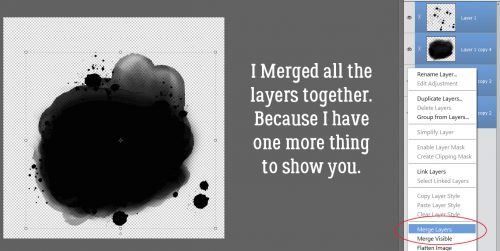
After I Merged all the layers, this is what I ended up with.

And my final layout looks like this… The blended photo in the background is simply clipped to a mask then the mask’s Opacity was lowered a bit to blend the background a bit more.

Sneak Peeks January 10th 2019

Happy Thursday! Tomorrow is jam packed with new releases! Let’s see all the awesome goodies releasing!

From Dagi

From Heather Z

From LDrag

From Tinci

From JB Studio

From CathyK

From Miss Fish

From Aimee Harrison

From Luv Ewe

Have a great weekend!

Tutorial Tuesday (Photoshop Elements)

Any Way You Slice It

After last week’s tutorial went out and I posted my Possibilities layout there were several comments about the photo treatment I used. Well, I actually stole it from a paper layout I saw in an old issue of Creating Keepsakes. Sort of. The digital version is a lot less labour-intensive and creates no mess or destruction. No glue either. So I thought that might make a suitable topic for today’s tutorial!

I started out by adding a new blank layer above my photo layer. That can be done simply by clicking on the little piece-of-paper icon at the top of the Layers Panel. Then I activated the Rectangular Marquee tool. (CTRL/CMD>M)

Next I pulled out a narrow rectangular selection along the left edge of my photo, including the parts of the photo I wanted to keep and excluding the part I didn’t – who wants to look at a roof?

Then I added a narrow white stroke around the selected area.

Then I dragged out another rectangular selection from my photo. See that little dialog box with numbers in it? That’s a great tool! It tells you the dimensions of whatever shape you’ve dragged out, therefore allowing you to keep the width or length of your selection identical. (Or you can just CTRL/CMD>J it and make an identical copy that you can then adjust to whatever dimensions you want…)

These are the settings I used for all my strokes: 5 pixels in width, centered over the selection, white and 100% visible.

I made a bunch of copies of my second rectangle and moved them over, which let me really WSNH (Work Smart, Not Hard) by skipping a lot of steps. I left the width the same but stretched or shrunk heights as I went. Once I had the whole photo “sliced” up, I Merged the frames.

Then I moved back to the photo layer and, still using the Rectangular Marquee, I started selecting the areas of the photo I didn’t want to keep. Then I Cut those areas away. (CTRL/CMD>X)

All that was left was to apply a hint of a drop shadow on the frame layer to give the whole thing a little dimension. The shadow settings I used were Angle: 90°, Size: 16 pixels, Distance: 0 pixels and Opacity: 18% with the colour being black. I didn’t add a shadow to the photo itself.

It’s really that easy!

~~January Featured Designer – ADB Designs~~

Happy 2019!! I’m so excited to bring you this month’s featured designer profile. ADB Designs is one of our newer store designers. Let’s just jump right in and get to know her.

How long have you been designing?

As scrapbook designer since 2012; as designer (marketing and end user products) in a photography studio since 2002.

What made you decide to design?

I retired from a high stress job in IT and found designing to be a powerful creative outlet for my time and energy – AND – it allowed me to create designs that supported my genealogy passion.

What do you use to create your designs (program, additional tools, etc.)?

Photoshop CC & AI; scanner, husband who is professional photographer, LOL!

Describe your design workplace.

I have an office in my home, with windows that overlook a wooded hill on our 5 acre property. It is peaceful and quiet, unless the office cat is demanding attention.

What motivates and inspires you as a designer?

I love history and romantic “things” – I research for my genealogy passion and all of that feeds my designer imagination. I create a lot of Heritage collections designed to assist with telling a family history.

What is your favorite kit currently in your GS store and why?

Patriots & Loyalists Heritage Collection is my current favorite. I loved the challenge of creating a collection to support research in the American Revolutionary War period. I loved the challenge of creating a product that celebrated both patriots and loyalist…all were newly minted Americans at the end of the war.

What was your first job?

WOW that really takes me back. I would have to say babysitter at age 12 for the 3 children who lived next door.

Have you ever met anyone famous?

No, I lead a boring life. LOL

What are you reading right now?

Oh goodness, I read 6-7 books at a time. (I read a lot of non-fiction) I am finishing these:

  • The Last Shogun – the life of Tokugawa Yoshinobu
  • Rosalind Franklin The Dark Lady of DNA
  • I Remember Nothing More – The Warsaw Children’s Hospital & the Jewish Resistance
  • His Brother’s Keeper – A Story From the Edge of Medicine

What is your favorite quote?

“The opposite of hate is not love, it is indifference.” David Wilkerson

What is something you want to do in the next year that you’ve never done before?

Go to Australia and visit my brother Alan and his family.

You have your own late night talk show, who do you invite as your first guest?

Oprah Winfrey

If you had to delete all but 3 apps from your smartphone, which ones would you keep?

Google Drive, Adobe Capture, Google News

If you could have someone follow you around all the time, like a personal assistant, what would you have them do?

Clean & cook — oh wait, my husband does that….I guess help me stay organized.

Would you rather travel back in time to meet your ancestors or to the future to meet your descendants?

Back in time.

What commercial jingle gets stuck in your head all the time.

“Nationwide is on your side” Peyton Manning singing.

If you could turn the ocean into a liquid other than water, which one would you pick?

Would not want to do that…but if you are asking about other favorite liquids….well a good single malt Scotch makes me happy. 🙂

Thanks Diane!! Make sure to check our her GingerScraps store and her Facebook fan page. Also make sure you are grabbing the daily download every day to get this awesome kit!

Happy New Year everyone!!

Sneak Peeks December 27th 2018


Happy last Thursday of 2018! The year is almost over and a new year is on it’s way! I know one resolution all of us would like to make and keep… More Scrapping! That is a resolution I can definitely get behind! If you want to dedicate a little more time to getting those pages scrapped, maybe one or our designers new releases will ignite your creativity or its just the kit you have been looking for!

From Heather Z

From Mags Graphics

From Aimee H

From JB Studio

Sneak Peeks December 20th 2018

Happy Thursday! We are soooooooooooooooo close to Christmas. It’s just around the corner. Our designers have lots of festive offerings for this last weekend before the holiday! Let’s take a look!

From Ponytails

From Tinci

From Miss Fish

From Shepherd Studio

From Wimpychompers

From LDrag

From Luv Ewe

From Aimee Harrison

Tutorial Tuesday (Back to Basics)

Save me!!

Right after last week’s tutorial appeared, a comment from one of our members, lilholmes6 (aka Lynn), appeared, asking why her layouts were so blurry and the journaling was unreadable. I sent her a private reply and carried on… then Ginger (our genius GingerScraps owner) messaged me. She wanted to know if I’d written a tutorial on saving layouts for the Gallery; she’d also gotten a request for help from a member, apparently one in a long string of them and didn’t want to reinvent the wheel. So today we’re going to talk about saving layouts for our highest possible viewing pleasure.

The first thing to know about saving your layouts for Gallery purposes is that online galleries have a limit on the maximum size an image file can be, most stipulating images 600×600 pixels and a file no larger than 250 KB. Now, to get our images to fit into those parameters, the file has to be compressed a bit. Or a lot… some template designers create absolutely gorgeous templates that stimulate creation of even MORE gorgeous layouts, but they turn into HUMONGOUS files. (Heartstrings Scrap Art is a favourite of mine and a former GingerBread Lady.) What happens when I scrap using one of her templates? Lemme show you…

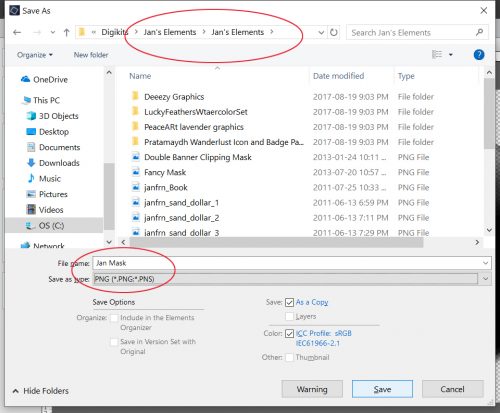
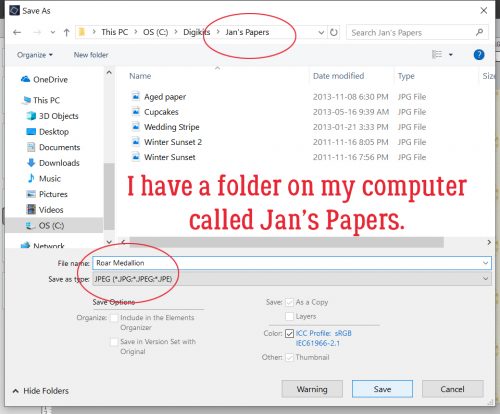
First I resize the layout to that 600×600 pixel limit and then I try (and fail!) to save the layout as a .jpeg using the File>Save As menu. Because I save my layouts as .jpegs in two sizes, I change the name of the one destined for the Gallery by adding “GS” to the layout’s name as you can see below.

Hmm… At the highest possible quality, this layout weighs in at a ginormous 2.7 MB!!

So I pushed the Quality slider to the LEFT. All the way to 0. Now, I’ve never actually tried to save a layout with a quality of 0, because really, what’s the point?! But what really is interesting here is that this image would still have a file size of 2.2 MB. How is that even possible?

Time for Plan B, the Save for Web option. I don’t use this method for saving my layouts except as a last resort, because there’s a lot more compression of the image, and loss of clarity, or what’s known a pixelation. That’s what makes journaling turn into squiggles.

The user menu looks like this. You have the original on the left, the compressed version on the right and some adjustments you can make on the far right. The default here is a resolution of 72 pixels per inch, pretty fuzzy. (For the best images for printing for example, you’d want a resolution of 300 pixels per inch, which is MY default setting.) Within the menu, just below the compressed image on the right is where you find the file size at that resolution. As you can see here, there’s a little wiggle room.

So I took it! I nudged the Quality slider to the RIGHT until I got the sharpest image that still was under 250 KB. You can see the final version in the Gallery right HERE. Not too shabby!

Now I want to show you my USUAL method of saving my layouts for Gallery posting. This layout is built on a template from our own Aimee Harrison from her Singular Volume 1 set. I select Save As (CTRL/CMD>SHIFT>S), rename my layout and select .jpeg as the format.

Now, this is the real bonus. The file is under 500 KB right off the bat.

Just a tiny nudge of the Quality slider gets me right into the zone. <whispers> (I’ve found these numbers to be a tiny bit inflated, so you might get away with a few KB over 250. But don’t tell anybody.)

In the spirit of the season, here’s a little add-on for you.

As you might remember, I’ve been looking at old scrapbooking magazines and this technique got a ton of attention back in the day. Lots of layouts had papers or photos with only the opposite corners rounded. We’ve looked at how to use rounded rectangles, so I thought I’d take that a step further. Fire up that Custom Shape toolkit!!

My example is more squarish, but that’s cool. I popped another layer just underneath it then made the square invisible.

Then I changed my tool to the Rectangular shape tool and dragged out another squarish shape. That’s what worked for me, but you of course can do whatever makes you happy.

You know how I keep hammering you about Simplifying your text and shape layers? It’s a vital step for maintaining control. When you’re looking at text layers, you’ll know it hasn’t been Simplified if there’s a “T” on the layer in the Layers panel. For shape layers, there’s a little square box in the lower right corner of the image on the layer in the Layers panel. You can see it here.

Now, I KNOW you can see what I’ve done. I simply aligned the top and right edges of the two layers using the Alignment adjustments within the Move tool.

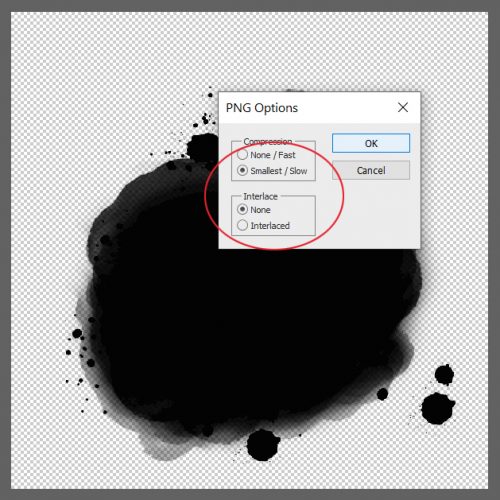
Next I just made a copy of the square layer and aligned the bottom and left edges. All that was left was to Merge the layers and save the resulting shape as a .png so I can use it as a clipping mask later. One thing about this shape though… resizing it will change the contours of the curved corners unless the proportions are constrained (identical). If you want it to be more rectangular than square you’ll need to start there. An oblong rounded rectangle as your base, then two rectangles with squared corners for the rest.

Since next Tuesday is Christmas Day, I’ll be taking the day off to be with my husband and son… as I’m sure all of you will be doing as well. I’ll see you all New Year’s Day with something new for you to do while the men watch bowl games!