~~FEBRUARY BAKE SALE~~

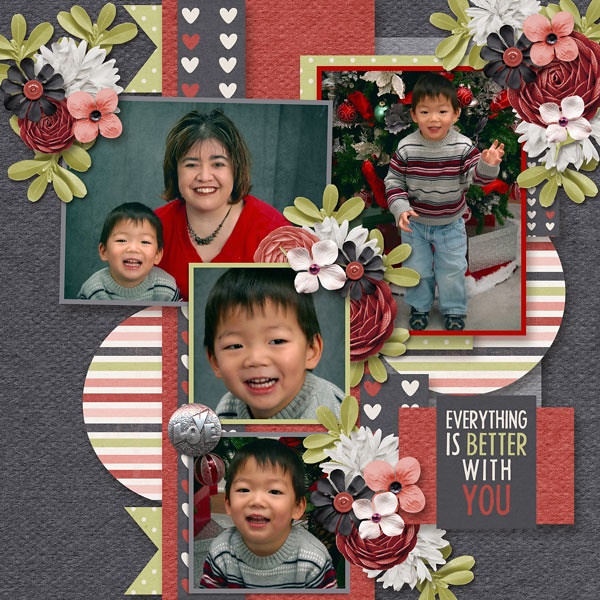
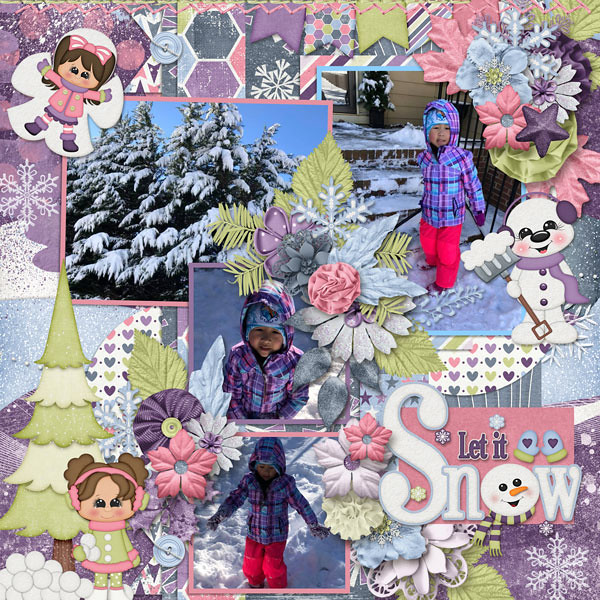
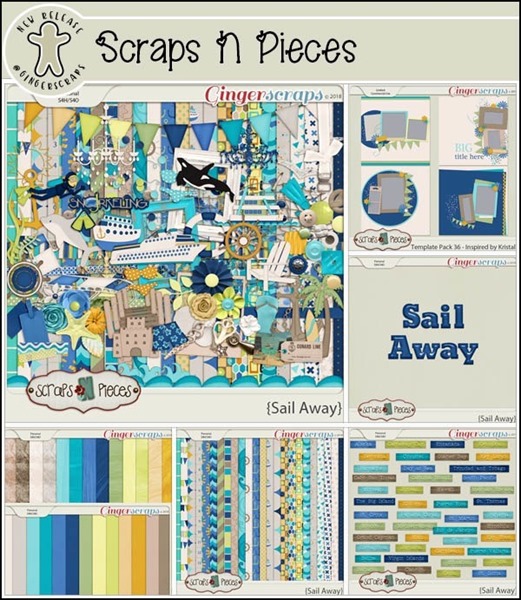
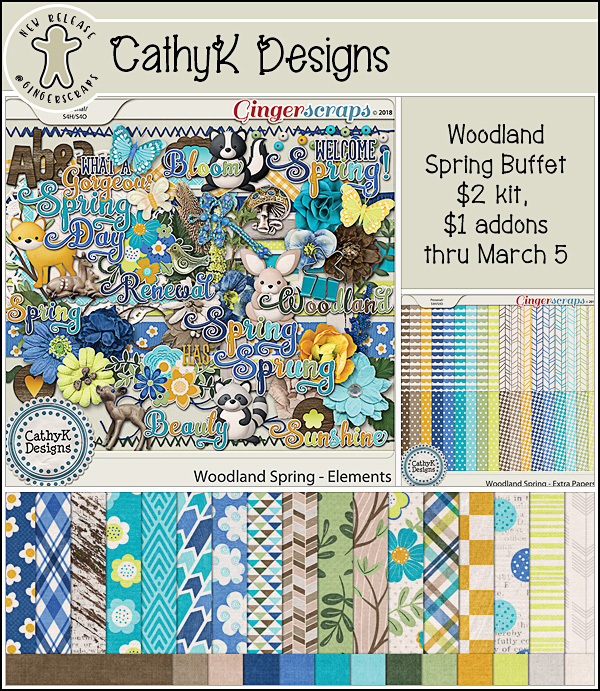
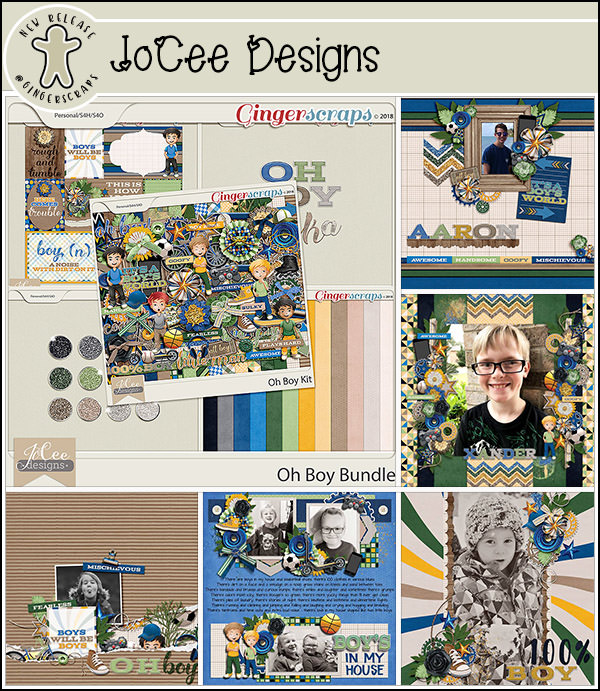
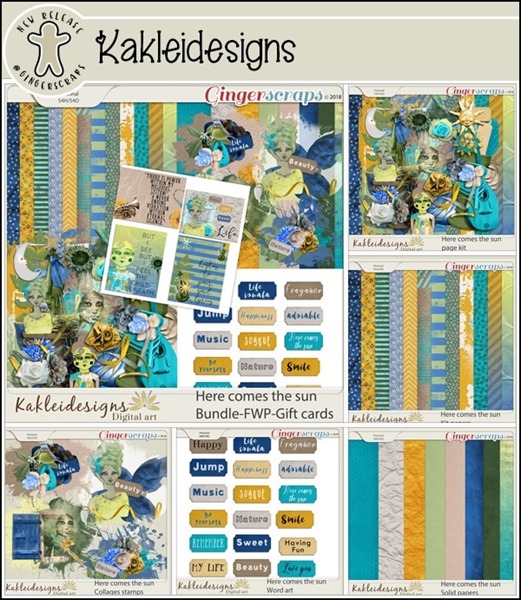
Wow – it’s already the middle of February. You all know what that means. It’s time for the Bake Sale. As always, the Bake Sale includes goodies that our designers want to share with you for just $1. This sale runs from today through the 20th.

Let’s see what they have for us this month.

There are some great kits and template packs included this month. Time to head over to the Bake Sale section of the GingerScraps store and full up your cart!!

Tutorial Tuesday (Photoshop Elements 15)

SKETCHIER!

If you’ve been reading these tutorials from the beginning you might remember one on turning a photo into a sketch. It had a lot of steps and might have been a little daunting for the novice Elements user. So I think you’re going to love this one for its total simplicity. It’s one of the black-and-white Guided Edits in PSE 15 called Line Drawing. (It might also be there in 14, but when I tried to find out which version it debuted in, I wasn’t successful.) And the possibilities with it are endless!

The best photos for this technique are ones with sharp focus and lots of detail. I played with it using a close-up photo of my dog and loved it. For this example though, I used a stock photo from Pixabay. Then select Guided>Black & White>Line Drawing.

Take a look at the different items I’ve highlighted in the image below. They’re the controls for this Guided Edit and they’re all really useful.

In the upper left corner of the workspace, you can choose the way you view the changes. Your choices are After Only, Before Only, Before & After – Horizontal and Before & After Vertical. Below I’m showing you Before & After Horizontal, where you can watch the transformation as it happens. You also have the option of zooming in on specific areas of the photo.

The Pencil Sketch Effect button takes all the work out of the process. One click is all it takes. If you click more than once, the sketch effect becomes more minimalist; give it a try and see if you like it. You can always CTRL/CMD>Z back to the initial step if you don’t.

Here’s what my example looks like after 2 clicks.

The next step is optional. Clicking on the Adjust Layer Opacity button adds back a hint of colour without losing the sketchy effect. Multiple clicks on this button however don’t produce additional effects. As you’ll see below, you can still make adjustments to this step later.

Adjusting Levels is where the REAL magic happens. My copy of Elements has a glitch in it such that the Levels button in this Edit doesn’t work. But I know that CTRL/CMD>L will bring up the Levels interface. If you’ve never used the Levels adjustment menu you’re in for a treat.

Levels adjustments can be made on all the different channels (RGB, Red Green and Blue) but for this purpose RGB – the default – is the only one we need worry about. I played with the sliders so you could see the way each adjustment changes the image. Looking at the histogram – that black bit in the Input Levels box – you can see the way the curve bends as you move the sliders. For this adjustment, moving the right little wedge to the left lightens the image.

On the other hand, moving the left wedge to the right darkens the lines on the image and seems to sharpen it too.

The trick is to adjust them so that the image pleases you. Watch what’s happening as you move the sliders and you’ll know when you see what you like.

My final settings for this image are shown below. I moved the left Input Levels slider to the right and the right Output Levels to the left.

So, once you’ve got that image looking the way you want it to, maybe like a lithograph from an old book… click on that Next arrow at the lower right of the workspace.

Now you have a choice. Remember from our other Guided Edits? You can save it or you can work on it some more. I picked In Expert so I could play with it just a bit more.

As you can see, there are two layers there when you move to Expert. There’s no limit to the things you can do once you get to this point. The Opacity of the sketch layer is 82% when you first open up your project in Expert.

Just as an example, I put the Opacity of the sketch layer to 100% and that hint of colour (really obvious when you look at the sky) is GONE. I don’t think it looks as interesting, do you? But you could use this to make personalized colouring books… think of the options1

So then I lowered the Opacity to 60%, which keeps the sketchy detail but lets more of the colour come through. You could also lighten up the coloured layer underneath in spots so only the sketchy bits are visible in that area. If you plan to do that, right-click on the photo layer and select Layer from Background, so you can add a transparent layer underneath it.

When you’re totally happy with how it looks, you can merge the layers together and save it with a funky name. Of course, that step is optional, but if you use it for something you’ll have to be sure to link the layers so they move together.

Whaddya think? Are you going to give it a try?

Fresh Baked: February 09, 2018

There are so many great weird holidays coming up, not just Valentine’s Day! Today is National Pizza Day and National Bagel Day! All the carbs! Tonight is also the Opening Ceremonies for the OLYMPICS! Get your winter sports on! Thursday is Singles Awareness Day. Hey, don’t stress! Have a Gal-entines Day! The designers have kits that will fit any funny holiday or mood, and they’re coming out this week! We have Olympics celebrations; we have Valentine’s Day; we have carbs coming out our ears! There’s something for everyone!

BUT, before you hit the store, I have a secret for you! It’s almost time for Survivor. Not the Survivor you watch on TV, but the one you get to scrap! It’s almost time for Gingerscraps’ Survivor!

And YOU have the chance to guess the theme and win the official collab! We’ve had some weird ones (anyone remember Grandma’s Attic?). We’ve had some fun ones (we were lost on an island once). So, get those guesses ready! And don’t ask me! I have no clue!

01
https://forums.gingerscraps.net/showthread.php?41670-SURVIVOR-Season-8!!-Guess-amp-WIN!&p=486013#post486013

Remember when you spend $10 in the store, you get a great new collab! It’s time to get out and do some winter sports!

fwp
https://store.gingerscraps.net/GingerBread-Ladies-Collab-Winter-Wonderland-of-Sports.html

lindsay01
https://store.gingerscraps.net/Chocolate-Overload-Collection-by-Lindsay-Jane.html

lindsay02
https://store.gingerscraps.net/Chocolate-Overload-Quick-Pages-by-Lindsay-Jane.html

luv
https://store.gingerscraps.net/Document-Life-February-2018-Grab-Bag-by-Luv-Ewe-Designs.html

magsBundle: https://store.gingerscraps.net/Olympic-Dreams-BUNDLE-by-MagsGraphics.html  
Kit: https://store.gingerscraps.net/Olympic-Dreams-KIT-by-MagsGraphics.html
Journal Cards: https://store.gingerscraps.net/Olympic-Dreams-JOURNAL-CARDS-by-MagsGraphics.html
Winter Pack: https://store.gingerscraps.net/Olympic-Dreams-WINTER-Pack-by-MagsGraphics.html

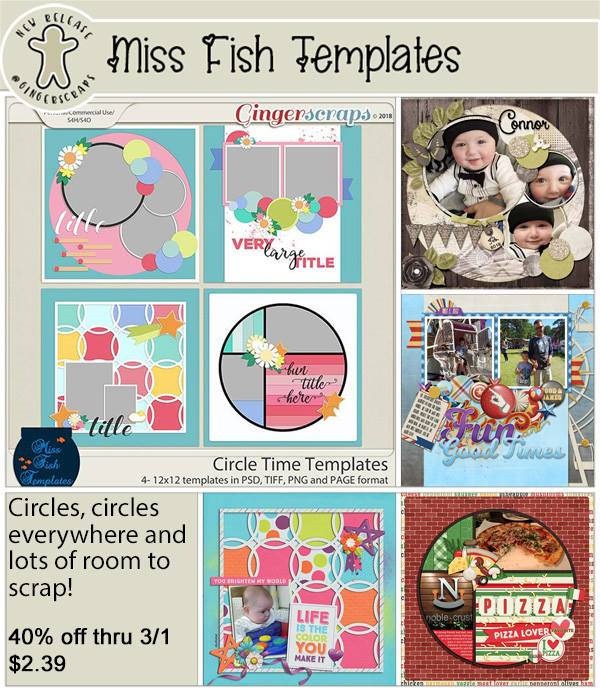
missfish01
https://store.gingerscraps.net/Month-by-Month-February-Templates-by-Miss-Fish.html

missfish02
https://store.gingerscraps.net/Stacks-on-Stacks-2-Templates-by-Miss-Fish-Templates.html

neia
https://store.gingerscraps.net/Neia-Scraps/

scraps
https://store.gingerscraps.net/Spoonful-of-Sugar-by-Scraps-N-Pieces.html

tinci
https://store.gingerscraps.net/Full-of-love.html

aimee01
https://store.gingerscraps.net/Heartfelt-1-Templates-by-Aimee-Harrison.html

aimee02
https://store.gingerscraps.net/Pocketful-1-Templates-by-Aimee-Harrison.html

boomers
https://store.gingerscraps.net/Love-Bandit-BGD.html

cathy
https://store.gingerscraps.net/Mud-On-The-Tires-Bundle.html

connie
February Grab Bag: https://store.gingerscraps.net/February-2018-Grab-Bag-Winter-Sports-by-Connie-Prince.html
WordArt Pack: https://store.gingerscraps.net/Winter-Sports-WordArt-Pack-by-Connie-Prince.html

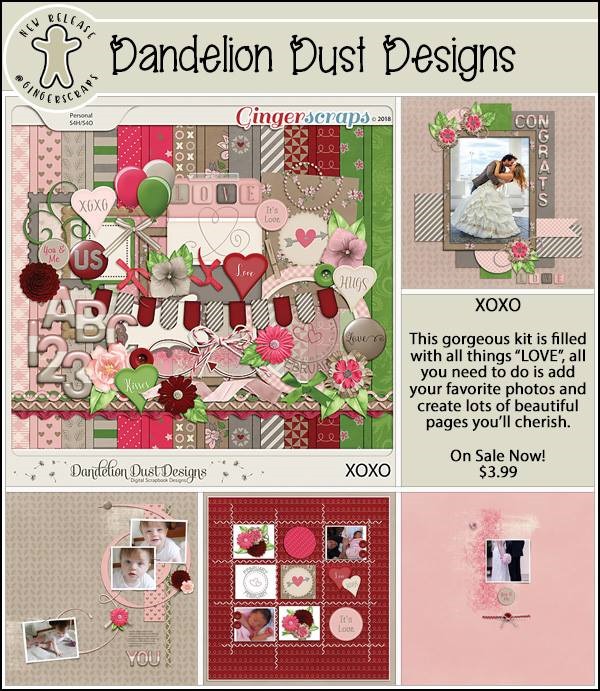
dandelion
https://store.gingerscraps.net/It-Must-Be-Love-Digital-Scrapbook-Kit-By-Dandelion-Dust-Designs.html

hearts
https://store.gingerscraps.net/Circles-of-Love-8–Templates-HSA.html

heather
Bundle – https://store.gingerscraps.net/League-Night-Bowling-BUNDLE-by-Heather-Z-Scraps.html
Kit – https://store.gingerscraps.net/League-Night-Bowling-KIT-by-Heather-Z-Scraps.html
Word Bits – https://store.gingerscraps.net/League-Night-Bowling-WORD-BITS-by-Heather-Z-Scraps.html
Accents – https://store.gingerscraps.net/League-Night-Bowling-ACCENTS-by-Heather-Z-Scraps.html

kristmess01
https://store.gingerscraps.net/Chantilly-Lace-Trio.html

kristmess02
https://store.gingerscraps.net/Kristmess/

lauries01
https://store.gingerscraps.net/Rock-On-GrabBag.html

lauries02
Bundle: https://store.gingerscraps.net/Let-s-Cuddle-Bundle.html
Kit: https://store.gingerscraps.net/Let-s-Cuddle-PageKit.html
Flairs: https://store.gingerscraps.net/Let-s-Cuddle-Flairs.html
Grunge: https://store.gingerscraps.net/Let-s-Cuddle-Grunge.html
Ombre Papers: https://store.gingerscraps.net/Let-s-Cuddle-OmbrePapers.html
Titles: https://store.gingerscraps.net/Let-s-Cuddle-Titles.html
Journal Cards: https://store.gingerscraps.net/Let-s-Cuddle-JournalCards.html

02
https://store.gingerscraps.net/CathyK-Designs/

03
https://bit.ly/mags_GS

04
https://goo.gl/DQK8T

Remember, if you complete 10 challenges, just ten, you get a free kit as well!!

cr
Get some pics of your love, because this kit is perfect for it!

Sneak Peeks February 8th, 2018


Happy Thursday! Are you ready to see all the awesome new goodies releasing tomorrow???

From Heather Z

From Tinci


From Neia Scraps

From Lindsay Jane

From Aimee Harrison

From Miss Fish

From CathyK

From JoCee

Tutorial Tuesday (Photoshop Elements)

First Past the Post(mark)

I unpacked the January Challenge Reward collab Snail Mail earlier today and was thrilled to see some postmarks included in the elements. They’re from this month’s featured designer, Neverland Scraps. A few years ago I made my own postmark that had my hometown and birth date on it for a layout I was doing. Postmarks can be nice additions to a variety of different layouts, but what if the ones in this kit don’t exactly work for you? Let me show you how to make your own.

I started by choosing a dark gray colour to work with. The ink used for postmarks in the old days when letters were hand-canceled (I worked for the post office back then) was more of a blue-black than a true black, and it often looked more gray than anything else, as the ink pad aged.

I opened a 12×12 canvas on my workspace so I could have lots of room to manoeuver. Then I pulled out a large circle using the Elliptical Marquee tool with the Tool Option on Fixed Ratio 1:1.

Then I applied a 20 pixel stroke to the inside of my circle.


So here’s where I confess that I changed my technique part way through the screenshots. When getting ready to put your text onto your postmark, choose Text on Selection, the one with the marching ants around the T, and as you can see, I used Orator Std Medium for my sans-serif text. For a refresher on text manipulation see Playing with Text.

The key here is to make sure you get the little tilde shape with your I-beam text cursor ~ when you click on your selected path. To create text that curves up, the cursor line should be mostly on the outside of your circle. Then type out the name of the city/town/village you want your postmark to come from. Don’t worry about where it’s placed on your circle because you’re going to move it and manipulate it anyway,

To move it into place and to make it fit into the circle, you’ll need to resize and rotate. I used the grid to help me position it in the right spot and line it up right.

To get the province/state/country curving downward along the bottom of your postmark, click your tilde/I-beam so that the cursor shows longer on the inside of the circle. Then type out your text.

Then resize, rotate and position it so it’s following the curve at the bottom of the circle.

Here’s a closer look at the grid so you can see how the tops, bottoms or sides of the first and last letters line up.

Then it’s simple to put the date in the centre, just using the regular text tool.

I used the Move Tool Options to align the date both top-to-bottom and side-to-side.

Let’s play with the postmark a bit more. I added a stroke to the circle layer because it looks a little flimsy. I chose another 20 pixel stroke, but I put it Outside.

There, it has a lot more presence! It’s on the same layer as the text in my example.

If I turn the circle layer off, now the postmark has a double outline!

As I mentioned above, I worked for Canada Post for a number of years before I went into nursing. The ink we used to hand-cancel letters and parcels often left a bit of a raised edge, so I’m going to show you how to add a Bevel Style to your postmark to add to the realism.

My example uses a Simple Inner bevel. The image below is before it’s applied.

And after… It looks slightly embossed and gently curved. Now you can shrink your postmark down to something approaching a real one and all that detail will be intact.

To save your postmark to use on your layouts, select Save As (CTRL/CMD>Shift>S), give it a name you’ll remember, then save it as a .png file to preserve the transparency of the background.

But wait!! Let’s say you wanted to have your postmark represent a historic date, like maybe July 4, 1776… then you’d want to use a more vintage font, such as Veteran Typewriter Regular. If you haven’t simplified your text layers, you can easily change your font by selecting the Type tool, double-clicking on the text on your postmark and selecting the new font. Remember, in version 15, you can let the software find the font you want by clicking on the selection bar then typing in a few letters from the font’s name, as I show below.

After I changed all three text layers, I have a nice vintage postmark too!

Now to build me a layout using Snail Mail!

Let’s Celebrate! | Valentine’s Day

GS_blog_LetsCelebrate_Header

It is that time of the year. You know what this blog post is going to be all about, don’t you? 🙂 February brings Valentine’s Day for us in the states. All things love, hearts, pink and red. So with that in mind, we are going to take the hard part of your digital scrapbooking shopping and bring you a ton of Valentine’s Day stuff all in one post. All images are linked to the store. Don’t forget, there is a section just for Valentine’s Day in the store. You can these items and more there.

Cannot mention Valentine’s Day digital scrapbooking supplies without mentioning this month’s Monthly Mix! This might be one of my most favorite Monthly Mixes to date; and I generally don’t lean towards all things lovely dovey when it comes to my digital scrapbooking supplies. I just love this one though!

GingerBread Ladies Monthly Mix: Date Night : A collaboration from our GingerScraps designers.

Date Night: This purple and pink filled kit will be perfect for any date night or special romantic occasion. It is full to the brim with hearts, champagne glasses, flowers and much much more. You’ll, no doubt, have an amazing time using this lovely kit to remember your romantic adventures for years to come.

This collab includes:

  • 1 Full Alpha
  • 44 Papers
  • 93 Elements

Here are some more great supplies from our GingerScraps’ designs to get your lovey dovey Valentine’s Day scrap on!


This wonderful Alphabet was made as part of my To Have & To Hold Collection. This collection is perfect for all your formal celebrations, like engagements, weddings and wedding anniversaries and much more!


Remember that fluttery feeling in your stomach when you had a CRUSH on that special person? This “Crush On You” Collection is perfect for scrapping those LOVE-ly memories!
This is the MAIN KIT. It contains 20 Papers and 58 Elements.


Beyond by Craft-tastrophic
Includes 12 textured papers and 40 elements
Personal use Only

[Read more…]

Fresh Baked: February 02, 2018

Monday is World Nutella Day. You know what? Monday, we need to all just hang out in front of our computers and tablets, working on some digiscrap layouts, eating Nutella straight from the jar! Who’s with me? I think the designers might! They have some wonderful new stuff coming out this week, and it’s all perfect for any memory you need to preserve!

Remember when you spend $10 in the store, you get a great new collab! It’s time to get out and do some winter sports!

fwp
https://store.gingerscraps.net/GingerBread-Ladies-Collab-Winter-Wonderland-of-Sports.html

[Read more…]

Sneak Peeks February 1st 2018

Happy Thursday! This week’s new releases are a bonus to the awesome Buffet collections that debuted today. Remember the Buffet products are 50% off until the 5th! Several designers have goodies releasing tomorrow as well! Let’s take a look!

From Craft-tastrophic

From Aimee Harrison

From Heartstrings Scrap Art

Have an awesome weekend!

Feel the Love at Gingerscraps!

Love! It’s all about love! Love of friends. Love of family. Love of digi-scrap! That’s what February is about! Time to spread the love and share in the memories!

It is the First of the month, and that means the revel of our new Buffet!!

Don’t forget to check out the Buffet Bundles, one easy click to add bundles of Buffet goodies to your cart, and an amazing value too!

[Read more…]

DD: Feb 01

The month of love is here and it’s shining brightly with this month’s daily download. I can’t wait to see layouts created with it.

Before I show it off, though, I have to share January’s Daily Download! It was all about facing the year without fear and making it your year!

https://store.gingerscraps.net/Fearless-Year-by-Miss-Mis-Designs.html

NOTE: So glad you enjoyed the January kit! 
Also thank you for pointing out that the item mmd_fy_smudge1.png needed some improvement. 
Misty (MissMis Designs) got that item fixed and here is a link. 
https://bit.ly/2DWkbLZ

And here’s the love-filled download for February!


https://bit.ly/2Gp4pqE

Remember, the download is kept up for 5 days, and then it is taken down. If you miss pieces, the kit will be available for purchase on the first day of the following month.