Tutorial Tuesday (Tips and Tricks)

Making the Most of (inter)National Scrapbooking Day!

This week’s tutorial isn’t filled with screenshots or long, detailed instructions. Instead, I’m going to offer you some tips to make  (inter)National Scrapbooking Day (which seems to have stretched out to a week…) work for you. I’ve been seeing a LOT of sneak peeks, ads and excited chatter, and I know there will be an overwhelming number of opportunities to get your scrap on, starting at different times over the coming week.

Here at GingerScraps, the people behind the scenes have been very busy organizing a celebration jam-packed with sales, games and a ton of fun. There’s a store-wide 50% off sale and a gigantic free-with-$20-purchase collab for starters. The scavenger hunt is not only fun, it might show you designers you’re not familiar with and may soon become new favourites. Our designers have created a fine selection of $5 grab bags – they’re always a great deal. And then there are the chats, speed scraps and games in the Forum. You don’t want to miss them!! And that’s just this one (albeit fantastic!) store!!

Back in 2010 when I was a digiscrapping newbie, iNSD and DSD (Digital Scrapbooking Day) were so exciting, but I found that I was a bit scattered in my approach. I ended up confused and bewildered, I overspent, and I wound up with a bunch of freebies I never use. So here are my tips for making iNSD work for YOU instead of the other way around.

  1. Don’t dive in head-first! Take some time to look at the stores you frequent to see what their special events look like. Make a list of things that interest you, including dates and times for things like chats or speed scraps. That way you can see conflicts easily and make a decision about which will be more fun for you. Also include deadlines for any contests you may want to enter. Planning right at the beginning will really help.
  2. Once your list is compiled and double-checked, create some kind of reminder for things that have a specific time associated with them. This can be as simple as a couple of Post-It notes stuck to the edges of your monitor, or as techie as reminders on your phone, complete with beeps or bells to prod you into action. I don’t know about you, but I’m becoming more forgetful all the time and without the pings on my phone, I’d miss a lot of things!
  3. Set a budget and stick to it. Figure out BEFORE you look at the sales how much you can afford to spend and make sure you don’t go over. Because iNSD is the same week as my birthday, I tend to be a little generous to myself, but I won’t spend more than $20 at any one store, and no more than about $50 for the entire event.
  4. There are going to be lots of blog-hops with free collections from various sources out there. Don’t fall into the “but it’s FREE!” trap. Even free is too much if it’s something you don’t love and won’t use. Think of the storage space you’ll waste if you go hog-wild with the freebies. Look at each and every freebie with a discerning eye and only download the ones you know will work for you. Take a look at how much room you have for new files and perhaps move some less-favoured (and therefore less-used) stuff onto a memory stick or external hard drive.
  5. Speaking of blog-hops, if you find one that’s especially fabulous and you HAVE to have it, you might find yourself signing up for newsletters or Facebook pages for designers you may never want to have on your Rolodex (or filling up your inbox). So make a list of ALL the places where you’ve signed up/subscribed/liked/followed so that you can later return and un-do them again.
  6. You might want to give some thought to pre-planning for any speed scraps you might join. Create a folder of possible photos to use. Have some in there that are in landscape format as well as some in portrait format, and some that can be made square or circular without losing anything important. Also have some that will work for multi-photo layouts, just in case. This will save you a lot of time when the speed scrap starts. Make sure you’re unlikely to be disturbed for the 2 hours a speed scrap usually lasts. And have a beverage and a snack ready before you begin.
  7. Don’t try to conquer the GS scavenger hunt in a single sitting!! Your eyes will thank you. But by all means, DO play along. This is the exception to my rule about freebies, since the prize is YOUR choice of a GingerBread Ladies collab. Who couldn’t use one of those? (I have my eye on one of the Monthly Mix collections that I don’t have in my stash.)
  8. And finally, review the tutorial I’ve provided on using a multi-file extractor. Don’t wait to unzip and organize all those amazing kits you’ve gathered, do it while you’re on a roll! You won’t regret taking the time now, but if you leave it, you might never actually look at any of the super-duper kits you just bought. And that would be a terrible shame!!
I’ll see you all again once we emerge from our NSD-induced fugues!

Tutorial Tuesday (Photoshop Elements 15)

Transforming the Ordinary to the Extraordinary!

Here’s a look at the little monster who’s been robbing me of sleep and keeping me from being productive. She’s lucky she’s cute! But we’re now halfway through Day 4 with no puddles in the house, and she actually slept all night last night. So there is a light at the end of the tunnel!
When I took a good look at this snapshot I caught with my phone, I thought it was pretty special. But it could be even better, so I thought, “Why not play around with some more of those Guided Edits in PSE and see what happens.” The results are below. I could have stopped after any of the steps I took, so don’t think you’d ever have to do all of these adjustments to make your photos more amazing. You don’t!
The first one I used was the Brightness and Contrast Edit. Guided>Basic>Brightness and Contrast.

The menu looks really simple, and it is! Clicking once on the Auto Fix button is perhaps all your photo might need. The sliders are automatically set as shown.

This is how it changed with just one click. It’s not all that obvious, but I think her eye pops a bit more.

I moved the sliders just a tiny bit, decided I was happy then I went down to the lower right corner of the screen and clicked on Next.

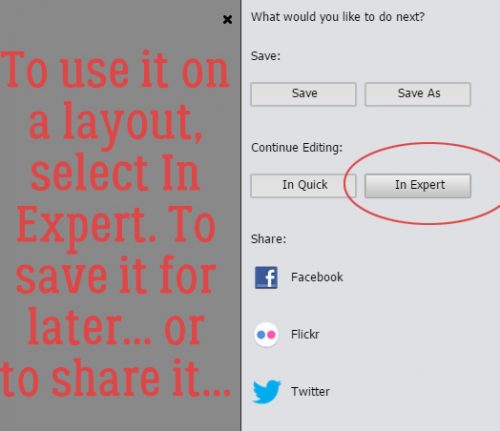
The menu shown below opens up, offering the options of Saving the image, Editing some more or Sharing it with your friends on social media.

Of course, I wasn’t done experimenting. So I clicked on Expert under Continue Editing, and then selected the Guided tab again. Next I chose Sharpen from the menu.

The menu for this edit is simple too. I clicked on Auto Fix.

And there’s a visible change. You can click the Auto Fix button multiple times, or manually adjust the sharpening by using the slider. When you’re ready, click on Next.

After I clicked on Auto Fix a second time, there was an increase in texture in the hair on her nose.

So I hit it again. I think it’s just a little too much though, looks artificial. So I clicked on the button beside the Next button, Cancel.

Yeah, that’s the best look. So Next

Now I decided to try one of the Guided Color Edits. Let’s see what Saturated Film Effects looks like.

I wanted to show you the menu for this edit before I made any changes. The Add Saturation Film Effect button is another one you can click on multiple times to intensify the effect.

I think this image looks a little brighter and a little softer but keeps the eye in focus.

So on to the next Edit! Anyone know what the Orton Effect is? According to Wikipedia, “Orton imagery, also called an Orton slide sandwich or the Orton Effect, is a photography technique which blends two completely different photos of the same scene, resulting in a distinctive mix of high and low detail areas within the same photo. It was originated by photographer Michael Orton in the mid 1980s.” Some purists feel that the effect has been overused, especially in portrait photography. But we’ll look at it any way. (I’m not much of a conformist!)

The Add Orton Effect button has 3 sliders for further adjustment. I pushed the sliders all the way to the left to see the effect at its most basic.

It’s another Edit that can be duplicated multiple times. Here’s what it looks like after two clicks. It’s very dark. But I haven’t given up on it!

I played with the sliders. I pushed the Brightness slider all the way to the right.

Then I added some Noise. It adds quite a grainy look to the image, and that might work really well for some purposes.

Now a little Blur… just a bit, to add that dreaminess the Orton Effect is known for.

And I could stop here. But you know me by now… I’m not done yet!

I’d like to go back to the Basic menu and hit it again with Brightness and Contrast.

Now I think it looks a lot like a painting by one of the Dutch Masters of the 17th century. It’s the light…

It’s only looking more and more beautiful!

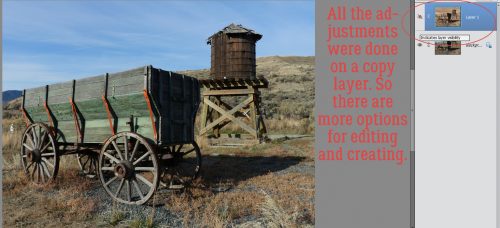
I’m sure you know I chose to continue editing. When I went to the Expert workspace, I discovered that each edit had created a new layer. So I merged them all together.

I wanted it just a little brighter still, so I chose to go the Enhance>Adjust Lighting>Brightness and Contrast route.

All I did was shift the Brightness slider a little to the right.

Okay. At this point, I absolutely LOVE what I’ve done with this photo. I saved it as it looks right now so I don’t have to recreate it later, because now we’re going to play with some filters. The image below shows Filter>Artistic>Poster Edges. It’s pretty cool! Think about how you could use this filter to create a caricature effect on your portraits.

I didn’t layer the filters, trying them individually to see how they each look by themselves. This is Rough Pastels.

Crosshatch adds to the Old Masters effect!

Let me zoom in on that one.

I’m so thrilled with how it looks that I’m almost done. I want to just add a little texture to it to push the oil-painting look a little more.

Who knew I was channeling Rembrandt?

My challenge to you is to use any or all of these edits to create your own masterpiece!

Tutorial Tuesday (Photoshop Elements)

Direct Your Own SCRIPT

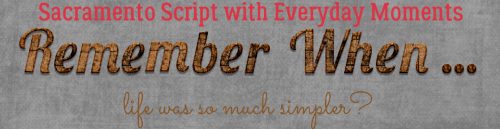
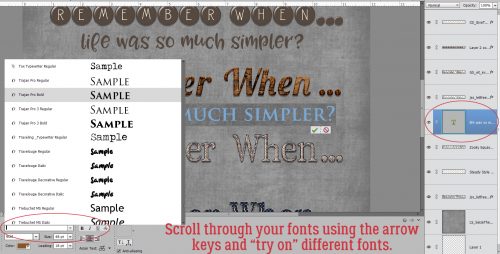
Wow, it’s Tuesday again already! This has been another one of those no-time-for-anything weeks, between my 48 hour work week, house-training a puppy who likes to get up 4 or 5 times EVERY night and the rest of the usual routine. I’m happy my dogs are bonded to each other, but the running in and out every 10 minutes is making me a little short-tempered. They’re worse than toddlers… but at least I don’t have to put them in snowsuits. I really haven’t had much time for scrapping since we brought this puppy home one month ago today. But I did manage to fit in a quick layout (about my dogs, what else!) for this month’s Font Challenge. I love fonts, and the Font Challenge makes it so easy to pick up new, fun ones. But I gotta tell you, I was a little unnerved that this month the featured font was in script. Don’t get me wrong – script fonts are fabulous, especially for journaling where the text is personal and emotional. But there are some script fonts that just don’t look as good on paper as they do in the font browser. You know the ones I mean. The ones where there are a lot of unnatural breaks in the flow of the text. You look at your journaling and you change the font because it just looks awful. Those of you who’ve been reading my tuts from the beginning will know I’m a little bit Type-A, a little bit OCD… things have to LOOK right to BE right. And those fonts make me totally cray-cray! Well, there’s a way to get around that!

Fortunately, KG Eyes Wide Open isn’t one of those fonts that drive me crazy. It flows nicely, one letter to the next, so I got my layout finished without a melt-down. Beautiful Day Regular is an example of one that sets me right into a tailspin.

See the gaps and malaligned strokes? I like my script text to look like someone took a pen and wrote it out; not too many people have that many breaks in their penmanship unless it’s an affectation.

Elements is great software, but there are some things it can’t do. While it’s possible to set the Leading of one’s text (the space between lines of text) but there’s no adjustment for Kerning  (the space between letters). If I’ve chosen a font that ends up offending my eye (and my personality) I delete the text and start over. The first thing I do is make a new document/project on my workspace.

I pull a Guide down to where I want my baseline to be to make the actual process less work. Elements has Guides that are easily dragged into place; put your cursor into the space at either the top of the workspace or at the far left of it, then click and drag it to where you want it. (My workspace has the Rulers visible, so I just put the cursor on top of the ruler and drag.) Another way of dropping a Guide onto your project is to click View>New Guide. This will allow you to tell Elements where you want the Guide to go. Be aware though that unless you Clear All Guides every so often, you’ll have a confusing array of lines popping up on your workspace seemingly at will.

To make the process as simple as possible, I align the horizontal line of the Text Tool‘s “I-beam” cursor, a facsimile shown below, right on my Guide then click to activate it.

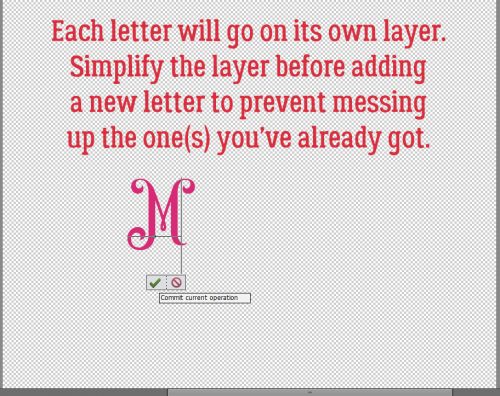
Each letter of my text will go on its own layer. I have my Preferences set so that in the General settings menu, the Select Move Tool after accepting text box is ticked. This setting turns the bounding box on as soon as I Commit current operation. Then I can move that letter into its desired spot immediately.

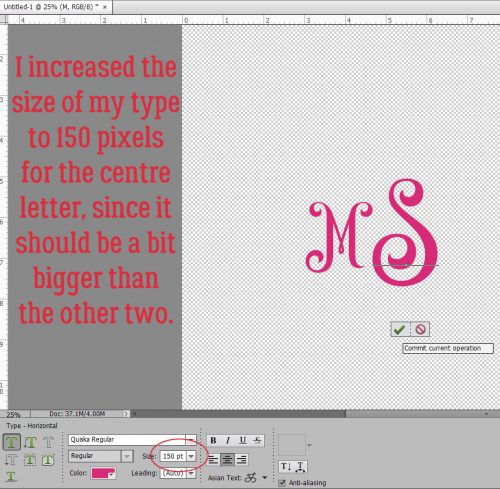
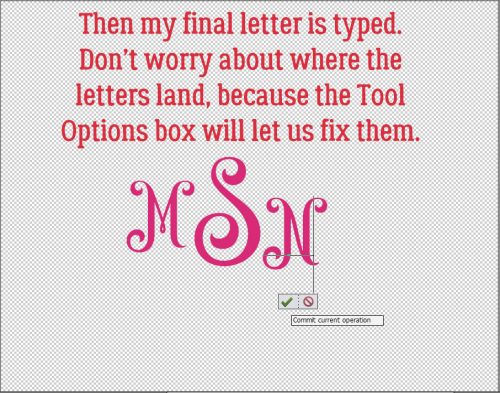
I keep typing my text out, one letter per layer.

Nudging them into place right away saves a lot of time and effort.

I put just enough space between the last letter of one word and the first letter of the next to make it look right.

If I don’t get the next letter into quite the right place, it’s no big deal.

I give it a little nudge using my right- and left-arrow keys.

Of course, if you’re not all that bothered by script fonts that don’t flow, you’ve already stopped reading.

I’m sure you won’t believe me when I tell you this, but it took me less time to get to this part of my text, typing it out one layer at a time and nudging than it has taken you to read this tutorial up to now. But it’s true. I use the keyboard shortcuts I show you to make it so much quicker. To engage the Text Tool for each successive letter, I click on the “T” – just the “T” – and it opens up. Then I click on my baseline, type my letter, click OK and nudge it. 5 seconds.

I’m so particular about how my text looks, I make sure the strokes for each letter line up.

It’s hard to know exactly where to put the Text Tool cursor on the baseline, so it’s a really good thing that it doesn’t matter at all!

Sometimes I get lucky!

Okay, so. If you’re anything like me, you find yourself with not enough room to say what you want to say in the way you want to say it. If you need more room there are two ways to accomplish that. One is to make the canvas wider, the other is to make the text smaller. Image>Resize>Canvas Size or CTRL/CMD>Alt>C will open up the menu to make your canvas bigger, in whatever direction you need it to. Or, you can select all the letter layers in the Layers panel, and shrink them to fit.

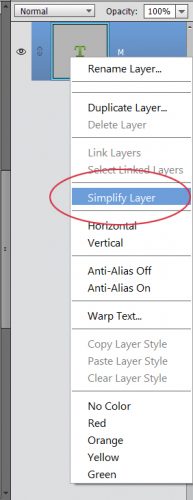
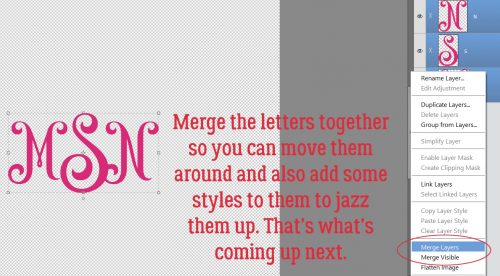
After I was finished typing out my text and had it looking the way my mind says it should, I selected all the letter layers and Merged them. That can be done by right-clicking and choosing Merge from the menu, or with CTRL/CMD>E.

Perfect!!

I’m so happy that my tutorial on unzipping files was so well received. When I sit down to write my tutorials, I’m never sure if I’m giving you, the GingerScraps community, information you can use. Sometimes, it seems, I get it right. Please do offer me suggestions on topics for future lessons… I appreciate the feedback!

Tutorial Tuesday – General

UNZIP Me Dahling!

I don’t know about you but I will never have too many digikits!! But being a digikit hoarder has its downside… All those kits have to be unzipped and organized. Who has time for that? And then there’s National Scrapbooking Day (well, more like NSWeek!) coming up in no time, with all the fantastic new products it brings with it. That you’re going to want to play with right away. What to do, what to do?

I’ll be the first to admit that my downloads folder is a mess. I’m trying to develop some better work habits, and keeping on top of unzipping is one thing that would really make a difference. So I’m going to show you a terrific app I found that lets me unzip multiple files with only a few keystrokes. It’s called Extract Now (clickable link) and it’s FREE! I work in Windows, but there’s a Mac version too. I’m guessing it’s similar in layout and behaviour, but I can’t say that for sure. I’ve tried a few others, one of which carried a virus… and this is the one I liked best for its ease of use. It’s on my taskbar now for ease of access. The menu looks like the image below.

There are several ways you can customize the performance of the app. I don’t use a lot of them, but the ones I do use include letting it check for its own updates and turning off the sounds. I’m surrounded by noise all day every day (if you’ve ever been on an intensive care unit, you’ll know what I mean), so I don’t want a bunch of added noise in my environment if I can turn it off.

In the Process tab, you can tell it what to do with the zip folders after they’ve been extracted. At first I had the app delete them as soon as they were extracted, but I had to retrieve some stuff and now I manually delete them.

This is where Extract Now really shines. You can designate exactly where your unzipped files are sent by using the Destination tab. I had it set up to extract everything into a Downloads subfolder, but found I left things in there forever and eventually forgot about them. The Help button is really useful at showing you how to customize the app for your purposes.

I create a new folder for each kit I’ve downloaded. If you’re into keyboard shortcuts, hit CTRL/Shift>N (Windows) and you’ll have a new folder you can call whatever you want.

Over the years I’ve refined how I manage my digikits. They all go into their own folder, which later becomes a subfolder within my store folders. I name them all with the same format, designer’s name and kit name spelled out in full. That makes it so much easier to find what I’m looking for later, and it helps too with credits when I post my layouts to various galleries.

I select all the zipped folders for each kit by clicking on the first one on the list, CTRL/CMD>clicking on the last one and voilà!! Then I can open up Extract Now and drag them onto the menu.

When I click on Extract, a submenu opens asking me where I want the files to go. This is when I find the new folder I’ve created for the kit in my Downloads folder and click on it.

Click on OK to All and the app goes to work.

You can watch the progress as your files are extracted. When all the files are successfully unzipped, you’ll see green check-marks next to each one and there’s a new button activated at the bottom right. Click on Clear and all the files are removed from your app workspace. I can extract several dozen files in a matter of a couple of minutes with this useful tool.

Like I said, I choose to manually delete the zipped folders from my kit folder, which is super-simple because they’re all still selected. After I minimize or close Extract Now, I only have to right-click on the selected files and choose Delete from the menu.

We all have much better things to do with our time than extract one file at a time, right?! Give it a try and see what you think. (You can always remove the app if it doesn’t work out for you.) May 5 will be here before we know it. Now go get your scrap on!

Tutorial Tuesday – Photoshop Elements

Totally TACKY!

We’ve moved into the second quarter of 2018 already! And with a new month comes new challenges at GingerScraps… Don’t you love them?? This month, Marina (Magical Scraps Galore) has a really different spin on the Mix It Up challenge. She wants us to use at least 3 different silver or chrome elements on a layout. Well. When I saw “chrome”, it was like a bell went off! I had planned to show you how to create a dotted border the quick-and-easy way, and it very quickly morphed into a tacky border instead. (Well, it’s a couple of additional steps.)

I chose this fabulous bandana-style paper as my background. It’s from Just So Scrappy‘s Let Freedom Ring collection. Then I popped a new layer on top of it for my border layer.

Next step was to choose a round brush from the Brush tool menu. I resized it to 75 pixels (to give it some presence) and set the Opacity to 100%. The colour really doesn’t matter but you should choose something that will show up against your background. I’m going to turn the visibility of my paper layer off for the next few steps. You can do whatever works for you.

After making sure I was working on the BLANK layer at the top, I went on to my next step.

I went back to my Brush menu and clicked on the Brush Settings button. Here I made sure my Fade was set to 0, Hue Jitter also to 0 and Scatter to 0. Spacing needs to be a big number. It’s a percentage of the brush’s size and will determine how much space is between the dots. Since I have a 75 pixel brush, I set this number to 400%. But feel free to experiment. Hardness (determines how sharp the edge of the brush will be) and Roundness both need to be at 100% (unless you’re faking a stitched border but we’re not going to go there today).

I turned on my Grid (View>Grid or CTRL/CMD>’) to save myself some effort. I decided my border should be 1/2 inch in from the corner. Then I clicked my Brush at that spot.

Do you remember how to draw a straight line in Elements? Hold down the Shift key and click at the spot where you want your line to end!

To make the rest of the border, it’s simply holding down the Shift key and clicking in the other three corners. It literally will take you 15 seconds. You can stop here if you just want a dotted border.

Now, to turn that dotted border into a tack border. I went to my Styles button down at the bottom of the Layers panel then chose Wow Chrome. In that menu I selected Wow-Chrome Shiny Edge. This Style set is one of the default styles that come with the Elements software right out of the box.

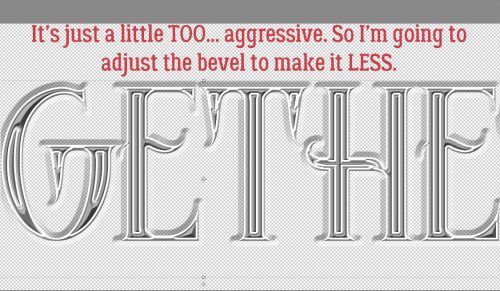
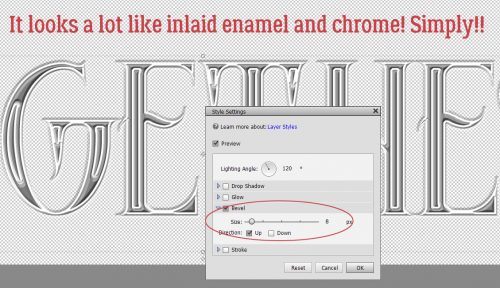
I liked the effect but thought it looked too umm… domed. If I’m smacking tacks with a hammer, they’re gonna flatten a bit. So I right-clicked on the fx on the layer and decreased the Bevel to about 6 pixels. I left the drop shadow alone.

This is how the finished border looked with the paper behind it.

To give you a better idea of scale, here’s the entire 12×12 canvas.

I wanted to see what other effects I could get using default Styles. So I copied the border layer and turned the Visibility of that layer off. It’s possible to add multiple Styles to an object or text as long as you work on individual layers with each.

This time I chose Bevels from the Styles menu and went with the Scalloped Edge bevel. Now the dots look like fancy tacks.

Next I selected the top layer and turned the Visibility back on.

I used the very same Wow-Chrome Shiny Edge style, but dropped the Opacity of that layer to 70%. Now the tacks look more like those pearl-inlaid buttons you see on Western shirts.

The different isn’t blatant, but it’s definitely there.

Another of the default Styles that came with Elements is Complex. I tried a couple of the choices here and settled on the Diamond Plate style. It has a funky industrial look to it.

When I decreased the amount of Bevel on this style, the effect became somewhat more matte and there wasn’t as much detail. It really looks like hand-cut nail heads to me now.

And here it is with the paper behind it. I’m not sure which one I like best. They’re all so neat!

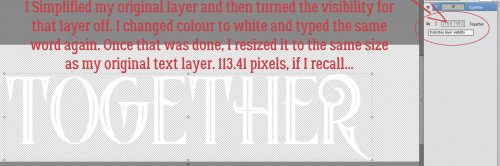
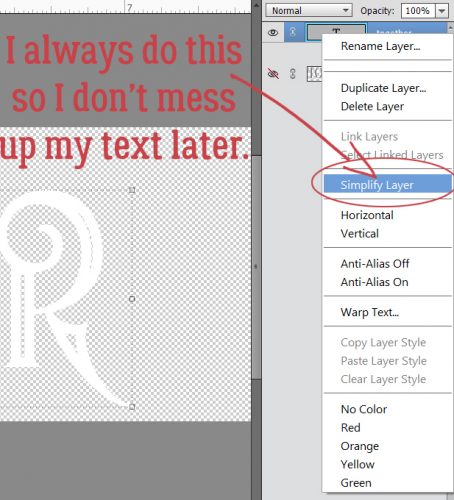
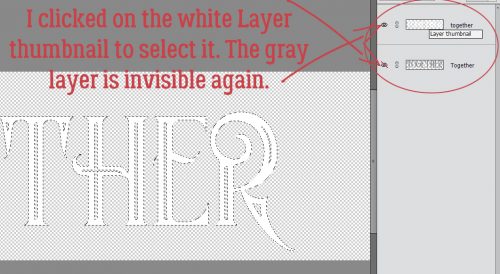
There’s one more thing I played with and that’s turning the dotted border into holes in the paper. So I Selected the Layer thumbnail of the dotted border layer by clicking on the thumbnail in the Layers panel. That gave me my marching ants.

I turned off Visibility for the border layer and made sure I was working on the paper layer.

Then I Cut the selected dots out of the paper. (Edit>Cut or CTRL/CMD>X)

That gave me perfectly spaced holes in my paper to perhaps weave a ribbon through.

I bet you can think of a few more ways to make this technique work for you. I’d love to see what you do with it!

Tutorial Tuesday (Photoshop Elements)

DIAMONDS are a Girl’s Best Friend

My dear friend Glee has been very helpful in providing me with topics and this is another one that came from her. She pointed me to this GORGEOUS layout by Imperio and asked if I could tell her how the diamond-shaped frame was created. Wait until you see how easy it is… you’re going to be looking for shapes to do it with.

I started with a 12×12 canvas – everything is resizable, right? Then I opened the Pencil tool and selected a hard, round brush from the PSE-default Basic Brush menu and set the Opacity at 100%. I used black for demonstration purposes, but you can use any colour you want. Make sure you turn on the Grid (View>Grid or CTRL/CMD>’) so you have defined dimensions. You can set your parameters in the Edit>Preferences>Units & Rulers. I chose inches because although Canada has been on the metric system of more than 40 years, I still think in inches.

If you’ve read the tutorial about giving stickers some dimension, you might remember how to draw a straight line with Elements. It’s pretty easy. Click on the spot where you want your line to start, then hold down the Shift key and click on the spot where you want it to end. The grid will make these next steps a lot easier by giving you reference points.

There’s my first straight line. The intersections of the major lines are obvious choices for this task.

I kept moving around the outside.

Then I took it to a point in the centre of the canvas, 1 inch from the bottom.

And back up, using the same reference points on the other side.

Now the shape is enclosed and looks kind like the insignia on Superman’s cape. (Maybe somebody wants to try that?)

I kept adding lines as shown in the screenshots.

You’ll see that I didn’t quite WSNH here… see the next screenshot for proof.

This will save you a step – just take that diagonal line all the way to the top corner.

Now there are only two more lines to put in there and you have that great diamond shape.

And a one-a…

… and a two-a! (Any Lawrence Welk fans here?)

Now I’ll show you how to make the clipping masks for the different papers, as Imperio‘s layout has. Add a new layer on top of your shape layer. Then click on the Layer Thumbnail for the shape layer.

Your selection will have those marching ants.

To invert the selection, either click on the Select tab and choose Inverse, or CTRL/CMD>Shift>I which will now select everything BUT the shape outline.

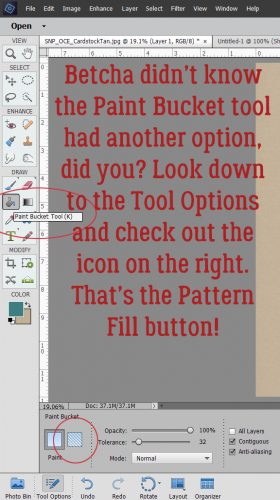
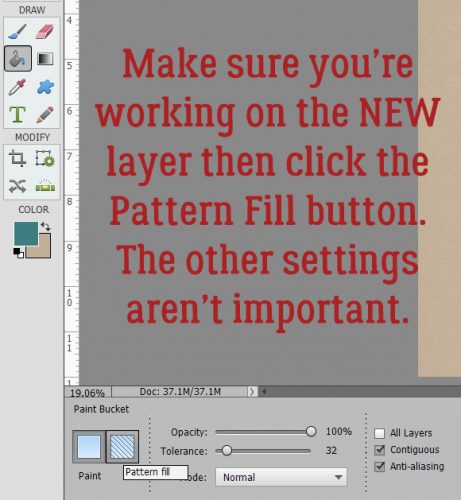
Choose another colour and fill the selected areas with the Paint Bucket tool.

And now your canvas looks like the screenshot, but not for long.

Turn off the visibility on the shape outline layer.

Now to get rid of the parts we don’t need to keep. I started by using the Rectangular Marquee tool and Edit>Cut or CTRL/CMD>X to cut away some of it.

Then I went to the Erase tool and used it with abandon.

Just erase what you aren’t going to need.

You’ll be left with something that looks like this. If you’re only going to use one paper for all the sections, you can quit now.

But if you want to use different papers for each section, make 8 copies of the filled-in layer as shown. CTRL/CMD>J is quick and easy, but you can right-click and select Duplicate Layer, then click OK on the pop-up menu if you’re into taking extra steps.

Turn off the visibility of all the layers but the one you’re working on. Now, go one layer at a time and erase all but one segment.

Here’s an example of two layers with only a single segment on each.

Use a BIG brush so you can do this quickly.

When you have only one segment on each of your 8 layers, you have a template! Each segment is its own clipping mask.

The second-to-last last step is to make the outline layer a little beefier. The easiest way is to add a stroke to it. I used 10 pixels and Centered it on the shape layer.

Then just move the shape outline layer to the top of the Layers panel and your template is complete. If you like, you can save it as a .psd file and use it over and over and over!

There are all kinds of ways you can make this technique work for you. Easter eggs? Flower petals? Pie? Have some fun with it… I sure did! Make sure you leave Imperio some love in the gallery. (Click on her user name anywhere in this post to go right to her layout.)

Tutorial Tuesday (Photoshop Elements)

Uniquely YOURS

Life at my house has been a tad bit hectic lately so today’s tutorial will be a quick-and-easy one. I don’t know about you but I just love Connie Prince‘s collections. She often includes some absolutely fabulous clustered word art titles, and she ALWAYS includes at least one alpha set. Her new collection, My Lucky Stars, is no exception. There are six clustered titles in the bundle… but what if none of the included titles really works for your layout? Well, it’s not difficult to make your own. I don’t know how Connie does it, but I’ll show you how Jan does!

I start with a new project workspace of roughly the size of the area I want to cover with my title cluster.

I like to start by placing one of the larger elements I plan to use into my space and moving it around a smidge. That will form the base for placement of everything else.

Then I usually add in my alpha. I’ve already decided what my title will say, and copied the various letters into my layout folder. As you can see, my title for this layout is “Sisters”. Make sure your letters are in the correct order! Then resize them all as a group. Guestimate how much space they’re going to take on your canvas.

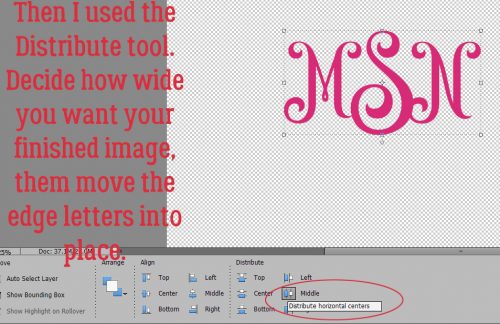
Getting the size right isn’t always immediate. I adjusted mine a couple of times before I used the Distribute tool. This is similar to the Align tool. It simply moves everything between two spaces as I’ve shown you below and distributes them based on what parameter you choose. I went with Distribute>Middle. You could choose the right edge or the left edge depending on the look you’re after.

As you can see below, I didn’t get the size right even after I resized a couple of times. So I resized, moved the last S over to the right edge again and Redistributed until I had enough space to read what my title says.

There were a couple of letters that I needed to nudge individually because the algorithm the software uses to determine the middle of a letter doesn’t account for skinny letters like I or wide letters like W.

Once I had the letters arranged the way I wanted them, I added more of my elements onto the workspace. Layer them in a way that makes sense to you and for your layout. I usually have some idea of how I plan to use the things I’ve chosen, but sometimes I get a happy little surprise.

I moved the letters and string up a bit so all five points of the star were visible. I tucked the bow in behind the I and a little on top of the first S.

I knew from the beginning that I’d be using one of the Celtic knots from the kit, but wasn’t sure where I was putting it. I decided it looked really nice behind everything else, so that’s where it went. And since I was creating this layout on March 17th, I had to include a shamrock.

Then came time to shadow everything. All the items in this type of cluster should be shadowed separately so they look right where they overlap once you move them onto your layout. I started with the first S in Sisters and used a shadow style for paper. Then I made some minor adjustments so it looked the way I wanted it. Can you see it in the screenshot? To use the same settings on all the letters I right-clicked on the first S layer in the Layers panel and selected Copy Layer Style.

Then I selected all of the other alpha layers. (If they’re on on top of the next, click on the first layer, hold down the shift key and then click on the last layer. If they’re staggered throughout the Layers panel, hold down the CTRL/CMD key and click on each one separately.) Right-click brings the layers menu back up and this time I chose Paste Layer Style.

Now all the letters are shadowed and have definition and dimension.

I made custom shadows for the string and the bow, bringing the shadow in close where the object touches what’s underneath it and pulling it away where things could be lifted off the paper.

The last step is to link all the layers together so when I move the title cluster onto my layout, everything goes, and it all stays where I’ve put it. To link the layers, select them all as you did for shadowing multiple layers in one click. Click on the little link icon to the left of any one of the selected layers in the Layers panel and the links will turn yellow. That’s how you know the layers are linked together and will move together when the time comes.

Once you’ve added your title cluster to your layout, look at it at several different magnifications to see if you need to add a drop shadow to the whole shebang. I found that mine looked better with an added shadow. The finished layout is built on a template called My Lucky Charm from Heartstrings Scrap Art.

That’s how Jan does it. Nothing to it!

Tutorial Tuesday (Photoshop Elements)

Tiny BUBBLES!

Have you ever seen a photo where it looks like there’s a soap bubble floating in front of the focal point? I’m so excited to show you how to get that effect (or maybe a crystal ball, magnifying glass or snow globe), and you’re going to love how easy it is! Don’t be intimidated by the number of images attached to this tutorial – half of them are just the “after” shot so you can see the change you just made. The first step is to choose your photo. It should have a strong focal point, like the butterfly in mine. This works with landscapes really well too.

The first step is to select a circular area of your photo around that focal point. I included the cluster of phlox the butterfly is perched on in mine. You can just draw a circle shape with the Elliptical Marquee tool, but it’ll make subsequent steps more difficult, so I recommend using the Fixed Size setting and a number you can remember easily. I chose 3.75 inches. I nudged it over so it included the parts I wanted in my bubble.

Leaving the marching ants active then CTRL/CMD>J will copy just what’s in the circle and put it on its own layer. (I learned several new things in the development of this tutorial!) Or, if you like the long way, right-click then choose Duplicate Layer, and add it to your current project.

This step should be familiar to long-time readers. Select the outside of your circle layer by CTRL/CMD>clicking on the layer thumbnail. Then go to Filter>Distort>Spherize.

You don’t have to change any of the defaults Elements has already put into the pop-up menu. Leave it at Normal and 100% then click OK.

Now you can see a bit of a bubble there. But it can be SO much better!

Create a new layer on top of your circle layer. Just click on the icon that looks like a piece of paper with a corner turned back.

Now you’re going to use the Rectangular Marquee tool, Fixed Size and the same dimensions you used for your circle.

Move the square selection over on top of your circle so the edges are touching the circle.

Now use the Paint Bucket tool to fill your square with black. Yes, black. Really.

Now it looks like this, and you’re sure you’ve made a mess of it. You haven’t. It’s all good!

Next you’re going to use another cool tool, Filter>Render>Lens Flare.

This is what happens when you click through. Change the Lens Type to 105mm Prime. Then click OK.

You can move that flare anywhere inside the square that you want. Take the direction of the light in your photo as your cue. Click on the + sign in the middle of the flare and holding down the left mouse button, move it to where you want it. Putting it in the corner like I’ve shown below works well.

We’re getting to the really good part soon.

You want that bright spot to be near the middle and the image itself more like a sphere. There’s another filter that does all that for you. Filter>Distort>Polar Coordinates.

The pop-up menu looks like this. Leave it set to Rectangular to Polar and click OK.

I promise you’re still on the right track. It looks quite ugly, but you’re going to do another couple of easy tweaks and it’s going to be perfect!

Remember when we were working with custom shadows on their own layers and I showed you the Smudge tool? Well, we’re going to use that to “fix” this flare.

Use a fairly big Smudge brush and gently push it left to right over the harsh line. See how it makes a nice curve?

Do you also remember playing with Blend Modes? I know it was a long time ago, but I hope you’ve been experimenting with them. Right now you’re going to change the Blend Mode on the black square to Linear Dodge.

The black square is still there, but it doesn’t look like a square any more. Can you see the depth it’s adding?

Again, Select the outside of your circle layer. CTRL/CMD>click on the layer thumbnail, but make sure you’re working on the black square layer.

You need to Invert your selection so the selected part is what’s outside the circle. You can either Select>Inverse or you can CTRL/CMD>SHIFT>I.

Now you’re going to cut away all the stuff outside the circle. Edit>Cut or CTRL/CMD>X will do that.

You’re almost there!

If you’re only wanting the image too look like it’s inside a **soap bubble you can skip the next few steps. But if you want a crystal ball look, or a snow globe or magnifying glass look, make a copy of the Lens Flare layer. CTRL/CMD>J or right-click>Duplicate>Layer then add it to your project.

This layer needs to be paler and softer, because it’s going to be your shadow. (Bubbles don’t really cast shadows, that’s why you can skip this part for bubbles.) Decrease the Opacity to somewhere between 40 and 50%.

Change the Blend Mode to Soft Light.

Almost there!

Now to make the second Lens Flare layer into a shadow. To do that Image>Transform>Skew.

Now you can grab one of the handles on the bounding box and shift it around. You can see the bounding box in the image below. You can move each one until the shape looks right to you. And you can rotate it too.

Hit that layer with a Gaussian Blur filter to make it soft and shadowy.

You want the edges to be soft, but not totally indistinct. A Radius of 7 or so is good. If your shadow isn’t visible in the preview box, click your cursor along the edge somewhere.

Once again, you need to Select the circle.

Then hit it again with the Filter>Distort>Spherize tool. That pushes the part inside the selection away and back so it looks like you’re seeing it through the crystal ball.

Same settings as before.

**Now, to get the look of a soap bubble, you’ve ignored the last eleven images. To get a bubble edge you need to create a new blank layer. Select the outside of your circle again by CTRL/CMD>clicking on the layer thumbnail. On that new layer, add a 1 pixel white stroke outside the circle. Then hit it with the Gaussian Blur  filter at a Radius of about 4.

And you’re done! There are lots of steps and the first time you do this you’ll feel like you’ll never get the hang of it, but I’ve written this tutorial from memory so it IS possible. Thanks to Chuckie Delano for the excellent video tutorial I used as a basis for this.

Tutorial Tuesday (Facebook Timeline Covers)

Here we are into March already! Time is flying, and as I get older, the faster it goes. (Retirement can’t get here soon enough though.) This week I thought we could talk about one of the new GingerScraps monthly challenges. This one, the Facebook Timeline Cover challenge, was suggested by one of our wonderful members and Ginger thought it was brilliant. In some ways it’s like the Signature challenge, not a full-sized layout, and with some specific limitations. I’m an inherently lazy person, so I decided I would make myself a little template to make it easier. And now I’m sharing it with you! (Of course, if you’re not on Facebook it’s essentially useless to you and you’ve probably already quit reading…) You can grab the template HERE and as you can see in the image below there are two layers. One is the photo spot and one is the background, which includes a stroke outline, if you like that sort of thing. I measured everything for you so you can just fill ‘er up!

Here’s a caveat for you. This template works really nicely on the desktop/laptop version of Facebook, but on your phone or tablet the photo will be centered on the background. Isn’t it great then that I’ve made the photo spot moveable? It’s on its own layer! You can see in the image below that the paper layer is on top of that stroked layer. I’m going to move it up my stack later.

I chose KristmessHappy Go Lucky kit – I LOVE it! I decided I wanted a frame around my photo and it looks great! It will hang off the template at the bottom and that’s okay. When you’ve got your Timeline Cover finished you can crop that bit off using the Crop tool. (CTRL/CMD>C) You might also notice I’ve thrown a scatter on there underneath the photo layer.

This month’s challenge was to create a Cover that reflects March to us. Some people might be already deep into spring, some might have a birthday (both my daughters are March babies), some might be into basketball and March Madness, and some might have special holidays to commemorate. For me, March is always about St Paddy’s Day. My very Irish grandfather lived for that day each year (it was the only day Grandma didn’t limit his pints) and he actually died on March 17 the year I turned 4. So my Timeline Cover is all about that. I added a few Irish elements then moved the stroked layer right on top of the paper layer so I could apply a glitter-gloss stroke to it. I used that dark green from Miss Mis DesignsMarch Buffet Sunshine and Rain style pack. I made the stroke a little wider first though.

Don’t forget to shadow your elements. The dimension and realism they provide will really elevate your cover.

After I put my finished cover up on my Facebook profile, I noticed there were a couple of tiny little tweaks needed to give it a perfect fit, so I adjusted your template to be just right for all of you.

Have some fun with this one! Make sure you keep a plain copy for next month and the month after that!


Tutorial Tuesday (Photoshop Elements)

The EYES Have It!

A number of notable thinkers through history have said the eyes are the windows to the soul, or some variation of that. That might be true, but when we’re talking about photographs, portraits in particular, the eyes are the focal point to which all attention is drawn. Am I right? I did some photo editing for Terri in South Africa over the weekend and one of the things I did was to bring the eyes of her subjects out of the shadows. She wondered if I could use her photos as the basis for a tutorial, but the adjustments I made to them were a little too complicated for this forum. But I thought a quick, easy little tutorial on brightening eyes might be in order. Let’s look at this really cute photo I found on Pixabay.

Yeah, she’s as cute as a bug’s ear. But think how much cuter she’ll be with brighter eyes! Zoom in on your photo so the eyes almost fill your workspace. We’re going to use the Dodge and Burn Tools again. The Dodge Tool looks like a lollipop, or that plastic wand the eye doctor uses at the beginning of an eye exam when he asks you to cover one eye. Dodging selectively lightens an area on a photo. We’ll start there. Select the Dodge Tool as shown, then make adjustments to the settings. It will automatically go to the software’s preset default, or if you’ve used it, to the last settings you used. Because I used this tool on Terri‘s photos, the brush size is huge. Not gonna work now! For this part your settings are: Dodge>Range=Highlights>Exposure=20>Brush=15 to 20 or whatever size will fit between the outside of the iris and the edge of the pupil. Brush your Dodge Tool over the iris of each eye, concentrating on the area right under the pupil. Don’t go overboard, you want the colour to remain, just lighten and brighten.

The effect will be subtle. But if you look back and forth between this image and the one above, you can definitely see it. Now switch to the Burn Tool, the one that looks like a hand with the fingers and thumb making a circle. Burning selectively darkens an area of a photo. Your settings for this step should be Burn>Range=Shadows>Exposure=20>Brush size 10-15. You want the brush to overlap your dodged area, but only a little. Then brush the Burn Tool over the outer edge of each iris, with a little extra attention to the area just below the upper eyelid.

See the change? The eyes are so much brighter, but not bash-you-over-the-head-brighter. They still look natural and real. You could stop here and have made a great improvement to the way people perceive your photo.

So let’s amp up the brightness factor by adding to the catch-lights already there. Again we’ll use the Dodge Tool. (It seems like a LOT of steps but it really is an intuitive technique after you’ve done it a few times.) The settings I used are Dodge>Range=Highlights>Exposure=60>Brush=5. Then just hit the catch-lights with that tiny brush to brighten them some. The brush needs to be very small; catch-lights that are too big and prominent make the person look like they’re under the influence… not their best look!

Wowsers! It looks so good!!

Again, you could stop here. Or you can switch back to the Burn Tool and using the same settings on Shadows, plump up those eyelashes a bit. I lined her upper eyelid then brushed over each lash to add some weight to it.

And when I was done, she looked like this. Now her eyes are much more noticeable and magnetic. It literally took me longer to do the screenshots than it did to brighten her eyes. I could have gone on to eliminate the freckles (why?? I LOVE freckles!) and even out her skin but I don’t think she needs it.

Will you try this one on one of your almost-perfect portraits?