Designer Spotlight: Shepherd Studio

It’s July. Half the year is gone already! Today I’ve got a treat for you… let’s get to know a bit about Jenn, the scrapper also known as catgoddess and the designer behind Shepherd Studio.


Jan: How long have you been designing?
Jenn: In some form or another, for 14 years.

Jan: What made you decide to design?
Jenn: Mostly peer pressure. haha

Jan: What led you to decide to design together?
Jenn: Miss Fish and I are old friends and it’s so much fun to design together.

Jan: What do you use to create your designs (program, additional tools, etc.)?
Jenn: I use PaintShop Pro and Illustrator

Jan: Describe your design workplace.
Jenn: It’s a bit more cluttered now working at home due to COVID, but it’s a large workspace/spare bedroom. I have multiple desk spaces for computer work (with two monitors – a must have!), for crafts, and for my Silhouette.

Jan: What motivates and inspires you as a designer?
Jenn: Mostly color and patterns. My kits are always filled with different patterns.

Jan: What is your favorite kit currently in your GS store and why?
Jenn: My current favorite is Tropical Fun. I love the bright, summery color palette and the animals (especially the turtle!) always make me smile.

Jan: If you could only eat one meal for the rest of your life, what would it be?
Jenn: Enchiladas

Jan: What is your favorite game or sport to watch and play?
Jenn: Tennis

Jan: What did you want to be when you were small?
Jenn: A paleontologist

Jan: Aside from necessities, what one thing could you not go a day without?
Jenn: Laughing with my husband (Jan: I read that as laughing AT my husband the first time… ’cause that would be me!)

Jan: Who would you want to play you in a movie of your life?
Jenn: Kate Winslet

Jan: If you had a warning label, what would yours say?
Jenn: Occasionally spicy

Jan: What celebrity would you like to meet at Starbucks for a cup of coffee?
Jenn: Paul Rudd

Public service announcement: Shepherd Studio‘s entire store is 40% off from July 17th to the 31st! Don’t forget to collect all the parts of the Daily Download too… free stuff!

Check back tomorrow and meet Miss Fish.

Tutorial Tuesday (Celebrations!)

Plan Your Holiday Photos NOW!

I took a look at the calendar this morning and got a bit of a shock. (I’m sure I’m not the only one losing track of days and dates…) It’s going to be JULY next week! My granddaughter’s second birthday is on Monday, her cousin’s birthday the next day and her big brother’s birthday is the day after that. And of course it means that Canada Day and Independence Day are also next week. So that got me thinking… maybe I should talk about planning your celebration layouts now, so you get the best photos. Even though many of the big events usually held on these national holidays have been cancelled this year due to the pandemic, I’m sure there will be events worthy of documenting. Don’t forget, you can always come back to this post next year for a reminder too. I try to have a rough idea of which shots I’d like to get so I went to Pixabay and had a look for the basic themes for Canada Day and the Fourth of July: parades, flags, food, family gatherings and fireworks. (The photos I found were all Fourth of July – we Canucks are a little less exuberant on our national holiday, but these tips are easily adapted for a made-in Canada celebration too.)
Let’s start with parades, since they’re often in the late morning or early afternoon, and kick off the day’s events. Try to think of interesting scenes you can photograph. Look for people in costumes and try to find a camera angle that will give you an interesting composition. This photo,  taken by the contributor beccajanef, caught my eye because of the Liberty hats. I’d love to have seen the crowd afterward, with all those hats on heads everywhere.

BigBearVacations gave us this shot. What I like about it is that the sun flare conceals the guy walking into the frame on the right, putting the focus on those hero-worshipping kids with Uncle Sam. At first I thought the photobomber should be cropped out, but a second look told me doing that would take away from the scale of the stilt-walker. I always wanted to learn how to walk on stilts, didn’t you?

The amazing Jill Wellington took this photo, which speaks to how patriotism is learned early. The sun flare adds a softness to the photo without distracting from the subject. I love her blue-and-white dress and red bloomers too.

There are so many ho-hum ways to photograph flags. But filling the viewfinder with the most recognizable area of the flag, along with the draping of the fabric, elevates this photo by TechPhotoGal to a much more interesting level. It also shows that you don’t need to include the entire object in your image to create a photo with impact.

When I look at this image, credited to OohhSnapp (aka Angelique Johnson), I get the impression of a huge flag and Angelique standing directly underneath it. It has a definite God-blessed-America feel. It’s a visually pleasing image for sure.

Ah! Food!! When you’re documenting the feast, look for perspectives that hint at how good the food will taste and how perfectly it’s prepared. It’s very easy to take boring food pix… but TesaPhotography (Tesa Robbins) captured a true delight for the eye.  I can almost taste the corn now!

Here’s another I-can-almost-taste-it shots. Here, utroja0 uses both composition and depth of field to give us a visual feast. The skewer in the foreground is in sharp focus and the grill is only partly in the frame. Between them they give the impression of lots of food and incredible aromas.

Here in Canada those ice pops (or popsicles, which is actually a trademark…) are called Rockets. And they’re my favourite. (I lived on them, literally, when I was sick last year.) No cookout or picnic is complete without the sweet finish. What makes this photo, again from the camera of Jill Wellington, so successful are the red-white-and-blue colour palette, the scatter of candy and the creamy background. The drips of melting ice cream hint at the heat of the day too, offering another clue to the kind of celebration going on.

Candid photos are almost always more appealing than tightly posed ones. This scene looks so natural and it’s easy to see the kids are enjoying their picnic with their dad. The background suggests it wasn’t taken in July, but that’s not the point… capturing those special moments when the subject isn’t aware you’re shooting them takes a bit of thought and some stealth, both of which Victoria_Borodinovea managed here. But… if you really want to have a formal-ish, posed group photo, try to arrange your people so their faces from visual triangles, allowing those triangles to overlap a bit. Use a small aperture so that your depth of field is large enough to keep all the eyes nice and bright. Another option is to line the kids up, shortest in the front, tallest in the back. If necessary, have them tilt their heads to one side, alternating sides so you can see everyone’s eyes, then snap away. Everybody will be recognizable in the shot, and everybody should be in focus.

Families who have cottages at the lake or on the beach may include a bonfire in their holiday plans. Photos of these can be incredibly beautiful, but can also be just okay. I like this photo by Free-Photos because it tells the story of a campfire through imagery.

I like this shot for the texture in the charring wood, the heat suggested by the flames and the containment of the firepan. flyupmike created his appealing image by getting in close (I’m hoping he zoomed the camera and not the photographer!) and intentionally cropping his shot in the viewfinder. This gives context to the image. Your could add context to your fire photos with silhouettes, or framing the flames in some way. Zooming in even more closely to capture the intensity of the burning fuel would work too.

Is there any better reason to have a bonfire than to make smores?? This tight shot of a toasted marshmallow, taken by skeeze, would immediately make me want to have a smore – and I don’t particularly like them!

Everything about this photo says “Fourth of July” to me: the flag in the background, the sparklers and the hint of a smile on the only face visible. The depth of field has the sparklers in sharp focus – where it should be, softening everything else into background. Free-Photos got it right again!

Doesn’t this photo just shriek JOY? Jill Wellington knows how to use her camera to capture the most captivating images. She has the children in silhouette to draw the eye into the scene and the upflung arms reveal the excitement of seeing the light show. The fast shutter speed she used froze both the girls and the fireworks, while her small aperture got the whole scene in focus.

Photographing fireworks is a real challenge. For more tips on how to get the best shots, Darlene Hildebrandt offers her tips here. The most important ones are the quality setting, figuring out where in the sky the bursts will appear, shooting into the eastern sky with a medium aperture, starting early in the show to avoid the smoke and using a TRIPOD. You want that camera stock still to get the best images. I just checked out the camera on my Android phone and it has some pro settings I’m going to have to play with. Our new house will give us a ring-side seat for any fireworks in our city, since we’re halfway up a mountain with nothing built behind us!

I’ve been gathering ideas for future tutorials and have some great ones lined up, so stay tuned!

Tutorial Tuesday (Photoshop Elements)

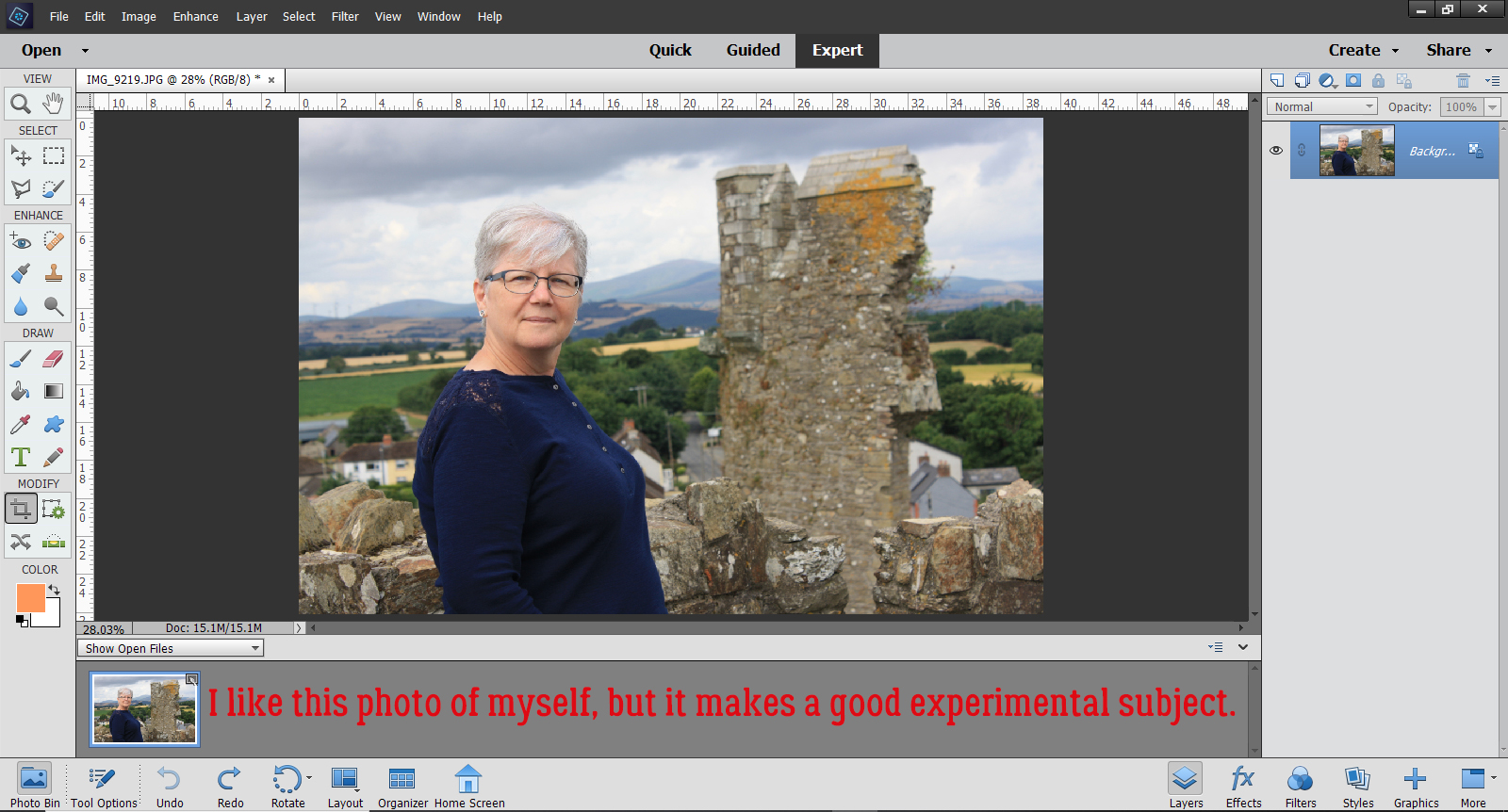
Faking It! Tuck a Corner into a Digital Slit

Sorry this tutorial was derailed. Who knew changing drivers’ licenses from one province to another was going to be an ALL-DAY event? I’m just happy I was able to lay hands on the 8 pieces of identification we were going for the 3 of us to need to get it done and we didn’t have to make another trip. Our house is still a work-in-progress and I haven’t found the right arrangement for my laptop and seating so I can actually work on the fun stuff. Our living room has floor-to-ceiling windows so the light is either in my eyes or being reflected off my screen into my eyes! And my craft space is packed to the ceiling with boxes so it’s not an option right now either. Oh well, all in good time.

The technique I’m going to show you today is one I thought about some time ago but never actually moved on. Don’t be put off by the number of screenshots to follow, because I’ve literally shown EVERY step, and there will be some you might decide to leave out. As well, this technique uses a lot of the same steps I’ve shown you several times before, so for those who are already doing some of the techniques I’ve shown you, this will be a refresher. So let’s get into it! I’m going to show you how to tuck the corner of a photo, or in this example, a journal card, into a slit in your background paper. I’ve used a paper and card from Just So Scrappy’s She Can kit. (Pretty appropriate – I installed a towel bar today, after putting together our new patio furniture yesterday!)

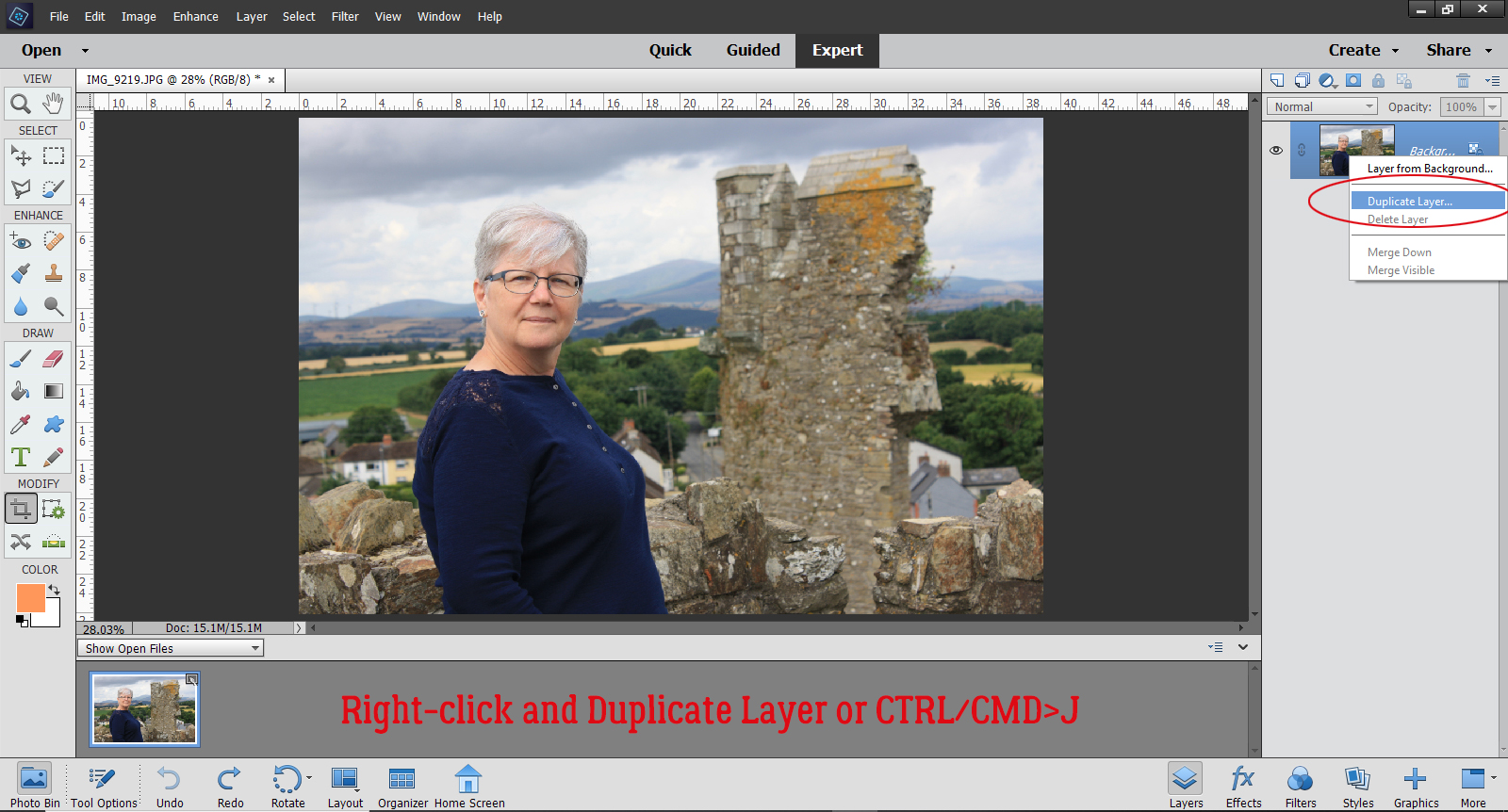
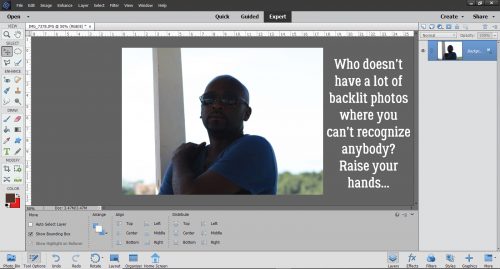
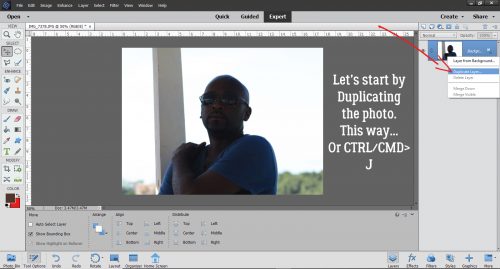
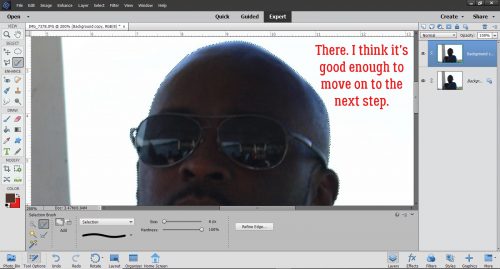
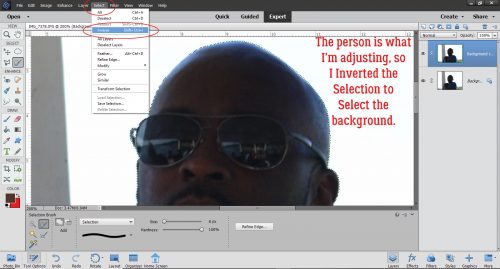
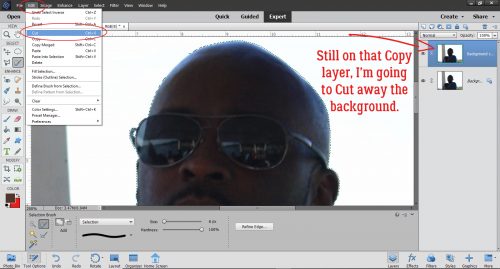
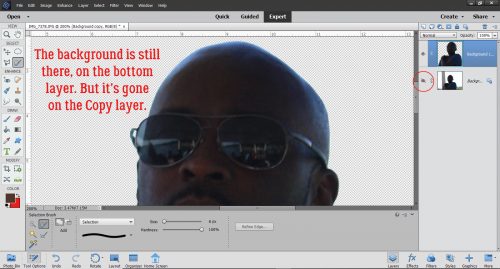
First thing to do is make a Copy: right-click>Duplicate Layer of the journal card. (or CTRL/CMD>J)

Now turn off visibility of one or the other of the cards. It doesn’t matter which.

Now rotate the card you can see to about 45° from the vertical. This will make clipping the corner of the card off much easier.

Select the Rectangle Marquee tool.

Click and drag out a rectangle over the corner you plan to put into the slit.

Click on Edit>Cut (or CTRL/CMD>X) and the corner will disappear.

Like that!

Turn the invisible card back on so you can align the two cards. Rotate the card with the cut-off corner back so that it sits exactly on top/underneath the UNCUT one.

Like this….

Turn the UNCUT card back off again for now. Time to put the slit into the background paper.

You can do this step with black, but I choose to use a brownish gray colour. I’ll use the same colour later for my custom drop shadow.

Zoom in on the cut corner as much as you can and still see both ends of the cut-off area. Click on the Pencil tool and set the Size to quite small – 5 pixels works well.

Recently I reminded you how to draw a straight line with the Pencil tool. Here’s a reminder for you. Click on where you want your line to start. Then hold down the Shift key and click where the line will end. That’s it. It takes longer to explain it that it does to do it. 😉

I forgot to mention that this step is done on a new blank layer.

There’s the slit!

After looking at it, I decided it was jut a bit too dark, so I dropped the Opacity down to 45%.

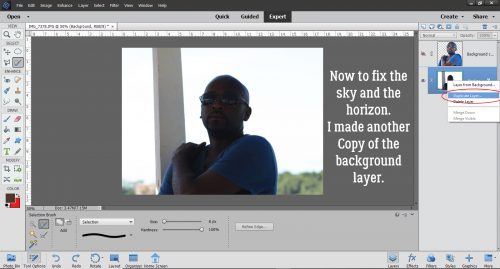
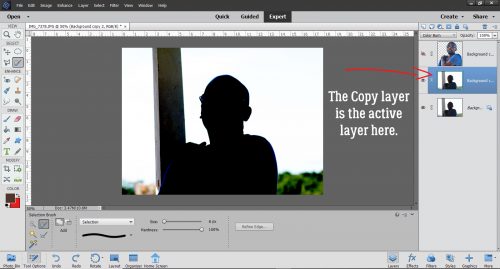
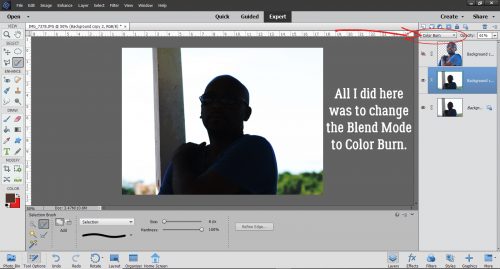
Then change the Blend Mode to Color Burn.

Go back and turn on the UNCUT card layer, and turn off the CUT layer. You need to be able to see where the card’s corner is to get this step done.

If you were doing this technique with a real card and real paper, when the corner is tucked, there will be a vague suggestion of the contours of the card visible on the paper layer. This contour will have areas that are highlighted and areas that are shadowed. To make this work digitally, use the Dodge tool set to a small diameter (I used 16 pixels at 50% Opacity) to highlight inside the edges of the corner, working with the background paper layer active. This is done just like drawing that straight line, but you’ll be taking the corner too. Click at the start of the first edge, hold down the Shift key, click right at the corner and then click again at the opposite edge of the card. Click-click-click! Make these Dodged lines just inside the edge of the card.

Then go back over the corner with the Dodge tool and a larger diameter (24 pixels) and lower Opacity (21%). Make your highlights a bit more inside the edges than the first round, which will give the appearance of a gradient to your highlight.

To create the shadowed area where the paper dips over the edges, use the Burn tool. But this time you’ll go just a hair outside the edge of the card.  I used 11 pixels and 21% for this step.

See how the background paper seems to hug the edges of the card?

I went back over the shadowed area again to just add a bit more visual gradient, but you might not see the need for it.

The effect is pretty subtle, but realistic.

Now the UNCUT card layer can be deleted. Either right-click>Delete Layer or use the Delete key.

Last step is to add a custom shadow. This is one of my quick-step custom shadow techniques. Click on the layer thumbnail for the card to select the edges.

The shadow needs to go on its own layer. Here I’ve shown it above the card and will move it down below the card in a second. Using the Paint Bucket tool, fill the selected area with your shadow colour.

Then I moved the shadow UNDER the card. Image>Transform>Skew is chosen to allow for some tweaking of the shape. With this tool you can move all four corners of your bounding box in whatever direction you want.

If you look closely you’ll see I moved the upper left corner out and up, the upper right corner down and in and the lower left corner over and in.

Remember when you’re creating shadows that you’re deciding where the light source is and estimating how much light will be able to get UNDER your object. Where is the object touching whatever it’s sitting on? I use the Smudge tool to further adjust my shadows. I like to use a BIG diameter and a very light touch. This is how I obtain a curved look to my shadow where the card or paper touches down in some spots and lifts away in others.

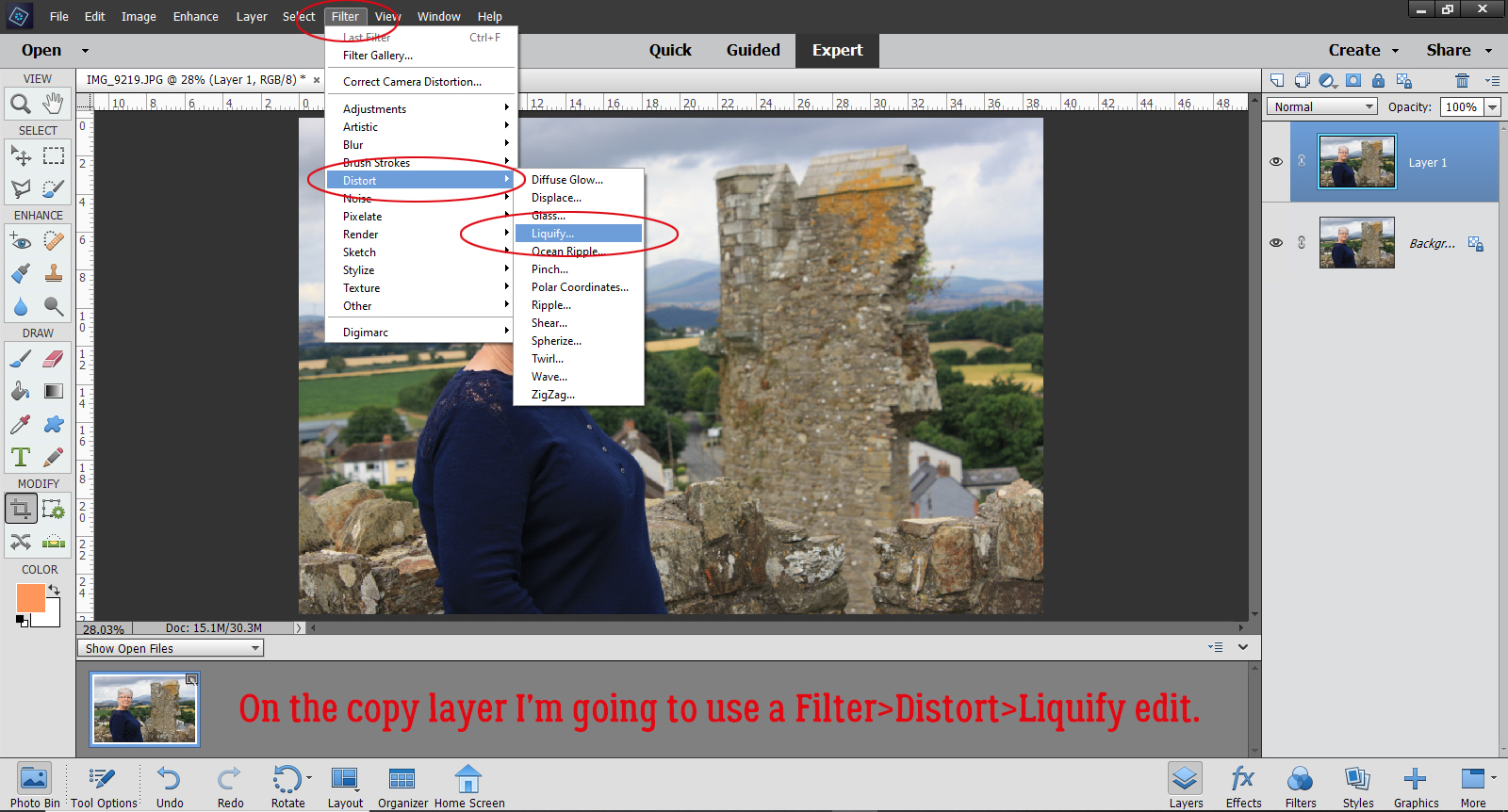
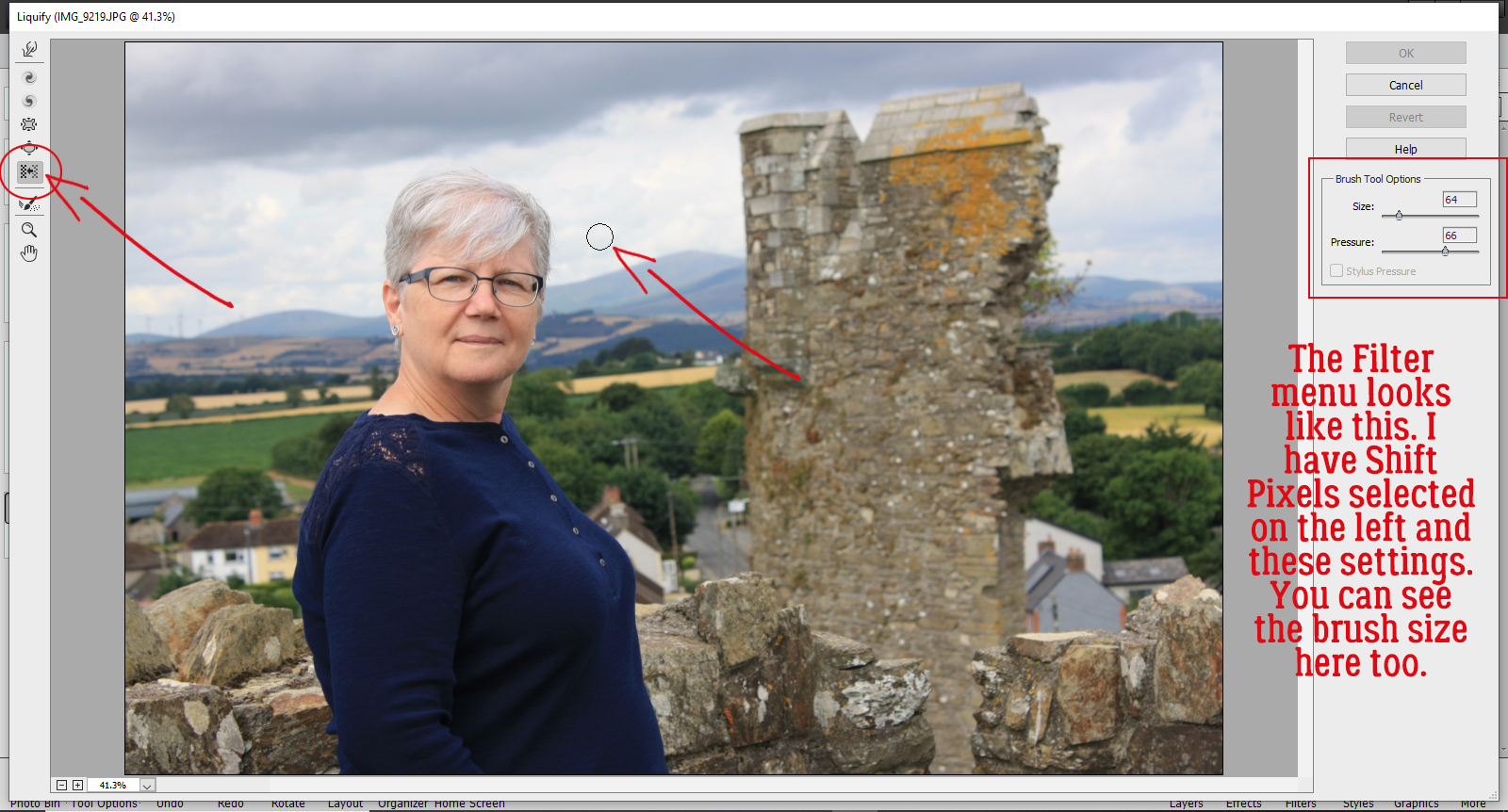
Once you’re happy with the shape of your shadow, it’s time to soften it up a bit. Harsh shadows aren’t attractive! The best way to do this is with the Filter>Blur>Gaussian Blur effect.

If the Preview Pane pops up and all you see is solid colour, you can shift the area in that Preview Pane just by clicking on an edge. Then you can see how much blur is enough.

Almost done! The last task is to lighten up the shadow a bit. I dropped the Opacity to 45%.

Changing the Blend Mode to Color Burn lets more of the underlying paper’s colour show through in the shadow, so that’s what I’ve used.

After looking at the end result for a few minutes I decided the slit needed to be a little longer – it looked really tight! All I had to do with it, since it’s on its own layer, was to stretch the line a bit at either end.

And then I was done! I like how it turned out.

I’m still getting the hang of the new time zone here, and I apologize for being so late! I’ll try for better next week.
 

Tutorial Tuesday

Jan regrets to announce that life took over her agenda today and the tutorial that normally appears here at this time will instead appear tomorrow. But it’s a good one!

Tutorial Tuesday (Fabulous Fonts)

Ten Fonts for DAD!

It’s almost Father’s Day already, and that means the year is nearly half over. I know staying home and feeling hemmed in has made it seem like time has really been dragging, but it really hasn’t. I know many of you have been scrapping your little hearts out to keep busy, and that Father’s Day this year (like Mother’s Day and so many other special occasions) will be a little different than we’d like. Personally, I haven’t had time for much, but that’s gradually sorting itself out. For this week’s tutorial, I have a question for you… “Do you have some great fonts for your masculine layouts?” I did a little looking around for some manly (and FREE!) fonts that will add the finishing touches to your layouts about Dads. These are the Top Ten on my list.

First I looked at dafont.com, which is my go-to for free fonts.

Chunk Five is a basic poster-type font, but a sturdy one.

Reisenberg comes in a variety of styles. It’s an all-caps font with limited punctuation. It’s clean and bold, so it will make awesome titles.

Galactic Vanguardian has a slightly futuristic look to it.

Black Hawk is a marquee-style font that would be perfect for layouts showcasing vintage photos.

Here’s another spacy font, Galaxy 1. I think it’s ideal for dads (or sons, or brothers) who love the Star Wars franchise, Space Balls, Star Trek, Battlestar Galactica… You know who they are!

This grungy font Capture It still has a lot of presence, even though it looks pretty rough.

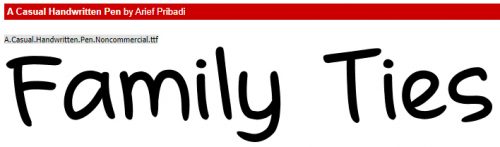
Then I moved on to fontspace.com, another source for fabulous free fonts. Permanent Marker is a handwritten font you could use for both titles and journalling.

I like this one, Trajanus Roman, for its formal and spare look.

The next site I checked out was 1001fonts.com, where I found a couple of keepers.

Marlboro is reminiscent of the old cigarette ads that used to fill up magazines. But it’s also a strong, rugged font.

I saved the best for last… I LOVE Saucer!! I can think of so many ways I can use this one.

What are YOUR favourite fonts for layouts about the men in your lives?

Tutorial Tuesday (Photoshop Elements)

Building Strong Borders with Brushes

Woo hoo!! I’m BACK!! Did you miss me?? Our move went pretty well, despite the challenges of COVID-19 and all that entails. We’ve been in the new house a month and are gradually sorting out our lives, finding out how to get to the stores we like and settling in. The dogs have made meeting our new neighbours pretty easy – they don’t have any hesitation or social-distancing skills at all. Everybody has been very welcoming to both them and us. Getting down to work writing a new tut has made me feel more like myself too. So let’s get after it!

Awhile back I asked for some topic suggestions on the GingerScraps Facebook page. This is one of those, from Shana, who asked for some tips on using brushes to create custom borders for her layouts. This might not be what she was expecting, but here goes!

The area around our new house is quite natural and there are so many wildflowers in bloom right now, so the concept for this border will build on the photos I’ve taken in the last month. I went through my stash and found a kit that will work beautifully with them, it’s CathyK Designs‘s Back to Nature. This solid paper is from the kit.

The colour I chose for my brushes is a medium brown. Don’t be too concerned about the colour choice you make, because changing the Blend Mode later might give you something unexpected, or you can always change it to something you like better later.

When I set up my “new” laptop several months ago, I discovered that I’d forgotten how to keep my brush library built in to Elements 2019, so I’ve changed my workflow with brushes, only loading the ones I want to use. Not sure how to load brushes? Click on the little icon that looks like 4 short horizontal lines at the upper left of the Brush control menu. Then select “Load Brushes“. Click on the set you want to add then click on Load. I put all of my brushes into a dedicated folder so I don’t have to hunt for them.

I might sound like a broken record, but this is VERY important. ALWAYS put your brushes on their own layers! If you forget and put the brush directly on the layer you’ve got active, there’s nothing you can do with it other than Undo. On their own layers they become “Smart Objects” and can be manipulated in many ways.

Because I put them on their own layers, I usually make them as big as possible, and then size them to fit my vision. I downloaded this set of free floral corner brushes from Brusheezy.com which is one of my favourite sources for free goodies.

I then positioned and sized my corner brush to be slightly less than 1/4 of the available area.

Then I made a Copy (CTRL/CMD>J) of the brush layer, grabbed one of the side “handles” (the little open square on the bounding box) and flipped the whole brush horizontally. I used to make myself crazy trying to get the exact dimensions with my mouse as I worked, but soon figured out that it’s much easier and more precise to just start the process, then tell Elements what I want! The Transform menu, which activates when you start the flipping process, has boxes for both height and width, so you can type in whatever you want there.

I decided I didn’t want to have upside down bows on my layout, so I went with a different corner brush for the ones on the bottom.

This one I just rotated 180°, resized and slid into place.

Another Copy, Rotate and slide for the opposite corner and it was time to tie the corners together. For this task I used a set of floral divider brushes I also got from Brusheezy.

I liked the look of this butterfly divider, but didn’t like that it messed with the bows at the corners. That’s easy to fix, and because it’s on its own layer, I won’t be mangling anything else.

I wasn’t sure if the butterfly would work at the bottom, but just in case, I made a copy of the layer before I altered it in any way.

I flipped the second butterfly layer vertically, moved it out of the way and then turned the visibility for it off.

Using the Eraser tool on the original butterfly layer, I erased all the areas that impinged on the corner brush layers.

Like that!

On to the bottom of the paper. Mmm. Nope. Upside down butterflies don’t work any better than upside down bows. I turned that layer off for now but it’ll be deleted.

I picked this divider brush from the same set and it works much better. Just had to remove the parts that overlie the corner brushes.

But….. it needs to be tied together at the sides too.

I like this divider brush, also from the same set.

It needed to be rotated 90° to work with the corners.

This time I didn’t need to have the brush where it was going to live to erase the extra stuff.

It fits in the gap so neatly!

I made a copy of it and flipped it horizontally to slip it into the other side.

Once I was happy with where everything sits and how it looks, I went ahead and Merged all the brush layers into one piece.

Now for the really fun part! I actually tried ALL the Blend Modes. Some of them turned my brown border to a beautiful red, but that wasn’t in keeping with my vision. I decided I liked Darker Color.

But instead of playing with the Opacity, I copied the border then applied a paper style I bought at Creative Market to the bottom layer.

After some experimenting I realized I needed to put a thin stroke around my upper brush layer, and the reason for that will become apparent in a minute. I put the stroke on its own layer too. To do that I added a new blank layer above the brown brush layer, then clicked on the thumbnail of the border layer to Select the outline. Applying the Stroke to that selection on the new layer gives me a perfect outline of my border.

I used the same brown and went with just 2 pixels’ width, applied to the outside of the selection.

Just like that.

I turned visibility for the layer I added the paper style to off so I could concentrate on what was happening to the brown layer. I changed the Blend Mode to Soft Light and like it a lot more.

It looks so different, but it’s pretty good!

Once I brought the Opacity down to 85%, I could see a hint of the paper texture and the border looked more like it belongs on the base layer. I like the way it came out, so I saved it both as a .psd (with editable layers) and a .jpg so I can use the paper for my layout.

Hopefully I’ll have time to get my layout together soon so you can see the full effect!

Tutorial Tuesday (Photoshop Elements)

Be A-Frayed, Be Very A-Frayed!

When I asked the GingerScrappers on Facebook for tutorial topics, I got some great suggestions. This tutorial was inspired by Lisa, who asked me to figure out how to fray paper like fabric. I had a couple of ideas, but I wanted to be sure it would work, so I used a FABRIC object to test my theory. This is the outcome. I’m pretty sure I’ve also solved the paper-fraying goal as well. If, at the end of this tutorial you’d like me to do a follow-up with paper, leave me a note in the comments and I’ll do it. It’ll involve filters……

My fabric object is this sweet denim pocket from Laurie’s Scraps (one of our April Featured Designers!) Toy Chest kit. I plan to put a hole in it and then patch it. So let’s get after it! (Yes, I have Cuomo Prime Time on in the background.)

Something about the very narrow margins around this pocket bothered me. I like to have a bit more transparent workspace so I’m just going to enlarge the “canvas size”. CTRL/CMD>ALT>C for you keyboard shortcutters, or Image>Resize>Canvas Size for the ones who are new to Work Smart Not Hard.

The margins don’t have to be huge so I just pulled 6×6 out of the air and typed it into the boxes. Now, see that tic-tac-toe board near the bottom of the menu box? Well, it lets you decide where the extra canvas goes! You can add it to one side or the other, top or bottom, depending on why you’re adding workspace. If I was making a cluster, for example, I would have an idea of where things in the cluster would be added and put the extra space where it would do the most good simply by clicking one the associated square to set the new Anchor Point. (I was yesterday old when I noticed that…)

For the sake of clarity I chose to use just an elliptical shape with the Marquee tool to make my hole. But whatever your vision tells you is what you should do. I could have used a custom shape or polygon of any kind, and that might make a really interesting look on a layout. Once I had my ellipse pulled out, I Cut the area inside it out. Edit>Cut or CTRL/CMD>X.

So now I have a hole in my pocket. How am I going to make it look like a REAL hole? With the Eraser tool to start with. I have the Brush selected as my Eraser type, and a very small size with 100% Opacity to completely erase my threads. Zoom is your friend for this technique.

Denim is a twill weave, with diagonal grain, so my “threads” are following that direction. I used the Eraser to remove bits of the fabric past the edge of the cutout. There’s no need for precision for this step – actually for any of it! – so I just randomly Erased sections of random lengths, and some of them are quite squiggly. That’s good! I worked my way around the hole; I went clockwise but it doesn’t matter how you do it.

So this is what I had once I’d created my threads. The bones are there, now to put the flesh on them!

Next I chose the Smudge tool (the one that looks like a finger) to soften and stretch the threads into the hole. Again, I used a small diameter brush, and not-quite-full Strength to make my threads threadier.

I put the Brush down on the denim then click-dragged the Smudger over the thread and out into the hole. To make a longer thread, start a little farther from the edge. Again, randomness and imperfection are the right things here, so make sure they’re not the same length or going in the same direction.

Everything about this technique is what you’re happy with, so don’t be too fussy about any of it. Just keep working it until you’ve got a good collection of stringy things in there.

Yep, you can criss-cross some of your threads! Those holes in your jeans will have some criss-crossed threads so why not?!

It’s starting to look more real by the minute, but there are still some things needed to get it right. The places where I Erased into the denim look too symmetrical and sharp so that has to be fixed. I’ll use the Smudge tool for that too.

But I’m skipping ahead here. Those threads are still too dark to look like a real hole, so I chose the Dodge tool to lighten them up. Remember Dodge lightens, Burn darkens? Well, just make sure you’ve got DODGE selected. Again a small diameter, 50% Exposure and Midtones will be the settings. Now I’m just going to brush that Dodge tool over the threads and into the denim around the hole a bit.

Better already! But not quite there. Close…

I moved back to the Smudge tool to soften up the edges. Same settings as before makes it simple to switch between tools.

I was most definitely NOT precise with the Smudge tool here, running it up into the denim to soften the areas where I’d already Dodged. Now it’s looking like a real hole in real denim!

I just switched back and forth between the Smudge and Dodge tools until I was happy with my holey jeans. It looks pretty good!

Then I put a piece if this pretty pink patterned paper from Connie Prince’s Denim and Pearls extra paper pack behind the hole like a patch. A drop shadow layer in between and I think it’s darned near perfect!

Please let me know in the comments if you’d like me to do this again with paper to show you the tricks for that. Kellie, I haven’t forgotten your scene cleaner request, but it’ll take quite a bit more time to put together than I have just now. I promise, it’s coming!

I’ll be taking a month off while we’re moving – the movers are here next Wednesday already! Look for a new tutorial – maybe the paper version of this one – around the end of May. Stay home, wear a mask, wash your hands!

Tutorial Tuesday (Photoshop Elements)

In the Background – Harnessing the Power of Your Software

I hope you weren’t thinking I jammed on you again this week. I made some serious miscalculations… My son had a liver biopsy today and although I knew we’d be at the hospital for several hours, I underestimated both the amount of time we’d spend sitting and waiting, as well as how draining it would be on both of us. And I overestimated my enthusiasm for going all day without food, fluid or a bathroom!
Susan said she’d like to try her hand at making her own custom backgrounds and I just happened to be fooling around with a few ideas for a layout that would work into a tutorial on using ordinary items in extraordinary ways. So this is the result. I’ve put most of the instructions right on the screenshots (there are 37 of them but don’t let that intimidate you – I’ve shown literally every step) so I’m not going to add a lot of text in between them. I hope you like the final result! I started by choosing a solid paper, a patterned paper that fit into the desired theme, a mask and an edge mask.
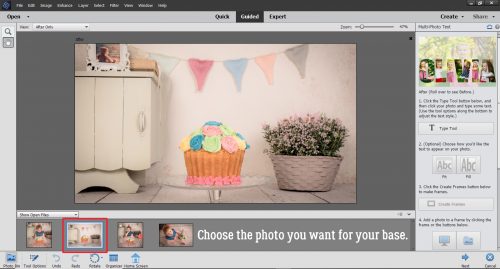
My paper is going to be soft and faded, but all the things I’ve done here can be customized to whatever look you want. I think it could easily be bent to a very bold, colourful, evocative layout, or boho’d up for an art journal layout. The limit is your imagination!
I love using Fill Layers to change colours on “flat” items like this edge mask.

I’m planning to use a heritage photo for my layout and opted for a sort of sepia palette.

This is the most important thing to remember when you’re changing colours with Fill Layers. Check that box!

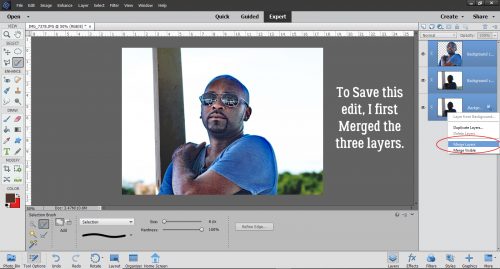
Merging layers is the best way to ensure the changes you make are going to actually be applied where you want them.

I changed the Blend Mode to Pin Light. (I tried them all to see what each did before I settled. That’s the fun part of this process!) Then I thought, “How would this look with a Filter applied to it?” So I opened up the Filter menu.

Again I tried a few, but decided Texture>Patchwork would look good.

Okay, I know this change is really subtle, but you can see that it changed the colour and added a nice depth to it.

On to the mask. I love Irina’s masks. They’re just gorgeous and can be used so many ways.

Rather than clip a photo to the mask, I clipped a patterned paper to it.

Okay, that’s nice, but not exactly what I want.

Tweak, tweak.

Once I had it kinda-sorta where I liked it, I Merged the two layers so all the rest of the changes were sure to go where I wanted them.

Something as simple as changing the Blend Mode to Overlay makes it look completely different.

I decided it needed a little more presence so I copied the pattern/mask layer. That layer I left untouched.

Okay! Now for the really fun part!! Brushes. If you don’t have many, you should check out the sources for free ones online so you can build a collection. Remember, ALWAYS put your brushes on their own layer. You need to be able to make adjustments JUST to the brush.

I have a collection of brushes, some I bought and some I didn’t. This set of handwritten ones was a purchase years ago… store has been long forgotten so I can’t even point you to it.

It was too stark so I changed the Blend Mode to Color Burn.

I want the writing to be there, but not “THERE”. So I also decreased the Opacity to 35%.

In keeping with my theme, I added a swirly brush in one corner.

And Copied it…

For symmetry, I flipped the copy and them moved it up into the top corner.

… then Merged the two layers.

And I Copied the new merged layer so I could put swirls into the other corners too. But after that, I’m done with symmetry!

There they go…

Do you need some hints?

The fact that I moved the swirly layer under the handwriting layer isn’t a crucial point, but I did want my handwriting to sit on top of the swirls. Then I went with Overlay on the Blend Mode.

They were still too obvious so I turned them down to 50%.

I had this goal of creating something that looked aged and a little distressed so naturally, I wanted a coffee ring on it somewhere!

But where? By putting it on its own layer, I can move it around until I like it.

I think this is the spot for it.

This brush set is amazing! It has about 8 different styles of lace and can be used in so many ways.

But it couldn’t be so in-your-face. Overlay at 37% is where I stopped.

I stopped playing with it and just looked at it for awhile. What was missing? What didn’t need to be there? Well that bald spot to the right of the masked paper needed some attention. So I added a grid brush that sort of follows the contours of the mask’s edge.

Some fine-tuning …

and a little resizing and I’m so happy with how it turned out. Now to do the layout………

Designer Spotlight: Laurie’s Scraps

Hey GingerScrappers! Let’s get to know Laurie…

1. How long have you been designing?

12 years on and off

2. What made you decide to design?

I have always been creative so this is just another way to be creative.

3. What led you to decide to design together?

I love the designs from Just Because! She is an amazing talent and a great person too, so why not?

4. What do you use to create your designs (program, additional tools, etc.)?

PS CC
IPad
and a Lenovo Laptop

5. Describe your design workplace.

Right now it is in my bedroom on a foldable table. I had to move up here so I can work away from the kids. But usually it is on our kitchen table.

6. What motivates and inspires you as a designer?

My kids most of the time.

7. What is your favorite kit currently in your GS store and why?

uhhhhhhhh…… I have no idea! Probably one of my “magical” ones. I love Disney and all that magic!

8. If you could only eat one meal for the rest of your life, what would it be?

wow, ok….ummmm…. Probably a typical Thanksgiving dinner. But I love all sorts of food!

9. What is your favorite game or sport to watch and play?

Soccer… it is easier to understand.

10. What did you want to be when you were small?

A Lawyer, Doctor and Teacher. All at once.

11. Aside from necessities, what one thing could you not go a day without?

Right now….Allergy pill. Hahaha.

12. Who would you want to play you in a movie of your life?

Charlize Theron…. she is sooo pretty!

13. If you had a warning label, what would yours say?

#NOFILTER! I do not filter out what I say most of the time. So what you see if what you get!

14. What celebrity would you like to meet at Starbucks for a cup of coffee?

Yikes! I have so many…. to have a discussion, probably Leonardo DiCaprio.


Tutorial Tuesday

I know all of you have been waiting patiently for this week’s tutorial. But I’m sorry to report there isn’t one. My dad (83) was admitted to the hospital (in another city) early Friday in serious condition. He’s okay, and has been discharged, but I’m mentally and emotionally exhausted. I hope to be running on all cylinders again soon. Meanwhile, stay home – flatten the curve! Take care of yourselves and the ones you love.