Designer Spotlight: NMSS

Greetings and salutations! I know you’re all wondering why I’m popping up and it’s not Tuesday. Well, I’m stepping in to bring you the March Designer Spotlight. We’re chatting with the lovely Connie Prince, the South half of North Meets South Studios. Let’s get to know her a bit better, shall we?

J: How long have you been designing?

I began designing digital scrapbooking products in 2004-2005ish, but officially selling in 2006.

J: What made you decide to design?

At the time the offerings were so limited, I was a paper scrapper and want to add unique elements to my layouts which I began to make digitally and print. It didn’t take long to realize I could do the whole thing digitally so much easier!

J: What led you to decide to design together?

Tracy & I developed a friendship early on. I think the progression into forming a brand together just happened. At the time she lived in the northeast and I am of course from the south. We named our brand North Meets South Studios. She’s in the midwest now, but you really can’t take the New Jersey out of a girl so we are sticking with our original name lol.

J: What do you use to create your designs (program, additional tools, etc.)?

I use Photoshop CC, Illustrator. I also have a scanner that I use pretty often to scan things to extract.

J: Describe your design workplace.

It’s pretty minimalistic. I have a double monitor setup, that’s the most exciting thing about it lol.

J: What motivates and inspires you as a designer?

I enjoy the process, coming up with an idea and creating it. The most rewarding part is seeing someone else use something that I’ve created to preserve their own memories.

J: What is your favorite kit currently in your GS store and why?

About A Boy is my current favorite (usually my latest is my favorite lol).

J: If you could only eat one meal for the rest of your life, what would it be?

Chicken wings, hands down I am obsessed! However, if I could only eat at one restaurant the rest of my life it would be Waffle House.

J: What is your favorite game or sport to watch and play?

None of them? lol I’ll watch some when the Olympics are on.

J: What did you want to be when you were small?

I can’t really remember wanting to be anything in particular, I played school a lot so maybe a teacher? I did grow up and get a degree in education, but I didn’t really enjoy teaching very much so I retired early 🙂

J: Aside from necessities, what one thing could you not go a day without?

My phone or computer!

J: Who would you want to play you in a movie of your life?

Cameron Diaz, she’s just quirky enough!

J: If you had a warning label, what would yours say?

I would have a bunch, but definitely: If you leave cookies unattended she will eat them!

J: What celebrity would you like to meet at Starbucks for a cup of coffee?

Dolly Parton, she’s a hoot!

J: These two designers are very talented. I hope you’ll give their store a look and that you’ll take part in the Designer Spotlight challenge. And don’t forget to pick up your Daily Download here on the Blog!

Tutorial Tuesday (Potpourri)

Is Exhaustion a Thing?

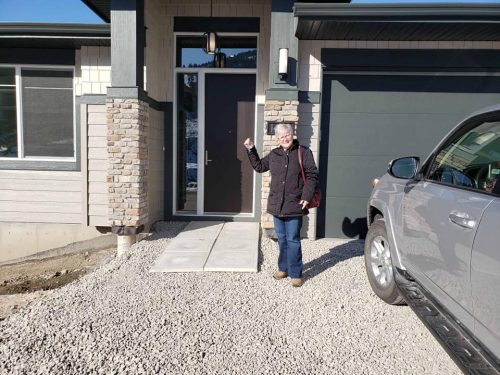
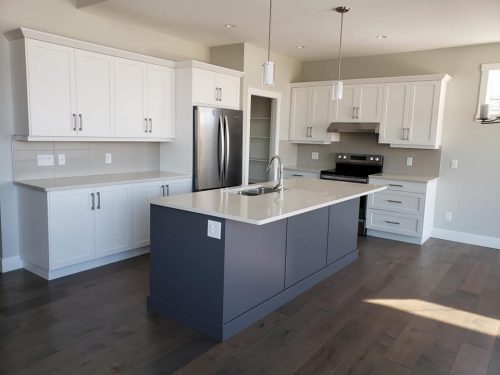
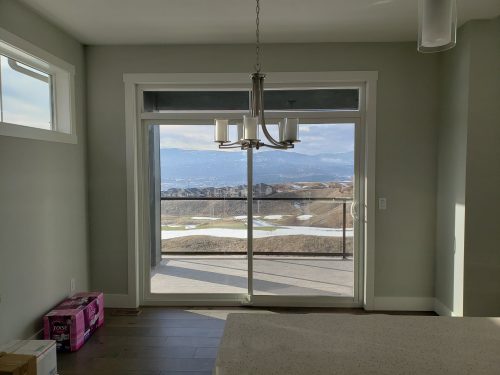
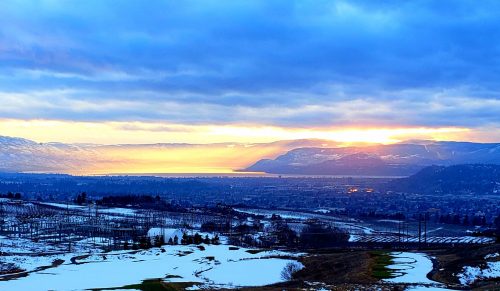
Well, last week was a total whirlwind! It still feels a lot like a dream, but we now own a beautiful new house in a surreal setting, even though we’re not moving into it until early May. The trip itself was pretty exhausting, both mentally and physically. Somehow we got to the airport without our son’s photo ID, without which he couldn’t board the plane. (We live 30 miles away, on the other side of a major city…) The airline was amazing and got us on a later flight so I could run home and get it. We ended up getting there 5 hours later than originally planned, but in the end that was fine. All the things that needed to happen to get us into the house happened, and I’m planning and scheming every minute of the day. All of this is leading up to me apologizing for not having a tutorial for you today, but in its place I’m going to give you a sneak peak at some of the photos you’ll see in my layouts in the coming weeks. And then I have a couple of little challenges for y’all.

What do you think??

Okay. Your first challenge is to find one of your layouts where you’ve used something you learned from Tutorial Tuesday and send me a private message (JaninAlberta) with a link to it. Don’t tell me what you did, I’m going to see if I can figure it out! Next week I’ll compile all the layouts I get from you into a blog post and share your successes with everybody else.

Your second challenge is to help me come up with a new user name. When we move, I’ll no longer be Jan in Alberta… I’ll still be Jan, but living in Kelowna, British Columbia. Ginger has told me I can change my user name when the time comes and I’d like it to be a bit more creative! Help?

Have a great week!
Tutorial Tuesday (Photoshop Elements)

Effect? Affect? What’s the Difference?

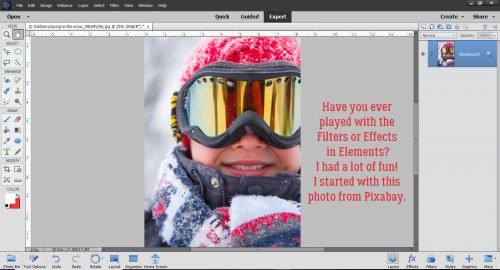
Today’s tutorial has some common elements with last week’s. I’m going to show you how to turn a photo into a work of art, and to blend it into a layout. But that’s where the similarities end! I played around for quite awhile before I got the look I was after, but lucky for you, I kept track of what I did so you can skip the experimentation and go right to the good part.

There are so many ways to make Photoshop Elements do fantastic things. I first played with the Filter Gallery, but didn’t get what I wanted. So then I started looking at the Effects Gallery. There’s where I found the pot of gold.

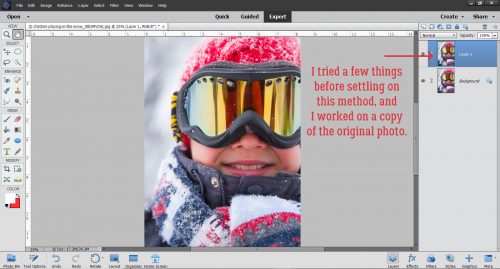
First I made a copy layer of my photo. (I actually tried to work right on the background photo layer but didn’t like where I ended up – no control!)

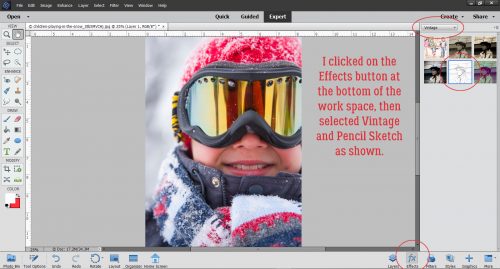
Then I clicked on the Effects button down at the bottom right of the work space. From the Effects Gallery I chose Vintage and then Pencil Sketch. (Yes, I’ve done a couple of sketch tutorials before, but this one is different. And a lot easier!)

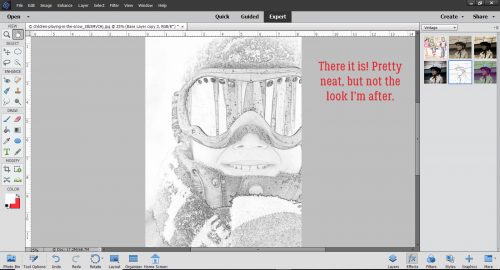
One click and this is where I went.

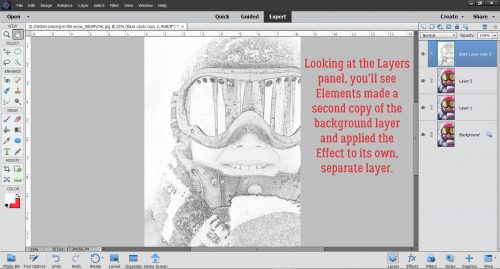
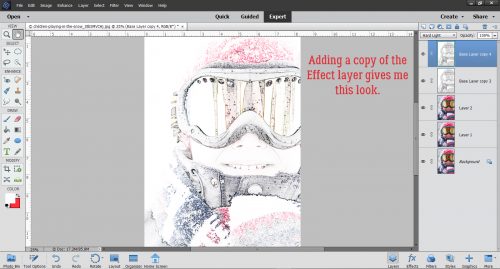
Elements has created another Copy layer and then added the Sketch effect to yet another separate layer.

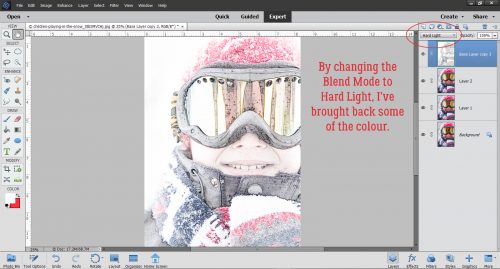
I tried out each of the Blend Modes until I found one I liked – Hard Light. It brought back some of the colour but kept the sketchy look.

I made another copy, of the very topmost layer and it lightened up the image and blew out some highlights.

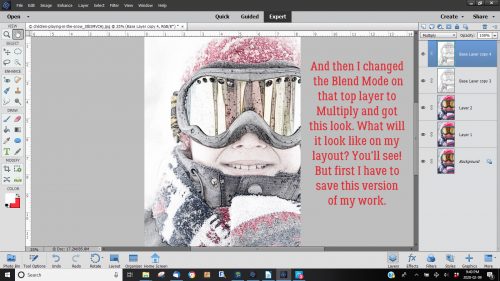
Blend Mode change to the rescue! I changed it to Multiply, and got a really arty looking image. I Merged all the layers and saved my new image as Sketch Edit.

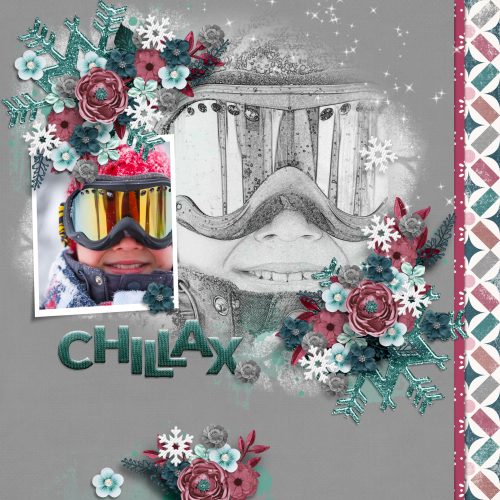
I don’t think anybody can guess what I did when I added the Sketch Edit copy of the photo to this blended template from Heartstrings Scrap Art. I decided to try some Blend Modes and settled on Luminosity. I love how it turned out.

I hope you’re having as much fun as I am when you try my techniques. But I feel it’s only fair that I let you know I may be MIA a bit in the next while. We’re closing on our brand-new house (in another province) next Tuesday!! It’s been a long haul since we signed the construction contract, and in some ways it feels a little surreal now that it’s finally done. We’ll be out of town tying up all those loose ends next week but I’ll try to have something for you for the following week… even if it’s just photos of the new house. We won’t be moving for a few weeks yet, and I’ll make sure you have a heads-up for that. Thank you for supporting me in this amazing hobby we share!


Tutorial Tuesday (Photoshop Elements)

It’s a Total Eclipse!

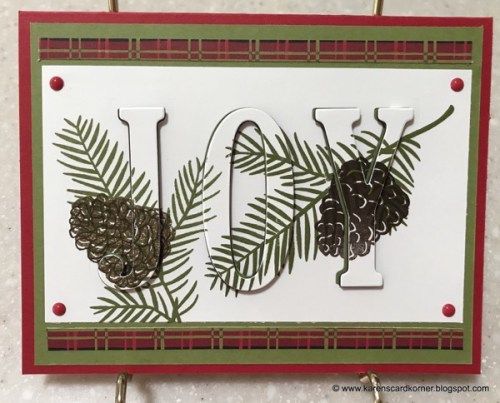
Greetings! As promised, today I’m going to show you a paper-to-digi technique that CalGirl (Steph) brought to my attention. It’s called the Eclipse Technique, and I’ll tell you, the digi version is a LOT less work than the paper one. To get this effect with paper, first the letters need to be cut from the foreground paper. Then several layers of each letter are cut from the background paper, stacked and glued together onto the back of the foreground paper letters. Then some foam adhesive pieces are added to the bottom of the stack, the stack is stuck into the cut-out areas and it looks like this card created by Amy Koenders from Stampin’ Up. It’s a really pretty look, and so simple to obtain digitally.

I think the best choice for a background paper for this technique will be a solid, but a paper with a tiny print might work well too. To look really fabulous, the foreground paper should have some sort of design. In the card image above, the pine branches and cones were stamped onto the foreground paper. Digitally, that’s a step you can skip unless you really want to do it. When you see my finished layout you’ll know how I went on that. I planned to use a template for my layout so I did the process with the papers I planned to use, in the way I planned to use them. The solid is from the GingerBread Ladies Warm and Cozy January gift-with-purchase collab, and the foreground paper is from Ilonka DesignsRejoice kit.

The font I used is called Amadeust Regular. Choose a font that has some oomph to it, so you get the full effect. (Although we’re not gluing together skinny little strips of paper so I bet it would be fine to go with something more scripty or delicate too.) Make sure you have two copies of your foreground paper before you go on to the following steps. Turn the visibility of your top layer off so you can see what’s happening.

You can use any colour you want for your text because that layer is going to be deleted later. This it the title for my layout. At this stage, your text layer needs to be underneath your lower paper layer; I’ve made it visible here just for clarity.

Now Select your text by CTRL/CMD>clicking on the Layer Thumbnail. That will turn on the marching ants.

Make sure your active layer is the lower paper layer now. You’re going to Edit>Cut the text out of your lower paper layer. Keyboard shortcut for this is CTRL/CMD>X.

With both the text layer and upper paper layer visibility turned off, you can see the background paper through the “holes”. When you add a drop shadow to that upper paper layer, the appearance of your cut-outs will change.

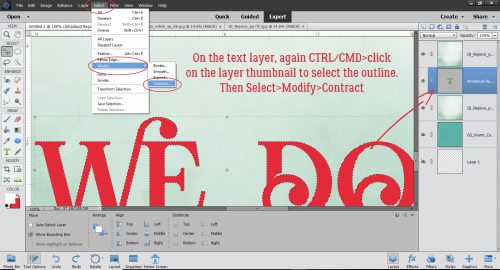
If you want to, you can move your text layer up to just underneath the upper paper layer, but it’s not essential. Again, Select the outline of your text the same way. CTRL/CMD>Click on the text layer thumbnail. But this time we’re going to shrink the selected area just a tiny bit. Select>Modify>Contract is shown.

In the dialog box for that task type in the number 2, which will move the marching ants toward the centre by 2 pixels. It doesn’t have to be much, just a wee little bit.

The next step is to Invert the Selection. Select>Inverse or CTRL/CMD>shift>I.

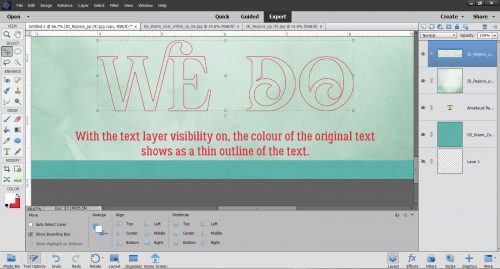
With this step we’re going to cut away everything BUT the letters themselves. Edit>Cut or CTRL/CMD>X.

Aha! See the red outline of my text? That’s exactly what I wanted to see.

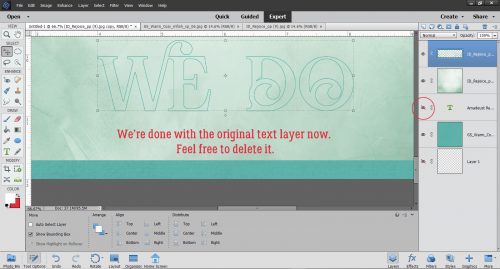
The original text layer has served its purpose, so you can go ahead and delete it, or simply turn it off.

I made a copy of the INSIDE letter layer and will be working on the very topmost layer in the next step.

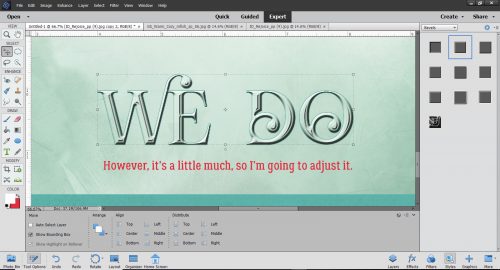
Here’s the fun part. We’re going to apply a Bevel Style to that topmost layer. Click on the Styles button at the lower right of your workspace and choose Bevels from the Styles menu.

I tried almost all of the Bevels on for size before settling on the Scalloped Edge style shown below.

It’s not exactly what I was looking for so I made some adjustments.

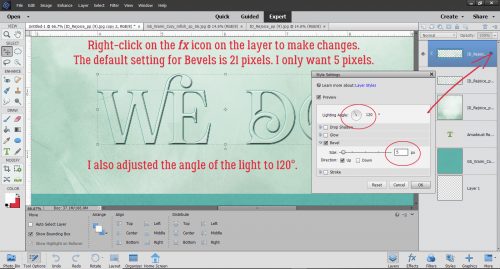
To adjust any Style or Effect on a layer, double-click on the fx to the far right of the layer in the layers panel. The menu box has several options you can change. I adjusted the Lighting Angle to 120°, which is the angle my template uses. The default setting for Bevels is 21 pixels, but that’s not the look I want so I decreased the amount of Bevel down to 5 pixels.

Then to make the offset look a little more obvious, I added a solid colour Fill Layer in the same turquoise as my background paper to the bottom letters-only layer. Layer>New Fill Layer>Solid Color.

Ensure the box next to Use Previous Layer to Create Clipping Mask is checked and that the Opacity of the fill layer is 100%.

Then I Merged the two layers together.

Here the only layer not visible is the original text layer. I think it looks pretty awesome! I know it seems like even more work than the paper version, but it’s an illusion. Explaining it all makes it look like more work than it is.

When I put my layout together, I decided to add some brushes and some glossy glitter to the patterned paper layer. See how the white brush crosses the edge of the “O”? I love this technique and I think I’ll be using it a lot more.

Thanks Steph!

Tutorial Tuesday (Photoshop Elements 2018)

Double Indemnity? Nope, Double Exposure!

Here we are, at the very end of 2019!! I hope you all had some wonderful times with family and friends over the holidays. If you’re celebrating tonight, stay safe!!

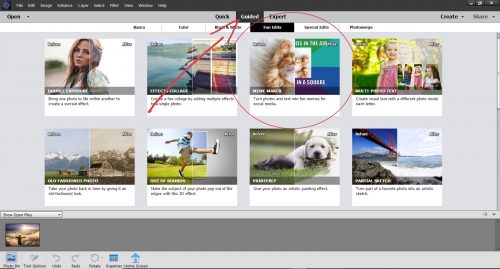
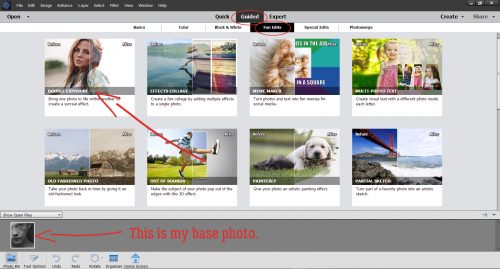
Are you ready for another Guided Edit? This one was only introduced with the 2018 version, but I LOVE it!! It’s under the Fun Edits tab and it creates a double exposure almost automatically. It caught my interest when I started seeing lots of double-exposure photos popping up on my Pinterest feed after I Googled PSE techniques. All the how-to’s were for Photoshop‘s full version and try as I might, I wasn’t getting the results I hoped for when I tried to find a work-around. Then I tried this. I know you’re going to love it. I’m playing with photos I downloaded from Pixabay and chose a black-and-white close-up portrait as my base photo.

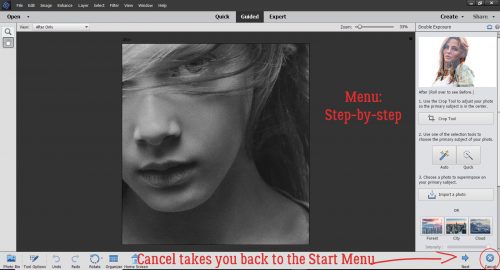
Once I clicked on Guided>Fun Edit>Double Exposure this is the menu that comes up. (Remember, if you click on Cancel, you’re back to the Start Menu so be very sure that’s what you want to do…)

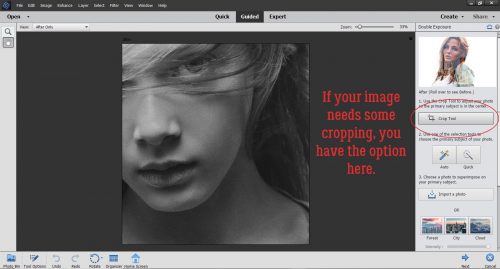
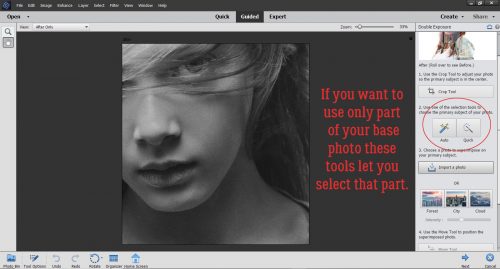
For this tutorial I just took the most basic route possible with my photo choices so as to make it as straight-forward as possible. I’ll be playing with it a lot more in the weeks to come, so you may see another more complex tut later. The Edit tools are lined up top-to-bottom for easy progression through the steps. If your photo needs to be cropped, this is when you’d do it, with the Crop tool. The Guide suggests cropping so your desired focal point is in the centre.

There’s also the option of Selecting only a portion of your photo. I skipped both the Crop and Select steps altogether.

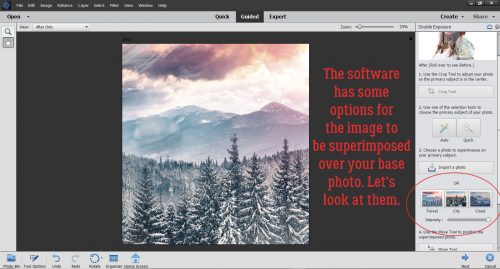
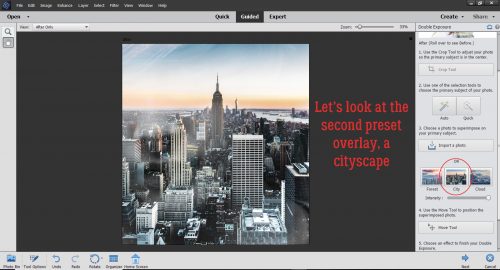
Now, the software has some images already embedded in the Edit that you can use for your double exposures: a forest scene, a cityscape and some clouds. Here I’ve superimposed the forest scene over my photo; if you look in the upper left corner you can see the girl’s eye, but it’s pretty well concealed.

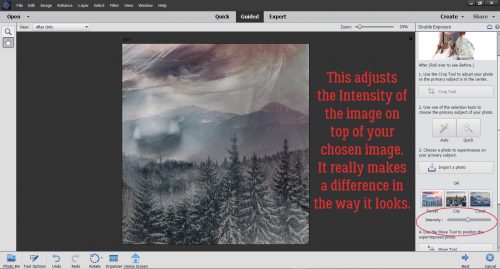
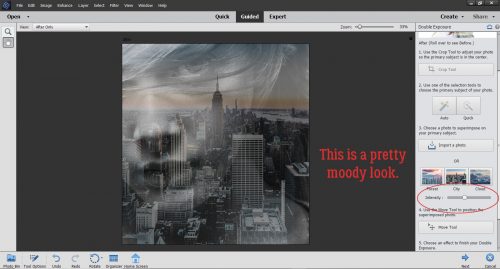
Thankfully the software knows that might not be the look you’re after. The Intensity of the superimposed photo can be easily adjusted by pulling the slider to the left. Here you can see the difference it makes to decrease it to about 47%.

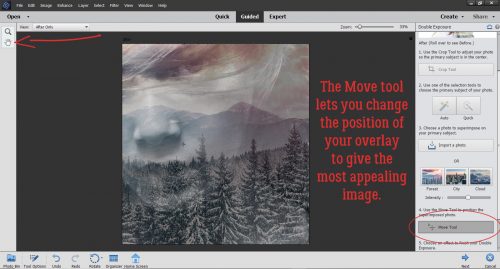
There’s also the opportunity to move the superimposed image around a bit by using the Move tool. It can be activated either by clicking on the tool image in the upper left of your workspace, or by clicking on the tool bar in the menu.

The cityscape almost completely obliterates the original photo. Good thing it’s adjustable!

I decreased the Intensity to about 35% and the resultant image is really moody. It suggests the girl is homesick for this view, at least in my imagination…

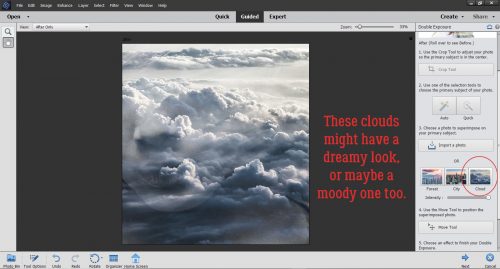
What will the clouds do? Well, at first glance, we can see her nose and chin fairly clearly, but not her eye, and I think the eye is the key.

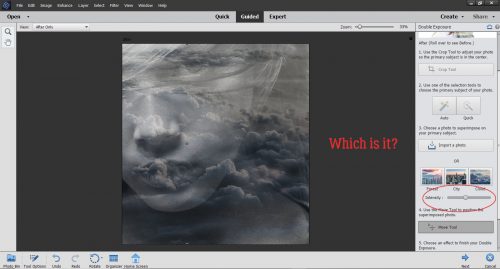
I’m conflicted as to which emotion this evokes. I think she looks wistful, so maybe it’s dream-like.

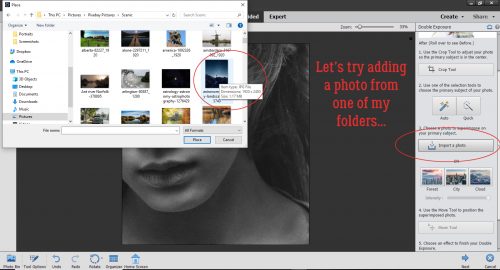
Okay, before we move on, I want to show you how to use another of your own photos. So instead of using a preset, I clicked on Import a Photo. It opened up Windows Explorer and let me find a suitable photo for the look I’m aiming for. Once I clicked on the thumbnail in the photos folder, I clicked on the Place button.

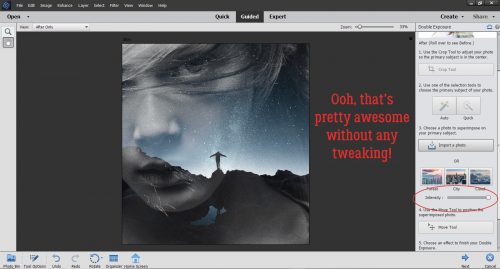
Wow! That’s a really dramatic image!! I don’t even know if there’s any adjustment needed.

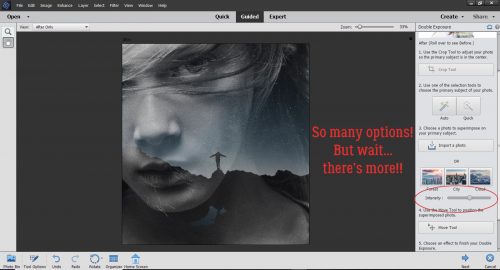
But just to be sure, I decreased the Intensity  by 50%. There are still more ways to manipulate the image so let’s keep going.

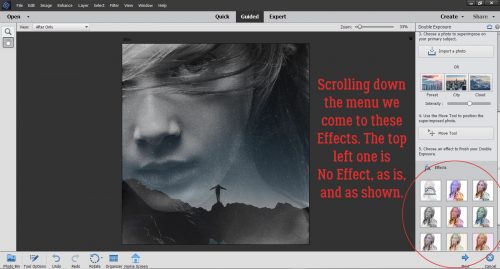
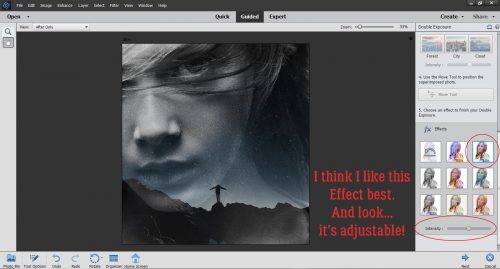
Before I moved on, I opted to shift the rocks in the superimposed photo down and almost off her face. It makes the sky more of an element in the image and you can’t see the demarcation where the superimposed photo ends. Further down the menu, there are some more Effects presets. So working with the image with the superimposed photo at 50%, let’s hit it with each of the Effects to see what they do. The very first one, top left of the tool menu is No Effect… just the way it is.

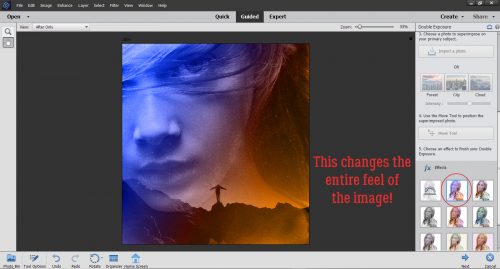
I’ve circled the Effect with each image so you can see what they look like right out of the box. This one adds a lot of colour.

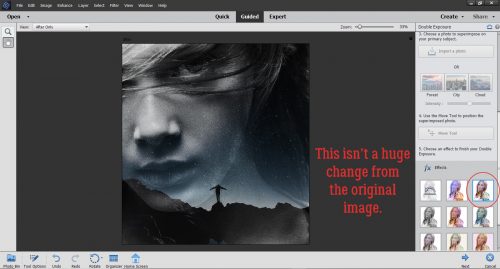
This one makes the original image more vivid and increases the contrast.

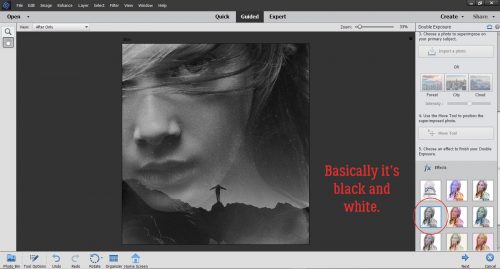
Here, it’s basically a black-and-white version. If my original photo had been a colour portrait, it might make a big difference to use this Effect.

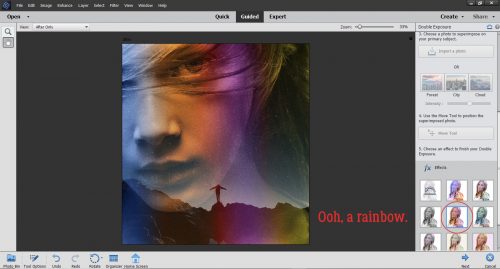
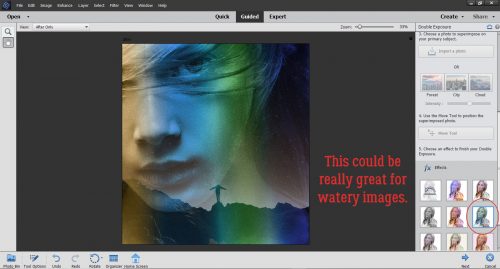
This one is a soft, rainbow-hued look.

I think this one would be amazing with underwater photography, or for photos with a beachy, watery theme.

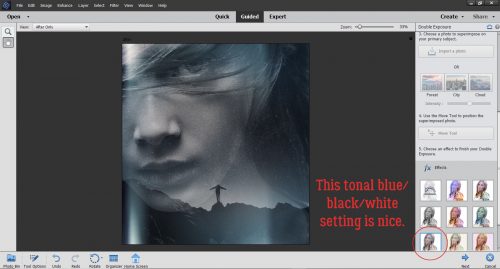
This adds a touch of cool colour to a tonal black-and-white image.

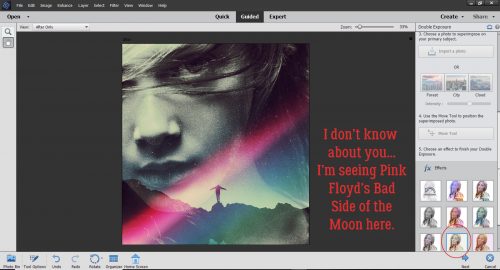
I’m showing my age. All that’s missing is a prism in the middle.

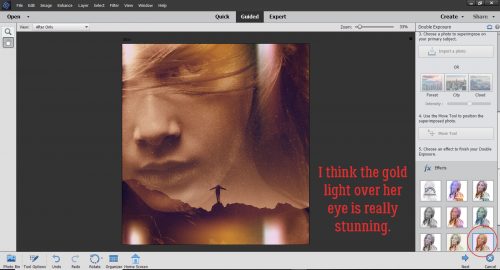
The last one gives the whole image a warm, golden look.

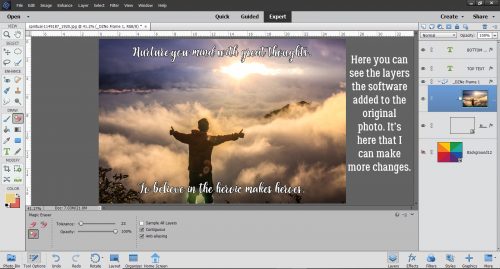
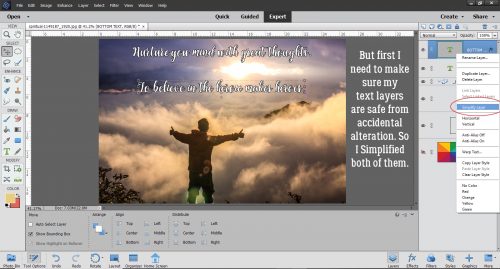
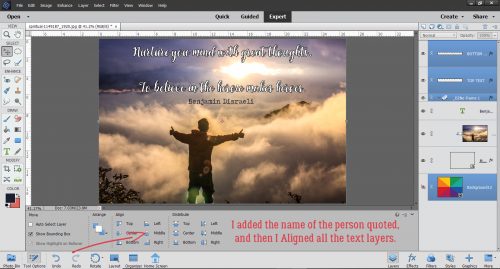
After seeing them all, I decided I like the third version best. I decreased the Intensity to 50% again and have a really eye-catching image. I might add an inspirational quote into the dark area to the right of her neck. What do you think?

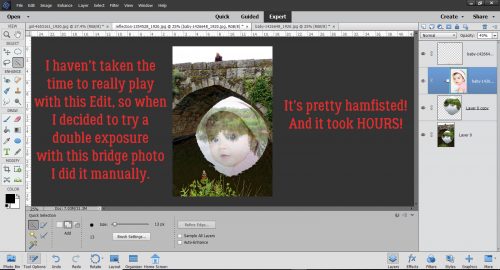
Before I shut down for the night, I decided to play with a couple of other photos I had. The one of the stone bridge provided a perfect frame for a superimposed face, but I didn’t take the time to figure out how to use the Guided Edit. Instead… I took a lot more time doing it manually. Duplicated layers, layer masks, erased areas, clipping masks, more layer masks to bring out the blue in her eyes, blend modes, sheesh. There’s gotta be a better way! When I find it I’ll share it with you!

I hope that whatever 2019 brought your way is greatly improved on in 2020! I know there are big things coming up for our family, details to follow. Happy New Year, dear GingerScrappers!

Tutorial Tuesday (Potpourri)

Beyond the Ordinary – Holiday Photos

Wow, can it really be only 8 days until Christmas? Even fewer until the first night of Chanukah… Families all over are getting ready for the Main Event and of course, no special occasion is ever complete without the photos to prove it happened. I think I can speak for most of us when I say I’ve taken a LOT of really ho-hum photos over the years. If you’re like me and browsing through the Gallery in late December makes you envious of the amazing photos OTHER scrappers have scrapped, I’m going to offer some thoughts on how to make our holiday photos better. I’m not going to completely rehash this tut from last year but some things do bear repeating.

First, make sure you have fresh batteries and a large SD card for all the great shots you’re going to take. If you’re into phonetography, you might want to trim your in-phone collection by saving them to your computer or the Cloud, then deleting them from your internal storage.

Make a list – physical or mental – of the shots you MUST have. We all have our own preferences for what we want to document so don’t feel like you’re being forced to conform. But there are some sort of standard images we all like.

Even if you feel like decorating for the holidays is a dreaded chore, take some photos of the process. Get a shot of the decor while it’s still in the box. If your kids are helping, turn them into models for your portfolio. Remember to get down on their level. Even the cutest kids aren’t great photo subjects if they’re always shot from above. And get in close!!!! I know I’ve mentioned before that the best crop is the one you do in the viewfinder. so fill the frame! Don’t be afraid to zoom in. Same goes for your pets, if you want them in your photos.

When shooting your tree, look for a different approach than the typical 8-feet-away-so-the-whole-tree-and-gifts-are-in-the-shot. Maybe take some close-ups of your favourite ornaments. Use a portrait mode to soften the background and make the ornament totally the focal point. Get down on the floor and shoot up toward the topper, or shoot down through the branches and make the presents the subject. Turn off all the room lights and shoot the tree with just the tree lights. Experiment with shutter speed and aperture to create some lovely bokeh effects. Add a human or a pet to the frame. Or take a photo of the lights reflected in a window. (If you don’t want your reflection in your photo, stand at an angle to the window and look carefully at what’s in the viewfinder.) Or take a photo of the tree THROUGH the window! Turn off your flash though, so you don’t spoil the shot.

If you’re celebrating Chanukah, there are lots of great ways to take photos of your menorrah. A series, with each night’s new candle lighting, would make a lovely layout. Look at the angles. On the last night, when all the candles are burning, an angled shot from one end with each flame visible would be incredible. Some of my favourite photos of my grandsons are of them lighting a candle, with the soft glow of the flame on their cheeks and wonder in their eyes. (Their mom takes amazing photos.)

We’ve all got a folder full of group photos where everybody is stiffly lined up and fake-smiling at the camera. So how can we take better group shots? Having the subjects doing something together is a good start. If you have snow in your area, have the group build a snowman, or have a snowball fight. Or play football in the snow. Beach ball volleyball (in sand or snow) would make some entertaining shots. But if you just have to have a posed group shot, give some thought to who goes where. If you can arrange the people so that their faces form little triangles, you’ll have a nicer image. Have them turn their shoulders toward each other or the centre of the photo so they can get a bit closer together. Make sure you’ve chosen a landscape setting so everybody will be in focus. Think about trying not to cut people’s legs off. If you can, shoot everybody down front from the waist up. Your subjects will thank you.

Do you go all out with a gorgeous table-scape for your guests? I’ve never done it, but I love seeing how others do it. If you’re hosting and have your table all set well in advance (like the experts recommend for sanity’s sake 😉 ) take a few minutes to look at it with your photographer’s eye. Take a shot of a single place setting. Try and get the whole table in a shot, easiest if you shoot from one end. Take a closeup of your crystal.

Don’t forget to get some shots of the dinner prep. Be stealthy and get some candids of the main cook, or if that’s you, get some of your helpers. Look for interesting camera angles of your turkey, ham or standing rib roast. Ask someone to be the carver and get some action shots. And look for smiling faces as the meal commences.

What about gifts? Well, there’re lots of opportunities around gift opening. Get down on the floor with the kids. Try to capture the moment when they identify what’s in the package. If it’s your thing, you can take some of them channeling Vanna White, holding up a favourite gift. If there’s a very special gift being given, arrange for it to be delivered when you have a moment to frame your image. I really wish I had a photo of myself when I opened a gift from my sister quite a few years ago. It was a resin frame with dragonflies on it, but what made it truly special was that it held a photo of me with my grandfather, who died when I wasn’t yet 4 years old. If you know in advance, you can be ready to catch the emotion.

After the dust settles, you can relax, but don’t forget there might still be some great photos yet to happen. Like when a child falls asleep in the middle of a game, or the dog takes off with a long piece of ribbon… they could be the best shots you get all day. But don’t concentrate so hard on getting good photos that you don’t have fun! At a family reunion, my niece made a point of taking a selfie with every single one of us, and they were all fantastic. If you have mad selfie skills, give it a whirl. You might surprise yourself!

I’ll be taking next Tuesday off, as I expect most of you will too… bigger fish to fry! Merry Christmas! Mazel tov! Kwanzaa blessings to all!


Tutorial Tuesday (Photoshop Elements)

DIY Christmas Card Workshop

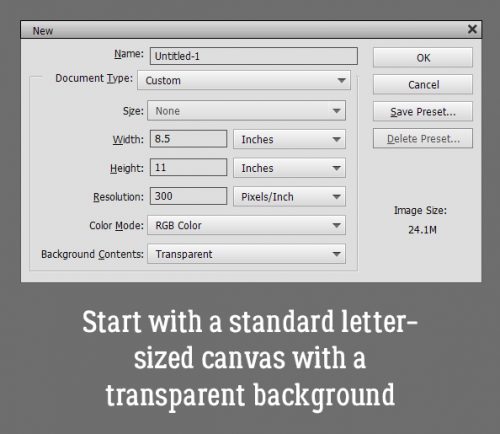
Woohoo! I’m on deadline today!! Things are looking up. Today’s tutorial isn’t necessarily scrapbooking-related, but it definitely uses digital scrapbooking supplies. It’s also not really in time for this year, but it can be a thought for next year. I’m going to show you how to make 2 personal Christmas cards from 1 sheet of cardstock. The resulting cards are 4 1/4 inches by 5 1/2 inches. You can get 50 envelopes that will hold these beauties at Michaels for $8 (Canadian, so about $5 in the US).

If I would have been thinking I could have skipped this step by putting the dimensions in reverse in the New Document screen. But I didn’t so I had to Rotate the canvas 90°.

Next I snapped a line across the centre of the page, and another from top to bottom. I used the Ruler and the Pencil Tool. To snap a straight line in a project, select the Pencil Tool and set the size of the line you want. I wanted these lines to be faint, so I went with 1 pixel. Line up the cursor with the halfway point along one side of your canvas. You can see a moving dashed line on the Ruler so you’ll know when you’re in the right place. Click once just barely inside the edge of your canvas. Then hold down the Shift key and move the cursor to the same spot on the opposite side and click again. It’s just that easy. Then do the same with the top-to-bottom centre point. These are guidelines for placement of elements and for cutting and scoring later.

Then I opened up the folder where I’d collected the objects I wanted to use. I have a photo taken several Christmases ago, a 3D snowflake from Lindsay Jane‘s Snowed Under kit and a mask from PrelestnayaP‘s December Wishes.

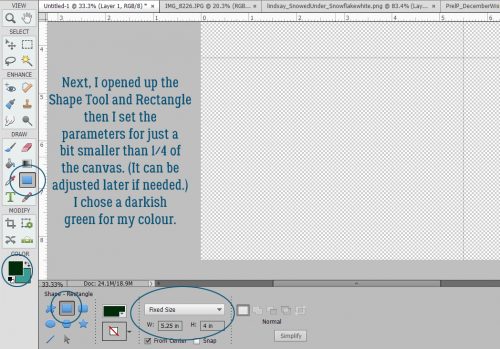
Working in the lower left corner of the canvas, I opened up the Shape Tool, chose the Rectangle, set a Fixed Size of 5.25 by 4 inches and chose a darkish green colour.

The resulting rectangle will fit inside the guidelines for one card. and by Simplifying the layer, I can make adjustments to it as needed because it’s now a Smart Object.

The next step is to add the mask. I resized it to fit inside the green rectangle completely.

The photo went on top of the mask and was resized to approximately the size I’d need. I want the deer and some of the illuminated snow visible later.

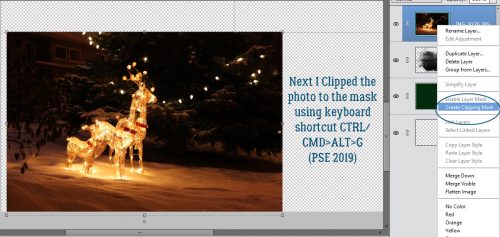
Clipping the photo to the mask is simple. Right click>Create Clipping Mask or CTRL/CMD>ALT>G for more recent versions of PSE or just CTRL/CMD>G for versions pre-15.

Final position tweaks included a little shifting and a little more shrinking.

I chose a gold colour from my photo to use for the sentiment. Here’s where all those amazing fonts you have in your stash will come in handy. You can make this text as personal as you want, even making it family- or person-specific. But it still looked like it needed something. So I CTRL/CMD>clicked on the green rectangle layer’s thumbnail to select the outer edges of the rectangle. Then Select>Modify>Contract.

I pondered for a nanosecond how much I should shrink my selection and settled on 25 pixels.

And then I added a Stroke to the new selection. Edit>Stroke (Outline) Selection

I then used the same gold as for the text and added my Stroke. The position for this isn’t a make-or-break thing, so don’t obsess over it.

Yes, I think that’s what it needed.

The final step for this card is to add a trademark to the back. I went with the green for this.

Knowing that it’s on the BACK of the card and should be readable with the card right-side-up, I Rotated the text 180°.

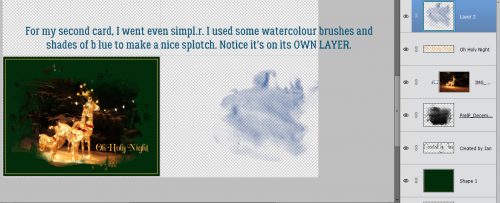
I’m going for 100% honesty here… I saw a card like this second one on Pinterest so I’m not taking credit for the idea. (Ignore the typo on the screenshot please!) I added a new blank layer to the stack and Loaded some watercolour Brushes. These are from a set of 20 free brushes from Brusheezy. I chose 3 shades of wintery blue for the brush area.

I layered the brushes, each on its own layer so I can make adjustments to just one – or all – if I need to.

For a bit of contrast I chose an aqua for the topmost brush layer.

I added in the snowflake and sized it appropriately. But it wasn’t quite enough by itself. So I added a Layer Style from Ooh La La ScrapsIn the Frosty Air collection.

It still was missing something so I turned off the snowflake layer for a second and added a white paint splatter. That makes a big difference!

A few words and it’s pretty much what I was looking for.

A trademark on the back in the dark blue and it’s finished!

I saved the file as a .png so the printer wouldn’t need to add a white background to everything. To turn this into cards, I’ll load up my printer with white cardstock and print several copies. Using my guillotine cutter I’ll cut the cards apart on the top-to-bottom guideline and score then fold along the side-to-side guideline. I choose to print my sentiments for the inside of the card on resume paper (it’s a bit fancier than regular printer paper) and trim to fit the inside of the folded card. Word art would be perfect for this! Another option is to use a sentiment stamp and ink in a colour to match the front of the card. All that’s left is to sign them, pop them into their envelopes and mail them!

Whew… two weeks until Christmas Eve! Better get on that!

Tutorial Tuesday (Potpourri)

To Theme or Not to Theme

I apologize for missing my deadline. I got caught up in a Christmas sewing project and by the time I came up for air it was almost bedtime. But I didn’t totally forget about you!

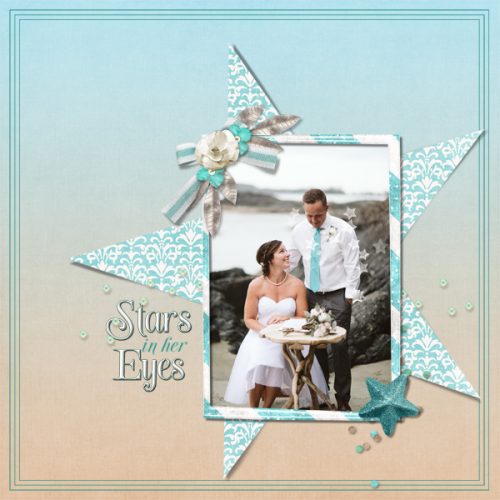
When I was looking in the Forum at the December Challenges I was drawn to the Mini Kit provided by Neia Scraps. Although it’s called Christmas Spirit and has a Christmas-y theme I knew I would be using it instead to scrap one (or more) of my DD’s wedding photos (from July) because the palette is PERFECT for them. So I downloaded the kit and created a layout that has nothing to do with the kit’s theme. And that started me thinking about how often others might use a themed kit for a layout about something completely unrelated. I do it fairly often, and figured we could talk about that a bit today. (Note to Glee… the light source is almost directly centred over the layout, but slightly left and up. The frame is holding the paper star down but the points are free.)


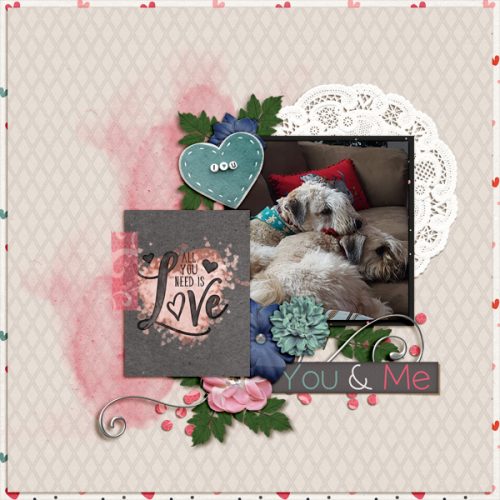
For this layout I used a Valentine’s Day kit, the GingerBread Ladies‘ collab Smitten,  to scrap a dog photo. (I know, I do a lot of layouts with my dogs front and centre. What can I say?)

Then I took a (very quick) tour through the Gallery.

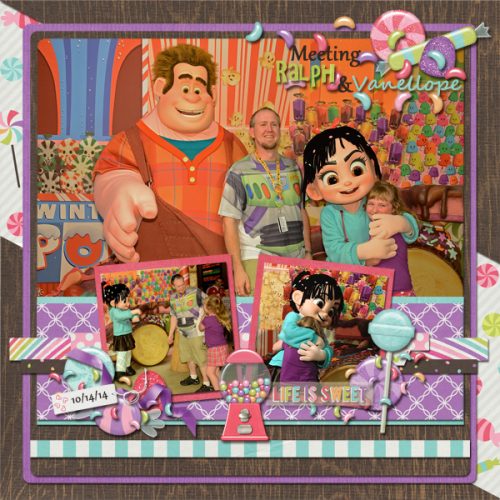
Gingerscrapper dshepard created a layout with a kit from Magical Scraps Galore with a candy theme; it’s called Sweet as Candy. The subject of her layout is a visit to a theme park.

This pretty example from honeybee was created with Harvest Sunrise from Mag’sGraphics. No harvest anywhere in sight… but lots of love!

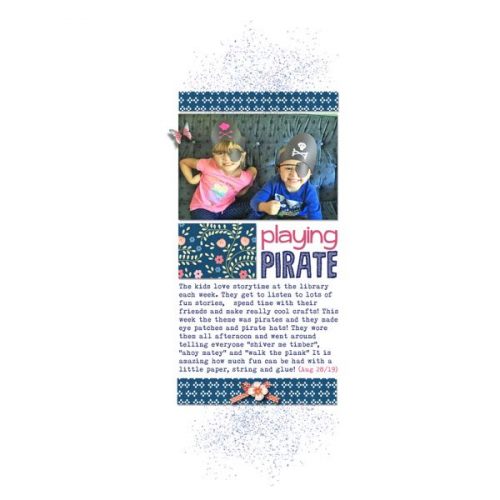
Then I found this cute layout from snojewel about pirates. She used a motivational kit from the GingerBread Ladies called Love Yourself.

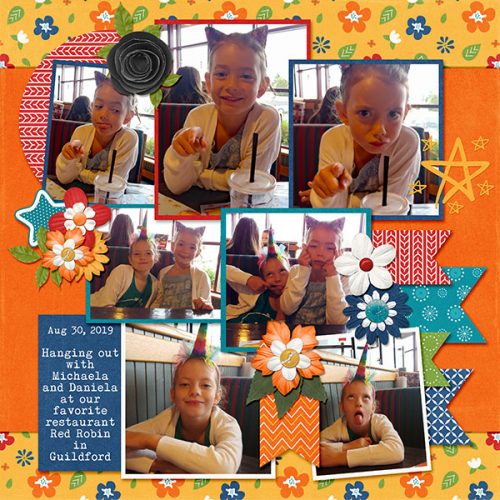
And then I found this one from teamkobza about a fun day she had with some little people, although I doubt they were in Iowa. The kit she used is Travelogue Iowa from Connie Prince.

So here’s a challenge for all y’all. I’d like you to create a layout using a kit with an obvious theme but about something unrelated. It’ll broaden your horizons!

Tutorial Tuesday (Photoshop Elements)

Hybrid Pillow Box

Have you ever wished you could customize your gift boxes and make them really personal for the intended recipient? Well, have I got a treat for you! And once again, the credit goes to calgirl (Steph). She found a printable template online for a pillow box and thought I could bring you a great seasonal tutorial for doing it digi. I thought it would be a lot more complicated than it ended up being, and I even managed to come up with a layered template for your crafting pleasure. You can grab it here: Dropbox

The template is on a letter-sized canvas so it can be printed on standard (inexpensive) cardstock. You can easily resize it a bit bigger or a lot smaller, and really make it your own. When you’re ready to print it you can either turn off the top (instruction) layer or delete it altogether.

So, go to your stash and decide what you’re going to use for your special pillow box… papers and embellishments for the occasion. I used Aimee Harrison’s A Rustic Christmas kit. Turn off that top instruction layer for now, or go ahead and delete. You’ll know what to do without it.

Drop your paper on top of the bottom layer. You’ll still be able to see the guidelines.

Then Clip (right-click>Create Clipping Mask or CTRL/CMD>ALT>G) your paper to the template.

Using the guidelines, add in your embellishments. If you’ve added a tag or a label, pick a pretty font and type in your sentiment. What could be better than NOT to need a tag or label? Once you’ve got your clusters and what-have-you in place, add in your shadows. All that’s left is to print it, cut it out from the cardstock, score it and fold it up. A little dab of glue along the very top edge to hold it together and you’re DONE! You can use a bone folder, or a stylus or a totally dead ballpoint pen to do your scoring. If you’re worried about the guidelines showing on your finished box, you can decrease the Opacity of that layer down to barely visible. Or… If you want, you can put the guidelines on the back simply by flipping over the paper and running it through the printer again. Just turn the rest of the layers off and everything will line up perfectly.

I make jewelry for gifts, and I think this would be a perfect way to present them. In a custom box with my signature on it! How many ways can you think of to make this work for you??

Tutorial Tuesday (Photoshop Elements)

Another Paper- to Digi-Technique – Stenciling

After last week’s tutorial came out, I got a really nice private message from calgirl (aka Steph). It read, in part: “I love the tutorials you have done on the digital version of a paper-scrapping technique.
I have been trying to think of other techniques it would be fun to see – how do you do this. I happened upon this you tube video which has many ideas but I was particularly interested in the stenciling concept.” Well, I checked out the YouTube video she linked in her message – it was a speedy card-making video (more about that later) and I knew just what would work to create the look she was after. Below you’ll find three ways to use digital scrapbooking elements as stencils! The basics are the same for all three, but the looks are all quite different. It’s a lot easier than it looks, and definitely less messy!

The most obvious element I could think of – and find quickly – for this technique is a doily. I chose one from Lindsay Jane‘s kit Dogs and Puppies. It’s pretty, and has some nice open areas that could work nicely for stenciling. I opened a new 12×12 canvas on my workspace and dropped the doily onto it.

Next, I decided on some colours and got them set. Then I opened up my Brush tool. The Basic Brushes set that comes with the software will work for this method so I chose a large, soft, round brush. I’m working on the layer UNDERNEATH the doily, but don’t worry, it’s going to work exactly like I want it to. If you recall, working on a separate layer with your brushes gives you a lot of options such as simple resizing, repositioning and adjusting Opacity. And you can copy the brush layer(s) as many times as you want.

Here you can see that I have the layer at the bottom of the panel active.

I centered the brush over the doily and gave it a single click. if the screenshot was bigger and clearer, you’d see the doily sitting on top of the brush layer.

With the doily layer turned off, this is what I see.

I decided the brush layer just wasn’t… enough. So I Copied it once (CTRL/CMD>J) then I made the copy brush bigger, to 120% of the original. By doing that, I deepened the Opacity of the original layer and pushed the softer edge further out.

Before I moved on, I Merged the two brush layers together.  (CTRL/CMD>E)

Keeping the brush layer active, I CTRL/CMD>clicked inside the layer thumbnail for the doily – the image inside the box on the doily layer. That Selects the edges of the doily, and produces the marching ants.

The next step is to Edit>Cut the doily area away from the brush layer. (CTRL/CMD>X)

It’s a bit hard to see in the screenshot but the area where the doily laid over the brush has been removed and the transparent background shows through. The doily layer is turned off.

Here’s a much closer look at it. As you can see, there’s no doily texture showing, just the outline of where it was.

I looked at the results for awhile and decided I wanted the edges to be just a smidge sharper. So I added another layer on top of the brush layer. (Doily is still turned off.)

This time when I Selected the outline of the doily, I chose to add an outline Stroke. I wish there was a keyboard shortcut for that, I use it a lot. But there isn’t. Edit>Stroke (Outline Selection) has to do.

I used the same colour as for the brush layer. The outline doesn’t have to be too bold, so 2 pixels on the outside of the selection will work. Why put the stroke on a separate layer? It’s all about control!

I’m still thinking about how to remove the overspray area around the outside of the doily outline. I think I have it figured out, but will need to play with it a bit more. Once I’ve got it down pat, I’ll edit this post to include the details of how I did it.

Okay. Let’s go back to the beginning and look at another way of doing it. Because you know there’s always more than one way of doing most things.

For this example I used a sharp-edged round brush from the Basic Brushes set that I could size to fit the doily exactly. It’s at full Opacity too.

But here’s where the fun starts! I changed my foreground colour to that fuchsia/magenta colour you might have noticed in the previous screenshots. Then I chose the Gradient tool, which is right below the Eraser tool. This tool has a few options that make it very useful. Because I’m working with a circle, I chose the Radial setting. I clicked on the centre of the doily image and dragged my cursor up to the top left corner of the canvas and let go there. That tells the tool which way to grade the colour. I could have chosen any point on the canvas for either action and the gradient would go “from here to there”. If you look closely, you can see the pink is darkest at the centre and fades away as it moves from the centre out. Notice too how the turquoise has changed to periwinkle.

I used the same steps to remove the area of the gradient layer where the doily covers it. I don’t know how many of you can see it, but the doily layer is turned off, and it doesn’t matter! The software will still select the edges even when YOU can’t see it. And, of course, the gradient layer is separate from the others.

Now, with this method, it’s super-easy to remove the overspray area. I used the Elliptical Marquee tool to pull out a perfect circle. The tool’s settings let me go with a Fixed Ratio of 1:1, which creates a circle shape. The hard part is getting the size right. It took me 5 tries to get it right.

The Selected area needs to be Inverted so that you’re cutting the part of the gradient layer OUTSIDE the circle away, not what’s inside. You can either Select>Inverse or CTRL/CMD>SHIFT>I to make that happen.

Then, just like before we’ll Cut it off. Edit>Cut or CTRL/CMD>X.

There! The only pink area is inside the circle.

I liked how it looked, but thought I could make it even better so I Copied the gradient layer and dropped the Opacity down to 70%. Pretty?

One more! I might have mentioned that I have LOTS of brushes. Many of them were freebies or challenge-related, but the ones I get free from Brusheezy are fabulous. One of these sets is the 20 Spray set. I had to load the brush set to be able to use it, since I haven’t had the opportunity to load them all on my new laptop, but that’s easy enough to do. I wish I could still screenshot the selection bars but haven’t figured that out either! I changed colour to this purple and hit my canvas with it. It’s a different look for sure. I Cut the doily out of the brush layer too.

I changed my brush, made it smaller and changed my foreground colour back to fuchsia. Then I randomly added some pink to the mix. On its own layer. ALWAYS!

After Cutting away the doily this is where I was.

Then I thought, how would it look with some green?

Some random hits with a third brush from the same set gave me this… before I did anything else to it.

I thought the green was too much so I toned it down to 35%.

And then for fun, I plopped a black spider web paper from Just So Scrappy‘s Spookalcious kit behind it. (I erased the big splats from the purple layer too.) I think it looks gloriously boho!

What do you think? Something you might try? Obviously, you can use anything that might work as a stencil with this technique, it doesn’t have to be a doily. I had fun with it, and I know you will too.

Now, about the video… the host showed off a paper-scrapping tool that caught my eye. It’s called a Misti (Most Incredible Stamp Tool Invented)… anybody familiar? It allows for perfect placement of stamps on just about any size and shape of paper, and for restamping the same image multiple times for more hefty outlines both with acrylic and unmounted rubber. Well, I decided I wanted one, since I do make cards and have a big collection of acrylic stamps. So I looked for it on Amazon… and nearly died when I saw the price! $138 seems like a lot to me for something so simple in concept. So I kept looking. I found some YouTube videos that showed a couple of similar products, but they had to be withdrawn from the market over patent infringement claims. Sounds like I was going to have to suck it up and pay the $$… until I found a seller who had a couple of the taboo knockoffs for $37 each. It arrived today and will work beautifully! I’ll have to wait to use it though. It has to go into storage with all the rest of my paper crafting stuff. To be continued!