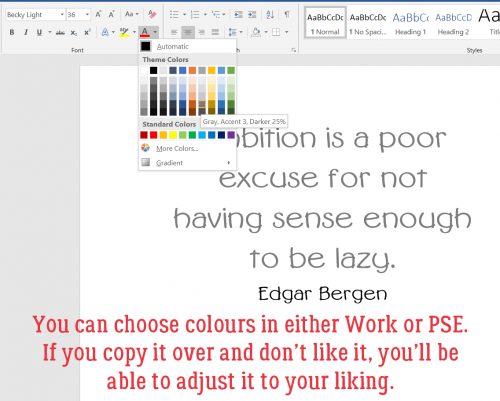
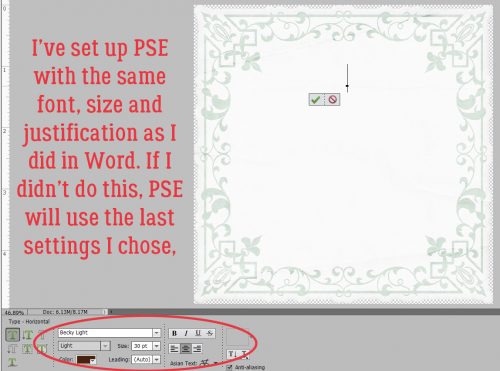
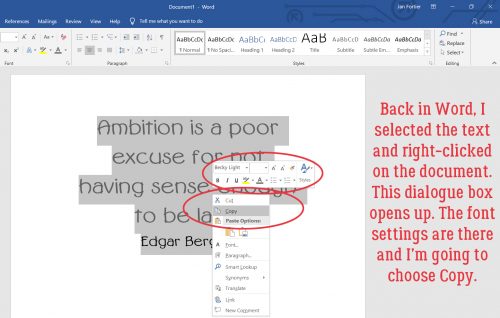
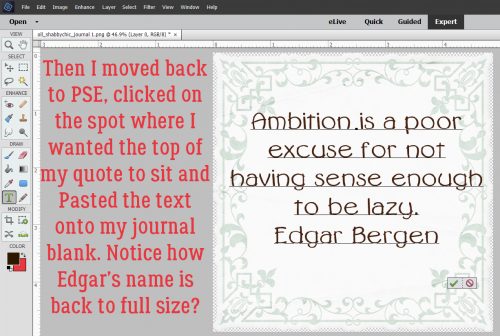
Tutorial Tuesday (Photoshop Elements)

Alphas Revisited

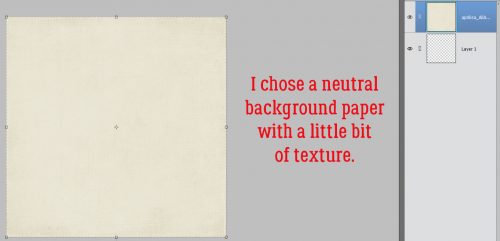
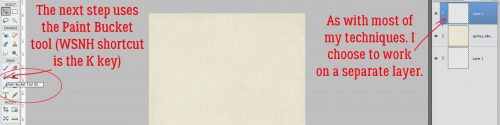
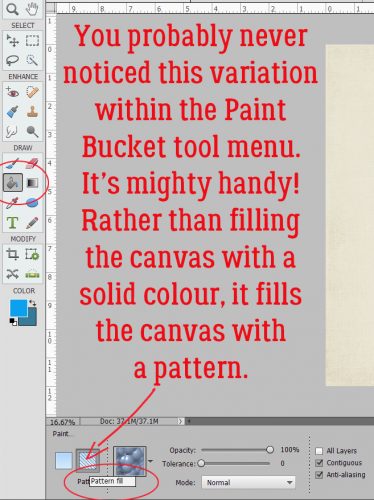
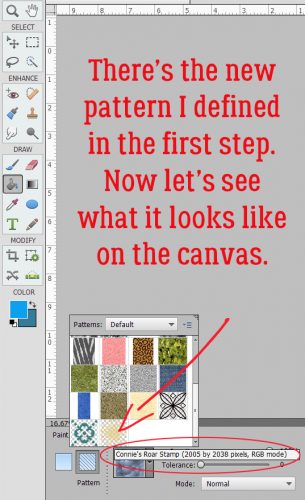
Are you ready for a really easy tutorial that looks a lot more involved than it is?

When I was looking at the June challenges at GingerScraps, I knew I wanted to do the Scraplift challenge – I already had the same template from Heartstrings Scrap Art in my stash, so it was a no-brainer! My dilemma came in the form of wanting to use a specific kit from Aimee Harrison called Tidepooling, that came with a selection of wickedly awesome alphas. And you know how I love those alphas! Now you get to see how I put that alpha to use.

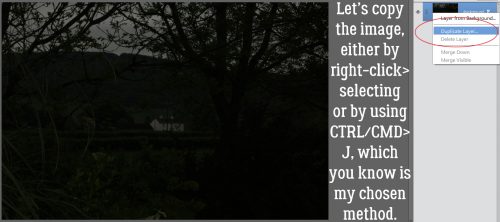
I wanted my title to follow the same curve as the title that came with the template and to sit in roughly the same place. But creating my title right there on the template would have been very difficult, due to all the distracting layers. I could have just turned them all off, but I prefer to compose my titles on their own workspace then move them onto my layout so I duplicated the two layers of the circular photo spot.

Then I sent the Duplicate Layers to a New document.

I could have left it untitled, but chose to give it a name, just in case I was interrupted and had to find my title in the Photo Bin again later.

Now I had a new 12×12 document open, with the two layers of the circular photo spot in the exact same place as they are on the template.

Next I went to my layout folder and opened all the alpha elements I chose for my title.

I spelled out my title in the centre of my canvas. I made sure they were in the correct order so when I started moving them, they’d be where I wanted them. (Notice I’ve turned off the visibility of those photo spot layers. They aren’t needed at this step.)

I knew just from lots of practice, that these letters were much too big for their purpose on this layout. So I selected ALL the alpha layers and resized them together at one time.

I estimate how much I need to shrink letters when I’m doing this, and I randomly chose 65% as my target. I like to use round numbers, especially if I’m going to resize other objects later and want them to be to scale. A round number is easier to remember! I also checked the box that says Constrain Proportions. That makes sure that I only have to adjust in one plane and the other will follow suit.

Because I’m going to work with just one letter at a time, I turned the visibility for all the other letters off. They’ll be turned back on as I go along. And I turned the photo spot layers back on; they’re going to be needed now.

This alpha was super-easy to use. It has strong verticals, so I was easily able to position each letter perpendicular to the edge of the photo spot. Then I shifted the L into its place just sitting on the edge of the gray circle – my baseline – which will become my focal photo later.

I love that this L has a bit of a swoopy flourish to it.

The letter I will be a bit more of a challenge. It needs to sit close enough to the L so that it’s visually connected. It too is perpendicular to the baseline.

By turning off the visibility of the L for a second, I could be sure I had the bottom of the I touching the baseline. Then I turned the L back on and nudged the I into it’s spot.

The F also needs to be perpendicular. It’s got a strong vertical dimension and would look off if it isn’t perpendicular. But notice how the vertical aspects of the letters aren’t parallel. That’s how I want them.

Now, as you already know, I’m a bit… particular (or anal, you chose – most of us ICU nurses are) about some things. And this is one of them. The tops of the tall elements HAVE to be roughly lined up to look right to my eyes. But… some would argue the F could have a longer bottom end, and that would be right too.

If you scroll back up to one of the screenshots showing all the letters in the Layers panel you’ll see that the lower case letters are very slightly slanted. So I want to make sure they’re slightly slanted in my title too. As for spacing, I’ve tried using the Distribute Tool Option and usually I end up really unhappy, so I eyeball the spacing between letters (also known as kerning). I only care about it looking good, not having everything perfectly spaced.

Where I AM a perfectionist is when it comes to apostrophes. (Don’t get me started about the proper USE of apostrophes…) So depending on the look you’re after, the top of the apostrophe can be aligned with the tops of the tallest letters, slightly above for a casual look, or slightly below. It’s all about what you like.

The letter S in this alpha presented a few options. I decided the right-most edge should be my focus and so I made it perpendicular to my baseline.

This lower case A is an article, so it’s a word, not just a letter. It needed to be spaced accordingly.

The upper case B is another letter in this set that is easy to position, with appropriate spacing, of course.

This E, unlike the one in Life, looked funny when I tipped it to the same degree, so I stood it up a little straighter.

Below you can see the A as it looked when I moved it onto the canvas. It’ll need tipping for sure.

Perfect with both lower edges on the baseline.

When I played with positioning the C, my brain wanted the curved edges to be parallel, which actually made it easy to get it just right.

Last letter! This H was not upright when I moved it onto the canvas and so the upright section isn’t perpendicular to the baseline. The final position has the bottom of the upright and the curve of the serif resting on the baseline.

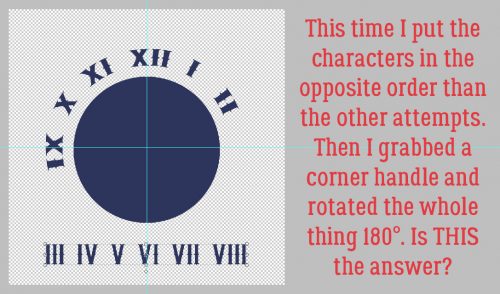
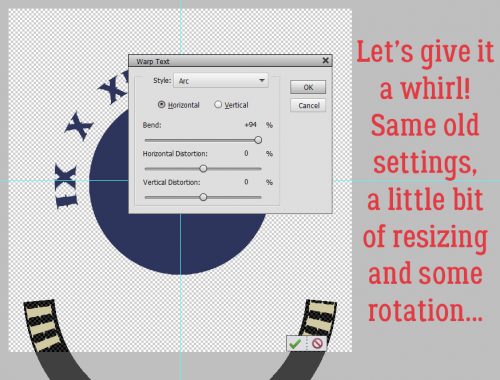
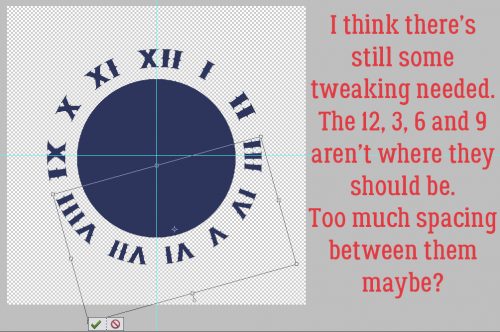
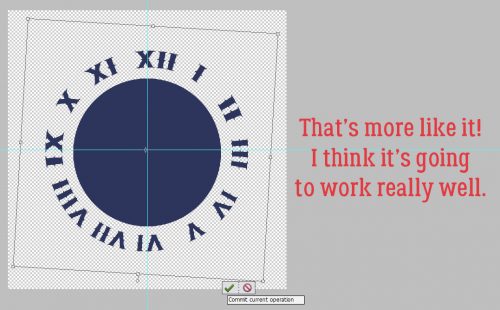
Zooming out, I was pleased with the spacing and the angles on each letter, but I wasn’t totally happy about where it starts and stops. So I selected all the letters so I could move them all together and rotated the title into a more pleasing position. With a little nudging of the entire title, it was successfully lined up with the baseline without having to adjust any letter individually.

Then I could go ahead and merge all those letter layers. For the remaining steps I don’t need to see my baseline so I turned visibility to the photo spot layers off.

The title would be just fine the way it is, but the original layout we’re scraplifting has a border around its title. So mine will too. I Selected my title’s edges by clicking on the title layer thumbnail in the Layers panel.

Next I clicked on the Select tab, then Modify>Expand.

I want my paper border visible but not overpowering. So I chose a single digit number at random. 8 pixels should be right.

I pulled a colour from one of my papers to fill the area I just created. It’s a gray with a faint touch of green as shown.

If I just fill that space on the same layer as the title, there’s a faint void around the letters where it doesn’t fill completely. That might be okay, depending on how big your title is, how detailed your background will be and so on. But I’ll show you another way to eliminate the voids.

I created a new layer and filled the selection on it. Because it’s currently on top of the wooden letter layer, it shows you how the entire area is filled in. Alternatively, I could clip a paper here instead of filling the area.

Then I moved it down under the wooden letters. If I wasn’t doing it for a tutorial I would have just put the new layer under the title from the beginning and skipped that step now.

The title on the original layout also had a narrow white stroke around it, and that’s what I did next.

I could have used black for definition but I wanted visibility, so I used white.

This stroke can be pretty narrow. I went with 4 pixels and set it to be centred on the edge of the gray layer. That’s the best way to minimize squared-off corners.

If you strain your eyes you can see it.

The last thing I needed to do was put a drop shadow on the wooden layer. It has dimension and needed a shadow to emphasize that. I used the drop shadow styles included with the software for my example; I don’t want anyone to feel like they can’t achieve any of my techniques without spending more money. The Low shadow looks like this, which is TOO much.

So I double-clicked on the fx icon to the right side of the layer in the Layers panel. Then I adjusted the lighting angle to match the rest of the layout, made it smaller, brought the shadow in closer to the letters and lightened it up.

Then I zoomed out to make sure it looked like it should.

Once I was positive, I merged all the title layers together so I could move it onto my layout. It seems like a very time-consuming technique but it really isn’t. Putting together a tutorial detailed enough to make sense to beginners takes me a full day… this title took only about 15 minutes.

Wanna see the finished layout? [whispers to Glee – the focal photo is of my daughter’s hands. She was in Nicaragua for turtle-hatching season.]

Tutorial Tuesday (Photoshop Elements 15)

Transforming the Ordinary to the Extraordinary!

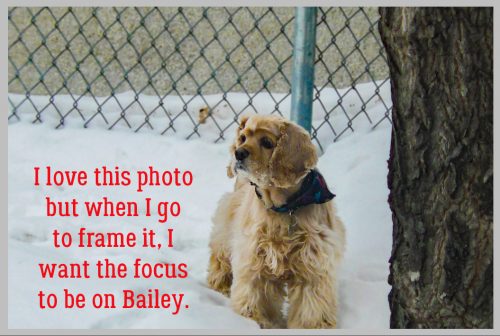
Here’s a look at the little monster who’s been robbing me of sleep and keeping me from being productive. She’s lucky she’s cute! But we’re now halfway through Day 4 with no puddles in the house, and she actually slept all night last night. So there is a light at the end of the tunnel!

When I took a good look at this snapshot I caught with my phone, I thought it was pretty special. But it could be even better, so I thought, “Why not play around with some more of those Guided Edits in PSE and see what happens.” The results are below. I could have stopped after any of the steps I took, so don’t think you’d ever have to do all of these adjustments to make your photos more amazing. You don’t!

The first one I used was the Brightness and Contrast Edit. Guided>Basic>Brightness and Contrast.

The menu looks really simple, and it is! Clicking once on the Auto Fix button is perhaps all your photo might need. The sliders are automatically set as shown.

This is how it changed with just one click. It’s not all that obvious, but I think her eye pops a bit more.

I moved the sliders just a tiny bit, decided I was happy then I went down to the lower right corner of the screen and clicked on Next.

The menu shown below opens up, offering the options of Saving the image, Editing some more or Sharing it with your friends on social media.

Of course, I wasn’t done experimenting. So I clicked on Expert under Continue Editing, and then selected the Guided tab again. Next I chose Sharpen from the menu.

The menu for this edit is simple too. I clicked on Auto Fix.

And there’s a visible change. You can click the Auto Fix button multiple times, or manually adjust the sharpening by using the slider. When you’re ready, click on Next.

After I clicked on Auto Fix a second time, there was an increase in texture in the hair on her nose.

So I hit it again. I think it’s just a little too much though, looks artificial. So I clicked on the button beside the Next button, Cancel.

Yeah, that’s the best look. So Next

Now I decided to try one of the Guided Color Edits. Let’s see what Saturated Film Effects looks like.

I wanted to show you the menu for this edit before I made any changes. The Add Saturation Film Effect button is another one you can click on multiple times to intensify the effect.

I think this image looks a little brighter and a little softer but keeps the eye in focus.

So on to the next Edit! Anyone know what the Orton Effect is? According to Wikipedia, “Orton imagery, also called an Orton slide sandwich or the Orton Effect, is a photography technique which blends two completely different photos of the same scene, resulting in a distinctive mix of high and low detail areas within the same photo. It was originated by photographer Michael Orton in the mid 1980s.” Some purists feel that the effect has been overused, especially in portrait photography. But we’ll look at it any way. (I’m not much of a conformist!)

The Add Orton Effect button has 3 sliders for further adjustment. I pushed the sliders all the way to the left to see the effect at its most basic.

It’s another Edit that can be duplicated multiple times. Here’s what it looks like after two clicks. It’s very dark. But I haven’t given up on it!

I played with the sliders. I pushed the Brightness slider all the way to the right.

Then I added some Noise. It adds quite a grainy look to the image, and that might work really well for some purposes.

Now a little Blur… just a bit, to add that dreaminess the Orton Effect is known for.

And I could stop here. But you know me by now… I’m not done yet!

I’d like to go back to the Basic menu and hit it again with Brightness and Contrast.

Now I think it looks a lot like a painting by one of the Dutch Masters of the 17th century. It’s the light…

It’s only looking more and more beautiful!

I’m sure you know I chose to continue editing. When I went to the Expert workspace, I discovered that each edit had created a new layer. So I merged them all together.

I wanted it just a little brighter still, so I chose to go the Enhance>Adjust Lighting>Brightness and Contrast route.

All I did was shift the Brightness slider a little to the right.

Okay. At this point, I absolutely LOVE what I’ve done with this photo. I saved it as it looks right now so I don’t have to recreate it later, because now we’re going to play with some filters. The image below shows Filter>Artistic>Poster Edges. It’s pretty cool! Think about how you could use this filter to create a caricature effect on your portraits.

I didn’t layer the filters, trying them individually to see how they each look by themselves. This is Rough Pastels.

Crosshatch adds to the Old Masters effect!

Let me zoom in on that one.

I’m so thrilled with how it looks that I’m almost done. I want to just add a little texture to it to push the oil-painting look a little more.

Who knew I was channeling Rembrandt?

My challenge to you is to use any or all of these edits to create your own masterpiece!

Creative Style | Pocket Scrapbooking

Here we are already. The last week in January. Didn’t it just turn 2018? Before we know it we will be looking at the end of this year! It flies by faster and faster with each passing year. That being said, I am not here to complain about time flying. 🙂 I am here to talk about scrapbooking styles. You know: fantasy, pocket, traditional, and everything in between. Some people scrap only one style. Some people (like myself) will scrap one style one day and another a next. I like to mix things up.

One thing I’ve really not scrapped is those great pocket pages. I love to cluster a bit too much. Those pages are lovely though! So neat, clean, and brought together. The perfect touch of elements and patterned paper. So what is “pocket scrapbooking” actually?

When scrapping with paper, pocket scrapbooking usually used page protectors that can be divided into smaller pockets. These pockets are arraigned in many different ways on the page. In each pocket usually the things that are included are photos, cards, and journaling. Of course it isn’t limited to that either. Ticket stubs, hospital bracelets, receipts, and so are are great additions to the pockets. In digital scrapbooking we take basically the same approach. Some of the digital scrapbooking versions of pocket scrapbook layouts have photos and such tucked in actual (digital) pockets. Those are my favorite. Others are just wonderfully blocked layouts. Some with stitches around the blocks, and of course some without. Usually there is more focus on the memories, photos, and papers than lots of elements filling the pages.

These layouts jump out of the galleries! So, that is what I did. I stalked the gallery and am here to show of some of those great pocket scrapbook pages that are filling the GingerScraps gallery. We will round up today’s Creative Style post with some great items from GingerScrap’s store to create your own pocket layouts.

Here are those layouts I mentioned. All are linked to their counterparts in the gallery. If you are so inclined, run over there and give these guys some gallery love!

New Years 2018 by
honeybee


Week 3 2018 by Firstoscartgrouch


New Wine Glasses by msbrad


Magic_March_2011 by ScrappyPenguin


Accident by gnana96


by minicooper452


PS_-_GS_1_18_Mix by jang


Punktering by hannaahl

Pocket scrapbooking is one of the most popular styles of scrapping digital out there! GingerScraps has an entire section dedicated just to all supplies for your digital pocket scrapbooking. I took a look-see at that section. Nearly 70 pages of goodies!! I picked out a few of my favorite to showcase here. Of course, this is just a small sample of what is in the store. If you already have these, or are looking for something else, make sure to check out that section!

My Scary Friends Doodle Stripes contains unique images to turn your projects even more wonderful.
Hand-drawn and colored at the highest quality by Paty Greif Design Studio. The files have a resolution of 300dpi for an optimum printing quality.

[Read more…]

Tutorial Tuesday (Creativity)

Playing on Emotion

December. The “most wonderful time of the year”, right? But not for everyone. Many people struggle with depression, anxiety and physical illness that make “the holidays” a very difficult time for them. Because of how I earn my living, I see the melancholy side of things all too often… when children in my care die in December I know their families will struggle with so many conflicting emotions for the rest of their lives, and I’ll struggle right along with them. So this week my tutorial will take a lightly different approach than usual and focus on emotion. I’ve found that scrapping the emotions I feel helps me process them better and by processing them better, I live with them better. It’s called catharsis.

Art journaling is a perfect method of scrapping emotion. But before you start thinking that only negative emotions qualify for an art journaling layout, let me assure you that ALL emotions are perfect topics for art journaling. Later I’ll show you what I mean. And I don’t want you to panic thinking art journaling is hard, or that it’s so out of your comfort zone that you could never do it. Because I can promise you, it’s there, it’s in you. You might just need a little nudge to find your inner artist.

The basics of art journaling layouts are pretty straight-forward. They can include photos, but don’t have to. They generally need some grunge, either from the kit you’re using or via the use of brushes. Actually, brushes are perfect for this type of layout (just remember to put them on their own layer!!) and the possibilities with them are endless. Doodles or scribbles look great in the background, or even over your journaling or photo. Word art makes short work of the “journaling” part of it. Hardware such as staples, clips, wire, screws and other hard objects help make your statement. Masks are another great AJ tool. You can clip photos to them to reflect a mood, or clip papers to them to make your background more umm… artsy. Which brings me to an opportunity to belabour the obvious: Bryony van Wyk, the creative genius behind Heartstrings Scrap Art, makes it so easy to create a moody, emotionally-expressive layout with her templates. The layout I’m going to share with you in a bit was created using her December Buffet Thoughts in My Head collection, although I didn’t use a template. It’s filled with paint, grunge, doodles, stamps and other artsy items perfect for this technique. Oh, and glitter is also an amazing addition and can totally reflect a mood depending on its colour.


My layout is sad and somber, despite the colour palette. Contrast it to this one by catgoddess that has a very hopeful tone to it. Same kit, very different feel.

Then there’s this one by cinderella that is so encouraging! She used Connie Princes All About Fall Daily Download kit for this beautiful example.


There are some great options in the GingerScraps store for art journal layouts, reflecting all sorts of mood. Here are a few I found in just a few minutes.

Aimee Harrison

Aimee has a LOT of artsy word art options.

Pretty as a Peacock Quotes can work for inspirational or self-affirming layouts.

Same for Celebration of You Quotes.

And the Celebration of You Word Bits are terrific additions to any layout. Have a look at her other word art packs… there’s something for everything!


Aprilisa Designs

Lisa usually creates some paint-splattered, smeared, grungy papers for each of her collections, and has some torn papers too. Whatever colour palette you might choose, you’ll probably find something in her shop to help you out.

Nature’s Beauty is an example.

Free Spirit Torn Papers. Depending on your mood, these could be super!

She also has some fabulous scatters like these Winter Joy ones.


Laurie’s Scraps and Designs

Many of Laurie‘s collections include fantastic grungy elements.

Space Wars Grunge could work for a lot of moods.

Ditto for Girl Power Grunge. Ooh, with Aimee’s Peacock word art… YEAH!

I Am Strong Grunge is feminine but powerful. Laurie is your go-to for grunge!


Little Rad Trio

Jennifer has some terrific goodies too!

Every Storm could be used for traditional scrapping, but also has a lot of art journal potential too. That alpha, right?? But then you can also include things like flowers and leaves, or flairs, or string, or any of the more traditional scrapbooking elements, as long as they reflect the emotion you’re trying to convey.


Ponytails Designs

Natasha too has some inspiring stuff in her shop.

Like Making Your Way word art.


Word Art World

Jennifer is the queen of saying what’s one her mind. And grunge is something else she’s got down pat.

The Journey of a Lifetime might be a travel kit, but this grunge is awesome for emotional expression.

Live Out Loud has some possibilities.

And Dare to Dream has a bit of introspection to it.


Now that you’ve got some idea of what to look for, you’re more than halfway there. When you’re creating your layout, play with those blend modes on your brushes and word art to see how they enhance or distract from your mood. When I was working on the layout above, I moved things around a lot before I settled on their final location. I moved layers up and down, tried out blend modes and colour overlays, tweaked shadows and just went with what pleased my eye. I changed my journaling more than once to say what I needed to let out. Now my goal is to find something joyous to build an art journal layout around to balance the sadness this one released. I know it’s there, I just have to find it. What emotion do you need to express?


Creative Style : Scrapping with Orange

Hello scrappers. Today we are going to take a look at a creative style. Well, let me honest. It isn’t really a style so much as getting some inspiration from color.

There are many things that can make a layout stand out in the gallery. What grabs one person’s attention might not grab another’s. I could write multiple blog posts about what grabs mine. That being said, seeing a layout that has predominantly one color always grabs my attention. I originally picked this color because I felt like it was the most neglected of colors in the digital scrapbooking world. Except for one time of the year. Plus I am not overly a fan of it. Boy was I wrong! I think as far as Creative Style Color blog post, this was the most difficult. Not for what I thought…because it was so difficult to narrow down the huge selection GingerScraps’ store has to offer. Here we go…Let us get some inspiration from the color orange.

We are going to take a look at some pretty orange images, and the latest orange filled goodies from the store. If those do not do it for you, make sure you check out past Buffets!  A lot of those have orange all through them! As you can see from the list below… We like orange around here!

Buffet’s with Orange

Photo Inspiration

Now, here are some lovely images to get those creative juices flowing. Did you know there was a place you could get pretty nice stock photos for free? These images are from Pexels(All photos on Pexels are licensed under the Creative Commons Zero (CC0) license. This means the pictures are completely free to be used for any legal purpose.) I use them on my personal blog. I thought I would share with you guys while we get some inspiration for scrapping with orange.

From the Store

Are these not some great photos! I especially like the last one. I will leave you with some great designs to get those orange filled layouts scrapped. As usual, all images are linked to their counterpart. We actually have an entire location in the store just for orange items.

As you can see, I had a difficult time narrowing down the items to show you all. Normally I go with a nice round number of 10. I couldn’t stop! There are SO many goodies in the store brimming with the color orange. You might have also noticed there are not any Halloween items in today’s post. Check back next week for those!

Focus On – Pop Culture

Happy Saturday scrappers! Just as promised in last week’s post with those free pop culture fonts, we are back this week with some digital scrapbooking supplies with the same theme. Now, this is just a tiny glimpse into what the store has to offer. We went along with the themes of the fonts from last week. Check back on later posts for more pop culture fonts and digital scrapbooking supplies. You can also check the store out for more. If these are not what you are looking for.

Galactic Heroes by BoomersGirl Designs >> Don’t go to the dark side! Join these galactic cuties as you celebrate all of the “out of this world” fun in your life. Whether scrapbooking your favorite movies, little (or big) heroes of your own or the magic of the universe, this kit has it all – cute characters, beautiful colors and tons of themed (and non-themed) goodies! The vibrant color palette includes oranges, yellow, green, blues, purple, gray, black and white.

A Far Away Galaxy by Scrap N Pieces >> While some people’s favorite stories start “once upon a time,” other stories begin with “a long time ago in a galaxy far, far away…” If you are already picturing the scrolling crawl, this kit is for you. A Far Away Galaxy pays tribute to Star Wars including light sabers, insignias, and a galactic alphabet. This kit also contains other nods to a love of space, including planets, moons, and galaxies. A Far Away Galaxy also contains traditional elements and patterned papers versatile enough to be used for every occasion, helpijng to stretch your stash. Whether it’s blue milk for breakfast or the Jedi training academy, tell your stories with A Far Away Galaxy…


Space Wars by Laurie’s Scraps and Designs >> Cherish those memories from a galaxy far, far away with this intergalactic collection. Perfect for any space layouts!

[Read more…]

Tutorial Tuesday (A Little Departure)

The EYEs Have It

This week, I’m going to go a little off-script, but in the end I think you’ll agree it’ll make for better layouts. So let’s talk about taking better photos. There are some really simple tips coming up that will make your photos so much more interesting and by default, your layouts will benefit too. I’m not going to baffle you with a lot of technical jargon, just some hints on things like composition, vision and mindfulness. The main component of great photos is light. If you train your eye to look at light as an extension of the image you’re planning to capture, you’ll be halfway there!

Oh, and taming that photo-destroying camera shake is an absolute must! If you’re going to be moving around and don’t want the encumbrance of a tripod to keep that camera stock still, you’ll need to brace your arms to minimize movement. If you WANT blurry, out-of-focus photos, hold your camera at arms’-length and snap away. If you don’t, hold your camera in both hands, tuck your elbows in against your trunk, take a deep breath, let it out slowly while you compose your shot and hit the shutter button as you get to the end of your exhale. This stays the same whether you’re shooting with a wildly expensive DSLR with a 300mm lens on it (although if you’re doing that, I’m going to bet there’s a tripod in there too) or if you’re snapping away with a cell phone camera.

This past weekend I went to a local festival I try to attend every year. Photo ops are everywhere at events like this, as long as you can be patient. If you can wait even a couple of minutes until the people clear out, you’ll get better shots. I have an abundance of patience and if I’m by myself, I take all the time I need to get what I want; I left the menfolk at home this year! So anyway, this festival is a classic-cars-and-classic-rock event that actually runs over 4 days. The weather is usually stellar for the Saturday show-and-shine and this year was no exception. Taking photos of cars in bright sunshine presents some particular difficulties and you’ll see how I addressed them when I show you my examples. All the photos I’m going to show you are SOOC… straight out of the camera and shot using the same lens. I haven’t made any adjustments.

Let’s start with exposure. Using the light that’s available to your advantage is going to make your photos look a lot better. In this first photo I was shooting toward the light, so the fender and door area are a lot darker than I’d like. There’s also a LOT of glare from the windshield. Sure, I could fix it with PSE, but why not try to minimize how much tweakage will be needed right from the start? (A little WSNH tip. 😉 )

By going around the car and shooting from the other side, the exposure is much more even and the glare is gone.

Think about what’s actually in your viewfinder – or on your LCD screen – and try not to have objects growing out of people’s heads or otherwise messing up your shot. Pay attention to what’s in the background. If you have to move a little, it’s not a bad idea. In this first image, that snow fence is just NASTY! I could crop it out, but…

by just moving a couple of feet and changing the angle of approach, I caught a couple of sweet little sunflares and the hood ornament’s details are much more visible. At this angle the chrome reflects less of the paint colour and the crowds are still reflected but undefined.

Another example of how simply changing your point of view improves your shot… if I wait a minute the guy will move. But the lawn chair and the sun canopy? Doubtful.

So I moved. Lawn chair? Gone. Sun canopy? Gone! Dude in the rust coloured shirt? Also gone!

Reflections and shadows can make or break a photo. I often think details are more interesting than whole objects so I wanted to get a shot of the tail end of this Hudson. Oh dear… who is that old woman reflected in the paint? Oh yeah. Me.

I took a step to my left, reframed and took this one. Much better!

I think this photo can be redeemed a little (dodging and burning perhaps); I do like the way the woman’s face is framed by the parrot’s beak and breast, but the shadows are so overwhelming. Some judicious editing – and cropping – in PSE might make it useable.

Fortunately, I was able to move a couple of steps to my left and got this one! Get a load of that depth of field. What a handsome bird. Fancy name too… hyacinthine macaw.

Another example of both attending to reflections and cropping in the viewfinder follows. The hood ornament is the subject here, but it’s a bit distracted from by the car behind it.

A slightly different angle and moving a bit closer captures nice reflections in the chrome, and plays up the detail a bit.

I’ve seen a lot of photos of ridiculously cute kids and pets that could be made really special just by getting down to their level. See the difference between these two photos? I think we’ll all agree that the second one is the more interesting one… even with the people in the background.

This shot is also taken from a crouch.

The next two examples show how the point of view makes or breaks your shot. This Caddy has been part of the show-and-shine for as long as I can remember. It’s one of my favourite cutesy touches so I usually take at least one snap of it. This is the first one I took. Kinda ho-hum. The exposure isn’t particularly great – the tray is underexposed and the Root Bear is overexposed. If I was telling a story with this photo, it would have put people to sleep in a heartbeat.

So I moved around, Now the Bear is the story. I could have done a better crop in my viewfinder, but that’s a really easy fix.

When I’m shooting points of interest like this view of one of our parks, I try and get the most effective shot I can. Sometimes that means ditching the good old landscape orientation.

Beauty is in the eye of the beholder and to my eyes, this portrait-oriented shot is better.

Before I forget… when you’re shooting photos of water – rivers, lakes, oceans – remember that water will ALWAYS be level! There are few things more visually jarring than a tilted horizon with water in it, unless there’s something or someone in the foreground that provides the subject and the angle of the horizon is an artistic statement.

I think this pair of photos brings everything I’ve just suggested together in one. Cropping in the viewfinder, shooting up rather than down, taking advantage of the light and paying attention to the background are all aspects of the better shot. And I can’t wait to play with it!

Ooh, I caught a little bit of bokeh in these. Sweet!!

I hope you’ve found something useful in there and that I haven’t come across as bossy. I wanted to keep it simple and achievable for everybody. Let me know what you think!


Be Pinspired – Creative Photos

How insane is it that we are half the way through 2017. I swear it seems just a few weeks ago we were starting this year! That just blows my mind. Anyway, team member La’Shawn here to bring you some fun inspiration for your digital scrapbooking this Saturday.

I am not going to lie. Pinterest is one of my favorite go-to sources for inspiration. I thought it would be fun to take a look at some creative photo ideas for our layouts. I found ten out-of-the-box ideas when it comes to photos on pinterest. All images are linked as well!

You can take this idea and run with it in so many ways! Moons, stars, hearts, and so much more! I absolutely will be using this on a future layout.


I love stitches on a layout. To me they add depth to it. I like the almost quilt like look of this! Taking whatever stitches, ribbons, or paper strips and using them to outline paper and photos.


This one is adorable! We have a lot of great expecting items in the store as well. I know a few of them have the silhouette you can do this with.


I am not much of a traveler myself. This is super cool to me though. Taking photos and clipping them to a state shape for each one you have visited. So cool!


You cannot go wrong with some good ol blocking!


I just love the idea of taking photos and building them into a shape to go along with a theme. Miss Fish Templates actually has one in her store to get you going with this idea!


This one would be pretty easy to do. Some cleverly placed triangles. Really makes those b&w photos pop with all that pretty paper.


I absolutely love this idea and will be recreating it. It would be another one pretty simply created. You know what though? Check out this template from Craft-tastrophic!


Like I mentioned before, I am not much of a traveler. If I ever take an out of county trip though, this will be in my book! This collab has a template that would work for this perfectly!


I have done something like this with my son’s initial and age. I love this idea. Check out these number templates from Connie Prince!

Creative Style | The Color Green

GS_blog_CreativeStyle_Header

Hello scrappers. Today we are going to take a look at a creative style. Well, let me honest. It isn’t really a style so much as getting some inspiration from color.

There are many things that can make a layout stand out in the gallery. What grabs one person’s attention might not grab another’s. I could write multiple blog posts about what grabs mine. That being said, seeing a layout that has predominantly one color always grabs my attention.  Since we are edging up on St. Patrick’s Day, I thought it would be fun to get some inspiration from the color green.

We are going to take a look at some pretty green images, some great digital scrapbooking layouts done up in green, and round it up with the latest green filled goodies from the store.

Now, here are some lovely images to get those creative juices flowing. Did you know there was a place you could get pretty nice stock photos for free? These images are from Pexels. (All photos on Pexels are licensed under the Creative Commons Zero (CC0) license. This means the pictures are completely free to be used for any legal purpose.) I use them on my personal blog. I thought I would share with you guys while we get some inspiration for scrapping with green.

Fantastic right? I find inspiration for layouts in all kinds of places. Looking at beautiful photos are one of them. Want a bit more inspiration? Here are some layouts that are predominantly green. You know, to help get those ideas flowing! (all images are linked to their counterpart in the gallery. Go leave some loving!)

by meagan43


by LindsayJane


by pixleyyy


by Jill

Are these not some lovely layouts! I know part of that is the great designers we have here at GingerScraps. These layouts are beautifully scrapped though. I hope you found at least some inspiration from today’s post. I will leave you with some great designs to get those green filled layouts scrapped. As usual, all images are linked to their counterpart. We actually have an entire location in the store just for GREEN items.


If none of these are what you are looking for when it comes to scrapping green, make sure you check out the section dedicated to it. There are hundreds…literally hundreds of pages of choices. Have fun!

GS_footer_LaShawn

Creative Style | Scrapping with Hearts

Good morning scrappers. Valentine’s Day is next week. For those who celebrate, or for those who just want to scrap about love and hearts… We are going to do just that today! (If hearts are not your thing, check out scrapping with triangles!) I am pretty much a square and rectangle scrapper. Every once in a while I will throw in a circle…exciting…I know!! lol. I love to see digital scrapbooking layouts that differ from how I scrap. It is a great way to get inspiration. Today we are going to look at some layout examples, template and digital scrapbooking supplies. All to help us get an idea how to scrap with hearts.


There are so many things you can do with hearts! Huge heart photos, heart patterned papers, papers cut into hearts, and heart elements. The list could go on-and-on. These are just a few examples that I found while looking through just one day’s of layouts on the gallery. If you would like further layout examples, go exploring! 🙂

Now, we are on to look at some template examples to scrap with hearts. There were so many examples. (All images linked!)


I told you there were so MANY great heart templates to be found in the store. I know that I have bombarded you with images and ideas. I am not going to stop there though! I showed you some great ideas to scrap your Valentine’s Day layouts the other day. I am going to add a few more items to that list. Mostly geared towards hearts. On to kits and others to scrap with hearts. (images linked)