GingerBread Ladies Sneak Peeks – November 24

Happy Thanksgiving morning to all of our scrappers in the US, and happy Thursday to everyone else. I’m a little late with the sneak peeks this week. To be honest, I was so excited about having four days off work that I totally forgot to post this last night.

Let’s see what our designers are offering this week.

Our designers are working up some awesome sales and goodies for you for tomorrow, and we have a HUGE Black Friday/Cyber Monday sale going on in the GS Store. Make sure to check it all out tomorrow.

Tutorial Tuesday (Photoshop Elements)

Titles with STYLE(s)

gs_blog_teachyouiwill_header

Today we’re going to play with titles again. There are so many ways to make our titles amazing and eye-catching. Using styles is one of those ways. Now some of you may be scratching your heads and asking me, “What the heck are you talking about?” and others might be thinking, “I know what they are but I don’t know how to use them.” That’s all about to change!

Styles are little scripts that tell PSE what to do to alter an object. They can be simple drop shadows, they can be glittery, they can be glossy and everything in between. Katie, the brains and talent behind Just So Scrappy and Ooh La La Scraps, creates a bundle of styles that coordinate with each of her brilliant kits; I’ll be using some of them in my example today. Katie’s bundles usually include styles that can make your object look like acrylic gel, cardboard or felt, cardstock, chipboard, chrome (I KNOW, right!!), dots, embossed, glitter, plaid, stars, stripes or wood. The possibilities are endless!

Since we’re talking about titles and using styles, obviously I’m not going to use the alpha that comes with the kit I used for my layout. I’m going to use a font. I know what look I’m going for so choosing the right font is very important. My layout, for the November Mix It Up Mystery Challenge revolves around my annual fruit cake ritual so I want my title to look like candied fruit, or hard candy. That means my font has to be a solid, hefty, rounded one. If you’re like me you probably have hundreds of fonts and dread having to search for the perfect one. That’s where Wordmark It comes in. It’s a website that shows you what your text will look like in every font you have on your computer, and it only takes a couple of minutes. The image below shows you what the screen looks like. I browsed through the exemplars and decided a font called Glasoor FF 4F Black would work beautifully. (Where do they get these names from?)

wordmark

As I always do, I created my title on its own workspace. I wanted each of the letters in my title to be a different colour so I knew I’d have to put each letter on its own layer. This step isn’t crucial, but it helps to keep things organized. I pulled a horizontal guideline down to align my text on, and then a second one because I planned to put each word on a separate line. Don’t know how to pull a guideline down? I have the rulers visible on my workspace at all times but you don’t need it there to do this. Just put your cursor right up the very top of the dark gray workspace and then click-and-drag the line to where you want it. You can see mine in the image below, the thin turquoise lines. I put the text cursor on the line and started building. I used a 72 point size, which is big enough to see and manipulate easily.

1

It doesn’t matter what colour you use for the text at this stage. You’re going to cover it up with a style later. While I was playing with the base, I selected all 4 letters in “cake” and shifted them as a group, which is shown below.

2

Then I selected the style set I wanted to use. Don’t know how to load styles? If you’re using PSE 10 or higher, it’s simple. When you open the Style panel using the Effects menu, at the right upper corner of the panel is a little icon that looks like several little horizontal lines with a tiny triangle just to the left of them. If you click on that, the following menu pops up. Click on Load Styles then find the folder you have your styles in. Then select the style you want to use and you’re in business.

menu

Once I’d done all that, I selected the acrylic gel style from Just So Scrappy’s Up on the Housetop bundle. (pssst… it’s on sale for $5 right now!) I applied a different colour style to each letter. It would have been more work to do it to each individual letter to select each one from a single layer and apply them, but not impossible. I’m all about working smart, not hard!

3

When I had the letters all styled up, I decided I didn’t like both words ending with red, so I right-clicked on the layers for the “k” and the “e” and selected Clear Layer Style. Then I swapped the red and brown around.

4

Here’s another advantage to having each letter on its own layer. Now I was able to move them around a little to make the title look more interesting.

5

Once I’d gotten all of that done, I wanted to get rid of the guides. So I clicked on the View tab and unselected Guides from the drop-down menu. (Did anybody notice I also had a vertical guide in this screenshot? I had thought to line up the two words, but didn’t like how it looked.)

6

When I was happy with how it looked. I selected all the layers (keyboard shortcut: click on the top layer, hold down the Shift key and click on the bottom layer) then merged them onto a single layer. (CTRL/CMD+E) I thought it looked pretty good, but was afraid it was going to get lost on my layout. So I decided to put a paper outline around it.

7

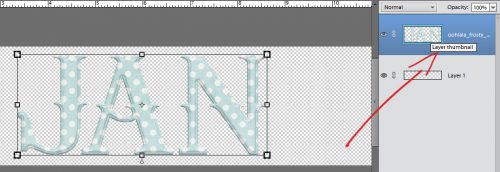
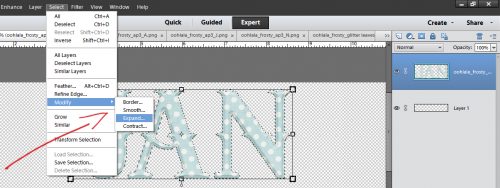
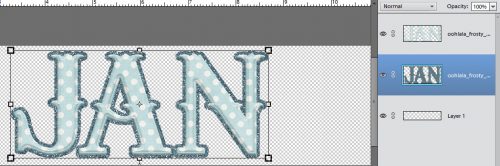
I dragged a paper onto my workspace, making sure it was underneath my title, then with my paper layer still the active layer, I held down the CTRL/CMD key and clicked once on the thumbnail for the layer with the title on it. That put some marching ants around the letters, as you can sort of see below. Then I clicked on the Select tab, chose Modify and Expand from the drop-down and fly-out menus. (You might remember that from a previous tutorial, if you’re a faithful reader.)

8

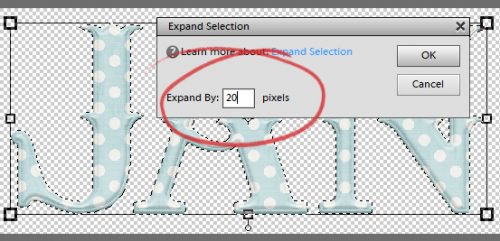
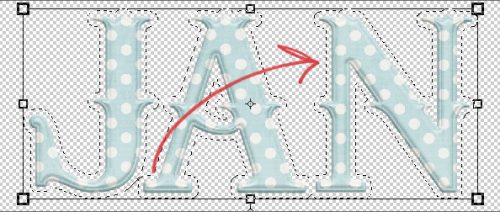
I wanted the paper border to be visible, but not ridiculously huge so I typed 10 into the Expand by:_ pixels box. That shifted the marching ants away from the edges of the letters.

9

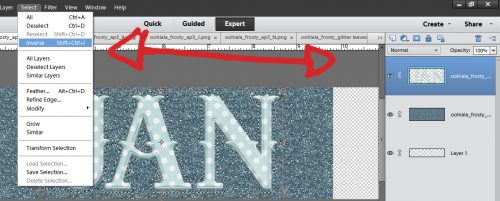
Then all I had to do was cut the rest of the paper away. To do that I first inverted the selection by clicking CTRL/CMD+X (the long way: right-click anywhere on the workspace and choose Invert Selection. Then go to the Edit tab, choose Cut.)

10

But I still wasn’t happy with it. I knew I needed to shadow the letters so they’d look more like candy. And I’d layered them on top of a piece of paper so there was a need for some definition. Then I decided to try a Bevel, which looked quite odd until I dragged the size down to 0. Then I liked it. I had to adjust the Lighting Angle because I was using a template (rotated and tweaked a bit) and wanted the shadows to agree with each other. That step isn’t shown, but it was discussed in last week’s tutorial on drop shadows.

11

One last thing I had to do before I moved my title onto my layout was to merge the layers so it would move as a single object. Remember how to do that? Select all the layers then click CTRL/CMD+E. Once I’d put it onto my layout I resized it and moved it around a bit, and was done!

That’s all for this week. Next week I’ll have some other tips, tricks and techniques for you. Keep your eyes open!

gs_footer_jan

Let’s Celebrate – Thanksgiving!

Thanksgiving is next week here in the States; and was last month in Canada. I don’t know about you, I never scrap my photos right after I take them. I usually sit on them for a while. With that in mind, I am stopping by today to show you some great digital scrapbooking supplies for scrapping your Thanksgivings. Be it next week, last month, or years ago! (If Thanksgiving isn’t something you would scrap, but you would like to scrap things you are thankful about, check out THIS POST.) I am going to just jump right into show you the great items. Of course if you are looking for something else besides what is here on the blog today, GingerScraps has a section dedicated to all things Thanksgiving!  All of the images below are linked.


Gingerbread Ladies Sneak Peeks – 11/18/2016

Can you  believe it’s the middle of November? Seriously….where is this year going? I have a few fabulous sneak peeks to share with you this week. Also, make sure you check out the GS fan page. Many of the designers give chances to win their kit before it’s released.

Now…for those sneak peeks.

Make sure you check the store on Friday for these and more.

And….. stay tuned to the blog for a special Black Friday/Cyber Monday announcement.

Tutorial Tuesday (Photoshop Elements)

Text Talk – LETTERPRESS!

gs_blog_teachyouiwill_header

Hey, all you Gingerscrappers! It’s Tuesday again and time for another little lesson to take your layouts up a notch. Glee posted a comment on one of my layouts in the gallery and she mentioned that my text looked like letterpress. She’s got a great eye… it’s the digital equivalent and it’s super-simple to do. I knew I was going to need a quick topic for this week because of the hectic, crazy schedule I’ve had at my real job and her comment just fit the bill perfectly. So let me show you how to turn text into letterpress.

For those who aren’t sure what that means, it’s how print looks when it’s typed with an old-fashioned manual typewriter on soft paper. It’s indented and the edges appear quite crisp. Maybe you’re wondering why you’d want to create this effect. Well, it makes your journaling more visible. It has some shadowing and texture, it adds depth and detail to your text and catches attention. It’s something people who were paper scrappers will love to see in the gallery. And perhaps most importantly, it GROUNDS your text. Text should never “float”… it can’t float when we paper scrap, and it must not when we do it digitally. For this reason, your text layers should be on the layer immediately above the paper or tag or label or whatever you’re applying it to, otherwise it’s going to look odd. And we don’t want that!

I like to use this technique on typewriter fonts like Typical Typewriter (used in the example), F25 Executive, Underwood 5 and similar fonts. But it also looks great with handwriting fonts, especially if you use an inky blue – it looks like you’ve scribbled it down with a ball-point pen. I know you’re going to try this!

0

Once you’ve typed out what you want to transform, you’re going to click on the Styles tab and select Bevels.

1

As you roll your mouse over the little thumbnails a label with the type of effect the style will create will pop up. You want to select Simple Emboss.

2

This is what it looks like. Downright horrible!! This is where the magic happens…

3

Double-click on the fx icon on your text layer. This box will open up. You want to grab the slider for Size and drag it to the left.

4

The default is 21 pixels. I like to go down to about 5 or 6. But you can go all the way to 0 and it will still alter your text visibly.

5

Then click on the box next to Down and look! It’s now “debossed” and looks dramatically different. That’s all there is to it!

6

I wanted to have the labels on all three of the tabs on my layout looking alike, so once I had my text typed onto the appropriate layers, I right-clicked on the layer where I’d already “pressed” the text and selected Copy Layer Style as shown.

7

Then I selected my new text layers and right-clicked on them. Then I selected Paste Layer Style and all my tabs looked alike.

8

This handy technique literally takes only seconds once you’ve done it a few times. What are YOU going to use it for?

The layout I’ve screenshotted for this tut was created with the Daily Download kit Just Be from Laurie’s Scraps and Designs. There are links posted here on the blog every day that let you pick up the pieces of the kit. If you’ve missed the first half of the month, the full kit will be available for sale in December. It’s got a wonderful colour palette and I enjoyed playing with it. Laurie is in the Designer Spotlight this month and is hosting the Designer Spotlight Challenge. Check it out!

Til next week, GSers!

gs_footer_jan

From the Archives Vol. 8

We are almost to the end of 2016; and already on the 8th edition of from the Archives. This year has flown by!

From the Archives is one of my favorite posts to write here at GingerScraps. I have been an enabler of digital scrapbooking with my friends from the start of it for me. I enjoy helping people find new digital scrapbooking supplies.

What archives? Well, we are going to show you some digital scrapbooking supplies that are in the store that are at least a year old. Usually older than that.  Some of us may be new to digital scrapbooking or new to GingerScraps. Some people don’t check the store every week. Basically, things can and do get lost in the weekly shuffle of the store. With that in mind, we are going to go back and look at some great products. Our hope is that you find some great things you might have been looking for; or find something that you didn’t know you needed but totally do now that you see it!


You  might have noticed all these oldies but goodies have similarity about them. The color! This From the Archives, I chose to go back to November 2015’s Buffet. Taking a look at what hitting the store a year ago.  Don’t forget about November 2016’s Buffet! These two compliment each other well.

Fresh Baked: November 11, 2016

Happy Friday! Are you ready for Thanksgiving (in the US)? Are you getting your Christmas shopping lists ready? Still scrapping Halloween? Just holding on for a breather? No matter what’s going on, this week, the designers have some amazing products that will fire off your imagination and help you get some memories scrapped!

Remember when you spend $10 in the store, you get a great collab!

fwp32
https://store.gingerscraps.net/GingerBread-Ladies-Collab-Must-Love-Books.html [Read more…]

Sneak Peeks November 10, 2016

It’s a three day weekend for most of the US to honor those who served in the military. It would be the perfect time to scrap a layout in honor of  a loved one’s service. Maybe one of the new releases might appeal to you!

From Mags Graphics

From Keley Designs

From Dagi’s Temp-tations

From Little Rad Trio

From JoCee Designs

From Tinci

From JBS Templates

From Clever Monkey Graphics

https://scontent-ams3-1.xx.fbcdn.net/v/t1.0-9/14955948_10211337855304545_2695449447886076774_n.jpg?oh=ef67202769a43609fa3eb7cdec7b4e79&oe=58936183

Have a wonderful holiday weekend!
Designer Sneak Peeks – November 11, 2016

Happy Wednesday. Sliding in through here to show off a few sneak peeks from our designers.

Make sure to come check out these and more in the GS Store on Friday.

Tutorial Tuesday (Photoshop Elements)

Shadow Basics

gs_blog_teachyouiwill_header

Gingerscrapper Marie Williams responded to my request for topics with an interest in learning more about shadows, particularly with clusters. Shadowing is a very complex topic so we’re going to look at some basics today.

When we scrap our memories with digital supplies everything is completely flat, two-dimensional… and it looks funny. Using drop shadows makes everything more realistic and attractive. Let’s talk about shadows a little bit before we look at how to make them look good. The first thing we should talk about is light and the source of the light. There are usually multiple light sources shining on an object, and there may be shadows in several directions but unless the light is directly above and perpendicular to an object, there will be one dominant light source/shadow combo. In Photoshop Elements, the default angle of light for the drop shadow styles bundled in the software is 120° – coming from the upper left corner – but that can be changed to suit your purposes. The default colour of the integrated drop shadows is solid black… and about as UNnatural as you can get. But that too can be changed to suit your purposes. Many digiscrappers like to use a dark brown shadow for their layouts, which makes a natural-looking shadow and a pleasing outcome. So let’s play with the shadows that come with the software and see how to manipulate them.

Flat and uninspiring. That’s how these beads from Ooh La La Scraps’ Creepy kit look against one of the papers from the same kit.

1

When thinking about shadows, you not only have to consider where the light is coming from but also how much light will pass UNDER an object and how far the shadow will spread. Anything that touches the surface it’s sitting on will cast a sharper, darker shadow than something that floats over it. The more contact an object makes with the surface under it, the darker the shadow will be. So hard objects like beads, buttons, frames, metal pieces like paper clips and brads need a more substantial shadow than a flower or a butterfly. Also, the thinner an object – like paper for example, the narrower and sharper the shadow.

The Drop Shadow menu is found under the Styles tab in the Effects panel. Shown below is the meager selection of shadow choices. For the beads in the screenshot, I selected the “Low” shadow style and double-clicked on it to shadow my beads. (If you’re someone who likes to take extra time at a task, you can right click on the style swatch and then select Apply to Document.)

2

The resulting shadow was quite sharp and harsh, so I double-clicked on the little fx on the Layers panel, which opened up this menu. I pulled the sliders until I liked the way the shadow looked. In another set of screenshots I’ll show you the difference between the stock shadow and one that’s been tweaked. Notice that there’s an indicator for the Lighting Angle. The labels for the sliders are a little confusing, so I’m going to explain how they work. The Size slider will alter the sharpness of the edge on your shadow. The Distance slider controls the width of the shadow and the Opacity slider is pretty self-explanatory. Having said that, remember you’re going for natural and appealing so you’ll probably want to decrease the opacity from the default setting of 75%; how much will depend on what you’re shadowing. There’s also a black box there that, when you click on it, opens up the colour picker. More about that later.

3

Flowers are much more complex than beads so let’s do one of them now. The style that is highlighted in the screenshot is the same one I used for the beads, but the one with the label Soft Edge is the one I used. Remember what I said about the amount of light that can pass UNDER an object. Flower petals allow a lot more light under them than beads do, so the shadow will be softer and wider.

4

Below is the way the shadow looks without any adjustments. It looks okay, but I think it can look better. What do you think?

5

It’s bigger, it’s farther away and it’s not as dark here, but it looks much more natural.

6

Brads aren’t a lot different from beads and buttons, but they usually have very sharp edges, so their shadows need to be a bit sharper. They’re also hard and dense, so they need a darker shadow.

7

The unadjusted shadow, using the Hard Edge style which should be appropriate for a hard, sharp object like this, is pretty harsh. See where the sliders are? Size is at 0, Distance at 20 and Opacity at 75%. And it’s kinda ugly.

8

So I pulled the sliders a bit, Size to 18, left the Distance at 20 and decreased Opacity to 65%. But I also thought I’d play with the colour of the shadow a little. So I looked at the gray paper in the background and selected a paler greenish-gray for the shadow.

9

The change shows up below. See how the shadow is a little softer and looks so much better? The difference in colour of the shadow is very subtle and isn’t really visible in the screenshot. But this is an important step to know, because if your background paper is already black, how are your shadows going to show up? Simple… change the shadow colour.

10

Buttons are very similar to brads, in the sense that they’re hard and most of the back is in contact with the paper. But this one has a slight curve at the edge, so there will be a bit more light getting under there. Unadjusted Hard Edge shadow shown below.

11

Size is now 32, Distance is still 20 and Opacity is 63%. Notice anything else? YES!! I changed the Lighting Angle to 60°. Good eye! (That’s the main secret here… watch what happens to your shadows as you move the sliders and when it looks right, you’ll know it.)

12

Okay, let’s talk about string, twine, curly ribbon, yarn, wire… those things that are skinny and flexible. Their shadows will be a little different. Because there’s not going to be a lot of it that is in direct contact with the background, their shadows are going to need to be a bit further away and a lot softer. I selected the Soft Edge style, which looks okay, but it can be a lot better. (Where have I heard that before?)

13

I thought the shadow was a little TOO soft, so I pulled the Size slider to the left a touch – to 32 from 42, the Distance slider to the right a touch to 42 from 20 and the Opacity slider to the left to 46% from the default 75%. Better!

14

Let’s go back to flowers again for a second. Some flowers are much denser than others. This one has several more layers of petals than the first one I showed you, so it’s going to cast a more substantial shadow. It’s also flatter, so there will be less light getting under it and the shadow won’t be as spready.

15

I decreased the Size a bit, increased the Distance a bit and decreased the Opacity a bit.

16

Stitches are really tricky! Depending on what kind of thread used they can be fine or hefty, narrow or thick. The also are close to the surface they’re applied to, so the shadow will be… narrow, fairly sharp and fairly dark. I selected the Soft Edge style.

17

Um… no. Let’s tweak a bit.

19

You can see what adjustments I made. And how much better it looks!

20

I know you’re all wondering, “But you haven’t said anything about paper, except in passing”. So think about paper. It’s thin – but can be thicker (cardstock). It usually is quite close to the surface it’s sitting on. (Lifting paper corners digitally is a lesson for another day.) And it has a sharp edge. (Paper cuts anyone?) I used the Low style since it is paper I’m shadowing and it is close to the paper under it. I wanted to show you a dialog box you’ll sometimes see if you use these integrated shadows on something narrow (like the stitches) so I’m showing you a paper border.

21

You can ignore that! Click on OK and carry on. Your shadow will still show up just fine. You can leave it as is, or tweak it a bit so the shadow is a little tighter. Defaults are 20, 20 and 75%.

22

And then we should look at stickers. My very first tutorial for GS taught you how to make stickers with fonts, so I’d be remiss if I didn’t show you how to get a realistic shadow on your stickers. Stickers sit VERY close to the background they’re attached to. There will be a shadow, but it will be narrow, sharp and not particularly dark because of the thinness of the paper they’re on. I went with the Hard Edge style.

23

Then I shrunk it down to a teeny, tiny skinny shadow. Because stickers don’t float!

24

Now let’s put it all together and make a cluster. Start dropping your shadows on the items closest to the paper and work your way up, thinking about how much of the object is touching your layout, the object’s density, where the light is coming from and what’s underneath it.

25 26

I decided the tag is made of cardstock, so it’s got a bit heavier shadow than plain paper.

27 28

The leaves are touching but curved, so they get a bigger, softer shadow.

29 30

The white flower is flat and stiff, but is on top of the leaves, so it gets a slightly sharp but also slightly wider shadow. The yellow flower is a bit fluffier and is on top of the other three items so it needs a more diffuse shadow. Notice the colour of the shadows cast by the top-most layer of petals… they’re not black but a dark orange. Try and picture those in black. Ugh!

32

And finally, the string bow is on top of everything, and is thin and floppy. So it needs a shadow that’s farther away but still visible. (A lesson on warping shadows for things like this bow is on my list for a tutorial down the road.) And there we are! A cluster with natural-looking drop shadows.

33

WHEW! That was a long-winded lesson!! I hope you’re still following along. After all that, I’ll tell you a secret. I use a set of shadow styles I bought from a designer. Because I’m into instant gratification… and I’m lazy! It’s just so much easier and quicker to use a preset – double-click and you’re done. But there are times when I still play with those presets because I want a different look. The layout I created with the items in this tut is in the gallery. See if you can pick out where I’ve tweaked things. There are a few, but they’re not obvious… Then go practice, practice, practice! Your eye will get better and better and soon your shadows will be the envy of the digi-world.

(PS… GS doesn’t have a designer who has shadow presets in her store. But I know where you can find them…)

gs_footer_jan