Tutorial Tuesday (Potpourri)

Buckle Up for [inter]National Scrapbook Day

According to the Master Index, this is my 300th Tutorial Tuesday post! And it’s also the lead-up to [inter]National Scrapbooking Day, which is formally set for Saturday, May 6th. I thought it could be a good time to revisit and update the Tutorial I wrote 5 years ago on how to survive the next week with your sanity intact.

I’ve been seeing a LOT of sneak peeks, ads and excited chatter, and I know there will be an overwhelming number of opportunities to get your scrap on, starting at different times over the coming week.


Here at GingerScraps, the people behind the scenes have been very busy organizing a celebration jam-packed with sales, games and a ton of fun. I haven’t seen any insider info on what’s planned for this year, but in the past, we’ve had a store-wide 50% off sale and a gigantic free-with-$20-purchase collab. The scavenger hunt is not only fun, it might show you designers you’re not familiar with and may soon become new favourites. Our designers usually create a fine selection of $5 grab bags – they’re always a great deal. And then there are the chats, speed scraps and games in the Forum. You don’t want to miss them!! And that’s just this one (albeit fantastic!) store!!

Back in 2010 when I was a digiscrapping newbie, iNSD and DSD (Digital Scrapbooking Day, which used to be in November but has been moved ahead to October because with Thanksgiving in the US, November was already too frenetic) were so exciting, but I found that I was a bit scattered in my approach. I ended up confused and bewildered, I overspent, and I wound up with a bunch of freebies I never use. So here are my tips for making iNSD work for YOU instead of the other way around.

A] Don’t dive in head-first! Take some time to look at the stores you frequent to see what their special events look like. Make a list of things that interest you, including dates and times for things like chats or speed scraps. That way you can see conflicts easily and make a decision about which will be more fun for you. Also include deadlines for any contests you may want to enter. Planning right at the beginning will really help.

B] Once your list is compiled and double-checked, create some kind of reminder for things that have a specific time associated with them. This can be as simple as a couple of Post-It notes stuck to the edges of your monitor, or as techie as reminders on your phone, complete with beeps or bells to prod you into action. I don’t know about you, but I’m becoming more forgetful all the time and without the pings on my phone, I’d miss a lot of things! Now I’ve even set certain notifications on my smart watch that are pretty hard to ignore. 😉

C] Set a budget and stick to it. Figure out BEFORE you look at the sales how much you can afford to spend and make sure you don’t go over. Because iNSD is the same week as my birthday, I tend to be a little generous to myself, but I won’t spend more than $20 at any one store, and no more than about $50 for the entire event. Inflation (and lousy exchange rates) notwithstanding. I may have to increase my limits to $25 and $75.

D] There are going to be lots of blog-hops with free collections from various sources out there. Don’t fall into the “but it’s FREE!” trap. Even free is too much if it’s something you don’t love and won’t use. Think of the storage space you’ll waste if you go hog-wild with the freebies. Look at each and every freebie with a discerning eye and only download the ones you know will work for you. Take a look at how much room you have for new files and perhaps move some less-favoured (and therefore less-used) stuff onto a memory stick or external hard drive. Personal note: When I replaced my laptop last year I opted for one with a smaller hard drive, partly to force me to do some decluttering. And while it worked, I’m such a collector… I soon was getting warnings about the lack of capacity. So I bought a SanDisk 512 GB USB drive that is so small and handy, it can stay plugged in all the time. I moved a bunch of files to it, can access them instantly and the nagging stopped. It was a bargain at $60. Might have to buy another!

E] Speaking of blog-hops, if you find one that’s especially fabulous and you HAVE to have it, you might find yourself signing up for newsletters or Facebook pages for designers you may never want to have on your Rolodex (or filling up your inbox). So make a list of ALL the places where you’ve signed up/subscribed/liked/followed so that you can later return and un-do them again. Don’t worry about offending the designer; they’re too busy right now to notice!

F] You might want to give some thought to pre-planning for any speed scraps you might join. Create a folder of possible photos to use. Have some in there that are in landscape format as well as some in portrait format, and some that can be made square or circular without losing anything important. Also have some that will work for multi-photo layouts, just in case. This will save you a lot of time when the speed scrap starts. Make sure you’re unlikely to be disturbed for the 2 hours a speed scrap usually lasts. And have a beverage and a snack ready before you begin.

G] Don’t try to conquer the GS scavenger hunt in a single sitting!! Your eyes will thank you. But by all means, DO play along. This is the exception to my rule about freebies, since the prize is usually a fabulous GingerBread Ladies collab. Who couldn’t use one of those?

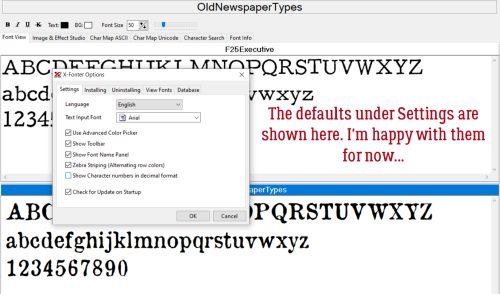
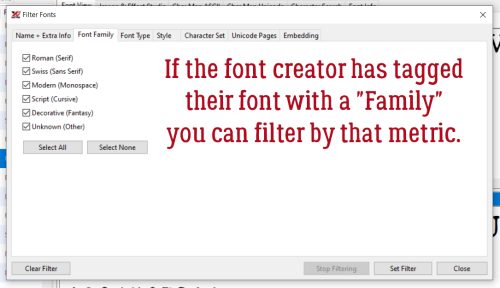
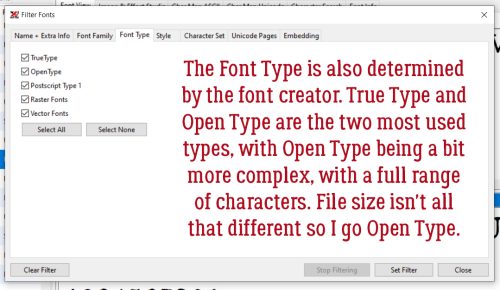
H] And finally, review the tutorial I’ve provided on using a multi-file extractor. Don’t wait to unzip and organize all those amazing kits you’ve gathered, do it while you’re on a roll! You won’t regret taking the time now, but if you leave it, you might never actually look at any of the super-duper kits you just bought. And that would be a terrible shame!!

I’ll see you all again once we emerge from our iNSD-induced fugues with a new tutorial! I’ll be back tomorrow with the Designer Spotlight. Always busy!

GingerScraps: New FREE with Purchase Collab, New Monthly Mix, NEW Designers & More!!

It is the 1st of the month and you know what that means, a huge, exciting newsletter! We have a New Buffet, New Monthly Mix, New Free With Purchase Collab, New Challenge Reward, New Daily Download on the GingerScraps Blog, & New Designers! 

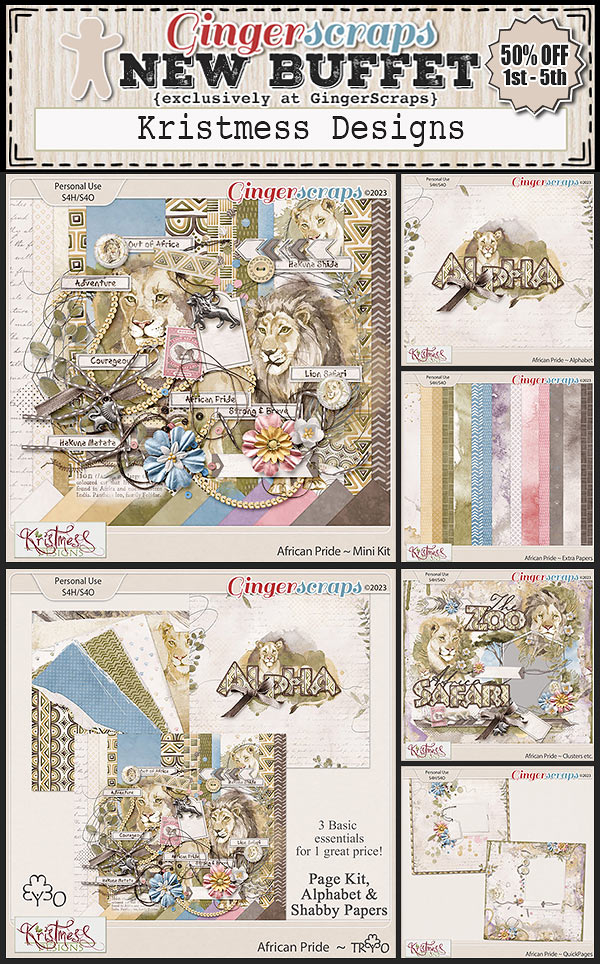
Let’s start out with the March Buffet. Don’t forget to check out the Buffet Bundles. One easy click to add bundles of Buffet goodies to your cart.

Aren’t the buffet colors gorgeous? And with the buffet kits, you can mix and match to get the perfect kit for you.

Remember any $10 spent in the store gets you this great collab. Are you feeling {outdoorsy}?

This Free With Purchase was created by: Just So Scrappy, Kristmess, Miss Fish Templates, and Neia Scraps.

This collab includes: 1 Alpha {Uppercase, Lowercase, Numbers & Punctuation}, 47 Papers, and 102 Elements.

When life gives you lemons, just make {lemonade & laughter}.

This Monthly Mix was created by: Aprilisa Designs, Dear Friends Designs, JB Studio, Jumpstart Designs, and Sweet Pea Designs.

This collab includes: 1 Alpha {Uppercase, Lowercase, Numbers & Punctuation}, 50 Papers, 78 Elements, and 4 12×12 Template {png, psd, tif file formats}.

Now to the May Daily Download Sneak Peek. This month’s Daily Download is from Memory Mosaid! Make sure you are checking the blog every day to get all the pieces of this kit!

We have great designer news for May. 

First, we have a new permanent designer joining the GingerScraps family.

Cornelia Designs

BIO:
Cornelia lives with her husband, her four children and a puppy husky in Austria. When her oldest daughter was born in 2009 she started scrapbooking and never quit documenting the lives of her family. A few years later she started her design career to make her own collections. Her designs will be available exclusively at GingerScraps!

We also have a guest designer this month!

WM[squared] Designs

BIO:

My name is Wendy and I’m the creative force behind WM[squared] Designs. I started digital scrapbook design whilst living in California. Everything was so expensive out there and I found that creating elements and papers made me happy, and provided me with exactly what I wanted to use on my layouts! That was 15 years ago!

I’ve always loved to travel, and creating travel themed kits makes me happy! I’ve been married for going on 3 years to my soulmate, and we live with our 4 cats in Ireland, though I’m originally from Texas!

Are you ready for the May challenges? Remember any 10 completed challenges gets you this great kit.

This Challenge Reward was created by: Adrienne Skelton, Lisa Rosa Designs, Scrapbookcrazy Creations by Robyn, and ScrapChat Designs.

This collab includes: 1 Alpha {Uppercase ONLY}, 48 Papers, 78 Elements, and 4 12×12 Templates {png, psd, tif file formats}.

And now a few samples from our talented store CT with a sneak peek of the iNSD Mega Collab!


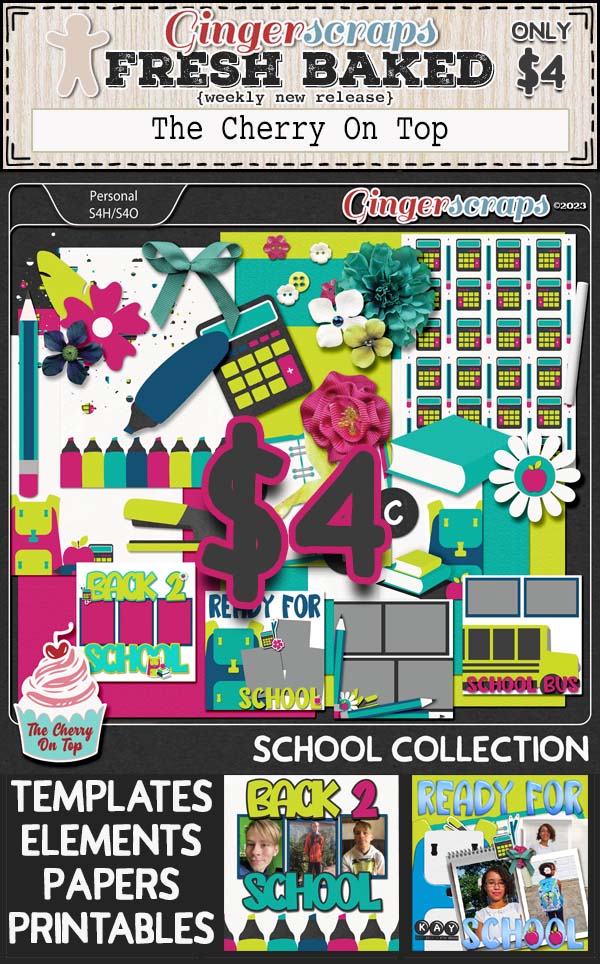
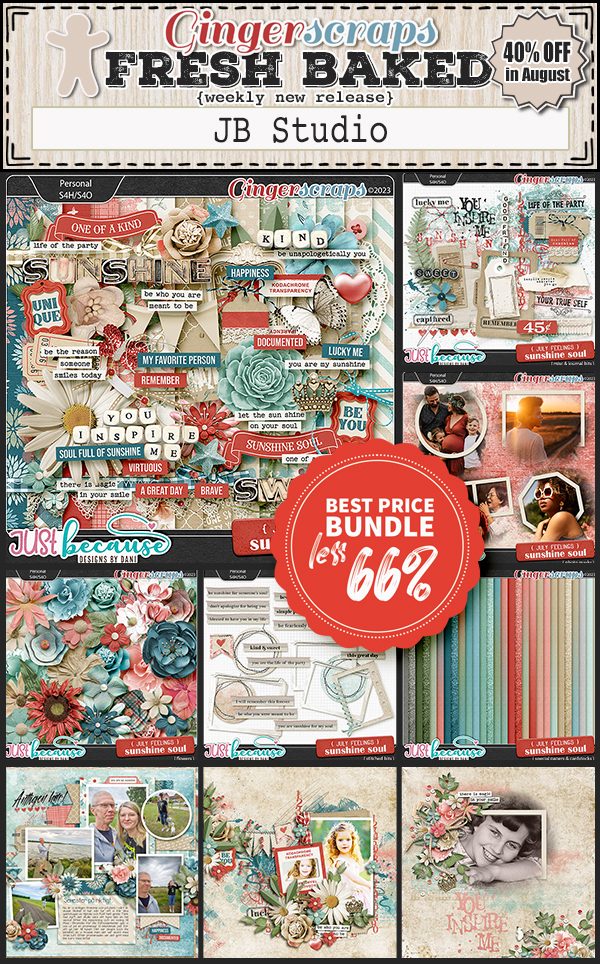
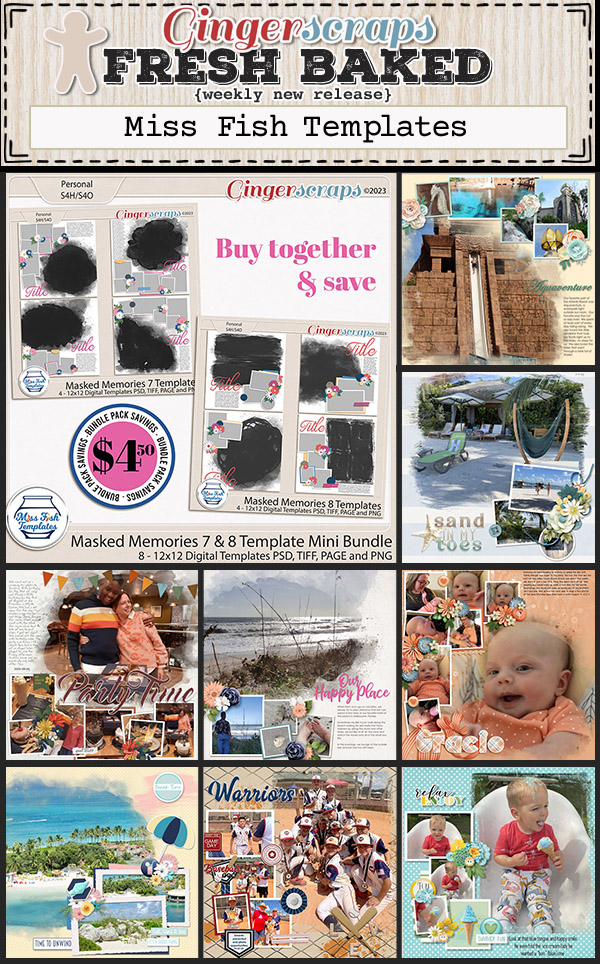
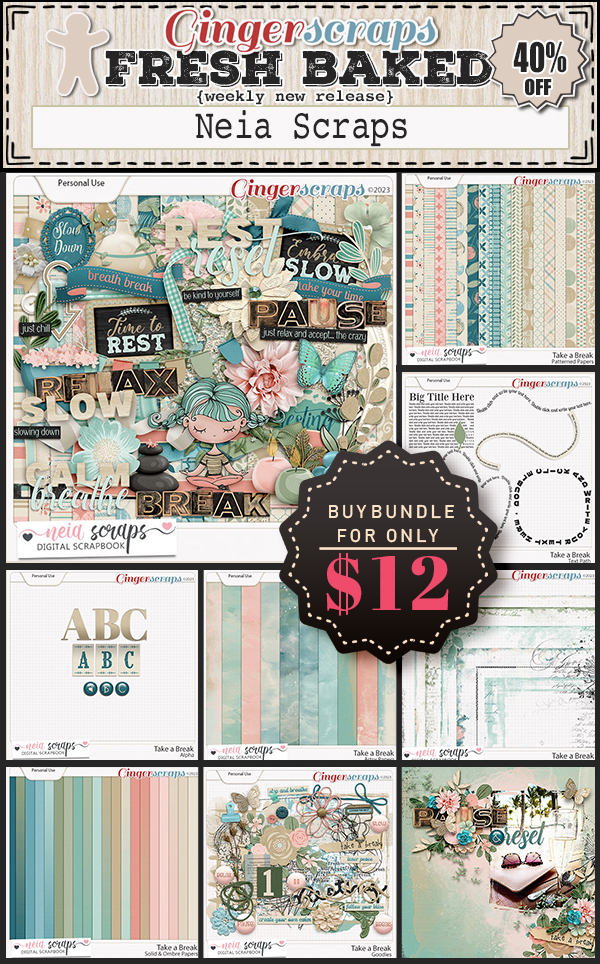
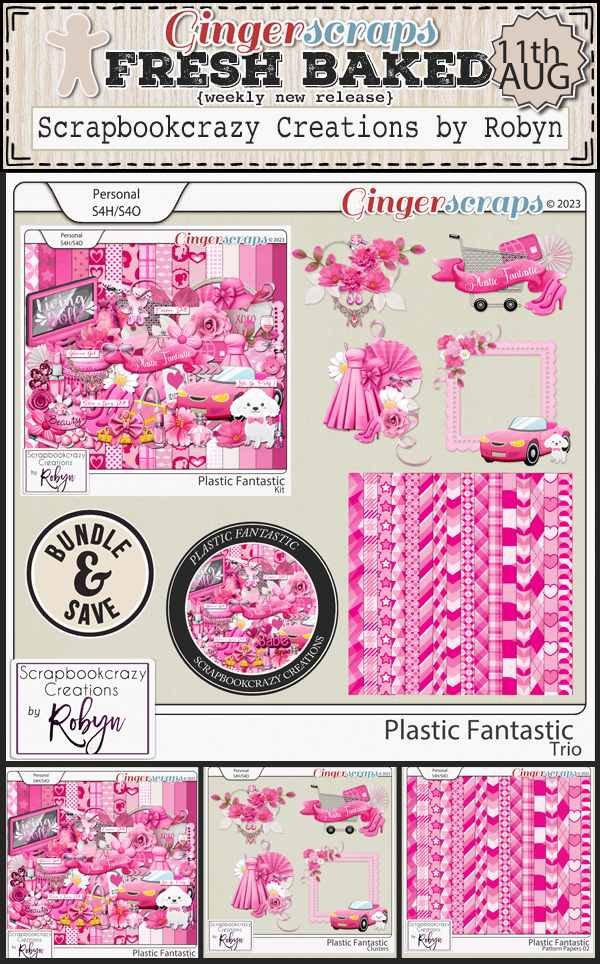
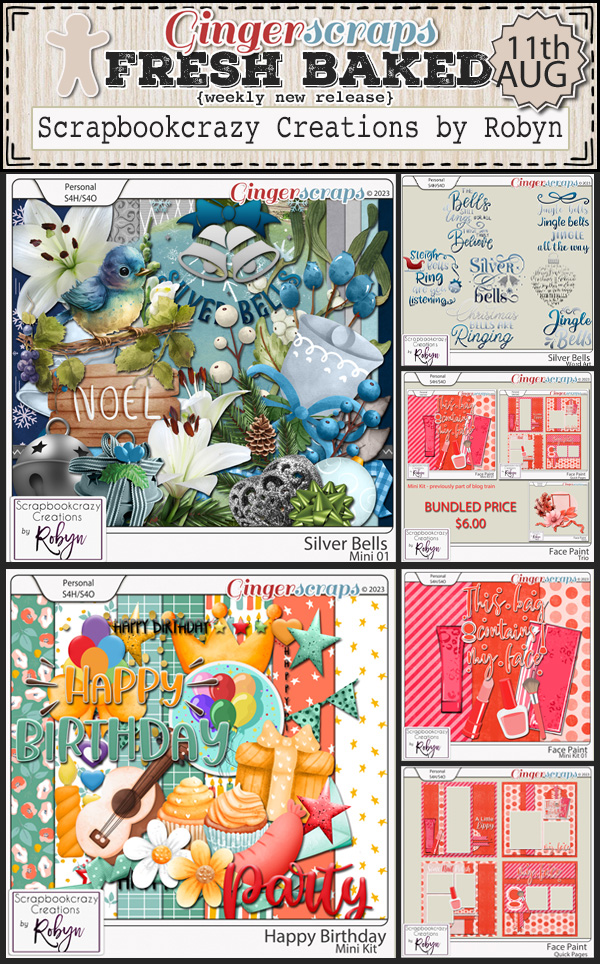
April 28, 2023: Fresh Baked

Here we are at the end of another month. Hard to believe it. We have exciting news this week so keep reading to the end!

Remember any $10 spent in the store gets you this great collab.

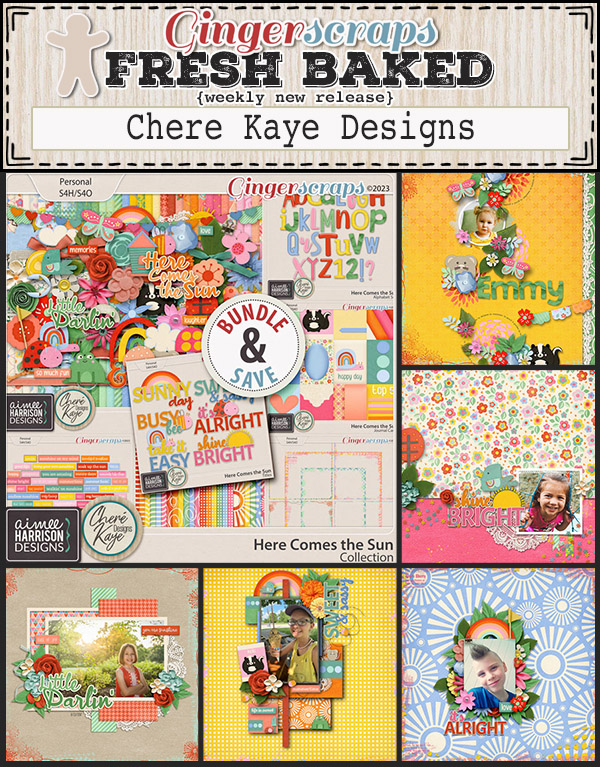
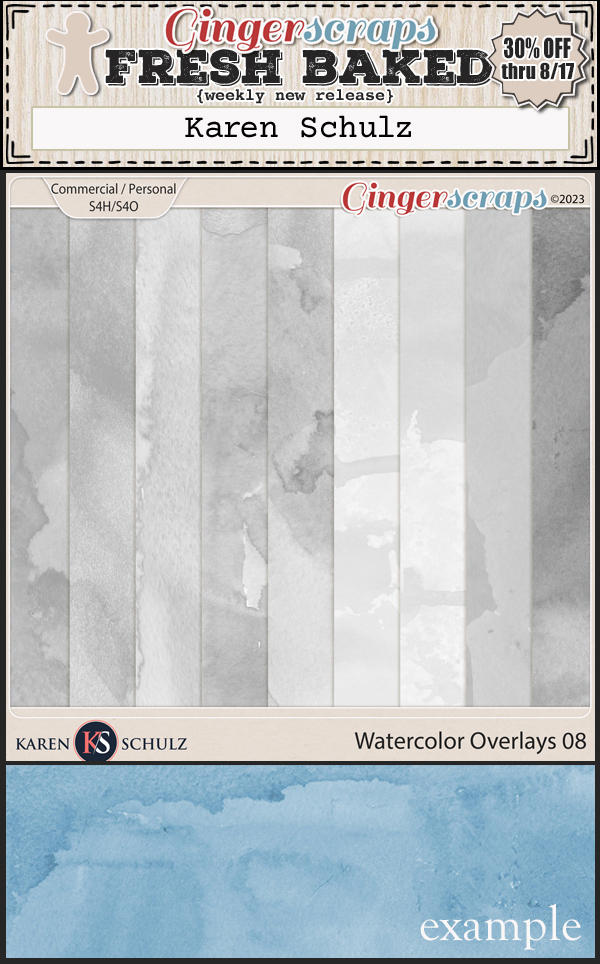
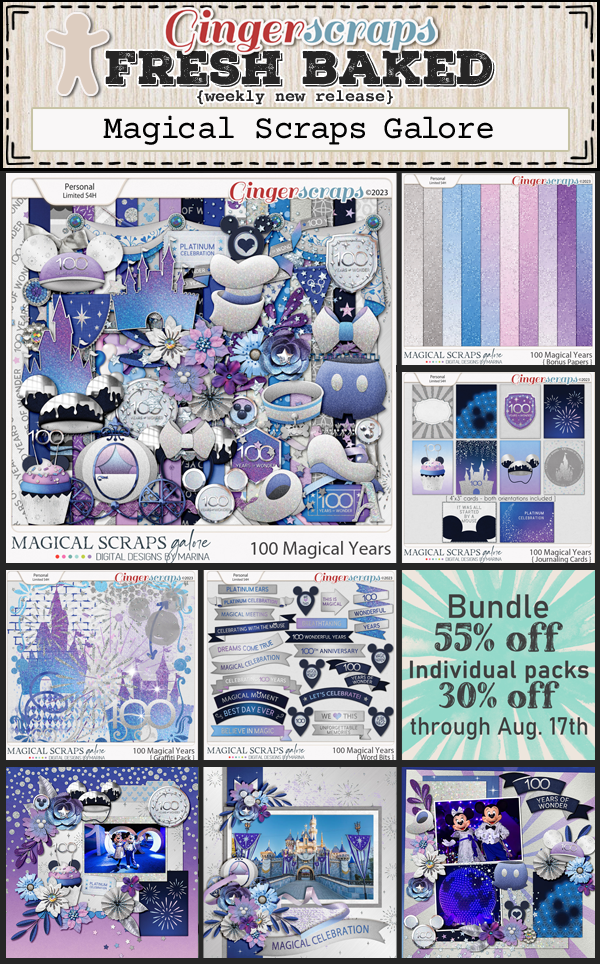
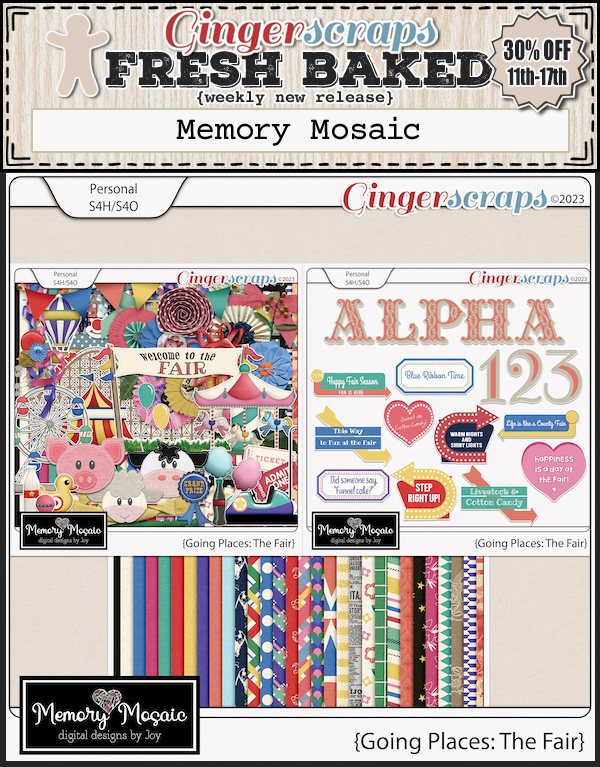
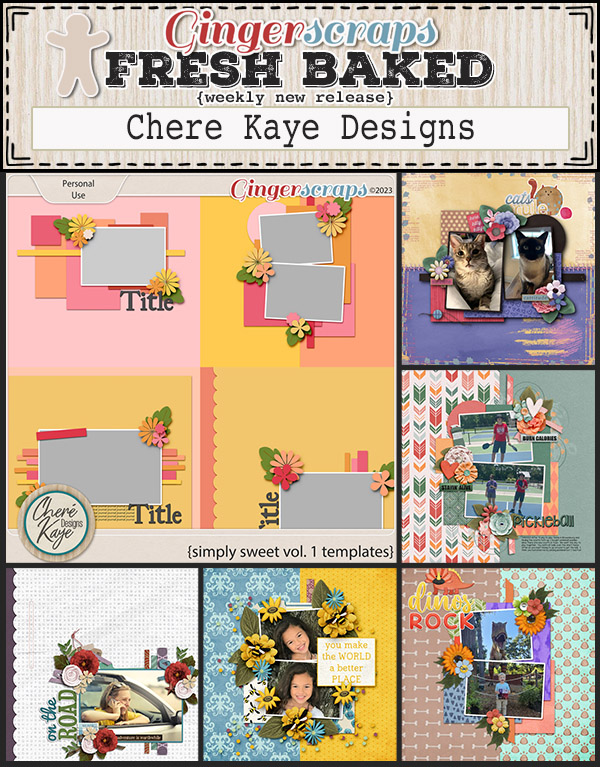
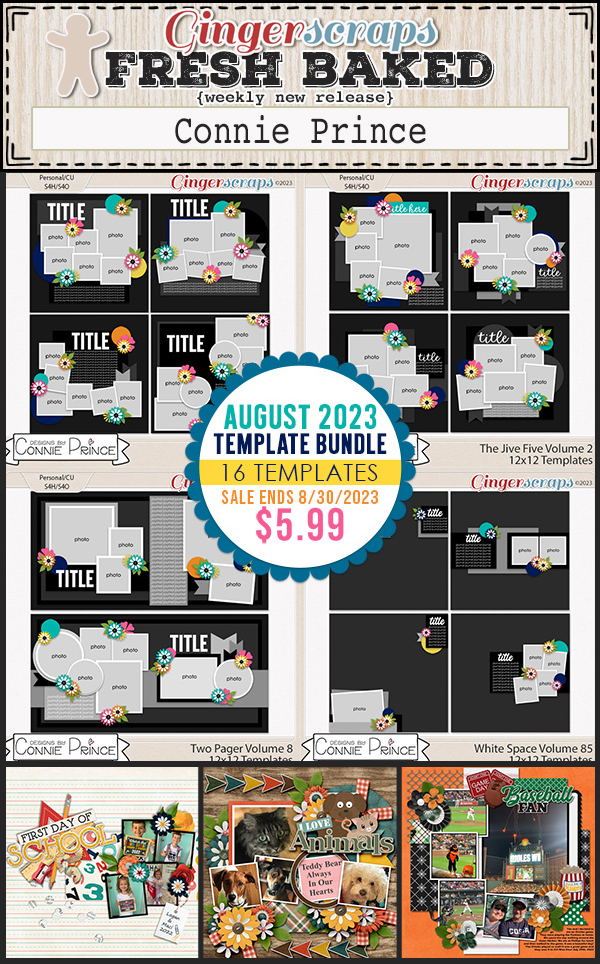
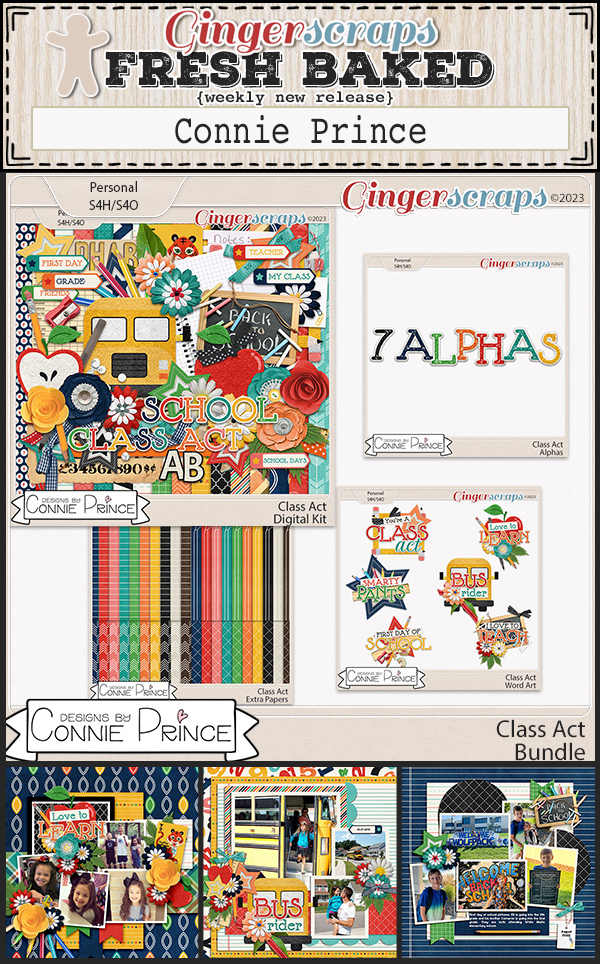
Let’s see our new items for this week.


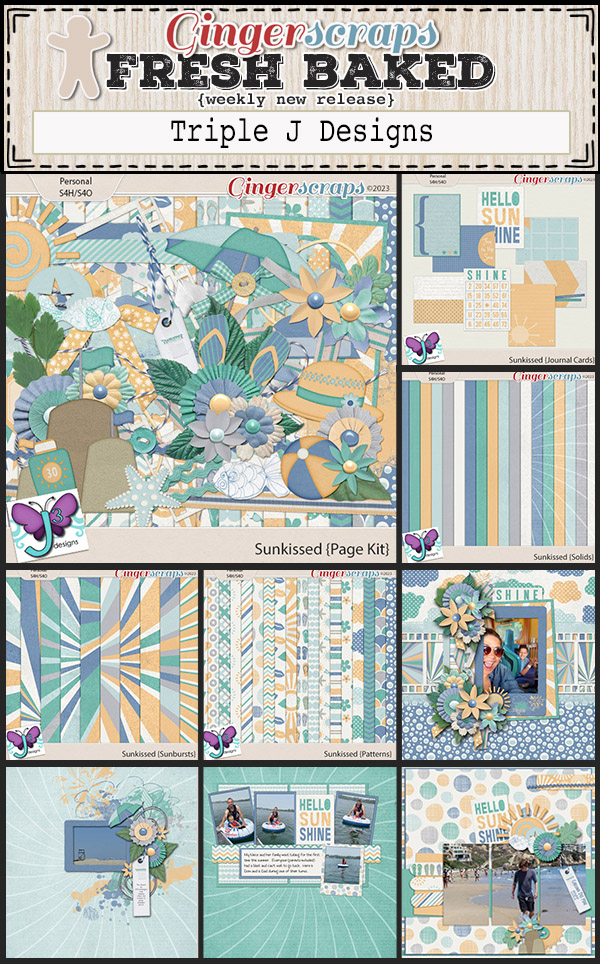
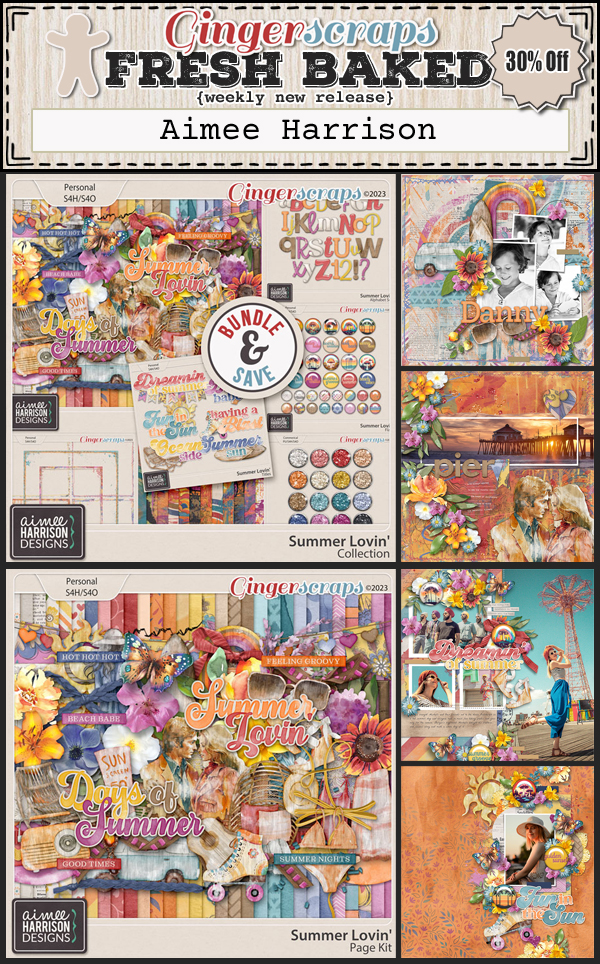
Now for our exciting news! We have TWO designers that are joining the GingerScraps family permanently. 

J. Conlon and Sons

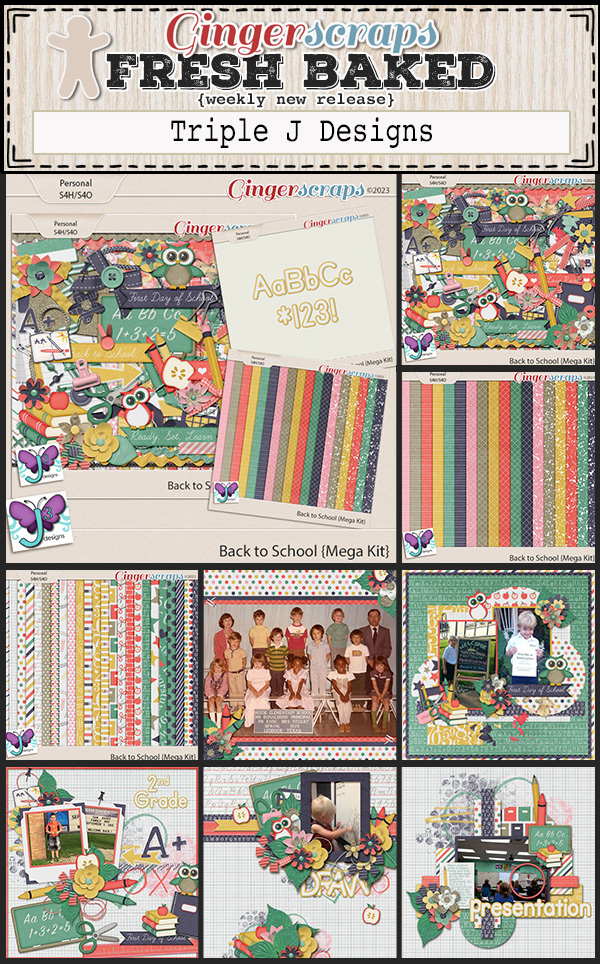
Triple J Designs

Are you getting your challenges done and posted? Complete any 10 challenges for this great reward kit.

Tutorial Tuesday (Photoshop Elements)

Quick Trick: No More Blemishes!

PDF Version : https://bit.ly/3AA0q81

Have you ever looked at a heritage photo and wanted to display it or create a layout with it, but it has a big fold, crack, scratch or wrinkle you can’t crop out? This tutorial is for you! (Only thing is… you need Elements 14 or more recent.)

This photo of my grandmother’s younger sister Mamie was in the treasure trove my grandmother’s cousin (still alive and well at 90!) has in her archives. It’s in pretty decent condition, considering it was taken in 1915. But it has some scratches, cracks and foxing, all things that happen to old prints. Black and white photo paper has a layer of gelatin emulsion impregnated with silver halide crystals that undergoes a chemical reaction when exposed to light. This emulsion layer is relatively fragile, especially as it ages and becomes more brittle; it’s easily scratched and is prone to cracking when the paper is flexed. This gelatin layer is what causes old photos to curl over time. But enough with the history lesson! How can these precious photos be repaired? With the Content Aware Move Tool!!

I Zoomed in on the area where I want to start my repairs. I also added a new blank layer above my photo. This is the layer I’ll be working on as I do the restoration.

To find the Content Aware Move Tool, look at the Tool Panel along the left side. It’s the one with the criss-crossing arrows icon at the bottom just above the Color Picker. Click on that. Before you use the Tool, make sure the settings are as shown: Mode = Move, Healing = 50%, Sample All Layers = ON and Transform on Drop = OFF. Then drag out a Selection around the spot you want to fix.

Then click and drag the Selection onto an area of the photo that doesn’t need fixing. Elements, using AI technology, cleans up the spot automatically. Be aware though that once you’ve used any “clean” area of the photo, it’s off-limits for reuse. Why? Because when you go to Delete the Selection, it’ll restore any other flaw you may have moved there. I found that out the hard way.

Since we’re FIXING and not just REARRANGING damage, the next step is to Delete what’s inside the Selection. You can do the multi-step Edit>Delete or just hit the Delete key. Elements doesn’t care. [You’ll know if you’ve forgotten to activate the BLANK layer because the area you’re Deleting will turn blue. AHHHH!]

These three steps are all you need to know. You don’t need to Deselect to move on to the next damaged area, just go ahead and Select it. Easy-peasy!

For more complex damage, like this crack/scratch/crease combo, it works best to do it in chunks.

The Tool can make very detailed Selections, which don’t have to be super precise.

And there it was… gone! (My dad says that all the time.)

Once you get to the point where all that’s left to clean up is dust spots and little discoloured areas, Merge the two layers together – Click>SHIFT>click on the layers then right-click and choose Merge Layers or CTRL/CMD>E. Then you can go ahead and use the Spot Healing Brush and/or the Clone Stamp to finish up. The image can be printed and framed, or used in a layout (or both!) as desired. I only have about 40 more photos to do now……

I’m sure there are other ways this Tool can be used. I’ll put my thinking cap on and see what I can come up with!


Tutorial Tuesday (Individual Style)

Challenge Spotlight: Show Us Your Hobby

Greetings, GingerScrappers! Did you enjoy the March Scrap-a-Thon? The Gallery is brimming with layouts, so I’d say a lot of you got involved. In fact, SEVENTY-SIX people managed to create 20 individual layouts each. Phenomenal!! Today I’m going to show you some layouts created by YOU!! I’m almost at the end of the list of Challenges that lend themselves to this type of analysis, so I’ll soon be starting to revisit Challenges we’ve already covered. But not quite yet… Today our focus is on the April Show Us Your Hobby Challenge, hosted by Trixie Scraps. The only requirement for this Challenge is to create a layout featuring (one of ) your hobbies. Let’s take a look… layouts are presented in the order they were uploaded to the Gallery. Each is linked to the Gallery so you can pop by and offer your praise; just click on the Scrapper‘s user name.

First out of the gate this month is Connie – Gerbera; her hobby is hiking. The colour palette she chose is pulled from her photos, which are ably showcased by a very clean, simple setting.

Next up is jcfdelaware, whose hobby is geocaching. This hobby exercises the entire being. Her layout, with its themed elements and arrowed background, tells the story. Look at her smile!

DianeInOz does escape rooms. Those types of pursuits require a special type of intellect and an ability to think creatively. As her journaling reflects, the first time you do something, you might not get it right.

Whomever dreamt up Little Free Libraries is a genius! I feel like it was a missed opportunity for us, but not for glee! Her layout pops in the Gallery. I particularly love the subtitled banner.

It’s hard to know from msbrad‘s layout which of her many hobbies she’s sharing. Is she writing or illustrating children’s books? Embroidery? We all KNOW she’s a prolific scrapper!

KatL has resumed a hobby she’d let lapse – knitting! Her sweater will be beautiful when it’s finished. She pulled colour from her sweater into her layout, and that yellow doodle frame draws the eye right in.

KatherineWoodin‘s hobby is just to enjoy her life!

KAPOH makes pysanky – Ukrainian Easter eggs. She’s made the photo the focus of her layout, which is as it should be! Art like that needs not be distracted from with fripperies.

Thank you Grace. for sharing your reduced-sugar fudge recipe! Candy-making can be a hobby, an art, more than just work.

MarilynZ is a communicator. Her monthly newsletter keeps her community informed and connected. Many years ago I was responsible for a monthly newletter; it’s a LOT of work, but when it’s done with love, it’s worth it. I like how Marilyn has given us a peek into her April letter.

Photography is mkcdaisy‘s hobby. She’s even gotten a degree in it; that’s dedication! She’s included 3 different cameras as elements in her clusters. But I’d wager she has more than 3 cameras in her collection.

Look at the beautiful embroidery shown off in trinanne‘s grid-style layout! She’s cleverly used a canvas-style paper for her background. I used to do cross-stitch before my eyesight betrayed me, so I saw it right away.

Our last layout is from firstoscartgrouch. I’m not up on all the current pop culture – my grandkids living in another country and all – so at first I wasn’t sure what I was looking at. AH!! Pokemon Go!!!!!! I think of it as a variation on geocaching. Am I wrong?

Before I go see what kind of mess my husband is making trying to be a handy guy, I just want to remind you all of the Challenge Reward for April. Every scrapper who reaches 10 Challenges completed since their last Reward will automatically qualify. This is what it looks like. It’s delightful! (And it aptly describes the April we’re having here!)

See you next week when I have a Quick Trick for you!

April 14, 2023: Fresh Baked

Well here we are at another Friday. I hope your week has been amazing. I’m excited because I will be on “vacation” next week. I’m working a good part of it, but it will be from a different location so it’s sort of a vacation.

Remember any $10 spent in the store gets you this great collab.

It’s always exciting to see what the designers have new in the store each Friday. Let’s see what we have this week.

We have exciting news to share. Moore Blessings Digital Design is now a permanent designer here at GingerScraps.

To celebrate, she has a new mini kit in the Welcome Wagon Forum and a sale on her store for the rest of the month.

How are you doing on the challenges for April. We’re almost halfway through the month. If you complete any 10 challenges, you’ll get this kit as a reward.

Tutorial Tuesday (Photoshop Elements 2021+)

Guided Edit: Perfect Landscape

PDF Version : https://bit.ly/3GDI35u

By popular request! Let’s get this one off on the right foot from the start… this Guided Edit wasn’t available until Elements 2021 launched. If you’re using an older version of Elements (2018, 2019 or 2020), you’ll have to use the old-school method I showed you here. Anything older than that and you’ll have to manually extract the sky, find a sky overlay and add it on. Much more work. 🙁

Landscape photos can be stunning, or they can be kinda blah. Uniformly gray skies can provide great saturated colour to objects in the foreground, but overall, they can make for a pretty boring image. Most of the photos I took while in Ireland have a blown-out almost white sky. But now, with the Perfect Landscape Guided Edit, I can do something about that, fairly easily too! I’d already used my usual editing arsenal on this image – there was a car in the original photo! – but that sky drags the whole thing down. Let’s fix it!

You’ll find this marvel on this path: Guided>Special Edits>Perfect Landscape. Elements uses Artificial Intelligence for this Edit. It seems to be fairly competent at it too.

This is what the Perfect Landscape interface looks like. Because I’ve already edited the photo before, I’ll skip over the Crop, Straighten and Remove Haze tools. They’re pretty much self-explanatory and/or have been featured in other tutorials. I’m going right to the Choose a new Sky toolkit. There are 16 different sky options here. Experiment with them to see what will look best with your particular photo. To undo your choice, just CTRL/CMD>Z.

What do you think of this one? I know, right?! [Please ignore the typo in the image. Ta!]

This is the progress bar for the analysis part of the Edit, while AI is working. It’s deciding where the sky is and judging how bright to make the replacement sky.

Here you can see I’ve chosen the very first option from the palette with the Opacity and Brightness at 100%, and the photo looks better. But not quite right. There are a few adjustments that can be made manually, so let’s look at them.

Watch closely when you make adjustments. Every time. You need to see what’s happening so you can decide how much of a change the action is creating and if it actually looks better or worse. Ticking the Auto Match Color Tone box made the entire image darker and the details less visible. It’s a no for me, dawg.

When you hear about how much it rains in Ireland, it’s not an exaggeration. They have a lot of “soft days” – when it’s drizzling. In my photo there’s a muddy area just in front of the opening in the back wall. So maybe I should move the sky around so there are a few more clouds, to give the impression that a storm has blown through and the ground is drying. The Move Tool button activates the layer with the sky on it so I can do that.

That’s better. Because the AI worked flawlessly, I don’t really need to make any more changes to this one. So I’ll click Next down at the lower right corner of the canvas to the next menu.

I’ll Save As this image as an edit of the original, but I’ll do it in the Expert editing area. I might decide I want to use the photo right away on a layout.

I wanted you to see all the steps Elements took in the background. You can see the first thing it did was to isolate the sky area. Then came a gradient layer, the sky image layer, a brightness adjustment layer then a mask that concealed all but the sky area. Last is a composite of all the layers. Because the top layer is a composite, adjusting any of the other layers makes no change to the end result.

So. What happens if part of the photo is mistaken for sky by the AI bot? In this photo, the buildings along the upper right are bright white, just like the sky. So our AI bot was confused and added sky to them. How can that be remedied?

Easy! Use the Refine Edge toolkit. I want to remove the sky from the buildings, so I clicked on Subtract and using a smallish, hard, round brush at 100% Opacity I erased it from view. if you’ve used any other brush just prior to doing this edit, you’ll run into trouble so click through to the Expert Edit, check the brush and then click back to the Guided Edit. I could pretend that I did this on purpose so I could tell you it works, but that would be a fib… I had the arrow brush I use on my screenshots active and it was a MESS!

There are still a few things I want to adjust on this image. For example, the water under and in front of the bridge should reflect some blue and cloud, and the area under the arch in the foreground would probably be a bit lighter and brighter with a blue sky. But I think it’s all doable.

My tip for making this easy and quick: Choose a photo with an easily identified sky and let the software do all the work!

April 7, 2023: Fresh Baked

Happy Good Friday! I hope you have all had a great week and have a wonderful weekend!

Remember any $10 spent in the store gets you this great collab.

Ready for a look at what is new in the store?

Have you gotten a start on your challenges? Remember, if you complete 10, you get this great kit as a reward.
Tutorial Tuesday (Photoshop Elements)

How Do I Know When to Stop? (Editing)

PDF Version : https://bit.ly/3nDFOZc

Last week this comment was left for the tutorial post: “I have trouble judging how far to make these setting changes. Is it simply a bit of practice? Or how can I make better decisions on the settings for these adjustments? Thanks, Lorri” Well, you know my reply would end up taking up the whole page and would end up not meaning much without visuals, so today I’m offering some tips on what too much looks like. Because I’ve definitely gone WAY too far with some of my edits when I was just learning the ropes and made a LOT of mistakes along the way (like saving the edit over the original so I can’t even fix it!). Anything I put particular emphasis on in a tutorial is something I’ve messed up badly at least once… and that answers part of Lorri’s comment. Some of it IS a bit of practice. Prepare for an onslaught of screenshots!

Here’s a photo of the World War II Memorial at Arlington National Cemetery in Virginia that I snapped when I was there in 2010. I’m going to show you my (new) process for those out-of-the-camera almost-good photos I have and show you one of my serious fails.

The first thing I like to adjust is the lighting. Sometimes that’s all a photo needs. There are a few ways of doing that using the Enhance tab menu, but this one is really simple and seems to give the best results. I’ve shown this before, so let’s review. Make a Copy of the photo layer: right-click>Duplicate Layer>OK or CTRL (Windows)/CMD (Mac)>J. On the Copy layer, change the Blend Mode to Screen then adjust the Opacity until the white balance looks right.

My next step is to use the Shake Reduction… command. This is a newer addition to my workflow; you may remember it from a few tuts back. It was added to the Enhance tab menu with Elements 14, so a lot of you should see it in your tab menu options. (I just ignored it. Sigh.)

Elements decides where on the image it’s going to analyze shake. Most of the time, it seems to just go to the centre of the image. If it chooses an area of the image that isn’t what you’re really hoping to sharpen, you can wait for it to run then choose your own focal area and it’ll run again. Shown also is the default setting for the Sensitivity.

Make use of the sliders to adjust the Sensitivity so the effect doesn’t end up being phony-looking. Don’t rush the adjustment part; it only takes a few seconds most of the time to get the natural-looking sharpness you want. The default Sensitivity setting is where I’ve placed the red bar. Small adjustments can change the way your photo looks quite a lot.

This is an important thing to keep in mind. All of these adjustments are ADDITIVE. Watching your image as it’s affected by your actions is really important to ensure you end up with a result you’re happy with. After adjusting the lighting and the sharpness, I use the Enhance>Haze Removal… (CTRL/CMD>ALT/OPT>Z) command. Haze Removal also adjusts lighting, sharpness and colour saturation.

Here’s an example of an over-processed image. I think it looks fake. As with the Shake Reduction command, there are sliders to control how sensitive the adjustment and how far the process will go.

Get in the habit of ZOOMing in on areas of your photo so you can see up close what’s happening. It’ll help with restraint. I’ve reduced both the amount of Haze Reduction and the Sensitivity to reach this effect.

The shadows are too intense. I used to use Enhance>Adjust Lighting>Shadows/Highlights but have found I have better control using Enhance>Adjust Lighting>Levels (CTRL/CMD>L).

Noooope!! That’s not what I want to see! I mean, I like that the veins in the marble are more present but the highlights are so blown out it looks awful.

This is better. It’s never going to be perfect, but it’s better than the original, so I’ll Save this as Edit_1… just in case I make more changes later.

What can I do with this one?

The lighting is already okay, so I’ll start with Enhance>Shake Reduction…

Ooh, look at how high the default Sensitivity is! Do you suppose that’s a comment on my photography skills?

Better.

On to Enhance>Haze Removal… (CTRL/CMD>ALT/OPT>Z)

The feathers on the bird’s neck look 3D almost, with the sliders all the way to the right.

Up close, those filaments are pretty obvious, and the colours are too bright.

I think that’s better. Most of the time, just small adjustments are all that’s needed.

Oh, wait. That’s not what I want to see! Look at how pixellated -and greenish! – those feathers are.


I tossed that edit and went back to the original so I can show you another way to sharpen without ruining your image. This time I’ll use a High Pass Filter. This option requires a Copy layer. CTRL/CMD>J.
With the Copy layer active, click Filter>Other>High Pass.

Here’s where it’s clear that less is more. For the best outcome, you don’t want to see any colour coming through the filter.
To see the sharpening effect of the Filter, change the Blend Mode to Overlay. You’ll see what I’m saying about less is more as we look at the next couple of screenshots.

Look how awful the grass is! And the feathers look almost green.

When we look at his head, the fiberoptic filament effect is even more exaggerated, the bill looks jagged and everything is just. Not. Right.

Here’s an unretouched look.

And with the Filter on? Ooh nooo!

So let’s lower the Radius on the Filter way down from 12.5 pixels to 2.0. There’s no colour visible through the Filter.

Mm. Better-ish.

It’s much smoother. It’s a good trade-off.

On to Enhance>Haze Removal… (CTRL/CMD>ALT/OPT>Z)

Not bad. Actually, it might be a good place to stop.

It’s still a bit soft, but that’s at extreme ZOOM. As a print, or part of a layout, it’ll be just right.

Side-by-side. Looks better, but not phony.

Let’s revisit the World War II Memorial. That middle one is garbage. See what I mean about fake? I tried to add some colour to the sky, and it’s nasty. The actual marble isn’t that pinkish travesty either. The third one has picked out details not seen in the other two and even with the blown-out sky, it’s overall a better image.

I couldn’t resist just one more tweak on this one. In the Guided Edit>Special Edits menu you’ll find Perfect Landscape. This Edit lets you do a bunch of neat things, including replacing the sky. I’m not sure if this is exactly the right look, but I wanted you to see it. Is this one tut-worthy?

Sorry this was posted a little later than normal. It sort of took on a life of its own!


NEW Buffet @ Gingerscraps!!

Did you get all the goodies you wanted during that huge sale? Now it’s time for the April Buffet. 

Remember any $10 spent in the store gets you this great collab.

Don’t forget to check out the Buffet Bundles. One easy click to add bundles of Buffet goodies to your cart.

 I love the spring hues of this month’s buffet! They just make me smile!

Have you gotten a start on the challenges? Complete any 10 challenges and get this kit as a reward.