Tutorial Tuesday (Back to Basics)

Don’t Lose Your Cool… or Your Stash!

First off, let me thank all of you who took the time to reach out and offer your support after my husband’s accident. I won’t lie, the last couple of weeks have been very hard for us, but he’s on the mend and eventually we’ll be back to normal life. I’m finally getting into a sort of routine, but I’ve had no time for scrapping, or for playing with Elements, so I asked Ginger to give me a topic for this week. And her suggestion is a really timely one, coming so soon after the feeding frenzy of Digital Scrapbooking Day. Ginger says she gets a lot of service tickets related to lost files from crashes of some sort; we’re VERY lucky that she’s so willing to replace the download codes for our purchases because few of the online stores will do that after a certain period of time. So let’s talk about backing up files.

It’s happened to all of us at one time or another. Our computer has let us down in some way – either with a hard drive failure or a processor failure – or in my case, with a video card failure. All those lovely photos, finished layouts and digi-scrapping supplies are gone! It’s been known to cause many tears to be shed, multiple F-bombs to be dropped and more than one injury. (My photos aren’t actually gone, but they might as well be, because they’re inside a laptop that I can’t see the contents of – although my techie-nerd husband says there’s a way to retrieve them. (If only I’d left them on the SD card…) Trust me when I tell you I’m not really great at backing up my files, but I’m going to work on that!

About the easiest way to back things up is to copy your files onto a DVD/CD, flash drive or external hard drive (EHD). It’s time-consuming but it’s easy as pie. As long as the drive isn’t corrupted, or exposed to a magnet, or any other sort of calamity! I have two EHDs and I’m sure I have multiple copies of some of my older kits and photos. One of these days I’m going to go through everything and weed out the duplicates… but it won’t be today.

While I was researching this topic I found a great list of free back-up software, as vetted by Tech Radar. Why use dedicated software? Well, some of them will eliminate the duplicates, simply by only backing up what has been changed since the last run. Some of them can be set to run at regular intervals, with removes the whole OMG-I-haven’t-backed-up-my-files-in-forever panic when it looks like there might be a crash on the horizon. To read the whole article, click on the link above. Their #1 choice is EaseUS Todo Backup Free. They call it the best balance of automation and user control. It doesn’t include some of the functions the pay-to-play premium version has, but they’re more business-oriented so most of us who aren’t techie nerds won’t miss them. One thing I think sets it apart is that it allows for Cloud backup in addition to physical copies. One caveat: when you download the software it will also download a Chromium browser and Bing search engine UNLESS you uncheck the boxes for them BEFORE you say Go. Another possibility that sounds good for the averrage digi-scrapper is Paragon Backup and Recovery. It comes with a wizard that talks you through every step, you tell it what files you want it to copy and has the added advantage of a recovery script right within it.

There are a number of Cloud-based solutions to file back-ups. iPhone users may already be using the Cloud to store their photos; if, like my daughter, they’re also running a Mac, it’s not a big leap to also store copies of other sorts of files there too. Google Drive is another option for online Cloud storage., as is Dropbox. All three have a limit on how much room you can have free, with a reasonable cost for additional space. If you’re looking for something that will look after your backup needs without any reminders, you can subscribe to an online backup service for a monthly or annual fee. PCMagazine has an in-depth evaluation of several of these. Their top picks are IDrive, Acronis True Image 2018, SOS Online Backup, Backblaze, SpiderOak One and Carbonite. Each has its own pros and cons. Backblaze and Carbonite are the only two on their list with unlimited space, although neither of them offer any free space but they both only cover one computer. Before you commit to one of these services it would be a good idea to compare them head-to-head on features and subscription costs.

Make the time soon to back up all your irreplaceable stuff. Choose the method that works best for you but DO IT! And then make a commitment to maintain those backups for the future. Maybe tie it to a specific event, like (i)NSD and DSD, or to the time change to and from Daylight Savings, like you do with the batteries in your smoke detector. (Don’t ever forget to do that… The people in your life are worth so much more than photos and scrapbook layouts!) Better safe than sorry.

Sneak Peeks DSD Edition!

Its DSD tomorrow! That means there’s loads of new kits, grab bags, challenges and contests all coming tomorrow! Let’s check out some of what’s releasing tomorrow!

From Craft-tastrophic

From Ponytails

From Tinci

From L Drag Designs

From Lindsay Jane

From Aimee Harrison

From Luv Ewe

From Clever Monkey Graphics

From Shepherd Studio

From Just Because Studio

From Miss Fish

This is just a peek! Come back tomorrow to see all the goodies!

Tutorial Tuesday (Tips and Tricks)

Are YOU Ready for Digital Scrapbooking Day?

Greetings from the frigid wilds of Alberta. The last week has been a rough one for me and my family; last Tuesday while I was at work in the ICU, my husband slipped on our front steps (he didn’t realize we’d had freezing rain overnight and he was in a hurry) and ended up with a complete rupture of the tendon that holds his left knee-cap in place. Fortunately for all of us, our disabled adult son was already in the van on his way to his day program; his driver witnessed the whole thing and helped hubby into the house and my manager was totally understanding, letting me leave only 90 minutes into my shift. After a full day in the ER, a surgical consult, hospital admission, surgery and discharge where he needed my help, plus being the sole caregiver for our son, I just haven’t had a moment to try anything new and exciting with Elements. So today, instead, we’re going to review!

You might remember that back at the beginning of May, I gave you some tips and tricks on getting the most out of (inter) National Scrapbooking Day. Well, if you’re still unsure that you maximized your opportunities back then, you might want to have another look at that post, because DIGITAL SCRAPBOOKING DAY (week) is dead ahead!

The tips I gave you back in May are still useful for this extravaganza. All the digital scrapbooking stores around the worldwide web have special events and sales, beginning later in the week. Here at GingerScraps, there are a bunch of grab bags specifically designed for DSD, special challenges, another scavenger hunt, and a free-with-purchase MEGA collab. (I’ve seen the MEGA collab… you’re going to love it!!!!) Other stores will have designer blog hops and special events on their sites too…

So start with a PLAN! Don’t just jump into the deep end. Check out the forums at your favourite stores to see what they have going on. Then make yourself a calendar of events. Set some reminders so you don’t miss the entry deadlines, speed scraps or chats.

Make sure you have hard drive space for your purchases and freebies. Or invest in some thumb drives or an EHD to transfer some of your older stuff to so you have lots of room for your downloads. Label this extra storage right away so you don’t forget what you’ve put on it.

Set a BUDGET! It’s way too easy to overspend when you’re surrounded by smokin’ hot deals, and PayPal makes it painless… until later. Figure out how much you have to spend, and stick with it. (With the slightly stronger Canadian dollar this week, I might be able to make my money go a bit farther. 😉 )

Don’t feel obligated to participate in anything that isn’t going to make you happy. Freebies take up a lot of space, both on your computer and in your head; if you don’t think you’ll ever use what the designer is giving away, you don’t have to take it.

While you’re waiting for the festivities to begin, go through your photos and choose some for those challenges you just won’t be able to resist. Let your family know when you’re going to need some uninterrupted time and don’t stay up too late! Because there’s still Black Friday next month – we have to pace ourselves!

Tutorial Tuesday (Photoshop Elements)

Driven to Distraction

Depth of field. It’s that fabulous effect of a soft, slightly blurry background (and sometimes foreground too) that brings the subject of our shot into sharp focus and minimizes distractions. It’s easily achievable with manual settings on our DSLRs and with some settings on our phones. We all know how it makes our photos look better, but we don’t always have control over it. I snapped this photo of the CN Tower in Toronto with my cellphone. Because of the distance involved even with “portrait” settings, which should have given me a preferential focal point, the whole shot is in the same focal plane. I’m going to show you haw to fake depth of field quickly and easily using another Guided Edit.

You guessed it! Select the Guided tab, then Special Edits>Depth of Field.

There are two options for this Edit, a Simple one and a Custom one. Today we’re only going to look at the Simple method.

So just click on that Simple bar.

The menu looks like this and your next step is to add a blur to the whole photo.

You can increase the amount of blur by using the slider at the bottom of the panel, both before and at any point during the process.

Then you’re going to select the areas you want to have back in focus. I experimented quite a bit so that I could give you the best information and save you some time and frustration.

The secret to the Simple version, especially if you’re working on a photo with a lot of detail, is to make small changes. Click your mouse inside the area you’re focused on, hold down the left mouse button then drag the mouse a short distance and release. (Please ignore the typo on this screenshot. I’ve tried to fix it and WordPress won’t let me!)

If you make your drags too long, the “spillover” focus will bring areas of the photo you want blurry into focus. You can take the drags in any direction that will work for your image.

If you’re not sure how much of the image has been altered by your last drag, you can zoom in on the image. But you can’t go back in and make more drags on the zoomed in image; the software will revert back to the full image when you click on the Add Focus Area bar again.

So with my photo of the CN Tower, I worked my way down the centre of the tower in short drags until I hit a point where the edges were still being left blurry. Always watch what’s happening as you work. Then if you notice areas you don’t want in focus are suddenly popping, you can quickly and easily Undo (CTRL/CMD>Z) those last couple of changes.

Once I got to the point where the edges were still visibly blurry, I adjusted the angle of my drags, but still keeping the start and end points inside the edges of the tower.

As I got closer to the bottom of the tower, I started seeing the buildings to the sides were starting to pop. Oh no you don’t! I changed my strategy again and used some horizontal drags again.

This is particularly important in images with more detail, both in the focal area and the background. Go slowly.

It was at this point that I started to notice that the software created more focus at the beginning of a drag than at the end. So again, I shifted my strategy from going left-right to going right-left. Problem solved!

But before I shut Elements down, I wanted to try it again to see if I could reduce the number of drags needed to get the focus where I wanted it without messing with the blur too much. So I started again, this time taking longer vertical and slightly angled drags.

Here’s a zoom view of the observation deck.

The angled drags were longer than in my first effort, but not running top to bottom as I had done when I was first figuring out how to make this Edit really work.

I cut the number of clicks down by at least 50% and still had a result I was pleased with. So give it a try, Undo as needed and see how you like it!

I have some more photos I want to play with, and you just might see some of them in the Gallery one of these days!

Sneak Peeks September 20th 2018

Happy Thursday!! Fall is almost here! Here’s to the start of some cooler weather soon! I don’t want it too cold but it would be nice for the heat index outside not to be over 100 degrees! But staying inside and scrapbooking is great for beating the heat! Our designers have a great line up of new goodies releasing tomorrow, maybe there’s something you can find some inspiration in and scrap this weekend!

From Wimpychompers


From LDrag

From Craft-tastrophic

From JoCee

From Lindsay Jane

From Aimee Harrison

Miss Fish

Have a great weekend!
Tutorial Tuesday (Photoshop Elements)

Clusters… Have Them Your Way, the Easy Way!

I’m a big fan of templates. They’re an amazing time-saving tool for getting layouts done, while still allowing for individual style. But once in a while I go rogue and design a layout without using any time-saving devices. And sometimes I shock myself by creating a perfect cluster that looks fantastic… only to find that when I try to recreate it later, I can’t get it quite right. Of course there has to be a WSNH hack for that! And I’m going to show it to you. I’m using a cluster I created for Katie, Ooh La La Scraps‘ genius designer, with her Freezing collection.

If you save your layouts as a PSD file, this part will be super-easy. If not, you’ll be starting from scratch and might want to wait until you have that AHA! cluster creation at a later date.

Let’s assume you’ve got the layout in PSD form. Open up the file in PSE. Then select all the layers of that perfect cluster. To select multiple layers, hold down the CTRL/CMD key as you click on them. Once you have all the layers selected, right-click in the Layers panel and click on Duplicate Layers. (We’ve done this part before.) In the submenu that opens up, select New Document and click OK. A completely new work space will now be there for you to work on separate from your original layout.

Once you’ve got all those layers on your new work space. turn the visibility to all the layers off, except for the one on the very bottom. (Or you can work from the top down, your choice. I work from the background out.)

Now you’ll select a colour to make the place marker for that first layer. Whatever floats your boat… gray, pastel, dark, light, whatever makes sense to you. You’re going to make a New Fill Layer on top of that first layer to create your place marker.

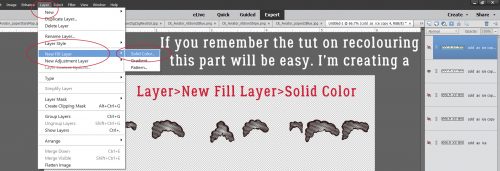
If you’ve never used the Fill Layer function, you’ll be in for a treat. It makes a lot of things much easier! Click on Layer>New Fill Layer>Solid Color.

Make sure you click the box to the left of Use Previous Layer to Create Clipping Mask.

See what happened? All those little beads are blaaaah yellow, but they’re now a place marker for a scatter. You’ll notice that the shadow style is preserved, which is another time saver. But… that shadow style will disappear with the step after this one, unless you copy it. Right-click on the original layer and choose Copy Layer Style.

Then select both the original layer and the clipping mask layer to Merge them. Right-click on the layers, then choose Merge Layers, or CTRL/CMD>E. Once the layers are merged, right click on the new merged layer and Paste Layer Style to it. Voilà… the layer has a shadow again.

Continue on with all the layers in your cluster, using the same process. Change up either the colour or the intensity of each different layer so you can easily see the different components of your template later. When I was putting together the screenshots for this tutorial the whole thing took me about 11 minutes, bottom to top.

This is what my finished cluster template looks like.

When I had all the layers converted to place markers, I renamed each layer. You can right-click and select Rename Layer, or simply double-click on the label within the layer’s box in the Layers panel then just type in whatever works for you.

Now you want to save the fruits of your labour! File>Save As (Shift>CTRL/CMD>S), tell the software where you want to save it, then give your cluster a name.

Tell the software you’re saving the file as a PSD and you’ll have your very own, personally-designed cluster template to use again and again!

I think next week we’ll do another Guided Edit. See you then!

~~September Bake Sale!!~~

Checking in with you from the outer bands of (now) Tropical Storm Florence. We’re getting some wind here and have had a little rain, but we have a lot more rain coming. What a great day to stay in and shop in the Bake Sale. As always, each of these kits and template sets are just $1 each from today through the 20th. Let’s see what we can fill our cart with.

Time to head over to the GingerScraps store and go shopping!!!

Sneak Peeks September 13th 2018

Happy Thursday! I hope everyone on the East Coast is staying safe and dry! Hurricanes are no fun and I have been through too many to count living in Florida. If the weather has you staying indoors, why its the perfect time to get some pages done! Our designers have lots of new releases coming out tomorrow! Maybe you will find that kit you have been waiting for to finish a photobook! Let’s check a few layouts out!

From Wimpychompers

From LDrag Designs

From Tinci

From CathyK

From JoCee

From Miss Fish

From Aimee Harrison

From Luv Ewe

From Shepherd Studio


Check back tomorrow to see all the new releases fully revealed!
Tutorial Tuesday (Photoshop Elements)

Making a Stylish Sandwich

A few days ago I got a private message from Heidi1472 wanting to know more about using styles. I linked her up to some of the tutorials wherein I’ve used styles, but then I thought, “Maybe I should do a quick tut about putting multiple styles on a single layer, because maybe people don’t know that’s a thing.” So here it is!

First, does everybody know how to load styles into the Photoshop Elements? In Versions 12 and up, it’s super-easy. All you have to do is open the Styles menu on your workspace then click on the icon that looks like a stack of paper in the upper right corner. This sub-menu opens up. Click on Load Styles then find the folder holding the styles you want to use and it’ll do the rest.

I wanted to load the styles that Natasha of Ponytails Designs had created for the GingerScraps 10th Birthday MEGA collab Indian Summer.

So I found them in my stash and loaded them up. They’re BIG files, so they do take a few minutes. Don’t panic!
I had this great photo I found on Pixabay of some Amur maple leaves with some gorgeous bokeh in the background. So I decided to punch it up with a brush and a combo of styles.

I never did get to use the lovely brush Wendy of Neverland Scraps  created for us for the July 2018 Brush Challenge. It seemed perfect for this technique.

I created a new layer above my photo, shrunk the brush down a little to fit into the left-side area of bokeh and dropped it down. Then I added another layer, adjusted the angle of the brush and did it again. I ended up doing this process a total of 4 times. Putting each brush on its own layer lets me have a lot more creative control over what happens next.

Here’s what I mean about putting the brushes on their own layers.

Now it just looks like a bunch of fruit flies on a chunk of mango, but it’s not going to stay like that. See how most of the brush bits are inside the bokeh area?

Because I want the technique to highlight the bokeh and not the leaves, I went back and erased the bits of the brush that sit on top of the leaves, one layer at a time.

Then I made a copy of EVERY brush layer. You can do it the hard way, selecting the layer, right-clicking on it, selecting Duplicate Layer, waiting for the pop-up then clicking on OK, or you can WSNH and just hit CTRL/CMD>J.

In some spots, the brush still peeks out from behind the leaf, and that’s what I wanted. Then I hid all the COPY layers for later.

Now for the fun part! I clicked on the Styles button and found my GingerScraps Indian Summer glitter styles.

I started with my first brush layer and used the medium orange glitter style on the sparkles.

I let the colour and intensity of the bokeh guide my colour choices. The second brush set was over a lighter golden area so I went with the gold glitter.

The third (original) brush layer is in a darker area, so it got the darker orange glitter.

The brush at the top was over a darker area so it seemed the red glitter was right for it.

It looks really good, but where’s the layering part? I started unhiding the COPY layers one at a time and applied a glitter style to each of them too.

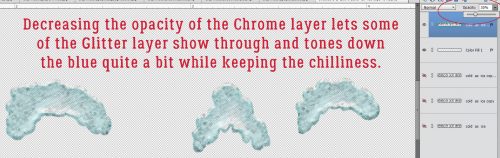
For the most part, I put a lighter colour of glitter on top of each original layer. I also decreased the Opacity of the COPY layers to 40%. That gives the brush layers a soft glow and a slightly different colour.

When I got to the red glitter layer, nothing looked right until I tried the GRAY glitter on the COPY layer.

You can see the red around the edges but it’s mostly covered up. But wait. I’m still going to decrease the layer’s Opacity to 40%.

Voilà! A sort of ruby look to it now.

Oh but wait, we’re not done yet! I selected all the layers and Merged them together. (CTRL/CMD>E)

If you’re a faithful reader of this tripe, then you know I still had another idea. So I made a copy of the merged brush layer.

I chose to use a soft yellow gloss style from Misty’s Miss Mis Designs‘s Hustle and Heart styles set (not shown). Then I again lowered the Opacity to 40%. It looked “okay”…

But when I moved that layer to underneath the glitter layer, it really gave a lovely glow to the brushes. I LOVE how it looks!!

Sadly, just as I was getting to the very tail end of my layout, my laptop crashed. So if you were hoping to see the final result, I’m afraid you’ll have to wait… I have to do it all over again, from the beginning…… and that’s gotta wait until after I play with y grandchildren for a few days. See ya next week!

Sneak Peeks September 6th, 2018

Happy Thursday! Get ready for Gingerscraps Birthday Celebration tomorrow! The festivities go on for a week! Our designers have loads of new goodies just for you! Let’s take a look!

From LDrag Designs

From Moore Blessings Digital Designs

From Tinci

From Shepherd Studio

From Craft-tastrophic

From JoCee

From Neverland Scraps

From Aimee Harrison

From Miss Fish and Shepherd Studio

From Ponytails

Check back tomorrow to see all the goodies releasing!