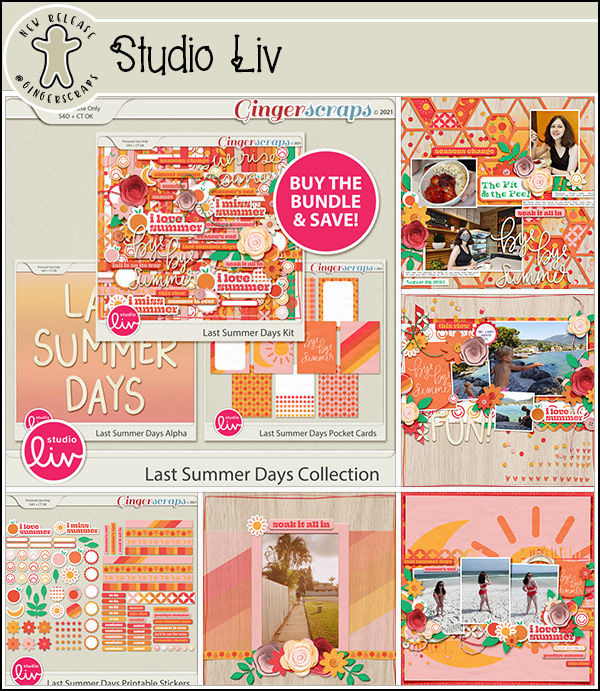
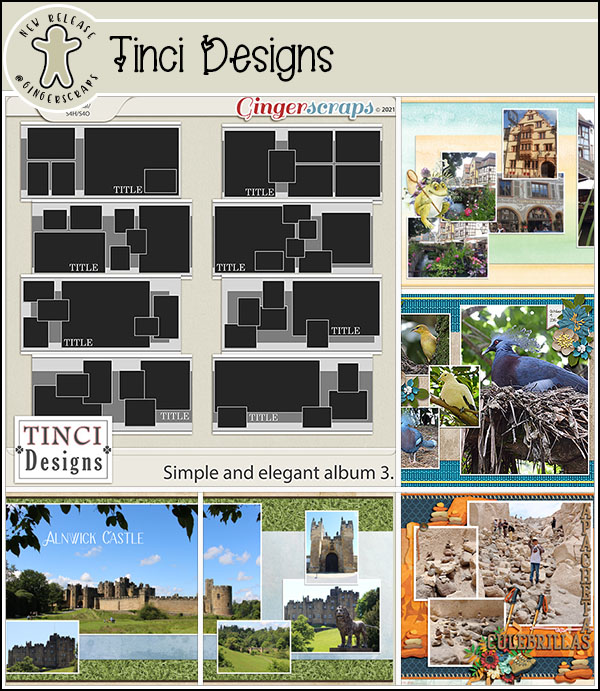
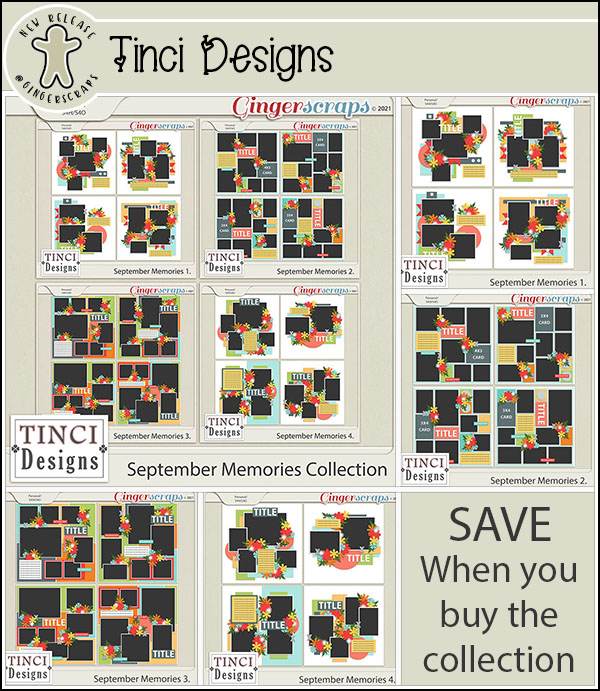
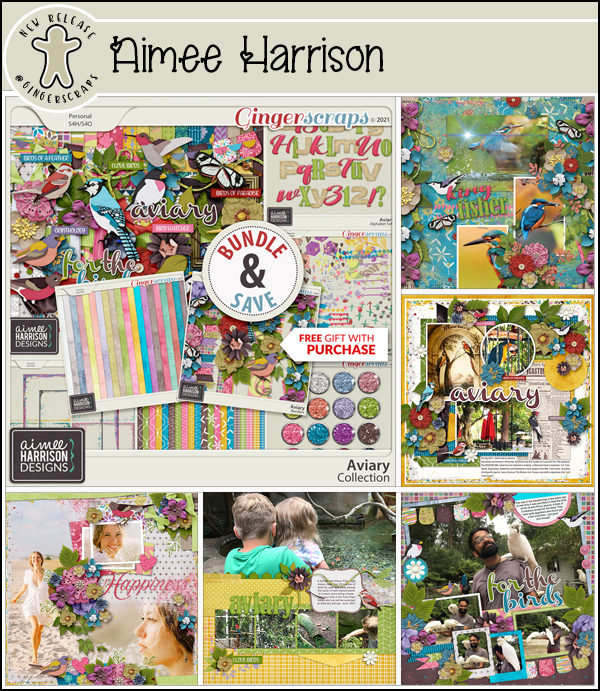
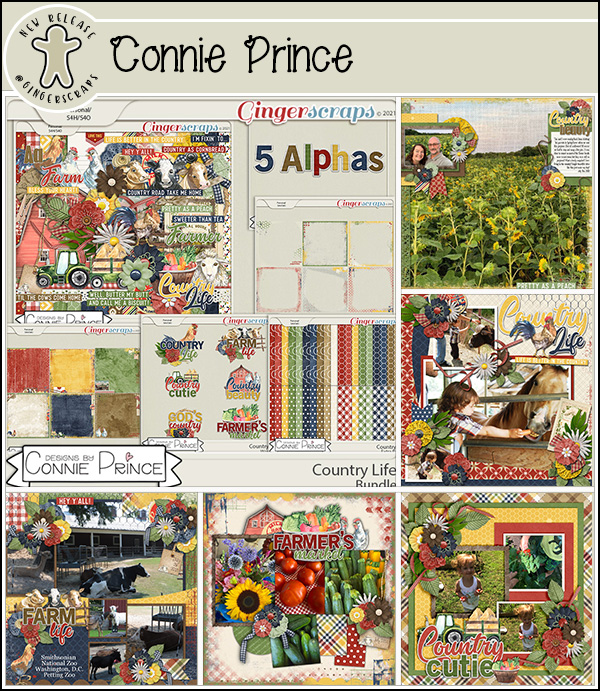
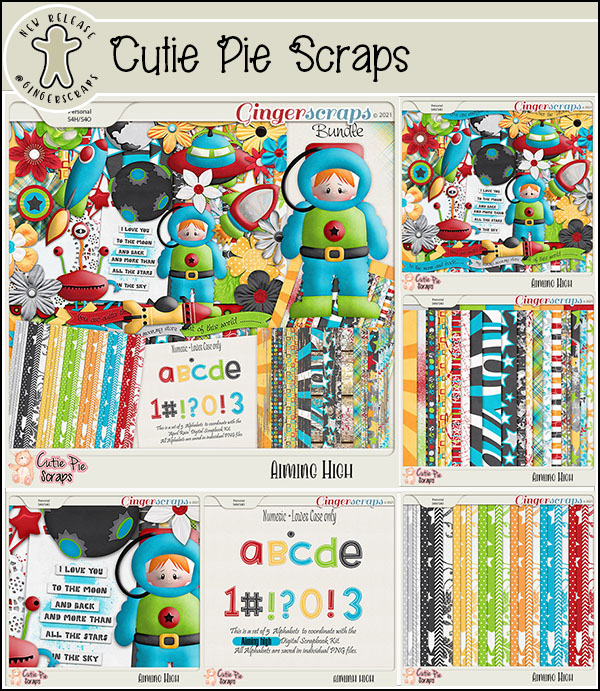
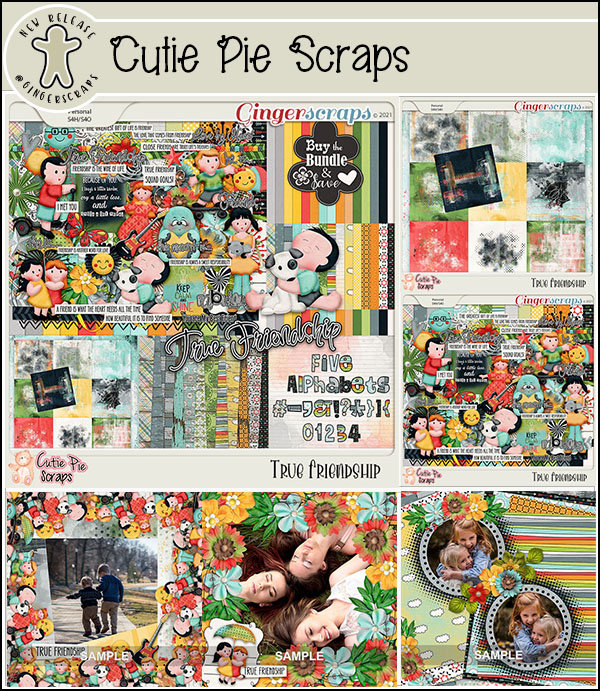
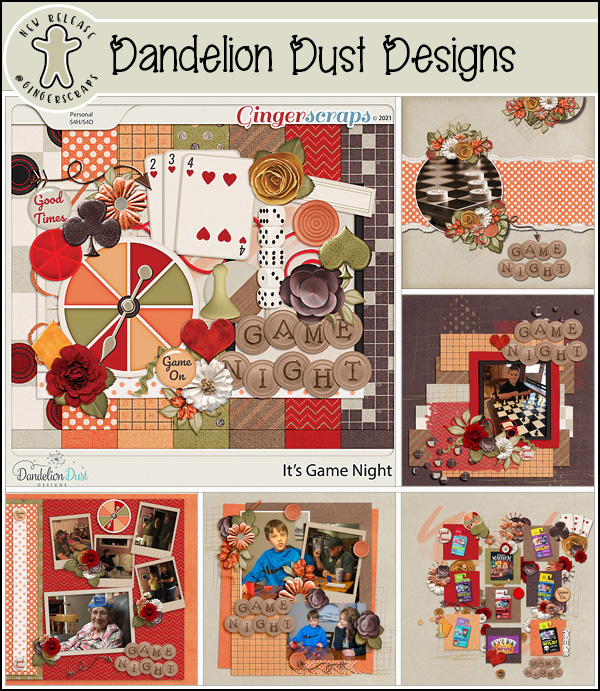
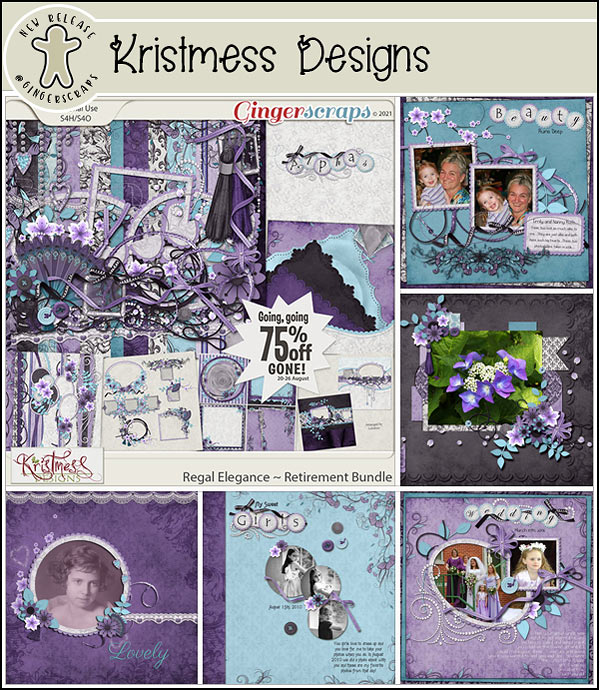
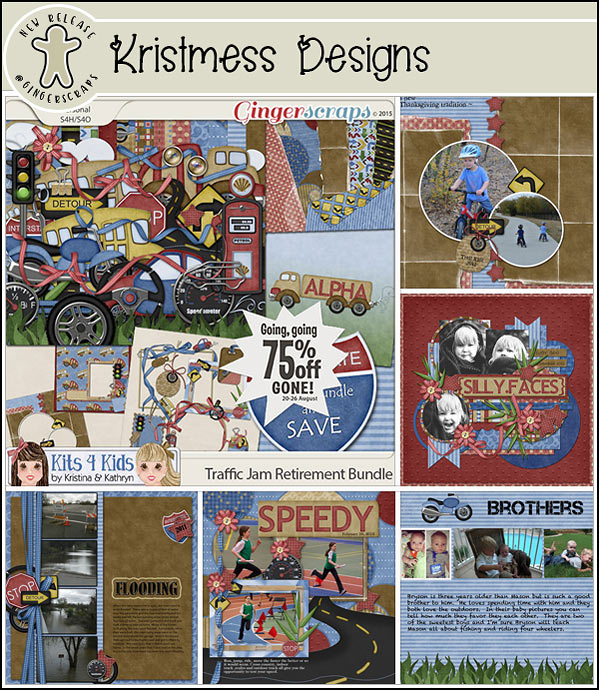
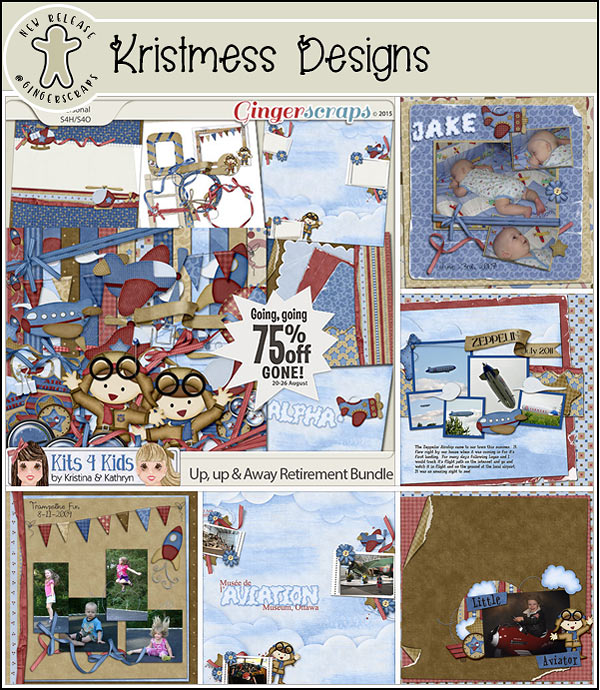
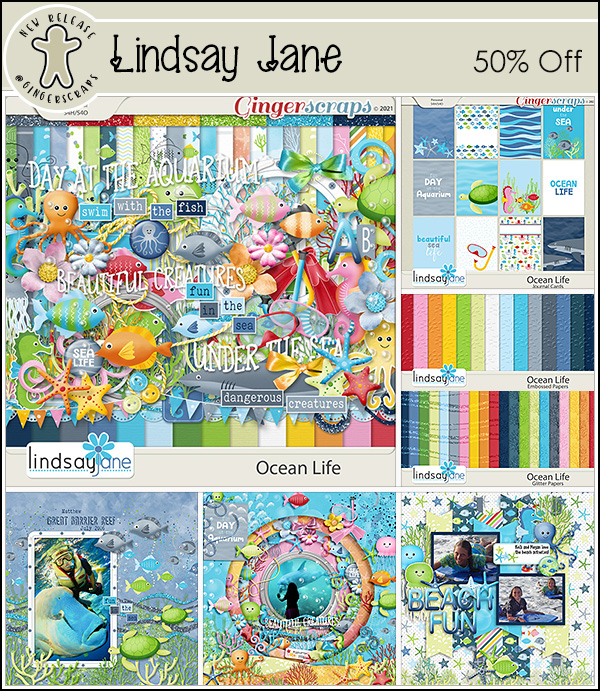
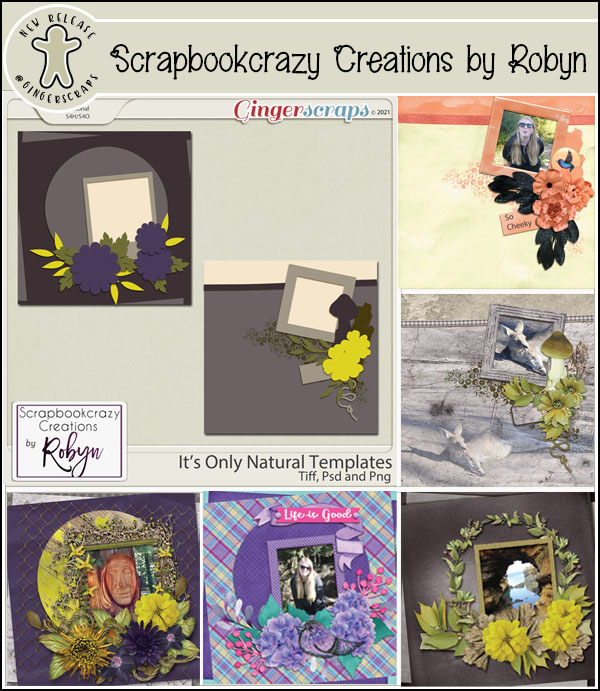
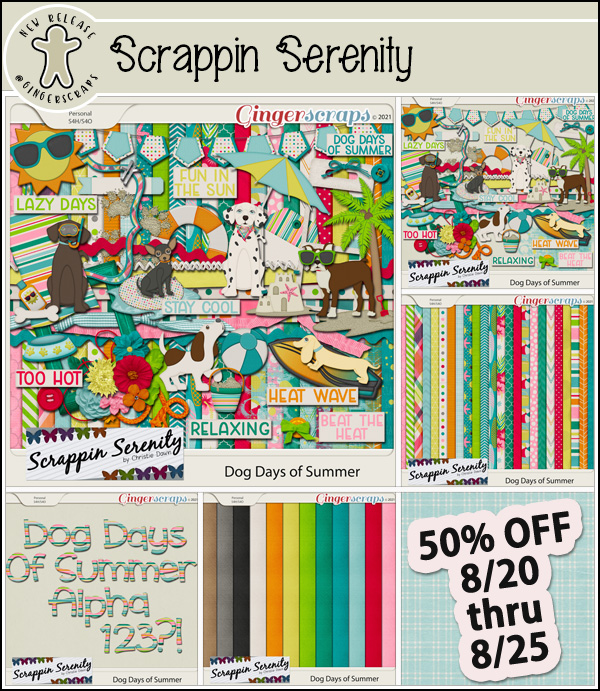
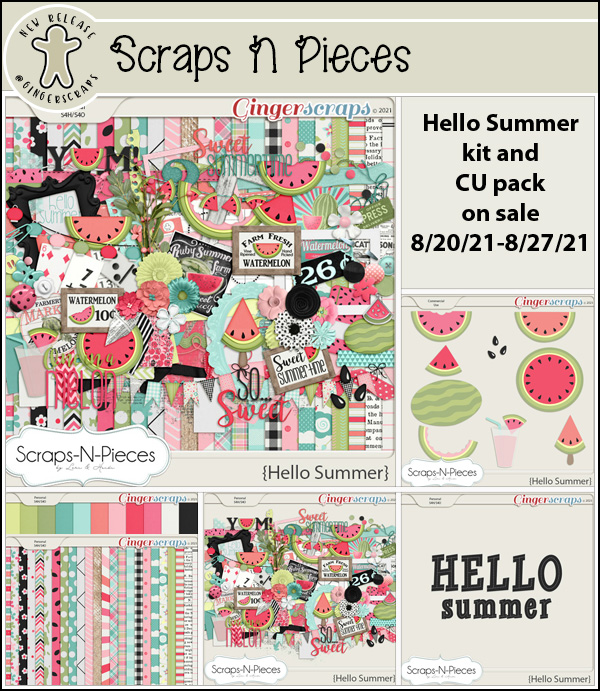
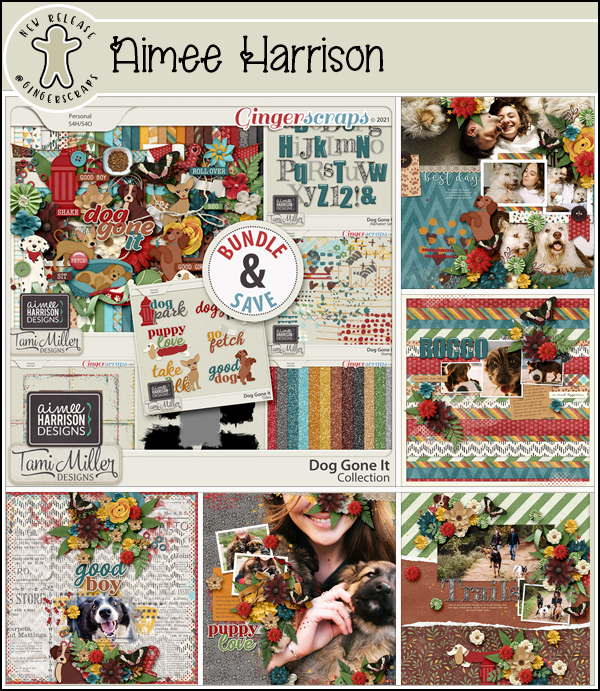
Fresh Baked: APRIL 23, 2021

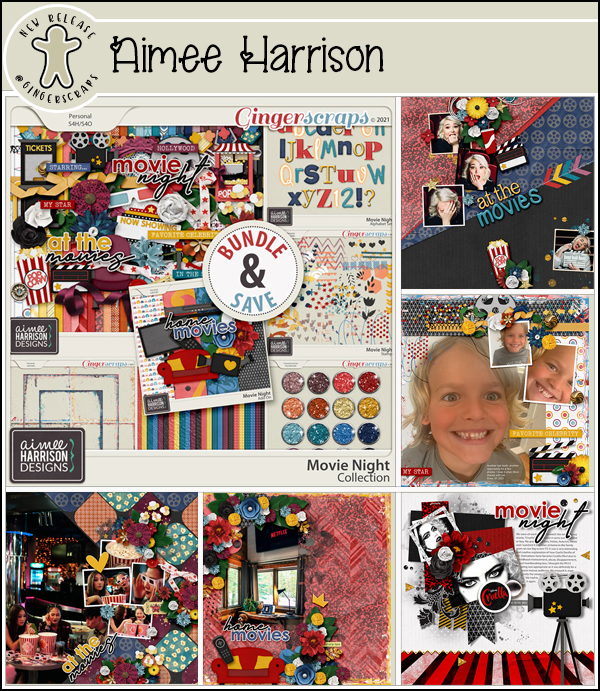
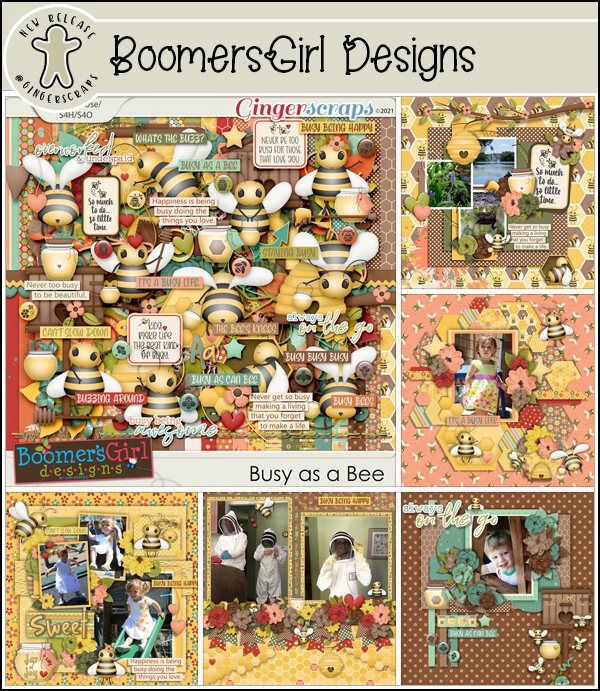
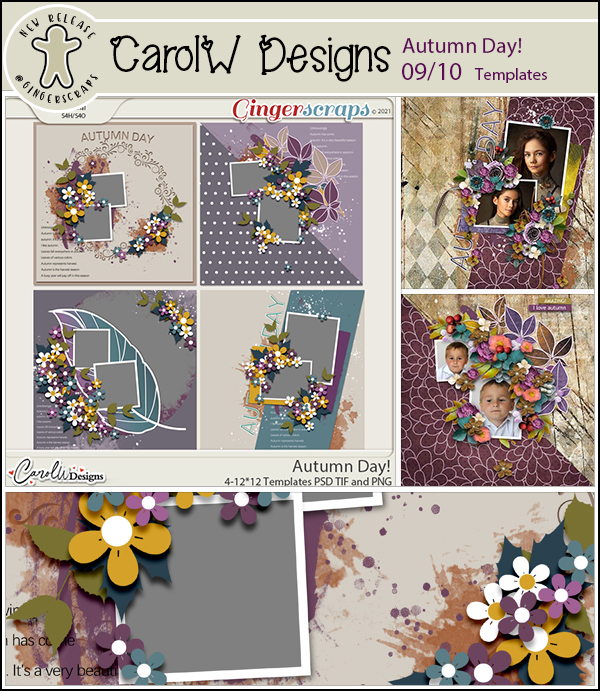
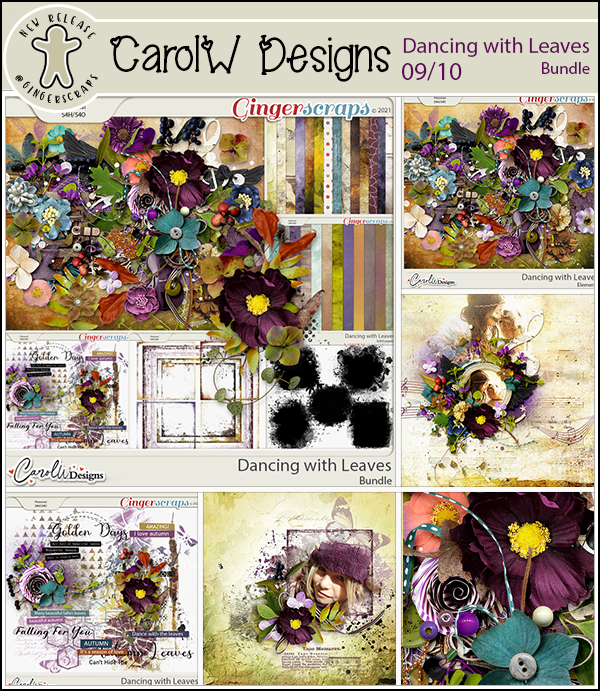
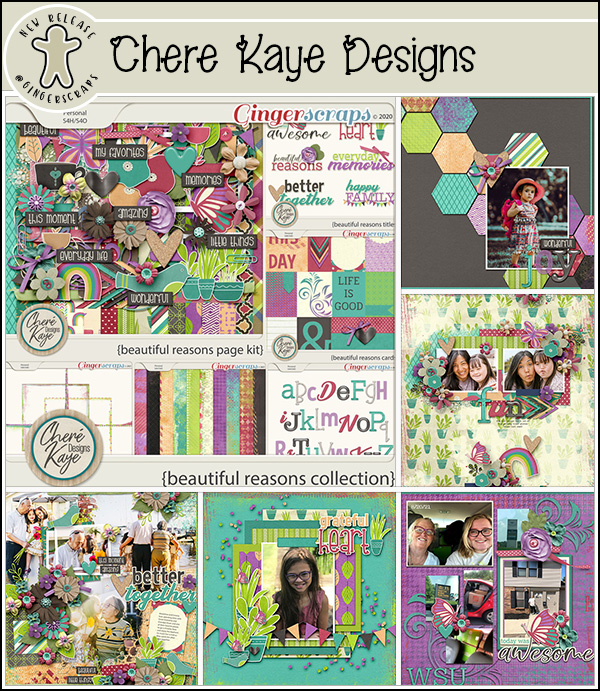
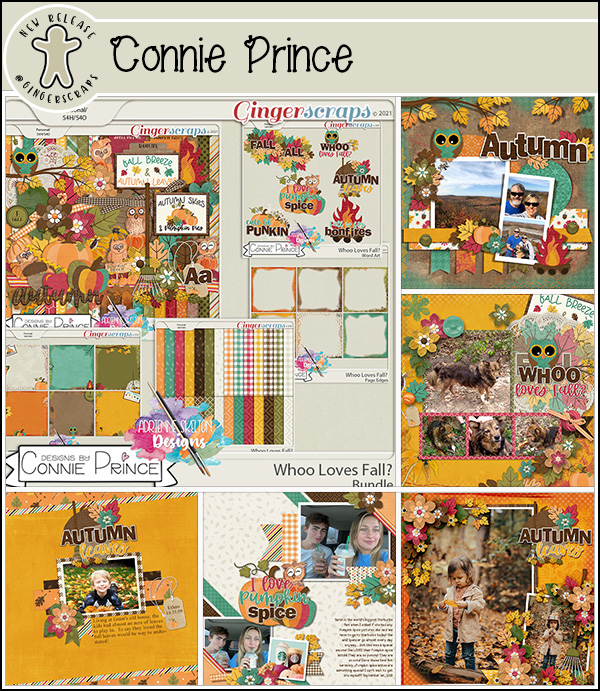
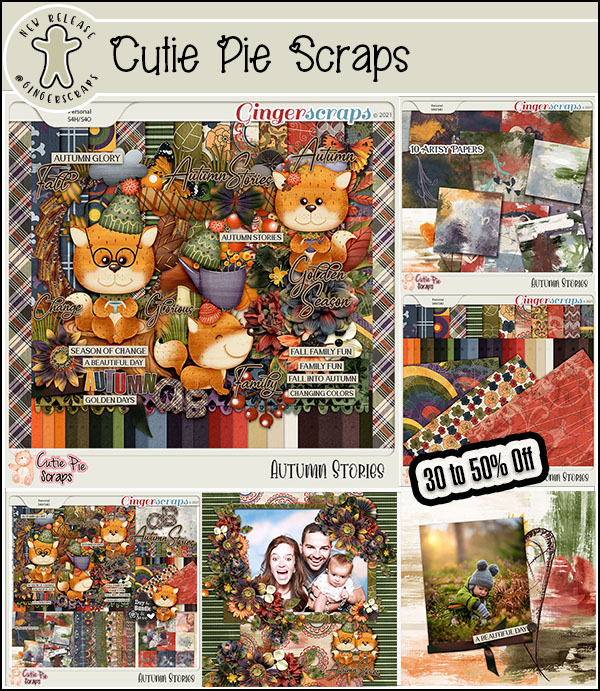
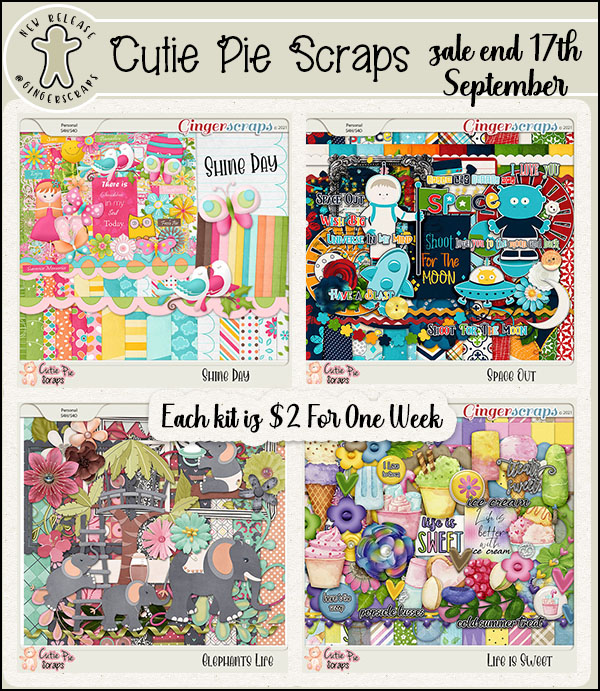
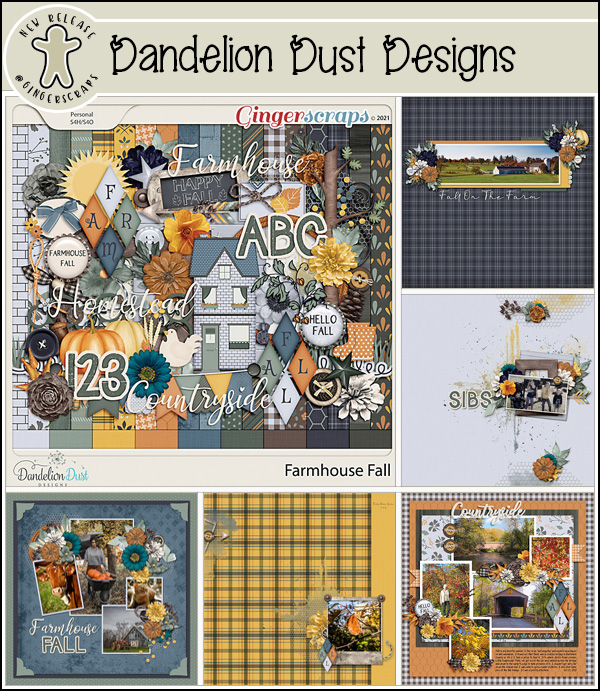
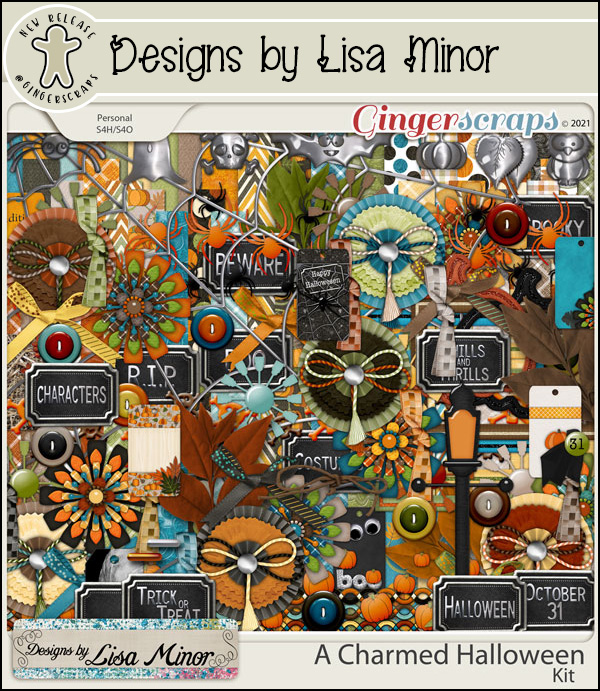
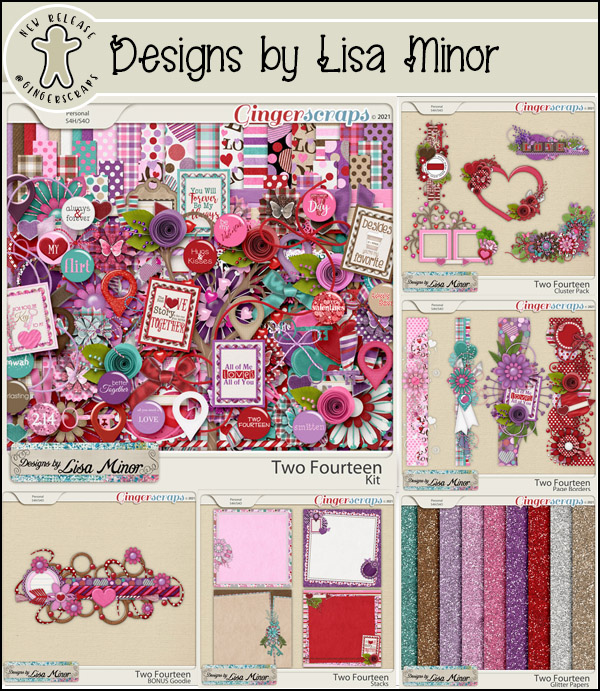
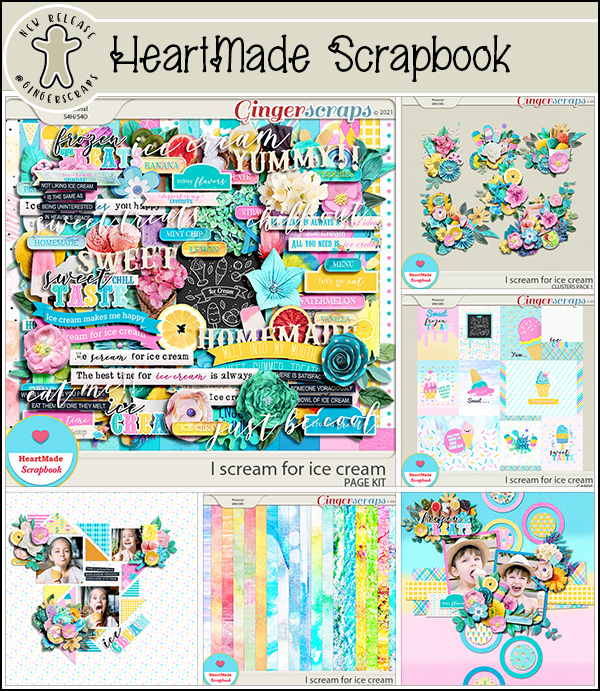
Happy Friday everyone! Did you have a good week? I hope so. We’ve got some great goodies to share with you.

Remember any $10 spent in the GingerScraps store and you get this {happy spring} collab as a gift!

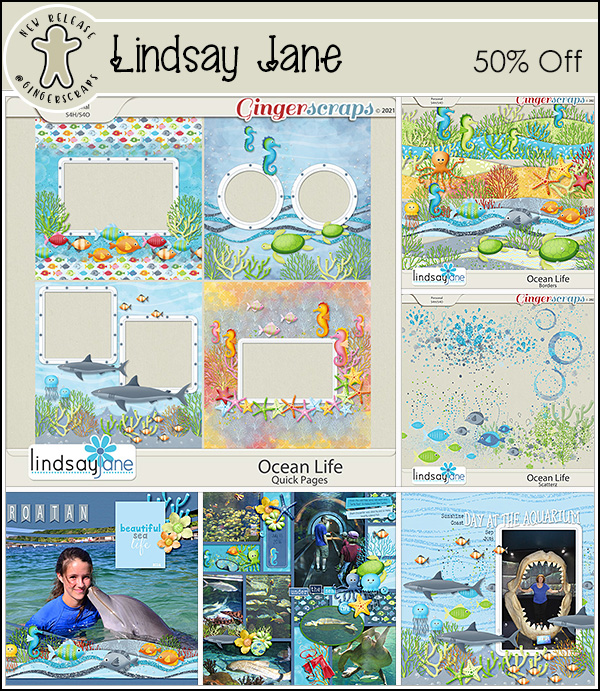
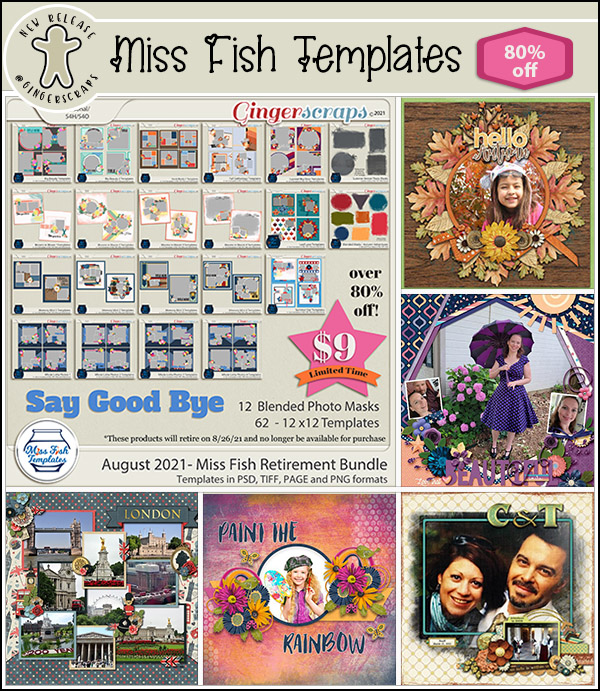
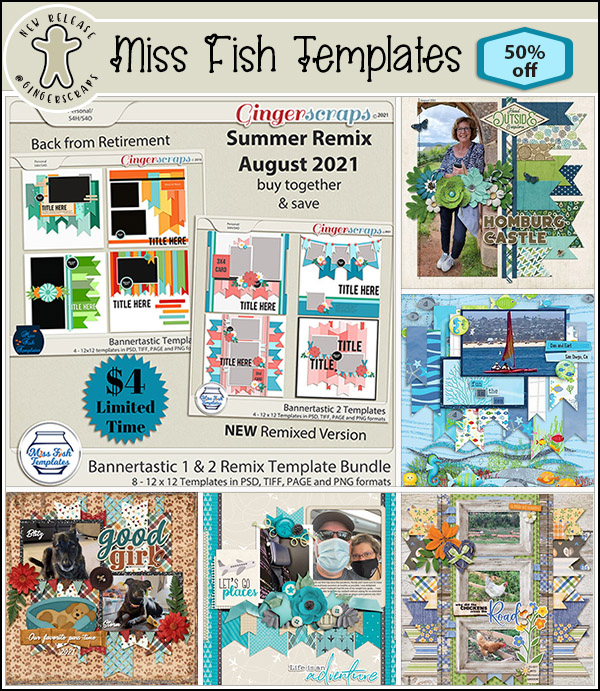
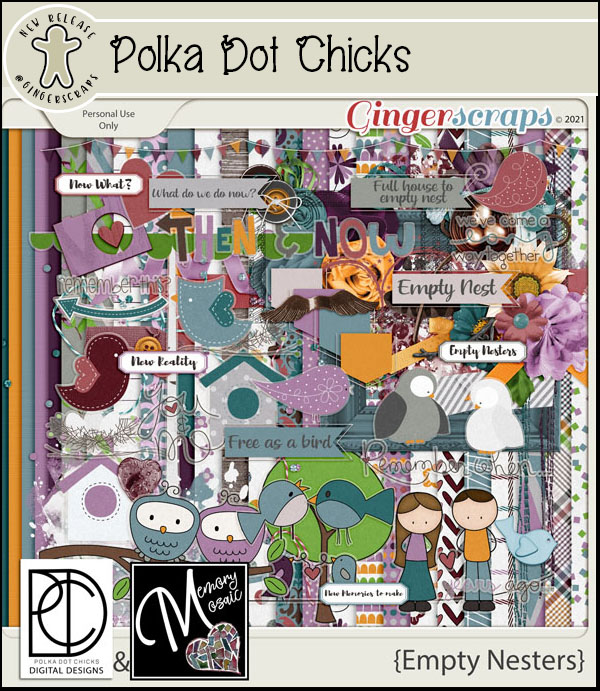
Let’s see what’s new in the store this week.

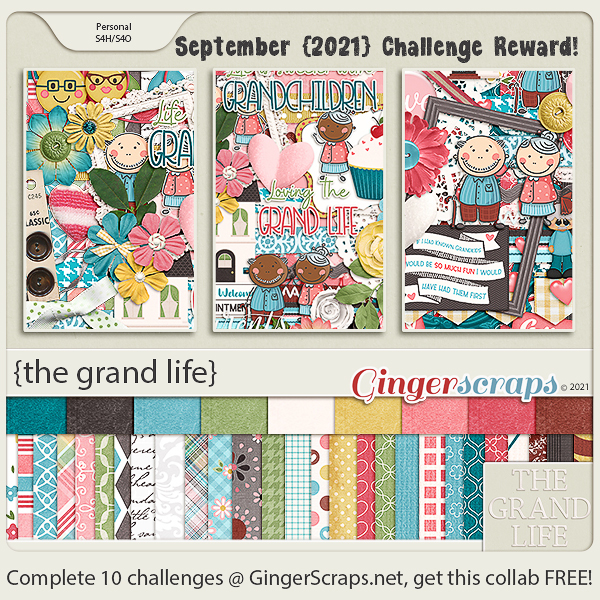
How are those challenges going? Only 10 completed challenges will get you this {spring beauty}.

Tutorial Tuesday (Photoshop Elements)

3D Photos – Yes, You CAN!

Thank you all so much for your kind messages of support! I feel a lot better, although I really poop out quickly if I’m doing something strenuous. And brain fog is a real thing. I’m thankful that my husband and son didn’t catch COVID from me and that we’ll all be vaccinated soon.

So, given I’m still having some issues with concentration and attention, I’ve whipped up a little trick I’ve been thinking about for a long time. I’m going to show you how to give a photo a 3D look. It’s not exactly what I was trying for, and I may play with it some more, but it’s still a neat look. The inspiration for this goes back a long way, to a Canadian TV show called Ancestors in the Attic (2001-2006), where the images on the screen had an obvious 3D look to them. I didn’t quite get it right, but I like it anyway.

If you decide to try this, I recommend looking for a photo with sharp contrast between the subject you want to bring forward and its background. I chose this photo I took in Las Vegas quite a few years ago. The flamingo wasn’t too difficult to extract. I’m not going to do a step-by-step review of extracting, but you can try any of the methods I’ve shown you here and here. I went with a Layer Mask so I wouldn’t have to think too much!

To be able to have the control needed to go forward, I Simplified the extraction layer. Right-click on the layer in the Layers panel, then choose Simplify Layer.

Next I added a drop shadow, using a shadow styles set from Karen Schulz. (It’s named for Snickerdoodles Designs, her former moniker.) In this set there are actually two 3D shadow styles, right at the top of the list. I chose the second one. It’s not quite right, but easily fixed.

To adjust Layer Styles, double-click on the fx symbol on the layer you’re adjusting. This menu opens up with the defaults for the style you used. First, I made sure the shadow on my flamingo was falling in the same direction as the shadows already in the photo. Don’t overlook this step! Otherwise it’ll look really faked. I increased the Size (which softens the edge), the Distance (which makes the shadow wider/larger) and the Opacity. I went all the way to 100%. The 3D effect shows now.

Here’s the original for comparison purposes.

And with the extraction and shadow…

Then, just for fun, I Copied the extraction layer and changed its Blend Mode to Luminosity. What do you think?

I might try this with a photo of the mountains we see from our deck, and maybe I’ll be able to fine-tune it. Who knows? It’ll be fun trying it.

Here is the PDF version of this tutorial: https://bit.ly/3h2BEFb


Fresh Baked: APRIL 16, 2021

Happy Friday Scrappers. It’s the middle of the month so that means it’s Bake Sale time!! Head over to the store and see what great kits our designers are offering for only $1 each this month!

Remember, any $10 spent in the store gets you this {happy spring} collab.

Let’s see what our designers have for us this week!

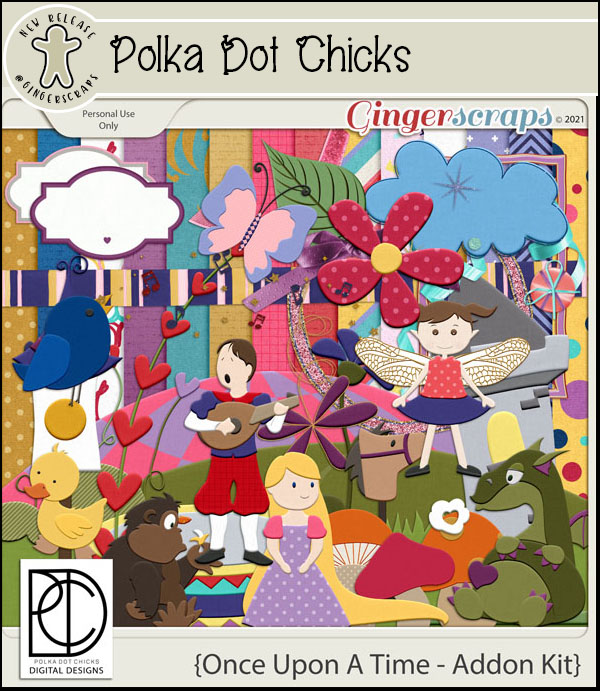
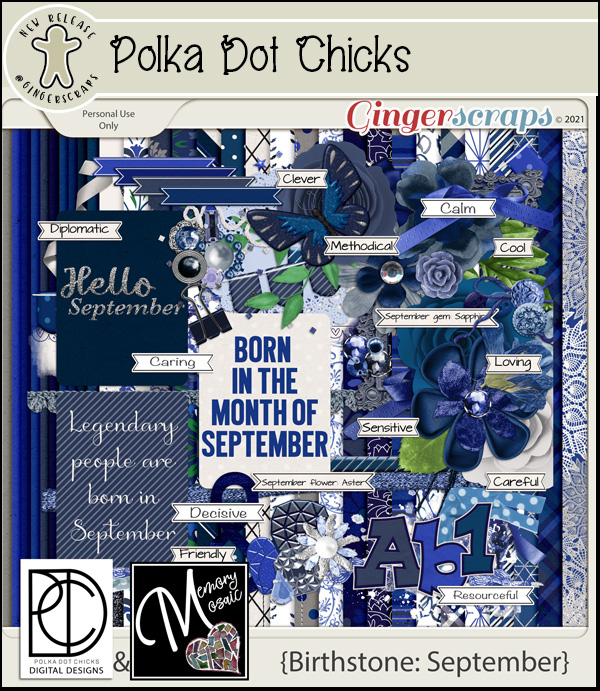
Polka Dot Chicks

Memory Mosaic

Have you picked up the Monthly Mix for April? Love the bright spring colors.

How are those challenges going? Remember you only need to complete 10 challenges to get this collab as a reward.

Tutorial Tuesday (Postponed)

I wanted to drop by and let you all know that I haven’t written a tutorial for this week, and to tell you why. On April 2, I tested positive for COVID. The symptoms I’d attributed to allergies… weren’t. I was in full isolation until yesterday; I had a “mild” case of the disease, but it has taken a lot out of me. Nine days of fever and ten days of continuous headache were not fun. I’m expected to recover completely but I’m really fatigued and having a lot of trouble concentrating. With rest and some TLC from my family (so far healthy!), I hope to have a new tutorial for you next week.

Fresh Baked: APRIL 9, 2021

Are you ready for another big sale in April? It’s our Retiring Products Clearance Sale!!

Make sure you grab what you want from this sale as once the sale is over, the products will be gone.

And remember, when you spend $10 in the store, you will get this great full collab for free.

Let’s see what our designers have this week.

Alexis Design Studio

Key Lime Digi Design

Polka Dot Chicks

Memory Mosaic

How are your challenges going? Any 10 completed challenges gets you this reward.

Tutorial Tuesday (Photoshop Elements)

Gradient Border Masks – So Many Options!

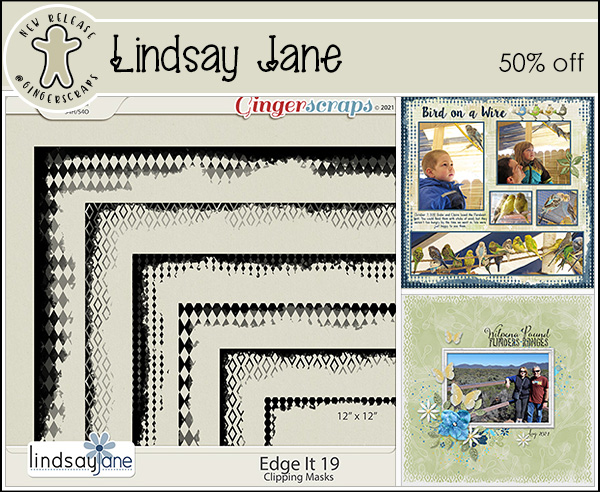
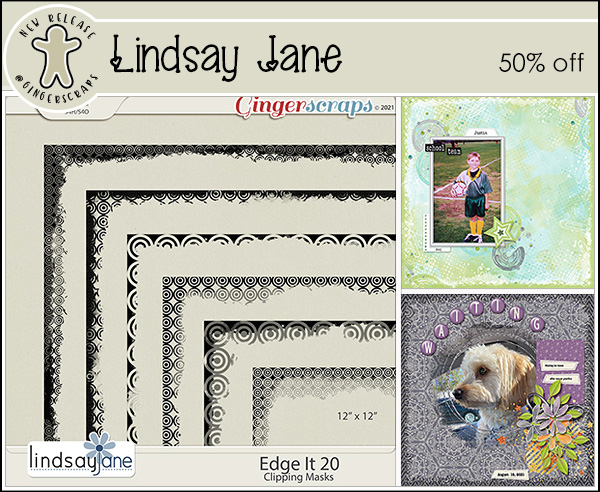
The other day, I got a message from Ginger that a customer was looking for information on how to use Lindsay Jane‘s border masks, and wanted to know if I had a tut for that. Well, I didn’t. The customer specified she had Border It 28, so I popped over to the shop and bought them. And then I played with them.

A close-up look at one of the border masks reveals a gradient effect. What this means is that whatever is Clipped to it will also have a gradient. Where the mask is solid black, the paper or photo clipped to it will be 100% visible. As the mask becomes more transparent, more of the paper behind it will show through. This can be a really interesting look, but it’s going to require some experimentation to find a look that appeals to the beholder.

I’m using papers from a retired kit from Lindsay Jane‘s store, called Denim and Flowers. I’ve pulled a couple of solids and a couple of patterns to play with. Let’s give it a shot!

I love the retro look of these patterned papers. This lavender one is so pretty.

There are actually 3 ways to achieve the same result of Clipping papers to masks. Clicking on Layer>Create Clipping Mask is one. Right-clicking on the paper layer then choosing Create Clipping Mask is the second. The keyboard shortcut method was changed in Version 14. Prior to V14, CTRL/CMD>G works. Version 14 and later the keyboard shortcut is CTRL/CMD>ALT>G.

Well, guess what?!! I don’t have the bottom of the mask right at the bottom of the background paper. Easy to fix.

Because this mask has what looks like rows of stitches, I decided to see what it looks like with a shadow style applied to it.

More experimentation. It’s the only way to know what will work and what won’t for this kind of mask.

Yeah… not loving this look! This is why I believe Undo (CTRL/CMD>Z) is a digi-scrapper’s best friend.

This look reminds me of a t-shirt I had when I was 19! I made 2 Copies of the striped mask and spread them out evenly then Merged the mask layers. (Right-click and choose Merge Layers or CTRL/CMD>E) Then I Clipped the flowery paper to the solid. That combo could be a nice background for a spring layout.

Ewwww. Nope!! Don’t like this look at all!

This one is okay. It’s not my favourite, but it looks okay.

Don’t forget that you have lots of other tools at your disposal. Blend Modes and Opacity changes are two of those, Here I’ve taken the blue-floral-on-green-solid and changed the Blend Mode of the floral PAPER layer to Luminosity.

If I change the Blend Mode on the MASK layer to Luminosity, this is what it looks like.

Here I’ve just decreased the Opacity of the MASK layer to 75%. (Decreasing the Opacity of the PAPER would only allow more of the black/gray of mask to show through.)

The solid navy blue paper is actually a denim, so this look is going to be a fun one, I just know it!

YES! Again, I’m thrown back to the 70s!! My very first pair of bell bottoms was navy with tiny flowers. This look though reminds me of the time I opened up the outside seam at the bottom of my straight jeans and sewed in a wedge of floral fabric, turning them into bell bottoms.

This might be fun… I’m going to Merge these mask layers into a single one.

Now that I’ve played with these masks and papers a bit, I’m getting a sense of what will work and what won’t.

That’s pretty close to what I expected. I like it.

But the navy blue is a tad harsh, so I dropped the Opacity of the MASK layer to 50%. I like this look a bit better.

But papers aren’t the only option for Clipping to these masks. What does a photo look like? I chose this stock photo because of the pinecones.

Repeating shapes!

I really do think this stripped mask is my favourite. Again, I lined up 3 Copies of it and Merged them together. Then I Copied the mask layer and Rotated it 90°. Plaid! This is just the masks with their Opacity decreased to 50% at this point and might be what you like.

Here I’ve clipped the floral paper to each of the mask layers. I love this look!

Can you think of other ways to make use of these masks? Please feel free to share in the Comments!!

I hope this tutorial makes sense. I’ve been under the weather and I’m not at the top of my game. Thanks for bearing with me!

Here is the PDF version of this tutorial : https://bit.ly/3cSdBGm

Designer Spotlight: April 2021

The Cherry on Top!

Lisa, the designer also known as The Cherry on Top, didn’t have time to sit for an interview so she instead sent me a little bio. Here she is in her own words:

Lisa-Lisa here, from The Cherry On Top.
I grew up State side, where I worked as a teacher.  What a wonderful job to have.  I often found myself underwhelmed by the typical curriculum and so I created a lot of my own, more visually appealing activity sheets and encouraged the kids to also show more creativity in their work. History can be pretty boring for most. I was pleasantly surprised to learn that even teenagers liked to construct scrapbooks to show off their knowledge of historical events.  I didn’t realize, at the time, that I was actually “designing” digitally.  I had next to no program or computer experience.  I even struggled learning how to do e-mail.  Ha!
I originally started scrapbooking traditionally and took those skills with me, over the pond, to Belgium, where I presently reside.  I wanted to make something that I couldn’t find anywhere in paper format.  So, I scoured the internet looking for images and “pieced” together exactly what I needed.  Funnily enough, I thought I invented digital scrapbooking, until I stumbled across the digital scrapbooking world.
I dove in the deep end!  After a couple of months, I was on a praise team at Scrap Take Out where I met a lot of fantastic designers like Fran B and Amanda from A-Manda Creation.  Slowly, I worked myself on to Creative Teams.  At one point, I was on 28 teams.  Talk about a junky! Ironically, I despised templates.  I still cannot get over the grudge I had against them.  Until I realized what a wonderful starting point or catalyst they can be.  Especially, when your mojo is low or the inspiration just isn’t there.  Now, they are my passion.
I find ideas for templates, everywhere.  In an advertisement, greeting card, sketch, nature…I’m always coming up with new ideas, techniques and I make designing unique, easy to use templates my main objective.  They truly are a wonderful tool and certainly an excellent way to learn how to digital scrapbook.  They save so much time, too.
I started off using PowerPoint to scrapbook.  I know, right?!  Then I moved to My Memories for a few years and then Photoshop Elements.  I still mostly use Elements.  It is incredibly user friendly and perfect for designing templates, for the most part.  Occasionally, I jump over to PS when PSE doesn’t offer a particular function I need and I’m pretty sure, that one of these days I’ll morph over to PS, but I still have so much to learn in PSE.
I do design a lot of other products besides templates, but templates are still my favorite.
Thanks for letting us get a peek into your creative process Lisa! Ladies, don’t forget that Lisa‘s also presenting the Daily Download this month. And she has a $2 coupon for her GingerScraps store (linked above in pink): the code is tcotspotlight.
See you again soon!

Fresh Baked: APRIL 2, 2021

Welcome to Friday and a new batch of Fresh Baked goodies. Have you checked out our No Joke Sale?

REMEMBER THIS SALE WILL END ON APRIL 2 AT 11:59PM EASTERN TIME!
Make sure your checkout is complete prior to the close of the sale, as soon as the clock strikes midnight the sale prices will disappear.

Remember, any $10 spent in the store will get you this great collab for free.

And now our Fresh Baked goodies.

Have you gotten started on your challenges yet? Do you have favorites? Remember, any 10 completed challenges earns you this kit as a reward.
Fresh Baked: April1, 2021, NEW Guest, NEW Free With Purchase, Monthly Mix, and More

Happy April Fool’s Day. It may be April Fool’s Day but the sale we have going on is no joke!

REMEMBER THIS SALE WILL END ON APRIL 2 AT 11:59PM EASTERN TIME!
Make sure your checkout is complete prior to the close of the sale, as soon as the clock strikes midnight the sale prices will disappear.

Don’t forget to check out the Buffet Bundles. One easy click to add bundles of Buffet goodies to your cart.

Look at these gorgeous spring colors for April. The designers hit it out of the ballpark with these. Also check at the bottom to see some samples from our talented store creative team.

Remember any $10 spent in the store gets you this great collab. Look at all those {happy spring} colors!!

I just love that that April Monthly mix is a different focus on spring.

Now to the April Sneak Peek. This month’s Daily Download is from The Cherry On Top.

https://gingerscraps.net/gsblog/2021/04/dd-apr-1-2/

I’m excited to announce that we have a guest designer for April.

Memory Mosaic

Bio:
I am Joy, (aka Memory Mosaic) and currently reside in Tennessee by way of Ecuador where we lived for 27 years. I am a wife, married to my best friend for 38 years. I have 3 grown, married daughters, who have blessed us with 13 grandchildren. I have 3 children that God gifted our family through adoption, who are still at home.

I have been scrapping since the late 90’s and I was introduced to Digital Scrapbooking in 2009, and I fell in love. In 2014, I started trying my hand at designing, and in 2015, opened my first design shop.

Take a look at the new challenge reward kit. If you complete any 10 challenges this month, you get this {spring beauty} as a reward!

And to complete a wonderful Buffet post, let’s see some samples from our talented store CT. You can find more samples in the Gallery.

Tutorial Tuesday (Photoshop Elements)

A 3D Title with Punch!

Thanks again to Ellen (gmae) we have another quick technique that has a great deal of appeal. Magical Scraps Galore has a a travel kit with some great title word art in it, called Destinations: Road Trip. The title Ellen particularly liked is the Road Trip one, but she wanted to use a different title in the same style. She messaged me that she tried to get this figured out on her own and eventually succeeded, but she knew there had to be a better way than stumbling around experimenting and undoing for hours. After all, that’s what I’m here for. 🙂 After a little thought and (not very much) experimentation, I can tell you, this does the trick and it’s not a ton of work. So let’s get started!

For this little demo I’m using a pretty striped yellow alpha from the GingerBread LadiesSunny Days collab. You can absolutely use a font if you choose, but each individual letter will need to be on its own layer. I opened up a 12×12 document on my workspace.

The first step is to create a elliptical shape to give the lower curve to the title. I pulled out a Custom Shape ellipse as shown. Whatever colour you have in your foreground is fine; I just had white already there. The ellipse should be slim and long, a sort of cigar-shape.

Remember, Custom Shapes are Smart Objects, meaning the pixels in it are locked and there’s not much you can do with them as is. I’ll be manipulating this shape so I right-clicked on the layer and hit Simplify Layer.

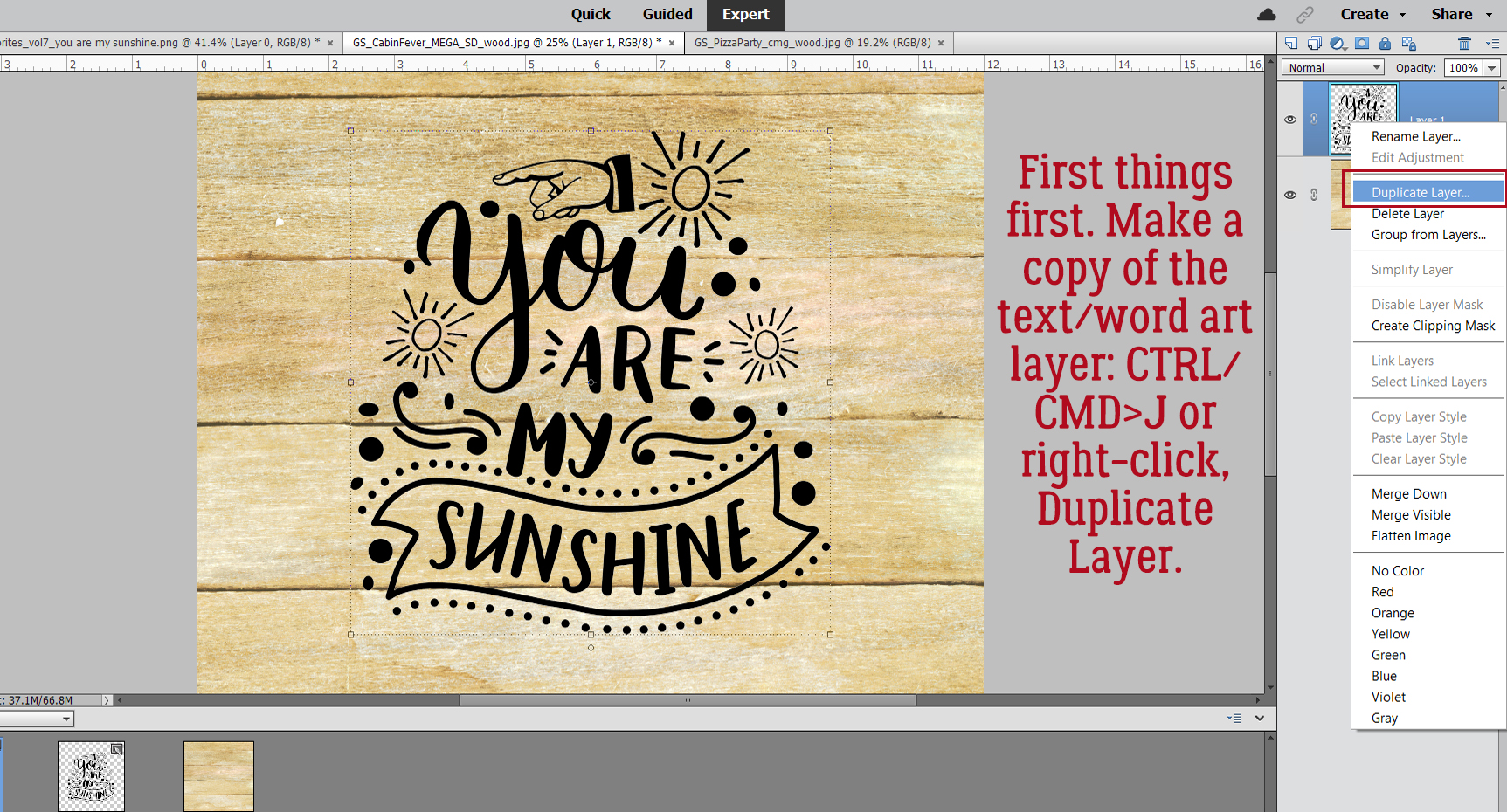
I want a Copy of the ellipse, which can be achieved in two ways: right-click on the layer and hit Duplicate Layer (then click OK on the pop-up menu), or simply by CTRL/CMD>J.

I enlarged the second ellipse quite a lot. My title only has 6 letters, but it’s still going to need some room.

I opened up a new blank layer on top of the larger ellipse by clicking on the sheet-of-paper icon at the top left of the layers panel, then I CTRL/CMD>clicked on the ellipse’s layer thumbnail (that little picture at the left side of the layer in the layers panel) to Select the edge of the ellipse. Boom Marching ants.

With the BLANK layer active and a contrasting colour in the foreground, I hit Edit>Stroke (Outline) Selection.

This Stroke can go wherever. I just had Inside already selected and it’s not important for this step. I want the Stroke to be easily seen so I have black and 10 pixels set.

Now that I have a visible outline of the large ellipse on its own layer, the larger ellipse has served its purpose and can be Deleted. Right-click>Delete Layer or simply CTRL/CMD>D.
These two layers will be the guide for positioning my letters. They will sit on the edge of the smaller ellipse and stretch to touch the edge of the larger ellipse. To get that flare at the end of the title, the smaller solid ellipse needs a tilt.

After I looked at the gap for a minute or so, I decided the flare needed some more adjustment so I tilted the larger ellipse a bit in the opposite direction.

I have my guides in place, so now I can add my letters. For this step I’m just going to put them all on the canvas and position them so the bottoms are touching the solid, smaller ellipse.

As I’m placing them into the gap, I’m Resizing so the top is touching the edge of the larger ellipse.

Once all the letters were inside the gap, I took a long look at them. I could just stop here and have an interesting and eye-catching title.

If you’re still with me, I’m now going to Image>Transform>Distort each letter so that they more closely follow the contours of my guides.

All I’ve done is Move the corners of the Bounding Box so that they’re touching the edges of each ellipse. You can see that the sides of the Bounding Box have remained perpendicular to the bottom of the page.

To review: Image>Transform>Distort

then move the corners of the Bounding Box so they touch the edges of the ellipses. Don’t change the orientation of the letter.

Here you can see what I mean about the length of your title related to the size of your ellipses. After all the letters have been placed, the ellipse layers can be deleted.

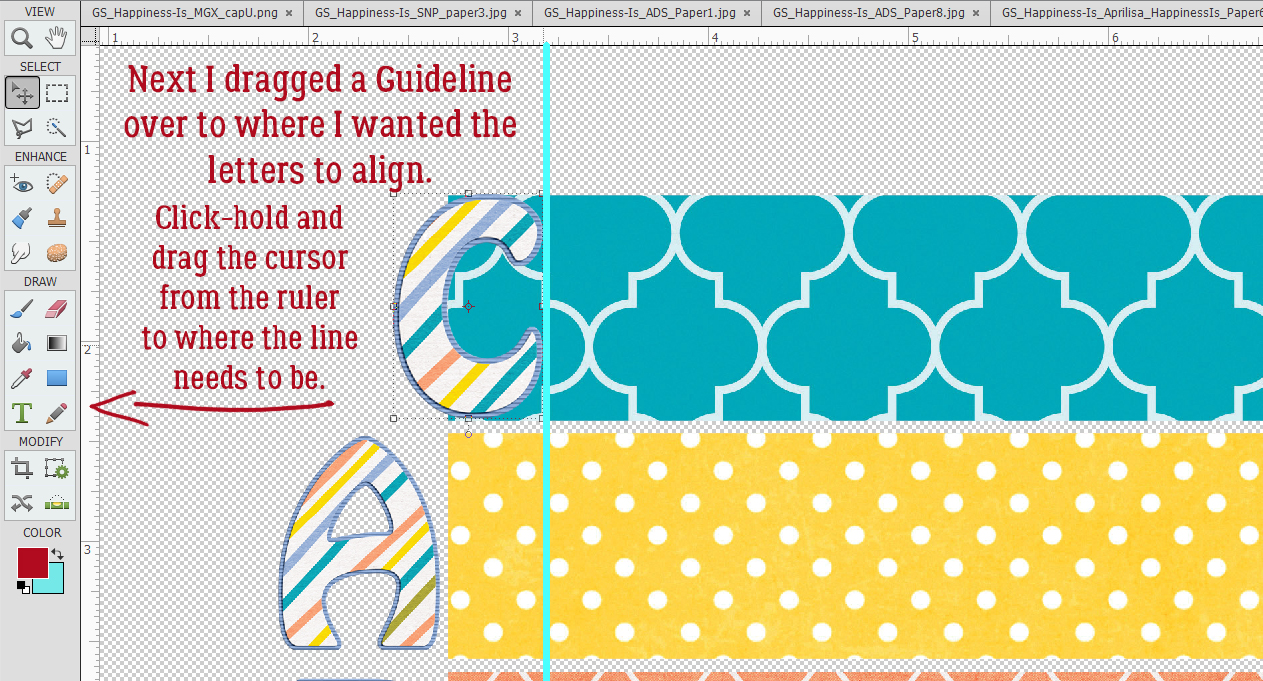
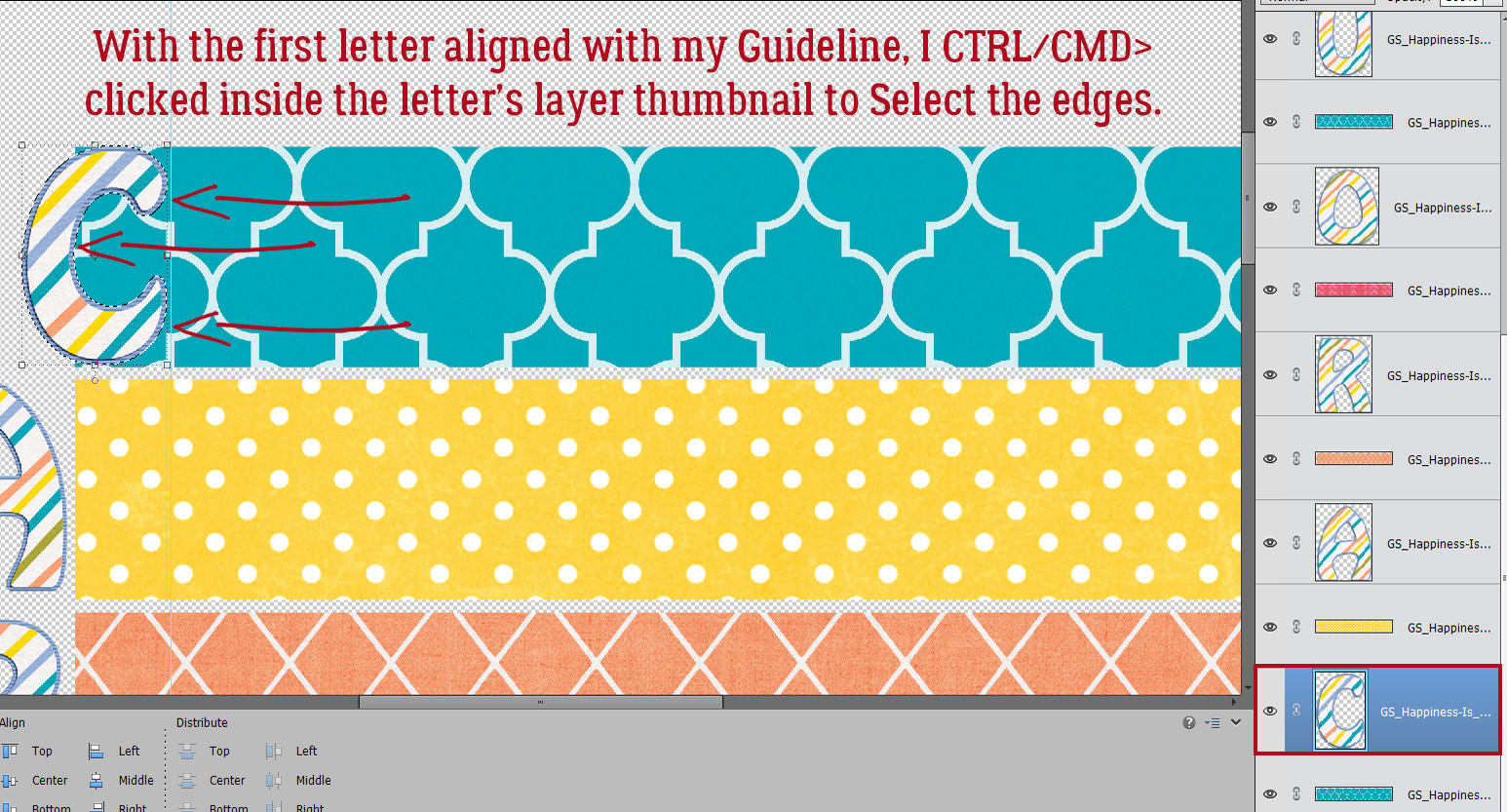
Now onward to getting that 3D look! Add a blank layer UNDER the first letter. You can start with it on top by clicking on the sheet-of-paper, and then move it down. Or you can hold down the CTRL/CMD key and click on the sheet-of-paper and it’s just go there by itself. With the BLANK layer active, CTRL/CMD>click on the first letter’s layer thumbnail to Select the edge.

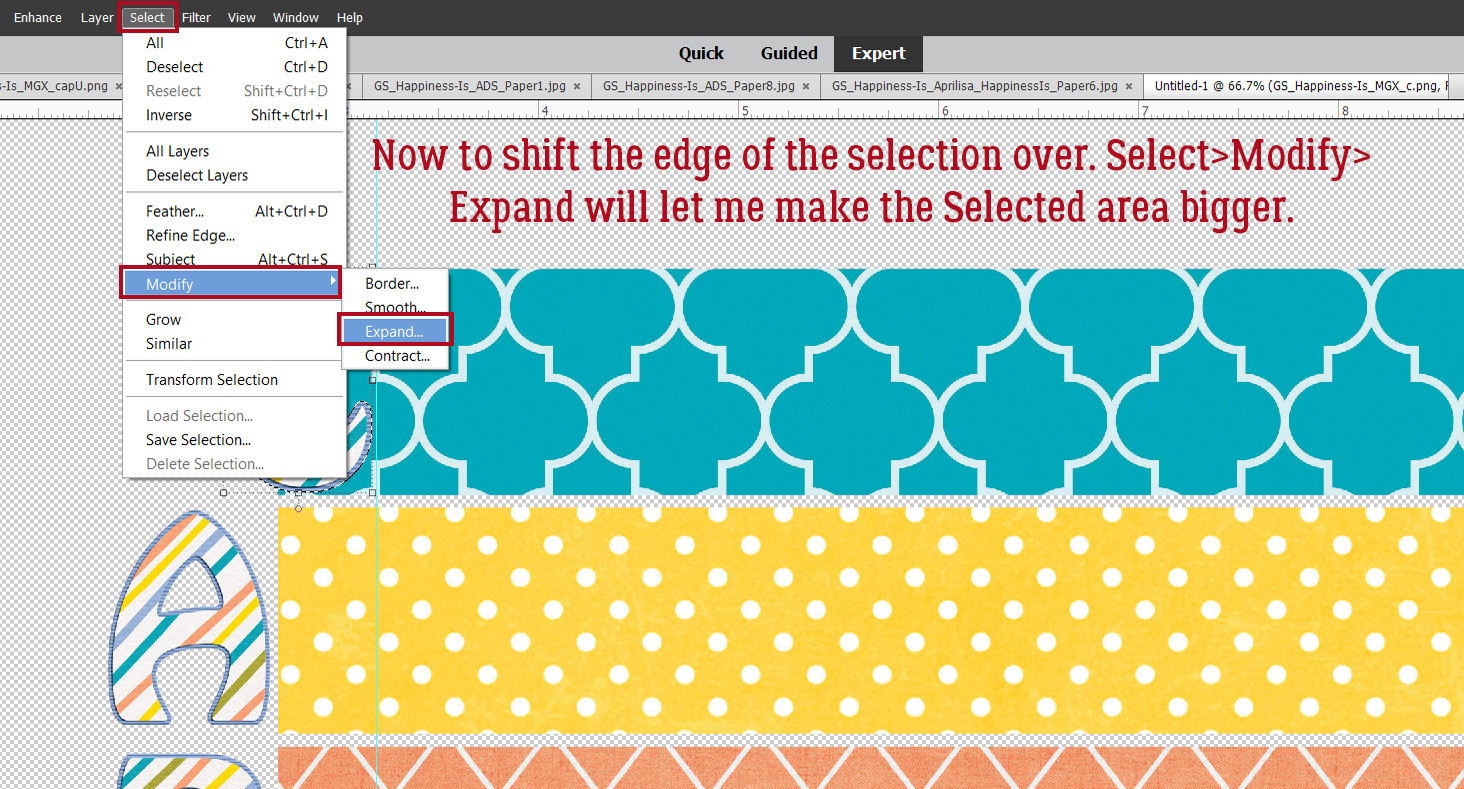
Next I’m going to enlarge the selected area: Select>Modify>Expand… and my BLANK layer is still the active layer.

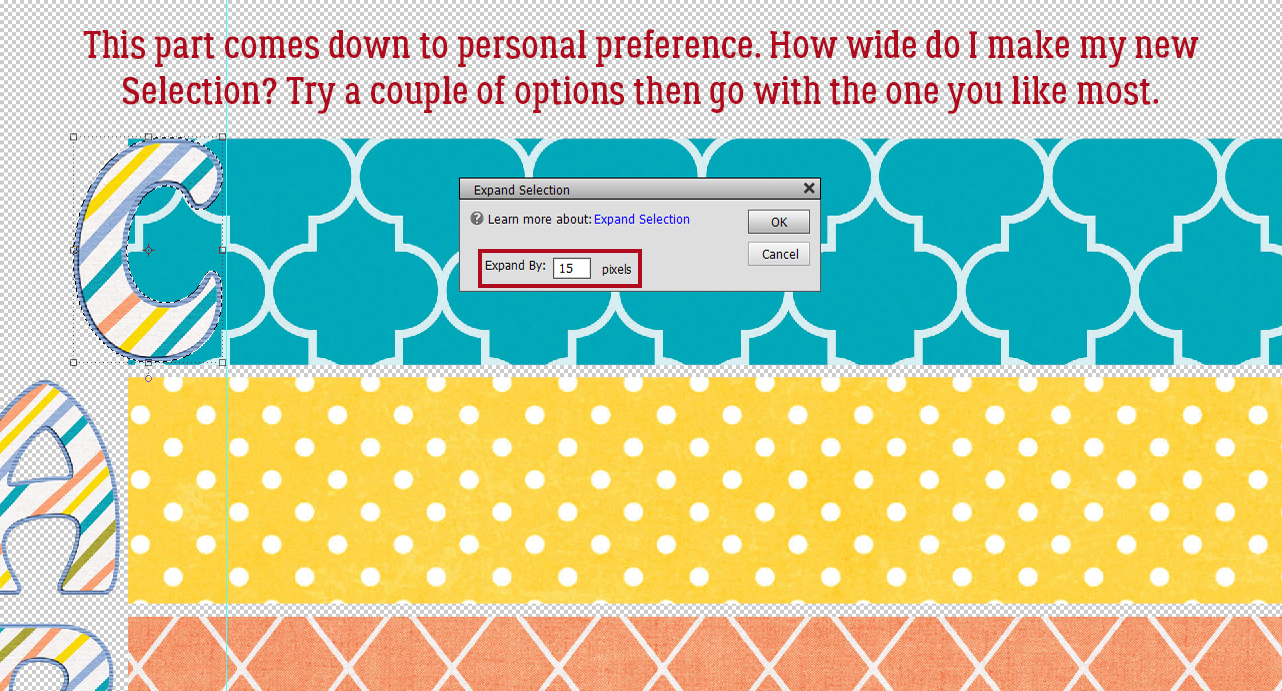
The pop-up menu is asking how much to Expand my Selection. 10 pixels is about right.

And there it is. See how the marching ants have moved away from the letter’s edge? Verifying… on the BLANK layer, now I’ll Fill that selected area using pure white and the Paint Bucket tool.

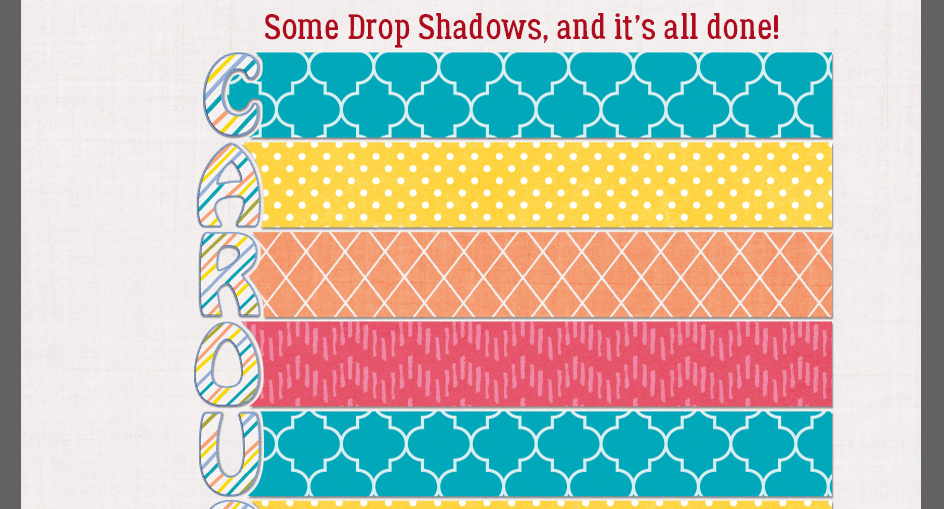
The real 3D look comes from adding shadows to each layer. I used some shadow styles from Karen Schulz. You can find them here.
Let’s review again. Open a new blank layer under the next letter. CTRL/CMD>click on the layer thumbnail for the next letter to Select the edge. Select>Modify>Expand the Selection by 10 pixels. Fill the new Selection with white on the BLANK layer.
This 10 pixel setting will be saved until you change it, or exit from the software, although that doesn’t always reset it to the default. You can keep the Paint Bucket tool active as you work through the letters, which really saves time.

When all the letters have been shadowed, my title is essentially done.

I’ll make sure when I move the letters that I’ve got both layers active, otherwise I’ll be messing it up. The nice part about using a shadow Style is that any changes I make to the layers now will be followed by the Style. That’s to say, the lighting angle, size and opacity will stay the same. (Did you notice I missed a couple of my layers when I was Shadowing? I went back and Copied the Style onto those layers.)

If there are overlapping letters, I’ll shift them a bit so there’s a space between each. There was an overlap at the R and the I, so I’ve “kerned” them.

When I was happy with the way my title looked, I Activated all the layers so I could Merge them into a single layer to make using the title easier. Merging can be done either by right-clicking on one of the Active layers and hitting Merge Layers, or by CTRL/CMD>E.

And it’s done.

Is that what you were looking for, Ellen?

Here is the PDF version of this tutorial : https://bit.ly/3sVF93i