Tutorial Tuesday (Photoshop Elements)

Deconstructing the Custom Shadow

I think we all agree that shadows are an essential and integral part of a great digital layout. There are lots of ways to add shadows in Photoshop Elements, and some of them are easier than others. But to create a true, realistic-looking shadow, there are a few things to keep in mind. Drop shadow styles are included with the software and can be useful; a number of digital designers have also created a set of drop shadow styles that make the task simple. However, to have the most realistic shadows, it’s not enough to “drop” them onto your layout. That’s because objects don’t have even lighting and they don’t have uniform and even shadows either. Objects CAST a shadow. So let’s deconstruct this concept a little.

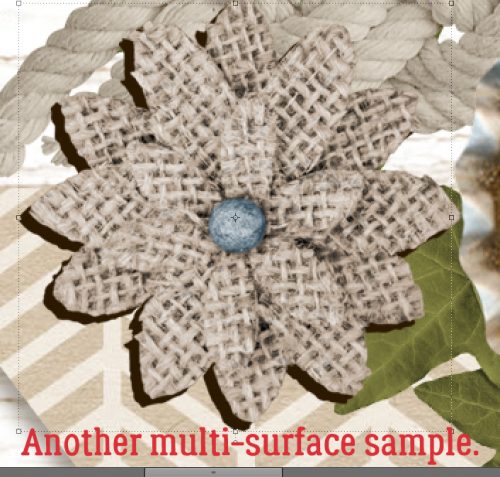
Here are three identical flowers. I’m going to show you the default drop shadow style, a commercial drop shadow style and how I shadow a flower like this. See if you can pick out the differences.

First let’s look at the PSE default Drop Shadow set, found in the Styles menu. It’ll add a drop shadow to the object with one click. Because I’m shadowing a flower, I selected the Soft Edge version. Don’t know which is which? Hover your cursor over the thumbnail and it’ll tell you. These Styles are adjustable; by double-clicking on the fx icon on the layer’s thumbnail in the Layers panel you open up the adjustment menu. Move the sliders for Size (this determines how sharp the edges of your shadow will be – the bigger the size, the softer), Distance (this isn’t accurate, because it adjusts the size of the shadow) and Opacity (darkness) until you like the look.

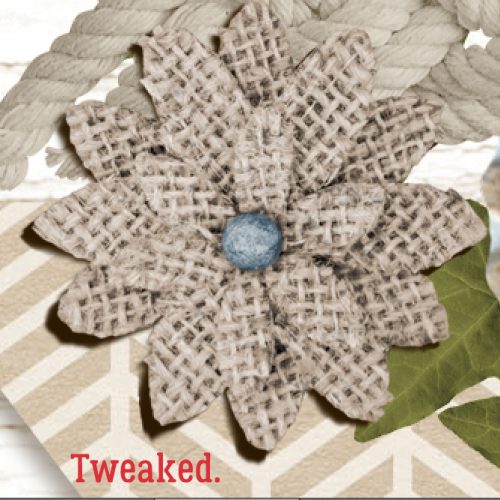
There’s the default shadow on the far left, unadjusted. For the flower in the middle I’m going to use a commercial drop shadow styles set from Tracie Stroud. (Tracie has retired from designing, so her products are no longer available. Mommyish and Sahin Designs currently have drop shadow style sets in their stores.) This set is the 120° lighting angle set and I hovered until I found one called Flower. Click!
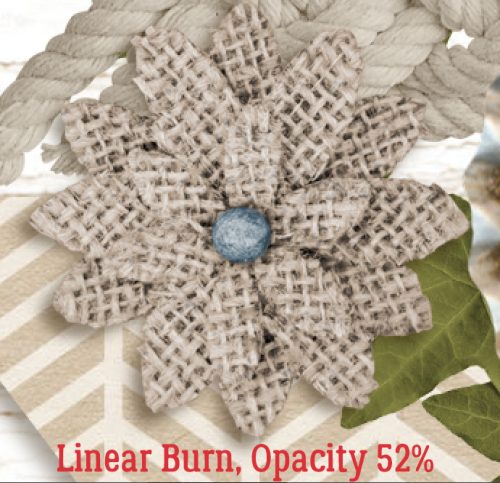
Hmm. Do you see much of a difference between the first one and the middle one? The one on the right side is the one I created a custom shadow for. This method seems to be really hard, with a lot of steps, but with practice it’s become almost automatic for me now and takes about the same amount of time as using a style does. I think you can see the difference here.

Here are the steps. The real thinking-about-it comes later with the adjustments. Start off by creating a NEW LAYER underneath your object. To do this hold down the SHIFT key and click on that little icon that looks like a piece of paper with the corner turned up at the left-top of the Layers panel.

This is what you’ll see in the Layers panel. If you forgot to hold down the SHIFT key, you can move the new layer down using the keyboard shortcut CTRL/CMD>[.

Next, click on the object’s thumbnail in the Layers panel. The thumbnail is the little picture.

Now the outside edges of the object have been Selected and have a line of marching ants around it.

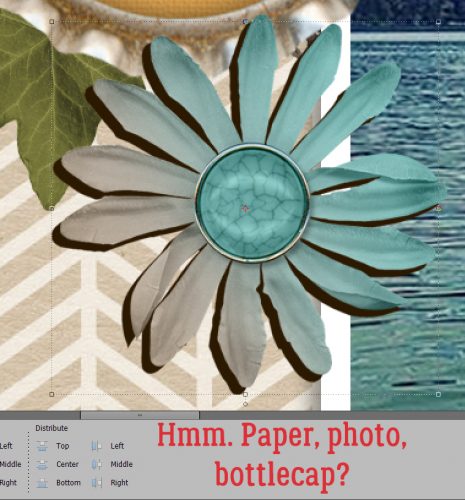
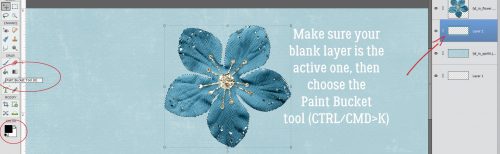
Before you go on, make sure the BLANK LAYER is the active one. Otherwise you’ll be undoing. Then choose the Paint Bucket tool (K), set your foreground colour to whatever your desired shadow colour will be (I just used black, 000000 but some people like to use a slightly browner colour like 2C1902) then click on your workspace. Elements will fill the selection with the foreground colour.

And there it is!
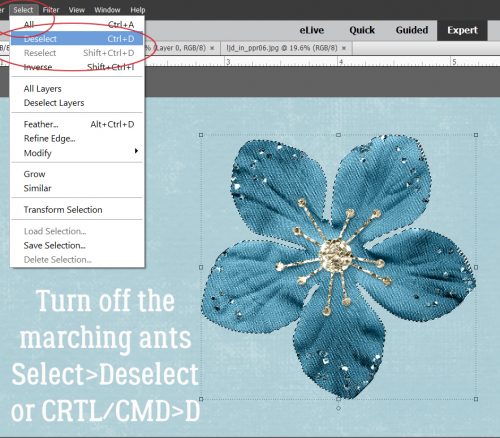
To Deselect the object’s outline you can go Select>Deselect, or just CTRL/CMD>D.

Next, decide where your light source is. Looking at the object can help with that, because there will be subtle highlights and shadows there already. For this flower, the light is clearly coming from the upper left. Now you need to activate the Move tool. I usually just go V. Then move the dark outline in a direction AWAY from your light source. Use the arrow keys to nudge it, if you like.

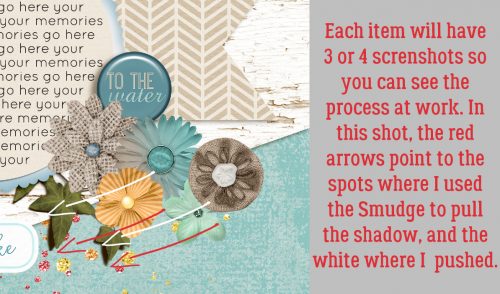
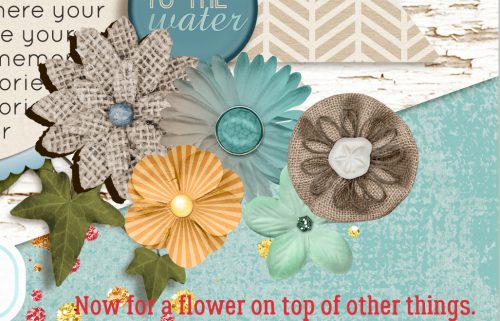
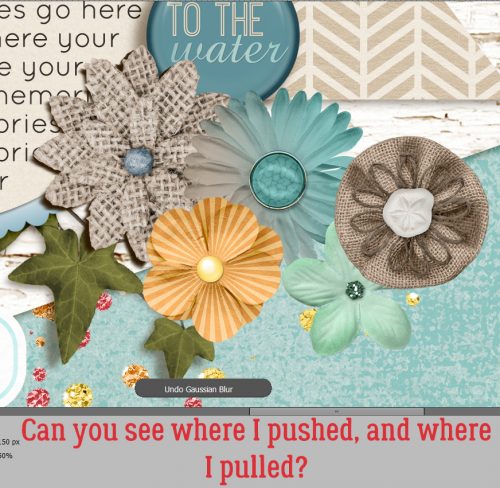
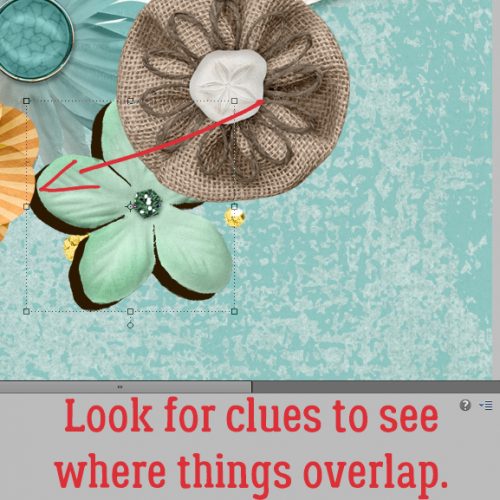
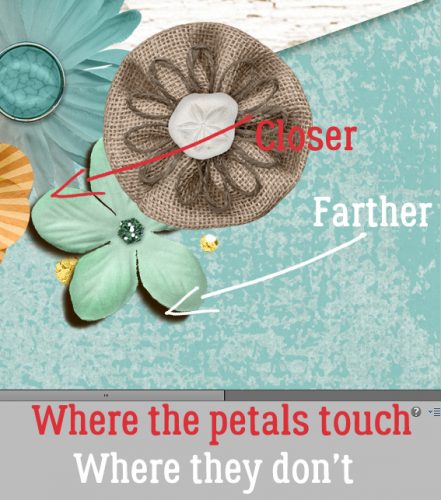
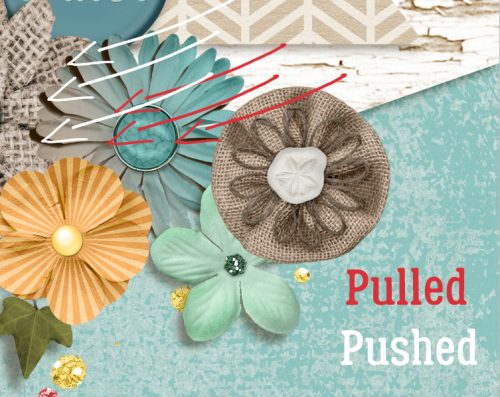
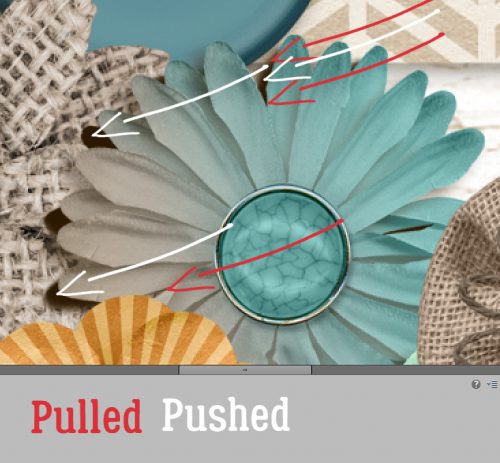
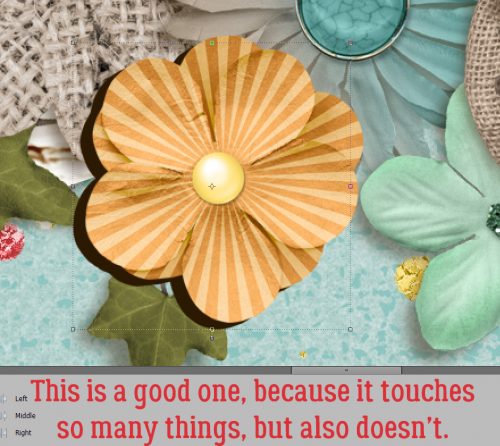
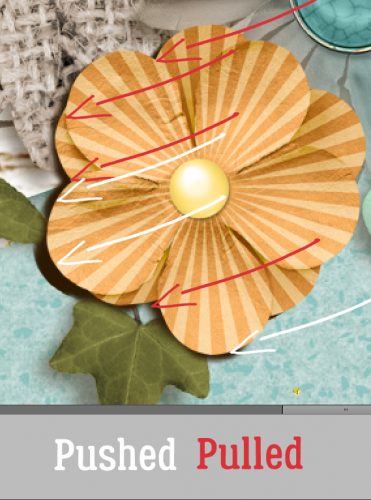
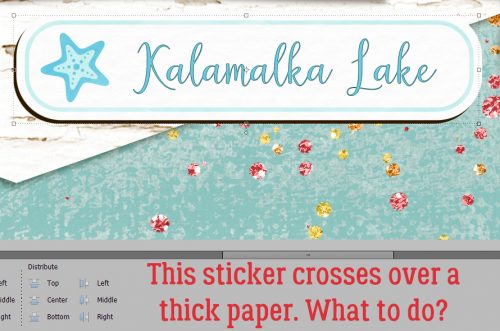
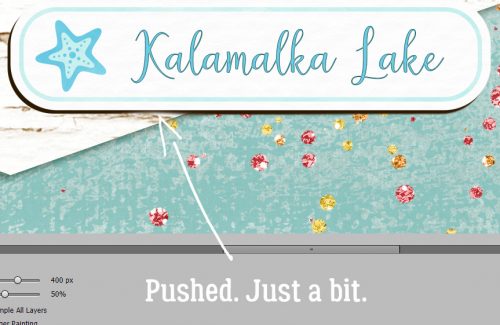
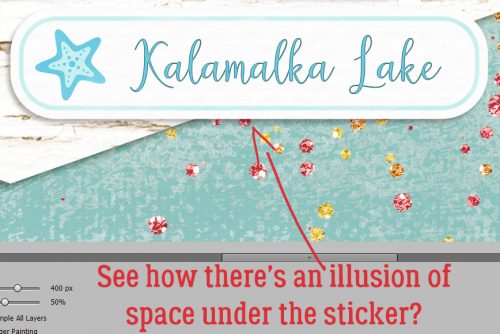
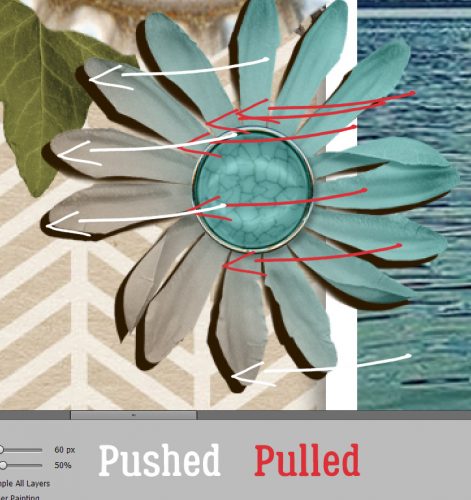
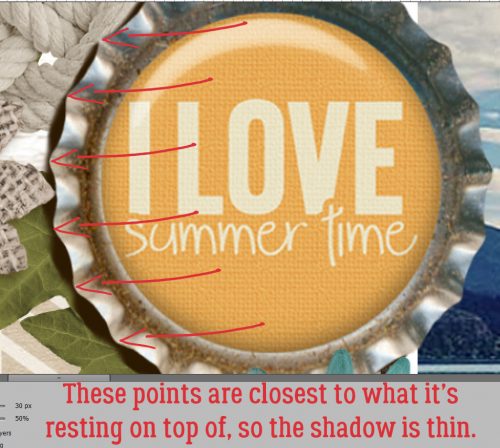
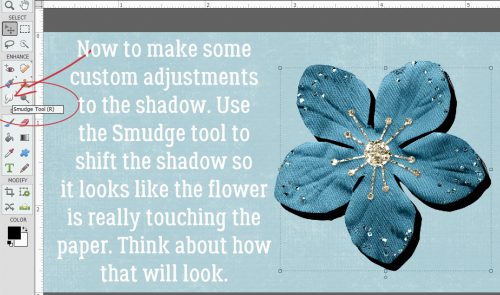
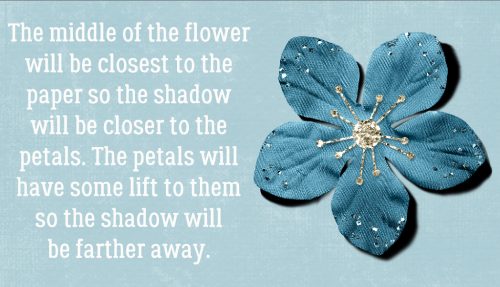
This is the interesting, fun part! Think about what parts of your object would actually touch whatever it’s resting on. The centre of this flower will be resting right on the paper, so the shadows around that part will be less noticeable – light can’t get underneath whatever is touching the surface, so no shadow can be cast. Use the Smudge tool (R) to push and pull the edges of the shadow into place.

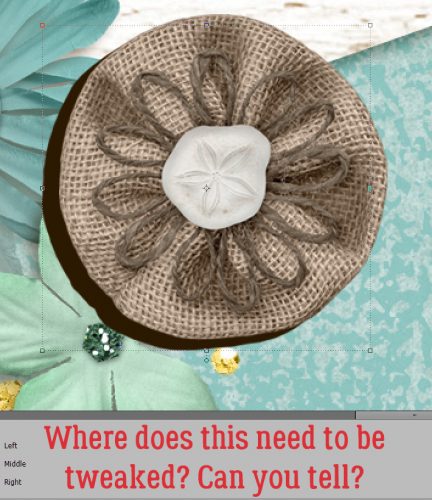
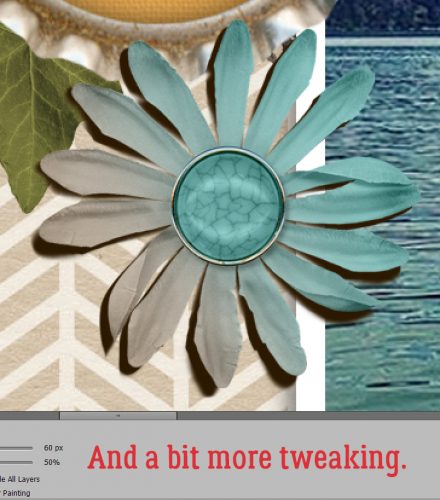
Can you see how I’ve adjusted this shadow? I pushed the shadow toward the centre between the petals. I pulled the shadow sideways and away from some of the petals and imagined the petal at the very bottom is twisted a bit so the left edge is touching the paper.

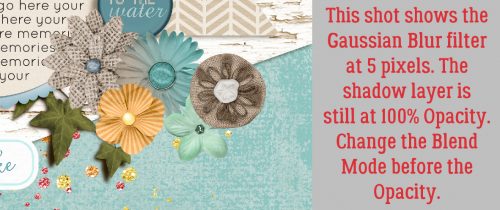
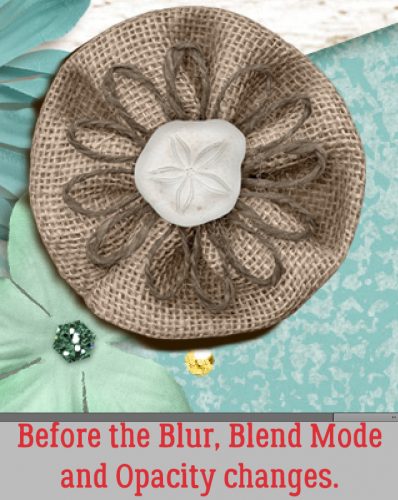
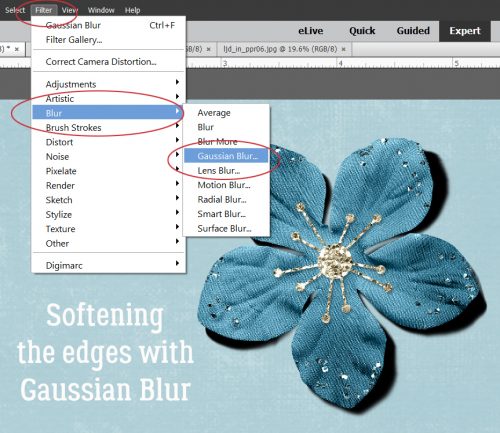
When you feel like you’ve got the shadow looking natural and real, it’s time to soften it up. Filter>Blur>Gaussian Blur is how that happens.

To see how much of an effect the Gaussian Blur has, click your cursor on a point somewhere over the edge of your shadow and your preview pane will shift to that spot. Move the slider until you’ve got a nice, soft edge. How soft will obviously depend on what it is you’re shadowing. A button would have a sharper edge, string a softer edge.

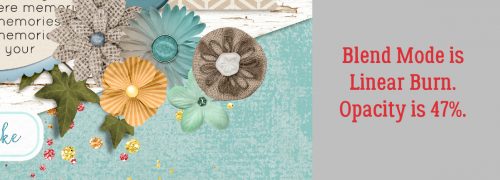
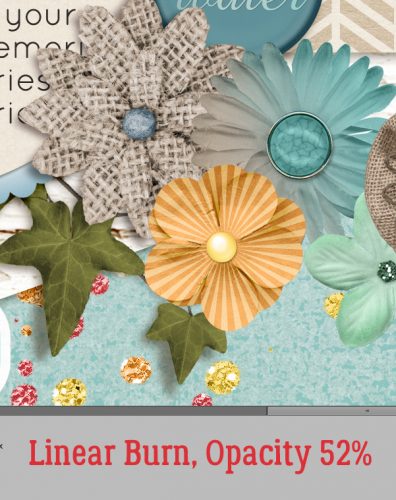
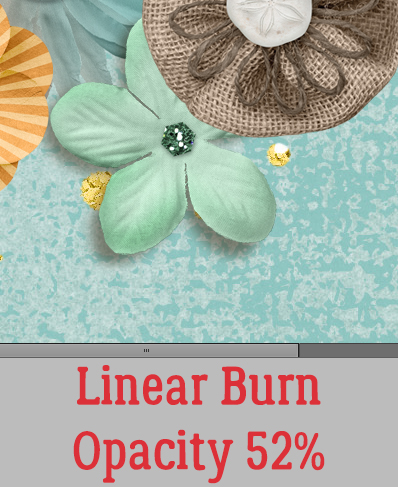
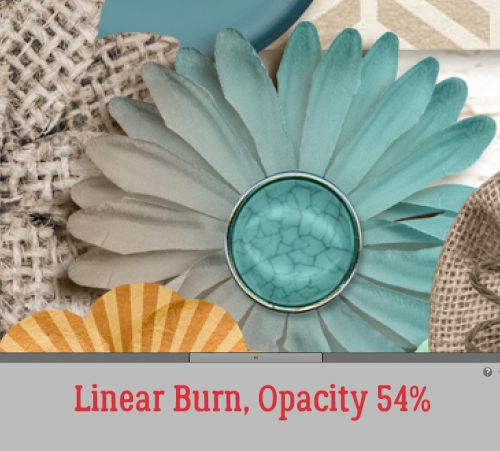
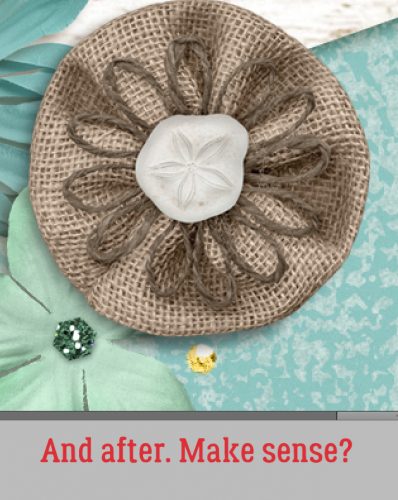
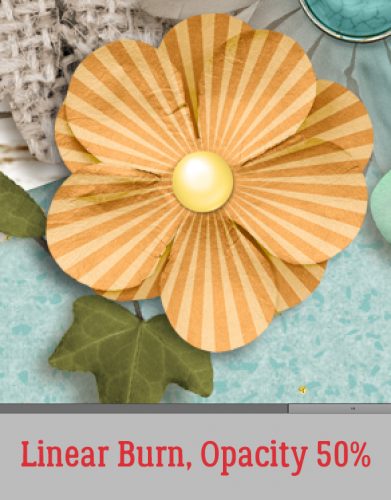
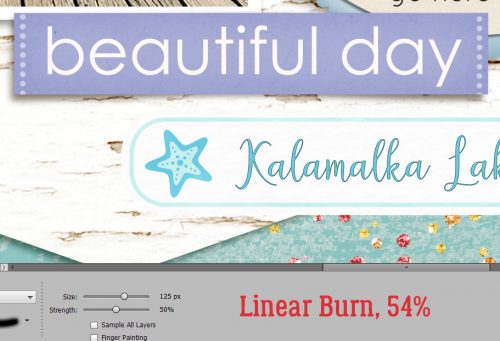
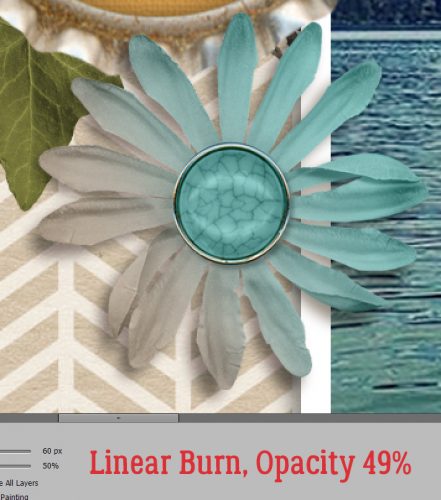
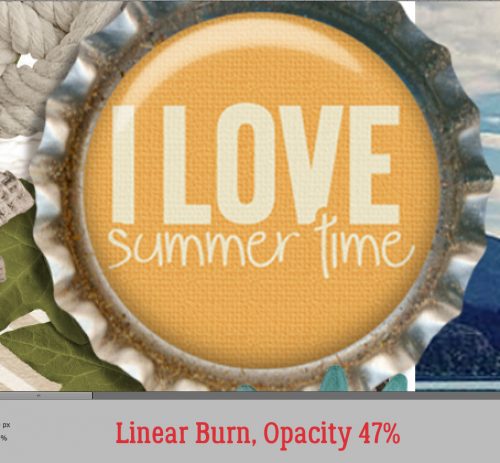
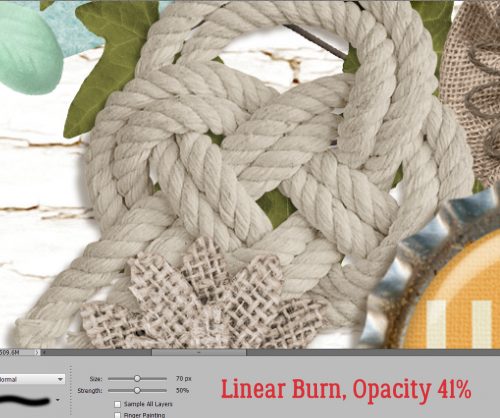
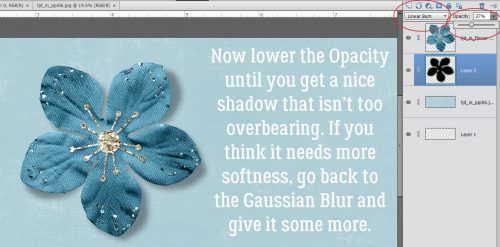
Almost done! Change the Blend Mode to Linear Burn for more of a shadowy look nearest to the object. It also allows the shadow to take on some of the colour of whatever is under it, in this case the blue of the paper.

Then lighten up up by decreasing the Opacity to somewhere around 40%, plus or minus. Keep an eye on what’s happening and you’ll see when it looks right. If you think the edges are still too sharp, use the Gaussian Blur again.

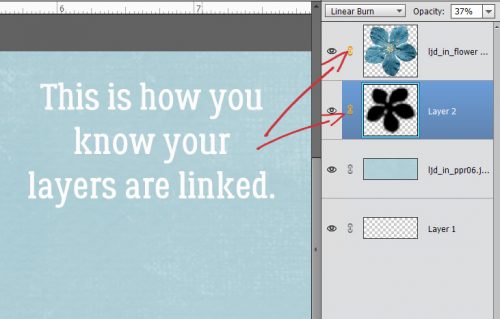
Last thing to do is to Link the shadow layer to the object layer. To do that, select the two layers then click on that little icon that looks like a couple of chain links. Alternatively, you can Merge the two layers by selecting them then right-click>Merge or CTRL/CMD>E. Why do this? Well, if you move the object and it’s not either linked or merged with the shadow, the shadow is going to be left behind and you’ll have a bunch of hassle positioning it right later.

When your layers are linked to each other, this is what you’ll see in the Layers panel.

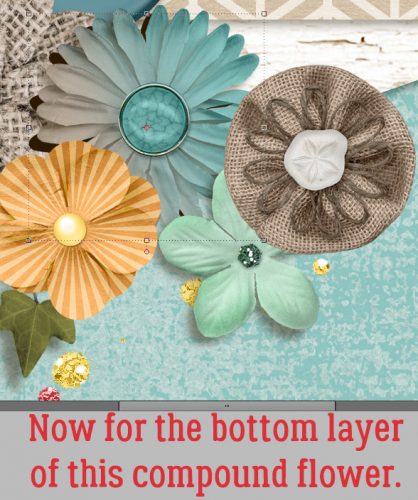
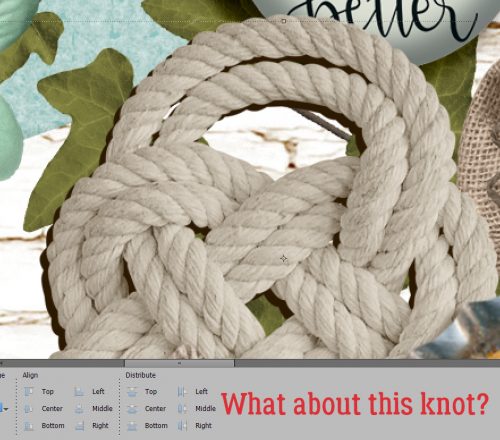
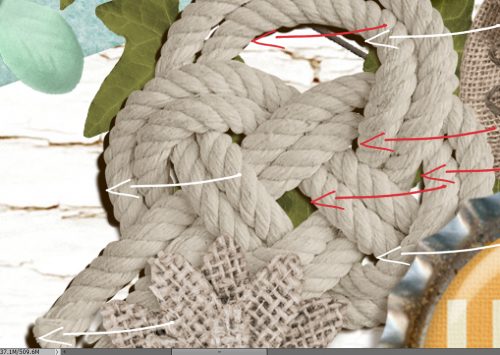
This was a very basic custom shadow operation. Practice it a bit, then I’ll show you how to layer objects on top of other objects and get the shadows right in that situation. Even more fun!! Just let me know when you’re ready to take it up another notch.

Tutorial Tuesday (Photoshop Elements)

How Do You Know When to Upgrade?

Today’s tutorial is going to be a really wordy one. Lisa R made this comment on last week’s post: “That’s why I adore digital scrapbooking! I still have PSE 11 and since I use it mostly for photos (not scrapping), it would be interesting to hear the best things YOU like about it … I’ve been thinking of upgrading for quite some time but again, because I use it mostly for photos, I’m still on the fence.” I hope to make her decision easier by discussing some of the things that have evolved since V.11. I’ve never been one to upgrade just to stay at the front of the pack. There has to be something in the upgrade that I want… and I’m pondering whether it’s worth the money (about $120 Canadian for an upgrade, $140 for a new purchase) to jump to PSE 2019. But before I talk about that, let’s look at the changes from Lisa’s V.11 to my current V.15.

V.11 brought us some fabulous sketchy filters, and introduced automated actions to ElementsPhotoshop CS/CC has had them for a long time. If you’re not familiar with actions, they’re little scripts that automatically perform a series of adjustments to your work. They’re especially useful for photo editing and professional photographers have their favourites, which then let them develop a personal style. Photographers whose specialty is newborns, for example, will use actions that tone down jaundiced skin, hide newborn “acne”, reduce mottling and so on. There are also actions that take the work out of getting the background right. There are lots of sources for free or low-cost actions online, with demonstrations of how they work. Here’s a demo of a free action from The Coffee Shop blog. It’s called Perfect Portrait 3. It’s pretty amazing!

In V.15 there are two ways you can access actions, both the very basic ones that came with the software and those you’ve installed. The first is to click Window>Actions and the second is to click that More button then choose the Actions tab. If you look closely at this photo of my son, his skin is pretty gnarly-looking so let’s see how Perfect Portrait 3 fixes it.

When you’ve chosen the action you want to run by clicking on the folder to the left of the title, you can either click on the dark blue triangle to the left of the folder’s contents, or the dark blue triangle circled below. That sets the action in motion.

There may be some parts of the action that require your input, like this one. It’s actually the second spot where I told it what to do; the first was a Levels adjustment. In this screen I could change the source of the colour I want to replace.

After I hit the OK button for Replacing Color, the action took off and in 30 seconds I had all these adjustment layers that I can now fine-tune. But even without any further input from me, those blemishes on Adam’s nose are gone, his skin tone is more even and his teeth are whiter. I think his crows’ feet aren’t as obvious too.

Another new feature that came with V.11 is in the Organizer. (I don’t use the Organizer because I didn’t like it with my first couple of versions, and created my own filing/organization system.) This version introduced user-determined tagging, allowing many more options for finding what you’re looking for by using your own tags. Options could be by name, by date, by location or by event, for example.

Last but not least, V.11 had the first Out-of-Bounds Guided Edit that allows cutting away the background from part of a photo but leaving things like heads, arms and legs in there. Think of those cool layouts where the photo looks 3D, like it’s bursting out of a frame.

V.12 brought a few more useful improvements. Content-Awareness allows for quicker, easier editing with the Spot Healing tool and with the Content-Aware Move tool. (I haven’t played with that tool yet, so I won’t try to explain how it works. We’ll save that for another day!) This version gave us a pet-eye correction in the Quick and Expert edit menus for the first time.

It also gave us the Zoom Burst Guided Edit that lets you add motion blur to an action photo that looks natural. That one looks like a lot of fun! Another new option in the Guided Edit menu in V.12 is Rotate and Straighten, making adjusting the horizon in photos super-simple. Here’s where the Puzzle edit and the Photomerge edit also came into play. One big drawback to V.12 was that everything was turned into a Smart Object, resizing things like buttons to the size of whatever the workspace it was moved onto was… 12×12 for example. It was a REAL pain in the butt having to then manually resize every. Single. Element. On my layouts.

V.13 got rid of that. It introduced the Refine Edge function to selections, which was a game-changer for lots of people. It allows for sharper extractions and cleaner edges. Some other benefits V.13 had include Auto-crop options – the software provides a preview of several ways to crop an image. [I turned that off eventually because I don’t want to be told what to do. ;)] They added Black and White (automatic and simple conversion to black and white), Black and White Color Pop (keeping a specific area of a photo in color while making the rest of it black and white) and Recompose (resizing your photos without losing important parts of them) to the Guided Edit menu.

And then there were these very useful additions! I haven’t actually played with these either, but I think I should!

V.14 is where there were huge changes made to Elements. Many of the techniques I’ve shared were made possible by these additions: Remove Camera Shake; Remove Haze (!); Batch Edit; one-click Whiten Teeth, frames, photo effects and textures; Photo Illustration; Paint-On Effects; select detailed edges (hair?); remixing 2 photos, improvements to the Recompose edit; RAW editing; new options in Photomerge and an opportunity to print at home came with V.14.

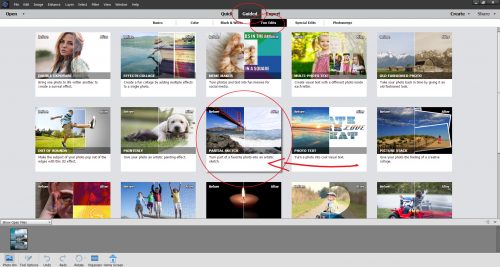
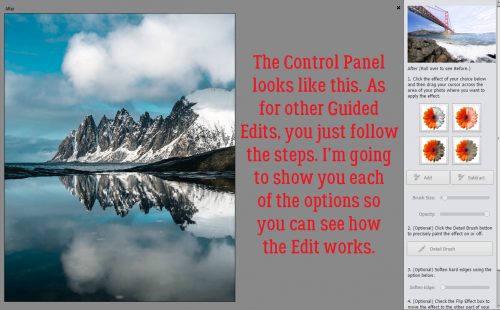
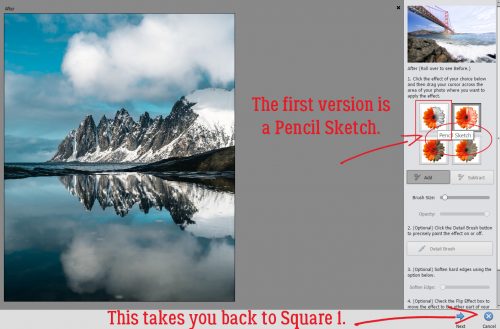
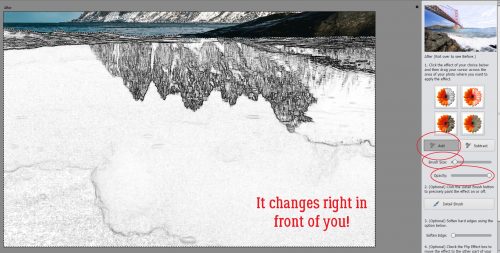
Compared to V.14, there weren’t a lot of changes in V.15, but improved function of some of the menus were a bonus. The Filter Gallery has been simplified and there were a few additions to the Guided Edit menu such as Photo Text (there was a tut on this one), Effects Collage (which lets you apply several effects to sections of a single photo), Painterly (there was a tut on this one too) and Speed Pan (giving a moving object a blurred background). There’s also a cool effect that lets you change a frown into a smile.

Changes to the appearance of the workspace, the location of toolboxes and buttons and other sort of housekeeping things have continued from version to version. There will always be a bit of a learning curve when you upgrade; the larger the gap between your old version and the new one, the steeper the curve.

So this is where my dilemma lies. Do I go from V.15 to Elements 2019? How hard will it be for me to learn the new stuff, and then translate it into easy-to-follow tutorials? Are there enough new things (there are 8 new Guided Edits) I can’t live without to make it worthwhile? 2019 has a powerful new function called Adobe Sensei AI, which does a lot of things automatically in both the Organizer and the Editor. It uses artificial intelligence to tag and organize your photos and videos based on image recognition, it allows for video editing, which V.15 does not, and it has several social media features. Oh and did I mention slideshows?? If you’ve ever had to create a slideshow, you’ll know how much work they are and how hard it is to get them just right. 2019 will automatically select the best photos from a selection and turn them into an animated slideshow guaranteed to impress. There’s also a more useful home screen. It looks like I have some thinking to do…

Tutorial Tuesday (Photoshop Elements)

Restoring those Vintage Snapshots

Halfway between my birthday and Mother’s Day, I had the most amazing visit with some relatives I’d never met before. One of the ladies I spend the day with is my Grandmother’s first cousin, who is actually only four years older than my mother. This delightful woman brought along a huge collection of vintage photos, some of them well over 100 years old. Today I’m going to show you one of them and take you through a Guided Edit to restore it. (Spoiler alert: This is NOT a quick edit. It took me about 2 hours to get it to the final version.)

The Guided Edit I’m going to demonstrate today is simply called Restore Old Photo. It’s in the Special Edit toolbox. What I love about these Guided Edits is that everything you’re going to need (pretty much) is all in the Edit toolbox. It’s especially helpful for those who are still learning how to use their software, because each tool in the box has a little explanation of how to use it. Like a mini-tut, if you will.

Here’s my photo. The little girl is my first cousin twice removed, Lily Annie Delia. She was nicknamed Laddie (for her initials) and she really didn’t like it! This photo was taken in the fall of 1916 and was sent to her grandmother as a Christmas gift.

This Guided Edit has more tools within it than can be shown all at once, so don’t forget to scroll down and take a peek. Be cautious of that Cancel button I’ve circled. It resets EVERYTHING back to the original.

The tools are listed in the order you’re most likely to use them, but I found I was bouncing between them as the condition of the photo demanded. Zoom in really closely so you can see the imperfections better and what changes the tools create when you use them.

But first… This is a personal preference here. I like to crop off the white paper border before I do anything else. But there may be times when you want to leave it. Here I show you how I cropped this one. The image was printed slightly askew so I straightened the Crop window level to the demarcation between the carpet and the wall.

This is my new starting point.

The Spot Healing tool in the Expert edit mode has a number of options for the tool, but within this Guided Edit, it doesn’t. If you’ve never used it before, you’ll be surprised at how one click can make a huge difference. The secret to a great, invisible edit is to take your time and use a SMALL diameter brush.

See how all that discoloured scratchy stuff is gone now? Typo spotters… that should read “down”. You can move your photo around on your workspace by using the Hand tool.

That scratch and the messy corner will need more help than the Spot Healing tool can provide, so I’ll use the Healing Brush. It’s similar to the Clone Stamp but can be stroked across a blemish like a brush. More details on how this tool works best are to follow.

Now you see it, now you don’t!

This is where I started moving back and forth between the Spot Healing tool and the Healing Brush.

This shows how sometimes there are several types of blemishes in a small area.

The Spot Healing tool is active in this screenshot. I’ve removed most of the discoloured stuff.

It’s very easy to change the size of the brush you’re using in either the Spot Healing tool or the Healing Brush. Those square brackets that don’t have much use outside of algebra are the volume up and volume down buttons for brushes. The [ one makes your brush smaller, while the ] one makes it bigger. I just made my Healing Brush slightly bigger than the scraped area, selected an unblemished area of my photo and painted over it.

These scratches and creases might be erased with the Spot Healing tool, but I didn’t take any chances. I used the Healing Brush.

Here’s the secret to making the Healing Brush and Clone Stamp tools work to their best advantage. (And I literally discovered the trick LAST NIGHT!) If you don’t move the cursor away from your ALT>Click selection before you start using the tool, your “source” point will be… what you’re trying to cover. So always move it, even just a little bit, before you start trying to fix an area. You’ll be able to see where your source is because there will be a little white “plus” sign at the spot where the colour or texture is being sampled. Below I’ve mocked up what you’ll see, but in black to make it more easily seen.

When using either the Healing Brush or the Clone Stamp, work AWAY from your source so you’re moving from clear to unclear. You’re trying to blend away the blotches, not replicate them.

No matter what tool you’re using, when you’re in a spot where there’s lots of detail, you need to slow down and use the smallest brush possible. If you’re too close to an area where the colour or tone is different, your correction will actually only create another flaw.

Hair. It’s one of those love-it-or-hate-it things!

Use the zoom! The keyboard shortcuts – and + make it easy to do. Get in tight where you need to, pull back to make sure it looks right when you need to.

I used the Spot Healing tool, the Healing Brush and the Clone Stamp freely in this area. The Clone Stamp tool is terrific for repeating shapes and sharp edges. By selecting a spot along the edge, for example, I can replicate that perfect spot all the way down the rung.

And on it goes.

Spot Healing worked well for the cross piece here.

I made my way across the photo from the upper left corner over to the right, dropped my working area down then worked back from right to left, repeating until I’d covered the whole photo.

I could stop here, but I want to show you some more options, so let’s press on.

Even though I think I’ve done a great job, I think I want to use the Dust Removal tool to refine the image even more. It’s one of the hidden ones I had to scroll down to find. Adjusting the pixel size, I can tell Elements to find all the remaining flaws that size or smaller and Elements will fix them.

I wanted the Dust Removed first before I went on to the Blur tool. It does exactly what it says it does. It softens the hard edges of an edited area so it doesn’t stand out. I just brushed it over some of the background.

The next several adjustments aren’t using any of the tools, just adjustment modes, so the Blur tool looks like it’s still active. But this screenshot shows my photo after I used the Auto Levels mode.

Then I let Elements adjust it with Auto Contrast.

And a touch of Sharpening.

When I’ve gone as far as I want to with the Guided Edit, I can click on that Next button and go into the Expert edit mode.

Since I discovered Enhance>Haze Removal, I’ve used it SO OFTEN! It does several things all at once – sharpening details and deepening contrast.

And the effect is fully adjustable. I’ve moved both sliders to the left from the default settings.

Don’t worry that you’ve gone too far… you can ALWAYS Undo it all! CTRL/CMD>Z is a scrapper’s best friend! (CTRL/CMD>Y will Redo, so you’ve got options!)

Don’t foget to save your hard work! I named my new photo Laddie Xmas 16 for ease of finding it later.

What do you think?

Tutorial Tuesday (Photoshop Elements)

Repeating Patterns, Part Three

In Part One, we built a repeating pattern essentially on a grid. In Part Two, we went a little further and created a repeating, staggered pattern. And now, in Part Three we’re taking all that we’ve learned to create a repeating pattern with multiple options. Ready?

Open up a new canvas 2 inches square with a resolution of 300 pixels per inch.

Then duplicate your blank layer. The reason for this will explain itself.

Now take a look through your brushes or stamps and choose the one you’ll use first. I used a dragonfly from a free set of butterfly brushes (sorry, can’t find a ling to them). Resize it so it fits into a fraction of your square.

You can see that I’ve duplicated the dragonfly and positioned them in opposing corners.

Then I changed my foreground colour and chose a butterfly stamp, adding it to one of the vacant corners.

And duplicated THAT layer then I Merged all the layers.

I think you might remember this part. Edit>Define Pattern will let you save your creation as a pattern for use with the Pattern Fill tool.

You don’t HAVE to give it a name, but it might make it easier to find later.

Now you need a solid paper for your background. It can be textured, or not.

Then select the Paint Bucket tool, but instead of the Color Fill, go with Pattern Fill. Then go find your new creation.

One click on the paper and BINGO!

But wait! There’s more!!

This time I added some glitter to my brush layer.

And then some hearts…

… and some MORE glitter.

I missed a screenshot where I added in the silhouette of a girl jumping for joy, but you can see the result here.

Look at how amazing it looks with the glitter, which is still there.

Let’s try that one in a staggered pattern. I opened a new 2 inch tall, 4 inch wide canvas and applied the pattern to it. Then I deleted the second repeat so I’d have somewhere to put the offset. Filter>Other>Offset.

I used the same settings I had for the first staggered pattern we did back in Part Two. Then I Edit>Defined Pattern with a different name.

Yes, the same steps as before.

And there’s my new staggered-pattern paper! I could learn to love this technique!!

Have you tried any of the parts of this tutorial? I’d love to see yours!

Tutorial Tuesday (Creative Style)

Standing Out in a Crowd

Last night (before I was side-tracked by a bunch of genealogical records) I was thinking about creating a layout for this month’s first Template Challenge. I love template challenges – they couldn’t make scrapping easier! And of course, who doesn’t love free stuff? But on the wings of those thoughts, I found myself pondering how to make MY layout stand out from the rest. When everybody is working from the same template, it’s easy to end up with something very similar to all the others. So that led me to have a look at the layouts already completed and posted to the Challenge thread to see how others have made their layouts unique. And I’m going to show you some of those examples today.

First, let’s look at the template Dagi has created for this challenge.

It’s got so much potential!!

This first layout, by basicbear2, has been rotated 180° and she’s spread that cute photo of the boy with the tube over the blended photo spot and the one with the frame. The other cool technique she used is to clip a paper (the rubber duckies) to one of the painted areas.

Next, let’s look at this lovely one from JeannieK. She’s left the template in its original orientation, but by clipping that daisy-floral paper to all the painted areas, securing her photos with the large daisy and adding both the gold paper around the edges and the blue-triangle border, she’s changed it up into something quite lovely.

CherryLej has tweaked the template a lot! The gorgeous watercolour areas elevate the background of her layout and I love the way she’s tied the photos together with the pennant banner. She’s substituted washi tape for the wordstrips, created a matching frame for her square photo and added in a beautiful cluster. Stunning!

knclark has used repeating images to great effect here by clipping a blue paper with puffy white clouds to the painted background in such a way that it blends right into her photos. The sun-and-clouds cluster is the cherry on top.

Pixel Palette has shifted the photo spots around to allow more of her large photo to show.

Keevs has added several papers to her background, popped a stamp into the upper left corner and shifted one of the photo spots to reveal more of her large photo. By really subduing the paint in the background she’s changed the look of the template in a most pleasing way. And all that texture!

jirsev has a fantastic take on the template here, where she’s made the blended photo much larger, she’s added a lot of texture to the background and she’s emphasized her smaller photos with her choice of elements.

This masterpiece is by kabrak1207. It’s impressive how she’s spread her photo over all the photo spots and accented it with the papers clipped to the painted spots.

gmae has taken it a long way from ordinary here, keeping only the painted areas and the general placement of the clusters and title.

As you can see, there are so many ways to make a template look less cookie-cutter and more work-of-art. Now that I’ve completely intimidated myself, I’m off to see what I can do to create something special. Will you join me?

Tutorial Tuesday (Photoshop Elements)

Stackin’ ’em Up!

I’m seriously in need of a week where I’m actually not scrambling for a tutorial post! I was wide awake at 1 am wracking my brain for a topic. But what do you know… one magically appeared. I remembered there were still some really useful Guided Edits I haven’t shown you yet, so that’s what we’re doing. Let’s look at the Photo Stack, just for fun.

When I tell you that this technique is literally only about a 10 minute job, I know you’re thinking, “She always says that.” But it really is SO much faster even than using a template with photo stack, because with this edit, the software does ALL the copying and stroking. All of it! The hardest part is deciding which of the three options to choose, and I think that comes down to what you want the focus to be.

All I did to get this image was to click just once on the 4 frame spot I’ve shown below.

The very first image has the narrowest border already in place. A single click on one of the border options is the next step.

The medium border is still pretty skinny.

Even the widest one isn’t especially in-your-face. But that’s completely under your control! Before I show you that part, let’s look at the other two stack options.

The eight frame option looks like this with the baseline border.

Beefing up the borders to medium still lets a lot of the original image through.

Then the wider one, still not much of a distraction.

And then there’s the twelve frame option.

Medium

Wide

With this photo I think 4 frames is the right choice. So now I’m going to move to the Expert Editor.

Whoa! Look at all those layers! And each one is another opportunity to fine-tune the final image. (Notice the multiple copies of the photo layer? It’s a GREAT thing!)

Here I’ve selected one of the border layers. The border is actually simply a stroke on its own layer. The default settings are 10 pixels and 100% Opacity.

Pulling the slider to the right makes the border wider. I could also change the colour of the border in this menu if I wanted to.

I’m going to come back to that in a minute. But first, I’m going to unlock the background (original photo) layer so I can edit it. And so I can put a transparent layer underneath it. I right-clicked on the layer in the Layers panel then chose Layer from Background. That makes it like all the other layers, completely editable.

I then added my transparent layer underneath it by CTRL/CMD>clicking on the new layer icon (the blank sheet of paper) at the top left of the Layers panel.

I turned the visibility of the very first black rectangle off and now the original image is visible to the edges and can be erased away, leaving a transparent area instead.

Don’t panic about having to be precise with the erasing. It’s not a problem! All those extra copies of the original photo that are clipped to the stacked layers aren’t going anywhere. You can just use a big eraser and go for it!

After I did that, I decided I wanted to shift the stacked photos so they were entirely inside the canvas. So I CTRL/CMD>Z as many times as I needed to to get back to the black rectangle. Then I resized them a tiny bit, shifted them a tiny bit and rotated them a tiny bit until I arrived at what you see below.

Then I decided to make the borders just a smidge wider. I double-clicked on the fx icon on the first border layer to get into the Styles menu.

I didn’t go overboard, just doubled the width of the border on each one. And then I went back and erased the areas of the original photo layer to make my stack usable.

An advanced version of this Edit would substitute other photos for some of the frames, but it would be almost as much work as using a template would be… the photos would need to be resized and rotated individually then clipped to the spots.

If I was ready to put my layout together, I could just leave it as is for now and come back to it later. But I’m going to save it for later.

In order to be able to use it for a layout, the transparent background is essential. So I’m saving it as a PNG file.

To keep the images sharp I’m using the Slowest setting and Non-Interlaced. I gave it a name and saved it to the folder I’ve created for my (future) layout.

Before I forget, LilyAnn Fisherman left a comment on last week’s tutorial asking me if I couldn’t have made my clock face by texting-on-a-path. So I went back and did it again, using Text on a Shape. It was maybe a tiny bit less work, but I still had to fiddle with the spacing to line the hours up with where they should be on the clock.

And while I was at it, I did a mock-up of what I hope the clock will look like when it’s finished.

Check back in a few weeks to see if I succeed!

Tutorial Tuesday (Fonts)

Fontastic Spring!

Once again I’m apologizing for not having a great tutorial prepared for you. I’ve been caught up in family obligations the last several days and haven’t had time for much else. I didn’t even get my family bible layout done. But I’ve noticed that almost all the comments on last week’s post mentioned the fonts I showed you. And I also noticed that I haven’t done a post about spring-y fonts. So there we’re going!

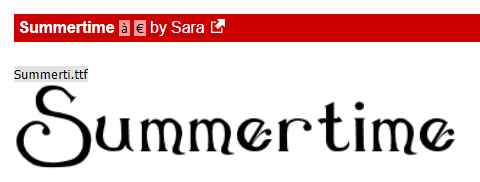
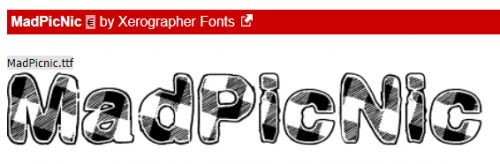
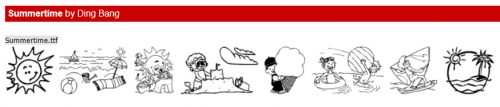
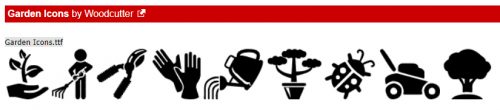
As I’ve mentioned before, I love dafont.com as a great source of free fonts; their selection is outstanding! I made a quick cruise through there and have found you a baker’s dozen of fonts (and a dingbat set) that would make great titles or subtitles for spring layouts. See if you agree. Each font is hyperlinked to the site; just click on the font name in the description.

Alpha Shapes Raindrops might be what you’re looking for when you scrap rainy-day layouts. If you simplify each letter on its own layer, you can use the Smudge tool to animate your drops.

Floralies is similar to Blomster, but a little “lighter”.

Florality isn’t technically a font, but the viny, leafy look of it is so pretty!

I’m thinking there are so many ways to make Alpha Flowers just POP off the page.

Flower Explosion is a little lighter too, but still really pretty.

Think how beautiful CF Flowers of Destiny would look with a Blend Mode like Multiply! Ooh, and a gradient… smashing!

Nebulo is really gorgeous, just be aware that it’s a mishmash of capital and lowercase letters.

I just love this one! Kingthings Willow has two choices for even more freedom and control.

Black Flowers Blossom is just pretty.

Vanessa is another really pretty font; imagine it clipped to a paper, maybe with a little border around it.

CF Springtime has a nice bit of heft to it, and those sprigs are a cute touch.

This whimsical little beauty would be an amazing addition of layouts with Day Dreams ‘n Designs‘ Daily Download kit Bee Mine. I think we also need to heed the message… Save the Honeybee.

This one doesn’t say spring so much as the name of it does. I like it though. Butterfly

That leaves only the dingbat set. KR Spring Me has LOTS of spring-y images and so many possibilities.

Do you have any favourite fonts that make you think of spring? It looks like spring might actually be on its way to my corner of the world. Our temperature finally got above freezing on Sunday for the first time since January 31. That’s a long time to be cold!

Tutorial Tuesday (Potpourri)

Heritage and History: Recorded

Late last week, I connected with one of my distant cousins on my mom’s mother’s side through Ancestry DNA. I never expect anything to come from my contacting them, and am always so thrilled when they respond. This particular long-distance connection led to an explosion of “new” family members for me and the beginnings of several friendships. But perhaps the best thing that has come from this is that I now have several photos of the old family Bible, that dates back to 1884.

I know there are more than a few of you loyal readers who are also interested in your family history and in recording what you learn for future generations. My family Bible photos are going to make an amazing layout. And GingerScraps has pretty much everything I’m going to need to make it special. And I’m going to let you in on my design process.

First, did you know you can search the store using keywords? On the far left of the store’s home page, there’s a search box right underneath the log-in panel. I typed in “heritage” and the search returned THIRTY-TWO pages (more than 500!) of possibilities. I know the right kit for me to use for my special layout will be in there somewhere. Here are some of the options I’m considering.

Many of these kits are part of a larger bundle, which of course is your very best value.

My heritage layouts go in one of two directions; I either focus on a single photo or I go with a collection of them. Because the photos by themselves are just “nice” but don’t tell the story, lots of room for journalling is a must. Our GS designers have so many options for templates that it’s like an embarrassment of riches. Here are some options for multi-photo layouts.

For titles and journalling, there are nearly as many options for (free) fonts as there are days in a year. I like to use decorative fonts for titles, typerwriter fonts for journalling – it needs to be completely legible for the story to be preserved. Here are some that I like.

Now, my challenge to you is to see if you can guess which kit, template set and fonts I will use for my layout. Check in the gallery at the end of the week to see if you’re right!

Tutorial Tuesday (Photoshop Elements)

Magic Eraser!! (Not Mr Clean but close)

I know I can’t be the only one who collects brochures from the attractions I visit when I travel. And I’m pretty sure I’m not the only one who likes to make my own journal cards to go with my photos when I scrap those travel photos. I really wanted to use the Wells House logo somewhere on my layout below and decided this would be a good time to try something new (to me). The template I chose, from the GingerBread Ladies mega-collab Oh Snap! had a journal card spot, and it inspired me. And ADB Designs‘ January Daily Download kit Cozy New Year was the perfect kit to go with my photos.

The logo is pretty well delineated in the image below, and I just want the logo itself. I could put it on a new document and extract it using one of the methods I’ve shown you in the past, but I wanted to try something new. So let’s get to it!

I’d never tried the other options in the Eraser Tool menu and this seemed like a good time to give it a look. That one with the yellow starburst is called the Magic Eraser Tool and it is indeed magical!

There are some settings that are vital to use with this technique. The Opacity has to be 100%, and all three boxes along the right side of the menu should be checked: Sample All Layers, Contiguous and Anti-Aliasing.

The screenshot says it all… I really did just click on the background and it vanished. (See the new transparent background?)

So then I wanted to play! I have a bunch of Bitmoji images saved to my computer and this one, which is pretty much how I’ve looked the whole month of February, was my next victim.

CLICK!

It was so easy, I wondered what would happen if I tried it on a photo. This one looks like a good choice to experiment with.

Oh. Didn’t expect that!

The tool magically erased some of his t-shirt along with the sky. That’s a limitation – the shadow isn’t enough of a contrast to the sky and Elements couldn’t tell

So I combed through my stock photos for one with more obvious contrast.

Now I’m starting to understand how the tool works. I’m going to need to click on every. single. different. colour. variation. Too much work!

So how about this one? Will it work better?

Not so much.

Maybe this one will work.

Or maybe not. Now I had to see what else I could do that would be smart, not hard, to preserve the stuff I wanted and remove the stuff I didn’t.

I went to the Magic Wand tool to see if it would be quick and easy enough to extract the woman and only the woman.

The marching ants surrounded her hair well enough. So I clicked on Select>Inverse (I lie. You know I went with CTRL/CMD>Shift>I.) to invert the selection… to “select” the background and not her hair.

Now you can see the marching ants around the outside of the photo. Back to the Magic Eraser I went.

Much better! The wisps might be a problem.

I clicked on other areas of the background that were still there.

Not bad! The only fiddly part of this is the wispy hair now.

I wanted to try it one more time, with this crest from one of the radar stations I lived on when I was a kid. It’s a fair representation of the place, I’ll say that! And it has a more detailed edge with that wreath of maple leaves.

One click got rid of most of the background, but left the white in the spaces between the leaves. You can see them along the right side of the screenshot. I’d already clicked a few more times in the spaces to the left side. It only took about a minute to go all the way raound and get rid of the rest of the white background.

Sweet!! I’m not sure what I’ll use this for, and I’m going to see what I can do about wispy hair for a future lesson, but I can feel you chomping at the bit to try this one yourself.

Have fun!!

Tutorial Tuesday (PSE-Word Mashup)

A Whole New Meaning to Copy-and-Paste!

Welcome to the tutorial that almost wasn’t! The last week has been a little difficult around our house and the weekend was particularly so. I didn’t have time to put together something to share with you before I had to go back to work yesterday. 12 hour shifts don’t leave a lot of energy, mentally or physically, and I always do two in a row so I was expecting to have to disappoint you all by posting a “sorry…” and a promise to do better. But the over-staffing fairy visited me this morning and I magically got the day off. Not having a topic in mind, I had to do some pondering. And then I learned something myself that I knew would be perfect for this week. So we’ll settle for late, rather than not at all. Here goes!

Have you ever put your heart and soul into a layout, then spent forever coming up with the perfect journaling – only to hate the way the journaling looks, or worse… see a glaring typo? Have you ever wished PSE came with a spell-check? Or that you could copy-and-paste something from a website? Well, have I got the trick for you! Word and PSE work together! And even better… all your fonts are there in Word too!

Your Word version may be different from mine; the interface might look different but this is pretty basic, and all the things I’m going to show you will work with any version. I opened a new blank document in Word, chose a font and set my formatting so that my text would fit inside a border on a beautiful journaling blank I pulled from Ooh La La ScrapsShabby Chic collection.

I love using quotations for a variety of reasons. Like not having to think too hard! I typed out this one in a matter of a few seconds. I changed the size of the font for Mr Bergen’s name.

I just spotted a typo on my screenshot below. RATS! Word’s spell-check wouldn’t have caught it either, but it DOES catch those transposed letters, “e”s that should be “a”s and that kind of thing. It also capitalizes the first word of each sentence for you if you forget.

Then I opened up Elements on my desktop, dropped my journal blank onto a new document and set up the Text tool with the same font settings that I chose in Word. If I skipped this step now, Elements would default to the last settings I used.

Back to Word… I selected the text then right-clicked to open up a dialogue box. It looks like this. I want to Copy the text. (WSNH tip: the same keyboard shortcuts I’ve shown you in previous tuts also work exactly the same in Word, so CTRL/CMD>C will work to copy the text.)

I flipped back to Elements and Pasted my text into the journaling space. That can be done by right-clicking then choosing Paste from the dialogue box, or CTRL/CMD>V. Did you notice that Elements ignored the different text sizes?

Now I have the ability to change it up to suit my layout. I changed the text colour first by pulling the gray from the border.

Then I changed the font size on Mr Bergen’s name again. Now that I know the font size changes made in Word don’t move over to Elements, I can skip that step in the future.

Even better, it’s totally possible to Copy whole sections of text from a web site or other document on your computer and Paste it into Word. As you can see in the screenshot below, I’ve selected a new quote from my favourite quotations site.

Then I Pasted it into Word with a couple of clicks! Yeah. I wasted time resizing Ellen’s name. (Did you catch the typo in this screenshot too?)

Here you can see that I’ve got Elements open and it’s just waiting for me to Copy-Paste Ellen’s words of wisdom over.

Oh, right… I didn’t go to Elements and set up the font. So this is the font, size and colour I used for the last layout I created.

So I just Undid that step and started over. But this time I decided to use a Text Box. This handy tool helps to constrain the text so it doesn’t bleed out into areas where I don’t want it. To create a Text Box, with the Type tool click-and-drag from one corner diagonally to the opposite corner of the area you want to cover with text. This journal blank made it easy by having reference points in the border.

And then I pasted Ellen’s quote into my text box. Notice that it’s now centre-justified, rather than left-justified as it was in Word. I had “Center” selected in the Text tool settings and Elements over-rode Word.

This time I didn’t have too many changes I needed to make, other than shrinking Ellen.

But to show you how easy it is to change it to suit your purposes, I switched the angle from upright to right-italic and changed the text colour. I want to try this trick with texting on a path, but wanted to get you the basics now. Stay tuned!