Tutorial Tuesday (Photoshop Elements)

It’s the Snowy Season! (Fancifying a Font)

PDF Version : https://bit.ly/3jf6vBS

If you’ve thought about taking part in the Font Challenge this month, you probably live in North America and have lots of snowy photos you can work with. Snowy Season is a showy font with lots of visual interest. It’s an all-caps font with scaled lower-case characters, a full set of numerics and the most commonly-used punctuation, which makes it a great title option. I think it would make for difficult reading as a journaling font though. Today’s tutorial will show you how to make the snowy parts of the font look like actual snow! Read on…
Before we get into the meat of the tutorial I want to welcome all the new GingerScrappers who have joined us in the last while and give an overview of Tutorial Tuesday. The first two Tuesdays of the month will focus on techniques that elevate our 2 dimensional layouts into 3D masterpieces. The third Tuesday is Challenge Spotlight day, when I share YOUR layouts and discuss what makes them special and interesting. On the fourth Tuesday, I provide a Quick Trick that will speed up your workflow. When I create these tutorials I want them to be achievable by anyone, with any amount of experience with digital scrapping. To that end, I typically provide both written and visual instructions of every step in the process I’m demonstrating. If you already are proficient you have my blessing to skip over all the extra instruction. I try to use free or software default fonts and styles wherever possible so you’re not having to shop before you can play. Most tutorials are for Photoshop Elements, which is the most commonly used software and what I work with. There are usually multiple ways to accomplish a task. I like to Work Smart, Not Hard, so I’ll show you the easiest/fewest keystroke ways, and include keyboard shortcuts where they exist. I work in Windows but recognize that there are a lot of Mac people out there. So any keyboard shortcut will include the appropriate function keys for both PC and Mac. For example, the keyboard shortcut for Merge Layers is CTRL>E for PC users and CMD>E for Mac users. So when I include Merge Layers in a tutorial it will look like this: CTRL/CMD>E. The other function keys that are part of keyboard shortcuts are the ALT (PC) and OPT (Mac) keys. Make sense? Now for today’s tut!

Our winter began a full 6 weeks early than usual and brought us a LOT of snow. I like to think outside the box when it comes to titles for my layouts and sometimes will do a Google search for related words, phrases or synonyms. That’s how I came up with this one. Notice the transparency inside the snowy bits. If I just used the font as is, whatever is behind my title will show in the snowy areas. Not what I want!

Before I can manipulate this title, the text needs to be Simplified. The actual text itself will no longer be editable so make sure it’s spelled properly and it says what you want it to say before you Simplify. One way to do this is to click Layer tab on the taskbar that sits at the top of your workspace then choose Simplify Layer. Or right-click on the text layer and choose Simplify Layer from the drop-down menu.

I made a Copy Layer of the title so I could work on a Copy and not the original. There are several ways of doing this. Click Layer>Duplicate Layer… on the taskbar. Or right-click on the layer then choose Duplicate Layer… from the drop-down menu. Both these will open another menu where you’re asked where the duplicate layer will go. In this instance, it’ll go into this project, so all you’d need to do is click OK on that pop-up. Or easiest for copying layers within the same project, CTRL/CMD>J will just do it all.

Here’s the pop-up I mentioned above.

Now I’ve made the original title layer invisible so I can see what I’m doing to the Copy Layer. Just click on the eyeball to close it.

I’m going to remove everything but the snowy areas from the title. I added a Layer Mask to it by clicking on the icon at the top of the Layers Panel that looks like a gray circle in a blue square. Why a Layer Mask? It lets you hide parts of a layer but not make them actually disappear. It gives you the most control you can have over what happens to your image. More later.

This is where Elements puts the Layer Mask. You want to be sure you’re working on the MASK and not the LAYER itself. When you look at the Layers Panel you’ll see a blue line box around the active part of the layer. Be careful to make sure you’re on the MASK.

Next, activate the Eraser Tool. You’ll have another reminder that you’re working on a MASK because the Color Picker will show black and white. It there are any other colours there, you’re NOT on the mask. If you remember “White REVEALS and Black CONCEALS” it’ll help with your task… but this mnemonic is referring to what’s BEHIND the object you’re masking. The magic of Layer Masks is that it lets you erase things, but if you accidentally remove a part you wanted to keep, it’s not really gone. For example, sometimes my track-pad sticks and my cursor goes haywire, erasing EVERYTHING it touches. To recover that stuff, I just toggle my colour from white to black and reveal it again by rolling my cursor over the oops. Toggling between foreground and background colours is easy, just click the X key.

Make sure your snowy areas are completely enclosed with a thin border of your font colour. It’ll save you a lot of grief later.

This is what you’ll be left with on the Copy Layer once you’ve concealed all the non-snow areas. Zoom in and go over all of it while you still have the ability to correct any little issues. Once you’ve moved on to the next step it’ll be too late…

Now, to be able to play with this layer, the Layer Mask has to be integrated into the layer by Simplifying it. Same steps as for the initial title.

As soon as your Layer Mask was integrated, your Color Picker will have returned to whatever colours you’d had there before. Set your foreground colour to white: you can either click your cursor on the upper left corner of the palette or you can type “ffffff” into the hex code # box.

Now to fill the snowy areas with white. I tried my preferred method of New Fill Layer>Solid Color>Use Previous Layer as Clipping Mask but all it Filled was the outline. In retrospect, that might have worked just as well as what I ended up doing. Keep that in mind as we proceed. I used the Paint Bucket to click-and-fill the snowy areas. This method is imperfect, sometimes leaving areas unfilled around the edges. That can be overcome by Filling again. As you can see from the screenshot, there’s still a navy blue outline that detracts from the look I want. Here’s where it might have been better to use the Fill Layer process, THEN the Paint Bucket. Live and learn!! Instead, I worked unsmart…

I essentially did the same thing that using the Fill Layer>Paint Bucket method would have done but with WAY more steps. I covered up the blue outline with a Stroke. Edit>Stroke (Outline) Selection…

To expand on the EXTRA steps I took, I had to experiment to find the right size and location for the Stroke. I settled on 6 pixels and Inside to conform to the contours of each snowy shape.

Okay, that looks a lot better. Still a few areas where the Stroke didn’t quite cover the outline – another reason to advocate for using the Fill Layer>Paint Bucket route.

Now to add some dimension! I experimented to find the right combo for this step. Click the Styles button at the bottom of the Layers Panel then go up to the drop-down menu at the top of the Layers Panel and choose Bevels. These are stock Styles that came with the software.

I got the best results with the Simple Inner Bevel as shown. I know it makes the snow look like toothpaste, but Styles are adjustable! Double-click on the fx icon on the layer to open the adjustments menu then push the Size slider to the left until it stops looking like it’s sitting in your bathroom sink. To reduce the glaring shadows, decrease the Opacity of the beveled layer to 66% or so.

Now make another Copy Layer of the snow. We’ll add some glitter to it so it glistens like real snow. CTRL/CMD>J. (Learn the keyboard shortcuts! They’re amazing!!)

Ugh. Let’s get rid of the glop. Right-click on the layer then choose Clear Layer Style. That’ll remove the bevel from the Copy Layer.

You may already have some fine white glitter loaded into your Styles collection. I didn’t have the one I wanted so I went to my Styles folder by clicking on the stack of lines to the top left of the Styles Panel and chose Load Styles. This is where your software stores Styles; if you’ve purchased some to coordinate with your kits this is where Elements will look for them. I’ll put together a tutorial on managing Styles later. For right now I’ll just give you the bare bones.

Here’s the result of applying fine white glitter, then decreasing the Opacity of that layer to 60% so the contours of the layer below are visible.

The finished title! I’m really happy with how it looks. Next time I’ll learn from my errors and skip a few steps!

See you next week. Which Challenge will be in the Spotlight?


January 6, 2022: Fresh Baked

Welcome to the first Friday in 2023. Have you recovered from all the New Year’s celebrations? I was off of work for the holidays and it’s been rough getting back into the swing of things this week.

Spend $10 in the store and get this great kit for free! It’s perfect for all those photos from the New Year’s parties.

Now let’s see what goodies our designers have for us this week.

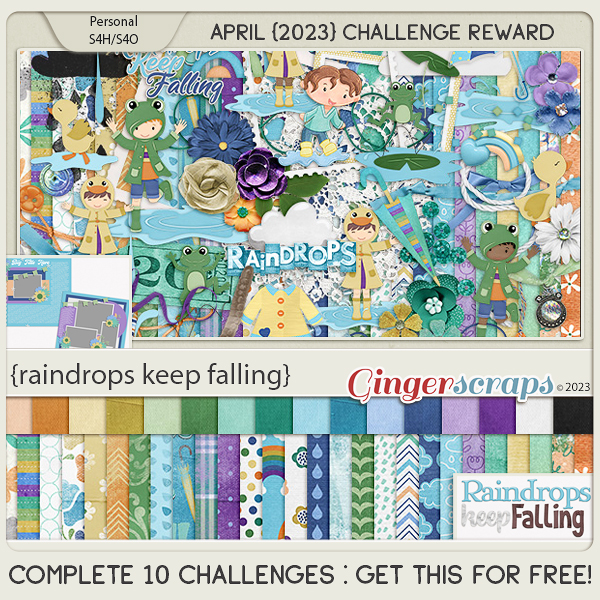
Have you started on your challenges? Complete 10 challenges and get this great kit as a reward.

Designer Spotlight: January 2023

Lisa Rosa Designs!

So here we are, kicking off a new year. I just don’t know where the time goes! Our first Designer Spotlight of 2023 is a relative newcomer to GingerScraps, Lisa Rosa Designs. Let’s see how our conversation went…

J: Hmm. You don’t want to talk about the mundane stuff, I guess, so let’s not. What is your favorite kit currently in your GS store and why?

L: Oh, Gosh… there are so many I really love and that I’m really proud of. But if I have to pick only one, I would say it is Never Give Up. I love its neutral colors… and I put a lot of me and the way I like to live in it.

J: It really has a shabby chic feel to it, don’t you think? What are your most favorite and least favorite colors?

L: Green and blue are my favorites… but I’m not really the biggest fan of yellow and purple.

J: Yeah, I don’t love yellow or orange, but do love purple! Are you more likely to dance or sing in the shower?

L: Sing, for sure. I’m not really a dancer. But I love to sing and every shower is like a live concert!

J: I thought that’s what you say. I seem to be the only one who dances in the shower. Maybe if more people had Bluetooth speakers in their bathrooms… If you could change one thing about yourself, what would it be?

L: My self criticism. I’m usually very kind to others… but when it comes to myself, I tend to be too harsh. I’m rarely satisfied with what I do, how I do… and my own results.

J: We really are our own worst enemies, aren’t we? Who would you want to play you in a movie of your life?

L: Diane Lane, hahaha

J: Oh, she’s gorgeous! You do kinda favour her. Good choice!! Do you have a green thumb? What do you grow?

L: Well… my thumb is not really green, but I try my best. Many plants have died in my watch, but most of them have thrived. I LOVE to grow new succulents, coleus and zamioculcas and give them as gifts to people around. I’ve tried to grow herbs gardens many times without success though.

J: I can grow lavender but kill parley EVERY time! What did you want to be when you were small?

L: A teacher or a seamstress. I LOVED sewing little clothes for my sister’s dolls when I was small. And I LOVED playing school with them on the weekends… my sister and her dolls were the students and I would teach them everything I learned at school during the week. Her dolls were always very well dressed for classes, hahaha.

J: I loved to create things out of nothing when I was a kid – we had pretty much nothing. I made several houses, complete with furniture, out of cardboard and fabric scraps. I learned how to sew when I was 11 and then started designing Barbie clothes. I think we would have been friends. If you had a warning label, what would yours say?

L: Don’t touch! I hate being touched by strangers or people I don’t have a close relationship with.

J: On, me too!!! I’m a hugger with people I know, but everybody else can just keep their mitts to themselves. If you could only eat one meal for the rest of your life, what would it be?

L: Some salad. I love salads.

J: I enjoy a good salad, but don’t usually take the time to make them. If time travel was possible, would you go back in time or ahead? Why?

L: Ahead! I would love to have a peek on what didn’t happen yet and on what I probably won’t be able to see… like how a place will look like in a hundred years… or if some music I love is still played on the radio, if people still know it.

J; Oh, I’m not sure I’d like to know what’s going to happen in the future. What if it’s something really horrible? Like another pandemic, or some extreme natural disaster… Aside from necessities, what one thing could you not go a day without?

L: Coffee, of course!

J: Hahahaha! I’ll refill your mug, just hold on a sec. Thanks for chatting with me!

Before we say goodbye to Lisa, I’ll remind you she’s providing this month’s Daily Download, links are found right here on the Blog. If you miss a few days, don’t worry, the whole kit will be available for purchase in the store in February. She’s also hosting the Designer Spotlight Challenge this month along with her usual Journaling Challenge. One last important thing to note is that she has discounted her store for the month by 23%! No coupon code required!!

GingerScraps: NEW Buffet, New FREE with Purchase Collab, NEW Designer & More!!

HAPPY NEW YEAR!! We hope that 2023 brings you great health and happiness. And of course, lots of time for scrapping.

It is the 1st of the month and you know what that means, a huge, exciting newsletter! We have a New Buffet, New Monthly Mix, New Free With Purchase Collab, New Challenge Reward, New Daily Download on the GingerScraps Blog & a New Guest Designer! 

Let’s start out with the January Buffet. Don’t forget to check out the Buffet Bundles. One easy click to add bundles of Buffet goodies to your cart.

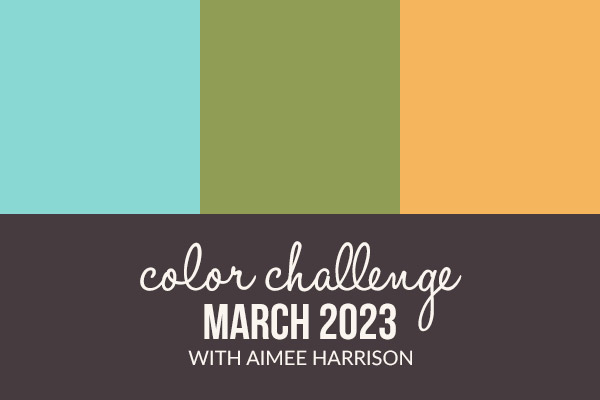
These colors are great together. A little winter with a peek of spring.

Remember any $10 spent in the store gets you this great collab. It’s time to {celebrate in style}.

This Free With Purchase was created by: Aimee Harrison, Chere Kaye Designs, Ilonkas Designs, Key Lime Digi Design, and Wimpychompers.

This collab includes: 3 Alphas {Uppercase, Lowercase, Numbers & Punctuation}, 66 Papers, and 116 Elements.

The beginning of 2023 is the time for {glitz & glam}.

This Monthly Mix was created by: CarolW Designs, CathyK Designs, Cindy Ritter Designs, Laurie’s Scraps, and PrelestnayaP Design.

This collab includes: 1 Alpha {Uppercase, Lowercase, Numbers & Punctuation},  70 Papers, 100 Elements, and 4 12×12 Template {png, psd, tif file formats}.

Now to the January Daily Download Sneak Peek. This month’s Daily Download is from Lisa Rosa Designs! Make sure you are checking the blog every day to get all the pieces of this kit!

We are excited to have a new guest designer join us this month.

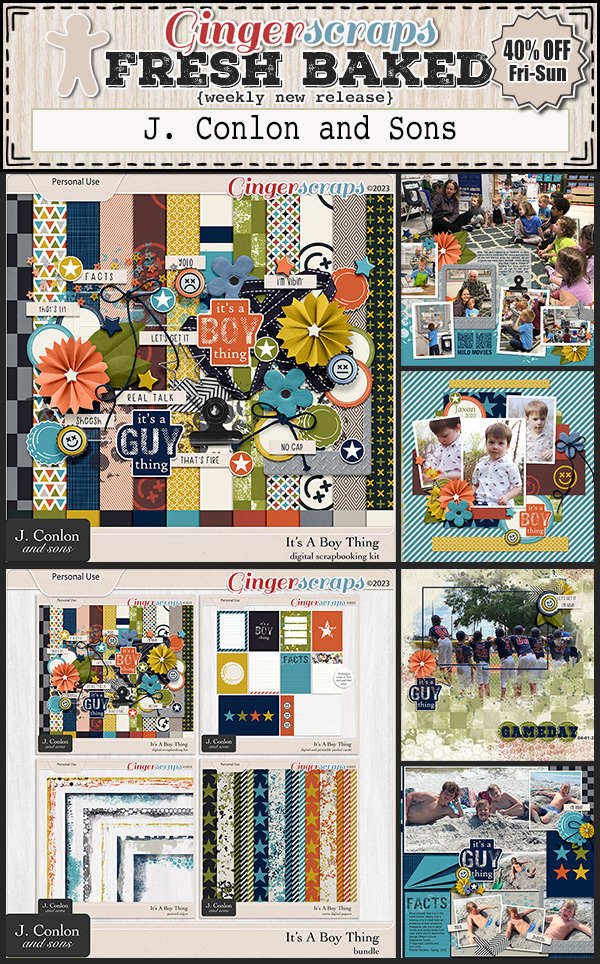
J. Conlon and Sons

Bio:
In 2009, after my first son was born, I started looking online for digital scrapbooking ideas. I had no idea it was even called “digital scrapbooking” at the time, I just wanted to utilize my design skills (I’m a graphic designer by profession) and make him a baby book. I was blown away by all the products and layouts I found. After creating some pages of my own I realized how therapeutic scrapbooking can be as a gratitude practice. I’m not a particularly prolific scrapper but I do go back to it again and again. Over the last year or so I have been making my own products and selling them on my website and now I’m thrilled to be selling at GingerScraps!

Are you ready for the January challenges? Remember any 10 completed challenges gets you this great kit.

This Challenge Reward was created by: Designs by Lisa Minor, HeartMade Scrapbook, Scrappin’ Serenity, and LDragDesigns.

This collab includes: 1 Alpha {Uppercase, Lowercase, Numbers & Punctuation}, 51 Papers, and 87 Elements.

Take a look at some layouts from our talented store creative team using the Free with Purchase kit.

December 30, 2022: Fresh Baked

It’s the last Friday in 2022. This year has flown past. We cannot wait for you to see all the wonderful things in store for GingerScraps for 2023!

Have a very Happy New Year!!

Spend $10 in the store and get this great kit for free!

Let’s see what our designers have for this last week Fresh Baked in December.

Just a couple more days to get our challenges done. Complete any 10 challenges and get this kit as your reward.

Tutorial Tuesday (Photoshop Elements)

Quick Trick Tuesday: Close All

PDF Version : https://bit.ly/3vqKtyh

I hope everyone who celebrates at this time of year has some great memories made and new stories to tell. I won’t keep you with a long, drawn-out, convoluted, complicated tutorial for the last one of 2022. This Quick Trick is literally 4-clicks-and-done… a true WSNH trick. (*Work Smart Not Hard) Let’s proceed.

I know I’m not the only one who often has about a million objects open in my Elements Photo Bin while I’m working on a layout. The thought of putting away my toys then takes on quite an unhappy aspect, and I might want to start into a new project right away, so I don’t want to just shut down Elements then restart it… bleaah! But then I found this Trick and it’s been a life-saver!

This 4-click process is so easy! File>Close All… (Keyboard shortcut CTRL/CMD>ALT/OPT>W) opens a little submenu where it asks you what you want to do with the files. I always Save As the files I’ve changed that I want to save my efforts for later first, just as a good habit. For example, photos I’ve edited and layouts I’ve completed are Saved as I go along, but that button I Resized or that ribbon I recoloured? They don’t need to be Saved as changed. With this menu, I can use one click to tell Elements to do the same thing with everything in the Photo Bin.

And voilà! Everything is closed, Elements is waiting for the next project and woohoo! Time saved, effort saved.

As we say goodbye to 2022, I hope you all have some happy memories to soften the harshness this year has battered us all with. I hope all of you and those you love are safe from the extreme weather being experienced in so many parts of the world. And I hope you have much to look forward to in 2023!

PDF Version : https://bit.ly/3vqKtyh

December 23, 2022: Fresh Baked

Merry Christmas Eve Eve! It’s crazy that it is already Christmas. We here at GingerScraps hope you and your families have a wonderful holiday!

Spend $10 in the store and get this great kit for free!

There are so many Christmas kits in the store this week.

Are you getting those challenges done? Complete any 10 challenges and get this kit as your reward.


Tutorial Tuesday (Individual Style)

Challenge Spotlight: Scraplift

I’ll admit that I’m a purist when it comes to scraplifting another scrapper’s layout. I think that if I like a layout enough to want to lift it, I should try to stay as faithful to the original as I can while still making it my own. I also know that scrapping is an intensely personal craft and we all approach it from our own points of view; this is very true when it comes to scraplifting. There are so many options! Let’s take a look at this month’s layouts and analyze them a bit to see if we can figure out what the scrapper chose to emulate. But first, the Scraplift Challenge is hosted by Dagi; she chooses the layout inspiration and this month she chose this layout by Effie3047. Each of the Challenge layouts is linked to the Gallery so you can pop in and offer the scrapper some praise. Just click on the scrapper’s “handle”. This is the inspiration layout for reference.

These layouts are in the order they were posted to the Gallery. First is this blue confection from dhariana. She chose to follow the blueprint of the layout fairly closely, with the photo, journal card and elements in the same arrangement. The doodle circles are her own touch.

kristal has also stayed close to the blueprint, but kept her layout crisp by increasing white space. She also has used a wooden background like the original has.

For her layout, lulutoo chose a much brighter palette, but stayed true to the basic layout and the wood background. I like that she went with a narrower paper strip behind her elements and tilted her photo a smidge… an original touch.

Tbear‘s layout is quite different, but you can see the basic shape of the Challenge layout. A single photo, a journal card, a Christmas theme with carefully-constructed clusters and a similar palette are what ties her layout to Effie‘s.

I can see the bones of the Challenge layout here in robinoes66‘ entry. She’s gone with a dark palette, positioned her photo in the same place but omitted the journal card. She used a good amount of paint and her primary colours are beautifully supported by her black background.

To me, ayla63‘s layout looks more like a scraplift of robinoes66‘s layout than it does Effie‘s! And that’s alright. Their visions are very similar. I like that she chose to turn her photo into a sketch, which makes her layout unique.

I love what Jill has done; she went with a portrait-oriented photo rather than a landscape and used gears instead of paper circles, while adding a couple of extra paper pennants. Her layout looks quite different than the original, but still has the important components.

Pippin has stayed true to the original layout in most ways. Her blended background is beautiful, but can we talk about that photo? So cute!!

For her layout, pinklily went bigger with her photo and paper strip base, supersized her title, flipped the script horizontally and kept her clusters small.

AJsRandom chose to increase the size of her photo but has kept most other aspects faithful to Effie‘s layout. The twined strings that anchor her journal card are a great substitute for the strings of lights Effie used.

I like that breoni chose to place a row of circular photos across the lower third of her layout rather than clusters. That krafty background really makes her photos pop off the page.

The choices Kristi Martin made of a large photo and minimal embellishments against a black canvas really gives her layout presence in the Gallery.

Our second Hanukkah layout by zanthia is another faithful lift. She made her title really do the heavy lifting here! The word-cloud journal card is a clever twist too.

Treemoon took a really different approach by enlarging EVERYTHING. She kept the horizontal aspect and the basics of the design. Her palette compliments her photo so nicely and I love the clusters she’s anchored her banner with.

We’ve had some really miserable weather here in the BC Interior. We have a ridiculous amount of snow and it’s bitterly cold. I was planning a road trip to see my parents and bring them a box full of treats for the holidays but we were snowed in! I hope wherever you are and whatever you’re celebrating, you’re warm and safe!


December 16, 2022: Fresh Baked

Happy Friday Everyone!! How is your Christmas shopping going? For the first time in years I think I’m almost done. I’m usually that crazy person out on Christmas Eve trying to find those things. Or utilizing my prime shipping on Amazon. 

Have you gotten the Free With Purchase yet? Spend $10 in the store and get this great kit for free!

Let’s seet the new items in the store!

Have you grabbed the December Monthly Mix. I just love this kit!

And how are your challenges going? Complete any 10 challenges and get this kit as a reward.

Tutorial Tuesday (Photoshop Elements)

Coloured and Patterned Shadows

PDF Version : https://bit.ly/3HXqGOs

When I saw this technique on another site, I was intriqued. The scrapper was using Photoshop, but I knew I could make it work just as well in Elements so I had to prove it to myself. This is the result!

This tutorial will be a review of how I create custom shadows, but with a twist. It will work best with a white/light coloured alpha or meaty font against a white or light-coloured solid background. The alpha I used is from the GingerBread LadiesDream Big collab and will be part of a layout created with JB Studio’s Farmhouse Winter. My layout was also created with this month’s Challenge template from Scrabookcrazy Creations by Robyn.

When I create a title with alphas, I usually put it together on its own canvas so I can easily tweak whatever needs tweaking without the distraction of all the rest of the layout. I usually go with a straight line +/- some individual height or angle changes for interest. But because this technique is a shadow trick, this time my working title is on an angle. The shadows on the title must lie in the same direction as the rest of the layout and the title will be on an angle on the finished layout. So…

Typically, once I’ve got the title the way I want it I shadow any overlapping areas and Merge the characters. But you’ll see that I’ve kept each character on its own layer and will keep them separate. This is important for later.* (If you’re using a font, you may want to put each letter on its own layer. Skip ahead to the * to see if that’s what you need to do.) The first step to a custom shadow is to Select the outline of the object. CTRL/CMD>click on the Layer Thumbnail – that little image of what you’ve put on a layer that shows at the left side of the layer in the Layers Panel.

Next, I add a new blank layer UNDER the working layer. The quickest way to do that is to hold down the CTRL/CMD key and click on the Create New Layer icon – the one that looks like a sheet of paper with one corner turned up.

Next, I set the foreground colour in the Color Picker to the colour I want for my shadows. If I’m using a template, I’ll match that to whatever the template designer has used. In this case, it’s just black. Using the Paint Bucket tool, I fill the outline of the letter on the blank layer. This is the Shadow layer.

Don’t be concerned that you can see a thin rim of black around your letter. It’s not going to make any difference to the final product.

Here is where this technique departs a bit from my usual custom shadow routine. I made a Copy layer of the SHADOW: right-click on the layer and choose Duplicate Layer… then click OK on the pop-up menu. The keyboard shortcut is CTRL/CMD>J.

I renamed the two shadow layers; the first, bottom one is Shadow, the top one just below the actual letter is Narrow Shadow. If you want to rename your layers, go to the Layers Panel and double-click on the name of the layer that you can see. Type in what you want it to be called and Enter. Then I turned the visibility of the NARROW SHADOW layer off.

I did this process for each of the letters in my title, creating two shadow layers and turning visibility for the one just underneath the letter itself off.

Now to give the Shadows an offset, which is a regular step in my custom shadow process: Activate each of the visible, bottom SHADOW layers by holding down the CTRL/CMD key and clicking on each layer all the way up the pile. This lets me move all the Shadows in one movement so they match.

For the most realistic look all the shadows on a layout lie in the same direction and give dimension to the objects above them. The shadow Styles on the template I used are at 60° (I flipped the template horizontally, and the shadows flipped too.) To know the exact angle of light on a template double-click on the fx symbol on one of the template’s layers and it’ll show up in the pop-up.

Now to soften the Shadows. So far I haven’t found a way to do this step in a batch, so I processed each layer individually. First step is to add a Filter>Blur>Gaussian Blur…

Elements provides a Preview of the Filter effect. If you don’t see anything in the Preview pane, click your cursor on the edge of your Shadow. It’ll appear in the pane. Or you can just watch what’s happening on the canvas. Using the slider, adjust the amount of Blur the Filter adds. I want them to be quite soft, so I used a Radius of 6.5 pixels. Elements also “saves” the settings of the most recent Filter used, which makes it easy to add that Filter to multiple layers. Simply click Filter>Last Filter. The keyboard shortcut for that is CTRL/CMD>F. One step!

Next, I changed the Blend Mode to Linear Burn. This mode makes the shadow transparent so the layers below are visible – just like a real shadow!

Then to tone the harshness down a bit more, I decreased the Opacity of the Shadow layer to 70%. This step is also subject to personal preference. If you try this and 70% doesn’t look good to you, find what does! It can also be further adjusted later.

This is what the title looks like with each of the Shadow layers Blurred and lightened. I could stop here and be quite happy. But this tutorial is about coloured and patterned shadows, so onward ho!

Yes. You’re not seeing things. I’m going to Clip a patterned paper to the Shadow layer under my “O”.

Doesn’t that look neat?

I Clipped a different* patterned paper to each letter, using the same paper for the two “E”s and went with the green houndstooth for the ellipsis at the end. If you want to use the same patterned paper for all your letters, you could Merge all the alpha layers/not separate the characters if using a font then do all of the preceding steps on your title as a unit.

Okay, so once I had all the Shadows coloured, I decided they looked a little anemic. So I increased the Opacity of each Shadow layer to 80%. That looks better to me.

Now to add just a tiny bit more definition to that alpha. I’ve made all the Narrow Shadow layers visible again and activated them by CTRL/CMD>clicking on each layer. A little nudging in the same 60° direction as the coloured shadows – just a little! – gives each letter an actual shadow.

Again, they’re pretty sharp and harsh so Filter>Blur>Gaussian Blur first.

But because these ones are a lot closer to the objects they’re shadowing, the Blur should be less pronounced. I went with a Radius of 3.0 pixels.

I didn’t need to decrease the Opacity of these shadows. They look just right to me!

Here’s my finished layout. The technique isn’t really obvious, so you might want to work on a larger scale, with a bit more space around your title if you choose to try this. I’m really pleased with my layout as is.

Five days until the first night of Hanukkah, twelve days until Christmas, thirteen until Kwanzaa and nineteen until next year… is everybody as behind on EVERYTHING as I am? Thinking about it exhausts me. But I have an amusing little anecdote I want to share. On Saturday one of my former coworkers (the very last one I saw before I moved away, to be exact) posted to Facebook that her maternal grandmother had passed away. She linked to her Baba’s obituary. Where’s the fun part, you ask? Well, it turns out we’re RELATED! Distantly and by marriage, but still!! Her maternal great-grandfather’s first wife was my great-grand-aunt’s sister-in-law. There are a couple of other spots where our roots intertwine too, that I’ll be untangling over the next while. We ended up talking on the phone for an hour and a half; she said finding out we’re “cousins” was the best thing to happen to her all month.

Before I forget… There was a comment on the cardmaking tut from a few weeks back from Lisa. She said she uses Royal Brites Matte Photo paper to print hers. I couldn’t find any locally, but was able to buy some Staples premium matte photo paper and printed my cards with it. OMG!!!! The difference00 is HUGE!! Thanks and a shout-out to Lisa!!

Next week we’ll be checking out the Challenge Spotlight and the final tutorial of the year is a Quick Trick you’re going to LOVE! See you soon!!

PDF Version : https://bit.ly/3HXqGOs