Designer Spotlight: June 2022

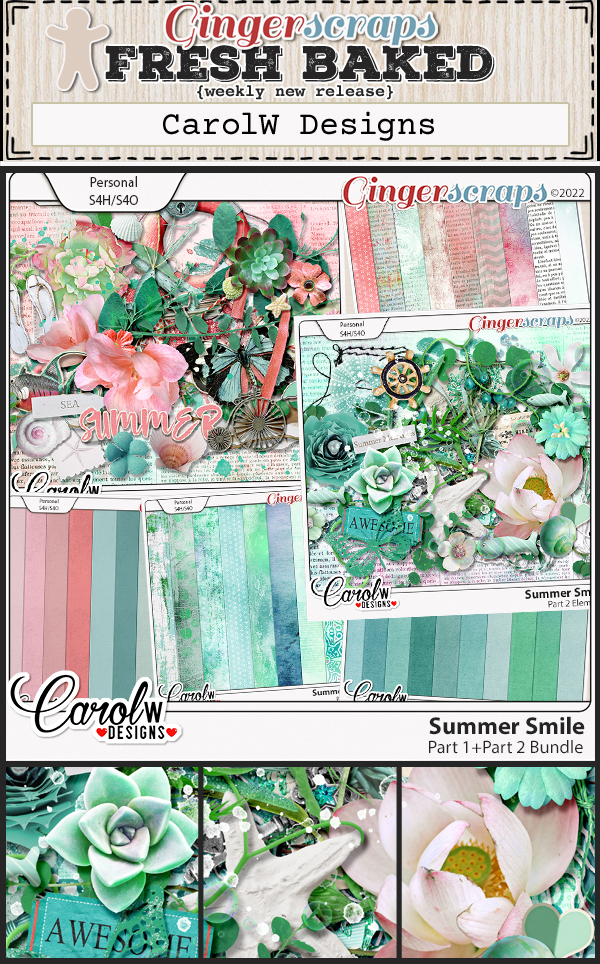
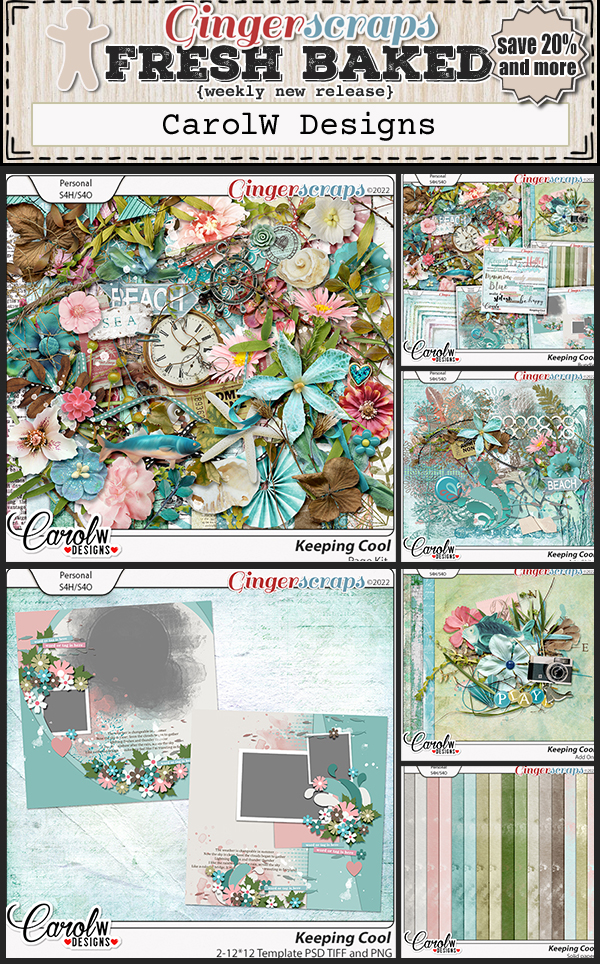
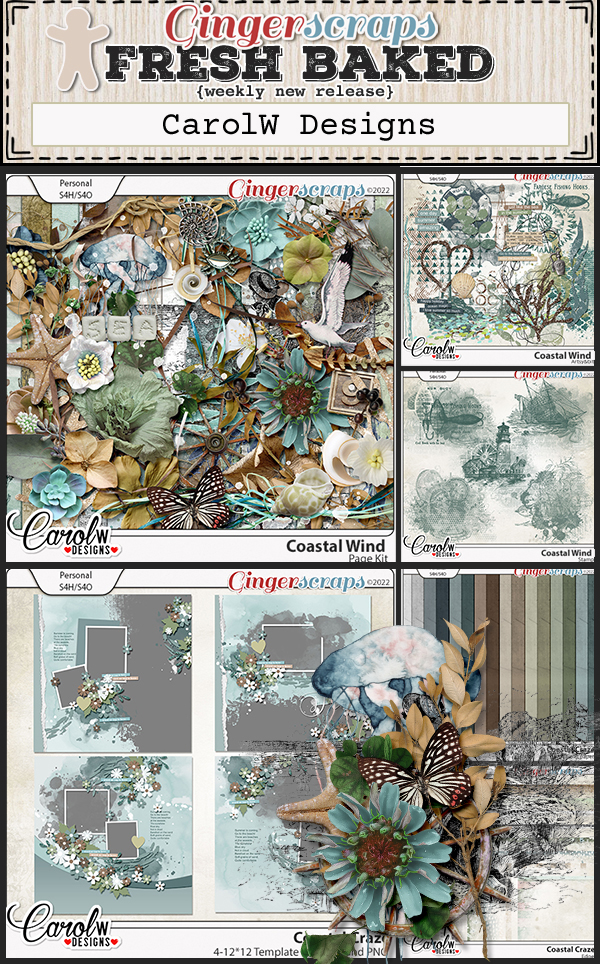
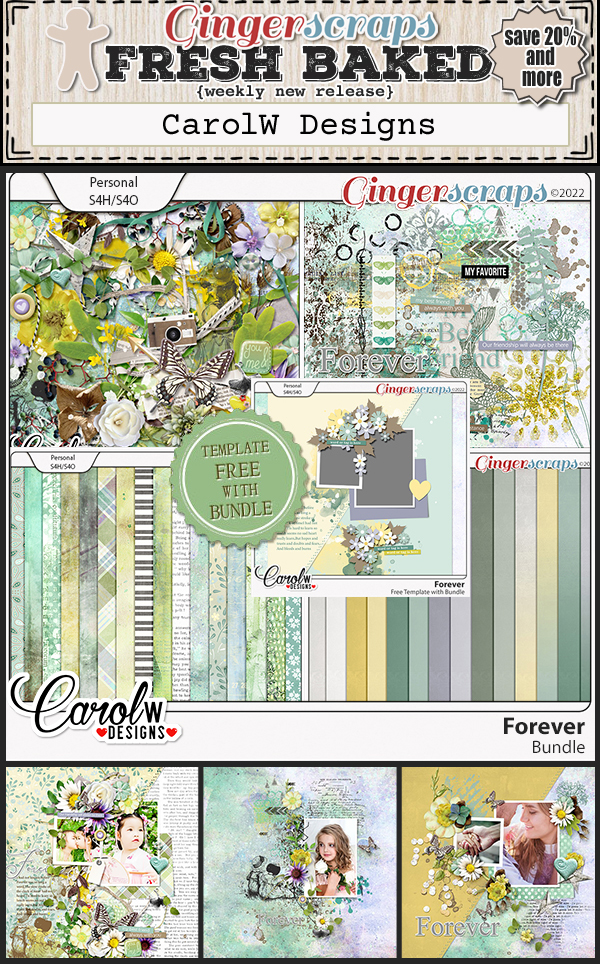
Introducing CarolW Designs

I had a lovely chat with one of GingerScraps‘ newer designers, CarolW (Wen Xin) and would like to share what I learned about her.

Of course, we need to start at the beginning… Thanks for the visit, Carol. How long have you been designing?

C: Starting in 2018, I came to GingerScraps in July 2021.

J: So about 4 years designing, and almost a year with GS. Thanks for sharing your talents with us! What tools do you use when you design?

C: I mainly use Photoshop and Adobe Illustrator.

J: I’m working really hard at being proficient with Photoshop Elements. Thanks to GingerScraps, I have the opportunity to continually learn new things. But I don’t have the bandwidth right now for multiple platforms. I commend you. Can you tell me what your workspace looks like?

C: My work is mainly done in the study, which is also the place where the cat and dog play. When I work in the study every day, the cat and dog also join me in the study.

J: I bet they can be quite distracting. but in a good way. What motivates and inspires you when you sit down to design (other than your deadline 😉 )?

C: Love. I’m crazy about scrapbook and everything, and when I’m designing it, I’m in a great mood and feel really relaxed. I’m happiest when clients email me and tell me they like my designs. 

J: Positive feedback is always so good for the ego, isn’t it? Do you have a favourite kit in the GS store right now?

C: Write a Letter. I’ve always liked light colors. When I was packing my things the other day, I saw a letter written to me by a very good friend many years ago, which reminded me of her. She had passed away because of illness. So when I read that letter, I missed her. So I created this kit.

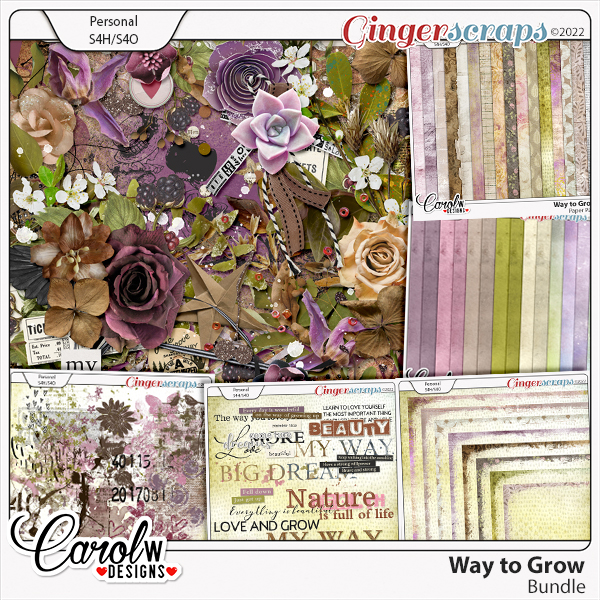
J: Ooh, I can see your melancholy and sadness over her passing in the vintage look of this kit. Your Creative Team did a beautiful job with it. [Click on the name of the kit for a direct link to the bundle in the shop.] Let’s do an about-face and talk about something fun… If you won the lottery, what would you do?

C: I would buy a big estate in the mountains and live there every day.

J: Wow! That’s pretty much what we did when my husband inherited a large sum of money. Our “estate” isn’t large – it’s actually pretty small – but we have a brand-new house on the side of a mountain and have an incredible view. We’re surrounded by orchards and there’s a winery under construction on the edge of our subdivision. Here’s another fun notion. If time travel was a possibility, would you travel into the past, or the future?

C: I want to go back in time. I especially want to go back to the time when there were dinosaurs. Or I want to go back to ancient Egypt. I like history very much and I like to study the history of every country. 

J: History is fascinating and we could perhaps make our future better if we paid more attention to our past. Did you ever think of becoming a historian, or did you have other dreams for your life when you were growing up?

C: I wanted to be a doctor. But because I was not good at chemistry, I studied liberal arts.

J: I was never good at math or science but I ended up a critical care nurse. If there isn’t a way through, there might be a way around. What one word would your friends and family use to describe you?

C: Very kind.

J: Carol, that’s two words. 🙂 Last question… What celebrity would you like to meet for coffee at Starbucks?

C: Woooo, I love this question!!If I had the chance, I would have coffee with Alexander Skarsgård! I like his TV plays and movies very much.

J: He’s so easy to look at! I can see why you’d like to meet him. Thank you for letting us into your world a little. Enjoy your Spotlight month!

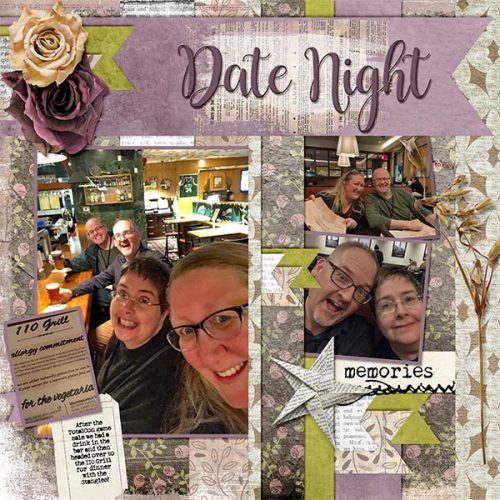
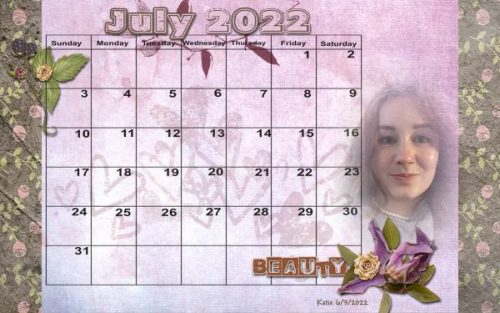
Check out the Designer Spotlight Challenge in the Forum where Carol has a TON of gifts for you!! And before I close this post down, I want to remind you that Carol is also hosting the Daily Download this month. Carol‘s designs are both traditional and fresh; I love the colour palette she chose for her DD kit with lavender, blush pink, ivory and shades of green. Every day for the month of June you can pop over here to the Blog and pick up the day’s piece of the kit; the download links are active for 5 days. But if you’re not able to commit to all that Blog visiting or you miss a few days, the kit will be in the store later in July for purchase. Now, if you don’t mind, I’m going shopping.


June 3, 2022: Fresh Baked

Hello everyone! How are you doing on this first Friday in June? Do you have plans for the weekend? We don’t yet, but I’m sure we’ll find something to get into. Have a great weekend!

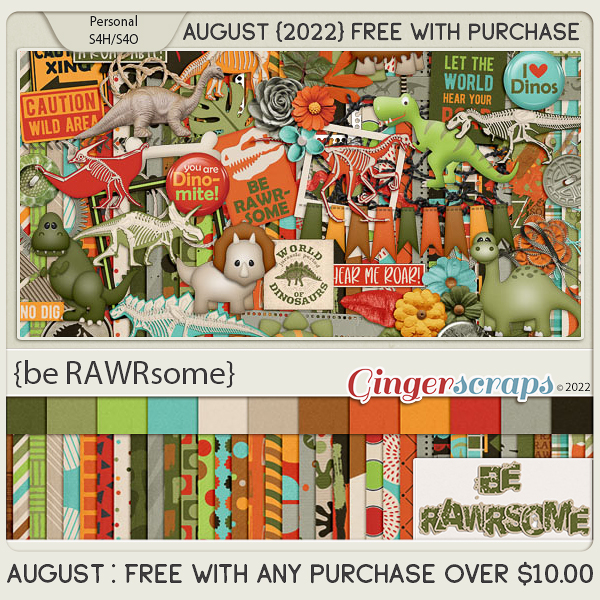
Remember, spend $10 in the store and get this wonderful collab for free!

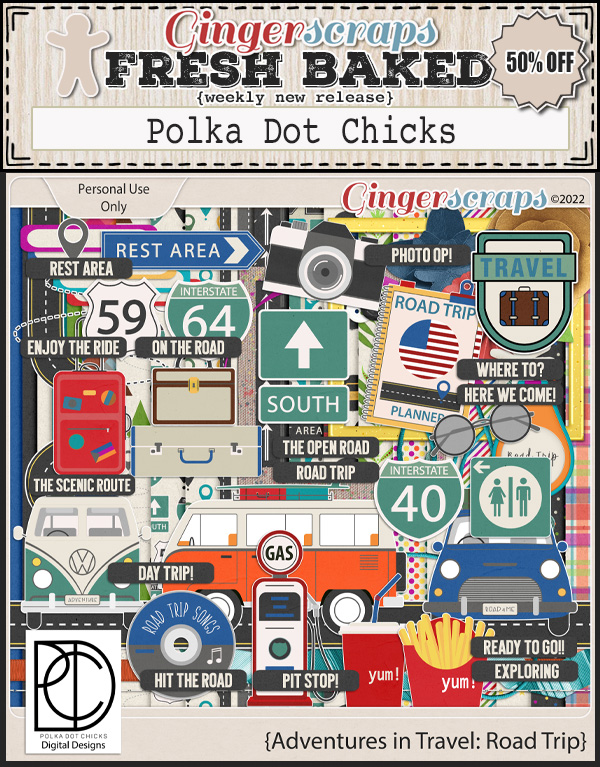
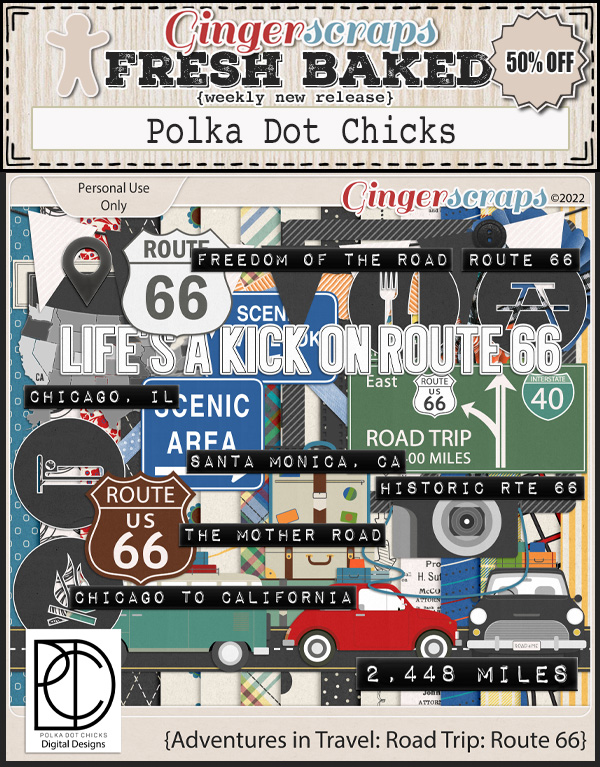
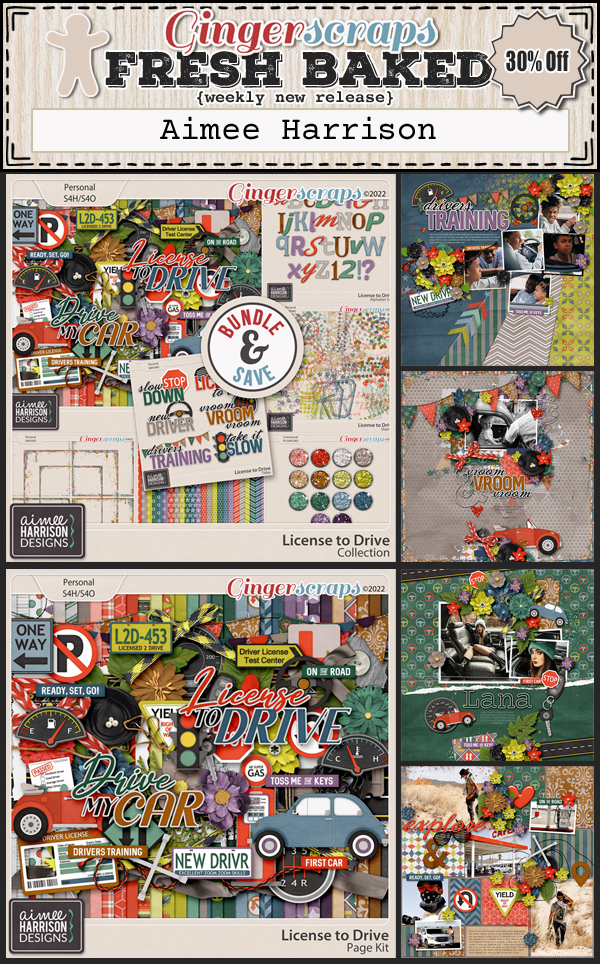
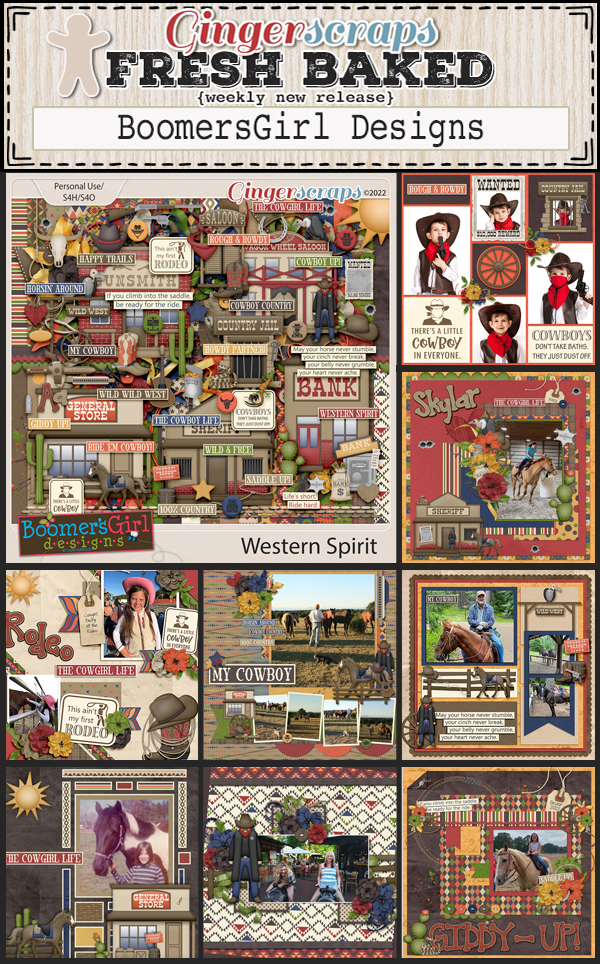
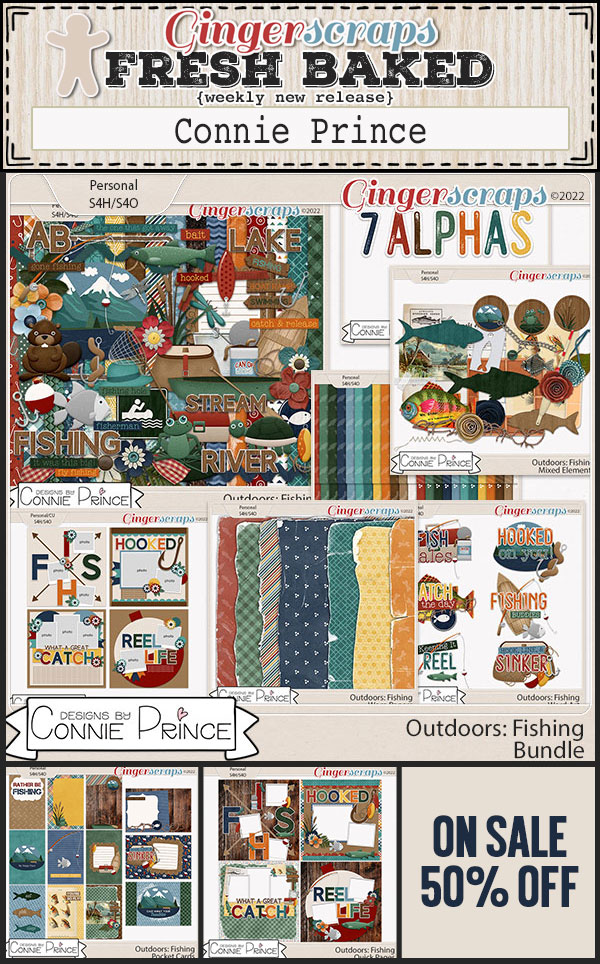
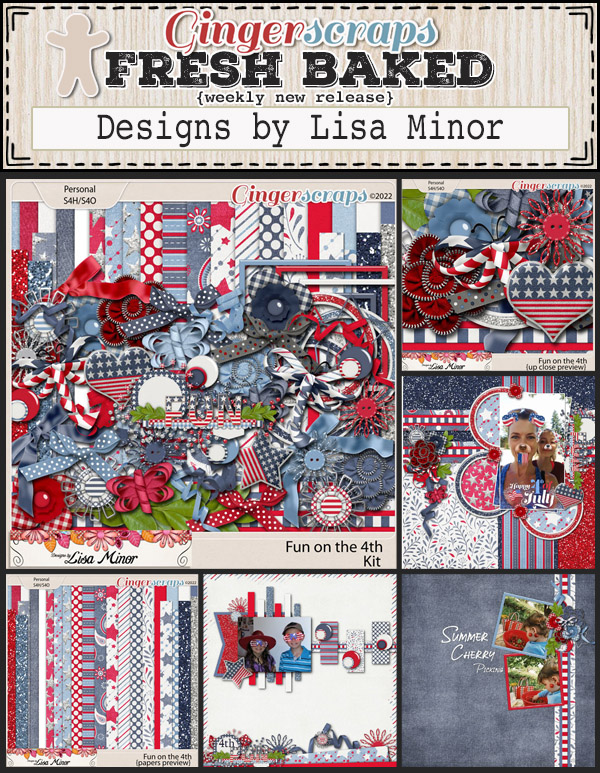
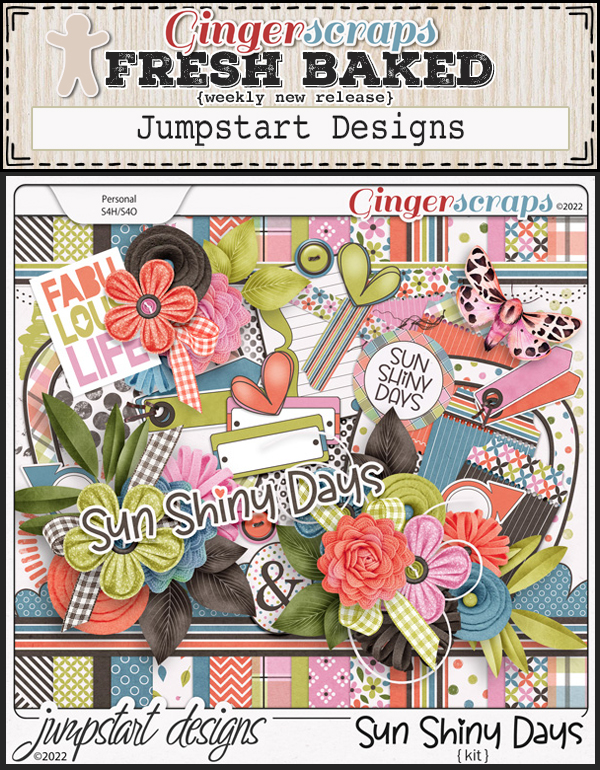
Time to see what is new in the store!


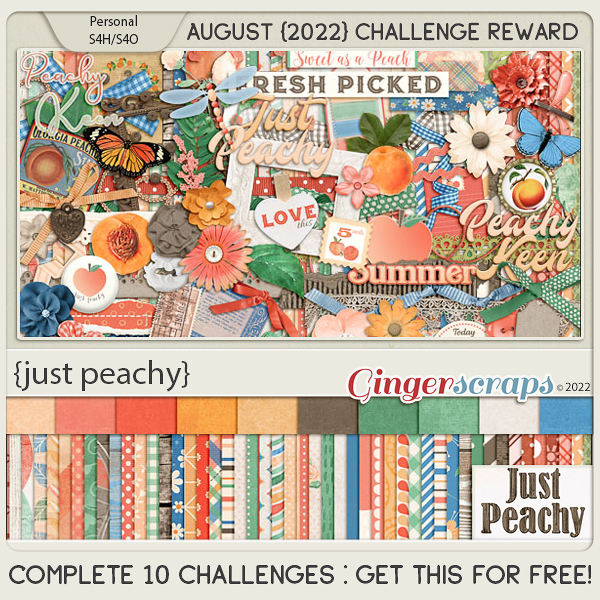
Have you gotten started on your challenges? 10 completed challenges will get you this kit as a reward.


GingerScraps: NEW Buffet, New FREE with Purchase Collab, & MUCH MORE!

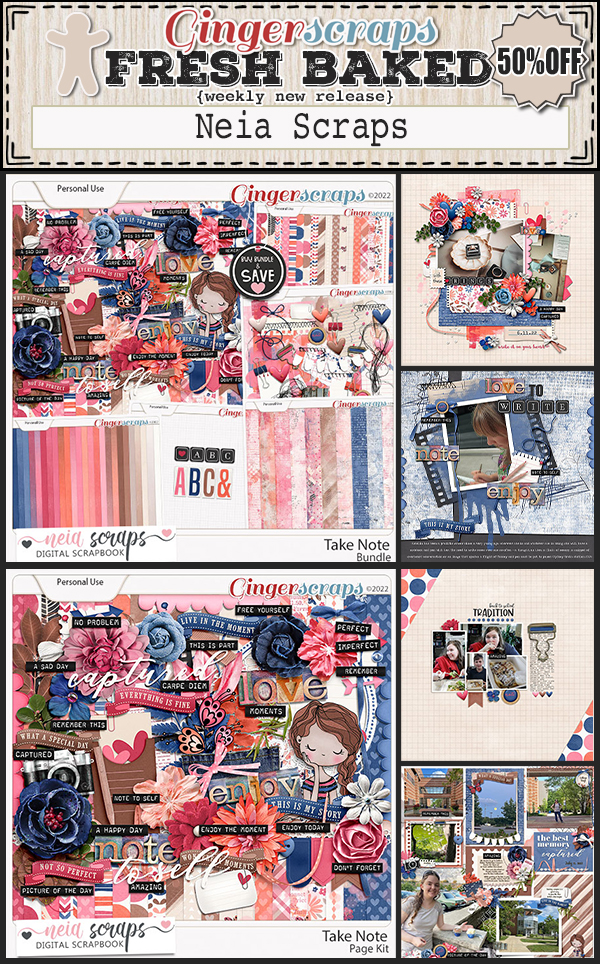
Welcome to June and the start of summer (according to weather people) and hurricane season. Let’s take a look at all the awesome new kits we have for the buffet.

Let’s start off with our Buffet Bundles. One easy click to add bundles of Buffet goodies to your cart.

I just adore these bright colors and I love what the designers came up with. Remember, since they all use the same color theme, you can mix and match the kits to make whatever you need.

Remember any $10 spent in the store gets you this great collab. This Free With Purchase was created by: Connie Prince, Lindsay Jane, Magical Scraps Galore, PrelestnayaP Design, and Trixie Scraps. It contains 1 Alpha {Uppercase, Numbers & Punctuation}, 45 Papers, and 100 Elements.

The June Monthly Mix is all about those {summer vibes}. The Monthly Mix was created by: ADB Designs, Alexis Design Studio, Karen Schulz, and Tami Miller Designs. It contains 1 Alpha {Uppercase, Lowercase, Numbers & Punctuation}, 50 Papers, and 72 Elements.

Now to the June Sneak Peek. This month’s Daily Download is from Carol W Designs! Make sure you are checking the blog every day to get all the pieces of this kit!

Take a look at the new challenge reward kit. If you complete any 10 challenges this month, you get this gorgeous collab as a reward! This was created by: Craft-tastrophic, Cutie Pie Scraps, Memory Mosaic, Polka Dot Chicks, and Tinci Designs. It contains 1 Alpha {Lowercase, Numbers & Some Punctuation}, 59 Papers, 91 Elements, and 4 12×12 Templates {page, png, psd, tif file formats}.

And now a little inspiration from our store CT using the Monthly Mix collab.

Tutorial Tuesday (Photoshop Elements)

Creating a Title Echo for Your Layout

PDF Version : https://bit.ly/3x5YvpI

This week’s tutorial was inspired by Ellen (gmae); the directions are based on a video tut by Gina Harper and when I tell you I learned a couple of FANTASTIC Work Smart Not Hard [WSNH] tricks, trust me… they’re going to be game-changers. I’m going to walk you through creating a title with an echo, like the one I created for my Greyfriars layout. And it’s easy!

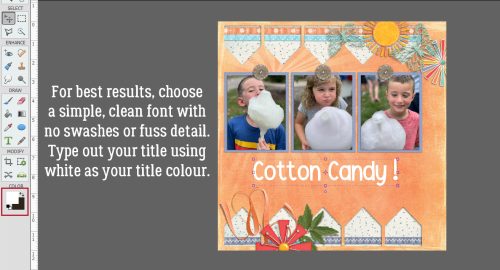
Start off with a brand new 12×12 canvas; you might notice I’ve got a solid white background here and that’s not my usual MO. Since we’ll be working with text layers the background doesn’t make any difference. I want to be sure you see exactly what’s happening and the contrast will help with that. Select a font for your title. Choose one that is clean and upright (ie a sans serif font), with some stage presence. I’m using Gill Sans MT Bold but Impact, Futura and Avenir would work too. You’ll be using only upper case letters. Set the Size to 100 points, the Color to black and choose Center for your text position.

Type out your title. A one-word title would be best. If the spacing between the letters looks too narrow, the technique won’t work as neatly. If you’re using an Elements version previous to Elements 2019, there is no tool option for kerning (adjusting the spacing of your letters) so you’d then need to put all your letters on their own layer, position them then Merge the layers together. So maybe try a few other sans serif fonts first!

When you’ve got your text sorted, use the Move Tool Align Option to put the text in the Middle of the canvas top-to-bottom and Center it side-to-side.

Next, decrease the Opacity of the text layer to 50%. We’re going to apply a Stroke and I want you to be able to see it.

Add a new blank layer above the text layer. Then CTRL/CMD>click inside the text layer’s thumbnail – that image of what’s on the layer – to Select the edges of the text. That’s how Elements will know where to put the outline. Click Edit>Stroke (Outline) Selection…

Your Stroke settings: Width 10 pixels. Color Black. Location Inside. Leave the other default settings as is.

After your Stroke is in place, Select>Deselect Layers or CTRL/CMD>D to lose the marching ants.

To reduce confusion Rename the Stroke layer to Echo Bottom. Double-click on the layer’s name and type it in the box.

Now choose the Rectangle Marquee Tool; set the Aspect to Fixed Size, W to 12 in and H to 6 in. Basically you want to put that rectangle on half of the canvas.

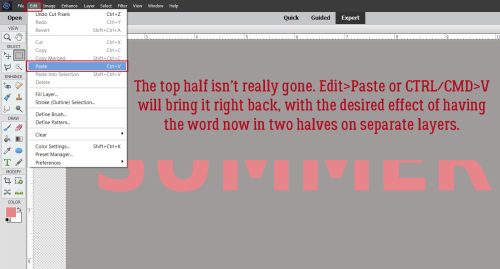
Set the rectangle at the top of the canvas. The lower edge of it will be exactly at the middle top-to-bottom. Next, click CTRL/CMD>SHIFT>J. This will cut the pixels inside the  rectangle away from those outside it, and create a new layer with them on it. That’s WSNH Tip #1. Rename that new layer Echo Top.


Move the new Echo Top layer up toward the top of the canvas so it separates from the title. Leave a bit of space between the top of the title and the bottom of the Echo. Here’s WSNH Tip #2… Hold down the SHIFT key when you drag an object and it will stay aligned with its previous position, either top-to-bottom or side-to-side.

Since an echo is a less-obvious duplicate of something, decrease the Opacity of this layer to 50%.

WSNH Tip #3! Hold down the SHIFT and ALT/OPT keys when you click and drag an object and Elements will make a duplicate of the object. Think how much this could speed up your scrapping with templates… all those flowers can be quickly duplicated and moved with fewer steps. Mind blown.

You should have two Echo Top layers now, one at 50% and the new one decreased to 20% Opacity.

Now to get the bottom sorted. As you can see, your padawan forgot to use the SHIFT key when she dragged the Echo Bottom layer down. And it’s obvious! I’ll nudge it into alignment before we go on to the next step.

Like for the Echo Top, that first Echo Bottom layer’s Opacity drops to 50%.

All aligned again… Hold down the SHIFT>ALT/OPT keys and drag the last Echo Bottom layer into place.

If needed you can adjust the spacing of your Echo layers so they’re closer to or farther away from the title. Change the Opacity of the lowest Echo Bottom layer to 20% and increase the title layer’s Opacity back to 100%. You’re done!!

What if you don’t want a black-and-gray title? You can change the color by Merging the layers then adding a Layer>Fill Layer>Solid Color and choose a color from your photos or papers. Or you could do what I did and add a Layer Style to the title. Leaving the Echoes gray worked with my subject, so I just put a wrought iron layer style on the title. But really, the possibilities are almost endless. When you’re ready to add it to your layout, either Link the layers together – click the little chain icon on each layer – or Merge them so you can drag them onto your layout all as one piece. Play with it, have fun with it!

When this tutorial posts, I’ll be miles away from home helping my “baby” sister celebrate her 50th birthday. My brother is having a hip replaced in Friday, so I’ll see him too. Have a great week!

PDF Version : https://bit.ly/3x5YvpI


May 27, 2022: Fresh Baked

Can you believe it’s the end of May? Remember me complaining about our warm temperatures last week? This week has been rainy, overcast, and unseasonably cool. I think Mother Nature has lost her mind. I hope you have had a lovely week!

Remember any $10 spent in the store gets you this great collab.

Let’s see what we have new in the store this week.

How are those challenges? Just 10 completed challenges gets you this great collab for free.


Tutorial Tuesday (Photoshop Elements)

Quick Trick: Correcting Colour Cast

PDF Version: https://bit.ly/3lWUZsm

It happens to all of us. We shoot a whole whack of photos on a special occasion or on a vacation, thinking we’ve got a great collection of memories. But then when we look at them, a bunch of them are just… ugh. Yellow, orange, red or blue casting a pall over the whole image, and every attempt made to fix it gives equally ugh results. Colour casts are usually the result of moving from indoors to outdoors and not changing the white balance setting on our cameras, and vice versa; it can also be caused by light reflecting off nearby surfaces. I’ve shown you some simple ways to improve lighting and exposure, but until just a couple of days ago I didn’t know there was an equally simple way to deal with colour cast. Trying to click on the exact white, black or gray pixel in an otherwise orange image can be enormously frustrating, right? When I tried this trick, I was gob-smacked! Let’s take it out for a run.

This photo was taken at Caesar’s Palace in March 2009. I’ve long-since forgotten what colours were actually present in this lobby, but I’m positive this ghastly golden glow isn’t right.

First step is to make a Copy layer of the photo. This step is ESSENTIAL. You can either right-click on the photo layer and choose Duplicate Layer… then click OK, or use the keyboard shortcut CTRL/CMD>J.

On the Copy layer, apply a Filter>Blur>Average. (I had no clue what this command did until I played with this trick!)

Did you guess it did THIS? (Me neither!) It’s supposed to do this, so don’t panic.

This step is another thing we’ve never played with… Adjustment Layers. Click Layer>New Adjustment Layer>Levels…

Make absolutely sure the Use Previous Layer to Create Clipping Mask IS NOT CHECKED!! The adjustment layer has to be free-floating.

The fly-out menu looks like this. Click on the Gray Eye Dropper icon as shown.

With the Adjustment Layer active, click anywhere inside the photo. The baby poop brown changes to medium gray.

To reveal the new-and-improved image, turn off Visibility to the Blur layer and there it is! It’s magic, y’all!!

To turn all of this into a useable photo, select all three layers by Click>shift>clicking on the top and bottom layers. Then right-clicking, choose Merge Layers or CTRL/CMD>E. If you feel the photo needs a bit more editing, you can do it now.

Let’s do another one. This photo is horrible, but it’s not awesome either. The yellow cast is unattractive.

Copy the photo layer.

Apply the Filter>Blur>Average.

Create a Layer>New Adjustment Layer>Levels.

Make sure that box is UNCHECKED.

Activate the Gray Eye Dropper and click on the photo.

Turn off Visibility for the Blur Layer and check out your results. See how much brighter the blue looks?

I’ll show you what this trick does to a too-blue photo now.

Hmm. It’s better, but I’m still not thrilled by it. So I’ll Merge the layers and do some more tweaking.

For those of you using Elements 14 or more recent, you’ll have the Enhance>Haze Removal command. If you’re working with an older version, I’m planning a tutorial just for you to give you the capability to duplicate this effect, so stay tuned. The keyboard shortcut for Haze Removal is CTRL/CMD>ALT>Z.

The tool options for this command look like this. There’s a large preview to show what the image will look like once committed, and can be adjusted to obtain the best image. There’s a little bit of the original image peeking out along the left side, so you can see how this command brightens and deepens colours and sharpens the image a bit.

What do you think? Is this a LOT easier than using the Enhance>Remove Color Cast command? Is it much more useful? I think so!

Next Tuesday I’ll have another quick title technique for you. And then it’ll be June…………………………….

PDF Version: https://bit.ly/3lWUZsm

May 20, 2022: Fresh Baked

Welcome to another Friday! I hope that you have all had a great week. We’ve had a heat wave. I’m so not ready for summer temperatures!

Remember any $10 spent in the store gets you this great collab.

Let’s look at our new releases. There are definitely a few I want to grab!

Have you grabbed the May Monthly Mix? Make sure to grab this before the end of the month to get it at a great price.

How are those challenges? Just 10 completed challenges gets you this great collab for free.


Tutorial Tuesday (Individual Style)

Challenge Spotlight: Perfectly Paired 

PDF Version: https://bit.ly/3NEtX4Y

Have you given any thought to taking part in the Perfectly Paired challenge brought to us monthly by Dandelion Dust Designs? We’ve already talked about combining two templates into a single creative layout earlier this month, so let’s look at five layouts and see how the scrappers did it. Each layout is linked to the Gallery via the scrapper’s user name, so please check them out and leave them some love. [Editor’s note: Jan had some issues with the Gallery today and might have missed some entries. She blames the two firmware updates her laptop forced this week. Mea culpa!]

First up is this artsy blend from Karen Diamond. For her layout she melded a template from Neia Scraps Artsy You Volume 2 and Jumpstart Designs Caught in the Act: Friendship. Take a minute and see if you can figure out which parts are which.

Next is khoskins‘ layout, where she’s used a template from the GingerBread Ladies’ Fruity Fun and Connie Prince’s Travelogue Hawaii. I think you’ll see instantly how she’s combined them.

Pixel Palette mashed up a template from Kristmess’s Single Page Layered Templates Volume 5 with a Miss Fish template I was unable to find in the Shop, but I have an image for it. You’ll easily see what came from which.

I like how Katherine Woodin melded two templates and still has a clean and tidy layout with lots of white space. She uses one of Connie Prince’s Full Circle Volume 11 templates with a free template from Miss Fish that was part of the A Love for Layout Templates Blog Train in December 2021*.

And last, we have this beauty from glee. The templates she blended came from Miss Fish’s Just the Basics and her 2017 Holiday Swap templates. Both those sets have been retired.

Now that you’ve seen some examples of how this template mash-up game is played, does it make you more confident in your ability to do it? I really hope so! You can really expand your repertoire and your stash.

* So… if you’ve never heard of A Love for Layout Templates, you’ve been missing out! If you’re a Facebook member, you can find the Group with the link above. The Group‘s purpose is to showcase the infinite versatility of templates, as laid out in their Group Rules. Every other month they run a Blog Train or Hop, and each stop has a free template attached. Of course, like with all freebies, there will be some you would never use, and others that just don’t suit your style. But you won’t know if you don’t check it out, and if you only download the ones you love, you still come out ahead!

Next week I’ll be sharing another Quick Trick with you. See you then!!

PDF Version: https://bit.ly/3NEtX4Y

May 13, 2022: Fresh Baked

Happy Friday everyone. Have you recovered from iNSD? Did you get some great deals? Just because iNSD is over doesn’t mean our designers have slacked off. There are some great new products in the store this week.

Remember any $10 spent in the store gets you this great collab.

Let’s see some of the great new items in the store.

How are those challenges? Just 10 completed challenges gets you this great collab for free.

Tutorial Tuesday (Photoshop Elements)

Create a Word Art Photo Frame

PDF Version: https://bit.ly/37KoqdK

Have you ever seen a set of word art frames in a digi-scrapping store and like the idea of them, but not the words the designer has used? Well, that’s an easy fix!

Open up a shiny, new blank canvas with a transparent background. Make it big so you have lots of room to manoever. Mine is 12×12. It can be big while under construction because we can always resize it to fit the layout when the time comes, right? Activate the Custom Shape Tool and pick a shape. I’ll use a square with rounded corners. By utilizing the Tool Options, I can set predetermined dimensions for the shape. In the Rounded Rectangle toolkit, I like a Radius of 150 pixels to give an obvious round edge to the corners but still maintain the “square” of it. As for colours, whatever you like will be totally fine, as long as there’s sufficient contrast for the next step. I’m going basic black and white.

With my predetermined settings all I had to do was click on the centre of my canvas and I had a perfect, 6×6 square with rounded corners in the middle of my canvas. Easy peasy! As I may have mentioned once or twice, the Custom Shape Tool output is ALWAYS a Smart Object – meaning it can’t be manipulated in any way but resizing. (I prefer to think of them as Stupid Objects.) To have the ability to make other adjustments to a Custom Shape, the layer has to be Simplified. But wait!! For this technique, Simplifying isn’t needed! Yes, you read that right… only Simplify if you want to. (But it IS another step.)

Next, pop a new blank layer on top of the Shape layer. The quickest and easiest way to do that is to just click on the sheet of paper icon as shown.

To Select the outer edge of the Shape layer, CTRL/CMD>click on the layer thumbnail – the picture of what’s on the layer. The marching ants will appear, and then the layer’s visibility can be turned off. Close that eye!

Activate the blank layer, where you still can see the marching ants. Change the foreground colour to your other colour. [The X key will let you toggle between foreground and background.] <whispers> you could use the same colour… Jan just likes everything to be easily seen. Then Edit>Stroke (Outline) Selection…

The control box for the Stroke process has multiple settings you can customise. It’ll show you what colour you have in the foreground. You decide the Width of the outline, where the outline will be Located, Blending Mode and Opacity. I opted for 80 pixels, which will give me a substantial but not overbearing outline. I’ve Located it Outside the Selection. If you’re using a shape with sharp corners, put your Stroke Inside to maintain their sharpness.

To get rid of the marching ants, Select>Deselect or CTRL/CMD>D.

Now for the word(s).The font you choose will be dictated by the subject matter of your photo/layout. I went with BrideChalk Sans Regular, a simple all-caps handwritten font and my word is ADVENTURE. I’m using Photoshop Elements 2021, so my font settings may not look like yours. Tracking ( aka kerning) was a new addition with Elements 2019. Basically, it allows for more or less space between characters; this can be a valuable adjustment, especially with script fonts that may not connect the characters together cleanly. In this situation I want space between my characters because I’m going to make my letters heavier. If you find your characters are too close together and don’t have Tracking, you can put them on individual layers and shift them around so you’ve got that room for adding some presence.

I want to make adjustments to this text layer other than resizing it, so BOOM! there it is… Time to Simplify. Right-click on the layer and choose Simplify Layer.

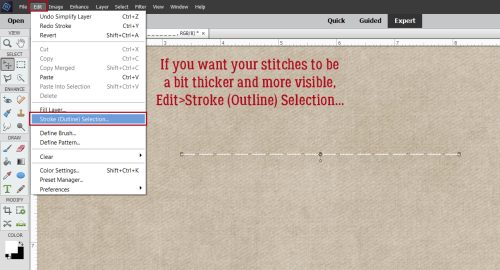
Edit>Stroke (Outline) Selection… is such a useful tool!

This time my Stroke will be 20 pixels and Centered on the Selection. That will put an equal amount of outline on either side of the line and it will be more balanced.

I resized the text to extend side to side and have the lower corners just overlapping the border a smidge. I’m putting it at the bottom, but it could just as easily be vertical and to one side, run across or down the middle, sit at the top… whatever looks right to you. This part is completely personal taste – if you want the word to float, let it float!

I want to add a divider above the word so that it’s framed. To make this step easy and give you control over the results, turn on the Grid by clicking View>Grid or use the keyboard shortcut CTRL/CMD>’. This will help with placement so much! In my Edit>Preferences I set the main grid lines 1 inch apart and the divisions at 4, so there’s a visible line every 1/4 inch.

Add a new blank layer to your layers stack. This will allow you more flexibility once you’ve created your divider – meaning that if it needs to be moved, you’ll be able to move it. Activate the Pencil Tool and set the Size to 80 pixels, the same dimension we used for the border. (Or to whatever you want… this is a guide!) Then choose a spot on one side of the border that sits at an intersection of Grid lines and click there. Hold down the SHIFT key and move your cursor to the other side of the border along the same horizontal line, then click there. Voilà, a straight divider line! To turn the Grid off, go back to View>Grid or CTRL/CMD>’ and it’ll go away

If you’re not happy with where the divider is, nudge it into place. Then CTRL/CMD>click on the border’s layer so the two layers can be Merged into a single divided frame. If you want the word to be connected to the frame as well, CTRL/CMD>click on that layer too before right-clicking and choosing Merge Layers. Keyboard shortcut for Merge is CTRL/CMD>E.

Now to add the photo. I like this Pixabay photo of a man walking on a pipeline so I dragged it onto the canvas between the original Shape layer and the frame, resized it and positioned it.


Once I turned the Visibility for the original Shape layer back on, I could use it as a Clipping Mask.

Now for the fun part! The frame and word art can be transformed in a number of ways, such as clipping a paper or cardstock to it and adding a drop shadow. Or… Layer Styles!! I like the Chipboard Styles from Just So Scrappy‘s Lucky Me with this photo/frame combo.

I really like the Kraft paper edge on this style and think it works really well with my photo.

With the word art separate from the frame, I played with some other Layer Styles and settled on this golden-yellow woodgrain Style from Ooh La La Scraps Nearly Fall. It adds a bevel to the letters.

I played a bit more with it, stretching the text so it touches top and bottom, then Merged all three layers. With the Chipboard Style applied, it looks like this.

I made another sample, this time using Levina Script Regular for my word. The Layer Style is Just So Scrappy‘s Lucky Me Chrome in white. The possibilities are endless with this technique!

I hope you try this one. It’s so simple, but so versatile.

PDF Version: https://bit.ly/37KoqdK