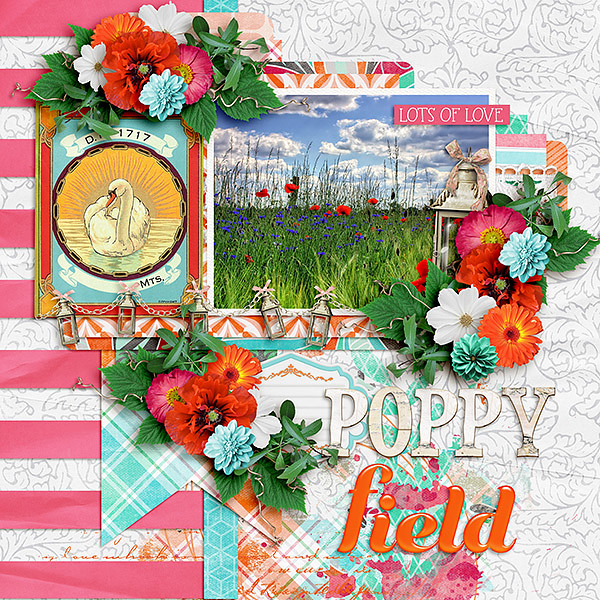
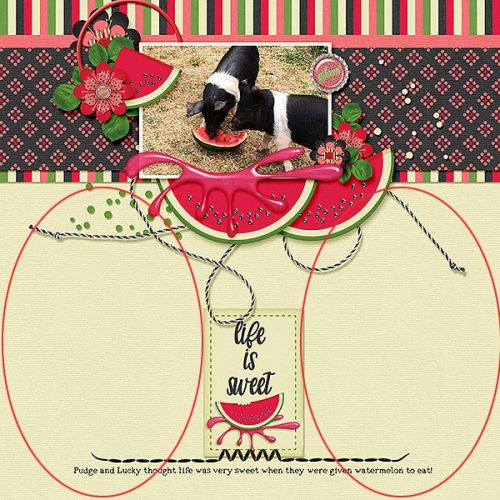
Happy Thursday! Our designers have made awesome new releases to help you scrap all those summer memories! Let’s check out a peek!

From Clever Monkey Graphics

From Charly Renay

From Down This Road


From Dagilicious

From Miss Fish

From Tinci

From Aimee Harrison

From JoCee

From Heather Z

From Neia Scraps

https://gingerscraps.net/gsblog/2019/07/31270/

Sneak Peeks June 27th 2019

Happy Thursday! The heat is on this summer! It’s scorching out! I am glad digital scrapbooking can be done in the cool air conditioning. I hope you will be able to spend sometime in the cool indoors scrapping some of your great memories! Let’s check out some of the new releases coming out tomorrow!

From Clever Monkey Graphics


From Down This Road Designs


From Snickerdoodle designs

From JB Studio


From KM Ink Digital Designs

From Neia Scraps

From Alexis Design Studio

From Aimee Harrison

From Wimpchompers

Have a great weekend!

Sneak Peeks June 20th 2019

Happy day before Summer! Summer arrives tomorrow and our designers have awesome releases lined up! Let’s check out some of the awesome goodies!

From Down This Road

From Tinci Designs

From Lindsay Jane

From Aimee Harrison

From JB Studio

From LDrag

From Snickerdoodle Designs

Have a great weekend!

Sneak Peeks June 13th 2019

Happy Thursday! We are a little over a week away from Summer! Our designers have some amazing kits to get us in that summer mood!

From Miss Fish

From Dagilicious

From Tinci

From Clever Monkey Graphics

Image may contain: one or more people

Image may contain: 1 person, smiling

From Down This Road

From JoCee

From Aimee Harrison

From JB Studio

From L Drag

Tutorial Tuesday… postponed

Hi ladies! I’m so sorry to tell you there isn’t a Tutorial Tuesday post for this week. My real job intruded and left me with no free time and totally exhausted. But there will be a new Tutorial next week, with some tips on shadowing stacked elements. So stay tuned!

Sneak Peeks June 6th 2019

Happy June! My son has been out of school for a week now! Summer is officially here in Florida. It’s hot and humid and now I have to entertain a 7 and a 3 year old. But at least there’s a lot of memories to take pictures of! Our designers have great releases to get us into the summer spirit!

From Mags Graphics


From Clever Monkey Graphics

From Snickerdoodle

From  Tinci

From Lindsay Jane

From Miss Fish

From Down This Road

From Wimpychompers

From Aimee Harrison

Tutorial Tuesday (Photoshop Elements)

Deconstructing the Custom Shadow

I think we all agree that shadows are an essential and integral part of a great digital layout. There are lots of ways to add shadows in Photoshop Elements, and some of them are easier than others. But to create a true, realistic-looking shadow, there are a few things to keep in mind. Drop shadow styles are included with the software and can be useful; a number of digital designers have also created a set of drop shadow styles that make the task simple. However, to have the most realistic shadows, it’s not enough to “drop” them onto your layout. That’s because objects don’t have even lighting and they don’t have uniform and even shadows either. Objects CAST a shadow. So let’s deconstruct this concept a little.

Here are three identical flowers. I’m going to show you the default drop shadow style, a commercial drop shadow style and how I shadow a flower like this. See if you can pick out the differences.

First let’s look at the PSE default Drop Shadow set, found in the Styles menu. It’ll add a drop shadow to the object with one click. Because I’m shadowing a flower, I selected the Soft Edge version. Don’t know which is which? Hover your cursor over the thumbnail and it’ll tell you. These Styles are adjustable; by double-clicking on the fx icon on the layer’s thumbnail in the Layers panel you open up the adjustment menu. Move the sliders for Size (this determines how sharp the edges of your shadow will be – the bigger the size, the softer), Distance (this isn’t accurate, because it adjusts the size of the shadow) and Opacity (darkness) until you like the look.

There’s the default shadow on the far left, unadjusted. For the flower in the middle I’m going to use a commercial drop shadow styles set from Tracie Stroud. (Tracie has retired from designing, so her products are no longer available. Mommyish and Sahin Designs currently have drop shadow style sets in their stores.) This set is the 120° lighting angle set and I hovered until I found one called Flower. Click!

Hmm. Do you see much of a difference between the first one and the middle one? The one on the right side is the one I created a custom shadow for. This method seems to be really hard, with a lot of steps, but with practice it’s become almost automatic for me now and takes about the same amount of time as using a style does. I think you can see the difference here.

Here are the steps. The real thinking-about-it comes later with the adjustments. Start off by creating a NEW LAYER underneath your object. To do this hold down the SHIFT key and click on that little icon that looks like a piece of paper with the corner turned up at the left-top of the Layers panel.

This is what you’ll see in the Layers panel. If you forgot to hold down the SHIFT key, you can move the new layer down using the keyboard shortcut CTRL/CMD>[.

Next, click on the object’s thumbnail in the Layers panel. The thumbnail is the little picture.

Now the outside edges of the object have been Selected and have a line of marching ants around it.

Before you go on, make sure the BLANK LAYER is the active one. Otherwise you’ll be undoing. Then choose the Paint Bucket tool (K), set your foreground colour to whatever your desired shadow colour will be (I just used black, 000000 but some people like to use a slightly browner colour like 2C1902) then click on your workspace. Elements will fill the selection with the foreground colour.

And there it is!

To Deselect the object’s outline you can go Select>Deselect, or just CTRL/CMD>D.

Next, decide where your light source is. Looking at the object can help with that, because there will be subtle highlights and shadows there already. For this flower, the light is clearly coming from the upper left. Now you need to activate the Move tool. I usually just go V. Then move the dark outline in a direction AWAY from your light source. Use the arrow keys to nudge it, if you like.

This is the interesting, fun part! Think about what parts of your object would actually touch whatever it’s resting on. The centre of this flower will be resting right on the paper, so the shadows around that part will be less noticeable – light can’t get underneath whatever is touching the surface, so no shadow can be cast. Use the Smudge tool (R) to push and pull the edges of the shadow into place.

Can you see how I’ve adjusted this shadow? I pushed the shadow toward the centre between the petals. I pulled the shadow sideways and away from some of the petals and imagined the petal at the very bottom is twisted a bit so the left edge is touching the paper.

When you feel like you’ve got the shadow looking natural and real, it’s time to soften it up. Filter>Blur>Gaussian Blur is how that happens.

To see how much of an effect the Gaussian Blur has, click your cursor on a point somewhere over the edge of your shadow and your preview pane will shift to that spot. Move the slider until you’ve got a nice, soft edge. How soft will obviously depend on what it is you’re shadowing. A button would have a sharper edge, string a softer edge.

Almost done! Change the Blend Mode to Linear Burn for more of a shadowy look nearest to the object. It also allows the shadow to take on some of the colour of whatever is under it, in this case the blue of the paper.

Then lighten up up by decreasing the Opacity to somewhere around 40%, plus or minus. Keep an eye on what’s happening and you’ll see when it looks right. If you think the edges are still too sharp, use the Gaussian Blur again.

Last thing to do is to Link the shadow layer to the object layer. To do that, select the two layers then click on that little icon that looks like a couple of chain links. Alternatively, you can Merge the two layers by selecting them then right-click>Merge or CTRL/CMD>E. Why do this? Well, if you move the object and it’s not either linked or merged with the shadow, the shadow is going to be left behind and you’ll have a bunch of hassle positioning it right later.

When your layers are linked to each other, this is what you’ll see in the Layers panel.

This was a very basic custom shadow operation. Practice it a bit, then I’ll show you how to layer objects on top of other objects and get the shadows right in that situation. Even more fun!! Just let me know when you’re ready to take it up another notch.

Sneak Peeks May 30th, 2019

Happy Thursday! It’s the end of May! So I get to show you a sneak peek of tomorrow’s new releases and Saturday’s new Buffet!

From Miss Fish

From LDrag

From Down This Road

From Dagilicious

From Aimee Harrison


And a Peek of the new Buffet!

Have a Great Weekend!

Tutorial Tuesday (Photoshop Elements)

How Do You Know When to Upgrade?

Today’s tutorial is going to be a really wordy one. Lisa R made this comment on last week’s post: “That’s why I adore digital scrapbooking! I still have PSE 11 and since I use it mostly for photos (not scrapping), it would be interesting to hear the best things YOU like about it … I’ve been thinking of upgrading for quite some time but again, because I use it mostly for photos, I’m still on the fence.” I hope to make her decision easier by discussing some of the things that have evolved since V.11. I’ve never been one to upgrade just to stay at the front of the pack. There has to be something in the upgrade that I want… and I’m pondering whether it’s worth the money (about $120 Canadian for an upgrade, $140 for a new purchase) to jump to PSE 2019. But before I talk about that, let’s look at the changes from Lisa’s V.11 to my current V.15.

V.11 brought us some fabulous sketchy filters, and introduced automated actions to ElementsPhotoshop CS/CC has had them for a long time. If you’re not familiar with actions, they’re little scripts that automatically perform a series of adjustments to your work. They’re especially useful for photo editing and professional photographers have their favourites, which then let them develop a personal style. Photographers whose specialty is newborns, for example, will use actions that tone down jaundiced skin, hide newborn “acne”, reduce mottling and so on. There are also actions that take the work out of getting the background right. There are lots of sources for free or low-cost actions online, with demonstrations of how they work. Here’s a demo of a free action from The Coffee Shop blog. It’s called Perfect Portrait 3. It’s pretty amazing!

In V.15 there are two ways you can access actions, both the very basic ones that came with the software and those you’ve installed. The first is to click Window>Actions and the second is to click that More button then choose the Actions tab. If you look closely at this photo of my son, his skin is pretty gnarly-looking so let’s see how Perfect Portrait 3 fixes it.

When you’ve chosen the action you want to run by clicking on the folder to the left of the title, you can either click on the dark blue triangle to the left of the folder’s contents, or the dark blue triangle circled below. That sets the action in motion.

There may be some parts of the action that require your input, like this one. It’s actually the second spot where I told it what to do; the first was a Levels adjustment. In this screen I could change the source of the colour I want to replace.

After I hit the OK button for Replacing Color, the action took off and in 30 seconds I had all these adjustment layers that I can now fine-tune. But even without any further input from me, those blemishes on Adam’s nose are gone, his skin tone is more even and his teeth are whiter. I think his crows’ feet aren’t as obvious too.

Another new feature that came with V.11 is in the Organizer. (I don’t use the Organizer because I didn’t like it with my first couple of versions, and created my own filing/organization system.) This version introduced user-determined tagging, allowing many more options for finding what you’re looking for by using your own tags. Options could be by name, by date, by location or by event, for example.

Last but not least, V.11 had the first Out-of-Bounds Guided Edit that allows cutting away the background from part of a photo but leaving things like heads, arms and legs in there. Think of those cool layouts where the photo looks 3D, like it’s bursting out of a frame.

V.12 brought a few more useful improvements. Content-Awareness allows for quicker, easier editing with the Spot Healing tool and with the Content-Aware Move tool. (I haven’t played with that tool yet, so I won’t try to explain how it works. We’ll save that for another day!) This version gave us a pet-eye correction in the Quick and Expert edit menus for the first time.

It also gave us the Zoom Burst Guided Edit that lets you add motion blur to an action photo that looks natural. That one looks like a lot of fun! Another new option in the Guided Edit menu in V.12 is Rotate and Straighten, making adjusting the horizon in photos super-simple. Here’s where the Puzzle edit and the Photomerge edit also came into play. One big drawback to V.12 was that everything was turned into a Smart Object, resizing things like buttons to the size of whatever the workspace it was moved onto was… 12×12 for example. It was a REAL pain in the butt having to then manually resize every. Single. Element. On my layouts.

V.13 got rid of that. It introduced the Refine Edge function to selections, which was a game-changer for lots of people. It allows for sharper extractions and cleaner edges. Some other benefits V.13 had include Auto-crop options – the software provides a preview of several ways to crop an image. [I turned that off eventually because I don’t want to be told what to do. ;)] They added Black and White (automatic and simple conversion to black and white), Black and White Color Pop (keeping a specific area of a photo in color while making the rest of it black and white) and Recompose (resizing your photos without losing important parts of them) to the Guided Edit menu.

And then there were these very useful additions! I haven’t actually played with these either, but I think I should!

V.14 is where there were huge changes made to Elements. Many of the techniques I’ve shared were made possible by these additions: Remove Camera Shake; Remove Haze (!); Batch Edit; one-click Whiten Teeth, frames, photo effects and textures; Photo Illustration; Paint-On Effects; select detailed edges (hair?); remixing 2 photos, improvements to the Recompose edit; RAW editing; new options in Photomerge and an opportunity to print at home came with V.14.

Compared to V.14, there weren’t a lot of changes in V.15, but improved function of some of the menus were a bonus. The Filter Gallery has been simplified and there were a few additions to the Guided Edit menu such as Photo Text (there was a tut on this one), Effects Collage (which lets you apply several effects to sections of a single photo), Painterly (there was a tut on this one too) and Speed Pan (giving a moving object a blurred background). There’s also a cool effect that lets you change a frown into a smile.

Changes to the appearance of the workspace, the location of toolboxes and buttons and other sort of housekeeping things have continued from version to version. There will always be a bit of a learning curve when you upgrade; the larger the gap between your old version and the new one, the steeper the curve.

So this is where my dilemma lies. Do I go from V.15 to Elements 2019? How hard will it be for me to learn the new stuff, and then translate it into easy-to-follow tutorials? Are there enough new things (there are 8 new Guided Edits) I can’t live without to make it worthwhile? 2019 has a powerful new function called Adobe Sensei AI, which does a lot of things automatically in both the Organizer and the Editor. It uses artificial intelligence to tag and organize your photos and videos based on image recognition, it allows for video editing, which V.15 does not, and it has several social media features. Oh and did I mention slideshows?? If you’ve ever had to create a slideshow, you’ll know how much work they are and how hard it is to get them just right. 2019 will automatically select the best photos from a selection and turn them into an animated slideshow guaranteed to impress. There’s also a more useful home screen. It looks like I have some thinking to do…

Sneak Peeks May 23rd 2019

Happy Thursday! School is almost out and summer is almost here!!!! Where did the Spring go??? To get you ready for the summer, our designers have some great new releases! Let’s take a peek!

From Dagi

From Mags Graphics

From Tinci

From Heather Z


From Down This Road

From Miss Fish

From Aimee Harrison