Sneak Peeks December 20th 2018

Happy Thursday! We are soooooooooooooooo close to Christmas. It’s just around the corner. Our designers have lots of festive offerings for this last weekend before the holiday! Let’s take a look!

From Ponytails

From Tinci

From Miss Fish

From Shepherd Studio

From Wimpychompers

From LDrag

From Luv Ewe

From Aimee Harrison

Tutorial Tuesday (Back to Basics)

Save me!!

Right after last week’s tutorial appeared, a comment from one of our members, lilholmes6 (aka Lynn), appeared, asking why her layouts were so blurry and the journaling was unreadable. I sent her a private reply and carried on… then Ginger (our genius GingerScraps owner) messaged me. She wanted to know if I’d written a tutorial on saving layouts for the Gallery; she’d also gotten a request for help from a member, apparently one in a long string of them and didn’t want to reinvent the wheel. So today we’re going to talk about saving layouts for our highest possible viewing pleasure.

The first thing to know about saving your layouts for Gallery purposes is that online galleries have a limit on the maximum size an image file can be, most stipulating images 600×600 pixels and a file no larger than 250 KB. Now, to get our images to fit into those parameters, the file has to be compressed a bit. Or a lot… some template designers create absolutely gorgeous templates that stimulate creation of even MORE gorgeous layouts, but they turn into HUMONGOUS files. (Heartstrings Scrap Art is a favourite of mine and a former GingerBread Lady.) What happens when I scrap using one of her templates? Lemme show you…

First I resize the layout to that 600×600 pixel limit and then I try (and fail!) to save the layout as a .jpeg using the File>Save As menu. Because I save my layouts as .jpegs in two sizes, I change the name of the one destined for the Gallery by adding “GS” to the layout’s name as you can see below.

Hmm… At the highest possible quality, this layout weighs in at a ginormous 2.7 MB!!

So I pushed the Quality slider to the LEFT. All the way to 0. Now, I’ve never actually tried to save a layout with a quality of 0, because really, what’s the point?! But what really is interesting here is that this image would still have a file size of 2.2 MB. How is that even possible?

Time for Plan B, the Save for Web option. I don’t use this method for saving my layouts except as a last resort, because there’s a lot more compression of the image, and loss of clarity, or what’s known a pixelation. That’s what makes journaling turn into squiggles.

The user menu looks like this. You have the original on the left, the compressed version on the right and some adjustments you can make on the far right. The default here is a resolution of 72 pixels per inch, pretty fuzzy. (For the best images for printing for example, you’d want a resolution of 300 pixels per inch, which is MY default setting.) Within the menu, just below the compressed image on the right is where you find the file size at that resolution. As you can see here, there’s a little wiggle room.

So I took it! I nudged the Quality slider to the RIGHT until I got the sharpest image that still was under 250 KB. You can see the final version in the Gallery right HERE. Not too shabby!

Now I want to show you my USUAL method of saving my layouts for Gallery posting. This layout is built on a template from our own Aimee Harrison from her Singular Volume 1 set. I select Save As (CTRL/CMD>SHIFT>S), rename my layout and select .jpeg as the format.

Now, this is the real bonus. The file is under 500 KB right off the bat.

Just a tiny nudge of the Quality slider gets me right into the zone. <whispers> (I’ve found these numbers to be a tiny bit inflated, so you might get away with a few KB over 250. But don’t tell anybody.)

In the spirit of the season, here’s a little add-on for you.

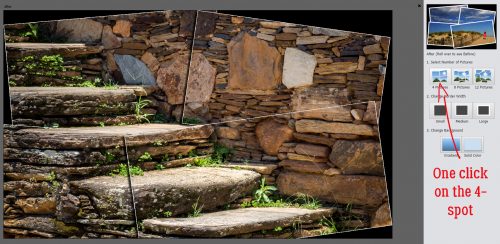
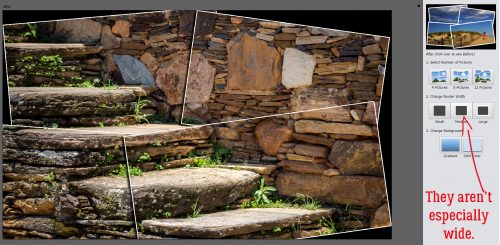
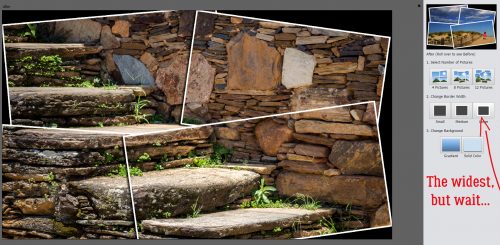
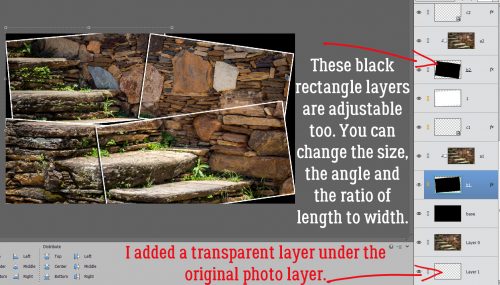
As you might remember, I’ve been looking at old scrapbooking magazines and this technique got a ton of attention back in the day. Lots of layouts had papers or photos with only the opposite corners rounded. We’ve looked at how to use rounded rectangles, so I thought I’d take that a step further. Fire up that Custom Shape toolkit!!

My example is more squarish, but that’s cool. I popped another layer just underneath it then made the square invisible.

Then I changed my tool to the Rectangular shape tool and dragged out another squarish shape. That’s what worked for me, but you of course can do whatever makes you happy.

You know how I keep hammering you about Simplifying your text and shape layers? It’s a vital step for maintaining control. When you’re looking at text layers, you’ll know it hasn’t been Simplified if there’s a “T” on the layer in the Layers panel. For shape layers, there’s a little square box in the lower right corner of the image on the layer in the Layers panel. You can see it here.

Now, I KNOW you can see what I’ve done. I simply aligned the top and right edges of the two layers using the Alignment adjustments within the Move tool.

Next I just made a copy of the square layer and aligned the bottom and left edges. All that was left was to Merge the layers and save the resulting shape as a .png so I can use it as a clipping mask later. One thing about this shape though… resizing it will change the contours of the curved corners unless the proportions are constrained (identical). If you want it to be more rectangular than square you’ll need to start there. An oblong rounded rectangle as your base, then two rectangles with squared corners for the rest.

Since next Tuesday is Christmas Day, I’ll be taking the day off to be with my husband and son… as I’m sure all of you will be doing as well. I’ll see you all New Year’s Day with something new for you to do while the men watch bowl games!

Sneak Peeks December 13th 2018

Happy Thursday! We are 12 days away from Christmas! Thank heavens for Amazon! I finished almost all my shopping from the convenience of my couch. This weekend you should reward yourself with one of the new releases our amazing designers created! Take some time this holiday season and enjoy scrapping! Let’s take a peek at some of the new releases!

From Heather Z

From Tinci

From JoCee

From LDrag


From Miss Fish

From Aimee Harrison

Tutorial Tuesday (Tutorials!)

Now Where Did I See That Tutorial About…?

If you read the comments GingerScrappers leave here on the Blog you might have seen a brilliant suggestion from Ellen for a “quick tut” to index all the other tuts I’ve written over the last 2+ years. Lemme tell you, “quick” it ain’t! But it IS brilliant, so that’s what I’m bringing you today. Without further ado, here is a chronological linked index to all the tutorials I’ve prepared for you to date, all in one place.

1. Turn a Font into a Sticker

2. Use a Basic Template

3. Titles Revisited: Alphas Plus Fonts

4. One Photo, More than One Photo Spot

5. Making Templates Work for You

6. Simple Photo Blending

7. Extractions… Choose Your Method

8. Brush Basics: Colour

9. Playing with Text

10. Shadow Basics

11. Text Talk: LETTERPRESS!

12. Titles with STYLE(s)

13. Word Art Wizardry

14. For all you former paper scrappers: INKED EDGES!

15. Getting More Mileage from Your Templates… Easily!

16. Reverse Stencilling with Brushes

17. Kustomize Your Kits

18. Sizzling Signatures!

19. Journaling INside the Box

20. Yes! You CAN Warp Shadows in PSE!

21. Heritage Photos Get a Makeover

22. Only the Shadow Knows… Take TWO

23. When is a Square NOT a Square?

24. Creating Clusters… Not Clutter

25. Build-a-Brush Workshop

26. Blend Modes? Say What??

27. Down on the Border (not the Little River Band version)

28. Carol: Objects Inside Other Objects and Going Incognito

29. Tearing Up the Sheets (of Cardstock)

30. Style Savvy!

31. WSNH Tips and Tricks

32. Title Tweaks

33. Get in SHAPE, Girl!

34. Keeping Things in Perspective

35. Can This Photo Be Saved?

36. Behind the MASK

37. Michelle: Finding Font

38. Putting the “OH!” in Your Photos

39. Ellen: Talking about Tools

40. Chalking it Up to Inspiration

41. Becoming an ALPHA Female

42. Over-the-Top TITLES

43. Templates with a Twist

44. How’d You DO That?!! Fontography Demystified

45. A Little Bit Sketchy

46. More Fun with FONTS

47. Dodge and Burn… NOT an Action Movie

48. Reflections

49. The EYEs Have It

50. There’s a Flag on the Play – Out Of Bounds!

51. Abstract Meets Graphic Art

52. Mixing it UP!

53. Revisionist History

54. The TutOR Becomes the TutEE

55. A Few Quick Template and Shadow Tips

56. It’s a PUZZLE!

57. I Feel the Need… the Need for SPEED (Scrapping)!

58. More FUN with FOTOS

59. Turning a POSITIVE into a NEGATIVE

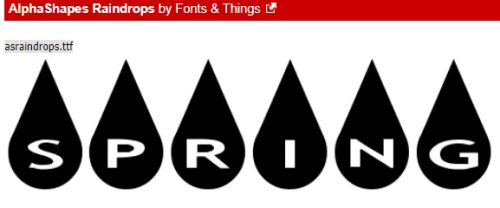
60. Raindrops Keep Falling on My Head

61. Scrapping with Heritage Photos

62. You’ve Gotta Know When to FOLD ‘Em

63. More Fun with Fonts – Die-Cut!

64. A(nother) Way with WORDS

65. Playing on Emotion

66. In the RAW!

67. Christmas FONTography

68. Ahead of the CURVE

69. Like Snowflakes… No Two ALIKE

70. The ART of ILLUSION

71. More Fun with Photos!

72. Fun with FONTS & FOTOS 

73. First Past the Post(mark)

74. SKETCHIER!

75. Here’s a Little Clip!

76. The EYES Have It!

77. Facebook Timeline Covers

78. Tiny BUBBLES!

79. Uniquely YOURS

80. DIAMONDS are a Girl’s Best Friend

81. Totally TACKY!

82. UNZIP Me Dahling!

83. Direct Your Own SCRIPT

84. Transforming the Ordinary to the Extraordinary!

85. Making the Most of (inter)National Scrapbooking Day!

86. When SIZE Really DOES Matter…

87. A Road Map for Newbies

88. Throwing the BOOK at Glee

89. Jailbird No More!

90. Alphas Revisited

91. Everything New is Old Again

92. Still MORE Fun with FONTS!! 

93. Where the Boys Are

94. Like a Broken Record

95. Creating Amazing Monograms

96. Vacation Memories Sanitized!

97. Another Way to Have the Photo You REALLY Wanted, Not the One You Got

98. Fontography with Alphas

99. Expanding Your Repertoire

100. Sketchy Simplified

101. It’s Fall, Y’All!

102. Making a Stylish Sandwich

103. Clusters… Have Them Your Way, the Easy Way!

104. Driven to Distraction

105. Are YOU Ready for Digital Scrapbooking Day?

106. Don’t Lose Your Cool… or Your Stash!

107. 8 ball, Corner Pocket!

108. One Hand in my Pocket… and the other one’s holding a Journal Card!

109. Shaving Shadows

110. Cuttin’ It Out – Old-School

111. Let’s All Give Thanks… for AWESOME Photos!

112. Gentle(wo)men, Start Your Ovens!

113. The EYE-lets Have It!

114. Save Me! (methods for saving layouts for gallery posting)

115. What’s Your Super Power (Word)?

116. Any Way You Slice It (quick way to duplicate a multi-strip photo)

117. Memory-Keeping with Not-So-Great Photos

118. Fancy and Fun Fonts for Wintery Layouts

119. Fancifying Those Fonts

120. Another Font-to-Alpha Option

121. It’s All About the EXPOSURE!

122. A Whole New Meaning to Copy-and-Paste! (A PSE-Word Mash-up)

123. Magic Eraser!! (Not Mr Clean but close)

124. Heritage and History: Recorded

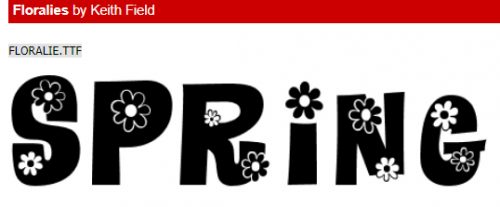
125. Fontastic Spring!

126. What the Heck is a Vignette?

127. True Colours – Not Just a Song

128. Numbers-Go-Round

129. Stackin’ ’em Up!

130. Standing Out in a Crowd (How to scrap a template so it looks different from everybody else’s)

131. Repeating Patterns – Basic

132. Repeating Patterns – Part Deux

133. UnMASKing the MASK

134. Repeating Patterns, Part Three

135. Restoring those Vintage Snapshots

136. How Do You Know When to Upgrade?

137. Deconstructing the Custom Shadow

138. Complex Shadows – Jan’s Method

139. Summertime Funtime Fonts

140. FINALLY! Kerning is Here!

141. Watercolor Effects -SO Beautiful!

142. Even Sketchier Still!

143. Pick your Pivot Point

144. Can We Talk? (journaling)

145. Anatomy of a Paper Stack

146. Anatomy of a Well-Composed Layout

147. Making the Most of Milestones (first day of school photos)

148. Digital Duplication: Embossing

149. Another Paper-Scrapping Digi-Hack (flocked “fussy cut” elements)

150. Breaking the Digi-Scrapping Code (glossary of terms)

151. Slaying the Green-Eyed Monster

152. What’s Your Digi-Scrapping Style?

153. Background Check

154. Unlocking the Secret Extras in Your Font Files

155. For All the Mac Users – Unlocking Secrets in Your Fonts

156. Another Paper- to Digi-Technique – Stenciling

157. Paper-to-Digi: 3D Embossing

158. Hybrid Pillow Box

159. To Theme or NOT to Theme

160. DIY Christmas Card Workshop

161. Beyond the Ordinary – Holiday Photos

162. Double Indemnity? Nope, Double Exposure!

163. Getting in on the Action(s)

164. Decluttering Isn’t Just for Homes

165. Following Up for Donna

166. It’s a Total Eclipse (another paper-to-digi technique)

167. A-Tinting We Will Go

168. Effect? Affect? What’s the Difference?

169. Let’s Play Stump the Chump

170. Springy-y Fonts- Part 2

171. Jazzing Up a Font

172. Jan’s Meme Creation Challenge

173. It All Comes Out in the Wash-i (Realistic Digital Washi Tape)

174. Working in the Background  (Creating Custom Backgrounds)

175. Be A-Frayed, Very A-Frayed (Realistic Fabric Tears)

176. Building Strong Borders with Brushes

177. Ten Fonts for Dad

178. Faking It! Tuck a Corner into a Digital Slit

179. Plan your Holiday Photos NOW!

180. Unlocking the Photoshop Elements Easter Eggs (Photoshop Elements Plus)

181. The Key to Painless Extractions (PSE +)

182. How Can I… Pierce My Paper?

183. It’s All a Matter of Taste (Black and White)

184. Taking the Shine Off (Photo Retouching)

185. Peek-a-Boo, I See You (Solving Under-exposed Faces)

186. Recorded History (Heritage Fonts)

187. When the Tutor Becomes the Tutored (Selective Recolouring for Word Art)

188. Another Guided Edit – Multi-Photo Text

189. Scrapping in the Time of COVID

190. Taming the Wild Template (Organizing and Finding Them)

191. The Photoshop Elements No-Diet Weight Loss Plan

192. Faking It – Those Incredible Full Moon Photos…

193. Method Scrapping – What’s My Motivation?

194. Customizing Template Banners

195. Preferences and Settings

196. Reflections, Perspective and Shadows

197. Jazzing Up a Neutral Background

198. Stuffing that Envelope

199. Christmas is Coming – Get Your Fancy Fonts Here!

200. Creating a 3D Metallic Look on 2D Shapes

201. New Year, New Challenges!

202. One BIG Word – Using a Title as a Divider

203. Another Take on Titles

204. Write Your Troubles in Sand

205. Hearts and Flowers (fonts)

206. Text Boxes Don’t Have to be Boxes!

207. Creating a Shadow-Box Layout

208. Creating a Shadow -Box Layout Part 2

209. Fooling Around With Gradients: Graduated Filters in Elements+

210. Circular Stencils: Another Paper-to-Digi Technique

211. Making Use of the Circular “Stencil”

212. I Love a Curvy Border

213. A 3D Title with Punch!

214. Gradient Border Masks – So Many Options!

215. 3D Photos – Yes, You CAN!

216. Selectively Recolouring Your Brushes

217. Uploading Your Layouts to the GingerScraps Gallery – Step by Step

218. Updating the Custom Cluster

219. Digital Stamps in Living Colour

220. Digitize your Handwriting

221. Selectively Colouring your Photos

222. Exploring Uncharted Territory (Elements Features)

223. Torn Paper: A Review

224. Jan’s Like a Broken Record… (or Why “Everything on Its Own Layer”)

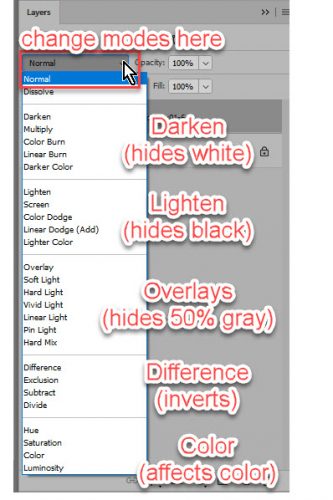
225. More Fun with Blend Modes

226. Let’s Talk About New Computers

227. Which Template Format is Best for You?

228. How Do I Run an Elements+ Script on a Template?

229. Faking the Wood Burning Look

230. Colour Palettes, Swatches and How to Use Them

231. How Did They Do That? (Outlining a Title with Paper Cuts)

232. Anchors Aweigh! (Reverse Masking)

233. Jumpstart Your Layouts!

234. It’s Almost Digital Scrapbooking Day!

235. Fun Fonts for Layouts about Kids

236. Custom Word Art Using Only Fonts

237. Giving Credit Where Credit Is Due (or: Editing your Gallery images)

238. Use It All! Challenge Spotlight

239. Pleated Paper? Maybe,,,

240. November Challenge Spotlight: Template Challenge

241. Can I Make Something Crystal Clear? (As Glass)

242. Clearly Complete – Adding Some Background

243. DIY Worn Wood

244. Challenge Spotlight: Miss Fish Memory Mix Up Challenge

245. How Do I Build a Reusable Cluster?

246. Build-Your-Own-TEMPLATE!

247. Photo Mask Challenge with PrelestnayaP

248. Romantic and Corny… Valentine’s Day Fonts

250. Another Paper-to-Digi Technique: Partial Cutouts

251. Taking Those Shapes to the Next Level

252. Realistic Book Looks

253. Making Magic with Brushes

254. Creating Art with a Photo

255. A Simple Photo Border with Label

256. Importing a Tear

257. Making Your Own Messy Edges

259. April Quote Challenge with CathyK

260. QuickTrick: Improving the Work Flow with Templates

261. Template Mash-Ups Revisited

262. Create a Word Art Photo Frame

263. Challenge Spotlight: Perfectly Paired 

264. Quick Trick: Correcting Colour Cast

265. Creating a Title Echo for Your Layout

266. Elements Work-Around: Photo in a Jar

267. Celebrating Dads and Grads (fonts)

268. Quick Trick: Anchor Points Revisited

269. Title-Topia

270. Quick Trick: Transparent Titles

271. Creased Paper Cut-Out Word Art

272. Going Creative with the Stitch Technique

273. Quick Trick: Transform a Selection

274. Turning a Font into a Sticker: Reprise

275. Yes! You Can Create Smooth Curved Lines with Elements!

276. Realistic Folded Paper Shapes

277. UnZIP Me, Dahling – Updated

278. Curvy Lines/Borders Method #2

279. Challenge Spotlight: Minikit

280. Quick Trick: Brighter Photos the Easy Way

281. Redirecting Text on Your Embellishments

282. Challenge Spotlight: Created With Rewards

283. Quick Trick: Auto Colour Correction

284: Don’t Let Your Text FLOAT!

285. Coloured and Patterned Shadows

286. Challenge Spotlight: Scraplift

287. Quick Trick Tuesday: Close All

288. I Do Hereby Firmly Resolve…

289. It’s the Snowy Season! (Fancify a Font)

290. Quick Trick: Controlling Camera Shake

291. Loading Those Styles

292. Pattern Files, Custom Shapes and Styles Mash-Up (Replay)

293. Quick Trick: Content-Aware Fill

294. Weaving – the Digital Way

295. Individual Style: Color Challenge

296. Quick Trick: Select SUBJECT

297. How Do I Know When to Stop? (Editing)

298. Guided Edit: Perfect Landscape

299. Quick Trick: No More Blemishes

300. Selectively Recolouring Brushes – Revisited

301. DIY Solid and Neutral Papers

302. Challenge Spotlight: Jumpstart Your Layouts II

303. Quick Trick: Dropping Things Where You Want Them

304. 3D Titles – Paper Letters

305. Are They Scribbles? Doodles?

306. Challenge Spotlight: Back It Up II

307. Quick Trick: Scroll Through Blend Modes

308. Guided Edit: Saturated Film Effect

309. Photo Edit: Plumb and Level

310. Challenge Spotlight: Word Art

311. Quick Trick: Layer Thumbnail Appearance

312. Going Right Back to Basics: Preferences

313. Inspiration: Song Lyrics

314. Challenge Spotlight: Inspiration

315. X-Fonter: A Powerful Font Manager

316. Using Alphas for Titles – A Technique Tweak

317. Challenge Spotlight: Minikit

318. Quick Trick: Special Effects Brushes

319. Autumn and Creepy Season Fonts

320. Four Ways to Use Dingbat Fonts

321. Quick Trick: Hiding Multiple Layers

322. Challenge Spotlight: Pinterest

323. Yes! You Can Add a QR Code to Your Layout!

324. Two Minute Warning! Holidays Ahead!!

325. Challenge Spotlight: Scraplift

326. Quick Trick: Type Tool Measurements

327. Realistic Snowy Titles

328. Challenge Spotlight: Pinterest

329. Quick Trick: Deselect

330. New Year, New Challenges

331. Textured Overlays – Whut?

332. Challenge Spotlight: Brush

333. Making Multi-Photo Layouts Work

334. Quick Trick: All-in-One Alphas

335. Scraplifting Mother Bear

336. Ink Smudge Technique for Photos

337. Text on a Custom Path – Keeping the Path

338. Tucked Photo Frames Made Easy

339. Challenge Spotlight: Word Art

340. Quick Trick: Cleaning Out the Cookie Jar

341. Inspiration for the April Scraplift Challenge

342. A Little Crisp Around the Edges (burnt paper look)

343. Challenge Spotlight: Daily Download

344. Quick Trick: Level Your Horizons

345. Stuffing a Vellum Envelope

346. Recolouring Word Art with Gradient Maps

347. Challenge Spotlight: iNSD Mini Kit Challenge

348. Quick Trick: Gradient Titles

349. Celebrating Dads and Grads Again (Fonts)

350. Quick Photo Edits with Blend Modes

351. Challenge Spotlight: Template

352. Quick Trick: Distressing Elements

353. Taking Distress to the Next Level

354. Creating and Shadowing Transparent Elements

355. Challenge Spotlight: Recipe

356. The Style File: Where Is It?

357. Quick Trick: What the Font?

358. Step-by-Step: Gallery Limits, Challenges and Cookie Jar Entries

359. Multitasking: Gallery Uploads

360. Challenge Spotlight: Real Moments

361. Paper-to-Digi: Tone-on-Tone Heat Embossing

362. Challenge Spotlight: DSD Brush Challenge

363. What Do I Do With All My Layouts? (printing)

364. Quick Trick: About Those Shortcuts

365. History in the Making (US Election)

366. Rerun: Raindrops with Photoshop (Elements)

367. Challenge Spotlight: Quote Challenge

368. Quick Trick: Templates Without Drop Shadows

369. Wintery, Christmasy Fonts

370. Here’s a Hybrid Gift Card Tag

371. Challenge Spotlight: Daily Download

372. Quick Trick: Styling Strokes

373. Greatest Hits: Elements Preferences and Settings

374. Layering Patterned Papers and Loving It

375. Challenge Spotlight: Photography

376. Quick Trick: Smart Brush Tool

377. New Valentine’s Day Fonts!

378. Greatest Hits! A Forum Roadmap for Newbies

379. Challenge Spotlight: Wild About Styles

380. Quick Trick: Dupe a Graphic Novel Look

381. Greatest Hits: Faking It – Those Incredible Full Moon Photos…

382. Users’ Guide to the New Forum and Gallery

383. Challenge Spotlight: Everyday Memories

384. Guided Edit: Pattern Brush

385. Greatest Hits: What’s Your Digital Style?

386. Challenge Spotlight: Inspiration

387. Remember that Pattern Brush?

388. Greatest Hits: Weaving – the Digital Way

389. Challenge Spotlight: Wild About Styles

390. Three Things I LOVE about Windows 11

391. Greatest Hits: Let’s Talk About New Computers

392. Challenge Spotlight June 2025

393. Quick Trick: Install that Font!

394. Happy Canada Day Eh!

395. Greatest Hits: Abstract Meets Artsy


Sneak Peeks December 6th 2018

Happy Thursday!!! We are 19 days away from Christmas! I guess I need to start shopping! While I brainstorm what gifts to buy, I can get in the Christmas spirit by scrapbooking more layouts from last year and our designers are releasing some festive kits this week! Let’s take a look!

From Day Dreams n’ Designs

From Tinci

From Aimee Harrison

From LDrag Designs

From Neia Scraps

From Miss Fish

Come back tomorrow to see even more new releases!

Tutorial Tuesday (Photoshop Elements)

The EYE-lets Have It!

I’m still working my way through years worth of scrapbooking magazines trying to figure out why I kept them in the first place. While I’m at it I’ve been looking for more paper-scrapping techniques I can translate into digital ones, and finding some solid inspiration. Today I want to show you how I’ve used an eyelet from the GingerBread Ladies‘ collab It Comes with Spring  to secure my photo and frame to my paper stack… just like I would have when I paper-scrapped. (This collection was the Free-with-Purchase gift in March 2016.) The rest of the layout is created with Connie Prince‘s Snowflake Kisses , LDrag DesignsJolly Holidays alphas and Aprilisa‘s Picture Perfect 177 templates from the December Buffet for the Buffet Challenge.

Once I had my eyelet in position and resized to fit within the edges of my paper frame, I clicked on the Elliptical Marquee tool.

I set the tool’s settings to Fixed Size, then experimented with the dimensions until I got a circle the correct size. Both dimensions for width and height must be the same. 50 pixels by 50 pixels works.

I made sure the frame’s layer was my active layer and clicked just inside the edge of the eyelet to make my circular selection.

Then I used the arrow keys to nudge it into place with the hole in the eyelet in the center. Once I had it positioned properly, I used the Edit>Cut command (CTRL/CMD>X) to create a hole in the frame paper.

There! Now I can see the corner of the photo. On to the next step.

I repeated the same steps, only moving my active layer to the photo layer.

I cut the corner of the photo off…

but, because I’m using a template, the photo clipping mask is still there.

Oh wait!! There’s a Work Smart Not Hard lesson here! If I make the CLIPPING MASK layer the active layer, I can cut BOTH layers with one click.

I kept repeating the layer>select>cut steps for each paper layer until I could see my background paper.

You’ll notice as you go along that the drop shadow from each paper layer is visible, but there’s no shadow on the actual eyelet. I used the default drop shadow styles to apply a narrow shadow with the light source coming from the same direction as the template’s layers.

I could leave it with just a single eyelet, but that doesn’t work for me. So I Copied the eyelet layer (CTRL/CMD>J) and nudged it over, then followed all the same steps as before to make a nice hole all the way to the background paper.

Then I did it all one more time to create 3 eyelets lined up along the top edge of my frame. To quote my friend Sandy, 3 is an esthetically pleasing number.

For balance and symmetry, I decided to put another 3-eyelet set in the diagonally opposite corner.

In this corner, there are different papers in the stack under the frame, so I had to pay attention to the paper I could see in the hole. It’s really not that time consuming to copy and cut three more eyelets.

There it is! The background paper!

I have a feeling the eyelets in the lower right corner won’t be visible on my finished layout, but I’ll know they’re there!

If you can think of a paper-scrapping technique you’d like me to translate, please let me know!

Sneak Peeks November 29th, 2018

Happy Thursday! Is everyone ready for December? I can’t believe its only two days away! That means we have TWO DAYS of new releases this week! I get to show you a peek of Friday’s goodies as well as a peek of Saturday’s Buffet! Let’s get started!

From JoCee

From Lindsay Jane

From LDrag

From JBS Templates

From Neia Scraps


From Craft-tastrophic

And here’s a peek of December’s Buffet!


Come back tomorrow and Saturday to see all the awesome new releases and new Buffet!


Tutorial Tuesday (Photoshop Elements)

Gentle(wo)men, Start Your Ovens!

The inspiration for today’s tutorial came from a Facebook post by one of my coworkers. She had spent the day making and decorating sugar cookies. (The photo above isn’t hers, it’s from The Girl Creative‘s blog.) As I was looking at her cookies, it occurred to me that I could probably make digital sugar cookies (bonus – NO calories!) and so I gave it a shot. It worked well, so I’m going to share the recipe with y’all. I started with a 6 inch by 6 inch square blank canvas. (P.S. Don’t be thrown by the number of screenshots in this tut. I’ve included practically every step, although we’re using a lot of techniques I’ve already shown you.)

I looked through all of the Custom Shape tool‘s menu – it’s the one that looks like an amoeba. The menu has a lot of options for shapes, most of them geometrical. But that won’t make this technique easy, so I only looked at the amoeba menu.

If you click on the triangle along the right side of the box I’ve circled below, the amoeba Custom Shape menu opens. I chose to look at them all to find the one that would work best, so I went with All Elements Shapes then scrolled until I found the one named Nuclear.

Because snowflakes in nature are perfectly symmetrical, I changed the settings for this tool from the default, which is Unconstrained, to Defined Proportions. If you’re into Working Smart Not Hard, you can also Simplify the shape by selecting that in the settings.

Getting these shapes in the exact spot you want them isn’t easy. But you can click-and-drag out your shape then move it to where it needs to be. Once it has been Simplified, you can easily resize it too.

If you didn’t Simplify in the Shapes menu, do it now. Right-click on the layer in the Layers panel and select Simplify Layer.

Not looking much like a cookie cutter now, is it? We’ll have to fill in those open areas using the Paint Bucket tool.

There we go! I could go ahead and just use this shape, which is more like a flower than a snowflake, but would still totally work. But if you know me at all, you’ll know I’m going to do more.

There are two ways to do this next step. I’m going to use the Elliptical Marquee tool. The other way would be to use the Custom Shapes tool and choose the Circle.

Because symmetry is still important at this point, I changed the settings to Fixed Ratio. This is handy for making perfect circles, but also can be set to make perfect ellipses too.

It’s possible to perform this on the same layer as the original shape, but I choose to put the outline on its own layer.

So I added a blank layer above the shape and made my Stroke outline here.

The stroke can be any size. Once I’d made my circle I filled it in with the Paint Bucket.

This is my cookie cutter. It needs a little adjustment – look closely and you’ll see the circle isn’t centered on the nucleus shape. I need to fix that!

Now that both layers were aligned properly, I Merged the layers into one shape. (CTRL/CMD>E)

Then I Duplicated the shape layer and set it aside for later. Right-click on the layer then select Duplicate Layer, or CTRL/CMD>J.

I didn’t need to see that duplicate layer at this stage, so I closed the eye and made it invisible.

To turn the shape into a cookie, I applied a Style. I used this creamy acrylic one from Miss Mis‘s Hustle and Heart layer styles set. Another option for this step would be to use a chipboard Style, such as one of Just So Scrappy‘s Cabin Fever chipboards (included in the GingerBread Ladies December 2017 Challenge Reward collab of the same name). That would allow you to condense this step and the next 9 into just a SINGLE WSNH step!

The only problem with this is that the cookie is too shiny. The colour looks good, and there’s a nice dimension to it, but I changed the Style settings, essentially turning everything off and shifting the light source. To adjust a Layer Style, rignt-click on the fx symbol on the layer in the Layers panel and this menu will open up.

Now it still has some dimension but the shine is gone. I’m still working on the bottom, original layer.

I picked a nice, toasty golden brown to “bake” my cookie.

Then I opened a new layer above the base layer, and selected a brush from one of the presets that came with my software. It’s called Pastel Light 118 pixels and I used it with the default settings that opened with the brush menu.

I picked a spot on the edge of the cookie, then clicked and dragged the brush all the way around the shape.

Remember this from when I showed you how to do digital inked edges? Same technique exactly. I CTRL/CMD>clicked on the layer thumbnail of the cookie layer while working on my brush layer. That selected the edges and the inside of the cookie.

Next I Inverted the selection – moving the chosen area of the layer outside of the cookie. Select>Inverse or CTRL/CMD>SHIFT>I.

Then I simply Cut away the brush that falls outside the cookie. Edit>Cut or CTRL/CMD>X.

Voilà! My cookie is baked to golden perfection!! Now to add the Royal Icing. (Or Royal Frosting, if you prefer.)

Here’s why I had you Duplicate the shape layer. I’m going to flood that top shape with my Royal Icing. But first, I resized the shape so some of the cookie layer is visible. The easiest way is to click on one of the little boxes at the corners of the bounding box then go down to the menu and type in a number less than 100. I chose 92%, which exposes some of the cookie layer but not too much. You can also just move the corner you’ve clicked on inward until it looks right.

I used another Style, this gel blue one from Just So Scrappy‘s Lucky Me. [GingerScraps is lucky to have designers who create layer styles, like Misty (Miss Mis Designs), Katie (Just So Scrappy/Ooh La La Scraps), Aimee Harrison, Marina (Magical Scraps Galore), Lina (LDrag Designs), Jo (JoCee Designs), Natasha (Ponytails Designs) and our lovely guest Karen (Snickerdoodle Designs).]

I made some tweaks to the layer style to make it look more like a flood of Royal Icing.

Then I got to the good part! I changed my foreground colour to pure white (which can be quickly selected by typing “ffffff” into the box at the bottom right of the menu).

Next I chose my Pencil tool from the Toolbox and adjusted the tip size to about 25 pixels.

If you’ve been adding realism to your stickers and overlays, you’ll already know how to draw a line with the Pencil. But if you haven’t read that tut, or you need a refresher, all you have to do is click at the starting point of your line, hold down the SHIFT key and click where you want the line to end.

You can turn on the Grid as shown below to help figure out where to start and stop your lines. View>Grid or CTRL/CMD>’

I used just the Pencil tool, but you could also use Brushes for adding detail to your snowflakes. Don’t worry about precision; if you were making real sugar cookies you’d be doing all the piping freehand, right?

You can make your snowflake as complex as you like. I played around for about 10 minutes, using the Pencil and changing the tip size.

No comment.

Now to turn all those lines and dots into Royal Icing. I applied a basic Style from the presets in Elements to add a Bevel. I experimented with all of them until I got the look I was after. In the end I went with the Simple Sharp Inner bevel.

It looks pretty good as is, with the default settings for the Bevel style menu.

Now, I could have stopped here and called it good. But again, anyone who has read my tutorials before know I had to experiment some more. But I’ve learned to do my experimenting on a copy layer… CTRL/CMD>J

Then I cleared the Layer Style (Bevel) by right-clicking on the layer in the Layers panel and choosing Clear Layer Style.

Then I hit that top copy layer with another of Katie’s Styles from Lucky Me, the gel white.

Then I decreased the Opacity on that layer to 46% (after some waffling).  Now the sharp edges are a little softer, and so are the shadows. Much better!

Once I was happy with my finished product, I Saved my cookie as a .png (which preserves the transparent background). Now I can use the cookie on a layout!

Of course, I didn’t stop there. I went back and deleted the snowflakey layers and started fresh. This time I stayed really basic. I just used one of the preset snowflakes from the Custom Shapes menu! The Styles I used were exactly the same.

If you’ve never saved a creation as a .png, or if you’ve forgotten how to do it, here are the settings I use.

And again… one of the Custom Shapes snowflakes, but with some personality.

Are you hungry now?

Sneak Peeks November 15th, 2018


Happy Thursday!! Is everyone ready for Thanksgiving!!! We are a week away from stuffing ourselves silly! While you are waiting for the holiday, lets check out what goodies our designers are releasing tomorrow!

From Heather Z

From Snickerdoodle and ABD Designs

From Snickerdoodle Designs


From JoCee Designs

From Tinci Designs


From Lindsay Jane

From LDrag Designs

From Miss Fish

From Shepherd Studio

From Aimee Harrison

~~November Bake Sale!!~~

Good morning. Today is the start of the November Bake Sale. November!!! This month is flying by. Looks like our designers have thrown in a lot of Fall and Thankful kits into the Bake Sale this month. All kits and template packs are only $1.00 each through November 2oth. I know I see several things I need to grab for my stash.

Head over to the store and grab these before the Bake Sale ends!!