November Feature Designer – Laurie’s Scraps and Designs

Welcome to November. This month our feature designer is one of our newer designers, Laurie’s Scraps and Designs. I asked her some questions so that you can get to know her a bit better.

How did you get started in digital scrapbooking?

My sister told me about it so I downloaded some freebies and loved it!

What made you decide to design?

I have always been creative. So Designing was just another creative outlet for me.

What do you use to create your designs (program, additional tools, etc.)?

PS CS4, Illustrator CS5.

Describe your design workplace.

Desk in the playroom so I can be with my kids too.

What is your favorite thing about designing?

I love the color palettes. I love to see how it comes to life with a color palette!

What is your favorite kit currently in your GS store and why?

It is a tie between Fall Harvest and Fright Night. I love the watercolor elements.

What do you do when you are feeling very sad or depressed?

Design, and eat chocolate

Which is the best vacation you’ve ever had in your life?

I used to live overseas as a child in Malaysia. So we would travel a bunch while we lived over there. So traveling on that side of the world was amazing!

Which is your most cherished childhood memory?

Playing Hide and go seek in the dark with my family.

Do you believe in ghosts?

No, not really.

Who is your celebrity crush?

I don’t really have one, but if I had to choose, it would be Thor.

What do you order when you go to Starbucks?

I rarely go there because it is far from my house, but I usually get a smoothie of some sort.

What is your favorite kind of cookie?

Chocolate with Chocolate Chips.

How old were you when you had your first kiss?

14? I think?

Are you an optimist or a pessimist?

Optimist for sure!

Would you change your name if you could? If so, what would you change it to?

No. My Mom used to tease my Dad after I became an adult, that I was named after his old girlfriend. Good thing my Mom was an independent woman, because I know she must have liked the name too, or I would be named something else.

What is your favorite pizza topping?

Sausage.

If you could give the world one piece of advice, what would it be?

Be nice to everyone, and don’t gossip behind people’s back. It just makes you look bad!

What do you do to wake up in the morning?

Check my emails and Facebook.

What is a small luxury that you treat yourself to?

Ice Cream. I lost about 50 pounds a couple years ago, and I try to not eat it, but I have to sometimes.
What did you want to be when you were small?

Teacher, Lawyer, or a Doctor.

Which would you rather do: wash dishes, mow the lawn, clean the bathroom, or vacuum the house?

VACUUM! I love it, It is immediate satisfaction. I should go vacuum now!

If you could hire someone to help you, would it be with cleaning, cooking, or yard work?

Cleaning for sure! When I get designing, I sometimes never have the desire to stop and go clean!

What would you do if you won the lottery?

Buy a new house! And pay Bills!

What’s the most interesting thing you can see out of your office or kitchen window?

The neighbors…. like the whole street! It is good when I am looking for my kids to come home from school.

Share your favorite recipe with us.
ohhhh, I have so many. But since it is getting cold outside. I will share my favorite soup recipe. You can leave out the cream and sour cream to make it more healthy. ENJOY!
Ingredients

1 pound boneless skinless chicken breasts, cut into 1/2-inch cubes
1 medium onion, chopped
1-1/2 teaspoons garlic powder
1 tablespoon canola oil
2 cans (15-1/2 ounces each) great northern beans, rinsed and drained
1 can (14-1/2 ounces) chicken broth
2 cans (4 ounces each) chopped green chilies
1 teaspoon salt
1 teaspoon ground cumin
1 teaspoon dried oregano
1/2 teaspoon pepper
1/4 teaspoon cayenne pepper
1 cup (8 ounces) sour cream
1/2 cup heavy whipping cream

Directions

In a large saucepan, saute the chicken, onion and garlic powder in
oil until chicken is no longer pink. Add the beans, broth, chilies
and seasonings. Bring to a boil. Reduce heat; simmer, uncovered, for
30 minutes.
Remove from the heat; stir in sour cream and whipping cream. Yield: 7
servings.

Thanks so much Laurie. Make sure to check out her GS store, her FB page, her FB group, and her blog. Also, be sure you are collecting each of the Daily Downloads from our blog to get this fun kit she is giving to us this month.

Creative Style – Scrapping with Leaves

Here in the states it is technically Autumn. Although, in the south eastern side of things it doesn’t feel like it. We had summer temps last week. No joke! The hot weather I am dealing with aside, it is Autumn none the less.

To me, when I think Autumn, I think leaves!…and well scrapping. Hands-down this time of year brings my favorite digital scrapbooking supplies to the stores. I just love the colors of the Autumn kits, all the leaves, and the nature feel to it all.

Today though we are going to talk about scrapping with leaves. Digital scrapbooking with leaves to be more precise. I will show you some fun examples here in the store I found that should get those creative juices flowing. We will end today’s post with some great digital scrapbooking supplies from here at GingerScraps to get those leave inspired layouts scrapped. (All images are linked to either their counterpart in the store or the gallery.)

One of my favorite things to do with leaves on a digital scrapbooking layout is to cut them out into the page with a patterned background behind it. This is a great example of that! You could also get this effect by overlaying your favorite paper on top of a leaf you like in a kit (or shape in your program). Then shadow it to look like a cut out.

One of my favorite things to do with leaves on a digital scrapbooking layout is to cut them out into the page with a patterned background behind it. This is a great example of that! You could also get this effect by overlaying your favorite paper on top of a leaf you like in a kit (or shape in your program). Then shadow it to look like a cut out.


One of my favorite things about digital scrapbooking (besides actual scrapping) is the online community. Siggies in forums are a fun part of that!

One of my favorite things about digital scrapbooking (besides actual scrapping) is the online community. Siggies in forums are a fun part of that!


You can also take fun photos with leaves, to scrap. Here are two great examples of that. One of them being super fun; and the other one showing the beauty that is nature.


You can also use a cut out to make a great focal point or background to a title for your layout. See below for this exact template!

You can also use a cut out to make a great focal point or background to a title for your layout. See below for this exact template!


Leaves are also one of the best (in my opinion) items to use for clustering. Framing a photo or anything really is another great use for leaves. Let us not forget the beautiful leaf-patterned papers and more.


There are a lot of uses for leaves in digital scrapbooking. The examples above are just a slight glimpse into what you can do. Now that your mind is thinking about leaves and how to scrap them, here are some great items from the store to scrap with!


Sneak Peeks November 3rd, 2016

Happy Thursday! The holiday season is almost upon us. I can’t wait for the election talk to stop next week and the talk about how best to cook a Turkey, what other food to serve, if the shopping on Black Friday is worth risking the crowds becomes the topics of conversation. To keep our minds off of the election and on the coming holiday, there are some great new kits to scrap with coming out!

From Tinci Designs

From Clever Monkey Graphics

From Neia Scraps A New Template Grab Bag

From JoCee Designs

From JBS Templates

Designer Sneak Peeks – November 4, 2016

It’s Wednesday and time for a some sneak peeks. I have a handful to wet your appetite for this weeks new releases.

I think it’s time to go shopping. 🙂


Tutorial Tuesday (Photoshop Elements)

Playing with Text

gs_blog_teachyouiwill_header

How did it get to be November already? There are only 61 days left in this year. Doesn’t that sound depressing? Let’s get some distraction going and learn how to text on a path. GingerScrapper Janytime mentioned she’d like to know how it’s done, and I had to confess I didn’t know. So I set out to learn, and now I’m going to teach you! This month’s Font Challenge, hosted by the lovely Rachel Pearce, also known as Seatrout Scraps, is to use the free font Motion Picture. I just happened to have it in my font library, but in case you don’t have it and haven’t peeked in the Forum yet, you can grab it here.

As I’ve mentioned before, I like to do things like titles on their own workspace so I can see better what I’m doing. And as I’ve also mentioned before, you know what works best for you and your workflow, so my instructions are guidelines. Here’s the quote I plan to use for my Font Challenge layout.

1

There are several ways you can manipulate your text in Photoshop Elements. Today we’re going to look at three of them. The first is Text on Selection. When you click on the Text Tool this menu opens up. The grayed icon is the one to click on to type on the outline of a selection. For the demo I’m only showing you how it works with an ellipse, but it also works for rectangular, circular and complex selections as well. I’ll show you at the end of the tutorial how to create a complex selection for those who are interested.

3a

After I chose the Text Tool, my font, colour, size and the Text on Selection icon, I then clicked on the elliptical Marquee Tool (the icon with the dotted outline). I clicked and dragged an ellipse shape on my workspace. When I had the size and shape I liked, I moved it by holding down the CTRL/CMD key and dragging it to the centre. Then I clicked in the middle of the space created by the marching ants. It asked me to Commit current operation so I clicked on the green check mark.

2

The software made a narrow line around the selection I made, as shown below. I zoomed in tight (CTRL/CMD++) so I could see what was happening. To begin typing my text around this outline, I moved my cursor onto that thin line until I could see the “I-beam” symbol that indicates the starting point for text and clicked it. I had hoped the screenshot would show you it, but I’m not seeing it there. Sorry!

3

I started typing my quote and it looked like this. When I was at the end of the quote, I was asked to Commit current operation again. I wanted the type to cover more of the outline so I clicked the green check mark and then…

4

I double-clicked on the text… because it’s just as editable as any other text. I adjusted the size of the type until I was happy with it and clicked on the green check mark.

5

The end result is shown below. And I know what you’re thinking… “But I don’t WANT that line there!” And it’s easy to make it disappear.

6

Simplify the layer!

7

Et voilà! The line, or path, is gone and my text is a partial ellipse. Easy peasy!!

8

Now let’s look at Text on Shape. It’s actually a little more limited than Text on Selection because you’re restricted to the shapes shown: rectangle, rounded rectangle, ellipse, hexagon, heart, speech bubble and butterfly. I tried it with the butterfly and decided it was too finicky. But the heart… that was a great one to play with!

9

As with the ellipse, I clicked and dragged out a nice sized heart. Once I had it the size I wanted, I again clicked insode the shape to Commit to current operation and create the path. It took me a minute to realize that I had to start my text on the curve of the left side. I typed out my quote twice but it still didn’t reach back to the beginning.

10

So again, I double clicked on the text and increased the size of the font until it did. I had to add some spaces to keep the letters from running into each other in some spots, but in the end it looked great!

11

Then I simplified the layer and the path went poof. (Notice that the T that was in the Layers Panel for my text layer is now just a regular old layer. I can’t make any further adjustments to my typing now without undoing (CTRL/CMD+Z) that Simplify Layer step.

12

The final method I want to share is how to create a custom path to put your text on. This is what Janytime is interested in. The Text on Path icon is the one shown grayed out below.

13

I drew out a swirly flourish as my path. It helps if you can do the whole path in one smooth movement, but if you feel like you want to adjust the hesitation points like the one on the first curve on the left, click on Modify, the icon right next to Draw.

14

You’ll get a bunch of little black squares along the line of the path.  By clicking and dragging the black squares, you can smooth out those little imperfections.

14a 14b

Then, just as for the other methods, I picked a spot to start my quote and typed it out. Then I adjusted the size so the text stretched all the way to the end and Committed to current operation.

15

Once I simplified the layer, the path disappeared and left me with a curvy text path.

16

So now you know three different ways to put text on different paths. But before I go… I promised to tell you how to create a complex selection for your path.

I like stars. I was disappointed to see that there wasn’t a star included in the Text on Shape tool so I played around a little and figured out how to text around a star. I looked through my stash and found a solid star. (If you want to use something that isn’t solid you’ll need to use the Fill Tool – paint can – to fill in the open areas.) You could also use the Shape Tool (that amoeba icon in the Tools Panel) to create a shape you like. The next step would be the same.

17

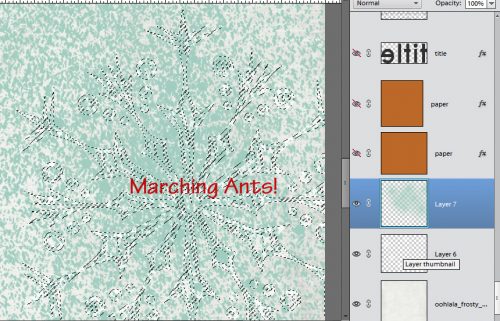
Then I “selected” the star by holding down the CTRL/CMD key and clicking on the star thumbnail in the Layers Panel. This part is VERY important. Make sure you click on the thumbnail – that’s what will give you your selection, your marching ants.

18

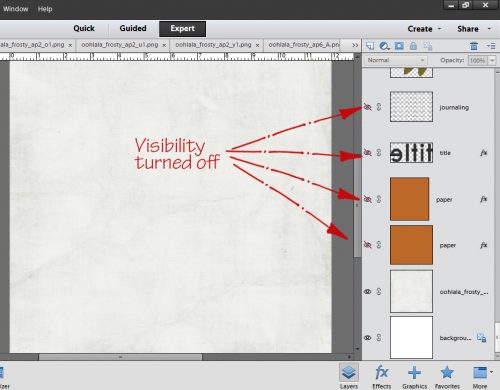
Create a new layer above the star to put your text on. Then turn off visibility for the star layer. (Close the eye.)

19

Next, in the Text Tool choose the Text on Selection icon and click inside the marching ants’ shape. Start typing.

20

If you’re doing this technique, you don’t have to simplify the text layer to get rid of your path, all you have to do is delete the layer with the star on it.

21

And there you are!

I know inquiring minds want to know which method I chose for my layout. Well, you’re going to have to wait until I post it to the Font Challenge gallery later tonight when I get home from work. I’ll be looking for YOUR efforts and I’ll make sure to leave you some love.

gs_footer_jan

30 Days of Thankful

Good morning scrappers. November is just a few sleeps away. I don’t know about you, but I just cannot believe that! We are nearly done with 2016. Wow! Well, with November comes the thought of being Thankful. I cannot be alone in seeing my Facebook (and more) filled with 30-Days of Thankful. With Thanksgiving just passing in Canada; and Thanksgiving fast aproching in the States, who could blame them? Did you know you could scrap your 30-Days of Thankful? Well, of course you can. 🙂  I was looking around on Pinterest and the store and here are some fun ideas and digital scrapbooking supplies to get those projects rolling. (all images are linked.)


Here are some great items from the store. (images linked)


Fresh Baked: October 28, 2016

The end of October is upon us, but that’s no reason to frown! The designers are getting their spook on and having some great sales and amazing new releases! And things going “bump in the night” in the forum! Make sure you pick up your treats!

Remember when you spend $10 in the store, you get a great collab! It coordinates with our MEGA Collab, which if you missed it, is available in the store now!

fwp3222 
https://store.gingerscraps.net/GingerBread-Ladies-Collab-Oh-Snap-Cards-Templates.html

[Read more…]

Sneak Peeks October 27, 2016

Happy Thursday! We are nearing the end of October! Where did this year go?!?!?!? We have great new releases and a sneak peek of the Buffet coming on Tuesday!!!!

From Keley Designs

From Dagi’s Temp-tations

From Neia Scraps


From Tinci

From Miss Fish Designs


And here is a peek at the new Buffet!

Have a wonderful weekend and a spooktacular Halloween!

Designer Sneak Peeks – October 28, 2016

It’s Wednesday again and we are at the end of October. Goodness this year is flying by. I have a few sneak peeks for you and then a little Halloween surprise.

And now for that little Halloween surprise. Ginger always has something up her sleeve.

{COMING SOON!} GingerScraps Trick Or Treat Spooktacular {COMING SOON!}
Visit the GingerScraps forum on Friday, October 28th for all the details!!

Have a great end of the week!!

Tutorial Tuesday (Photoshop Elements)

Brush Basics – Colour

gs_blog_teachyouiwill_header

Stephanie made a comment on the Facebook tutorial post about wanting to recolour brushes. This is a really simple technique and I’m going to show you two ways to do it, as well as give you a couple of tips from my own experience that make life simpler when using brushes. As you may know, there is a Brush Challenge each month as part of GingerScraps’ community rewards Cookie Jar; the hostess for each month provides a free brush or links to a website that provides free brushes, such as Brusheezy. This challenge is hosted by the one and only Rachel PearceSeatrout Scraps – this month, and this tutorial will use the brush she created.

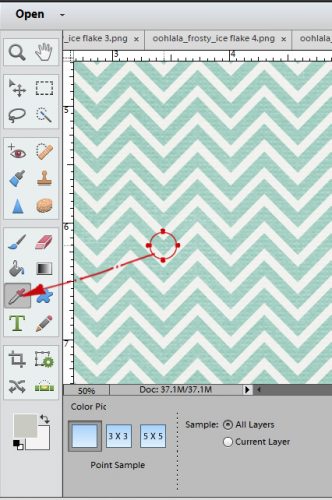
Open up your workspace and pick some papers you want to use in your layout. We’re going to pull colours from these papers. I want to do a Hallowe’en layout so I have 5 papers from Ooh La La ScrapsAll Hallows’ Eve collection selected. I’m planning to use the neutral white stripe paper for my background, so I opened up the gold patterned paper and selected a darker area of the paper with my colour picker (the eyedropper tool).

1

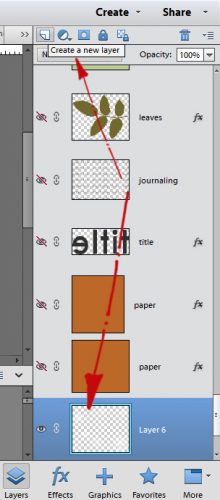
Then I opened up the white paper on my workspace. When I use brushes I ALWAYS put them on their own layer. Why? Well, the largest dimension available within the software for brushes is 2500 pixels. If you prefer to work on 12×12 inch layouts, they’re 3600×3600 pixels. By putting the brushes on their own layers they can be resized, recoloured, altered and manipulated in many ways that they can’t be if they’re applied to the paper layer. (More about that later.) There are a couple of ways to open a new blank layer. The quickest way is to click on the icon just above your layers panel that looks like a piece of paper with one corner turned up. I’ve shown that in the screenshot below. Another quick way is to use the keyboard shortcut CTRL/CMD+SHIFT+N. Or, if you prefer, you can click on the Layers menu, select New>Layer.

2

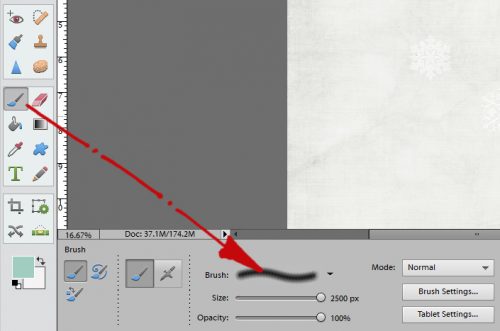
So now we’ve got a colour for the brush, a background paper to put it on and a new layer to apply the brush to so we can play with it. I selected Seatrout’s challenge brush from my Brush Tool menu.

3

I then adjusted the sliders so the brush is as big as the software will allow and the opacity is 100%. (By putting the brush on it’s own layer, you can later adjust the opacity of the LAYER and see exactly what’s happening to it!) I moved the brush onto the paper and clicked to apply it. See it there?

4

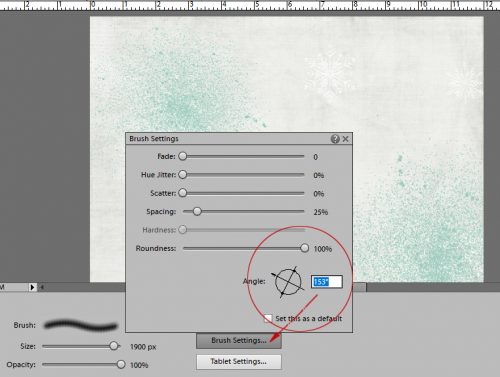
It’s easy to change the angle and the roundness of the brush by selecting Brush Settings as shown and playing with the sliders. You can check the angle by hovering the brush over the workspace – an outline will show up that let’s you see what it looks like. I changed the angle of the brush after I added another new layer for my next brush application.

5

What you see below is what I ended up with after I selected a new colour from my other papers, changed the angle on the brush and applied the brush onto a new layer. I have four brush layers and four different coloured sequin sets.

6

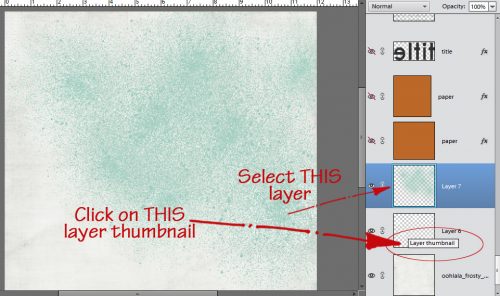
That’s the most basic way of using brushes. Now let me show you how to change the colour of your brush by using a layer mask. With the layer you want to change colour on selected in your Layers panel, click on the Layer menu as shown.

7

The pop-up menu looks like the screenshot below. You want to check the Use Previous Layer to Create Clipping Mask box, then click OK.

8

Another pop-up menu opens with the Colour Picker. You can put your cursor anywhere on the colour swatch, or click on the rainbow column to change the colour family shown, then select the colour you like.

9

To make your new colour fill layer “stick” to your brush and make the brush layer adaptable, merge the two layers together by selecting them both in the Layers panel, right-click and select Merge Layers or quick-key CTRL/CMD+E.

10

After I recoloured all four brush layers, I started randomly erasing sequins from each layer with the Eraser tool.

11

By turning the visibility of the other layers off and on while erasing, I could see where I still had several different colours on the same sequin. Once I was happy with the way it looked, I turned them all on again.

12

Then I merged all four layers into a single brush layer.

13

Here’s where the manipulation capacity comes into play. By putting the brush(es) on their own layer, I can now enlarge, shrink, copy and adjust opacity at will. In the screenshot below I’ve enlarged them, but decided it wasn’t going to work for me, so I clicked on the “Null” symbol instead of the check mark and it went back to its original size.

14 15

Another way the layer can be manipulated is to change the angle and move it around, just as you do with your other elements. You can’t do this if the brush is applied right to the paper. And still another way the brush can be altered on its own layer is that you could add a shadow to it so it looks three-dimensional. (I didn’t do that here.) Now that I’m happy with what I’ve done, I can to on to finish my Brush Challenge layout.

16

There are lots of ways you can jazz up brushes using layer styles, but that’s a lesson for another day. If you’ve read this far and have any ideas for future tuts, let me know by commenting below. Happy scrapping!

gs_footer_jan