Let’s Celebrate – Halloween 2016

Good morning all! It is that time of year again. For those who celebrate, Halloween will be here before we know it. I bounce back-and-forth between Halloween and Christmas being my favorite holiday. Looking at my stash, you would think it was Halloween. I just have to have all of them! I keep telling myself, “You have plenty of Halloween goodies, La’Shawn!” Then…I buy more. I am excited to share with you all today the fun Halloween goodies we have here at GingerScraps. I should have posted this on Saturday. The weekend got away from me. So, we get to brighten our Monday with fun Halloween digital scrapbooking supplies.

In case you didn’t know, or that you are new here at GingerScraps. You can find anything you look for by searching in the store. You can also find a lot of holiday goodies in the HOLIDAY section. Of course there is one just for all things spooky and HALLOWEEN! I am going to try not to overload your visual senses too much…I did warn you though it was one of my favorites. (all images linked)


Halloween Parade KIT by MagsGraphics  |   Dress up your little ghoulies and ghosties and join in the HALLOWEEN PARADE!

Boo-tiful {full kit} by Little Rad Trio


Designer Sneak Peeks – October 21, 2016

Happy Wednesday!! Hope you are all having a great week. Let’s jump right into our sneak peeks this week.

Don’t these all look lovely? Make sure to check out the store for these goodies.

Tutorial Tuesday (Photoshop Elements)

Extractions… Choose your method

gs_blog_teachyouiwill_header

When Stephanie first proposed this series of tutorials, we decided to ask the GS community what sorts of things they’d like to learn about. Danica‘s comment was, ” I would like to know the best way to extract things out of photos. I have the worst time doing it to see if there are any tips.” Digital extraction is similar to using cuticle scissors to cut out an image from a magazine or photo print – but it’s much more forgiving. Today, I’m going to show you two ways to do it… one that takes a LONG time, and one that’s a lot quicker. The photo I chose for this demonstration presents some of the issues you might come up against in your own extractions, as you see as we move through the images.

First, the choice of photos will determine how fiddly and time-consuming the task will be. For the easiest, quickest extractions, a strong contrast between the object you want to extract and its background is paramount. This photo I found on Pixabay of a beautiful chestnut horse provided that for me.

1

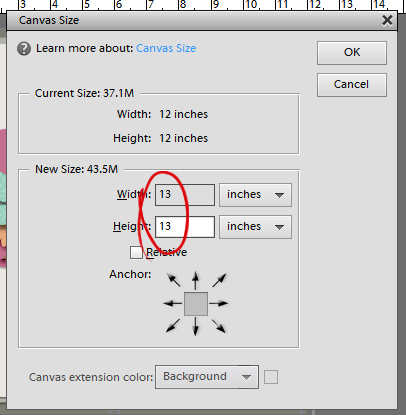
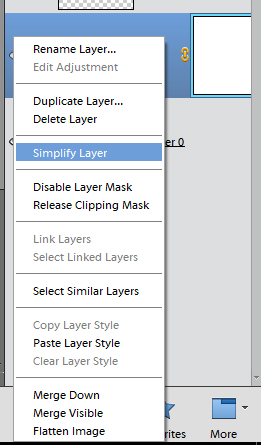
You can open a new file on your workspace or you can create a layer from the background. That’s PSE-talk for opening your photo in PSE then putting a blank layer underneath it. To do that, right-click on your photo in the layers panel and select Layer From Background. That changes the label of the photo from Background to Layer 0. Then click on the New Layer button at the top left of the layers panel – it looks like a sheet of paper with one corner turned up. Once you have that layer in the panel you can move it below your photo, either by dragging it down or by CTLR/CMD+ [ . I like to work on a transparent background, but you should do things the way you usually do. My example below shows the photo on a 12×12 workspace, enlarged to fill most of the width.

17

3

You can remove a lot of the background in the photo fairly quickly by using the Select tool, pulling out a rectangle and then cutting the enclosed section off by clicking CTRL/CMD+X.

4

Once you’ve chopped off a lot of the extra stuff in your photo, then you’re ready to start cutting out your image. This first method I’m showing you is quite time-consuming and exacting and will give you the most precise extraction possible. Feel free to skim through or skip over this part completely, except for this important step: make a LAYER MASK! To do that you can go to the Layers menu then select Layer Mask>Reveal All or you can click on the Layer Mask button above the layer panel. It’s the square icon with a circle in it. Your workspace will now have a white rectangle in the layers panel on the same layer as your photo. The reason for using a layer mask is so you can fix oopses. Then select a hard brush from your Brush tool. It can be quite big for this stage.

5

Make sure your layer mask is selected and start erasing the background, getting as close as you can without erasing anything you want to keep. You can see your progress on the layers panel as a black splotch. BLACK CONCEALS, WHITE REVEALS. If you look at the screenshot below, you’ll see the foreground colour (way over in the lower left corner) is black.

6

Oops!

7

If you accidentally erase something you didn’t want to erase, change your foreground colour to white and paint it back in. To change your foreground colour quickly and easily, just press the X key. See how I’ve painted back some of my oops below?

8

Getting into smaller areas where detail is important, change the size of your brush so you can get into those little spaces. Quick key: [  (In the same way, you can use ] to make the brush bigger.) Zoom in to see what you’re doing… quick keys: CTRL/CMD + +. Zoom back out (CTRL/CMD frequently so you can regain your reference regarding what you’re removing and what you want to leave.

9

Again, get as close as you can to the edge without going over it.

10

Zooming in lets you see better where you’re erasing. There’s a colour difference that may be subtle, as shown below. You can take the size of your brush down as small as a single pixel to cut those detailed spots as sharply as possible. In the screenshot below you can see each individual pixel. This is an important step if you want to keep things like hair wisps in the image. This horse has a wispy mane and a pretty hairy chin, so the detailed pixel-by-pixel erasing took a long time.

11

Here are some little areas of tufted hair on the horse’s ear.

12

Once you’ve erased all of the background areas of your photo your workspace will look like this: see the black negative outline of the horse in the layers panel? To finalize your extraction, the next step is to apply the layer mask to the photo. You can right-click on the layer then select Apply Layer Mask and then merge down so you have a single layer. Or you can simply merge the two layers, which automatically applies the layer mask. Remember how to merge layers? Select all the layers you want to merge by holding down the CTRL/CMD key and clicking on them. Then right-click and go all the way to the bottom of the dropdown menu and select Merge Layers or use the quick keys CTRL/CMD+E.

13

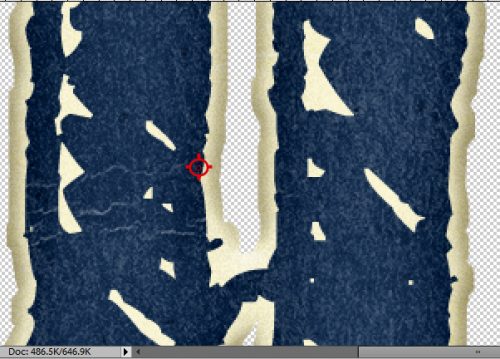
We pause this tutorial for an important message! When colours are light it’s sometimes impossible to see them against the transparent background and you might have some stray pixels you missed. This isn’t a huge problem unless you’re planning to shadow the image later. Then those stray pixels will show up like a smudge on your layout.

14

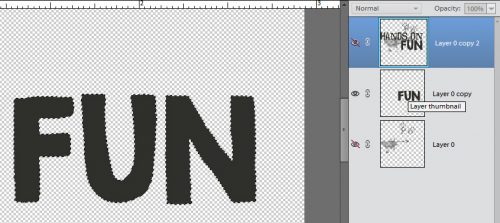
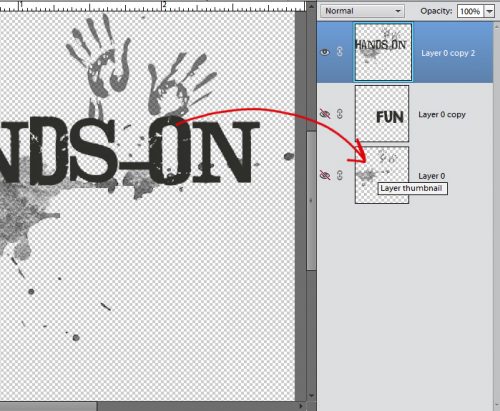
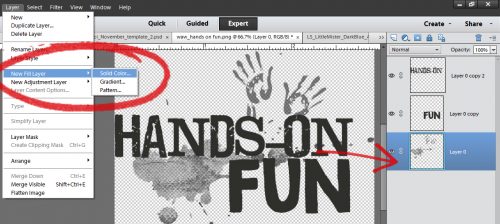
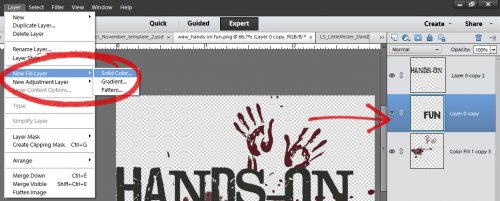
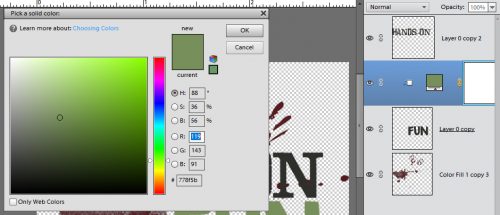
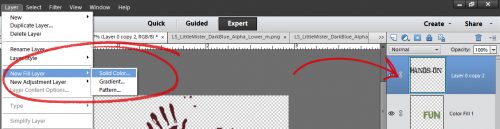
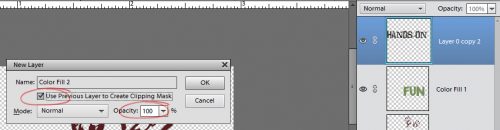
To make them visible, you can put a white or black fill layer underneath your finished extraction. There are two ways to do that. One is to go to the Layers menu and select New Fill Layer>Solid Color, as shown below, then selecting a white or black from the colour picker that pops up. The second way is to click on the Create Fill or Adjustment Layer button – that circle that’s half blue and half gray above the layers panel then selecting Solid Color from the dropdown menu.

15

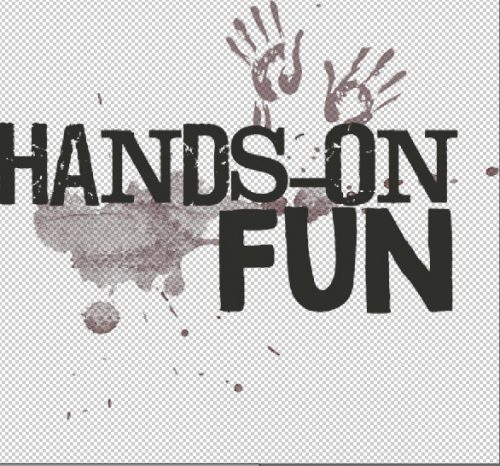
Then you can easily see your stray pixels and erase them. When you’re happy with your extraction, delete the white/black fill layer, merge down and save your work as a png.

16


Okay. That was the long, finicky way. It took me about 3 hours from start to finish. I don’t know exactly how long it took because I stopped to make supper and eat, did a bit more erasing, talked to a friend on the phone then got back to it. The second method I’m going to show you takes a LOT less time! Some tutorials for this technique suggest using the Quick Selection tool as shown below. But that’s a frustrating way to do it. If the little brush icon isn’t exactly in the right spot, it selects a huge area that isn’t what you want. So I’m going to show you how to use the Lasso tool instead.

18

It took me a while to figure out how to make this tool my friend, but now that I’ve got that down, I’m going to use it a lot more! The trick to working with it is to make an enclosed shape that overlaps another already enclosed space, as shown below. See the marching ants? That’s the area I’d already included. You don’t have to be too precise with this step, just make sure the edge of the image is inside the enclosed area.

19

Keep making overlapping, enclosed shapes over the whole image you’re cutting out. In the screenshot below I show some detail areas where the marching ants aren’t including some of the bridle. I just made some skinny little enclosed shapes to get them into the selection. Go over the edge of the image slowly so you can see what parts aren’t selected. If you accidentally get too much of what you don’t want in the selection you can trim the excess away by selecting the icon to the right of the Add in the tool panel underneath the workspace. (See above, where the Add is selected?) The icon to the right is a Subtract command. In the same manner, enclose the area you want to subtract and close it up. Voilà! Gone! Go back to the Add command and carry on. Once you’re sure you’ve got the whole image inside the marching ants, you’re ready to move to the next step. Notice the hairs on the horse’s chin aren’t included in the selection. That’s the compromise you make with this method.

20 21

Now it’s time to refine the edge. There’s a section in the tool panel that says just that. Click on it and you’ll see a menu like shown below. Adjust the edge on your image so there’s some of the background included but not a lot. The settings I ended up with are shown. By selecting Decontaminate Colors you’ll be able to see the edge of the image a little easier. Shift the sliders a little at a time until you’ve got a nice margin of background. I recommend sending the refined edge to a New Layer and then creating a Layer Mask on it, rather than selecting New Layer with Layer Mask because it’s actually easier.

22

Below is what you’ll see along the edges of your image. See the area where the transparent layer shows through a little better? That’s to help you know where to cut. Make sure you’ve created a layer mask as described in the first section of the tutorial so you can still fix oopses. Then start erasing your background.

23

Here’s another view of the refined edge. Don’t worry too much about the hazy areas on the “good” part. They’re not really visible on the finished extraction. Keep erasing the background until you’re back where you started.

24

Now that you’ve erased around the entire edge, you can apply the layer mask then delete the layer with the untouched photo that was created when you refined your edge. Make very sure you’re deleting the correct layer! CTRL/CMD+Z is your best friend! When you’re done, save the image as a png so you can use it in your layout.

25

I’ve put the two extracted png images side-by-side here so you can see there’s no obvious difference. The main difference is that the second version, which is on the left below, took about 45 minutes instead of 3 hours. There are some very subtle differences you can see if you zoom in really tightly – the edge on the quick version is a little softer and there’s no hair on his chin- but for most purposes, this second method is more than acceptable.

26

Now I’ll put together a layout using my extraction and link it up so you can see it when I’m done. I hope you found some handy tips and tricks in this tutorial. Next week, I think I’ll play around with some fancy brushes.

gs_footer_jan

In The Spotlight – totallycre8tive

Another Saturday is here, we are heading to the end of October already, and another edition of In the Spotlight. Today’s spotlight will be shining on one of the most busy ladies in digital scrapbooking land. Teresa…otherwise known as totallycre8tive. You can usually find her at a sports event for her kiddos, or behind the scene here. She is a talented scrapbooker as well. Let us take a look at some of her layouts. Some of my favorites from her gallery. All images are linked; and I hope you leave with some great inspiration!


Teresa really knows how to fill a layout out, without it feeling cluttered. I always enjoy her use of papers, especially patterned ones. She also has wonderful and fun photos! There doesn’t seem to be a kit or a theme she cannot scrap. I hope you find inspiration from her gallery as I have! Happy scrapping!

It’s BAKE SALE Time

It’s already the middle of October and you know what that means? It’s Bake Sale time and wow…. have our designers stepped it up this month. Take a look at all these kits available for just $1.

Now, head over to the store and fill up your cart.

Sneak Peeks October 13, 2016

Happy Thursday! There’s some awesome goodies coming out tomorrow!!!

From Amy Stoffel

From Laurie’s Scraps

From JoCee Designs

From Dagi’s Temp-tations

From Trixie Scraps

From Little Rad Trio

From Tinci Designs

From Keley Designs

From Neia Scraps

From Miss Fish Designs

From Clever Monkey Graphics

From Bella Gypsy

Check out all the new releases tomorrow! Have a great weekend!

Save

Designer Sneak Peeks – October 14, 2016

Happy Wednesday my fellow scrappers.  Fall has definitely come to the Carolinas and it’s wonderful. The temperatures are lower (makes great sleeping) and the leaves are starting to turn. Probably my favorite time of year.

Let’s jump right in and see what we have releasing this week.

Some very cute kits coming out. Make sure to shop for these tomorrow and Friday and then watch for the Bake Sale lovelies starting on Saturday.

Tutorial Tuesday (Photoshop Elements)

Simple Photo Blending

gs_blog_teachyouiwill_header

Last week Carla asked if I would do a quick tutorial on blending photos into backgrounds. There’s always more than one way to do things, some quite easy, others more involved. Today we’re going to look at an easy way to blend photos, with a twist. (Caylynn had a layout in the gallery last week that caught my eye. I sorta kinda copied her example.)

So let’s get started. First, decide what photo you want to blend. I chose a photo I found on Pixabay that had some interesting aspects to it.

Next you want to choose the paper you’re going to blend it into. You can use almost anything for this, but to make it more visually interesting, pick a paper that’s got some grunge, a pattern or an obvious texture. I didn’t know what would appeal to me most so I went to my GS stash and did a tag search for “paper”. A couple of hours later, after I’d gone through them all (well, it took a few minutes) I had several that I wanted to get a feel for. So I stacked up all the papers I’d chosen and turned them off except for the bottom-most. Then I put my photo on top of the stack of papers.

1

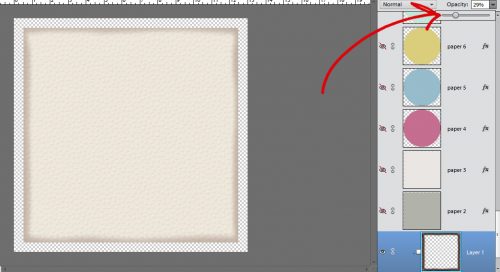
The first step in the actual blending is to lower the opacity of the photo so the paper under it shows through. So I pulled the photo down to 40%.

2

Then I worked my way up the stack of papers, turning them on bottom to top. The screenshots show some of them so you can see the effect each of them had on the photo.

3

4

6

7

In the end I went with a solid, soft purple paper from the GingerBread Ladies’ collection By the Dozen. But it was a bit too pink to blend well so I adjusted the colour a little. You can click on Enhance>Adjust Color>Hue/Saturation then pull the sliders, or you can CTRL/CMD+U to get there in one step. (You’ve all figured out that CTRL is for Windows and CMD is for Mac, haven’t you? The keyboard shortcuts are the same otherwise.) In the screenshot below I show you how I adjusted the magenta in the paper to a more blue shade. If you look closely at the edge of the photo you can see that the edge almost disappears when I’ve got the colour right.

8

Once I was happy with the colour, I deleted all the other papers… except for one with a pale blue brocade pattern on it from Ooh La La ScrapsCarefree. I moved it on top of my pale purple paper and decreased the opacity to 40%. Now I had a nice subtle patterned paper to blend my photo into.

9

I should back up for a moment here. You could enlarge your photo so that it covers the whole 12×12 paper if you want and just decrease the opacity until you’re happy with it… just like I did with the second paper. If that’s what you want to do, you don’t have to read any further. If you’re reading on – what are we going to do about that very obvious edge? You might notice that in the screenshot below, I have two copies of my photo, with the top one turned off. I’ll explain that later.

10

The next step, getting rid of the harsh edge, required the use of the Eraser Tool and a soft brush. I have a gazillion brushes, many of which I picked up free from various sources. I chose one of the options from a collection called 20 Spray Brushes. I started off with the brush fairly small and the opacity on the brush quite low. It takes a little longer to get a good effect, but it’s easier to adjust if you go slowly at this stage.

11

This part is easy but can take some time. Zoom in (CTRL/CMD++) so you can see where you’re working. Gradually erase the edge of the photo so there’s no obvious demarcation between your photo and your paper. You can click-click-click or click-drag or a combination to make it a bit quicker. [Resist the temptation to increase the opaacity of your eraser brush because it’s a lot harder to undo if you go too far.]  You can also increase the size of your brush as you go.

12

Every so often, zoom back out (CTRL/CMD+ ) and take a look at the amount of blending you’ve done. Keep going until the photo looks like it’s part of the paper but there’s still detail visible.

13

Here’s where Caylynn comes in. Her layout Wanderlust got me thinking. So I decided to take things a step further and show you how using a watercolour brush can add some punch to your blend. Literally.

I added a new blank layer in between my two photo layers. I went to my Brush Tool and selected a collection of Watercolour Mask brushes. (You could use any brush of combination of brushes for this step.) I tried them out for size and shape until I found one that would cover the girl and most of her sled.

14

Brush settings can be adjusted to suit your purpose. You can change the angle, change the roundness and play with the other settings to really customize your brushes. You’re not committed to anything, because there’s always CTRL/CMD+Z!

15

Once I had the brush the shape, size and angle I wanted, I made sure the foreground colour was set to white so I’d be able to see it against my layout but it wouldn’t interfere with the colours in the photo. Then I applied my brush to that blank layer. By doing this on a blank layer, you can adjust the size, tweak the angle and even skew the shape to suit your purpose. See how the photo below shows through the brush?

16

Now that I was happy with the brush. I clipped the top photo to the brush (CTRL/CMD+G). See how it brightened the area of the blended photo?

17

Then, because I wanted her face to be completely sharp and clear, with the brush/mask layer selected, I made my brush smaller, raised the opacity to 100% and painted over the girl’s face and scarf. (I used red for the screenshot so you could see what I did.) As long as you hold your left mouse button down while you use your brush, it will maintain the set opacity even if you overlap your strokes.

18

See how much clearer and sharper her face is now?

19

This is what my brush/mask layer looked like after I was finished. I decided to sharpen her whole body and a little of her sled. Once I was happy with how it all looked, I went on to finish my layout.

20

So there you have some simple ways of blending photos, and a very basic mask-making lesson too! Next Tuesday I think I’ll tackle Danica’s request for some tips on extracting items from photos. It’ll build on this lesson a little, so stay tuned!

gs_footer_jan

From the Archives Vol. 7

Hello scrappers! Are you fully recovered from DSD and ready to scrap?! I pray that all our scrappy family members that are and have been in the path of Hurricane Matthew are safe-and-sound!

I am here today to help you with just that! We are going to take a look back in the store and look at some oldies…but goodies! What archives? Well, we are going to show you some digital scrapbooking supplies that are in the store that are at least a year old. Usually older than that.  Some of us may be new to digital scrapbooking or new to GingerScraps. Some people don’t check the store every week. Basically, things can and do get lost in the weekly shuffle of the store. With that in mind, we are going to go back and look at some great products. Our hope is that you find some great things you might have been looking for; or find something that you didn’t know you needed but totally do now that you see it! 🙂

This month’s From the Archives, we are going to take a look at Doodles. Doodles are a great addition to any digital scrapbooking layout. Usually they have the hand-drawn (or actually are hand-drawn) look to them. Some doodles have paint look to them; and some doodles have little elements with them. You can check out all the Doodles in the store HERE. Here are just a few of them from back in the Archives. Images are linked to the store.


Fresh Baked: October 07, 2016

It’s time to bundle up! Fall is upon us and it’s getting chillier outside! The days are already starting to get shorter. We won’t let that bother us! That just means more time available for us to scrapbook! The designers have such great kits and template series out this week that you won’t be able to resist!

Remember when you spend $10 in the store, you get a great collab! It coordinates with our MEGA Collab, which if you missed it, is available in the store now!

fwp3 
https://store.gingerscraps.net/GingerBread-Ladies-Collab-Oh-Snap-Cards-Templates.html

[Read more…]