Challenge Spotlight April 3, 2017

It’s a new month which means there’s a new batch of challenges to scrap in order to receive this fabulous collab for free!!! All you have to do is create 10 layouts for our fabulous challenges!

And this year, there’s new challenges you can do!

Check out the challenge Rachel from Seatrout Scraps hosts every month, A Year of Blessings!

The challenge changes monthly and this month you can grab a free template and scrap it!

Check out some of the layouts that have already been posted:

Don’t forget to log your challenge layouts in the Cookie Jar Thread!

There’s No Fooling You Today!

April Fool’s! No, not really! I promise! Everything you read in this newsletter can be believed!

INCLUDING: the announcement of the winners for Survivor: Digi-Land! Before we announce them, though, I do have to show off all the new stuff! New buffet, new daily download, new monthly mix, new designers, even a new kit you can earn! This is no joke!

65% off 24 hours only (sale ends promptly at 11:59pm EST)
*APRIL 1st* NO JOKE 65% OFF!

It is the First of the month, and that means the revel of our new Buffet!!

Don’t forget to check out the Buffet Bundles, one easy click to add bundles of Buffet goodies to your cart, and an amazing value too!

[Read more…]

April Buffet Designer Sneak Peeks

Is everyone ready for April and Spring (or Fall for those scrappers in the southern hemisphere)? We have some beautiful kits coming in the April Buffet. Remember these kits are on sale from the 1st to the 5th. Just look at these gorgeous colors:

Now let’s see what’s coming up for us to play with.

Aren’t they just awesome?

And make sure you visit the store on April 1st. You will not want to miss what we have up our sleeve.


Tutorial Tuesday (Photoshop Elements)

Style Savvy!

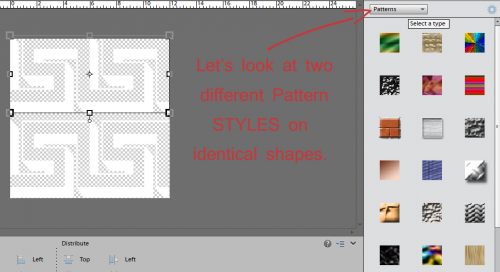
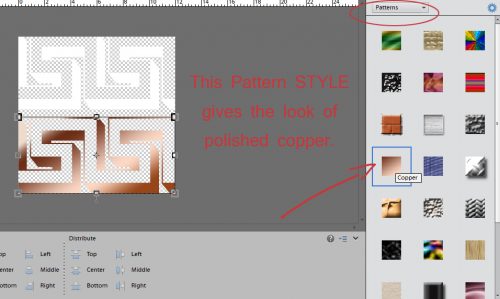
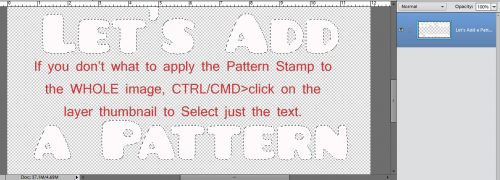
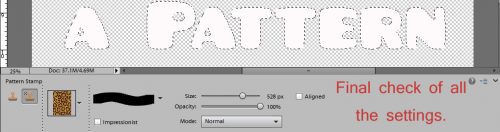
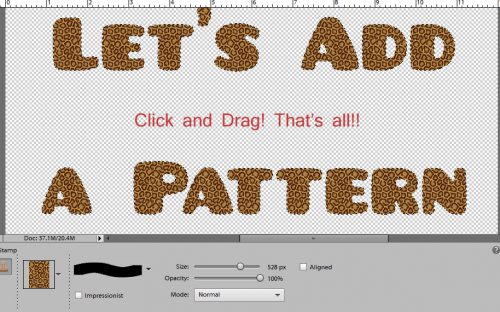
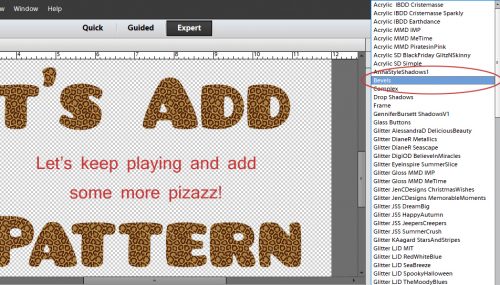
Over the weekend Marcia posted a question on the Just So Scrappy Fan Group Facebook page. She’s just learning digital scrapping and she wanted to know how and why styles are used. First, let’s talk about WHAT they are. Basically, they’re little mini-scripts that tell Photoshop/Photoshop Elements to change the appearance of an object. The object could be a font, a paper item, a shape or almost anything. It’s a lot easier to understand this concept if you can see it at work, so today’s tutorial was born. I’ll be using some layer styles created by Just So Scrappy‘s alter-ego, Ooh La La Scraps that coordinate with her Take Time to Be Kind bundle. Katie Castillo is the talent behind both design lines and she creates a bundle of styles for each of her collections. So let’s have a look at what they are and how to use them.

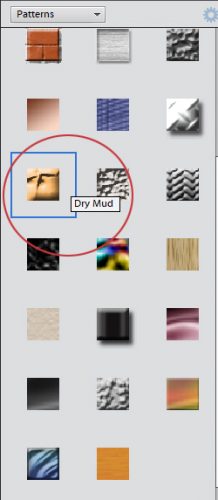
First, I had to load the style files into my software. After unzipping the files, I went to the Effects panel in Elements and clicked on the little stack of horizontal lines shown below.

This menu opens up. Select Load Styles and find the folder with the desired styles in it. They have to be loaded one at a time, unfortunately.

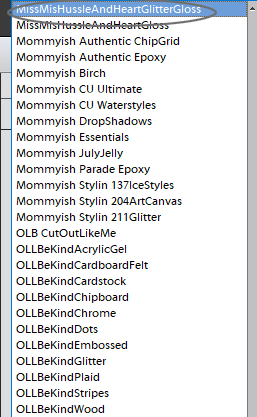
When I unzipped these styles files, I decided to rename the files for the purposes of this tutorial. In the Effects panel this is what I see. You don’t have to do that, I just wanted to make everything quite clear.

The screenshots below show what each different type of style does to an object. I used a large, open font, a chipboard swirl, a cardstock tag and some grungy paint from the Take Time to Be Kind elements pack to demonstrate. Each style comes in all of the colours in the palette for the collection. See what effects they have on different objects.

Acrylic Gel (Transparent Blue)

 Acrylic Gel (Opaque Brown)

Cardboard (Corrugated Cream)

Cardboard (Smooth Green)

Felt (Orange)

Cardstock (Textured Pink)

Cardstock (Glitter Edge Yellow)

Chipboard (Nubby Blue)

Chipboard (Beveled Brown)

Chrome (Fat Cream)

Chrome (Thin Green)

Dots (Orange)

Dots (Glitter Edge Pink)

Dots (Acrylic Gel Yellow)

Embossed (Dots Blue)

Embossed (Brocade Brown)

Glitter (Chunky Cream)

Glitter (Chunky Gloss Green)

Glitter (Fine Orange)

Glitter (Fine Gloss Pink)

Plaid (Plain Yellow)

Plaid (Kraft Edge Blue)

Plaid (Gloss Brown)

Stripes (Plain Cream)

Stripes (Glitter Edge Green)

Stripes (Gloss Orange)

Wood (Smooth Pink)

Wood (Bevel Yellow)

That has given you a look at the colours and textures these styles provide. As you can see, grungy paint is fabulous with a glitter style applied but downright ugly with most of the others. The swirl looks great with any of them, the tag takes on a completely different look. The font wasn’t perhaps the best choice for this purpose. I could see myself creating a matching alpha for this collection using a chunky, bold font. But Katie has already included some stunning alphas so I’ll save my efforts for some other purpose.

That was a very simplistic look at what styles can do. But let’s go a step further and COMBINE some styles to really jazz up an object. I’m using the swirl again because it’s pretty great already, but I might want it to be even more eye-catching on my layout. I resized the canvas so I’d have some room to maneuver. [Image>Resize>Canvas Size or WSNH: CTRL/CMD>ALT>C]

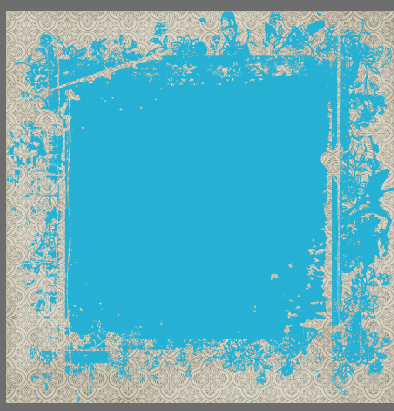
You might notice that this swirl has some texture to it. Don’t be concerned, because styles cover that up.

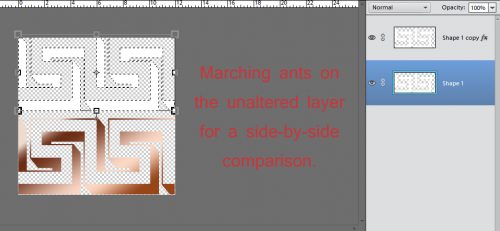
I created a new layer underneath the swirl by clicking on the sheet of paper icon above the layer panel while holding the CTRL/CMD key down. Then, with the CTRL/CMD key still held down I clicked on the swirl thumbnail to select its edges. See the marching ants?

I want to enlarge or expand that selection.

I chose to expand by 10 pixels.

See the space around the swirl? I’m going to fill that, first with a solid colour and then with glitter.

I selected the lower, blank layer for this step.

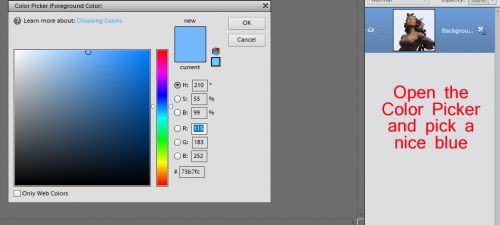
I used the Fill tool (aka the Paint Bucket) and the colour in the foreground. It doesn’t matter what colour this is.

Before I forgot to do it, I Duplicated the swirl layer (NOT the red, solid colour fill layer) [WSNH: CTRL/CMD>J] and it’s these layers that I’m going to play with next. But first, I turned off all visibility for all but the lowest of swirl layers.

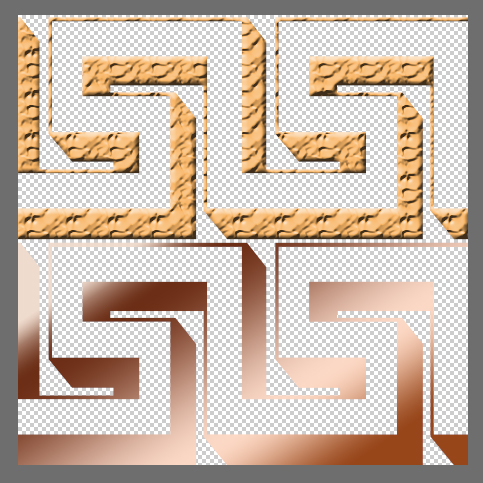
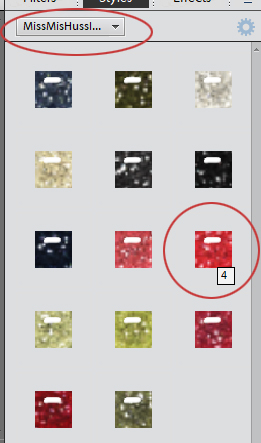
I then went to the Effects panel and selected the OLL Be Kind Glitter style menu. Then I double-clicked on the pink fine glitter style.

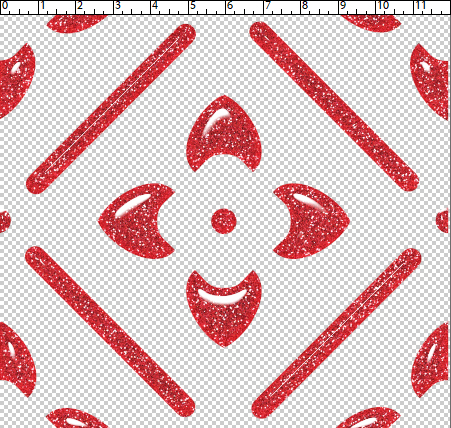
And presto! I have a nice glitter edge, the size of which I chose.

Moving up to the first swirl layer, I then selected the OLL Be Kind Embossed brocade style, also in pink.

Moving up to the middle swirl layer, I selected the transparent acrylic gel style.

Whoa!! That looks awesome!! But… the brocade effect has disappeared.

So I decreased the Opacity of the acrylic gel layer. Now I can see the brocade effect but still have some nice gloss on it. (If you think you need to so you’re not confused, you can change the name of the layer to the style you’ve applied.)

On the very top layer, I selected the smooth pink wood style. It adds a little bit of a bevel and a smidge of a shadow. But it also completely covers up everything underneath it.

Decreasing the Opacity lets some wood grain and brocade effects to show through, while keeping the gloss too! If I was moving it onto a layout, I’d select all the layers and either link them together by clicking on the little chain icon, or merge them together [WSNH: CTRL/CMD>E].

I hope this helps you see the potential with styles. They’re an incredibly powerful tool and can really elevate your scrapping skills. It’s a lot of fun to play with them just to see what they do. Don’t be afraid to try different combinations because if you don’t like it, CTRL/CMD>Z will undo it. Really, the sky’s the limit here!

Remember, if you’ve used a technique from these tutorials, post your finished layout in the GingerScraps Facebook Tutorial Tuesday Challenge Gallery for an opportunity to have YOUR chance to challenge me. If you’re not a Facebooker, you can post a link to the layout you’ve created with the tutorial you used in the comments section here on the Blog. I’ll get a notification and will then enter you into the draw. The first week of each month I’ll have a random draw of all entries and the winner will be announced at the end of the first tutorial of that month.

See you all again next week!

Sneak Peeks March 23, 2017

Happy Thursday! There’s a ton of great goodies coming out!

From Miss Fish

From Tinci

From Aimee Harrison

From Ponytails

From JoCee


From JB Studio

Have a wonderful weekend!


Tutorial Tuesday (Photoshop Elements)

Tearing Up the Sheets (of Cardstock)

Have you ever wondered how other scrappers get their torn paper to look so realistic? Let me show you…

If you were to tear a piece of high-quality cardstock, which generally has colour applied to one or both sides with a white core, you’d get a bit of an irregular edge, with varying amounts of white backing paper showing along it. So to demonstrate this, I’ve used an embossed cardstock from Ooh La La Scraps‘ simply gorgeous bundle You and Me. Fortunately for me, there is also a solid white, textured paper in the kit too, so I’m going to use it for the core. (For the first few steps, I turned the visibility of the white paper layer off.) And to make it easier to see what I was doing, I put a piece of gray patterned paper behind it all.

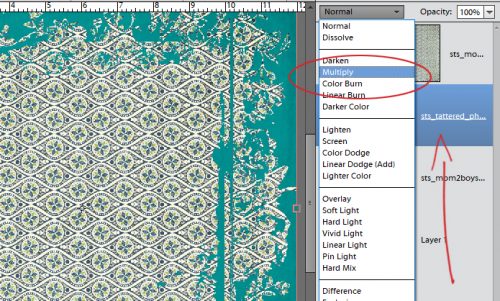
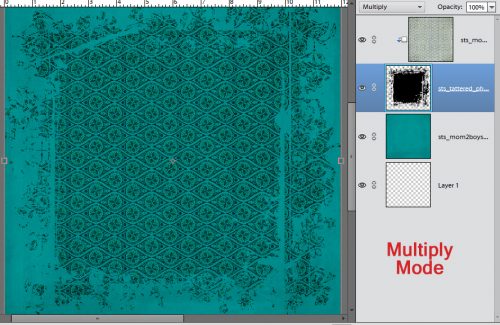
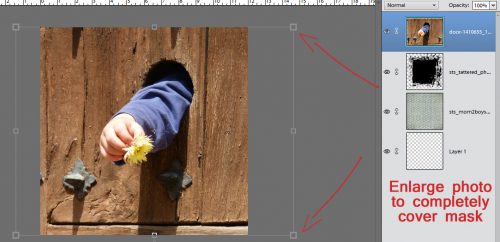
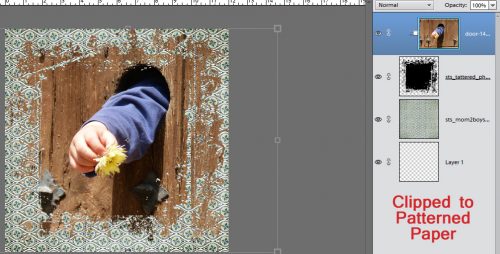
I wanted to have tears along both vertical edges of the paper and I wanted some of the background to be visible. I also wanted to Work Smart Not Hard. So I selected the layer with my pink cardstock on it and using the Rectangular Marquee tool, I selected a portion of paper then Edit>Cut [WSNH: CTRL/CMD>X]I trimmed away some paper from each side. You’ll see why this is a WSNH tip as we go along.

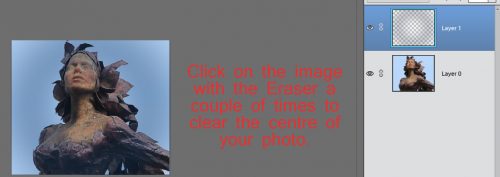
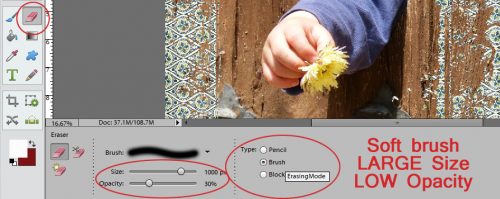
I then selected the Eraser tool and a relatively small brush size. Working along the right side of my canvas, I erased away some of the pink cardstock in an irregular, jagged manner. Don’t try to be too careful because you want it to look… well, TORN. If it might make it easier for you to visualize, take a real piece of paper, any kind, and tear it. For real. Then look at the edge. It’s not gonna be perfect!

Because I wanted both sides to be torn, I repeated the process on the left side of the canvas too. You may have noticed that I broke my own rule of only erasing on a Layer Mask. If you’re wondering why, it’s because it really doesn’t matter if I erase too much of these papers. It doesn’t have to be perfect. It’s better if it ISN’T perfect.

Once I was happy with the edges of my tears, I turned the visibility of my white paper layer back on and trimmed away some of it along both edges in the same way I did with the pink. It made me so happy to see that the texture of the white paper was the same as the pink – that core layer should have some texture to it too.

The next step was to erase the edges of the white paper just like I did with the pink cardstock. Zoom in close to your work so you can see exactly what you’re doing.

This time I erased close in to the pink paper in some places and veered away a bit in others.

When you zoom back out, there may be some bits of white paper still there. These have to be erased too.

After I had my white edges the way I wanted them, I selected the pink cardstock layer again and went back with the Eraser tool and created some little slivers of torn paper as shown below. This would happen with real cardstock, so I always include a few little shreds.

Here’s a full screen view of the two torn edges.

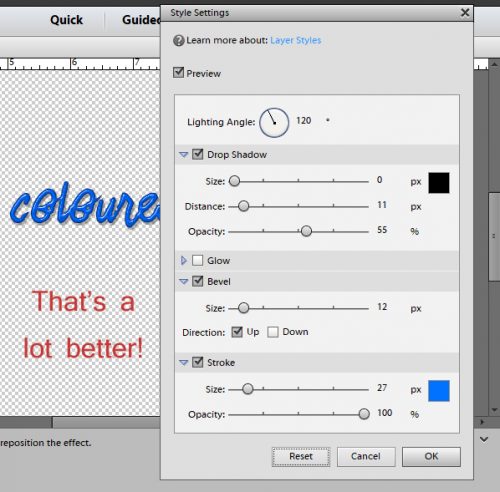
The last step to ensuring realism is to add a very infinitesimal shadow to the cardstock layer. I like to have shadows visible on both edges, so to accomplish that I duplicated [WSNH: CTRL/CMD>J]the pink cardstock layer before I applied a drop shadow. I used a simple shadow, with the following settings: Size 0, Distance 2 and Opacity 75. (These aren’t hard-and-fast, use whatever settings look the most realistic to you. Just remember them for later.)

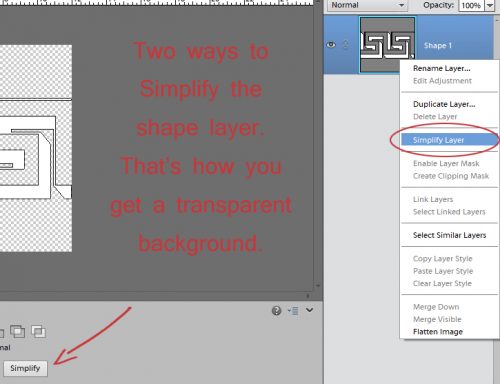
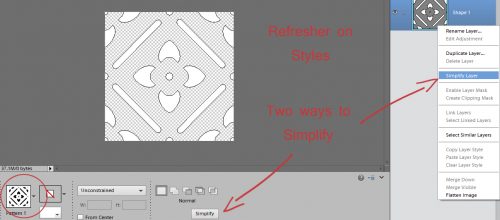
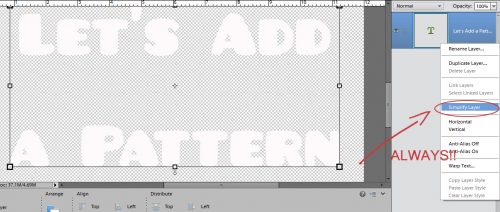
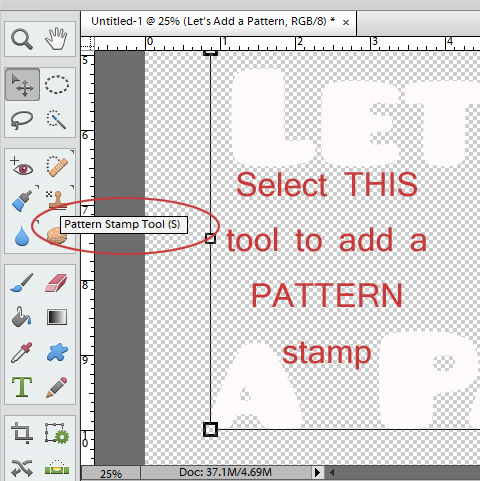
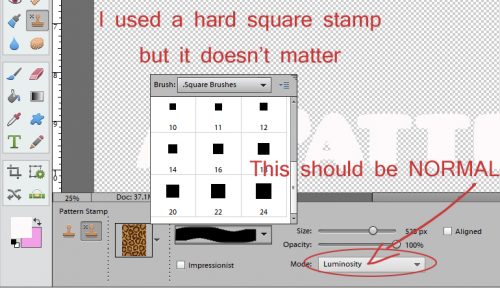
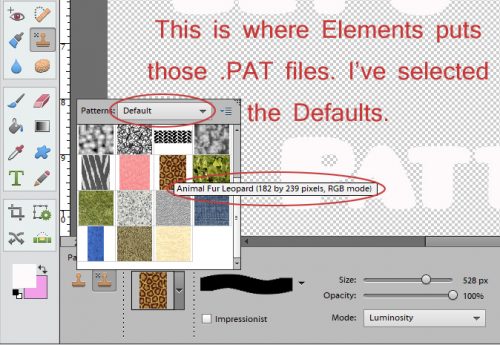
When I had my shadow just so, I Simplified the layer. Doing that locks the shadow to the cardstock so it doesn’t change later.

Then I did the same thing with the second pink cardstock layer, with one difference – the angle of the shadow.

After both layers had that little extra definition provided by the shadows, I merged the two pink cardstock layers with the white paper layer. [WSNH: Select all layers then CTRL/CMD>E]

And here’s the finished layout. Can you see what other techniques I’ve shown you have also been used?

Remember, if you’ve used a technique from these tutorials, post your finished layout in the GingerScraps Facebook Tutorial Tuesday Challenge Gallery for an opportunity to have YOUR chance to challenge me. If you’re not a Facebooker, you can post a link to the layout you’ve created with the tutorial you used in the comments section here on the Blog. I’ll get a notification and will then enter you into the draw. The first week of each month I’ll have a random draw of all entries and the winner will be announced at the end of the first tutorial of that month.

TTFN!

Sneak Peeks March 16, 2017

Happy Thursday! It’s St. Patrick’s Day tomorrow! I hope you have your green all ready to go! This is the last weekend before Spring! Of course it decided to get cold down here in Florida for the first time since January. But the hot weather is coming! Enjoy the final weekend of winter by adding some new Spring kits to your stash to scrap the upcoming fun! I know there’s a few new kits this week that would be great!

From Ponytails

From Aimee Harrison

From Miss Mis Designs

From JoCee Designs

From Tinci

From Craft-Tastrophic

From Lindsay Jane

From Keley Designs

From Amy Stoffel

From Miss Fish

From Blue Heart Scraps

Have a great weekend!

March 2017 Bake Sale

Can you believe it’s Bake Sale time? Check out these great kits and more. Bake Sale kits are $1 from March 15 to March 20.

There are some gorgeous offerinngs this month. Head over to the store and fill up your cart.

Post your layouts made with these in the Gingerscraps Facebook group. We would LOVE to see what you make.

Tutorial Tuesday (Photoshop Elements)

Carol: Objects Inside Other Objects and Going Incognito

At the end of last week’s tutorial I announced that Carol (gnana96) had been selected to challenge my PSE skills. When I contacted her she told me she had two tricks she’d like to learn and couldn’t decided between them. They were both relatively simple so I decided to show her how to accomplish both. Ready, Carol?

In her message to me, she said she was building a recipe book and wanted to use cooking-related elements but was having trouble making them look right. She wanted to know how to put something (ground meat) into something else (a frying pan) so that it looked good. I don’t have those sorts of elements in my stash, so I’m going to use toys instead, but the principle is the same.

I pulled a wagon from a Wimpychompers kit called Chalk It Up (acquired via The Daily Digi). Then I grabbed a puppy and a frog from Boomers Girl Designs‘s Boys Will Be Boys. I proceeded to put the puppy and the frog into the wagon, so to ensure I had enough room to manoeuvre, I changed the Canvas Size. The long way is Image>Resize>Canvas Size [WorkSmartNotHard: CTRL/CMD>Alt>C]. Then I moved the wagon down to the bottom of the canvas.

To see where things needed to sit for the best effect, I put the puppy element and the frog element on layers on top of the wagon, resizing as necessary, and adjusted them so they didn’t extend below the bottom of the wagon. Then to make sure they were properly aligned I used the Align tool. To do that, select as many layers as you want to line up then go to the Tools work space. Determine which edge you want to line up, then click on the appropriate icon – NOT the descriptor, because that does nothing!

Then, with both puppy and frog layers still selected, I moved them under the wagon on the Layers panel. Now it looked like they were inside the wagon, and that might have been enough (ground meat in a pan) but these little things have articulating limbs, so I could take them another step toward really looking like they were inside the wagon.

I wanted to have one of the frog’s legs and one of the puppy’s legs hanging down over the side of the wagon, so I created a Layer Mask. (Lots of previous tutorials have used Layer Masks, so if you’ve read those ones, feel free to skip ahead.) The reason for using a Layer Mask is to give more control over what happens to an image. Layer>Layer Mask>Reveal All [WSNH: Click on the blue-square-gray-circle icon at the top of the Layers panel]

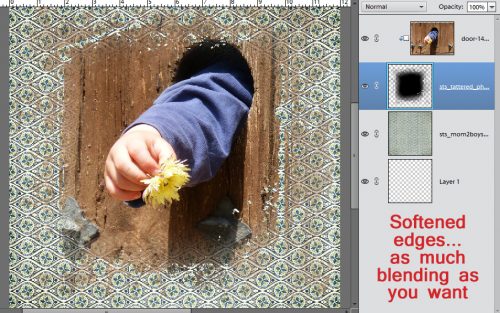
Now I was ready to erase the wagon where it overlaid the frog’s leg. Make sure you’re on the Layer Mask, not the actual element. I selected the Eraser tool with white as my foreground colour.  (Black Conceals, White Reveals) You can toggle between white and black using the X key.

Don’t worry if you erase more of the object than necessary, because you can switch from erasing to painting back by toggling foreground colours. I did the same process to reveal one of the puppy’s legs too.

I zoomed in really close for the painting-back step so I could see exactly where the limb’s edges were. Looking good!

Once I was satisfied the image looked perfect, I right-clicked on the layer in the Layers panel and selected Simplify. That incorporated the masked areas into the layer and eliminated the risk of messing it up. But…

The detailed images of the frog and the puppy had shadows where they overlaid the critters’ bodies. Shouldn’t there also be shadows on the side of the wagon? Simply using a drop shadow Layer Style isn’t going to help (even though I DID use one at this step so that the frog threw a shadow on the puppy where they overlapped) because the layer’s shadow will be behind the wagon. What to do?

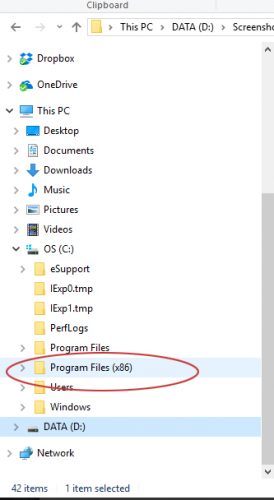
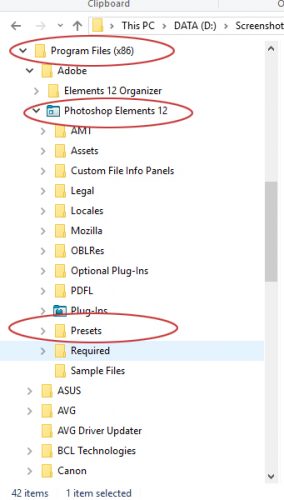
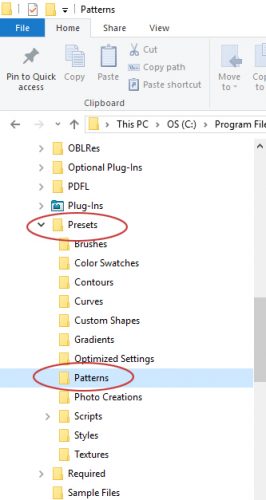
Drop Shadow brushes to the rescue!! These brushes come preloaded with your PSE software, so just look in your Brushes menu for them. Remember, for ease of adjustments later, put your brushes on their OWN LAYER. For this step, don’t worry about the Opacity of the brush, just pay attention to the colour you’ve chosen and the size of the shadow you’re extending. It’ll take some trial and error to get it right so be patient! Following the direction of the light source the designer used, I painted in my shadows.

When I was done, I wanted to soften the edges of the shadows. Filter>Blur>Gaussian Blur will do that nicely.

I pulled the slider to the right to increase the radius of the blurring, and watched the actual image as I went along. When the shadows I’d painted blended into the shadows on my little frog, I selected OK. Then I decreased the Opacity of this shadow layer to seamlessly blend the edges in. You can adjust Opacity first and then Blur if you like. It might give you more control, so try it both ways to see what works best. CTRL/CMD>Z  (Undo) is your best friend!

I repeated the process for the puppy. When I was finished, I knew I wanted to Merge the layers together to move them to my layout as one object.

After selecting all the layers, I merged them as shown. (You’re saying, “Yeah, sure… you used the keyboard shortcut.” And you’re correct!) Then I carried on with building my March 2017 Inspiration Challenge layout.

When choosing something that makes me happy – the theme of the Inspiration Challenge – the first thoughts that come to mind are thoughts of my grandchildren. The second of Carol’s requests was about concealing the identities of her older grands, who value their privacy. So this was a natural! Little A isn’t concealed at all below, is he? I clicked on the Quick Selection Tool, which many people just call the Magic Wand. Using it, I outlined his little face, which put a line of marching ants around it. That’s my “selection”.

Then I went to Filter>Blur>Gaussian Blur just as I did for my limb shadows above.

A little tug to the right and his features are blurred, but his expression is still discernable. It’s really that easy! To conceal parts of her journaling, Carol could select the words in question on her text layer (simplified, of course!) using the Rectangular Marquee tool then blurring the very same way. Now Carol (and all the rest of you grandmothers out there) can scrap photos of her older grands as often as she wants.

Remember, if you’ve used a technique from these tutorials, post your finished layout in the GingerScraps Facebook Tutorial Tuesday Challenge Gallery for an opportunity to have YOUR chance to challenge me. If you’re not a Facebooker, you can post a link to the layout you’ve created with the tutorial you used in the comments section here on the Blog. I’ll get a notification and will then enter you into the draw. The first week of each month I’ll have a random draw of all entries and the winner will be announced at the end of the first tutorial of that month.

See you all next week!

Let’s Celebrate: St. Patrick’s Day

Hello scrappers! Next Friday is St. Patrick’s Day. So today we are going to take a look at some of the fun things in the store that will have us scrapping all things St. Patrick’s Day! I am sure most of us know what that holiday is. However for those who do not:

St Patrick’s Day is a global celebration of Irish culture on or around March 17. It particularly remembers St Patrick, one of Ireland’s patron saints, who ministered Christianity in Ireland during the fifth century. St Patrick’s Day is celebrated in countries with people of Irish decent.

Here at GingerScraps we have a section dedicated to this holiday. If what we showcase below is not what you are looking for, you probably can find it in that section.  We are going to showcase a number of digital scrapbooking supplies for your St. Patrick’s Day projects. We will follow it up with some fun layouts as well. All images are linked of course. 🙂

St. Patrick’s Day Digital Scrapbooking Supplies


Irish Charm by Clever Monkey Graphics || Irish charm is a fun little mini kit to mix and match with all your other St. Patrick’s Day kits. Enjoy! Make sure you check out Tracey’s other St. Patrick’s Day kits. A Little Irish Luck and Lucky Leprechaun.


Happy Go Lucky Page Kit by Kristmess || This wonderful kit was made as part of her Happy Go Lucky Collection. This collection is perfect for all your St. Patrick’s day celebrations but versatile enough for many other spring pages.


St Patrick’s Day Templates by Blue Heart Scraps


Lucky Me Digital Scrap Kit by Just So Scrappy || This kit is part of the Lucky Me Collection


March Sectional Templates by Miss Fish Templates || March Sectional templates offer you 2, 12×12 digital scrapbook templates perfect for your favorite spring photos. These templates have divided sections to show off lots of fun patterned papers along with your photos. The Flower and Shamrock/clover shape let you scrap your fun March memories in a unique way.


Lucky Me by BoomersGirl Designs || Not just for St. Patrick’s Day, this kit is also perfect to help us celebrate the everyday things in our lives that make us feel lucky. The fresh color palette includes white as well as shades of purple, green and yellow.


Project 2015 March – Kit by Connie Prince || This kit is part of the huge Project 2015 March Collection


Oh So Lucky! by Magical Scraps Galore! || It’s always important to remember just how lucky we are. In shades of green and turquoise, with a dab of white and black, Oh So Lucky! collection is perfect to scrap St Patrick’s Day celebrations, your Irish heritage, as well as March or springtime layouts and all those lucky everyday moments that you wish to cherish forever.


Lucky Girl: A collaboration from our GingerScraps designers.
This kit includes:
1 full alpha, 34 papers, 36 elements, 6 journal cards


Lucky One Kit by CathyK Designs


St Patrick’s Day Layouts

Lucky by kristal


2013 Being Irish for the Day by TraceyMonette


Be the Rainbow by Jazz2000


County Kerry by Elizabeth


St. Patrick’s Day by familyhistoryscrapper


St. Patrick’s Day Freebie!

I hope you enjoyed these great items and lovely scrapped digital scrapbooking layouts for St. Patrick’s Day. I want to leave you with a freebie alert. Make sure you are checking out of Challenge Forum; and participating of course. This month’s Mini Kit Challenge has a mini kit perfect for those St. Patrick’s Day projects. Click HERE to go check it out.


In case you were wondering more about those fun challenges; and what is in it for you (besides new layouts):


March 2017 – Challenge Reward Info
Monthly Challenge Rules – 

  • You will receive the collab of the month in which you COMPLETE your 10 challenges.
    For Example:
    You do 5 in March, 2 in April and 6 in May – you would get the May collab.
    You do 7 in March and 4 in April – you get the April collab
    You do 10 each month you get EACH Collab!! (BEST DEAL!!)
  • Challenge rewards will be sent out after the 5th of the month
  • All challenges layouts must have at least 50% of GS products – Daily Download and Welcome wagon counts. (See individual challenge rules for specific rules on usage such as Designer Spotlight Challenge)
  • Speed Scraps and Chats DO NOT count towards your challenge rewards (of course your host will usually provide fun goodies for all attending their SS or Chat)
  • Every challenge must have a unique LO. Meaning, you can not use the same LO for more then 1 challenge.
  • You are responsible for tracking your completed challenges, find the monthly tracking thread in the “Cookie Jar”, and follow the guidelines.


Challenge Rewards:
Complete any 10 challenges, and you will receive a brand new designer collab!
Each month we will offer a brand new GingerBread Ladies collab as a reward for completing the GS challenges.

Complete any 10 challenges, during the month of March 2017, and receive this collab for FREE!!

Brighter Days Ahead: A collaboration from our GingerScraps designers
By Designers: Craft-tastrophic, Lindsay Jane, Neverland Scraps, Ponytails Designs


  • 1 Full Alpha
  • 39 Papers
  • 110 Elements