Tutorial Tuesday (Creativity)

Playing on Emotion

December. The “most wonderful time of the year”, right? But not for everyone. Many people struggle with depression, anxiety and physical illness that make “the holidays” a very difficult time for them. Because of how I earn my living, I see the melancholy side of things all too often… when children in my care die in December I know their families will struggle with so many conflicting emotions for the rest of their lives, and I’ll struggle right along with them. So this week my tutorial will take a lightly different approach than usual and focus on emotion. I’ve found that scrapping the emotions I feel helps me process them better and by processing them better, I live with them better. It’s called catharsis.
Art journaling is a perfect method of scrapping emotion. But before you start thinking that only negative emotions qualify for an art journaling layout, let me assure you that ALL emotions are perfect topics for art journaling. Later I’ll show you what I mean. And I don’t want you to panic thinking art journaling is hard, or that it’s so out of your comfort zone that you could never do it. Because I can promise you, it’s there, it’s in you. You might just need a little nudge to find your inner artist.

The basics of art journaling layouts are pretty straight-forward. They can include photos, but don’t have to. They generally need some grunge, either from the kit you’re using or via the use of brushes. Actually, brushes are perfect for this type of layout (just remember to put them on their own layer!!) and the possibilities with them are endless. Doodles or scribbles look great in the background, or even over your journaling or photo. Word art makes short work of the “journaling” part of it. Hardware such as staples, clips, wire, screws and other hard objects help make your statement. Masks are another great AJ tool. You can clip photos to them to reflect a mood, or clip papers to them to make your background more umm… artsy. Which brings me to an opportunity to belabour the obvious: Bryony van Wyk, the creative genius behind Heartstrings Scrap Art, makes it so easy to create a moody, emotionally-expressive layout with her templates. The layout I’m going to share with you in a bit was created using her December Buffet Thoughts in My Head collection, although I didn’t use a template. It’s filled with paint, grunge, doodles, stamps and other artsy items perfect for this technique. Oh, and glitter is also an amazing addition and can totally reflect a mood depending on its colour.


My layout is sad and somber, despite the colour palette. Contrast it to this one by catgoddess that has a very hopeful tone to it. Same kit, very different feel.

Then there’s this one by cinderella that is so encouraging! She used Connie Princes All About Fall Daily Download kit for this beautiful example.


There are some great options in the GingerScraps store for art journal layouts, reflecting all sorts of mood. Here are a few I found in just a few minutes.

Aimee Harrison

Aimee has a LOT of artsy word art options.

Pretty as a Peacock Quotes can work for inspirational or self-affirming layouts.

Same for Celebration of You Quotes.

And the Celebration of You Word Bits are terrific additions to any layout. Have a look at her other word art packs… there’s something for everything!


Aprilisa Designs

Lisa usually creates some paint-splattered, smeared, grungy papers for each of her collections, and has some torn papers too. Whatever colour palette you might choose, you’ll probably find something in her shop to help you out.

Nature’s Beauty is an example.

Free Spirit Torn Papers. Depending on your mood, these could be super!

She also has some fabulous scatters like these Winter Joy ones.


Laurie’s Scraps and Designs

Many of Laurie‘s collections include fantastic grungy elements.

Space Wars Grunge could work for a lot of moods.

Ditto for Girl Power Grunge. Ooh, with Aimee’s Peacock word art… YEAH!

I Am Strong Grunge is feminine but powerful. Laurie is your go-to for grunge!


Little Rad Trio

Jennifer has some terrific goodies too!

Every Storm could be used for traditional scrapping, but also has a lot of art journal potential too. That alpha, right?? But then you can also include things like flowers and leaves, or flairs, or string, or any of the more traditional scrapbooking elements, as long as they reflect the emotion you’re trying to convey.


Ponytails Designs

Natasha too has some inspiring stuff in her shop.

Like Making Your Way word art.


Word Art World

Jennifer is the queen of saying what’s one her mind. And grunge is something else she’s got down pat.

The Journey of a Lifetime might be a travel kit, but this grunge is awesome for emotional expression.

Live Out Loud has some possibilities.

And Dare to Dream has a bit of introspection to it.


Now that you’ve got some idea of what to look for, you’re more than halfway there. When you’re creating your layout, play with those blend modes on your brushes and word art to see how they enhance or distract from your mood. When I was working on the layout above, I moved things around a lot before I settled on their final location. I moved layers up and down, tried out blend modes and colour overlays, tweaked shadows and just went with what pleased my eye. I changed my journaling more than once to say what I needed to let out. Now my goal is to find something joyous to build an art journal layout around to balance the sadness this one released. I know it’s there, I just have to find it. What emotion do you need to express?


Let’s Celebrate – Summer!

Winter is just around the corner where I live. We actually don’t get much of a winter here though. Usually we just get a bit cold, and that is it. We hardly see any snow. When we do, it shuts us down. We just cannot handle it. Such is the life of the Southern parts of the States. That being said, it is heading into Summer for you guys in the Southern Hemisphere. With that in mind we are going to take a look at a lot of the great Summer things we have in the store to scrap those layouts. I am a cold weather loving gal. Looking at all these Summer goodies though makes me miss those long summer nights and the swimming pool.

If you are not familiar with our Let’s Celebrate posts, here is a little information about them. Get ready to be blown away with a lot of great items from the store. These posts are usually image heavy. (I have a hard time narrowing down the items to a reasonable amount for a blog post! They are all just too great). Also all images are linked to their counterpart in the store. GingerScraps has so many great designers; and a lot of them have been here for years. Therefore we have so many great items spanning pages and pages. If you don’t see something you like in today’s post, you can always check out the store for more. In fact there is a section just for Summer related items.


A fun collection for all your summertime memories! Summer Delight – Kit includes 29 papers (17 patterns and 12 solids), 74 elements, full alpha (uppercase and lowercase letters, numerals, common punctuation). SFH/SFO


Make a splash with this fabulous pool themed collection!
This download includes : 12 patterned papers, 12 not so plain papers and 51 elements


This super page kit was made as part of my To Honour Lulu Collection. This collection is great for all your summer photos, whether or not you’ve been to Hawaii! It’s great for any beach shots, or summer photos, flowers and much much more.


Summertime and the living is easy… Make your scrapping easier on you with Sizzlin’ Summer Word Art. These 6 bright and cheery word art bits are perfect for captioning your photos or titling your page. Sentiments like “fun in the sun” and “beat the heat” succinctly sum up summer highlights, while the bold fonts pair nicely with your favorite summertime kits. Spend less time scrapping and more time enjoying “sunshine and summertime” with Sizzlin’ Summer Word Art.


Summer is all about fun in the sun and splashing in the water. Whether you prefer to spend your time at the beach, tubing down a river, or diving into the pool, make the most of those memories with Belly Flops. This brightly colored scrapbook kit screams summertime and features seasonal favorites like popsicles and watermelon. But what makes this kit shine is its thematic elements – swimming kids, pools, goggles, sunglasses, and a bright sun. Cannonball right in to scrapping your wet and wild photos with Belly Flops.


Taste of Summer – Enjoy the sweet taste of summer stocked with delicious watermelon content (both the watermelon and the seeds) along with some darling sweet kids. The bright color scheme is perfect for summer with fushia, black, and green along with pops of bright yellow and white. To add to your yummy feast, there is plenty of other generic elements to show off those everyday sweet moments.


Vacation at home or away, this kit is great for both! Was included in the daily download for August so check your stash!


The Let’s Flamingle Digital Full Kit contains unique images to turn your projects even more wonderful.
Hand-drawn and colored at the highest quality by Paty Greif Design Studio. The files have a resolution of 300dpi for an optimum printing quality.


We would love to see your layouts with these products. Or any of the lovely Summer products you can find in the store. Make sure to upload your layouts to our gallery; and then come back here and link us up in the comments. We like to show our fellow scrappers some gallery love!

Also if these digital scrapbooking supplies shown are not what you are looking for to scrap your Summer memories, make sure to take a look at the store. You can find that section dedicated to all things Summer HERE. You can also take a look at our past Let’s Celebrate Summer posts. Here are three of them for you:

Sneak Peeks November 30th, 2017

Wow! Tomorrow is December! Where did the year go? There is one month left of the year! And it’s the best time of the year! Plus tomorrow is a new Buffet! I get to show you a peek! Lets get to it!

First there’s a few non buffet new releases to see!

From Lindsay Jane

From Neia Scraps

And lets see a peek of the Buffet!

From Scraps N Pieces

From Aimee Harrison


From Heather Z


From Connie Prince

From JoCee


From Mags Graphics

From Tinci

From Luv Ewe


From Miss Mis

From Little Rad Trio

From Heart Strings Scrap Art

From Aprilisa

Image may contain: 2 people

Tutorial Tuesday (Photoshop Elements)

A(nother) Way with WORDS

I think we’re all becoming a little pressed for time right about now. The countdown to the holidays is on and there’s always so much to do! So I’m keeping this tutorial short and sweet.

Once again, my inspiration came from an image that popped up in my Facebook newsfeed. Julie’s gorgeous layout, using a kit created by Fayette for PickleberryPop, first caught my eye because of that fabulous word art “Believe”. I HAD to use something similar and thought it might make a good, quick tut. So here it is!

I still have photos from my 2014 trip to Ireland that I haven’t scrapped with yet. When I saw Heartstrings Scrap Art‘s The Bigger Picture 9 collection of templates, I knew right away that I had perfect photos for them. So of course, I used Magical Scraps Galore‘s Be Brave kit for its Celtic flavour, with the addition of a couple of flowers from Heartstrings’ Nature Captured (to pull the colour of the rhododendron from the photo), to scrap a layout using one of the many photos I still want to showcase. The alpha that came with Be Brave worked well for this, but any font or alpha you like will also work. Just remember if you’re using a font, you’ll need to Simplify the layer to give you flexibility in altering it. I arranged my alpha for my title with the initial capital larger than the rest. Then I merged the lower case letters, but you could just link them together by selecting all the letters then clicking on the little chain icon between the eyeball and the thumbnail.

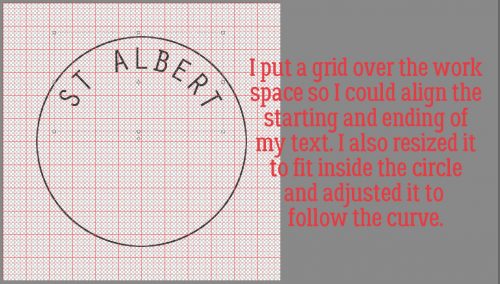
I applied a Grid over my image by using the WSNH (Work Smart Not Hard) keyboard shortcut CTRL/CMD>’. The B still wasn’t big enough for how I wanted my title to look. So then I had to Resize my Canvas. Image>Resize>Canvas [CTRL/CMD>Alt>C] Below is another image showing these steps.

Now for the magic! Image>Transform>Skew will let me shrink my title into a wedge, just like the word art in Julie’s layout. I decided I was only going to shrink the lower case letters, but you can do whatever makes you happy. Using the grid’s lines as reference points. I moved the corner handles at the far right of the Bounding Box toward the centre. I kept the two corner handles on the same vertical line.

I still wasn’t satisfied with the size of the B so I went through the Image>Resize>Canvas steps again to give me room to make it bigger.

When the menu box opens up, you can simply type in the new dimensions of your canvas. If you want to enlarge the whole canvas by the same amount in both height and width, click on the Relative box and it’ll automatically do the math for you.

This is what my title looks like on my layout. It gives a sense of distance and movement, don’t you think?

So you see, quick and easy doesn’t have to also mean plain!

Sneak Peeks Black Friday Edition

Happy Thanksgiving to all the Americans out there! And happy Black Friday! Did you see all the awesome sales happening??? Our designers also have some new goodies! Lets take a peek!

From Ponytails

From Tinci


From JoCee

From Aimee Harrison

From Clever Monkey Graphics

From Heart Strings Scrap Art

From Pretty in Green

Have a wonderful Holiday weekend!

Tutorial Tuesday (Photoshop Elements)

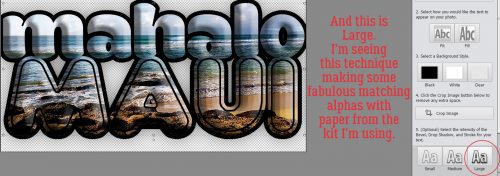
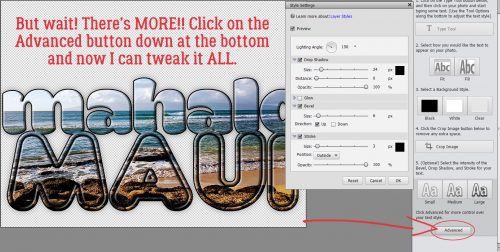
More Fun with Fonts – Die-Cut!

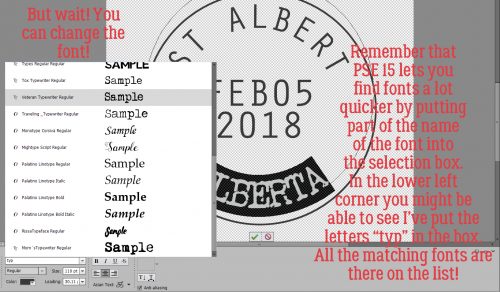
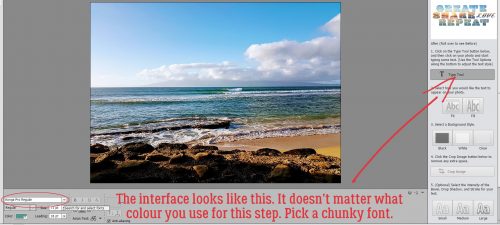
Recently I had an image that kept popping up on my Facebook (one of course I can’t find again now that I want to…) showing this great die-cut paper title where the centres of the letters were cut out and the edges were tack-sharp. If I recall correctly, it was an ACTUAL paper title, not a digital version. But since we’re all about the digital here, I set out to find a way to replicate it. Before I get into that, I wanted to share something that I discovered accidentally, since it didn’t work in PSE 12. Did you know that in PSE 15 you can go directly to the font you want to use (if you know what it’s called) just by clicking on the font box as shown below and starting to type the name. I’ve been using Lumberjack Regular for the captions on my screenshots for these tutorials since I made the switch to 15 and this discovery is such a time-saver!


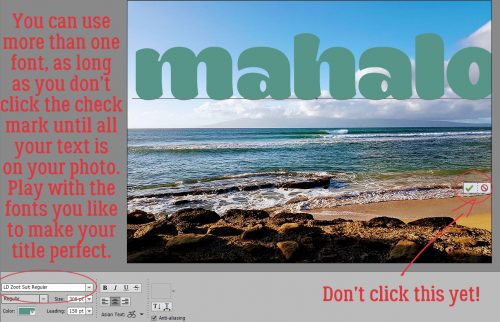
First I opened a new file on my workspace. It can be any size you want – I like BIG – because you can resize it later. The colour used for the font doesn’t matter – you can always change it. This technique works best with a chunky san serif font (did you use those tags when you set up Main Type?). The font shown below is called Haettenschweiler Regular. I’m not sure about that capital “R” so let’s see what happens…

I think those of you who read my tutorials regularly could predict my next instruction. Simplify the type! Just make sure you don’t have any spelling boo-boos because once it’s simplified you can’f fix it.

Now you want to Select your text by clicking on the Layer thumbnail in the Layers panel. There are the magic marching ants.

There are some adjustments you can make to that selection by clicking on the Select tab along the top of the screen, then choosing an option from the dropdown menu. In this case, you’re going to select Modify>Contract. What this does is move the marching ants toward the centre of the selected area. Expand would move the selection outward.

This is where you’ll need to experiment a little. Enter a number in the box and click OK to see what your altered text looks like. If you’re not happy, Undo (CTRL/CMD>Z) it and try again until you find the one you like.

Here’s what it looks like Contracted by 45 pixels, and it’s NOT what I wanted. See how the marching ants overlap each other on the “R”? I changed the number I put in the box and carried on. I still didn’t like what I was seeing. For the sake of a learning experience, let’s keep going.

To remove the area outlined by the marching ants, you can click on Edit>Cut or use the WSNH (Work Smart Not Hard) shortcut CTRL/CMD>X.

And I don’t like it at all. Not even a little. The cutout area isn’t smooth and doesn’t follow the contours of the font the way I want it to.

So there are a couple of ways to resolve that issue. One is to use a different font. This one below is called Segoe UI Black and it will work much better. Other default font possibilities are Arial Black, Bauhaus 93 Regular, Britannic Bold Regular, Copperplate Gothic Bold Regular, Ebrima Bold, Konga Pro Regular and Poplar Standard Black.

The second way to resolve the issue is to use a stroke, rather than cutting out the middle. Create a new layer above the font layer to put your stroke on. That gives you a lot more flexibility. Go bold, with a BIG stroke and have it centred on or inside the edge of the font. If you put it on the outside you might end up with a similar look to the failed one above.

I know this image is difficult to see. It wasn’t when I was working on the screenshots. Honest!

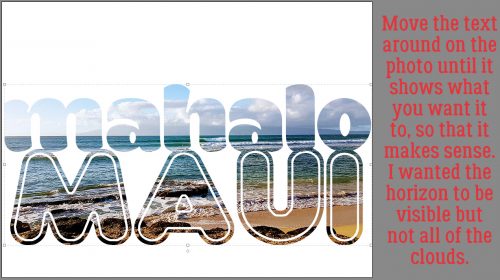
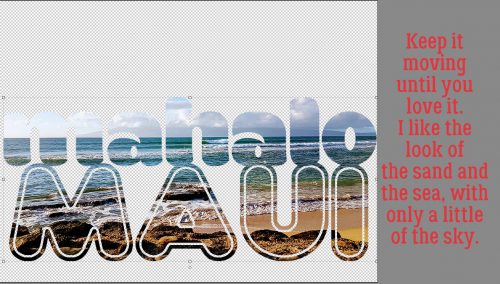
Here it is with a patterned paper clipped to it. Nice, crisp, sharp edges. If you want, you can move the letters around and have them overlap a bit. Just remember to merge the layers so they’re moving as one.

There are more ways to play with this. If you want to add a glittery layer or appliqué your die-cut letters onto another paper, you would use the same steps as for creating the outline, only you’d create the new layer UNDER the font layer. Add a stroke of an appropriate size to the outlines. Then you can apply a glitter style to the stroke!

It occurred to me that some of you may not know how to load the awesome layer styles designers like Aimee Harrison, Magical Scraps GaloreMiss Mis and Just So Scrappy/Ooh La La Scraps create. So here’s a quick little tut-within-a-tut. After you’ve unzipped the style files, you can rename them if you like. I’ve done that so I can find them more easily. Then copy those files into the Adobe folder on your computer. Program Files>Adobe>Photoshop Elements #>Presets>Styles. That puts them all in one place. Then in PSE, click on the Styles tab down at the bottom of the Layers panel. Once that panel opens, look at the upper right corner of the panel where there’s an icon that shows a stack of 4 little parallel lines with a tiny arrow to the left of them. Click on that icon. It opens a menu as shown below.

Click on Load Styles and PSE will open up that folder you just filled up with presets. Then you can select the style collection you want to load. Easy peasy!

Okay, so now I’ve created a stroke underneath my title and hit it with a white glittery style.

Looks good, but a little blah. So maybe a Bevel? There’s a fast way to find the Simple Emboss bevel style and that’s to click on the More tab down there next to the Styles tab. Inside the Favorites menu there, PSE has very kindly put a shortcut to the Simple Emboss. A quick double click and there’s a nice bevel on my die-cut.

Don’t neglect a drop shadow for your newly beveled diecut!

Here’s what my finished title looks like on the layout. I used a lovely kit from our November guest designer Day Dreams ‘N Designs called A Snowy Adventure and a template from Dagi’s TEMPtations (her store closes soon).

I hope you give this one a try!

Let’s Celebrate – Thanksgiving

Thanksgiving is next week here in the States; and was last month in Canada. I don’t know about you, I never scrap my photos right after I take them. I usually sit on them for a while. With that in mind, I am stopping by today to show you some great digital scrapbooking supplies for scrapping your Thanksgivings. Be it next week, last month, or years ago! (If Thanksgiving isn’t something you would scrap, but you would like to scrap things you are thankful about, check out THIS POST.) I am going to just jump right into show you the great items. Of course if you are looking for something else besides what is here on the blog today, GingerScraps has a section dedicated to all things Thanksgiving!  All of the images below are linked.

This wonderful Page Kit was made as part of my Count Your Blessings Collection. This fun collection is perfect for all your Thanksgiving digital scrapbooking needs and so much more!


Thanksgiving is here, and it’s time to gather ’round the dinner table for a turkey feast! This WE GATHER TOGETHER Collection is full of rich colors and traditional Thanksgiving-themed elements and papers to scrap your family memories.

[Read more…]

Sneak Peeks November 16, 2017

Happy Thursday! I can’t believe there’s only one week until Thanksgiving and then it’s Black Friday! I am sure our designers will have some awesome sales and new products! But hopefully this week’s new releases will tide you over until then!

From Tinci

From Lindsay Jane

From Heartstrings Scrap Art

From Aimee Harrison

Have a Wonderful Weekend!

~~November Bake Sale~~

Good morning fellow GingerScrappers!! It’s Bake Sale time. Every month our designers pick out kits they want to offer you for a special price. These kits are available at this price from November 15-20 for only $1. Yes…. just $1. Let’s take a look at what our designers are offering this month!


Jump over to the GingerScraps store and start shopping. Stop by the GingerScraps Facebook group page and show us what you have made with your goodies.

Happy Shopping!!

Tutorial Tuesday (Photoshop Elements)

You’ve Gotta Know When to FOLD ‘Em

Are you ready for some football? Oh wait, that’s NEXT week…

I have a neat little visual trick for you to add to your digi-scrapping arsenal. Have you ever wanted to know how others get those cool folded papers they use? In 20 minutes you’ll be doing it yourself!

I’m showing this technique against a background of other papers but you can totally do it with a transparent background if you like. The papers below are the ones I’ve pulled onto a template (credits to follow) and if you look closely you can see that I’ve eliminated the shadow from the top, blue sponged paper by Clearing the Layer Style. It’s not an essential step so if you’re working with a paper within a template, don’t worry about it.

The first step is to select the Polygon Shape tool. Then when the tool options menu opens, tell it you want 3 sides. Use one of the colours from the paper, or white for your fill colour.

Don’t be concerned that PSE wants it to be an equilateral triangle, because you’re in control and you can bend it to your will. To make an isosceles or scalene triangle (yeah, I remember a bit of 10th grade geometry – some days I scare myself!) go to Image>Transform Shape>Skew.

“Grab” one of the handles on the bounding box and pull it in the direction you want it to go, and adjust the shape to make a right triangle. That will ensure you’ve got a little smidge of the underlying paper visible later.

Once you have your triangle the shape you want – mine is a narrow wedge – don’t forget to Simplify it.

Now move that triangle over so that one of the long edges is flush with the paper edge. (I turned visibility for the papers underneath off so these steps will be easier to follow.)

For this part of the process, you want to bottom edge of the triangle to extend past the bottom edge of the paper.

Now Select the edges of the triangle by clicking on the Layer Thumbnail to get those marching ants.

Look to see that you’re on the layer with the paper you’re folding and not any of the others. Then Cut the triangle from the paper using the CTRL/CMD>X keyboard shortcut.

Go back to the triangle layer and Deselect it (CTRL/CMD>D) then drag it from one lower corner until that same edge you lined up with the paper’s edge is lined up with the new cut edge. Check that the pointy top of the triangle is exactly positioned on the edge of the paper as shown – zoom in as much as you need to. Then hit the green checkmark.

That should give you a little sliver of your paper visible right at the bottom of the image, as shown below. If you want to, you can adjust the shape or size of your triangle to make it happen, but that shouldn’t be necessary.

Of course, this fold needs a proper shadow. Once again, Select the triangle by clicking on the Layer Thumbnail. Create a new layer underneath the triangle by CTRL/CMD>clicking on the New Layer icon – the single sheet of paper at the top left of the Layers panel – to put your shadow on. Then using the Paint Bucket tool, fill the selected area on that new layer with the shadow colour. If you’re using a template, you can right-click on the fx icon on any of the shadowed layers then click on the colour swatch. Copy the colour number from the menu box. Then click on the Foreground colour on the Tools panel and paste the number into the same box. That way all the shadows will be the same colour. Now you’ve got a dark triangle layer underneath your folded paper. Nudge it over so you can see it.

Apply a Gaussian Blur filter to the shadow then tweak the Opacity down to somewhere around 50%, or whatever looks similar to the existing shadows on your template. You can then change the Blend Mode to Linear Burn and your shadow is perfect. You can then Smudge the shadow layer so it’s narrower at the top of the triangle and wider at the bottom, as you’d expect to see if the folded paper isn’t lying directly on top of the paper under it. Another way to accomplish that is to slightly tilt the shadow.

If you’ve Cleared the Layer Style on your paper layer at Step One, add it back now. I almost forgot that step!

Easy-peasy, isn’t it? My layout was created for the November Designer Spotlight challenge using a template from Aprilisa‘s Picture Perfect 155 and Pixelily‘s Daily Stuff kit. This is what it looks like altogether.

Let me know how you like this technique!