Designer Spotlight: September 2022

Neia Scraps and JB Studio

How can it be September already? This month we have a dazzling duo in the Designer Spotlight. Edneia, aka Neia Scraps and Dani, aka JB Studio have joined hands and talents for us and we’re not going to be disappointed! I had a chat with these amazing women and want to share what I’ve learned about them with all of you. Let’s go!

J: First we’ll do the whys and wherefores. Neia, what made you decide to design?

N: When I first discovered digital scrapbooking, I was pregnant with my youngest daughter. Today she is 11 years old. I love drawings and cute little things and I got completely involved with this world. I had time, a computer and a lot of willingness to learn at my disposal. I started making pages and courses and soon I was designing my own products.

J: I’ve been a fan for a long time! Dani, how long have you been designing?
D: Since September 2007.
J: That long? I had no idea!! Happy 15th design-iversary. Neia, what do you use to create your designs (program, additional tools, etc.)?

N: I use a desktop computer, my most used programs are Photoshop CC and Illustrator CC. I still use a scanner, a graphics tablet and I have a Canon camera.

J: Dani, can you describe your design workspace for us?
D: I’m blessed that in the new house I have an entire room for myself. So now I want to make it an inspiring creative studio, I’ll paint the walls and buy furniture and hang art on the walls. I worked in the family living room for long years. So this is a great achievement for me. Besides my laptop, I have lots of notebooks and pens and washi tape and brush pens because I bullet journal.
J: That’s fabulous! I have a dedicated room for my crafting too, but it’s still stuffed full of boxes and badly needs organization. So. Much. Work. So let’s change the subject. What is your favorite kit currently in your GS store and why?
N: Take Note is my favorite kit right now. I had fun creating it and it has elements that I love. I love characters and I love pink.
D: This is such a hard question because I love creating and each creation has its own special meaning to me. Recently, I created Empty Nest which reflects my own thoughts and feelings when I think that my daughter is almost turning 18. I also created a collection I’ll be releasing soon at Gingerscraps named Be Strong which reflects the emotional overwhelming moment I’m living now. It’s more like a reminder to myself to take care of myself and be strong because it will pass soon. Most of my designs reflect my own feelings and thoughts and they are also a way to inspire others.
J: Dani, those both sound quite special. I’ve already bought Empty Nest, so I’ll keep an eye out for Be Strong. What one word would your friends and family use to describe you?
D: Unique. I think that’s because I have a unique view of things and life.
N: Fun!
J: Both are sterling qualities, don’t you think? Now, let’s talk about your perfect vacation.
N: What doesn’t end? LOL … Well, my favorite places are Orlando, Florida and the North Coast of my state of São Paulo.
D: I don’t think I can describe ONE perfect vacation. I like to experiment and experience. So the one I describe would be perfect for the first time and I would like to do it differently in the next one. LOL
J: You’re both in Brazil, right? I have a dear friend who grew up in Porto Alegre who now lives in Canada. I think I should put Brazil on my bucket list. Here’s a curve ball for you. Are you more likely to dance or sing in the shower?
N: I’m sure I can do both, very badly I confess, but yes, I do.
D: Sing, sing, sing. I love singing.
J: Do either of you have a green thumb? What do you grow?
D: Not yet. This is in my plans to have a beautiful garden here in the new house, too. I cannot dedicate myself to that now and we have a young dog who would destroy it all. So, when it’s the right time I want to start gardening. I want to grow flowers and also some vegetables because I like cooking.
J: Having a blank canvas where you want a garden to be is both a blessing and a curse! So. Much. Work. Can you tell my Long-COVID fatigue is getting to me today? Pshhh.  Here’s a thought… If you could have a super power, what would you like it to be?
N: I wish I had the power to heal any kind of illness or injury or anything that might be wrong on any neurological/psychological level.
D: I too would like to be able to heal people. My daughter has diabetes and my mother has a rare type of rheumatism. Sometimes I feel useless, there’s nothing I can do to avoid their pain.
J: Wouldn’t it be lovely if we could just make it all go away? What about food? Dani, do you have a favourite meal, one you could eat every day for the rest of your life?
D: This is easy – Japanese food: especially sushi.
J: Nope, not for me!! Tempura maybe, but sushi is not for me. Neia, If you had a warning label, what would your say?
N: Beware, it looks harmless but bites if provoked! 🙂

J: What celebrity would you like to meet at Starbucks for a cup of coffee?
N: In 1995 a band called “Mamonas Assassinas” was very successful in Brazil. I was 15 and I couldn’t go to any of their shows. They were a very irreverent and fun band. It was a meteoric success that lasted a year and they tragically died in a plane crash at the height of their career. To this day I miss them because it felt like they were part of my life. I would love to sit down with them, have a coffee, have a good laugh and say goodbye. They were great and made the childhood and youth of millions of Brazilians much better!! and i just wanted to say thank you!!!
J: They sound amazing! I think they could be compared to Canada’s Bare Naked Ladies. What did you want to be when you grew up?
D: A singer and actress.
J: Lots of little girls were right there with you, I think. What’s the best compliment you’ve ever received?
N: My daughter said I’m a great mother. Not because I let her do whatever she wants, but because she feels like talking to me and knowing that I love her.
J: Aw, that’s so sweet! One of my daughters said something similar years after she became an adult. It almost made up for all the years she thought I was a witch. 😉 I’ve taken up enough of your time, so I want to thank you for chatting with me. Best wishes for a very successful September.
Before I end this post, I want to remind you all that not only are Neia and Dani providing the September Daily Download called One More Chapter, they’re also hosting this month’s Designer Spotlight Challenge! And….. being the generous souls they are, they’re also discounting their stores, 40% off with NO COUPON CODE needed. I think I need to go shopping… See you all in October! <editor’s note: I apologize for the formatting on this post. I’ve played with it for nearly an hour trying to fix it, but without success. Sorry!>


September 2 2022: Fresh Baked

Woohoo it’s Friday!! Hope your week has been wonderful. Make sure you read all the way to the end today! There might be a little teaser for you. 

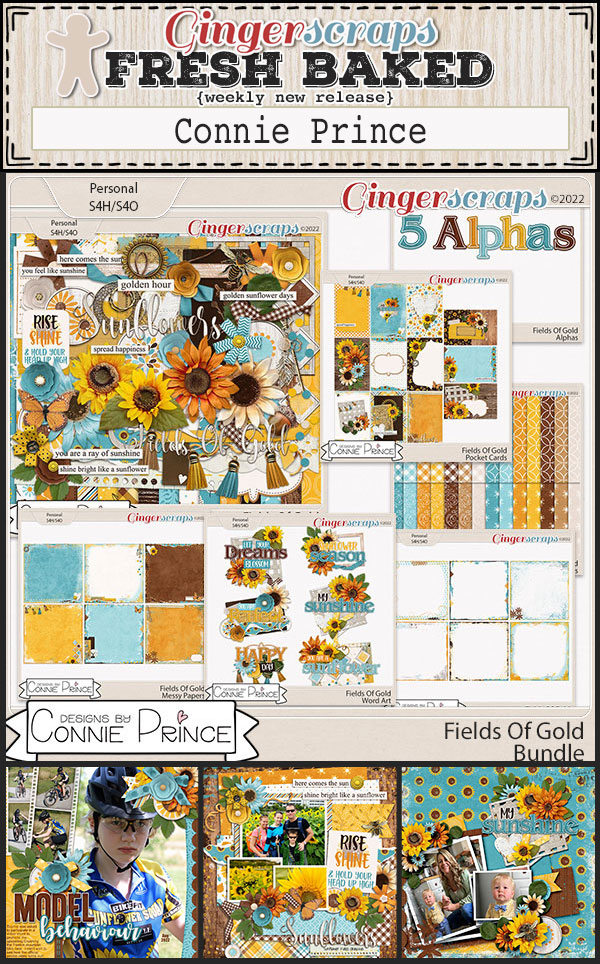
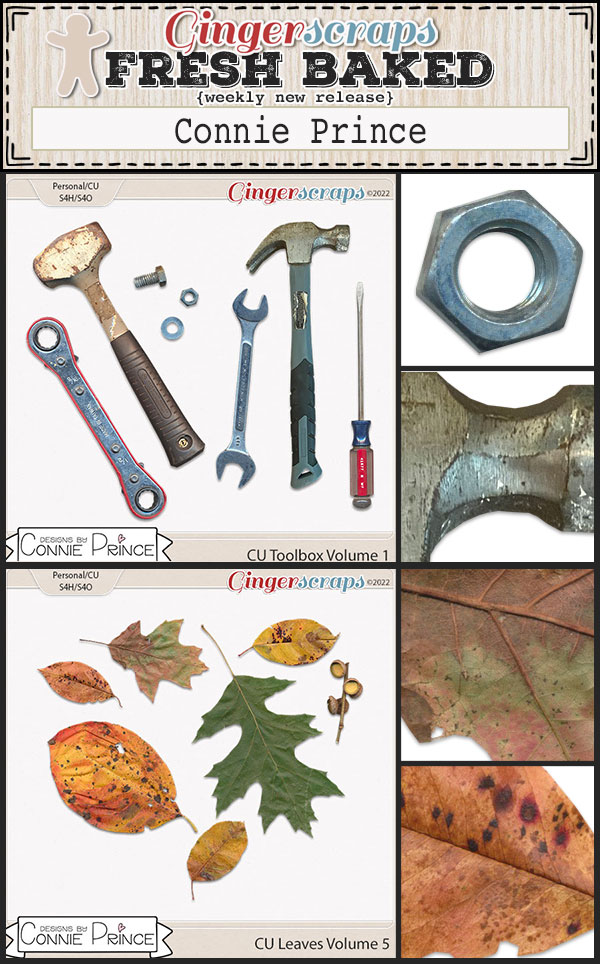
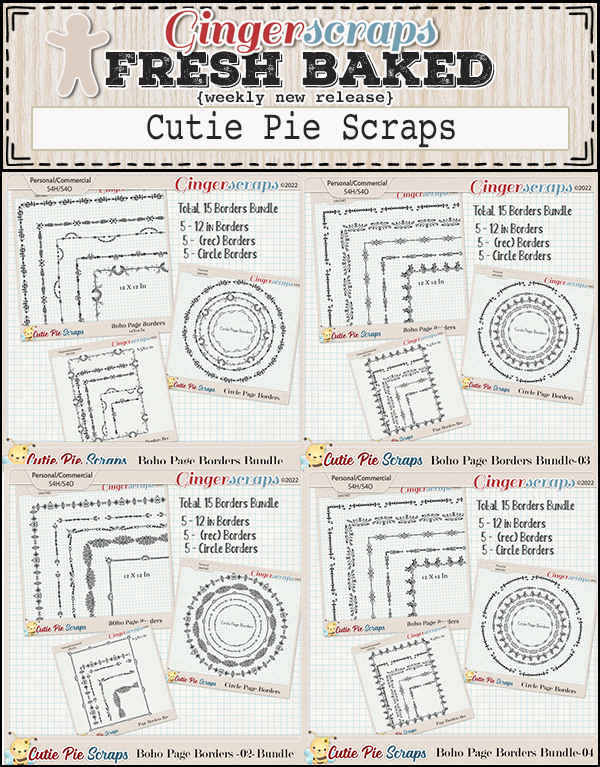
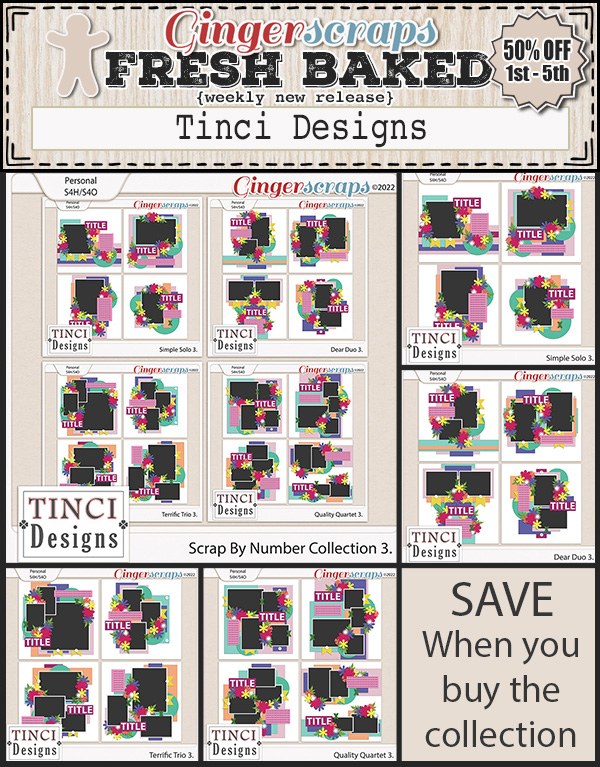
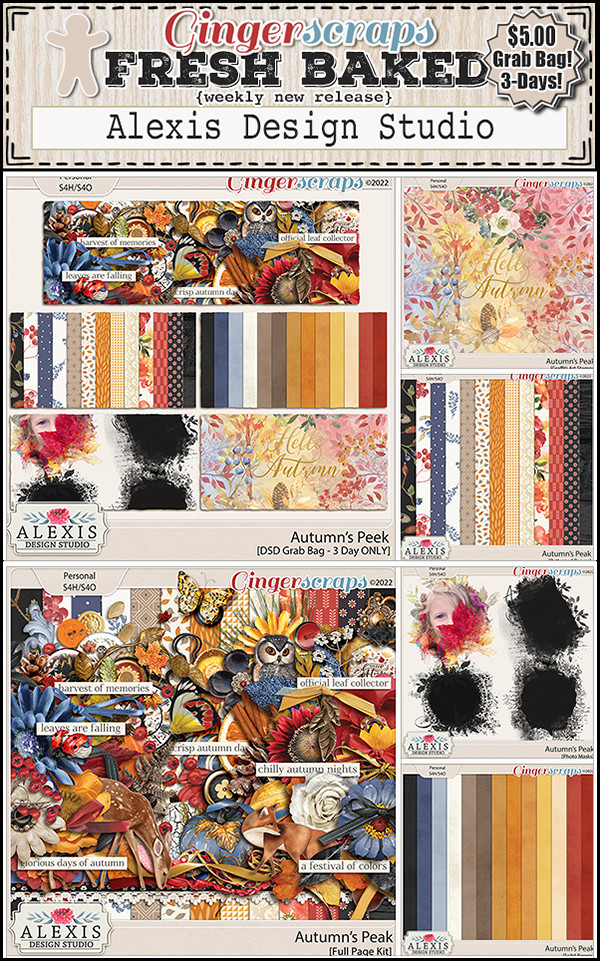
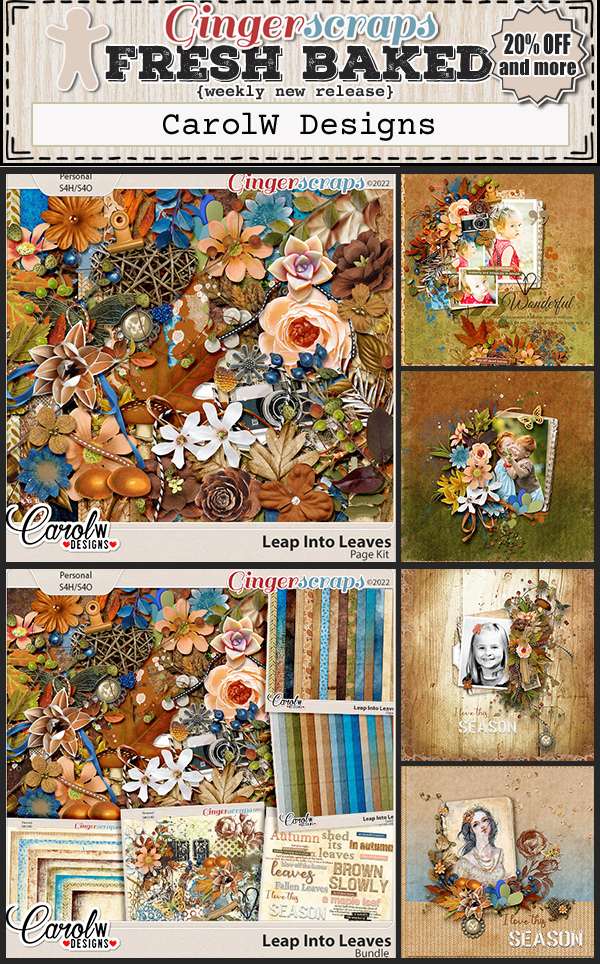
Let’s see some of the new goodies in the store this week.

I hope you are getting a start on your challenges. Complete any 10 challenges and get this great collab as a reward!

Make sure to open and check out next week’s newsletter. Rumor has it that a certain scrapbooking store is becoming a teenager!

GingerScraps: NEW Buffet, New FREE with Purchase Collab, NEW Designer & MUCH MORE!

Can you believe it’s September already? It’s my favorite month of the year. Fall is starting to show up everywhere (pumpkin spice anyone?) and my wedding anniversary is this month. 

Let’s start off with our Buffet Bundles. One easy click to add bundles of Buffet goodies to your cart.

I’m loving the fall vibe here, with just a little teal for summer that is hanging on still.

Remember any $10 spent in the store gets you this great collab. Did you know {you are lovely}? You are! 

This Free With Purchase was created by: Craft-tastrophic, Cutie Pie Scraps, Lindsay Jane, Memory Mosaic, and Polka Dot Chicks. It includes Alpha {Uppercase Only}, 83 Papers, and 127 Elements.

{pizza is life}. It sure feels like it some days. This Monthly Mix collab was created by: Connie Prince, Magical Scraps Galore, PrelestnayaP Design, Trixie Scraps, and Tinci Designs.

It includes: 3 Alphas {Uppercase, Lowercase, Numbers & Punctuation}, 54 Papers,  75 Elements, and 4 12×12 Template {page, png, psd, tif file formats}.

Now to the September Sneak Peek. This month’s Daily Download is from JB Studio and Neia Scraps ! Make sure you are checking the blog every day to get all the pieces of this kit!

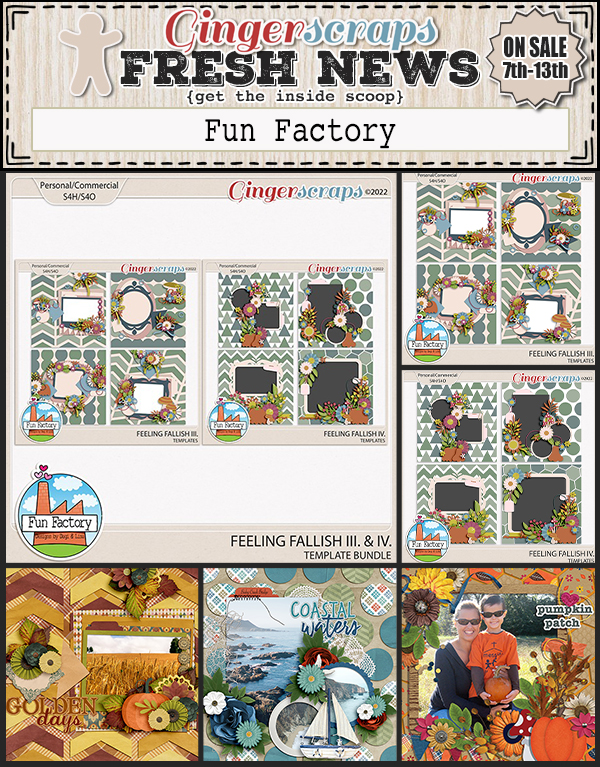
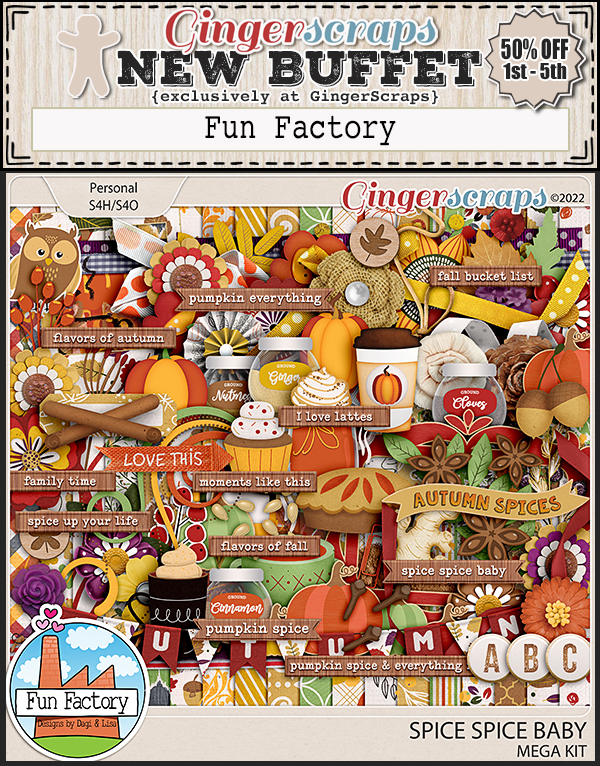
We have a new designer at the store starting in September. Although the name is new, the designers are a couple of your favorites. 

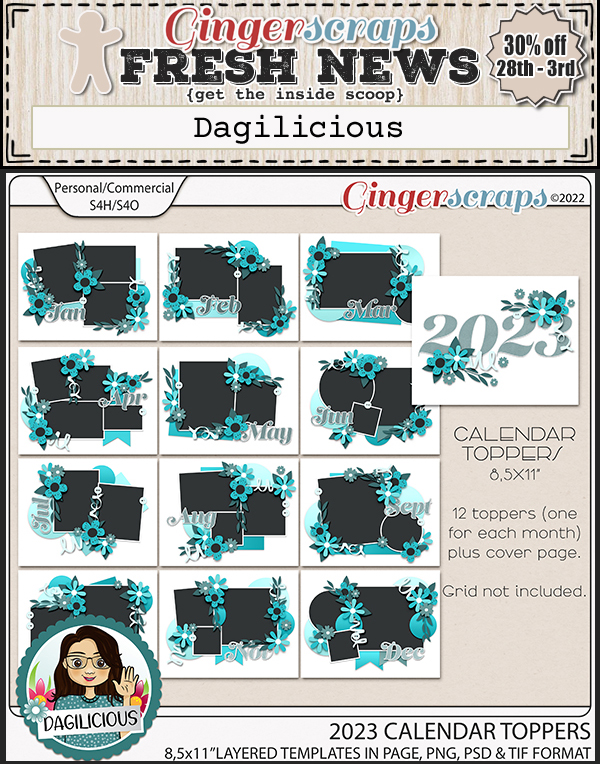
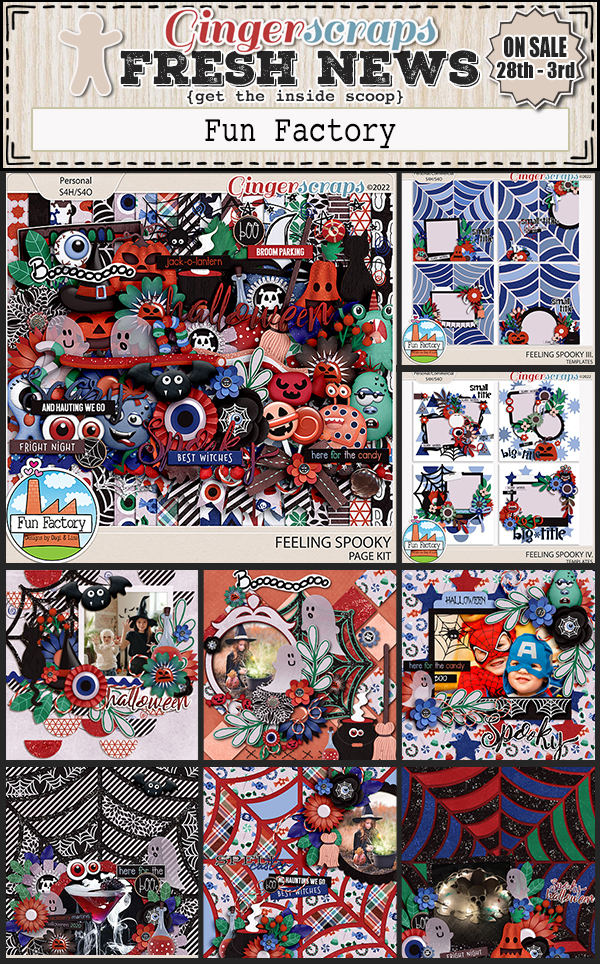
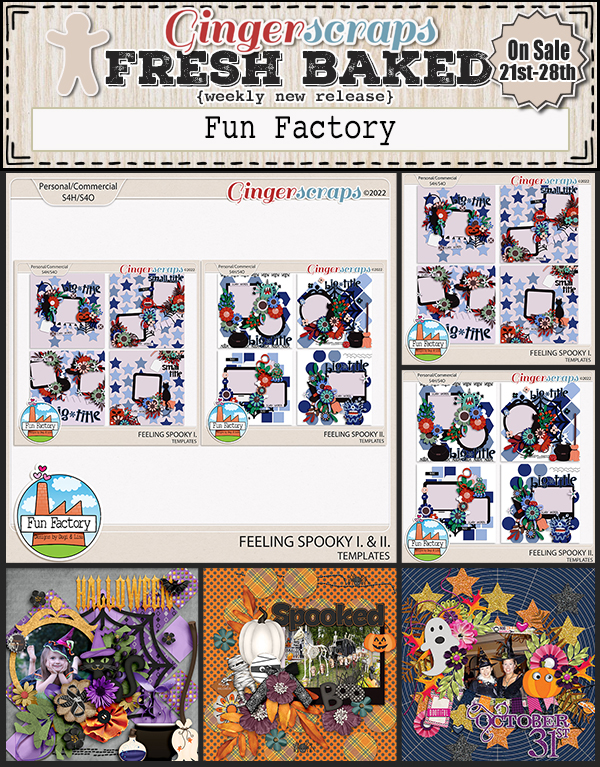
Fun Factory

Bio: We are Dagi and Lisa. Dagi is a 41 year old designer living in Czech Republic with her husband, two boys and lots of pets, and you already know her for her amazing work as Dagilicious. Lisa is a 44 year old designer living in Brazil with her cat, and has already been around designing adorable stuff as Lisa Rosa Designs. We live so far from each other, yet we became really close and after several collabs we thought we really click and that our designs go very well together. We decided to go on a new journey together and we are both very excited about it. Fun Factory is our whole new adventure and we can’t wait to see where it takes us…

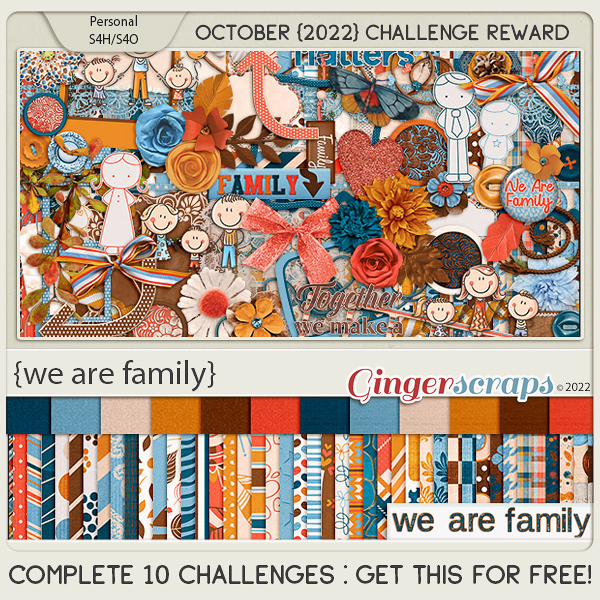
Take a look at the new challenge reward kit. If you complete any 10 challenges this month, you get this gorgeous collab as a reward! 

This collab was created by: ADB Designs, Alexis Design Studio, Karen Schulz, and Tami Miller Designs. It includes: 1 Alpha {Uppercase & Lowercase}, 51 Papers, and 81 Elements.


Tutorial Tuesday (Photoshop Elements)

Turning a Font into a Sticker: Reprise


PDF Version: https://bit.ly/3BgqBlm

Did you know that my very first Tutorial Tuesday Blog post appeared on August 30, 2016? Six years!! So I thought it might be fun to re-run that first post (with maybe some tiny updates) just to see how far we’ve come. Ready?

Aug 30 2016

GingerScrapper Heather requested some help with creating eye-catching titles, so this little lesson will focus on turning a font into an outstanding sticker. Over the next few weeks we’ll go into more detail on how to really jazz up your layouts, so stay tuned!

The very first step is to figure out what to call your layout. You want to choose something that works with the topic, but you don’t want it to be “Joey’s 8th Birthday”… where’s the excitement in that? Instead you could go with “Today He’s 8!” For the layout I created to help with this lesson, I looked up some surfing terms, looking for a hook. I came up with “Rippin’ the Foam”.

I like to build my titles on their own work space – there are fewer distractions and I can see clearly what I’m doing – so I always open a new file <CTRL/CMD+N>. (I use keyboard shortcuts, they really speed things up, but if you’re not comfortable with them, go ahead and do things as you usually do.) The size of the work space can be whatever you want, because you’ll be able to resize your title when you’re ready to use it.

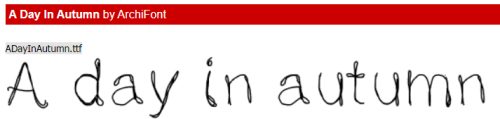
As you can see, I’ve already chosen the colour for my title. I decided to work with the two fonts selected by Jennifer of Leaving a Legacy Designs for the August challenge, since I hadn’t done it yet. Using Sacramento I typed out “Rippin’” but found it to be a little anemic for a title. To beef it up a bit, I simplified the text <right-click on the layer and select Simplify Layer from the drop-down menu> then I selected the text by <CTRL/CMD+click> on the thumbnail (the little image in the Layers Panel). Once I got those little ants marching around my text, I went to the SELECT tab menu and chose Modify>Expand and put the number 3 in the box.

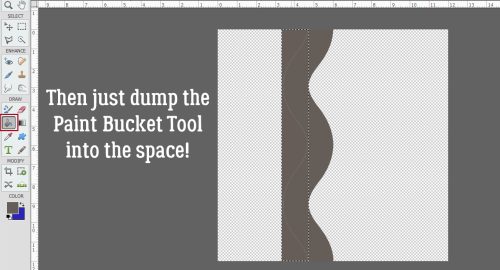
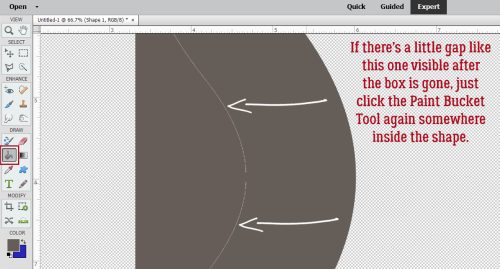
That pushed the line of ants out by 3 pixels, which was just enough. (Sometimes you have to play around to get it right, so don’t forget that CTRL/CMD+Z is your best friend.) Next I used the Fill Tool (the paint bucket) to fill in the space created in the last step. You’ll notice that there’s a very thin line inside the filled space so just keep moving the paint bucket around and clicking until all the space is filled in. Now I had a nice, fat word but it was a little umm… meh. So my next step was to change the foreground colour in my colour picker to a medium-dark gray.

In the EDIT tab menu, I chose Stroke (Outline) Selection

… set the value to 1 and chose Center.

2016-08-29 (9)

That puts a very thin gray line around the edge of the text. To continue on achieving the sticker look, I changed the colour of my foreground to white (ffffff) and I again selected the EDIT tab menu, only this time I put 6 as the value and selected Outside for the location.

And this is the result.

Now we’re cookin’! I changed the font to the other featured font for August, RNS Camelia and added the rest of my title in black. It needed a little nudging to get it where I wanted it – that’s part of the process. deciding what looks good. I chose not to include that part in the sticker because I wanted it to look like I’d written it on the layout.  At this point, I had two layers on my work space. With the Rippin’ layer selected, I added a Drop Shadow Layer Style and tweaked it so it was close to the sticker, sort of sharp and fairly dark. <Double-click on the fx icon on the layer in the layers palette, then use the sliders to adjust the size – sharpness of the edge, distance -width of the shadow and opacity – darkness of the shadow until it looks good to your eye.>

Once that was done, I merged the two layers together so I could move the title in one piece onto my layout. Now, knowing that I didn’t want my title to “float”, I selected the background paper layer of my layout to drop the title onto. It needed to be adjusted for size and placed where it looked best then ta-da! it was done! As you can see in the very first photo above, if I’d just used the font by itself, my title would have been lost against the patterned paper in the background. With a few simple steps, I made it so much better!

There you have one very basic method of adding interest to your titles. The tutorials to follow will build on this lesson and add a lot of cool techniques to your skill set. I hope you’ll continue to suggest topics for future lessons so you can grow your skills to match your imagination. (This part made me LOL. 273 tutorials and counting!!)

PDF Version: https://bit.ly/3BgqBlm

August 26 2022: Fresh Baked

Hello everyone!! We’ve made it through another week. I hope your week was fantastic and you have a great weekend!

Remember, if you spend $10 in the store, you get this great kit for free.

Let’s see what is new in the store this week.
Are you getting those challenges logged? Just a few more days to get them in. Any 10 completed challenges gets you this reward kit!

Tutorial Tuesday (Photoshop Elements)

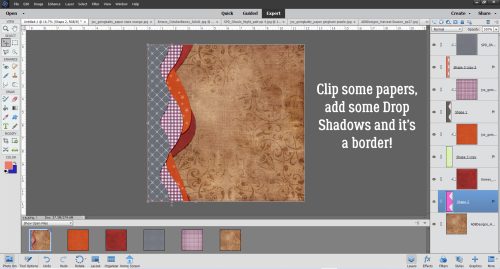
Quick Trick: Transform a Selection

PDF Version: https://bit.ly/3BgqBlm

August 2022 is one of those rare months with five Tuesdays. That means there’s still one more Tutorial Tuesday before we move into September. (I can hear the shrieking… yes, this year is flying by!) It still feels very much like summer here, with temps in the 80s or 90s and thunderstorms – which aren’t typical here even in high summer. Last night’s storm was intense! Hopefully there weren’t a bunch of new wildfires created. But enough chit-chat. Let’s look at today’s Quick Trick.

One of the most common reasons I have for Selecting something is for recolouring word art. I do it a lot and the method I like most, which gives the best results, is to add a Solid Color Fill Layer.

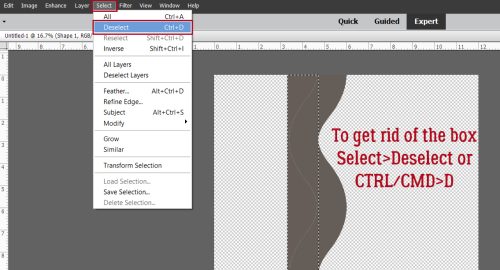
I can’t be the only one who has this issue – sometimes my mouse/trackpad just stops responding (or let’s be honest, my finger slips) while I’m using the Marquee Tool to Select something, causing the area I’ve Selected to be not what I wanted. And until I learned this trick it meant I’d Select>Deselect (CTRL/CMD>D) or Undo (CTRL/CMD>Z) and start over.

Then one day I learned it’s possible to make the bad Selection box into a good Selection box! (This has streamlined editing my screenshots dramatically.) Rather than abandon the too-small/too-big/just-not-right box, right-click somewhere on the canvas. This magical menu will appear. Click on Transform Selection.

Now the marching ants are a Bounding Box. When you Commit current operation, it morphs back into marching ants. Crazy! Now you can Cut/Paste, apply a Stroke, rotate or whatever you had planned to do when you chose the Marquee Tool.

But will it work with an Elliptical Selection?

Seems like that’s a YES!

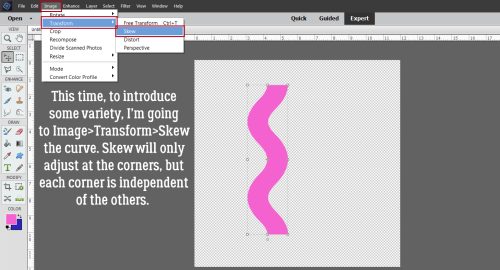
Here we see one of the limitations of Elliptical Selections when you’re playing with word art. If I make the ellipse big enough to get everything I want inside it, I also get stuff in there I don’t want. Because I can’t help myself, I tried Image>Transform>Skew. If it wasn’t going to be an option, those choices would have been grayed out. They weren’t! But the question still remained. Would the Skew only apply to the marching ants Selection?

Answer? Affirmative! But… the dots from the two “i”s in the line below are also being bitten.

I was so pleased, but shocked, to see that the Selection was still a Bounding Box and I could still tweak the contours of the ellipse. I tested the result by Cutting DOG out of the image to see if the whole word was inside and the dots on the two “i”s weren’t. It was perfect, but I didn’t think you’d need to see a screenshot of that.

Feeling quite accomplished now, I took it all one step further. Could this trick work with the old CTRL/CMD>click-inside-the-thumbnail-to-Select thing?

So I gave it a whirl.

Well, darn. Right-clicking only brought up options that would apply to the LAYER the tag is on, not the Selection. Is there another way? I clicked the Select tab and there it was! Transform Selection is right there!

The Selection turned into a Bounding Box and I could Resize it without a problem. Pro tip: If you want the original shape to remain centered in the Selection, don’t grab a Bounding Box handle and pull. Instead, change the size in the Tool Options dialog box.

You may never decide to use this trick, but I’ll tell you, I’m using it a LOT now that I know how it works. See you next week!

PDF Version: https://bit.ly/3BgqBlm

August 19, 2022: Fresh Baked and RETIRING PRODUCTS!

Happy Friday!!! We have a big sale starting today. It’s our Retiring Products Sale

Make sure you check out of the store before 11: 59 pm Eastern on August 25th. 

Remember, if you spend $10 in the store, you get this great kit for free.

Let’s see what is new in the store this week.
Just a little over halfway through the month. Are you getting those challenges done and posted? Any 10 completed challenges will get you this great collab.

Tutorial Tuesday (Individual Style)

Challenge Spotlight: PINTEREST CHALLENGE

The Pinterest Challenge is a new-to-you-in-’22 challenge, brought to us by Lisa Minor. I’ll confess, when I first read the premise for this challenge I wasn’t sure how it would work, although I LOVE Pinterest and have to actively discipline myself or I’d never get anything done. I digress. The August 2022 Pinterest Challenge Gallery shows us how well the challenge works – really well. It works really well. Let’s have a look. In no particular order… the scrappers’ names are linked to their layouts in the Gallery, in case you’re inclined to leave them a comment.

The basic premise is that Lisa provides a pin (or several) she’s saved to one of her Pinterest boards as inspiration, with a brief description of what she’d like to see contained in the layouts participants create. For August 2022, she provided this image, followed by: “This pin says to me “beach, seaside, vacation time, travel, elegant, relax and make memories”. So what does it say to you? Scrap it!” 

First out of the box is this layout by garrynkim. Can you see which aspects of the pin were chosen? Of course you can… the mood, the water and the colour palette are right there.

This layout from bkasko also features water, and the theme of rest and relaxation. I really like how her photos all have the waterfall in them, and how she’s masked her large group photo.

Oh look! B2N2Scraps has water photos too! I sense a trend. She’s also incorporated the colour palette from Lisa‘s photo. I just love the water droplets in the background here.

More water! These underwater photos are amazing!! The tropical sea elements robinoes66 has clustered around her photos mesh really well with the topic of the photos and she’s also pulled colour from Lisa‘s image. Strong work!

I’m starting to think water is an integral part of vacation… if I only had these layouts to define the word, that would be the most obvious aspect, amirite? I’ve gotta say kristal, that’s one HUGE pond! The colours from Lisa‘s image are there too.

Water sets the scene for basketladyaudrey too. She was inspired by the making memories part of Lisa‘s impressions. That woodgrain paper reminds me of a dock, and she’s pulled colour from her photos into her choice of papers and elements.

Even mary-lynne has included water in her layout, but more as a backdrop to their leisurely breakfast. Her colour choices echo her photo beautifully and she’s masked her large photo perfectly.

pjm117 took her inspiration from both the watery view and to a lesser extent, the colour palette. I love the quotes she’s used for her word strips… as I wiggle my bare toes.

Ah! A layout that was inspired by the food in the image… both are focused on breakfast. route66 kept it simple, with the breakfast photos taking the spotlight.

KarenDiamond really understood the assignment! Beach, vacation, relax, memories… they’re all in there – without literal water – and the kit she used screams summer and heat.

The summery colour palette of grannyNKy‘s layout, and  yes… water, meet the criteria for the challenge too. They look like they really had a great time on the lake.

Last, but not least, this layout from DianeInOz went all the way down the vacation-making-memories path. The incorporation of a lot of photos tells a story of a busy, fun-filled day and the few elements she used to embellish them kept the overall impact from being overwhelming. Truly a case of less-is-more!

What would your layout look like if you took up this challenge? I’m not a beach person, but I do enjoy breakfast overlooking a scenic view.

August 12, 2022: Fresh Baked

Welcome to Friday. Has school started in your area? I know a lot of places started this week. Where I am, we don’t start until end of August. Both of my kids have been out of school for several years so I don’t keep up with it all. 

Remember, if you spend $10 in the store, you get this great kit for free.

Let’s see what is new in the store this week.
How are those challenges going? We have a lot to choose from and you only need to complete 10 to get this great reward.
Tutorial Tuesday (Photoshop Elements)

Going Creative with the Stitch Technique

PDF Version : https://bit.ly/3zUIB2y

Today I’m going to build on the stitch tutorial from a few weeks ago. I have three more ways to add stitching to your layouts that go beyond vanilla. I’ve played around quite a bit to be sure the instructions are accurate, and you’ll be surprised how easy these new options are. Let’s start out by making sure we have room to work. I opened up a new 12×12 workspace and dropped a paper on it so the stitches – I’ll use white – will be easy to see.
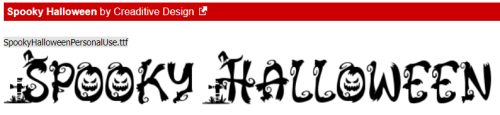
Again we’ll use the Text Tool because it has so many options. I’m using Elements 2021; if your version is much older you may not have all of these Tool Options. The option we’re starting with is Text on Shape and we’ll be using the Ellipse to create a circle. My screenshot font is Lumberjack Regular and I’ve used it for two of my samples today. If you have a font with a dash symbol that has a rounded look to it, it’ll work beautifully. Set the font size to at least 40 points.

Drag out a circle on your paper. You can make it as big as you want. It can always be resized later to fit your layout. This outline will tell Elements where to put the dashes and how to position them.

Move your mouse until you see the Text Tool cursor. It’ll become visible when you intersect with the edge of the circle and it looks like a swoosh with an I-beam crossing it. Click to set it in play then using the dash and the space bar, type out a long string of stitches. They will move and bend to the shape you’ve created; the dash sits above the baseline, but that won’t really matter.

Here you can see what I mean. You can stop when you’ve only gone part way around if you like, or keep going to enclose the circle.

Your spaces may or may not uniformly proceed around your circle when you reach the finish line. If this is a concern for you there are a couple of options – start over, adjusting the size of the circle or the font until it’s perfect, or you can accept it and just cover it with a flower or a brad on your layout. If you resize the stitched circle to a smaller version, it’ll be less noticeable.

Now to give the stitches some dimension. By using a Bevel Style, you won’t have to add a shadow later! Click the Styles button at the bottom right of the Layers Panel, choose Bevels from the dropdown menu and then choose Simple Emboss.

These are the default settings for Simple Emboss. You may find them to be too strong. Styles can be adjusted by double-clicking on the fx icon on the layer.

You can see how just shifting the Size slider to the left makes each stitch a bit flatter.

You could stop at this step and have some very nice stitches. But if you’re interested in a bit more realism, that’s pretty easy. First Simplify the text layer by right-clicking on the layer then choosing Simplify Layer.

To make the stitches look a bit more like they’re made of thread and not paint, we can apply a Filter. It needs to go on its own layer though, so click on the sheet-of-paper icon at the top left of the Layers Panel. Then click Filter>Render>Fibers…

Make sure your foreground colour on the Color Picker is set to a light gray – the filter will be whatever colour you have in the foreground, and red isn’t pleasing! The Filter Options look like this. For the most thready look possible, push those sliders all the way to the right and click Randomize.

This is what is supposed to happen! Don’t worry. It’ll be fine!! Right-click on that Filter Layer and choose Create Clipping Mask from the menu.

Then all that’s left is to adjust the Opacity so that you have the thread effect but not so strongly that it’s distracting.

To be sure the stitches and the thready filter stay together, click>SHIFT>click on the layers then right-click and choose Merge Layers. Or use the keyboard shortcut CTRL/CMD>E.

If you look closely now that I’ve shrunk my circle, you might be able to see the slightly bigger gap between my first and last stitches. Maybe.

Okay, now let’s try something a bit more out there. This time, I chose Text on Path from the Text Tool Options. See the Draw icon? It turns the cursor into a pen, a fountain pen… and you’re only limited by your wrist’s flexibility and the size of your mousepad!

I clicked on my paper to tell the cursor to get to work, then drew a simple swirl. It looks pretty smooth, so I don’t need to Modify it. But if I did, the Modify icon will give me the necessary tools.

To get the stitches to conform to the swirl and extend from one end of the line to the other, I discovered I needed to click my cursor as close to the center of the line as possible.

This time I went ahead and Simplified before adding the Bevel.

You may not have ever explored the More button down there at the bottom of the Layers Panel. I just happen to know there’s a Simple Emboss under the Favorites tab.

This time I changed the Lighting Angle as well as the Size. Always make sure your Lighting Angle matches your shadows; there might be a visible incongruence that will bother you otherwise.

On to the thready Filter… but only if you want to!

This time I left the Filter a little darker.

The last sample looks like it’s the most complicated, but it’s not. Let’s use the Custom Shape Tool and drag out a nice 5 pointed star. Don’t forget to Simplify, because you won’t be able to manipulate it otherwise.

Next, I chose Text on Selection. I made sure it was set to Add – meaning wherever the cursor was dragged would be part of the Selection. It doesn’t have to be precise, just click inside the shape and drag the cursor to the edges. The marching ants will snap to the edges automatically.

Once you’ve got the edges Selected, Commit the Action.

Choose a logical starting point, like the inner angle of one of the points. Click to activate the Type Tool and start typing. I switched the font to Impact Regular and used the period instead of the dash. As I typed, the stitches moved along both sides of the star until they met at the top.

Don’t forget to Simplify the text layer!

I tried all the Bevel Styles to see which one worked best with the period-style stitches. It turned out to be Simple Scallop.

If you squint, these look almost like cross stitch!

PDF Version : https://bit.ly/3zUIB2y


I hope you’ll give one or more of these a try. If there’s something you’d like me to build a tutorial for, you can leave me a comment here on the Blog, or send me a Private Message through the Forum – user name is ObiJanKenobi. Next Tuesday I’ll be doing a Challenge Spotlight. Stay tuned!