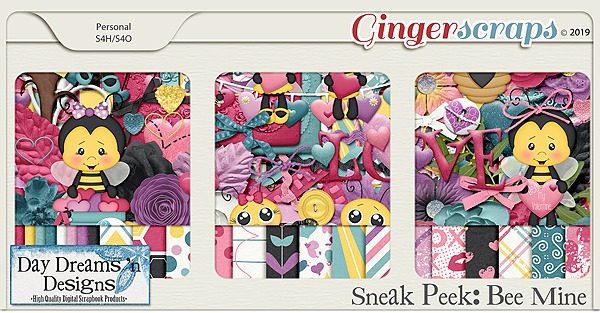
~~November Bake Sale!!~~

Good morning. Today is the start of the November Bake Sale. November!!! This month is flying by. Looks like our designers have thrown in a lot of Fall and Thankful kits into the Bake Sale this month. All kits and template packs are only $1.00 each through November 2oth. I know I see several things I need to grab for my stash.

Head over to the store and grab these before the Bake Sale ends!!

Tutorial Tuesday (Photoshop Elements)

Cuttin’ It Out – Old-School

Since I’m essentially house-bound while my husband recovers from his knee injury, I’ve started a decluttering project – something my daughter would say is LONG past due. (She calls me Queen of the Hoarders, which may be a slight exaggeration. Slight…) I’ll never be a minimalist, but a girl’s gotta start somewhere right? So as I was flipping through some back issues of Canadian Scrapbooker (to see why they hadn’t already been recycled), I found some paper layouts that I thought could make interesting digital techniques. The paper scrapper (Erin Morehouse of Beaconsfield, Québec) who created the layout shown below used a Silhouette Cameo to die-cut the letters from her background paper. I’m going to show you how I scraplifted her layout digitally; it’s my Designer Spotlight challenge layout for November, using pieces-parts of several kits from JoCee Designs.

First I had to find a photo and a quote that would work together. Then I collected up my supplies.

Once I had the bare bones in place, I added in the alphas I wanted to use. They form a message all by themselves, don’t they?

Then I went on to choose a serif font with enough presence to work for the die-cut technique. It was a lovely surprise to see I could use a system font, one that’s accessible to everybody. Courier New Bold is perfect for this.

I had an idea how the text should look, so I typed it out as you see it below. I went BIG.

But it was a little too sprawly for me, took up too much space on my layout. So I adjusted it by squishing it a bit – still the same height, but not as wide.

That was much better. Before I went on to the next step, I Simplified the text. Otherwise I ran the risk of messing it up when I used the Type tool again. And I needed to be able to beef the letters up a bit.

The easiest way to make these letters more stocky is to apply a Stroke to them.

Colour isn’t a factor for this part, because the text is only temporary. So use whatever colour you want. The stroke needed to be big enough to give me the effect I was looking for, but not so big it blunted the text. And it had to be centered on the edges of the letters so it would follow the letters’ contours exactly AND be connected to the text.

My text now has good bulk, without obliterating the open areas in each letter.

I went on to add in the rest of the quote. I used the same tweaks on these text layers for conformity. See the difference between the free-standing letter ‘a’ and the ‘a’s in “balancing”?

After I had my text positioned where I wanted it, I Merged the  text layers so I could continue to play with the text as a single object.

Next I moved the text layer underneath the background paper layer. (This step isn’t necessary, I did it to show you how the process will work from this point.) I Selected the text by CTRL/CMD>clicking on the layer thumbnail in the Layers panel. See the marching ants? Then I Edit>Cut (CTRL/CMD>X) the paper away where it overlies the text.

The text layer is visible again.

If I turn off the layer’s visibility, the gingham paper behind it shows through. (Unreadable as it is…)

So I no longer needed the text layer, and could just Delete it.

I had a number of patterned papers in my layout folder so I started adding pieces of them behind my words. Some needed to be resized to work correctly.

But to see the full effect, I opted to add a Drop Shadow to the woodgrain paper layer. No fancy footwork here, just a simple, Hard default shadow. I made some little adjustments to the shadow by double-clicking on the fx icon to the right of the layer in the Layers panel.

Now, when I added in my patterned papers, I could see the shadow and gauge the way it all looked together.

I only want this blue paper behind “Step”, so I used the Rectangular Marquee tool to select an area of the paper that would completely fill the word. Then I Inverted the selection to cut away the excess paper. Select>Inverse or CTRL/CMD>Shift>I

then Edit>Cut or CTRL/CMD>X.

There we go!

I did the same steps for each word, although I worked randomly, until I had all the words backed with patterned paper.

Then I took another look at the original layout and realized I hadn’t removed the little bits from the open letters that would be impossible to work with using paper and a die-cutter.

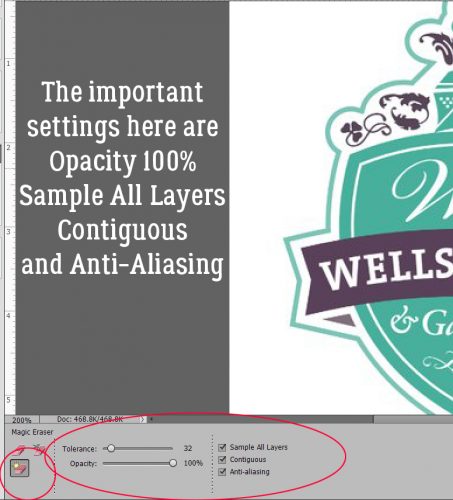
So I erased all those little areas.

Then all that was left was to adjust the drop shadow again. Pretty cool!

Now, if you were expecting to see my finished layout here, I’m sorry to disappoint you… My laptop froze just as I finished up my screenshots and I had to do a hard reboot. (There seems to be some sort of instability with PSE 15 and Windows 10 because this freeze happens unpredictably, but frequently, when I have PSE open.) I have to start my layout over from scratch, but I have these screenshots to help me out. Then I can get back to purging…………

Sneak Peeks November 8th 2018

Happy Thursday! There’s a ton of goodies releasing tomorrow! Our designers are definitely getting into the holiday spirit!

From JB Studio

From Tinci

From Miss Fish

From JoCee Designs

From LDrag Designs

From Aimee Harrison

From Ponytails

From Neia Scraps

Tutorial Tuesday (Photoshop Elements)

Shaving Shadows

As you’ve already figured out if you read my tutorials regularly, I’m a bit of a perfectionist. I like things to look a certain way, and will try whatever it takes to get the effect I want. Shadows are something I don’t like to compromise on, and I often create custom shadow layers for my layouts. But I’m also a bit of a procrastinator and leave things until the 11th hour… and then I run with drop shadow styles, either ones I’ve loaded into my Styles menu or the ones the designer has added to the template I’m using. These Styles are limited in what can be tweaked, and when I’m building a cluster, sometimes the shadows just look wrong because the style isn’t more adjustable. In that case, if I’m in a real hurry, I look the other way, but I’m not happy about it. So when I discovered a Work Smart Not Hard method of customizing drop shadow styles,  I was all over it! I was absolutely giddy!! It IS possible to erase JUST THE SHADOWS quickly and easily, to give that realism to my clusters!

There are a number of designers who have collections of drop shadow styles for sale. They make short work of shadowing a variety of elements with a single click. But they have limitations in the adjustments you can make to them. At least that’s what I always thought…

The image below shows the software’s adjustment menu for Styles. You can open this menu by double-clicking on the Style icon (the little fx icon on the right hand side of the layer in the Layers Panel). Whatever settings you choose, Elements applies across the board.

Now, if I try to erase any part of the shadow on this layer, I run the risk of erasing the flower too. But with the shadow style left intact as a style, when I erase part of the shadow, I also erase the part of the flower that casts the shadow. And it looks very odd.

If I Simplify the layer (as I remind you constantly to do with your special effects), Erasing will erase everything equally; who has time for zooming in, using a tiny Erase brush and going pixel by pixel to erase just the shadow? I don’t.

See what I mean?

Here’s where the fun starts. If I Select the flower by CTRL/CMD>clicking on the image thumbnail in the Layers Panel

and THEN Simplify…

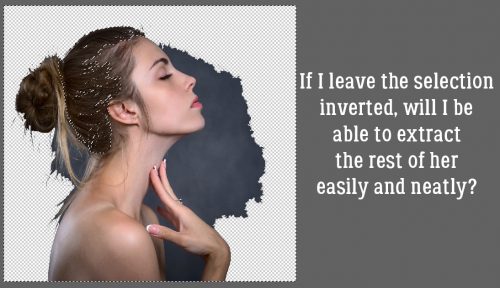
I can Invert the selection at any point either before or after Simplifying and it works just the same. To Invert, click on Select>Inverse or CTRL/CMD>Shift>I which moves the marching ants from the edges of the image to the edge of the document and Selects everrything in between – the shadow.

Now I can Erase just the shadow!! At this step I can use the Eraser brush at 100% opacity to completely remove the shadow, or I can decrease the brush Opacity to whatever I want to just to lighten the shadow in that area. Or I can partially erase, partially lighten. It’s a bonanza of options!

You may never have a reason to use this trick, but I’m glad I shared it with you.

Sneak Peeks November 1st 2018

Just when you thought there were no more new releases for the week due to the new Buffet, we have a few sneak peeks for you!

From Heather Z

From Lindsay Jane

From LDrag Designs

From Aimee Harrison

Have a great weekend!

Tutorial Tuesday (Photoshop Elements)

One Hand in my Pocket… and the other one’s holding a Journal Card!

(with apologies to Alanis Morrisette)

After my last tutorial on pocket scrapping, I thought about what my next topic should be, but I didn’t think about it too hard, since my mind was pretty busy scheming and dreaming on other things, being on ‘vacation’ and all. So it wasn’t until yesterday that this notion popped into my brain. What a segué! Have you ever REALLY wanted to use a template that includes a journal card, but the kit you’re also dying to use doesn’t have them? I have lots of kits I truly love, and quite a few templates with spaces for journal cards, but the two don’t always work together. BUT! I can make my own journal cards… and so can you!

I’ve made this little clipping mask for you to make it super-simple. Click *here” for the download. It’s got nice rounded corners and you can resize it to whatever will work best for your layout.

I selected a few papers and elements from the GingerBread LadiesAll Things Hallowe’en (it has a couple of journal cards, but I wanted to make my own.) Then I started layering on my choices.

I’m not going to show you all the options for borders; I’ve discussed them all in other tutorials, and they’re pretty basic.

The WSNH (Work Smart, Not Hard) shortcut for turning on and off the Grid: CTRL/CMD>’

So now I have 3 papers clipped to my card shape.

Don’t be afraid to experiment with different Blending Modes and Filters. It’s your card and you can do whatever you like.

I added in a moon using a brush from Brusheezy. If you’re interested, the set of 20 is found *here*.

The witch is seriously spooky! Because journal cards are only 2-dimensional, shadows aren’t necessary, but feel free to add them if you want. Just take care not to make them too obvious.

Bevels are great tools for adding dimension. I used a small one on the spiderweb just to make it a bit more visible.

My finished card looks pretty neat, don’t you think? Now to save it so I can use it again later.

I saved my card into the folder where the kit lives so it would be easy to find again. I gave it a simple name and saved it as a .png file so the rounded corners would stay rounded when I want to use the card.

Saving it as a .png using the Smallest/Slowest Compression preserves detail the most, but it also results in a larger file. It’s not necessary to Interlace your image.

What do you think? Will you make your own journal cards? It’s a lot of fun…

Sneak Peeks October 25th 2018

Happy Thursday! It’s the last Thursday of October! The month has really flown by! Our designers have more goodies releasing tomorrow! Let’s take a look!

From Tinci

From LDrag Designs

From Craft-tastrophic

From JoCee

From Miss Fish

From JB Studio

From Luv Ewe

From Ponytails

From Aimee Harrison

Have a great weekend!

Sneak Peeks October 18th 2018

Happy Thursday!! I hope you are ready for the weekend! If you have time to scrap, check out what our designers are releasing tomorrow! It’s sure to get those creative ideas flowing!

From Day Dreams N Designs

From JB  Studio

From Heather Z

From Aimee Harrison

From Tinci

From Lindsay Jane

From Ponytails

From Miss Fish

From LDrag Designs

From JoCee Designs

From Shepherd Studio

From Clever Monkey Graphics

Tutorial Tuesday (Digital Scrapbooking)

8 ball, Corner Pocket!

Last week when I was struggling to find a topic to write about, I asked the GingerScraps Ad Team members for some ideas. Teresa suggested I do something about pocket scrapping. I have to tell you, I was floored. Pocket scrapping isn’t my thing and it’s really not my comfort zone either. I know it was a big part of the digi world several years ago, and I flirted with Project 52 (there’s NO WAY I could commit to Project 365 and I admit it!) but I wasn’t all that successful. So I had some learning to do before I could present myself as an expert. Ha! The EXPERT is Becky Higgins, the developer of Project Life. She has an app for that in addition to a whole paper line for pocket scrapping.

What IS pocket scrapping? Basically, it’s a clean-and-simple style of layout based mainly on a grid. It’s ideal for documenting the memorable (and the ordinary) events of our lives. Each section of the grid or block can hold a photo, a pocket/journal card, art work or a cluster of embellishments.

Why is it called pocket scrapping? It has its roots in paper scrapping, and it makes use of vinyl pockets of mainly two standard sizes, 2″x3″ and 4″x6″. Digital pocket scrapping follows the same format, and it lends itself very well to hybrid scrapping. You can create your page, print it and then attach buttons, ribbons, lace and pockets holding ephemera to the page.

Most of the designers on the GingerBread Ladies team here create kits and templates that work beautifully for pocket scrapping. In fact there are pages and pages of kits tagged for this style of memory keeping. And it’s easy to find them, too! I thought about giving you a list of designers whose products are amazing for pocket pages, but it would be a lot faster just to show you how to see them for yourself.

I’d love to show you some examples I found in the Gallery. This one is from trina513. I like that she’s used her Instagram photos.

minicooper452 created this one. The photos tell a story, and the journaling preserves the excitement of the day.

This one by emscraps is obviously a Project 52 layout. Em has managed to maintain her P52 for years now!

Belis2mi has documented a special day for her children with this layout.

I really like the feel this layout from amyjcaz has, with the photos of how she spent her day at the beach.

Because I live in cowboy country, this one by psychozoe caught my eye right away.

And then there’s this one from firstoscartgrouch that’s so whimsical and fun.

After looking at all these examples of pocket scrapping and seeing the individual stamps of each scrapper on her layout, I decided to give it a shot! It’s pretty amateurish, but maybe if I do a few more…

Next week there will not be a tutorial. We’re going to visit my parents and then our daughter in her new home in the mountains for a few days and I just won’t be able to squeeze in a blog post. I’ll be doing all the driving so I’ll be seeking a horizontal surface!

Sneak Peeks October 11th, 2018

Happy Thursday! I hope everyone had a fun DSD! Even though our designers had loads of new releases last week, they have quite a few goodies releasing tomorrow! Let’s check out a few layouts!

From CathyK

From Aimee Harrison

From LDrag Designs

From Miss Fish

Check back tomorrow to see all the new releases! Have a great weekend!